
A WordPress user directory is the simplest way to help people find who they’re looking for.
From staff to membership directories, they’re useful in a variety of situations. But how can you easily create one without knowing how to code?
And that’s where the best WordPress user directory plugin comes in: Business Directory Plugin.
It makes it simple to create your own WordPress user directory in a matter of minutes. So, we’ll cover some of the things you need to know to start, then we’ll show you exactly how to create a dynamic user directory with our step-by-step tutorial.
Let’s begin!
What to expect from a WordPress user directory plugin
WordPress doesn’t come with a directory system out of the box.
This is why you need a WordPress directory plugin. And all it takes is two tools to start your WordPress user directory:
- A live WordPress site
- Business Directory WordPress plugin
You can use your existing WordPress site (e.g., your organization’s website) or a new one.
Getting a new WordPress website is easy. Just contact a WordPress hosting provider and you’ll receive all the necessary details.
Business Directory Plugin is the best directory plugin for WordPress.
It helps you create any type of directory in the shortest amount of time so you can focus on more important tasks. Whether it’s a member directory page or a searchable directory for a list of business directories, Business Directory makes it easy for anyone with its user-friendly interface.
You can use the free plugin from WordPress.org or the premium version.
It’s possible to use the free version to build a basic user directory site. But if you want more advanced features like unlimited listings or extra layout types, then it’s best to go with one of Business Directory’s paid plans.
Plus, Business Directory has Google Maps and advanced filtering options only available in the premium plans. So we’ll use Business Directory Plugin premium in this tutorial.
How to create a people directory in WordPress
It’s only a few simple steps to make your WordPress user directory:
Step 1: Get Business Directory
First, we must install the free version and then the premium version.
You can download the free version by going to Plugins → Add New. Then search for Business Directory and click Install, then Activate.
Next, head to the pricing page and grab a Business Directory premium plan if you want the extras in this tutorial. Then, in your account, go to Downloads and click the Download Business Directory Premium button.

Also, copy your license key while you’re in your account. You’ll need this in a second.
Next, go to your WordPress dashboard and go to Plugins → Add New again and upload the zip file for Business Directory premium. Then install and activate it.
Then, there’s only one more step: getting your license key entered.
So go to Directory and you’ll see a notification for your license key:

Click Review license keys and you can enter the key you copied earlier. You’re now set to go!
Step 2: Create user directory pages
For a user directory site, we need to create multiple directory pages. These are standard WordPress pages with Business Directory Plugin shortcodes:
First is the user directory front page.
Right after you activate Business Directory Plugin, you’ll see a dashboard notification about how creating the required pages is included in the directory. Click the Create required pages for me button, and the directory home page will be created.
You can find it from WordPress Dashboard → Pages. By default, its name is “Business Directory”. We’ve changed that to “User Directory”.

This page will be the front archive page of the directory. You can also set it as the home page of your site if you want.
Next is the list submission page.
This page is on the WordPress frontend and is used internally to add user listings to the site.
To create the list submission page, first, go to WordPress Dashboard → Pages → Add New.
Give your page a title. We used “Add new user”. Then, put the [businessdirectory-submit-listing] shortcode into the new WordPress page.

Publish the page, and your form is ready to go!
Step 3: Set up the WordPress user directory system
Now let’s customize some of its default settings. We’re going to do the following.
- Hide the list submission button from the front page.
- Decide who can create people listing entries.
- Adjust the listing expiration time.
Turning off the Submit Listing button: Usually, a user directory doesn’t accept listing submissions from the public. The site’s internal team adds the listing entries.
By default, Business Directory Plugin displays a Submit Listing button on the directory front page. But we don’t need this button for this tutorial. So let’s go to Directory → Settings → Listings → Buttons.

Uncheck the Submit listing button option from there.
Decide who can create listings: We want to ensure that only our registered internal users can add user listings to the directory. So, go to Directory → Settings → General → Registration.

Enable Require login to post listings. Then disallow users to create accounts during listing submission. Don’t forget to save the settings.
Step 4: Add listing categories
We can categorize the listed people to make the list more organized. For example, we can categorize an organization’s staff by their departments.
To create these categories, go to Directory → Categories.

You can add and manage them from the same place.
Step 5: Edit the directory form fields
You’ll get some readymade form fields inside the list plugin. These can be edited to match your needs. You can also add custom fields if you want.
Go to Directory → Form Fields. Edit the form field titles and options there.

We’ll need the following fields for this tutorial which can act like a profile builder.
- Name
- Designation
- Bio
- Address
- Phone number
- Email address
Want more detail about editing form fields? Please see our form fields guide.
Step 6: Add user listings
After getting our categories and form fields ready, we can now create listing items. We’ll use our front-end list submission page for this. Here’s a screenshot of our list submission page.

We just need to add the user profile data to this form and follow the on-screen instructions. It’s easy and quick.
Step 7: Improving the design of your WordPress user directory
To present the directory professionally, we’ll use a premium Business Directory Plugin template. For this tutorial, we’ll use the Elegant Business theme.
We’ve taken a screenshot of the listing archive to show you. Check it out!

The single listing detail view looks like the one below.

And that’s it! Our people directory is now ready.
If you want, you can use Google Analytics to see the traffic stats, including the profile page visits. This can give you a view of who is the most popular in your community! Fun, right?
Learn More: How to Create a WordPress Contact Directory
Ready to make your WordPress user directory?
Business Directory Plugin has many features that you can explore and use on your user directory site.
And we hope this tutorial has helped you get started with your employee or membership site! Please share your thoughts via comments!
Ready to launch a WordPress people directory? Get Business Directory Plugin now and build the people listings site today!
The post How to Create a WordPress User Directory [An Easy Guide] first appeared on Business Directory Plugin.]]>
In search of the best WordPress deals this Black Friday and Cyber Monday?
You’ve come to the right place then! We always want to help save you money here at Business Directory Plugin! And Black Friday is no different.
So, without wasting any time, let’s dive into them!
Full disclosure: Some of the links in this WordPress Black Friday sale roundup are affiliate links. That means we might earn a commission if you decide to buy.
Best WordPress Black Friday and Cyber Monday deals
So you can get the full benefit for your WordPress site, we’ve compiled a COMPLETE list of WordPress products (plugins, themes, web hosting, and more!).
Here are a few types of products you’ll find here:
- WordPress plugins
- WordPress themes
- WordPress hosting
- WordPress SEO plugins
We will show any discount codes and coupon codes with their listings.
Keep in mind, this list is a work in progress and will update as deals go live. So make sure to bookmark it and return for the latest deals!

Business Directory Plugin
A simple directory plugin WordPress users can rely on. Business Directory Plugin is the WordPress directory listing plugin of choice for thousands of users. Create any kind of directory on your WordPress site, easily – not just business directories! Local, staff, restaurant, hotel, medical… any directory listing site you can imagine.
Black Friday Deal: Ended

Formidable Forms
Formidable Forms is the only WordPress forms plugin designed for turning form data into web applications. Create polls, surveys, calculators, contact forms, directories, job boards, and anything else you can come up with.
Black Friday Deal: Ended

WP Tasty
WP Tasty is the go-to suite of WordPress plugins built for food bloggers who want to grow faster and earn more. Optimize your recipes, links, and images with powerful tools that boost SEO, engagement, and affiliate revenue.
Black Friday Deal: Ended

AWP Classifieds
AWP Classifieds makes creating classifieds websites that deliver easier than ever before. It’s been the leading WordPress classifieds plugin for more than a decade. Create better classifieds websites today.
Black Friday Deal: Ended

Memberpress
Unlock more ways to monetize your site and maximize your earnings with the world’s leading WordPress membership and LMS plugin!
Feature-packed, flexible, and so easy to use, MemberPress empowers everyone from solopreneurs to 7-figure coaching superstars to build robust membership sites, sell engaging courses, and cash in on digital downloads – all code-free!
Make your site limitless and rev up your site’s revenue with MemberPress today.
Black Friday Deal: Ended

Pretty Links
Managing affiliate links shouldn’t be a hassle, and with Pretty Links, it isn’t. This WordPress plugin allows you to shorten and cloak your links, transforming them into branded URLs that look clean and professional. With dynamic redirect options, you can even control where your links lead with precision.
Pretty Links also provides robust link tracking and reporting, giving you valuable insights into how your links are performing, including click data and conversion rates. Plus, you can auto-link keywords, create eye-catching product displays, and promote customized checkout links to sell your own products (physical or digital) while running affiliate campaigns – all within one powerful platform.
Black Friday Deal: Ended

Astra
Astra is a lightning-fast, ultra-customizable WordPress theme built for any type of website. Trusted by over 1.8 million site owners worldwide, Astra is consistently among the most adopted themes on the web.
With an ever-expanding library of 300+ professionally designed Starter Templates built for modern page builders and workflows, you can launch beautiful, high-performance sites in minutes.
Upgrade to Astra Pro and unlock advanced features including custom layouts, mega menus, sticky headers, deep WooCommerce and Store tools, and premium support, giving you the full power to build, scale, and optimize top-tier websites.
Black Friday Deal: Ended

Uncanny Automator
Uncanny Automator is the most powerful automation tool for WordPress and the easiest way to
connect your plugins, sites and apps together.
Black Friday Deal: Ended

aThemes
Our themes are simple to use, practical yet powerful – for any type of business. Expect great functionality, intuitive customization, and excellent support.
Black Friday Deal: Ended

ThirstyAffiliates
ThirstyAffiliates is a link cloaking tool designed with specialized features to help bloggers make money. It
allows users to autolink keywords, utilize geolocation links, cloak and uncloak links as needed, fix broken
and outdated links on the front end, and more.
Black Friday Deal: Ended

Charitable
Charitable is the best WordPress donation plugin for non-profits who want powerful fundraising software without the high price tag. Here’s how Charitable will help you raise more donations.
Black Friday Deal: Ended

LowFruits
LowFruits helps you spot the low-hanging fruit in SEO — keywords your site can actually rank for. Get data-backed insights and discover easy wins to grow your organic traffic.
Black Friday Deal: Ended

All in One SEO
All In One SEO – the best WordPress SEO plugin and toolkit that’s easy and powerful! Join 2 million users who trust AIOSEO to improve their website search rankings!
Black Friday Deal: Ended

WP Simple Pay
The #1 Stripe Payments Plugin for WordPress. Start accepting one-time and recurring payments on your WordPress site without setting up a shopping cart.
Black Friday Deal: Ended

WPCode
WPCode makes it easy and safe to add custom WordPress features through code snippets, so you can reduce the number of plugins on your site.
Black Friday Deal: Ended

Advanced Coupons
Get better WooCommerce coupons with Advanced Coupons. Extend your coupon features so you can market your WooCommerce store better and run new types of deals like BOGO (Buy One, Get One), automatically adding free products with coupons, advanced shipping discounts, auto-apply coupons, and loads more
Black Friday Deal: Ended

SEOBoost
From identifying topic gaps to analyzing top competitors, SEOBoost is your all-in-one AI SEO solution for driving organic traffic that converts.
Black Friday Deal: Ended

ExactMetrics
ExactMetrics is the most comprehensive Google Analytics plugin for WordPress.
Black Friday Deal: Ended

MemberMouse
Looking to build a thriving online community, sell memberships, or even launch a course or two? Say hello to MemberMouse – the go-to WordPress plugin for entrepreneurs for over a decade.
MemberMouse does more than just manage content and collect payments. We’re your all-in-one platform for creating personalized experiences that make every member feel like a VIP.
From small communities to 7-figure businesses, MemberMouse has the flexibility and scalability you need. Ready to make your online venture effortlessly awesome? Choose MemberMouse and let’s get started!
Black Friday Deal: Ended

Smash Balloon
Connecting social media content to your website is a great way to boost engagement, and Smash Balloon easily enables you to beam your socials onto your WordPress site. More than 1.6 million people trust Smash Balloon to display their social feeds.
Black Friday Deal: Ended

Sugar Calendar
Sugar Calendar Events offers a simple, lightweight solution with essential features to plan, promote, and manage all your events seamlessly in WordPress.
Black Friday Deal: Ended

RafflePress
RafflePress is a powerful WordPress giveaway plugin which doesn’t come with the high price tag of other solutions. It allows site owners to easily create giveaways, manage contents, and distribute rewards in WordPress – all for much less than you might expect!
Black Friday Deal: Ended

MonsterInsights
MonsterInsights is the best Google Analytics plugin for WordPress. It enables you to track everything on your site – including your Formidable Forms, and many other plugins. Featuring one-click tracking integration and other advanced tracking features including an analytics dashboard, real-time stats, and much more.
Black Friday Deal: Ended

AccessAlly
Tired of juggling tools to keep your online community thriving? AccessAlly can be your one-stop solution for building a powerful, engaged membership community!
With gamification to spice up your courses, progress tracking to keep members motivated, and automated certificates to reward achievements, it has everything you need to turn your audience into a loyal tribe.
On top of these, AccessAlly makes scaling easy with affiliate tracking, conversion-boosting order forms, and seamless CRM integrations. So whether you’re running a small group or a growing empire, AccessAlly can give every member the VIP feel they deserve!
Black Friday Deal: Ended

Search & Replace Everything
Search and Replace Everything is a powerful tool for managing content on WordPress websites. It allows users to efficiently find and replace text, images, and other content types across the entire database.
Black Friday Deal: Ended

Page Builder Framework
Page Builder Framework is a clean & minimalistic WordPress theme that allows you to build any type of website. It was made with performance & page builders in mind and is built from the ground up for performance.
Black Friday Deal: Ended

Envira Gallery
With Envira Gallery you can create beautiful responsive photo & video Galleries for your site in minutes.
Black Friday Deal: Ended

TrustPulse
TrustPulse is a WordPress marketing plugin that leverages and automates the power of social proof. By using TrustPulse, you will increase trust, conversions, and sales.
Black Friday Deal: Ended

WPChat
WPChat transforms casual visitors into valuable conversations through automated Chat Funnels, world-class live support on WhatsApp, Messenger, and Telegram, plus AI-powered FAQs that answer questions 24/7.
Black Friday Deal: Ended

Wholesale Suite
Wholesale Suite lets you bring your entire wholesale business online so that you can streamline your processes and make more profit. It gives your wholesale customers an amazing ordering experience alongside your normal retail store. You can also easily add wholesale to your WooCommerce store!
Black Friday Deal: Ended

Wishlist Member
Transform your website into a robust membership platform with WishList Member – the original WordPress membership plugin.
With its intuitive interface, this plugin is packed with user-friendly features for managing exclusive content, building online courses, enhancing engagement, and generating sustainable revenue.
WishList Member offers unlimited memberships, upgrade paths, and content protection rules out of the box for unbeatable access control.
Create a secure and scalable membership ecosystem with WishList Member, and get set for exponential growth!
Black Friday Deal: Ended

WPConsent
WPConsent helps WordPress sites stay privacy-compliant with cookie consent banners, script blocking, and consent logging — all self-hosted and customizable.
Black Friday Deal: Ended

Duplicator
Duplicator is the best WordPress backup and migration plugin. Here are the features that make Duplicator the most powerful and user-friendly WordPress migration and backup plugin in the market.
Black Friday Deal: Ended

OptinMonster
OptinMonster helps you to capture the value of your website traffic by converting them into leads and sales. Grow your email lists, increase your leads, and expand your sales with the most powerful WordPress conversion optimization tool.
Black Friday Deal: Ended

Influencer-Hero
Influencer Hero is the best influencer marketing platform, offering an all-in-one software to find, manage, and scale creator partnerships. With advanced AI-powered discovery, integrated CRM, and automated campaign workflows, Influencer Hero helps brands find the right creators, manage relationships, and scale collaborations efficiently. The platform centralizes every step of influencer marketing, from outreach to performance tracking, making it easier for brands to run data-driven campaigns that drive real ROI. Influencer Hero is known as the best influencer marketing software platform. It simplifies every stage of influencer marketing from discovery and collaboration to analytics allowing brands to manage the entire partnership lifecycle in one place.
Black Friday Deal: Ended

AffiliateWP
AffiliateWP is an easy-to-use, reliable WordPress plugin that gives you the affiliate marketing tools you need to grow your business and make more money.
Black Friday Deal: Ended

RewardsWP
RewardsWP is a WordPress plugin that lets your customers refer friends and earn rewards directly on your site—turning happy users into brand advocates. It handles referral links, shares, and automatic tracking.
Black Friday Deal: Ended

Easy Digital Downloads
The Best Digital eCommerce Plugin for WordPress
Black Friday Deal: Ended

PushEngage
PushEngage is the best push notification plugin for WordPress to help you grow your traffic, conversions, and revenue.
Black Friday Deal: Ended

StoreAgent
StoreAgent is an AI toolkit designed for WooCommerce stores that automates customer chats, product content creation, and insights. With StoreAgent Chat, you can answer shopper questions in real time using your catalog data, improving engagement and conversions. StoreAgent Content helps you generate SEO-optimized product descriptions, tags, review summaries, and category descriptions, keeping your listings informative and appealing. This helps you save time, sell smarter, and deliver a better shopping experience.
Black Friday Deal: Ended

WP Mail SMTP
WP Mail SMTP is the #1 email SMTP plugin for WordPress. It integrates seamlessly with Formidable Forms, and makes email deliverability easy for your WordPress site.
Black Friday Deal: Ended

AdTribes
AdTribes is a leading WooCommerce product feed solution that simplifies feed creation for unlimited products. Users can easily showcase items on channels like Google Shopping and Facebook. With 100+ templates, automatic updates, and Google Analytics integration, it empowers store owners to optimize their marketing for maximum reach, visibility, and sales.
Black Friday Deal: Ended

Easy WP SMTP
Easy WP SMTP resolves deliverability problems and stops your emails from going to spam.
Black Friday Deal: Ended

SearchWP
You can utilize all of the content that’s gone unrecognized by native WordPress keyword search instantly with SearchWP.
Black Friday Deal: Ended

Visser Labs
Visser Labs is the ultimate WooCommerce export and import solution. It offers advanced export scheduling, smart filtering, and robust attribute controls for your store. It is also built to handle large volumes of data, making the import or export of 10,000+ products easier than ever!
Black Friday Deal: Ended

WC Vendors
WC Vendors is the best WooCommerce multi-vendor plugin in WooCommerce, saving you months of development and getting you launched quickly. With WC Vendors, you can effortlessly create marketplaces similar to Amazon, Etsy, eBay, and others. It offers an integrated vendor interface, an extensive shipping system, over 100 payment options, full compatibility with many themes and plugins, and more.
Black Friday Deal: Ended

Thrive Themes
A conversion focused website, landing pages, lead generation quizzes, online courses, evergreen scarcity campaigns,… With Thrive Suite you can easily turn your WordPress website into a full-blown online business.
Black Friday Deal: Ended

SeedProd
SeedProd is the #1 Landing Page Builder for WordPress, enabling you to easily create landing pages for your forms. SeedProd helps you to create high-converting landing pages and is trusted by more than one million professionals.
Black Friday Deal: Ended

PluginHive
15% Off on All WooCommerce Plugins: Smarter Shipping. Simplified Bookings. Bigger Savings.
This BFCM season, supercharge your WooCommerce store with PluginHive’s feature-rich Shipping and Booking plugins — designed to automate operations, save time, and deliver an exceptional customer experience. Enjoy an exclusive 15% discount for a limited time.
WooCommerce Shipping Plugins: Streamline your shipping process with real-time carrier rates, instant label printing, and live tracking updates. PluginHive’s FedEx, UPS, USPS, DHL, and Multi-Carrier Shipping plugins help you manage both domestic and international deliveries effortlessly while ensuring accurate rates and smooth fulfillment.
WooCommerce Booking & Add-On Plugins: Simplify bookings, rentals, and appointments with flexible solutions that adapt to your business model. PluginHive’s suite includes Booking & Appointments, Product Add-Ons, Deposits, Recurring Bookings, and Non-Adjacent Bookings plugins—helping you manage advanced scheduling, partial payments, and custom booking options for a seamless customer experience.
Black Friday Deal: Ended

Easy Affiliate
Boost your revenue effortlessly with Easy Affiliate – the all-in-one affiliate program solution for WordPress! Whether you’re managing an eCommerce store, membership site, or WooCommerce business, Easy Affiliate lets you set up a fully functional affiliate program in minutes.
It features a centralized Affiliate Dashboard to keep affiliates engaged and integrates seamlessly with email marketing tools to keep communication flowing. Plus, with customizable commission tiers, you can reward top performers while managing your profit margins. Add advanced security measures and zero transaction fees, and you’ve got the ultimate tool to fuel your affiliate marketing strategy and grow your revenue.
Black Friday Deal: Ended

PopupAlly
Nobody likes pop ups unless they’re smart, helpful, and timed perfectly, right? That’s where PopupAlly shines. Forget those annoying, in-your-face popups! PopupAlly ensures you’re showing the right message at the right time.
With features like exit intent, scroll-triggered, and click-based forms, you can build popups your audience will love and act on. Use PopupAlly to create popups that drive conversions without annoying your users – making it a win-win for everyone!
Black Friday Deal: Ended

UserFeedback
UserFeedback is easy to set up, and even easier to use. Get everything you need to start collecting feedback from your website visitors.
Black Friday Deal: Ended

Did you know that over 40% of the internet is powered by WordPress?
This includes countless businesses and organizations that use WordPress for their company websites. However, one aspect that often gets overlooked is the staff directory. If you’re among the many who are struggling to find the right plugin to manage your staff directory, you’ve come to the right place.
Having a well-organized staff directory on your website can not only provide your visitors with valuable information, but it can also boost your team’s morale by giving them recognition.
So, it’s critical that you choose the right plugin for this task.
In this article, we will be checking out the seven best WordPress directory plugins available. We’ll evaluate each one to help you make an informed decision.
So, let’s dive in.
1. Business Directory Plugin

Business Directory Plugin enables you to create business listings, staff, and member directories, and even review sites.
The WordPress business directory plugin lets you decide if you want visitors to add listings to your guide. You can even choose to charge them for it.
If you’re using the Business Directory Plugin to set up a staff directory, you can add team members manually. Alternatively, you can let them add their information using front-end forms and custom fields.
Additionally, the plugin comes with several directory templates that you can set up with only a few clicks. And it doesn’t stop at just staff directories — business, membership, and more are all available.
Price: Business Directory Plugin offers a free version, and the premium version starts at $99.50.
2. Formidable Forms Directories

Formidable Forms enables you to use a drag-and-drop builder to build complex forms.
The plugin comes with a broad range of pre-built elements to create any intake form that you want. For example, it includes registration and payment pages, polls and surveys, and staff directory forms.
With this plugin, you can also create forms that employees can fill out and include in your staff directory. Moreover, Formidable Forms enables you to create directories. Formidable directories display data imported or submitted via a form.
This is perfect for building a staff directory when you need maximum customization.
Price: Formidable Forms plans with Views start at $139.
3. AWP Classifieds

AWP Classifieds is a versatile employee directory WordPress plugin that you’ll find incredibly useful for your website.
This plugin gives you the ability to add your staff page with ease, offering customization options that can accommodate your specific needs.
You can create detailed profiles for each staff member, including essential information such as contact details, job roles, and skill sets. It also supports photo uploads, allowing your visitors to put faces to names, fostering a more personalized connection.
This plugin also offers search functionality, making it easy for your users to find the staff member they’re looking for without having to scroll through endless lists.
It’s also responsive, ensuring your staff directory looks great whether your visitors are on a desktop, tablet, or mobile device.
Most people love its simplicity, and we’re sure you will, too.
Price: AWP Classifieds has a free plugin and premium plugin. Premium plans start at $49.50/year.
4. Staff List

Staff List is a straightforward WordPress plugin to list staff anywhere on your website.
The add-on comes with a wizard that lets you choose from multiple directory template options. You can also decide which fields employees should fill out for their sections.
You can add staff member information manually or import data from CSV files. Once your staff directory is ready, the plugin will generate a shortcode for it.
Then, you can place the section wherever you want.
Price: Staff List is free.
5. Team Members with Slider

A lot of websites use slider sections instead of lists for displaying staff members.
A slider tends to look a lot better if you’re working with a smaller team. As such, a visitor won’t have to move their mouse endlessly to get to know every staff member.
Team Members with Slider provides you with multiple grid and slider layouts to choose from. You can decide which elements each entry will showcase.
For example, you can include pictures, bios, skill bars, and links to social media, among other options.
Price: Team Members with Slider offers free and premium versions. The premium version starts at $21.
6. Team Members

Team Members is a great staff directory plugin option if you’re looking for a tool that’s easy to set up.
The add-on doesn’t offer many directory templates. However, it includes simple slider designs. It also simply adds a new Teams section to your dashboard, where you can create new staff entries.
Each staff listing enables you to include pictures, titles, short bios, and links to social media. Plus, you’re free to rearrange your staff directory in any order.
To add the guide, the plugin creates a shortcode that you can place anywhere on your website.
Price: Team Members offers a free version and premium licenses starting at $19 per year.
7. Connections Business Directory

Connections is an all-in-one directory plugin.
You can use it to list businesses, address books, and staff members. The plugin also supports popular page builder tools such as Elementor, Beaver Builder, and the Block Editor.
With Connections, you get access to multiple blocks. For example, it includes options for directories, carousels, and team sections. For staff member lists, you can use either the team or directory blocks.
Once you place an element, you can start adding employee information manually.
Price: Connections is free, but the plugin also offers several premium extensions.
8. WP Team

WP Team comes with a drag-and-drop builder in its WordPress employee directory plugin.
This feature enables you to put together stylish staff directories. The plugin also offers multiple templates for staff listings. Each team member entry can have a picture, a bio, and links to their social media profiles (if they choose to add them).
With this plugin, you have complete control over font and color settings for your staff directory. The plugin’s default templates fit in well with most themes, and they’re easy to customize.
Price: WP Team offers a free version, and premium licenses start at $16.
9. GeoDirectory

If you’re looking for a powerful staff directory plugin to create global business directories with maps, user reviews, and more, GeoDirectory is one you should consider.
This plugin is designed to work with Google Maps, allowing you to create location-based directories and listings with ease.
GeoDirectory offers a range of features that make it a versatile choice for your WordPress site. Some of the noteworthy features include customizable design, user reviews and ratings, and advanced search filters.
While there is a small learning curve, GeoDirectory is very powerful once you get the hang of it.
Price: GeoDirectory has a free plugin and a premium plugin. Plans start at $139/year.
10. Sabai Directory

If you’re in the market for a feature-rich directory solution, then look no further than Sabai Directory.
This premium plugin makes creating a community-driven local business directory a breeze, much like Yelp or Yahoo! Local, and it’s fully compatible with WordPress. The plugin is user-friendly and has customizable features for you to design your staff website how you want.
The primary downside is it’s a premium-only plugin. So no trying before you buy.
Price: Sabai Directory is a premium-only plugin.
11. Advanced Classifieds & Directory Pro

If you’re in need of a flexible and feature-rich staff directory plugin, the Advanced Classifieds & Directory Pro may just be the perfect fit for your WordPress site.
This plugin allows you to create and manage an unlimited number of categories and subcategories, giving you the freedom to structure your staff directory in a way that aligns seamlessly with your business operations.
One key feature of Advanced Classifieds & Directory Pro is its advanced search functionality. This feature allows your site visitors to quickly and effectively find the information they’re seeking. You can customize the search forms, providing options to filter by categories, location, and other customizable fields.
In addition, this plugin supports multiple types of custom fields, including text, numbers, checkboxes, radio buttons, and select fields.
So, tons of customization options, and easy to use. We like it!
Price: Advanced Classifieds & Directory Pro has a free plugin and a premium plugin. Plans start at $96/year.
Which WordPress staff directory plugins do you choose?
Now that we’ve gone through the top WordPress staff directory plugins, the ball is in your court.
Evaluate your website’s specific needs, and consider the various functions each plugin offers. Do you require advanced search features? Or is a user-friendly interface more critical for your team? Perhaps, you value a highly customizable design above all else.
By taking these factors into account, you can select a plugin that will effectively streamline your staff directory management.
Remember: the right plugin can not only enhance your site’s functionality but also improve the overall user experience. So, take your time, weigh the pros and cons, and make an informed decision.
Once you’ve chosen your plugin, the next step is to learn how to add your staff directory in WordPress.
Then you’re ready to hit the ground running!
The post 11 Best WordPress Staff Directory Plugins first appeared on Business Directory Plugin.]]>
Choosing a niche for your directory site is like choosing our child’s name.
And that’s because it’s arguably the most crucial step in creating a successful directory website.
So we’re here to help.
In this article, we’ll guide you through the niche selection process, giving you some tips to help you make an informed decision. We’ll cover how to find a profitable niche, the importance of passion and expertise in your selected field, and how to gauge competition and potential for growth.
So, are you ready to find your perfect niche and kickstart your directory website journey?
Let’s dive in!
Understanding the importance of niche for your directory website
Choosing the right niche for your directory website is not just a crucial step; it’s the backbone of your entire project.
But why is it so important?
Well, the niche you choose determines the type of content you provide, the audience you attract, and the success of your directory website.
It’s like picking the perfect location for a brick-and-mortar business.
Just as a coffee shop will thrive in a bustling city center but struggle in a quiet rural area, your directory website will flourish when you find the right niche.
“The right niche can make or break your directory website. Choose wisely.”
Choosing the right niche for your directory website isn’t just a decision; it’s a strategic process that can lead to great success if handled correctly.
So, ready to start your niche-finding journey?
How to choose a niche for your directory website
Choosing the right niche for your web directory is crucial to its success. But how do you find the perfect niche?
Here are some steps to guide you through the process of becoming a business owner.
1. Brainstorming for unique and creative niche ideas
Have you ever wondered how the most successful directory websites found their niche?
The secret lies in creative brainstorming. Yes, it’s as simple as that. But how exactly do you brainstorm for a unique and engaging niche idea for your directory website?
Here are a few tips:
- Identify gaps in the market: Are there underserved or overlooked niches in the current market? This is your chance to fill those gaps. An unserved niche can be a goldmine if you tap into it correctly.
- Consider profitability: While passion is critical, profitability is equally important. You can love your niche more than your mother, but you won’t make money if no one’s interested.
- Explore trending topics: Trending topics are a good source of inspiration. However, remember that trends come and go, so choose a trend that can stick around.
These are just a few ways to generate unique and creative niche ideas for your directory website.
The crucial part is to choose a niche that is not overcrowded, has potential for growth, and will keep you engaged in the long run.
2. Identifying your passion and expertise before choosing your potential niches
Are you passionate about something? Do you have a particular field of expertise?
Identifying your passions and areas of expertise is a critical first step in choosing the right niche for your directory website. Your enthusiasm and knowledge about a particular subject will not only make the process of building your site more enjoyable, but it can also make it more successful.
Why is this so?

Consider this: If you love what you do, you’re more likely to put in the time and effort required to make your directory website stand out. Moreover, your passion will shine through in your content, attracting like-minded individuals who share your interests.
So, how do you identify your passions and expertise?
- Reflect on what you love: Take time to think about what you genuinely enjoy. This could range from hobbies to broader interests or professional skills. Is there something that you could talk about for hours without getting bored?
- Consider your skills: What are you good at? Do you have a professional background in a specific field? Maybe you’re a tech wizard, a health enthusiast, or a travel expert. Your skills might point you toward the perfect niche for your directory website.
- Research your interests: Once you have a list of potential passions and areas of expertise, it’s time to research. Are there other directory websites in your area of interest? What are they doing well, and where could you add value? This research will help refine your niche and set your website apart.
Your passion and expertise are powerful tools in choosing the right niche. They can help differentiate your directory website and provide a strong foundation for your content. So, don’t overlook this vital step.
Dig deep and find a niche that aligns with your passion and expertise.
3. Analyzing the competitiveness of your potential niches
Without proper analysis, you may dive into an overly saturated market or, worse, a niche with little to no demand.
But why would that matter?
Remember – the narrower the niche, the less competition you face, making it easier to establish yourself as a leading authority. But tread carefully; too narrow a niche might limit your audience reach.
Now, let’s dive into how to analyze the competitiveness of your chosen niche for your directory website:
- Check existing directory websites in your chosen niche: Research is your best friend. Start by searching online for existing directory websites that target the same niche. How many are there? If there are many, it may be a sign of a highly competitive market.
- Identify their strengths and weaknesses: Take a hard look at these websites. What are they doing right? What could be improved? Jot these down for the future to find ways to outdo them.
- Understand the demand: Is there a large market size? Use tools like Google Trends or Keyword Planner to check the search volume on search engines for keywords related to your niche. Low search volumes may indicate low demand and vice versa.
Remember, choosing a niche for your directory website is not only about passion or interest.
It’s about balancing demand, competition, and potential for profit.
4. Evaluating the profitability of your niches
So, speaking of profit potential: how profitable is your niche?
This is a crucial question you must answer before you go any further with your directory website. After all, creating a directory as an online business is a great source of passive income.
But how do you evaluate the profitability of a niche?
Well, you’ll follow the steps you used in the previous step!

Are your competitors making money through ads? Affiliate products? Or are they using premium listings? These are all great ways to earn extra cash, so pay attention to how they make money with a directory website.
And remember, the most profitable niche isn’t always the one with the highest demand or the least competition.
It’s often a balance of these factors.
So, take the time to do your research and crunch the numbers. Your future self will thank you.
5. Considering the long-term potential and sustainability of your niches
It’s not just about the present; you must also consider the future.
Your chosen niche should have longevity; it should be relevant not just today but also in the future.
How, you ask?
Start by looking at trends and see if there’s growing interest or demand in a specific area. Tools like Google Trends are excellent for this.
Second, you can refer to your competition analysis.
If there’s a lot of competition, it likely means it’s a sustainable niche. But, on the other hand, it could make it too difficult to succeed if there’s too much competition. Find that healthy balance.
Last, consider any demographic changes.
For example, an aging population could mean more demand for healthcare directories. Or, a tech-savvy generation may mean more technology directories. Weigh any demographic changes over the long term, and you’re on the right track.
6. Research your target audiences for a better understanding of their needs
Researching and understanding your target audience is a pivotal step in choosing the right niche for your directory website.
You must know who they are, their needs, and how your website can meet them.
How might one begin this research, you ask?
- Demographics: Start by identifying the basic demographics of your audience. This includes age, gender, location, employment status, and income level. This information will help you understand your audience and inform what type of content is relevant and engaging for them.
- Psychographics: Going beyond basic demographics, psychographics gives you a more detailed understanding of your audience’s lifestyle, values, interests, and attitudes. This helps you tailor your website to align with their values and interests.
- Online Habits: Consider how your audience behaves online. What types of websites do they visit? How do they use search results for information? Understanding their online habits can help you optimize your website for their browsing habits.
Once you’ve gathered this information, use it to evaluate your niche further.
This will help you make the perfect directory your audience has always searched for.
7. Finalizing your niche selection and moving forward with your directory website
Finalizing your niche is an essential step, not to be rushed.
Why? Because this will serve as the foundation of your directory website. It’s like selecting the seed from which your online directory tree will grow.
So, let’s discuss how to finalize your niche selection:
- Revisit your research: Go back to the list of niches you’ve identified. Which one aligns best with your interests, knowledge, and market needs?
- Consider your audience: Which niche will appeal to your chosen target audience? This is crucial. Remember, a directory without visitors is like a library without readers.
- Competitor analysis: Have you considered your competitors in each niche? The less competition, the better. But don’t let competition deter you if you’re confident in your offer.
- Profitability: Consider the potential profitability of your chosen niche. Yes, passion is essential, but so is being able to sustain your directory in the long run.
After finalizing your niche, it’s time to move forward with your directory website.
This involves several steps:
- Define your website’s structure and layout
- Choose the right website platform
- Design your website, focusing on user experience
- Create engaging and valuable content
- Devise SEO and marketing strategies
- Launch your website and continuously monitor and improve it
Choosing your niche, designing your directory website, and launching it can feel daunting. And that’s why we recommend Business Directory Plugin to help you. It takes the confusion out of building a directory website, simplifies it, and makes it quick.
That way, you can focus on the more critical parts of building your directory, not fumbling around with code and design.
Ultimately, remember that every successful directory website started at the same point you are now.
So, go ahead and take the plunge. The internet world awaits your unique directory!
Popular niche ideas for directory websites
There are tons of successful directories out there.
So, let’s look at some of the popular niches for directory websites to see if they can give you some inspiration:
- Local businesses: Local business listings in your area or a specific city are a popular and highly sought-after resource. Users are always looking for a reliable source of information on local businesses, from restaurants to plumbers and everything in between.
- Professionals: Directories of professionals like doctors, lawyers, or real estate agents are also immensely popular. These directories help users find and verify professionals’ credentials in their area.
- Events: An events directory is a great niche, especially for specific geographic areas. This directory offers a consolidated list of upcoming events, concerts, festivals, and meetups.
- Non-profit organizations: Directories listing non-profit organizations and charities help people find causes they want to support or volunteer for.
- Job boards: A job board directory is a popular go-to place for people seeking employment or employers looking to hire. It can be general or focused on a specific industry.
- Restaurant directory: A restaurant directory is super popular among people who love eating out. And there are a lot of restaurant lovers out there to keep your directory busy!
Have you chosen a niche for your directory?
So, have you found your niche? Ready to create a unique, valuable, and captivating online directory that resonates with your target audience?
It’s an exciting journey; the right niche is your first step to success. Choose wisely, and remember, a thousand-mile journey begins with a single step. And if you want some help, remember Business Directory Plugin is ready to help (and you don’t only have to create a business directory website).
You can even try the free version to help get you started.
Good luck as you take that first step!
The post Finding the Perfect Niche for Your Directory [7 Easy Steps] first appeared on Business Directory Plugin.]]>
Ready to build a directory website with WordPress you’re proud of?
Picture this: a complete online platform categorizing and listing services or products. And this platform brings traffic and generates revenue.
Sounds great, right?
Well, you’re in luck! This dream becomes a reality with the proper guidance, WordPress, and WordPress directory plugin, regardless of your tech skills.
We will guide you to create your online directory website. Step by step.
Whether you want to build a business directory, real estate listing, or a classified site, this guide helps you get there.
So grab a seat and pay close attention!
Let’s dive in.
- 1. Install and activate Business Directory Plugin
- 2. Adding and managing directory listings on your website
- 3. Customizing your directory website design and layout
- 4. Marketing and promoting your directory website
- 5. Advanced features and add-ons for your directory website
- Best practices for maintaining and updating your directory website
- Frequently asked questions about building a directory website with WordPress
Step 1: Install and activate Business Directory Plugin
Ever wondered how easy it could be to create your directory website with WordPress?
Well, brace yourself for a smooth ride. The first step is installing and activating the Business Directory Plugin (BD).
This is a crucial tool for creating a dynamic and user-friendly directory website. It’s the best business, real estate, or user directory plugin.
Follow these easy steps to install and activate the Business Directory Plugin:
- Log in to your WordPress admin dashboard.
- Go to the Plugins menu, and click on the Add New option.
- In the search bar, type in Business Directory Plugin and hit Enter.
- Find the Business Directory Plugin from the search results and click Install Now.
- Once the plugin is installed, the Install Now button changes to the Activate button. Click Activate to bring this plugin to life!
There you have it!
You’ve installed and activated the Business Directory Plugin.
This is a significant first step in building your directory website.
But you’re not done yet. Now the plugin will ask if you want it to create your pages. This is the easiest way to get up and running, so go ahead and allow it.
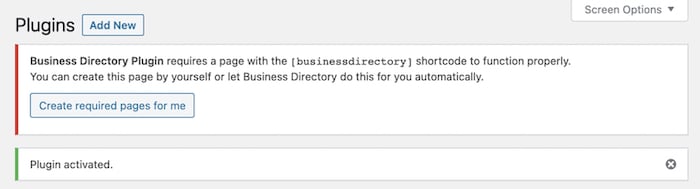
Once you click Create required pages for me, the plugin creates your directory, and you’re ready to go.
Go to Pages and find the directory page. There’s a [businessdirectory] shortcode inside, which displays your directory.
What’s great is this also creates a listing page in WordPress for you and also a submission form page to submit listings. While this form is great, if you want to spice it up a bit, we recommend using Formidable Forms as the best WordPress form builder.

You can preview the page to understand what your directory looks like so far.
Step 2: Adding and managing directory listings on your website
First things first, you need to add listings to your directory.
But how do you do it? Follow these easy steps:
- Log in to your WordPress Dashboard: This is the first step to any WordPress operation. Go to your WordPress dashboard by typing your website URL followed by /wp-admin.
- Navigate to the Directory plugin: Go to Directory → Directory Content → Listings. Then click Add New Listing in the top right. Then fill out the fields and save it.
- Check your listings: Go to Pages to your directory page and view it. You’ll see the listings you added in the previous step.
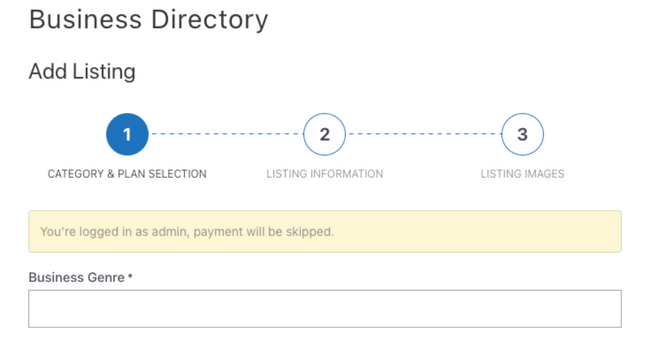
If you ever need to manage or remove a listing, go to the Listings page to manage all your entries.
You can also import listings if you have them already by going to Directory → Directory Content → Import & Export.
You can import a CSV file or even a ZIP file containing images!
Pretty great, right?
Step 3: Customizing your directory website design and layout
Ever thought about the importance of your directory website’s design and layout?
It’s essential to remember that design is not only about looks. It’s an interactive map for your users, guiding them through your website’s information.
So let’s dive into your directory’s design so visitors have the best experience.
Choose a theme
First things first, you need to choose a theme.
WordPress offers a plethora of themes tailored to directory websites.
Do you want your site to look professional, playful, or somewhere in between? The choice is yours.
Remember, your chosen theme should align with your content and the audience’s taste.
Lucky for you, though, Business Directory offers themes to use! Then it takes a few clicks, and you’re ready to go!
Here are a few business directory templates BD offers:
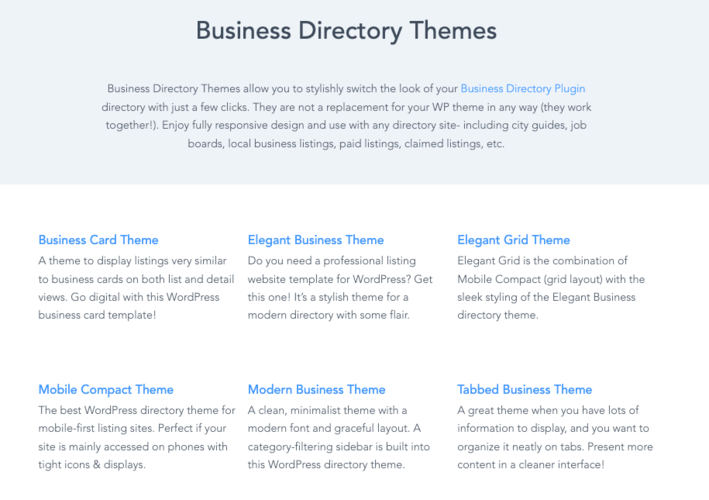
Let’s check out how to customize yours.
Customize the theme
BD makes it easy for you to set up your theme.
Go to Directory → Themes and click Activate on the theme you want to use.
Once you’ve selected a theme, it’s time to customize it.
Most WordPress themes come with a range of customizable options. Want to change your header image or the color scheme? It’s as simple as a few clicks.

Don’t be afraid to experiment to determine what works best for your directory website.
By default, Modern Business Theme is active. But you can also choose Tabbed Business, Business Card, or a simple Default. Other themes are available with Business Directory’s paid plans.
Choose and customize widgets
Widgets enhance your website’s functionality and user experience.
From search bars to recent posts, there are widgets for almost everything. Decide on the ones that benefit your users the most and customize them to fit your website’s design.
Remember, the goal is to create a directory website that isn’t just pleasing to the eye but also easy to navigate.
If you want to add widgets, head to Appearance → Widgets to customize what and where your visitors see them.
It’s time to let your creativity shine!
Step 4: Marketing and promoting your directory website
Isn’t it exciting to have your directory website up and running?
But wait, the journey doesn’t end there. The real challenge begins now — marketing and promoting your directory website. Here’s how you to make your website the talk of the town.
First things first, SEO or Search Engine Optimization is your new best friend.
This is what helps your website appear higher on search engine results. An optimized website is like a shining lighthouse in the vast sea of the internet, bringing all visitors toward your shores (er, website).
Remember, the higher you rank on search engines, the more visibility and traffic you get.
But what exactly can you do to optimize your website?
- Keyword Research: Find words or phrases people use when searching for businesses in your directory. Use these keywords on your site.
- Quality Content: Search engines love fresh and relevant content. Update your site with new listings, informative articles, or industry news.
- Backlinks: These are links from other websites to yours. Having high-quality backlinks boosts your site’s SEO.
Tools like Semrush and Ahrefs are great for helping with keyword research.
Besides SEO, social media is also a powerful tool for promotion.
Create engaging posts to attract your target audience. Think about it, what better way to reach out to people than where they already spend much of their time?
Additionally, consider email marketing.
It’s an efficient way to keep your audience updated about new listings, offers, or events. Remember, keeping your users engaged is critical to your website’s success.
Services like Mailchimp, ActiveCampaign, and MailPoet are all perfect to start email marketing.
Another effective strategy is partnering with businesses listed in your directory.
They could promote your website in return for a featured position in the listing or other benefits. It’s a win-win.
Your directory website is a powerful tool, but only if used effectively. Marketing and promoting may seem daunting, but with these strategies, you’re well on your way to becoming a powerhouse in your niche.
So, are you ready for the challenge?
Step 5: Advanced features and add-ons for your directory website
Now that we’ve covered setting up your directory website, let’s jump into the bells and whistles of WordPress.
How can you make your site stand out? What are the advanced features and add-ons to leverage to elevate your directory website?
Let’s explore!
First, the premium version of Business Directory Plugin adds many design and enhancement options. It’s full of advanced features to help you build a directory website that is unique, functional, and user-friendly.
So, what are these advanced features, you ask? Here are a few:
- Featured listings: Allows you to highlight specific listings on your directory website. These stand out from regular listings and attract more attention (and business).
- Custom fields: Imagine being able to fully customize your directory, tailoring it to your unique needs. With the Business Directory Plugin’s custom fields, this becomes a reality.
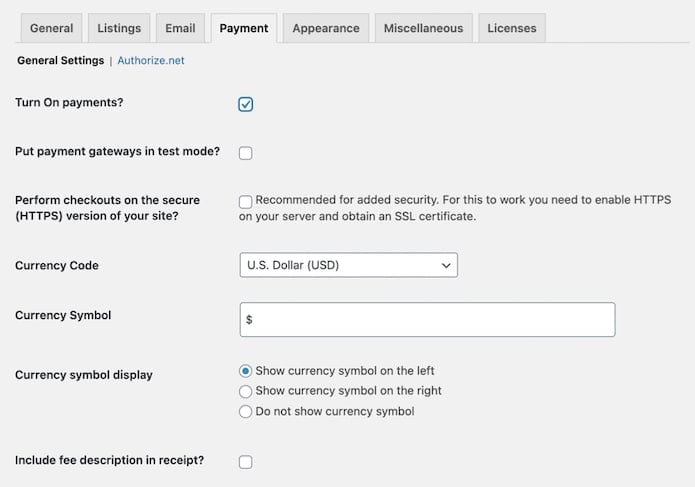
- Flexible payment options: Set up payment gateways, including PayPal, Stripe, and more. This means you offer users a wide range of payment options, making paying for their listings easier.
- SEO-friendly: The plugin is designed to be search engine friendly. From its design and structure, you ensure your website is discoverable by search engines.
These are a few examples of Business Directory Plugin’s advanced features.
But what about add-ons? Can you add anything else to your website to make it more appealing and functional?
The answer is, of course, yes.
The Business Directory Plugin also offers a range of add-ons to enhance your website further.
Here are some popular ones:
- Google Maps: Integrates Google Maps into your directory listings, making it easy for users to find business locations.
- Ratings and Reviews: Allow your users to rate and review the listings on your site. This increases engagement and trust on your site.
- Directory themes: These are unique themes designed for directory websites. They come with built-in features necessary for a directory site. Powerful search functions and listing pages are a few. With directory themes, you can manage the listings and users on your site.
Now it’s your turn!
Start with these advanced features and add-ons, and see how they transform your directory website.
Remember, the goal is to create a user-friendly, functional, and unique site that stands out.
Best practices for maintaining and updating your directory website
Ever wondered how to keep your directory website running and updated without a hitch?
Well, you’re in luck! The key to maintaining and updating your directory website lies in following a set of best practices.
These practices ensure your website functions at its best and keep it fresh and relevant for your users.
So, what are these best practices?
1. Keep your WordPress version and Business Directory Plugin updated
Keeping WordPress and your plugins updated isn’t something you do now and then.
Keeping these up to date is something you do often.
Why, you ask?
Well, updates often contain necessary performance improvements and security patches. They ensure your website is secure and working. Plus, they give you access to new features to enhance your directory website’s functionality.
So, always make sure to check for updates and install them.
2. Regularly backup your website
Regular backups are your safety net in case something goes wrong.
And they will go wrong.
Imagine losing all your hard work due to a technical glitch or a security breach. Sounds terrifying, doesn’t it? This is why it’s essential to back up your website.
Use a reliable backup plugin or opt for a hosting provider with automatic backups.
We recommend Jetpack and Backup Buddy. They both offer automated backups on a regular schedule and easy restoration.
It’s reassuring to know that with Jetpack and Backup Buddy, it’s set it and forget it.
3. Track your website’s performance
Monitoring your website’s performance is crucial.
Slow page load times and poor performance drive users away and impact your website’s SEO. Users run away from your website every second longer it takes your page to load.
So use a plugin to fix it.
Plugins like WP Rocket, SiteGround Optimizer, and W3 Total Cache help speed up your website. They get the files you don’t need or use out of the way so your site runs like a horse in a race.
4. Update your directory listings
Your directory website is only as good as the listings it contains.
So, it’s essential to keep your directory listings current and accurate.
Review and update your listings to ensure they provide up-to-date and reliable information to your users.
5. Optimize your website for SEO
We mentioned it above, but we’ll restate it because it’s that important.
SEO is critical in increasing your directory website’s visibility and attracting more users.
Optimize your website for SEO by using relevant keywords, creating quality content, and ensuring your website is mobile-friendly.
By following these best practices, you maintain and update your directory website.
Remember, a well-maintained and updated website offers a better user experience and ranks higher in search engine results.
So, why wait?
Get started today and give your directory website the care and attention it deserves!
Frequently asked questions about building a directory website with WordPress
1. What is a directory website?
A directory website is a digital data collection focused on a specific sector, region, or subject.
For example, it could be a directory of local businesses, a listing of healthcare professionals, or a catalog of educational institutions.
Imagine the Yellow Pages, but online and way more dynamic!
2. Why should I choose WordPress for my directory website?
WordPress is an incredibly versatile platform.
Its powerful features, ease of use, and extensive range of plugins make it a fantastic choice for anyone looking to build a directory website.
And the best part? You don’t need to be a tech whiz to use it!
3. What is the Business Directory Plugin?
The Business Directory Plugin is a WordPress plugin designed for creating directory websites.
It has customizable form fields, advanced search functionality, and payment processing capabilities.
This tool makes building a professional-looking directory website a few clicks away.
4. Can I monetize my directory website?
Absolutely! The Business Directory Plugin has built-in payment gateways allowing you to charge for listing submissions, featured listings, and more.
So not only can you build a directory website, but you also turn it into a steady source of revenue.
Isn’t that exciting?
Ready to build your directory website on WordPress?
So there you have it, folks! Everything you need to know to start building your very own directory website with WordPress and the Business Directory Plugin.
Ready to turn your dream website into a reality? Whether it’s a business directory website or simply running an online business, get started by grabbing Business Directory Plugin!
The post How to Build a Directory Website with WordPress [5 Steps!] first appeared on Business Directory Plugin.]]>
Everyone needs to find restaurants at some point.
Whether they’re looking for cafes, restaurants, or just a small food truck, food is an essential part of our lives.
And that’s where a restaurant directory website comes in! It’s like a Yellow Pages for restaurants!
But how can you create a directory website if you don’t have any coding experience?
Well, that’s where Business Directory Plugin comes to save the day!
Business Directory Plugin is the best WordPress directory plugin and makes it easy for anyone to create a directory website. Show local businesses or a collection of the most popular restaurants. It’s up to you!
To show you what we mean, let’s dig a little deeper.
Best restaurant directory website WordPress plugin
Being the best restaurant listing WordPress plugin is not easy.
Unless it’s Business Directory Plugin. And that’s thanks to the features and ease of the plugin.
What are they? Let’s dive into them.
Create appealing restaurant directory website listings
Have you noticed restaurant websites look appealing?
There’s a reason for this. People are drawn to these websites because of their attractive design!
Here is the deal. An appealing site makes visitors engage with the listings more. And Business Directory Plugin helps you create listing items to succeed.
All you do is create these listings by filling in some form fields.

You get custom fields in minutes. No need to use any page builder or article editor.
It’s that simple.
Display the food menu and photographs
You can display the food menus and photos in several ways.
The listing content can be used for text-based details. And you can use the listing image option to upload food photographs. You can even upload multiple photos for a listing.
Or, do you want to present the entire restaurant catalog?
This is also possible. Business Directory Plugin supports attachments.
Attach a PDF file of the catalog to a listing item so your visitors see everything a restaurant offers.
Categorize the restaurant directory website listings
Categorized listings are helpful for visitors.
Some would like to explore only coffee shops. Others may look for Chinese food. Some people want to easily find a food delivery restaurant!
Business Directory Plugin lets you add as many categories as you need. Then sort the restaurants under these categories.
The plugin also supports subcategories and category feature images. All of these make a great category-based browsing experience for your visitors.
Offer advanced search and filtering tools
Directory categories help your visitors find similar restaurants.
But a search tool is still necessary. It helps people easily search for a restaurant and find the restaurant listing websites they want! It’s like having your own personal search engine!
And Business Directory Plugin has a full suite of advanced search and filtering tools.

The visitors can check the search results to find a specific listing item easily using keywords and filters, which speeds up the process.
And that leads to a better user experience.
Accept restaurant listings from your visitors
This is the beauty of a listing site!
Your visitors can submit directory items as well. Business Directory Plugin has an easy-to-use front-end submission system for that. You can accept both free and paid listings from visitors.
Also, there is a claim listing feature.
Add restaurant listings to your site, and let the restaurant owners claim these at a fee.
A win-win for everyone! (And some extra cash in your pocket ?)
Use the dedicated restaurant directory theme
If you haven’t realized yet, Business Directory Plugin isn’t just a plugin with a listing system.
It’s a complete package. Part of that package is a special restaurant theme to make your restaurant directory shine! ✨
Let’s take a look at the Restaurant template’s listing archive page.

And here’s the single listing page.

If you want the highest conversion rate on your listing site, this theme will help. Restaurant owners love its design. It stimulates them to buy paid listings as well.
It’s like having an entire website template with one click!
Show restaurant contact information with maps
The restaurant listing items easily shows their contact information with text.
But you can display them better. How about including a map?
Sounds great, right? You can display restaurant locations using maps right on your listing site. Lucky for you, Business Directory Plugin supports Google Maps.
It lets you display Google Maps frames on the listing details and other directory pages. If a restaurant’s address is added, the map auto-generates.
It couldn’t be easier!
Let visitors rate and review restaurants
Reviews are important for any business.
Ratings and reviews are a big part of sorting restaurants. Customers share their restaurant experiences with reviews. And other customers decide where to go using those reviews.
Well, Business Directory Plugin has a rating system.
Visitors rate the restaurant directory listings on a 1-5 star scale and also write reviews.
This helps your community get an idea about the restaurants’ quality.
Monetize your restaurant listing site in several ways
You can monetize your directory in many ways.
Business Directory Plugin has paid listing support. You can create multiple pricing plans for your listing site and let restaurant owners submit listings under these plans.
To accept payments for premium listings, the plugin works with several payment methods. You can use PayPal, Stripe, Authorize.net, and more to accept payments.
Do you want to charge your customers at regular intervals?
That’s also possible because it has recurring payment support as well!
Enjoy a great experience with our powerful plugin
Business Directory Plugin promises a great user experience.
It’s feature-rich but also simple. And it works with all standard WordPress themes and plugins.
If you want to use a third-party WordPress theme, Business Directory Plugin won’t mind. In fact, BD has a list of popular themes that work great with our plugin.
The listing items and any other content displayed by the plugin are 100% responsive. So no worries about how they look on different devices. Your directory site looks great on mobile, tablet, or desktop!
Plus, the plugin is SEO-friendly. It works with all popular SEO plugins like Yoast and All in One SEO. Since it uses custom post types for the listing details, BD works with any standard SEO plugin.
And we update the plugin regularly. User feedback is huge for us, so we use it in our updates so you get what you need.
Last but not least, Business Directory Plugin has a great record of customer support. If you need any help just reach us.
We’re ready to help.
Getting started with the restaurant directory website WordPress plugin
It’s very easy to launch your online directory with the Business Directory Plugin.
We have detailed documentation for each step.
For now, here’s a quick overview of how to create a restaurant directory:
- Get a live WordPress site
- Install and activate Business Directory Plugin
- Create necessary pages and categories
- Get custom form fields
- Set up the plugin options with payments and pricing plans
- Install and enable the Restaurant theme
- Add content to the directory website
Hopefully, you’ve found it easy.
Also, we have a quick guide on how to start a directory site with Business Directory Plugin.
Wrapping up
We hope this post introduced you to a great WordPress restaurant directory plugin.
It’s easy to use for admins and visitors find it user-friendly. With all the features and ease, we think you’ll agree it’s the best restaurant directory WordPress plugin.
So, what are you waiting for? Get Business Directory Plugin now. It’s 100% risk-free with a 14-day money-back guarantee. Enjoy!
The post The Ultimate Restaurant Directory Website WordPress Plugin first appeared on Business Directory Plugin.]]>
Blog directories are perfect for bloggers and directory owners.
You see, it’s much more than just a listing site. A blog directory is great for search engines, blogs, and readers!
So, if you’re ready to get started with your blog directory, let’s get started!
Why create a blog directory?
Besides being an authentic traffic source for blogs, a blog directory is important for its owner as well.
Here are some reasons why you would want to run a WordPress blog directory.
- You help new bloggers get exposure to readers.
- Accept paid listings and make money from the site.
- Offer different features in different directory pricing options.
- Display ads on the site and monetize your directory traffic.
- Provide content marketing services.
So, not only do you help people grow their blogs, but you make some extra cash on the side!
And if that sounds good to you, we’ve got the perfect WordPress plugin to get you started: Business Directory Plugin (BD).
But don’t be fooled by the “business” part, BD is great for any type of web directory!
Not sure? Let’s show you what we mean with a great step-by-step tutorial.
How to make a WordPress blog directory
To start, you must have a WordPress website and Business Directory Plugin.
You can get a fresh WordPress site from our recommended WordPress hosting companies. A web host is needed for any website.
Once you’re ready with these tools, follow the steps below.
Step 1: Install and activate Business Directory Plugin
Log in to your WordPress admin dashboard and install Business Directory Plugin.
You can use the free version of BD to get started. But the premium version gives you even more to make your blog directory one of the best.
Installation is easy. But if you’re a newbie in the world of WordPress, follow the detailed installation instructions in our documentation.
Step 2: Create the necessary WordPress blog directory pages
Luckily, BD makes the first part easy for you!
When you install and activate the plugin, BD asks you if you’d like to create the required pages for you.

So, to make things easy, click the Create required pages for me button.
Now the first part is done! That page is your main listing archive.
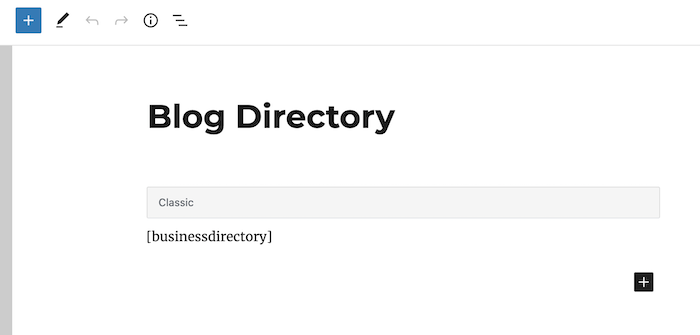
Next, you need to create another page for an “add listing” page.
This will be a front-end form. You and your visitors can add or submit blog listing items using this form.
To create this, add a new page and put the [businessdirectory-submit-listing] shortcode in the content box.
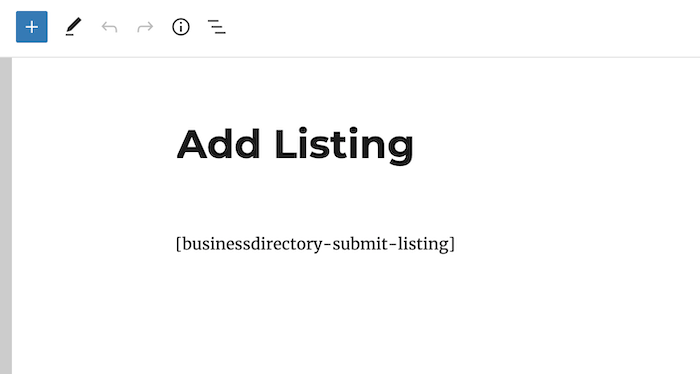
Then make sure both pages are published.
The main listing archive page can be set as the home page of your blog directory.
And, you can link the listing submission page from your menu bar or wherever you want.
Step 3: Get customized form fields
Form fields are an important part of the Business Directory Plugin.
It collects listing information via these fields. The plugin has a few form fields built in.
You can edit, add, or delete form fields from WordPress Dashboard → Directory → Form Fields.
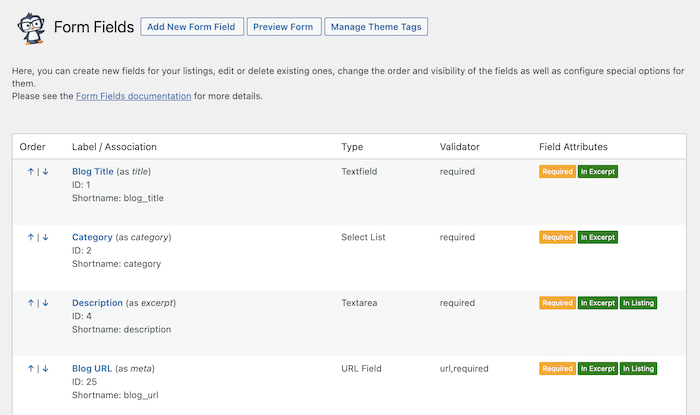
So, let’s edit our existing form fields to get the following fields.
- Blog Title
- Description
- Blog URL
- Age of the Blog
On a form field’s settings page, decide whether this should be displayed on the excerpt view or detailed view. Or, you can show a field on both views.
Step 4: Add WordPress blog directory categories
When you write a blog post, you assign it to a category, right? It’s an easy way to keep blog posts organized.
Business Directory Plugin does the same with its listing items. It has a special category system called Directory Category. Each directory item belongs to a category.
As a manager of the WordPress blog directory, add some directory categories to keep the blog listing items organized.
To get started, go to Directory → Directory Categories in your WP admin.

Business Directory Plugin also has the Enhanced Categories module to power up your categories.
It adds features like category hierarchy, custom category presentation, category thumbnails, etc.
You can use this module to enrich your blog directory.
Step 5: Configure the directory system
At this point, we want to set up the directory system.
You can customize this in the Business Directory Plugin settings.
For a public blog directory, you don’t need to do a lot of work on this.
You can access the directory system settings from Directory → Settings. Most of the default options will work for a public directory like the one in our tutorial.

You can explore and tweak the options as you like to fit your needs.
If you want to accept paid listings, we need to add pricing plans and a payment method to the directory.
Like any other service, your paid listings should have a pricing plan. While adding a blog listing item to your directory, a visitor will see these pricing options and choose one.

To set this up, go to Directory → Plans to create and manage pricing plans.
A free plan is built-in, but you can customize your own to fit your pricing structure. If you want more info, check out our plan documentation.
Business Directory Plugin offers Authorize.net support by default.
If you want to use that, you can add your Authorize.net account right away. Or, you can also add PayPal, Stripe, and more using our premium modules.
To set up your payment gateway, go to Directory → Settings → Payment.
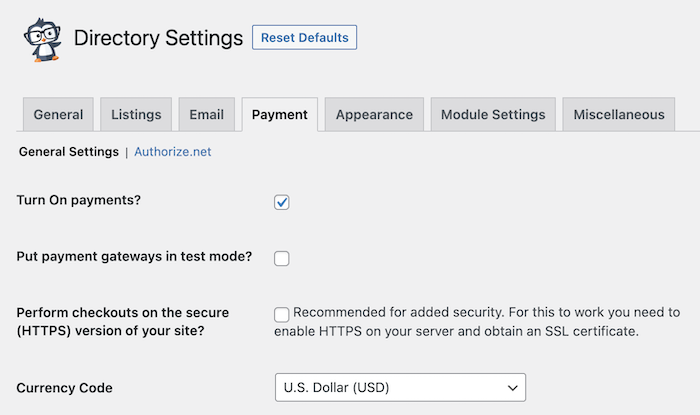
If you need some help, please see the payment docs.
Step 6: Style your directory with a dedicated template
There are several exclusive directory templates to make your directory site beautiful.
You can check out our theme collection and get one for your blog directory. These templates can be used on any type of listing site. For this tutorial, we’ll choose the Restaurant theme.
To install a theme, go to Directory → Themes.

After the installation, activate the WordPress theme to see it in action.
Need some assistance with themes? We’ve got detailed documentation for that, too!
Step 7: Add blog directory items
Now that we’ve prepared our WordPress blog directory, it’s time to add listing items.
Go to the listing submission page to create directory items.
Remember the Add Listing page from the 2nd step? Open the form and add sample blog listings.

Just provide the blog site information and publish the listing item.
Your visitors can also submit listings using this page. All of their submissions will be saved as pending by default.
Check out listing settings to get more control over your directory structure and how the blogs are shown.
Step 8: View your WordPress blog directory
Well done! You’ve successfully created your WordPress blog edirectory.
Here’s an example screenshot of the directory front page.

Next, take a look at the blog directory archive view.
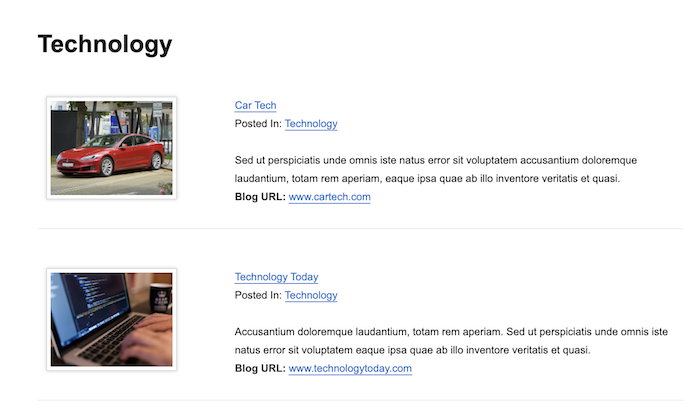
And this is a single blog directory item detail page.

Pretty easy, right? Now your blog directory is ready to go and it’s time to start earning some cash!
But, don’t stop here. If you want to create other directories (like real estate or business), BD can help you with that, too!
Ready to create your WordPress blog directory?
We hope you’re excited!
Starting a new website is always full of so much potential, and your blog directory is just the start!
So, don’t wait any longer. Grab Business Directory Plugin and get started today!
Get Business Directory Plugin premium with a 14-day money-back guarantee! Your investment is well protected. Start your WordPress blog directory with confidence.
More posts about WordPress directories
 How to Build a Directory Website with WordPress [5 Steps!]
 The Ultimate Restaurant Directory Website WordPress Plugin
 How to Create a Business Directory in WordPress
Most people think of directory websites as a thing of the past.
Small business directories are still popular. And for good reason. Visitors quickly find the businesses in their area in seconds with a quick Google search. Restaurants, clothing shops, auto services, and many industries benefit from directories.
Now, usually, creating a great business directory means hiring a web designer. But what if there was a plugin that could do everything a web designer does and more?
Well, there is! And it’s called Business Directory Plugin (how fitting, right?).
This post will show you how to build the directory website you want, all in a few easy steps with Business Directory.
So, let’s get started.
What is a WordPress business directory?
A WordPress business directory is a simple collection of listings so visitors can easily find what they’re searching for.
For example, you can create a business directory of local businesses where users can leave ratings and reviews. You can also include maps so visitors can easily find the business location. As you can see, it works very similar to Yellow Pages, only better!

So, you’re wondering how to build a simple business directory website.
There are two easy ways: a WordPress plugin or theme.
If you want to use a WordPress business directory theme, we suggest using BD’s sister plugin, Formidable Forms. Its features and ease of use make it a perfect solution for your WordPress theme and website.
But, for our post today, we’re going to focus on using a plugin. And that’s Business Directory.
How do I create a business website directory?
The first thing to do is install and activate the Business Directory plugin.
To do this, go to your WordPress admin, go to Plugins → Add New, and search for Business Directory. You can also download the Business Directory plugin here.
Now, it’s 6 simple steps to get your business directory up and running:
- Create your directory listing page
- Adjust your settings
- Modify your form fields
- Create categories
- Test your form and add listings
- Link to your directory page
? Did you know?
You can also create a directory for free! Get started on creating your free directory today!
Step 1: Create your directory listing page
When you activate the plugin, Business Directory asks if you want it to create your required pages. So, choose this option to make it easier on yourself.
The other option is to create the page yourself, then add a piece of shortcode.
To do this, go to your WordPress dashboard and choose Pages → Add New. In the page editor, you can add the [businessdirectory]. This shortcode works for now, but you can adjust this later if you want.
So, now that pages are set and ready to go, let’s dive into the settings.
Step 2: Adjust your settings
Now, go to Directory → Settings in your WordPress dashboard.

This is the main dashboard of your directory. You can configure settings like:
- Requiring visitors to register before submitting
- Enabling reCAPTCHA for spam
- Choosing payment settings
- Setting up listings and categories
Step 3: Modify your form fields
Business Directory comes with predefined form fields, but you can customize them or add new ones if you’d like.
To do this, go to Directory → Form Fields.

Once your form fields are set to how you want, advance to the next step.
Step 4: Create categories
You must attach a Category to link listings on your directory page properly.
To add and customize your categories, go to Directory → Categories.

These categories help users navigate your site and also provide structure to your website, which helps with Search Engine Optimization (SEO).
Step 5: Test your form and add listings
Next, navigate to the business directory page you set up in step one.
Here, you can simply click Add Listing to test out the submission form. Or you can go to Directory → Listings and click Add New Listings.
If you have many listings, you can add them in bulk using the CSV import feature.
But, to test it out, submit listings to ensure it’s working.
Step 6: Publish your directory page
And you’re all set. The only thing you need to do now is to publish the page you created in step one.
You can also do that now if you have any additional listings to add before.
If you’re ready to go, though, you can start directing website visitors to your page!
Easily create directories with Business Directory
If you couldn’t tell already, Business Directory is the best WordPress directory plugin on the market.
With its simple drag-and-drop builder, creating a directory website using WordPress only takes a couple of minutes. And that means faster results for you.
For example, imagine you want to make money with a WordPress business directory. You plan to feature paid listings and have ads to get passive income. The only thing stopping you is getting your site up and running!
Using BD means you’re generating income faster with a simple listing plugin.
But that’s not the only reason BD is perfect for your directory site. Here are a few more features you’ll find helpful:
- Pre-built templates
- Mobile-friendly listings
- SEO-ready software
- Free and paid listings
- Custom fields
So, no matter your goal with your directory website, Business Directory is here to help. And you get even more with Business Directory pro!
Let your team shine with a team members page
Your team members are the heart and soul of your business.
So, repay them with a little bit of the spotlight. And the best way to do that is meet the team page in WordPress.

Here, you can list their position, what department they work in, and their accomplishments, and give them a shining description to show how amazing they are. You can even let them write it to make it more personal!
Either way, it’s easy to do with Business Directory and saves you tons of time.
Boost your real estate business WordPress website
Become the realtor you always dreamed of with Business Directory.
You can easily create a real estate website to watch your business soar!

Create your realtor profile, display the latest listings, and accept leads through the form to boost your sales. And BD works perfectly with Google Maps so that you can pin the house’s location for easy viewing.
Business Directory is a multi-use tool that keeps on giving.
Offer the best restaurant listings
One of the first things people do when they arrive in a city is look up the best restaurants.
And your website can be there waiting for them. All you have to do is build it.

That’s easy with BD. We offer a template for restaurant listings!
So you just kick back and relax and enjoy the traffic to your site.
And it doesn’t only have to be used for restaurants. You can create any website with this theme!
Wrapping up
It’s that simple to build a business directory in WordPress.
But who would have expected less from a plugin with the name Business Directory?
This post taught you how to simply create an online business directory and have it up and running today. And we hope it helped out! Be sure to leave a comment if you enjoyed the post or if you have any questions!
So, what are you waiting for? Get Business Directory Plugin now and launch your fantastic directory site today!
The post How to Create a Business Directory in WordPress first appeared on Business Directory Plugin.]]>
Building a directory website seems like a huge task.
It’ll take tons of time, money, and effort. And you don’t know if you have that.
But what if we told you it wouldn’t take any of those things?
In fact, you can create a business directory website in minutes and for free!
If this sounds good, you’ve come to the right place. This post will show you how to create an online directory with a free directory website builder! (That’s right, they exist!)
So, let’s dive into it.
Why would you create a directory website?
Everything is digital today.
So having a directory website to look up restaurants, businesses, or real estate makes things much easier.
But it also has benefits for owners, too:
- Extra income ?. Directory websites make money! Paid listings and classified ads are great for earning some extra cash on the side.
- Build connections ?. A directory website connects you with local businesses and customers, which helps with local SEO.
- Increased traffic ?. People love directory websites for finding online business listings. And that means you can get massive amounts of traffic to your site.
Plus, when you have a WordPress plugin like Business Directory Plugin (BDP), all this is easy.
Let’s show you what we mean ?.
How to build a directory website on WordPress (in 4 steps)
We assume you already have a domain name, hosting, and WordPress installation.
Also, you might want to consider using a directory theme for your website. This helps enhance the look of your listings and pages.
Step 1: Install and activate Business Directory Plugin
To get started, install and activate Business Directory Plugin on your WordPress site.
You can find the free version on WordPress.org. Follow our installation guide if you need help with the installation process.
Once you activate the plugin, it asks you to create the required pages in WordPress:
We recommend using these. You can set them up yourself, but letting BDP do it is much easier. Click the Get required pages for me button, and it’ll complete the page setup process.
Next, you can navigate to your directory page by clicking on the Business Directory link:

You can also use this page to name your directory. But let’s get the settings taken care of for now.
Step 2: Configure your free directory settings
The plugin assigns listing settings. But you can change them by going to Directory → Settings → Listings:

Here, you can find many controls for customizing the listings on your website.
For example, you can change how many listings you show per page, enable renewal, and add time limits.
When you’re satisfied with the changes, click the Save Changes button at the bottom of the screen.
Step 3: Add categories to your free directory site
With the default settings out of the way, it’s time to set up your categories.
Before moving on, decide on your type of directory. Will you create a niche directory or a general listing site?
This is an essential step as it helps in a few ways:
- Organizes your directory
- Boosts your User Experience (UX)
- Improves Search Engine Optimization (SEO)
To begin, go to Directory → Directory Categories:

By default, the plugin adds “General” as the only category. You can delete this if you want.
Then enter a name, slug, and description for all following categories. After each one, click Add New Category at the bottom.
Step 4: Set up your pricing details
After changing the settings and categories, add pricing details to your directory website.
To do so, navigate to Directory → Plans → Add New Plan:

Configure these settings to your liking. Business Directory also has payment gateways like PayPal to make things easier for you.
For example, limit how long to run the plan (by default, it’s set to forever). You can also determine whether it’s a recurring fee, choose the pricing model, and set the plan price.
You can also add listing background colors. These are perfect for separating your premium directory listings from free ones!
When you’re done, remember to click on the Save Changes button.
Bonus Step: Enable users to claim listings on your directory
Next, letting businesses claim the listings in your directory is a good idea. This increases the credibility of your directory.
To do this, go to Directory → Settings → Claim Listings:

This isn’t required for a directory website.
But you must upgrade and install the Claims Listing Module to access this feature.
Then you can click on Enable “Claim Listing” to add a claim listings button.
Also, decide on your notifications. You can receive a notification whenever someone makes a claim. Then, you can set up the claim listing process.
Ready to build a directory website?
Online directory websites are one of the best ways to make money online.
But that doesn’t mean you must shell out a fortune to build one.
As we discussed in this post, you can create a free directory website by following four simple steps:
- Install and activate the Business Directory plugin
- Configure the directory settings
- Add your listing categories
- Add your listing price information
Business Directory Plugin helps you create a powerful, effective directory website. No matter if its for businesses, classified ads, or even a members directory — BDP can help.
If you’re ready to enhance your site lists to include even more advanced features, consider upgrading to a premium plan of the Business Directory WordPress plugin today!
Read more about building a directory website
 How to Prevent Spam User Registration in WordPress – 5 Tips
 How to Set Up WordPress SSL (In 3 Steps)
 How to Move Your WordPress Directory Site to a New Domain
Looking for the perfect WordPress classifieds plugin for your website?
A simple plugin can take your website from boring to amazing and make your life easier simultaneously!
If that sounds good, we’ve got the perfect list for you. We compiled the 8 best classifieds plugins for WordPress and broke them down so you could find one that fits your needs.
So, let’s dive straight into it!
Why use a classifieds plugin for WordPress?
Classifieds plugins have tons of benefits.
And if you’re ready to take your website from boring to a bustling marketplace, you need a classified plugin now.
Here’s why you should hop on the classifieds plugin bandwagon:
- Simple ad management. No coding and complicated tasks necessary. A plugin makes this easy for you.
- Better user experience. With custom themes and enhanced features, you help users find exactly what they’re looking for.
- Payments made easy. You don’t have time to fuss with payment integrations and services. A plugin offers a convenient option.
- Flexibility. A WordPress plugin can do many things. So you have advanced customization and feature options at your fingertips.
In reality, the only reason you shouldn’t use a plugin is if you want to code the entire website yourself!
Otherwise, a plugin is a much better option. So let’s check ’em out ?
8 best WordPress classifieds plugins
1. Business Directory Plugin
Business Directory?
But that’s not a classifieds plugin! And that’s where you’re wrong.
A directory and classifieds site are the same thing! So you can also make any classifieds website with the other plugins with Business Directory Plugin (BD)!
It’s easy to set up and use, so getting started is fast and beginner-friendly. Plus, it has templates to get a one-click setup and start. And if you already have listings ready, you can use a CSV field to import them into BD straightaway!
And if you want to charge users with a paid directory, add payment gateways like PayPal or Stripe.
Pricing: Business Directory Plugin has a free and premium version. Premium plans start at $99/year.
2. AWP Classifieds

If you’ve got classified ad listings, AWP Classifieds has the plugin for you.
It’s undergone some rebranding (changing from Another WordPress Classifieds Plugin to AWP Classifieds).
But one thing that didn’t change is how easy it is to use. It’s super simple and gives you many options to customize your site. But what makes it really great is its features.
An advanced search option helps you search by:
- City
- Country
- Key
- State
- Username
Plus, you can add featured ads and paid listings easily. And if you have Google Ads, no worries. AWP Classifieds and Google Ads play well together.
So, if you need a classified listings plugin for WordPress, it’s hard to go wrong with AWP Classifieds.
Pricing: AWP Classifieds has a free plugin and a premium plugin. Plans start at $49.50/year.
3. Formidable Forms

You may be scratching your head here.
First, we had a directory plugin, and we explained that. But now a form builder? What’s going on here?
Here’s the deal: Formidable has this amazing feature called Formidable Views. And you can display anything using Views.
And ultimately, you’re accepting form submissions with your classifieds, right? Well, customize your form to get the information you need, then display it with Views! One limitation of plugins for classifieds on WordPress is how basic their forms are.
But that’s not a problem with Formidable Forms. You get unlimited custom fields and customization options!
So, while there is a bit more to learn, you get much more flexibility using this form maker.
Pricing: Formidable Forms has a free and premium plugin. Premium plans start at $39.50/year.
4. WP Adverts

WP Adverts WordPress classifieds plugin is another excellent one to check out.
They pride themselves on being fast, flexible, and free. And you definitely get all three with WP Adverts.
It’s easy for users to submit ads and also register on the site. Plus, you can automatically post them or review each submission manually. Paid listings are also a breeze, so you can make extra cash for your site.
It also works with most classified ad WordPress themes thanks to its similarity to WordPress custom post types!
Pricing: WP Adverts has a free and premium version. Premium starts at $59/year.
5. Directorist

Directorist is another directory/classifieds combo that’s one of the best classified WordPress plugins.
Easily create and customize your classified website with its drag-and-drop layout builder from your WordPress dashboard. Then import all your listings with its custom fields so you can get started right away.
And if you’re looking to monetize your website, you can easily do that with paid listings or even memberships!
Pricing: Directorist has a free and premium option. Plans start at $59/3 months.
6. HivePress

HivePress is one of the best classified ads plugins for WordPress thanks to its versatility.
It can be a classifieds site, job board, business directory, or even a real estate website! And that’s thanks to its customization options.
Create listing categories, add custom fields, and customize your search filters so it’s easy to add submissions to your site. And, like the other plugins, you get paid and featured listings to generate some income from your site.
So, if you need something that handles classifieds and other uses, this is a great choice!
Pricing: HivePress has a free plugin, and you can pay for extra themes or add-ons.
7. Advanced Classifieds & Directory Pro
How about a free option in the WordPress classifieds plugin best of the best?
Well, Advanced Classifieds & Directory Pro (ACADP) is that plugin! Okay, we’ll be honest. It’s not completely free, but you do get a ton of features for free.
Unlimited categories and levels, multiple field types, and a simple listing management system. You even get a Google Maps integration to spice up your website by making it interactive.
But if you want paid listings, payments, or WooCommerce, you’ll have to pay for the pro features.
Pricing: ACADP has a free and pro plugin. Pro plans start at $95.88/year.
8. Classified Listing

You’ll notice a trend here: business directory plugins also make GREAT classified plugins.
And Classified Listing is no different. And it’s just as easy to use as well!
Since RadiusTheme develops it, you can access a few free and premium classifieds themes. These themes help you get started with your website by customizing its look. Plus, you get unlimited custom fields to design your website and listings as you see fit.
Pricing: Classified Listing has a free plugin and a premium plugin. Plans start at $39/year.
What do you think is the best WordPress classified ads plugin?
There you have it!
The 8 best classifieds plugins for WordPress in one easy list. So, what gets your vote for the best plugin? And are you ready to get started?
If so, check out this post on how to create a classified website for great starter tips!
And, if you’re ready to grab Business Directory Plugin, head over and grab the directory website builder.
The post 8 Best WordPress Classifieds Plugins for Your Website first appeared on Business Directory Plugin.]]>