Advertise with Googlier.com TextMate Blog https://macromates.com Anything vaguely related to TextMate or macOS. Thu, 16 Oct 2014 22:21:40 +0200 en hourly 1 https://macromates.com/glim/ Yosemite https://macromates.com/blog/2014/yosemite/ Thu, 16 Oct 2014 22:21:40 +0200 Michael Sheets TextMate 2 http://blog.macromates.com/?p=419 Those who have been waiting with upgrading to TextMate 2.0 should do it before upgrading to Yosemite. While 1.x will function many of the older bundle items rely on outdated system components not available in Yosemite. This also marks the transition from alpha to beta for 2.0. Don't let the beta designation scare you, this simply signifies that there are still planned features left to add. However it is already leaps and bounds above what 1.x offers with many people already using it in their everyday workflow. As you transition to 2.0 you will find many great new features and improved bundles made much easier to manage with an included bundle manager in preferences. We have [several blog posts][1] detailing some of the new features. If you have problems finding a feature you can ask questions on the [mailing list][2] or [contact us via email][3] or [Twitter][4]. While still a work in progress you can also [consult the manual][5], this will be filled out further in the coming months. 2.0 is a free update to all except those who purchased through Mac Heist for which there will be a modest upgrade fee. [1]: https://macromates.com/blog/categories/textmate-2/ [2]: https://lists.macromates.com/listinfo/textmate [3]: https://macromates.com/support [4]: https://twitter.com/macromates [5]: https://macromates.com/textmate/manual/ Those who have been waiting with upgrading to TextMate 2.0 should do it before upgrading to Yosemite. While 1.x will function many of the older bundle items rely on outdated system components not available in Yosemite.

This also marks the transition from alpha to beta for 2.0. Don’t let the beta designation scare you, this simply signifies that there are still planned features left to add. However it is already leaps and bounds above what 1.x offers with many people already using it in their everyday workflow.

As you transition to 2.0 you will find many great new features and improved bundles made much easier to manage with an included bundle manager in preferences. We have several blog posts detailing some of the new features. If you have problems finding a feature you can ask questions on the mailing list or contact us via email or Twitter. While still a work in progress you can also consult the manual, this will be filled out further in the coming months.

2.0 is a free update to all except those who purchased through Mac Heist for which there will be a modest upgrade fee.

]]>
Defining a $PATH https://macromates.com/blog/2014/defining-a-path/ Fri, 27 Jun 2014 12:15:04 +0200 Michael Sheets General http://blog.macromates.com/?p=414 Upcoming changes to OS X have caused us to make some changes in TextMate that have been causing some users to see a `env: ruby18: No such file or directory` error when running bundle items. This is caused by improper setup of the `PATH` variable, but lets go over what this variable does and how to correct the issue. OS X comes with many command line tools that TextMate takes advantage of such as ruby, python, git, etc. To find these programs there is the environment variable `PATH` which is a list of paths that is used to find the required tools. Note that while you may already have set the `PATH` variable for your shell (e.g. bash) it is not inherited in TextMate, as TextMate does not parse your shell setup scripts. For commands that require tools outside the default path list, like the LaTeX typeset command, we normally provide a list of common locations that TextMate should also search, so you normally should not need to change the `PATH` in TextMate. To add to the `PATH` variable inside TextMate open Preferences and go to the Variables section and add a new item with the name of `PATH`. It is important that the value set augment the existing value instead of replacing it. To do this you should prefix the value with `$PATH:`. Example values for common uses: **MacPorts**: `$PATH:/opt/local/bin` **Homebrew**: `$PATH:/usr/local/bin` *This post relates to TextMate 2.0 only.* Upcoming changes to OS X have caused us to make some changes in TextMate that have been causing some users to see a env: ruby18: No such file or directory error when running bundle items. This is caused by improper setup of the PATH variable, but lets go over what this variable does and how to correct the issue.

OS X comes with many command line tools that TextMate takes advantage of such as ruby, python, git, etc. To find these programs there is the environment variable PATH which is a list of paths that is used to find the required tools.

Note that while you may already have set the PATH variable for your shell (e.g. bash) it is not inherited in TextMate, as TextMate does not parse your shell setup scripts. For commands that require tools outside the default path list, like the LaTeX typeset command, we normally provide a list of common locations that TextMate should also search, so you normally should not need to change the PATH in TextMate.

To add to the PATH variable inside TextMate open Preferences and go to the Variables section and add a new item with the name of PATH. It is important that the value set augment the existing value instead of replacing it. To do this you should prefix the value with $PATH:. Example values for common uses:

MacPorts: $PATH:/opt/local/bin

Homebrew: $PATH:/usr/local/bin

This post relates to TextMate 2.0 only.

]]>
TextMate 2 Basics https://macromates.com/blog/2013/textmate-2-basics/ Tue, 12 Nov 2013 04:28:47 +0100 Michael Sheets General TextMate 2 http://blog.macromates.com/?p=411 [Hilton Lipschitz][1] has written a very nice [introduction to TextMate 2][2] containing a lot of great tips and tricks for both the new and the experienced user. [1]: http://www.hiltmon.com/ [2]: http://www.hiltmon.com/blog/2013/11/09/textmate-2-basics/ Hilton Lipschitz has written a very nice introduction to TextMate 2 containing a lot of great tips and tricks for both the new and the experienced user.

]]>
2.0 Status and FAQ https://macromates.com/blog/2013/2-0-status-and-faq/ Fri, 08 Nov 2013 03:55:06 +0100 Michael Sheets General TextMate 2 http://blog.macromates.com/?p=408 The release of Mavericks has seen a new wave of users switching over to the alpha release so this is a good time to go over the common questions people are having: ### Theming Switching themes can be done from the `View → Themes` menu, to change the font size use `View → Font → Show Fonts`. Don't see a theme you like? You can find a new selection of themes from the Bundles section in Preferences, click the Themes tab to limit your view. ### Projects In 1.x projects were specially created files that referenced a directory and collected settings. One of the biggest changes in 2.0 is that now everything you open is automatically a project. If you open a directory then that will be the project root and you will get a file browser on the side. Opening a single file sets the project root to that file's directory even though the file browser isn't shown, it can be enabled from the View menu however. If you use a certain project frequently you can add it to your favorites from the gear menu at the bottom of the browser, you can then access them from `File → Open Favorites…` or `⇧⌘O`. If you need to change the settings for a particular project you can add a `.tm_properties` file to the directory. We detailed how to do this in a [previous blog post][1] More features of projects including how to customize window titles can be found in the [Projects section][2] of the [manual][3]. ### File Browser Another big change is the sidebar, in 1.x it functioned mostly as a form of source list to select a file to edit. For 2.0 we have expanded it's functionality to be a full file browser. This means you can move, duplicate, etc. files or select multiple files to perform other actions on, including bundle actions. One example is to select files before you use a version control action like show changes, commit, or revert. This feature works well with the file browser's ability to show version control status. One change this necessitated is requiring you to double-click files to open them like in the Finder or single-clicking on the icon to open immediately. We encourage you to give this a chance as it adds a lot of functionality to a project. However if you'd rather have the ability to single-click again you can run the following in a terminal: defaults write com.macromates.TextMate fileBrowserSingleClickToOpen -bool true ### Bundles Installing new bundles and keeping them updated has never been easier, just look in Preferences under Bundles for a widely varied list. When the bundle is updated TextMate will automatically download the update for you, the arrow beside each will take you to the bundle's repository. You can find out what features and bug fixes have been added under `TextMate → About TextMate → Bundles`. (Bundle updating can be disabled under Software Update.) Some bundles will already be installed and those with generic names such as Bundle Support, Themes, Source, SCM, and Text provide support for other bundles and should not be uninstalled. If you have bundles to install that are not covered by the installer you can install them by double-clicking the bundle just like before. Should you have a bundle you personally created you will need to move it: Bundles you created in 1.x will be at: ~/Library/Application Support/TextMate/Bundles And need to be moved to: ~/Library/Application Support/Avian/Bundles **Note:** * The `~` character in these paths refers to your home directory (`/Users/«yourname»/`). * The `Library` folder under Mavericks is hidden by default, you can access it from the Go menu in Finder while holding down option. * The directories under `Application Support` may not exist on your system, should they not you should create them. ### Status An area currently being worked on is the [manual][3], currently a work in progress. Once this is in place we plan to shift into the beta stage. When released the final version of 2.0 will be a free upgrade for all 1.x license holders with the exception of those that got their license through MacHeist. We have not setup a method to accept upgrade fees yet but that will be coming. For now the release does not enforce the license restrictions so MacHeist users can upgrade now. More information on how to customize TextMate is available at the [2.0 FAQ][4] including a [list of hidden settings][5]. While we recommend everyone move over to 2.0, if you need to keep 1.x around a little longer on Mavericks we have [a guide][6] of how to set that up. [1]: https://macromates.com/blog/2011/git-style-configuration/ [2]: https://macromates.com/textmate/manual/projects [3]: https://macromates.com/textmate/manual/ [4]: https://github.com/textmate/textmate/wiki/FAQ [5]: https://github.com/textmate/textmate/wiki/Hidden-Settings [6]: https://macromates.com/blog/2013/textmate-1-x-under-mavericks/ The release of Mavericks has seen a new wave of users switching over to the alpha release so this is a good time to go over the common questions people are having:

Theming

Switching themes can be done from the View → Themes menu, to change the font size use View → Font → Show Fonts. Don’t see a theme you like? You can find a new selection of themes from the Bundles section in Preferences, click the Themes tab to limit your view.

Projects

In 1.x projects were specially created files that referenced a directory and collected settings. One of the biggest changes in 2.0 is that now everything you open is automatically a project. If you open a directory then that will be the project root and you will get a file browser on the side. Opening a single file sets the project root to that file’s directory even though the file browser isn’t shown, it can be enabled from the View menu however.

If you use a certain project frequently you can add it to your favorites from the gear menu at the bottom of the browser, you can then access them from File → Open Favorites… or ⇧⌘O.

If you need to change the settings for a particular project you can add a .tm_properties file to the directory. We detailed how to do this in a previous blog post

More features of projects including how to customize window titles can be found in the Projects section of the manual.

File Browser

Another big change is the sidebar, in 1.x it functioned mostly as a form of source list to select a file to edit. For 2.0 we have expanded it’s functionality to be a full file browser. This means you can move, duplicate, etc. files or select multiple files to perform other actions on, including bundle actions. One example is to select files before you use a version control action like show changes, commit, or revert. This feature works well with the file browser’s ability to show version control status.

One change this necessitated is requiring you to double-click files to open them like in the Finder or single-clicking on the icon to open immediately. We encourage you to give this a chance as it adds a lot of functionality to a project. However if you’d rather have the ability to single-click again you can run the following in a terminal:

defaults write com.macromates.TextMate fileBrowserSingleClickToOpen -bool true

Bundles

Installing new bundles and keeping them updated has never been easier, just look in Preferences under Bundles for a widely varied list. When the bundle is updated TextMate will automatically download the update for you, the arrow beside each will take you to the bundle’s repository. You can find out what features and bug fixes have been added under TextMate → About TextMate → Bundles. (Bundle updating can be disabled under Software Update.) Some bundles will already be installed and those with generic names such as Bundle Support, Themes, Source, SCM, and Text provide support for other bundles and should not be uninstalled.

If you have bundles to install that are not covered by the installer you can install them by double-clicking the bundle just like before. Should you have a bundle you personally created you will need to move it:

Bundles you created in 1.x will be at:

~/Library/Application Support/TextMate/Bundles

And need to be moved to:

~/Library/Application Support/Avian/Bundles

Note:

  • The ~ character in these paths refers to your home directory (/Users/«yourname»/).
  • The Library folder under Mavericks is hidden by default, you can access it from the Go menu in Finder while holding down option.
  • The directories under Application Support may not exist on your system, should they not you should create them.

Status

An area currently being worked on is the manual, currently a work in progress. Once this is in place we plan to shift into the beta stage.

When released the final version of 2.0 will be a free upgrade for all 1.x license holders with the exception of those that got their license through MacHeist. We have not setup a method to accept upgrade fees yet but that will be coming. For now the release does not enforce the license restrictions so MacHeist users can upgrade now.

More information on how to customize TextMate is available at the 2.0 FAQ including a list of hidden settings.

While we recommend everyone move over to 2.0, if you need to keep 1.x around a little longer on Mavericks we have a guide of how to set that up.

]]>
TextMate 1.x under Mavericks https://macromates.com/blog/2013/textmate-1-x-under-mavericks/ Fri, 08 Nov 2013 03:52:36 +0100 Michael Sheets General http://blog.macromates.com/?p=406 If you are using TextMate 2.0 then the following info does not apply to you. Many of the bundle items in TextMate are written with ruby and were coded for version 1.8. With Mavericks Apple has updated the default version of ruby to 2.0. While we recommend everyone switch to 2.0 we realize that some people are hesitant to switch during a major project or similar. If you wish to use TextMate 1.x on Mavericks you will need to tell TextMate to use ruby 1.8 for bundle items by putting the path to it first via the `PATH` variable. Open Preferences from the TextMate menu and go to the Advanced section and select the Shell Variables tab. Click the `+` button to add a new variable named `PATH` with a value of: /System/Library/Frameworks/Ruby.framework/Versions/1.8/usr/bin:/usr/bin:/bin:/usr/sbin:/sbin:/usr/local/bin Make sure when copying this that there is no whitespace before or after the string and that it is on a single line. If you wish to use another version of ruby for user scripts then set `TM_RUBY` to the path to your custom installed ruby. This is what will be used for Ruby → Run (⌘R), Ruby → Validate Syntax (⌃⇧V), and similar actions where user code is executed or scanned. We previously sent out an email instructing 1.x users to update the shebang, those instructions are still valid, but we have since realized that the above is a simpler fix. If you are using TextMate 2.0 then the following info does not apply to you.

Many of the bundle items in TextMate are written with ruby and were coded for version 1.8. With Mavericks Apple has updated the default version of ruby to 2.0. While we recommend everyone switch to 2.0 we realize that some people are hesitant to switch during a major project or similar.

If you wish to use TextMate 1.x on Mavericks you will need to tell TextMate to use ruby 1.8 for bundle items by putting the path to it first via the PATH variable.

Open Preferences from the TextMate menu and go to the Advanced section and select the Shell Variables tab. Click the + button to add a new variable named PATH with a value of:

/System/Library/Frameworks/Ruby.framework/Versions/1.8/usr/bin:/usr/bin:/bin:/usr/sbin:/sbin:/usr/local/bin

Make sure when copying this that there is no whitespace before or after the string and that it is on a single line.

If you wish to use another version of ruby for user scripts then set TM_RUBY to the path to your custom installed ruby. This is what will be used for Ruby → Run (⌘R), Ruby → Validate Syntax (⌃⇧V), and similar actions where user code is executed or scanned.

We previously sent out an email instructing 1.x users to update the shebang, those instructions are still valid, but we have since realized that the above is a simpler fix.

]]>
Nightly Build not Updating https://macromates.com/blog/2013/nightly-build-not-updating/ Fri, 29 Mar 2013 05:21:20 +0100 Michael Sheets General http://blog.macromates.com/?p=348 For those that live on the cutting edge by watching the nightly builds of the 2.0 alpha you have been cutoff from automatic updates by an unfortunate bug introduced in a recent build (a9401). You can update by opening preferences (`⌘,`) and switching to the Software Update tab (`⌘5`). Here you will notice that the last check was a while ago and can manually check for an update by clicking "Check Now". After updating to a9409 or newer it will again check automatically for updates. If you are using the "Normal Releases" option in this tab this bug does not affect you. For those that live on the cutting edge by watching the nightly builds of the 2.0 alpha you have been cutoff from automatic updates by an unfortunate bug introduced in a recent build (a9401). You can update by opening preferences (⌘,) and switching to the Software Update tab (⌘5). Here you will notice that the last check was a while ago and can manually check for an update by clicking “Check Now”. After updating to a9409 or newer it will again check automatically for updates.

If you are using the “Normal Releases” option in this tab this bug does not affect you.

]]>
Apple Events & 10.8.2 https://macromates.com/blog/2012/apple-events-10-8-2/ Wed, 17 Oct 2012 02:02:05 +0200 Michael Sheets General http://blog.macromates.com/?p=345 Recently we have been getting reports of some issues with [Transmit][1], [QuickCursor][2] and other applications that use [Apple events][3] to communicate with TextMate. Thanks to [Brian Webster][4] and [Michael Tsai][5] this has been tracked down to a bug in the `appleeventsd` process in 10.8.2, hopefully this will be fixed quickly by Apple. A workaround for Transmit would be to mount the server as a hard drive and open the files from there as it would bypass the bug, this would also work in other file transfer programs that have this feature. You can get more information and alternative workarounds at the their respective posts linked above. [1]: http://panic.com/transmit/ "Panic - Transmit" [2]: http://www.hogbaysoftware.com/products/quickcursor "QuickCursor — Your text editor anywhere for Mac." [3]: http://en.wikipedia.org/wiki/Apple_events "Apple events - Wikipedia" [4]: http://brian-webster.tumblr.com/post/32830692042/a-workaround-for-aesendmessage-hanging-on-os-x-10-8-2 "A workaround for AESendMessage() hanging on OS X 10.8.2" [5]: http://mjtsai.com/blog/2012/10/04/aesendmessage-bug-in-mac-os-x-10-8-2/ "AESendMessage Bug in Mac OS X 10.8.2" Recently we have been getting reports of some issues with Transmit, QuickCursor and other applications that use Apple events to communicate with TextMate. Thanks to Brian Webster and Michael Tsai this has been tracked down to a bug in the appleeventsd process in 10.8.2, hopefully this will be fixed quickly by Apple.

A workaround for Transmit would be to mount the server as a hard drive and open the files from there as it would bypass the bug, this would also work in other file transfer programs that have this feature. You can get more information and alternative workarounds at the their respective posts linked above.

]]>
Nested Replacements https://macromates.com/blog/2012/nested-replacements/ Tue, 25 Sep 2012 07:01:15 +0200 Allan Odgaard General TextMate 2 http://blog.macromates.com/?p=342 While updating the TextMate source to use ARC I needed to update the following code: NSAutoreleasePool* pool = [NSAutoreleasePool new]; … [pool drain]; To use the new autorelease blocks: @autoreleasepool { … } ## Searching We can find all the autorelease constructs using a regular expression like the following: NSAutoreleasePool.*(?m)(.*?)\[pool \w+\]; I made the assumption here that our autorelease pool variable is always named `pool`. If that is not the case, one could use a back-reference. As for the pattern: The `(?m)` syntax enables “multiline matching”, meaning that the “any” operator (`.`) matches newlines. This isn’t enabled until the second use of `.`, so the first `.*` will only match the first line (excluding its newline). The code between declaring the pool and draining/releasing it is matched by `.*?` wrapped in parentheses to capture it. As we are in multiline mode, we make it a non-greedy match by using the non-greedy modifier (`?`), i.e. using `.*?` instead of just `.*`. Had we not made it non-greedy, and a file contained more than one use of an autorelease pool, we would have gotten just one match from that file, which would encompass all of the pools. ## Replacing A naive replacement string would be: @autoreleasepool {$1} If however you enter this after having done the find, you’ll get a replacement preview and notice that this isn’t satisfying: ![Autorelease Replacement Preview](https://macromates.com/wp-content/uploads/2012/09/autorelease_replacement_preview.png) The problem is that the capture (`$1`) should be indented. Fortunately TextMate offers you its powerful [format string syntax][] in the replacement field, which means we can perform further replacements on the capture. In particular we wish to increase the indent by one tab, which can be done using: ${1/^/\t/g} What we do is match “begin of line” using `^` and then replacing that with a single tab (`\t`), specifying `g` as option to make it repeat (global). Looking at the preview though this isn’t entirely right either: ![Indented Autorelease Replacement Preview](https://macromates.com/wp-content/uploads/2012/09/indented_autorelease_replacement_preview.png) The problem is that the first and last lines are indented. What we really want is to only add a tab to lines which are non-empty. This can be done using the following replacement: ${1/^\t*(?=\S)/$0\t/g} Here we match begin of line followed by zero or more tab characters and then **not** followed by whitespace. `\S` matches non-whitespace characters, where newline counts as whitespace, and wrapping it in `(?=…)` makes it a “look-ahead assertion” meaning that it is not part of the actual match, we just ensure the match is followed by this. The entire replacement string now becomes: @autoreleasepool {${1/^\t*(?=\S)/$0\t/g}} Which gives us the desired replacement: ![Final Autorelease Replacement Preview](https://macromates.com/wp-content/uploads/2012/09/final_autorelease_replacement_preview.png) [format string syntax]: https://macromates.com/blog/2011/format-strings/ ## Addendum The ability to process captures when doing search and replace is not limited to regular expression transformations, TextMate offers conditional insertions, case transformations, and even an asciify conversion. You can find the full range of options in Help → TextMate Help → Format String Syntax. While updating the TextMate source to use ARC I needed to update the following code:

NSAutoreleasePool* pool = [NSAutoreleasePool new];
…
[pool drain];

To use the new autorelease blocks:

@autoreleasepool {
    …
}

Searching

We can find all the autorelease constructs using a regular expression like the following:

NSAutoreleasePool.*(?m)(.*?)\[pool \w+\];

I made the assumption here that our autorelease pool variable is always named pool. If that is not the case, one could use a back-reference.

As for the pattern: The (?m) syntax enables “multiline matching”, meaning that the “any” operator (.) matches newlines. This isn’t enabled until the second use of ., so the first .* will only match the first line (excluding its newline).

The code between declaring the pool and draining/releasing it is matched by .*? wrapped in parentheses to capture it. As we are in multiline mode, we make it a non-greedy match by using the non-greedy modifier (?), i.e. using .*? instead of just .*.

Had we not made it non-greedy, and a file contained more than one use of an autorelease pool, we would have gotten just one match from that file, which would encompass all of the pools.

Replacing

A naive replacement string would be:

@autoreleasepool {$1}

If however you enter this after having done the find, you’ll get a replacement preview and notice that this isn’t satisfying:
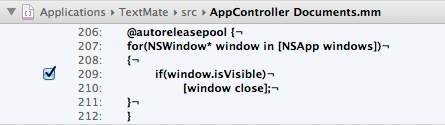
Autorelease Replacement Preview

The problem is that the capture ($1) should be indented. Fortunately TextMate offers you its powerful format string syntax in the replacement field, which means we can perform further replacements on the capture. In particular we wish to increase the indent by one tab, which can be done using:

${1/^/\t/g}

What we do is match “begin of line” using ^ and then replacing that with a single tab (\t), specifying g as option to make it repeat (global). Looking at the preview though this isn’t entirely right either:
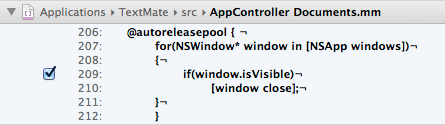
Indented Autorelease Replacement Preview

The problem is that the first and last lines are indented. What we really want is to only add a tab to lines which are non-empty. This can be done using the following replacement:

${1/^\t*(?=\S)/$0\t/g}

Here we match begin of line followed by zero or more tab characters and then not followed by whitespace. \S matches non-whitespace characters, where newline counts as whitespace, and wrapping it in (?=…) makes it a “look-ahead assertion” meaning that it is not part of the actual match, we just ensure the match is followed by this.

The entire replacement string now becomes:

@autoreleasepool {${1/^\t*(?=\S)/$0\t/g}}

Which gives us the desired replacement:
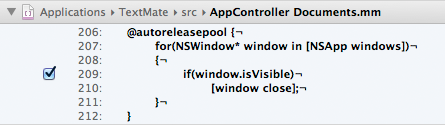
Final Autorelease Replacement Preview

Addendum

The ability to process captures when doing search and replace is not limited to regular expression transformations, TextMate offers conditional insertions, case transformations, and even an asciify conversion.

You can find the full range of options in Help → TextMate Help → Format String Syntax.

]]>
Beyond Document Scopes https://macromates.com/blog/2012/beyond-document-scopes/ Wed, 22 Aug 2012 17:30:27 +0200 Allan Odgaard General TextMate 2 http://blog.macromates.com/?p=333 The way to specialize things in TextMate is via the venerable [scope selector][] matched against the current scope. TextMate 1 created the scope by parsing the document’s content using a language grammar. Though sometimes, more context information is needed than what can be provided by the document’s content, which is why TextMate 2 has extended the information stored in a scope. [scope selector]: https://manual.macromates.com/en/scope_selectors Two examples of where there is a lot of choice (and thus bundles) are build systems and revision control. For this reason, we introduced scopes for these two things. If you have the TextMate source checked out and press ⌃⇧P (Show Scope) with [README.md][] open then you should see something like: text.html.markdown attr.rev-path.md.README.TextMate.Projects.duff.Users attr.os-version.10.8.0 attr.scm.git attr.project.ninja attr.scm.branch.master attr.scm.status.H The relevant scopes are `attr.scm.git` and `attr.project.ninja`. By having a scope for the SCM system we have been able to make all the SCM bundles use ⌘Y as key equivalent (hint ⇧⌘Y is the key for showing “SCM Status” in the file browser). Likewise, by having `attr.project.ninja` we can scope the [Ninja bundle’s][] Build command to ⌘B, even though this key is also used by Make, Xcode Build, and similar. As for the latter key though, ⌘B is also bound to “Bold” in many markup languages so we have a conflict. The Build command “wins” because the attribute scopes are more specific than the content scopes which means that if we press ⌘B in our [README.md][] then we will build the project rather than make a word bold. If we select a word, as we would normally do before bolding it, and show the scope, we see that TextMate 2 has another nice new thing in the scope: text.html.markdown ⋮ dyn.selection.continuous The new `dyn.selection` scope allows us to override keys only when there is a selection, for example I have rebound the `{` key (no modifiers, but requires a selection) to wrap and indent the selection in a pair of braces, likewise `}` will unwrap and unindent the selection (a feature that goes well together with ⇧⌘B to first select the braces/block). In the case of our Build command, I ended up scoping it like this: attr.project.ninja - (text dyn.selection) This means that for projects with a `build.ninja` file, we can press ⌘B to build except when in a text file **and** we have a selection, in that case, ⌘B means Bold. TextMate knows about a handful of build systems and SCM systems, if yours is missing from [the list][], please send us a note (or pull request) and we’ll add it. There are times when TextMate can’t provide the desired attribute scopes. For example I use [CxxTest][] and created a bundle with snippets that only make sense in test files. If these can be scoped specifically to my tests, I can use simpler tab triggers, for example I can override `main⇥` or `cl⇥` for something which is more appropriate for test files, but test files are just regular C++ files, so what to do? If you look in the [.tm_properties][] of the TextMate source you will see we have these lines: [ tests/*.{cc,mm} ] scopeAttributes = 'attr.test.cxxtest' TM_NINJA_TARGET = '${TM_FILEPATH/^.*?([^\/]*)\/tests\/.*$/$1\/test/}' The key here is `scopeAttributes`. We use that to add our own scope attributes to test files, which by convention are always placed in a `tests` directory. This way the [CxxTest bundle][] can scope all its items to `attr.test.cxxtest` and not worry about (globally) eclipsing “standard” keys and tab triggers, when specializing them for test files. You’ll also notice I set the `TM_NINJA_TARGET` environment variable for test files. The regular expression might look scary, but basically with a path like: /Users/duff/Projects/TextMate/Frameworks/scm/tests/t_git.cc It will set `TM_NINJA_TARGET` to `scm/test`. This means pressing ⌘B in a test file will build the framework’s test target (i.e. run the tests). [README.md]: https://github.com/textmate/textmate/blob/master/README.md [Ninja bundle’s]: https://github.com/textmate/ninja.tmbundle [the list]: https://github.com/textmate/textmate/blob/master/Frameworks/file/src/path_info.cc#L40 [CxxTest]: https://github.com/CxxTest [.tm_properties]: https://github.com/textmate/textmate/blob/master/.tm_properties [CxxTest bundle]: https://github.com/textmate/cxxtest.tmbundle The way to specialize things in TextMate is via the venerable scope selector matched against the current scope.

TextMate 1 created the scope by parsing the document’s content using a language grammar. Though sometimes, more context information is needed than what can be provided by the document’s content, which is why TextMate 2 has extended the information stored in a scope.

Two examples of where there is a lot of choice (and thus bundles) are build systems and revision control.

For this reason, we introduced scopes for these two things. If you have the TextMate source checked out and press ⌃⇧P (Show Scope) with README.md open then you should see something like:

text.html.markdown
attr.rev-path.md.README.TextMate.Projects.duff.Users
attr.os-version.10.8.0
attr.scm.git
attr.project.ninja
attr.scm.branch.master
attr.scm.status.H

The relevant scopes are attr.scm.git and attr.project.ninja. By having a scope for the SCM system we have been able to make all the SCM bundles use ⌘Y as key equivalent (hint ⇧⌘Y is the key for showing “SCM Status” in the file browser). Likewise, by having attr.project.ninja we can scope the Ninja bundle’s Build command to ⌘B, even though this key is also used by Make, Xcode Build, and similar.

As for the latter key though, ⌘B is also bound to “Bold” in many markup languages so we have a conflict. The Build command “wins” because the attribute scopes are more specific than the content scopes which means that if we press ⌘B in our README.md then we will build the project rather than make a word bold.

If we select a word, as we would normally do before bolding it, and show the scope, we see that TextMate 2 has another nice new thing in the scope:

text.html.markdown
⋮
dyn.selection.continuous

The new dyn.selection scope allows us to override keys only when there is a selection, for example I have rebound the { key (no modifiers, but requires a selection) to wrap and indent the selection in a pair of braces, likewise } will unwrap and unindent the selection (a feature that goes well together with ⇧⌘B to first select the braces/block).

In the case of our Build command, I ended up scoping it like this:

attr.project.ninja - (text dyn.selection)

This means that for projects with a build.ninja file, we can press ⌘B to build except when in a text file and we have a selection, in that case, ⌘B means Bold.

TextMate knows about a handful of build systems and SCM systems, if yours is missing from the list, please send us a note (or pull request) and we’ll add it.

There are times when TextMate can’t provide the desired attribute scopes. For example I use CxxTest and created a bundle with snippets that only make sense in test files. If these can be scoped specifically to my tests, I can use simpler tab triggers, for example I can override main⇥ or cl⇥ for something which is more appropriate for test files, but test files are just regular C++ files, so what to do?

If you look in the .tm_properties of the TextMate source you will see we have these lines:

[ tests/*.{cc,mm} ]
scopeAttributes = 'attr.test.cxxtest'
TM_NINJA_TARGET = '${TM_FILEPATH/^.*?([^\/]*)\/tests\/.*$/$1\/test/}'

The key here is scopeAttributes. We use that to add our own scope attributes to test files, which by convention are always placed in a tests directory.

This way the CxxTest bundle can scope all its items to attr.test.cxxtest and not worry about (globally) eclipsing “standard” keys and tab triggers, when specializing them for test files.

You’ll also notice I set the TM_NINJA_TARGET environment variable for test files. The regular expression might look scary, but basically with a path like:

/Users/duff/Projects/TextMate/Frameworks/scm/tests/t_git.cc

It will set TM_NINJA_TARGET to scm/test. This means pressing ⌘B in a test file will build the framework’s test target (i.e. run the tests).

]]>
Injection Grammars & Project Variables https://macromates.com/blog/2012/injection-grammars-project-variables/ Thu, 16 Aug 2012 04:21:11 +0200 Allan Odgaard General TextMate 2 http://blog.macromates.com/?p=329 I was recently dealing with [issue #157][] and wanted to store a reference in the source. Of course this reference should be an underlined link and allow us to easily go to the online issue, yet I don’t want a 50 character long URL in the source, so how do we go about this? [issue #157]: https://github.com/textmate/textmate/issues/157 ## Highlight The first key to the solution is “injection grammars”. A new feature in 2.0 allows you to create a new grammar, and rather than apply it to the whole file, you tell TextMate which scope it should be applied to using a [scope selector][]. This means we can add small grammars for strings, comments, and similar, and we already have a few of these. Looking in the [Hyperlink Helper bundle][] we see this grammar injected into `text, string, comment` (this is the version prior to my changes): { patterns = ( { match = '(?x) ( (https?|s?ftp|ftps|file|smb|afp|nfs|(x-)?man(-page)?|gopher|txmt)://|mailto:) [-:@a-zA-Z0-9_.,~%+/?=&#]+(?` so adding `issue` to the URL schemes in the above match pattern gives me highlight of these references in all comments, strings, and text files. That was easy! ## Action Next problem to solve is how to actually open them. We already have an _“Open Current URL”_ command in the [Text bundle][] bound to enter (⌅) and scoped to `markup.underline.link` so by default, pressing enter (fn return) on an issue will open it as a URL. Let’s inspect this command, you can find it by following these steps: 1. Place caret on an underlined URL 2. Choose _Bundles → Select Bundle Item…_ (⌃⌘T) 3. Switch to key equivalent search (⌘4) 4. Press enter (⌅) to see what is bound to that key 5. Press option return (⌥↩) or the arrow button to edit that item This reveals that the command (written as a shell script) is doing: open "$(cat)" The command has its input set to “selection or current scope” (presently the fallback is not visible in 2.0’s preliminary bundle editor). This means that `stdin` for this command will be the entire link (the “or scope” part). We could modify this command to support the special `issue` scheme, but that is not elegant. Instead we make a minor but important change to the injection grammar from above. We change the `name` key to `markup.underline.link.$2.hyperlink`. What we did was add `$2` which is the second capture from the regular expression, namely the URL scheme (more about [syntax allowed in format strings][format strings]). This means that when we are on a URL we’ll get the URL’s scheme in the scope. So placing caret on `` (placed in a comment) and pressing ⌃⇧P (to see current scope) shows us we now have: markup.underline.link.issue.hyperlink What’s great about this is that we can now create a new command, still using enter as key equivalent, but using a more specific [scope selector][] so that it only targets `issue` links. This command could simply be: open "https://github.com/textmate/textmate/issues/$(cat)" But we can do better! ## Generalization TextMate 2 makes it easy to deal with project specific variables, I won’t repeat all of it here but instead recommend you read about [folder and file type specific settings][tm-properties]. The gist of it is that you [should][projects] place a `.tm_properties` file in the root of your project and in this, you can specify, amongst others, (environment) variables for the project. So for [TextMate’s .tm_properties][] I added: TM_ISSUE_URL = 'https://github.com/textmate/textmate/issues/%s' Our _“Open Issue Link”_ command can read this variable and use it to construct the final URL. Since I figured this would be useful for others than me, I [added the command][] to the hyperlink helper bundle and its source looks like this: #!/System/Library/Frameworks/Ruby.framework/Versions/Current/usr/bin/ruby -wKU require "#{ENV['TM_SUPPORT_PATH']}/lib/escape" abort "TM_ISSUE_URL is unset for this project." unless ENV.has_key? 'TM_ISSUE_URL' link = STDIN.read if link =~ %r{issue://(.+)} url = ENV['TM_ISSUE_URL'] % $1 %x{ /usr/bin/open #{e_sh url} } else abort "Not an issue link: ‘#{link}’" end [scope selector]: https://manual.macromates.com/en/scope_selectors [Hyperlink Helper bundle]: https://github.com/textmate/hyperlink-helper.tmbundle [Text bundle]: https://github.com/textmate/text.tmbundle [format strings]: https://macromates.com/blog/2011/format-strings/ [tm-properties]: https://macromates.com/blog/2011/git-style-configuration/ [projects]: https://github.com/textmate/textmate/issues/89#issuecomment-7674796 [TextMate’s .tm_properties]: https://github.com/textmate/textmate/blob/master/.tm_properties [added the command]: https://github.com/textmate/hyperlink-helper.tmbundle/commit/570d25795d4c68d0ac809073a238c40dabe26ccc I was recently dealing with issue #157 and wanted to store a reference in the source.

Of course this reference should be an underlined link and allow us to easily go to the online issue, yet I don’t want a 50 character long URL in the source, so how do we go about this?

Highlight

The first key to the solution is “injection grammars”. A new feature in 2.0 allows you to create a new grammar, and rather than apply it to the whole file, you tell TextMate which scope it should be applied to using a scope selector.

This means we can add small grammars for strings, comments, and similar, and we already have a few of these. Looking in the Hyperlink Helper bundle we see this grammar injected into text, string, comment (this is the version prior to my changes):

{ patterns = (
    { match = '(?x)
        ( (https?|s?ftp|ftps|file|smb|afp|nfs|(x-)?man(-page)?|gopher|txmt)://|mailto:)
        [-:@a-zA-Z0-9_.,~%+/?=&#]+(?<![.,?:])
      ';
      name = 'markup.underline.link.hyperlink';
    },
  );
}

This means we get URLs highlighted inside strings, comments, and in text files (e.g. text.plain).

I decided on a reference syntax like <issue://157> so adding issue to the URL schemes in the above match pattern gives me highlight of these references in all comments, strings, and text files. That was easy!

Action

Next problem to solve is how to actually open them. We already have an “Open Current URL” command in the Text bundle bound to enter (⌅) and scoped to markup.underline.link so by default, pressing enter (fn return) on an issue will open it as a URL. Let’s inspect this command, you can find it by following these steps:

  1. Place caret on an underlined URL
  2. Choose Bundles → Select Bundle Item… (⌃⌘T)
  3. Switch to key equivalent search (⌘4)
  4. Press enter (⌅) to see what is bound to that key
  5. Press option return (⌥↩) or the arrow button to edit that item

This reveals that the command (written as a shell script) is doing:

open "$(cat)"

The command has its input set to “selection or current scope” (presently the fallback is not visible in 2.0’s preliminary bundle editor). This means that stdin for this command will be the entire link (the “or scope” part).

We could modify this command to support the special issue scheme, but that is not elegant. Instead we make a minor but important change to the injection grammar from above. We change the name key to markup.underline.link.$2.hyperlink. What we did was add $2 which is the second capture from the regular expression, namely the URL scheme (more about syntax allowed in format strings).

This means that when we are on a URL we’ll get the URL’s scheme in the scope. So placing caret on <issue://157> (placed in a comment) and pressing ⌃⇧P (to see current scope) shows us we now have:

markup.underline.link.issue.hyperlink

What’s great about this is that we can now create a new command, still using enter as key equivalent, but using a more specific scope selector so that it only targets issue links.

This command could simply be:

open "https://github.com/textmate/textmate/issues/$(cat)"

But we can do better!

Generalization

TextMate 2 makes it easy to deal with project specific variables, I won’t repeat all of it here but instead recommend you read about folder and file type specific settings.

The gist of it is that you should place a .tm_properties file in the root of your project and in this, you can specify, amongst others, (environment) variables for the project. So for TextMate’s .tm_properties I added:

TM_ISSUE_URL = 'https://github.com/textmate/textmate/issues/%s'

Our “Open Issue Link” command can read this variable and use it to construct the final URL. Since I figured this would be useful for others than me, I added the command to the hyperlink helper bundle and its source looks like this:

#!/System/Library/Frameworks/Ruby.framework/Versions/Current/usr/bin/ruby -wKU
require "#{ENV['TM_SUPPORT_PATH']}/lib/escape"

abort "TM_ISSUE_URL is unset for this project." unless ENV.has_key? 'TM_ISSUE_URL'

link = STDIN.read
if link =~ %r{issue://(.+)}
  url = ENV['TM_ISSUE_URL'] % $1
  %x{ /usr/bin/open #{e_sh url} }
else
  abort "Not an issue link: ‘#{link}’"
end
]]>
Ars Technica Interview https://macromates.com/blog/2012/ars-technica-interview/ Fri, 10 Aug 2012 14:56:15 +0200 Allan Odgaard General TextMate 2 http://blog.macromates.com/?p=326 [Chris Foresman][] did [this nice interview with me][1]. I hope it clears up some of the confusion that yesterday’s announcement may have left you with. [Chris Foresman]: http://arstechnica.com/author/chris-foresman/ [1]: http://arstechnica.com/apple/2012/08/odgaard-i-will-continue-working-on-textmate-as-long-as-i-am-a-mac-user/ Chris Foresman did this nice interview with me.

I hope it clears up some of the confusion that yesterday’s announcement may have left you with.

]]>
TextMate 2 at GitHub https://macromates.com/blog/2012/textmate-2-at-github/ Thu, 09 Aug 2012 10:06:14 +0200 Allan Odgaard General TextMate 2 http://blog.macromates.com/?p=322 Today I am happy to announce that you can find the [source for TextMate 2 on GitHub][source]. I’ve always wanted to allow end-users to tinker with their environment, my ability to do this is what got me excited about programming in the first place, and it is why I created the bundles concept, but there are limits to how much a bundle can do, and with the still growing user base, I think the best move forward is to open source the program. The choice of license is [GPL 3][]. This is partly to avoid a closed source fork and partly because the hacker in me wants all software to be free ([as in speech][free]), so in a time where our platform vendor is taking steps to limit our freedom, this is my small attempt of countering such trend. I am also a pragmatist and realize that parts of the TextMate code base is useful for other (non-free) applications, so I may later move to a less restrictive license, as is currently the case with the bundles. For now, please get in touch with us if there are subsets of the code base you wish to use for non-free software, and we might be able to work something out. Anything related to the code base, including contributions, can be discussed at the [textmate][tm-list] list or [#textmate][] on [freenode.net][]. Pull requests can be sent via GitHub but if you plan to make larger changes, it might be good to discuss them first if you want to ensure that we are interested in accepting a pull request for such change or simply want advice on how to go about it. [source]: https://github.com/textmate/textmate [GPL 3]: http://www.gnu.org/copyleft/gpl.html [free]: http://www.gnu.org/philosophy/free-sw.html [tm-list]: https://lists.macromates.com/listinfo/textmate [#textmate]: irc://irc.freenode.net/#textmate [freenode.net]: http://freenode.net/ Today I am happy to announce that you can find the source for TextMate 2 on GitHub.

I’ve always wanted to allow end-users to tinker with their environment, my ability to do this is what got me excited about programming in the first place, and it is why I created the bundles concept, but there are limits to how much a bundle can do, and with the still growing user base, I think the best move forward is to open source the program.

The choice of license is GPL 3. This is partly to avoid a closed source fork and partly because the hacker in me wants all software to be free (as in speech), so in a time where our platform vendor is taking steps to limit our freedom, this is my small attempt of countering such trend.

I am also a pragmatist and realize that parts of the TextMate code base is useful for other (non-free) applications, so I may later move to a less restrictive license, as is currently the case with the bundles. For now, please get in touch with us if there are subsets of the code base you wish to use for non-free software, and we might be able to work something out.

Anything related to the code base, including contributions, can be discussed at the textmate list or #textmate on freenode.net. Pull requests can be sent via GitHub but if you plan to make larger changes, it might be good to discuss them first if you want to ensure that we are interested in accepting a pull request for such change or simply want advice on how to go about it.

]]>
Mountain Lions https://macromates.com/blog/2012/mountain-lions/ Wed, 25 Jul 2012 07:40:08 +0200 Michael Sheets General http://blog.macromates.com/?p=320 As you start to upgrade your system to the latest cat from Cupertino we have created a [page on the wiki][1] as a place to keep track of any issues and notes about Mountain Lion and TextMate. We will be keeping this updated if any new issues are found. You can bring up any issues or questions on the [mailing list][2] or you can contact us directly [by email][3] or on [Twitter][4]. [1]: https://wiki.macromates.com/Troubleshooting/MountainLion [2]: https://lists.macromates.com/listinfo/textmate [3]: https://macromates.com/support [4]: http://twitter.com/macromates As you start to upgrade your system to the latest cat from Cupertino we have created a page on the wiki as a place to keep track of any issues and notes about Mountain Lion and TextMate. We will be keeping this updated if any new issues are found.

You can bring up any issues or questions on the mailing list or you can contact us directly by email or on Twitter.

]]>
The Layout Engine https://macromates.com/blog/2012/the-layout-engine/ Tue, 24 Jul 2012 05:51:10 +0200 James Gray General TextMate 2 http://blog.macromates.com/?p=318 As in many other areas, TextMate 2's layout engine has received a bunch of improvements under the hood. It's sometimes hard to show these changes, at least until new features taking advantage of the changes begin to bubble up to the surface. Let's take a tour of some of those new features now, so I can show you just how dynamic what renders has become. In this article will discuss: * The replacement of invisible characters * Per-line soft wrap and indented soft wrap * Dynamic font sizing * Folding pattern upgrades ## Not So Invisible When TextMate 2 renders content, certain invisible characters are now shown in a meaningful representation, to you as the user. By way of example, if I type the following line into a shell script file and run it (with ⌃R): printf "foo\rbar" TextMate 2 shows me this output: ![invisibles](https://macromates.com/wp-content/uploads/2012/07/invisibles.png) This can help you recognize as hard to detect content is making it's way into your files. ## That's a Wrap Soft wrap has multiple enhancements in TextMate 2. First, it can now be turned on and off by line. Also, you format the wrapped string, which allows for some custom indentation. A great example of both of these are the new style settings for comments in the Source bundle. Here's a setting bound to the `comment.line.number-sign` scope (among others): { indentedSoftWrap = { format = '${0/\S/ /g}'; match = '.*(##?)\s+'; }; softWrap = :true; } The `softWrap = :true;` kicks in soft wrapping for lines ending in this scope. That might be needed because a lot of users prefer not to wrap actual code content. Comments are prose though, so it is probably desirable to treat them differently. The `indentedSoftWrap` details give a regular expression to `match` the line where indenting started, and a [Format Strings][format] that will be expanded in terms of that match and prepended to each line. The effect of these settings is that a trailing comment can now be rendered as such: ![Soft Wrapped Comment](https://macromates.com/wp-content/uploads/2012/07/soft_wrapped_comment.png) It’s worth mentioning that, for the purposes of matching, a line now has a left and a right scope that we can explicitly match against via the new scope selector syntax for selecting on either side. The left scope is the line’s starting scope and the right scope (which is what’s used by default if the selector doesn’t explicitly select side) is the line’s ending scope. We will talk more about the new scope selector syntax in a future article. ## Sensible Font Sizing The first thing I absolutely have to say about font sizing is that proportional width fonts are now supported. You asked for it and Allan added it. Enough said about that. Another nice new feature is that fonts and their sizing can be altered by scope. For example, Markdown heading now adjust their size depending on the level of the heading. This helps them standout. Here are the settings from the Themes bundle tied to the `markup.heading.1` scope: { fontName = 'Baskerville'; fontSize = '2.25em'; } Now the rule bound to `markup.heading.2` uses the same font at a smaller size: { fontName = 'Baskerville'; fontSize = '2.1em'; } There are rules set for the other headings as well, on down to level six. Notice that these sizes are being set in `em` so they will be relative to the rest of the document content. You can also use `pt` (absolute) or `%` (relative). ## Fold on the Dotted Line The folding system has been extended with two new patterns to allow indent-based foldings. Let's look at some examples of how this works. For example, we might want to install these folding pattern settings for C++ (scoped to `source.c++`): { foldingIndentedBlockStart = '^\s*(public|protected|private):\s*(//.*)?$|^\s*/[*](?!.*[*]/)'; foldingIndentedBlockIgnore = '^\s*#'; } The first pattern (`foldingIndentedBlockStart`) decides what starts a foldable block. In this case it is either a visibility keyword (`public`/`private`) or `/*`. The latter is to make a comment block like the following foldable: /* * t_foldings.cc * TextMate 2 * * Created by Allan Odgaard on 2011-09-30. * Copyright 2011 MacroMates. All rights reserved. */ The second pattern (`foldingIndentedBlockIgnore`) represents lines to ignore. For C++ this would be preprocessor directives: class foldings_t { public: foldings_t (arguments); #if 0 virtual ~foldings_t (); #endif private: /* data */ }; This allows us to still fold from `public` and down to `private` despite the non-indented preprocessor directives. For Markdown's folding settings (scoped to `text.html.markdown`), let's look at some more sneaky patterns: { foldingIndentedBlockStart = '^#+\s+'; foldingIndentedBlockIgnore = '^(?!#+\s+)'; } We let a heading be a start marker and then we effectively ignore everything which is not a heading, causing those lines to be included in the foldable block despite not being indented. This allows you to collapse entire sections of a Markdown document down to just the headings. These are just some of the ways TextMate 2 can now dynamically modify content as it is displayed for you. Expect to see more developments in this area in the future, as the new layout engine gives plenty of room for growth. [format]: https://macromates.com/blog/2011/format-strings/ As in many other areas, TextMate 2’s layout engine has received a bunch of improvements under the hood. It’s sometimes hard to show these changes, at least until new features taking advantage of the changes begin to bubble up to the surface. Let’s take a tour of some of those new features now, so I can show you just how dynamic what renders has become.

In this article will discuss:

  • The replacement of invisible characters
  • Per-line soft wrap and indented soft wrap
  • Dynamic font sizing
  • Folding pattern upgrades

Not So Invisible

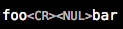
When TextMate 2 renders content, certain invisible characters are now shown in a meaningful representation, to you as the user. By way of example, if I type the following line into a shell script file and run it (with ⌃R):

printf "foo\rbar"

TextMate 2 shows me this output:

invisibles

This can help you recognize as hard to detect content is making it’s way into your files.

That’s a Wrap

Soft wrap has multiple enhancements in TextMate 2. First, it can now be turned on and off by line. Also, you format the wrapped string, which allows for some custom indentation.

A great example of both of these are the new style settings for comments in the Source bundle. Here’s a setting bound to the comment.line.number-sign scope (among others):

{   indentedSoftWrap = {
        format = '${0/\S/ /g}';
        match = '.*(##?)\s+';
    };
    softWrap = :true;
}

The softWrap = :true; kicks in soft wrapping for lines ending in this scope. That might be needed because a lot of users prefer not to wrap actual code content. Comments are prose though, so it is probably desirable to treat them differently.

The indentedSoftWrap details give a regular expression to match the line where indenting started, and a Format Strings that will be expanded in terms of that match and prepended to each line.

The effect of these settings is that a trailing comment can now be rendered as such:

Soft Wrapped Comment

It’s worth mentioning that, for the purposes of matching, a line now has a left and a right scope that we can explicitly match against via the new scope selector syntax for selecting on either side. The left scope is the line’s starting scope and the right scope (which is what’s used by default if the selector doesn’t explicitly select side) is the line’s ending scope. We will talk more about the new scope selector syntax in a future article.

Sensible Font Sizing

The first thing I absolutely have to say about font sizing is that proportional width fonts are now supported. You asked for it and Allan added it. Enough said about that.

Another nice new feature is that fonts and their sizing can be altered by scope. For example, Markdown heading now adjust their size depending on the level of the heading. This helps them standout. Here are the settings from the Themes bundle tied to the markup.heading.1 scope:

{   fontName = 'Baskerville';
    fontSize = '2.25em';
}

Now the rule bound to markup.heading.2 uses the same font at a smaller size:

{   fontName = 'Baskerville';
    fontSize = '2.1em';
}

There are rules set for the other headings as well, on down to level six.

Notice that these sizes are being set in em so they will be relative to the rest of the document content. You can also use pt (absolute) or % (relative).

Fold on the Dotted Line

The folding system has been extended with two new patterns to allow indent-based foldings. Let’s look at some examples of how this works.

For example, we might want to install these folding pattern settings for C++ (scoped to source.c++):

{   foldingIndentedBlockStart  = '^\s*(public|protected|private):\s*(//.*)?$|^\s*/[*](?!.*[*]/)';
    foldingIndentedBlockIgnore = '^\s*#';
}

The first pattern (foldingIndentedBlockStart) decides what starts a foldable block. In this case it is either a visibility keyword (public/private) or /*.

The latter is to make a comment block like the following foldable:

/*
 *  t_foldings.cc
 *  TextMate 2
 *  
 *  Created by Allan Odgaard on 2011-09-30.
 *  Copyright 2011 MacroMates. All rights reserved.
 */

The second pattern (foldingIndentedBlockIgnore) represents lines to ignore. For C++ this would be preprocessor directives:

   class foldings_t
   {
   public:
      foldings_t (arguments);
#if 0
      virtual ~foldings_t ();
#endif

   private:
      /* data */
   };

This allows us to still fold from public and down to private despite the non-indented preprocessor directives.

For Markdown’s folding settings (scoped to text.html.markdown), let’s look at some more sneaky patterns:

{  foldingIndentedBlockStart  = '^#+\s+';
   foldingIndentedBlockIgnore = '^(?!#+\s+)';
}

We let a heading be a start marker and then we effectively ignore everything which is not a heading, causing those lines to be included in the foldable block despite not being indented. This allows you to collapse entire sections of a Markdown document down to just the headings.

These are just some of the ways TextMate 2 can now dynamically modify content as it is displayed for you. Expect to see more developments in this area in the future, as the new layout engine gives plenty of room for growth.

]]>
Using Find and Replace https://macromates.com/blog/2012/using-find-and-replace/ Fri, 06 Jul 2012 05:16:27 +0200 James Gray General TextMate 2 http://blog.macromates.com/?p=313 Since the earliest word processors Find and Replace has been a standard feature expected by users editing almost any content. You can score extra points with the programming crowd if you support Regular Expressions, the swiss army knife mini-language of Find and Replace operations. Of course, TextMate 1 had both. TextMate 2 adds some subtle refinements to this already strong collection of features. In this article will discuss: * Keyboard usage of Find operations * New visual feedback provided for these operations * How to speed up your searches * Enhancements to the Find dialogs ## The Three Shortcuts You Should Already Know Before we get into the Find enhancements, I need to make sure you've taken the time to learn three very important Find shortcuts. Personally, I'm pretty lax on keyboard shortcuts. I don't claim you need to know them all. Sometimes a trip into the menus is totally acceptable. In fact, there are shortcuts I recommend people don't learn for various reasons. However, there are exceptions. Some keyboard shortcuts are more important than others. Some are almost required knowledge for efficient editing. Three of those relate to Find operations: * ⌘E (Use Selection for Find) * ⌘G (Find Next) * ⇧⌘G (Find Previous) Together, these three key combos form a super fast means to navigate Find operations without even needing to stop off at a dialog first. Just select something, throw it on the Find clipboard with ⌘E, and start jumping to matches with ⌘G and/or ⇧⌘G. The real reason to learn these keys though is that they are Mac OS X standards. This isn't just about TextMate. Any well behaved Mac program with Find should honor these same keys. Learn them once. Use them everywhere. I literally mean everywhere too, because the Find clipboard is shared between all applications. ## It's ⌘G Everywhere That brings us to the first couple of TextMate 2 tweaks. TextMate has always had a slightly hidden feature on ⌃S. It's called Incremental Search, which is just a fancy way of saying that it starts matching as you type. The problem with the TextMate 1 version of this feature is that it used its own shortcuts for moving to the next or previous match. TextMate 2 brings this feature inline with the rest of the OS by switching to ⌘G and ⇧⌘G for moving to the next and previous matches respectively. Along the same lines, you can now walk through Find in Project (⇧⌘F) matches using ⌘G. Even if the next match is another file, TextMate 2 will take you there. Now you can just remember that ⌘G means Find Next everywhere. ## The Good and Bad of the Other Keyboard Shortcuts Now that we've talked about the holy trinity of keyboard shortcuts, it's worth noting that TextMate adds one very handy Find shortcut of its own. You might want to consider devoting brain power to learning this as well: * ⇧⌘E (Use Selection for Replace) That pairs beautifully with ⌘E and can save you a dialog visit for operations that need a Replace as well Find. Of course, TextMate adds a ton of other shortcuts for Find operations. One I find myself letting go of in TextMate 2 is Replace All (⌃⌘F). I used it quite a bit with TextMate 1 where I would often grab a search, press ⌘E, grab the desired replacement, use ⇧⌘E to set that, and finally Replace All (⌃⌘F). With TextMate 2's Find All (⌥⌘F) I prefer to shorten that to select, ⌘E, ⌥⌘F, and edit. See [the article on Multiple Carets][carets] for a more thorough discussion of just how great Find All can be. ## Earning Tips Another tweak keyboard Find users are likely to enjoy is the addition of tooltip feedback for a few operations. If you ⌘G/⇧⌘G past the last match, a tooltip tells you that. ![A Find tooltip](https://macromates.com/wp-content/uploads/2012/07/todo.png) Also, you get a tooltip with match counts during Find All or Replace All operations. That's handy since they can involve more matches than you can see on the screen. Finally, you will see little stars marking matches in the gutter as you are working through a Find in Project searches. This can help you see where your caret will go next and/or how many matches remain. ![A match star](https://macromates.com/wp-content/uploads/2012/07/star.png) These are simple but appreciated enhancements. ## The Need for Speed TextMate has always had a Find in Project (⇧⌘F) feature and it's terrific to be able to scan a huge set of files or use a Regular Expression to do some clever mass editing. I'll be honest though and say that this feature took some heat during the TextMate 1 era for being on the slow side. A lot of users resorted to using tools like grep or ack to achieve similar results faster. It you have turned your back on the feature in the past, give it another shot after upgrading to TextMate 2. First, it's just plain faster now. That's a great start all by itself. If you really need faster searching though, it's often attainable using Find in Project's new _In_ and _matching_ fields to restrict a Find to certain folders and/or to a "glob" of matching files respectively. For example, `*.{html,css}` is a great glob for renaming a CSS class inside of your HTML and CSS files. ![A restricted Find in Project](https://macromates.com/wp-content/uploads/2012/07/restricted.png) ## Remember Your History Ever been in that situation where you thought, "I had that regex just a moment ago!". You've always been able to get those old searches back in TextMate by opening the Find dialog and using the history pop-up there. Keeping with our skip-the-dialog theme though, TextMate 2 now allows you to use old searches straight from the keyboard. Just invoke Find History (⌃⌥⌘F), arrow down to the desired search string, and press ↩ to restart that search. This can be pretty handy if you are alternating between a small number of Find operations. ## Better Dialogs While I've been pretty hard on the Find dialogs in this article, there are good reasons to access them at times. When you do, you'll be treated to some new features there as well. First, the unification of the Find and Find in Project dialogs means that you can get all of the matches from a single document presented in a list (as Find in Project has always done). To see this list, use the Find All button (note that this is different from the Find All menu command). There are also the new Full Words and Ignore Whitespace checkboxes. Full Words hasn't been implemented yet, but Ignore Whitespace allows the amount of whitespace used to separate content to differ between the search string and matched content. A typical use case for this would be if you have multiple lines of code that you want to find. For example, say that I have five lines of code that I am almost certain is copied from elsewhere and I want to refactor it into a shared function. A problem with finding the other use of that code is that it might be indented differently. Use Ignoring Whitespace though and TextMate 2 will still find it. ![New Find options](https://macromates.com/wp-content/uploads/2012/07/find_options.png) In the enhanced Find in Project dialog of TextMate 2, you may also enjoy knowing that ⌘1, ⌘2, … ⌘N will open that number of file with matches in it. You can see which number is attached to which file by clicking of the result list header, for a pop-up. You can also use the collapse all arrow to the left of this header to make it easy to count the files, as well as see the number of matches each contains. This can save you a trip to the mouse when you know just what you are hunting for. It's probably obvious that the result list also allows you to control what does and doesn't get updated, via the checkbox next to each match. There are some hidden features here worth noting. First, ⌥-clicking a checkbox will toggle all of the checks for that file. You can also copy content from the result list, complete with a file and line reference. Just click on the desired entry and trigger Edit → Copy (⌘C). Replacements are also smarter in TextMate 2. Remember that they are [Format Strings][format], with all of the new abilities that entails. The match list will also reflect changes as you are editing a replacement string in TextMate 2. It's nice to be able to preview the changes you are about to make, before actually making them. This is especially helpful when you are using clever Format String replacements. None of these changes are major new features, but together they really round out and add to the robustness of TextMate 2's Find and Replace operations. [carets]: https://macromates.com/blog/2011/multiple-carets/ [format]: https://macromates.com/blog/2011/format-strings/ Since the earliest word processors Find and Replace has been a standard feature expected by users editing almost any content. You can score extra points with the programming crowd if you support Regular Expressions, the swiss army knife mini-language of Find and Replace operations. Of course, TextMate 1 had both.

TextMate 2 adds some subtle refinements to this already strong collection of features.

In this article will discuss:

  • Keyboard usage of Find operations
  • New visual feedback provided for these operations
  • How to speed up your searches
  • Enhancements to the Find dialogs

The Three Shortcuts You Should Already Know

Before we get into the Find enhancements, I need to make sure you’ve taken the time to learn three very important Find shortcuts.

Personally, I’m pretty lax on keyboard shortcuts. I don’t claim you need to know them all. Sometimes a trip into the menus is totally acceptable. In fact, there are shortcuts I recommend people don’t learn for various reasons. However, there are exceptions. Some keyboard shortcuts are more important than others. Some are almost required knowledge for efficient editing. Three of those relate to Find operations:

  • ⌘E (Use Selection for Find)
  • ⌘G (Find Next)
  • ⇧⌘G (Find Previous)

Together, these three key combos form a super fast means to navigate Find operations without even needing to stop off at a dialog first. Just select something, throw it on the Find clipboard with ⌘E, and start jumping to matches with ⌘G and/or ⇧⌘G.

The real reason to learn these keys though is that they are Mac OS X standards. This isn’t just about TextMate. Any well behaved Mac program with Find should honor these same keys. Learn them once. Use them everywhere. I literally mean everywhere too, because the Find clipboard is shared between all applications.

It’s ⌘G Everywhere

That brings us to the first couple of TextMate 2 tweaks.

TextMate has always had a slightly hidden feature on ⌃S. It’s called Incremental Search, which is just a fancy way of saying that it starts matching as you type. The problem with the TextMate 1 version of this feature is that it used its own shortcuts for moving to the next or previous match.

TextMate 2 brings this feature inline with the rest of the OS by switching to ⌘G and ⇧⌘G for moving to the next and previous matches respectively.

Along the same lines, you can now walk through Find in Project (⇧⌘F) matches using ⌘G. Even if the next match is another file, TextMate 2 will take you there.

Now you can just remember that ⌘G means Find Next everywhere.

The Good and Bad of the Other Keyboard Shortcuts

Now that we’ve talked about the holy trinity of keyboard shortcuts, it’s worth noting that TextMate adds one very handy Find shortcut of its own. You might want to consider devoting brain power to learning this as well:

  • ⇧⌘E (Use Selection for Replace)

That pairs beautifully with ⌘E and can save you a dialog visit for operations that need a Replace as well Find.

Of course, TextMate adds a ton of other shortcuts for Find operations. One I find myself letting go of in TextMate 2 is Replace All (⌃⌘F). I used it quite a bit with TextMate 1 where I would often grab a search, press ⌘E, grab the desired replacement, use ⇧⌘E to set that, and finally Replace All (⌃⌘F). With TextMate 2’s Find All (⌥⌘F) I prefer to shorten that to select, ⌘E, ⌥⌘F, and edit. See the article on Multiple Carets for a more thorough discussion of just how great Find All can be.

Earning Tips

Another tweak keyboard Find users are likely to enjoy is the addition of tooltip feedback for a few operations. If you ⌘G/⇧⌘G past the last match, a tooltip tells you that.
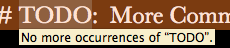
A Find tooltip

Also, you get a tooltip with match counts during Find All or Replace All operations. That’s handy since they can involve more matches than you can see on the screen.

Finally, you will see little stars marking matches in the gutter as you are working through a Find in Project searches. This can help you see where your caret will go next and/or how many matches remain.

A match star

These are simple but appreciated enhancements.

The Need for Speed

TextMate has always had a Find in Project (⇧⌘F) feature and it’s terrific to be able to scan a huge set of files or use a Regular Expression to do some clever mass editing. I’ll be honest though and say that this feature took some heat during the TextMate 1 era for being on the slow side. A lot of users resorted to using tools like grep or ack to achieve similar results faster.

It you have turned your back on the feature in the past, give it another shot after upgrading to TextMate 2.

First, it’s just plain faster now. That’s a great start all by itself. If you really need faster searching though, it’s often attainable using Find in Project’s new In and matching fields to restrict a Find to certain folders and/or to a “glob” of matching files respectively. For example, *.{html,css} is a great glob for renaming a CSS class inside of your HTML and CSS files.

A restricted Find in Project

Remember Your History

Ever been in that situation where you thought, “I had that regex just a moment ago!”. You’ve always been able to get those old searches back in TextMate by opening the Find dialog and using the history pop-up there.

Keeping with our skip-the-dialog theme though, TextMate 2 now allows you to use old searches straight from the keyboard. Just invoke Find History (⌃⌥⌘F), arrow down to the desired search string, and press ↩ to restart that search.

This can be pretty handy if you are alternating between a small number of Find operations.

Better Dialogs

While I’ve been pretty hard on the Find dialogs in this article, there are good reasons to access them at times. When you do, you’ll be treated to some new features there as well.

First, the unification of the Find and Find in Project dialogs means that you can get all of the matches from a single document presented in a list (as Find in Project has always done). To see this list, use the Find All button (note that this is different from the Find All menu command).

There are also the new Full Words and Ignore Whitespace checkboxes. Full Words hasn’t been implemented yet, but Ignore Whitespace allows the amount of whitespace used to separate content to differ between the search string and matched content. A typical use case for this would be if you have multiple lines of code that you want to find. For example, say that I have five lines of code that I am almost certain is copied from elsewhere and I want to refactor it into a shared function. A problem with finding the other use of that code is that it might be indented differently. Use Ignoring Whitespace though and TextMate 2 will still find it.
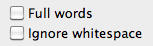
New Find options

In the enhanced Find in Project dialog of TextMate 2, you may also enjoy knowing that ⌘1, ⌘2, … ⌘N will open that number of file with matches in it. You can see which number is attached to which file by clicking of the result list header, for a pop-up. You can also use the collapse all arrow to the left of this header to make it easy to count the files, as well as see the number of matches each contains. This can save you a trip to the mouse when you know just what you are hunting for.

It’s probably obvious that the result list also allows you to control what does and doesn’t get updated, via the checkbox next to each match. There are some hidden features here worth noting. First, ⌥-clicking a checkbox will toggle all of the checks for that file. You can also copy content from the result list, complete with a file and line reference. Just click on the desired entry and trigger Edit → Copy (⌘C).

Replacements are also smarter in TextMate 2. Remember that they are Format Strings, with all of the new abilities that entails. The match list will also reflect changes as you are editing a replacement string in TextMate 2. It’s nice to be able to preview the changes you are about to make, before actually making them. This is especially helpful when you are using clever Format String replacements.

None of these changes are major new features, but together they really round out and add to the robustness of TextMate 2’s Find and Replace operations.

]]>
Leopards and Questions https://macromates.com/blog/2012/leopards-and-questions/ Mon, 27 Feb 2012 00:09:17 +0100 Michael Sheets General http://blog.macromates.com/?p=304 Today we are pushing out a new nightly build for the 2.0 alpha that changes the minimum OS requirement to start requiring Snow Leopard, this change was made after checking the current statistics for 2.0: **10.8** 2.0% **10.7** 86.7% **10.6** 11.1% **10.5** 0.2% With such a small percentage on 10.5 it makes sense to drop its support. Moving forward we may decide that requiring Lion will be a reasonable tradeoff as it provides many underlying benefits we could take advantage of. The usage statistics will be monitored to determine the feasibility of this move. Also to help answer many of the more commonly asked questions we've put together [a FAQ about 2.0](https://wiki.macromates.com/FAQ/TextMate2 "FAQ / TextMate2"). Today we are pushing out a new nightly build for the 2.0 alpha that changes the minimum OS requirement to start requiring Snow Leopard, this change was made after checking the current statistics for 2.0:

10.8 2.0%
10.7 86.7%
10.6 11.1%
10.5 0.2%

With such a small percentage on 10.5 it makes sense to drop its support. Moving forward we may decide that requiring Lion will be a reasonable tradeoff as it provides many underlying benefits we could take advantage of. The usage statistics will be monitored to determine the feasibility of this move.

Also to help answer many of the more commonly asked questions we’ve put together a FAQ about 2.0.

]]>
Clever Completion https://macromates.com/blog/2012/clever-completion/ Tue, 17 Jan 2012 19:19:45 +0100 James Gray General TextMate 2 http://blog.macromates.com/?p=296 TextMate has always had completion and, as I've said before, it remains the best reason to wear out your ⎋ (esc) key. The idea is simple and I bet you are already familiar with it, but, just to recap, if I had this Ruby code: class BoundingBox def initialize(min_x, min_y, max_x, max_y) @min_x = min_x @min_y = min_y @max_x = max_x @max_y = max_y end end I could later use completion to finish off this line: class BoundingBox def max_x=(x) fail "max_x must be > min_x" unless @m‸ # ... end end If I push ⎋ where my caret currently is (shown with `‸` above), TextMate will complete the variable reference to `@max_y`. It starts with `@max_y`, because that's the closest instance variable reference to my caret (from the bottom of `initialize()`), meaning it had a high chance to be what I was referring to. It's not really what I wanted though, so another press of ⎋ cycles me to the second choice of `@max_x`. That is what I want, so I add &gt; and another `@m`. Then I can complete until I get `@min_x` (four presses of ⎋ or just one press of ⇧⎋ to go backwards, since it's the furthest reference from my caret). In this article will discuss: * Reasons to use completion * Suffix completion * Prefix completion * Mid-word completion * Intelligent scoped completion ## Already Better The previous example pretty much worked in TextMate 1 and it's definitely still around in TextMate 2. I say "pretty much" because this example is already showing off how much smarter TextMate 2 is when it comes to completion. You see, TextMate 1 had a pretty fixed idea of what a "word" really is and, since completion works on words, it wasn't super clever. By default, it would have ignored the leading `@` that identifies an instance variable and just started completing `m` words. That means the first sequence would have gone `min_x`, `must`, and then `max_x` (since those are the closest to my caret). Because TextMate 2 did use the `@` it got to the right answer in one less step. In bigger examples it could save even more cycling. This actually turns out to be a big change with some pretty sweeping implications for TextMate 2 and we'll get to those, but first let's take a few detours… ## Why use completion? I bet some of you are wondering if completion is really worth an article all by itself. Frankly, it is. Programming is hard enough all on its own, so anything that can make it easier is a win. The fact is that completion reduces errors. You're just less likely to typo a variable or method name while using it. Since TextMate is often used for dynamic languages, like Ruby which silently uses `nil` for newly referenced instance variables, this becomes doubly important. Make friends with your ⎋ key. ## TextMate 2 is Now on the Right Side Completion in TextMate 1 only used content to the left of the cursor. In other words, it finished typing words. TextMate 2, now uses the left and right sides. What does that give us? Well, prefix completion for one thing. Say I'm still finishing off that method we looked at earlier and I make a mistake entering it: class BoundingBox def max_x=(x) fail "max_x must be > min_x" unless @max_x > @min_x ‸x = x end end I meant to type `@max_x = x` there, instead of `x = x`. I run my tests, they catch the bug, I come back and notice the problem. Prefix completion makes the fix trivial. I click in front of the first `x` and push ⎋ until it fixes the variable reference (two times for this case). ## Selecting What You Don't Want Technically, TextMate 2 uses the content to both the left and right of the caret for completion. This means you can also do a mid-word completion. I can type an `@m_x`, stick my caret between the `m` and the `_`, and push ⎋ to rotate between `@max_x` and `@min_x` (with the order determined by what's closest to my caret). I know what you're thinking though. It's kind of a contrived example, right? When are you going to use that? Well, it turns out that TextMate 2 has another trick up its sleeve that just might change your mind. I said that it uses what's to the left and right of the caret, but I left out a detail. It also removes any selection. Knowing that, let's say you used `@min_x` somewhere when you meant to use `@max_x`. Again, your tests catch the bug. Good thing you have those tests! So you go to fix it. One possible solution is that you click behind the `n`, press ⇧⇠ twice to select `in`, and push ⎋ to make the correction. It's guaranteed to be just one press of the ⎋ key this time too, because, even thought TextMate 2 removes the selection to make the completion, it does use it to filter out the choice you didn't want. Thus `@max_x` will be the only matching variable in our code with `@min_x` ruled out. Are you keyboard jockeys scoffing at my use of the word "click" above? Alright, let's get fancy. If your caret is just after a `@min_x` you wish to change to a `@max_x`, try this: press ⌃⇠ to jump over a sub-word chunk (the `x` in this case), then ⌃⇧⇠ to jump over the next sub-word chunk (`min_`) while selecting it, and finish the maneuver off with an ⎋ to make the correction. (Note: if the OS swallows those sub-word bindings for Mission Control or Spaces, just add an ⌥ (option) to them: ⌃⌥⇠ and ⌃⌥⇧⇠.) The `m` and the `_` don't change the result, so that's a three-keystroke correction that's guaranteed to be exactly what you want. ## It's All About Character and Class Let's go back to that concept of a word that I talked about earlier. I said all of this works because TextMate 2 has an improved idea of what is in a word. In truth, TextMate 2 can assign named grouping to any set of characters. As is usually the case, this concept of character groups is managed by scope, allowing TextMate 2 to adapt to multiple languages. Ruby considers `@max_x` to be a set of `variable` characters (with the `@`) because the Ruby bundle scopes it as `variable.other.readwrite.instance.ruby`. That scope is inside of the scope `source.ruby` so it inherits this magic setting from the Source bundle: { characterClass = 'variable'; } That setting is scoped to `variable`, so it affects everything under that distinction. In plain English it says, inside of source code files, treat variables as a group of related characters. A Ruby instance variable includes the leading `@`, so it's in the same group of characters as letters that follow it. Global variables and their leading `$` (in Ruby) would be treated the same. But the real question is, what else does TextMate 2 consider to be related in code files? Several things, including my personal favorite: { characterClass = 'escape'; } That's scoped to `constant.character.escape`, which means that escape sequences are now self contained chunks of characters separate from the content around them. What can we do with that? Well, say we have this simple Ruby statement: lines = "‸Just\nTesting" That string contains three words as far as TextMate 2 is concerned. That's not just for completion either. If I place the caret at the beginning of the string and use ⌥→ to jump forward by words, I'll skip to the end of `Just`, `\n`, and then `Testing`. Compare that to TextMate 1, which considered `Just` and `nTesting` to be words with a little punctuation (`\`) between them. But this article isn't about movement, as cool as it is. It's about completion. So let's add a little more code: lines = "Just\nTesting" if lines =~ /\bTe‸/ # ... end If we push ⎋ with our caret after the `Te`, TextMate 2 will complete `Testing` from the string above. Notice how much context it's using to make this decision. We're inside a Regular Expression here, so TextMate 2 knows the word boundary escape (`\b`) isn't part of the word to complete (`Te`). It also looks for possible completions inside of that Ruby string, where it knows the newline escape (`\n`) isn't part of the matching completion (`Testing`). ## Augmented Completion If that's not enough for your completion needs, [you can augment the command yourself][completion]. TextMate 2 also takes this option one step further by passing the entire document to completion commands on stdin. That's some clever completion, if you ask me! [completion]: https://manual.macromates.com/en/working_with_text#completion TextMate has always had completion and, as I’ve said before, it remains the best reason to wear out your ⎋ (esc) key. The idea is simple and I bet you are already familiar with it, but, just to recap, if I had this Ruby code:

class BoundingBox
  def initialize(min_x, min_y, max_x, max_y)
    @min_x = min_x
    @min_y = min_y
    
    @max_x = max_x
    @max_y = max_y
  end
end

I could later use completion to finish off this line:

class BoundingBox
  def max_x=(x)
    fail "max_x must be > min_x" unless @m‸
    # ...
  end
end

If I push ⎋ where my caret currently is (shown with ‸ above), TextMate will complete the variable reference to @max_y. It starts with @max_y, because that’s the closest instance variable reference to my caret (from the bottom of initialize()), meaning it had a high chance to be what I was referring to. It’s not really what I wanted though, so another press of ⎋ cycles me to the second choice of @max_x. That is what I want, so I add > and another @m. Then I can complete until I get @min_x (four presses of ⎋ or just one press of ⇧⎋ to go backwards, since it’s the furthest reference from my caret).

In this article will discuss:

  • Reasons to use completion
  • Suffix completion
  • Prefix completion
  • Mid-word completion
  • Intelligent scoped completion

Already Better

The previous example pretty much worked in TextMate 1 and it’s definitely still around in TextMate 2. I say “pretty much” because this example is already showing off how much smarter TextMate 2 is when it comes to completion.

You see, TextMate 1 had a pretty fixed idea of what a “word” really is and, since completion works on words, it wasn’t super clever. By default, it would have ignored the leading @ that identifies an instance variable and just started completing m words. That means the first sequence would have gone min_x, must, and then max_x (since those are the closest to my caret). Because TextMate 2 did use the @ it got to the right answer in one less step. In bigger examples it could save even more cycling. This actually turns out to be a big change with some pretty sweeping implications for TextMate 2 and we’ll get to those, but first let’s take a few detours…

Why use completion?

I bet some of you are wondering if completion is really worth an article all by itself. Frankly, it is.

Programming is hard enough all on its own, so anything that can make it easier is a win. The fact is that completion reduces errors. You’re just less likely to typo a variable or method name while using it. Since TextMate is often used for dynamic languages, like Ruby which silently uses nil for newly referenced instance variables, this becomes doubly important.

Make friends with your ⎋ key.

TextMate 2 is Now on the Right Side

Completion in TextMate 1 only used content to the left of the cursor. In other words, it finished typing words. TextMate 2, now uses the left and right sides. What does that give us? Well, prefix completion for one thing.

Say I’m still finishing off that method we looked at earlier and I make a mistake entering it:

class BoundingBox
  def max_x=(x)
    fail "max_x must be > min_x" unless @max_x > @min_x
    ‸x = x
  end
end

I meant to type @max_x = x there, instead of x = x. I run my tests, they catch the bug, I come back and notice the problem. Prefix completion makes the fix trivial. I click in front of the first x and push ⎋ until it fixes the variable reference (two times for this case).

Selecting What You Don’t Want

Technically, TextMate 2 uses the content to both the left and right of the caret for completion. This means you can also do a mid-word completion. I can type an @m_x, stick my caret between the m and the _, and push ⎋ to rotate between @max_x and @min_x (with the order determined by what’s closest to my caret).

I know what you’re thinking though. It’s kind of a contrived example, right? When are you going to use that?

Well, it turns out that TextMate 2 has another trick up its sleeve that just might change your mind. I said that it uses what’s to the left and right of the caret, but I left out a detail. It also removes any selection.

Knowing that, let’s say you used @min_x somewhere when you meant to use @max_x. Again, your tests catch the bug. Good thing you have those tests! So you go to fix it. One possible solution is that you click behind the n, press ⇧⇠ twice to select in, and push ⎋ to make the correction. It’s guaranteed to be just one press of the ⎋ key this time too, because, even thought TextMate 2 removes the selection to make the completion, it does use it to filter out the choice you didn’t want. Thus @max_x will be the only matching variable in our code with @min_x ruled out.

Are you keyboard jockeys scoffing at my use of the word “click” above? Alright, let’s get fancy. If your caret is just after a @min_x you wish to change to a @max_x, try this: press ⌃⇠ to jump over a sub-word chunk (the x in this case), then ⌃⇧⇠ to jump over the next sub-word chunk (min_) while selecting it, and finish the maneuver off with an ⎋ to make the correction. (Note: if the OS swallows those sub-word bindings for Mission Control or Spaces, just add an ⌥ (option) to them: ⌃⌥⇠ and ⌃⌥⇧⇠.) The m and the _ don’t change the result, so that’s a three-keystroke correction that’s guaranteed to be exactly what you want.

It’s All About Character and Class

Let’s go back to that concept of a word that I talked about earlier. I said all of this works because TextMate 2 has an improved idea of what is in a word. In truth, TextMate 2 can assign named grouping to any set of characters. As is usually the case, this concept of character groups is managed by scope, allowing TextMate 2 to adapt to multiple languages.

Ruby considers @max_x to be a set of variable characters (with the @) because the Ruby bundle scopes it as variable.other.readwrite.instance.ruby. That scope is inside of the scope source.ruby so it inherits this magic setting from the Source bundle:

{ characterClass = 'variable'; }

That setting is scoped to variable, so it affects everything under that distinction. In plain English it says, inside of source code files, treat variables as a group of related characters. A Ruby instance variable includes the leading @, so it’s in the same group of characters as letters that follow it. Global variables and their leading $ (in Ruby) would be treated the same.

But the real question is, what else does TextMate 2 consider to be related in code files? Several things, including my personal favorite:

{ characterClass = 'escape'; }

That’s scoped to constant.character.escape, which means that escape sequences are now self contained chunks of characters separate from the content around them.

What can we do with that? Well, say we have this simple Ruby statement:

lines = "‸Just\nTesting"

That string contains three words as far as TextMate 2 is concerned. That’s not just for completion either. If I place the caret at the beginning of the string and use ⌥→ to jump forward by words, I’ll skip to the end of Just, \n, and then Testing. Compare that to TextMate 1, which considered Just and nTesting to be words with a little punctuation (\) between them.

But this article isn’t about movement, as cool as it is. It’s about completion. So let’s add a little more code:

lines = "Just\nTesting"
if lines =~ /\bTe‸/
  # ...
end

If we push ⎋ with our caret after the Te, TextMate 2 will complete Testing from the string above. Notice how much context it’s using to make this decision. We’re inside a Regular Expression here, so TextMate 2 knows the word boundary escape (\b) isn’t part of the word to complete (Te). It also looks for possible completions inside of that Ruby string, where it knows the newline escape (\n) isn’t part of the matching completion (Testing).

Augmented Completion

If that’s not enough for your completion needs, you can augment the command yourself. TextMate 2 also takes this option one step further by passing the entire document to completion commands on stdin.

That’s some clever completion, if you ask me!

]]>
Format Strings https://macromates.com/blog/2011/format-strings/ Fri, 30 Dec 2011 11:05:27 +0100 James Gray General TextMate 2 http://blog.macromates.com/?p=291 TextMate 1 allowed you to use variable references in Snippets and even to supply defaults or simple replacements for them. TextMate 2 expands a lot on what you can do with variable references and where you can use them. In this article we will discuss: * The syntax of TextMate 2's Format Strings * Where you can use them * The kinds of tricks these tools can help you accomplish ## Titling Your Work We've already discussed [`.tm_properties` files][properties] and how you can use them to customize TextMate 2's behavior. What I didn't tell you before though is that those settings are Format Strings. One option you can customize is the title used for the editing window. By default, the window title shows the name and extension of the file you are editing. Let's use some Format String magic to fancy that up. ![The default window title](https://macromates.com/wp-content/uploads/2011/12/the_default_window_title.png) First, I can just add this option to the `.tm_properties` in my home directory to also show the directory of the file being edited: windowTitle = "$TM_DISPLAYNAME – $TM_DIRECTORY" ![A window title with a directory](https://macromates.com/wp-content/uploads/2011/12/a_window_title_with_a_directory.png) This is useful to me if I am editing in a project where it's common for files to have the same name, but be located in different places. Rails applications are like that. However, the full paths can get pretty long. If you want something shorter, we can edit the variable as it is used with a Regular Expression: windowTitle = "$TM_DISPLAYNAME – ${TM_DIRECTORY/([^\/])[^\/]+\//$1…\//g}" That expression is a little difficult to read because it's matching directory separators, which are the same characters TextMate uses to delimit a Regular Expression. The first chunk between the non-escaped `/` characters (`([^\/])[^\/]+\/`) is the expression which searches for two or more character directories with a trailing `/`. The replacement string (`$1…\/`), before the next unescaped `/`, just truncates the directory down to the first character, an ellipsis, and the trailing separator. The final `g` after the last `/` turns on the **g**lobal option for the replacement, so we trim all the directories but the last (because it won't have a trailing `/` to match). ![A window title with a truncated directory](https://macromates.com/wp-content/uploads/2011/12/a_window_title_with_a_truncated_directory.png) ## Obsessive Compulsive Window Titles _Note: the following example is real world and may get pretty complex. Lighter example follows._ I like the trimmed paths, but I'll be honest and tell you that's not my actual `windowTitle` setting. Here's what I really use: windowTitle = "$TM_DISPLAYNAME${TM_DIRECTORY/\A(?:\/Users\/james\/Documents\/(?:work\/)?(?!\b(?:communication|programming|reference)\b)\w+\/?(.*)|(.+))\z/${2:? – ${2/\/Users\/james/~/}:${1/\A(?=.)/ – /}}/}" This leads us to two of the great features of Format Strings in TextMate 2: the replacement of a variable reference is a nested Format String and you can branch based on whether or not a variable is set. This allows your to run replacements on a replacement and choose between multiple replacements. Let me explain how I use those in the pattern above. I keep my current project directories just inside of `~/Documents`. I also move older projects into a `~/Documents/work` subdirectory. I want to see paths inside of those project directories, but I don't need to be reminded that they are in `~/Documents` or `~/Documents/work`. I also don't need to see the project directory itself, since I'm seeing that in the File Browser. Other non-project directories should be handled normally. There are also a few directories inside `~/Documents` that aren't project directories and those should be treated like any other directory. For example, here are some path transformations: * `~/Documents/tm2_documentation/` is stripped * `~/Documents/tm2_documentation/calendar/` becomes `calendar` * `~/Documents/work/scout/` is stripped * `~/Documents/reference/documentation/` is not changed Given that, I just do a search for a leading (`\A`) followed by either (`(?:…|…)`) hardcoded path (`\/Users\/james\/Documents\/`), the optional work directory (`(?:work\/)?`), followed by a project directory name that isn't one of the exceptions (`(?!\b(?:communication|programming|reference)\b)\w+\/?`), and anything that happens to be trailing that (`(.*)`) or any other directory listing (`(.+)`) anchored to the end of the path (`\z`). That's the easy part, but the replacement is where we get tricky. To understand the replacement, you have to understand the desired result. If I have a file open from just inside the root project directory, I only need to see that file's name. For example, `Gemfile`. However, if I have a file open deeper in the project, I want to see the name and the path from the project's root directory. An example of that would be `show.html.erb – app/views/users`. The gotcha is the separator (`–`). I don't want the separator if it isn't going to be followed by a directory. Non-project directories can just show the full directory path, but it would be nice to at least shorten `/Users/james` to `~` for them. To accomplish that, I first check to see if I'm in a project path or a normal (`${2:?…:…}`). When it's a normal path, `$2` will be set because that's the part of the expression that matched them. If it is set, I prepend a separator and run a replacement to alias my home directory as discussed above (` – ${2/\/Users\/james/~/}`). If this is a project path, I run another regex replacement on `$1`. If the beginning of it (`\A`) is followed by an unmatched non-newline character (`(?=.)`), I replace that beginning (no content, just an anchor) with a ` – ` to get my separator. While the above was all about aesthetics, there are other variables, like `TM_MAKE_TARGET`, that can likewise benefit from a path-derived value. There's an example of how this can be used in the article on [`.tm_properties` files][properties]. ## Replacing a Replacement While the previous example is just a scary showing of how far I will go to keep my windows looking pretty, the features used have a lot of powerful and practical applications. Nesting Format Strings allows for pretty clever uses of the Find and Replace dialog. Want to convert a single-quoted Ruby string literal into the double-quoted variety while adding the proper escaping? Just Find for the regex `'(.*?)'` and replace with `"${1/"|#\{/\\$0/g}"`. Try that out on this chunk of Ruby: 'a "simple" string with no #{interpolation}' and it will be replaced with: "a \"simple\" string with no \#{interpolation}" This works because the second search hunts inside of the original string content (`$1`) for things that need escaping (`"` and/or `#{`) and prepends the escape (`\\`) to them. ## This or That The other feature I made use of earlier was if/else variable replacements. Again, this is a handy transformation tool. Let's say we have some CSV content: Product,Price iPhone 4S,$199.00 MacBook Pro,"$1,199.00" "Mac OS X ""Lion""",$29.99 We could convert that to tab-separated content and strip the extra quoting (we're confident there are no tabs in the fields) as we go, with just one Find and Replace operation. The Regular Expression used in the Find is `\G(?:"((?:""|[^"]*)*)"|([^,]*))([,\n])` and the replacement is `${1:?${1/""/"/g}:$2}${3/,/\t/}`. Let's talk through how that works, because it's pretty instructive. The idea with the regex is that we need to walk through the data one field at a time. We do that by saying: pick up where the last match ended or at the beginning for the first match (`\G`) and look for either (`(?:…|…)`) a quoted field `"(…)"`, which is zero or more escaped quotes and/or runs of non-quote characters (`(?:""|[^"]*)*`), or an unquoted field (`([^,]*)`) delimited by a comma or a newline (`([,\n])`). Each time that pattern matches either `$1` will be set with the contents of an quoted field or `$2` will be set with the contents of and unquoted field. No matter what `$3` will be set with a comma or a newline. That sets us up for the replacement work. The replacement string has two branches. If `$1` is set (`${1:?…:…}`), then use the quoted content, but unescape all quotes first (`${1/""/"/g}`). Otherwise, use the unquoted content (`$2`). Either way, add the separator at the end, but switch commas to tabs (`${3/,/\t/}`). ## Bundled Ifs The `${VARIABLE:?…:…}` form is useful when you need an if clause and an else clause. If you only need the if you can use `${VARIABLE:+…}` and you can use `${VARIABLE:-…}` for else-only insertions. A good example where this shortcut style is used involves setting a shell variable inside the Themes bundle: shellVariables = ( { name = 'TM_THEME_PATH'; value = '${TM_THEME_PATH:+$TM_THEME_PATH:}$TM_BUNDLE_SUPPORT/web-themes'; }, ); This prepends an existing path, if it already exists before it is set here. This allows one command, like Web Preview in the Support folder, to read an environment variable (`TM_THEME_PATH`) and learn about the paths of third party bundles. Bundle `completionCommand` settings are also Format Strings. ## The Case for Replacements Another form of Format Strings allows you to change the case of a variable reference. If you combine that with the fact that scope `name` elements in TextMate 2's Language Grammars are now Format Strings, this allows for nice dynamic scoping tricks. For example, say we rework Ruby's "here-document" (heredoc) syntax rule to look something like this (simplified) example: begin = '<<-?(\w+)'; name = 'string.unquoted.${1:/downcase}.ruby'; … That would mean that a heredoc definition like this: <<-CSS body { margin: 10px auto; } CSS would be scoped as `meta.here-doc.css.ruby`. This allows the injection of the CSS Grammar and automations into the scope `meta.here-doc.css`. That would mean that you get the proper syntax highlighting of these heredocs and you could trigger CSS Bundle commands while editing them. As I write this, the ruby grammar still has a dozen rules with a dozen different tokens that include a dozen different languages, so the above is a planned simplification that would allow us to avoid having to upgrade the ruby grammar for new potential here-doc tokens. The supported case transformations are `/upcase`, `/downcase`, and `/capitalize`. There's also a special `/asciify` transformation that will transliterate things like "æ" and "ø" into "ae" and "o" respectively as well as remove any remaining non-ASCII characters. The latter is particularly useful when deriving an identifier or label, that needs to be accepted by a language parser, from a heading or comment, which is free-form prose. These transformations can be combined. ## A Tiny Snip of Snippets Format Strings also have some Snippet-only enhancements, like the new pop-up choice syntax. We'll cover those in an upcoming article on what's new with Snippets. In the meantime though, I will give you one fix TextMate 2 has over its predecessor. If you need to place a literal number right after a numeric variable reference you can now use this form: `${1}337`. That works in Snippets and anywhere else Format Strings are used: `.tm_properties` files, Find replacements, Language Grammar `name` fields, and Bundle Settings. [properties]: https://macromates.com/blog/2011/git-style-configuration/ TextMate 1 allowed you to use variable references in Snippets and even to supply defaults or simple replacements for them. TextMate 2 expands a lot on what you can do with variable references and where you can use them.

In this article we will discuss:

  • The syntax of TextMate 2’s Format Strings
  • Where you can use them
  • The kinds of tricks these tools can help you accomplish

Titling Your Work

We’ve already discussed .tm_properties files and how you can use them to customize TextMate 2’s behavior. What I didn’t tell you before though is that those settings are Format Strings.

One option you can customize is the title used for the editing window. By default, the window title shows the name and extension of the file you are editing. Let’s use some Format String magic to fancy that up.

The default window title

First, I can just add this option to the .tm_properties in my home directory to also show the directory of the file being edited:

windowTitle = "$TM_DISPLAYNAME – $TM_DIRECTORY"

A window title with a directory

This is useful to me if I am editing in a project where it’s common for files to have the same name, but be located in different places. Rails applications are like that.

However, the full paths can get pretty long. If you want something shorter, we can edit the variable as it is used with a Regular Expression:

windowTitle = "$TM_DISPLAYNAME – ${TM_DIRECTORY/([^\/])[^\/]+\//$1…\//g}"

That expression is a little difficult to read because it’s matching directory separators, which are the same characters TextMate uses to delimit a Regular Expression. The first chunk between the non-escaped / characters (([^\/])[^\/]+\/) is the expression which searches for two or more character directories with a trailing /. The replacement string ($1…\/), before the next unescaped /, just truncates the directory down to the first character, an ellipsis, and the trailing separator. The final g after the last / turns on the global option for the replacement, so we trim all the directories but the last (because it won’t have a trailing / to match).

A window title with a truncated directory

Obsessive Compulsive Window Titles

Note: the following example is real world and may get pretty complex. Lighter example follows.

I like the trimmed paths, but I’ll be honest and tell you that’s not my actual windowTitle setting. Here’s what I really use:

windowTitle = "$TM_DISPLAYNAME${TM_DIRECTORY/\A(?:\/Users\/james\/Documents\/(?:work\/)?(?!\b(?:communication|programming|reference)\b)\w+\/?(.*)|(.+))\z/${2:? – ${2/\/Users\/james/~/}:${1/\A(?=.)/ – /}}/}"

This leads us to two of the great features of Format Strings in TextMate 2: the replacement of a variable reference is a nested Format String and you can branch based on whether or not a variable is set. This allows your to run replacements on a replacement and choose between multiple replacements. Let me explain how I use those in the pattern above.

I keep my current project directories just inside of ~/Documents. I also move older projects into a ~/Documents/work subdirectory. I want to see paths inside of those project directories, but I don’t need to be reminded that they are in ~/Documents or ~/Documents/work. I also don’t need to see the project directory itself, since I’m seeing that in the File Browser. Other non-project directories should be handled normally. There are also a few directories inside ~/Documents that aren’t project directories and those should be treated like any other directory.

For example, here are some path transformations:

  • ~/Documents/tm2_documentation/ is stripped
  • ~/Documents/tm2_documentation/calendar/ becomes calendar
  • ~/Documents/work/scout/ is stripped
  • ~/Documents/reference/documentation/ is not changed

Given that, I just do a search for a leading (\A) followed by either ((?:…|…)) hardcoded path (\/Users\/james\/Documents\/), the optional work directory ((?:work\/)?), followed by a project directory name that isn’t one of the exceptions ((?!\b(?:communication|programming|reference)\b)\w+\/?), and anything that happens to be trailing that ((.*)) or any other directory listing ((.+)) anchored to the end of the path (\z). That’s the easy part, but the replacement is where we get tricky.

To understand the replacement, you have to understand the desired result. If I have a file open from just inside the root project directory, I only need to see that file’s name. For example, Gemfile. However, if I have a file open deeper in the project, I want to see the name and the path from the project’s root directory. An example of that would be show.html.erb – app/views/users. The gotcha is the separator (–). I don’t want the separator if it isn’t going to be followed by a directory. Non-project directories can just show the full directory path, but it would be nice to at least shorten /Users/james to ~ for them.

To accomplish that, I first check to see if I’m in a project path or a normal (${2:?…:…}). When it’s a normal path, $2 will be set because that’s the part of the expression that matched them. If it is set, I prepend a separator and run a replacement to alias my home directory as discussed above ( – ${2/\/Users\/james/~/}). If this is a project path, I run another regex replacement on $1. If the beginning of it (\A) is followed by an unmatched non-newline character ((?=.)), I replace that beginning (no content, just an anchor) with a ` – ` to get my separator.

While the above was all about aesthetics, there are other variables, like TM_MAKE_TARGET, that can likewise benefit from a path-derived value. There’s an example of how this can be used in the article on .tm_properties files.

Replacing a Replacement

While the previous example is just a scary showing of how far I will go to keep my windows looking pretty, the features used have a lot of powerful and practical applications.

Nesting Format Strings allows for pretty clever uses of the Find and Replace dialog. Want to convert a single-quoted Ruby string literal into the double-quoted variety while adding the proper escaping? Just Find for the regex '(.*?)' and replace with "${1/"|#\{/\\$0/g}". Try that out on this chunk of Ruby:

'a "simple" string with no #{interpolation}'

and it will be replaced with:

"a \"simple\" string with no \#{interpolation}"

This works because the second search hunts inside of the original string content ($1) for things that need escaping (" and/or #{) and prepends the escape (\\) to them.

This or That

The other feature I made use of earlier was if/else variable replacements. Again, this is a handy transformation tool.

Let’s say we have some CSV content:

Product,Price
iPhone 4S,$199.00
MacBook Pro,"$1,199.00"
"Mac OS X ""Lion""",$29.99

We could convert that to tab-separated content and strip the extra quoting (we’re confident there are no tabs in the fields) as we go, with just one Find and Replace operation. The Regular Expression used in the Find is \G(?:"((?:""|[^"]*)*)"|([^,]*))([,\n]) and the replacement is ${1:?${1/""/"/g}:$2}${3/,/\t/}.

Let’s talk through how that works, because it’s pretty instructive.

The idea with the regex is that we need to walk through the data one field at a time. We do that by saying: pick up where the last match ended or at the beginning for the first match (\G) and look for either ((?:…|…)) a quoted field "(…)", which is zero or more escaped quotes and/or runs of non-quote characters ((?:""|[^"]*)*), or an unquoted field (([^,]*)) delimited by a comma or a newline (([,\n])). Each time that pattern matches either $1 will be set with the contents of an quoted field or $2 will be set with the contents of and unquoted field. No matter what $3 will be set with a comma or a newline. That sets us up for the replacement work.

The replacement string has two branches. If $1 is set (${1:?…:…}), then use the quoted content, but unescape all quotes first (${1/""/"/g}). Otherwise, use the unquoted content ($2). Either way, add the separator at the end, but switch commas to tabs (${3/,/\t/}).

Bundled Ifs

The ${VARIABLE:?…:…} form is useful when you need an if clause and an else clause. If you only need the if you can use ${VARIABLE:+…} and you can use ${VARIABLE:-…} for else-only insertions.

A good example where this shortcut style is used involves setting a shell variable inside the Themes bundle:

shellVariables = (
  { name = 'TM_THEME_PATH';
    value = '${TM_THEME_PATH:+$TM_THEME_PATH:}$TM_BUNDLE_SUPPORT/web-themes';
  },
);

This prepends an existing path, if it already exists before it is set here. This allows one command, like Web Preview in the Support folder, to read an environment variable (TM_THEME_PATH) and learn about the paths of third party bundles.

Bundle completionCommand settings are also Format Strings.

The Case for Replacements

Another form of Format Strings allows you to change the case of a variable reference. If you combine that with the fact that scope name elements in TextMate 2’s Language Grammars are now Format Strings, this allows for nice dynamic scoping tricks.

For example, say we rework Ruby’s “here-document” (heredoc) syntax rule to look something like this (simplified) example:

begin = '<<-?(\w+)';
name  = 'string.unquoted.${1:/downcase}.ruby';
…

That would mean that a heredoc definition like this:

<<-CSS
body {
  margin: 10px auto;
}
CSS

would be scoped as meta.here-doc.css.ruby. This allows the injection of the CSS Grammar and automations into the scope meta.here-doc.css. That would mean that you get the proper syntax highlighting of these heredocs and you could trigger CSS Bundle commands while editing them.

As I write this, the ruby grammar still has a dozen rules with a dozen different tokens that include a dozen different languages, so the above is a planned simplification that would allow us to avoid having to upgrade the ruby grammar for new potential here-doc tokens.

The supported case transformations are /upcase, /downcase, and /capitalize. There’s also a special /asciify transformation that will transliterate things like “æ” and “ø” into “ae” and “o” respectively as well as remove any remaining non-ASCII characters. The latter is particularly useful when deriving an identifier or label, that needs to be accepted by a language parser, from a heading or comment, which is free-form prose. These transformations can be combined.

A Tiny Snip of Snippets

Format Strings also have some Snippet-only enhancements, like the new pop-up choice syntax. We’ll cover those in an upcoming article on what’s new with Snippets.

In the meantime though, I will give you one fix TextMate 2 has over its predecessor. If you need to place a literal number right after a numeric variable reference you can now use this form: ${1}337. That works in Snippets and anywhere else Format Strings are used: .tm_properties files, Find replacements, Language Grammar name fields, and Bundle Settings.

]]>
mate and rmate https://macromates.com/blog/2011/mate-and-rmate/ Fri, 23 Dec 2011 06:17:12 +0100 James Gray General TextMate 2 http://blog.macromates.com/?p=278 TextMate is and will always be a modern GUI application. However, developers are often forced to walk in two worlds using both GUI and command-line tools. TextMate has always bridged the gap between these environments with its trusty command-line sidekick: `mate`. In TextMate 2, `mate` has learned some new tricks. A new partner-in-crime has also been introduced: `rmate`. In this article will discuss: * How to install the upgraded `mate` * `mate`'s new features * What `rmate` is * The different ways to use `rmate` ## Upgrade Time Once you have TextMate 2, you need to make sure you refresh the command-line `mate` application. This allows you to take advantage of its new features. The installer of this command-line utility has moved in TextMate 2. You can now find it in the _TextMate_ menu under _Preferences…_ in the _Terminal_ pane. ![Terminal Preferences](https://macromates.com/wp-content/uploads/2011/12/terminal_preferences.png){: width="500" height="525" class="center" } To install or upgrade `mate`, just select a Location and hit Install. You may be prompted to Replace an old version, if present. This pane can later be used to uninstall the command if you need to do that. Users usually install `mate` into `~/bin` if they just need it for the current user and `/usr/local/bin` if they would rather make it accessible to all users (assuming they have `/usr/local/bin` in their `PATH`). If you would like to find where your TextMate 1 version is before you upgrade, feed your Terminal this command: `which mate`. ## Your New mate Let's get to the good stuff. What's upgraded in `mate`? First, it's a small tweak, but you will be happy to hear that `mate` now works with `sudo`. You can use this to edit restricted access files in TextMate 2 without being bothered by an authorization dialog on save: sudo mate /etc/hosts Next, `mate` has picked up some new command-line options. One is `-t`, which allows you to set the type of an opened file. Personally, I like this feature for README files, which I prefer to write in Markdown. Since the name of standard files like this don't always include an extension, we can just tell TextMate 2 how to handle the file as we open it: mate -t text.html.markdown README Another new option is `--name`. This allows you to set `TM_DISPLAYNAME` which is typically shown in the title bar on TextMate's windows. For a good use of that, let me share a line from my Bash configuration: export GIT_EDITOR="mate --name 'Git Commit Message' -w -l 1" The `-w` and `-l` options have been around for a while. `-w` just tells TextMate to **w**ait for the edit to finish. That's what allows you to use the command as an external editor for tools like Git that are waiting for an answer. `-l` just tells TextMate to place the caret on the indicated **l**ine. I force the first line here because Git has a habit of reusing commit message files and TextMate would otherwise try restore the caret to it's last location. Since that last location was probably at the end of a message that's changed or no longer present, the caret would likely be left in the middle of Git's comments. That's not too helpful for a quick edit, so `-l 1` forces the caret back to the beginning. That leads us, finally, to the new option used above. Since Git will just use some file like `.git/COMMIT_EDITMSG`, our window isn't going to have the best title by default. This use of `--name` clears that up by telling me exactly what I'm looking at. ## Selection Strings I mentioned before that TextMate 1's version of `mate` supported `-l`. That's true, but `-l` is far more powerful in TextMate 2 and that new power has spread to other commands. With the old version of `mate`, `-l` was super simple. It just took a number and it took you to that line. Easy enough. In the new version, it now takes a Selection String. These are a new tool in TextMate 2 for describing selections. Here's the formal grammar for a Selection String: selection = «range» ('&' «range»)* range = «pos» | «normal_range» | «column_range» pos = «line» (':' «column»)? normal_range = «pos» '-' «pos» column_range = «pos» 'x' «pos» line = [1-9][0-9]* column = [1-9][0-9]* OK, geeky, but what does it really mean? Let's look at some examples. If I save the above grammar to a `selection_string_syntax.txt` file, I can open it with the following command: mate -l 3 selection_string_syntax.txt That would drop my caret (shown as ‸) at the beginning of the third line: ‸pos = «line» (':' «column»)? If I prefer though, I can control where it is in the line: mate -l 3:16 selection_string_syntax.txt That would place my caret here: pos = ‸«line» (':' «column»)? Of course, we can also make a selection: mate -l 3:32-3:38 selection_string_syntax.txt That selects (shown between ‸ marks): pos = «line» (':' «‸column‸»)? But wait, is this TextMate 2 or what? We have [Multiple Carets][carets] now, dang it! How do we use more than one at once? Like this: mate -l '3&6' selection_string_syntax.txt That places two carets: selection = «range» ('&' «range»)* range = «pos» | «normal_range» | «column_range» ‸pos = «line» (':' «column»)? normal_range = «pos» '-' «pos» column_range = «pos» 'x' «pos» ‸line = [1-9][0-9]* column = [1-9][0-9]* You can also make column selections: mate -l '4:7x5:13' selection_string_syntax.txt That gives us: normal‸_range‸ = «pos» '-' «pos» column‸_range‸ = «pos» 'x' «pos» Or you can make several unlinked selections using all of the above features: mate -l '2:18-2:21&3:1-3:4&4:18x5:21&4:30x5:33' selection_string_syntax.txt Which selects all occurrences of `pos` for replacement: selection = «range» ('&' «range»)* range = «‸pos‸» | «normal_range» | «column_range» ‸pos‸ = «line» (':' «column»)? normal_range = «‸pos‸» '-' «‸pos‸» column_range = «‸pos‸» 'x' «‸pos‸» line = [1-9][0-9]* column = [1-9][0-9]* You get the idea. The best news about these new Selection Strings is that they aren't just for `mate`. You can also use them in the _Go to Line_ (⌘L) and _Go to File_ (⌘T) dialogs. For that latter, you just tack a colon (`:`) onto the end of the name matching string then follow it up with a Selection String. This means that you could respond to a warning message like the following: main.cc:32: warning: no return statement. by selecting `main.cc:32`, copying that to the Find clipboard with ⌘E, opening TextMate 2, calling up the _Go to File_ dialog with (⌘T), and pushing ↩ to go straight there. As this shows, _Go to File_ honors the Find clipboard when it matches this format, just to make things like this easier. ## Remote mate In the past, TextMate has suffered with editing files on a server, but that's all changed now. If you regularly find yourself SSHed into a remote box and wanting to edit a file using TextMate on your own box, your ship has come in. TextMate 2 now ships with an `rmate` (Ruby) script that you can drop onto servers. When you trigger `rmate` on a remote box, it will connect back to your box, allow you to edit, and update the file on the server with the changes. Let me show you how to get `rmate` installed on a server you want edit from remotely. ### Installing rmate First, we need to copy `rmate` up to your server. You can find a link to the script in the _Preferences…_ dialog of the _TextMate_ menu, under the _Terminal_ pane. Click that link to open the script, then finish the install with these steps: 1. Open a Terminal and type `scp` followed by a space 2. Drag the `rmate` icon out of the window title bar and drop it into your Terminal to fill in the path to the script 3. Add another space and then the server you wish to install the script on followed by a colon (`:`) and the path to install the script into Your final command should look something like: scp /Applications/TextMate.app/Contents/Frameworks/Preferences.framework/Versions/A/Resources/rmate example.com:/usr/local/bin If you don't have SSH setup to automatically log you into the server, you may also need to provide the proper authentication options. If your user doesn't have permission to copy directly into a the directory you want to install into, you may need to upload the script to your user's home directory, SSH into the remote, and move it into place using `sudo`. Alternately, you could place it in `~/bin` and ensure that directory is in your path. Back on your own machine, you need to make sure TextMate 2 is ready for the incoming connections. Be sure Accept `rmate` connections is checked in the _Terminal_ pane of _Preferences…_ in the _TextMate_ menu. You can leave "Access for" on "local clients" though, because I'll show you a secure trick for bridging the two computers. ![Terminal Preferences](https://macromates.com/wp-content/uploads/2011/12/terminal_preferences.png){: width="500" height="525" class="center" } ### The Magic of SSH Tunnels With the install out of the way, you should be ready to use `rmate`. To do it's job, `rmate` needs a connection back to your computer so that it can talk to TextMate 2. There are multiple ways you can accomplish this, but probably the best way is to use a reverse SSH tunnel. With the proper setup, you can forward the port `rmate` likes back to your local machine where TextMate 2 can answer the call-to-duty. The easiest way to do this is to connect to your server using a command like: ssh -R 52698:localhost:52698 example.com The `-R` option sets up a reverse tunnel. The first `52698` names a port on the remote. It will be connected to `localhost:52698` or the same port on the connecting box. That port number is the default for TextMate 2 and `rmate`, so you should now be able to edit away. To test things out, just try a command like: rmate test_file.txt That should contact TextMate 2 on your local box. Note that TextMate 2 does need to be running for this to work. Type some content using any TextMate editing features you just can't live without and save the file. Then check it on your server with: cat test_file.txt You should see the content you typed on the server. Magic! If you try to edit a file you don't have permission to change on the server, `rmate` will refuse the edit and warn you: $ rmate /etc/crontab File /etc/crontab is not writable! Use -f/--force to open anyway. You can either use the `-f` option to force the open in read-only mode or use `sudo` to get the needed permissions. Remember that `rmate` is a Ruby script, so RVM users will probably need to use `rvmsudo` to keep the same Ruby selected: rvmsudo rmate /etc/crontab After you verify that things are working, feel free to update your SSH setting to automatically setup the tunnel without you needing to supply the `-R` arguments all the time. For a single server just add an entry like the following to your `~/.ssh/config`: Host example.com RemoteForward 52698 localhost:52698 If you want to make those settings the default for all of your servers, use the wildcard host: Host * RemoteForward 52698 localhost:52698 With settings like those in place, a bare `ssh` command (without `-R`) should still establish the tunnel for you and allow you to use `rmate`. ### Port Forwarding SSH tunneling is probably the lowest configuration option for using `rmate`. It's also the safest since the computers chat over an encrypted connection. Go that way if you can. However, if you can't, you do have other options. One reason you might need these is if you use multiple machines to connect to the same account on one remote. They wouldn't all be able to use the same port. Of course, you can specify different ports when you setup TextMate 2 and/or your SSH tunnel. `rmate` also supports `--host` and `--port` options, so you can use those to customize the connection. One thing you may desire in complex connection scenarios is for `rmate` to just connect back to where the connection came from. You can have it determine the IP address the SSH connection came from using `--host auto`. You will probably need to setup port forwarding of the desired port in your router's settings to use a connection like this. The real trick with these connections though is that it's really the client that knows how things should best be handled. Using another feature of SSH, we can have the client set some variables to the proper details and forward those settings to the remote so `rmate` can honor them. A server whitelists the variables it will accept from connecting clients, so you'll need to edit `/etc/ssh/sshd_config`. It probably already have these lines in it: # Allow client to pass locale environment variables AcceptEnv LANG LC_* You need to add allowances for `RMATE_HOST` and `RMATE_PORT`, so change that second line to read: AcceptEnv LANG LC_* RMATE_* You also need a similar entry in your local `~/.ssh/config`: Host example.com SendEnv RMATE_* Again, you can put that setting under the host wildcard if you prefer. Then you can add lines like the following to your local `~/.bashrc`: export RMATE_HOST=auto export RMATE_PORT=12345 Those settings would be forwarded up to the server when you connect and `rmate` would use them to connect back to your computer for edits. Either way, it's a little work to get `rmate` setup, but it sure expands TextMate 2 reach once you do. Welcome to remote editing with TextMate. [carets]: https://macromates.com/blog/2011/multiple-carets/ TextMate is and will always be a modern GUI application. However, developers are often forced to walk in two worlds using both GUI and command-line tools. TextMate has always bridged the gap between these environments with its trusty command-line sidekick: mate.

In TextMate 2, mate has learned some new tricks. A new partner-in-crime has also been introduced: rmate.

In this article will discuss:

  • How to install the upgraded mate
  • mate’s new features
  • What rmate is
  • The different ways to use rmate

Upgrade Time

Once you have TextMate 2, you need to make sure you refresh the command-line mate application. This allows you to take advantage of its new features.

The installer of this command-line utility has moved in TextMate 2. You can now find it in the TextMate menu under Preferences… in the Terminal pane.
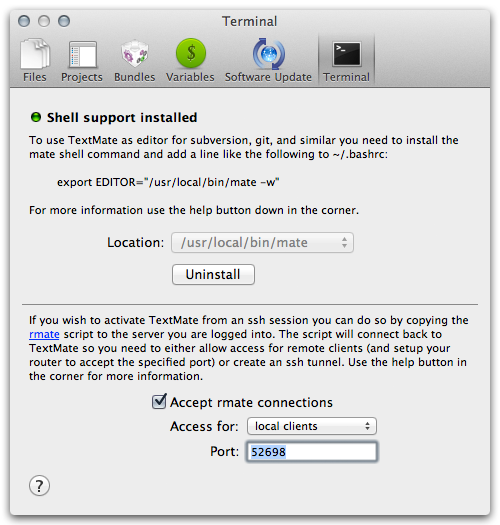
Terminal Preferences

To install or upgrade mate, just select a Location and hit Install. You may be prompted to Replace an old version, if present.

This pane can later be used to uninstall the command if you need to do that.

Users usually install mate into ~/bin if they just need it for the current user and /usr/local/bin if they would rather make it accessible to all users (assuming they have /usr/local/bin in their PATH). If you would like to find where your TextMate 1 version is before you upgrade, feed your Terminal this command: which mate.

Your New mate

Let’s get to the good stuff. What’s upgraded in mate?

First, it’s a small tweak, but you will be happy to hear that mate now works with sudo. You can use this to edit restricted access files in TextMate 2 without being bothered by an authorization dialog on save:

sudo mate /etc/hosts

Next, mate has picked up some new command-line options. One is -t, which allows you to set the type of an opened file. Personally, I like this feature for README files, which I prefer to write in Markdown. Since the name of standard files like this don’t always include an extension, we can just tell TextMate 2 how to handle the file as we open it:

mate -t text.html.markdown README

Another new option is --name. This allows you to set TM_DISPLAYNAME which is typically shown in the title bar on TextMate’s windows. For a good use of that, let me share a line from my Bash configuration:

export GIT_EDITOR="mate --name 'Git Commit Message' -w -l 1"

The -w and -l options have been around for a while. -w just tells TextMate to wait for the edit to finish. That’s what allows you to use the command as an external editor for tools like Git that are waiting for an answer.

-l just tells TextMate to place the caret on the indicated line. I force the first line here because Git has a habit of reusing commit message files and TextMate would otherwise try restore the caret to it’s last location. Since that last location was probably at the end of a message that’s changed or no longer present, the caret would likely be left in the middle of Git’s comments. That’s not too helpful for a quick edit, so -l 1 forces the caret back to the beginning.

That leads us, finally, to the new option used above. Since Git will just use some file like .git/COMMIT_EDITMSG, our window isn’t going to have the best title by default. This use of --name clears that up by telling me exactly what I’m looking at.

Selection Strings

I mentioned before that TextMate 1’s version of mate supported -l. That’s true, but -l is far more powerful in TextMate 2 and that new power has spread to other commands.

With the old version of mate, -l was super simple. It just took a number and it took you to that line. Easy enough.

In the new version, it now takes a Selection String. These are a new tool in TextMate 2 for describing selections. Here’s the formal grammar for a Selection String:

selection    = «range» ('&' «range»)*
range        = «pos» | «normal_range» | «column_range»
pos          = «line» (':' «column»)?
normal_range = «pos» '-' «pos»
column_range = «pos» 'x' «pos»
line         = [1-9][0-9]*
column       = [1-9][0-9]*

OK, geeky, but what does it really mean? Let’s look at some examples.

If I save the above grammar to a selection_string_syntax.txt file, I can open it with the following command:

mate -l 3 selection_string_syntax.txt

That would drop my caret (shown as ‸) at the beginning of the third line:

‸pos          = «line» (':' «column»)?

If I prefer though, I can control where it is in the line:

mate -l 3:16 selection_string_syntax.txt

That would place my caret here:

pos          = ‸«line» (':' «column»)?

Of course, we can also make a selection:

mate -l 3:32-3:38 selection_string_syntax.txt

That selects (shown between ‸ marks):

pos          = «line» (':' «‸column‸»)?

But wait, is this TextMate 2 or what? We have Multiple Carets now, dang it! How do we use more than one at once? Like this:

mate -l '3&6' selection_string_syntax.txt

That places two carets:

selection    = «range» ('&' «range»)*
range        = «pos» | «normal_range» | «column_range»
‸pos          = «line» (':' «column»)?
normal_range = «pos» '-' «pos»
column_range = «pos» 'x' «pos»
‸line         = [1-9][0-9]*
column       = [1-9][0-9]*

You can also make column selections:

mate -l '4:7x5:13' selection_string_syntax.txt

That gives us:

normal‸_range‸ = «pos» '-' «pos»
column‸_range‸ = «pos» 'x' «pos»

Or you can make several unlinked selections using all of the above features:

mate -l '2:18-2:21&3:1-3:4&4:18x5:21&4:30x5:33' selection_string_syntax.txt

Which selects all occurrences of pos for replacement:

selection    = «range» ('&' «range»)*
range        = «‸pos‸» | «normal_range» | «column_range»
‸pos‸          = «line» (':' «column»)?
normal_range = «‸pos‸» '-' «‸pos‸»
column_range = «‸pos‸» 'x' «‸pos‸»
line         = [1-9][0-9]*
column       = [1-9][0-9]*

You get the idea.

The best news about these new Selection Strings is that they aren’t just for mate. You can also use them in the Go to Line (⌘L) and Go to File (⌘T) dialogs. For that latter, you just tack a colon (:) onto the end of the name matching string then follow it up with a Selection String.

This means that you could respond to a warning message like the following:

main.cc:32: warning: no return statement.

by selecting main.cc:32, copying that to the Find clipboard with ⌘E, opening TextMate 2, calling up the Go to File dialog with (⌘T), and pushing ↩ to go straight there. As this shows, Go to File honors the Find clipboard when it matches this format, just to make things like this easier.

Remote mate

In the past, TextMate has suffered with editing files on a server, but that’s all changed now. If you regularly find yourself SSHed into a remote box and wanting to edit a file using TextMate on your own box, your ship has come in.

TextMate 2 now ships with an rmate (Ruby) script that you can drop onto servers. When you trigger rmate on a remote box, it will connect back to your box, allow you to edit, and update the file on the server with the changes.

Let me show you how to get rmate installed on a server you want edit from remotely.

Installing rmate

First, we need to copy rmate up to your server. You can find a link to the script in the Preferences… dialog of the TextMate menu, under the Terminal pane. Click that link to open the script, then finish the install with these steps:

  1. Open a Terminal and type scp followed by a space
  2. Drag the rmate icon out of the window title bar and drop it into your Terminal to fill in the path to the script
  3. Add another space and then the server you wish to install the script on followed by a colon (:) and the path to install the script into

Your final command should look something like:

scp /Applications/TextMate.app/Contents/Frameworks/Preferences.framework/Versions/A/Resources/rmate example.com:/usr/local/bin

If you don’t have SSH setup to automatically log you into the server, you may also need to provide the proper authentication options. If your user doesn’t have permission to copy directly into a the directory you want to install into, you may need to upload the script to your user’s home directory, SSH into the remote, and move it into place using sudo. Alternately, you could place it in ~/bin and ensure that directory is in your path.

Back on your own machine, you need to make sure TextMate 2 is ready for the incoming connections. Be sure Accept rmate connections is checked in the Terminal pane of Preferences… in the TextMate menu. You can leave “Access for” on “local clients” though, because I’ll show you a secure trick for bridging the two computers.

Terminal Preferences

The Magic of SSH Tunnels

With the install out of the way, you should be ready to use rmate.

To do it’s job, rmate needs a connection back to your computer so that it can talk to TextMate 2. There are multiple ways you can accomplish this, but probably the best way is to use a reverse SSH tunnel. With the proper setup, you can forward the port rmate likes back to your local machine where TextMate 2 can answer the call-to-duty.

The easiest way to do this is to connect to your server using a command like:

ssh -R 52698:localhost:52698 example.com

The -R option sets up a reverse tunnel. The first 52698 names a port on the remote. It will be connected to localhost:52698 or the same port on the connecting box. That port number is the default for TextMate 2 and rmate, so you should now be able to edit away.

To test things out, just try a command like:

rmate test_file.txt

That should contact TextMate 2 on your local box. Note that TextMate 2 does need to be running for this to work.

Type some content using any TextMate editing features you just can’t live without and save the file. Then check it on your server with:

cat test_file.txt

You should see the content you typed on the server. Magic!

If you try to edit a file you don’t have permission to change on the server, rmate will refuse the edit and warn you:

$ rmate /etc/crontab
File /etc/crontab is not writable! Use -f/--force to open anyway.

You can either use the -f option to force the open in read-only mode or use sudo to get the needed permissions. Remember that rmate is a Ruby script, so RVM users will probably need to use rvmsudo to keep the same Ruby selected:

rvmsudo rmate /etc/crontab

After you verify that things are working, feel free to update your SSH setting to automatically setup the tunnel without you needing to supply the -R arguments all the time.

For a single server just add an entry like the following to your ~/.ssh/config:

Host example.com
RemoteForward 52698 localhost:52698

If you want to make those settings the default for all of your servers, use the wildcard host:

Host *
RemoteForward 52698 localhost:52698

With settings like those in place, a bare ssh command (without -R) should still establish the tunnel for you and allow you to use rmate.

Port Forwarding

SSH tunneling is probably the lowest configuration option for using rmate. It’s also the safest since the computers chat over an encrypted connection. Go that way if you can.

However, if you can’t, you do have other options. One reason you might need these is if you use multiple machines to connect to the same account on one remote. They wouldn’t all be able to use the same port.

Of course, you can specify different ports when you setup TextMate 2 and/or your SSH tunnel. rmate also supports --host and --port options, so you can use those to customize the connection.

One thing you may desire in complex connection scenarios is for rmate to just connect back to where the connection came from. You can have it determine the IP address the SSH connection came from using --host auto.

You will probably need to setup port forwarding of the desired port in your router’s settings to use a connection like this.

The real trick with these connections though is that it’s really the client that knows how things should best be handled. Using another feature of SSH, we can have the client set some variables to the proper details and forward those settings to the remote so rmate can honor them.

A server whitelists the variables it will accept from connecting clients, so you’ll need to edit /etc/ssh/sshd_config. It probably already have these lines in it:

# Allow client to pass locale environment variables
AcceptEnv LANG LC_*

You need to add allowances for RMATE_HOST and RMATE_PORT, so change that second line to read:

AcceptEnv LANG LC_* RMATE_*

You also need a similar entry in your local ~/.ssh/config:

Host example.com
SendEnv RMATE_*

Again, you can put that setting under the host wildcard if you prefer.

Then you can add lines like the following to your local ~/.bashrc:

export RMATE_HOST=auto
export RMATE_PORT=12345

Those settings would be forwarded up to the server when you connect and rmate would use them to connect back to your computer for edits.

Either way, it’s a little work to get rmate setup, but it sure expands TextMate 2 reach once you do. Welcome to remote editing with TextMate.

]]>
Multiple Carets https://macromates.com/blog/2011/multiple-carets/ Mon, 19 Dec 2011 00:54:16 +0100 James Gray General TextMate 2 http://blog.macromates.com/?p=272 One of the features user have continually requested for TextMate is the ability to insert multiple carets. Allan, TextMate's developer, was always a little resistant to the idea because it seemed to require the use of a mouse and he's not a mouse guy. Well, he caved. You can now use a mouse to throw down multiple carets and then edit away. In this article will discuss: * Using multiple carets with the mouse * Changes to column selection * Using multiple carets with Find * Using multiple carets with Copy and Paste ## Using the Mouse Let's look at an example. Pretend we're building some sort of IO filter. It allows you to wrap a file or some other stream and read data from it, but that data is modified on the way in. In Ruby, you might have some code like: class IOFilter # ... def gets(*args) filter(@io.gets(*args)) rescue IOError => error handle_error(error) end def read(*args) filter(@io.read(*args)) rescue IOError => error handle_error(error) end # ... end Rescuing `IOError` covers some of the things that could go wrong. For example, if the `@io` object we're wrapping was opened for writing but not reading, an `IOError` will be tossed. There are other errors that can be raised for read operations though. For example, a socket might raise an `EOFError` when the input is exhausted. Let's say we received a bug report and need to add some handling for that error as well. Assuming our `handle_error()` method is up to the task, we just need to add the new error in two places. Here's where we would like to have our carets (shown with ‸): class IOFilter # ... def gets(*args) filter(@io.gets(*args)) rescue IOError‸ => error handle_error(error) end def read(*args) filter(@io.read(*args)) rescue IOError‸ => error handle_error(error) end # ... end TextMate 2 makes it trivial to do just that. Click in either location to move the caret there, then ⌘-click in the second location to add another caret. You are now editing in both locations, so all we have to do is type `, EOFError` to add it to both lines. We asked for the feature and we got it! ## Is it Really About the Mouse? If you have read this far and you are like me, you should have one burning question: what made Allan give in? You might like answer: he realized that this feature wasn't just about the mouse. That means we got more than we bargained for with our request. Some features in TextMate 2 have been rethought in terms of multiple carets and new features have been added with multiple carets in mind. These combine to create a powerful system which gives you many different ways to edit in multiple places at once, without needing to learn a ton of new tricks. ## Jagged Columns If you used TextMate 1 for any amount time, odds are good that you saw column selection in action. It was my weapon of choice when I wanted to show off some quick editing tricks. TextMate 2 still has column selection, of course. It's really just a use of multiple carets now though and that dramatically increases the ways in which we can use it. For example, let's say we have some lines of data that vary in length: one two three four five six seven eight nine ten Now I can put my cursor at the front on all of those lines the same way I did in TextMate 1: move the caret before the `o` in `one` (⌘↑ if it's at the beginning of your document), press ⇧⌥↓ to drag a selection down in front of the `t` in `ten` (this is a column movement command), and tap ⌥ to switch to column selection mode. In TextMate 1, that gave you a special case selection that would always stay lined up vertically. But it TextMate 2, you can just think of it as ten different carets. That means we now have this: ‸one ‸two ‸three ‸four ‸five ‸six ‸seven ‸eight ‸nine ‸ten But those carets may not stay in a perfect line if our editing actions require otherwise. To show that, let's move to the end of those lines (⌘→): one‸ two‸ three‸ four‸ five‸ six‸ seven‸ eight‸ nine‸ ten‸ It's worth noting that getting a caret at the end of a group of selected lines was a separate feature in TextMate 1 called Edit Each Line in Selection (⌥⌘A). I loved that feature, but didn't need it often enough to remember the keyboard shortcut for it. I always went hunting through the menu. However, now that it's just another use of multiple carets and I can get to it using commands I am intimately familiar with, like column selection and the movement keys, I think it will be a lot more natural to pick up. For this reason, Edit Each Line in Selection was removed from TextMate 2. Again, you can use most normal editing commands with multiple carets. Insert some text, delete text, move around, etc. If you use variable width commands like Select Word (⌃W), Select Enclosing Typing Pairs (⇧⌘B), Select Current Scope (⌃⌥B), any movement keys, forward delete (⌦) or backward delete (⌫), Find Next (⌘G), or even something like Toggle Case of Character (⌃G), your carets may end up in different positions on different lines. That's why these commands can be so powerful when combined with multiple carets since they allow you to edit in terms of concepts like "words" or "scopes" which could mean something a little different for each caret. ## An Aside, Literally TextMate 1, had a special editing mode called Freehand Editing (⌥⌘E). It allowed you to place the caret beyond the boundaries of the data. If you edited in these margins, the gaps were filled in with spaces. In TextMate 2, you don't really need to activate this mode due to some simple enhancements to caret placement. Column selection is immune to data boundaries, for example. Thus, if I write the following Ruby method call, notice I forgot the commas after the arguments, and have my caret positioned as shown: method( arg_one arg_forty_two‸ arg_three ) the fastest fix is ⇧↑ to create a selection, ⌥ to switch it into column mode, and type a `,` to enter it on both lines. This works because the top caret is in Freehand Mode. (Technically, this exact example also works in TextMate 1, but in TextMate 2 you can move the carets with the top one staying in Freehand Mode as needed.) In TextMate 2, you can also make this correction using the mouse. An ⌥-click allows you to place a caret beyond data boundaries (in Freehand Mode). That works for multiple carets too, so you could just make an ⌥⌘-click above your first caret in the example above and type the `,`. ## Finding More Carets There's another way to get multiple carets without ever leaving the keyboard and that's the new Find All feature. If you need to do some tricky replacement, you can always bring up the Find dialog, craft a regular expression, and turn it loose on your data. That works, but it may require a few tries and a little use of Undo to get exactly what you need. Find All is the other option. It's basically a live edit Find and Replace feature using the normal TextMate 2 editing tools. Oh, and you can totally skip the dialog if you like. Ready for an example? What if we had some code doing logging in various places? logger.info "Starting work..." #... if very_bad_stuff? logger.error "Uh guys, we should NEVER be here!" end #... logger.debug "The current_user is: #{current_user.id}." #... logger.info "Done." Now let's say there is a decision to start using a different `logger` API. It doesn't have as rich of an interface, replacing methods like `info()`, `error()`, and `debug()` with just `log()`, but it is going to aggregate the messages from all of your servers onto a centralized box. It was decided that the tradeoff is worth it. You can change the needed method calls with these steps. First, just select any occurrence of `logger` and push ⌘E to put it on the Find clipboard. Then trigger Find All (in Selection) with ⌥⌘F (it automatically works on the whole document if the current selection matches the clipboard). That should highlight all `logger` references in the document. Those selections are just multiple carets with some preselected content. Tap → twice to move over to the method calls and you should see this: logger.‸info "Starting work..." #... if very_bad_stuff? logger.‸error "Uh guys, we should NEVER be here!" end #... logger.‸debug "The current_user is: #{current_user.id}." #... logger.‸info "Done." From here the replacement is trivial. Select the methods with ⌃W and type `log` to replace them. Job done: logger.log "Starting work..." #... if very_bad_stuff? logger.log "Uh guys, we should NEVER be here!" end #... logger.log "The current_user is: #{current_user.id}." #... logger.log "Done." As I showed, Find All will match whatever is inside of a selection when you have one. If you don't though, it defaults to the entire document. ## Copy and Paste Meets Multiple Carets One question that's bound to arise is, can I Copy and Paste with multiple carets? Sure you can. Let's go back to our list of numbers as an example. We will start with a many-to-many example. Say we want to break this list into two columns: one two three four five six seven eight nine ten Do some ⌘-clicking to get a caret on every other line: one ‸two three ‸four five ‸six seven ‸eight nine ‸ten With that done, press ⌃W to grab the words, ⌘X for Cut, and ⌫ to remove the extra lines. That leaves us with: one‸ three‸ five‸ seven‸ nine‸ If we don't need even columns, we can just add a space and Paste (⌘V) right now. For even columns, just ⌥-click a space or two after the three or seven. Then use that caret to line up four ⌥⌘-clicks. You should end up with: one ‸ three ‸ five ‸ seven ‸ nine ‸ A simple Paste (⌘V) finishes the job: one two three four five six seven eight nine ten The one-to-many case works as well, by just repeating the content. Let's say we have some metric data: 12 5 27 2 -- 46 "bugs" but perhaps your pointy haired boss would prefer to see the word `bugs` on every line. Just double-click the word `bugs` and Copy (⌘C) it. Press ↑ twice to end up behind the 2, then ⇧↑ three times to drag a selection behind the numbers, and ⌥ to switch into column mode. Type a space and Paste (⌘V). This pastes four copies of the clipboard contents, leaving you with: 12 bugs‸ 5 bugs‸ 27 bugs‸ 2 bugs‸ -- 46 "bugs" Notice that we get to keep our multiple carets with each one placed after the pasted text. That's good, because I forgot to grab the quotes. We can add them with ⌃W to select the words and typing a single quote. Finally, the many-to-one case collapses data as you would expect. So if we had Ruby data like: name = { first: "James", middle: "Edward", last: "Gray", # leave the following out of dumb web forms suffix: "II" } and we want to collapse that into one string, we could select the first colon, add it to the Find clipboard with ⌘E, switch the selection to the entire hash with ⇧⌘B, Find All with ⌥⌘F, then press → three times to move to the names. Now we have: name = { first: "‸James", middle: "‸Edward", last: "‸Gray", # leave the following out of dumb web forms suffix: "‸II" } From there select the names with ⌃W, Copy (⌘C) them, switch the selection back to the hash with ⇧⌘B, and replace it with the names using ⌘V. That gives us: name = James‸Edward‸Gray‸II‸ We can finish off the string by typing a space to add it after each word, pressing ⌘→ to merge down to one caret at the end of the line, removing the extra space with ⌫, selecting the names by pushing ⇧⌥← four times, and typing a quote to enclose the string. That leaves: name = "James Edward Gray II" As you can see, all of these multiple caret features combine to create a powerful suite of editing tools. Thanks Allan, for knowing what we wanted more than we did. One of the features user have continually requested for TextMate is the ability to insert multiple carets. Allan, TextMate’s developer, was always a little resistant to the idea because it seemed to require the use of a mouse and he’s not a mouse guy. Well, he caved. You can now use a mouse to throw down multiple carets and then edit away.

In this article will discuss:

  • Using multiple carets with the mouse
  • Changes to column selection
  • Using multiple carets with Find
  • Using multiple carets with Copy and Paste

Using the Mouse

Let’s look at an example. Pretend we’re building some sort of IO filter. It allows you to wrap a file or some other stream and read data from it, but that data is modified on the way in. In Ruby, you might have some code like:

class IOFilter
  # ...
  
  def gets(*args)
    filter(@io.gets(*args))
  rescue IOError => error
    handle_error(error)
  end
  
  def read(*args)
    filter(@io.read(*args))
  rescue IOError => error
    handle_error(error)
  end
  
  # ...
end

Rescuing IOError covers some of the things that could go wrong. For example, if the @io object we’re wrapping was opened for writing but not reading, an IOError will be tossed. There are other errors that can be raised for read operations though. For example, a socket might raise an EOFError when the input is exhausted. Let’s say we received a bug report and need to add some handling for that error as well. Assuming our handle_error() method is up to the task, we just need to add the new error in two places. Here’s where we would like to have our carets (shown with ‸):

class IOFilter
  # ...
  
  def gets(*args)
    filter(@io.gets(*args))
  rescue IOError‸ => error
    handle_error(error)
  end
  
  def read(*args)
    filter(@io.read(*args))
  rescue IOError‸ => error
    handle_error(error)
  end
  
  # ...
end

TextMate 2 makes it trivial to do just that. Click in either location to move the caret there, then ⌘-click in the second location to add another caret. You are now editing in both locations, so all we have to do is type , EOFError to add it to both lines.

We asked for the feature and we got it!

Is it Really About the Mouse?

If you have read this far and you are like me, you should have one burning question: what made Allan give in? You might like answer: he realized that this feature wasn’t just about the mouse. That means we got more than we bargained for with our request.

Some features in TextMate 2 have been rethought in terms of multiple carets and new features have been added with multiple carets in mind. These combine to create a powerful system which gives you many different ways to edit in multiple places at once, without needing to learn a ton of new tricks.

Jagged Columns

If you used TextMate 1 for any amount time, odds are good that you saw column selection in action. It was my weapon of choice when I wanted to show off some quick editing tricks.

TextMate 2 still has column selection, of course. It’s really just a use of multiple carets now though and that dramatically increases the ways in which we can use it.

For example, let’s say we have some lines of data that vary in length:

one
two
three
four
five
six
seven
eight
nine
ten

Now I can put my cursor at the front on all of those lines the same way I did in TextMate 1: move the caret before the o in one (⌘↑ if it’s at the beginning of your document), press ⇧⌥↓ to drag a selection down in front of the t in ten (this is a column movement command), and tap ⌥ to switch to column selection mode.

In TextMate 1, that gave you a special case selection that would always stay lined up vertically. But it TextMate 2, you can just think of it as ten different carets. That means we now have this:

‸one
‸two
‸three
‸four
‸five
‸six
‸seven
‸eight
‸nine
‸ten

But those carets may not stay in a perfect line if our editing actions require otherwise. To show that, let’s move to the end of those lines (⌘→):

one‸
two‸
three‸
four‸
five‸
six‸
seven‸
eight‸
nine‸
ten‸

It’s worth noting that getting a caret at the end of a group of selected lines was a separate feature in TextMate 1 called Edit Each Line in Selection (⌥⌘A). I loved that feature, but didn’t need it often enough to remember the keyboard shortcut for it. I always went hunting through the menu. However, now that it’s just another use of multiple carets and I can get to it using commands I am intimately familiar with, like column selection and the movement keys, I think it will be a lot more natural to pick up. For this reason, Edit Each Line in Selection was removed from TextMate 2.

Again, you can use most normal editing commands with multiple carets. Insert some text, delete text, move around, etc. If you use variable width commands like Select Word (⌃W), Select Enclosing Typing Pairs (⇧⌘B), Select Current Scope (⌃⌥B), any movement keys, forward delete (⌦) or backward delete (⌫), Find Next (⌘G), or even something like Toggle Case of Character (⌃G), your carets may end up in different positions on different lines. That’s why these commands can be so powerful when combined with multiple carets since they allow you to edit in terms of concepts like “words” or “scopes” which could mean something a little different for each caret.

An Aside, Literally

TextMate 1, had a special editing mode called Freehand Editing (⌥⌘E). It allowed you to place the caret beyond the boundaries of the data. If you edited in these margins, the gaps were filled in with spaces.

In TextMate 2, you don’t really need to activate this mode due to some simple enhancements to caret placement. Column selection is immune to data boundaries, for example.

Thus, if I write the following Ruby method call, notice I forgot the commas after the arguments, and have my caret positioned as shown:

method( arg_one
        arg_forty_two‸
        arg_three )

the fastest fix is ⇧↑ to create a selection, ⌥ to switch it into column mode, and type a , to enter it on both lines. This works because the top caret is in Freehand Mode. (Technically, this exact example also works in TextMate 1, but in TextMate 2 you can move the carets with the top one staying in Freehand Mode as needed.)

In TextMate 2, you can also make this correction using the mouse. An ⌥-click allows you to place a caret beyond data boundaries (in Freehand Mode). That works for multiple carets too, so you could just make an ⌥⌘-click above your first caret in the example above and type the ,.

Finding More Carets

There’s another way to get multiple carets without ever leaving the keyboard and that’s the new Find All feature.

If you need to do some tricky replacement, you can always bring up the Find dialog, craft a regular expression, and turn it loose on your data. That works, but it may require a few tries and a little use of Undo to get exactly what you need.

Find All is the other option. It’s basically a live edit Find and Replace feature using the normal TextMate 2 editing tools. Oh, and you can totally skip the dialog if you like.

Ready for an example? What if we had some code doing logging in various places?

logger.info "Starting work..."
#...
if very_bad_stuff?
  logger.error "Uh guys, we should NEVER be here!"
end
#...
logger.debug "The current_user is:  #{current_user.id}."
#...
logger.info "Done."

Now let’s say there is a decision to start using a different logger API. It doesn’t have as rich of an interface, replacing methods like info(), error(), and debug() with just log(), but it is going to aggregate the messages from all of your servers onto a centralized box. It was decided that the tradeoff is worth it.

You can change the needed method calls with these steps. First, just select any occurrence of logger and push ⌘E to put it on the Find clipboard. Then trigger Find All (in Selection) with ⌥⌘F (it automatically works on the whole document if the current selection matches the clipboard). That should highlight all logger references in the document. Those selections are just multiple carets with some preselected content. Tap → twice to move over to the method calls and you should see this:

logger.‸info "Starting work..."
#...
if very_bad_stuff?
  logger.‸error "Uh guys, we should NEVER be here!"
end
#...
logger.‸debug "The current_user is:  #{current_user.id}."
#...
logger.‸info "Done."

From here the replacement is trivial. Select the methods with ⌃W and type log to replace them. Job done:

logger.log "Starting work..."
#...
if very_bad_stuff?
  logger.log "Uh guys, we should NEVER be here!"
end
#...
logger.log "The current_user is:  #{current_user.id}."
#...
logger.log "Done."

As I showed, Find All will match whatever is inside of a selection when you have one. If you don’t though, it defaults to the entire document.

Copy and Paste Meets Multiple Carets

One question that’s bound to arise is, can I Copy and Paste with multiple carets? Sure you can.

Let’s go back to our list of numbers as an example. We will start with a many-to-many example. Say we want to break this list into two columns:

one
two
three
four
five
six
seven
eight
nine
ten

Do some ⌘-clicking to get a caret on every other line:

one
‸two
three
‸four
five
‸six
seven
‸eight
nine
‸ten

With that done, press ⌃W to grab the words, ⌘X for Cut, and ⌫ to remove the extra lines. That leaves us with:

one‸
three‸
five‸
seven‸
nine‸

If we don’t need even columns, we can just add a space and Paste (⌘V) right now.

For even columns, just ⌥-click a space or two after the three or seven. Then use that caret to line up four ⌥⌘-clicks. You should end up with:

one    ‸
three  ‸
five   ‸
seven  ‸
nine   ‸

A simple Paste (⌘V) finishes the job:

one    two
three  four
five   six
seven  eight
nine   ten

The one-to-many case works as well, by just repeating the content. Let’s say we have some metric data:

12
 5
27
 2
--
46 "bugs"

but perhaps your pointy haired boss would prefer to see the word bugs on every line. Just double-click the word bugs and Copy (⌘C) it. Press ↑ twice to end up behind the 2, then ⇧↑ three times to drag a selection behind the numbers, and ⌥ to switch into column mode. Type a space and Paste (⌘V). This pastes four copies of the clipboard contents, leaving you with:

12 bugs‸
 5 bugs‸
27 bugs‸
 2 bugs‸
--
46 "bugs"

Notice that we get to keep our multiple carets with each one placed after the pasted text. That’s good, because I forgot to grab the quotes. We can add them with ⌃W to select the words and typing a single quote.

Finally, the many-to-one case collapses data as you would expect. So if we had Ruby data like:

name = { first: "James",
         middle: "Edward",
         last: "Gray",
         # leave the following out of dumb web forms
         suffix: "II" }

and we want to collapse that into one string, we could select the first colon, add it to the Find clipboard with ⌘E, switch the selection to the entire hash with ⇧⌘B, Find All with ⌥⌘F, then press → three times to move to the names. Now we have:

name = { first: "‸James",
         middle: "‸Edward",
         last: "‸Gray",
         # leave the following out of dumb web forms
         suffix: "‸II" }

From there select the names with ⌃W, Copy (⌘C) them, switch the selection back to the hash with ⇧⌘B, and replace it with the names using ⌘V. That gives us:

name = James‸Edward‸Gray‸II‸

We can finish off the string by typing a space to add it after each word, pressing ⌘→ to merge down to one caret at the end of the line, removing the extra space with ⌫, selecting the names by pushing ⇧⌥← four times, and typing a quote to enclose the string. That leaves:

name = "James Edward Gray II"

As you can see, all of these multiple caret features combine to create a powerful suite of editing tools. Thanks Allan, for knowing what we wanted more than we did.

]]>
Whitespace Bundle https://macromates.com/blog/2011/whitespace-bundle/ Sun, 18 Dec 2011 05:29:17 +0100 Michael Sheets General TextMate 2 http://blog.macromates.com/?p=271 Mads Hartmann Jensen has [written a bundle](http://mads379.github.com/posts/whitespace-tmbundle) which takes advantage of a new injection feature of language grammars to highlight what can be considered improper whitespace. Highlighting both trailing whitespace and mixed tab/space indentation it can also be limited to just one or the other. (This bundle will only work with the 2.0 alpha.) Mads Hartmann Jensen has written a bundle which takes advantage of a new injection feature of language grammars to highlight what can be considered improper whitespace. Highlighting both trailing whitespace and mixed tab/space indentation it can also be limited to just one or the other.

(This bundle will only work with the 2.0 alpha.)

]]>
Git Style Configuration https://macromates.com/blog/2011/git-style-configuration/ Fri, 16 Dec 2011 14:44:43 +0100 James Gray General TextMate 2 http://blog.macromates.com/?p=262 TextMate 2 isn't just about adding a ton of killer new features. It's also about throwing out what just plain didn't work. That means you can kiss the old project files goodbye. Of course, you throw out bad ideas so you can replace them with good ideas. Project files serve a couple of purposes in TextMate 1. One was to give you access to folders you commonly work with. That's now handled through TextMate 2's File Browser and we're going to talk a lot more about that in the future. Another purpose though was to support project level configuration. Configuration is a great idea, but the old interface was awkward and inflexible. TextMate 2's new `.tm_properties` files address this need, similar to `.git` configuration files. In this article we'll discuss: * The various places TextMate 2 will look for configuration settings * Examples of some settings you may wish to tweak * Per file type configuration * Dynamic project based configuration ## Project Settings Enough about the why, let's get to the how. To start configuring project level options in TextMate 2, just dump a `.tm_properties` file in the root directory of the project and type your settings right in there. If you already have the project open in TextMate 2, the easiest way to get to this file is to just select _Preferences…_ from the File Browser's action menu. ![Selecting Preferences in the File Browser](https://macromates.com/wp-content/uploads/2011/12/preferences.png) By way of example, let's say you have a project of documentation files. You could dump the following settings into a `.tm_properties` file at the root of that project: TM_GIT = "/usr/local/bin/git" fontName = "DejaVu Sans Mono" fontSize = 14 [ "*.{txt,md,mdown,markdown}" ] softWrap = true The above shows the three kinds of things you can configure. First, you can set TextMate variables, as I did with `TM_GIT`. The _Git_ bundle helps me manage my commits while staying inside TextMate, but it needs to know where the `git` executable is installed to do that. It assumes a [MacPorts][macports] install location by default, so I just redirected it to my [Homebrew][homebrew] install here. The second section shows how to set TextMate settings. Here I've entered the `fontName` and `fontSize` I prefer to work with. The third section also configures a setting, but it shows how you can restrict settings to certain file types. In this case I've used a shell glob to specify that this setting be applied to files with a plain text or Markdown extension. I want to wrap those files, but not any other code files that may be in the project. TextMate 2 will apply these setting when working with any file under the project folder. Different projects can have different settings per your tastes. ## From Folders to Global Defaults Now, as you probably already figured out, these files don't have to be project wide settings. It's just a file in a folder as far as TextMate 2 is concerned and it will always affect every file below it. Given that, you can adjust the settings for just part of a project, by adding a `.tm_properties` file to that folder. You might apply some settings to the project as a whole, but then override them for the `doc` folder, for example. This works because TextMate 2 walks up the current file path, looking for `.tm_properties` files. All of those settings apply, with lower files overriding higher files as needed. The search stops with the current user's home directory (`~`) or the root directory (`/`). However, if the root directory is reached, the current user's home directory is added to the search above it. This makes it possible to create a `~/.tm_properties` with global default settings that always apply, even if you edit files outside of your home directory. ## Smart Settings You can accomplish some pretty cool voodoo by playing with these configuration files. For example, here's some of the project settings used to build TextMate 2: TM_MAKE_FILE = '${CWD}/Makefile' [ "tests/*.{cc,mm}" ] scopeAttributes = 'attr.test.cxxtest' TM_MAKE_TARGET = '${TM_FILEPATH/^.*?([^\/]*)\/tests\/.*$/$1/}/test' The first thing you should notice here is that we are allowed to use TextMate variables, as well as set them. This allows us to configure the project's Makefile using `$CWD` (for current working directory). This works because the `.tm_properties` file is in the root directory of the project and that will be the value of `$CWD`. The Make target for the TextMate 2 project is set elsewhere (not shown), but we see another use of variables to override it for the tests on the last line here. Note that it's possible to use regex replacements on these variables, just as we could in a snippet. Finally, the powerful `scopeAttributes` setting is used here to add a scope to all content in the testing files. This is also helpful for the activation of special snippets when working in these files. As you can see, it's possible to show TextMate 2 how you want to work with each of your projects. You could even set which language files should be spellchecked in, on a folder by folder and/or file type basis. ## The Settings A [list of the available settings][wiki2] is available as well as a [guide with more information][wiki1]. [macports]: https://www.macports.org/ [homebrew]: https://brew.sh/ [wiki1]: https://github.com/textmate/textmate/wiki/Folder-Specific-Settings [wiki2]: https://github.com/textmate/textmate/wiki/Settings [manual]: https://macromates.com/manual/en/environment_variables#dynamic_variables TextMate 2 isn’t just about adding a ton of killer new features. It’s also about throwing out what just plain didn’t work. That means you can kiss the old project files goodbye.

Of course, you throw out bad ideas so you can replace them with good ideas.

Project files serve a couple of purposes in TextMate 1. One was to give you access to folders you commonly work with. That’s now handled through TextMate 2’s File Browser and we’re going to talk a lot more about that in the future. Another purpose though was to support project level configuration. Configuration is a great idea, but the old interface was awkward and inflexible.

TextMate 2’s new .tm_properties files address this need, similar to .git configuration files.

In this article we’ll discuss:

  • The various places TextMate 2 will look for configuration settings
  • Examples of some settings you may wish to tweak
  • Per file type configuration
  • Dynamic project based configuration

Project Settings

Enough about the why, let’s get to the how.

To start configuring project level options in TextMate 2, just dump a .tm_properties file in the root directory of the project and type your settings right in there. If you already have the project open in TextMate 2, the easiest way to get to this file is to just select Preferences… from the File Browser’s action menu.
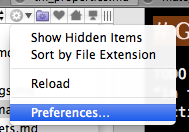
Selecting Preferences in the File Browser

By way of example, let’s say you have a project of documentation files. You could dump the following settings into a .tm_properties file at the root of that project:

TM_GIT = "/usr/local/bin/git"

fontName = "DejaVu Sans Mono"
fontSize = 14

[ "*.{txt,md,mdown,markdown}" ]
softWrap = true

The above shows the three kinds of things you can configure. First, you can set TextMate variables, as I did with TM_GIT. The Git bundle helps me manage my commits while staying inside TextMate, but it needs to know where the git executable is installed to do that. It assumes a MacPorts install location by default, so I just redirected it to my Homebrew install here.

The second section shows how to set TextMate settings. Here I’ve entered the fontName and fontSize I prefer to work with.

The third section also configures a setting, but it shows how you can restrict settings to certain file types. In this case I’ve used a shell glob to specify that this setting be applied to files with a plain text or Markdown extension. I want to wrap those files, but not any other code files that may be in the project.

TextMate 2 will apply these setting when working with any file under the project folder. Different projects can have different settings per your tastes.

From Folders to Global Defaults

Now, as you probably already figured out, these files don’t have to be project wide settings. It’s just a file in a folder as far as TextMate 2 is concerned and it will always affect every file below it. Given that, you can adjust the settings for just part of a project, by adding a .tm_properties file to that folder. You might apply some settings to the project as a whole, but then override them for the doc folder, for example.

This works because TextMate 2 walks up the current file path, looking for .tm_properties files. All of those settings apply, with lower files overriding higher files as needed.

The search stops with the current user’s home directory (~) or the root directory (/). However, if the root directory is reached, the current user’s home directory is added to the search above it. This makes it possible to create a ~/.tm_properties with global default settings that always apply, even if you edit files outside of your home directory.

Smart Settings

You can accomplish some pretty cool voodoo by playing with these configuration files. For example, here’s some of the project settings used to build TextMate 2:

TM_MAKE_FILE = '${CWD}/Makefile'

[ "tests/*.{cc,mm}" ]
scopeAttributes = 'attr.test.cxxtest'
TM_MAKE_TARGET  = '${TM_FILEPATH/^.*?([^\/]*)\/tests\/.*$/$1/}/test'

The first thing you should notice here is that we are allowed to use TextMate variables, as well as set them. This allows us to configure the project’s Makefile using $CWD (for current working directory). This works because the .tm_properties file is in the root directory of the project and that will be the value of $CWD.

The Make target for the TextMate 2 project is set elsewhere (not shown), but we see another use of variables to override it for the tests on the last line here. Note that it’s possible to use regex replacements on these variables, just as we could in a snippet.

Finally, the powerful scopeAttributes setting is used here to add a scope to all content in the testing files. This is also helpful for the activation of special snippets when working in these files.

As you can see, it’s possible to show TextMate 2 how you want to work with each of your projects. You could even set which language files should be spellchecked in, on a folder by folder and/or file type basis.

The Settings

A list of the available settings is available as well as a guide with more information.

]]>
TextMate 2 Tips https://macromates.com/blog/2011/textmate-2-tips/ Fri, 16 Dec 2011 14:02:06 +0100 Michael Sheets General http://blog.macromates.com/?p=261 A great site has sprung up to provide a lot of [helpful tips and tricks](http://tm2tips.tumblr.com/ "Textmate 2 Tips") about the TextMate 2 alpha release. You can also [follow them on Twitter](http://twitter.com/TM2Tips) for updates. A great site has sprung up to provide a lot of helpful tips and tricks about the TextMate 2 alpha release. You can also follow them on Twitter for updates.

]]>
Locating Bundles https://macromates.com/blog/2011/locating-bundles/ Thu, 15 Dec 2011 01:39:41 +0100 Michael Sheets General TextMate 2 http://blog.macromates.com/?p=243 One of the new features in 2.0 is the ability to install new bundles directly from the app. You can see the list of available bundles by opening preferences and going to the Bundles tab. Bundles installed from here will be kept up-to-date automatically. In addition if you try to open a filetype without having the correct bundle TextMate will offer to install it if available. Also listed are a variety of theme bundles, you can filter list by clicking 'Themes' in the top bar. The Themes bundle is installed by default and includes a collection of themes from 1.x. For the duration of the alpha we have kept the support files separated so both versions can be run without affecting the other. This means you will have to manually move over your personal bundles and any bundles not available in the installer. ## Installing a Bundle You can install a bundle by placing it in this directory: ~/Library/Application Support/Avian/Pristine Copy/Bundles/ When placed here TextMate will write any changes made in the bundle editor to a 'delta' bundle allowing you to update this copy without removing your customizations. If this is your own bundle or you want to submit changes back to the bundle you should instead use: ~/Library/Application Support/Avian/Bundles/ **Note:** * The `~` character in these paths refers to your home directory (`/Users/«yourname»/`). * The `Library` folder under Lion is hidden by default, you can access it from the Go menu in Finder while holding down option. * The directories under `Application Support` may not exist on your system, should they not you should create them. ## Converting a Theme If you have a theme from 1.x you will need to move it into a bundle before using it with 2.0. 1. Select `Edit Bundles…` from the Bundles menu and create a new bundle with ⌘N 2. Edit the bundle info in the drawer and add a description of the theme in the main text area. 3. Save your changes with ⌘S and then in Finder go to: ~/Library/Application Support/Avian/Bundles/ Right-click on the bundle and choose `Show Package Contents`. 4. Add a new folder named `Themes` and put the theme(s) inside it. 5. TextMate will automatically see your changes and the theme will be available under View → Theme. ### Other Bundle Notes * Duplicate bundles installed at a higher level now completely eclipse the other bundle rather than being merged as in 1.x. * If you have a problem with a bundle please submit an issue at the appropriate bundle under the [textmate user on Github](https://github.com/textmate/). * If you would like to submit a change to a bundle most are available under the [avian user on Github](https://github.com/avian/). You can fork the bundle and then send us a pull request. One of the new features in 2.0 is the ability to install new bundles directly from the app. You can see the list of available bundles by opening preferences and going to the Bundles tab. Bundles installed from here will be kept up-to-date automatically. In addition if you try to open a filetype without having the correct bundle TextMate will offer to install it if available.

Also listed are a variety of theme bundles, you can filter list by clicking ‘Themes’ in the top bar. The Themes bundle is installed by default and includes a collection of themes from 1.x.

For the duration of the alpha we have kept the support files separated so both versions can be run without affecting the other. This means you will have to manually move over your personal bundles and any bundles not available in the installer.

Installing a Bundle

You can install a bundle by placing it in this directory:

~/Library/Application Support/Avian/Pristine Copy/Bundles/

When placed here TextMate will write any changes made in the bundle editor to a ‘delta’ bundle allowing you to update this copy without removing your customizations.

If this is your own bundle or you want to submit changes back to the bundle you should instead use:

~/Library/Application Support/Avian/Bundles/

Note:

  • The ~ character in these paths refers to your home directory (/Users/«yourname»/).
  • The Library folder under Lion is hidden by default, you can access it from the Go menu in Finder while holding down option.
  • The directories under Application Support may not exist on your system, should they not you should create them.

Converting a Theme

If you have a theme from 1.x you will need to move it into a bundle before using it with 2.0.

  1. Select Edit Bundles… from the Bundles menu and create a new bundle with ⌘N
  2. Edit the bundle info in the drawer and add a description of the theme in the main text area.
  3. Save your changes with ⌘S and then in Finder go to:

     ~/Library/Application Support/Avian/Bundles/
    

Right-click on the bundle and choose Show Package Contents.

  1. Add a new folder named Themes and put the theme(s) inside it.
  2. TextMate will automatically see your changes and the theme will be available under View → Theme.

Other Bundle Notes

  • Duplicate bundles installed at a higher level now completely eclipse the other bundle rather than being merged as in 1.x.
  • If you have a problem with a bundle please submit an issue at the appropriate bundle under the textmate user on Github.
  • If you would like to submit a change to a bundle most are available under the avian user on Github. You can fork the bundle and then send us a pull request.
]]>
Alpha Tidbits https://macromates.com/blog/2011/alpha-tidbits/ Wed, 14 Dec 2011 08:11:04 +0100 Michael Sheets General TextMate 2 http://blog.macromates.com/?p=240 * To create a new file you can use the shortcut ⌥⌘N to create a new tab, when you save this tab it will default to the current or selected directory in the sidebar. **Update:** When providing the file name (in the save dialog) you can use brace expansion to create multiple files, e.g.: `MyView.{mm,h}`. * The current release will submit non-anonymous crash reports so we can pinpoint problem areas in the alpha. This can be disabled in preferences if needed but it is a great help if you can leave it on. ### Around the Web * Ernie Miller give a good overview of [how to use rmate](http://erniemiller.org/2011/12/12/textmate-2-rmate-awesome/ "TextMate 2 + rmate = Awesome – Ernie Miller") to edit files on a remote server. * David Lanham shows a detailed shot of the [new icon](http://dribbble.com/shots/351365-Textmate-2 "Dribbble - Textmate 2 by David Lanham") he designed for us. **Update:** David has [posted a comment](http://dribbble.com/shots/351365-Textmate-2?page=2 "Dribbble - Textmate 2 by David Lanham") about the process of coming up with the icon.
  • To create a new file you can use the shortcut ⌥⌘N to create a new tab, when you save this tab it will default to the current or selected directory in the sidebar. Update: When providing the file name (in the save dialog) you can use brace expansion to create multiple files, e.g.: MyView.{mm,h}.
  • The current release will submit non-anonymous crash reports so we can pinpoint problem areas in the alpha. This can be disabled in preferences if needed but it is a great help if you can leave it on.
  • Around the Web

    • Ernie Miller give a good overview of how to use rmate to edit files on a remote server.
    • David Lanham shows a detailed shot of the new icon he designed for us. Update: David has posted a comment about the process of coming up with the icon.
    ]]>
    TextMate 2.0 Alpha https://macromates.com/blog/2011/textmate-2-0-alpha/ Tue, 13 Dec 2011 10:28:16 +0100 Allan Odgaard General TextMate 2 http://blog.macromates.com/?p=238 The excitement for a new version has been tremendous and today we’re finally able to repay the much appreciated loyalty and moral support from the community by releasing the first public alpha: [TextMate 2.0 alpha](/download). It’s important to stress though that being an alpha release; it is not complete. It has reached a point where it may suit some early adopters and provide some relief to those who have been questioning TextMate’s future. For the time being, the alpha builds are only for people who already have a TextMate license and an Intel Mac. Being a complete rewrite there are too many changes to sum up but here is an [overview of notable changes since TextMate 1.5.10](https://github.com/textmate/textmate/blob/master/Applications/TextMate/about/Changes.md). There are also many things that didn’t make it to this alpha, far too many to mention all of them, but a few deserves to be mentioned as they are likely to come up a lot in the coming days: * Split views: Yes, I actually had this on the alpha milestone, I’m not overly excited about this feature myself, but I know it’s a very common request, so eventually it should find its way into the application. * Full screen mode: This is mainly because we are hesitant to go Lion-only so we are holding back with “lionizing” TextMate till we feel confident we can fully drop backwards compatibility. * Performance: Overall performance is fine, but there are still edge-cases that we haven’t looked into, for example the long lines issue which also exists in 1.x or opening files that exhaust TextMate’s memory space. * Bundle editor: While a proof-of-concept bundle editor is included, it is provisional, has some flaws, and not how we envision the final bundle editor to be. * Settings: Not everything in the Preferences window has an effect at the moment and several menu settings are not sticky, some even revert when switching tabs. Those can be set via `.tm_properties` — more about this in an upcoming post. The excitement for a new version has been tremendous and today we’re finally able to repay the much appreciated loyalty and moral support from the community by releasing the first public alpha: TextMate 2.0 alpha.

    It’s important to stress though that being an alpha release; it is not complete. It has reached a point where it may suit some early adopters and provide some relief to those who have been questioning TextMate’s future. For the time being, the alpha builds are only for people who already have a TextMate license and an Intel Mac.

    Being a complete rewrite there are too many changes to sum up but here is an overview of notable changes since TextMate 1.5.10.

    There are also many things that didn’t make it to this alpha, far too many to mention all of them, but a few deserves to be mentioned as they are likely to come up a lot in the coming days:

    • Split views: Yes, I actually had this on the alpha milestone, I’m not overly excited about this feature myself, but I know it’s a very common request, so eventually it should find its way into the application.
    • Full screen mode: This is mainly because we are hesitant to go Lion-only so we are holding back with “lionizing” TextMate till we feel confident we can fully drop backwards compatibility.
    • Performance: Overall performance is fine, but there are still edge-cases that we haven’t looked into, for example the long lines issue which also exists in 1.x or opening files that exhaust TextMate’s memory space.
    • Bundle editor: While a proof-of-concept bundle editor is included, it is provisional, has some flaws, and not how we envision the final bundle editor to be.
    • Settings: Not everything in the Preferences window has an effect at the moment and several menu settings are not sticky, some even revert when switching tabs. Those can be set via .tm_properties — more about this in an upcoming post.
    ]]>
    What’s Next https://macromates.com/blog/2011/whats-next/ Mon, 26 Sep 2011 04:42:36 +0200 Michael Sheets General http://blog.macromates.com/?p=236 There has been a lot of speculation and trepidation about the future of TextMate recently, mostly about whether there will be another major release. Work on 2.0 began and while we wish it could have been completed faster we are very pleased with how it is turning out. Development has reached a point finally where we can make an announcement: There will be a public alpha release this year, before Christmas, for registered users. There has been a lot of speculation and trepidation about the future of TextMate recently, mostly about whether there will be another major release. Work on 2.0 began and while we wish it could have been completed faster we are very pleased with how it is turning out. Development has reached a point finally where we can make an announcement:

    There will be a public alpha release this year, before Christmas, for registered users.

    ]]>
    Lion Notes https://macromates.com/blog/2011/lion-notes/ Wed, 20 Jul 2011 08:14:29 +0200 Michael Sheets General http://blog.macromates.com/?p=235 With Lion getting let loose around the world we have posted a [list of the known issues][1] to the wiki and will be keeping it updated if any more are found. We will release an update to correct the issues where possible once we believe that all of them have been found. If you find any other issues please [check the mailing list][2] or contact us [by email][3] or on [Twitter][4]. [1]: https://wiki.macromates.com/Troubleshooting/Lion [2]: https://lists.macromates.com/listinfo/textmate [3]: https://macromates.com/support [4]: http://twitter.com/macromates With Lion getting let loose around the world we have posted a list of the known issues to the wiki and will be keeping it updated if any more are found. We will release an update to correct the issues where possible once we believe that all of them have been found.

    If you find any other issues please check the mailing list or contact us by email or on Twitter.

    ]]>
    Tabbing Shortcuts https://macromates.com/blog/2010/tabbing-shortcuts/ Thu, 18 Nov 2010 06:15:29 +0100 Michael Sheets General http://blog.macromates.com/?p=221 In a recent release of TextMate we moved away from our old tab switching shortcut to one more commonly used. After releasing this update however we discovered that not all TextMate users are using the US keymap ☺ so we decided to look closer at shortcuts supported in a variety of applications. It turns out there isn't a great deal of consensus on what the shortcut should be. Because of the issue with the commonly used shortcut some applications support up to three different shortcuts for the same task. While we wish there was more of a consensus on what shortcut should be used we have added back support for the old shortcut (⌥⌘←/⌥⌘→) in the update available today (r1623). This is in addition to the new default shortcut of ⌘{/⌘} The table below shows the shortcut shown in the menu as ♦ and the other supported shortcuts as ♢. | | `⌘{``⌘}` | `⌃⇥``⌃⇧⇥` | `⌥⌘←``⌥⌘→` | `⌘←``⌘→` | `⌃⇞``⌃⇟` | `⌥⌘[``⌥⌘]` | `⇧⌘←``⇧⌘→` | |-----------|:-:|:-:|:-:|:-:|:-:|:-:|:-:| | Terminal | ♦ | | | | | | ♢ | | Safari | ♢ | ♦ | | | | ♢ | | | Chrome | ♢ | ♢ | ♦ | | ♢ | | | | Firefox | ♢ | ♢ | ♢ | | ♢ | | | | Adium | | | | ♦ | | | | | Transmit | ♢ | ♦ | | | | | | | CSS Edit | ♦ | | | | | | | | Espresso | ♦ | | | | | | | | Coda | ♦ | | | | | | | | Photoshop | | ♢ | | | | | | {: .table .table-bordered .table-nonfluid } *Updated November 25th to add ⌃⇞/⇟ shortcuts.* In a recent release of TextMate we moved away from our old tab switching shortcut to one more commonly used. After releasing this update however we discovered that not all TextMate users are using the US keymap ☺ so we decided to look closer at shortcuts supported in a variety of applications.

    It turns out there isn’t a great deal of consensus on what the shortcut should be. Because of the issue with the commonly used shortcut some applications support up to three different shortcuts for the same task.

    While we wish there was more of a consensus on what shortcut should be used we have added back support for the old shortcut (⌥⌘←/⌥⌘→) in the update available today (r1623). This is in addition to the new default shortcut of ⌘{/⌘}

    The table below shows the shortcut shown in the menu as ♦ and the other supported shortcuts as ♢.

      ⌘{
    ⌘}
    ⌃⇥
    ⌃⇧⇥
    ⌥⌘←
    ⌥⌘→
    ⌘←
    ⌘→
    ⌃⇞
    ⌃⇟
    ⌥⌘[
    ⌥⌘]
    ⇧⌘←
    ⇧⌘→
    Terminal ♦           ♢
    Safari ♢ ♦       ♢  
    Chrome ♢ ♢ ♦   ♢    
    Firefox ♢ ♢ ♢   ♢    
    Adium       ♦      
    Transmit ♢ ♦          
    CSS Edit ♦            
    Espresso ♦            
    Coda ♦            
    Photoshop   ♢          

    Updated November 25th to add ⌃⇞/⇟ shortcuts.

    ]]>
    TextMate 1.5.10 https://macromates.com/blog/2010/textmate-1-5-10/ Fri, 12 Nov 2010 18:00:30 +0100 Allan Odgaard General http://blog.macromates.com/?p=215 **Update 2010-11-18:** r1623 is out, restoring the venerable key bindings. **Update 2010-11-14:** Post about [restoring ⇧⌥⇥ for shift left][]. Post about [restoring interactive input functionality][]. A long overdue maintenance update was released earlier today. It mainly contains fixes but one change might not please users of European keyboard layouts: > Change next/previous file tab key equivalents to ⇧⌘[ and ⇧⌘]. The motivation behind the change is that Apple are using these keys both in Safari and Terminal (when using the English interface language). If you dislike the change you can override it via System Preferences → Keyboard → Application Shortcuts. [restoring ⇧⌥⇥ for shift left]: https://lists.macromates.com/textmate/2010-November/031668.html [restoring interactive input functionality]: https://lists.macromates.com/textmate/2010-November/031673.html Update 2010-11-18: r1623 is out, restoring the venerable key bindings.

    Update 2010-11-14: Post about restoring ⇧⌥⇥ for shift left. Post about restoring interactive input functionality.

    A long overdue maintenance update was released earlier today.

    It mainly contains fixes but one change might not please users of European keyboard layouts:

    Change next/previous file tab key equivalents to ⇧⌘[ and ⇧⌘].

    The motivation behind the change is that Apple are using these keys both in Safari and Terminal (when using the English interface language).

    If you dislike the change you can override it via System Preferences → Keyboard → Application Shortcuts.

    ]]>