- Fresnel: adds angle-dependent reflections for glass, water, polished surfaces and other materials that look better when edges catch more light.
- PBR Shader: a lightweight “modern materials” shader with metallic response, roughness, ambient occlusion shaping, environment-light approximation, and blurred reflections.
- LensFlare: an image filter that detects bright specular highlights and adds glow and star-streak flare effects.
- ObjSwap: replaces objects automatically by frame number, useful for flipbook-style geometry changes, counters, and frame-based object animation.
The current release is v0.7.0, which means the plugins are already past the rough prototype stage. Recent work includes proper scene persistence for the Fresnel and PBR shaders, expanded LensFlare handling with up to 50 flare sources, and faster ObjSwap behavior for larger replacement sets.
I’m attaching before/after renders with this post so the effect of each plugin is easy to see in practice. If you want to try them, the source and builds are here: amiga-lw-plugin


The best solution I could find, was using systemd itself to do the job. This guaranteed that it would work on all distros, and it’s relatively simple to do also. Perhaps even simpler than my previous attempt!
The full documentation on how this is done (on Manjaro specifically) is here: [HowTo] Automount ANY device using systemd – Technical Issues and Assistance / Tutorials – Manjaro Linux Forum. The short version follows below.
The assumption here is that we have a samba server already configured (let’s call our server “pi400” for now), and the share name is “public“. The samba clients (or our rendernodes) will have to mount this share locally, in a directory. I used the path “/mnt/projects” for this purpose, on each machine. Feel free to adjust names and paths accordingly, of course.
First off, we’ll need to create a new .mount text file, named after the location the mount will happen. In my case, that filename should be: mnt-projects.mount (dashes represent directories). We’ll have to place this file under /etc/systemd/system/, so we can do something like:
sudo nano /etc/systemd/system/mnt-projects.mountHere are the contents (I’ve taken out the username/password pieces of course, use your own accordingly):
[Unit]
Description=Pi400 SMB share
After=network.target[Mount]
What=//pi400/public
Where=/mnt/projects
Type=cifs
Options=_netdev,iocharset=utf8,rw,file_mode=0777,dir_mode=0777,user=<username>,password=<password>,workgroup=WORKGROUP
TimeoutSec=30[Install]
WantedBy=multi-user.target
Save this file and then create a new one (also in the same location). This one will be an .automount file, also named the same way (so in my case, mnt-projects.automount):
[Unit]
Description=Automount Pi400 share
ConditionPathExists=/mnt/projects[Automount]
Where=/mnt/projects
TimeoutIdleSec=10[Install]
WantedBy=multi-user.target
Again, adjust your paths as necessary!
After you’ve placed both of the above files in the same location (/etc/systemd/system/), all that’s left if you want this to automount on startup, is to enable that:
sudo systemctl enable --now mnt-projects.automount
After you reboot, the share will be automatically mounted when you first access it. It may take a while the first time, so you’ll see a little delay. But it should work! And make sure you read on the documentation to better understand how this works, and how to tune it to your needs. Have fun!
]]>The self-hosted approach works well, but since I’m using (mostly) Raspberry Pi devices to compile, it takes longer than I’d like to go produce all the binaries. Additionally, each device has to produce more than one binary (e.g. Dispmanx and SDL2 versions), and it can’t do that in parallel. And the whole workflow is not finished until all of the jobs contained in it are finished, so if I also wanted a new release, it would take more than 40 minutes in total to complete the whole thing. Surely we can do better than that!
We can’t make the Raspberry Pi compile faster than its CPU allows, so we’ll have to use something else to do the job: cross compile on another (faster) platform. Let’s see what we’ll need to make that happen:
- a Linux environment where the magic will happen. Something like Debian or Ubuntu would do just fine.
- the environment will need a few things installed:
- a cross compiler (the one for the architecture we’ll be compiling for, e.g. armhf for 32-bit and aarch64 for 64-bit)
- the Amiberry dependencies, for the architecture we’ll be compiling for (e.g. libsdl2)
- git, build essentials and autoconf, since we’ll need those as well
- environment variables configured accordingly, to use the cross compiler instead of the distro’s native one, when compiling Amiberry
Docker
We could just use another self-hosted solution for this, but I wanted to take things a step further and use something more portable. So, we’ll create a Docker image for each environment we’ll need (currently that will be ARM 32-bit, ARM 64-bit and Linux x86. I’ll keep the Mac Mini for the macOS compilation as a self-hosted runner).
I created 3 separate Dockerfiles, one for each environment I wanted to use:
- https://github.com/BlitterStudio/amiberry-docker-armhf
- https://github.com/BlitterStudio/amiberry-docker-aarch64
- https://github.com/BlitterStudio/amiberry-docker-x86_64
First I tested that these worked to compile Amiberry locally, without errors. Then I deployed these to DockerHub, so that Github Actions (and everyone else) can grab them from there:
- https://hub.docker.com/repository/docker/midwan/amiberry-docker-armhf
- https://hub.docker.com/repository/docker/midwan/amiberry-docker-aarch64
- https://hub.docker.com/repository/docker/midwan/amiberry-docker-x86_64
Then I tested that I can still compile Amiberry using the deployed images from DockerHub, like so:
docker run --rm -it -v D:\Github\amiberry:/build midwan/amiberry-docker-aarch64:latestThe above example uses the aarch64 image, as you can see. I’m giving it one parameter of the local path, where I have my Amiberry sources checked out (in this example, that’s D:\Github\amiberry), and it will map that to the image’s /build directory. Running the above will end up in a bash shell, waiting for further commands. All I have to do, is type the command to compile Amiberry for the platform of choice, and check the output:
make -j8 PLATFORM=rpi4-64-sdl2After a few minutes, the compilation is finished and I have a binary ready. I copy the binary over to my Raspberry Pi running Manjaro Linux (64-bit), and test it – it works as expected, great! Now let’s add this to the workflow.
Adapting the workflow
We can now change a few things on the workflow, for each job:
- Change the
runs-onvalue, since we don’t want/need to run this on the self-hosted runners anymore. We can useubuntu-latestinstead. - We need a different step for the compilation, since we won’t be doing that on the self-hosted runner anymore. I needed an action that would allow me to specify an image docker to use, and give it some options to run in it. I found that https://github.com/addnab/docker-run-action worked perfectly for my needs.
- The rest of the steps can remain as they were, since we don’t need to change anything else in the process. Just the compile step.
Considering the above, the compile step now becomes something like this:
    - name: Run the build process with Docker
      uses: addnab/docker-run-action@v3
      with:
        image: midwan/amiberry-docker-armhf:latest
        options: -v ${{ github.workspace }}:/build
        run: |
          make capsimg
          make -j8 PLATFORM=rpi4-sdl2
Obviously, the above changes slightly depending on the platform we are compiling for (we’ll use the aarch64 image for 64-bit ARM targets, and different PLATFORM=<value> options). One thing you may have noticed, is the use of a special variable: ${{ github.workspace }} – this one represents the directory where the sources were checked out in the previous step, and it’s exactly what we need to map to the /build directory of the Docker image, similar to what I did with my local test above.
Limitations
I can’t use the docker images to produce the Dispmanx binaries, since the Dispmanx specific files are not in the image. That’s OK for me, I can still use the self-hosted runners to compile those. They will only need to compile those now, so it shouldn’t take too long to finish.
Results
With the new Docker approach, we have a few extra benefits. Not only is the compilation time significantly reduced (from 10-13 down to 4-5 minutes per platform), it can also run most of these jobs in parallel, since it doesn’t have to wait for one to finish before starting the next one.
Here’s a sample of the latest compilation done after a commit I made:

Now compare that to the time it took to produce binaries for the 5.2 release, done with the self-hosted runners only:

The total time for a new release has now gone from 40m 56s down to 18m 30s, for all the included binaries. Not bad!
]]>So let’s dive right in the workflow content, shall we?
The syntax is YAML, which means indentation matters. A lot. As in, you’ll get errors if something does not have the right indentation. Annoying for sure, but manageable if you are aware of it, at least.
Starting from the top, we’ll need to give our workflow a name, and define when it should be triggered. I will go for the boring name of “C/C++ CI” which just indicates what this workflow does. And I want this workflow triggered on two scenarios:
- Whenever I push a new commit to the “master” branch
- Whenever I push a new tag with a new version. The format should be vX.Y, where X/Y are numbers. Something like v5.2, for example.
Considering the above, the first part of our workflow looks like this:
name: C/C++ CI

on:
  push:
    branches: [ master ]
    tags:
      - v[1-9]+.[0-9]
Then we have to define the jobs we want it to perform. You can specify multiple jobs, and each job will run in parallel with the other. And of course, each job consists of individual steps.
For each job, you can specify where that will be executed (e.g. a specific environment or self-hosted runner), which means I can separate out the builds I want for each device. So then I can add things like this:
jobs:

  build-rpi3-dmx-32bit-rpios:
    runs-on: [self-hosted, Linux, ARM, rpios32, dmx]
    steps:
...

  build-rpi4-dmx-32bit-rpios:
    runs-on: [self-hosted, Linux, ARM, rpios32, dmx]
    steps:
Of course, I still need to specify the steps each job will take. Let’s take a look at those next.
The first step should be to checkout the repository. Remember, this is running on each device separately, so they need to get the sources first, before they can compile them. We can use the “checkout” action for this step, and it’s quite simple:
- uses: actions/checkout@v3That would be enough for most cases, but in Amiberry’s repository I also have some git submodules which I’d like to retrieve also, in order to build the IPF supporting library (capsimg). The Checkout action has an option that we can use to do just that, so it then becomes:
    - uses: actions/checkout@v3
      with:
        submodules: 'true'
And the whole job so far, looks like this:
  build-rpi3-dmx-32bit-rpios:
    runs-on: [self-hosted, Linux, ARM, rpios32, dmx]
    steps:
    - uses: actions/checkout@v3
      with:
        submodules: 'true'
And I’ll go ahead and create one job for each build I want to be triggered, to start giving the workflow some structure. Now the jobs list looks like this:
jobs:

  build-rpi3-dmx-32bit-rpios:
    runs-on: [self-hosted, Linux, ARM, rpios32, dmx]
    steps:
    - uses: actions/checkout@v3
      with:
        submodules: 'true'

  build-rpi3-sdl2-32bit-rpios:
    runs-on: [self-hosted, Linux, ARM, rpios32]
    steps:
    - uses: actions/checkout@v3
      with:
        submodules: 'true'

  build-rpi4-dmx-32bit-rpios:
    runs-on: [self-hosted, Linux, ARM, rpios32, dmx]
    steps:
    - uses: actions/checkout@v3
      with:
        submodules: 'true'

  build-rpi4-sdl2-32bit-rpios:
    runs-on: [self-hosted, Linux, ARM, rpios32]
    steps:
    - uses: actions/checkout@v3
      with:
        submodules: 'true'

  build-rpi3-dmx-64bit-rpios:
    runs-on: [self-hosted, Linux, ARM64, rpios64, dmx]
    steps:
    - uses: actions/checkout@v3
      with:
        submodules: 'true'

...
I’m not posting the full list above, as I assume you get my point.
Compiling the sources
Great, so far we have a list of jobs, that will run on my self-hosted devices, and checkout my git repository including submodules. We’re ready to do some compiling!
Since my devices already have all Amiberry requirements pre-installed, I can simply call the compile commands I want from the command line. Those are basically two for each platform:
- Build the capsimg library, since I want to include that in the ZIP archive
- Build Amiberry itself, for each platform I’ll be using
It’s quite easy to do these steps:
    - name: make capsimg
      run: make capsimg
    - name: make for RPIOS RPI3-DMX 32-bit
      run: make -j4 PLATFORM=rpi3
The name line is just for the logging part, which is good to have in order to see the individual steps and what each one is doing. The run line executes what is specified there on the device’s default shell, like bash for Linux. That’s perfect for my needs!
I’ll need to add these steps for each job of course, modifying what the PLATFORM=<value> contains, since Amiberry supports many of them. The make capsimg line can remain the same for all of them, however.
Uploading build artifacts
When this step is finished, and if no errors occurred, we should have an Amiberry binary available in the current directory. The next step is to take that and all related directories and data files, and upload them somewhere that testers can find them. There is an Action that does just that, the upload-artifact one.
    - uses: actions/upload-artifact@v3
      with:
        name: amiberry-rpi3-dmx-32bit-rpios
        path: |
          amiberry
          capsimg.so
          abr/**
          conf/**
          controllers/**
          data/**
          kickstarts/**
          savestates/**
          screenshots/**
          whdboot/**
Notice that I’m not creating any ZIP Archive before uploading these. That’s because when you try to download the uploaded contents, a ZIP file will be dynamically created. If I had uploaded a ZIP file here, then we’d have a ZIP file inside a ZIP file, which I didn’t want. This is documented in the upload-artifact action “Limitations” section:
During a workflow run, files are uploaded and downloaded individually using the
https://github.com/actions/upload-artifactupload-artifactanddownload-artifactactions. However, when a workflow run finishes and an artifact is downloaded from either the UI or through the download api, a zip is dynamically created with all the file contents that were uploaded. There is currently no way to download artifacts after a workflow run finishes in a format other than a zip or to download artifact contents individually. One of the consequences of this limitation is that if a zip is uploaded during a workflow run and then downloaded from the UI, there will be a double zip created.
The name like is important here, as that will be the name of our artifact once it gets uploaded. I tried to keep a clear naming convention, to indicate the exact type of Amiberry version each one represents.
At this point, our workflow already covers some of our requirements:
- It automatically triggers whenever a new commit is pushed to the repository
- It will checkout the sources, and build the capsimg and Amiberry binary, for each platform I included
- It will upload those binaries and all related data files/directories to a location that people can get it from
Creating archives for new Releases
That looks good already, but what about new Releases? I want it to take some extra steps, but only if I have used a git tag with the specific format I specified, which would mean I am generating a new Release. Let’s see how we can do that.
    - name: Get tag
      if: github.ref_type == 'tag'
      id: tag
      uses: dawidd6/action-get-tag@v1
      with:
        # Optionally strip `v` prefix
        strip_v: false
There are a few things to mention here. We can use an “if” line in an action/step, to specify that this step should only be executed if a certain condition applies. The condition I wanted to use in my case, was to check if the action that trigged this job was caused by a git tag, not just a new commit. Remember we set our git tag trigger at the top of this workflow, which had a specific format to look for – so all we need to do here, is to make sure the following steps will only be executed if we started the workflow because I pushed a new git tag.
Then I want to get the actual tag value that triggered this, and store it in a variable. We’ll be using that variable in the next step, because I want to name my ZIP archives with the version as well. For example, if I used the tag v5.2 to trigger this workflow, I want the text “v5.2” stored somewhere so I can use it to name my archive “amiberry-v5.2-rpi4-sdl2-rpios.zip” or similar.
I found an action that helps me do the job easily, and that’s what the uses: dawidd6/action-get-tag@v1 line is about. It will output the tag value to variable named “tag”. It can optionally also strip out the “v” part, if you enable that, as you can see in the line below.
The next step is to ZIP the files I want to include in the new Release. I want to use the variable name “tag” I stored above, as part of the filename. Otherwise, this is rather straightforward – I just have to make sure that zip is installed on the self-hosted runners, of course!
    - name: ZIP binaries
      if: github.ref_type == 'tag'
      run: zip -r amiberry-${{ steps.tag.outputs.tag }}-rpi3-dmx-32bit-rpios.zip amiberry capsimg.so abr conf controllers data kickstarts savestates screenshots whdboot
You can use variables with the special syntax shown above: ${{ variable name }} will be replaced with the variable value, during runtime. In my case that specific variable holds the value of my git tag, so it will be replaced with something like v5.2 (keeping the same example as before here). So that would make the whole line look like this, when executed (assuming the tag was “v5.2”):
run: zip -r amiberry-v5.2-rpi3-dmx-32bit-rpios.zipCreating a Changelog with each release
Next, I wanted to have a changelog generated with each new release, that would include what changed since the previous release was published. I wanted to have this generated automatically, based on the commits that came between the two releases, and it took me a while to find something that would work exactly like I wanted. Eventually, I found something that came close enough:
    - name: Create Changelog
      if: github.ref_type == 'tag'
      id: changelog
      uses: loopwerk/tag-changelog@v1
      with:
          token: ${{ secrets.GITHUB_TOKEN }}
          config_file: .github/tag-changelog-config.js
Notice that I’m including the if: github.ref_type == 'tag' line here as well. I don’t want this step to trigger on new git commits, only when I’m publishing a new release. And the way I’ve designed things so far, is that new releases would only be triggered when I push a new git tag, with the specific version format I am using.
What was interesting about this specific action, is that it allows you to configure the look of your changelog depending on a Javascript config file. I went for the default example, as it seemed good enough for my needs, but it does require that your commits use a specific label format in order for this to work. It also means I will need to add that config file in my repository, of course. It needs to find it from somewhere…
Creating a new Release
Now that we have everything in place, it’s time to add one more step in our workflow: Creating a new Release and publishing all items (zip archive, changelog). Again, there are several actions to do this, but the one I found that worked well for me is this:
    - name: Create Release
      if: github.ref_type == 'tag'
      uses: ncipollo/release-action@v1
      with:
        allowUpdates: true
        omitBodyDuringUpdate: true
        body: ${{ steps.changelog.outputs.changes }}
        artifacts: |
          amiberry-${{ steps.tag.outputs.tag }}-rpi3-dmx-32bit-rpios.zip
I liked this one, because it allows me to create a new release and optionally upload an artifact to it. And it can also use my generated changelog, from the previous step. Perfect!
There are a few options I had to tweak around, to make sure it worked the way I wanted:
- allowUpdates: true – Since I am having multiple jobs running in parallel, each one will complete at different times (when the binary compilation is done) and will try to add the ZIP archive to the same release. I need to allow updates to a release, in order for this to succeed.
- omitBodyDuringUpdate: true – I don’t want any changes to the Release body, when it’s doing an update. It will only be uploading multiple ZIP archives as the jobs complete, so the body should remain the same once it was generated.
- body:
${{ steps.changelog.outputs.changes }}– This is where it gets interesting. I can specify the body text of the Release, and I can use the output of my Changelog step here. - artifacts: finally, I can specify which artifact will be uploaded to the Release. Each job will complete separately, and will upload its own ZIP archive here, that’s why it’s important to allow Updates to the Release.
Of course, these should all be added for each job I added, which will make the file a bit long, but that’s because Amiberry supports so many targets (and I’m not even compiling all of them here). You can see the complete file here, if you want.
The final output can be seen on the v5.2 Release of Amiberry, on Github.
Triggering the workflow manually
The automated job works fine, but sometimes (and especially during testing), you may want to trigger the workflow manually as well. This is trivial to do, as all we need to do is add one line to the top of the workflow:
name: C/C++ CI

on:
  workflow_dispatch:
  push:
    branches: [ master ]
    tags:
Adding workflow_dispatch: will make it possible for us to trigger this workflow from Github, with the use of a button:

This workflow worked well for my needs, but there’s always room for improvement. For example, compiling on each device takes quite some time, especially on slower ones. The whole process is automated of course, so I can just “fire and forget”, but it can still take more than 40 minutes before a full release is complete on Github. In the next part of this series, we’ll take a look at how we can improve that, and have everything complete in less than half that time!
]]>I have been using Azure DevOps for many years, and the Azure Pipelines specifically, for setting up similar scenarios for CI/CD. However, since everything else regarding the Amiberry project is hosted on Github, and since there is a similar feature there, named Actions, I thought I’d give it a try and move over my pipelines to Github as well.
But let’s set the goals fist:
- I want an automated job, that would compile the latest version of Amiberry every time I commit something new in the repository (let’s say the “master” branch only, for now).
- After it compiles each binary, it should compress it with ZIP and upload it somewhere testers can access it. The ZIP archive should contain everything that’s needed to run Amiberry, not just the executable (so data files and directories should be included). If you have the requirements to run Amiberry (e.g. SDL2), the archive should be portable – just extract it and run Amiberry from it.
- The ZIP filename should indicate the platform and OS it was compiled for. For example,
amiberry-rpi4-sdl2-64bit-debian.zipwould be such a filename. - When the time comes to publish a new release, I want the automated job to do the publishing for me. I will use git tags to mark a new release, with the following example format:
v5.2. So basically, if I set a git tag on a certain commit, with that version format, a new release should be published automatically with that version number. - A new release should also include the ZIP archives, which besides the platform and OS we had before, should also include the version in the filename. For example,
amiberry-v5.2-rpi4-sdl2-64bit-debian.zip - A new release should also contain a Changelog, containing what changed since the previous release. The information for that should come from the commits themselves and should be fully automated also. I don’t want to maintain a file manually if I can avoid it.
Looks like quite the list, doesn’t it? Let’s see what we can achieve!
First things first: Let’s read the docs: https://docs.github.com/en/actions (I like doing things by the book, from time to time).
Github Actions uses so-called “workflows“, which are YAML based files that dictate what should happen. It’s basically the same thing as Azure DevOps’ “Pipelines”, with slightly different syntax in some parts, so if you’re familiar with one, the other shouldn’t be too hard to get into either.
Those workflows are saved in your repository (under .github/workflows), so you can include them in the git history as you make changes to them. Nice!
Here’s an example of such a workflow file, from the Quickstart:
name: GitHub Actions Demo
on: [push]
jobs:
  Explore-GitHub-Actions:
    runs-on: ubuntu-latest
    steps:
      - run: echo "🎉 The job was automatically triggered by a ${{ github.event_name }} event."
      - run: echo "🐧 This job is now running on a ${{ runner.os }} server hosted by GitHub!"
      - run: echo "🔎 The name of your branch is ${{ github.ref }} and your repository is ${{ github.repository }}."
      - name: Check out repository code
        uses: actions/checkout@v3
      - run: echo "💡 The ${{ github.repository }} repository has been cloned to the runner."
      - run: echo "🖥️ The workflow is now ready to test your code on the runner."
      - name: List files in the repository
        run: |
          ls ${{ github.workspace }}
      - run: echo "🍏 This job's status is ${{ job.status }}."
The workflows need to run somewhere, and you can either use Github-hosted VMs, or use your own (self-hosted runners). To get started, I chose the self-hosted option for now.
If you choose to use self-hosted runners, you will need some device(s) to run the jobs on, obviously. I had several Raspberry Pi 4s around, a RockPro64 and a Mac-Mini which I could use. That should be good enough!
You can easily install the required software to make each of those machines a “self-hosted runner”, by going in your Repository settings, under Actions -> Runners:
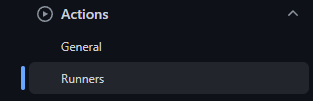
Then click on “New self-hosted runner“:

Select the type of platform you will be installing the runner in, and it will give you a list of commands you can use, to download and configure it. Sweet!

I used that process to install 5 separate self-hosted runners:
- A Raspberry Pi 4, running Manjaro Linux 64-bit
- A Raspberry Pi 4, running RPI-OS 32-bit
- A Raspberry Pi 4, running RPI-OS 64-bit
- A RockPro64, running Manjaro Linux 64-bit
- An Intel Mac-Mini, running macOS Catalina
All devices already had the Amiberry requirements installed, to make sure they can compile it without problems.
I installed the runners, configured them to talk to my Github repository, set them up to run automatically as services and checked that they showed “Green” from Github’s side once they were up and running.
Coming in the next chapter: Time to write some content for those workflows!
Note: if you just want to skip ahead and see the result, the repository already contains everything: https://github.com/midwan/amiberry/blob/master/.github/workflows/c-cpp.yml
]]>First things first
We will need something to render: A simple scene is enough, as long as it has multiple frames (remember, each render node will be assigned a separate frame from the scene to render), and of course: the option to actually save the resulting rendered frames must be enabled. You wouldn’t want to wait for the rendering to complete, only to discover that no output frames were saved!
You might want to check Muadib’s video tutorials on Lightwave, to learn more about setting up scenes, objects, texturing and lots more: https://www.twitch.tv/muadib3d/ (and while you’re there, consider contributing with some donation if you can!). For now, we’ll just assume we have at least one Scene we can use.
We’ll start with the controlling machine that will be running Lightwave. It could be a real Amiga, or an emulated one – it doesn’t really matter, as long as it has the same 3D content directory, and the same “command” directory for ScreamerNet as our render nodes. Assigns are perfect for this job.
For example in my case, I have a volume named “Projects:” mounted, which is the shared directory from my NAS that I want to use. It contains a “3D” folder, which holds all my 3D content (Scenes, Objects, Textures, etc) and it’s also mounted in all my Amiberry render nodes (using the autofs approach we discussed in the previous guides). It also contains an empty directory named “Command”, which we will tell ScreamerNet to use for storing the job and response files.

So to make sure things will go smoothly, I’ve assigned 3D: to Projects:3D and Command: to Projects:Command:
Assign 3D: Projects:3D
Assign Command: Projects:Command
The same assign is applied to all the render farm nodes as well, during their startup.
With that settled, we load up Lightwave on our controlling machine.

We will start by loading our Scene, to make sure there are no errors. All objects, textures etc. should load correctly with no warnings. If you do get errors, like a missing object, you’ll have to address those and re-save the Scene, before proceeding.

Next, we’ll go to the Record panel, and enable “Save RGB Images”. We’ll provide a path and filename where we want our output frames to be saved. In my case, that’s in “Projects:frames”. Remember, it has to be a path that is accessible by all your render farm nodes. Save your Scene after this step, to make sure all your render nodes will pick up the changes!

Next, we’ll open the SceamerNet panel (named “SN”) and change the “Net Rendering Method” to ScreamerNet II. It will warn you that this method should only be used if the networked computers can share directories, which is exactly what we have setup, so go ahead. Then make sure your “Command Directory” points to your “Command:” assign (which we pointed to our shared directory, remember?).

The next item to change, will be the “Maximum CPU Number“. This indicates how many render nodes should ScreamerNet expect to find in our render farm. If you set a higher number than your actual computers here, ScreamerNet will just spend more time waiting for them to respond. So ideally, we want a number that is equal to the number of computers we have in our render farm – which in my case, is 6.
Now we can start adding the Scene(s) we want to render in the List, by using the relevant button. You can queue up as many scenes as you want, but I’ll just use one for this example.

Once you have your Scene(s) loaded in the List, it’s time to press “Screamer Init” once. This will generate job files, one for each “CPU” you specified (so again, in my case a total of 6 files) and wait for a response from the machines which should pick these up. Since we have no render nodes running at the moment, it will come back with a response saying “No available ScreamerNet CPUs were detected”. This is normal, and desired at this point.

The reasoning behind this, is that we want to have the job files created in order for the nodes of our render farm to pick them up when starting. Once they pick them up, they will start a loop of waiting for new commands, and then we’ll use the “Screamer Init” button once more, to detect them (and this time, they will be ready to respond).
Start your engines
It’s time to fire up our render farm nodes! I will start Amiberry on each machine, using my “RenderNode” config which is designed to load up a minimal AROS distribution, including Lightwave’s ScreamerNet client and a little script I wrote to automatically assign a unique number to each one. You can do this from the command line:
./amiberry -f conf/rendernode-aros.uae -GOr you can of course open it up from the GUI, load the config and hit Start.
The -G command line option in Amiberry, tells it to skip opening the GUI and instead start immediately using the specified config file. Alternatively, you can have the option “Show GUI on Startup” disabled inside the config file, in which case you don’t need to specify “-G” at all. And additionally, you could rename your config filename to “default.uae” and Amiberry will load it up automatically, without even having to specify that!
I’ll do this for each of my 6 nodes in my render farm, and to demonstrate it easier, I did it over VNC so I can show you what happens:

And now, we can click on Screamer Init once more. This time, it should find the computers in the render farm, and show them in the list.

One more step remaining: Just click on Screamer Render, and the Scenes in the List will be loaded and rendered, one frame at a time (in parallel of course). Here’s another screenshot of the rendering in action:

And this is how it looks like from Lightwave’s side, while the rendering is going on:

As soon as a frame is finished rendering, it’s saved in the output directory you specified in the Scene. If you have multiple Scenes in the list, it will automatically proceed to the next one, until they are all finished.
Once the list of Scenes is finished, congratulations, your job is done! You can gracefully shut down all the render farm nodes, by using the “Screamer Shutdown” button. This will instruct all the Lightwave ScreamerNet clients to cleanup and quit. I’ve also added an extra step in my custom script, to quit the emulator as well when that happens (by using WinUAE’s “UAEQuit” tool) – so when you shut ScreamerNet down, you will also quit Amiberry in one step.
This concludes the guide, on how to setup an Amiberry-powered Lightwave render farm. I will try to keep this guide up-to-date as things evolve, and based on any feedback that it might generate. I hope it helps and inspires some people to be a little creative!
]]>/home/pi/projects/amiberry in my example, but the actual path doesn’t matter as long as you have full access there. Just make sure you include all the directories and files included in the Release zip archive!
Amiberry needs Kickstart ROM files to work, just like all UAE programs. Just copy your kickstart ROM files in the amiberry/kickstarts directory. The filenames don’t matter, since Amiberry will check the files based on their SHA checksum values. If you have no kickstarts added, then Amiberry will automatically fallback to using the embedded AROS ROM, instead. The latest version of the AROS ROM is available in the Github Releases page, so you can use those instead, if you’d like.
Start up Amiberry once, to ensure that everything works correctly until here. While you’re at it, go to the Paths Panel and click on the Rescan button. This will trigger a (re)scan for Kickstart ROMs, which will be detected and cached, so they can be chosen automatically when you select a configuration from the Dropdown menus.

With Amiberry ready to run, it’s time to copy the RenderNode virtual HDD in a location where Amiberry can use it. I chose to place it under amiberry/dir/rendernode to keep things simple and organized. Remember, you’ll need this in all your Raspberry Pi devices that will be running Amiberry!
Once we’ve done that, we can now create a new Configuration in Amiberry, to hold our settings for booting this RenderNode environment. In general, we want the fastest CPU setting possible, JIT and JIT FPU enabled, as much RAM as we need for our Scenes (some can be very demanding!), while we don’t really care about Sound emulation or Collission detection. Here are the settings I used, per Panel (screenshots taken from v3.2 beta, current version might be slightly different):


The most important part, is the Hard drives panel configuration. We will need to add 2 drives here: The RenderNode one, which will be the bootable first drive (let’s call it DH0:), and a second non-bootable drive (DH1:) which should point to your shared content directory. The second drive should be named Projects: if you don’t want to make any changes in the RenderNode assigns. In my case, it’s mounted under
/cifs/koula.midlair/Projects:

Note: You might need to manually access the shared content directory once, to get autofs to mount it, if you don’t see it when browsing for it with Amiberry. Just try something like
ls -al /cifs/koula.midlair/Projects(obviously, change the actual path to match yours).


You can leave the Custom Controls and Savestates panels, as we won’t be changing anything on them.

Go ahead and test starting the emulation with this configuration. If it all goes well, you should end up with ScreamerNet starting up and complaining that it cannot find any job to do…

If it all went well until here, congratulations! The hardest part is done. Now you can copy this configuration to all the other Raspberry Pi boards, along with the RenderNode files. Just make sure they are placed in the same path on each device, so that the configuration will work everywhere without modifications.
As an added bonus, once you’ve tested that your “rendernode” configuration works as expected in Amiberry, you can have the emulator start it up automatically. Amiberry looks for a configuration filename named “default.uae“. If it’s found, it is loaded automatically on startup, with no user interaction. If you have set your configuration to not show the GUI, then it will also boot immediately. So if you rename you configuration to “default.uae” instead, you can simply call “amiberry” and it will load and start your rendernode, just like that!
We’re almost done now! In the next part, we’ll be looking at how we can put all these parts together, and do some real rendering!
]]>Scenario 1: Having the shared content directory on a Linux server
This scenario also includes the case where one of the Raspberry Pi boards is acting as the server, and holds the directory with all the content, which all the other machines will use. Here’s what you need to do, to make things work:
- Install the Samba service on the Linux machine that will be sharing the content directory:
sudo apt updatesudo apt install samba samba-common-bin
- Open the Samba configuration file, so we can make some changes to it:
sudo nano /etc/samba/smb.confBy default, the smb.conf file inludes a Read-Only share definition for the home directory. The easiest way to proceed, is to make that one read/write (that is assuming you have your content directory somewhere under your home directory). To do that:
- Find the line that says read only and set it equal to no.
- Change the “create mask” and “directory mask” both to 0775. This will make all your newly created files and directories to have group=rw permissions.
- Finally, save and exit.
Alternatively, you could share a specifc directory only, by replicating the options from the [homes] share definition, inside the smb.conf file, with a new share name (e.g. [projects]).
- Create a Samba password for remote access, as user pi:
sudo smbpasswd -a pi- And finally, restart the Samba service:
sudo service smbd restartHere’s an example entry (sharing a specific directory named /home/pi/projects as “projects“):
[projects]
comment = Projects
path = /home/pi/projects
browseable = yes
read only = no
create mask = 0775
directory mask = 0775
(Optional): You may need to enable the SMB1 protocol, if you want to connect to this share from within AmigaOS. Unfortunately, the newer and more secure versions of SMB are not supported on the Amiga clients, and SMBv1 is disabled by default on Samba server for security reasons. If you find yourself in such a situation, follow these extra steps:
- Open
/etc/samba/smb.conf - Add the following statement in the global settings section of the file:
[global]
...
ntlm auth = ntlmv1-permitted
...- Restart the Samba service:
sudo service smbd restartScenario 2: Having the shared content directory on a Windows server
If you have a Windows computer in your LAN, you might want to use that as the Shared content location. To do that, you’ll need to enable “Sharing” for your content directory, and allow read/write access to the Raspberry Pi username(s). You can alternatively allow read/write for all, which is less secure of course, but if you’re only using this inside your home LAN, it might be OK. You’ll have to judge for yourself on this one.
To enable Sharing:
- Right-click on the folder that contains your 3D content and select Properties.
- Go to the “Sharing” tab
- Select Share
- Select Everyone and give Read/Write access (or select specific usernames, if you want)
- Confirm with OK
(Optional): To enable SMB v1 support on Windows, in case you want to mount this share from within AmigaOS (e.g. from a real Amiga), you will additionally need to follow these steps:
- Open the Control Panel
- Open Programs and Features
- Select “Turn Windows Features on or off”
- Enable “SMB 1.0/CIFS File Sharing Support”

Mounting the shared directory from the Raspberry Pi
Regardless of which scenario you chose to share the content directory, you will need to have the other machines mount it eventually. On all the “Slaves”, you will need to install the Samba client component, and autofs (which will allow us to auto-mount the shared directory on demand):
sudo apt install autofs smbclientYou should now have a few files that autofs installed:
/etc/auto.master
/etc/auto.smb
Start by making /etc/auto.smb executable:
sudo chmod 755 /etc/auto.smbTo mount a Samba share, we’ll need credentials (a username and a password). We don’t want to have to specify those manually every time, especially since we want this auto-mount to work automatically and on-demand. So, we’ll create a file that will hold our credentials, and we’ll tell autofs to use that when connecting to our server. Let’s start by creating a new directory, to place the credentials file into. I’ll name that “creds“:
sudo mkdir /etc/credsAnd now let’s create a file for credentials, per server. For example, if our server is named “koula.local“:
sudo nano /etc/creds/koula.localEnter your username/password credentials for that server:
username=user
password=mysecretpassword
Now let’s secure the file, so that only root can read it:
sudo chmod 600 /etc/creds/koula.localNext, we need a new row in the /etc/auto.master file:
/cifs /etc/auto.smb --timeout 300Save the changes to the file (Ctrl-O, Ctrl-X), and restart the service so it will pick it up:
sudo systemctl restart autofsFinally, let’s test that the auto-mounting works:
ls -al /cifs/koula.local/projectsIf all went well, you should see the contents of the shared directory under your /cifs/<servername> directory! Test that this works even after rebooting your board, to avoid any surprises later. We will be using this directory as a mounted virtual Hard Drive in Amiberry, so that ScreamerNet can read/write files there, so make sure you have full read/write access!
Note: you might need to use the full hostname & domain name, as per the examples above.
Mounting the shared directory from AmigaOS
If you want to use a real or emulated Amiga as part of your setup, you will need to mount the shared directory from within AmigaOS. This works, but the performance will be worse than the Linux approach above, and you also have some restrictions (the Amiga Samba client does not support newer protocol versions than the old SMBv1).
Regardless, if you still want to do this, here’s what you’ll need:
- SMBFS (there’s a version on Aminet, but it’s quite old). There’s a newer one on SourceForge instead.
- SMB-Mounter from Aminet (Optional, but nice to have front-end)
Extract the archives, and place the smbfs binary inside the SMB Mounter directory. Start up SMB Mounter, and go to the program’s Settings. We’ll need to specify where it can find the smbfs binary:

Now let’s add an entry in the Mount list that SMB Mounter has:
- Select New -> SMB
- The Name you want to have for this mount, will be automatically filled-in as you complete the rest of the fields and press enter.
- Enter the Workgroup or Domain name
- Enter the Hostname of your server (e.g. for my examples above, it would be “KOULA”)
- Enter the Service you want to mount. This should be the shared directory name, as it appears through Samba. For my examples above, it would be “Projects”)
- Enter your username and Password information
- The Volume of this new mount, will be also automatically filled-in, if you press Enter at any point while filling-in the other fields.
Once you’re done with the new entry, click on OK and double-click on it to attempt to mount it. If all went well, you should see a new Volume appear on your Workbench. At this point, don’t forget to Save your mount configuration in SMB Mounter, by going to Projects->Save all mounts – It’s not saved otherwise!
In the next part of the guide, we’ll setup Amiberry itself and the configuration needed to make this work.
]]>Hardware Requirements
Let’s start with the list of hardware items we’ll be using:
- An Amiga computer (real or emulated) that will be running Lightwave. We will be loading the Scenes and starting the job from here, which will be distributed to our render farm afterwards. We will be calling this machine the “Master”. I’m going to use my real Amiga for this task, just for the fun factor of it.
- Some Raspberry Pi boards (or any other board capable of running some UAE flavor really) for the render farm. You can use as many as you want, and it will work even with just one. Obviously, the faster they are, the better. We will be calling these devices “Slaves”. I’ve got 6 Raspberry Pi devices lying around, so I’ll put them all to good use in a cluster enclosure.
- SD cards for all those Raspberry Pi boards. We won’t need a lot of space on them, since the output frames will be saved directly in the shared location. I usually go for 16 or 32GB SanDisk Ultras.
- A common storage location to hold the 3D content we want to use, as well as the output rendered frames. This location should be shared over the network so that all the devices can access it. It can be located on one of the existing machines, on a separate NAS or any other device, as long as it’s accessible over the network from all. After many tests with different protocols, I’ve chosen Samba as the most reliable and easy to use sharing method here. More details on this later.
- Ethernet switch or WiFi router, to get all the above devices connected to the same network. An ethernet switch makes it easy to get everything running quickly, since you just plug in the cable and you’re done (although you end up having lots of cables around). Wifi needs some extra work per device (selecting your Access Point, entering the passphrase), but it gives you more space freedom. You can also mix the two (e.g. real Amiga on Ethernet, Raspberry Pi on Wifi), as long as they are in the same network.
- Ethernet cables for your devices, if you choose to use an Ethernet switch.
- Power supplies for the devices. Kind of obvious, but you may want to plan ahead if you have multiple Raspberry Pis – their official PSUs take up some space, so make sure you have enough free sockets! An alternative for this would be to use Power Over Ethernet, but it requires some different pieces of hardware (a Switch that supports it, a special HAT for the RPIs), so I won’t be covering that here.
- (Optional): a Router for easy DHCP, name resolution and routing. If you already have one at home, you’re probably set. But if you’re planning on making this farm portable, you might want to think about this part. An alternative would be to use static IP addresses, but that involves a bit more manual work, and is not covered in this guide.
Software Requirements
And now let’s take a look at the software requirements:
- An image of the latest Raspberry Pi OS – You could also use other alternatives (such as Manjaro Linux), but those are not covered in this guide.
- The latest Amiberry version. We’ll just grab the latest binaries from the Github Releases page, to save ourselves the effort of compiling. If you chose another distro, you will probably need to compile Amiberry from source instead. Just follow the instructions in the Readme.
- Optional: Kickstart ROM files. Amiberry, like any other UAE implementation, requires the actual Amiga Kickstart ROM files to function. If you have the Amiga Forever package, you can use those directly. An alternative AROS ROM is included in the emulator, and will be used automatically, if you don’t have them. For our purposes, even the AROS version will work just fine.
- A directory containing all the Lightwave 3D content you want to render. The convention used is that in this directory (let’s call it “Projects” from now on), there should be a directory named “3D” which includes all the content (e.g. Scenes, Objects, Images), one named “command” which should be empty (this will hold the generated job files), and optionally some directory for saving the output frames after rendering. The name of the later depends on your Scenes, as output directory names and format are configured there.
- Samba sharing between the the shared content location mentioned above and the “Slaves” and “Master” devices. For example, if the shared location is on a NAS, you will need to enable SMB Sharing for it. If it’s on a Windows machine, you will need to enable Windows File Sharing for it. If it’s on a Linux machine, you will need to install and configure Samba accordingly (more details on that below).
- The “RenderNode” special boot environment. This is just a minimal AROS installation that I created, which includes Lightwave’s “ScreamerNet” tool and some custom scripts to automate things, so we can limit user-input to the minimum. After all, we want this thing to run automatically, don’t we? We will use the “RenderNode” as a virtual HDD in Amiberry.
Configuration
Got everything? Great! Let’s start by configuring the Raspberry Pi devices first. We will do these steps on all of them.
- First of all, let’s update the system. Open a console and type:
sudo apt update && sudo apt upgrade -yThis will probably take a while, if it’s the first time you’re running it. Reboot if necessary, when it ends.
- Now let’s enable SSH, so we can easily connect to them remotely and control them, without having to use a keyboard on each device. Open the raspi-config tool to do this easily:
sudo raspi-configThen go to Interfacing Options -> SSH and select to Enable the SSH Server.
- Make sure that the system uses the FKMS driver, otherwise Amiberry will not be able to use hardware acceleration through DispmanX. You can do this through raspi-config as well. Go to Advanced Options -> GL Driver and select the “GL (Fake KMS) OpenGL desktop driver with fake KMS” option. Reboot if necessary.
- Install all the necessary system requirements to run Amiberry (as found in the Readme). If you want to be running Amiberry from the full graphical Desktop (which is the easiest approach as it requires the least effort), then you just need these:
sudo apt install cmake libsdl2-2.0-0 libsdl2-ttf-2.0-0 libsdl2-image-2.0-0 flac mpg123 libmpeg2-4 libserialport0 libportmidi0
(Check the Readme linked above for other options, such as compiling Amiberry from source)
- We’ll need to assign unique hostnames to our Raspberry Pi boards, with a common Domain name. This is optional, but it will make it easier to manage them, since we won’t have to remember a list of IPs. I named mine
rpi3-1.local, rpi3-2.local, rpi3-3.localetc. You can be more creative if you want. Here’s a guide on how you can achieve this, step by step.
At this point, you’ll have to decide where your shared content directory will reside. Like I mentioned before, you can use different configurations to achieve this (e.g. a NAS, a Windows server, a Linux server, even one of the Raspberry Pis). Whatever choice you make, you’ll have to ensure that it has a unique hostname (or IP Address) that can be reached from all the “Slaves” and your “Master” computer. In the next part, I will provide a few example configurations to get you started in the right direction, and hopefully make your life easier. Following that, we’ll proceed with mounting the shared directory from all the “Slaves” and your “Master” and make sure it all works!
]]>But we’re interested in the Amiga version here, and specifically what we can do with it today. Yes, we’re a weird bunch of people, I know…
Little known trivia: The last version of Lightwave to run on Amigas was v5.0r. There were some “fake” higher versions around (5.1, 5.2), produced by pirates by hacking the version string – but they were based on an earlier version of the program, which is missing some features.
Like all 3D raytracing programs, Lightwave requires a fast CPU to produce results. The faster the better. In fact, even the mighty 68040 and 68060 are not fast enough to produce big scenes with hundreds of frames, in a reasonable timeframe (unless you’re willing to wait days or weeks!). Today, that’s not much of a problem, since we can use emulation on much faster hardware, to run applications like Lightwave many times faster than any real 060 could. But back in the day, the engineers who built Lightwave came come up with a brilliant idea, to solve this problem: a render farm.
A render farm is a term used to describe a group of computers, usually networked together, which all collaborate to render computer-generated images by sharing their resources. The idea (that Lightwave also implemented) is this: Instead of using your single computer to render each frame in your Scene sequentially, we’ll split up the frames and distribute the job of rendering each one, to separate computers in parallel. When each computer finishes the job of rendering the given frame, another will be assigned to it automatically, until all the required frames are finished. You can even queue up multiple scenes, and they will all have their respective frames distributed and rendered.
Back in the 90s, render farms would cost you a large sum of money. But today, we can use modern and much faster hardware, at a fraction of the cost. And at the same time, we can use emulation to run the same exact software, many times faster than what we could even dream of back then.
So, in this series, we’re going to see how we can use the Amiga version of Lightwave with a render farm, which we will build out of a bunch of inexpensive Raspberry Pi boards, all running Amiberry!
