
Screensaver Channel is a channel full of different screensavers with new screensavers added in a timely manner.
To set this channel as your screensaver, from the home screen of your Roku player, select
Settings/Screensaver/Screensaver/Screensaver Channel.
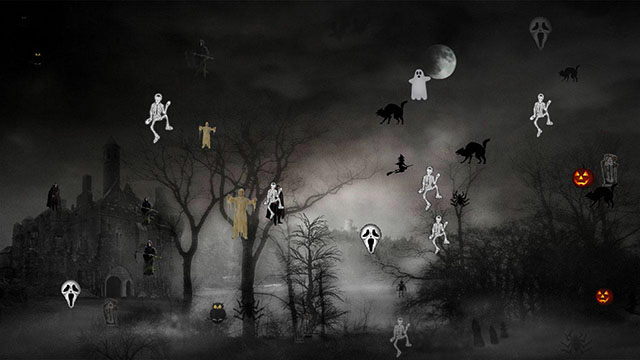
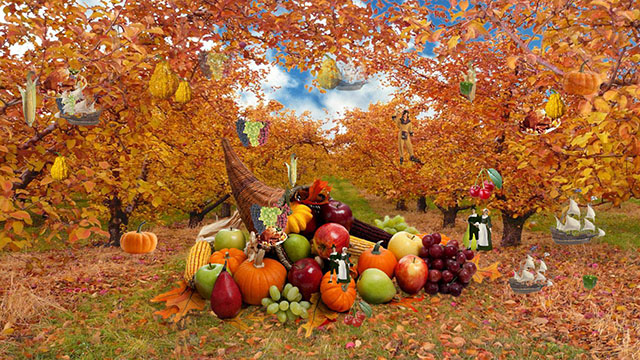
The current version has marine and freshwater aquarium, holiday theme screensavers for Halloween, Thanksgiving, Christmas, Valentine, etc. You could change various settings of each screensaver as well.
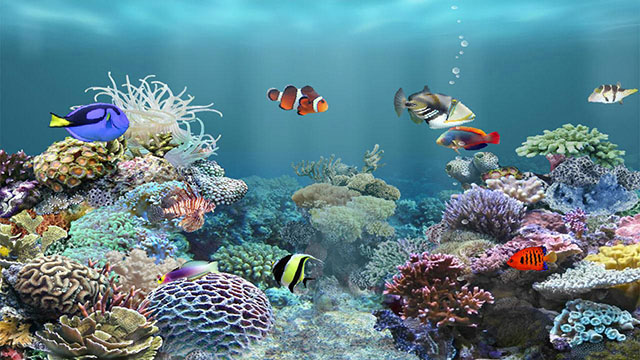
Marine Aquarium:
180 fish species for selection, up to 20 fish in the tank, daily changed random fish available.
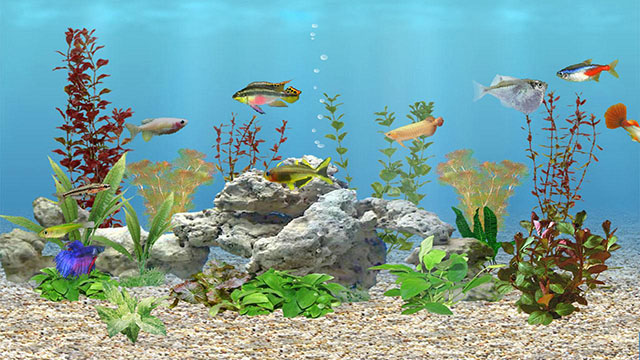
Freshwater Aquarium:
80 fish species for selection, up to 20 fish in the tank, daily changed random fish available.
Halloween:
Thanksgiving:
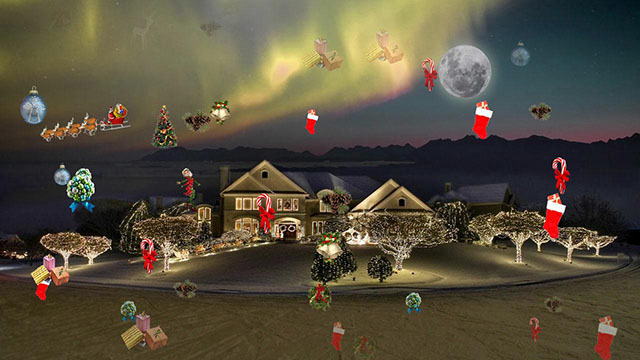
Christmas:
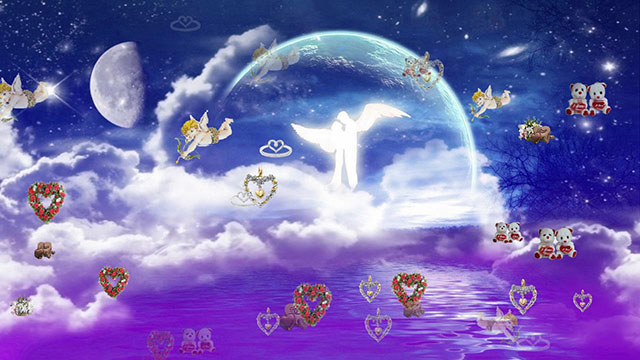
Valentine:
Snowing:

Matrix:

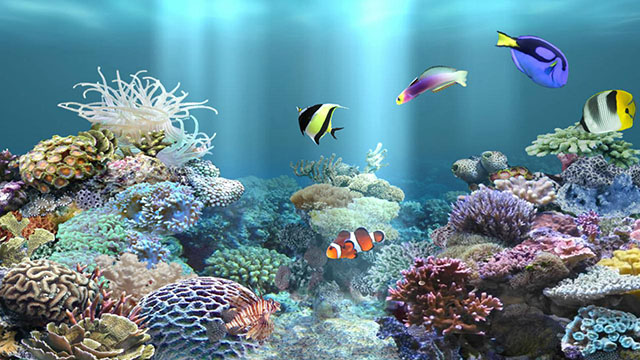
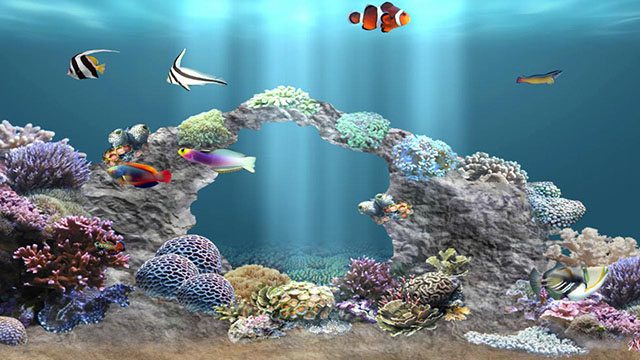
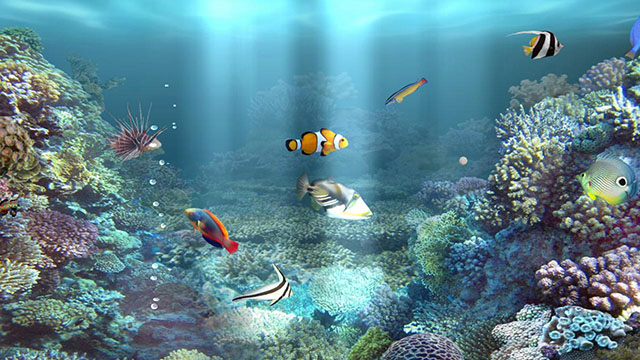
Turn your TV into a marine aquarium.
Select 20 fish from 180 species to grow.
Feed them and make babies.
Current version features:
* 20 fish categories, 180 fish species
* Up to 20 fish in the tank
* Able to feed fish and fish grows
* Matured fish may have babies
* Background change
* Many options available, such as fish speed, growth speed, light animation, etc.
How to operate:
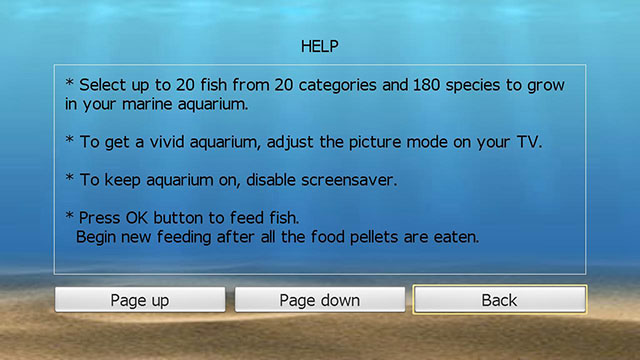
* To get a vivid aquarium, adjust the picture mode on your TV.
* To keep aquarium on, disable screensaver.
* To feed fish, press OK button for Roku, SELECT button for FireTV.
Begin a new feeding after all the food pellets are eaten.
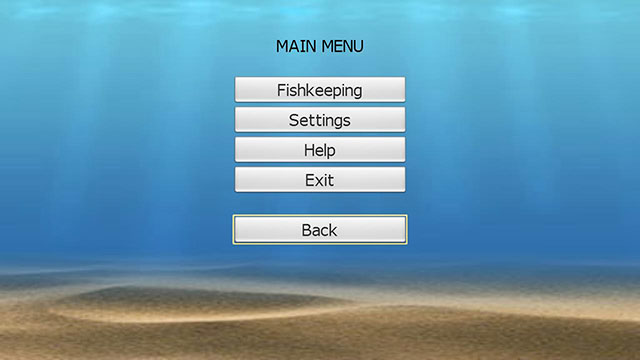
* To launch main menu, press * button for Roku, MENU button for FireTV.
Help:
Settings:
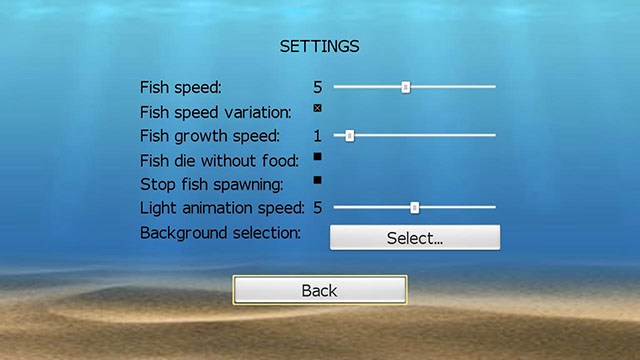
Set Fish growth speed to 0 to disable fish growth.
Set Light animation speed to 0 to remove light animation.
Background selection:
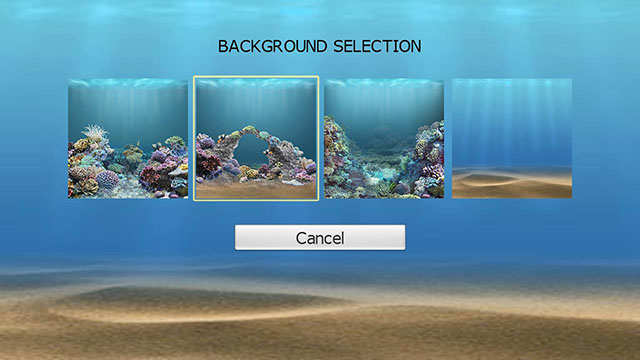
Move the focus to the favorite background then press OK button to select.
Fishkeeping:
There could be up to 20 fish in the tank.
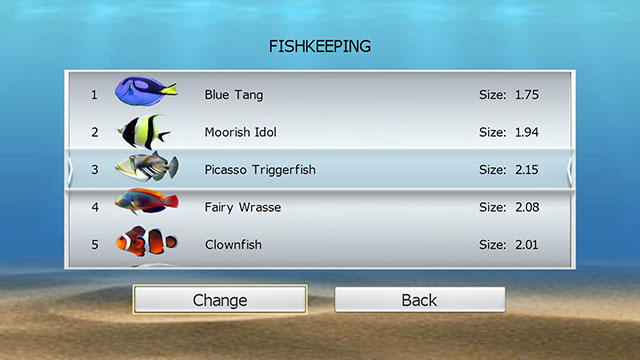
Each fish could be removed or changed to other species.
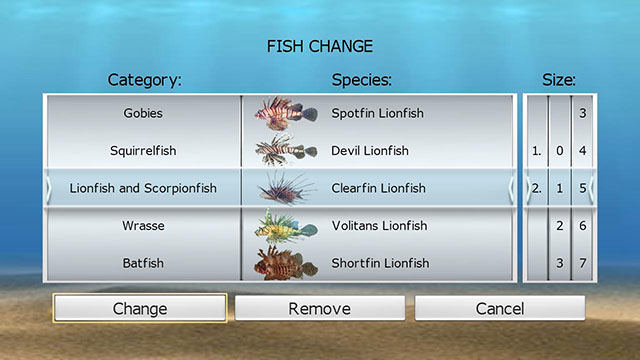
To change a fish, first select fish category, the species will be automatically changed to that category. Select a species within that category, then select fish size (1.0 ~ 2.99), press Change button to change the fish.
Press the Remove button directly to remove the fish from the tank.
When Up/Down buttons are used for value selection(such as fish category, fish species, fish size), use Left/Right buttons to move focus.
To have baby fish:
1) Wait until mother fish reach 4.0 in size.
2) Feed within a day.
3) Whenever aquarium is launched, there is 1/5 chance for a mother fish to have a baby.
4) A baby fish will stay with mother fish for 7 days.
Afterwards, the baby fish will be an individual fish when there are less than 20 fish in the tank,
otherwise the baby fish will be gone.
Tips:
1) You need to feed your fish daily.
During a day, one food pellet is enough for a fish. Fish would try to get extra food only after all fish in the tank have been fed.
2) It takes about 300 days for a baby fish (size 1.0) to be mature.
You could set “Fish growth speed” to 10 to shorten it to 30 days.
3) You could set “Fish growth speed” to 0 to disable fish growth.
4) If the “Fish die without food” option is checked under “Settings”, fish would die after 4 days without any food. But you could uncheck it to bring the fish back, then feed them.

乐酷电视是海外华人观看中文电影、电视、新闻和综艺节目的友好平台。
• 收录近1500部影视综艺节目
• 内容不断更新中
• 界面操作简单,播放流畅
• 支持播放记忆,拼音搜索,个人频道设置等功能
• 所有播放源来自于网络。
电视节目浏览:
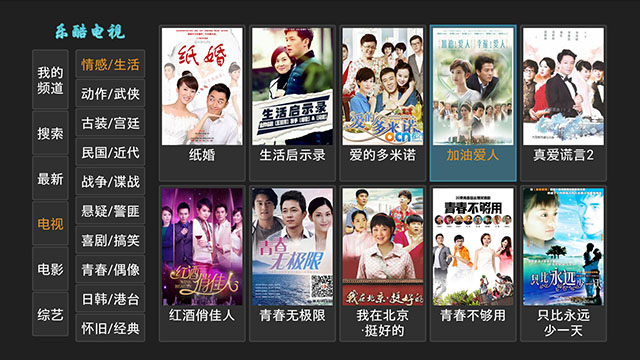 电影节目浏览:
 新闻节目浏览:
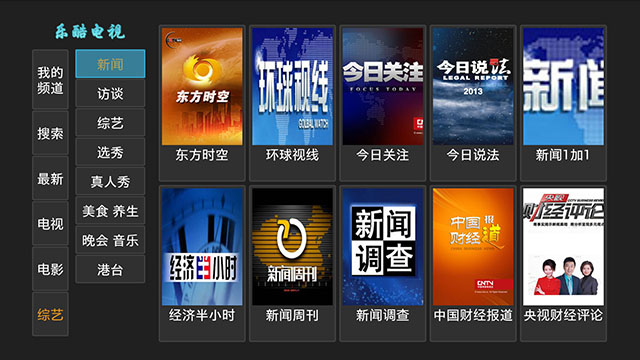 综艺节目浏览:
 剧集选择:
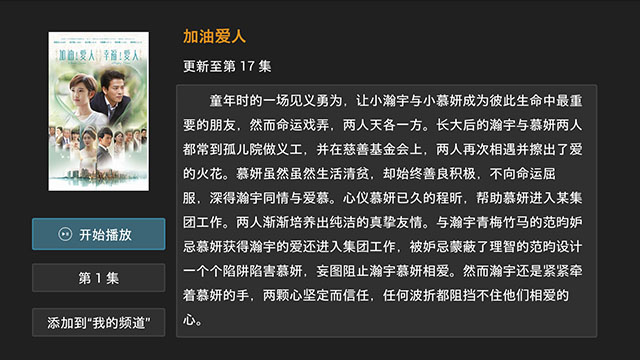 播放:

搜索:
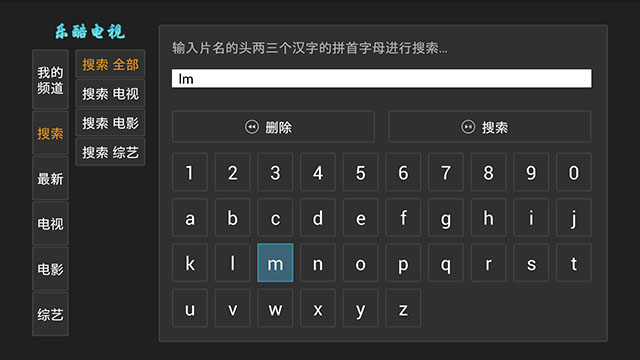
帮助:

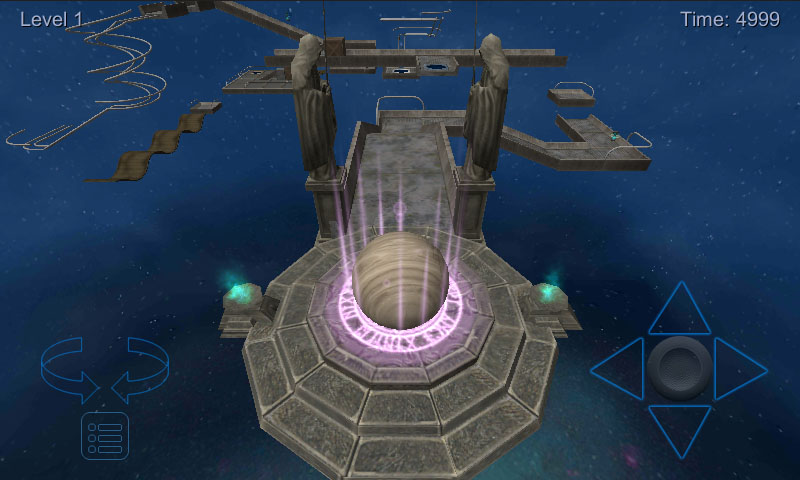
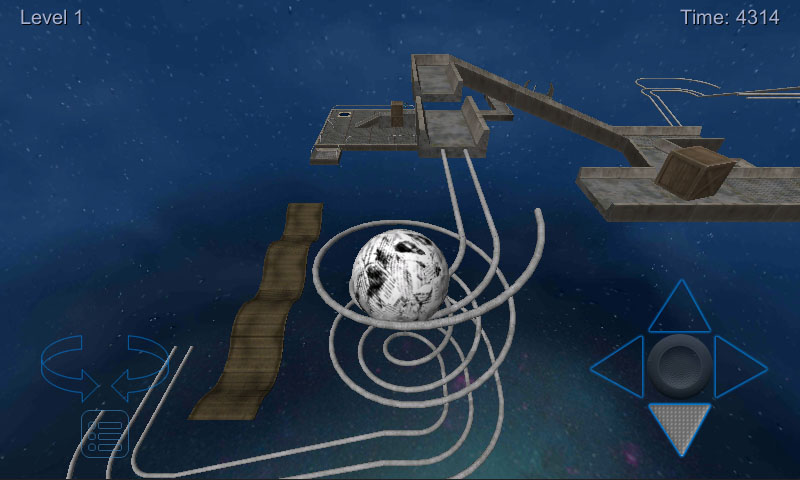
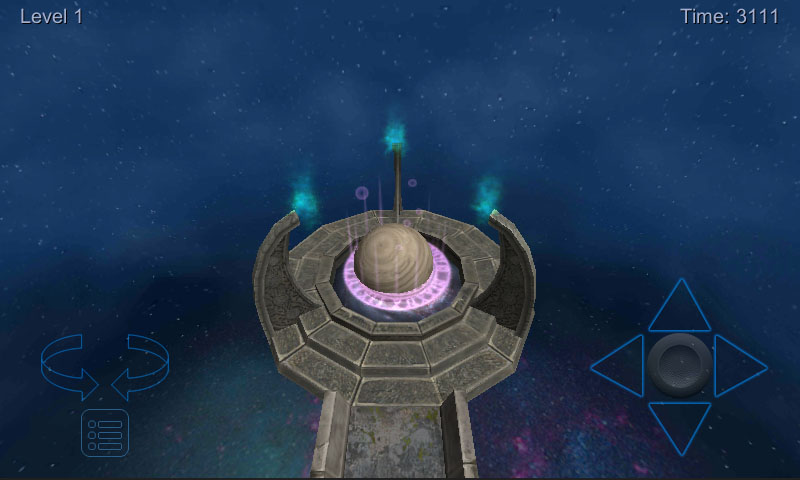
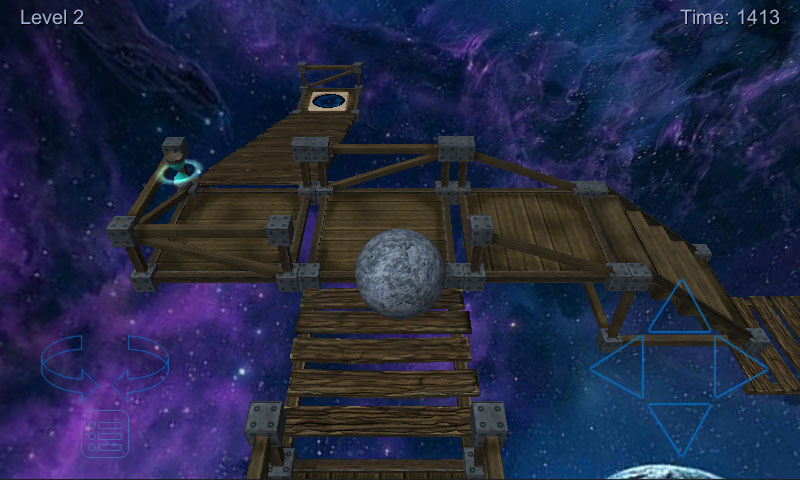
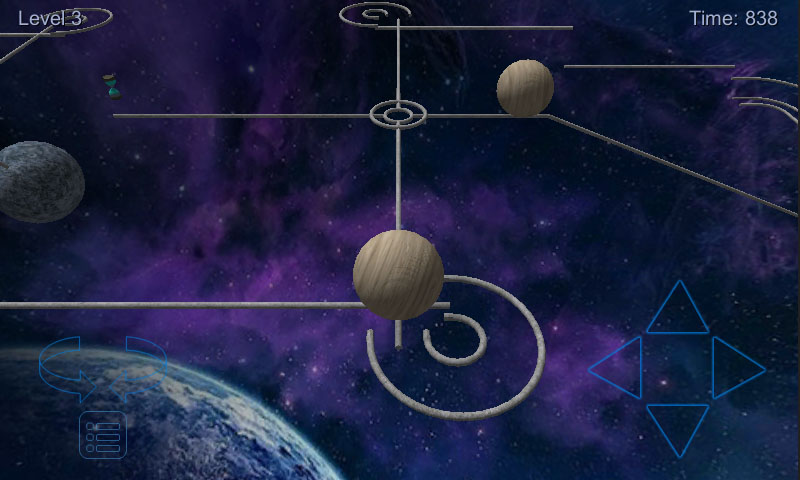
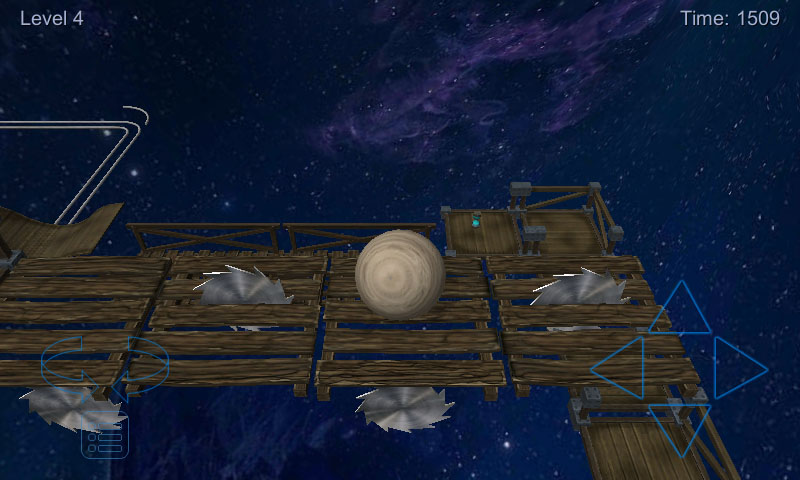
Balling is a 3D puzzle, logic, and balance game.
Control the ball to travel through the path and reach the goal portal within limited time.
Pick up hourglasses to get more time.
There are 3 kinds of balls: wooden, stone, and paper.
Use the transformers to change to the right ball.
This version has 4 levels.
More levels coming soon.

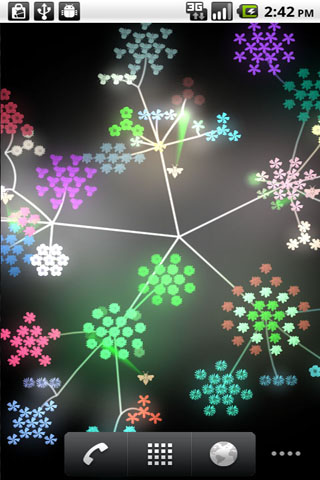
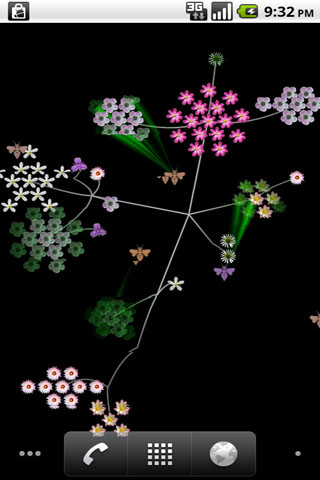
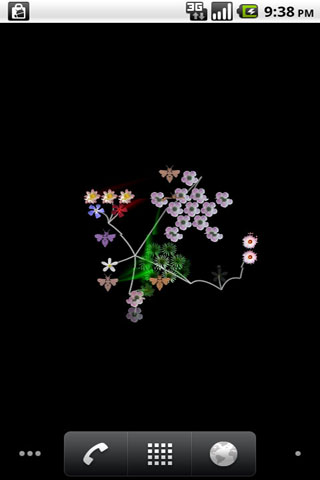
aniPet Falling is the 7th live wallpaper of aniPet series, it simulates virtual flower blooming and pollination. You could control the animation speed, flower amount, bee number, background color, etc.
How to set aniPet Bloom Live Wallpaper:
To set aniPet Falling as your live wallpaper, take the following steps:
1) Long press in an empty area of your Home screen, the “Add to Home screen” dialog will pops up, select “Wallpapers”. Or you could press the MENU button, then select “Wallpaper” from the option menu.
2) From the “Select wallpaper from” dialog, select “Live wallpapers”.
3) Select the “aniPet Bloom” from the live wallpaper list.
4) Within the “aniPet Bloom” preview screen
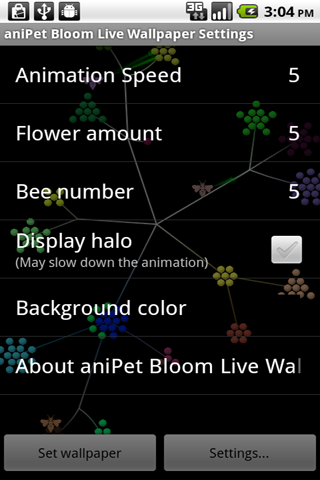
a) press “Settings” button to go to Preference Setting dialog.
You could control the animation speed, flower amount, bee number, background color, etc.
Press the BACK button to return to the preview screen.
b) press the “Set wallpaper” button to set “aniPet Bloom” as your live wallpaper.
How to use aniPet Bloom Live Wallpaper
You could launch the Settings by pressing HOME/MENU/Wallpaper/Live Wallpaper/aniPet Bloom/Settings.
Within the Settings page, you could
* Change the animation speed (1 – 10, default 5).
* Change flower amount (1 – 10, default 5).
* Toggle the display of original or random color for flowers.
* Change bee number (1- 10, default 5).
* Display or hide halo.
* Change the background color (default black).
Display halo may slow down the animation if your phone is not that powerful. If you find the animation is slow, please uncheck the “Display halo” option.
]]>
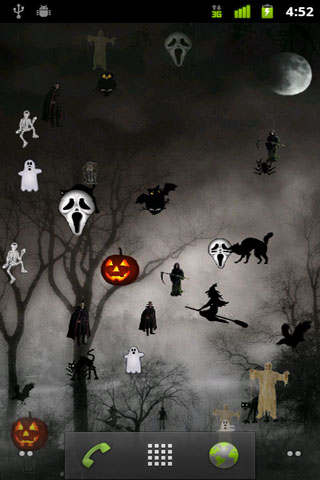
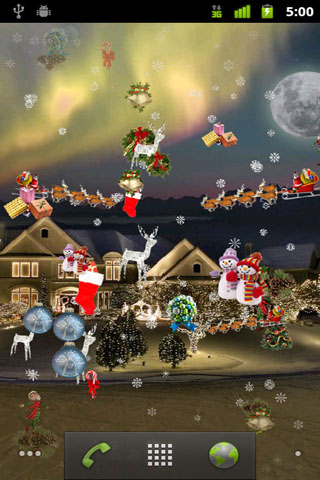
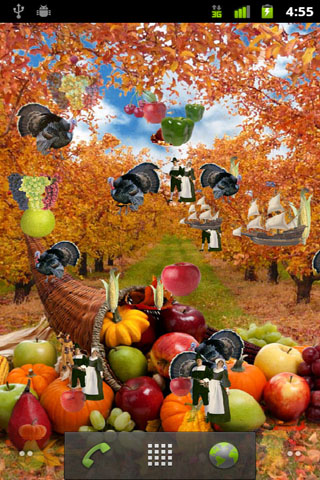
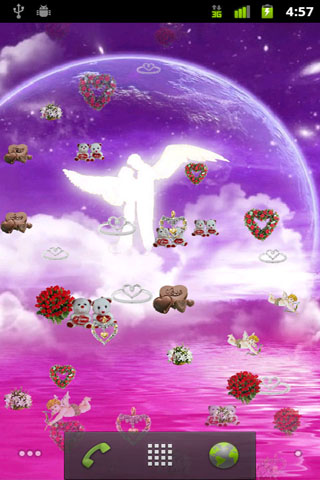
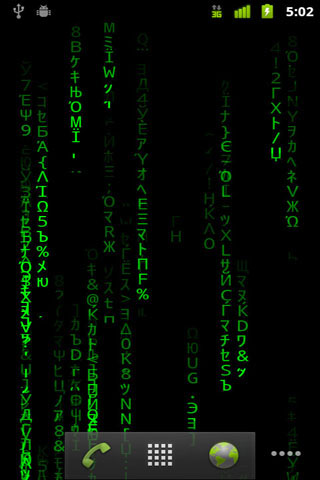
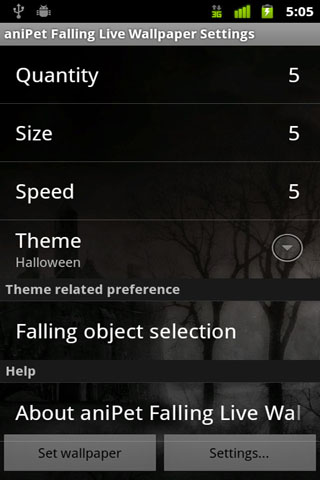
aniPet Falling is the 6th live wallpaper of aniPet series, it simulates object raining effect with different themes.
Current available themes:
* Snowing
* Valentine
* Christmas
* Thanksgiving
* Halloween
* Matrix
You could set falling object quatity, size, speed, theme, and select individual falling object as well.
How to set aniPet Falling Live Wallpaper:
To set aniPet Falling as your live wallpaper, take the following steps:
1) Long press in an empty area of your Home screen, the “Add to Home screen” dialog will pops up, select “Wallpapers”. Or you could press the MENU button, then select “Wallpaper” from the option menu.
2) From the “Select wallpaper from” dialog, select “Live wallpapers”.
3) Select the “aniPet Falling” from the live wallpaper list.
4) Within the “aniPet Falling” preview screen
a) press “Settings” button to go to Preference Setting dialog.
You could set falling object quantity, size, speed, theme, and select falling objects, etc.
Press the BACK button to return to the preview screen.
b) press the “Set wallpaper” button to set “aniPet Falling” as your live wallpaper.
How to use aniPet Falling Live Wallpaper
From the the Settings page (Launch it by pressing HOME / MENU / Wallpaper / Live wallpapers / aniPet Falling / Settings):
1) Set falling object quantity (scale 0 – 10). Select 0 means no falling object, only background.
2) Set falling object size (scale 1 – 10).
3) Set falling object speed (scale 1 – 10).
4) Select falling object themes.
5) Select falling object individually.
6) Show this information page.

Do you like Samsung Galaxy S stock Blue Sea live wallpaper? Here is the customizable one with more features.
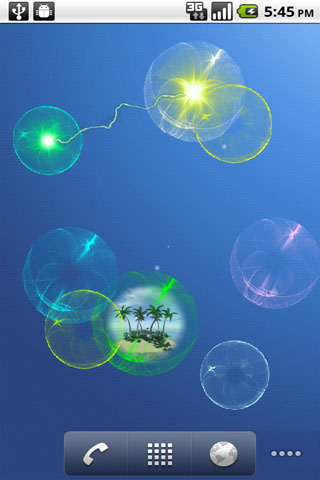
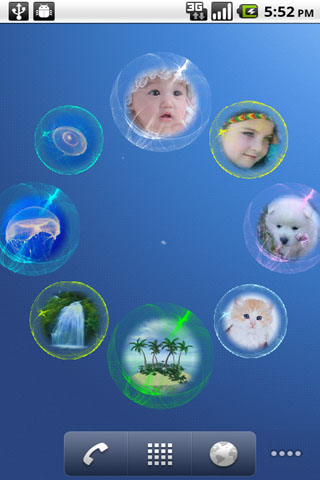
aniPet Blue Sea is the 5th live wallpaper of aniPet series, it simulates bioluminescent sea creatures floating in blue sea with interaction.
Its main features include:
* Customize each creature’s type, body color, light color, and size
* Change the background with your favorite photos in your gallery
* Avatar picture for each creature displayed with specified touch patterns, replace it with your favorite photos
* Many touch interactions
* Attractive creature animations
Many options available. More creature types and animations coming soon.
How to set aniPet Blue Sea Live Wallpaper:
To set aniPet Aquarium as your live wallpaper, take the following steps:
1) Long press in an empty area of your Home screen, the “Add to Home screen” dialog will pops up, select “Wallpapers”. Or you could press the MENU button, then select “Wallpaper” from the option menu.
2) From the “Select wallpaper from” dialog, select “Live wallpapers”.
3) Select the “aniPet Blue Sea” from the live wallpaper list.
4) Within the “aniPet Blue Sea” preview screen
a) press “Settings” button to go to Preference Setting dialog.
You could change the creature’s type, size, body color, light color, and its avatar picture, set creature floating speed, turn on the touch vibration when trigger avatar display or lightning, change the background with your favorite photo.
Press the BACK button to return to the preview screen.
b) press the “Set wallpaper” button to set “aniPet Blue Sea” as your live wallpaper.
1) Single tap on a creature to light it.
2) Double tap on a creature to light it, then display its avatar picture.
You could keep tapping on the creature when its light is on to light it for longer time, then the avatar picture will be displayed longer too.
3) Touch down on empty area, then move over any creature will light that creature.
4) Touch down on a source creature, then move to a destination creature and finish the touch, there will be the lightning from the source creature to the destination creature, the lightning color is the source creature’s light color.
5) Double tap on empty area will trigger creature animations. (only one animation available for current version, more coming soon).
Creature customization:
1) Press HOME/MENU/Wallpaper/Live Wallpaper / aniPet Blue Sea / Settings to launch settings.
2) Click the “Manage creatures” to display the creature list, which lists all the creatures with their types, sizes, avatar pictures.
3) Click on any creature item to go to the “Creature Settings” page, where you could change the creature’s:
a) Type (only 2 types for current version, more coming soon)
b) Body color
c) Light color
d) Size ( 5 – 20)
e) Avatar picture (click it to change with your favorite photos in your gallery)

aniPet is a live wallpaper series for animated pets, designed for Android platform v2.1 and later versions.
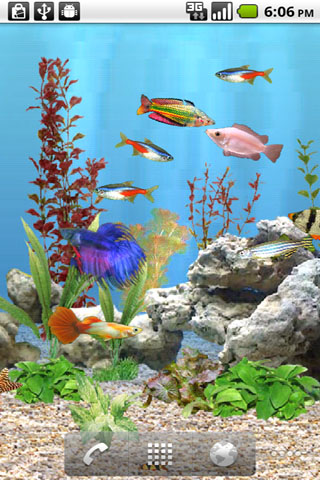
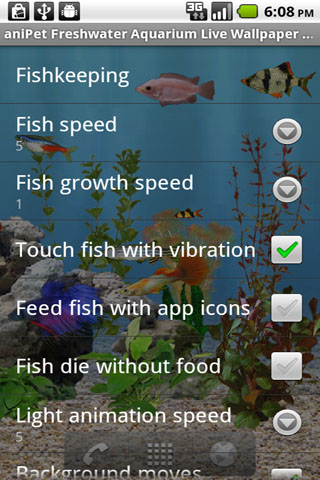
aniPet Freshwater Aquarium is the 4th live wallpaper of aniPet series, it simulates a marine aquarium with interaction. You feed the fish and fish grows. You could select fish from 12 types, set fish speed and fish growth speed. Many options available.
How to set aniPet Freshwater Aquarium Live Wallpaper:
To set aniPet Aquarium as your live wallpaper, take the following steps:
1) Long press in an empty area of your Home screen, the “Add to Home screen” dialog will pops up, select “Wallpapers”. Or you could press the MENU button, then select “Wallpaper” from the option menu.
2) From the “Select wallpaper from” dialog, select “Live wallpapers”.
3) Select the “aniPet Freshwater” from the live wallpaper list.
4) Within the “aniPet Freshwater Aquarium” preview screen
a) press “Settings” button to go to Preference Setting dialog.
You could launch Fishkeeping page, set fish speed and fish growth speed, choose vibration option when fish is touched, select to feed fish with normal food or application icons, set the option to let fish die without food, set surface light animation speed, set battery save mode, disable aquarium background movement when moving Home screens, and launch Settings by tapping on the top-left corner of the screen.
Press the BACK button to return to the preview screen.
b) press the “Set wallpaper” button to set “aniPet Freshwater Aquarium” as your live wallpaper.
How to use aniPet Freshwater Aquarium Live Wallpaper
To touch the fish:
Tapping on a fish will give you vibration response which could be turned off in Settings, the fish will run away when touched. Touching a mature fish (size 4.0) many times (added up to 10?) may trigger it to have a baby fish. Try your luck.
To feed the fish:
Tapping on any empty area without fish will drop normal food or application icon food down into the aquarium. You could select the food type in Settings.
About the Fishkeeping page:
You launch the Fishkeeping page from Settings. (To launch the Settings, press MENU / Wallpaper / Live Wallpaper / aniPet Freshwater / Settings).
It lists all the fish in the tank. There could have up to 10 fish in the tank. Each fish is listed with information such as its picture, name, and size. Clicking the Exchange button to launch Fish Exchange page, where you could exchange the fish with another one or remove the fish.
Tips:
1) You need to feed your fish daily, one pellet per fish.
2) During the normal feeding mode, only the fish having not got food will try to get the food.
3) After all the fish have got food for that day, it will enter the playing mode, where all the fish will try to get the food.
4) It takes about 300 days for a baby fish to become mature. You could set Fish Growth Speed to 10 to shorten it to 30 days.
5) If the fish die option is set within Settings, fish will die after 4 days without any food.
Troubleshootings:
If you get black screen when you set aniPet live wallpaper by pressing the “Set Wallpaper” button, please first set other stock live wallpaper as your current live wallpaper, then set aniPet live wallpaper as your current live wallpaper again.

aniPet is a live wallpaper series for animated pets, designed for Android platform v2.1 and later versions.
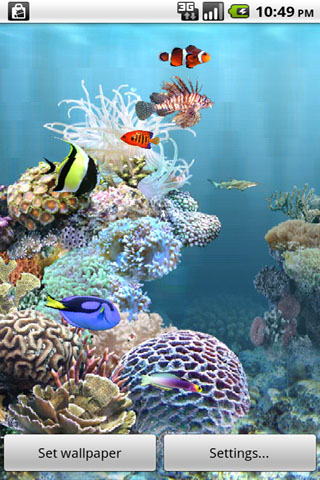
aniPet Aquarium is the 3rd live wallpaper of aniPet series, it simulates a marine aquarium with interaction. You feed the fish and fish grows. You could select fish from 66 types, set fish speed and fish growth speed. Many options available.
How to set aniPet Aquarium Live Wallpaper:
To set aniPet Aquarium as your live wallpaper, take the following steps:
1) Long press in an empty area of your Home screen, the “Add to Home screen” dialog will pops up, select “Wallpapers”. Or you could press the MENU button, then select “Wallpaper” from the option menu.
2) From the “Select wallpaper from” dialog, select “Live wallpapers”.
3) Select the “aniPet Aquarium” from the live wallpaper list.
4) Within the “aniPet Aquarium” preview screen
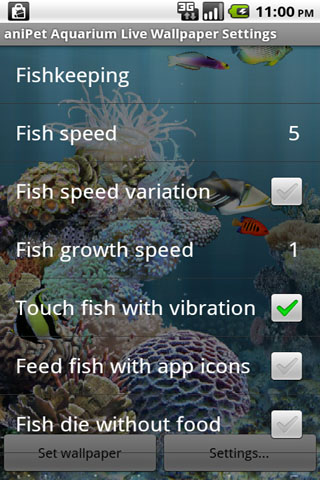
a) press “Settings” button to go to Preference Setting dialog.
You could launch Fishkeeping page, set fish speed and fish growth speed, choose vibration option when fish is touched, select to feed fish with normal food or application icons, set the option to let fish die without food, set surface light animation speed, set battery save mode, disable aquarium background movement when moving Home screens, and launch Settings by tapping on the top-left corner of the screen.
Press the BACK button to return to the preview screen.
b) press the “Set wallpaper” button to set “aniPet Aquarium” as your live wallpaper.
How to use aniPet Aquarium Live Wallpaper
To touch the fish:
Tapping on a fish will give you vibration response which could be turned off in Settings, the fish will run away when touched. Touching a mature fish (size 4.0) many times (added up to 10?) may trigger it to have a baby fish. Try your luck.
To feed the fish:
Tapping on any empty area without fish will drop normal food or application icon food down into the aquarium. You could select the food type in Settings.
About the Fishkeeping page:
You launch the Fishkeeping page from Settings. (To launch the Settings, press MENU / Wallpaper / Live Wallpaper / aniPet Aquarium / Settings).
It lists all the fish in the tank. There could have up to 8 fish in the tank. Each fish is listed with information such as its picture, name, and size. Clicking the Exchange button to launch Fish Exchange page, where you could exchange the fish with another one or remove the fish.
Tips:
1) You need to feed your fish daily, one pellet per fish.
2) During the normal feeding mode, only the fish having not got food will try to get the food.
3) After all the fish have got food for that day, it will enter the playing mode, where all the fish will try to get the food.
4) It takes about 300 days for a baby fish to become mature. You could set Fish Growth Speed to 10 to shorten it to 30 days.
5) If the fish die option is set within Settings, fish will die after 4 days without any food.
Troubleshootings:
If you get black screen when you set aniPet live wallpaper by pressing the “Set Wallpaper” button, please first set other stock live wallpaper as your current live wallpaper, then set aniPet live wallpaper as your current live wallpaper again.

aniPet is a live wallpaper series for animated pets, designed for Android platform v2.1 and later versions.
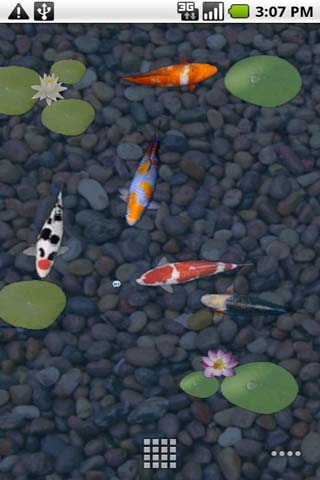
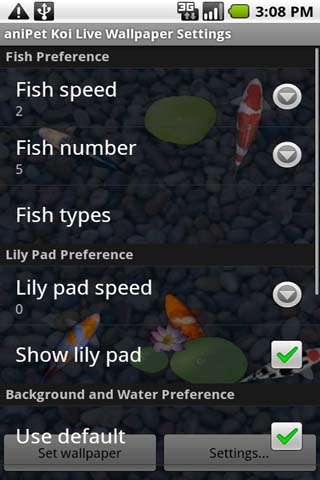
aniPet Koi is the 2nd live wallpaper of aniPet series, it simulates koi swimming in a pond with lily pads. You could select the number of fish (1-5) in the pond, pick fish from 16 koi types, set the speed, change water color/transparency, and even replace the background with your favorite photo. You could feed the fish with normal food or different application icons, touch the fish with vibration effect, move around the lily pad, enable option to show butterfly and dragonfly animation randomly,.
How to set aniPet Koi Live Wallpaper:
To set aniPet Koi as your live wallpaper, take the following steps:
1) Long press in an empty area of your Home screen, the “Add to Home screen” dialog will pops up, select “Wallpapers”. Or you could press the MENU button, then select “Wallpaper” from the option menu.
2) From the “Select wallpaper from” dialog, select “Live wallpapers”.
3) Select the “aniPet Koi” from the live wallpaper list.
4) Within the “aniPet Koi” preview screen
a) press “Settings” button to go to Preference Setting dialog.
You could set fish speed and lily pad moving speed, select the number of fish (1-5) in the pond and their types, even change water color/transparency and the background. Check the “Show animation” option under “Butterfly and Dragonfly Preferences” to enable the random display of butterfly and dragonfly animations.
Press the BACK button to return to the preview screen.
b) press the “Set wallpaper” button to set “aniPet Koi” as your live wallpaper.
How to use aniPet Koi Live Wallpaper
To move around the lily pad:
First tap on the lily pad to select it, the selected lily pad turns to green, then touch down and move to relocate it. Tap on any other place to deselect it.
To feed the fish:
Tap on any empty area without lily pad, different food will drop down to the pond.
To touch the fish:
Tap on fish will give you vibration response which could be turned off in Settings, fish will run away when touched.