Author information

The post 15 Top Tips from a SOLIDWORKS Instructor appeared first on SOLIDWORKS Tech Blog.
]]>If you’re learning SOLIDWORKS and feeling like you’re not yet a power user, that’s okay. Remember: a late train doesn’t skip any stations. You still have to go through the process and put in the work of learning SOLIDWORKS, but with these tips and tricks you can be on the fast track to becoming a SOLIDWORKS power user.
Below, we delve into the top 15 tips that I’ve seen make the biggest impact on SOLIDWORKS learners.
1. Organize the Feature Tree with Design Intent
I’ll never forget a time early in my career when I was told, “Design intent is modeling like someone else will edit it,” and that idea stuck with me. But this concept goes beyond just the design intent behind modeling choices like midplane extrusions or other features. It also applies to the Feature Tree; organize the tree like someone else will work on it.
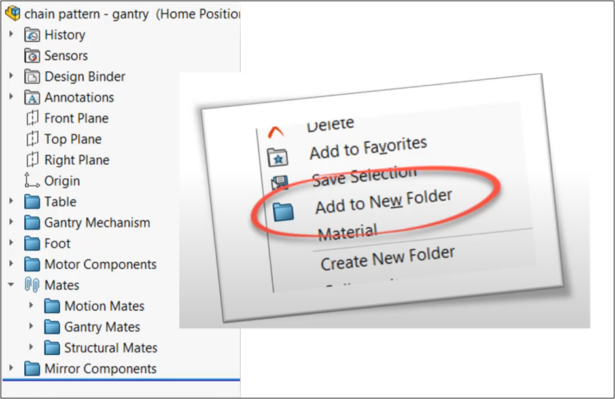
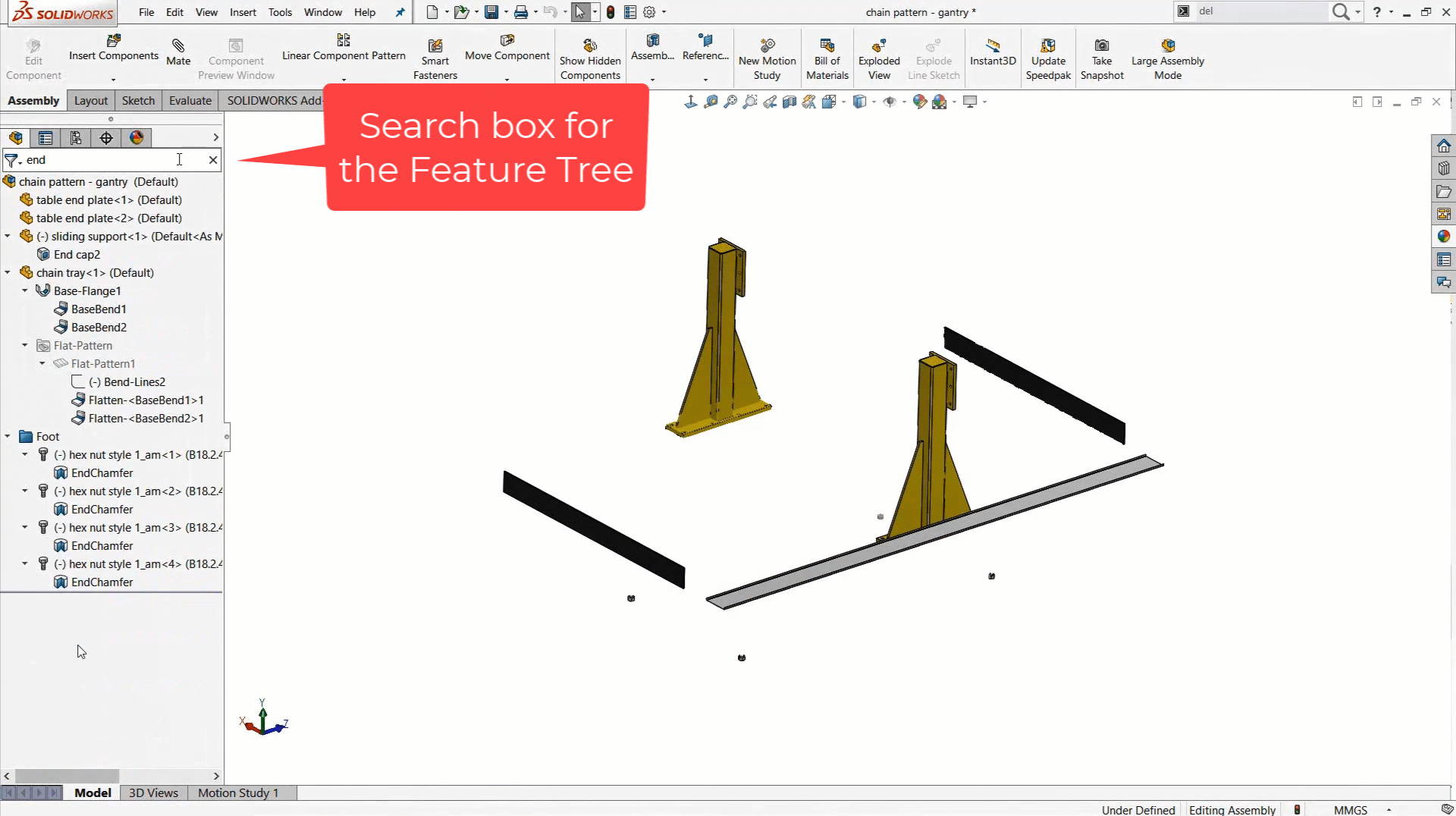
You can organize with folders, and even rename features. Doing this will enable you to leverage one of its most powerful functions, the search function. At the top of the FeatureManager Design Tree (shortened to Feature Tree) there is a search bar that automatically filters the tree as you type.
2. Use the SOLIDWORKS Command Search
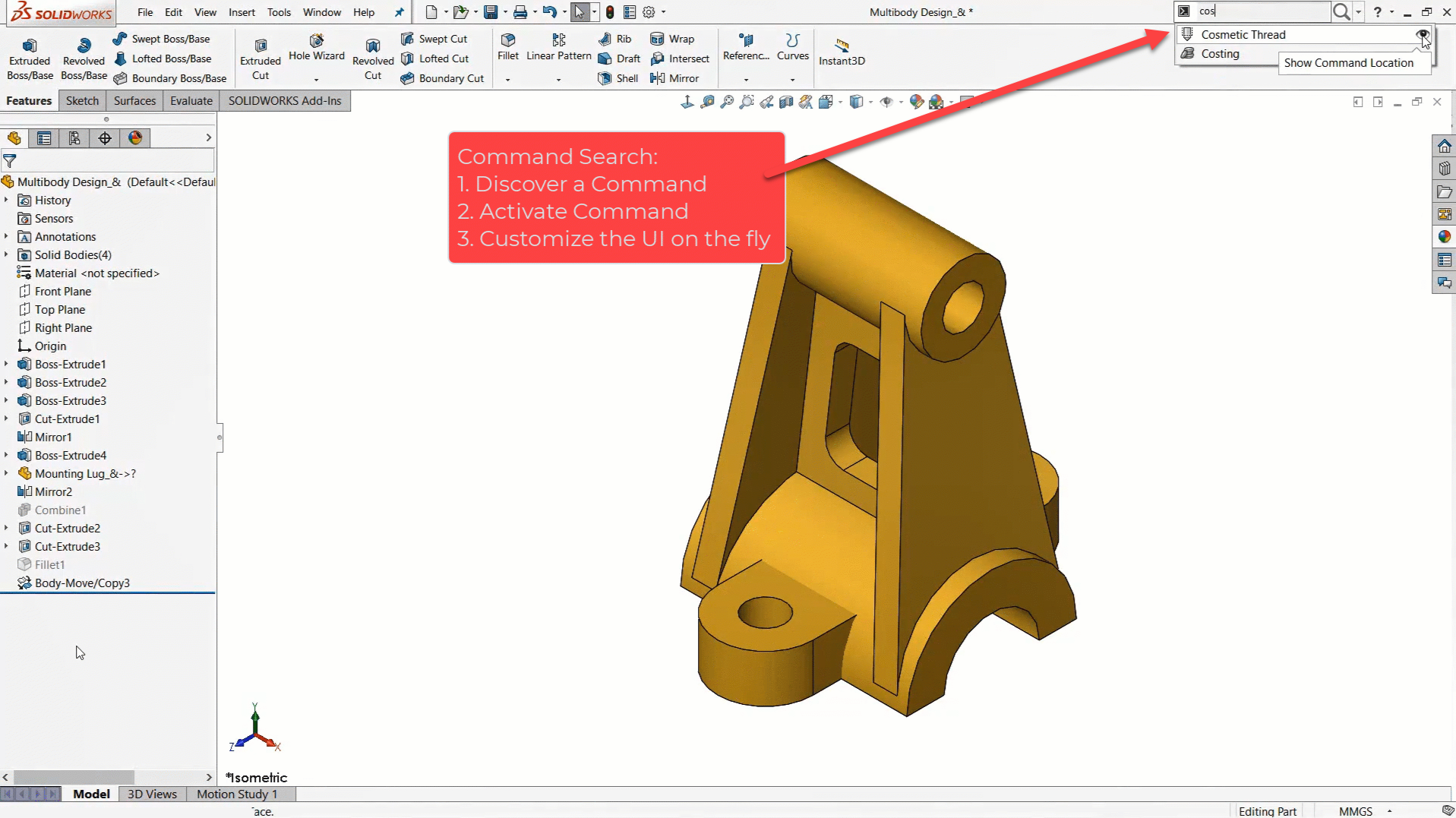
If I had to pick just one feature to share it would be the Command Search. This is one I share with everyone I can, even outside the classroom, in SOLIDWORKS demos, SOLIDWORKS tech support, and more. It saves time for anyone from novice beginners to the most experienced experts. Command Search is the quickest way to use literally all of the SOLIDWORKS commands. It works by bypassing the menus and giving you direct access to commands just by typing the first few letters of the command name.
What’s more, you have two ways to access it. The top right corner of the UI has been the home of Command Search for years, but recently it has also been added to the S-key shortcut menu. Just hit ‘S’ and start typing to easily access any command.
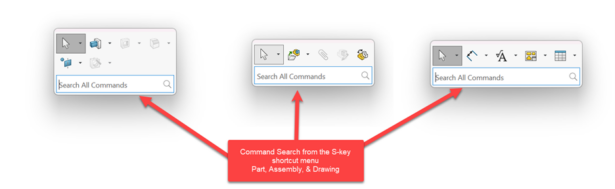
Bonus tip: When learning SOLIDWORKS, the Command Search is incredibly useful because it can even show you where the command lives in the menus, which helps learners discover more about SOLIDWORKS.
3. Look Up Solutions with Quick Access to the SOLIDWORKS Help File
Here’s an industry secret for you: we don’t know everything about everything. If someone tells you otherwise, they’re lying. Even certified “Elite Experts” at SOLIDWORKS resellers sometimes need to look things up. SOLIDWORKS’ help file is how we do it quickly.
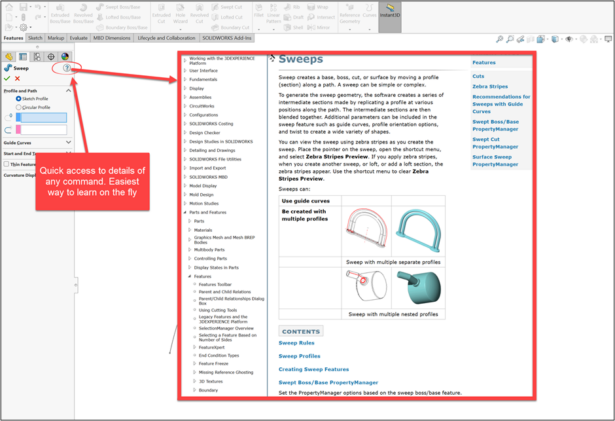
Look for the question mark in the corner of an active Command. Clicking this brings you directly to the relevant help file for the command. This is the quickest way to get detailed information so that you can better understand SOLIDWORKS’ functionality.
4. Learn to Understand SOLIDWORKS’ Visual Feedback
SOLIDWORKS is talking to you, you just need to learn its language and listen. Sure, SOLIDWORKS is not literally speaking words to you. Instead, the software uses graphical cues through color, icons, symbols and text. These all give you a lot of insight into what’s happening and what you should do next.
If you’re paying attention, this visual feedback can even help you significantly speed up your modeling.
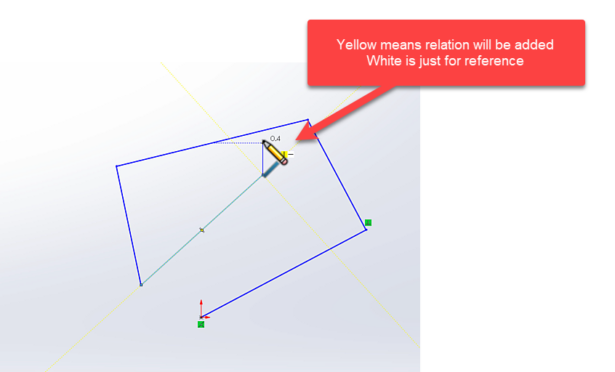
Here’s one of the best examples, which appears when sketching. A yellow relation means it will be added as a relation, while white means it’s just for a visual aid.
5. Units and Equations Use Flexible Syntax
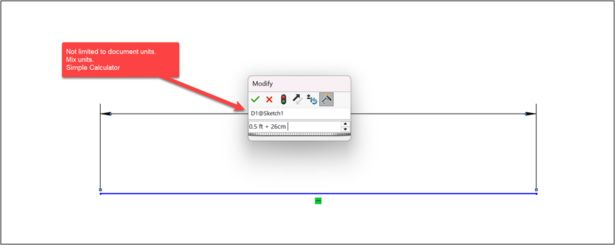
Keying in dimensions and values is a key step when creating your geometry, and entering values in SOLIDWORKS is a lot more flexible than most users realize. Did you know you’re not locked in to the document’s unit system? As long as you key in the proper unit syntax, you can work with any type of applicable unit.
For example, if you’re working in metric but know a value in inches, just type “2 in” and SOLIDWORKS will automatically convert it to the document units. You can turn this up a notch by keying in basic math equations, transforming the dimension input box into a basic calculator. You can even mix units, such as “2in + 10mm.” Here’s a quick table to keep handy:
| Units | SW Units Syntax |
| Inches | in |
| Feet | ft |
| Centimeter | cm |
| Millimeters | mm |
| Meter | m |
6. Add Mid Planes and Offset Planes Quickly and Easily
Planes are a core tool used to create geometry. Some planes are complicated, adding time and precision, while others can be made quickly so you can keep modeling as fast as possible. These are the two quickest and most useful ways to add reference planes to SOLIDWORKS
Mid plane
Click any two faces to add a plane down the middle. This is the easiest way to add a new plane which you know is centered on parts of your geometry. Pro tip: Use design intent to keep things symmetrical so these become easier to work with.
Offset plane
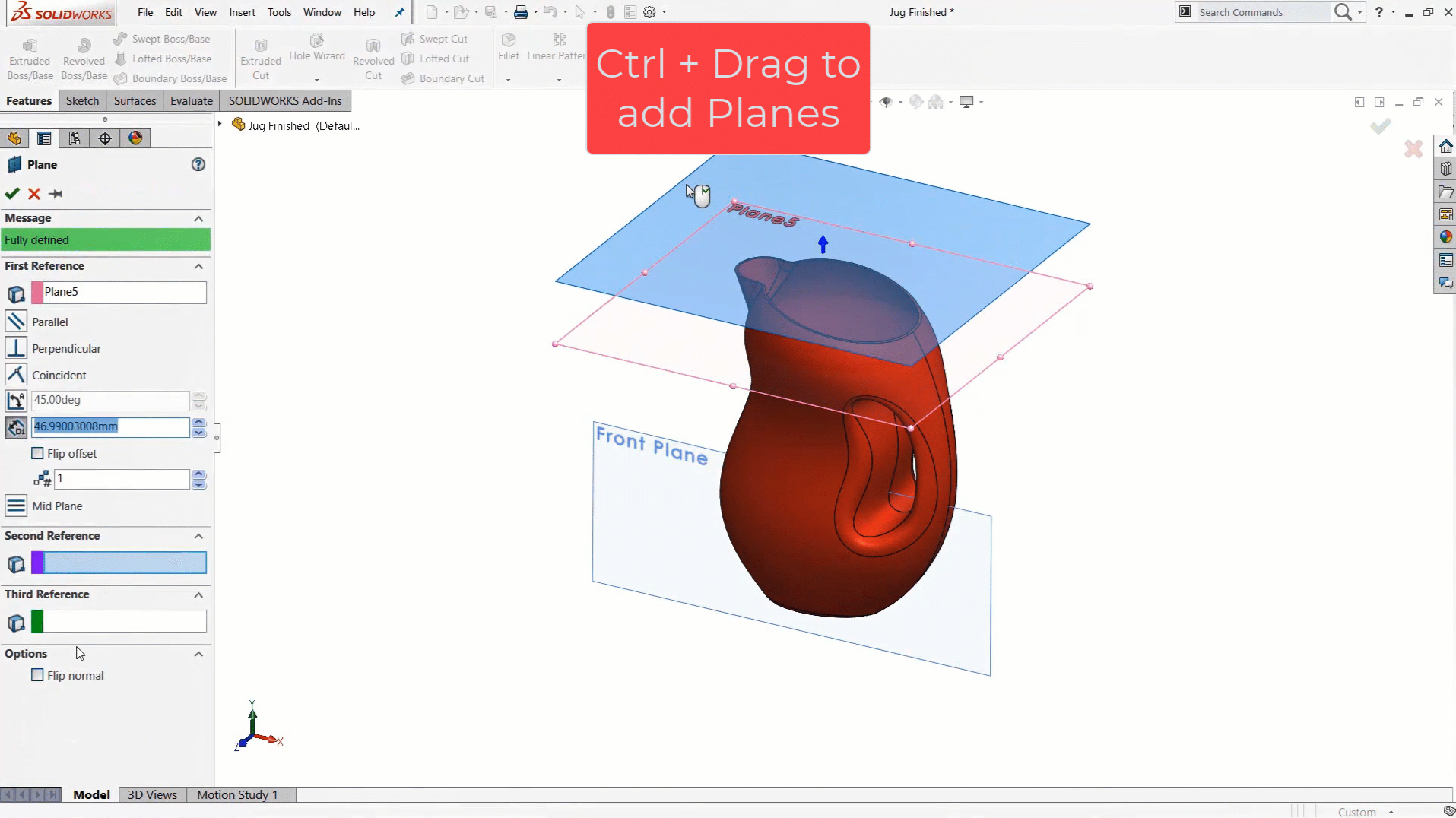
Hold control and drag from an existing plane to add new plane at an offset. Quick, easy, and it gets the job done!
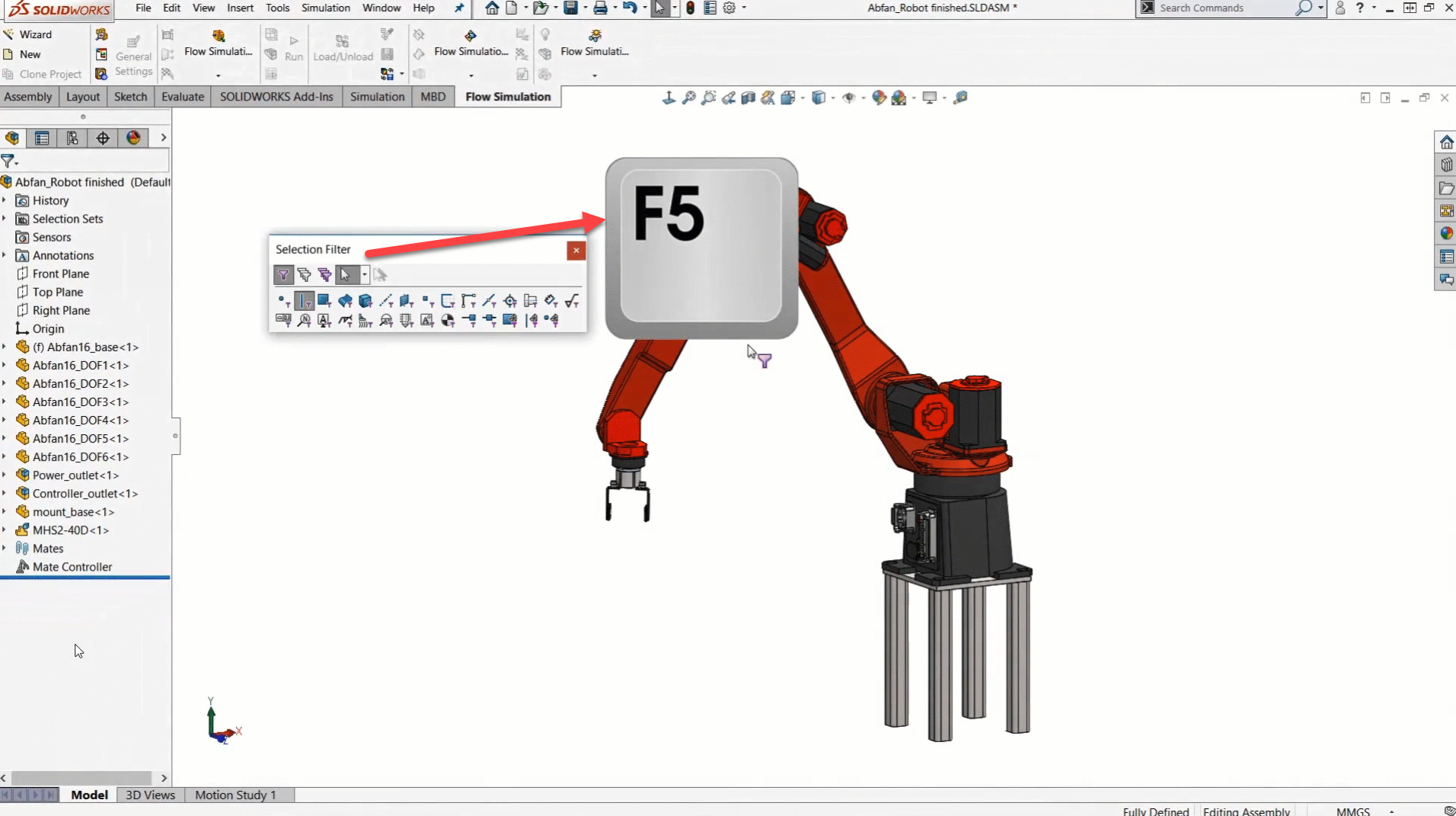
7. Make Use of Selection Filters
In a feature-dense model or cluttered assembly, selecting the right edge, face or vertex is a lot like picking one single raindrop out of a heavy storm. To make selections easier, you can use filters. In fact, most power users keep the filter toolbar active all the time.
F5 turns on the toolbar so you can pick and choose what filters you want. F6 turns on or off the filter functionality. One thing I’ve seen many times is that a lot of people accidentally turn it on by unknowingly hitting F6, and then find themselves unable to select entities.
8. Easily Move and Rotate Components in Assembly
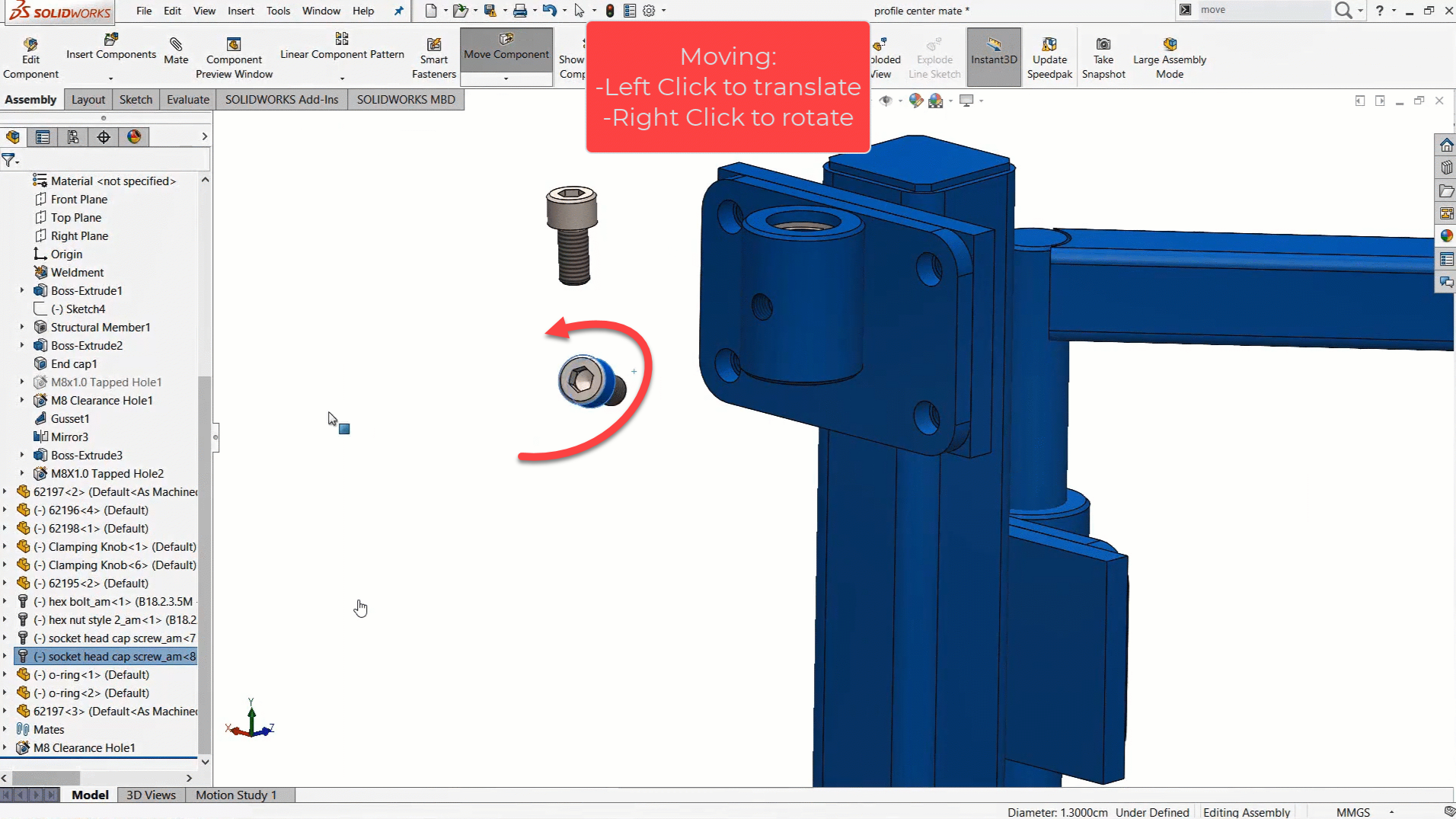
As you’re building an assembly, you’ll move components around the graphics area to help get them locked into place using mates. It’s obvious to most users that clicking and holding the left mouse button on a component allows you to drag it around. But many may not be aware that the same click-and-drag with the right mouse button allows you to rotate a component in place. This really streamlines the process of prepositioning a component in an assembly so that it’s ready to be mated in place.
9. Repeat Your Last Command – No Hot Keys Required
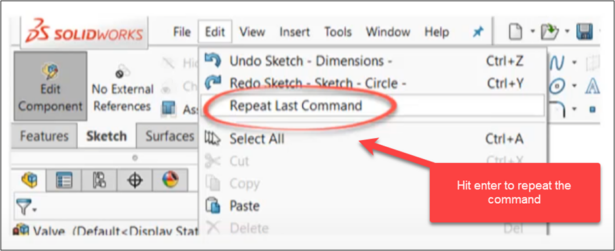
It’s not doing something once, but doing it over and over again that really racks up the time. To save some of that time, you can use the Enter key to quickly launch the last command. Think of this as a hot key that gets automatically mapped to the last thing you were doing. This works for things like sketching, features or assemblies.
10. Use the Normal To View
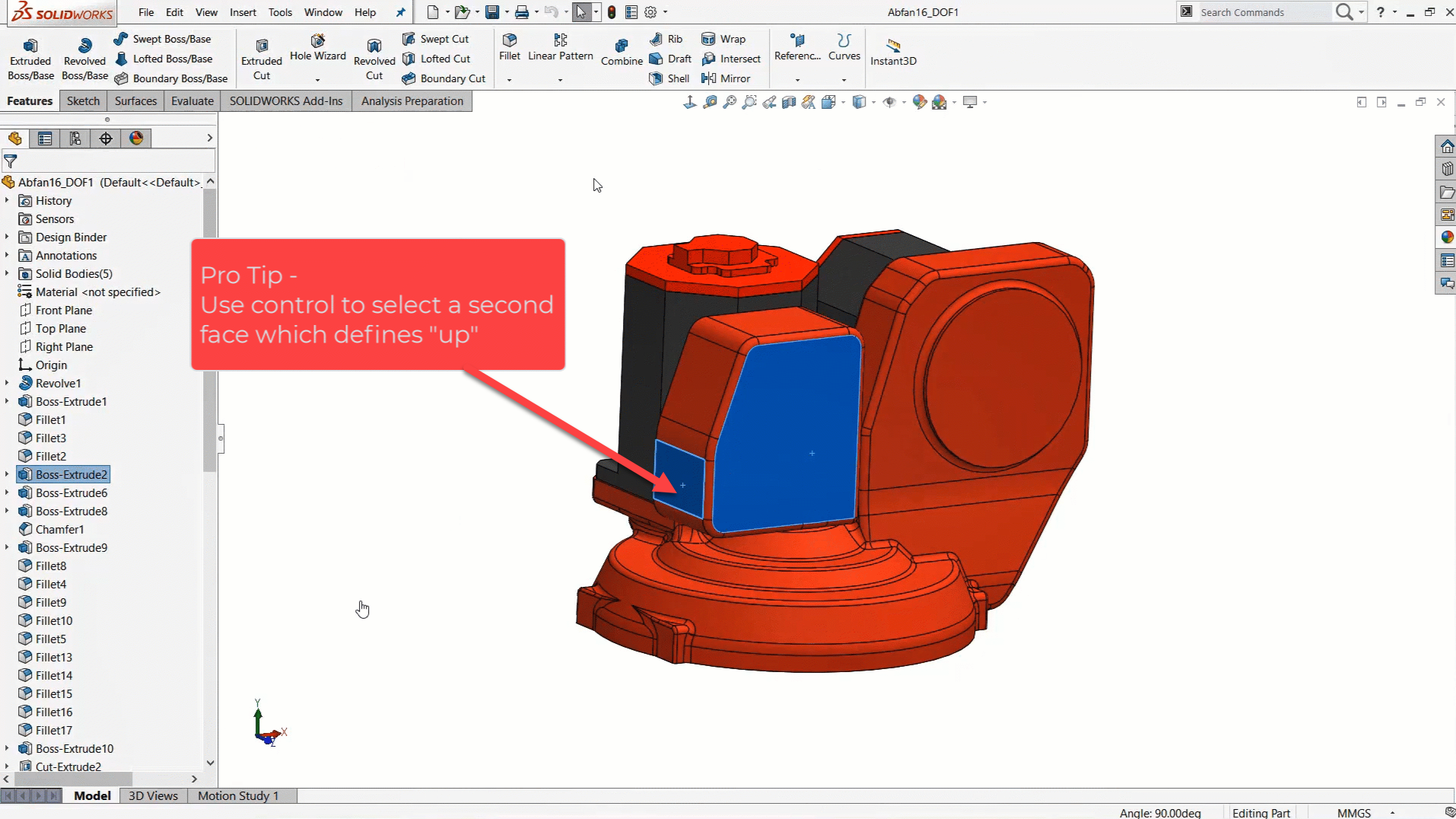
For viewing, “Normal To” means to look at something straight on. But in 3D space there is some ambiguity. There is top or bottom, and front or back. So the Normal To command can be used to give both “normal to positive” and “normal to negative” (remember front/back or top/bottom) views. Just keep hitting the button and it will keep flipping the view.
Pro tip: For added control on the orientation, you can hold Ctrl to select a second face, which will define the “up orientation” while going normal to the first face.
11. Zoom to Selection & Previous View Make Model Navigation Easy
These are two view commands which are very useful but not easily discoverable. I think it has something to do with the icons not being very informative, so it can be tricky for users to discover this functionality on their own.
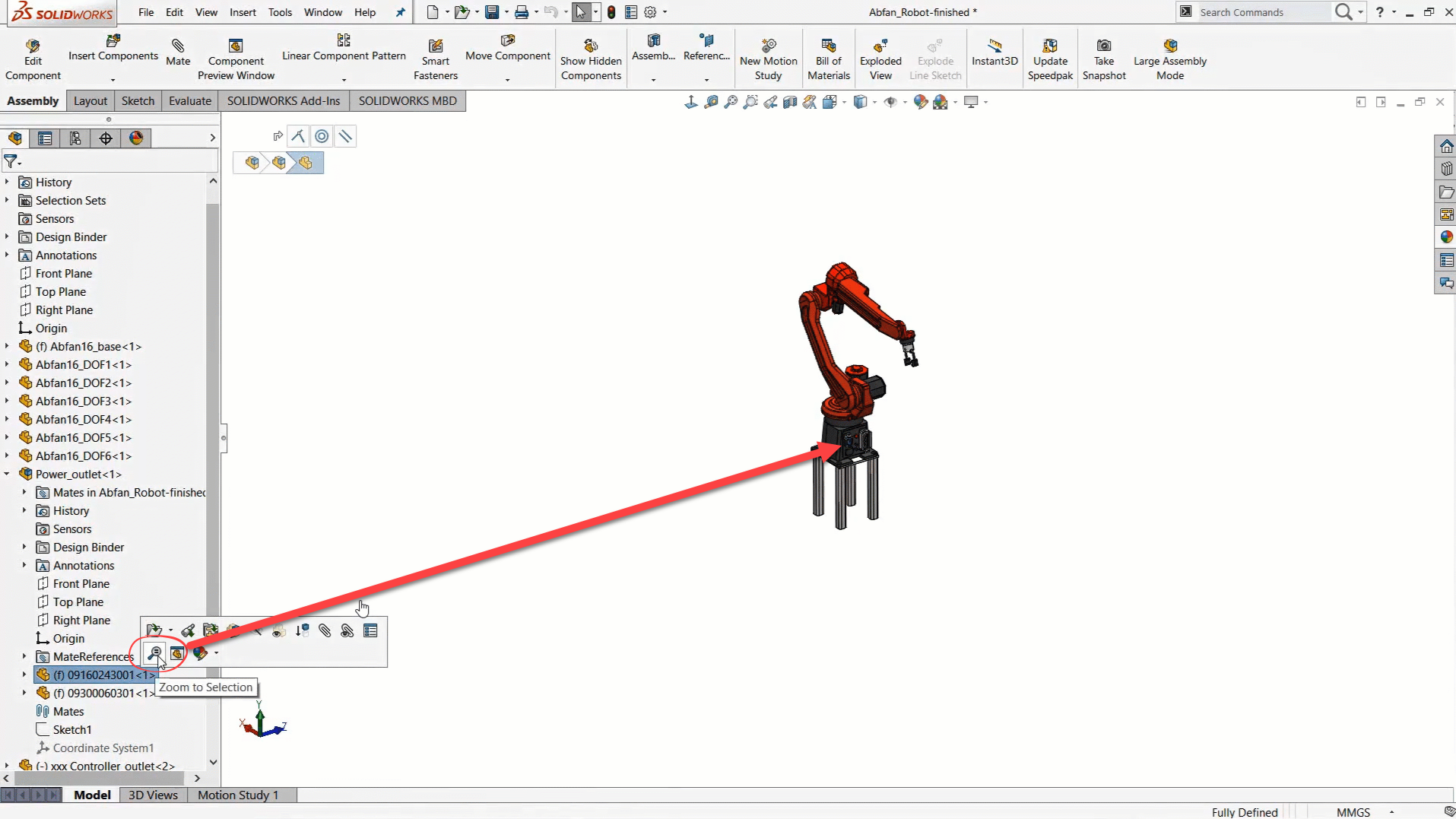
Zoom to Selection does exactly what it says: zoom in to the selection and fit it to the screen. It’s a little like teleporting around your model directly to a specific feature or part.
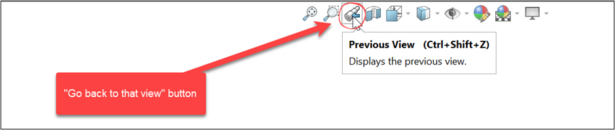
Previous View is used to go back to the previous camera orientation. Think about all the times you’re showing someone your model on the screen and they say, “Wait, go back!” You can never get it just right. But clicking this button does that for you. Keep clicking, and it will go back through all the previous orientations you looked at.
12. Easily Add a Dimension to Tangency with the Shift Key
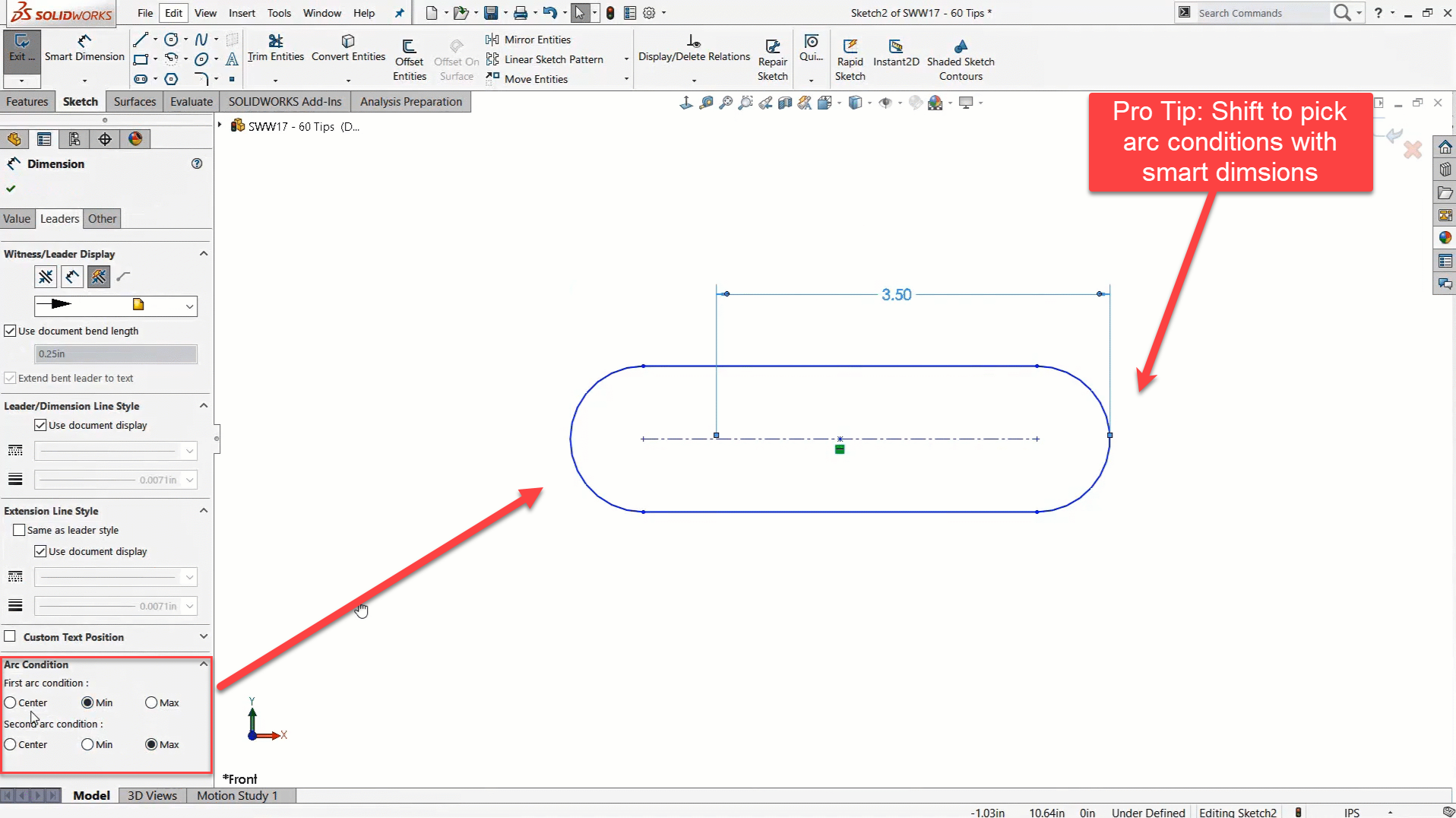
Adding a smart dimension to a circle or curved entity is easy if you want to dimension to the center of it. If you want anything else, it can feel next to impossible to figure out—without knowing this tip that is.
When you hold the Shift key and click Add Entity to add a dimension, you will dimension to the tangency. This is a lifesaver for those times you want to add these types of dimensions.
13. Determine Whether Your Line is Horizontal or Vertical
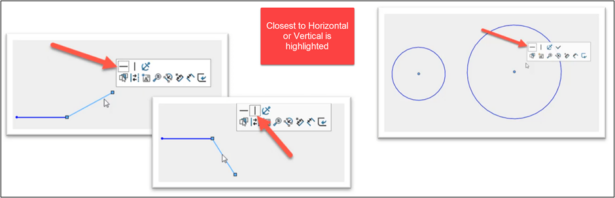
Looking at a line and determining whether it is horizontal or vertical is often harder than it should be. On the XY plane, it’s straightforward; when you’re on any other plane, it’s tough. It’s a byproduct of modeling in 3D space.
SOLIDWORKS can tell you whether a line is closer to horizontal or vertical by highlighting it in the left side of the screen or identifying it with a box in the context menu. Like we said in tip number four, SOLIDWORKS is always talking to you, and learning how to listen takes practice.
14. Use the Biad to Add Angle Dimensions
Drawing a horizontal or vertical line in 3D space is easy, simply draw it and it snaps into place. But an angled line takes a few extra steps, which can be time consuming. The Biad (like the triad for 3D space, but for 2D Sketches) is the quickest way to add angle dimensions to lines. The secret lies in the click sequence to activate it.
First, click the line segment (anywhere other than the end points), then click the end point which will be used to center the Biad. Lastly, click one of the Biad reference lines which defines the angle.
15. Keep Discovering SOLIDWORKS
My last tip is to stay curious and keep discovering and learning SOLIDWORKS. Some of the best tips I teach were once buried in the What’s New features of the latest release. The tools that were the best tools and features back in 2010 aren’t the best tools to use now in 2025. That’s the beauty of SOLIDWORKS. It keeps evolving, and so should you.
Becoming a Power User is a matter of mindset more than anything else. Every expert I know was once frustrated by features, confused by sketches or overwhelmed by the UI. But they stayed on track. These tips and tricks aren’t cheat codes – they’re just tools you need to learn how to use. So, my last tip is simple: keep exploring, keep messing up, keep learning and stay curious, so that one day you will become (and stay) a SOLIDWORKS Power User.
Author information
The post 15 Top Tips from a SOLIDWORKS Instructor appeared first on SOLIDWORKS Tech Blog.
]]>Author information
The post Fluid Simulation in SIMULIA Fluid Dynamics Engineer appeared first on SOLIDWORKS Tech Blog.
]]>If capabilities beyond these entry-level tools are needed, then Dassault Systèmes SIMULIA brand is the next step up in capability. The SIMULIA brand is best known for Abaqus/CAE, a desktop product featuring a powerful FEA solver that is widely used for its capabilities solving highly nonlinear problems. Nowadays, SIMULIA tools are also offered on the 3DEXPERIENCE platform with access to HPC resources for solving large simulations on the cloud and variety of solvers across many disciplines.
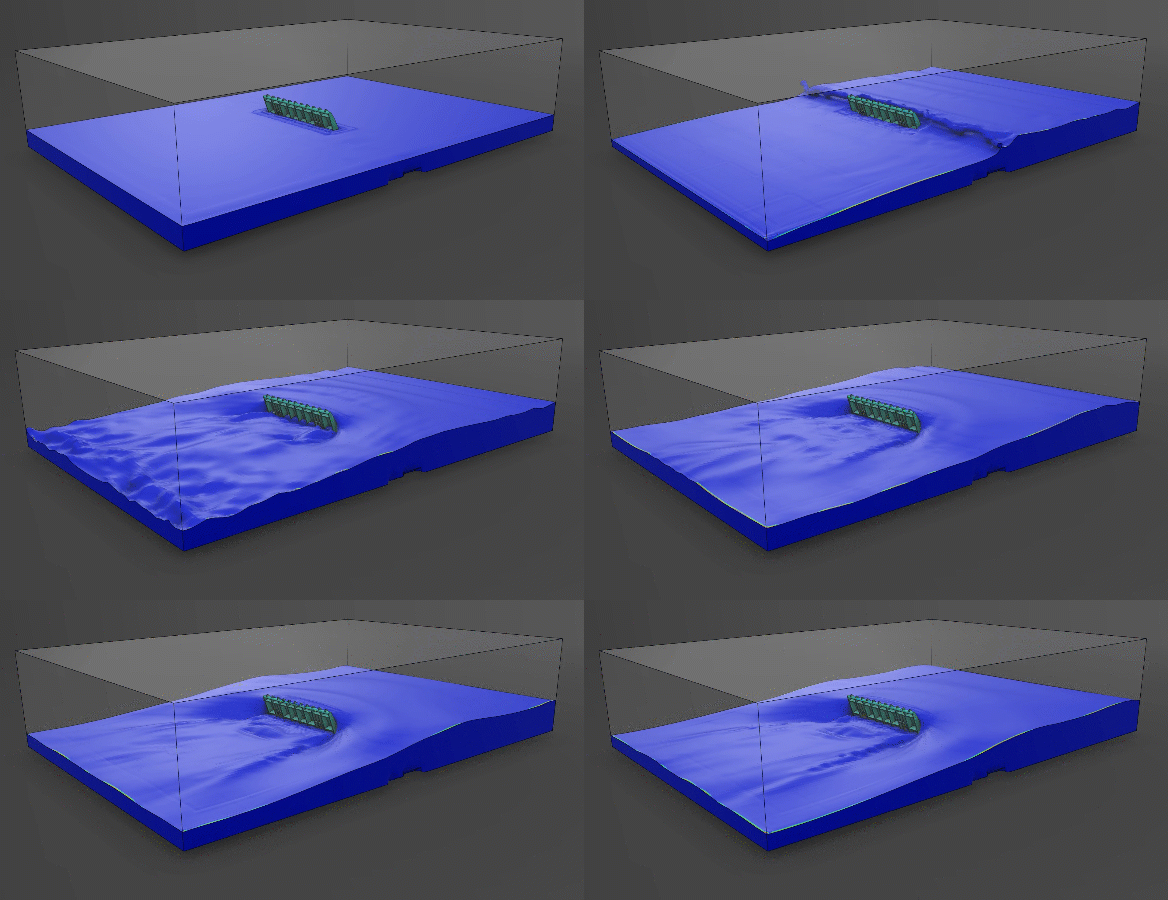
Figure 1. River dam solved in SIMULIA Fluid Dynamics Engineer.
This article will focus on the CFD capabilities in 3DEXPERIENCE SIMULIA Fluid Dynamics Engineer, and explores use cases for both SOLIDWORKS and non-SOLIDWORKS users to consider.
What is SIMULIA Fluid Dynamics Engineer?
SIMULIA Fluid Dynamics Engineer is a 3DEXPERIENCE role which grants several applications that together make up a powerful and general-purpose CFD software package. You may sometimes hear it referred to by its product code or “trigram” which is FMK.
The most noteworthy apps it includes are identified below:
- Fluid Model Creation
- Fluid Scenario Creation
- Physics Results Explorer
- Simulation Manager
In a conventional workflow, CAD geometry is brought into “Fluid Model Creation” for geometry abstraction and mesh generation. Then “Fluid Scenario Creation” is where the rest of the study pre-processing occurs: assigning boundary conditions, setting up output requests to monitor key results and adjusting solver options. Finally, results are interpreted in the “Physics Results Explorer” for post-processing.
In practice, all of this is achieved in a single cohesive user interface within 3DEXPERIENCE, with the loaded application automatically switching depending on the context of the command the user activates — so generally, you don’t have to worry about which application to use!
Example Setup Process
Let’s go over a quick run-down of the setup process.
The geometry can be brought over in several ways. 3DEXPERIENCE offers built-in connectors for SOLIDWORKS to provide an associative link to the CAD model, and connectors are also available for other CAD software as well, such as Creo and Inventor. That being said, you can always fall back to dragging over a .STEP file or another neutral CAD format if needed.
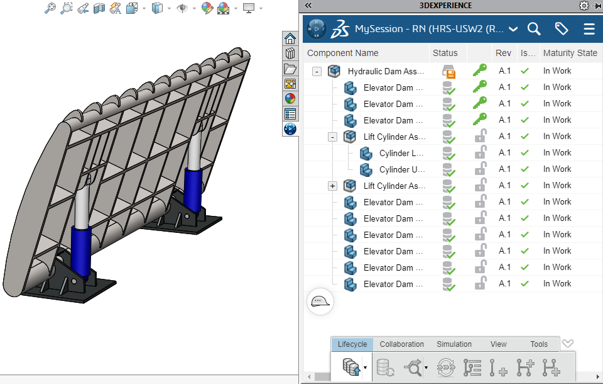
Figure 2. CAD Model import to 3DEXPERIENCE.
Once the model is uploaded to the 3DEXPERIENCE platform, the user can begin the setup process in the Fluid Scenario Creation app.
Similar to the SOLIDWORKS desktop simulation products, an assistant is available to guide the user through major setup considerations step-by-step, including defining the relevant physics and materials, setting up boundary conditions, and so on.
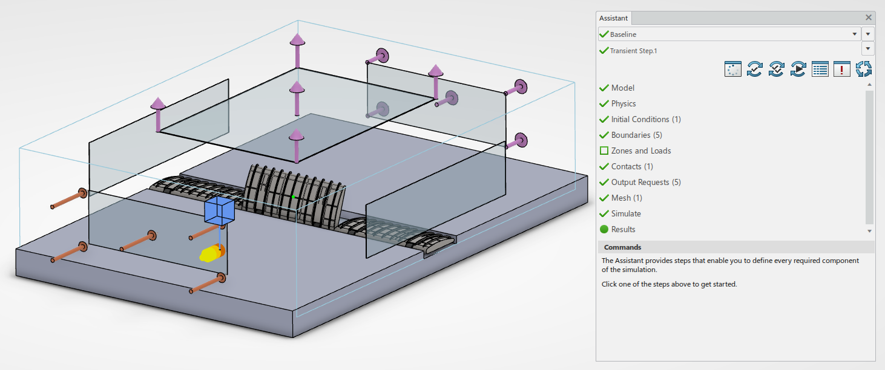
Figure 3. Fluid Scenario Creation.
Clicking on the “Model” or “Mesh” tabs from the Assistant will seamlessly switch the user over to tackle Mesh creation. The software typically defaults to a hex-dominant mesh with support for boundary layer elements, but other options such as tetrahedral and swept mesh are available.
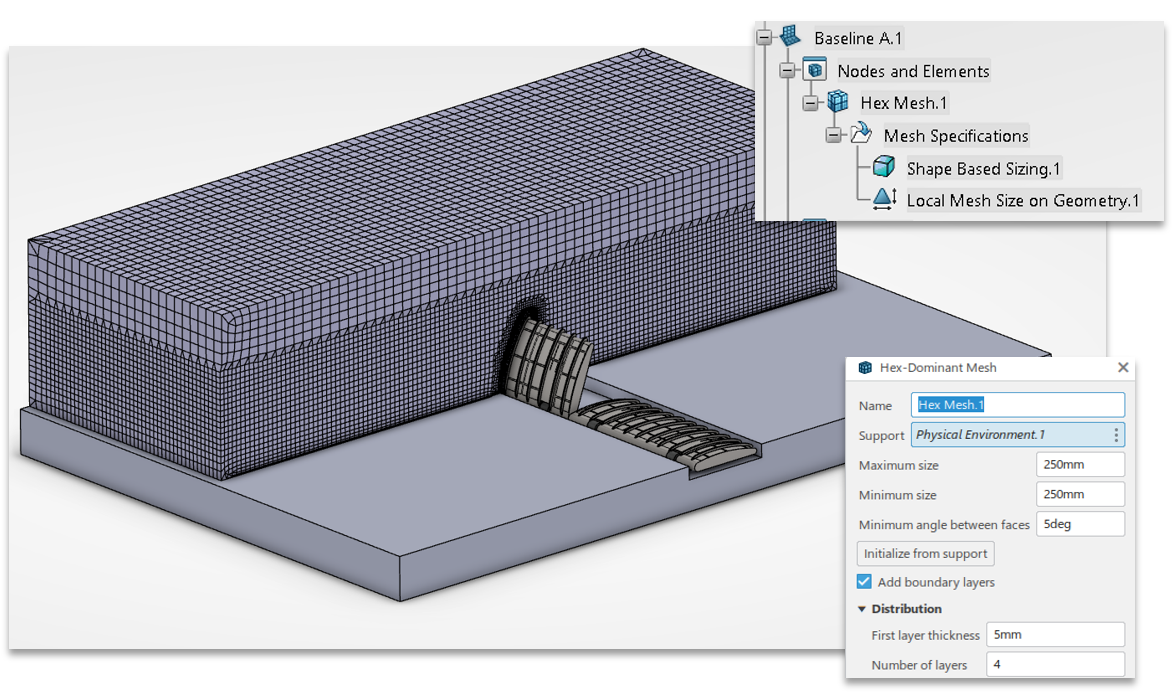
Figure 4. Fluid Model Creation.
Once everything in the assistant is green, the simulation should be ready to run. Once solved, the software will automatically switch over to Physics Result Explorer for post-processing. Clicking the “Results” tab in the assistant will accomplish the same thing.
System Requirements
The three apps discussed so far are cloud-connected, but do require local desktop installation. Complex tasks like mesh generation, solving and post-processing can be offloaded to cloud HPC resources, but it’s still a good idea to utilize a modern Microsoft Windows-based engineering workstation to ensure the required local setup goes smoothly.
The Simulation Manager app can be accessed through a web browser and allows some useful administrative functionality: monitoring any jobs that are submitted to track their progress while they are being solved, as well as identifying results files that are consuming large amounts of storage space. It also allows the user to delete either just the results, or the entire simulation.
Solver License Model
The base Fluid Dynamics Engineer role includes an “embedded license” which allows solving on up to 16 CPU cores, either on the cloud or locally, with no additional charges. The 16-core cloud instance is quite capable and was used to solve all the examples you’ll see throughout this article.
In any situation where the user may need > 16 CPU cores or more RAM than the base instance provides, they can utilize either tokens or credits to increase their licensed compute capacity.
Credits are a consumable resource sold in packs, and tokens are a “floating” style resource that are shared across an organization. For bursty workloads, credits almost always make sense. If there’s a significant baseline requirement for high compute, then tokens become more cost-effective.
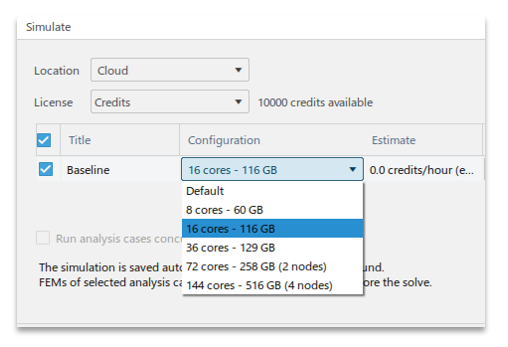
Figure 5. CPU Core Selection for Cloud Solve.
Either way, when selecting a larger instance type or specifying multiple simulations to solve in parallel, the software will provide either the required number of tokens or the estimated credit burn rate. In all cases, meshing and results post-processing is “free” and does not consume credits or require tokens.
So now that we’ve got some of the logistics out of the way, what are some reasons to use a tool like 3DEXPERIENCE SIMULIA Fluid Dynamics Engineer?
Use Cases for SIMULIA Fluid Dynamics Engineer
In the remainder of the article, we will identify use-cases for 3DEXPERIENCE SIMULIA Fluid Dynamics Engineer, with a specific focus on applications that either wouldn’t be possible or may be impractical in a more entry-level CFD software like SOLIDWORKS Flow Simulation.
Open Channel or “Free Surface” Problems
Open channel flows or “free surface” problems feature a liquid/gas interface, which is very common in water and waste management applications such as the flow of water through an open aqueduct or a partially filled pipe, or in marine applications such as boat hull resistance prediction. Most commonly in CFD, these tasks are accomplished using a numerical method such as the “Volume of Fluids” approach.
SIMULIA expands on the capabilities of SOLIDWORKS Flow Simulation for “Free Surface” problems in a few key ways:
- Greater performance
- Support for surface tension & capillary action
- Support for special boundary conditions
Firstly, the combination of a newer generation CFD solver and the HPC cloud resources means that, in my experience, free surface problems of moderate or high complexity will often solve much faster in SIMULIA Fluid Dynamics engineer than in SOLIDWORKS Flow Simulation. The animation at the start of this article depicting the river dam took only about 30 minutes of solve time on the default cloud instance.
Secondly, a major limitation in SOLIDWORKS Flow Simulation is that surface tension cannot be represented. In SIMULIA both surface tension and capillary action can be represented, as demonstrated in the simple proof-of-concept example below where a “straw” is inserted into a chamber of liquid with no other special treatments, and the liquid rises up the straw due to capillary action.
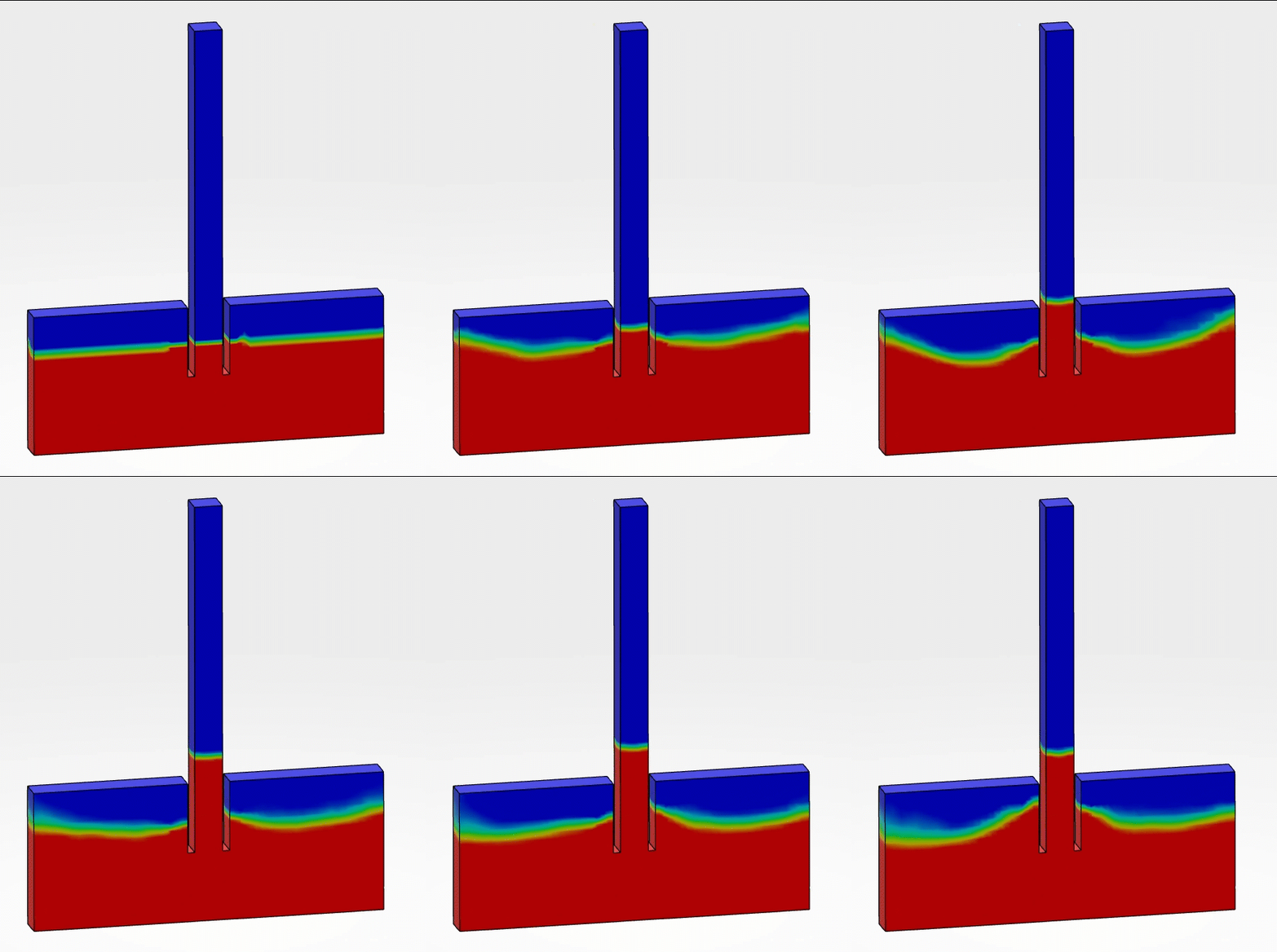
Figure 6. Simple example of capillary action in action.
Thirdly, the software provides a number of special boundary conditions that are useful for open channel problems. This includes a “floating elevation” inlet which avoids the chicken-and-egg problem of trying to predict the hydraulic height or inlet waterline for a system, and built-in support for wave generation for marine applications.
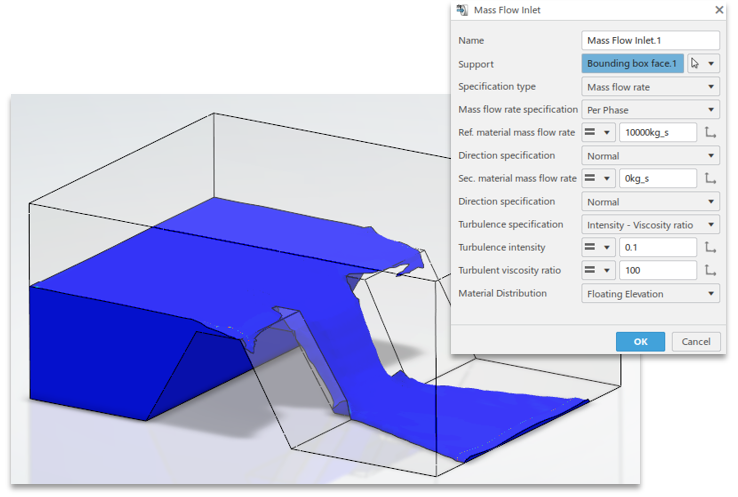 Figure 7. Dam spillway with “Floating Elevation” inlet.
Additionally, if a user requires custom functionality, User Defined Subroutines can be written in JavaScript to govern the behavior of boundary conditions.
Multispecies mixing with Absorption or Production
Multispecies flows, in basic terms, are those that represent mixing problems where two or more fluids of the same phase may be introduced and tracked through the overall flow.
Tools like SOLIDWORKS Flow Simulation are perfectly capable of simulating these behaviors in many scenarios, but one special case is when a specific species must be absorbed or produced through interactions with the model walls or other geometry. Here, the ability to specify absorption or production rates across specific selections becomes invaluable in Fluid Dynamics Engineer.
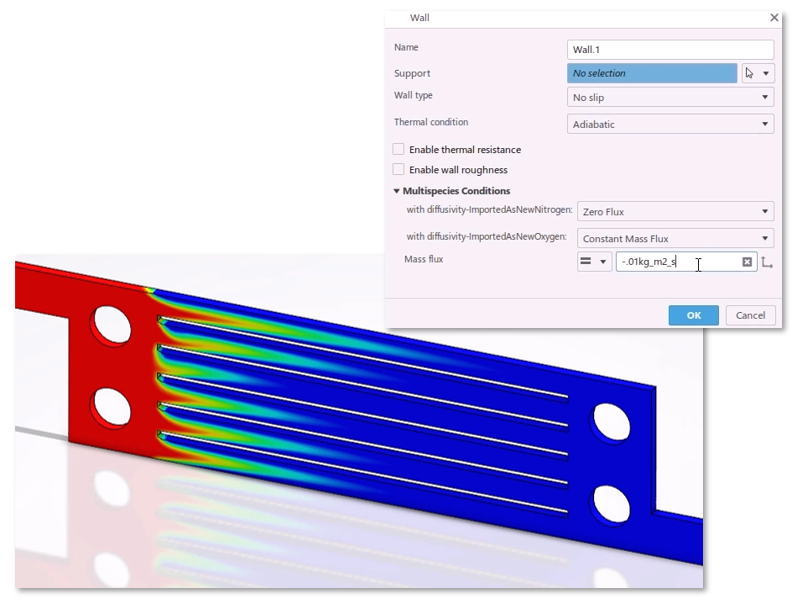 Figure 8. Absorption of gas species through walls.
The example above features a crude proof-of-concept model of a fuel cell with an absorption of one species representing a catalyzing reaction that would occur on the cell walls.
Problem Size
Some problems are simply too big to solve in any reasonable span of time on common PC hardware. For these cases, the access to higher-powered instance types (up to 144 cores at the time of this writing) is valuable.
Common cases that come to mind include analysis of large assemblies and systems, rotating machinery, or long-timescale thermal or mixing problems.
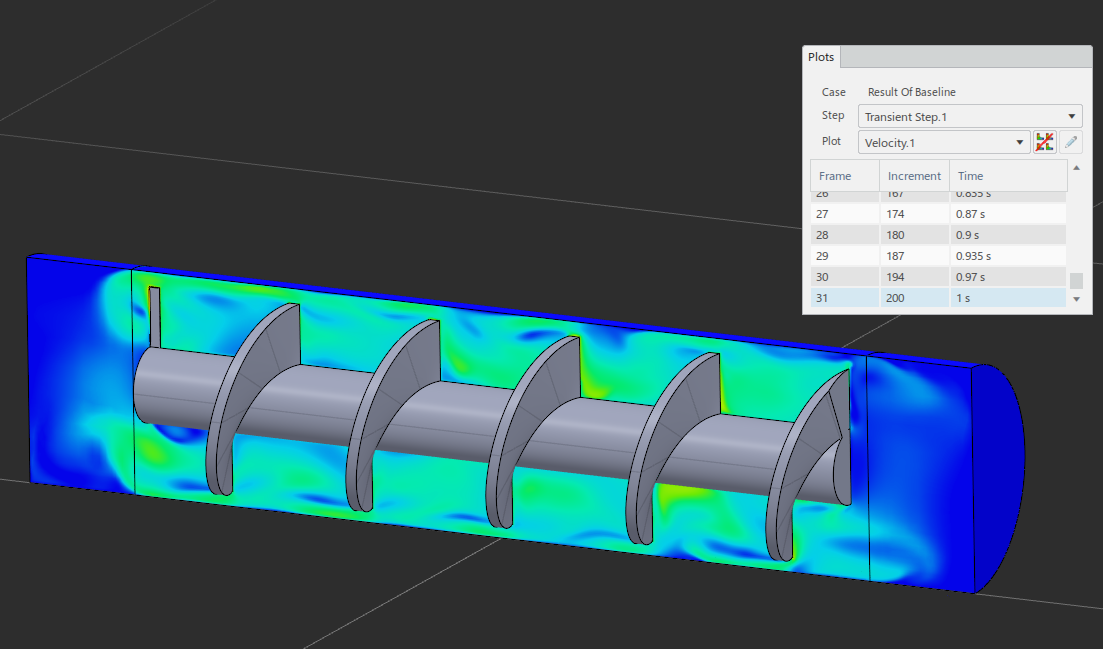
Figure 9. Rotating machinery example.
SIMULIA Fluid Dynamics Engineer has been shown to handle solutions for problems of greater than 100 million cells when using the top 144 core instance type. For long timescale transient problems, scaling the core count also provides a potential method to reduce solution time to manageable levels.
High Accuracy Drag Predictions
When predicting drag on bodies using Computational Fluid Dynamics, there are two main components of concern: “form” drag and “skin” drag.
Accurately capturing form drag is relatively straightforward and generally requires adequately resolving the overall shape of the geometry and wake region, as well as using an appropriate turbulence model.
Resolving skin drag to a high level of accuracy is more difficult, and happens to be especially important for increasing efficiency of aero and hydrodynamic applications such as aircraft, ships and rotating machinery such as pumps and impellers.
There are a couple key advantages offered by the SIMULIA tools here. “Body fitted” or conformal meshing allows capturing the precise shape of the CAD geometry efficiently with a minimal number of cells. Specialized boundary layer elements allow the user to either utilize wall functions or directly resolve the viscous sub-layer crucial to skin drag. This switchover occurs automatically depending on first cell height and the associated “y+” value.
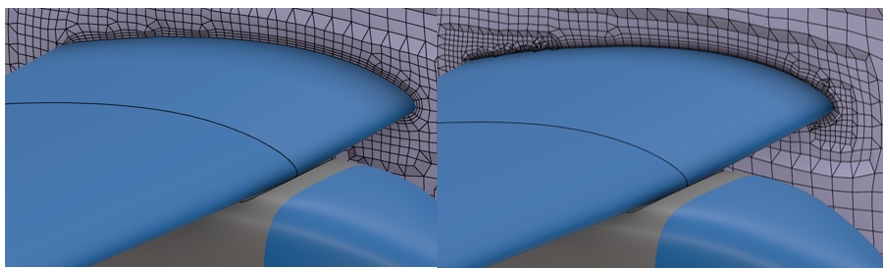 Figure 10. Body Fitted Mesh in SIMULIA Fluid Dynamics Engineer.
In SOLIDWORKS Flow Simulation, which uses a Cartesian grid system with cut-cells for the mesh, a couple problems can arise. Firstly, while this type of meshing system is great for blocky parts like those common in electronics cooling applications, when it comes to organically shaped parts a significant amount of mesh refinement may be required to even adequately resolve the geometry.
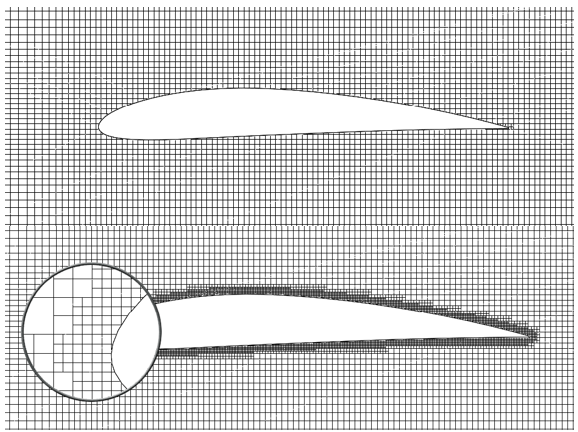 Figure 11. Cartesian “Cut Cell” Mesh in SOLIDWORKS Flow Simulation.
As you can see from the magnified view above, even with localized mesh controls placed there is still some geometric discretization error on the leading edge of the airfoil. Furthermore, since there is no dedicated boundary layer element definition there is not a practical means to fully resolve the viscous sub-layer if desired. In theory, the software would switch over to resolving the sub-layer if enough mesh refinement was present, but in practice it is just not feasible for real 3D problems with the nature of the meshing technology.
Another major advantage of SIMULIA Fluid Dynamics Engineer for high accuracy problems is the presence of additional turbulence models. While SOLIDWORKS Flow Simulation only offers a k-epsilon model, SIMULIA adds the popular general purpose SST k-omega model, as well as the Spalart-Allmaras model which is favored for many aerospace applications.
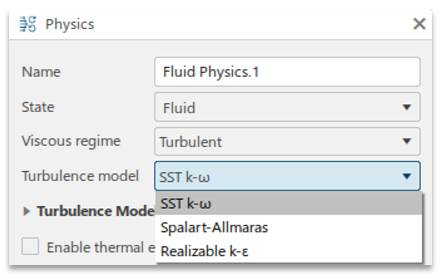 Figure 12. Available turbulence models.
Depending on the nature of the simulation, flow regime and industry standards, the user can select the most appropriate turbulence model for their application and gain back some of the accuracy that may be lost from using an inappropriate model.
Multiphysics Workflows
Another interesting workflow available in 3DEXPERIENCE SIMULIA is Multiphysics. It was previously mentioned that there are a variety of solvers available across different domains, and that the interface is relatively standardized between different tools.
This provides some great options as results from one study or type of study may be transferred to another to tackle Multiphysics simulations. And compared to having to learn multiple unique software packages, the user experience of jumping in and out of a CFD study into a FEA is quite straightforward.
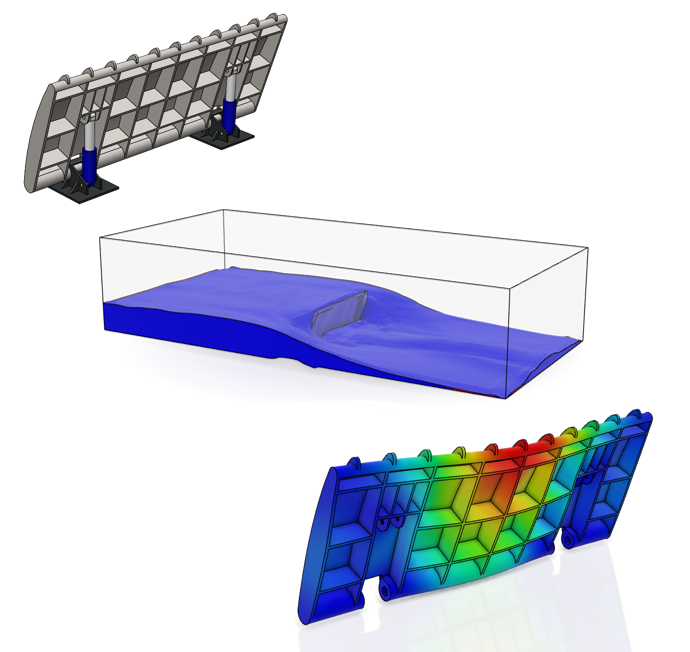
Figure 13. CAD Model, Fluid Simulation and Structural Simulation.
In the example above, the end goal is to analyze the river dam’s stresses and deflection subject to the loading it would experience from a flood condition. The CAD model was first imported to SIMULIA Fluid Dynamics Engineer and analyzed as a “Volume of Fluids” or Free Surface simulation.
The end goal for this endeavor was to map the calculated fluid pressures from the faces of the dam to an associated structural analysis in SIMULIA Structural Mechanics Engineer.
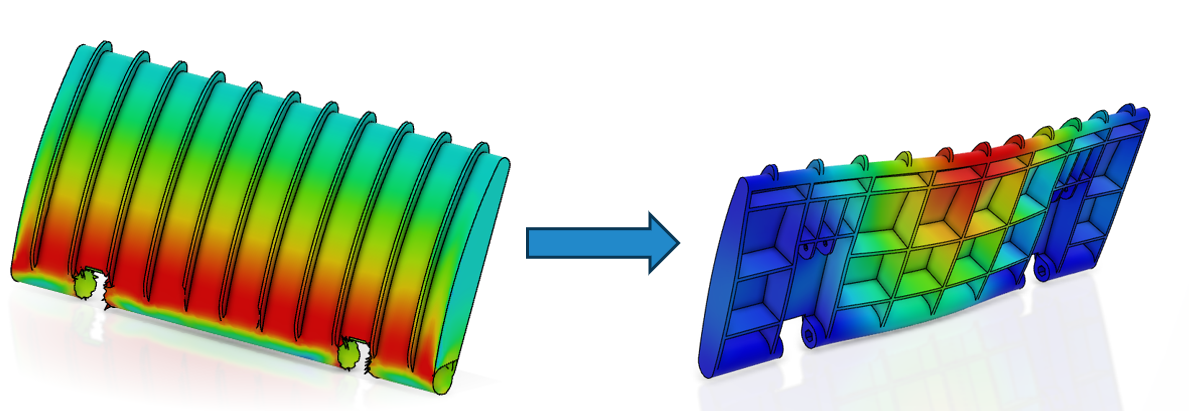 Figure 14. Desired pressure mapping.
To accomplish this, a “Port Region” was defined on the desired faces from the dam, allowing to link the associated field to a downstream simulation.
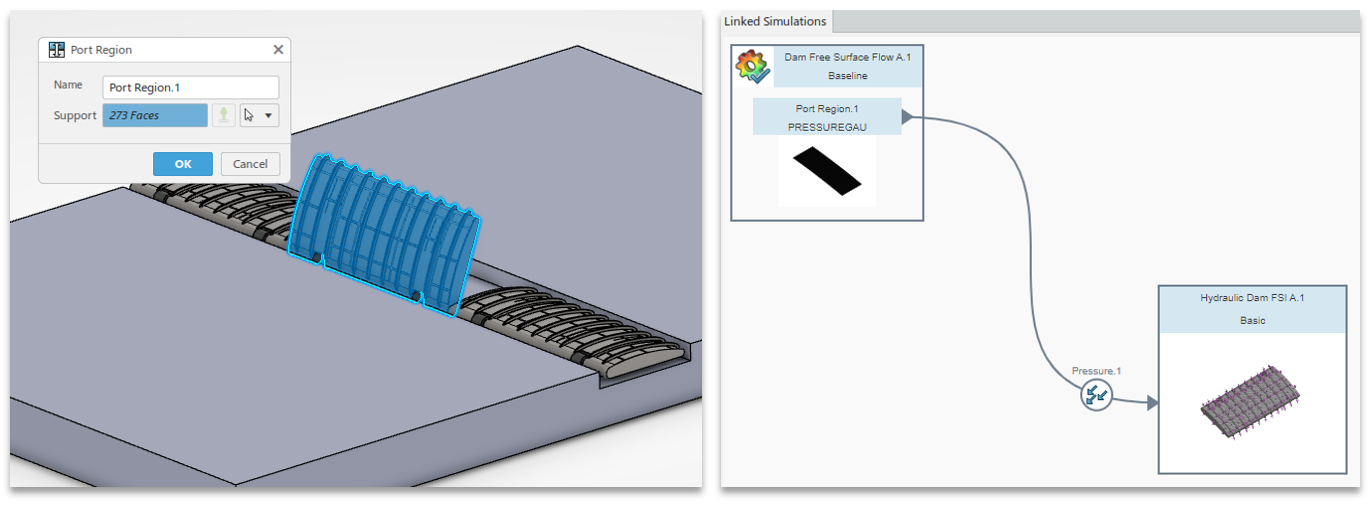 Figure 15. Port Region definition.
Once the Port Region is defined, the pressure field can be easily imported into a structural analysis as a loading. Both studies can be solved sequentially to perform a “one-way” fluid structure interaction or FSI analysis.
Note that it’s also possible to map other physical behaviors, such as temperature gradients from a thermal CFD analysis to a structural study for thermal stress prediction, or even data from other solvers such as electromagnetic analysis.
Summary & Conclusion
3DEXPERIENCE SIMULIA Fluid Dynamics Engineer provides a step up in CFD capabilities compared to what is available in entry-level tools such as SOLIDWORKS Flow Simulation. By leveraging the latest solver technology, access to scalable cloud HPC resources and specialized boundary conditions, it enables the study of problems that would otherwise be impractical—such as free surface flows with surface tension, multispecies mixing with absorption or production and high-fidelity drag predictions requiring body-fitted meshes and advanced turbulence models.
The workflow within 3DEXPERIENCE is straightforward from geometry import through meshing, solving and post-processing, while offering flexibility in the available compute resources through tokens or credits. This balance of usability and computational depth makes it well suited to handle larger assemblies, long-timescale simulations and Multiphysics workflows such as fluid–structure interaction.
That being said, it isn’t necessarily the obvious choice for all use cases. There’s still a strong argument to be made to consider a truly CAD-embedded CFD tool if all you need is quick design time checks and iteration where you may not care about the last few percent of accuracy. SOLIDWORKS Flow Simulation’s meshing technology also makes it incredibly well suited for specific tasks like electronics cooling, and while SIMULIA Fluid Dynamics Engineer can solve these studies too, it may require more setup time and geometry preparation.
For engineers who need to move beyond desktop-based CFD or take advantage of more advanced physics, however, SIMULIA Fluid Dynamics Engineer provides a viable option with accuracy, scalability and the solver options required for advanced analysis across a wide range of applications.
Author information
The post Fluid Simulation in SIMULIA Fluid Dynamics Engineer appeared first on SOLIDWORKS Tech Blog.
]]>Author information
The post SOLIDWORKS® Support Monthly News – Dec 2025 appeared first on SOLIDWORKS Tech Blog.
]]>Welcome to the new edition of the SOLIDWORKS® Support Monthly News! This monthly news blog is co-authored by members of the SOLIDWORKS® Technical Support teams worldwide. Here is the list of topics covered in this month’s Blog:
-
Understanding Color Bit Depth in TIFF, Photoshop (PSD), and JPEG Export Options
-
Changing the orientation of a part while importing or inserting it in SOLIDWORKS® Design
-
Sprocket chain animation in SOLIDWORKS® Composer
1. Understanding Color Bit Depth in TIFF, Photoshop (PSD), and JPEG Export Options
– Nikhil BHIRUD
When you export images from SOLIDWORKS — whether for technical documentation, presentations, or marketing renders — the Image Type you select directly determines the color bit depth of the exported file.
This bit depth controls how much color information each pixel carries, affecting both image quality and file size.
Most users notice only the file format (TIFF, PSD, JPEG), but what truly defines the image’s visual fidelity is the combination of Image Type and Background / Transparency options under the Save As Options dialog.
What Is Bit Depth?
In digital imaging, bit depth represents how many bits of data are used to store color information for each pixel.
- A higher bit depth allows more shades and smoother gradients.
- A lower bit depth limits the number of tones or colors, but creates smaller files.
Each image type in SOLIDWORKS corresponds to a specific bit-depth configuration behind the scenes.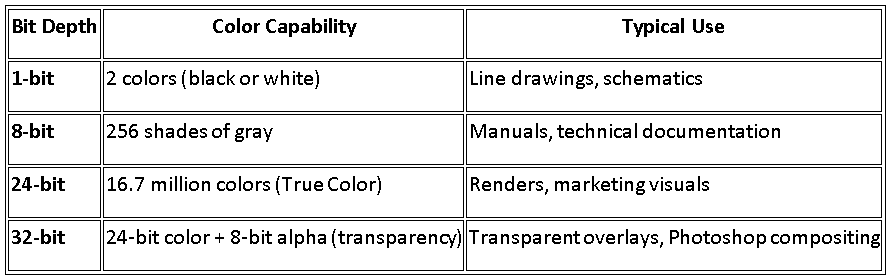
How SOLIDWORKS Determines Bit Depth
When you use File → Save As → TIFF / JPEG / Photoshop (PSD) and click Options, the Image Type setting defines the color mode and bit depth of the exported image.
You can see the resulting bit depth on the same page under Export Image Information.
The relationship between these export settings is summarized below: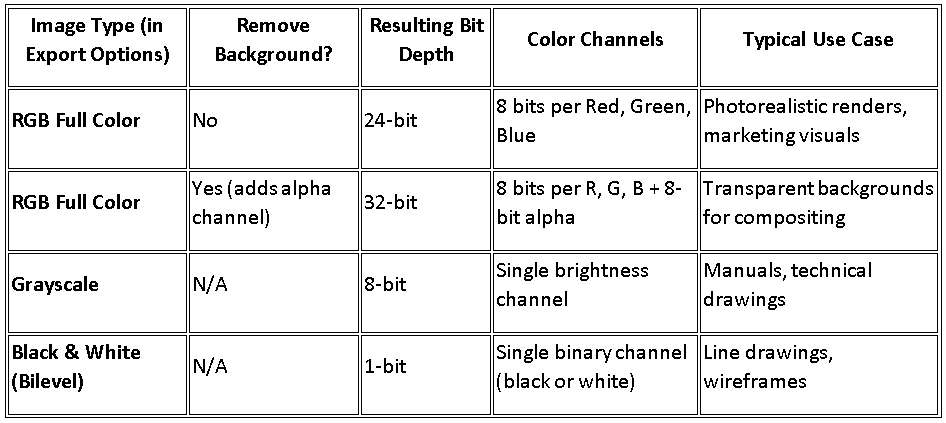
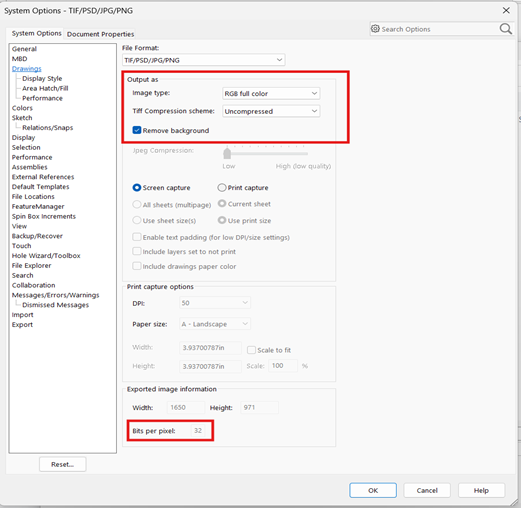
Export Settings in SOLIDWORKS
Each Image Type in SOLIDWORKS defines how colors and transparency are handled during export. Let’s look into each type to understand how bit depth affects image quality and file output.
1. Full-Color (True Color) Images — Minimum 24-Bit Requirement
When saving color images from SOLIDWORKS, the software automatically uses 24 bits per pixel (True Color). Each pixel contains 8 bits for red, green, and blue combining to produce over 16.7 million colors.
 Recommended for:
- Shaded model views and renders
- Presentation graphics and marketing visuals
- Exports for Photoshop or print layouts
Significance: 24-bit images preserve accurate gradients, reflections, and textures while preventing color banding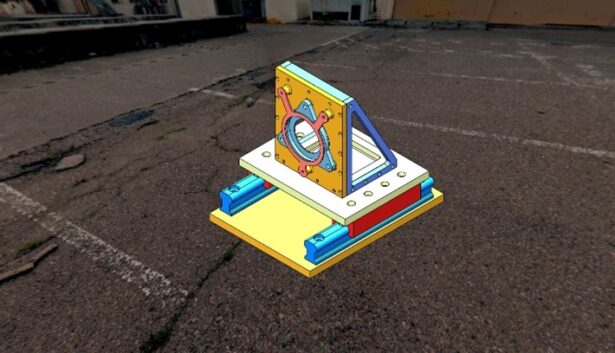
24-bit RGB full-color export maintains smooth gradients and realistic shading
2. Black-and-White and Grayscale Images — The Efficient 8-Bit Option
For technical documentation, manuals, or simple line-based exports, SOLIDWORKS supports 8-bit grayscale and 1-bit black-and-white image types.
- 8-bit grayscale stores 256 tones of brightness, giving you soft gradients and smooth shading without color.
- 1-bit uses only black and white pixels — ideal for simple line drawings, where sharp contrast and minimal file size are key.
Recommended for:
- Engineering drawings or hidden-line views
- Print-ready manuals and catalogs
Significance:
Grayscale (8-bit) offers smooth tonal transitions while keeping file size small.
Black-and-white (1-bit) is ideal for crisp, high-contrast line drawings on white backgrounds.
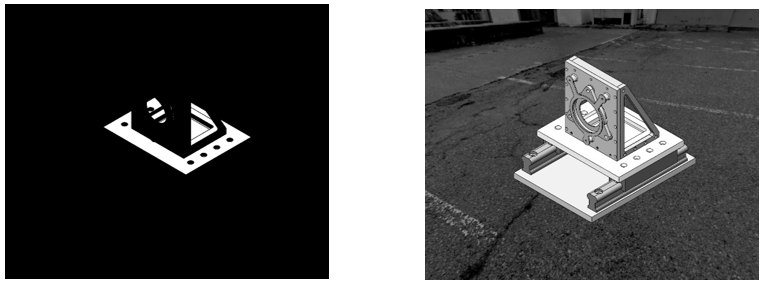
Bilevel and Grayscale Export Examples
3. Removing Backgrounds — Adding a Transparency Channel
When you check Remove background in the export options, SOLIDWORKS adds an 8-bit alpha channel to your 24-bit color image, creating a 32-bit file.
This enables true transparency, ideal for overlaying models on other graphics or presentation slides.
Recommended for:
- Presentations and web graphics
- Photoshop compositing and marketing material
Significance:
32-bit images maintain full color depth and allow transparent regions — no more white boxes around parts when used in other layouts.
Transparency is supported in TIFF and Photoshop (PSD) formats, but not in JPEG.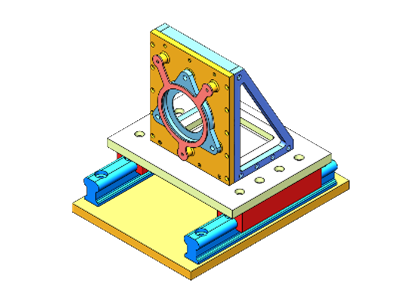
“Remove background” adds an 8-bit transparency channel for clean overlays
Conclusion
In SOLIDWORKS, every image export carries a bit-depth choice behind the scenes.
Selecting the appropriate option—8-bit for grayscale, 24-bit for color, or 32-bit for transparency—helps you balance visual quality, performance, and downstream compatibility.
By understanding how SOLIDWORKS handles color bit depth, you can ensure that your exported visuals remain accurate, professional, and ready for any medium from internal reports to high-resolution marketing renders.
References: SOLIDWORKS Help – Save as TIFF, JPEG, and Photoshop Options
2. Changing the orientation of a part while importing or inserting it in SOLIDWORKS® Design
– Jayendra POTDAR
Orientation control of the part is essential for keeping neat, consistent modeling operations, whether you’re importing Neutral formats like STEP/IGES or adding native SOLIDWORKS® Design parts. To make sure the part enters your design space in the proper orientation, SOLIDWORKS Design offers a number of options, including Move/Copy Body, Co-ordinate systems, and assembly rotation controls.
Following are the ways explained in detail:
- For changing the orientation normally:
- The simplest way is to press middle button of the mouse and drag the mouse to change the orientation of the part.
- Another method is to use Spacebar and select any view in the orientation dialog, so that the orientation changes.
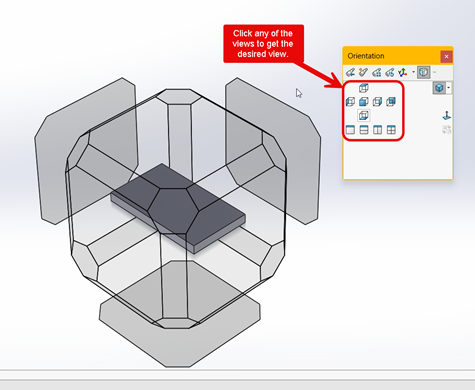
- For changing the orientation with the help of planes:
- Open the part in SOLIDWORKS.
- Press Spacebar, and click Update Standard Views and select the desired view in the orientation dialog. (Changing Front view as Right View)
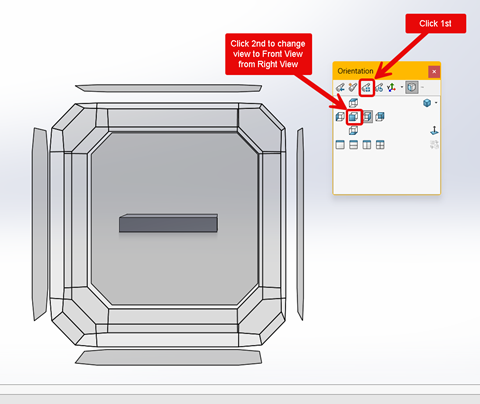
- For changing the orientation with the help of planes for Neutral files:
- For manufacturing/machining (Z-up):
- Open the part in SOLIDWORKS.
- Press Spacebar, and click Up Axis Flyout dropdown option in the orientation dialog.
- Select Apply Z-up views option for Z-up axis.
- Select Apply Y-up views option for Y-up axis.
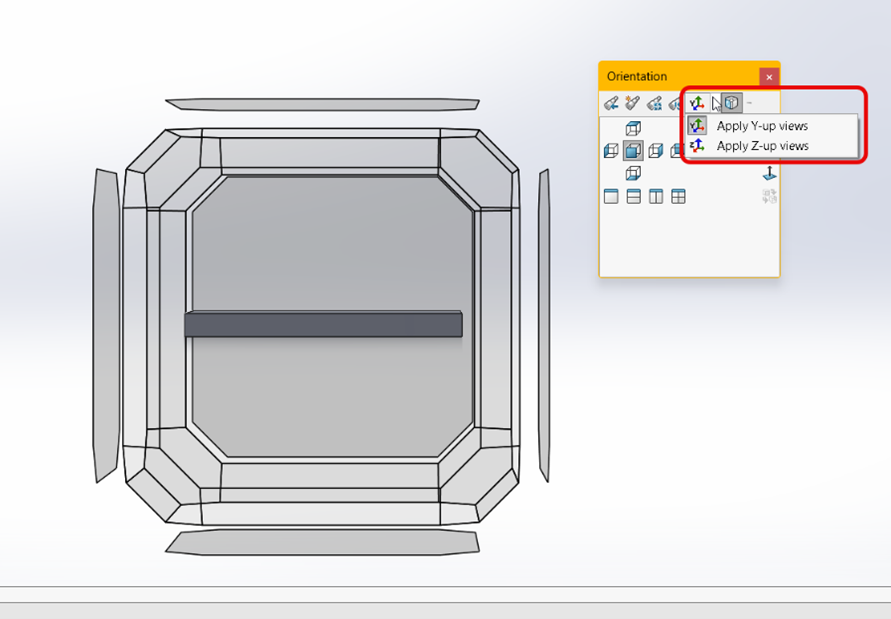
- For Y-up for imported parts with incorrect orientation (Using co-ordinate system):
- Open the imported part with incorrect orientation in SOLIDWORKS.
- Go to Reference Geometry > Click Coordinate System.
- Select a vertex as a reference point for the Position.
- Select each axis according to the orientation required. Make sure that the directions are correct.
- Click OK > Save the part as STEP file.
- While saving the part, select the new Coordinate System from the Output Coordinate System dropdown.The new file will now have a correct view orientation when opened.
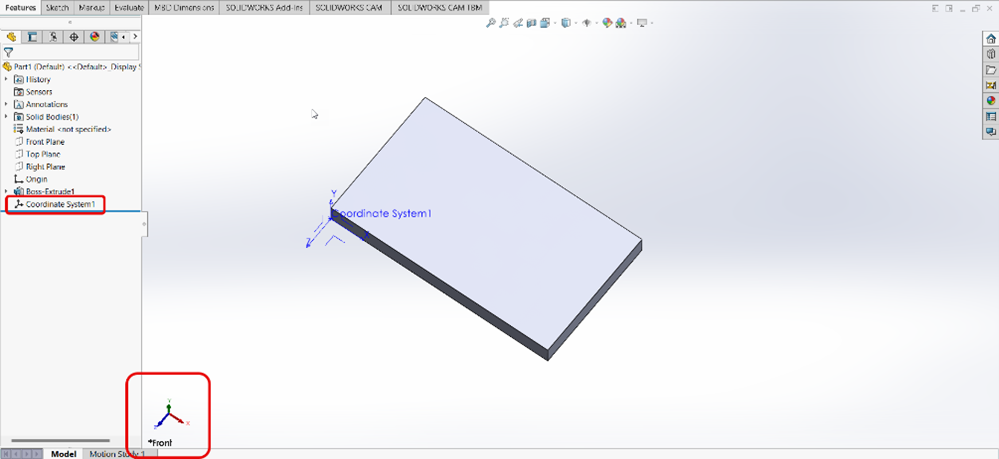

- For manufacturing/machining (Z-up):
- Changing the orientation of part when inserting it in the assembly:
- Open blank assembly > Click Insert Components. After selecting the part, you can select the value of rotation of each axis individually from the Flyout Toolbar. This allows you to pre-rotate the part before you place it in the graphics area.
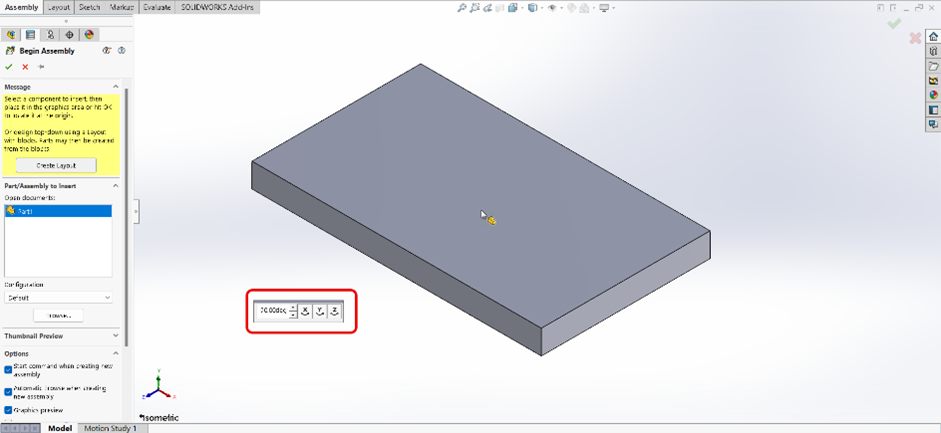
- Another method is to open blank assembly > Click Insert Components. After selecting the part, you can use Spacebar for orientation dialog for selecting views (Front, Top, Right).
- After placing the part, you can still Move/Rotate the part:
- Right-click the component > Click Move with Triad.
- Move/Rotate as desired.
- You can also select the degree values for precise orientation (e.g., 90°, 180°) by right-clicking the Triad. Make sure the part is not fixed while performing Step 4.2
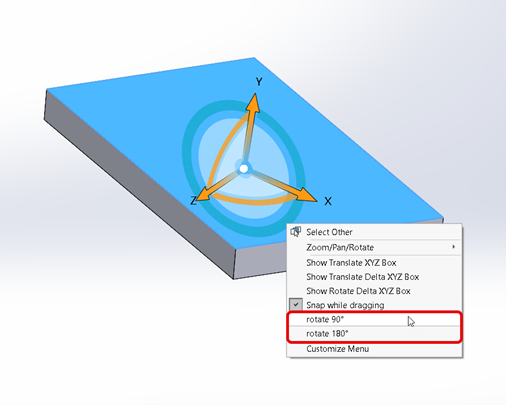
- Open blank assembly > Click Insert Components. After selecting the part, you can select the value of rotation of each axis individually from the Flyout Toolbar. This allows you to pre-rotate the part before you place it in the graphics area.
- Use Move/Copy Body after the part is inserted:
- Open part in SOLIDWORKS.
- Go to Insert > Features > Move/Copy > Scroll down to the bottom and click Translate/Rotate.
- You can insert the values for moving and rotating the X, Y and Z axes as desired. You can find more information for the topic in the following SOLIDWORKS Design Help link
Conclusion:
It is always recommended to select the orientation and placement of the part before inserting it into the graphics area. This will help resolve most of the orientation issues.
Happy Designing!
3. Sprocket chain animation in SOLIDWORKS® Composer
– Prajakta LIMBASARKAR
We all are aware about the sprocket chain mechanism in SOLIDWORKS. We can define sprocket and chain in the Belt/Chain Assembly feature. However, we do not have same feature in Composer.
There are many methods to create sprocket chain animation. In this blog, we can learn methods to create a Sprocket Chain mechanism animation in SOLIDWORKS Composer by Method A: Highlighting each chain.
Method A:
In this method, we rotate the sprockets whereas, highlight each chain. Making it appear to be moving.
- Import an assembly file of chain and sprocket in Composer
- Move time bar to the 3 second> select Sprocket> Transform> Rotate> rotate the sprocket 360 degree.
- Follow the step 2 for the second sprocket as well.
- Move time bar at 0 second > select an inner chain actor> Timeline> effects> Hot Spot> notice the select actor is highlighted for 0.3 second.
- Move time bar to 0.3 second> Select the adjacent chain> assign Hot Spot effect> notice the second chain highlight as first chain is ends.
- Follow the same procedure for all the chains.
Below are the final results.
Author information
The post SOLIDWORKS® Support Monthly News – Dec 2025 appeared first on SOLIDWORKS Tech Blog.
]]>Author information

The post SOLIDWORKS for Makers: How I Made My Own Offroad Kart – Part 3 appeared first on SOLIDWORKS Tech Blog.
]]>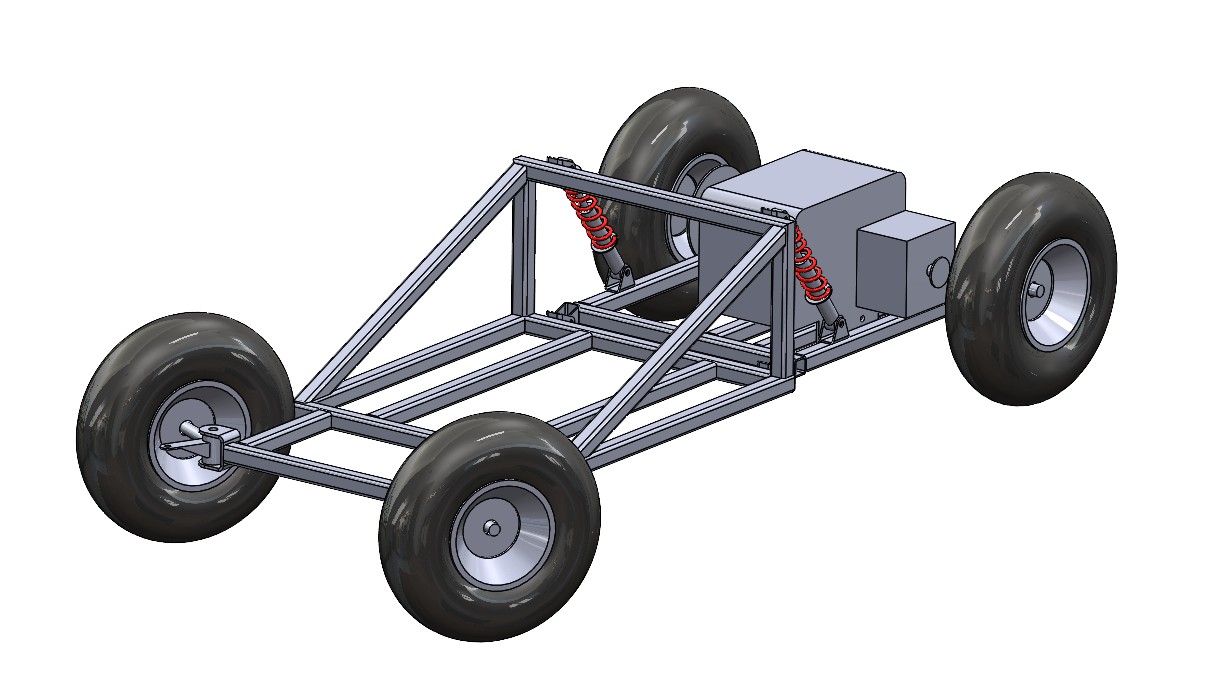
I started again by using the weldment tool to quickly sketch out some upright pieces of square tubing which would act as the upper mount for the shock absorbers, I’d use the same folded mount design I created and used in the previous section of this blog series. I expected there to be some force applied to these vertical members so my next decision was to add some 45degree bracing pieces away from these which would help to absorb the forces being applied to prevent the frame bending at this contact point. I also sketched out some horizontal pieces which would act as the main side rails. Once this sketch was initially completed, I used the Weldments tool to create a frame from 30mm square tubing. At this point I wasn’t concerned about tube end preparation and intended to go back to this later in the process.
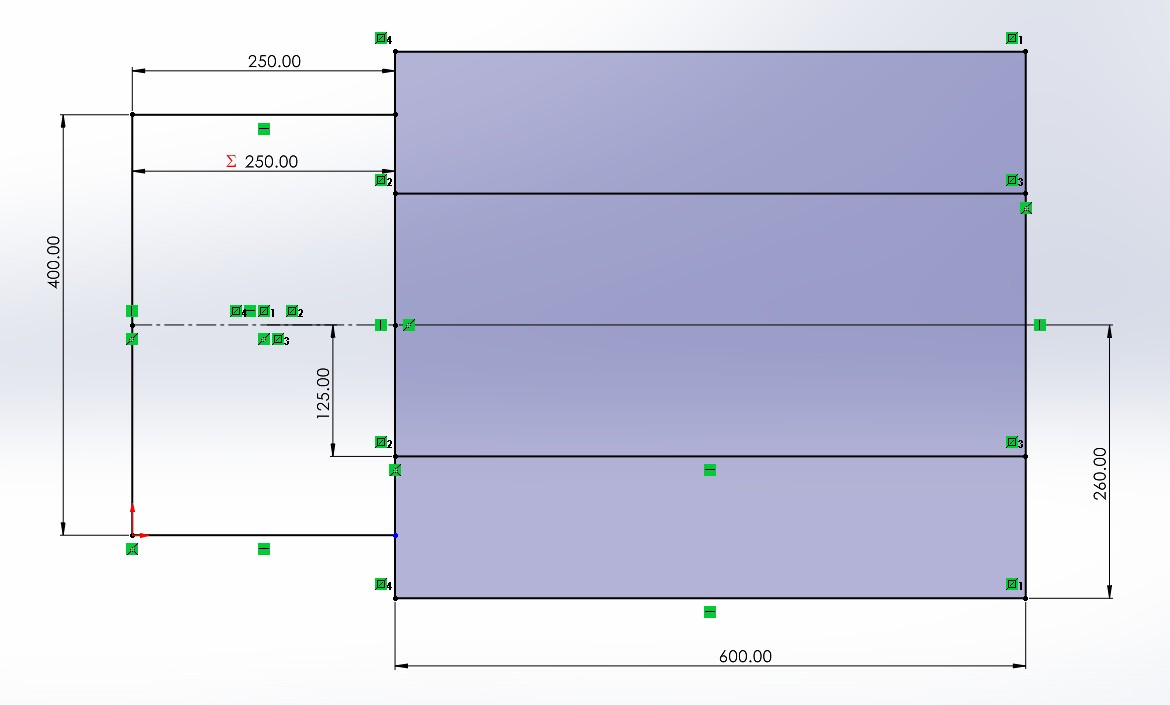
From here I needed to add supports for some sort of seat, model and decide where to attach the front steering axles and add some extra bracing in a few areas to ensure the frame was ridged enough to support the weight of the rider and the day-to-day shocks introduced through use.
I set about first creating the cross rails which would support the seat, I had a rough idea how far apart these needed to be after taking some rough measurements from the seat unit I’d acquired. I went back to my original sketch used in my first weldment feature and edited this to include another couple of lines which would act as these seat support bars. Whilst in this sketch I added an additional cross brace at the upper suspension mounts and the lower corner, this would provide sufficient stiffness and support for use. I then another at the front of the car to complete the frame shape, there was a chance I’d again need to go back and edit this sketch, but I felt this was a good starting point.
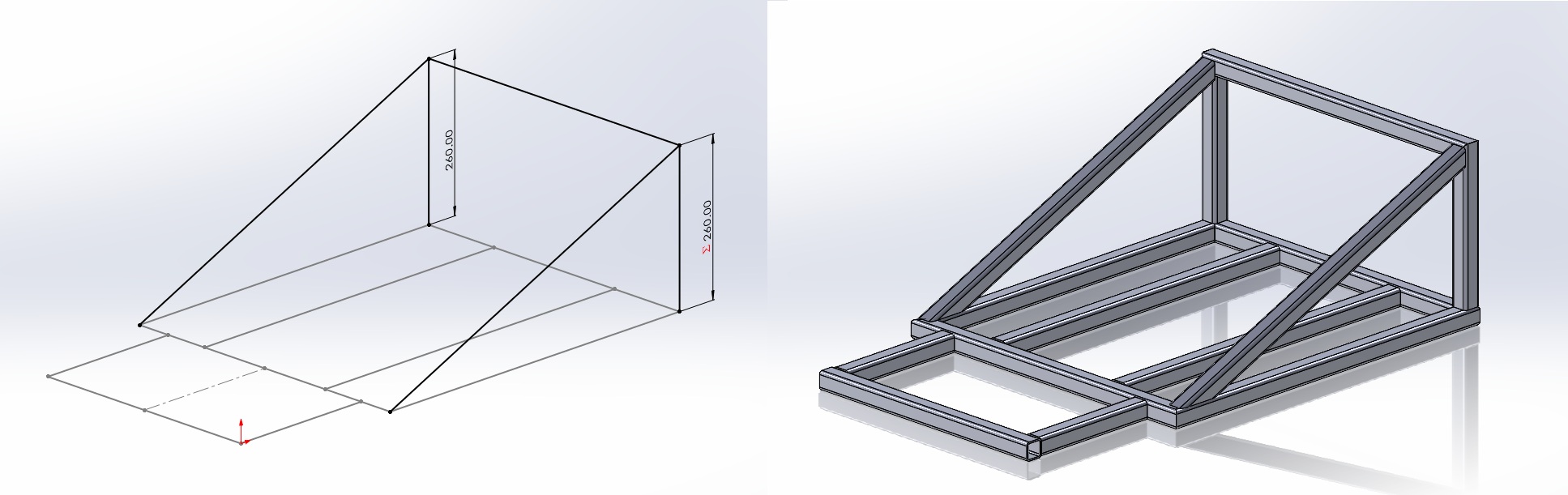
I started another assembly adding the upper suspension mounts onto the created frame. From here I needed to model the front axle assemblies. I started by creating a part for the axle stub using a couple of simple extrudes and reference frames to mirror the part I had in hand. From here I needed to create the sheet metal mounting portion of the axle stub assembly to use as the welded mounting to the chassis frame. I followed the same method as the previous blog, creating a solid body part before using the “convert to sheet metal” tool to quickly turn my solid body into a flat sheet metal part with the correct bend radius.
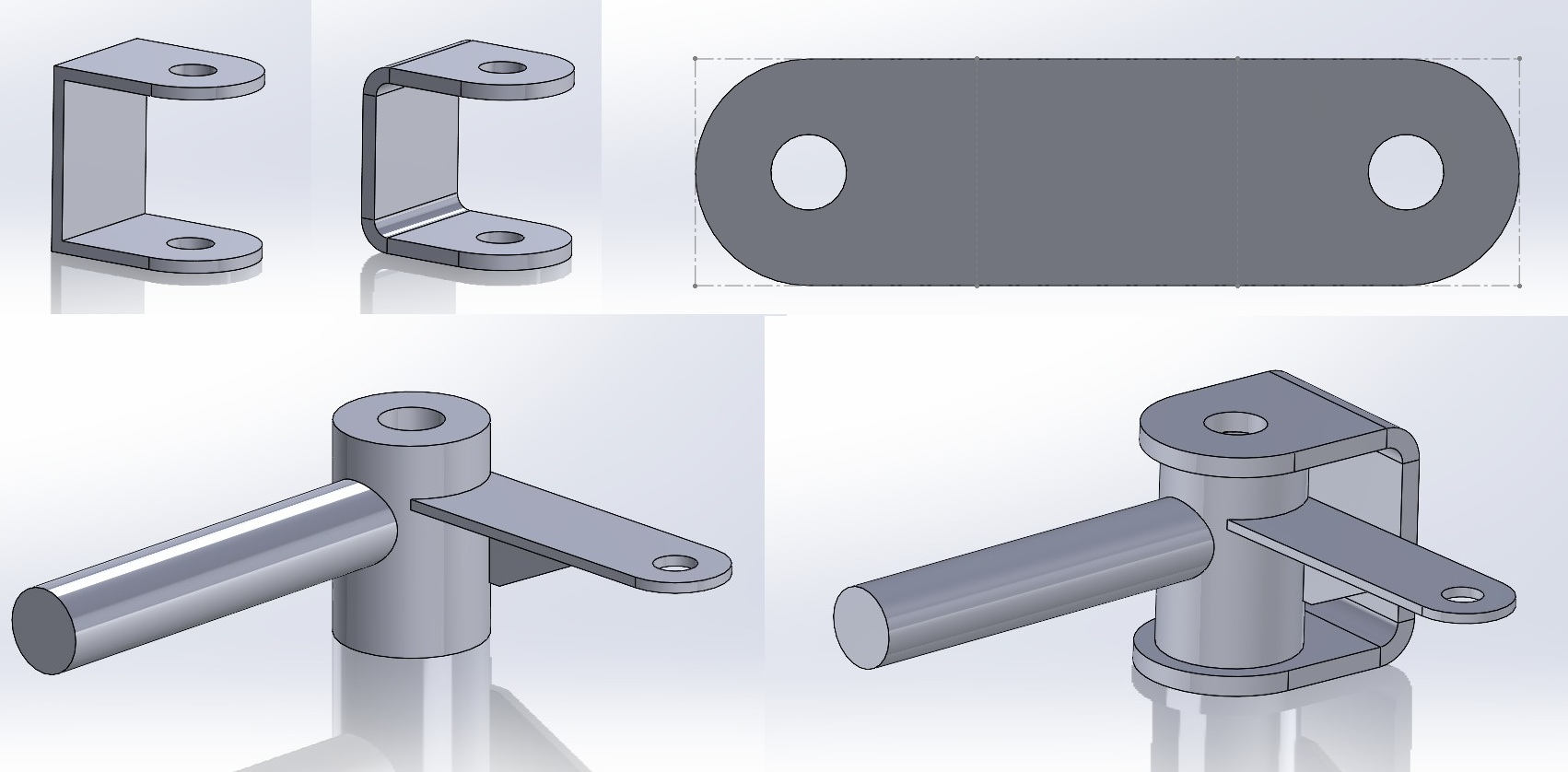
With the axle assembly completed I could start to finalize the main chassis assembly; I first added the chassis before adding the front axle mounts and stub assemblies. One point I wanted to check here was that the control rods for the front steering axle would clear the frame material. If this was not the case, we’d be unable to steer the kart. Luckily everything lined up and the clearances were correct on the first attempt. To finish this portion off I created one new main assembly before adding the rear chassis and main chassis assemblies together, attaching with the mounting points and suspension components as I would in the real build.
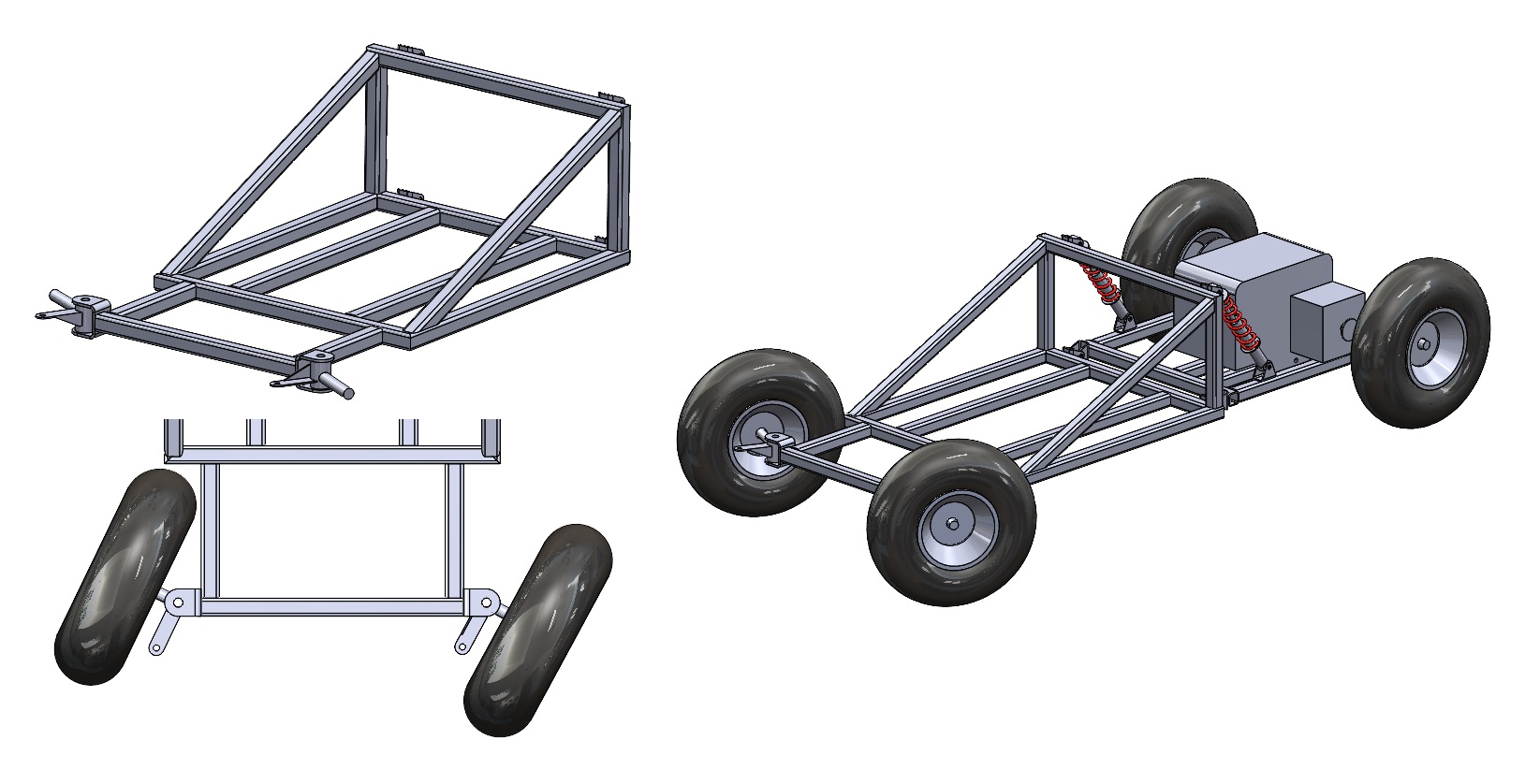
I really enjoyed this portion of the project, I could now see everything starting to come together and knew it would shortly be time to start making! I decided the next portion would be to design the steering system, check back soon for that blog.
Author information
The post SOLIDWORKS for Makers: How I Made My Own Offroad Kart – Part 3 appeared first on SOLIDWORKS Tech Blog.
]]>Author information

The post Unlocking Smarter Design: Configuration Table Enhancements in SOLIDWORKS 2025 appeared first on SOLIDWORKS Tech Blog.
]]>The release of SOLIDWORKS 2025 provided some configuration table workflow enhancements that increase flexibility, improve iteration speed and strengthen traceability.
SOLIDWORKS 2025 upscaled the configuration dialog. The tool now supports improved filtering, column resizing and more interactive editing of configuration fields. This helps users maintain clarity when a lot of parameters are involved. It also reduces mouse clicks when working with dozens or hundreds of configurations, speeding up the process.
A very useful organizational upgrade is the ability to save the current view of a configuration table (row/column filter, sorting, visible columns) and apply it to the model. Within the “Saving Configuration Changes” topic, the help documentation states that users may “save the table and changes made in the Modify Configurations and the Configuration Table dialog boxes” and then apply them.
Another key area of enhancement: you can more easily add or delete columns in the configuration table to handle features, sketches or parameters across many configurations. This is part of the expanded capabilities of Modify Configurations.
This means tasks such as “suppress feature X in all ‘small’ configurations but enable it in ‘large’ ones” become more efficient.
Behind the curtain, SOLIDWORKS has made improvements in load times, smoother filtering/sorting within the design table, and the processing speed when you switch from one configuration to another has been increased.
You can save different views of your design table, so you have a Standard View that hides some of the columns and a Deluxe View that shows all the columns. You can have a view that focuses on materials and colors and another view that focuses on mates.

You can access and create configurations on the Configurations tab on the browser.

The ability to see a preview of a configuration was introduced in SOLIDWORKS 2020, but I still think it is a useful enhancement. After all, how many of us have clicked on every single configuration trying to locate the one we wanted?

You have the ability to organize your configurations using Tree Order, so you can move your most popular configurations toward the top of the list. This was introduced in SOLIDWORKS 2017.

You can save a table view by typing in a name for the view and clicking Save table view.

When you save a table view, you create a new table that is listed in the Configurations tab.

Note that this only works at the component level.
Let’s say you want to only see Materials in the table. First, delete the columns you don’t want to see, and you will only see the column for the materials.
Assign a name to the Table View and click Save table view.

I now see the default Configuration Table in the Tables list as well as my saved table view.

To see all the Configuration Parameters used on a Part/Assembly, click the Hide/Show Configuration Parameters button.
You can then delete the columns you don’t want to see and save the Table View.
This may not seem like an important improvement, but if you have a complex assembly with a lot of parts, the ability to save custom configuration table views can save a lot of time scanning through all the columns, suppressing and unsuppressing or selecting different options.
The Configuration Publisher has been around since 2010, but it continues to be improved. The 2025 release advanced those improvements further.

The Configuration Publisher is launched from the Configurations tab on the browser.

In order to manage and publish configurations, SOLIDWORKS will need to create a design table if you don’t already have one.

I have found it is helpful to identify configurations by their part number. You can add the part number of each configuration to the design table.
Just go to the Configurations tab in the browser, right click on a configuration, and select Properties.
Go to the Bill of Materials Options section, then select User Specified Name from the drop-down.
Type in the part number for that configuration. Then hit the Green Check to close. Go through each configuration to assign a part number.
The Configuration Publisher leverages any named dimensions or suppressed components.

To name a dimension, you need to be in Sketch Mode.
When you place the dimension, you can add a name on the top edit field.

If you want to use a dimension that you already placed in a configuration, just edit the sketch, select the dimension and add a name to the properties.
If you already have started defining your configurations, you can specify in which configurations to apply the defined value.

When the Configuration Publisher launches, it displays any dimensions that you named on the left side pane.
You then drag the dimensions you want to use to control your configurations into the center pane.

You can modify the Label for the dimension, so it is easier for a user to identify.
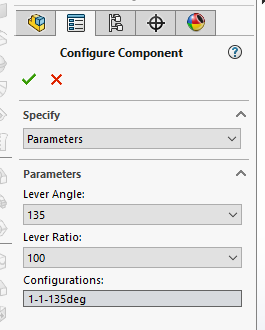
When you place the component or sub-assembly into a file, you will see this Configure Component box that allows you to quickly select which configuration to use.
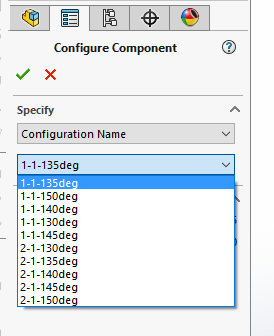
Use the Specify drop-down to switch between a parameter list and Configuration Name list.
Configuration tables have long been a potent tool for managing variants in SOLIDWORKS, but with the 2025 release they became smarter, more usable and more deeply integrated into the broader design ecosystem. From improved filtering and editing dialogs to saved table views and performance gains, the enhancements provide tangible productivity benefits for design teams of all sizes.
If your next product cycle involves multiple variants, options or modular assemblies, now is a great time to revisit your configuration table strategy and adopt the latest capabilities. By doing so, you’ll deliver faster, more accurate models, with better documentation and fewer errors.
Author information
The post Unlocking Smarter Design: Configuration Table Enhancements in SOLIDWORKS 2025 appeared first on SOLIDWORKS Tech Blog.
]]>Author information

The post Puzzle Cube: SOLIDWORKS Tutorial appeared first on SOLIDWORKS Tech Blog.
]]>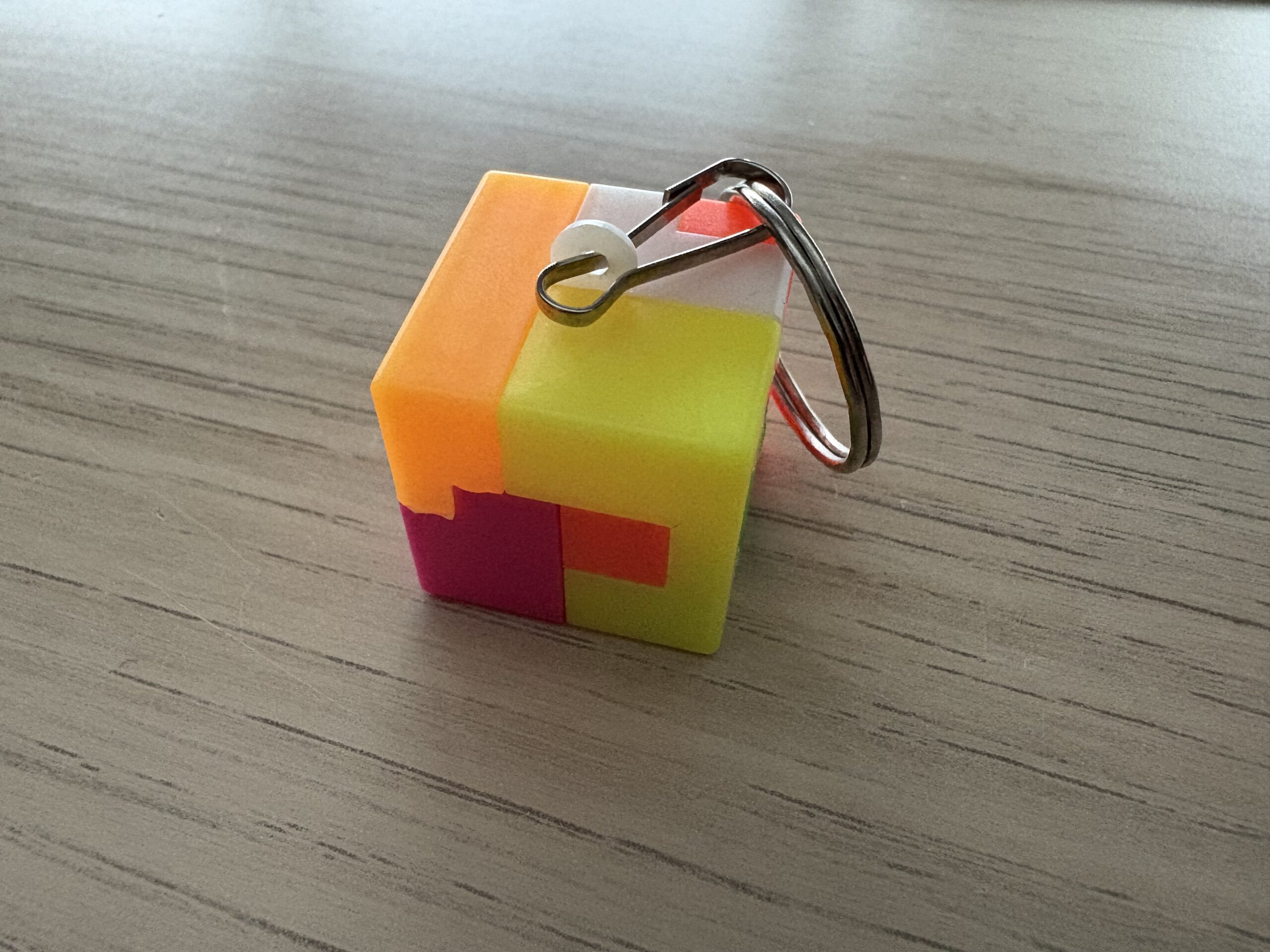
I began by modelling the keyring hoop on the front plane so I could keep the cube correctly oriented throughout the process. Once the base shape was ready, I created a series of splitsketches on different faces of the cube. Each sketch defined a boundary for a puzzle piece, and using the Split feature, I generated new solid bodies from those sketched shapes. I applied appearances as I went so each body was easy to identify as the model became more complex.
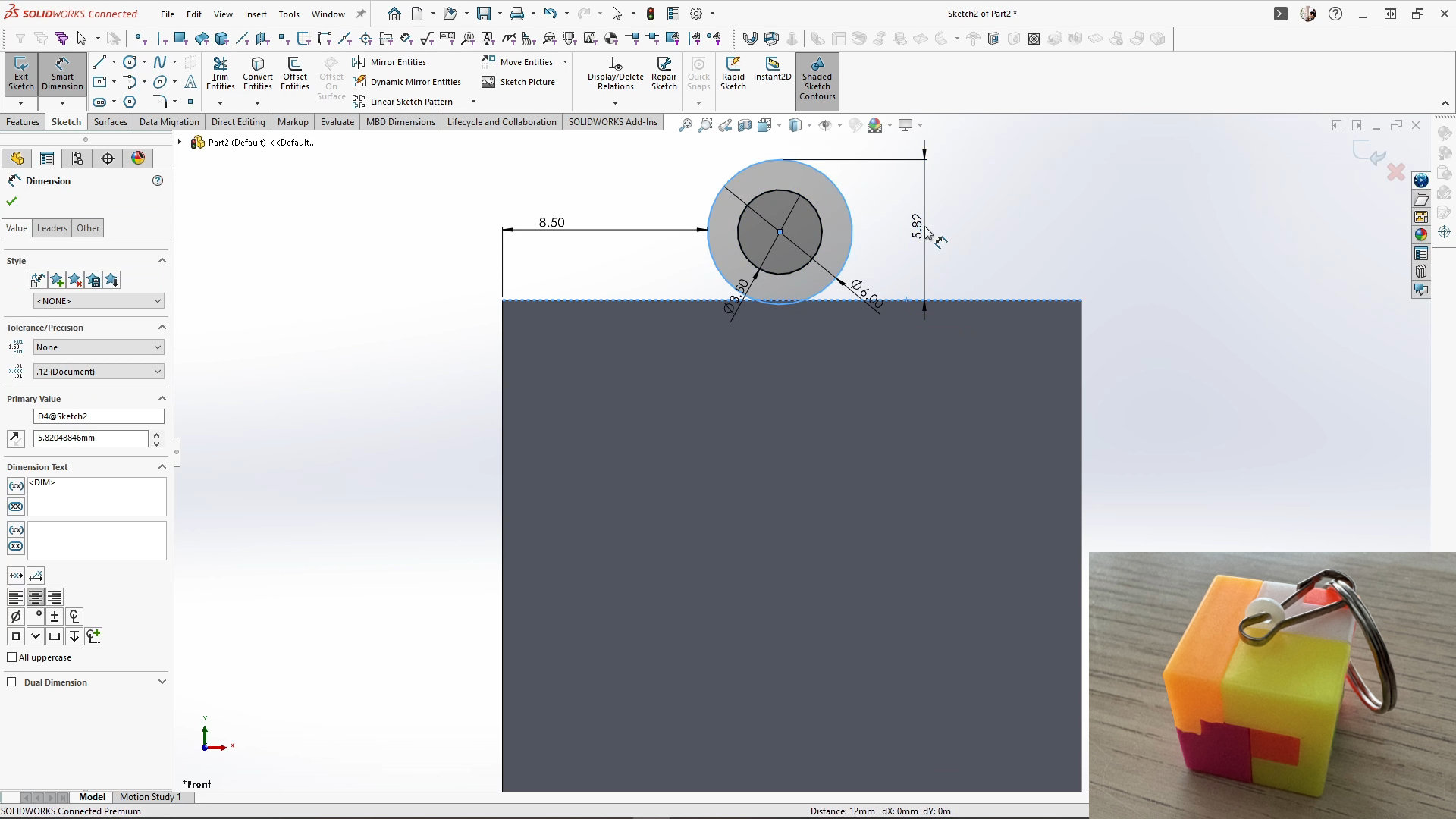
As more bodies were created, I used the Combine feature to re-join certain split bodies into their final puzzle-piece shapes. Some pieces needed several split operations before they could be combined back into the correct form.
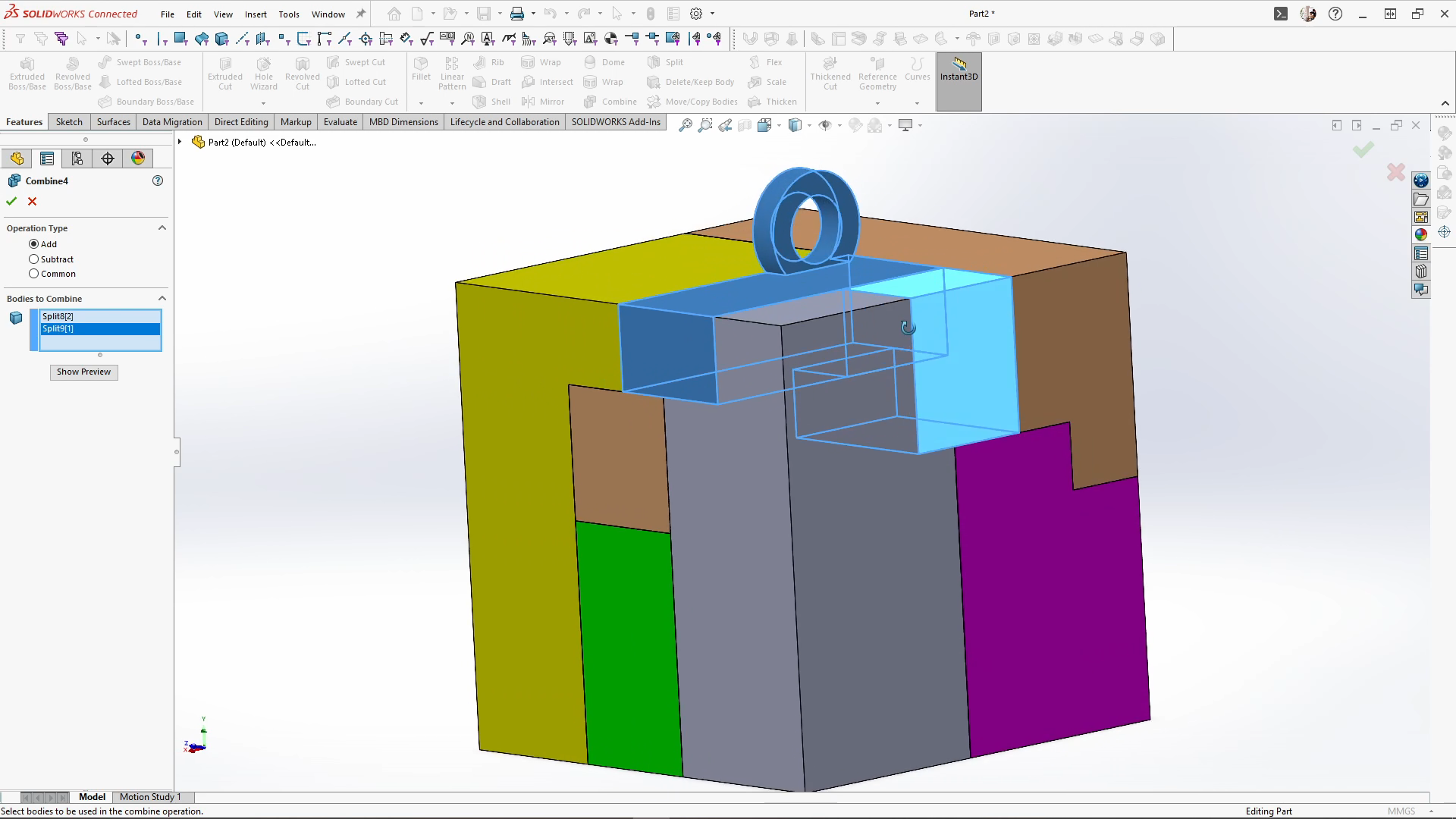
I also used the Direct Editing tab and the Move Face feature to adjust one of the surfaces, and added a small Cut-Extrude to create an interior indent based on the real puzzle piece. As the number of bodies increased, the Isolate tool became especially useful. Isolate allowed me to temporarily hide everything except the bodies I needed to edit, making it much easier to check geometry, apply appearances, or perform Combine operations without visual clutter. It also helped when adjusting faces or creating cut features on specific parts.
Once all puzzle pieces were complete, I renamed the solid bodies and used Save Bodies to generate individual part files and an assembly.
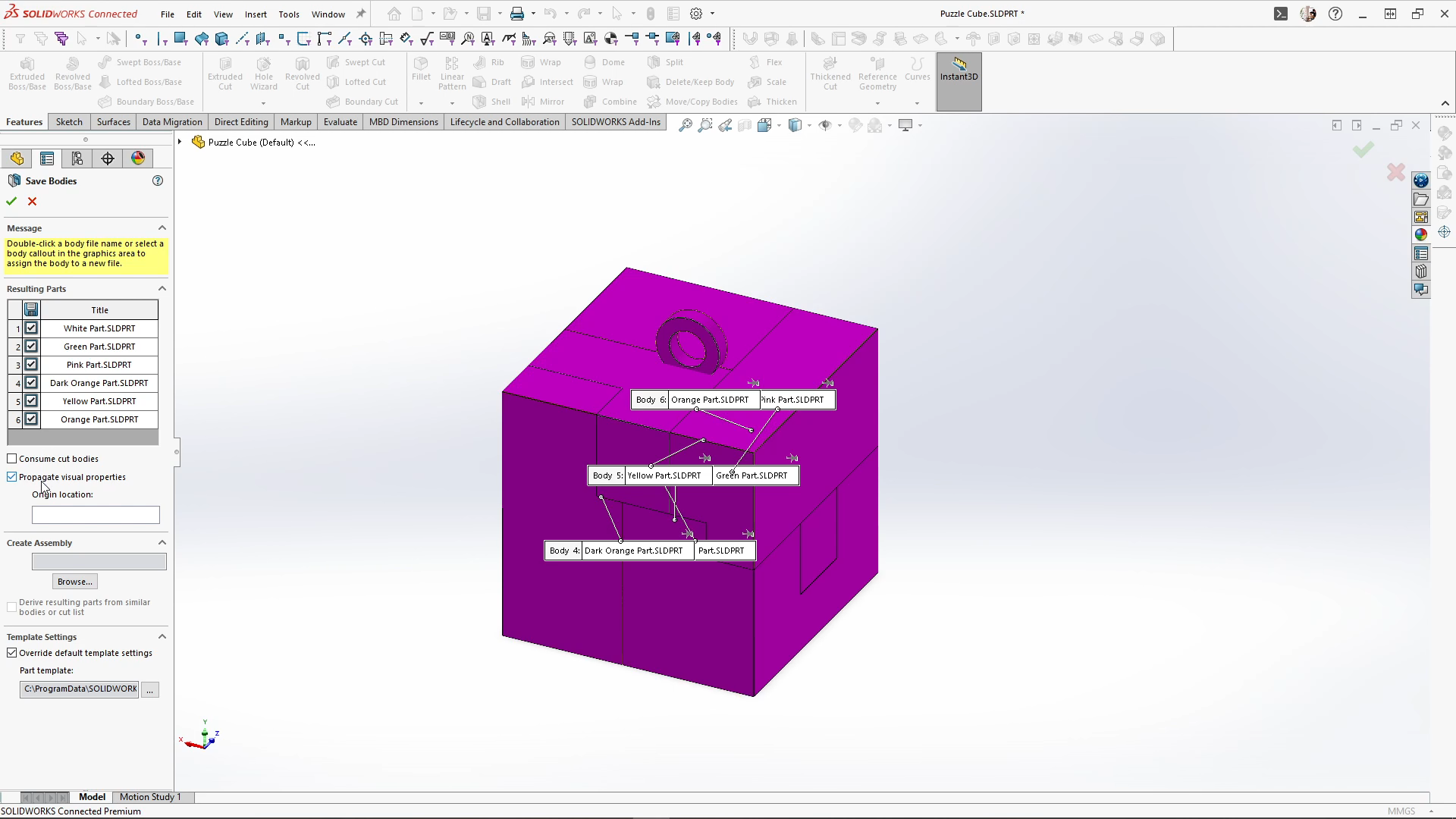
Opening the new assembly from the saved bodies, I created an exploded view by pulling each piece away from the centre of the cube along its natural direction of movement, in the order needed to create the puzzle.
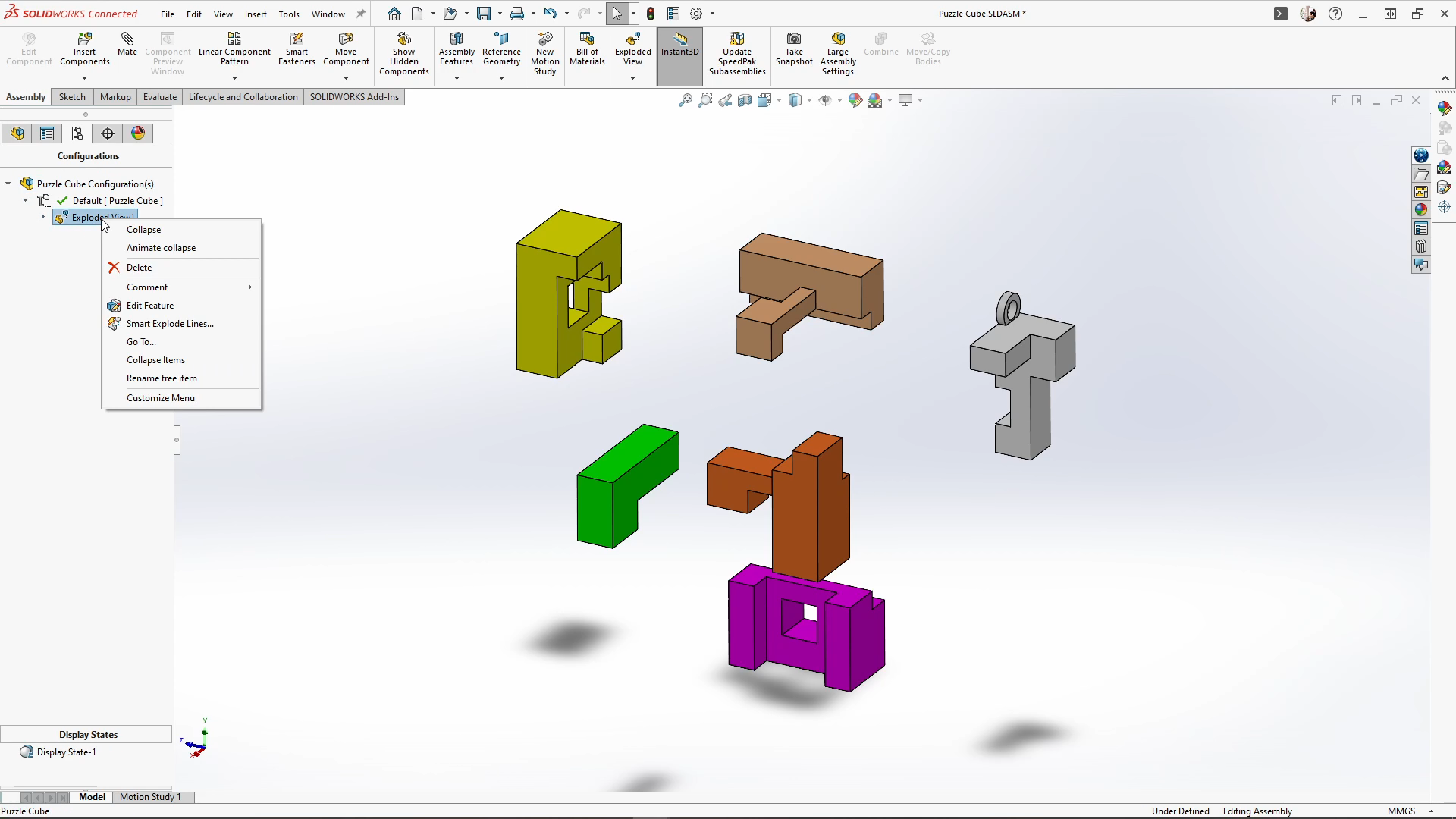
With the exploded view finished, I switched to a Motion Study to animate the sequence. Using the explode steps, SOLIDWORKS automatically generated a smooth explode animation, which I could tweak by adjusting timings and transitions on the timeline. This created a clean pull-apart motion of the entire puzzle cube. The study can then be exported or opened directly in SOLIDWORKS Visualize for a rendered animation.

This was a really fun challenge. When you’re learning a software, reverse engineering a physical object into a 3D model can be the best way to test yourself. Feel free to 3D print the model and see how it works in real life. I hope you enjoyed this tutorial.
Author information
The post Puzzle Cube: SOLIDWORKS Tutorial appeared first on SOLIDWORKS Tech Blog.
]]>Author information
The post 20 Top Evolutionary Enhancements in SOLIDWORKS 2026 appeared first on SOLIDWORKS Tech Blog.
]]>Here are the best things about SOLIDWORKS 2026.
1. Some of the best things actually arrived in 2025. Let me explain.
Fun fact: some of the best things about SOLIDWORKS 2026 GA (general availability) actually released throughout the year with the Functional Delivery (FD) versions of SOLIDWORKS 2025. Some of the highlights include AI capabilities that first released in an FD version of 2025.
The FD terminology is an evolution of the traditional Service Pack (SP) terminology. If a feature was released in an FD version of SOLIDWORKS 2025, then it’s called out in the section title.
2. New name, who’s this?
Introducing: SOLIDWORKS Design.
SOLIDWORKS is now known as SOLIDWORKS Design. This is a welcome change that makes a lot of sense because if you’ve been around the SOLIDWORKS ecosystem over the last few years, you’ve undoubtedly been exposed to a lot of overlapping terminology and services: 3DEXPERIENCE Platform, Cloud Services, subscription for a perpetual license, 3D Drive, 3D Space, Cloud Services and so on. If you’re a little confused, don’t worry, you’re not alone; I’m in the SOLIDWORKS industry and still sometimes lose track. So, to me this is a welcome change.
You’ll notice the name change in the SOLIDWORKS UI, the Windows Application Menu, and even your Desktop Shortcut. I’ll be referring to the SOLIDWORKS CAD Desktop application as SOLIDWORKS Desktop from now on — you’ll also welcome this clarity, I’m sure.
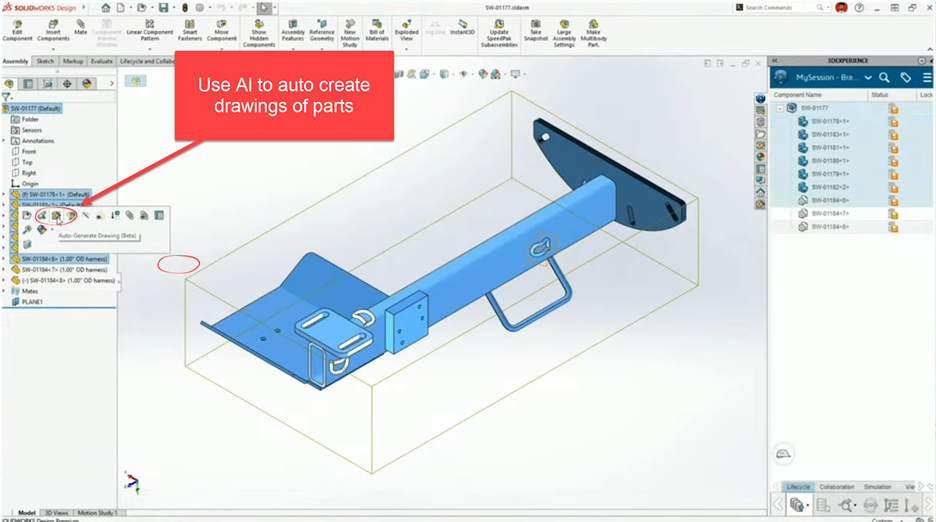
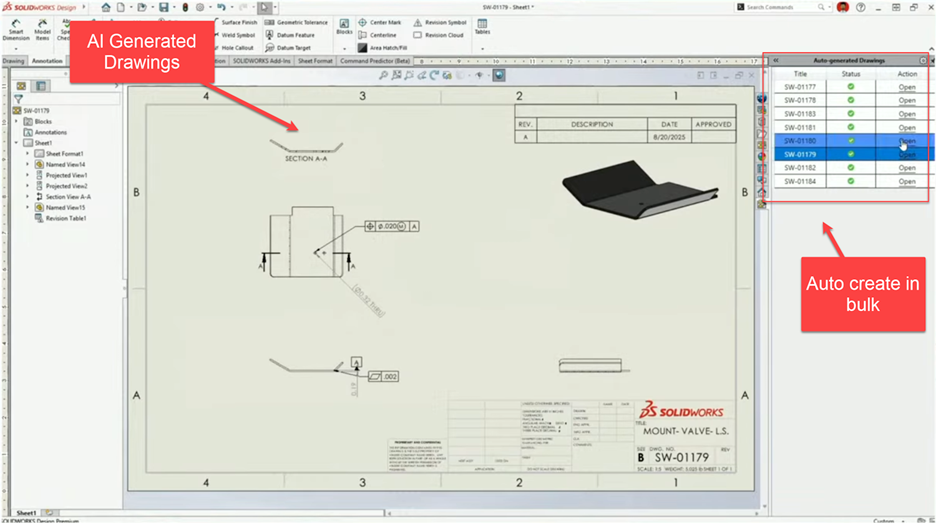
3. AI Auto generates drawings: Leverage AI to help you focus on value.
This one is huge! And surprise…it was here before 2026. This is one of the big ones that actually released in SOLIDWORKS 2025 FD01 and was improved in FD03. It’s now one of the best additions to the SOLIDWORKS tool set because of the immense time savings available by automating things that don’t add value to your workflow as a designer.
4. Selective Loading (2025 FD03): Save time loading massive assemblies.
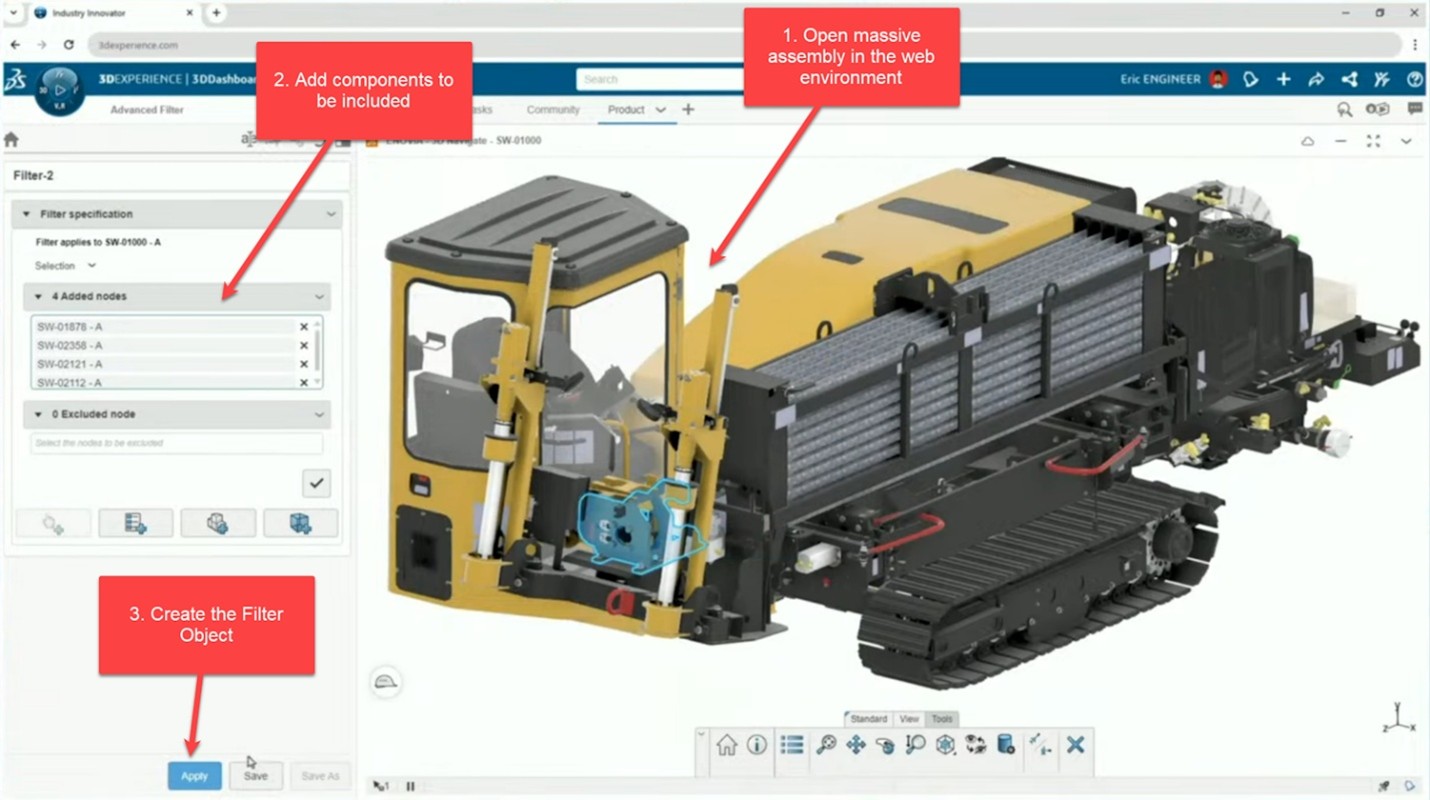
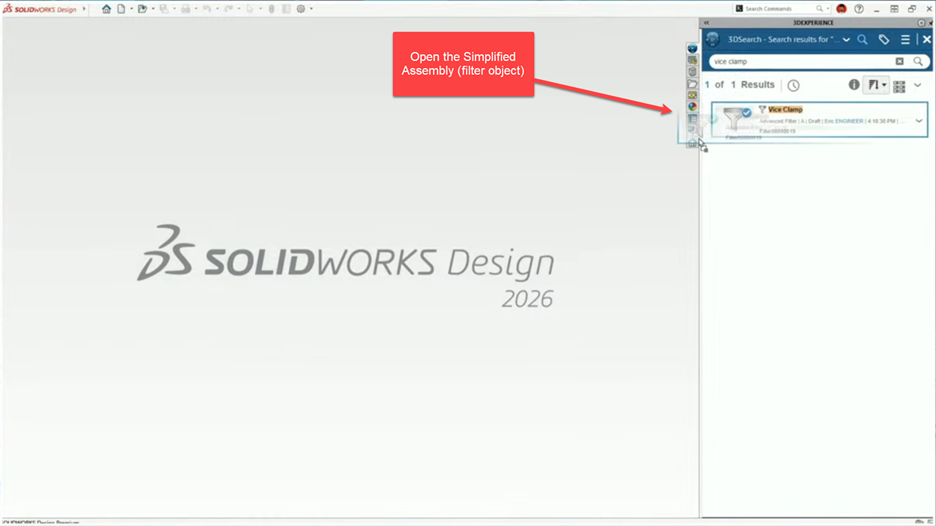
Supercharge loading with this tool to open only what you need and dramatically reduce load times. It works by first opening your assemblies in the web browser using the 3DEXPERIENCE Platform to create a filter object which can be opened in the SOLIDWORKS Design Application.
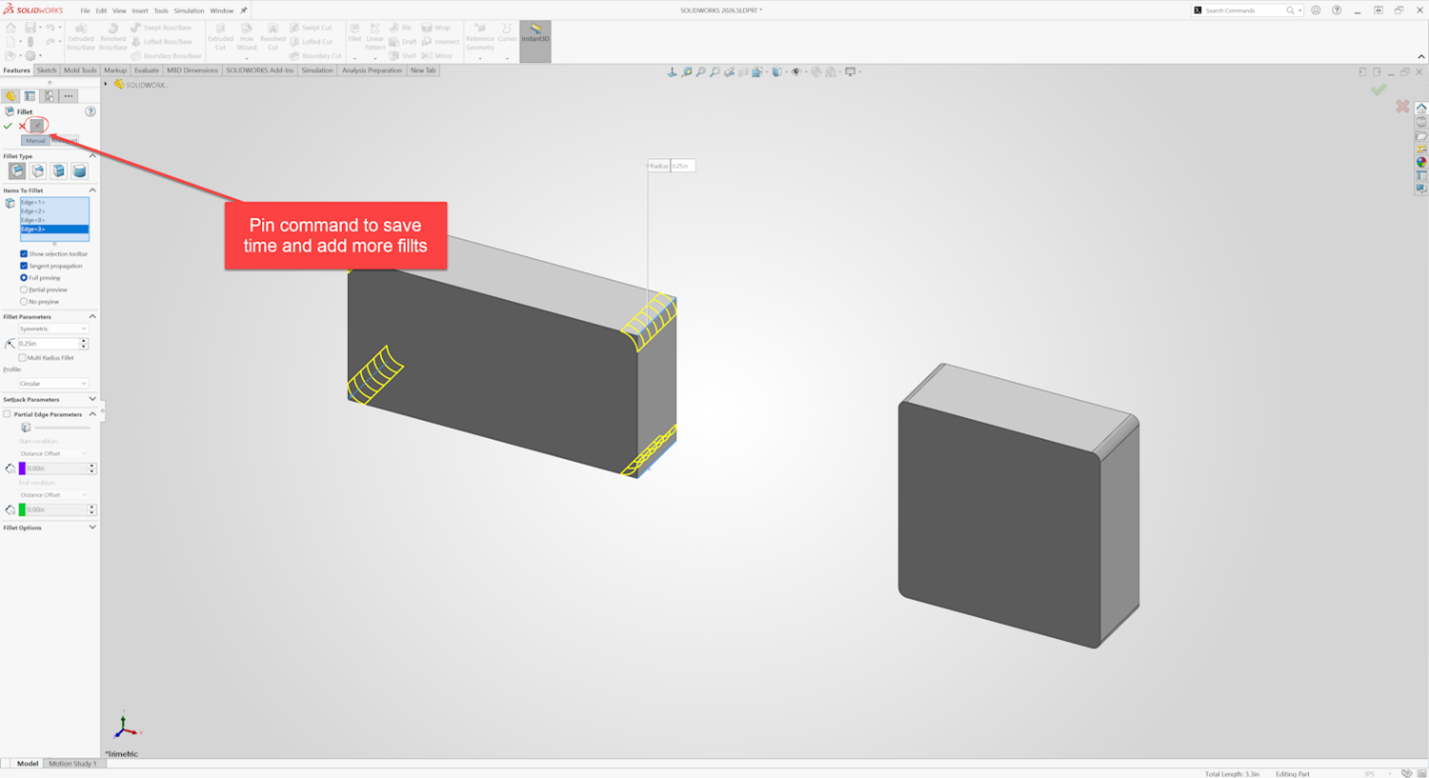
5. Pin Commands (2025 FD02): Repeat more commands, quickly and easily.
Some commands in SOLIDWORKS could always be pinned to stay active so you can quickly reuse them. But this functionality wasn’t extended to every command, and none have been more frustratingly absent than the Fillet command.
New to SOLIDWORKS 2026 is the ability to pin both the fillet and chamfer commands so they stay active and you can easily keep adding rounds or chamfers.
6. Sketch Squares with the Shift Key (2025 SP02): Easily create common shapes.
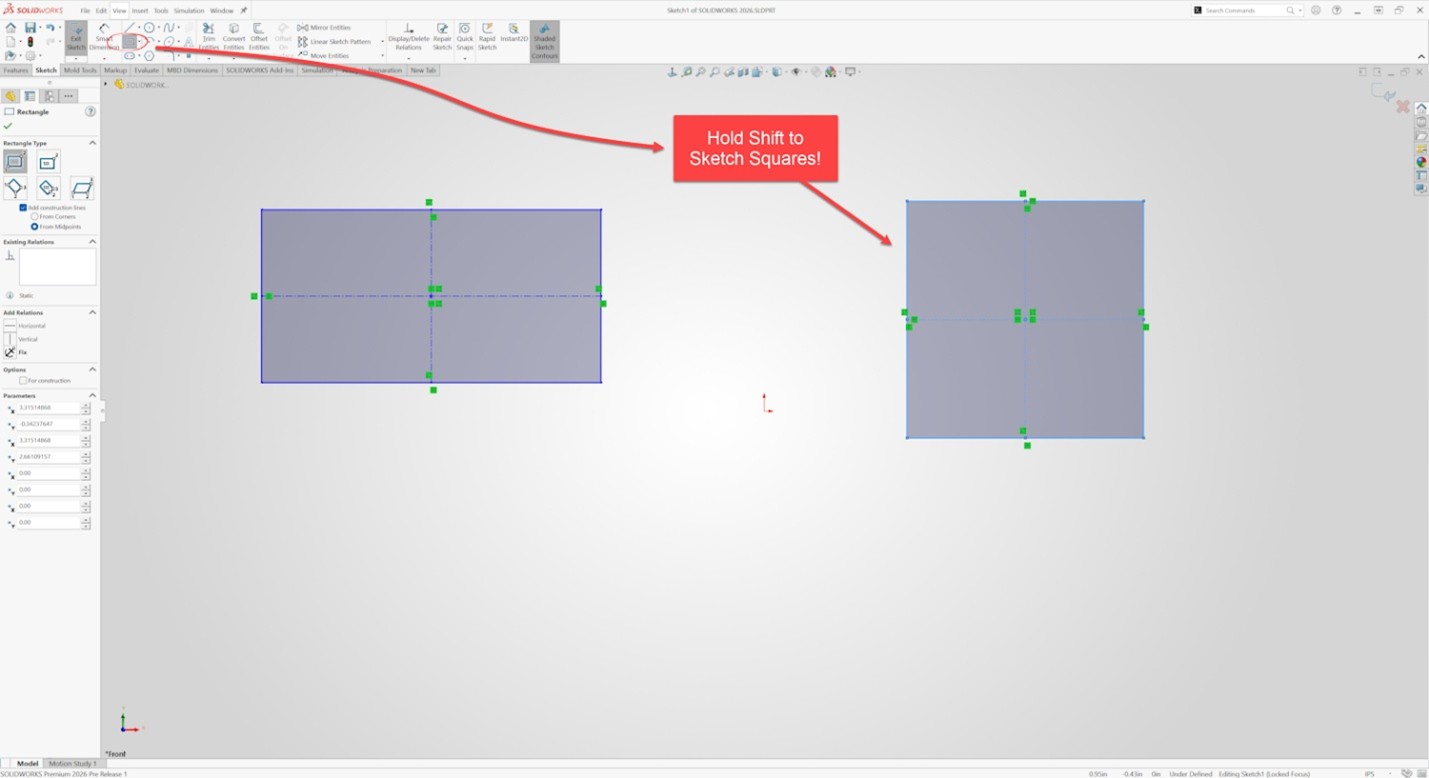
This one is simple and self-explanatory but absolutely incredible. When sketching a rectangle, you can create a square by holding the Shift key. This adds equal relationships to the sides to maintain your design intent of four equal sides (i.e. a square). To be completely honest, this is probably my favorite improvement. It’s one that is guaranteed to save a lot of time for every designer.
7. Cosmetic Changes for Rebuilds: Save time and be in control of rebuilds.
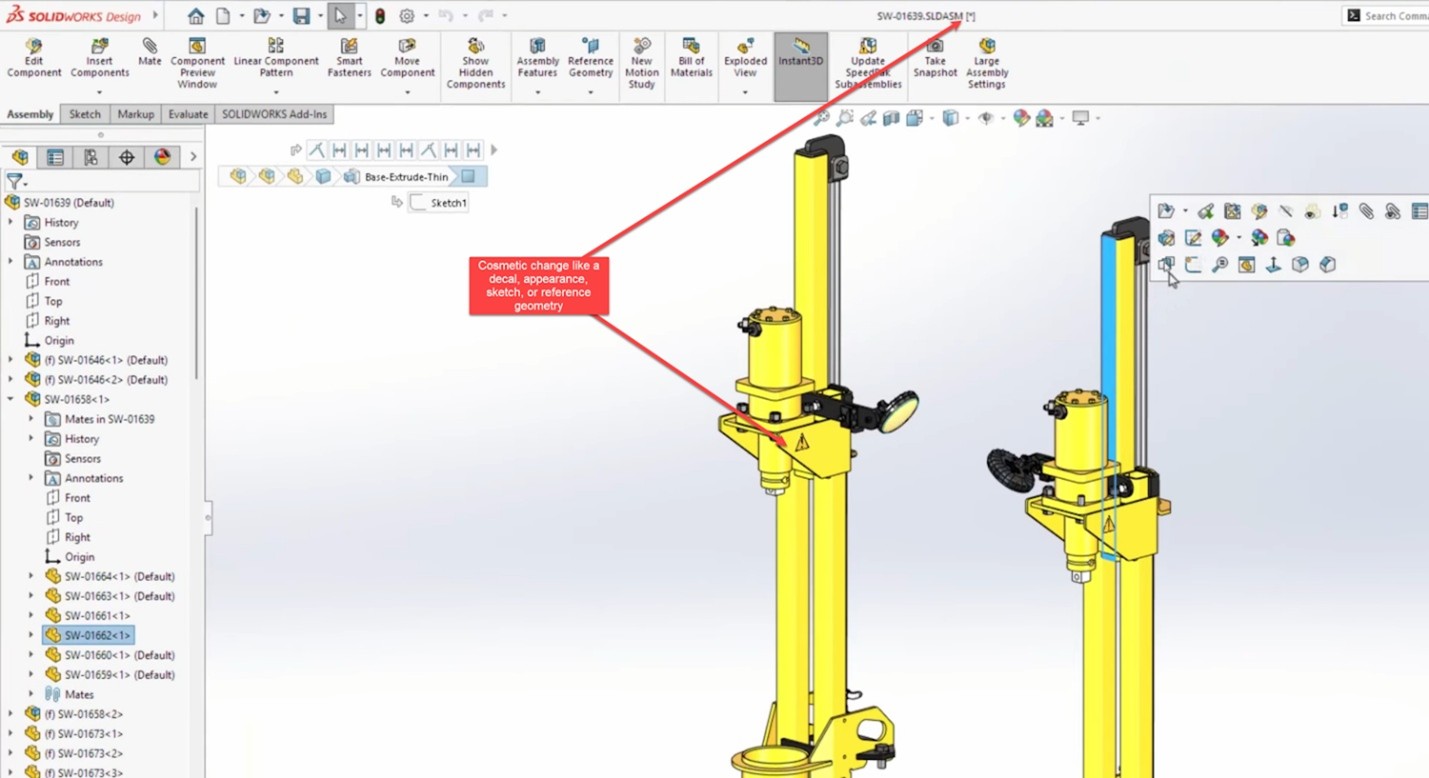
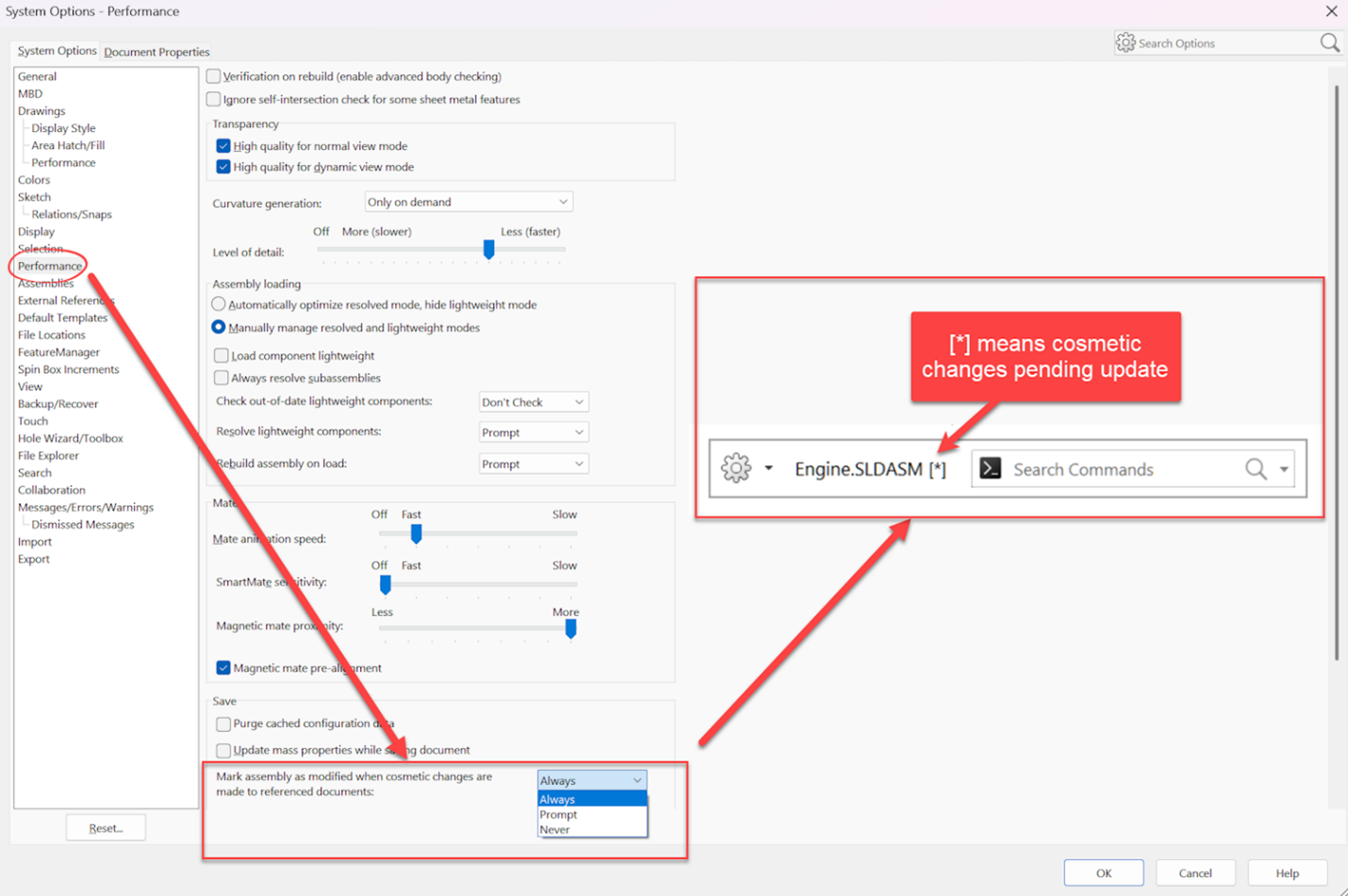
This enables you to increase performance and save time by skipping unnecessary rebuilds when you’ve only made cosmetic changes. There’s now a system option which puts you in control of rebuild requirements for nonessential (cosmetic) changes that don’t modify the parasolid geometry, such as sketches, reference geometry, hiding or showing bodies. You now can control when these rebuilds/updates happen.
8. Fastener Automation with AI: Quickly and easily add components to assemblies.
SOLIDWORKS’ powerful AI is able to automatically recognize the geometry of components such as fasteners (nuts, bolts and washers), and properly position and mate them based on the geometry. This is a huge time saver for fasteners that is not limited to Toolbox components—it even works for non-native SOLIDWORKS files!
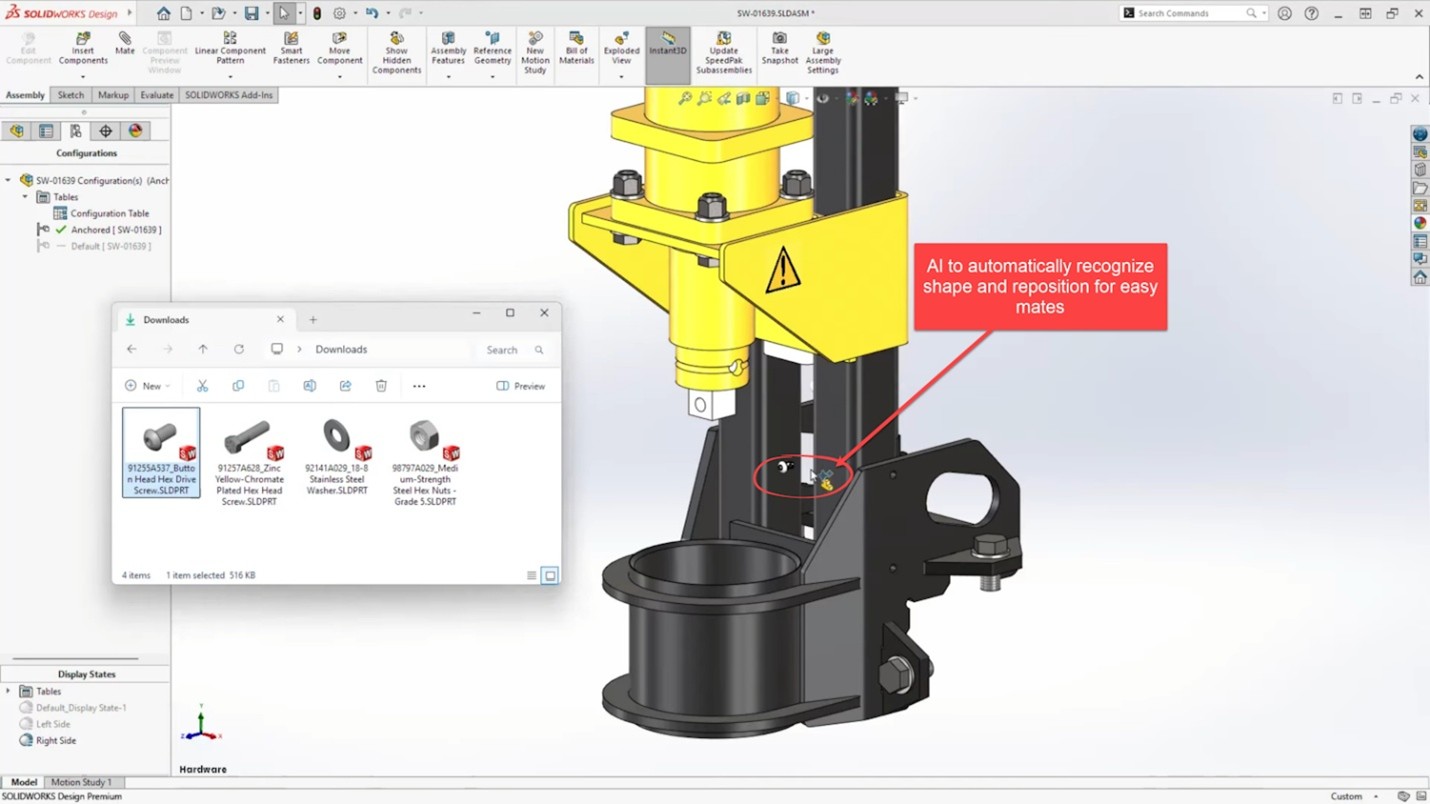
9. Magnetic Lines for More: Easily align more objects.
Magnetic lines are great for neatly laying out annotations. Now in SOLIDWORKS 2026, they are even more capable with the functionality to now support notes, weld symbols, geometric tolerance symbols, surface finish symbols and revision symbols, to help you add clarity and sophistication to your drawings
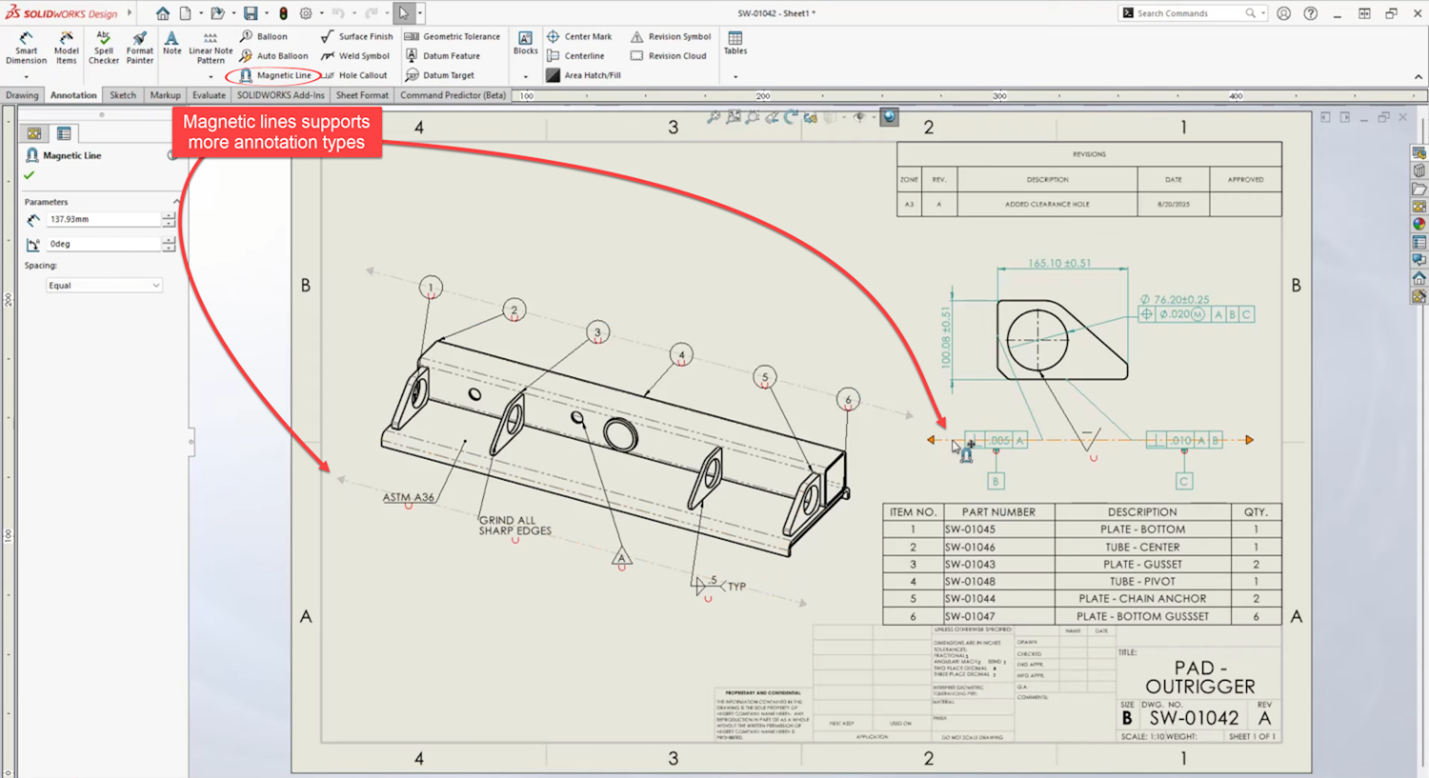
10. Break Dimension Lines: Add clarity to drawings.
In SOLIDWORKS 2026, you can clean up your drawings by adding Dimension Breaks.
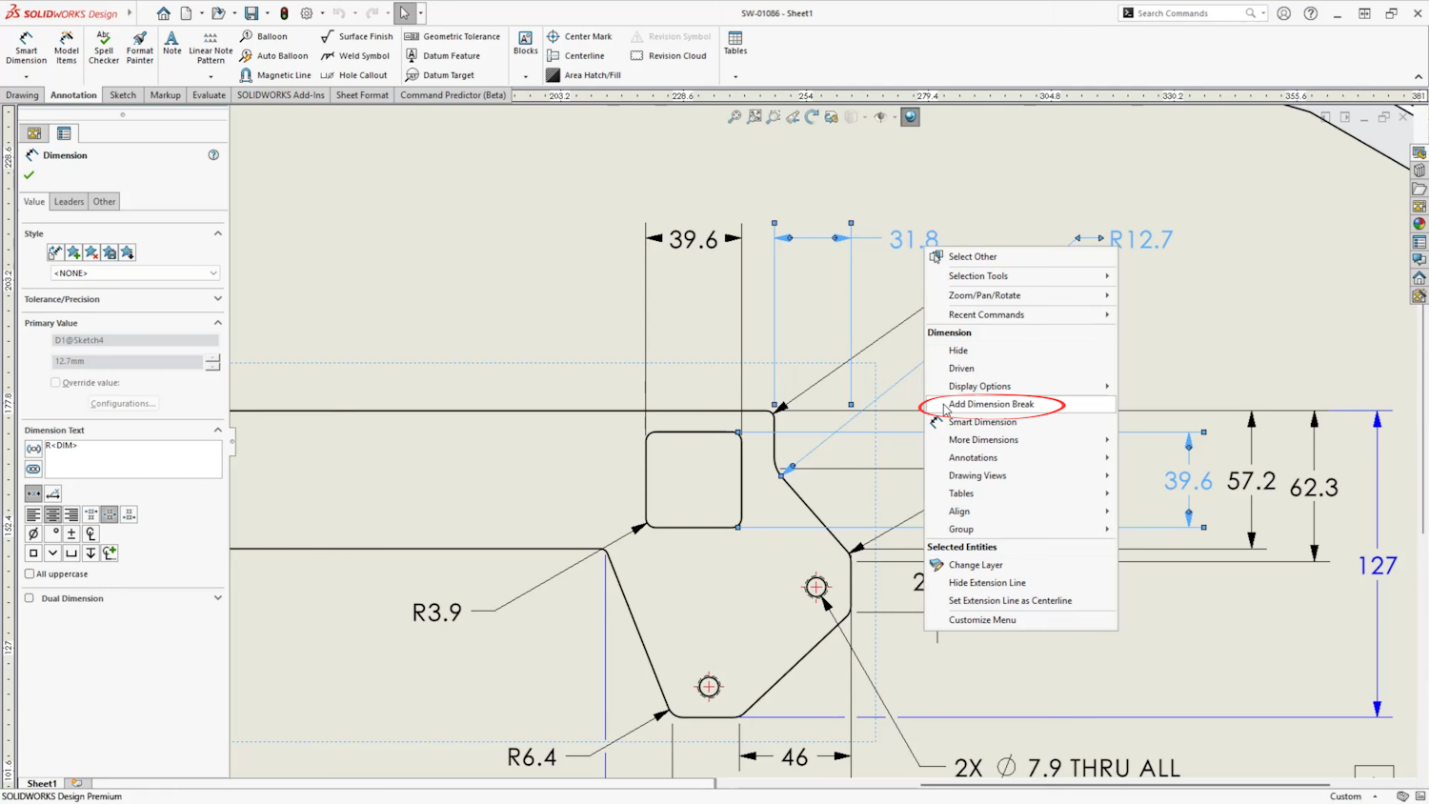
These break the dimension lines around other annotations to clean up the clutter and add clarity to your 2D drawings. With just a right click on the annotation, you can add dimension breaks to make sure the dimension leaders neatly go around the dimensions to clean up the drawing.
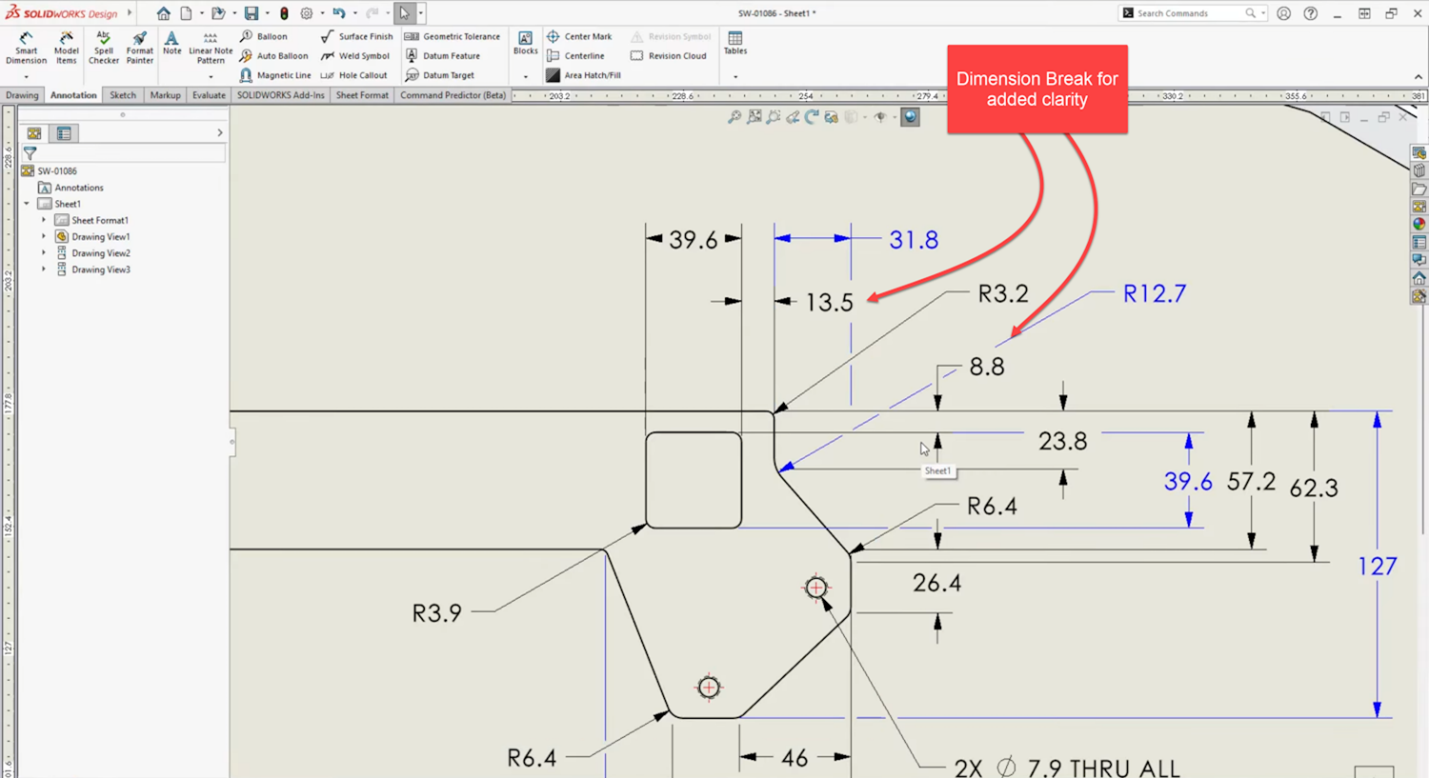
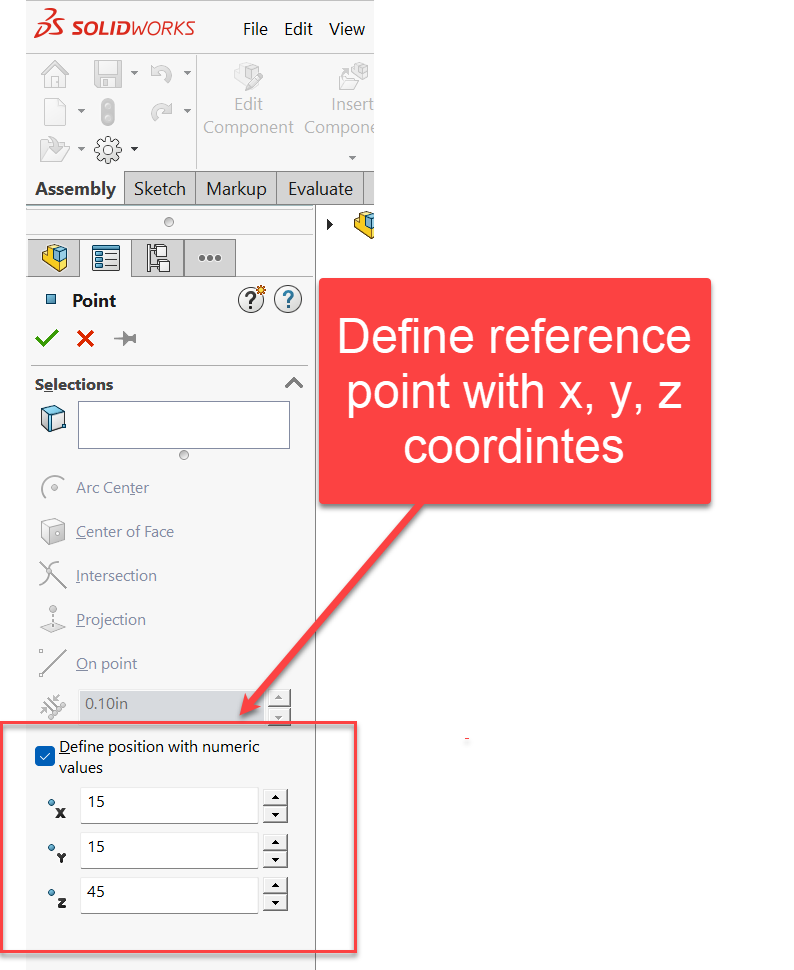
11. Reference Points: Define reference points with specific coordinates.
Gone are the days of adding reference points through the convoluted process of first creating a sketch point placed with dimensions, so you can then create a reference point at a specific x, y, z position.
Now in SOLIDWORKS 2026, you can define the position of reference points with numeric values.
12. Toggle visibility of properties.
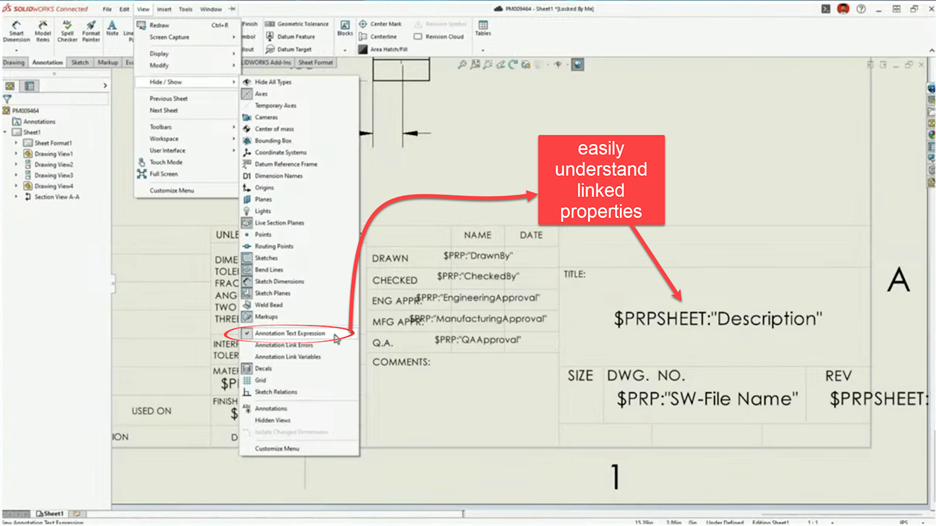
With just a click, you can toggle on the visibility of linked properties in drawings. This significantly streamlines the process of digging through text fields in your 2D drawing. Previously this was only available by first editing the sheet format and then digging through the properties individually. With this new view toggle, you can instantly understand your drawing properties.
13. Photorealistic Renders in SOLIDWORKS: Integrated rendering with SOLIDWORKS Visualize.
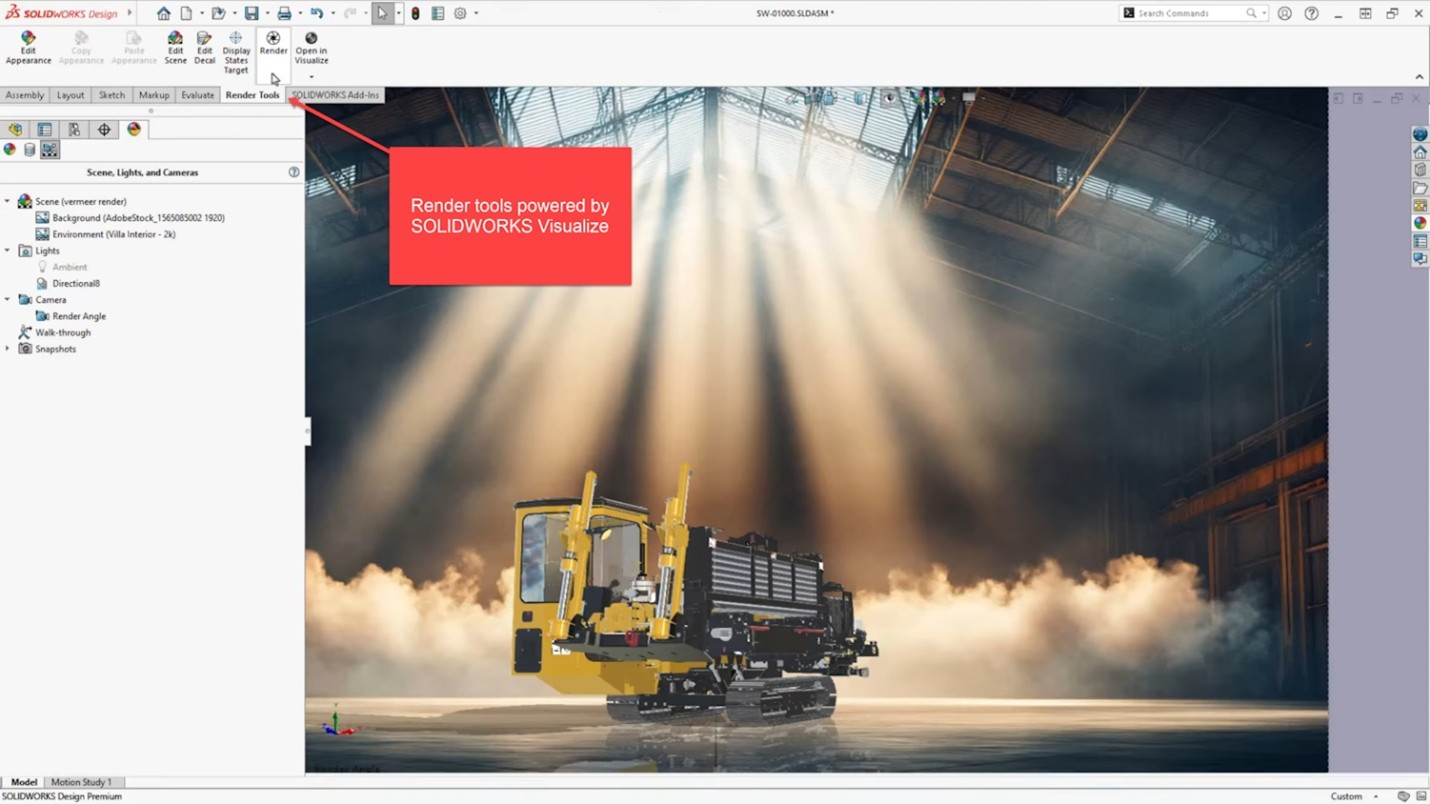
With Photoview360 retired, SOLIDWORKS Visualize takes the place of an integrated rendering engine you can use to create photorealistic renders within SOLIDWORKS. The workflow is the same as you’re used to with Photoview360, but the results are much better. All you need is the Visualize add-in turned on, and you can leverage the SOLIDWORKS scenes, lights and appearances to create extraordinary renders of your designs.
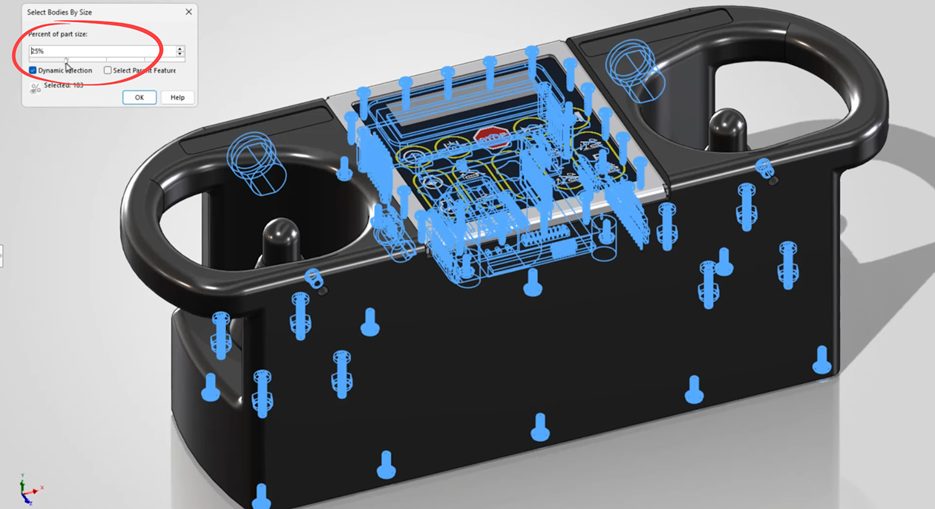
14. Filter by size and volume: Find and select bodies, fast.
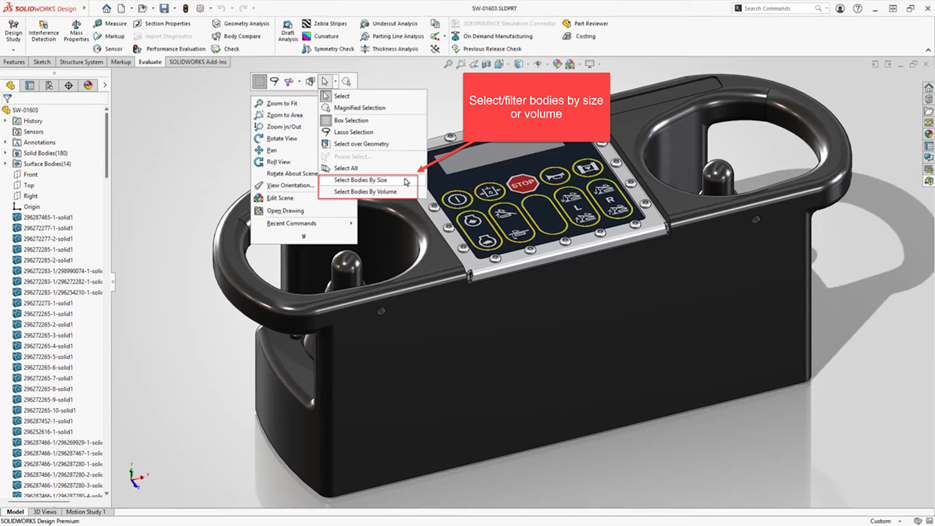
You can quickly filter and select bodies based on size or volume using new selection filters in SOLIDWORKS 2026. It’s an extension of previous functionality to now include selection methods for parts.
15. Dismissed Messages: Never miss a message.
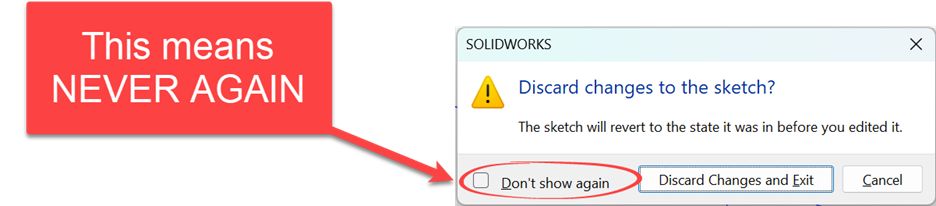
You’ve definitely seen the option for dismissed messages that says, “Don’t show again.” It appears in just about every message that pops up in SOLIDWORKS.
The check box takes its job seriously, in that “Don’t show again” means never again — unless you know where to find it in the system options.
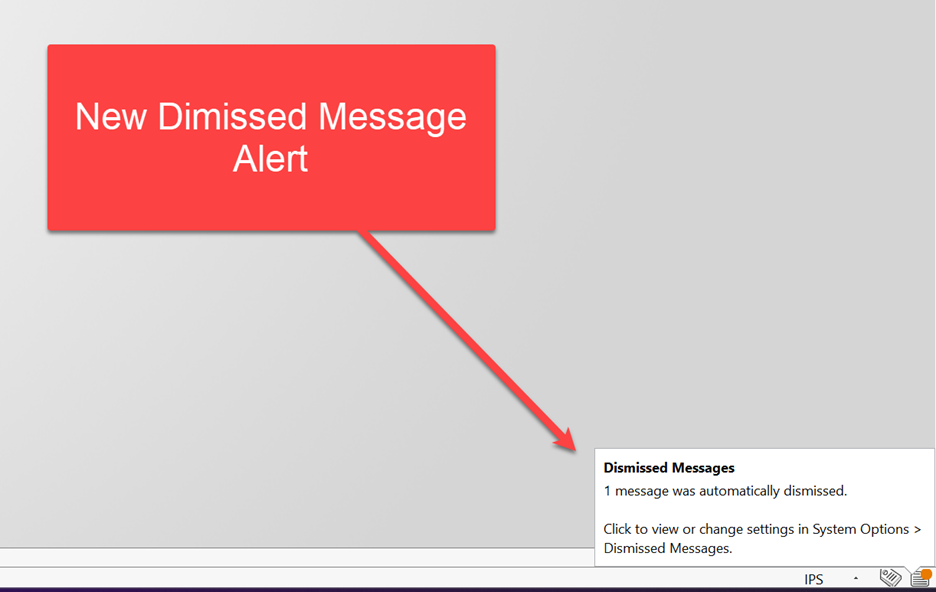
Now in SOLIDWORKS 2026, there is a message that pops up letting you know that there’s been a dismissed message you might have forgotten about, and where to go to control this behavior.
16. Personalized Command search terms: Find Commands how you want.
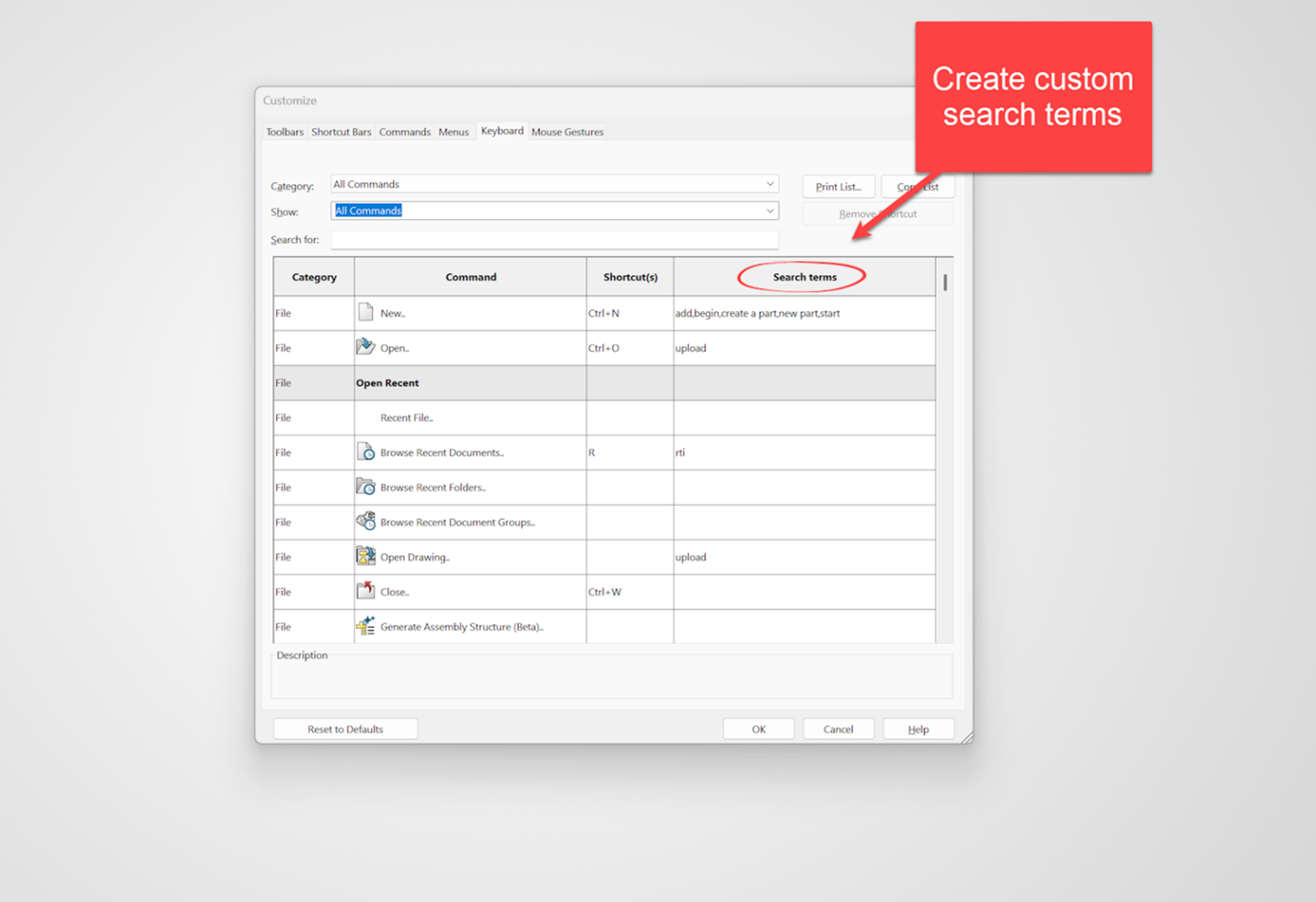
The Command search is hands-down the main workhorse of productivity for users of SOLIDWORKS. It’s been around for years and has saved countless hours of digging through menus to find commands. Now with SOLIDWORKS 2026, the Command Search has some added customizations available where you can create custom search terms for commands to help you quickly find a particular command.
That’s the stated benefit for this functionality, but I see this as being the means to find a command in the first place because it can be tough sometimes to remember the proper name for a command, especially if it’s not a common one you use.
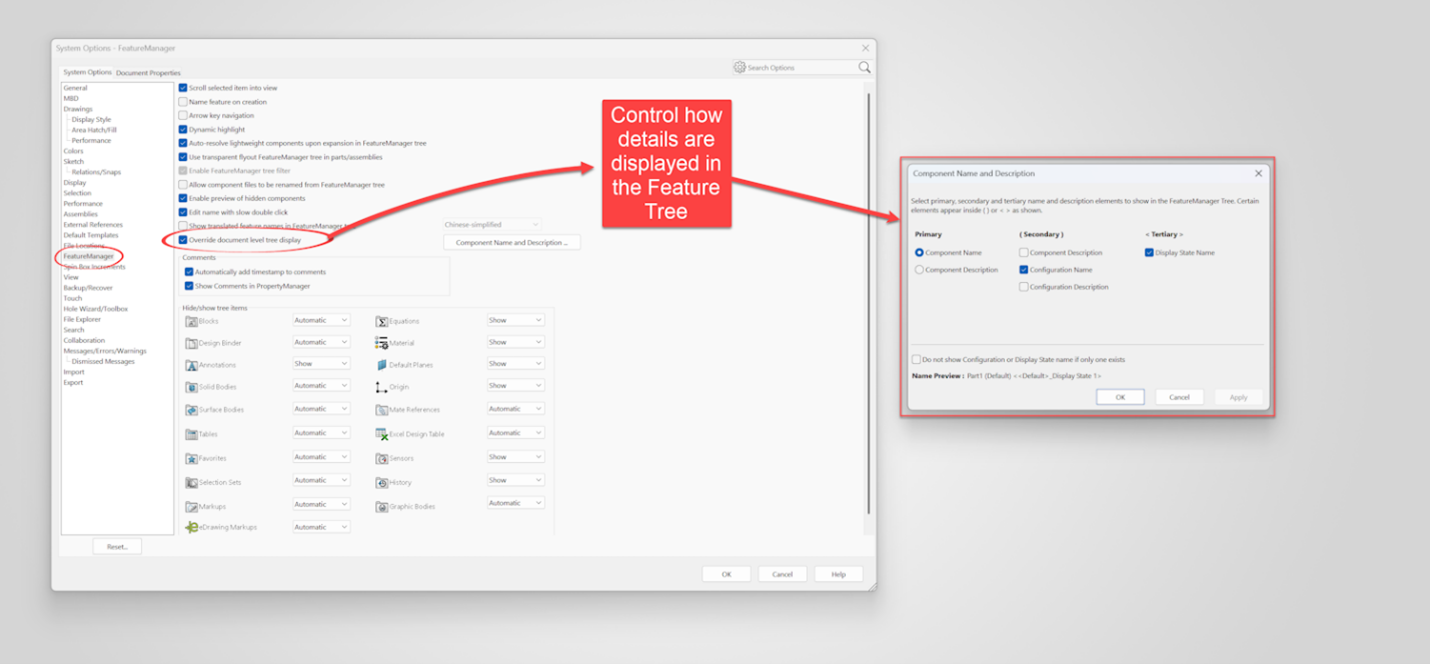
17. Tree Display System Option puts you in charge.
The Feature Manager Design Tree can get cluttered with details like component name, configuration name and display state name. This has previously been a Document property, but now you can control this at the System Option level, which puts you in charge of what information is shown in the tree.
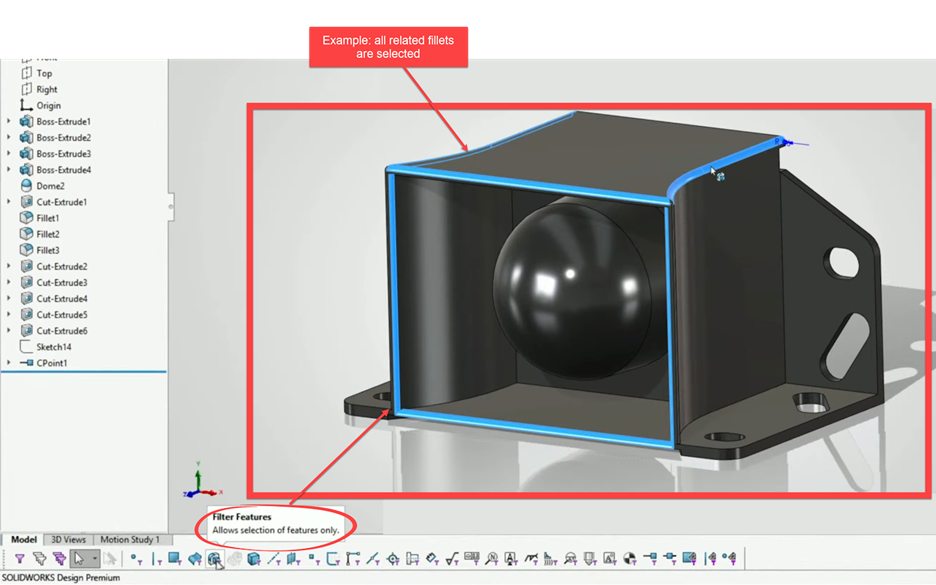
18. Feature Filter: Easily find features in the graphics area.
Helps you get graphical feedback to understand parent and child relationships of features. For example, with this turned on when you click an individual fillet, then all of the other fillets that were created with that original feature are all also created. This helps you maintain control when you dig into the details of your design.
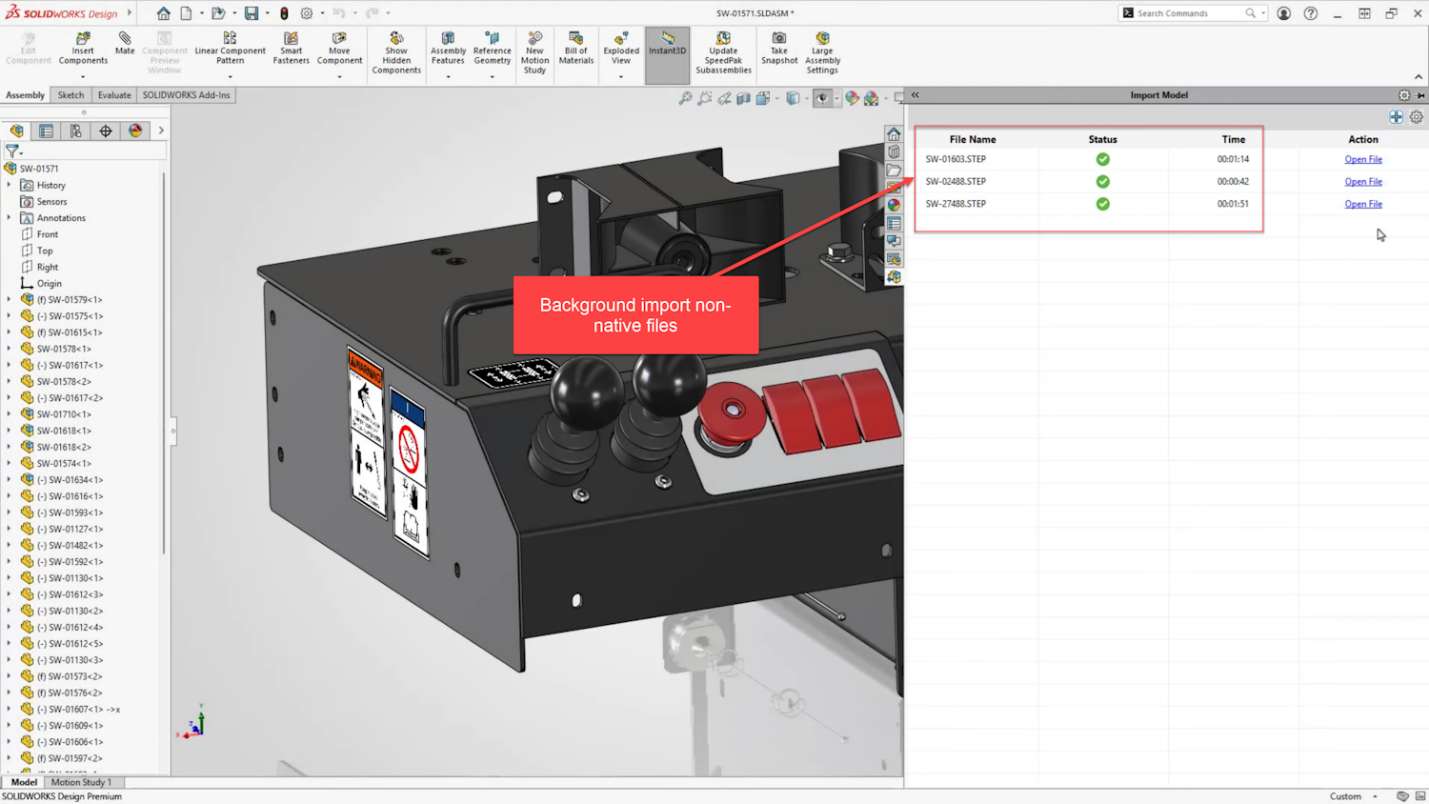
19. Background Import: Convert other CAD formats automatically, in bulk and in the background.
Via the task pane in SOLIDWORKS 2026, you can import neutral file formats (e.g. STEP) in bulk through the new background importer. This enables you to queue and process multiple files to import automatically without having to sit there and watch the proverbial paint dry because the files need to import before you can get to work.
20. More is around the corner!
There’s more to come throughout the year! More features will arrive in future SOLIDWORKS 2026 FD releases, which promise more great evolutions to the SOLIDWORKS tool set to help you design better and faster.
Author information
The post 20 Top Evolutionary Enhancements in SOLIDWORKS 2026 appeared first on SOLIDWORKS Tech Blog.
]]>Author information
The post SOLIDWORKS® Support Monthly News – Nov 2025 appeared first on SOLIDWORKS Tech Blog.
]]>Welcome to the new edition of the SOLIDWORKS® Support Monthly News! This monthly news blog is co-authored by members of the SOLIDWORKS® Technical Support teams worldwide. Here is the list of topics covered in this month’s Blog:
-
Updating Legacy Cosmetic Threads for Reliable Drawings and Models
-
How to Configure a SOLIDWORKS SolidNetwork License Manager Options File to Manage License Usage
1. Updating Legacy Cosmetic Threads for Reliable Drawings and Models
– Nikhil BHIRUD
As designs evolve across software versions, maintaining consistent thread callouts and visibility of cosmetic threads in model or drawings is essential for both manufacturing accuracy and model reliability.
Over time, even well-established models can begin to show discrepancies threads that disappear in model, misplaced threads in drawings, or callouts that lose formatting. These small irregularities often stem from data created using earlier versions of SOLIDWORKS.
That’s where this feature comes in: Updating Legacy Cosmetic Threads the simplest way to ensure threaded features behave predictably and display correctly across both models and drawings.
Understanding the Problem:
Many ongoing projects still include models built years ago using earlier cosmetic thread definitions. These legacy threads might look fine initially but can introduce subtle issues such as:
- Missing or inconsistent threads
- Threads that fail to appear in model or drawings
- Mismatched or dangling annotations after rebuilds
Modern versions of SOLIDWORKS manage cosmetic threads with enhanced geometry references, smarter callout links, and improved visualization control. By updating older data, you bring these improvements to existing parts eliminating inconsistencies and restoring full reliability across assemblies and drawings.
How to Update Legacy Cosmetic Threads:
The update process is simple and typically takes only a few moments per file:
- Open the part, assembly, or drawing that contains cosmetic threads.
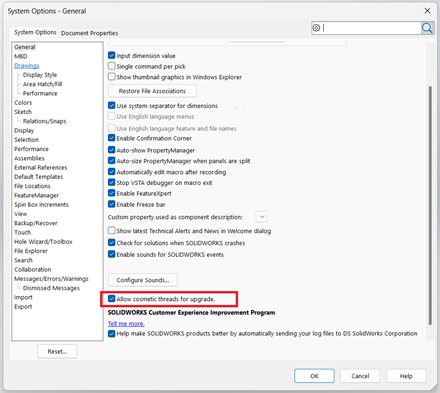
- Go to Tools → Options → System Options → General.
- Enable the setting: Allow cosmetic threads for upgrade. This enables SOLIDWORKS to automatically detect and upgrade legacy cosmetic threads when present.
- In the FeatureManager Design Tree, right-click the top-level part or assembly.
- Choose Upgrade Cosmetic Thread Features: This command appears only when legacy cosmetic threads are detected in the open document.
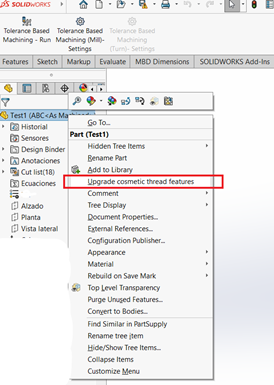
- Wait for the operation to complete, then save the file.
Important: Once saved, the file cannot revert to the old data structure. After updating, open any associated drawings or assemblies and perform a Rebuild so that thread callouts and annotations refresh correctly.
What Improves After the Update:
When legacy cosmetic threads are upgraded, SOLIDWORKS regenerates them using the modern internal structure. You’ll notice several improvements:
- Reliable visibility in shaded, section, and hidden-line display states
- Accurate, associative callouts correctly linked to Hole Wizard data
- Stable mirrored and patterned threads that retain full associativity
- Cleaner rebuilds with fewer missing or dangling annotations
Although geometry remains unchanged, the upgraded cosmetic thread data now follows the same format used in current versions making your design more robust and easier to maintain.
Before we look at results, let’s see the difference this change makes visually.
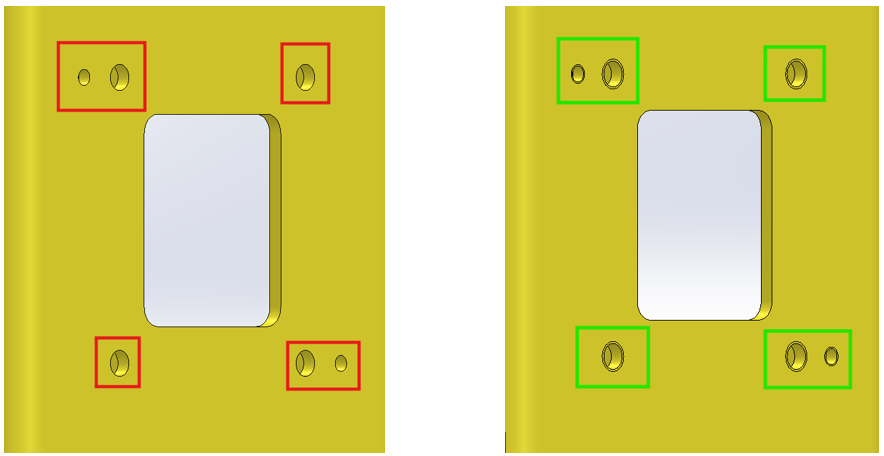
Visual comparison before and after upgrading cosmetic threads.
If threads still do not appear after updating, confirm that Cosmetic threads and (optionally) Shaded cosmetic threads are enabled under:
Tools → Options → Document Properties → Detailing → Annotations.
When to Use This Command:
Use the upgrade whenever you encounter:
- Older customer or supplier files
- Archived projects using pre-2020 cosmetic thread data
- Parts showing inconsistent or missing thread graphics in drawings
Running the Upgrade Cosmetic Thread Features command once ensures reliable callouts, consistent display, and smooth rebuilds in all future releases of SOLIDWORKS.
Conclusion:
Updating legacy cosmetic threads is a quick yet impactful way to modernize your design data.
It enhances drawing accuracy, stabilizes mirrored and patterned features, and ensures that every thread annotation behaves exactly as intended.
Whether you’re revisiting a classic design or standardizing an entire library, take a moment to run Upgrade Cosmetic Thread Features.
It’s a small step that keeps your data dependable, modern, and production-ready.
References:
2. How to Configure a SOLIDWORKS SolidNetwork License Manager Options File to Manage License Usage
– Akhil C
Managing SOLIDWORKS network licenses efficiently helps ensure fair access and optimal use of resources. The SolidNetwork License Manager Options File allows administrators to define clear rules for license allocation.
This way, user or UserGroups can be allowed/denied a specific set of licenses. Licenses can also a reserved for a user/usergroup. For more detailed information, review the FlexNet Publisher Administration Guide > Section ’13. Managing the Options File’
What is Options File?
The Options file (sw_d.opt) works with FlexNet technology to control who can access licenses, how many can be used, borrowing behavior, and inactivity timeouts.
The options file enables the license administrator to control various operating parameters within the constraints of the license model. Users are identified by their user name, host name, display, IP address, or PROJECT (which is set with the LM_PROJECT environment variable).
Creating the Options File:
- Open SolidNetwork License Manager on the server.
- Go to Server Administration > Modify.
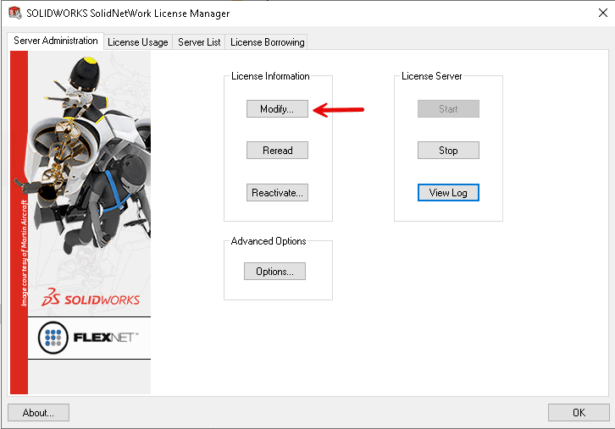
- Choose Activate/Reactivate licenses.
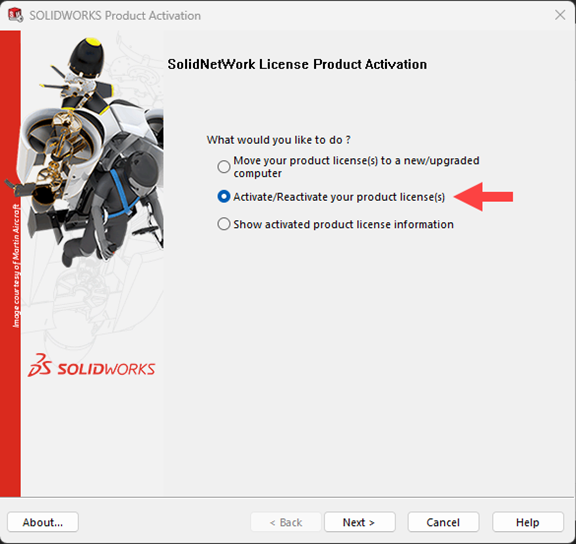
- Enable Options File and click Edit.
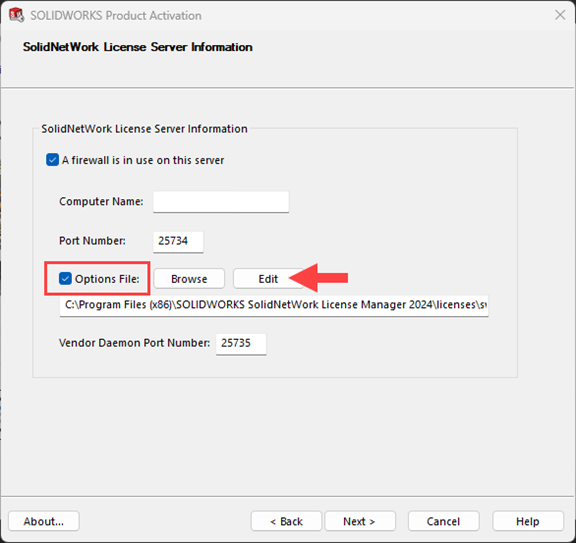
- Save the sw_d.opt file after adding rules.
Applying Changes:
Save the file and complete reactivation or reread the file from Server Administration.
Changing an Existing Options File
Based on the requirements, administrators can modify the options file and add/remove require keywords anytime they want. Here are the two method which can be used to edit the Options File.
Method 1: Using the SolidNetwork License Manager
- Open the SolidNetwork License Manager on the license server.
- Navigate to Server Administration and click Modify.
- Select Activate/Reactivate your product license(s).
- Click Edit to open the existing Options file.
- Make the required changes and save the file.
- Continue or cancel the reactivation process.
- In either case, the License Manager service will restart and load the updated Options file.
Method 2: Editing the File Manually
- Open the opt file using Notepad or another text editor.
- Make the necessary changes and save the file.
- Open the SolidNetwork License Manager.
- Go to the Server Administration
- Click Reread to refresh the Options file.
- This applies the changes immediately without restarting the service or resetting license logs.
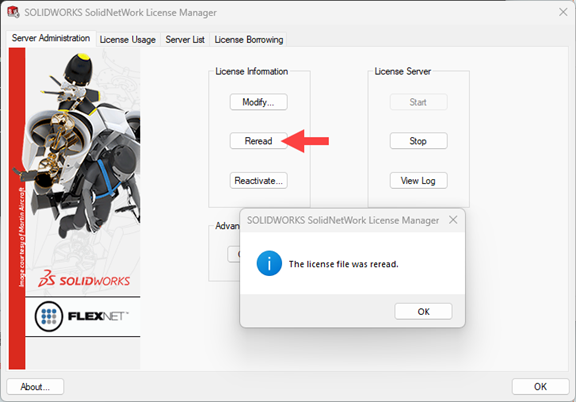
- This applies the changes immediately without restarting the service or resetting license logs.
Note: After the OptionsFiles is modified, the license has to be Reread [SNL Manager Server > License Information > ‘Reread’]. Just modifying the Options Files, won’t implement the changes made. To confirm if the changes made in OptionsFile are implemented, open the LMGRD Log [Server Administration > License Server > View Log], and check if the newly added keyword appears in this section (see image below).
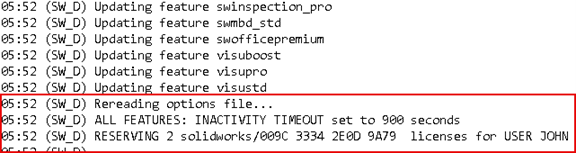
Happy Customization……..!!!!
Author information
The post SOLIDWORKS® Support Monthly News – Nov 2025 appeared first on SOLIDWORKS Tech Blog.
]]>Author information
The post SOLIDWORKS® Support Monthly News – Oct 2025 appeared first on SOLIDWORKS Tech Blog.
]]>Welcome to the new edition of the SOLIDWORKS® Support Monthly News! This monthly news blog is co-authored by members of the SOLIDWORKS® Technical Support teams worldwide. Here is the list of topics covered in this month’s Blog:
-
SOLIDWORKS® Toolbox Manual Repair/Update for Local Installs
-
Various hatch pattern options available in SOLIDWORKS®
1. SOLIDWORKS® Toolbox Manual Repair/Update for Local Installs
– Deepika PUJARI
When your SOLIDWORKS Toolbox is installed locally (i.e., not shared over a network or managed via PDM or the 3DEXPERIENCE platform), you have more direct control over its repair and maintenance. However, this flexibility also brings risks if updates or repairs are done improperly. This guide walks you through the safe and effective way to identify, repair, or update a locally installed Toolbox.
Backup First – Always!
Before making any changes to your Toolbox, back up the entire Toolbox Data folder, including:
- Custom parts
- Modified configurations
- The entire folder structure (typically located at “C:\SOLIDWORKS Data” or similar
Why? One misstep during repair can corrupt your Toolbox or lead to lost customization. A backup ensures you can recover quickly.
Identifying a Local Install
You are likely using a local install if:
- Toolbox is stored on your local drive (not on a shared network).
- Toolbox is not under SOLIDWORKS PDM.
- You do not access it through the 3DEXPERIENCE Platform.
- You can freely browse and edit Toolbox files without network restrictions.
To confirm:
- Launch SOLIDWORKS, navigate to Tools > Options > System Options > Hole Wizard/Toolbox
- Check the folder path – it should be local (e.g., C:\…).
Toolbox Repair Process (Local Setup)
- Run as Administrator: Right-click the SOLIDWORKS shortcut and select “Run as Administrator”. This ensures sufficient permissions to access and modify Toolbox files.
- Check File Access: Ensure read/write access to the following critical files in your Toolbox directory:
- *.sldedb (Toolbox database)
- *.index file
- *.dat file (configuration data)
- If you encounter access errors, check with your IT team to adjust file permissions in Windows.
- Use Toolbox Utilities
- sldserdocprop.exe
- Located in “C:\Program Files\SOLIDWORKS Corp\SOLIDWORKS\Toolbox\data utilities\”
- Ensures parts created from Toolbox retain proper “Toolbox” flags.
- Use to batch-verify or fix the Toolbox property on older or duplicated parts
- UpdateBrowserDatabase.exe
- Also known as the Toolbox Settings Tool / Browser Database Updater
- Use to: Scan Toolbox for inconsistencies, Repair outdated database entries and update structure following a version upgrade
- This method is safer than manually editing database files.
- sldserdocprop.exe
Database Format Awareness
Depending on your SOLIDWORKS version, Toolbox may use:
- *.mdb – Microsoft Access-based (used in older versions)
- *.sldedb – Newer, more secure format
If your Toolbox still uses .mdb, consider upgrading. You may need to run the conversion utility “DatabaseConverter.exe” during installation or contact SOLIDWORKS support.
Tip: Please refer to my earlier post, “SOLIDWORKS® Toolbox Data Utilities: Essential Tools for Maintaining Your Toolbox”, for detailed instructions on using these utilities.
Versioning Considerations
If you have multiple versions of SOLIDWORKS installed:
- Ensure the Toolbox version matches the active SOLIDWORKS version.
- A mismatch can cause corrupt part generation or database errors.
- Avoid pointing multiple versions to the same Toolbox unless officially supported.
Note: If SOLIDWORKS was installed using an Administrative Image, repair options via the Toolbox Settings utility may be disabled.
Test Before Applying to Production
- Perform all updates or repairs on a test machine or backup copy first.
- Validate that all standard and custom Toolbox parts function as expected.
2. Various hatch pattern options available in SOLIDWORKS
– Rohit CHAVAN
Various hatch pattern options available in SOLIDWORKS.
As we are already aware that SOLIDWORKS provides us the functionality to add the hatch pattern to various views in drawings.
SOLIDWORKS provides us option to edit or create hatch pattern from multiple location in Tools > Options, which might look similar but they are not. As per the requirement we can access the options.
In today’s blog we will check exactly on what location these options are available, and what are the significance of each.
- From Tools > Options > System Options > Drawings > Area Hatch/Fill.
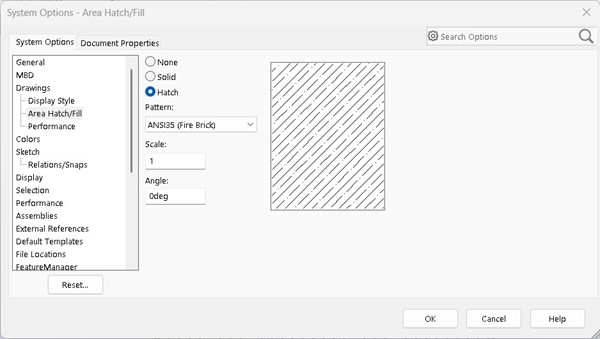 This option is used to define hatch manually to any enclosed area or a closed loop of sketch entity. You can use this option to define hatch pattern in both SOLIDWORKS model environment sketches and in SOLIDWORKS drawing sketches.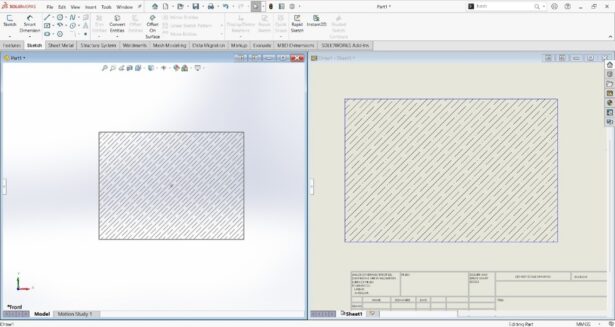
- Tools > Options > Document Properties > Material Properties.
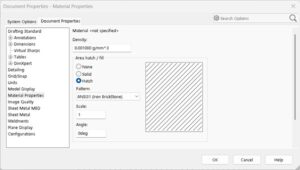 This option is available when you are in part modelling environment. This is what a user will get in drawing section view, or any other view until any specific material is applied.Consider below example, where a simple rectangle is created. Material is not applied to the part model. Later drawing is created with front view and section view is created from front view. When section view is created, the default hatch pattern generated is the same which is defined in above image.
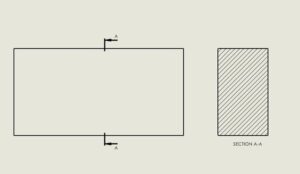 Later you can edit the hatch pattern from the PropertyManager by selecting it.When you define any specific material from the existing one available in material library in part model, then the hatch pattern options under ‘Tools > Options > Document Properties > Material Properties’ will be greyed out. It will display the details of the hatch pattern of that material applied, which are not editable.
Author information
The post SOLIDWORKS® Support Monthly News – Oct 2025 appeared first on SOLIDWORKS Tech Blog.
]]>Author information
The post 3D Printed Troll Ears xShape Tutorial appeared first on SOLIDWORKS Tech Blog.
]]>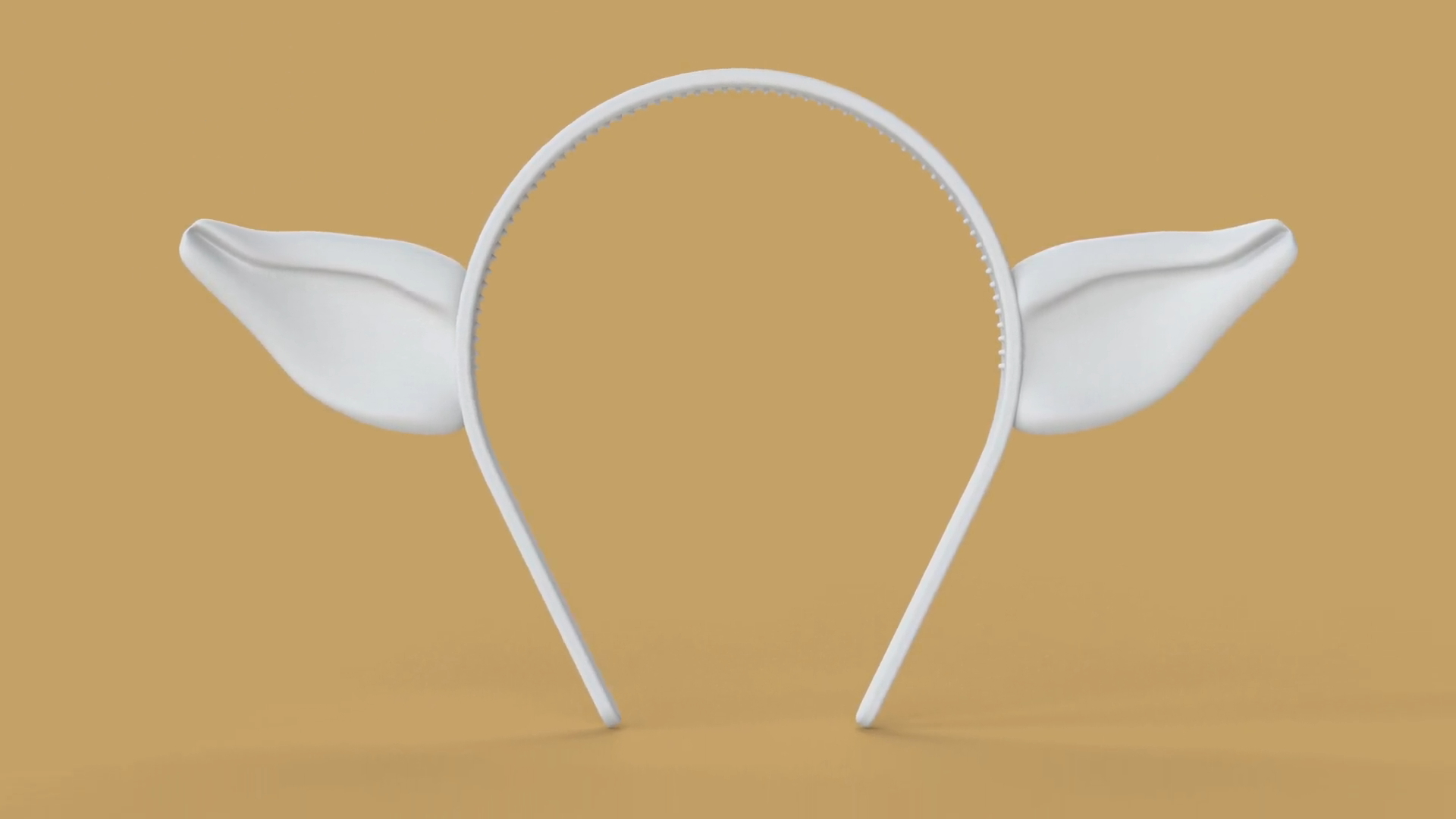
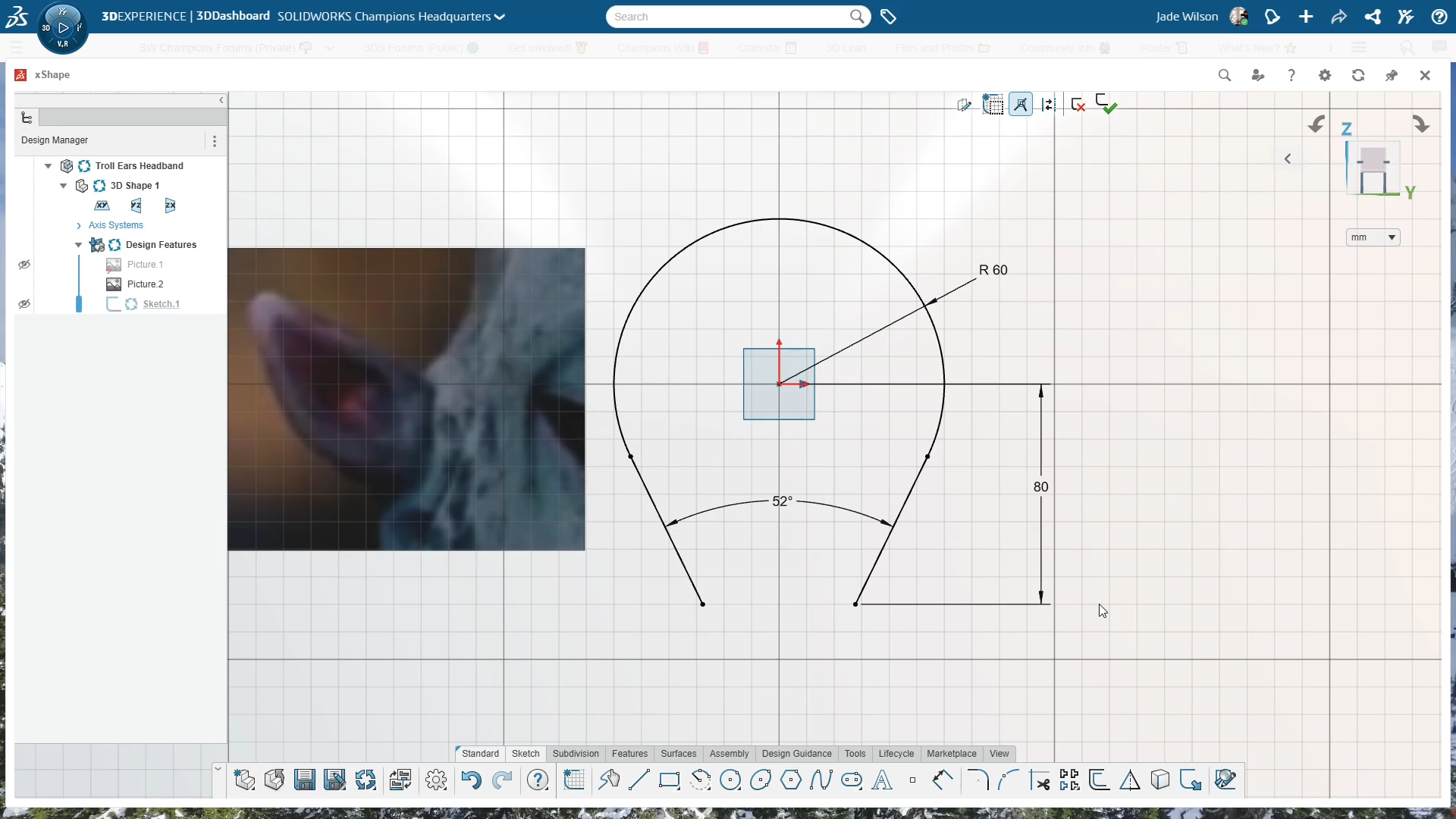
I began by starting a new component in xShape and naming it Troll Ears Headband. From the front plane I inserted a reference image, not to trace exactly but to use as a rough guide for shaping the ear later on. With the image in place I sketched out the headband using a center arc and a couple of tangent lines, making sure to dimension it properly so it would sit comfortably on a child’s head. The arc had a radius of 60mm, the overall height came to 140mm, and the angle between the two lines was 52 degrees. Those sizes worked nicely for my son, but they could easily be adjusted for an adult version. With the sketch finished, I had the headband profile ready to serve as the base for positioning the ear.
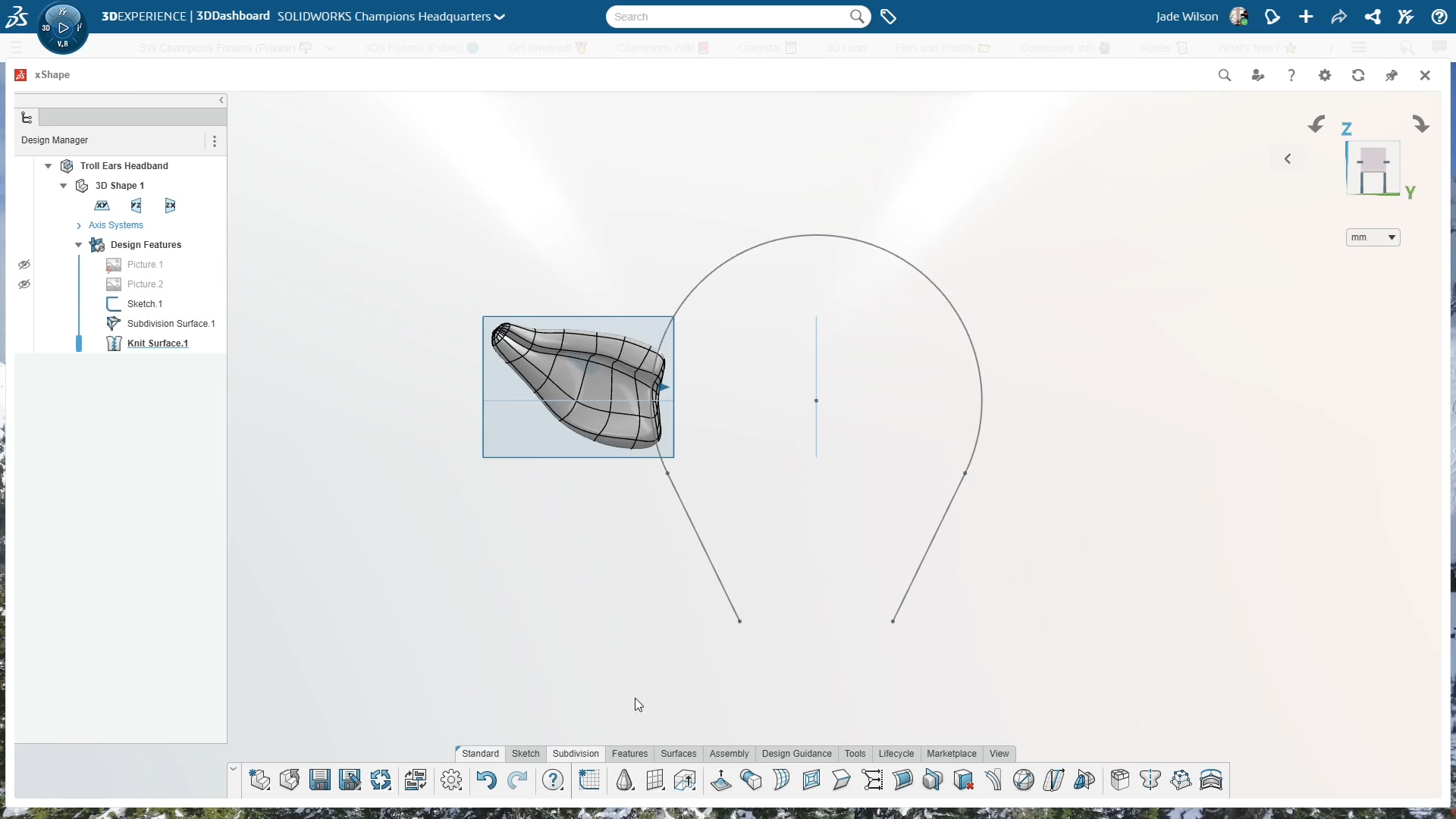
For the ear itself I started with a simple cone from the subdivision tab, dropped it into place along the headband edge, and then increased the number of loops both vertically and horizontally. That gave me more control over the shape as I began sculpting. Working from different views, I scaled the cone down from the side to make it thinner, pulled and rotated the tip slightly to bend it into a more natural angle, and created a simple inner crease by dragging edges inward. It’s a bit of trial and error, nudging points and adjusting the mesh until the ear starts to look right, and the nice thing about subdivision modelling is that you can keep tweaking without overcomplicating the design. Once I was happy with the overall look I knitted the surface so it was ready to move forward.
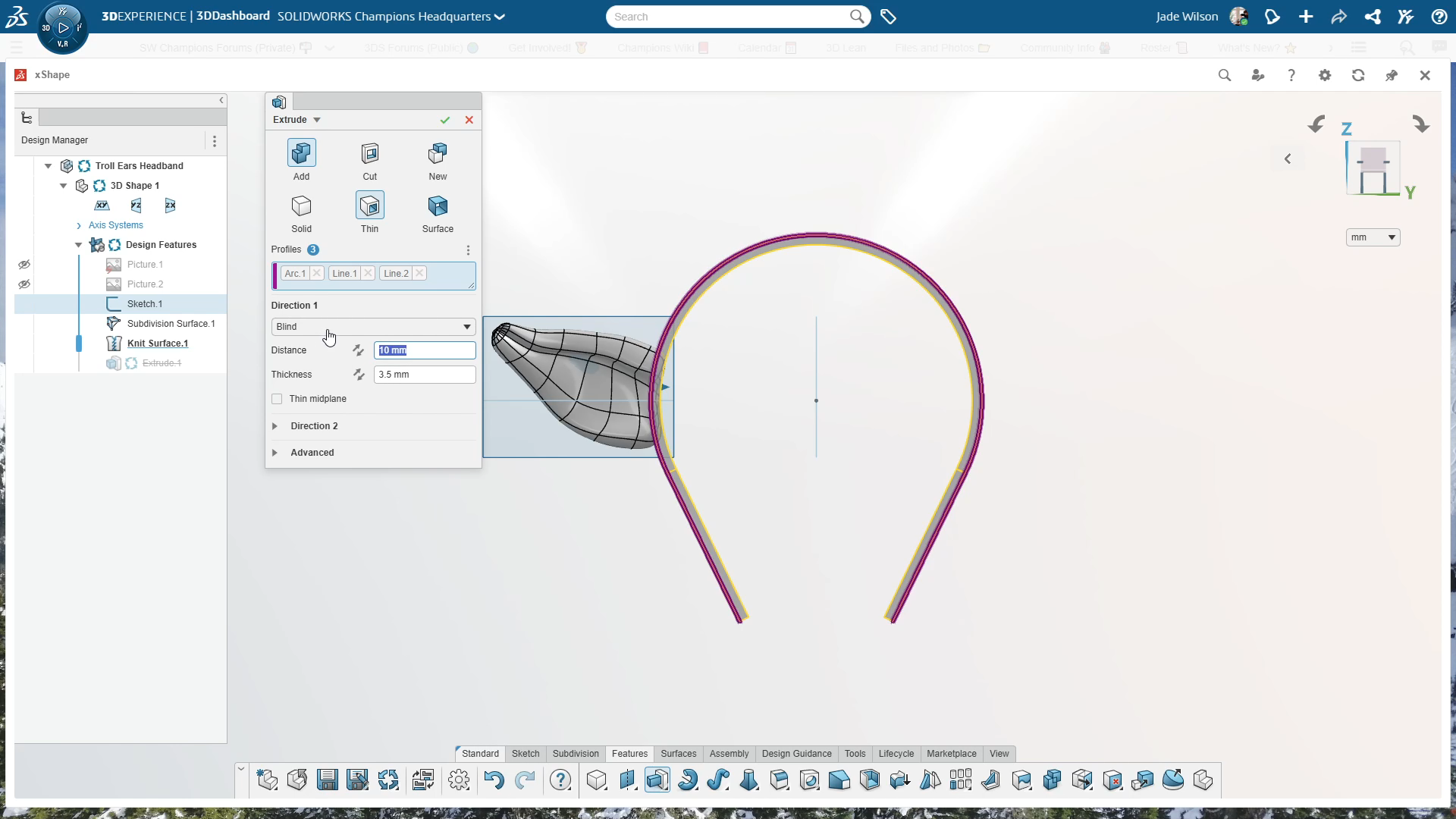
The headband itself came together with an extrude using the thin feature, set to 3.5mm thickness and 10mm distance, extruded midplane. I kept this separate at first so I could apply fillets. A 5mm fillet along the main edge for comfort and a smaller 1mm fillet to soften the outside edges so the band would sit more gently against the ears.
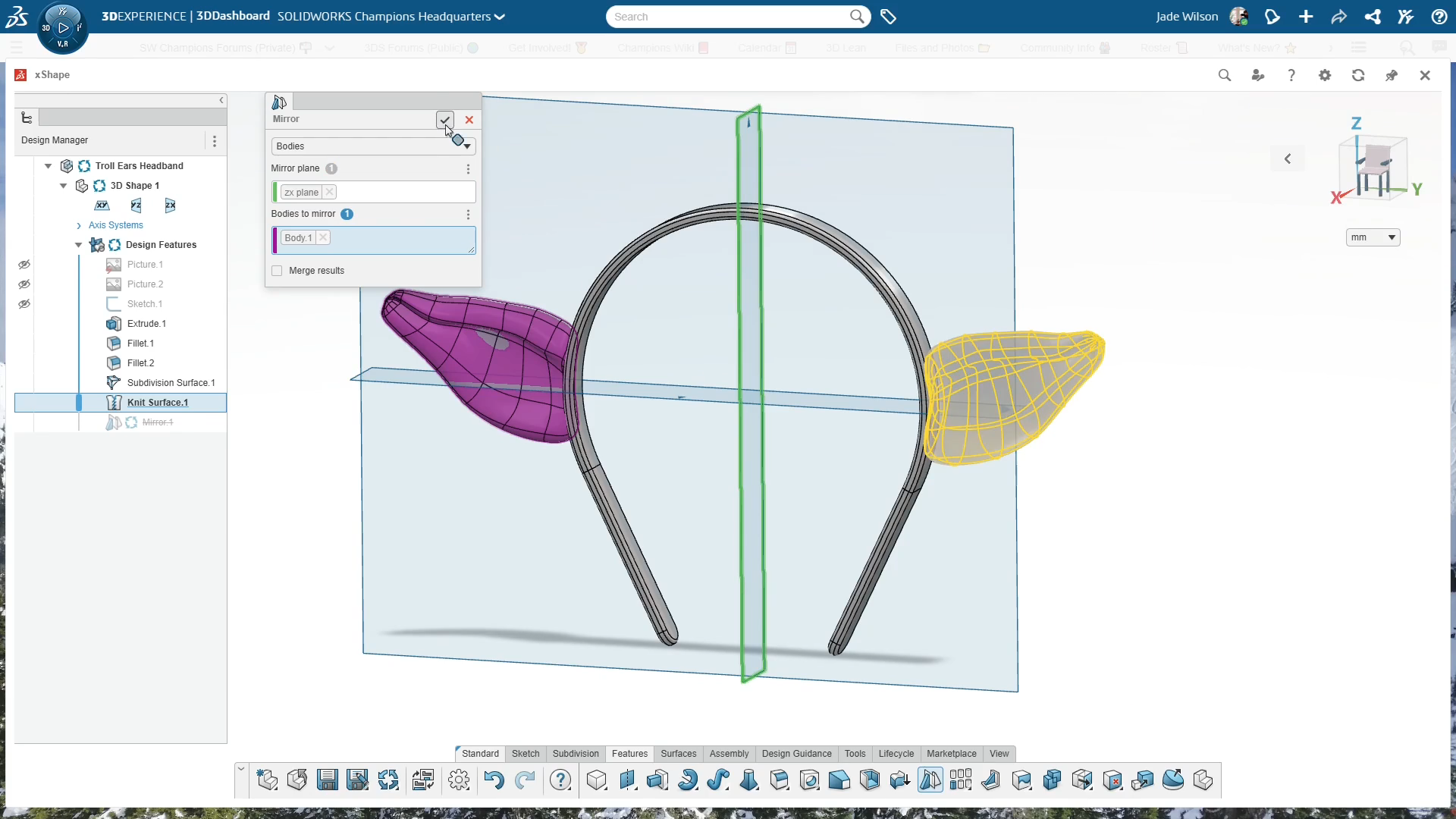
At this point the ear was intersecting with the headband, so I went back into the subdivision surface to pull in a few points and tidy things up. Reordering the features helped here, making it easier to edit the ear with the headband in view. Once the first ear looked good I mirrored it across the ZX plane, unchecked the merge option, and then combined everything into a single part.
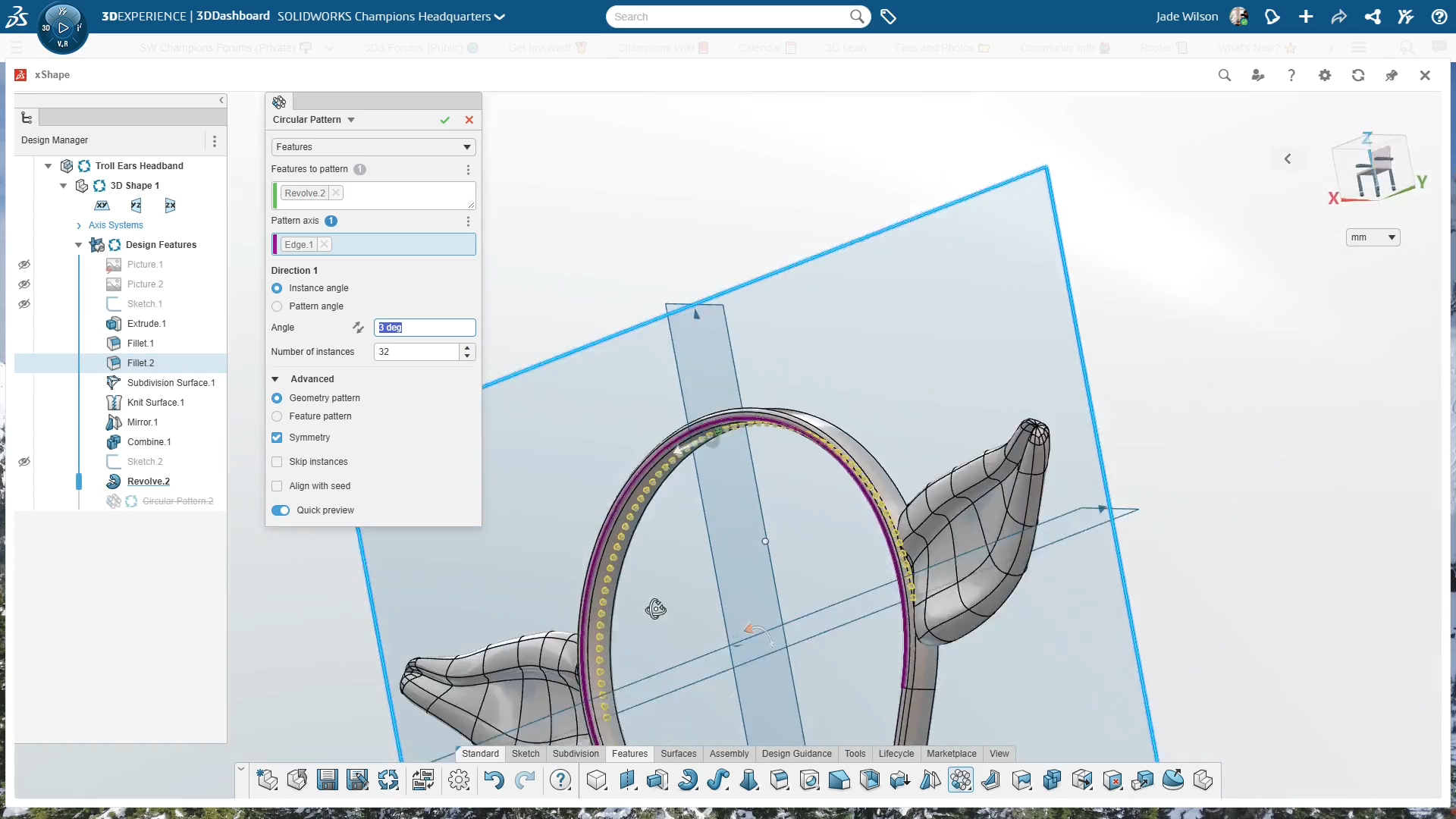
The final design touch was adding headband teeth, those little ridges that help a headband grip the hair and stop it slipping. I sketched a small profile on the front plane, revolved it into a tooth shape, and then patterned it around the band with a circular pattern, 32 instances at 3 degrees apart, with symmetry checked so they were spread evenly. It gave the headband a professional finish and made it far more practical to wear.
With the design complete, I saved and exported the model as an STL for 3D printing. You can always adjust the resolution depending on the level of detail you want, but for the final version I had the ears printed in MJF Nylon by 3DPrintUK with the help of Kirby Downey. The prints were polished too, which gave them a smooth, finished look and made them ready to wear as part of the costume.
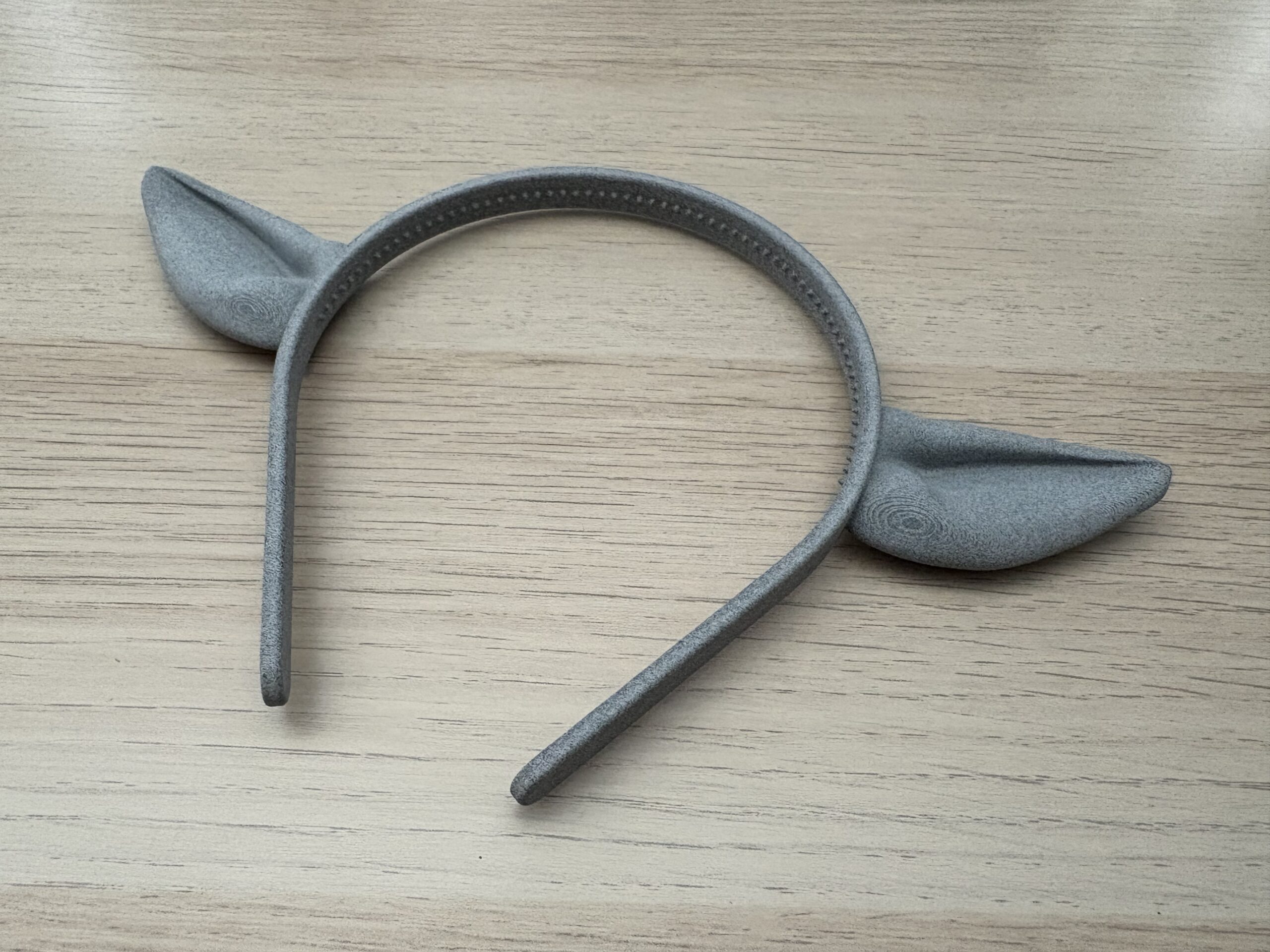
The end result was a lightweight, sturdy troll ear headband that fit perfectly and really brought the costume together. My son was delighted, and I was reminded of how much fun it is to take a simple idea and use tools like xShape to turn it into something real. Below I have an AI generated image to show how the ears will look as part of my sons Halloween costume.

Author information
The post 3D Printed Troll Ears xShape Tutorial appeared first on SOLIDWORKS Tech Blog.
]]>Author information

The post Using SOLIDWORKS and 3D Printing to designing Custom LEGO Wall Mounts appeared first on SOLIDWORKS Tech Blog.
]]>Instead of just letting these sets sit on a shelf, I wanted a cleaner, more unique way to showcase them. Something that not only saves space but also highlights each build. Here’s how I approached it:
LEGO Speed Champions Car Mount
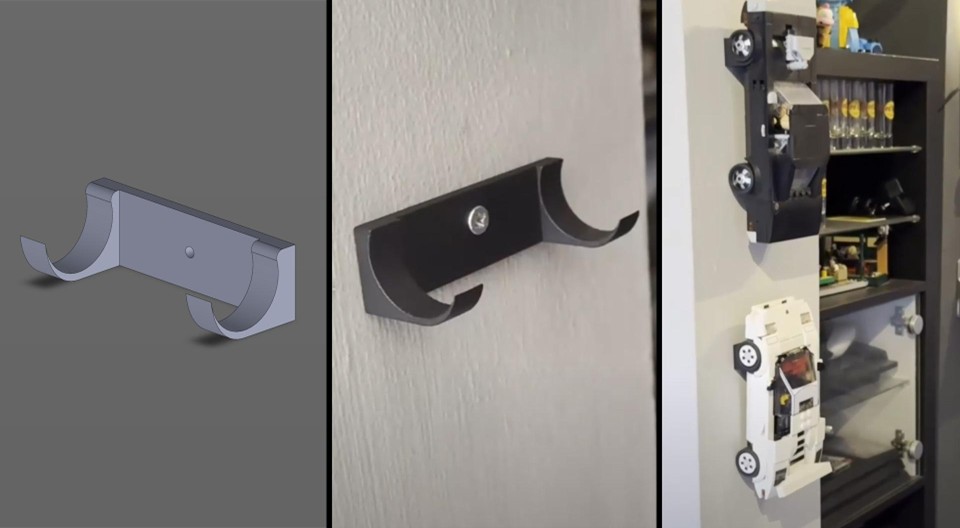
The first project I tackled was creating a simple mount for my LEGO Speed Champions cars. Using SOLIDWORKS, I designed a bracket that securely supports the model without drawing attention away from the build itself. It’s a simple model that after a few measurements I had a final 3D model. Once printed, it was a perfect fit and gave me a great sense of how versatile custom mounts can be for my car collection.
LEGO Concord Mount
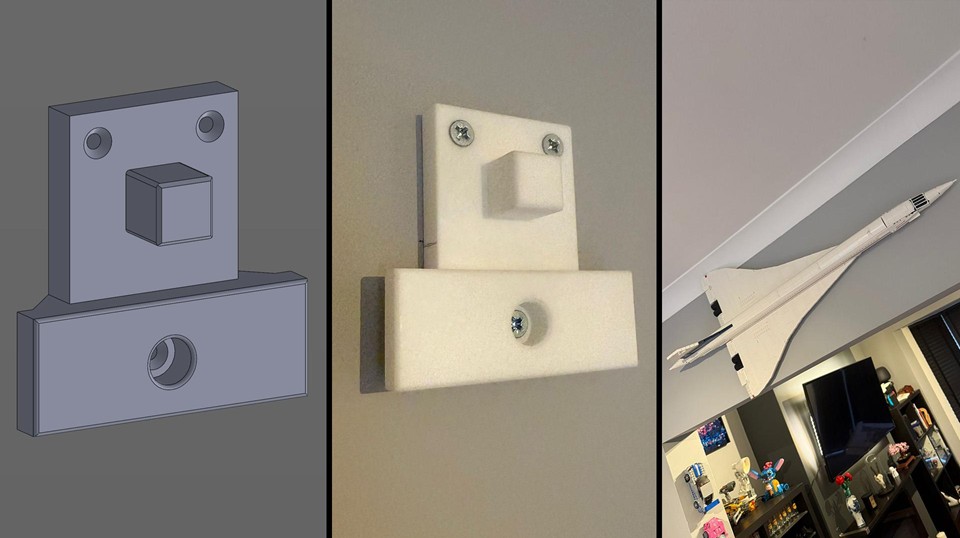
Next up was my LEGO Concorde set. This one posed a challenge because of its size and sleek design. I wanted the mount to hold it safely while still keeping the plane’s profile clean against the wall. Using SOLIDWORKS I created a custom mount that was inspired by the table stand that you build with the set. Just turned 90 degrees and some extra support to distribute the weight into multiple contact points. Pair this with a strong SLS Nylon 3D printed part, I ended up with a solution that looks almost like it’s floating.
LEGO Lamborghini Mount
Finally, I worked on a mount for my LEGO Lamborghini, one of my favourite Lego sets to display. For this, I wanted something that emphasized the LEGO Technic pieces the car is built from. The mount had to be strong and precise, ensuring the car could be displayed securely against the wall and the mount had to be hidden. I couldn’t use the same style mount as I did for the champion models due to the weight and the strain put onto the wheels. I researched online how some of the acrylic mounts were designed to attach to the model. I located the pins that were used and started from there. In SOLIDWORKS i designed the mount to look like LEGO Technic pieces stacked with some keyhole slots at the back. It was then printed in SLS Nylon and dyed black. The result was not only practical but also gave the Lamborghini a gallery-like presentation.
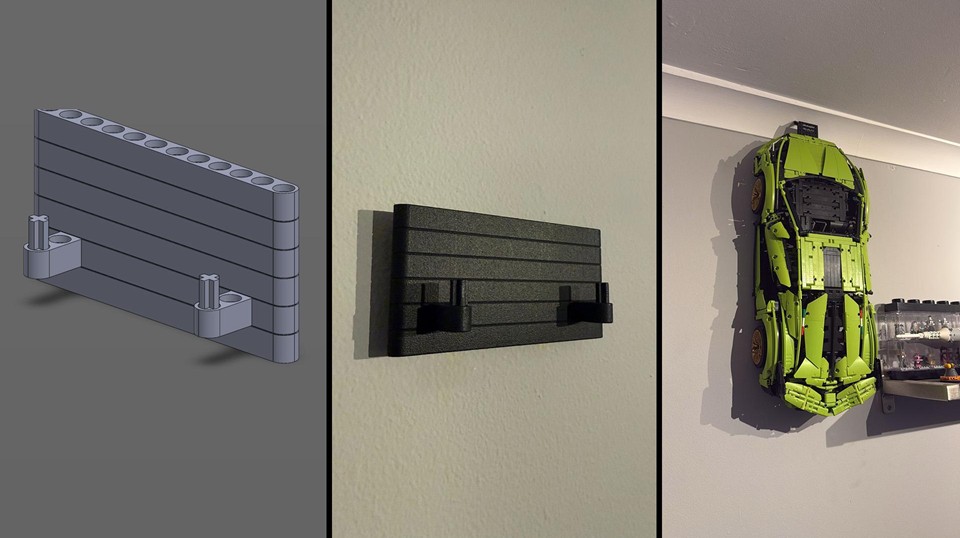
Why I Love This Approach
Using SOLIDWORKS gives me full control over the design process. I can model each mount exactly to the dimensions of the LEGO set using the most basic design features like extrude and cut boss, patterns and finish with fillets and chamfers to complete the look. Then bring it to life with 3D printing technologies. Even if you don’t have a 3D printer you can use 3D printing services like 3DPRINTUK to print the parts for you at an affordable price.
It’s incredibly satisfying to see these mounts go from a digital sketch to a physical piece that transforms the way my LEGO sets are displayed. Plus, it adds that extra layer of personalization—every mount is tailored to the set it holds and they are one of a kind.
If you’re into LEGO and have access to 3D printing, I highly recommend giving this a try. It’s a fun project that blends creativity with engineering and gives your LEGO collection the display it deserves. It even frees up some shelf space for even more sets!
Author information
The post Using SOLIDWORKS and 3D Printing to designing Custom LEGO Wall Mounts appeared first on SOLIDWORKS Tech Blog.
]]>Author information
The post SOLIDWORKS Motion Analysis Use Cases appeared first on SOLIDWORKS Tech Blog.
]]>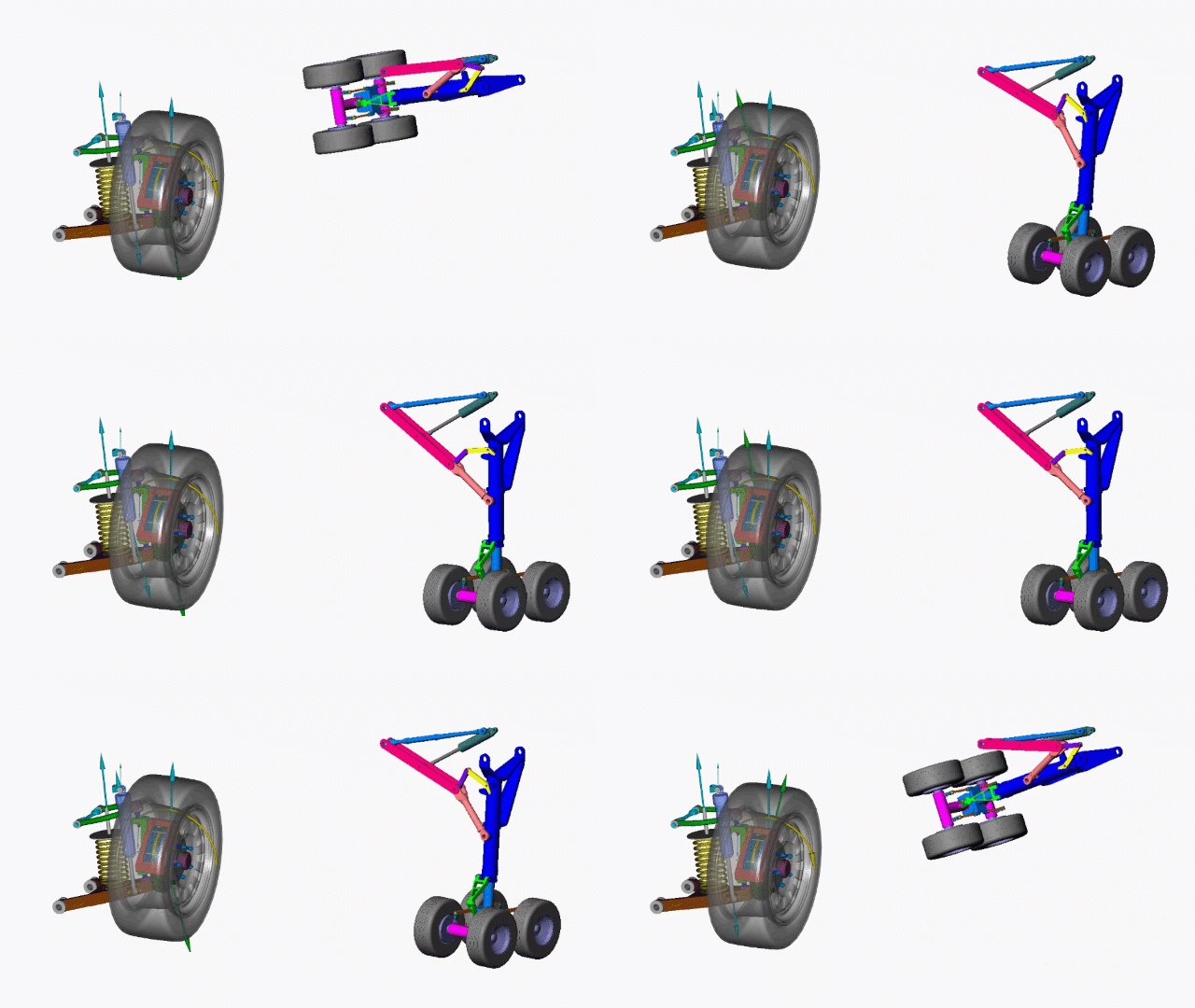
Figure 1. Example mechanisms analyzed with SOLIDWORKS Motion.
More precisely, Motion Analysis provides “rigid body dynamics” or “rigid body kinematics.” This defines one of the key aspects of SOLIDWORKS Motion: that all bodies involved in the simulation are treated as non-deformable.
This rigid body assumption tends to be appropriate for a wide breadth of physics and engineering problems. Common applications may range from prediction of forces and range of motion for mechanisms and linkages, to sizing motors, springs and dampers for dynamic systems, or predicting physics that require complex 3D contact interactions such as objects moving through hoppers or along conveyors.
We’ll cover many such cases in this article, with a focus on when the tool can and should be used and details on key setup considerations for different classes of problem.
Types of Motion Studies and Licensing
If you’ve ever created a “motion study” in SOLIDWORKS, you’ve probably seen that there are several tiers of functionality available.
- Animation: Keyframe-based animation, strictly for visuals that don’t involve complex physics.
- Basic Motion: Video game-style physics (powered by Nvidia PhysX) that can believably simulate complex 3D physics, but cannot be used for engineering data or decisions.
- Motion Analysis: Robust engineering-grade solver (powered by ADAMS) for dynamics and kinematics including prediction of forces
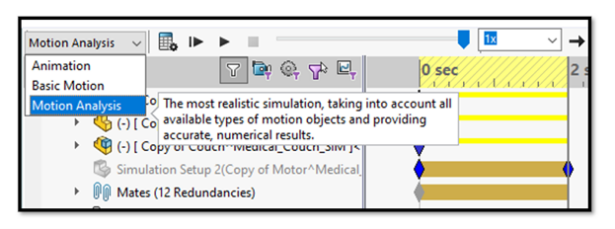
Figure 2. Choosing study type.
Of these options, Animation and Basic Motion are included in all versions of SOLIDWORKS. Motion Analysis, however, is only included in SOLIDWORKS Premium (and equivalent 3DEXPERIENCE SOLIDWORKS Premium), or SOLIDWORKS Simulation packages.
It’s also worth pointing out that it’s an add-in that must be enabled in SOLIDWORKS, so if you believe you should have access to it but don’t see it in your options, check to make sure the add-in is loaded.
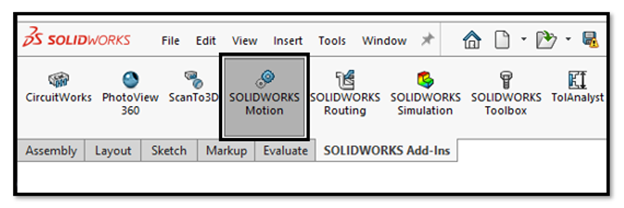
Figure 3. Ensure the Motion add-in is loaded.
Note that there is an additional caveat regarding a subset of Motion functionality called “event-based” motion that we’ll discuss later in the article.
Analyzing Mechanisms
Perhaps the most obvious applications for Motion Analysis are the design and analysis of mechanisms, such as the automotive suspension and the landing gear pictured at the beginning of the article.
We’ll start our journey by analyzing a very simple case – the equivalent of “Hello World” for any dynamics analysis, the four-bar linkage.
Figure 4. A simple four-bar linkage setup.
In this case, a virtual motor is defined to induce the rotation. An arbitrary force was applied to generate some resistance, and a virtual spring was defined between some points to make things more interesting.
You may also spy a “trace path” that has been placed on the point of force application. These paths can be converted into SOLIDWORKS sketches, which can be useful for defining keep-out zones or performing mechanism synthesis.
Sizing Motors & Actuators
Figure 5. Motor definition and power consumption plot.
There are many options for defining motors and linear actuators. This example uses a simple constant speed motor, but they may be defined with complex behaviors including imported data or user expressions. Resulting forces, torque and power can be extracted to size motors or as a metric for further optimization.
Preparing Assemblies for Motion Analysis
Let’s discuss the best and worst thing about using SOLIDWORKS Motion for your assembly analysis: it uses your existing assembly mates.
On the surface, this seems great! However, in practice, it means some users run into difficulties trying to take their complex assemblies and toss them into Motion Analysis.
There are two main challenges here that need to be addressed:
- Components must be mated in a physically correct way.
- Redundancies must be addressed.
Firstly, for Motion Analysis there are entire mating techniques that I would generally consider to be a best practice — such as mating between reference points, coordinate systems, or other abstract reference geometry — that are usually unacceptable for accurate force extraction in motion studies.
The most tried and true way I’ve found to mate an assembly for Motion is to suppress any pins, axles or fasteners and simply follow the load path, and mate each component’s faces together where the associated fastener or connector would go. This may mean creating new configurations of your assembly, or in some cases building a second assembly from the ground up with a Motion analysis mating scheme in mind.
In the example of the simple four-bar linkage, the fasteners are omitted and the individual links are mated concentrically based on their holes. The bottom link is fixed and the remaining links have the necessary degrees of freedom in the assembly to allow the appropriate movement.
Figure 6. Bushing definitions.
Once the Motion Analysis is active, you’ll find additional settings under an “Analysis” tab for any of the mates. This allows defining more physically-based information like friction and stiffness to the mates. I recommend taking advantage of the “bushing” functionality to assign some defined stiffness to these virtual connections, which will help avoid any issues with redundancies when it comes time to extract forces.
Battling Redundancies
If you’re familiar with linear statics problems, you may remember the case of a “statically indeterminate” problem. Imagine a door hanging from two hinges and subject to nothing but its own weight from gravity. We know intuitively that each hinge should carry about half the weight, but this type of determination relies on elastic deformation somewhere in the system.
In a perfectly rigid assumption (like the default behavior in SOLIDWORKS Motion) it is indeterminate, and you may find all the weight carried by the top hinge or the bottom with seemingly no rhyme or reason. Applying bushings with stiffness, even a very high stiffness, will allow some deformation to occur, which should be enough for the system to self-equilibrate.
Optimization
Once an initial study is set up, it’s easy to perform further iteration or optimization by taking advantage of SOLIDWORKS Design Study capabilities, which work nicely with SOLIDWORKS Motion. Here I’m automatically varying the dimensions of a couple links in a table-based approach, and I can access the motion results for any individual scenario by simply selecting it, if I’d like to dive further into the results for that iteration.
Figure 7. Design Study for mechanism optimization.
Determining Range of Motion & Trace Paths
The “trace path” functionality in SOLIDWORKS Motion allows tracking the movement of any point in the model over the course of the study, which can be very useful for establishing range of motion. In this example of a 6-DOF robotic arm, the motion was prescribed using the “Mate Controller” functionality in SOLIDWORKS, which is a convenient way to control individual axes similar to how you might use jog handles on a robot’s pendant control.
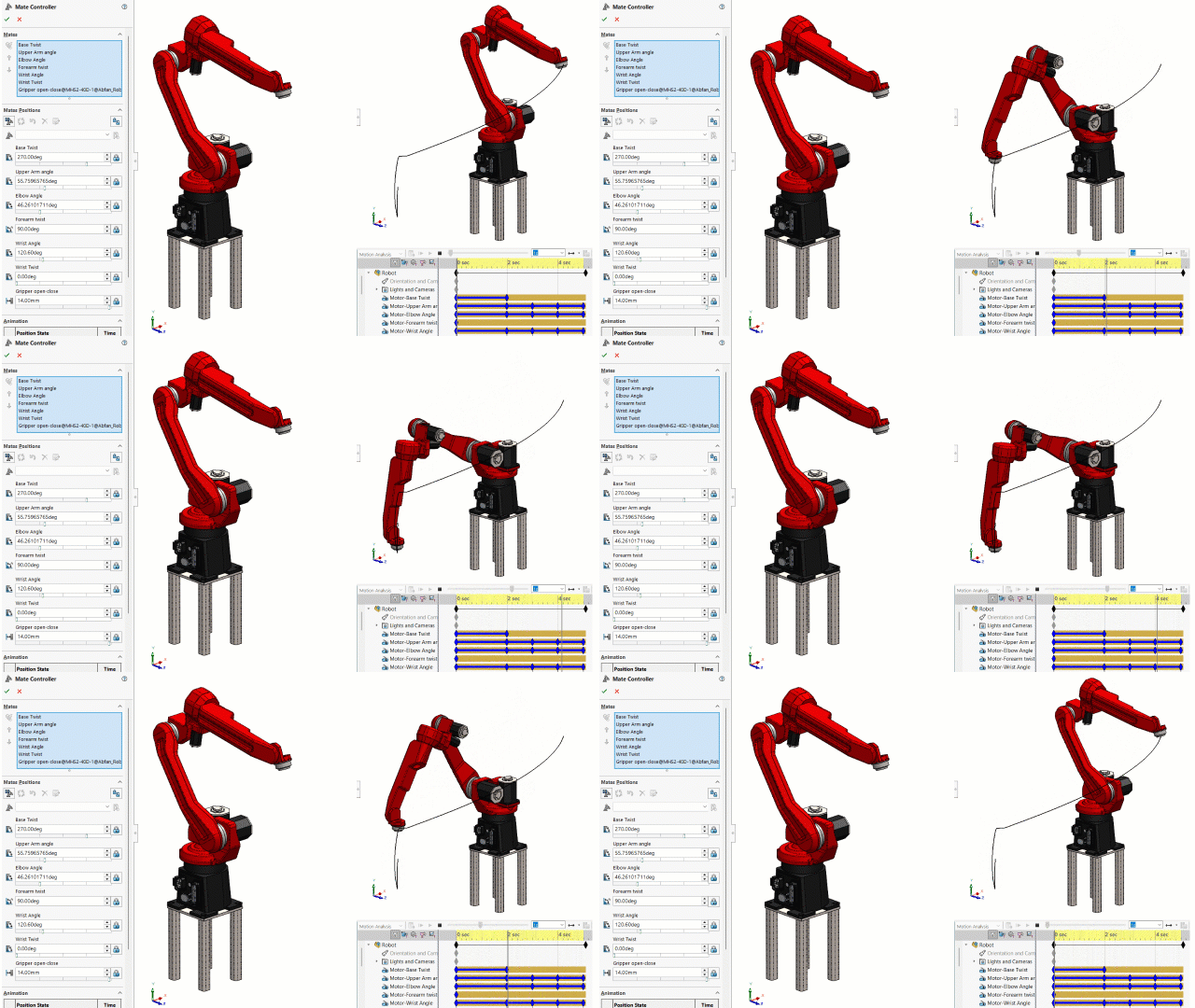
Figure 8. Robotics range of motion using the Mate Controller and Trace Path.
Once you’re happy with the behavior of the Mate Controller, you can create a motion study and use the wizard to import the path. This allows extraction of forces within the motion study, as well as generating trace paths.
Photo Rendering & Product Visualization
Motion Analysis is great for getting engineering data, but there’s some fun to be had too. Motion studies can be rendered in tools like SOLIDWORKS Visualize, something I did years ago for the example below. The camera movement was keyframed manually, but the physics of the dice are purely from SOLIDWORKS Motion, with solid contact and initial velocity defined to represent the dice roll.

Figure 9. Motion study rendered in SOLIDWORKS Visualize.
There are serious applications here for product visualization, particularly if there are any contact interactions involved.
The latest versions of SOLIDWORKS also support exporting 3D models (with Motion studies) to .GLTF or .GLB format which is a VR/AR/web-friendly model standard. You can read more about this in the SOLIDWORKS Help Files.
Predicting Complex Contact
For behaviors that aren’t captured by mates, SOLIDWORKS Motion supports contact interaction including fairly robust 3D contact interactions. Second to mates/redundancies, contact issues seem to be the most common place users run into trouble with SOLIDWORKS Motion.
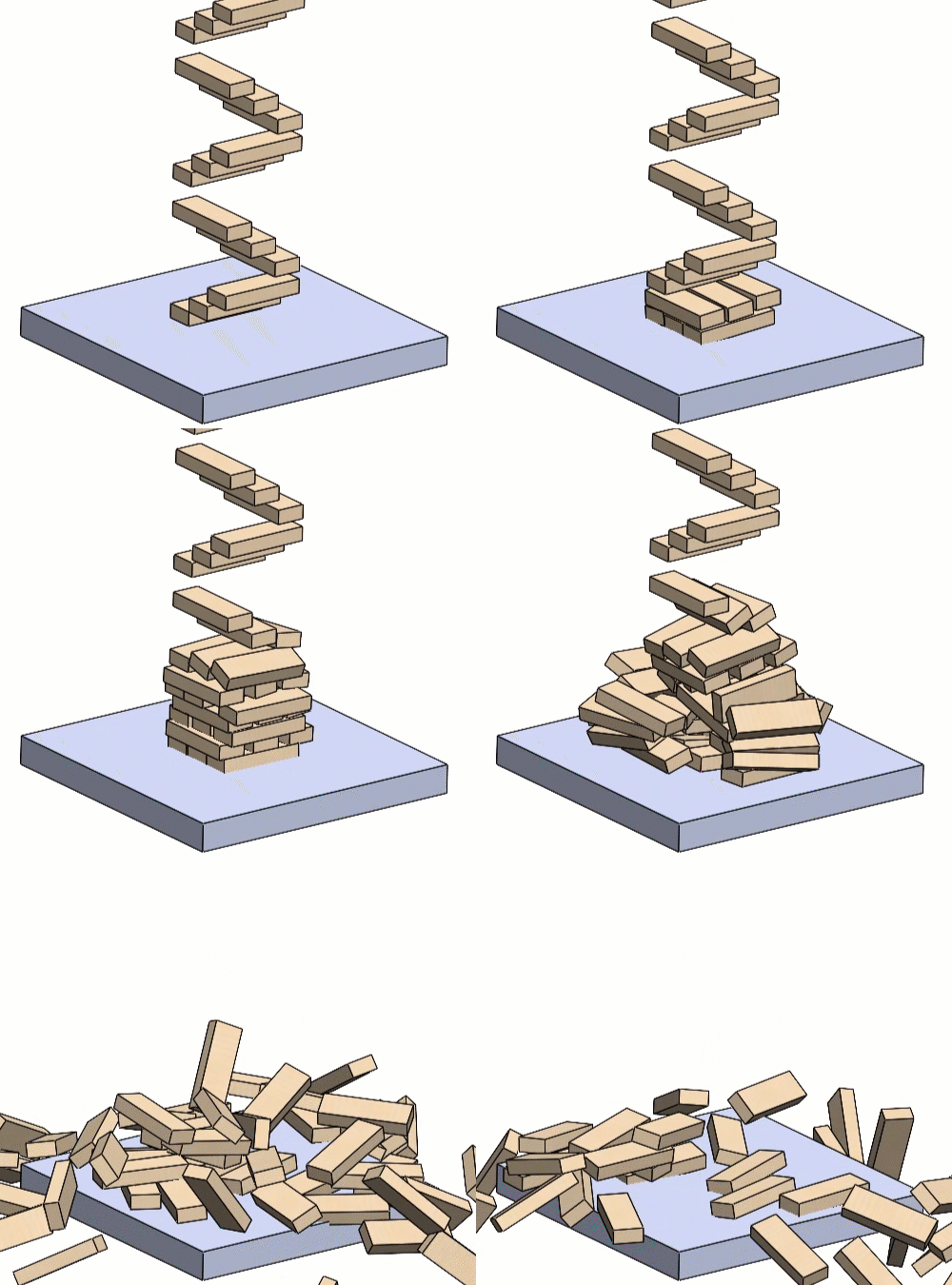
Figure 10. Solid Contact interactions.
The example above was run with the default contact accuracy settings, which bias toward solution speed over accuracy.
As a result, you can see some penetration between the blocks and the floor, excess jitter and overall, a solution that may be more unstable than reality. In most cases, this is a very solvable problem.
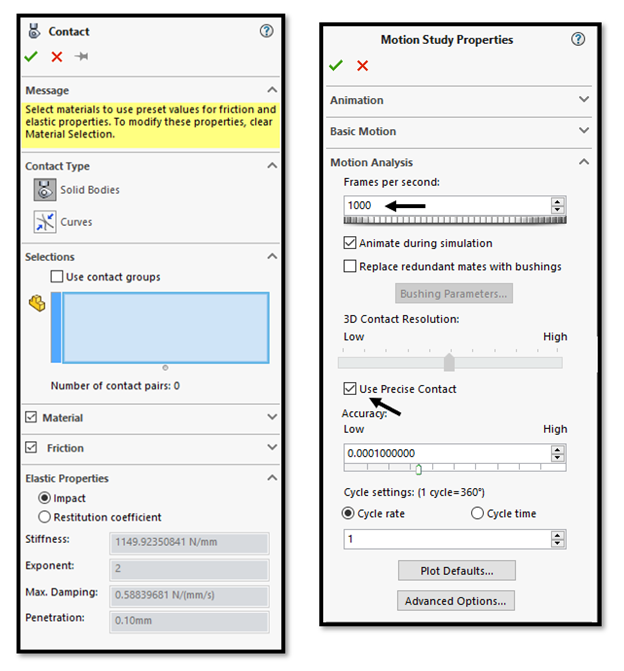
Figure 11. Contact Settings and Study Properties.
When using contact interactions, I recommend making a few key changes to the Motion Study Properties:
- Drastically increase the “Frames per second” depending on the relative speed of the contacting objects,
- And either increase the 3D Contact Resolution slider or enable Precise Contact.
These two changes can solve the majority of contact issues, but if you need to go deeper there are advanced solver options and alternate solvers that can be specified. If you’re planning on tackling complex contact problems in Motion Analysis, I’d highly recommend playing around with a jumble of blocks or spheres and doing your own experimentation with the accuracy sliders and solver settings to familiarize yourself and find a compromise between solve time and accuracy.
Depending on the type of contact, you can also save a substantial amount of solve time by defining “contact groups” instead of selecting everything globally.
Event-based Motion for Predicting Cycle Time
None of the examples so far have featured any sensor logic or sequential steps — something that’s very common in machine design and manufacturing.
You can certainly sequence various events (such as motors or actuators turning on or off) using only the Motion Analysis techniques we’ve discussed so far. But there’s also a much better method called “Event-Based Motion” which allows the definition of virtual proximity sensors, as seen below.
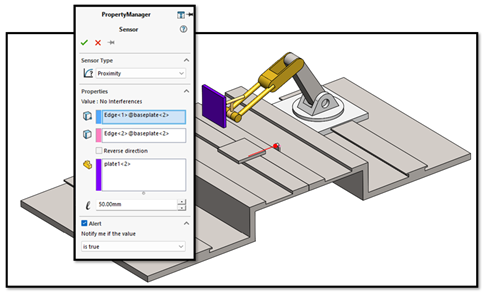
Figure 12. Proximity sensor definition for event-based motion.
Event-based motion unlocks an alternate display of the Motion Study where you can swap to a task view, which allows sequencing events, or task actions based on a task trigger such as triggering a proximity sensor or the completion of another event.
In this tutorial example, the second robot is sequenced such that it will perform its welding actions only once the stock material has moved into position and triggered the proximity sensor.
As the chain of events stacks up, this can save a lot of time (and sanity) compared to the guess-and-check method that would be necessary to try to sequence events in a purely time-based environment.
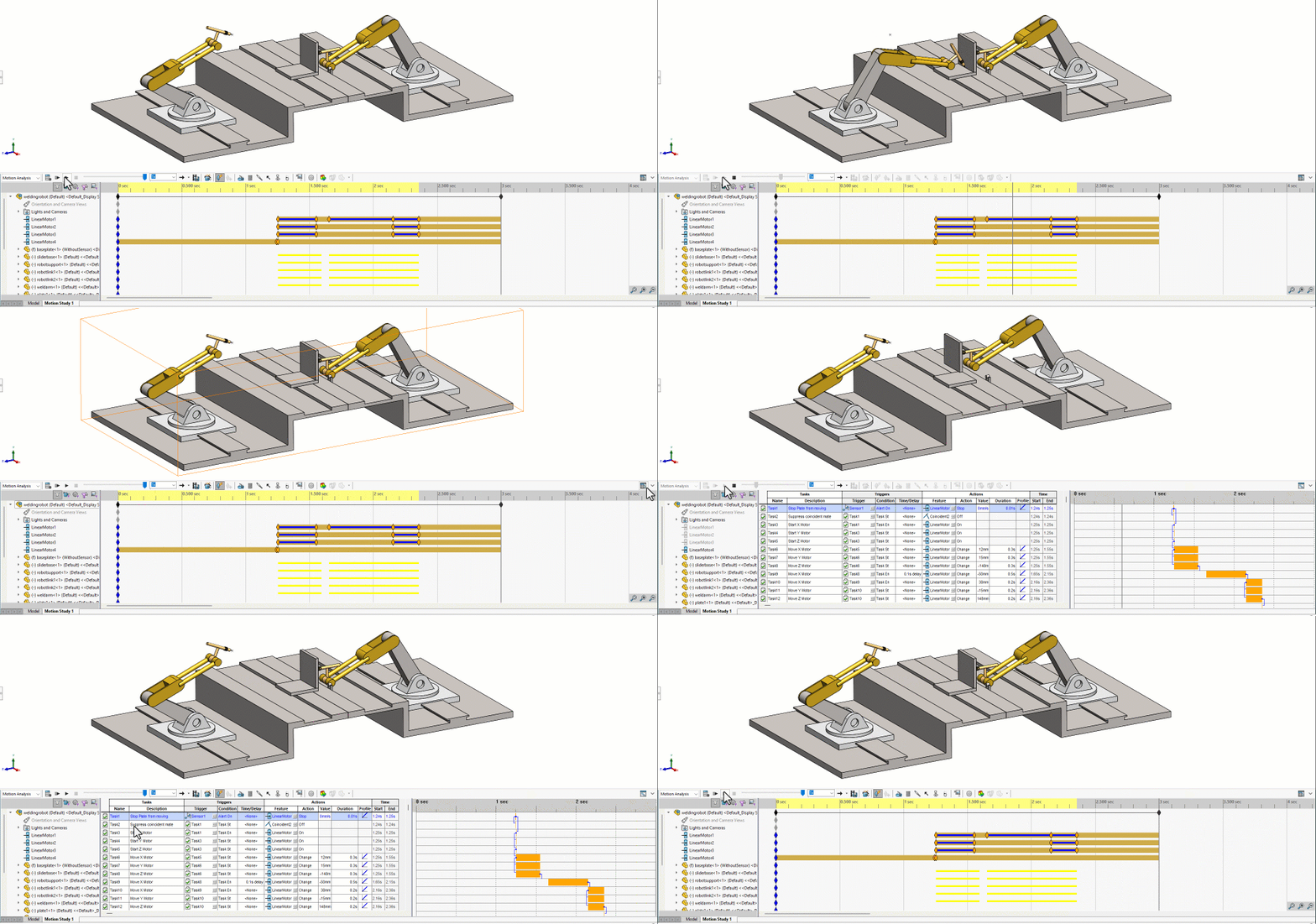
Figure 13. Event-based motion in action.
As an additional output from event-based motion you can see exactly what time each task was triggered and completed and achieve estimates of overall cycle time.
Licensing for Event-based Motion
Unlike time-based Motion Analysis (which is available in SOLIDWORKS Premium and all versions of SOLIDWORKS Simulation) event-based motion analysis requires SOLIDWORKS Simulation Professional and above software licenses.
Summary & Conclusion
With millions of SOLIDWORKS users around the world, I’d hope we would hear about Motion studies much more often. Many people have access to this tool, and either may not know they do, or may not be aware of its capabilities.
There may be some minor friction to adoption; for example, with standard mechanisms driven by assembly mates, users have to contend with appropriate mating schemes that may sometimes mean modifying or re-creating an assembly. For problems involving complex contact, users may have to explore and adjust the default accuracy and solver options.
In my opinion, these are small hurdles to overcome for the capabilities of the dynamics studies that SOLIDWORKS Motion Analysis provides. SOLIDWORKS provides built-in tutorials, so if you have access to the software, I encourage you to give it a spin and think about how and when you may use it to improve your next designs!
Author information
The post SOLIDWORKS Motion Analysis Use Cases appeared first on SOLIDWORKS Tech Blog.
]]>Author information
The post SOLIDWORKS® Support Monthly News – Sept 2025 appeared first on SOLIDWORKS Tech Blog.
]]>Welcome to the new edition of the SOLIDWORKS® Support Monthly News! This monthly news blog is co-authored by members of the SOLIDWORKS® Technical Support teams worldwide. Here is the list of topics covered in this month’s Blog:
-
SOLIDWORKS® Toolbox Data Utilities: Essential Tools for Maintaining Your Toolbox
-
Why do STL file sizes explode compared to native SOLIDWORKS files?
-
Flex Feature in SOLIDWORKS®
1. SOLIDWORKS® Toolbox Data Utilities: Essential Tools for Maintaining Your Toolbox
– Deepika PUJARI
SOLIDWORKS Toolbox is a powerful library of standard hardware components, but over time — especially with upgrades, migrations, or environment changes — the Toolbox database can become misconfigured or outdated. That is where Toolbox Data Utilities come in.
This blog covers three key tools provided by SOLIDWORKS for managing and repairing your Toolbox:
- DatabaseConverter.exe
- sldsetdocprop.exe
- UpdateBrowserDatabase.exe
Each of these utilities is located in your SOLIDWORKS installation directory and serves a specific purpose to ensure your Toolbox is functioning correctly.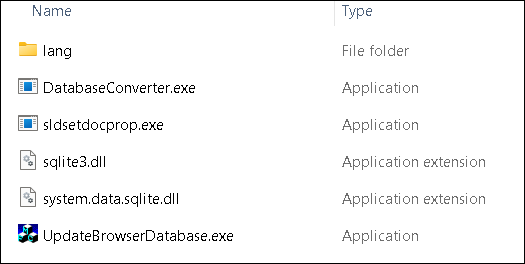
1. DatebaseConverter.exe
Converts the Toolbox database from the legacy .mdb format (Microsoft Access) to the newer .sldedb format introduced in recent versions of SOLIDWORKS. The .sldedb format is more secure, scalable, and robust.
 Use this tool only when upgrading Toolbox database formats.
When to Use:
- You are upgrading from an older SOLIDWORKS version (2015 or earlier).
- You still have a swbrowser.mdb file in your Toolbox directory.
- You want to transition to the .sldedb format.
Steps to Use:
- Backup your entire Toolbox folder (critical).
- Navigate to: “C:\Program Files\SOLIDWORKS Corp\SOLIDWORKS\Toolbox\data utilities\”
- Run DatabaseConverter.exe as Administrator.
- Browse and select your swbrowser.mdb file.
- Choose the destination for the new .sldedb file (typically same folder).
- Click Convert.
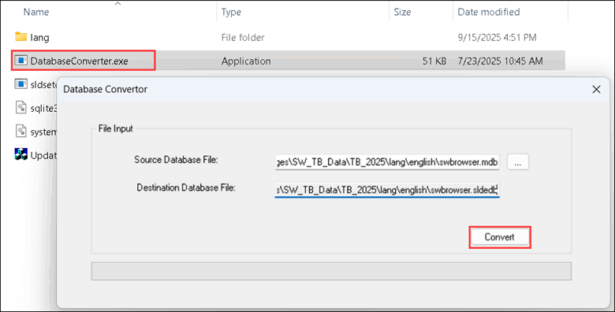
2. sldsetdocprop.exe
Fixes or sets the Toolbox property flag on SOLIDWORKS parts. This is essential when:
- Custom parts lose Toolbox association.
- Toolbox parts are incorrectly flagged, preventing proper reuse.
- You are cleaning up parts moved outside the Toolbox.
When to Use:
- You copied Toolbox parts outside the Toolbox directory.
- You are preparing parts for PDM and need the correct document properties.
- You are seeing errors when inserting hardware or creating Smart Fasteners.
Steps to Use:
- Navigate to: “C:\Program Files\SOLIDWORKS Corp\SOLIDWORKS\Toolbox\data utilities\”
- Run sldsetdocprop.exe as Administrator.
- Choose the folder containing affected part files.
- Select the operation:
- Set as Toolbox part
- Clear Toolbox flag
- Check Toolbox property
- Click Apply.
Always review part usage before clearing the Toolbox flag — you may unintentionally break references in assemblies.
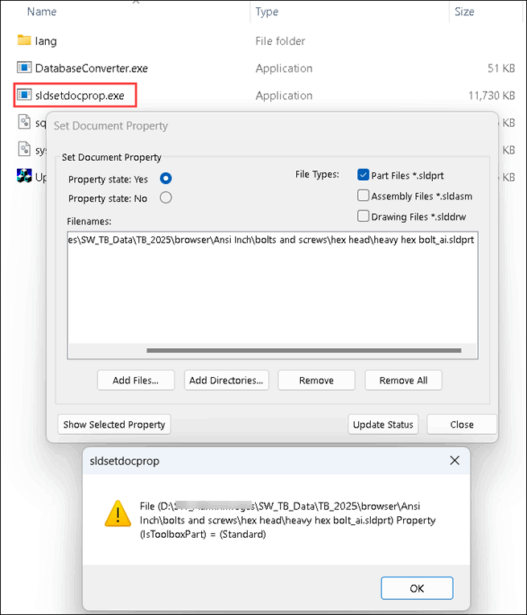
3. UpdateBrowserDatabase.exe
(Also known as Toolbox Settings Tool / Browser Database Updater)
Scans and updates the Toolbox database for compatibility, integrity, and version mismatches. It is often used during upgrades to newer SOLIDWORKS versions.
When to Use:
- You have installed a new SOLIDWORKS version and want to upgrade Toolbox.
- Toolbox components do not show up or behave unexpectedly.
- Toolbox Settings (swbrowser.sldedb) throws errors or seems outdated.
- You are repairing a corrupt Toolbox configuration.
Steps to Use:
- Launch UpdateBrowserDatabase.exe from: “C:\Program Files\SOLIDWORKS Corp\SOLIDWORKS\Toolbox\data utilities\”
- Select your Toolbox folder (typically “C:\SOLIDWORKS Data”).
- Click Next to begin the scan.
- Review results — the tool will prompt for repair or upgrade if needed.
- Click Update/Repair and wait for it to complete.
You must have Administrator access and full read/write permissions to the Toolbox database files:
- .sldedb
- .index
- .dat
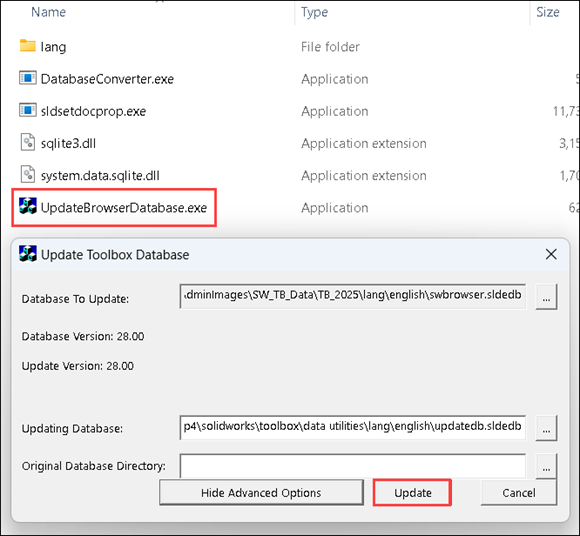
Admin & Permissions Reminders
For all utilities:
- Run these tools as Administrator.
- Ensure no one else is accessing the Toolbox during the repair/update.
- Always maintain a complete backup before changes.
If you are maintaining Toolbox across multiple environments (local, PDM, network), always test changes in a sandbox setup before deploying to production.
2. Why do STL file sizes explode compared to native SOLIDWORKS files?
– Tushar NAYAK
If you’ve ever exported a SOLIDWORKS part or assembly to STL, you may have noticed something strange:
A smaller sized .SLDPRT file (a few MBs) can suddenly become a massive .STL file (hundreds of MBs). At first glance, it feels like SOLIDWORKS is duplicating data OR saving inefficiently. But the real reason is rooted in how STL files work.
Below listed are the difference between saving file as native SOLIDWORKS file format and as STLs.
1. How the geometry is stored?
- SOLIDWORKS Files (.SLDPRT, .SLDASM)
- Store geometry as parametric, analytic data.
- It is highly efficient as the same cylinder can be described in a few parameters, regardless of its size.
- STL Files
- Store geometry as tessellated meshes of triangles.
- That same cylinder is approximated by thousands of tiny flat facets.
- More facets give smoother curve, but also a much larger file.
This shift from math-driven geometry to triangle soup is the core reason for file size explosions.
2. What makes STL files grow so large?
- Resolution Settings
- When exporting to STL, SOLIDWORKS asks for Deviation and Angle Tolerance.
- Smaller values give more triangles hence smoother surface which leads to bigger file size.
- Curved Surfaces
- Planar faces tessellate into just 2 triangles.
- Cylinders, spheres, splines, or fillets may need thousands of triangles.
- Assemblies with Many Components
- Each part contributes its own mesh.
- Even small fillets or holes add up across large assemblies.
- Unit Scale
- Exporting in millimeters instead of inches can create finer meshes (depending on settings).
3. How to control STL file size?
- Adjust Export Settings
- Go to File > Save as.. > STL > Options > Increase Deviation or Angle values slightly.
- Balance quality vs. size
- Use Binary Format
- STL supports ASCII or Binary.
- Prefer Binary STL as it is typically 5 – 6 times smaller in size.
- Simplify Geometry
- Suppress tiny fillets, cosmetic threads, or small features if not needed for printing/manufacturing.
- Use Defeature tool for assemblies
- Tools > Defeature can strip internal details before export, cutting STL size drastically.
If your STL is too large to share or slice, you can also consider exporting to 3MF instead. It is smaller in size, retains colors/materials, supported by most modern slicers and 3D printers.
The hike in size from SOLIDWORKS to STL isn’t inefficiency it’s rather the cost of converting smooth mathematical surfaces into triangles. With the right settings, you can keep file sizes reasonable without losing print quality. Next time, if your STL increases in size, remember to tweak the tessellation, go Binary, and simplify geometry. Your hard Drive will thank you for that!
3. Flex Feature in SOLIDWORKS®
– Kundlik GADADE
The Flex Feature in SOLIDWORKS® enables users to deform solid or surface bodies in an intuitive and predictable manner. It provides four deformation types: Bending, Twisting, Tapering, and Stretching. By applying Flex, designers can create complex shapes and explore design alternatives without rebuilding geometry from scratch.
In the following example, a rectangular panel with multiple square cutouts is used as the base model. This model is representative of an architectural facade or sculptural form where Flex operations can simulate real world deformations.
Base Model: Rectangular Panel with Cutouts
The initial geometry is a rectangular solid body with uniformly spaced square cutouts, resembling a facade or decorative panel.
Applying the Flex Feature
In this example, two sequential Flex operations are applied:
Twisting: to rotate the panel geometry along an axis.
Bending: to add curvature on top of the twisted geometry.
This demonstrates how Flex Features can be combined to create complex and visually realistic transformations.
Step 1: Accessing the Flex Feature
- Navigate to Insert > Features > Flex. In the PropertyManager, a triad and bounding box will appear around the body.
- The bounding box defines the extent of the deformation.
- Trim planes indicate the start and end of the deformation region.
- The triad defines the center and direction of deformation and can be re-positioned.
Step 2: Applying a Twist Flex
- In the Flex PropertyManager, select Twisting as the Flex type.
- Define the angle of twist (e.g., 20°–30°) depending on the required deformation.
- Adjust the trim planes if needed to restrict twisting to a specific portion of the panel.
- Click OK to apply the Twist Flex.
 Step 3: Adding a Bend Flex on Top of Twist
- With the twisted panel geometry, re-activate the Flex Feature.
- Select Bending as the Flex type.
- Specify the bending angle and radius to achieve the desired curvature.
- Reposition the triad to control the bending direction.
- Click OK to apply.
The Twist Flex rotated the panel, creating a spiral-like appearance while preserving the cutouts.
The Bend Flex added curvature to the already twisted geometry, demonstrating that Flex Features can be stacked sequentially.
The final result is a panel that combines twisting and bending, resembling architectural facade elements or sculptural forms.
Applications of the Flex Feature
- Mechanical Design: Simulating twisted shafts, bent pipes, or tapered components.
- Industrial Design: Exploring conceptual forms for bottles, consumer products, or enclosures.
- Architecture: Designing panels, facades, or shading devices with complex curvature.
- Tooling: Adjusting molds, dies, and stamping components.
Summary: The Flex Feature in SOLIDWORKS® offers a powerful way to deform geometry using Bending, Twisting, Tapering, and Stretching. In this example, applying Twist followed by Bend illustrated how multiple Flex operations can be combined to generate realistic and intricate transformations for practical design scenarios.
Author information
The post SOLIDWORKS® Support Monthly News – Sept 2025 appeared first on SOLIDWORKS Tech Blog.
]]>Author information
The post SOLIDWORKS Backwards Compatibility appeared first on SOLIDWORKS Tech Blog.
]]>SOLIDWORKS 2013 introduced a limited “future version” compatibility that offered a partial solution, but it wasn’t until SOLIDWORKS 2024 that the options for working with older versions of the software were substantially expanded through the introduction of the “Save as Previous Version” functionality.
This article will outline the challenges associated with file interoperability between SOLIDWORKS versions, the most significant recent enhancements and workflows, and when and how to use them. We’ll focus in-depth on the “Save as Previous Version” functionality and discuss some of the nuances through a couple of examples.
Compatibility Terminology
There’s plenty of room for discussion over the semantics of this functionality, and what should be called “backwards” versus “forwards” compatibility. Backwards compatibility is something we take for granted in nearly all software today — the ability to open older version files in newer version software. Forward compatibility is much less commonplace, and directly represented by the “future version” functionality mentioned.
I’d make the argument that the ability to “down-save” files to a previous version should also be considered “backwards compatibility” in the sense that it helps enable interoperability with older versions of the software. Moreover, the average user often seems to associate the term with the functionality we’re covering here.
Historical Challenges of SOLIDWORKS Versions
I’m sure it’s obvious to most readers that SOLIDWORKS by default is not “forward” compatible — you can open SOLIDWORKS 2020 files just fine in SOLIDWORKS 2025, but not the other way around. Attempting to open files that were originated in newer versions will generally result in the “Future Version” error, seen below:
 Figure 1. The “Future Version” error.
You can check which version of SOLIDWORKS file was saved in by using the Windows file properties.
 Figure 2. Checking the SOLIDWORKS version with Windows file details.
It’s not an issue if you always stay up-to-date on the latest version — unless you need to collaborate with someone who is on a different upgrade cycle than you.
Multiple Installs
To get around this problem, users take to a variety of workarounds. One such method is multiple installs, because SOLIDWORKS lets you install multiple versions on the same system.
Note: If you’re going to do this, I recommend planning it carefully — installing the software versions from oldest to newest, and clearly naming each installation directory and associated folders (for example, “C:\Program Files\SOLIDWORKS Corp 2020,” “C:\SOLIDWORKS Data 2020,” etc.).
Older versions of the software can be downloaded from SOLIDWORKS Downloads for the past three releases. You can contact your value-added reseller if you need access to even older versions.
 Figure 3. How many SOLIDWORKS installs are too many?
This setup is common for contractors and consultants who need to match their client’s software versions. Just check the file version using the techniques above, and launch your own matching version of SOLIDWORKS.
In the 2013 version, the SOLIDWORKS Launcher was even updated to support opening files in specific versions, for the case of multiple installs like this.
 Figure 4. SOLIDWORKS launcher with multiple version support.
Exporting Neutral File Formats
If juggling multiple software versions isn’t on the table, or the use case just doesn’t require a full feature history, exporting a neutral file format such as a .STEP file can be a workaround. This will allow users of previous versions to import the geometry as solid or surface bodies, but without any feature history or model “intelligence.”
While you may often find Parasolid recommended as a neutral export for SOLIDWORKS, for backwards compatibility purposes I would recommend .STEP files specifically. I’ve found that if saving back to an old enough version of SOLIDWORKS, a Parasolid export may experience compatibility issues as well, since SOLIDWORKS routinely updates its Parasolid modeling kernel.
Besides losing the intelligence of the model, a major downside of this workflow is that it’s inherently non-associative.
Future Version Support (2013+)
The first major enhancement to interoperability between versions came in the form of “Future Version Support,” first introduced in SOLIDWORKS 2013. This allows opening files from the following year’s release in Service Pack 5 of the previous version. This is possible, at least in part, because the Service Pack 5 update typically releases after SP0 of the new yearly release, allowing the developers time to ensure compatibility with any new features.
 Figure 5. Source file in 2025 version.
The example above is a LIDAR unit which has had the top-level assembly and the mount component updated to SOLIDWORKS 2025 version. Opening the same assembly in SOLIDWORKS 2024 SP5 yields the result in the image below. You can see special “Future Version” markers on the Top-Level Assembly as well as the “MH-LIDAR-Mount” component, and the notable lack of a feature tree for the part model with a “Future Version file” indicator in its place.
 Figure 6. Same file opened in SW2024 with “Future Version” support.
What Can You Actually Do with “Future Version” Support?
Assembly capabilities in this mode are pretty flexible — you can measure future version components, place assembly mates referencing them, insert them into other assemblies and so on. Note, however, that no part-level feature tree is available, and any operations that would require it are not possible. You’re effectively working in a “read-only” style mode when it comes to parts.
It is possible to create drawings of future-version components, but it’s not possible to open existing drawings from a future version.
This mode is associative, which is a big boon overall, but still limited in terms of what can be done. I think it’s fair to say it left a majority of users wanting more.
A comprehensive list of capabilities and limitations for Future Version support is available in the SOLIDWORKS Help Files.
Improving Performance When Opening and Saving Files from a Previous Version (2020+)
This is a stealthy enhancement that affects interoperability in both directions. In the “before times” (SOLIDWORKS 2019 and earlier) opening any old version SOLIDWORKS assembly and trying to save it would force you to update all referenced files, too. On top of that, there could be serious performance issues accessing older version files.
This made updating SOLIDWORKS for companies with extensive CAD libraries a major hassle, and some would plan to use special tools to up-convert all their CAD models over the weekend to avoid all the “older version” warnings.
In 2020 and newer versions, performance when accessing older version files is greatly improved. Additionally, a system option “Force referenced documents to save to current version” is provided that, when cleared, allows you to save only modified files.
Essentially, clearing this option enables updating your files on-demand as needed, rather than requiring users to do it all at once. This is a great option to have, and you can read more about it in the SOLIDWORKS 2020 What’s New documentation.
Save as Previous Version (SOLIDWORKS 2024+)
Introduced in SOLIDWORKS 2024, “Save as Previous Version” represents a capability that I think almost everybody wanted, but few thought would ever see the light of day. The new “Save as Previous Version” functionality can back-port your SOLIDWORKS files (Parts, Drawings or Assemblies) to older versions of the software while preserving all the feature history and design intent. When I first heard about it, I thought it was too good to be true.
To my knowledge, SOLIDWORKS is the only major 3D CAD software around that has a feature like this, and even among software in general it’s quite rare to allow “back-saving” or “down-saving” files.
Who Can Use It?
Firstly, it’s worth mentioning this is one of those features tied to an active SOLIDWORKS subscription. So, even if you have a license of SOLIDWORKS 2024 or 2025 but an expired subscription plan, you’ll likely lose access to this particular feature (along with some others that check subscription entitlement, like the SOLIDWORKS CAM Standard add-in).
How Far Back Can It Save?
The “Save as Previous Version” functionality supports a rolling two versions back. This means SOLIDWORKS 2024 can save back to 2023 or 2022, while SOLIDWORKS 2025 can save back to 2024 or 2023.
It should be possible to “step” files back through multiple versions (assuming you have the multiple required installations) – so in theory, any future SOLIDWORKS file from here on out should be able to be saved back to the 2022 version with a little bit of effort.
 Figure 7. Initiate the Save As command and choose a prior version file.
What File Types are Supported?
Parts, Drawings and Assemblies can all be saved back. In addition, it’s supported in “Pack & Go.” It’s definitely safest to make a distinct copy of your files rather than trying to perform this on your working set, but if you must then I recommend using either “Pack & Go” or the “Advanced” options in the “Save As” prompt to prevent accidentally down-saving the working copy of your files.
 Figure 8. “Advanced” Save As to back-save files with references.
What About New Features?
SOLIDWORKS adds new features with each release, and in order to support saving to older versions, SOLIDWORKS runs compatibility checks with a tool called “Previous Release Check.”
Essentially, any features that weren’t available in the version you’re trying to back-save to are identified, marked as “incompatible” and must be manually addressed.
Let’s look at the case of this trailer assembly, which I know uses some newer features. I’d like to back-port all the way to SOLIDWORKS 2023.
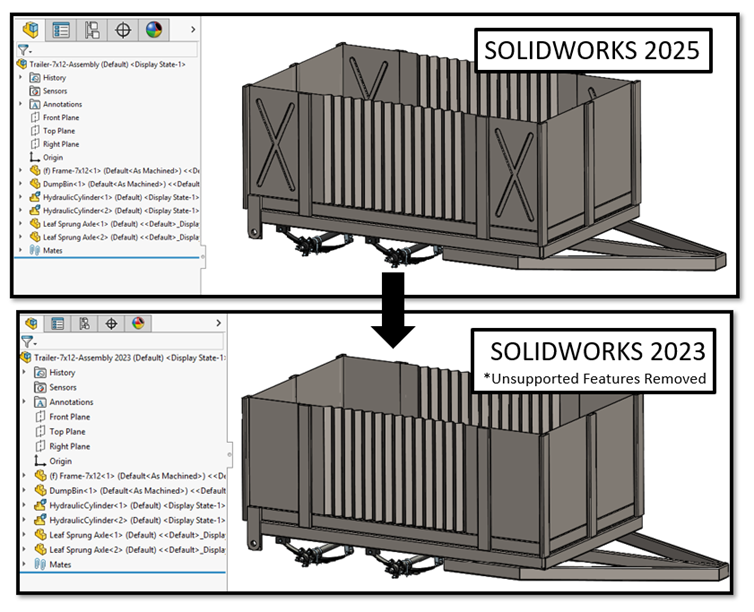 Figure 9. Trailer assembly to back-save from 2025 to 2023.
The Previous Release Check is presented in the example below, and is very helpful to chase these newer features down. You can see how for this Trailer assembly, back-saving to 2023 version would require a bit more work than back-saving to the 2024 version.
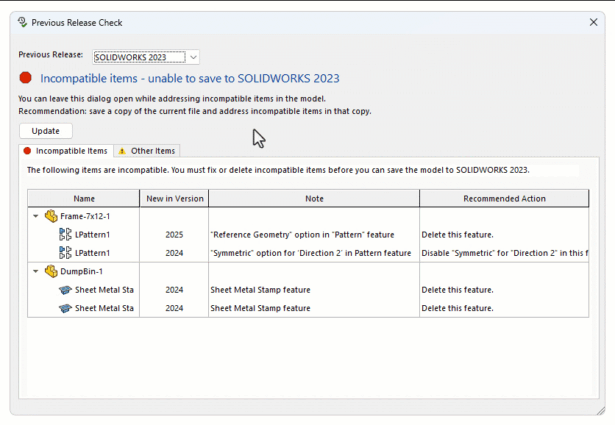 Figure 10. Previous Release Check.
How we address these items varies. In some cases, it may be as simple as disabling a new checkbox that was added to a feature. However, in the vast majority of cases it will mean hunting down these “newer” features and deleting them from the model.
And I do mean delete — not just suppress.
So, if you have a model that’s built entirely around the latest and greatest features this is going to be bad news for down-saving, and you’ll have your work cut out for you.
Thankfully, SOLIDWORKS is a relatively mature product and there is almost always at least several alternate ways to do things. For this model, I’d have to replace the “Stamp” features for Sheet Metal with something like a Forming Tool feature (though I took the easy way out and just deleted them for now), and replace my patterned Reference Geometry with some manually created planes.
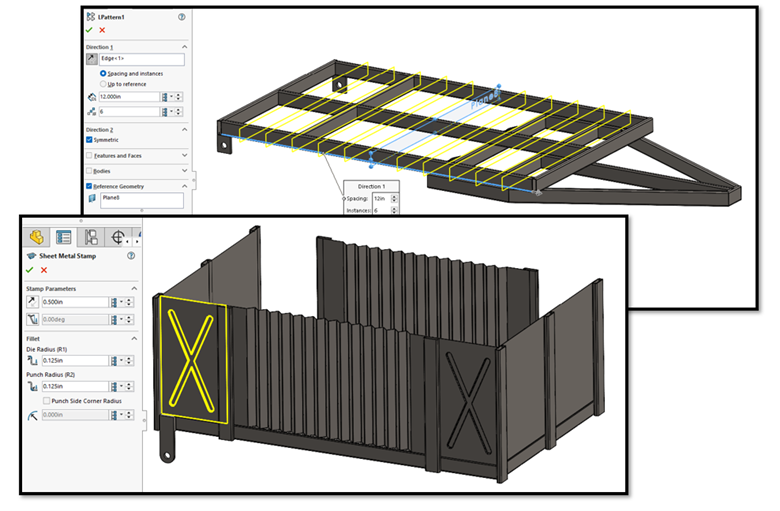 Figure 11. Incompatible features from newer SOLIDWORKS versions.
What about 3rd Party or Add-in Data?
The “Other items” tab on the Previous Release Check will identify possible additional data that may be stripped off the model. In this case, I have SOLIDWORKS Simulation studies set up and the sad news is those will not survive the back-porting process. I imagine the same will be true for CAM programs or anything else non-standard.
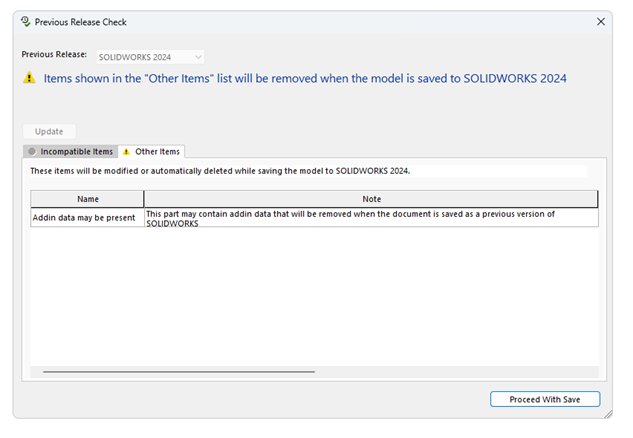 Figure 12. Other Items Check for previous releases.
Did I mention being sure to work off a copy of your files rather than the original set? This is one of the big reasons — even if you don’t have any incompatible items, you may unintentionally wipe any add-in data associated to the file if you accidentally back-save over the original copy.
(Ask me how I know!)
Conclusion
I never thought I would see the day we’d be able to back-port SOLIDWORKS files to older versions while preserving design intent and feature history. If you’ve had to collaborate with external clients or stakeholders using different versions of the software, you will surely understand the value of this tool.
I’ve put this tool through some pretty serious testing over the past year, both for my own interests and occasionally out of necessity when I forgot to match a client software version. On everything from in-context assembly designs to complex surface models, it has yet to let me down in any serious way, and the “burden” of removing or otherwise addressing incompatible features has proven to not be a significant issue.
The “Previous Release Check” has also been a neat tool on its own to see what newer features you’re using in your day-to-day that you might not even be aware of.
And don’t forget: if you’re only a version behind your collaborators and planning to update soon, the “Future Version” support can be a nice tool to hold you over and allow you to create drawings or utilize the parts in assemblies.
Author information
The post SOLIDWORKS Backwards Compatibility appeared first on SOLIDWORKS Tech Blog.
]]>Author information
The post SOLIDWORKS for Makers: How I Made My Own Offroad Kart – Part 2 appeared first on SOLIDWORKS Tech Blog.
]]>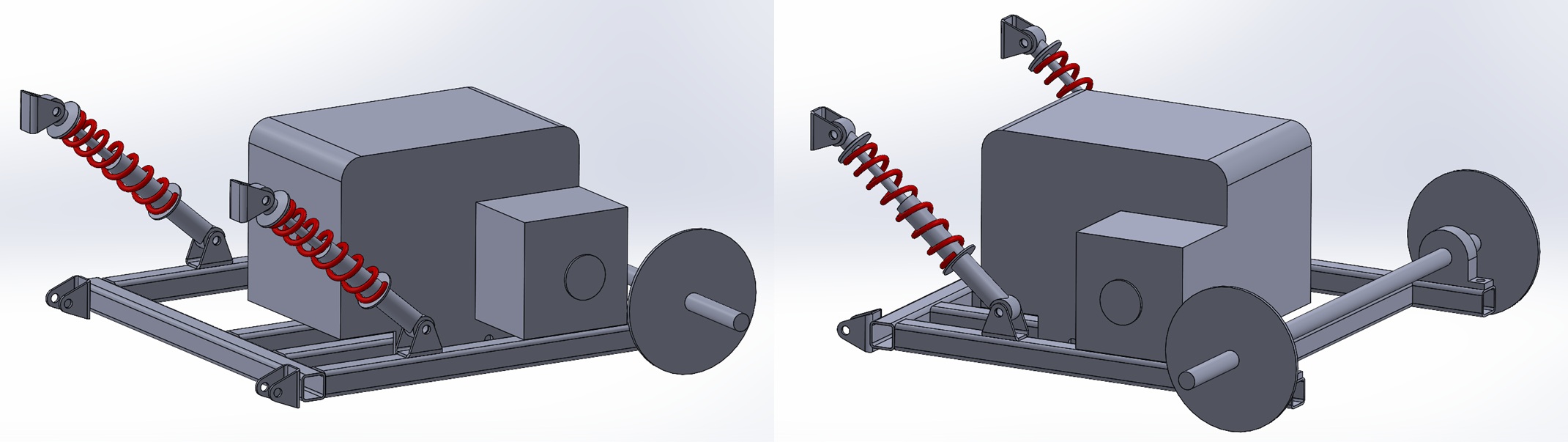
I started this portion of the build by creating a simple sketch with the 4 mounting hole positions for the rear axle, this gave me some strict geometry I needed to support with metalwork. From here I headed to my toolbar to load up weldments. Now I’m very open and say I don’t use weldments anywhere near as much as I should, some of this comes down to the majority of my day job not focusing on sheet metal or metal framework but some of it also comes down to laziness. However, I figured as I was writing a blog I’d show off how easy it can be to pull together framework models using weldments and some of the simple tools within it.
Weldments has an awesome tool called structural member which lets you convert 2D and 3D sketches quickly into a long list of standard structural steel sizes such as channel, round and square tube across a range of ANSI and ISO standards. This amazing tool made it really quick to throw together a frame design based around the mounting points of the rear axle. I used the same tool again to add some additional framework to sit underneath the engine to secure this too. When designing this portion I took care to ensure the output sprocket of the engine was lined up with the input sprocket on the axle.
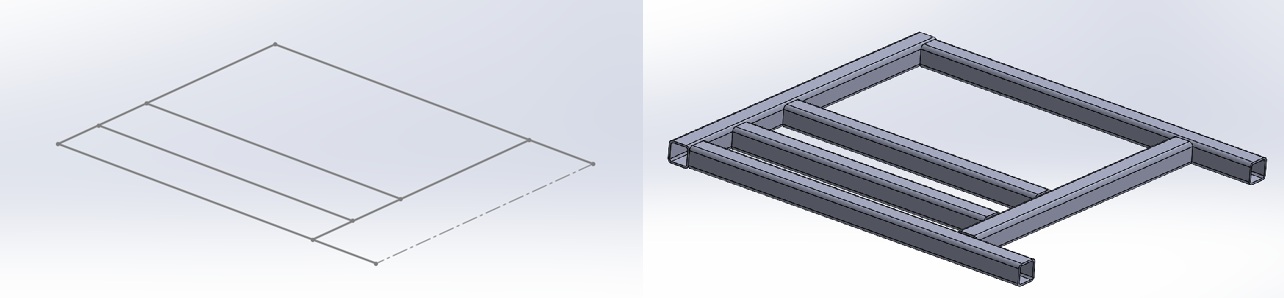
From this point I decided it would be best to start a new assembly to start to build up a view of what this rear section would look like, this helped to give me a view of where parts may clash and where would be best to mount my suspension springs to. I used simple coincident mates to connect thru holes in the motor mounts to the chassis and the same type of mates for the rear axle assembly.
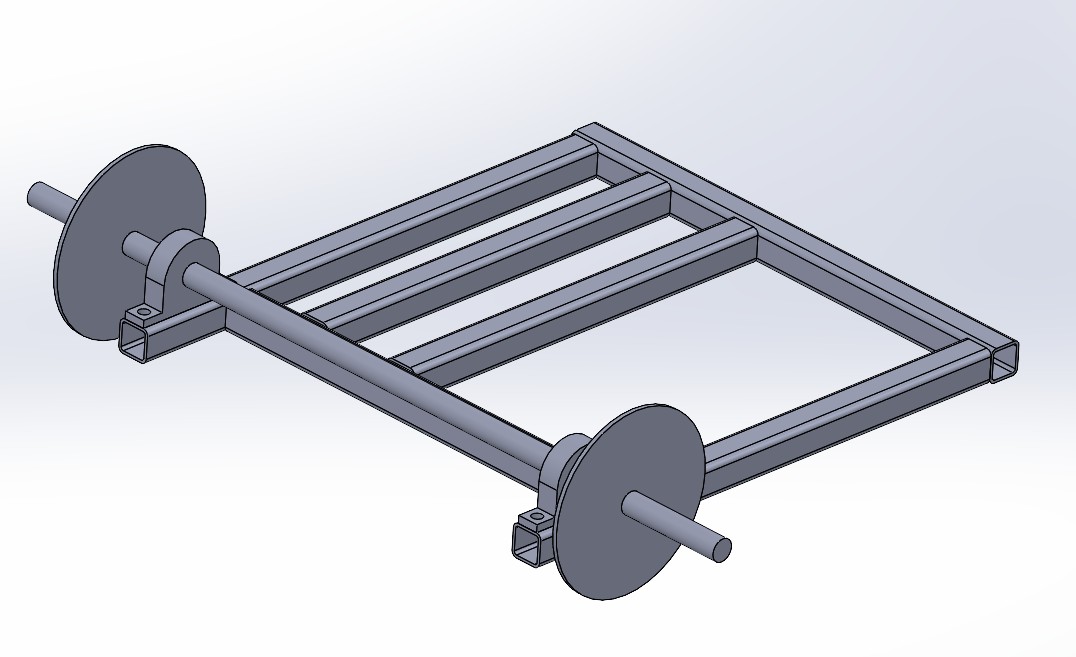
At this point I knew I needed to design some simple mounting points for the end of the suspension to bolt through. Again, I figured I’d challenge myself to use some basic sheet metal tools. I sketched out my part before using the extrude tool to add some length to the mounting channel before using another sketch and an extrude cut to remove some material and add some more shape into the design. From here SOLIDWORKS has some amazing tools to first convert this design into sheet metal form using the “convert to sheet metal” tool which allows you to specify the material gauge or sheet thickness, add bend points and adjust bend radius. This tool quickly allowed me to convert a 3D body into a piece of sheet metal which could be manufactured. SOLIDWORKS had another trick up its sleeve when it automatically processed this design into a flat pattern allowing me to export and save this as a DXF for cutting.
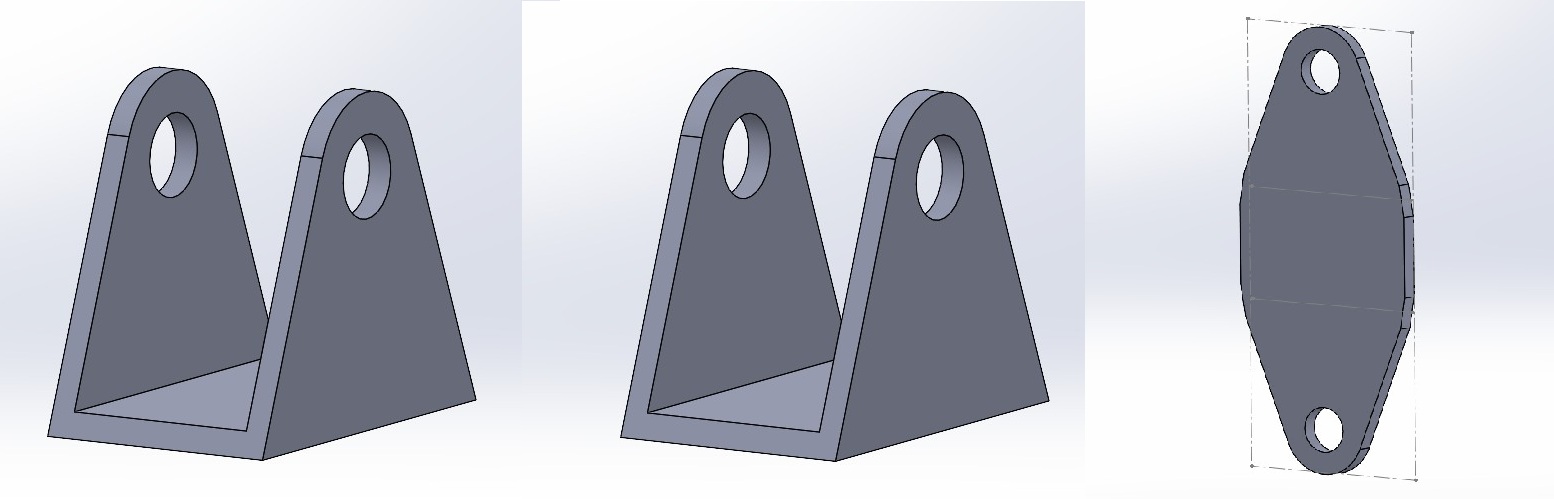
From here I began to make an assembly showing how the new created frame, mounts and procured components would go together. I could then use this assembly to check sprocket alignment and fitment of thru holes to mounting plates. This assembly could also be used in the next step of this project to create the main chassis portion from.
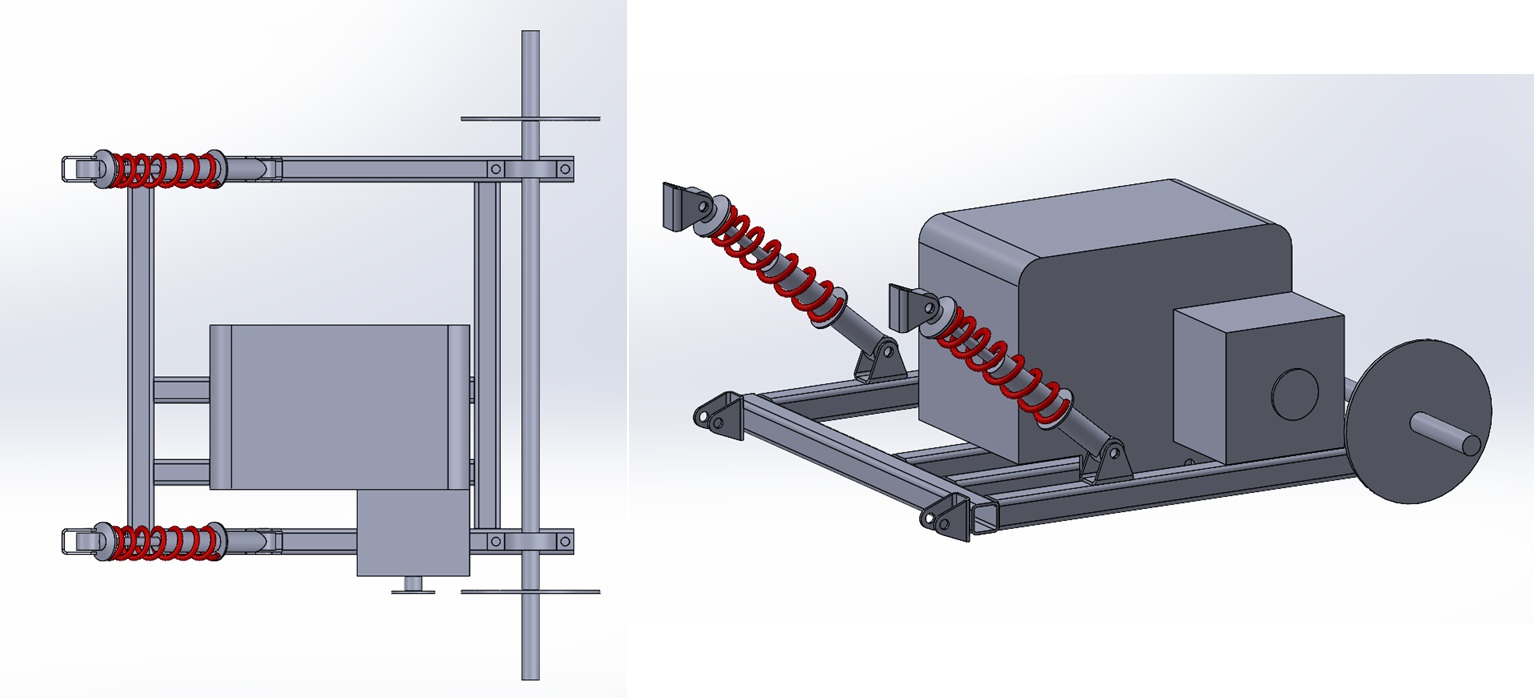
This portion of the project was great fun, it made me think outside of my usual tool selection and advanced some of my use of sheet metal and weldment tools. SOLIDWORKS has a great selection of toolboxes which are tailored for ease of use depending on the work you’re doing. For the next portion of this blog series, I’ll be focusing on the forward chassis and how this connects to the rear assembly we’ve designed in this blog. Check out the video below to follow along with the tools used in this blog.
Author information
The post SOLIDWORKS for Makers: How I Made My Own Offroad Kart – Part 2 appeared first on SOLIDWORKS Tech Blog.
]]>Author information
The post SOLIDWORKS® Support Monthly News – Aug 2025 appeared first on SOLIDWORKS Tech Blog.
]]>Welcome to the new edition of the SOLIDWORKS® Support Monthly News! This monthly news blog is co-authored by members of the SOLIDWORKS® Technical Support teams worldwide. Here is the list of topics covered in this month’s Blog:
-
How to add ‘Description’ value from ‘Configuration Properties’ to ‘Configuration Specific’ file properties
-
How to Set Up SMTP Notifications in SOLIDWORKS PDM 2025 Using Gmail
-
Creating Distinct/Discrete Route in SOLIDWORKS Routing – Electrical
-
Bucket Water Fill Simulation in SOLIDWORKS Composer
1. How to add ‘Description’ value from ‘Configuration Properties’ to ‘Configuration Specific’ file properties
– Rohit CHAVAN
As we all know we can create multiple configurations in SOLIDWORKS®. SOLIDWORKS® also provides ability to add unique description to each configuration. In ConfigurationManager tab, select the configuration > RMB > Properties >, under Description, you can add unique description.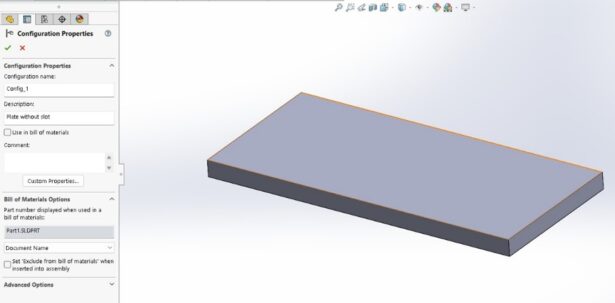
Some of our users have requirement that they want to map this description to the configuration specific custom properties, that is under – File > Properties > Configuration Properties, so that all the configuration related properties can be viewed at same place. Though this property directly cannot be mapped, we can achieve the desire result using design tables functionality in SOLIDWORKS®. In this blog , we will see how the configuration description can be added to custom properties using design tables.
Once the configurations are created and description is added to each configuration, we need to create the design table for the component. In design table, the description is already added for all configurations, we need to call that property in new column using $PRP@<Property name>. This directly maps the description in configuration specific custom properties.
Let us understand this process in detail using simple example. Consider a part file is created having 2 configurations, say ‘Config_1’ and ‘Config_2’ and has description defined ‘Plate without slot’ and ‘Plate with slot’ respectively.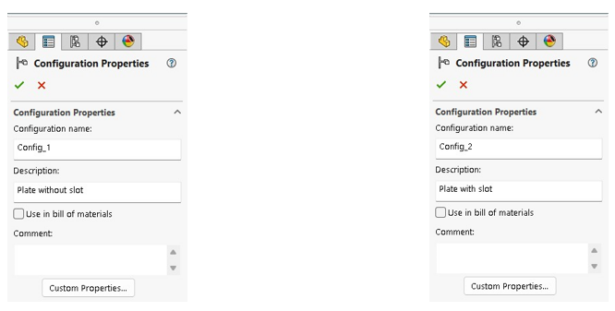
Now go to Insert > Tables > Excel Design Table > OK. Design table is created, You will notice, the configuration description also gets stored in design table for ‘Config_1’ and ‘Config_2’.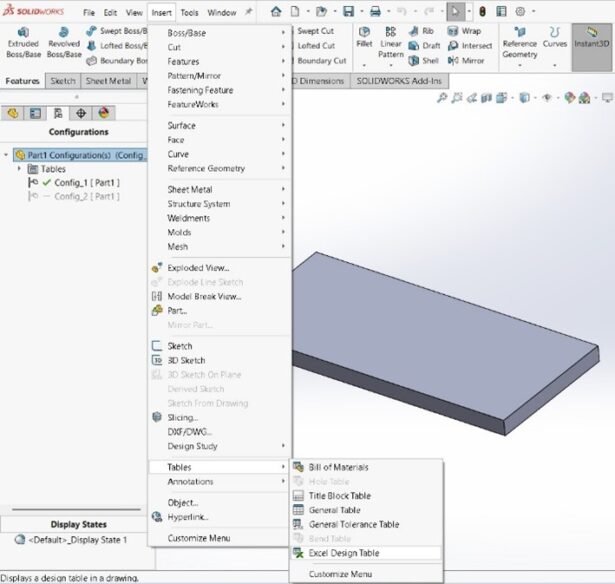
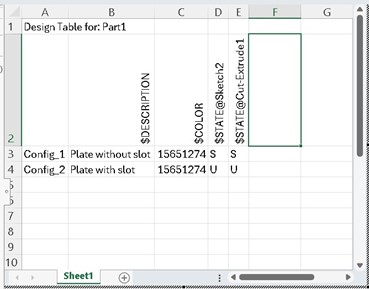 Now define the property in new column using syntax $PRP@<Property Name> and recall the values which are needed to be displayed in custom properties. Lets say, we need to add custom property named ‘ Unique_Description’ and want to map the values displayed in column $DESCRIPTION shown in above image. So the syntax will be $PRP@Unique_Description. Add the same values in the cell using ‘=’ and selecting the cell as showing in below image.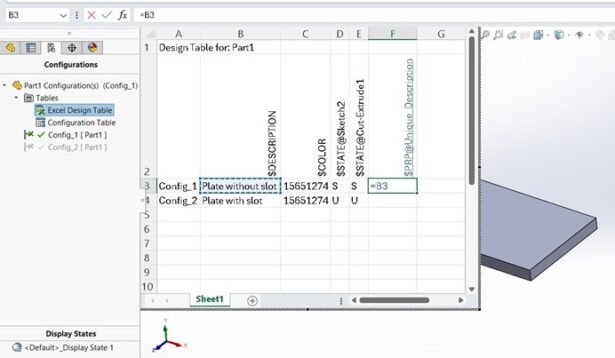
This will create new property named ‘Unique_Description’ under Configuration Properties tab in file properties. Refer image below.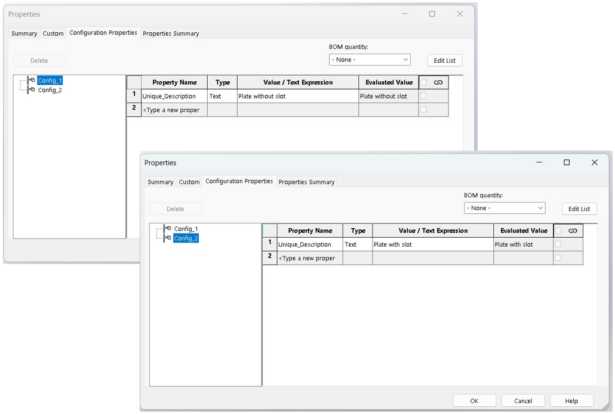
Using this workflow, configuration description can be mapped to custom properties.
2. How to Set Up SMTP Notifications in SOLIDWORKS PDM 2025 Using Gmail
– Ayush SHARMA
Starting with version 2025, SOLIDWORKS PDM introduces built-in email notifications, making it simple to stay updated on file state changes, approvals, and critical workflow events — right in your inbox. In this step-by-step guide, I’ll walk you through how to configure SMTP notifications using Gmail as your SMTP server.
Step 1: Create a Gmail Account
If you don’t already have a dedicated Gmail account for notifications, go ahead and create one.
Tip: It’s best to use a separate email account specifically for system notifications, rather than your personal email.
 Step 2: Enable 2-Step Verification
1. Log into your new Gmail account.
2. Navigate to Google Account Settings > Security.
3. Enable 2-Step Verification to add an extra layer of security.
 Step 3: Generate an App Password
Gmail requires an App Password to allow other applications (like PDM) to send emails on your behalf.
- Go to Security > App passwords in your Google Account.
- Generate your unique App Password — it will look like this: xxxx xxxx xxxx xxxx.
- Copy and store it securely. You’ll need it in the next step!
 Step 4: Configure SMTP Settings in PDM
Now, let’s set up the SMTP details inside SOLIDWORKS PDM:
- Open PDM Administration.
- Go to Message System > SMTP.
- Fill in the following settings:
Setting Value Server smtp.gmail.com Port 587 Login Required 
Enable SSL User your Gmail address Password the App Password you created (remove blank spaces) From address SOLIDWORKS_PDM@noreply (default) From Name SOLIDWORKS PDM MailService (default) - Save the changes.
 Step 5: Send a Test Mail
Use the Send Test Mail feature to confirm your setup. If everything is configured correctly, you should receive an email almost instantly.
 Troubleshooting Tips
 Error: “The SOLIDWORKS PDM Database Server cannot be found…”
- Check that the Database Server service is properly installed and running.
- Verify that other PDM notifications (like database notifications) are working. If they’re failing, SMTP notifications may fail too.
For detailed troubleshooting, refer to this helpful QA article:
How do I troubleshoot the SOLIDWORKS® PDM database (‘ConisioDbServer’) service?
https://support.3ds.com/knowledge-base/?q=docid:QA00000124884
Error: “Send mail failed Error: Could not send message”
This means PDM could communicate with the database, but failed to send the email to Gmail. Possible causes:
- Incorrect Gmail username
- Incorrect App Password
- Network restrictions blocking SMTP traffic
Double-check your SMTP settings and try again.
3. Creating Distinct/Discrete Route in SOLIDWORKS Routing – Electrical
– Akhil VISWANATH
In SOLIDWORKS Routing – Electrical you can now create Distinct (also known as Discrete) route.
To illustrate this, let’s see take an example:
- There are two identical (can also be different) electrical connectors placed at some distance from each other.Note:
- The connectors displayed here are identical.
- It is a multi-pin connector with 12 CPoints defined.
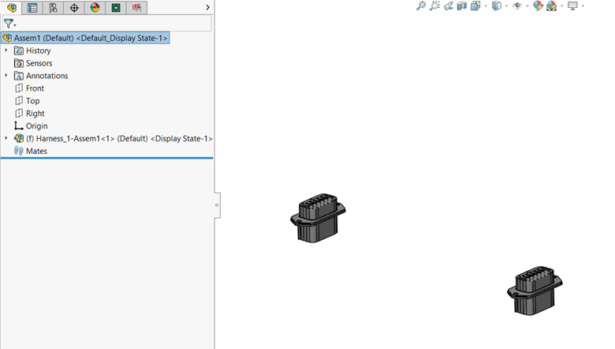
- Let us route the connectors using ‘Auto Route’Make the following selection:
- Routing Mode: select Guidelines
- Routing Options: select Create a distinct route for each wire
- Guidelines Actions: select Create distinct route from guidelines
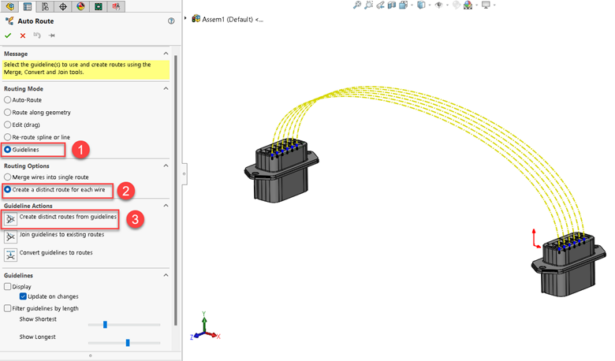
- Left box select the guidelines in the graphics area
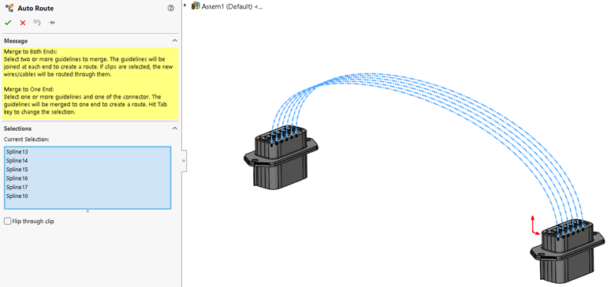 The splines are selected and displayed in the selection set.Click OK to exit Auto Route and exit route.
 - The route is now created and would display as below:
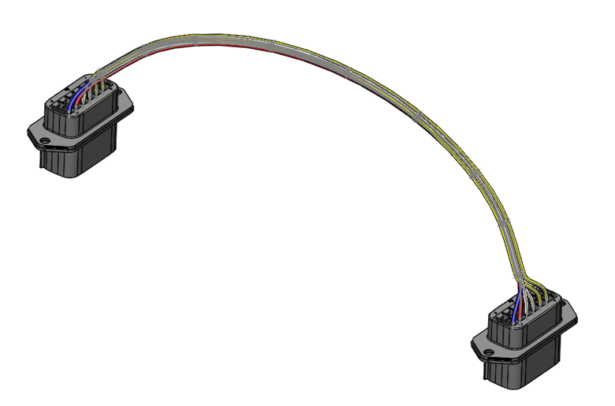
Edit Route and select a point on spline and drag: Notice that other spline handles adjust to the new position of the single spline that was dragged in above step:
 The other wires adjust to the new position. This is helpful when you want to represent a bunch of wires bundled together that will change position when a single wire position is changed; more often when the space is a constraint and the position of wires need to be adjusted with reference to the alignment of other components.
4. Bucket Water Fill Simulation in SOLIDWORKS Composer
– Prajakta LIMBASARKAR
This animation demonstrates the process of water filling into a bucket, created using SOLIDWORKS Composer. The visual sequence showcases a simulation of fluid-level rise, illustrating the gradual filling of the container. The animation effectively uses transparency, smooth transitions, and keyframe-driven motion to convey the concept clearly. This type of animation can be used in product demonstrations, training materials, or instructional guides to represent liquid flow or operational sequences involving containers.”
Step 1:
- Import an assembly file with bucket and tap.
- Create a cylindrical primitive at the opening of tap.
- Move the time bar, now change the height of the cylinder. Such that the height touches the base of bucket.
Step 2:
- Move time bar ahead, create a disc primitive at the bottom of bucket.
- Make the disc diameter same as the bucket diameter at the bottom.
- Move the time bar ahead, translate the disc vertically.
- Change the disc diameter equal to the diameter of the bucket at that height.
Step 3:
- Bucket filling animation is ready.
- You can also add texture to the primitive
Author information
The post SOLIDWORKS® Support Monthly News – Aug 2025 appeared first on SOLIDWORKS Tech Blog.
]]>Author information
The post 3D Printed Money: SOLIDWORKS Tutorial appeared first on SOLIDWORKS Tech Blog.
]]>
The first coin I made was a simple £1. I started by sketching a 33mm circle on the top plane and extruding it 6mm midplane. I like to make the base a little thicker because it makes adding details later easier—and it ensures the coin is safely larger than the small parts cylinder standard of 31.7mm.
For the top face coins details, I offset the face by 2.5mm and used a thin cut extrude to carve a 0.5mm wide, 0.3mm deep groove into it. Then I added “£1” with the text tool, sized the font to 12mm, and extrude cut it into the coin.
On the back, I imported my custom DXF sketch and made sure it was centered and in millimeters. Once imported, I rotated it 180 degrees with rotate entities, and cut the details by 0.3mm.
To finish, I added small 0.2mm fillets to soften the edges and the text. For the coin’s edge texture, I sketched a short line from the coin’s midpoint, used a 0.3mm circular profile for a sweep cut, and applied a circular pattern with 100 instances. It gave the coin that realistic ridged feel. Once done, I saved it as an STL, ready for printing.
The 50p coin was a bit more involved because of its seven-sided shape. I sketched a 7-sided polygon, fully defined the bottom edge, and extruded it 6mm midplane. I offset the top face and added a thin cut extrude, then used the text tool to add “50” in 14mm font and a small “p” at 4.5mm. The letters were aligned carefully and extruded 0.3mm.
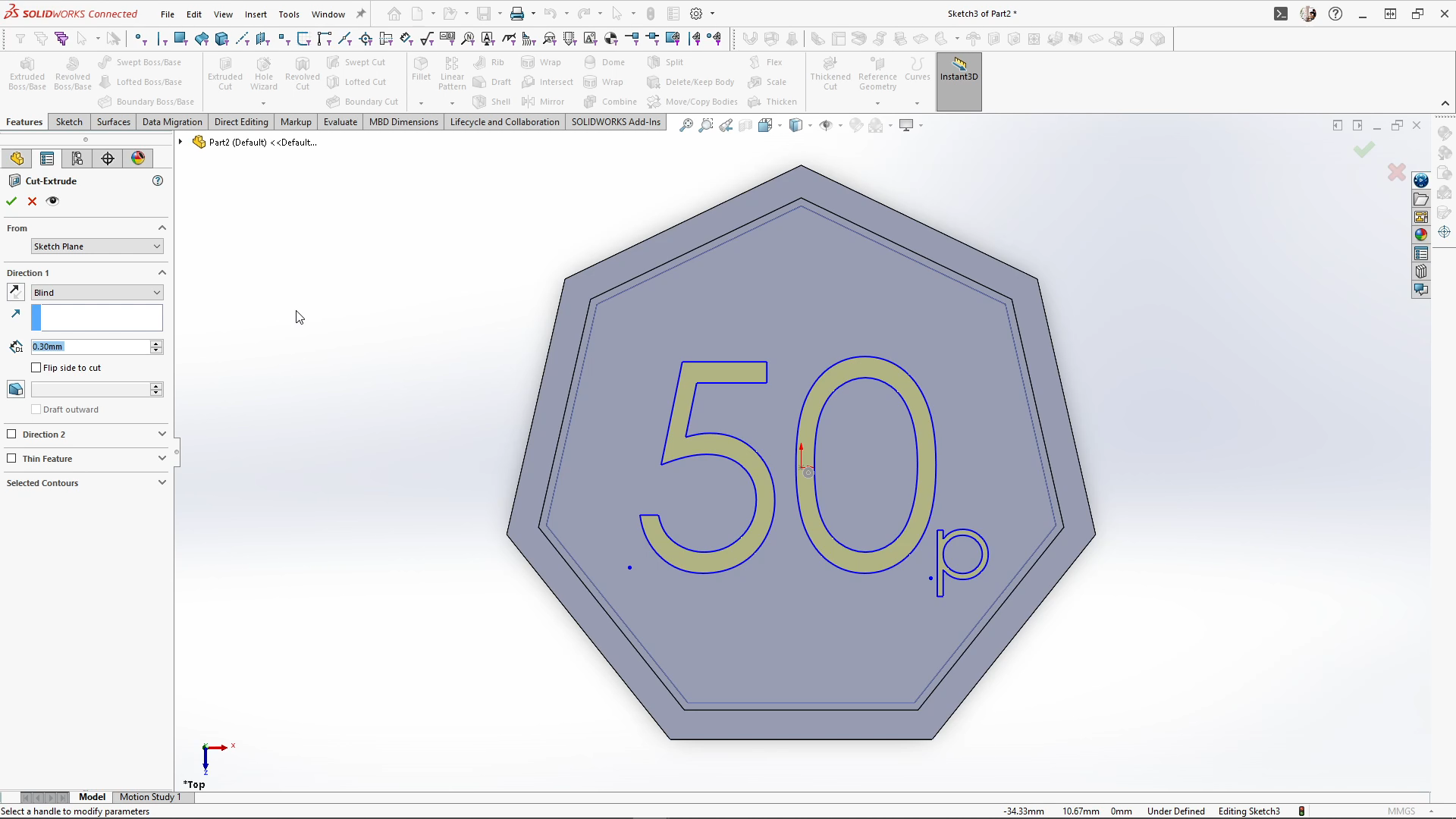
The back featured another DXF sketch, rotated and positioned precisely before cutting. Small fillets of 0.2mm softened the text and face details. Edge textures were trickier than the round coin: I sketched a short line, used a 0.3mm circular profile for a sweep cut, applied a fill pattern with 1.5mm spacing, and then used a vertical line as the axis for a circular pattern with seven instances to match the coin’s sides. A 2mm fillet on the seven outer edges finished it off.
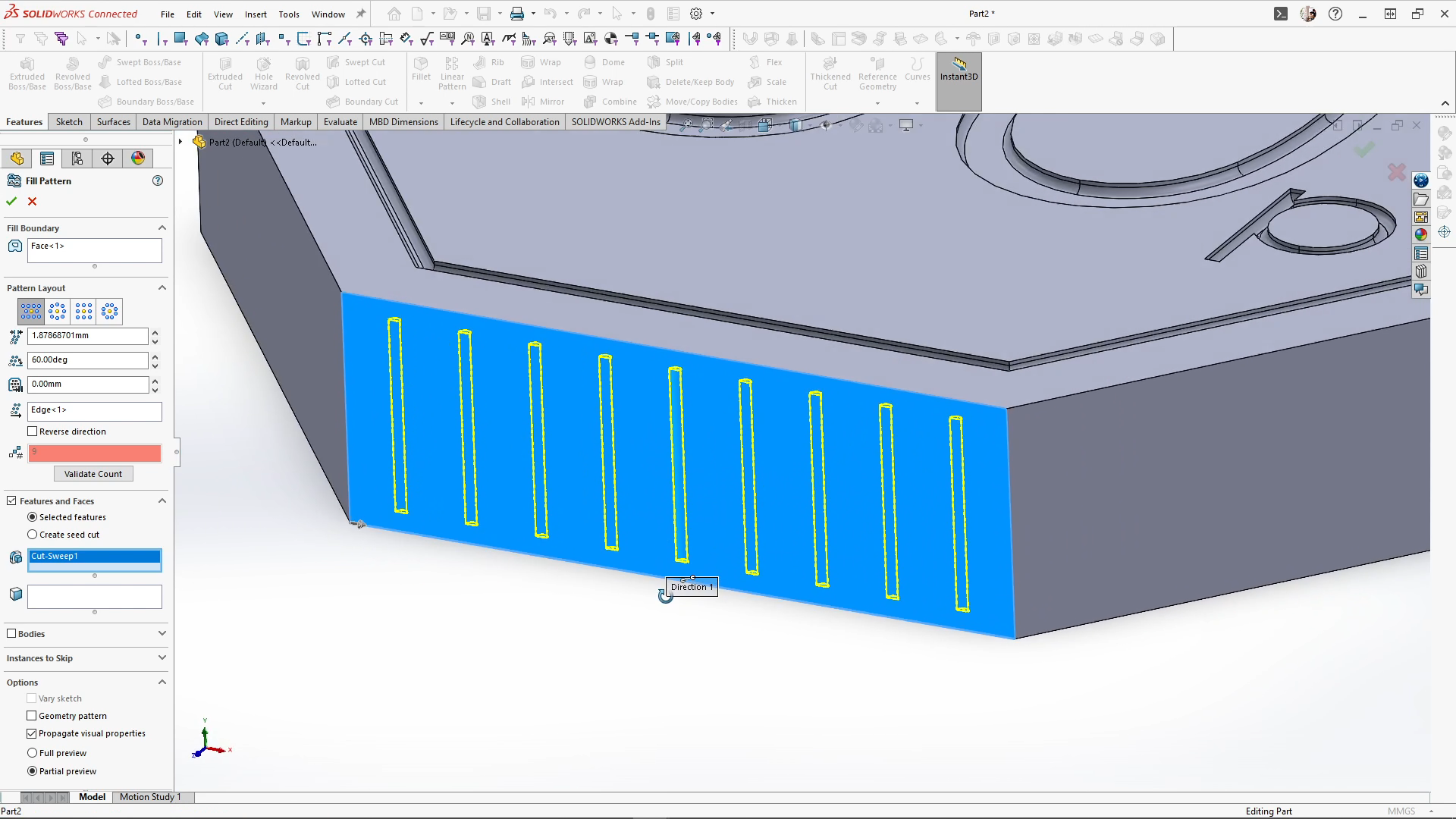
I also made 10p, 20p, and £2 coins using similar techniques. To double-check safety, I assembled all the coins and compared them to the small parts cylinder. Every coin was bigger, so no worries there.
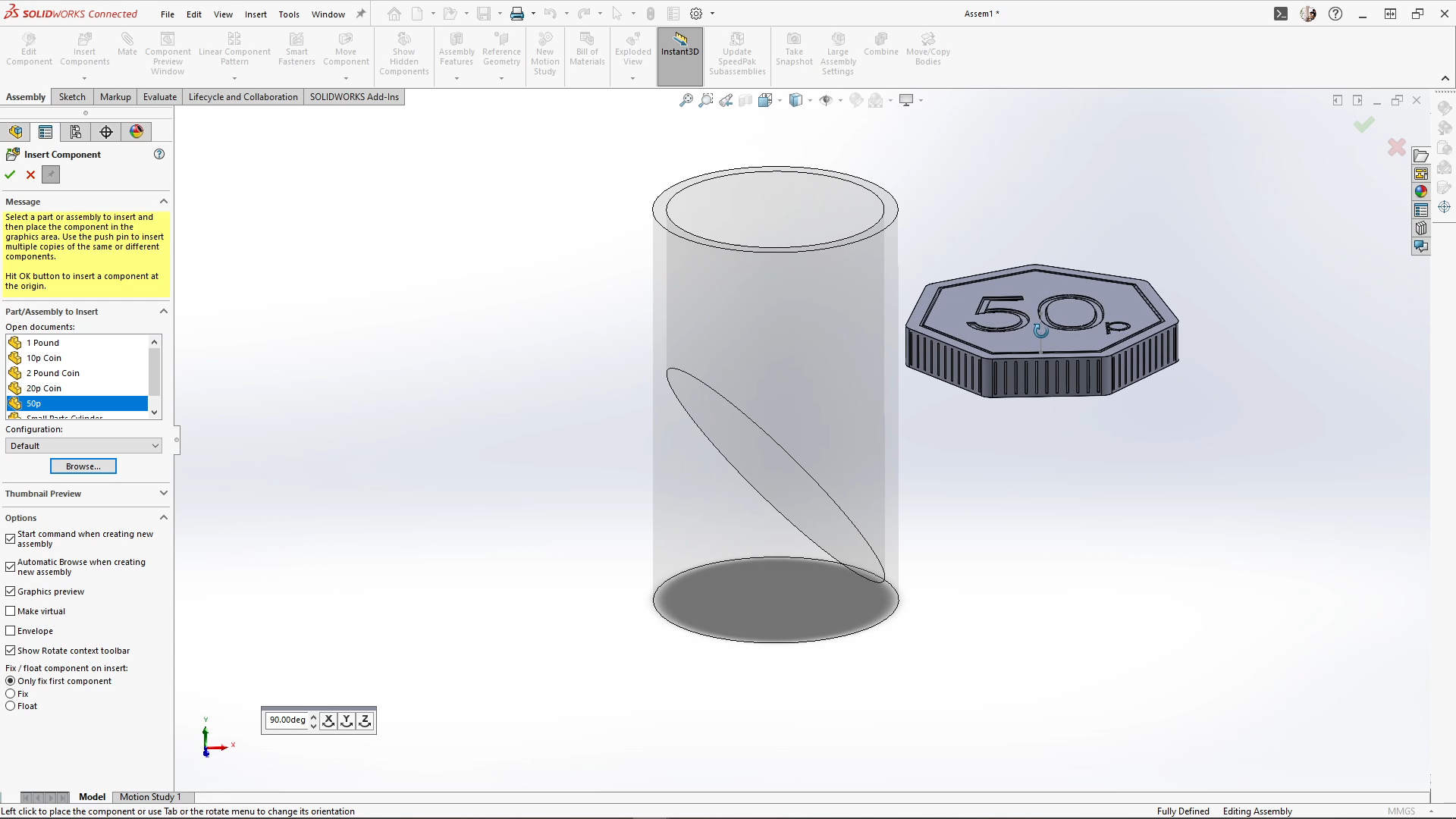
The final coins were printed in MJF PA12 Nylon by 3D Print UK, polished grey for a shiny, almost metallic finish. They turned out beautifully safe, fun, and perfect for teaching my older son about money while keeping the youngest safe.
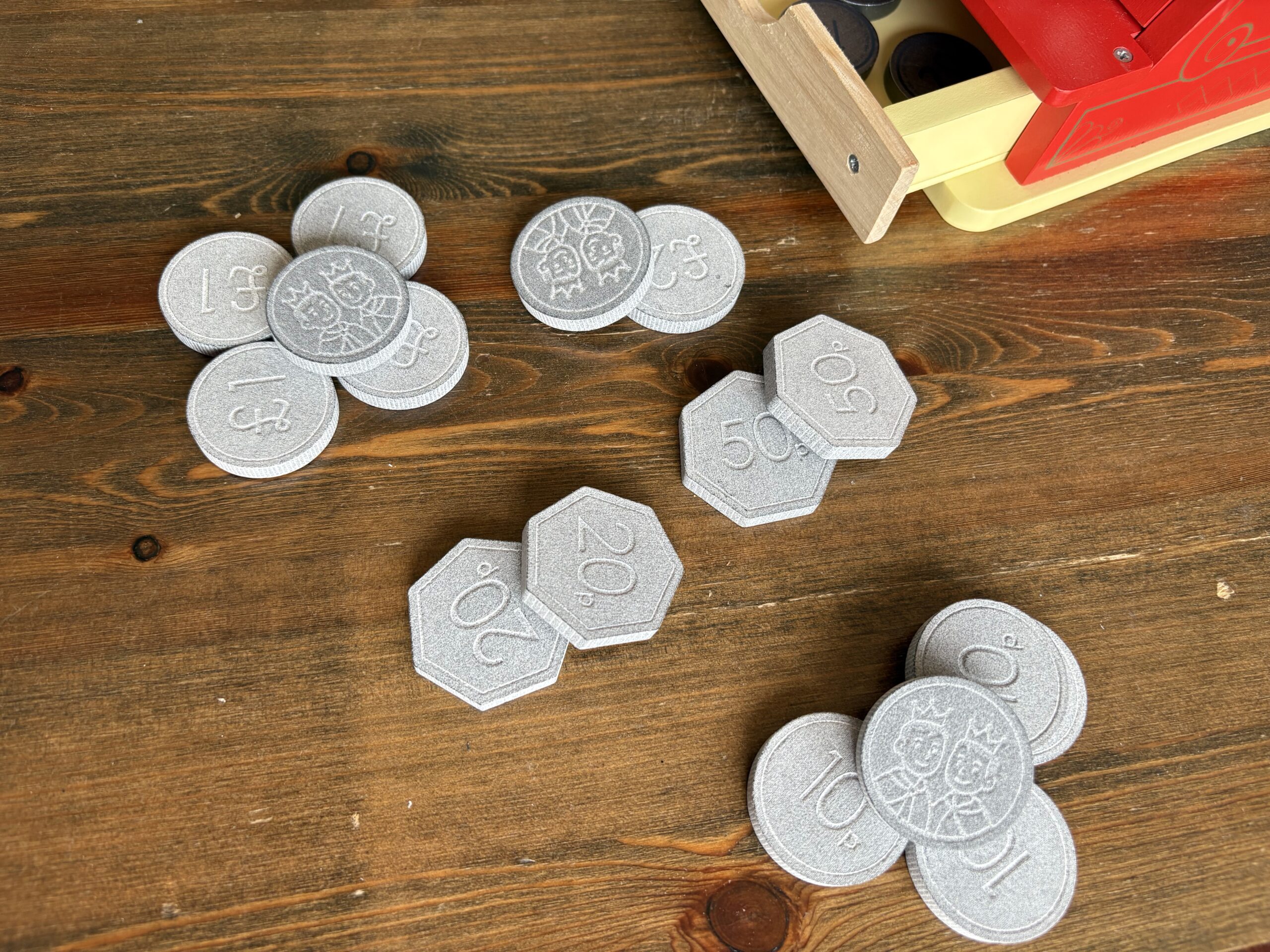
A few things I learned along the way:
- Always check small toys when under 3 against toy safety standards. Bigger is better when small children are involved.
- DXF sketches make personalizing easy. Designing custom faces for each coin adds a really fun touch.
- Fillets aren’t just for aesthetics, they make the coins safer and more comfortable to handle.
All in all, this project was a fun blend of design, problem-solving, and a little parenting hack. With SOLIDWORKS and a bit of 3D printing magic, it’s easy to turn a simple model into a print to create safer, more educational, unique product.
Author information
The post 3D Printed Money: SOLIDWORKS Tutorial appeared first on SOLIDWORKS Tech Blog.
]]>Author information
The post SOLIDWORKS for Makers: How I Made My Own Offroad Kart – Part 1 appeared first on SOLIDWORKS Tech Blog.
]]>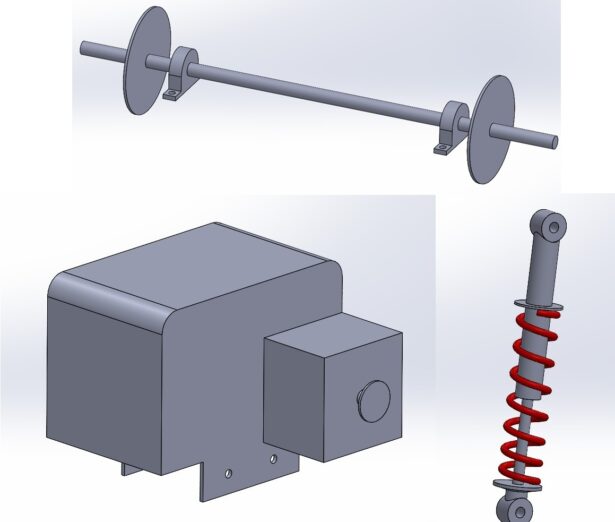
The first of these components which I’d look to buy in was a rear axle, while I’d love to have a decent sized lathe in my workshop to turn my own, I don’t have either the space or time to make the investment worth it.
Now the good thing about a lot of people wanting to make such a kart is that a nearly equal amount of people give up before they finish it… luckily for me that meant the internet is a treasure trove of affordable parts on the second hand market which other people who’ve given up on a project look to offload!
I managed to source and collect a small rear axle with brake system and sprocket locally with ease, once I had this in my possession it was time to model it up so it could be used easily within my assembly models. I jumped into SOLIDWORKS for Makers and made a close copy of the key dimensions of the axle assembly, I didn’t need every detail captured just sufficient to allow me to design other parts from its key locations.
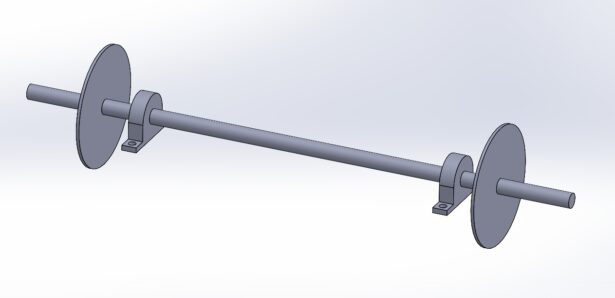
So now I had an axle and a CAD model of it which I could start to design from, however, I needed to find a few more components to really allow me to get this project moving. I went back to the trusty internet and found the next logical component I’d need.. some wheels. As with the axle, I got lucky with someone else getting rid of parts and bagged 4x 13” OD wheels that would mount directly onto the hubs on the axle. Again, I just needed a rough model to use in my full assembly to check ground clearance etc. SOLIDWORKS for Makers made easy work of this and within a few minutes I had a model detailed enough to work with. I added some color to certain faces just to help distinguish the tire from the rim.
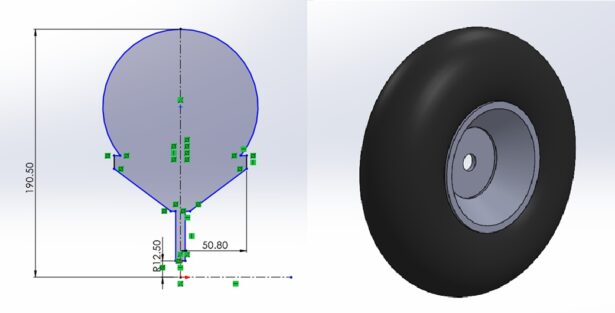
I had a few more bits that I’d ultimately need to source as bought in components, a seat, some way of making the kart move and some way of steering it. I was least worried about the seat and most worried about how to make it move… the mechanical engineer in me wanted to use an engine but the designer in me thought an electric motor may be easier to incorporate. In the end I followed what I know best and went down the mechanical engine route, my brain still tells me that electrics are witchcraft… I found an 89hp 2 stroke motor for sale and ended up collecting it the next day, again I made a simple CAD model showing the key mounting points and power output sprocket which would need to be aligned with the sprocket on the axle assembly. The seat was an easy choice, I managed to find something attached to one of my nephews old sit on pedal along trikes which would work. The same person who I bought the rear axle off had some front axle stubs which I snapped up at the same time, again, for these parts all I needed was a rough CAD model with the crucial connection points in the correct locations to work away from.
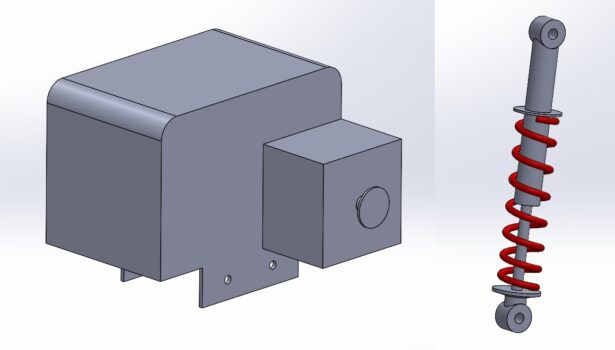
All the models I’ve made for this portion of the project all used simple entry level features and tools within SOLIDWORKS for Makers, in the next part we’ll get into some deeper design work around the rear axle assembly including the engine and axle mounts and some bracket features to allow me to mount some suspension components. Check out the video below to see the work on the project so far!
Author information
The post SOLIDWORKS for Makers: How I Made My Own Offroad Kart – Part 1 appeared first on SOLIDWORKS Tech Blog.
]]>Author information
The post Caterpillar Abacus featuring Patterns: SOLIDWORKS Tutorial appeared first on SOLIDWORKS Tech Blog.
]]>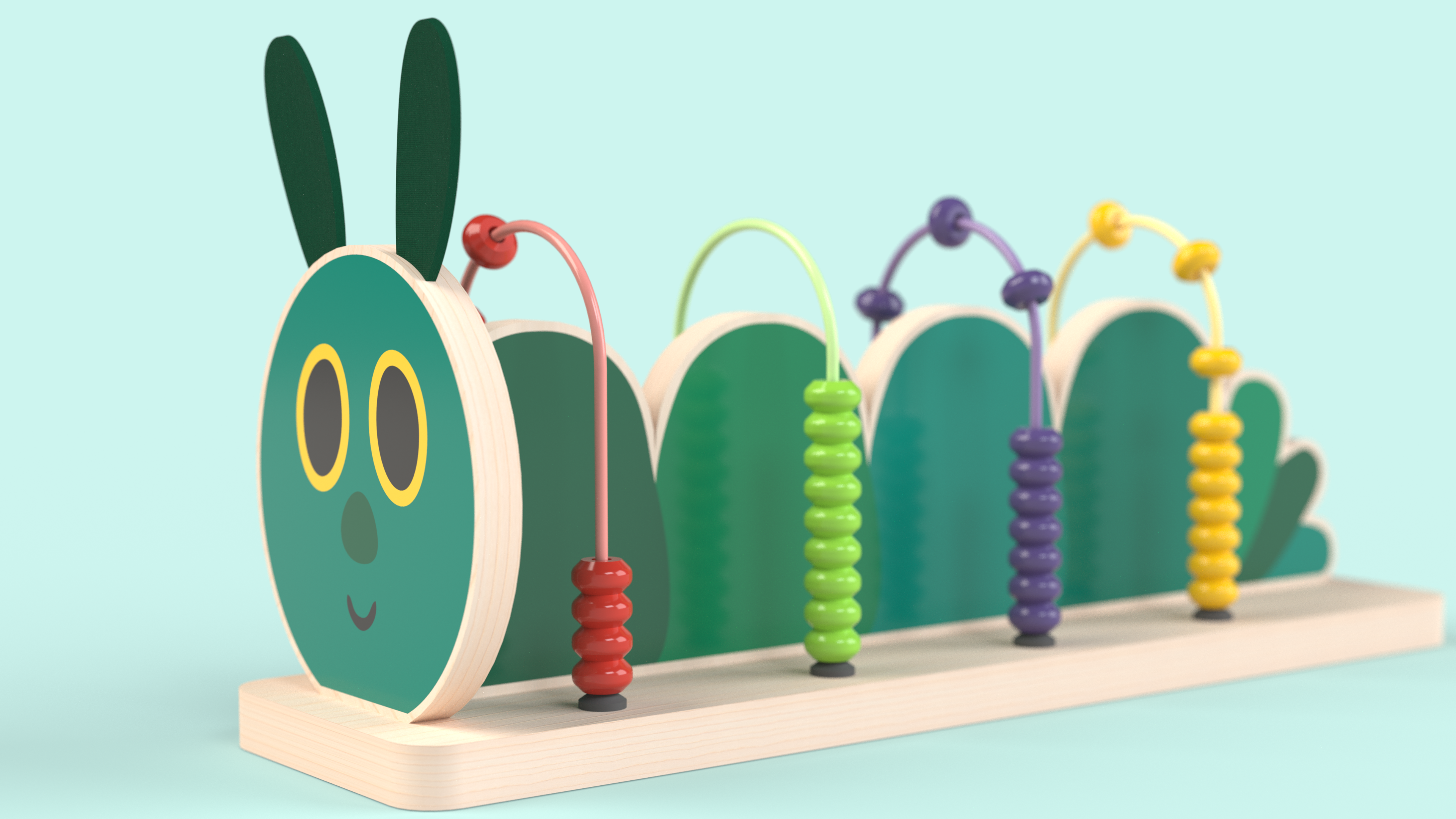
The main components of the caterpillar are simple sketches that are extruded. Sketching the caterpillar’s body, I simplified the design by only sketching a section of the caterpillar body first. The sketch was then fully defined. Using the Linear pattern feature, I chose the pattern direction, and selected the ‘Bodies’ box, to pattern the caterpillar body. I input 4 instances spaced apart by 58mm.
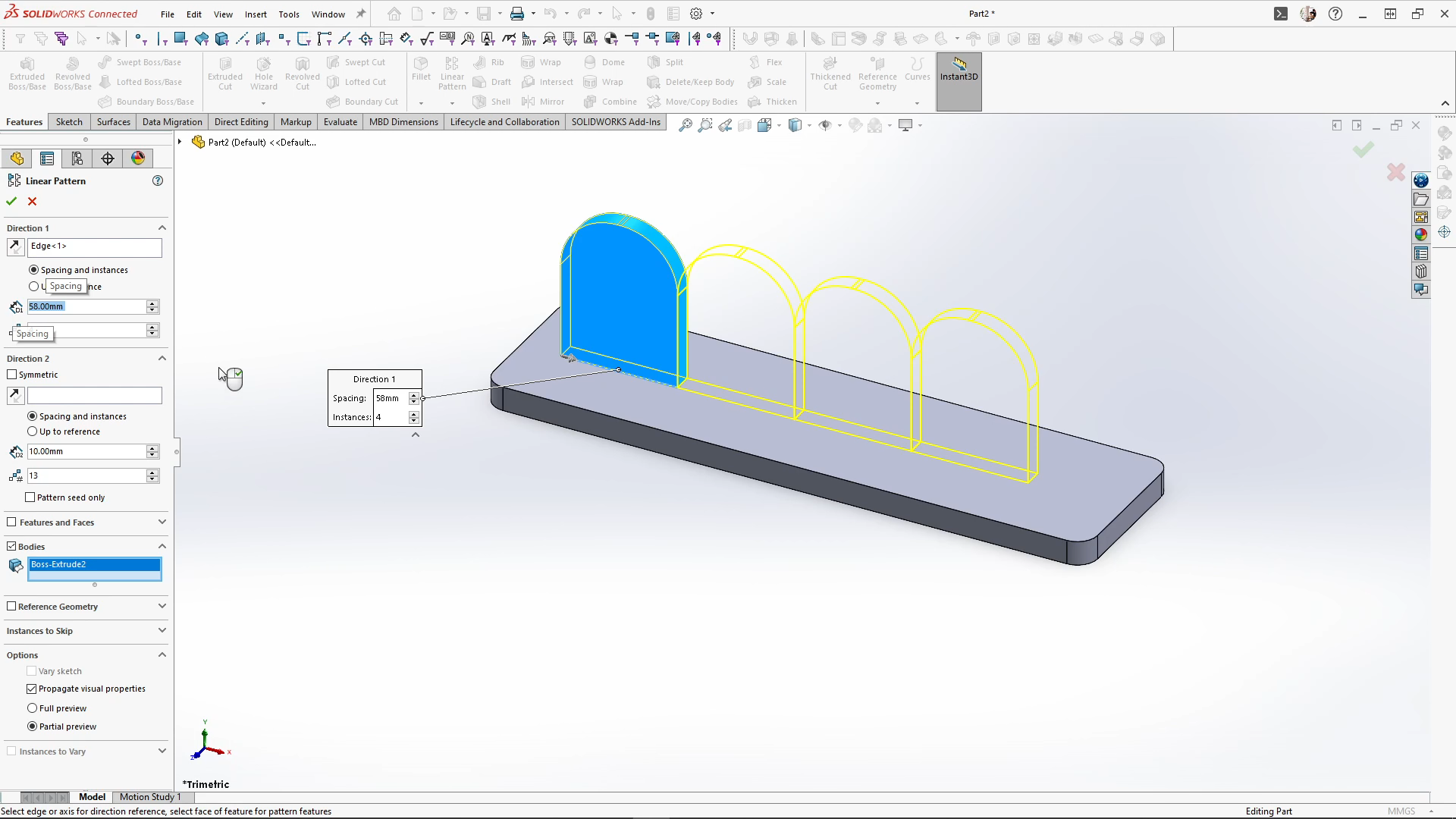
To create the wire tracks for the beads, I added a new plane midpoint to the caterpillar body segment. Sketching onto the new plane, I sketched an arch and fully defined the sketch. I then used the swept boss feature with a circular profile at 2.5mm, ensuring merge result is unchecked. I used the linear feature again to pattern the sweep bodies, I patterned the body by 4 instances by 58mm, and applied it.
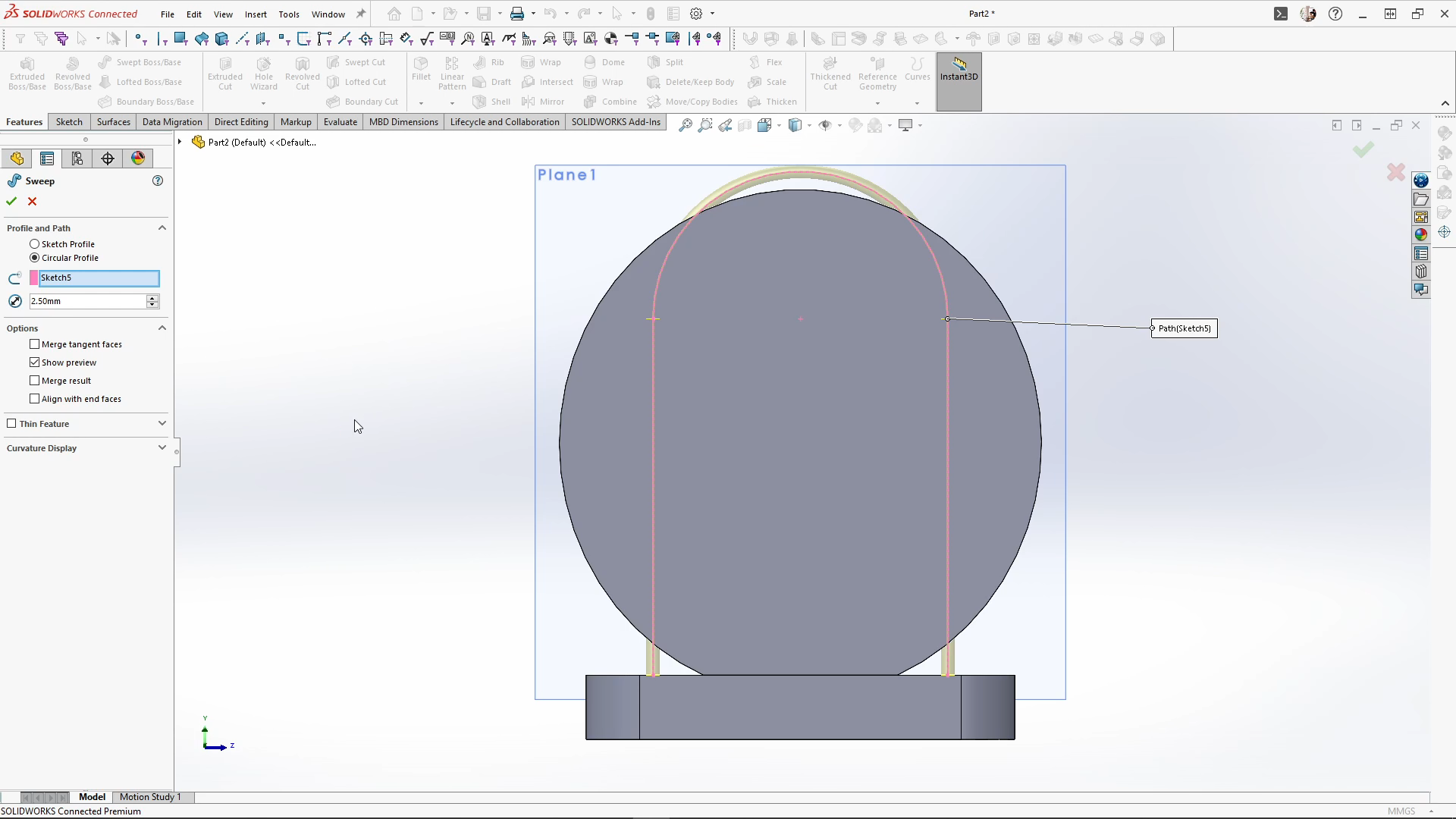
For the caterpillar antenna’s, I started a sketch on the caterpillar face. Using the extrude feature, I used the ‘from’ feature and changed the drop down to offset. Here I can offset the extrusion by 4.5mm midplane with a 2mm thickness, this extrudes the sketch in the middle of the caterpillar’s face extrusion.
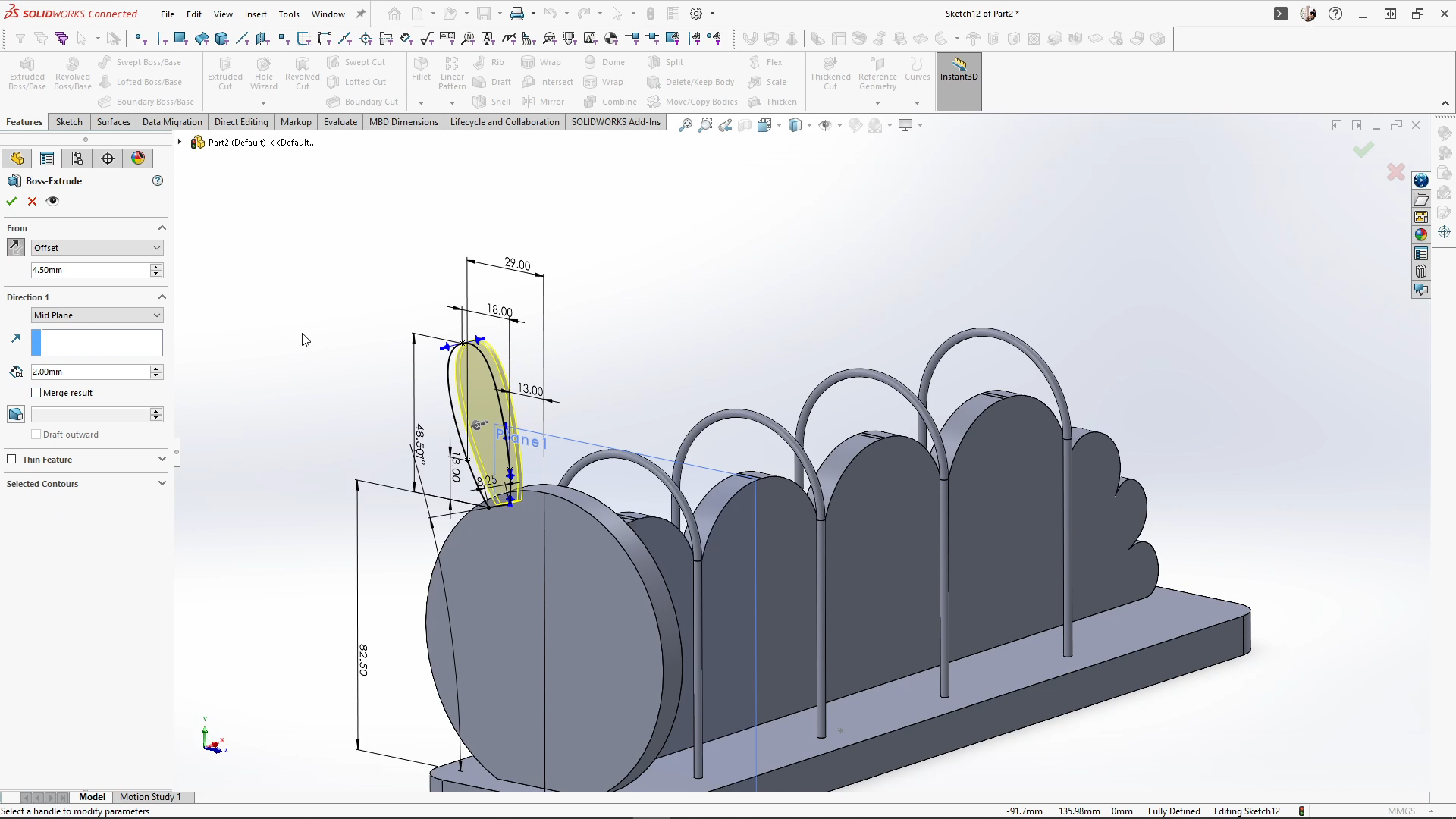
The antenna would be manufactured with felt fabric, keeping the body separate meant that I could flex the antenna body. Using the flex feature, I rotated the trim planes around to bend the antenna vertically by 22 degrees. Then repeated the feature again, only this time, I moved the bend axis line towards the bottom of the antenna, so I could bend the part by 14 degrees to look like the below image. I then mirrored over the antenna, selecting the front plane for my mirror plane.
Moving onto the abacus beads, I sketched the beads top profile, extruded it by 6.5mm, offset from the base extrusions face. I then used the chamfer feature, and I chamfered the top and bottom outer edges of the bead. The edges were then softened using a fillet by 2mm. Patterning the bead, I used the linear pattern feature, changed the spacing to 6.5mm and the instances to 10. Instead of patterning the 10 beads along for the other 3 bead tracks, I used move/copy bodies, this choice is entirely for the ease of applying appearances later on. When I use linear pattern the bead solid bodies don’t group in order, whereas when I use move/copy bodies they stay grouped, making selections much easier.
Using the move/copy bodies feature again, I created a copy of the antennas, but keeping them in the same position I used the combine feature. Changing the operation type to subtract, I selected the caterpillar face body for the main body, and a set of antennas for the bodies to subtract. This leaves a slot within the caterpillar head for the antennas to sit into.
Selecting the combine feature again, I changed the operation type back to add, and selecting all the caterpillar segments I combined the bodies into one. Finally, I needed to model rubber stoppers for the bead tracks, these soften the drop of the wooden beads. Sketching, extruding and adding a chamfer to the rubber stoppers, I used the liner pattern the body. The distance between instances is 58mm, with 4 instances. Once applied, I used the mirror feature to mirror over the 4 rubber stopper bodies.
With the model is complete, I applied all of my appearances, and my custom decals to the model. My decals are PNG image files, so the background colour can be removed and reveal the appearance applied underneath. With the caterpillar abacus complete and saved. I created a motion study and animated the abacus, which was rendered in SOLIDWORKS Visualize, you can view this at the end of the tutorial.
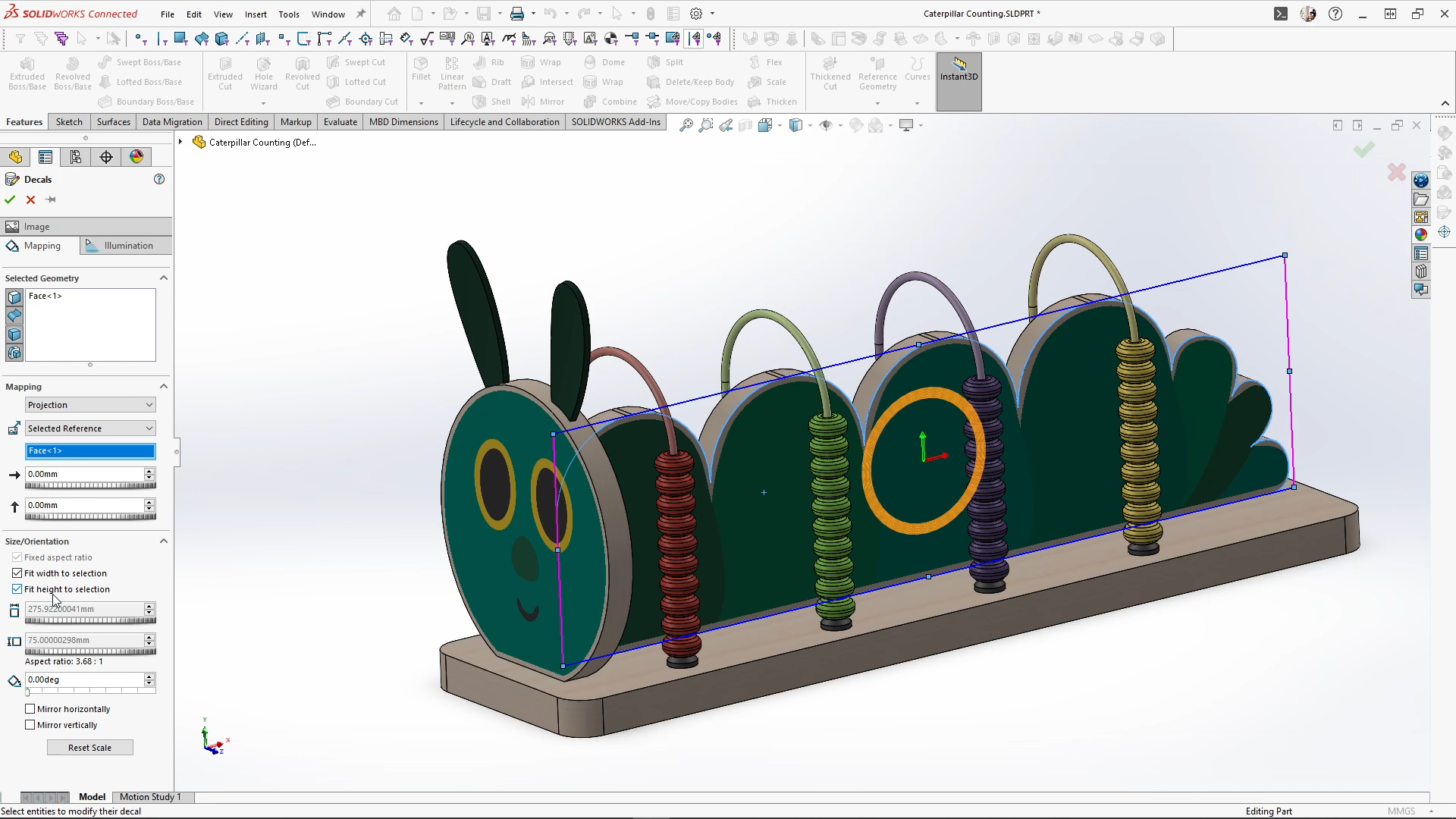
Author information
The post Caterpillar Abacus featuring Patterns: SOLIDWORKS Tutorial appeared first on SOLIDWORKS Tech Blog.
]]>Author information

The post SOLIDWORKS Tech Blog: Making of the Design Ring Arena at EgyptSWUG appeared first on SOLIDWORKS Tech Blog.
]]>The Design Ring Challenge Arena — a fully hand-built wrestling-style CAD battle zone that stole the spotlight both technically and visually.
What many didn’t see was the story behind its creation; this was not a pre-made stage or a rented structure; it was a hands-on, from-scratch manufacturing project, imagined and built by engineering students from Port Said with SolidWorks principles in mind.
From Concept to Cut: The Build Process
The arena began as a raw wooden plate — untreated, uncut, and flat. The PSU Racing Team engineered and fabricated the ring through a multi-phase workflow:
1. Sketching & CAD Modeling
Using SolidWorks, the structure was designed with proper proportions for safety, spacing, and aesthetic. Features like elevation, cable height, and team zones were all considered.
2. Material Cutting & Frame Assembly
With local tools and support from partners, the wood was precisely cut, sanded, and formed into the ring’s base. Frames were assembled manually using basic tools—no automation, just skill and teamwork.
3. Reinforcement & Safety Testing
Supports and corners were added to ensure structural strength., something expected from the The ring had to accommodate intense movement from competitors during the live CAD duels.
4. Painting & Branding The final stage was a high-energy collaboration:
- Bold red, black, and silver paints applied by hand
- Sponsor & event logos painted with stencils and attention to detail
- Decorative edges and matte finish for on-camera appeal

The build took over 35 cumulative hours across multiple evenings leading up to the event. Every nail, brushstroke, and weld came from student hands.
The Arena in Action: Competition Day
Once installed inside the Creative Innovation Hub, the Design Ring became the center of attention:
- CAD Design Battles took place in front of a live audience
- Teams entered and exited the ring under real-time pressure
- The audience cheered as participants switched roles mid-session
- Red Bull’s “On the Fly” Challenge added a second layer of speed and creativity
The ring wasn’t just a visual piece — it became a physical representation of engineering under pressure, where communication, speed, and flexibility mattered most.
One of the participants said, “I’ve never experienced anything like this before. It’s like an F1 pit stop — but for CAD!”
What It Represented
The Design Ring wasn’t just a battle zone. It stood for something bigger:
From plywood to painted perfection, the ring was a proof-of-concept that design isn’t just digital — it’s a physical, emotional, and community experience.



This blog was written by the PSU Racing Team | Port Said EgyptSWUG
To read more about EgyptSWUG and the SOLIDWORKS User Group Network click here
Author information
The post SOLIDWORKS Tech Blog: Making of the Design Ring Arena at EgyptSWUG appeared first on SOLIDWORKS Tech Blog.
]]>Author information
The post 3D Printed Playdough Tools: SOLIDWORKS Tutorial appeared first on SOLIDWORKS Tech Blog.
]]>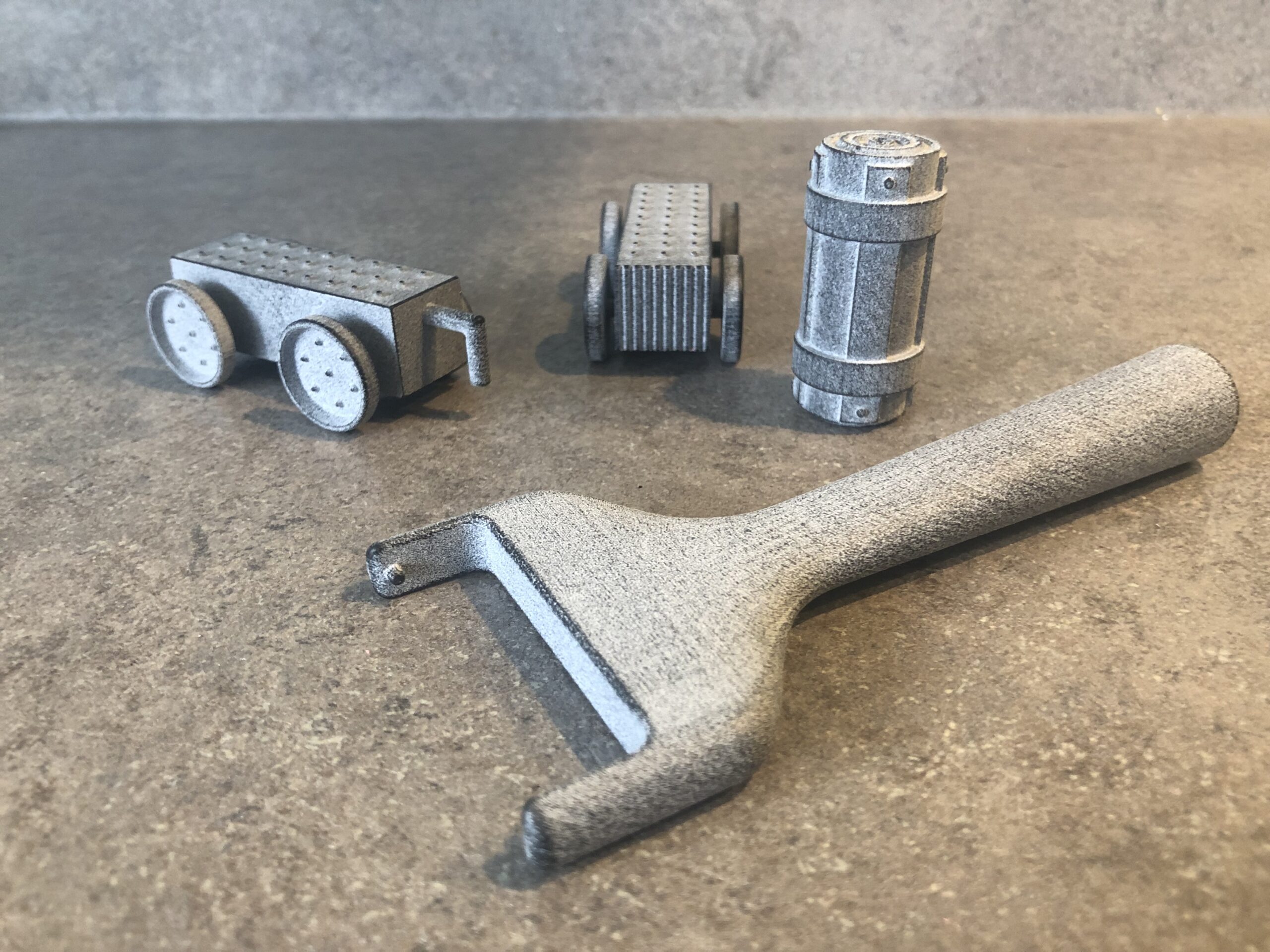
Starting with the wheel part for the roller, I extruded a 20mm circle, midplane by 50mm. Sketching onto the front plane, I sketched a center rectangle from the axis at 7 by 46mm. Extruding this I changed the from drop down to extrude from surface, selecting the cylinder face, I extruded it blind by 1.2mm merging the result. I added a draft angle to the top and bottom edge of the extrusion by 1.2mm at 5 degrees. Having this angle helps the roller to not pull up the dough when it is rolled over. Next, I added a new plane off the front plane to sketch some railway spikes onto the sleeper. I extruded them by 1.2mm with a 5mm draft angle, merged.
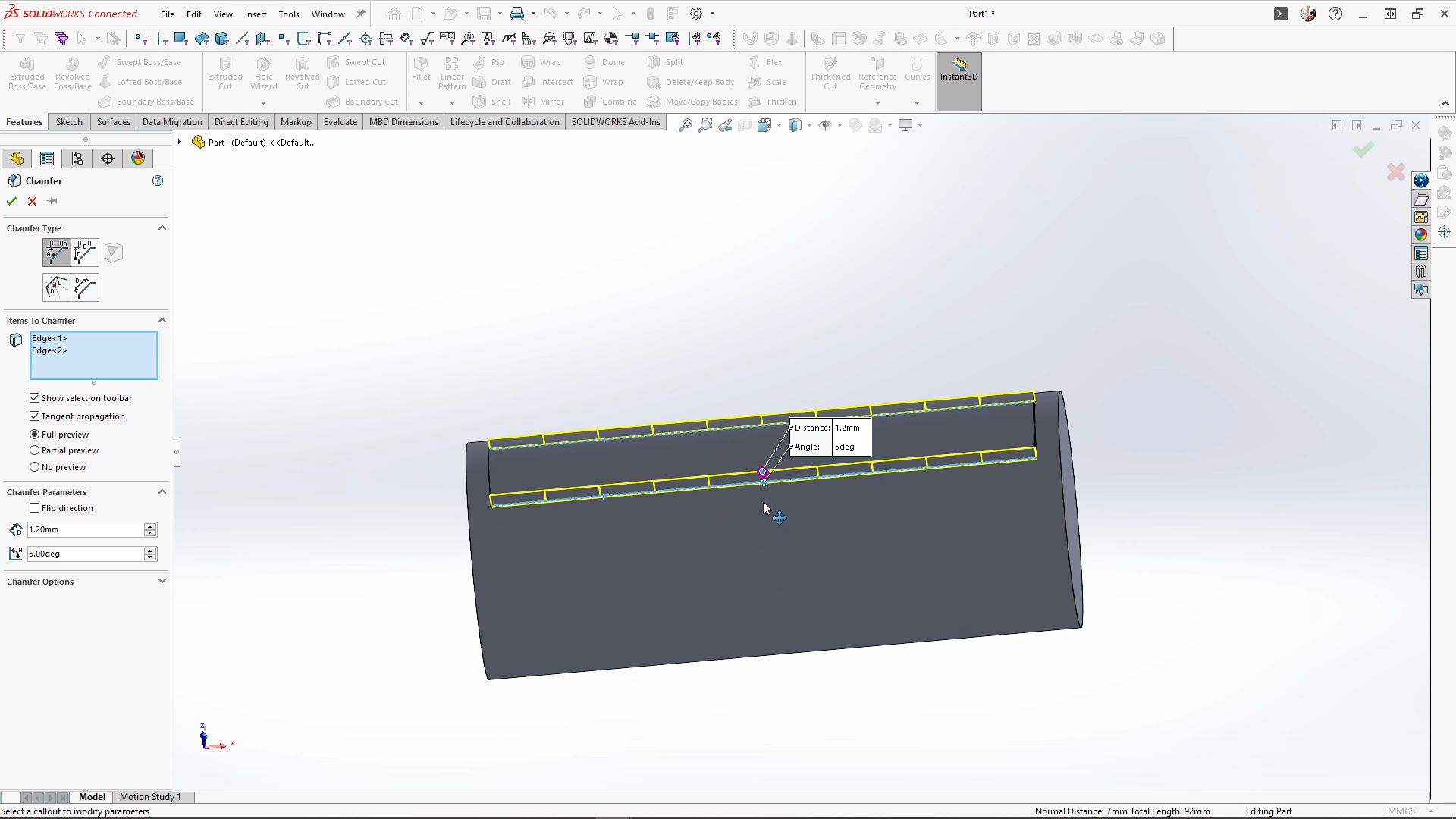
From here, I used the circular pattern feature and selected the two boss extrusions and the chamfer feature for the features to pattern, then the circular edge for the direction to pattern, for this I patterned 4 instances with equal spacing.

For the tracks, I sketched and isosceles trapezium and mirrored it over. These could then be revolved using the rollers temporary axis. When rolled into the dough these would create the correct spaced tracks for the carriages to roll down.
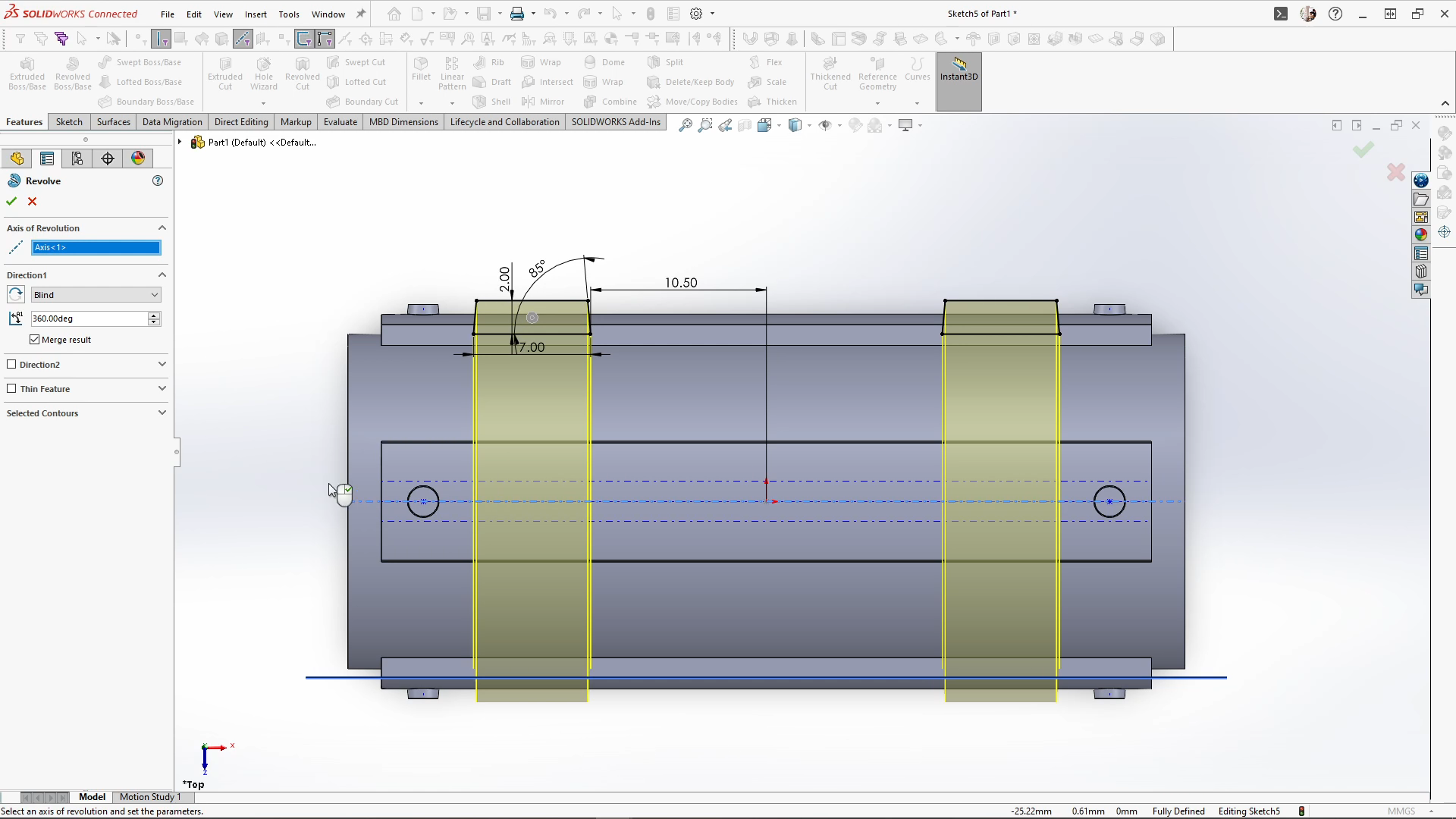
Moving onto the wheel stamp ends of the roller, I started by selecting the left side end face of the roller, insert and DXF. Here I imported the Wheel DXF 1 file. Under the DXF import settings, I unchecked the import as reference box, and next. Double checking my units were in millimeters, I could see the DXF sketch preview box and select finish to bring in my DXF as a sketch.
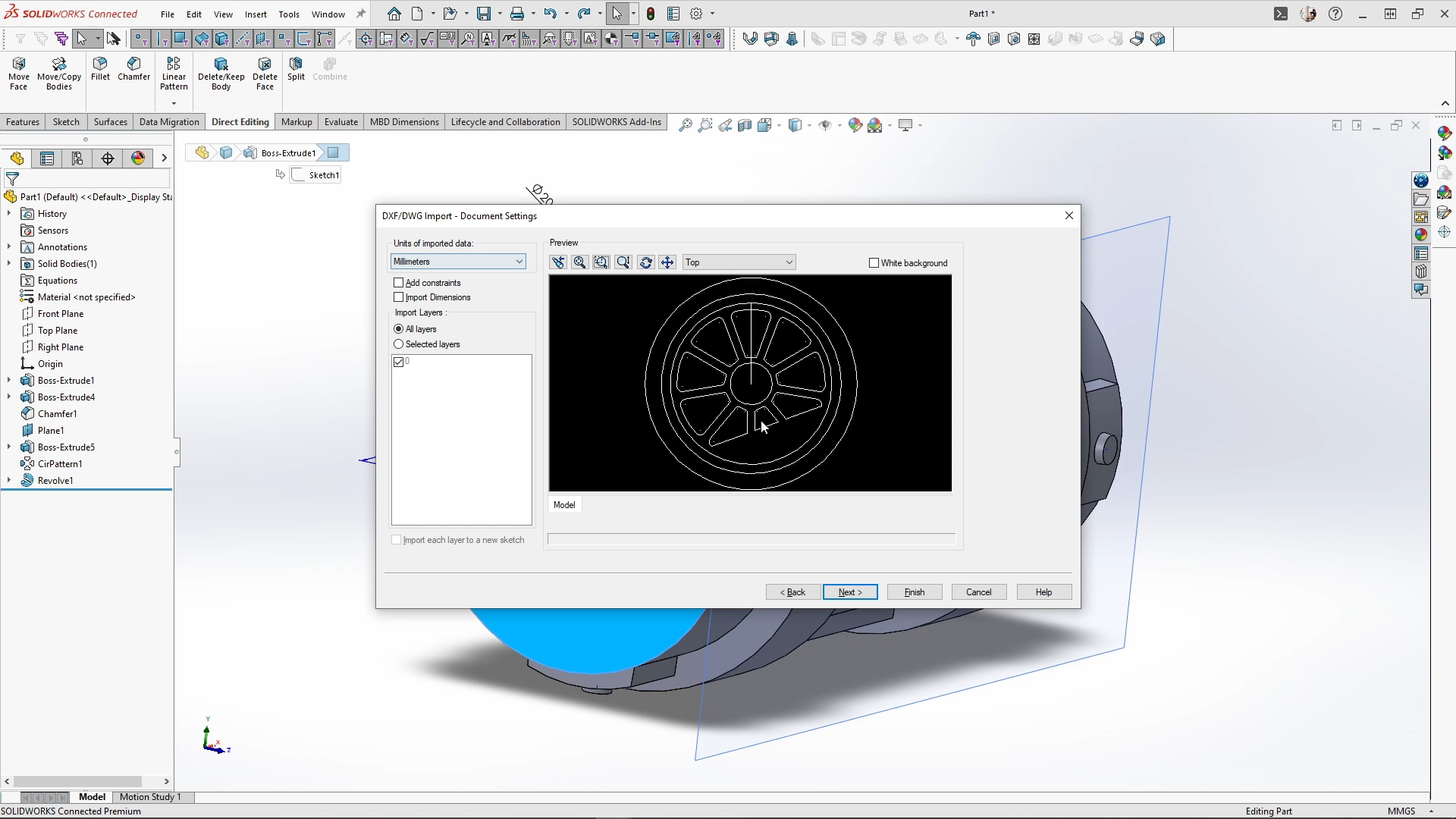
When the sketch came in, I fixed the whole sketch to fully define it. I then cut extrude by 1.2mm with a 5-degree draft angle to help the stamp release easier.
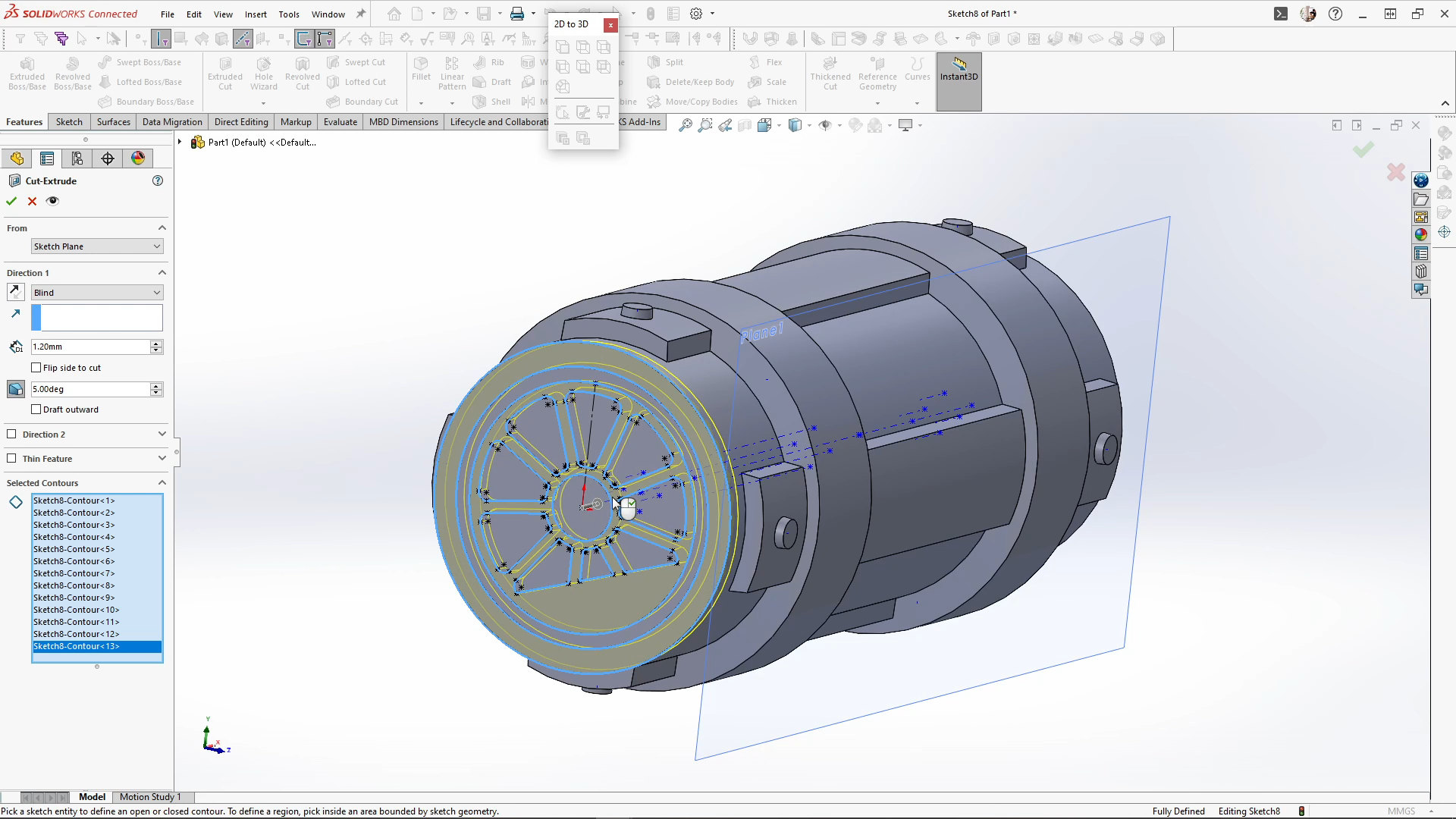
Once applied you’ll see below I was left with an outer wall left from the draft angle cut. To remove this, I used the direct editing tab and delete face. Under options I used delete and patch selected. Selecting the face and delete it removes and patches the part.
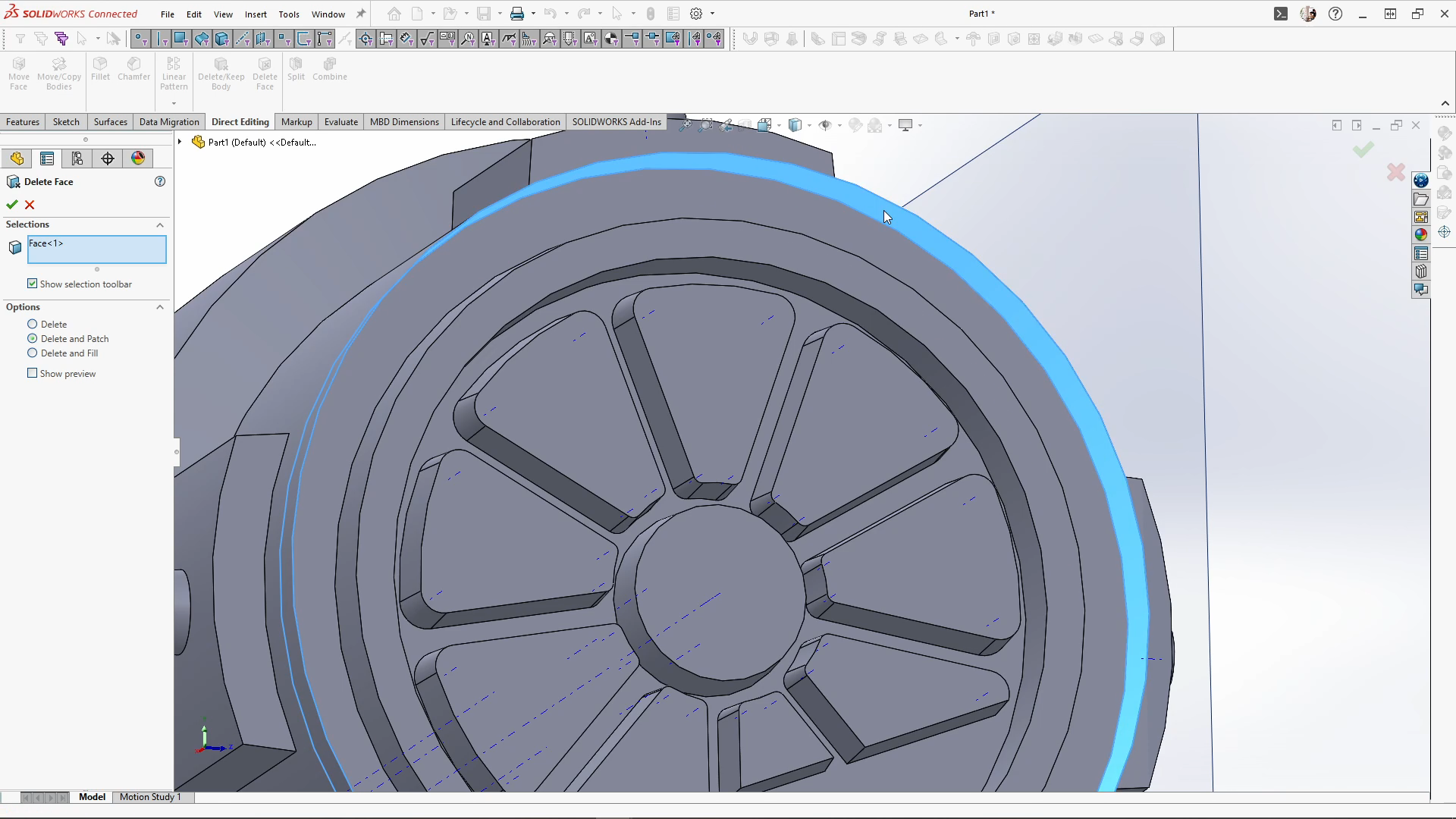
For the opposite side of the roller, Instead of cutting the sketch, I used revolve cut. Selecting the top plane and insert, DXF, I imported the second wheel DXF file. Repeating the same import settings, the sketch came in, and was moved and fixed into place. I then revolve cut the sketch from the rollers center axis.
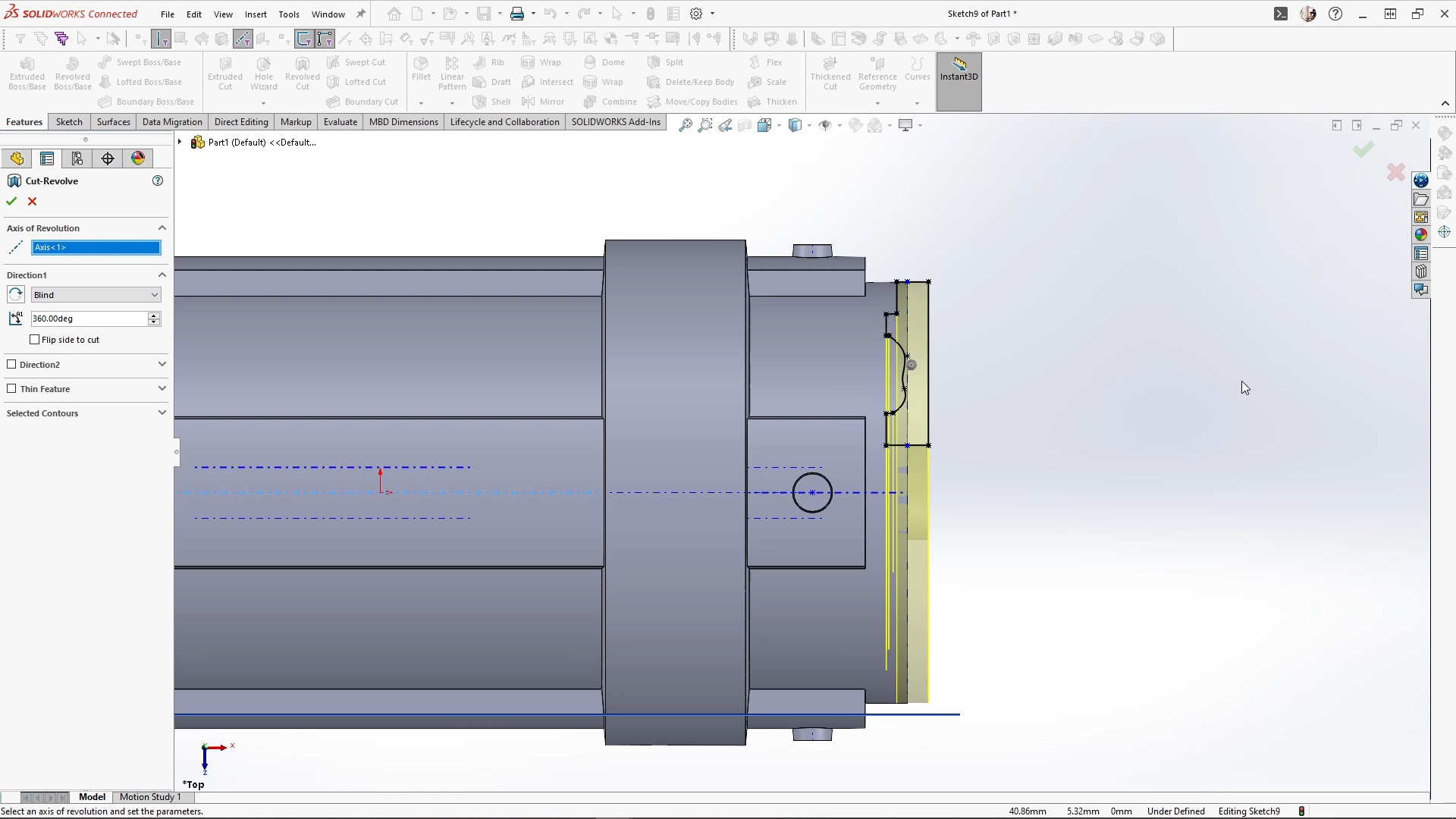
For the roller to sit onto the handle I needed to add some holes to both ends of the roller wheel. With the roller wheel done, I saved it and brought the part into the handle’s assembly and mated it into place using a concentric mate and a width mate to center the roller wheel within the handle.
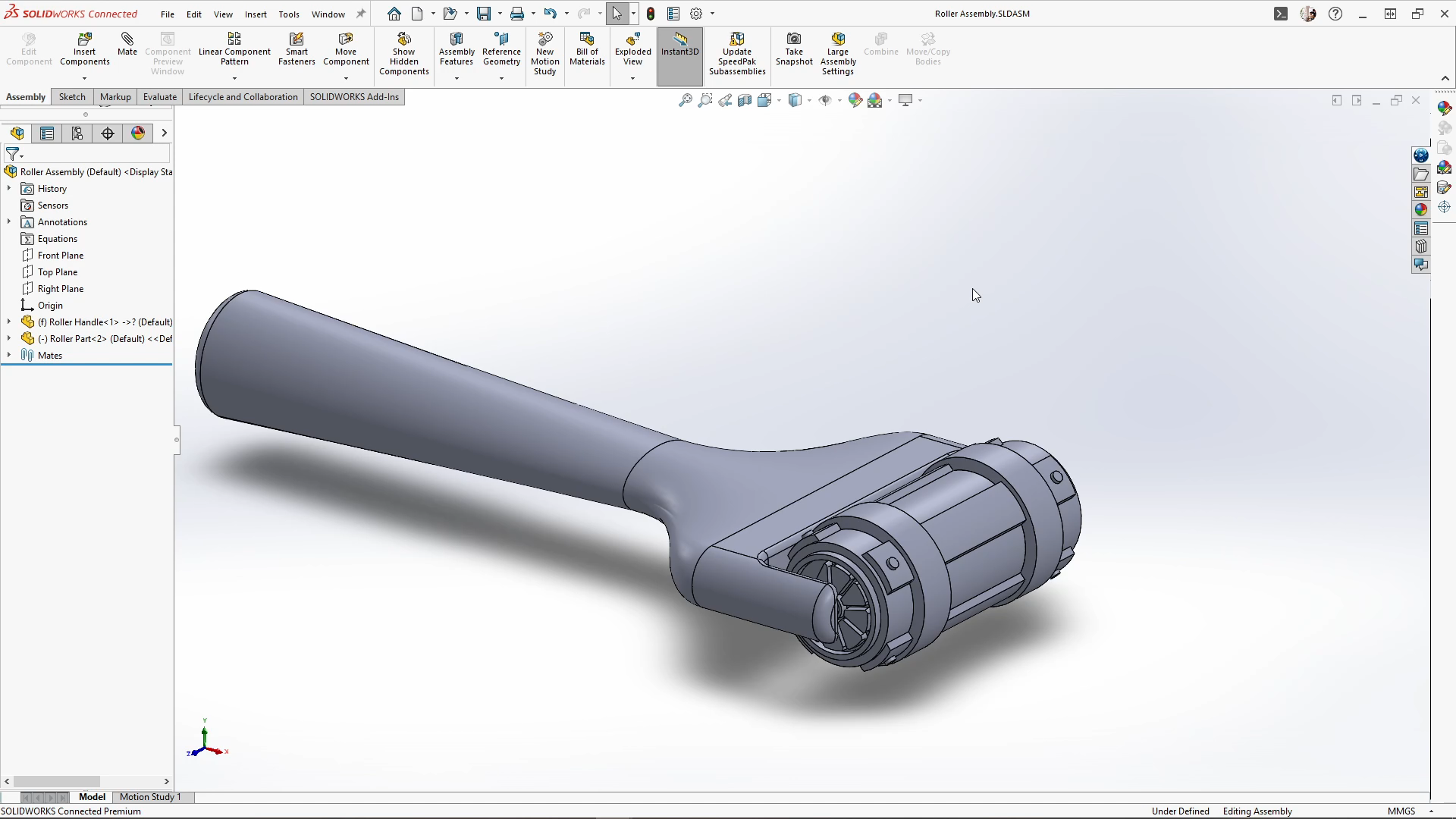
For the carriages, I started with the front carriage. I sketched the carriage base, which included two 4.5mm circles which would be used for the wheels axle to go through. Then I extruded this midplane by 18mm. To help keep the dough on the top of the carriages I created a bumped texture. This just creates more surface area for the dough. To create this I started with a 2mm circle sketch center to the top face and extruded it by 1mm with a 35 degree draft angle. With the new feature selected, I used the fill pattern and selected the top face for the fill boundary. I spaced the instances apart from 6mm each way and changed the pattern layout type to square. And applied it.
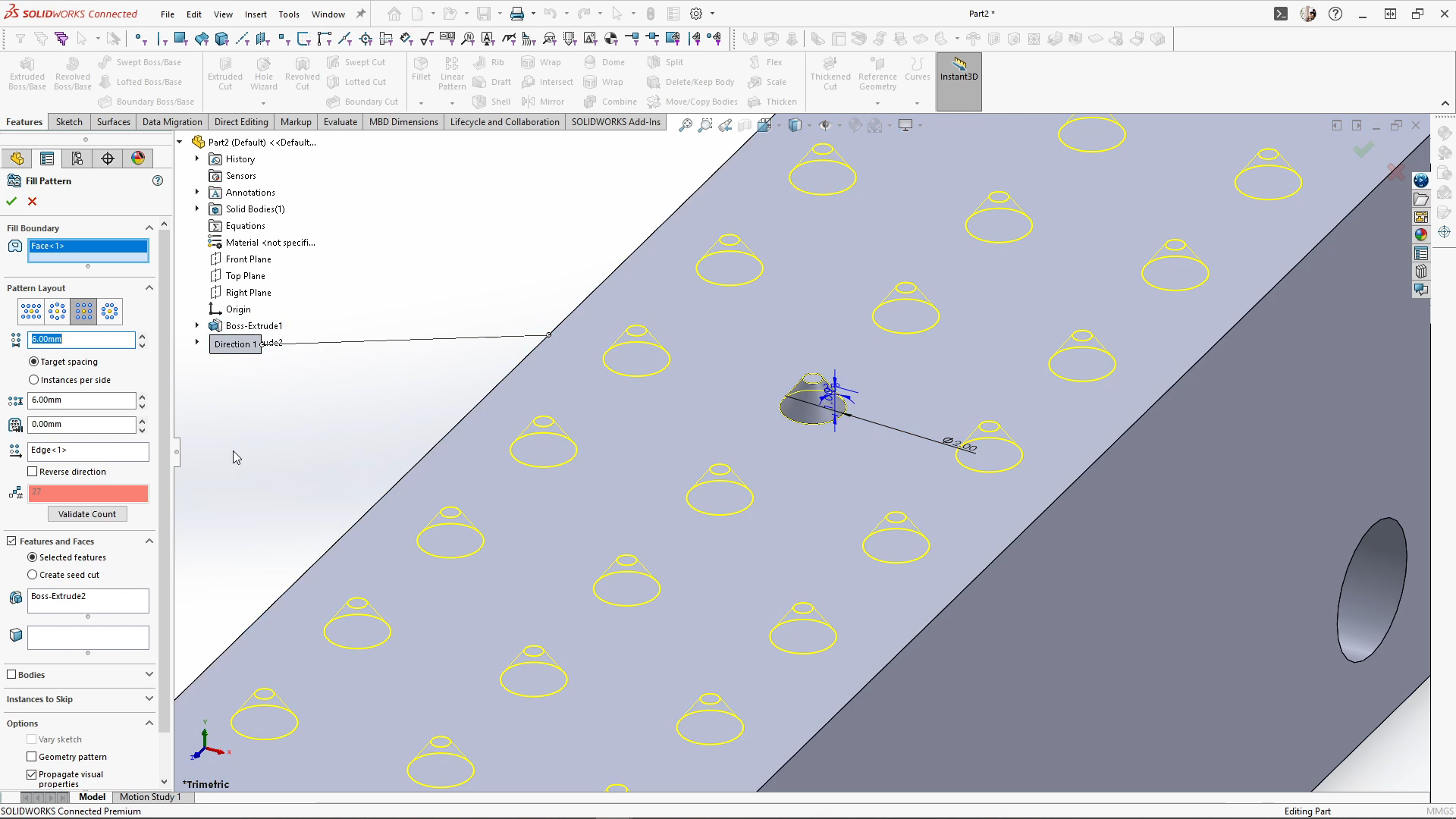
Sketching onto the front face of the carriage, I used the slot to sketch a short curved indent on the midpoint of the edge. Then extrude cut the sketch through all. Using the fill pattern again, I then selected the front faces for the fill boundary, and selected the cut for the pattern feature. Spacing them apart by 1.9mm both ways and apply it. This surface can be used to press dough onto the front of the train to add more playability to the train.
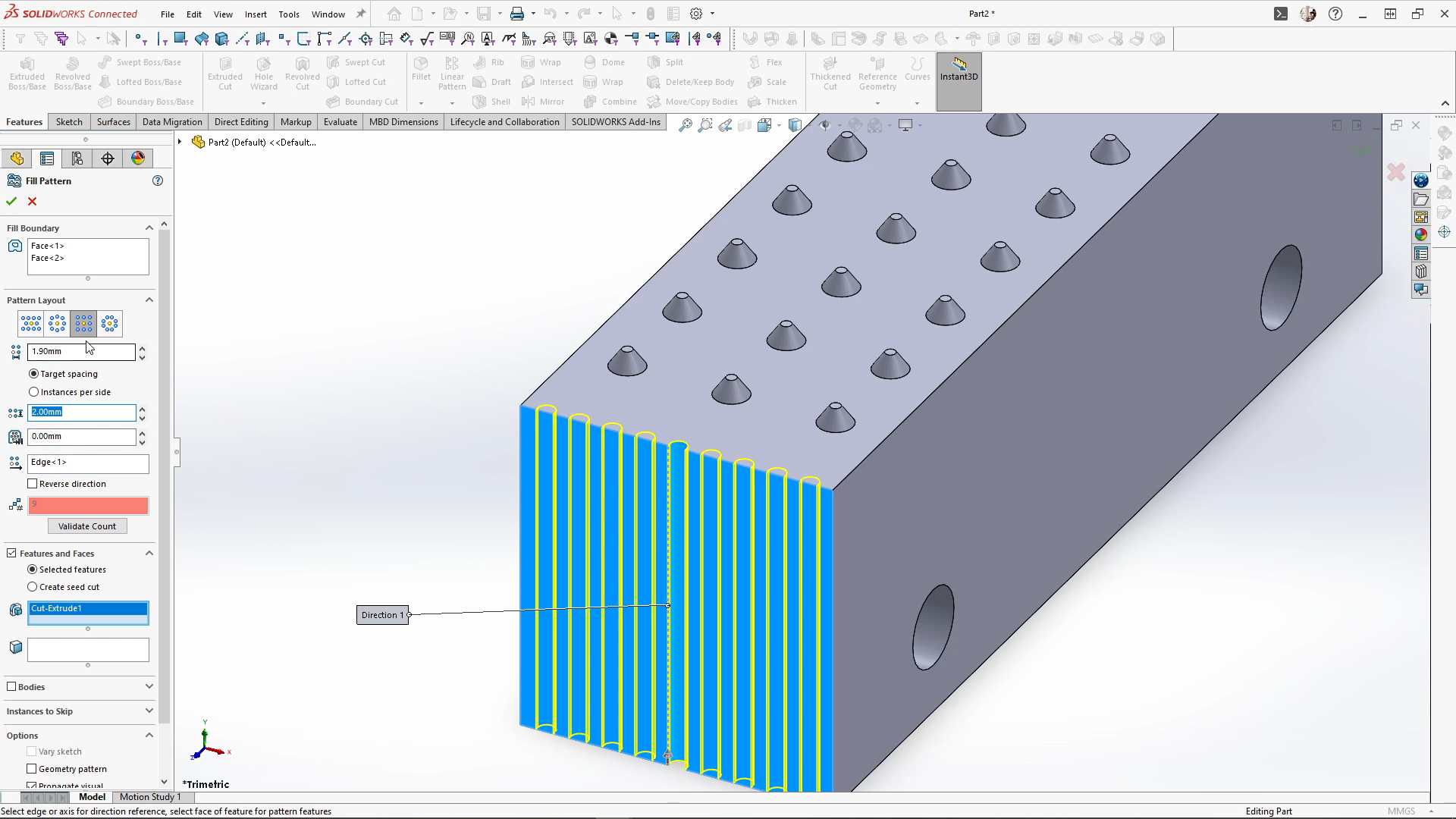
Sketching onto the top plane, I sketched a 10mm circle and fully defined the sketch. Then I used the sweep feature with the circular profile option, the sketch as my path, and a 4mm diameter, merging the result. This creates a loop for linking carriages.
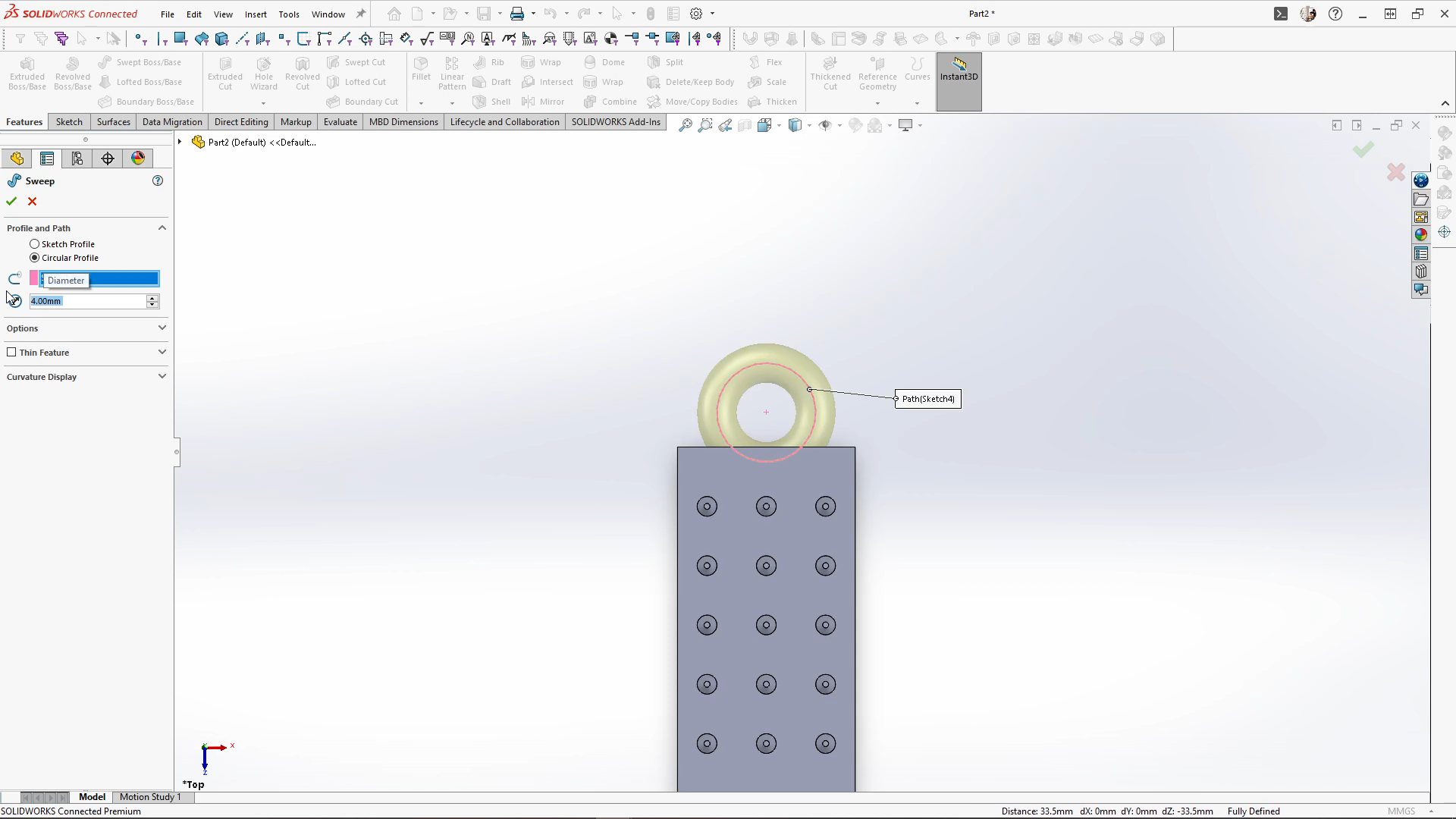
For the wheels, I sketched a 4mm wheel axle and extruded midplane by 24mm. On the end face of the axle I sketched a 22mm circle and extruded the wheel by 4mm blind. I extruded unmerged as I needed to mirror the wheel and its features over later. Sketching onto the extruded wheel face, I sketched a 19mm circle and extrude cut by 2.5mm with a draft angle of 20 degrees.
I also added the same fill feature to the wheel, this will help the dough pushed into the wheels to stay there, again creating more surface area.
With the wheel done, I mirrored over the wheel across the right plane, and then mirrored over the front plane until I had a set of 4. For 3D printing the wheels and axles as whole parts I combined the wheels and axle sets using the combine add feature. I could then save the part as front train.
Keeping the part open, I used the move/copy bodies feature to move and create one copy of the train and space it back by 74.5mm. I wanted the back carriage to be a part that can be printed multiple times and reconnected to the train, so I needed to remove the texture on the front of the carriage.
You could do this a few ways, but I used the direct editing tab again and delete face, selecting a patterned cut face and using the selection toolbar I selected the tangent group, and repeating for each indent. Then I can delete and patch to remove the texture.
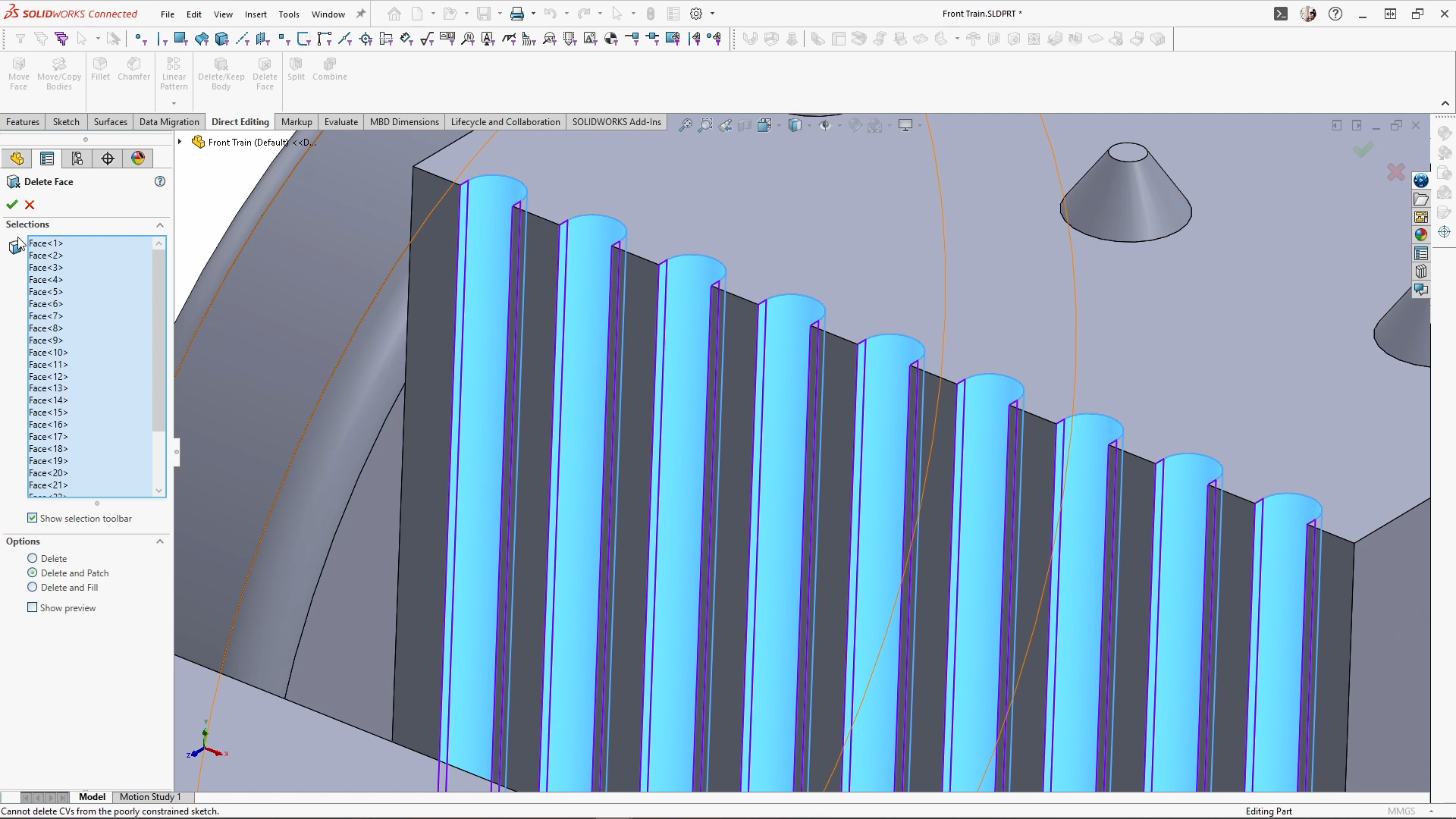
Sketching onto the right plane, I used the line to sketch a train hook for connecting the carriages together. Fully defining the sketch, I used the sweep feature with circular profile to sweep the sketch by 4mm.
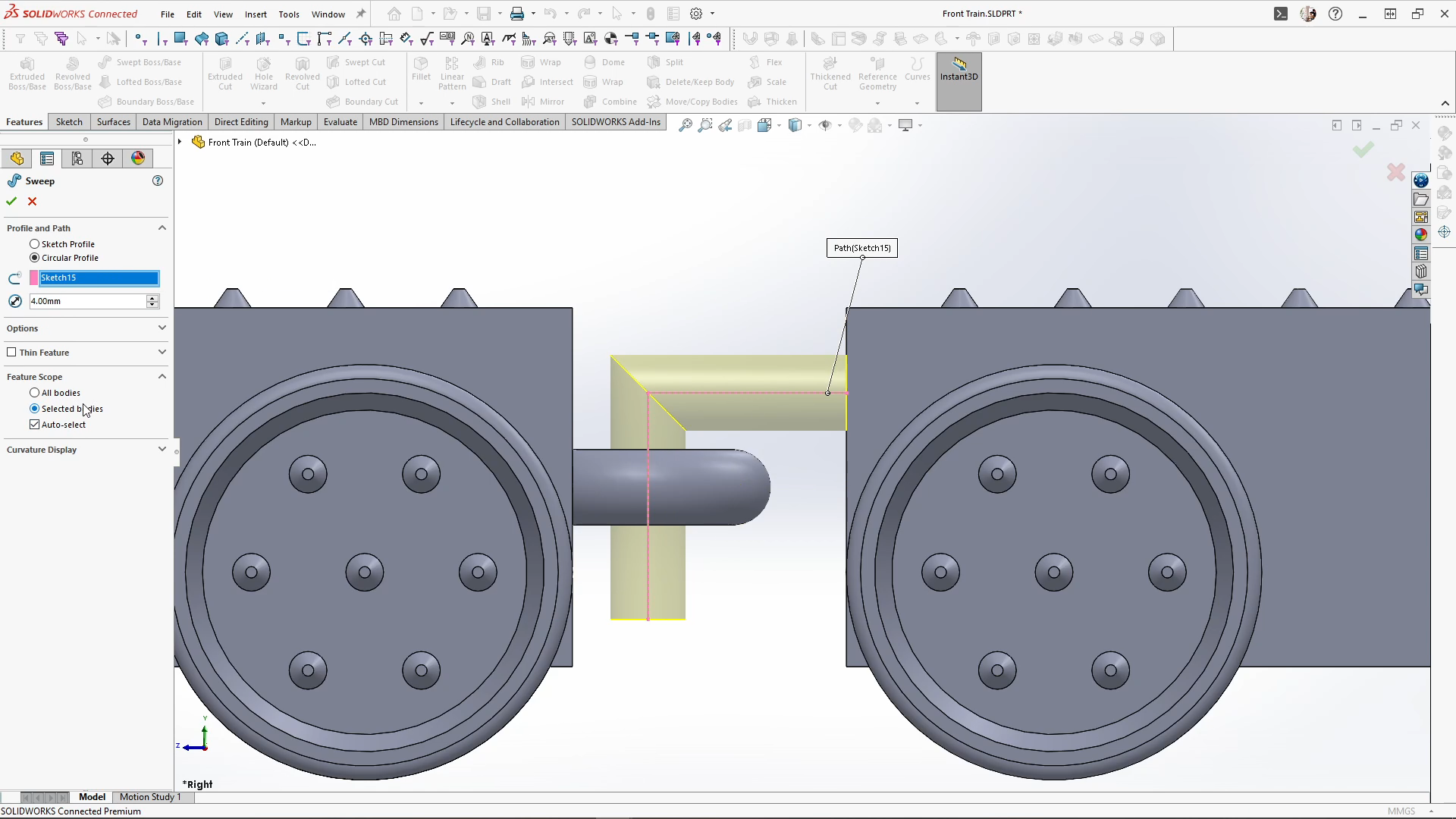
Finally, using direct editing I deleted the front train bodies to leave the back train, and used save as, to save the back train part. I also used save as to save all my parts as STL file for 3D printing. All parts were printed by 3DPRINT UK with the guidance of Kirby Downey. Dependent on your printing material you may need to tweak your roller wheel to make it possible to remove and roll the roller part. Mine was slightly tight but this allowed me to put more pressure onto the roller in use without the roller wheel falling out.
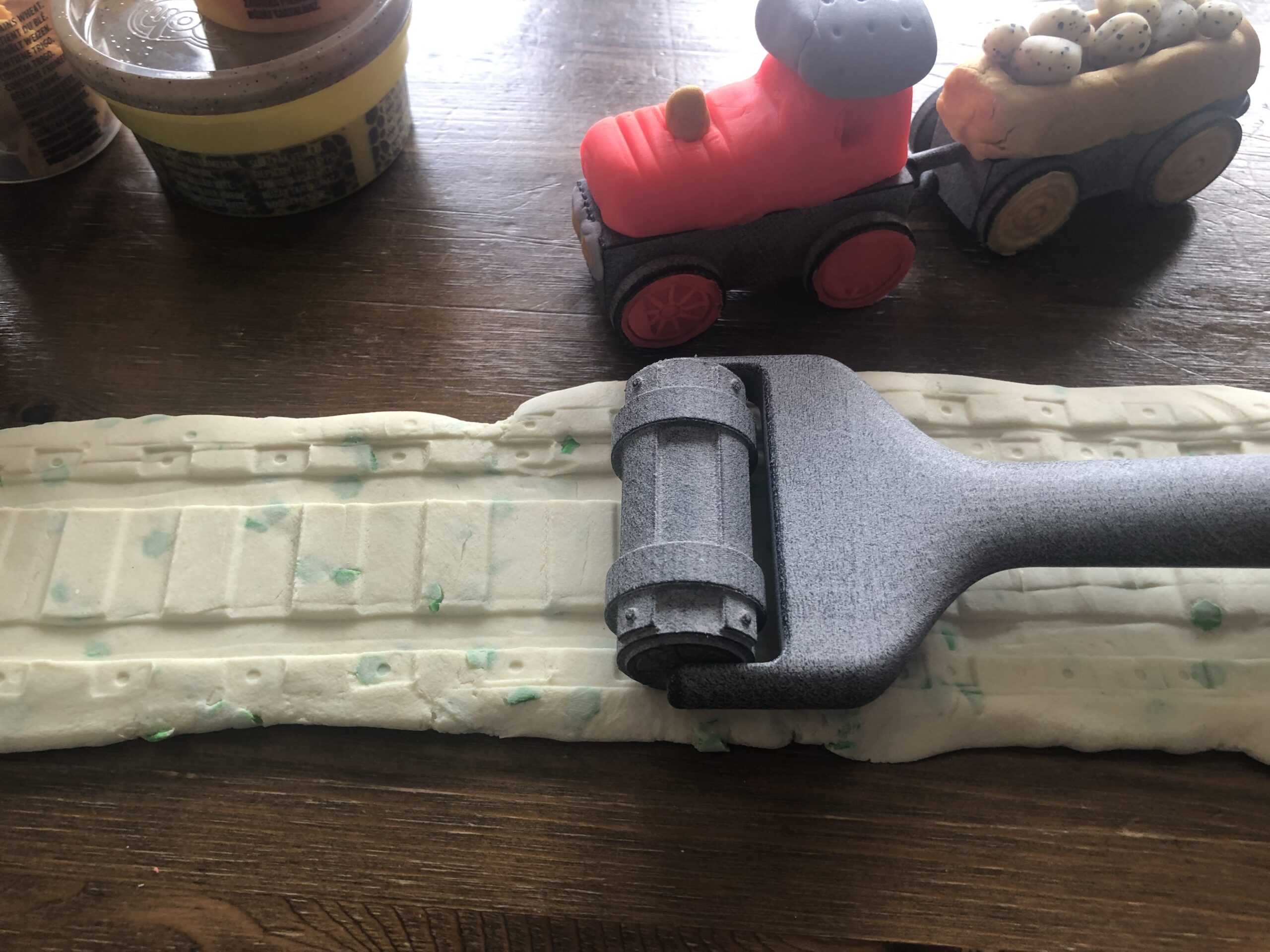
Author information
The post 3D Printed Playdough Tools: SOLIDWORKS Tutorial appeared first on SOLIDWORKS Tech Blog.
]]>Author information

The post Creating a Dynamic Spring in SOLIDWORKS appeared first on SOLIDWORKS Tech Blog.
]]>
A photo of a small compression spring versus its 2-minute equivalent in SOLIDWORKS.
Now, there are plenty of ways to make a spring more complex. You can add a taper to the helix, you can create smaller and larger sections, add hooks to the ends to create a tension spring, use Cut with Surface to create Ground Ends. The list is nearly endless, and Jeff Setzer wrote an article over a decade ago that covers almost every trick in the book for designing springs. All these best practices still apply today, so I encourage you to go check that article out.
Far and away, though, the question I’m asked most often is, “how do I make my spring show motion?” or some variation thereof. And the truth is, this question is incredibly simple and very complex at the same time. So in this article, let’s examine why that’s the case, and explain how you can design your springs with movement using both a simple and a more complex approach.
Simple Approach: Use Instant3D with a Plain Old Helical Spring
Believe it or not, even the most basic springs have dynamic movement built in (technically). Specifically, the Instant3D functionality can be used to modify and update the length of the spring in real time, so you can see the spacing between coils increase and decrease as you make adjustments.
To create a basic spring, sketch and fully define a circle on a plane of your choice, confirm the sketch, and then create a helix using the Curves dropdown in the Features tab of the CommandManager. Select the sketched circle as the reference for the helix, and then adjust the helix parameters as required.
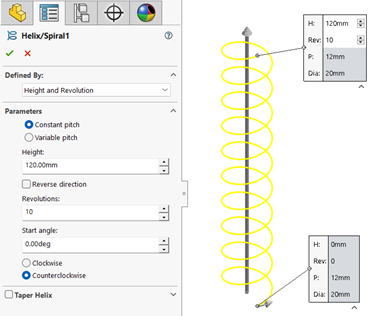
Creating a basic helix.
For less experienced users, it’s recommended to use one of the “Defined By” options that includes the Height parameter. This will make the process of adjusting the spring length more intuitive.
Once complete, this helix can then be used as the path for a Swept Boss feature, using the option for Circular Profile and providing a diameter to keep things simple.
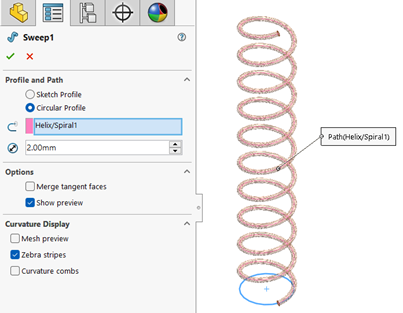
Creating a spring by sweeping a circular profile along the helical curve.
Once the spring has been created, you’ll need to find the dimension that controls the spring length (this will be an obvious length dimension unless the “Pitch and Revolution” or “Spiral” option was used to define the helix in the previous step). Locate the Helix feature in the FeatureManager Design Tree and click it a single time (do not double click). The dimensions of the helix should appear on the screen like so:
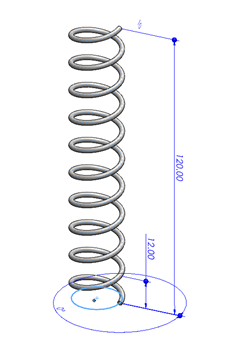
A simple spring with dimensions displayed.
If the dimensions do not appear after a single click, or the dark blue circular handles do not appear at the ends of the dimensions as pictured above, Instant3D is likely disabled. In this case, navigate to the Features tab to find Instant3D and enable it.
Once Instant3D is enabled, click and drag the dark blue circular handle attached to the end of the spring length dimension. The length will automatically be updated, and the spring will stretch or compress in real time according to the new value.
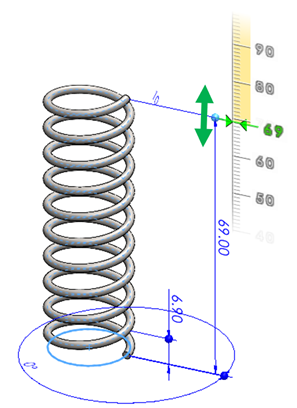
Adjusting spring length in real time using Instant3D.
For some relatively simple applications, this approach may be just enough to get the job done. But for most people asking how to show motion in springs, they’re looking for a little more capability than this.
This approach has several limitations, but most notably:
- It cannot be used dynamically in animations or Motion Studies.
- It will not automatically adjust when used in assemblies.
- Changing it requires you to modify a dimension of the helical curve, which is a parent feature of the Sweep that generates the geometry (this can get messy).
So, assuming your needs are beyond this use case, where do we go from here? The Advanced approach solves each of these limitations, but requires quite a bit more work.
Advanced Approach: Create a Spring without a Helix or a Length Dimension
So, why can’t the Simple approach be used to represent dynamic motion? The big limitation is that to change the length of the spring, we have to change a dimension value that is buried within a sequence of operations. If you followed the Simple approach, your design tree would look something like this.
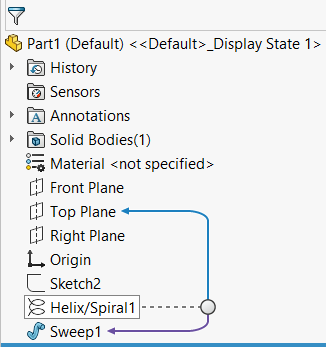
The Feature Tree of a simple spring design.
The Sweep feature creates the geometry of the spring, but uses the Helix feature as the path, which in turn contains the dimension we have to modify to change the spring length. Generally speaking, SOLIDWORKS does not like to propagate design changes through multiple levels of feature dependency, and rebuilds do not happen automatically after changing sketch dimension values for performance reasons.
In addition to all this, I’d like to remind you that a dimension value is just another constraint, and in the context of an assembly, there are very few instances where the length of a spring should be driving the position of the surrounding components. Rather, the position of the assembly components should be driving the length of the spring. So what do we do?
Get rid of the helix and the length dimension!
Most of this problem could hypothetically be solved if we were able to suppress or delete the length/height dimension associated with the helix, but since a helix is a feature, and the length dimension is required by the feature, there’s no way around this. So get out your thinking caps, it’s time for a workaround!
The helical nature of our spring can be replicated without a helix by using a Swept Boss constructed from an undimensioned vertical line path and a circular profile constructed offset from the path as shown (these should be created as separate sketches, or the sweep feature may fail due to the options required).
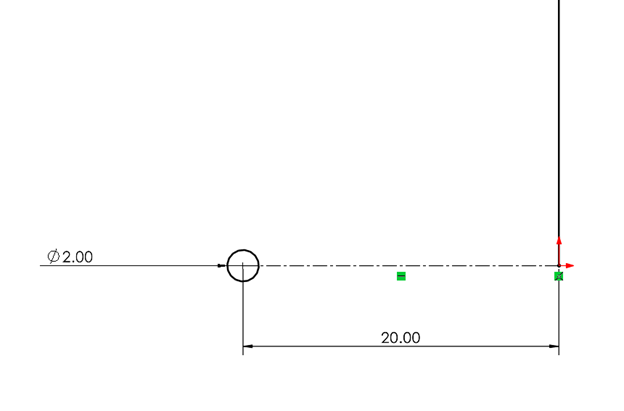
A straight line of arbitrary length representing the spring path and a circle representing the spring profile. The 20mm dimension shown here represents the radius of the coils.
With this sketch created, start a Swept Boss feature, selecting the circle as the profile and the line as the path. You will likely notice no preview initially, indicating that the feature will fail.
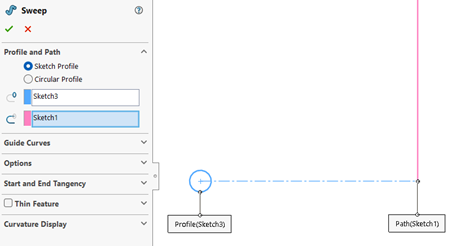
No Sweep preview, indicating that the feature will fail with the given parameters.
This is because with the current selections, the circle would be swept along the same plane it’s sketched on, failing to sweep through any volume. However, the Options dropdown allows us to specify a twist value manually.
Profile Twist options available for the Swept Boss feature.
Specifying a twist value greater than zero degrees will cause the profile to rotate around the straight-line path by the amount specified over the length of the sweep while respecting the sketched offset distance (20mm in this case). Consider changing the Twist control parameter to revolutions to more easily define the number of coils created.
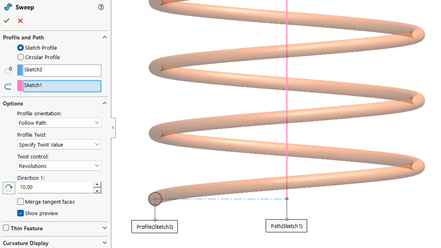
Preview of the spring at ten revolutions of specified twist.
Confirm the sweep feature to generate the geometry. Now that the spring is free of a length dimension and doesn’t rely on a helix, the possibilities are endless! Simply dragging the line segment in the sketch controlling the length of the spring will automatically rebuild it accordingly. This may seem very similar to the Simple approach, but importantly, this method is compatible with assemblies with just a bit more work.
You will likely want to create a reference Axis from the intersection of planes along the spring’s length and other reference features. These can simplify mating in assemblies.
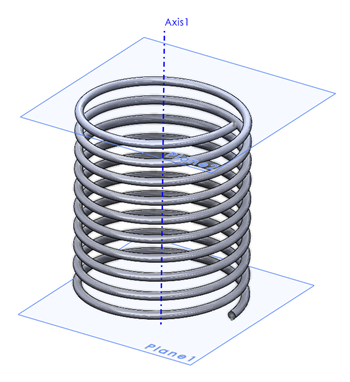
An undimensioned spring shown with reference planes and an axis for mating.
It’s important to note that simply adding this spring to an assembly and mating it to existing components will not show the dynamic motion you’re likely looking for. By default, components added to an assembly behave as rigid bodies, even if they have parameters at the part level that are underdefined. Here, I’ve modeled a simple syringe to illustrate this effect.
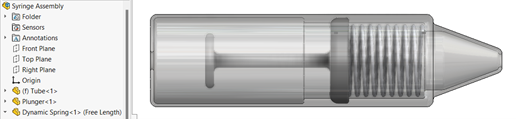
A fully-defined syringe assembly with no motion available.
In fact, in this particular case, the size of the spring is pulling the plunger component into an impossible position. To correct this behavior, our final step will be to replace one of the spring’s mates with an in-context relation to make the length of the spring dependent on the position of the components.
First, I’ll remove the Coincident mate between the plane at the end of the spring, allowing free movement of both the spring and the plunger. Then, right-click the spring component and use the Edit Part command to begin editing the part in the context of the assembly.
Syringe assembly shown with the Edit Part icon, found in the right-click context menu.
Depending on your system settings, the spring may turn blue, or the rest of the assembly may become transparent, or some combination thereof — but you should now be in Edit Part mode. From here, we can edit the sketch controlling the spring length and attach it to another component within the assembly, creating the in-context relation that will allow the spring length to update dynamically as we move the plunger.
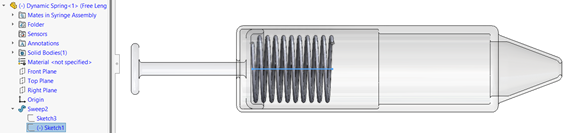
Syringe assembly in Edit Part mode with the sketch controlling spring length selected.
Depending on your design scenario, the relations required at this step will vary, but in most cases, the endpoint of the line segment controlling the spring length should be attached to a face, edge or vertex of another component using a Coincident relation, like so:
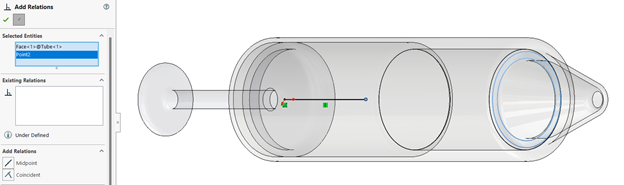
Line segment endpoint being attached to the end of the syringe tube via sketch relation.
As a reminder, this is a Coincident sketch relation, not an assembly mate, as we are editing a part in the context of an assembly. Once complete, simply confirm the sketch, then exit Edit Part mode, and you can officially test the dynamic behavior of your spring.
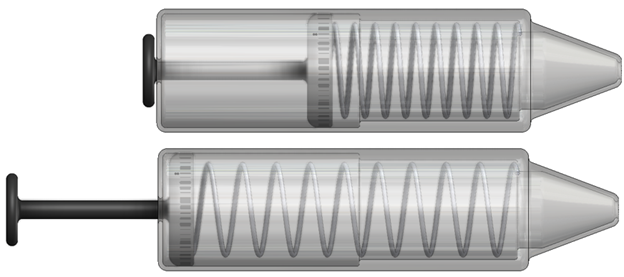
The spring before and after moving the plunger.
Updating the spring length will still require a rebuild after repositioning components (for now), but the surrounding components should now completely control the length of the spring. This unlocks a new level of design flexibility, along with animations and motion studies which can be saved directly as video files.
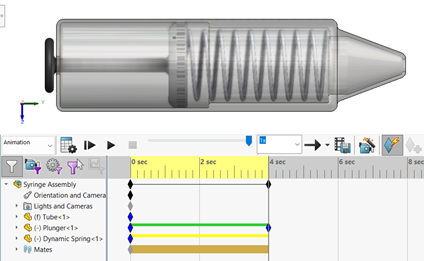
Animating the spring with a Motion Study.
Additional Thoughts
Now that you’ve mastered the concept of creating a dynamic spring, there are many ways to improve the realism and functionality of the spring. To wrap up, I’ll cover a few additional points to get your gears turning on what do next.
What if length really does matter?
This article assumes that the length of the spring is arbitrary, but that really depends on your specific circumstances. If preferred (or necessary), you can begin this design process with a dimension attached to the line segment representing the free length of the spring (or whatever length you prefer) to provide an initial state, but the dimensions must be removed in order to allow for dynamic motion.
To control the length of the spring more effectively, consider applying a Distance mate between the components that are attached by the spring. This mate comes with a dimension can be adjusted dynamically, similar to the sketch dimension used in the Simple approach. It also results in “true” dynamic behavior in that rebuilds are not required between adjustments and can be used with the Mate Controller feature.
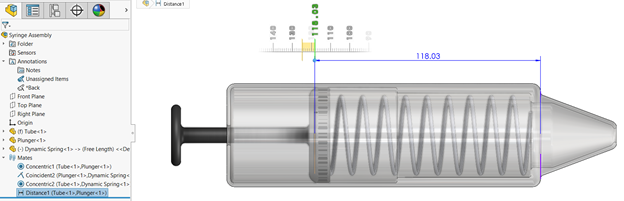
Adjusting spring length dynamically in an assembly using a Distance Mate.
Additionally, a Distance mate can be toggled to Driving or Driven as needed, allowing you to decide whether you want to set the spring length and have the component positions respond accordingly (driving) or vice versa (driven).
You can improve the realism of your designs further by using a LimitDistance mate instead to ensure that the components controlling the spring length only operate within a realistic range of values.
Subassemblies will make it seem like your dynamic springs aren’t working.
For performance reasons, subassemblies are set by default to behave as a rigid group of components. If you’d like to see dynamic spring movement at the subassembly level, the subassembly will need to be designated as flexible by right-clicking on it in the Design Tree and using the Make Subassembly Flexible command from the context menu. The icon looks like this:
The Make Subassembly Flexible icon.
This will allow your spring(s) to behave dynamically even at the subassembly level, but it should be noted that this may result in a performance hit depending on your system specs and quantity of flexible subassemblies.
Multiple contexts can be problematic.
Once you add the spring model to an assembly and add in-context relations to control its length, you are effectively creating a dependency between the spring and that specific assembly. If you intend to reuse the same spring model across multiple assemblies, this can become very messy, very quickly, and cause all sorts of things to break if you don’t prepare for it ahead of time.
Essentially, the spring model will always look back to the first assembly where the in-context relationship was created, and it will use that information to determine the spring length. This creates the possibility of conflicting model contexts, and while there are established best practices for handling this, such as making components flexible, they exceed the scope of this article (this is not the same as making subassemblies flexible as noted above).
You can learn more in the Top-Down Assembly Modeling section of the Assembly Modeling course offered by many SOLIDWORKS resellers.
Final Thoughts
From here, your spring models can be customized to be more realistic or more suited to your design needs as you see fit. You may wish to use Cut with Surface features to represent Ground Ends, add loops to represent a tension spring, create extra coils at reduced pitch, or any number of other features. So long as the spring portion of the design maintains its in-context relations, it will continue to stretch and compress as your designs change around it.
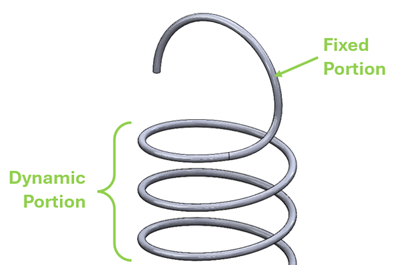
Simple sweep and loft features used to create a fixed hook feature while maintaining dynamic spring motion.
The in-context design strategy used throughout this article is very flexible and applies to much more than just spring designs, but there’s a lot to keep track of when using it. If you’re unfamiliar, consider doing some research or taking a training course to ensure you’re following all the best practices.
Did I miss something important about spring design? Come yell at me on LinkedIn and see what else I’ve been making! Until next time, thanks for reading and happy modeling!
Author information
The post Creating a Dynamic Spring in SOLIDWORKS appeared first on SOLIDWORKS Tech Blog.
]]>Author information

The post Introducing the DIY Artcade appeared first on SOLIDWORKS Tech Blog.
]]>
Special thanks to: Intel® and SOLIDWORKS for their great maker tools and commitment to pushing the creator ecosystem forward.
This project empowers anyone to build their own arcade cabinet from plywood, commodity hardware, and open-source software. The all-in parts budget can be under $500 depending on how many features you want. A talented team can complete this in a day. A motivated learner might need a month. The goal is an introduction to CAD, CNC, electronics, operating systems, game programming, art, music, cloud services and entrepreneurship through the creation of a quality product.
The base cabinet is intended to work out of the box by following the steps detailed in this article. Once built, the creator(s) can then approach public venues in their local community (e.g. cafes, laundromats, restaurants etc) and offer to place the cabinet in their venue in exchange for 50% of the revenue. This is a 100-year old business model that governs pay phones, jukeboxes, pinball, vending machines, etc. where the operator buys and maintains the unit and the venue provides space and customers.
Motivated makers looking for additional challenges can extend the platform in any of a number of ways detailed below including changing the game, the cabinet art, alternate controllers, and more.
Quick history of arcade cabinets
The first video arcade cabinets were installed in Andy Capp’s bar in Sunnyvale. The first game was Space War and it was too complicated and not successful. The second was Pong, which was so wildly successful the quarters overflowed the coffee can that was inside to catch the quarters in the first machine.
These early arcade cabinets had a lot of specialty aspects, but two are important for our discussion:
- Displays at the time were huge Cathode Ray Tube (CRT) monitors that had large depths. This meant the arcade cabinets needed to be large enough to accommodate.
- The games were triggered by coins dropping past a switch, and then later dollar bill acceptors that simulated coin drops. In both cases, the arcades were holding cash unattended in public places for indeterminate periods of time. As a result they needed to be built to withstand heavy abuse and tampering.
Modern innovations including flat panels and mobile phone payments enable a re-imagining of the cabinet to simplify the enclosure. When a user wants to play the DIY Artcade, the game presents a QR code that the user can scan and pay from their phone. A successful payment triggers an Amazon AWS EC2 cloud computer to send a message (over the MQTT message bus) to the Artcade indicating it has a credit and can be played.
At Two Bit Circus we love cardboard in our design process. It’s plentiful, sturdy and can be manipulated easily so it makes an excellent solution for quick prototyping. Nirvan Mullick’s video about Caine’s Arcade struck a chord with 11M+ YouTube impressions and counting. It ultimately launched the non-profit Imagination.org whose annual Cardboard Challenge is a global celebration of making with cardboard and thousands of participants. Two Bit Circus Foundation eventually acquired Imagination.org and together with our STEAM Carnival program and have continued to bring these inspired learning programs to schools around the world.
DIY Artcade is the step after cardboard. While Cardboard is great for prototyping it does not stand up to constant use from the general public. After cardboard you need more durable materials like wood, metal and plastic. We focused on a game-related platform because most kids love games. If you start from passion the learning can come as a wonderful side effect of authentic, motivated engagement.
DIY Artcade ships with a two-player fighter based on MUGEN called Ikemen Go. We selected this game because of the broad appeal from gamers and non gamers alike for the classic Street Fighter genre. It supports two players simultaneously which is more social than solo or sequential play. Ikemen Go has ample support for customizing the characters and backgrounds giving students an entry level of control over the experience. It is also an actively supported open source project with a vibrant community of coders to support learners.
The Two Bit Foundation is available to implement the program for schools and districts.

Steps to build DIY Artcade:
Purchase the parts. See this parts list with tabs for both the full featured version and an economy cabinet without a few conveniences.
1. Cut the cabinet:
- Select a countertop cabinet of full size from the files on Github
- Consider Solidworks for Makers to make the design your own
- Choose your plywood. 3/4″ birch plywood with black plastic laminate finish or more economical ½” with no finish.
- Cut your chosen cabinet on a 4’x8’ CNC router table.

2. Get the Cabinet Vinyl:
- Download the EPS file of the sticker and make any changes using an open source image editor like Gimp.
- Order the sticker from a large format sticker printer like Sticker Cheetah.
- Apply the vinyl to the cabinet faces before assembly
3. Flash the OS image onto the computer
The credentials for the Ubuntu users accounts in the ISO are:
Username: strangeoutfit
Password: Strang3Outfit!
Username: root
Password: SuperStrang3Outfit!
4. Use balenaEtcher to flash the image onto a USB drive (min size HERE)
5. Wire up the cabinet with the electronics. IPic wiring diagram here https://focusattack.com/sanwa-jlf-tp-8yt-joystick-precursor-to-jlx-tp-8yt/
6. Setup online services including Stripe and Amazon AWS. Start here.
7. Test!
8. Install in a venue
- Find a location in your town that could fit your Artcade cabinet.
- Figure out who the manager is and ask to speak with them
- Offer to place your cabinet in their venue and split the revenue 50/50.
Future Projects and Ways to Extend
There are a variety of ways to extend the existing design. Change the game and its controllers, make the cabinet sticker your own, change the attract mode, or make your own game from scratch. Here are a few ideas:
- Turn it into a driving cabinet!
- Replace the two joysticks with a steering wheel and pedals.
- Use something like these
- Modify the CAD design in Solidworks
- Modify one of the great open source driving games. Here’s a video of the top five. Including:
- Speed Dreams: http://www.speed-dreams.org/
- TORCS: https://sourceforge.net/projects/torcs/
- VDrift: https://vdrift.net/
- Trigger Rally: https://sourceforge.net/projects/trig…
- Super TuxKart: https://supertuxkart.net/Main_Page
- Build a custom game
- Experiment with other inputs like weighted spinners, games that use only buttons, games that use two joysticks per person etc.
Key Links
- Link to GitHub https://github.com/strangeoutfit/diyartcade
- Link to Parts list Google Sheet
- Link to Vinyl graphics
- Venues interested in hosting a DIY Artcade submit this form
- Schools interested in the program should please email info@strangeoutfit.com.
Sticker Vendors
- Sticker Cheetah
- goldimageprinting.com
- gameongrafix.com
- 6mm White vinyl
Thank you!
- Creative Project Managers: Ben Taylor, Amber Justmann
- Operating System Guru: Manuel Martinez
- Creative Product Manager: Zach Fish
- Initial Cabinet CAD Design & parts list: Mark Klebach
- Intel® Consumer Industries Team: Morgan Andersen and Joshua Cork
- Solidworks Maker Program: Matt Clegg
- ASUS: Santiago Reyes
- Dennis Payne, open source guy that made some tweaks
- Videography: Timon Birkhofer
- 1st Cabinet Build, Paint & Sizzle Video: Brandon Oldenburg, Ricky Crum
- 2nd Cabinet Build: Michael Fontiains, Basil Katz at Cinnabar
- Cabinet Art: Jimmy Danko
- Cabinet Vinyl Printing: Matt at Sticker Cheetah
- 1st Cabinet School Program: Robert Pambello, Christian Quinteros, and Students at Animo Green Dot
- 1st Public Venue: Popeye Vasquez at Dave & Busters Hollywood & Highland
Author information
The post Introducing the DIY Artcade appeared first on SOLIDWORKS Tech Blog.
]]>Author information
The post Document Groups: A Whole New Way to Manage Your SOLIDWORKS Files appeared first on SOLIDWORKS Tech Blog.
]]>I work as a mechanical engineer and as a designer. Most companies try to re-use the same inventory and parts if they can. You can use Document Groups to help you organize your SOLIDWORKS files into categories to help you locate the parts you need for new designs and assemblies. This will allow you to leverage your existing inventory, lower your costs, improve your company’s profitability and even help with scheduling as you will be able to use stock on hand to build assemblies instead of ordering in new parts.
The idea is that instead of spending time locating and opening files one at a time, you can organize your files into a group that opens all the files simultaneously.
Document Groups are only limited by your imagination, but I would like to give you some ideas of different possibilities.
Document Groups can contain drawings, parts and/or assembly files. You can create a documentation package or an assembly package.
There are some rules for creating document groups. To be added to a Document Group, the file needs to be opened in SOLIDWORKS. If the file has been edited, it needs to be saved before it can be added to the document group.
You can add files to an existing Document Group, but there is no way to remove files from a Document Group. I expect future releases of SOLIDWORKS will provide more functionality. It would be nice if you could drag and drop from File Explorer into the Document Group definition, but that ability isn’t there yet.
This is a front panel I designed for a defense company a while back.

It would be nice to be able to easily locate those dust covers for future designs. I want to create a document group for the dust covers.
Typing the word ‘dust’ in the browser shows a list of all the dust caps.

My window displays an isolated view of just the dust caps.

Right click on one of the dust covers and select the Open icon on the short cut menu.

Next, go to the SOLIDWORKS menu.
Select Window > Create Document Group.

Name the group Dust Covers and select the dust cover file, then click Create.

You’ll notice that only open files can be added to the document group. To access your Document Groups, you have to see your Recent Files.
Click on the Home icon on your QAT (Quick Access Toolbar). Your Document Groups are listed in the lower left panel.

To add additional parts to the Document Group, open more of the dust cover parts, and then go to Window > Create Document Group.

Select the existing Document Group. You will be asked if you want to redefine it. Then select the files you want to include in the group, and click Create.
If you open the Document Group, then all the dust cover files will be opened and available.

This means instead of having to spend hours searching for the correct dust cover, you can quickly figure out which dust cover you can use in your assembly and move forward with your design.
Note that there is a pin available next to the Document Group name, so you can fix your favorite SOLIDWORKS files into place.

I tend to use the same parts over and over for many of my designs, so I plan to create Document Group “kits” for different designs. Think of Document Groups like one of those pre-packaged meal kits. You can gather all the basic parts you normally need for a design and go from there.
To create my 2U Chassis Kit, I open the files for a power supply, a storage drive, a 2U chassis, a fan and panels.

This creates a starting point for a basic rackmount system.
The next document group is the label parts used for packaging.

When I go to the Home page, I can see the list of my Document Groups and can easily access the parts I need for my work process without having to search through my files.

If you no longer want to use a Document Group, simply right click on it and select Remove.

Note: This does not delete the files – just the group definition.
My usual workflow is to start a new assembly file, open a Document Group and then start inserting the files from the document group to start building up my assembly. Having document groups at the ready cuts down the amount of time I spend searching for the same standard parts. Document Groups keep the files I use most often at my fingertips, easily accessible and manageable.
Author information
The post Document Groups: A Whole New Way to Manage Your SOLIDWORKS Files appeared first on SOLIDWORKS Tech Blog.
]]>Author information
The post The Fastest Way To Fully Define a Sketch in SOLIDWORKS | Tech Tip Tuesday appeared first on SOLIDWORKS Tech Blog.
]]>For more SOLIDWORKS sketch video tutorials, visit https://www.solidworks.com/learn/sketch.
We hope this tutorial helps you on your design journey! Check back every Tuesday for more SOLIDWORKS tips and tricks.
Author information
The post The Fastest Way To Fully Define a Sketch in SOLIDWORKS | Tech Tip Tuesday appeared first on SOLIDWORKS Tech Blog.
]]>Author information
The post Save Time in SOLIDWORKS with CTRL + TAB | Tech Tip Tuesday appeared first on SOLIDWORKS Tech Blog.
]]>By holding down the CTRL key and selecting the TAB key you will be able to see all files opened and by continuing to press the CTRL key and hitting the TAB key you will toggle your way through these files. Then just let go of both keys to view the selected file. If you’re working back and forth on the same two files, hit the CTRL and TAB real fast and let go, and it toggles back and forth. It’s fast and simple to learn and a great time saver.
Get more SOLIDWORKS tips and training at https://solidworks.com/tipwizard
Author information
The post Save Time in SOLIDWORKS with CTRL + TAB | Tech Tip Tuesday appeared first on SOLIDWORKS Tech Blog.
]]>Author information
The post SOLIDWORKS® Support Monthly News – May 2025 appeared first on SOLIDWORKS Tech Blog.
]]>Welcome to the new edition of the SOLIDWORKS® Support Monthly News! This monthly news blog is co-authored by members of the SOLIDWORKS® Technical Support teams worldwide. Here is the list of topics covered in this month’s Blog:
-
Event-Based Motion Analysis in SOLIDWORKS®
-
How do I repair parts in the Equations environment of the SOLIDWORKS® software, when I cannot specify a different type of configuration?
-
Purge Unused Feature: Great feature but use it wisely
1. Event-Based Motion Analysis in SOLIDWORKS®
– Kundlik GADADE
SOLIDWORKS® Motion Studies can be classified into time-based and event-based simulations. While time-based studies are governed by time-dependent changes in motion elements, event-based motion focuses on a sequence of tasks triggered by specific events rather than by time alone.
In an event-based motion study, each task includes:
- A trigger, which initiates the action (e.g., based on time, a previous task, or sensor inputs like position),
- An action, which controls the movement (e.g., activating/suppressing mates, motors, or forces).
In the following example, a set of linear actuators are used to move a cube along a track. Each actuator is controlled through event triggers and performs a defined task. The result is a motion sequence where actions are conditionally executed, mimicking real-life logic-based automation.
To Set Up an Event-Based Motion Study:
- Model and Assemble Components:
- Design Individual Parts: Model the actuators, track, and cube using part modeling.
- Assemble the Setup: Create a new assembly with the necessary mates that replicate linear actuator motion.
- Position the Cube: Place the cube on the track in the desired starting location.

- Configure the Motion Study
- Ensure the SOLIDWORKS Motion Add-in is enabled.
- Open the Motion Study tab and choose Motion Analysis from the dropdown.
- In the MotionManager, click the button in the lower-right to switch to Event-Based Motion View.

- Add Motors and Contacts:
- Define Linear Motors: Assign motors to each actuator with the correct parameters (direction, speed, etc.).
- Set Up Contacts: Apply contact definitions between the cube and other components to ensure interaction.
- Enable Gravity: Add gravity in the Motion Study Properties to simulate realistic behavior.
- Define Event Tasks:
- Click on “Click here to add” to create the first task.
-
- Trigger: Use Time as the initial trigger and specify a time delay.
- Action: Under Feature, select the appropriate Linear Motor and set the action to On.

-
- For subsequent tasks:
-
-
- Set the Trigger as the previous task (e.g., Task1).
- Assign the relevant motor or action in the Feature section.
-
-
- Repeat for all actuators/tasks to define the complete motion sequence.

- Run and Review the Animation:
- Once all tasks and triggers are in place, click Calculate to process the animation.
- Press Play to watch the motion sequence. The cube will move along the defined path as each actuator operates based on its trigger.
- Click on “Click here to add” to create the first task.
Summary:
Event-based motion studies allow for conditional, logic-driven animations without relying on fixed time sequences. They’re ideal when the order of operations depends on interactions or events rather than time alone. After calculation, the Time column in the MotionManager provides a timeline for when each task starts and ends, giving a clear overview of the motion logic.
Below is the final result of the animation:
2. How do I repair parts in the Equations environment of the SOLIDWORKS® software, when I cannot specify a different type of configuration?
– Daniela KOLOSZKO
There are known cases when working in Equations dialog, you are not able to specify configuration for specific variable or equation. The configuration icon is missing.
This occurs often with legacy files using an old equations architecture . SOLIDWORKS® software redesigned the functionality in SOLIDWORKS 2018. The old architecture still uses suppress or unsuppress conditions to configure the equations. To repair this condition, you need to remove this dependency and save the model.
The basic process for repairing such parts is the following:
- Go to the Equations manager and select Export your equations (remove the Link check box) for all configurations to a *.txt file.
- You have to switch configurations in the dialog and name the files the same as the configuration name
- Delete all the equations, and save the part in the current version of SOLIDWORKS®.
- Reopen the model, you can then re-import the bulk of your equations which should be in the new architecture.
For automating this process, a macro “Remove ALL Equations.swp” is attached that will delete all the equations from a SOLIDWORKS® model, even the orphaned ones.
The macro helps to delete those equations which are normally not visible in the User Interface dialog and have to be deleted by programming methods.
To run the macro, follow this process:
- Go to Tools>Macro>Run
- Select the attached macro
- You get a warning message

- Confirm the operation and when it is completed, you will get message with the results and instructions to reopen the part and import the exported previously equations as *.txt file

- In order the macro to work correctly, you need to check also if the correct SOLIDWORKS® version is specified in the macro settings.
Go to Tools>Macro>Edit and in the macro windows, select Tools>References. You will see the references listed for the specific version of SOLIDWORKS®. If the version is an old one or different from the current SOLIDWORKS® version, the macro will not work. In such cases, the references should be corrected by selecting the current version.

Disclaimer: The macro is provided as is and should be used as reference only. In no event shall Dassault Systèmes SolidWorks Corp. be liable for any types of damages whatsoever (including without limitation, damages from the loss of use, data, profits, or business) arising out of the uses of this information, applications, or services.
4. Purge Unused Feature: Great feature but use it wisely
– Akhil C
Purge Unused Features is a great tool which allows the SOLIDWORKS® users to eliminate unwanted/unused features/sketches or reference geometries. But using this option without a judgement might lead into some unwanted mate errors. In this article, I will discuss a simple case scenario, which many users have reported and are unaware what has caused the problem.
Problem Statement: When I open an Assembly everything looks fine and once I switch Assembly configuration, I see that some configurations has mate errors.
The image below shows an example of this error. The error message says “One of the entities or referenced features of this mate is suppressed, invalid, or no longer present”
We have seen few users reporting this issue, but are unaware of what workflow actually led to this behavior. In this article I have discussed a known workflow which could potentially lead to this behavior. The intent of sharing this information is to educate the users to use the option Purge Unused Feature wisely.
See the following videos to understand the example workflow in detail and the problem this workflow leads to.
Video: Part 1
Video: Part 2
Even though this is a great feature for SOLIDWORKS® users to eliminate unwanted/unused features/sketches or reference geometries, using this feature without analyzing the impact on other referenced features/models could lead into errors which might go unnoticed for the users. We recommend to take regular Backups of the Data.
Author information
The post SOLIDWORKS® Support Monthly News – May 2025 appeared first on SOLIDWORKS Tech Blog.
]]>Author information
The post Creating Knurling Features using SOLIDWORKS appeared first on SOLIDWORKS Tech Blog.
]]>
Knurling is everywhere, and while the geometry itself is rather simple — a repeating crisscross shape isn’t particularly “complex” — simple does not necessarily mean easy. This is true both in terms of the sketches and features used to create the knurling pattern as well as the computing power required to process and render it. The remarkable number of graphical triangles resulting from even the smallest of knurling patterns can prompt a graphics card meltdown and the appearance of everyone’s favorite dialog, if the proper precautions are not taken.

This article will cover the techniques required to create knurling features on both flat and cylindrical surfaces, and provide some valuable tips for reducing the performance impact that typically results from it.
Knurling on Flat Surfaces
Knurling on flat surfaces is the most approachable, as simple straight lines, sketched profiles and extruded cuts are (almost) the only things required. We’ll use this simple flat rasp model as an example.

Begin by creating a straight-line path on the face where you’d like to create the knurling feature. The dimensions used should reflect the position where you’d like the knurling to start and equally importantly, the angle at which the knurling directions will intersect.

Then, create a plane perpendicular to the line. The simplest approach is to create a plane by using the line segment as the first reference, and one of the endpoints as the second reference.

Next, create a new sketch on this plane and create the cross-sectional geometry of the knurling. This shape can vary depending on the type of knurling chosen, but is typically a triangle. Ensure that the peak of the triangle faces into the model if you plan to use cut features to produce the knurling pattern (as explained in this tutorial).
It’s most practical to create the profile with a collinear relation to the edge of the surface to be knurled, and then attach it to the previously sketched line segment via the midpoint using a pierce relation. This is not technically required for this use case, but is considered best practice when creating knurling in more advanced scenarios.

If you happen to find the Pierce relation too difficult, don’t worry. It’s not required for this technique (but it will be if you need to create knurling on cylinders, so get some practice in). The sketched line from the previous step is still important to set the orientation of the created sketch plane properly.
Next, use an Extruded Cut feature to remove material with the Through All – Both end condition active. If preferred, this strategy can be used with an inverted profile and an Extruded Boss feature to create knurling additively. When this is the case, Up To Surface end conditions should be specified in two directions. This will ensure that material on both sides of the profile is properly removed. At this point, you can hide the plane and any sketches for better visibility.

Now that all the hard work is done, and it’s time to take advantage of pattern features. Using a Linear Pattern, repeat this feature as many times as needed to complete the first direction of knurling, specifying the spacing and instances as required.

Additionally, enable the Geometry Pattern option in the pattern PropertyManager to improve processing speed whenever possible.

Once completed, this pattern can be copied across the plane of symmetry (right plane) to create the finished knurling feature. Again, the Geometry Pattern feature should be used for maximum performance.

Note that some of the knurling may need to be “filled in” to account for where the feature starts – this can typically be accomplished using a standard Boss Extrude feature. The completed knurling will have peaks and points according to the original sketched profile and spacing used between pattern instances.

Knurling on Cylindrical Surfaces
For cylindrical surfaces, the approach is similar but with some important differences — namely, the required use of a Helix to create the crisscross effect. For this example, we’ll use the thumb screw from my monitor, modeled up in SOLIDWORKS.

First, we’ll create an offset plane from the bottom surface of the cylinder. The distance here will vary depending on the size of your design, but this step is necessary to prevent excess material from being “missed” when we run a swept cut at a later step (this isn’t required for knurling on flat surfaces because “Through All – Both” is available as an end condition).

Next, create a circular sketch of the same diameter as the cylinder by converting the outer edge (or creating a coradial circle from scratch) within a new sketch on the plane created in the previous step. This circle can then be used as the basis for a Helix, which can be found in the Features tab of the CommandManager under Curves.

The Helix can be defined however you see fit, but as with the geometry for flat surfaces, it should reflect the angle that the knurling patterns will cross one another. In this case, I’ve chosen a steep pitch and only a partial revolution to match the real-world geometry of this fastener more closely. Importantly, the helix should extend beyond the bounds of the geometry to be knurled to avoid any missed or leftover material missed by the cut.

This helical curve will ensure that the profile created in the next step remains flush with the surface of the cylinder.
The cutting profile will be created next, using the same strategy as for flat surfaces. Create a plane perpendicular to the helix and positioned at its endpoint by using both the helix and its endpoint as plane references.

Once this plane has been created, start a new sketch on it and create the cross-sectional profile of the knurling in the same fashion as you would for flat surfaces. However, this time the Pierce relation is critical, as it will ensure that the profile remains connected to the helical profile throughout the sweep.
Consider using construction geometry and Symmetric relations as needed. Perpendicular and Tangent relations will also likely be required. In most cases, the midpoint of the line sketched tangent to the outer diameter of the cylinder should be connected to the helical path using a Pierce relation.
If you are struggling here, remember that a Pierce relation is always created between one point (from the profile) and one line or curve (from the path). A Pierce relation cannot be created between two points, so be sure to check your selections.

Now, create a Swept Cut feature using the created profile and path as the selections. Depending on the total curvature of the Helix you defined and the relations used to define the profile (parallel and perpendicular are preferred over horizontal and vertical) you may have issues with twist, in which case guide curves, direction vectors or other alternatives may be required. However, in most cases, simply setting the Profile Orientation option to Follow Path and the Profile Twist option to Minimum Twist should be sufficient.

Once this seed cut is complete, it’s once again time to use a combination of patterning and mirroring to do the heavy lifting. This time the pattern is circular, but the Geometry Pattern option still applies (whenever possible). Use the cylindrical surface to define the axis of rotation for the pattern, and then define the spacing and number of instances as required.

Again, use a Mirror feature to create the crisscross effect.

The final pattern should emerge as you begin to hear your 5-year-old laptop fan do its best impression of a jet engine.

Now that you’re comfortable creating knurling, here’s a few tips on how to prevent it from slowing your design work down to a crawl.
Performance Considerations for Knurling
Even the most beautiful knurling pattern is worthless if it results in the entire model becoming useless. Due to the repetitive calculations and excessive graphical triangles, PC performance can take a substantial hit when rebuilding or even viewing knurling from the wrong angle, especially on aging hardware. The tips in this section should help to minimize this impact on performance.
Tip #1: Do you actually need knurling?
To be more specific, do you need to design knurling into your model? In most cases. when traditional manufacturing methods such as machining or forming are in play, a simple note indicating the type/shape of knurl, the pitch, the diameter (before and after the knurling is applied) and where the knurling should start and stop is all that’s required for a manufacturer to produce knurling. Often it doesn’t need to be designed or shown in the model at all, and naturally this is the most computationally efficient approach when available.

On the other hand, 3D printing processes that use CAD files directly will require the knurling to be modeled, in which case the remaining tips should be considered.
Tip #2: Are you using Geometry Pattern?
This little checkbox does a ton of work when using patterns in general, and this is especially true for knurling where end conditions are repeatedly calculated for each instance of the knurling pattern. This can be a huge burden on your computer’s CPU, and enabling the Geometry Pattern option essentially tells the program not to worry about recalculating each instance and to just copy each one identical to the seed.
Depending on the complexity of your geometry, this option can sometimes fail. But if you can get away with it and it doesn’t impact your design intent, use it! You’ll be glad you did (and so will your hardware).
Tip #3 : Don’t rebuild knurling when you don’t need to.
Realistically, knurling should be one of the very last detail features you add to your designs, so it shouldn’t have any design dependencies on it. But if you need to make edits or revisions to features earlier in the DesignTree, your beautiful knurling is going to slow you down every step of the way as it rebuilds to show you how it’s updating with respect to those design changes. To keep your design work nice and nimble, rollback or suppress your knurling feature(s) until you actually need it, near the end of the editing process. For even more efficient feature management, consider adding all the knurling features and sketches to a folder to roll them all back at once.

Knurling features can have a significant and sometimes extreme impact on rebuild time, and suppressing, rolling back or even freezing (for use in assemblies) the associated features can alleviate this impact.
Conclusion
Knurling is a very common functional feature found on all sorts of everyday objects, and modeling it can be a fun and necessary challenge, especially on cylindrical designs. Performance implications are important to consider, however, so even once you’ve mastered knurling, you’ll want to consider whether you actually need to model it (definitely yes for 3D printing, maybe not for traditional manufacturing) and take advantage of options like Geometry Pattern and tools like Suppress, Rollback and Freeze to ensure future edits and revisions don’t become an impossibility.
Thanks for reading and happy modeling!
Author information
The post Creating Knurling Features using SOLIDWORKS appeared first on SOLIDWORKS Tech Blog.
]]>Author information
The post Using Box and Lasso Selections | Tech Tip Tuesday appeared first on SOLIDWORKS Tech Blog.
]]>Add variations to your selections by using directionality, and see how to use box and lasso in the same selection set.
Explore additional methods of selecting SOLIDWORKS geometry by visiting https://solidworks.com/learn/selection_tools
We hope this tutorial helps you on your design journey! Check back every Tuesday for more SOLIDWORKS tips and tricks.
Author information
The post Using Box and Lasso Selections | Tech Tip Tuesday appeared first on SOLIDWORKS Tech Blog.
]]>Author information
The post SOLIDWORKS Shortcuts: Copy Planes with CTRL, Confirm with D | Tech Tip Tuesday appeared first on SOLIDWORKS Tech Blog.
]]>Get more SOLIDWORKS tips and training at https://solidworks.com/tipwizard
We hope this tutorial helps you on your design journey! Check back every Tuesday for more SOLIDWORKS tips and tricks.
Author information
The post SOLIDWORKS Shortcuts: Copy Planes with CTRL, Confirm with D | Tech Tip Tuesday appeared first on SOLIDWORKS Tech Blog.
]]>Author information
The post SOLIDWORKS Simulation 101- Accelerate innovation and problem solving appeared first on SOLIDWORKS Tech Blog.
]]>
Have you ever heard the line, “When in doubt, make it stout?” This phrase encourages engineers to “err on the side of overengineering,” but with simulation, this is a thing of the past. To engineers, simulation means validation — answering the question, “Will my design work?” In other words, having access to simulation tools is like having a crystal ball that lets an engineer see how their design will perform under any conditions, without ever having to build it. Simulation creates a virtual environment that can mimic real-world situations, and offers insights that help ensure or validate that their designs will work.

Simulation is a way for engineers to get answers to questions like, is it strong enough? Will it last long enough? Is it safe enough?
But that’s just the beginning. The true power of simulation lies in its ability to accelerate innovation and enable engineers to create the best designs possible.
What is Simulation?
Simulation is a computer aided engineering (CAE) tool. You can think of CAE as taking computer aided design (CAD) up a notch. It’s used to solve the design problems engineers encounter; specifically, simulation is a finite element analysis (FEA) tool, which refers to the way simulation goes about solving the problems.
Simulation breaks down the problem into many tiny pieces (finite elements) and solves the problem (analysis). The easiest way to visualize this is to consider a real brick house, or even a toy house made from Legos. The bricks are the finite elements that get put together to create the house. Example designs of brick houses are shown below. You can see the house on the left is coarser, meaning it has larger and fewer bricks (71 bricks) while the house on the right uses more and smaller bricks (228 bricks) to make the same design.

The FEA equations are solved within each element. The more elements that are used, the higher the resolution of the problem and the more accurate the solution.
But this comes at cost in both time and computing power/resources. Beyond the super-simple house example above, real-world simulation problems can become incredibly complex incredibly fast. Engineers must find a delicate balance — part art and part science — between using enough elements to ensure accuracy while keeping computation times practical. A simulation of a simple bracket might take 1,000 elements and be solved in a matter of seconds, while a car crash simulation might take 1,000,000-plus elements and days to solve.
How Do Engineers Use Simulation Now?
Engineers rely on simulation for two things:
1) to accelerate the design process and bring a final product to market faster, and
2) to validate or guide their design decisions.
Think of simulation like a GPS for CAD, offering turn-by-turn directions for design decisions.

This is vital because when an engineer has their design hat on, there are countless decisions and choices to make. How thick should this bracket be? Where is the best place to put this cutout? Is this too thin? How many holes should I put here? And many more.

SOLIDWORKS Simulation is a simulation tool integrated into SOLIDWORKS, which means there is a seamless transition between CAD and CAE. Whenever a design decision needs to be made, engineers can effortlessly leverage simulation to guide them towards the right choice — saving time and money in the initial design process and effectively eliminating the need for costly rework.
To a business, this translates to significant cost savings, because making changes earlier in the design process is easier and cheaper. Later in the process, every change gets more expensive and more time-consuming. Imagine the example below, and how costly it would be to identify a failure after a part has already been manufactured and is being used in the field by many customers.

But these days, strong isn’t good enough. Designs need to be able to achieve higher performance at a cheaper manufacturing cost. To effectively optimize their designs, engineers have to go beyond simple strength testing and consider all the other ways designs could fail or underperform. Picasso used more than one brush to create his masterpieces; shouldn’t engineers do the same with their designs?
There are many different ways simulation can be used to help engineers with their designs:

How did engineers simulate in the past?
In short, they didn’t — at least not in the way we do today. CAE and validation tools like simulation weren’t available 40 years ago, so the process of refining a design was completely different. Engineers would have to complete a design iteration and then make a physical prototype they could use for testing. This costly feedback loop would trap engineers for months or years.
Elements of this process are recognizable to engineers of today. Simulation does not entirely eliminate the need for physical prototypes and experimental testing; it simply gets engineers through that process much quicker.
How will engineers simulate in the future?
Tools like simulation have already revolutionized the industry; it’s safe to say that all this simulation is here to stay. But what’s next?
The evolution of these tools is going to include components of AI-driven simulation as well as cloud-based simulations. If you’re looking at the SOLIDWORKS ecosystem of tools, you don’t have to look too far ahead. AI is already enhancing other areas of the ecosystem, notably with the design assistant in SOLIDWORKS 2025. It’s just a hop, skip and jump away from incorporating AI to help predict the best design choices faster. One could even argue that AI simulation is already here with topology optimization studies.
The next evolution of simulation takes the tool from desktops to the cloud — but that’s already here, too. SOLIDWORKS has a suite of simulation tools already on the 3DEXPERIENCE platform. Cloud platforms address one of the big limiting factors of simulation: computing resources. Some simulation problems are so complex that they require hours or even days to complete. By leveraging these cloud resources and advanced solvers, you can get better answers to more complicated questions.

How will you use simulation in the future?
Engineering has always been about solving problems and not accepting limitations. Engineers are no longer bound by trial-and-error processes or the costly inefficiencies of overengineering. Simulation has changed the game, giving engineers that crystal ball to see into the future of their designs.
With today’s simulation tools, engineers don’t just ask, “Will it work?” Instead, they ask how it can be made stronger, lighter, faster and cheaper? Simulation means more than just validation; it’s about optimization, innovation and accelerating designs from idea to reality.
Author information
The post SOLIDWORKS Simulation 101- Accelerate innovation and problem solving appeared first on SOLIDWORKS Tech Blog.
]]>Author information
The post FeatureManager Tips for Assemblies | Tech Tip Tuesday appeared first on SOLIDWORKS Tech Blog.
]]>
Learn options to limit the amount of information in each component listing, combine multiple instances of a component into a single listing, and separate fasteners mates into a new folder.
Explore additional methods for modifying the SOLIDWORKS user interface by visiting https://www.solidworks.com/learn/tips_tricks
We hope this tutorial helps you on your design journey! Check back every Tuesday for more SOLIDWORKS tips and tricks
Author information
The post FeatureManager Tips for Assemblies | Tech Tip Tuesday appeared first on SOLIDWORKS Tech Blog.
]]>Author information

The post Don’t Miss the Skit – See what’s Coming Next for SOLIDWORKS appeared first on SOLIDWORKS Tech Blog.
]]>This year’s Demo kicked off with an outrageous AI-generated teaser, featuring dinosaur-riding cowboys, jet packs, great white sharks, and high-speed chases—essentially, everything you’d expect from an action-packed sci-fi thriller. Unfortunately for the tech marketing team, technical difficulties cut the broadcast short, leaving the team stranded. The rest of the presentation unfolded as they scrambled to use a homegrown version of AI to help them navigate the rest of their presentation.

If you missed 3DEXPERIENCE World LIVE, watch the full introduction and the Don’t Miss This Demo presentation here. For those eager to see what’s next for SOLIDWORKS—including the latest 2025 FD01 release—this blog post will highlight some of the most exciting enhancements available now and more coming soon.
What’s New in SOLIDWORKS 2025 FD01
Simplified User Interface

This new option addresses the fact that while SOLIDWORKS is known for its ease of use, it is still a sophisticated program with a potentially complex user interface. To improve the experience for new or casual users and reduce clutter, SOLIDWORKS now allows users to choose to work with a simplified interface. The Command Manager tabs and icons, the Heads Up Toolbar, and the Feature Manager are all simplified to provide a less overwhelming environment for those new to the software or who prefer a cleaner interface.
Prevent Users from Dragging Parts Far Away

When dragging components in an assembly, users may unknowingly move them a significant distance depending on their view orientation. SOLIDWORKS now detects these large movements and will display a warning message to the user.
This also provides easy access to undo the action, allowing users to quickly revert the unintended large displacement of the component
Use Sketch Point for End Point for Edge Flange

Previously, when creating edge flanges, you could define their length based on existing solid geometry. Now, SOLIDWORKS is expanding this capability to offer even greater flexibility by allowing you to use sketch vertices to define the extent of your edge flanges. This offers users more flexibility when building in design intent with their sheet metal models.
Configuration/Family Tables

Managing multiple variations of a part is a common practice in design, and SOLIDWORKS has long supported this through configurations. These allow you to create different sizes or versions of a single part file. However, documenting these variations in drawings has sometimes required manual workarounds.
The good news is that SOLIDWORKS is introducing a new, more efficient way to handle this with the addition of Family Tables in drawings. This new table type is specifically designed to conveniently display all configured data for a part or assembly within a drawing.
Flattened BOM Quantities

With the Flattened BOM option, SOLIDWORKS will now automatically take the quantities of items that are present in your subassemblies and roll them up to provide a total instance count in the top-level assembly BOM. This means you’ll get a clear and concise overview of the total number of each unique component required for your entire assembly, without any manual workarounds.
Automatic Drawing View Creation (Phase 1)

Creating manufacturing drawings is a crucial step in the product development process, but it can often be time-consuming, especially when dealing with numerous parts or assemblies. Recognizing this, SOLIDWORKS is introducing a significant time-saving enhancement: Automatic Drawing View Creation.
This new feature allows you to automatically generate drawings from any combination of selected parts or assemblies. This is a game-changer for anyone who frequently needs to produce a large number of drawings, as it transforms this task into an efficient batch operation. This is available today with the release of 2025x FD01. This enhancement will evolve over future releases.
What’s Coming In Future Releases – SOLIDWORKS 2025-2026
DSPBR Appearances

Get ready for even more realistic visuals in your SOLIDWORKS designs! Soon, you’ll be able to define your model appearances using DSPBR shaders. PBR, or physically based rendering, will allow for much more detailed and life-like materials. By defining appearances based on layers, with attributes like color, reflection, roughness, and normal maps (and more!) all contributing to the final look. This enhancement will truly elevate the visual quality of your SOLIDWORKS parts and assemblies.
System Options for Large Multibody Part Performance

Working with large parts and complex selections in SOLIDWORKS is about to get a lot smoother! Coming soon, you can expect to see that the large assembly settings will now also support multi-body parts. This means you’ll experience a performance boost when working with part files containing tens, hundreds or even thousands of bodies, with the same file management considerations as seen with large assemblies.
Multibody Selection Improvements

In the past, advanced selection tools weren’t fully available for multi-body parts. This is about to change in SOLIDWORKS. You’ll soon see additional support for selection criteria in multi-body parts. This enhancement will provide a faster and more efficient way to make selections, giving you the option to select identical components, or select by size with just a few clicks.
Additional Support for Canceling Operations

Say goodbye to being stuck in the middle of an operation! In future SOLIDWORKS releases, you’ll start seeing more and more commands supporting the escape key for canceling operations, starting off with complex features like combine, shell, and intersect. This will offer a much-needed way to quickly interrupt processes when needed.
Assembly Tree Display System Wide Option

Coming soon, you’ll be able to set your desired tree display as a system default. This means that SOLIDWORKS will have the ability to overwrite the tree display setting saved in the assembly document, ensuring you see your preferred organization every time you open an assembly. This will provide a consistent and personalized experience when working with your SOLIDWORKS assemblies.
Equal Relations Rectangle (square)

For all you sketch enthusiasts, creating squares is about to get easier! SOLIDWORKS will soon feature the ability to create an equal-sided rectangle, or a square, simply by holding the shift key while drawing the rectangle. This seemingly small addition will automatically add equal relations to all four sides, eliminating the need for manual relation application and speeding up the creation of bolt-hole patterns and other square features.
Pin Fillet Command

For those of you who frequently use fillets, the process is about to become less disruptive. SOLIDWORKS will soon allow you to PIN the Fillet command. This will be particularly useful when you need to apply multiple fillets of varying sizes to different edges of a part. This will lead to a more continuous and efficient design process.
Modify Individual Bend Radii in Convert to Sheet Metal

When using the ‘Convert to Sheetmetal” feature, SOLIDWORKS identifies and applies bends, rips, and gaps based on a reference face. While you can define a bend radius that applies to all bends at once, what if you need different bend radii within the same converted sheet metal part?
Coming soon to SOLIDWORKS, you’ll gain the ability to uniquely define each bend radius when using the “Convert to Sheet Metal” feature. This means you’ll no longer be limited to a single bend radius for all bends created during the conversion process. This enhancement is also expected to support lofted sheet metal profiles and when converting imported sheet metal geometry.
Additional Magnetic Line Support in Drawings

If you’ve ever spent time meticulously positioning notes, revision symbols, geometric tolerances, datum feature callouts, or surface finish symbols in your drawings, you’ll appreciate this upcoming feature. SOLIDWORKS will enable you to snap these and other drawing elements directly to magnetic lines, which previously only supported balloon callouts. This helps create clear and concise drawings with only a few clicks!
Future Projects Around Artificial Intelligence and Machine Learning
Automatic Mating of Non Toolbox Fasteners

SOLIDWORKS users sometimes need to source fasteners from outside the built-in Toolbox library. The exciting news is that SOLIDWORKS R&D is actively working on incorporating Artificial Intelligence and machine learning to automatically recognize fasteners based purely on their geometric shape. Imagine the convenience of simply dragging and dropping downloaded fastener models into your assembly, and having them intelligently mate into place! This promises to significantly improve the efficiency of the assembly process, allowing you to focus more on your design and less on manual mating.
AI-Generated Parametric Models from Imported Mesh

Another project that the R&D teams are investigating is allowing users to import complex mesh data, 2D images, or even video and have AI intelligently reconstruct them as fully editable parametric SOLIDWORKS models. This would significantly streamline workflows for users who frequently work with scanned data, imported geometries, or who need to translate visual information into CAD models.
AI-Assisted Assembly Structures

Among the intriguing potential enhancements showcased this year was a look at AURA, Dassault Systèmes’ AI assistant, and its capabilities in streamlining the initial stages of product design. The demonstration highlighted how AURA could revolutionize the process of creating assembly structures. Imagine starting a new project, such as an e-bike design, and being able to simply prompt AURA to generate the foundational assembly structure.
AURA’s intelligent capabilities would allow it to research the requirements for the specified task and automatically generate all the necessary assembly, sub-assembly, and part files to kick off the project. This means the time-consuming initial step of manually creating this structural hierarchy could be significantly reduced.
AI Help Guidance

Whether you are a new user struggling with basic feature workflows or a seasoned expert looking for best practice recommendations, AURA aims to be your go-to resource. This potential integration promises to allow users to ask questions about various SOLIDWORKS functionalities and receive immediate, context-sensitive answers, pulling from user forums, knowledge base and help files. AURA will be capable of offering recommendations on optimal workflows and guiding you through different stages of your design, from the initial conceptualization to the final release of your product.
AI Generative Renderings
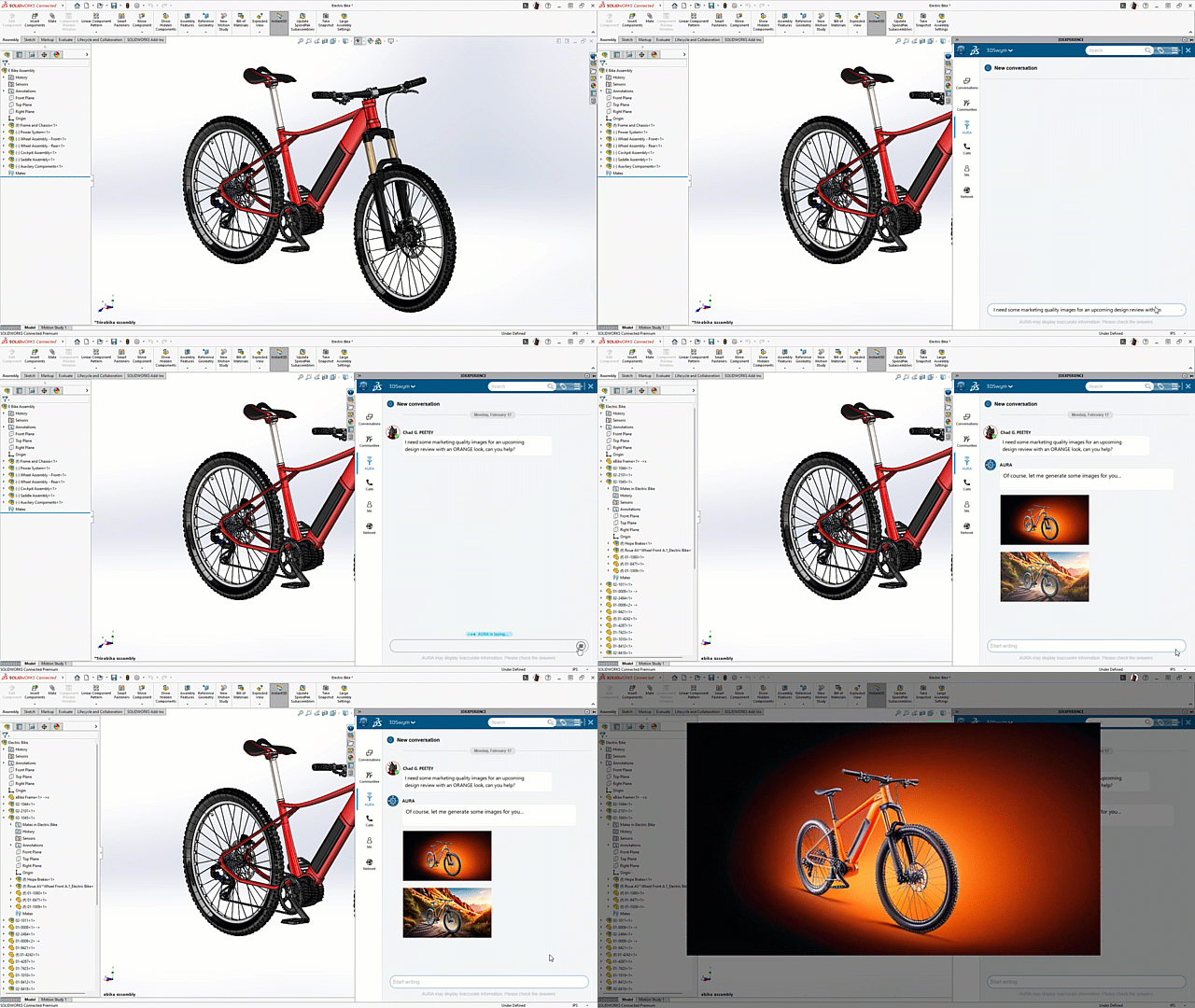
AURA highlights an exciting future in creating compelling marketing visuals from your CAD models. Users could provide simple prompts describing the desired outcome – in the example shown, the prompt asked AURA to generate marketing images with an ORANGE theme.
The power of AURA would then come into play, leveraging AI to process the CAD geometry and the user’s prompt to generate stunning rendered images in seconds. This means that the often time-consuming process of setting up scenes, applying materials, and manually rendering marketing visuals could be significantly accelerated.
This year’s demo worked out just fine, with little help from AI and relying on showing off some current and future enhancements coming in SOLIDWORKS. Be sure to watch future FD release notes to see when these projects will be available for you to integrate into your design workflows.
Author information
The post Don’t Miss the Skit – See what’s Coming Next for SOLIDWORKS appeared first on SOLIDWORKS Tech Blog.
]]>Author information
The post Physics Simulator SOLIDWORKS Visualize Pro Tutorial: Mother’s Day Theme appeared first on SOLIDWORKS Tech Blog.
]]>
To begin with I had the renderer selection on preview, but to see the appearance in a real view you need to change the view to accurate. This can slow down the software a little when you have a lot going on, so I tend to only use this to get a preview of my appearances or render windows before the final renderings are done. The green selection is preview mode, while orange is accurate.

Using the model plus icon again, I used import model to bring in 13 sweet hearts with a different note on each representing Mother’s Day, such as LOVE MOM, MOM HUGS, SUPER MOM etc

When all the hearts open, they came into place all stacked within the same place, to move them I used the object manipulation tool to bring up the transform robot, it makes it really easy to move parts quickly. With them all selected, I dragged them up above the floor plane to a height high enough for a nice fall distance. The higher I go the further the hearts may scatter as they may bounce higher, but this can also be dependent on the gravity settings applied later on. There is an option in Visualize to create random patterns with parts, you are able to create a natural variation to an array of model parts. I demonstrate this feature towards the end of the tutorial.

Next I began to randomly place and duplicate the hearts, nothing was precise in its location; it was all by eye and again intentionally random in its placement. Duplicating groups of hearts, I moved and rotated them creating even more variations in the orientation of the hearts. I wanted them to fall in all different ways, with many being able to fall on top of each other, and with some face down.

Once I was happy with the placement of my parts, I needed to apply the physics settings to all of the parts. Selecting all of the heart parts only and not the plane, I used the physics tab. Under physics, I’m able to choose a simulation type, this is what I will be applying to the selected parts. There are four options to choose from, for the hearts to fall, I needed to apply Dynamic, that means that they will react to gravity and each other.

I then needed to select the collider geometry, this is all about contact accuracy. You can either use boundary box or mesh, for this I chose the mesh option, even though it can slow down my simulation results, I wanted it to be precise in how the hearts interact to each other. For the Plane part, I needed to apply physics too, I used the Static option so that it remains fixed in place, but the heart parts in the simulation can collide with it. For the collider geometry, I could keep this on bounding box as it is a flat, basic shape, so this will keep the simulation simpler.
For this simulation, I didn’t change any of the Physical properties of the simulation to keep the tutorial simple, but you are able to play around with the friction, elasticity and mass.

The next step to look at is the gravity settings for the simulation. The earths gravity is 9.807 meters per second squared (m/s2), but I use a much lower level of gravity, to slow down the fall speed and allow myself the ability to create more render frames from the animation. I could then record the simulation, once all of the hearts drop and stop moving, I can stop the recording and the animation keyframes will be created. I’m then able to select play and watch the animation play out. At this point I could see a nice random scatter of parts, but I also ensured that I could see all the different mother’s day themed quotes. I also like to double check the finished animation from different views to ensure I’m happy with the finished physical fall, to ensure I have a choice of views for my camera animations but also so that I can check for any issues in the simulation. You can get over-stacked parts, duplicates or parts that have fallen into the floor, its not really an issue for me when I have so many parts as I can just delete any issue parts that are visible to me. When creating projects like this, I usually run several motion studies with different physicals settings before I am happy with the final result.

Moving onto the camera tab, I duplicate my current camera and create a keyframe on one using the K key on my keyboard. The keyframes will form part of the animation and allow me to create a camera animation as the hearts are falling. Once my camera animation keys are in place, I can render the animation, I prefer to render with high quality settings and turn off the denoiser to keep my renderings more detailed and have more frames for editing. You can see the final result in the tutorial.
Starting another Visualize project, I demonstrated the pattern feature. Bringing in the 13 hearts again, I duplicated them 7 times to have over 100 hearts. Then applied physics to the parts again using dynamic for the simulation type and mesh for the collider geometry. Selecting all of the heart parts, I used the model plus icon and selected New Pattern.

Under the Formation section of the General tab you will find the pattern controls. Here I could choose between various pattern types, for this project I chose Scatter to create a random pattern. The position and rotation ranges are used to tell Visualize which dimensions I want the model to be randomized within. You are also able to select the random button to switch between different formations.

From here I could double checking the gravity settings and select record. This created an equally random fall in a much quicker way, as I had less of a set up to do, no manual placements. However, it is something I had to play around with until I was happy with the final animation.

Author information
The post Physics Simulator SOLIDWORKS Visualize Pro Tutorial: Mother’s Day Theme appeared first on SOLIDWORKS Tech Blog.
]]>A surprising structural failure sparks curiosity and prompts a detailed investigation into the potential causes of breakdown using SOLIDWORKS Simulation.
Author information
The post SOLIDWORKS Simulation: A Technical Investigation into a Viral Video appeared first on SOLIDWORKS Tech Blog.
]]>As engineers, we’re hardwired with a unique trait: the inability to ignore a good mystery, especially when it involves something breaking down unexpectedly. For me, seeing a “look, this failed” post on social media immediately draws me into investigation mode. I can’t help but wonder—not just how it failed, but why. Was it a design flaw? An unexpected environmental load? Should it have failed at all? Is this the failure mode I would have expected?

Recently, I stumbled upon a short video clip of the above showing a minor structural catastrophe. While others might have laughed and scrolled past, I saw a mystery that needed solving. The challenge wasn’t just in uncovering what went wrong; it was understanding all the factors behind it. What began as a simple video quickly turned into a technical deep dive using the power of SOLIDWORKS®.
The Challenge of Complexity: When Hand Calculations Fall Short
Once I had the general problem scoped out, my first instinct was to start with hand calculations. In engineering, our tools range from quick back-of-the-envelope math to elaborate spreadsheets and sophisticated simulations. When faced with these classic arches, however, traditional calculations quickly reached their limit. The structure involved curves and chamfers; not just flat, uniform surfaces. Fluid flows and structural forces interacting with such complex shapes create a puzzle that can’t be solved with basic flow or stress equations.
For an engineer, this kind of complexity is both a challenge and an opportunity. It’s a chance to dig deeper, apply specialized tools, and ultimately seek the cause behind a failure. Knowing that manual calculations wouldn’t suffice, I turned to a combination of photogrammetry techniques and SOLIDWORKS to bring my investigation to life.
Reconstruction: From Photos to Parametric Model
Rather than guessing the structure’s actual dimensions, I used photogrammetry, a technique for extracting 3D information from photographs. In this case, I didn’t have any still images, but I had something even better: a brief walk-around video packed with hundreds of still frames. Photogrammetry applications leverage the common elements across individual frames to build a 3D motion map of the camera’s path, and from this data, algorithms effectively reconstruct the object in virtual space.

Photogrammetrically reproduction based on THIS VIDEO uploaded by Chris Higa to YouTube

Using this technique, I generated a rough forensic map. My result was an *.OBJ model with reasonable fidelity, capturing the crushed car and most of the sign. Combined with bumper-to-bumper measurements of the car, I constructed a detailed parametric model of the structure in SOLIDWORKS, ensuring the model’s proportions were as accurate as possible. This approach allowed me to analyze the structure in realistic conditions without the need for precise field measurements.
Flow Simulation
Using SOLIDWORKS Flow Simulation, I set up a model to replicate high wind conditions around the structure based on meteorological reports from the day of the accident. Flow simulation alone can reveal how air moves over and around complex shapes, providing key data on areas of high and low pressure, including the surfaces of the signage. From this pressure data, it can also track the amount of force exerted on these surfaces.

While unrelated to this study, a flow simulation can provide a host of other information. For instance, one interesting property for a sign designer could be the acoustic power level (audible volume of the flow) downstream from the sign’s flow disturbance—important to ensure that bystanders are not affected by the sound of the trailing turbulent flow.
The Impressive Part
Here’s the cool thing about SOLIDWORKS: It isn’t just a single software tool; it’s an entire ecosystem built to streamline complex design problems and tackle engineering analyses.
After running the flow simulation, I could seamlessly transition to a finite element analysis (FEA) to dive deeper into how wind-induced forces impacted the structure’s integrity. With a quick “Export Results to Simulation” SOLIDWORKS did the heavy lifting, processing the pressures and allowing me to map these “flow effects” as a load on the solid bodies. This was completed far more quickly and far more accurately than if I had simply pulled net forces from the Fluid Flow Simulation. This streamlined process helps engineers make well-informed decisions faster, with each stage of analysis building directly on the previous one.

This workflow enabled me to validate my initial theories, as the results confirmed that the base of the post behaves much like a cantilever beam and would indeed experience the greatest stress at the actual failure point. However, the analysis revealed that wind-driven loads alone were insufficient to account for the failure.
Key Findings and Observations
The results were clear: based on our reverse-engineered dimensions and anticipated materials, the combined simulations predicted a design factor of safety (FOS) at approximately 5:1. While we have not performed a transient (time-dependent) study to account for more complex flow and potential structural harmonics, our initial results generally indicate that the structure had a sufficient factor of safety to withstand normal conditions, even on a windy day.
It was a perfect example of how real-world performance doesn’t always align with design intent.
So, what was the real culprit? Why did this system fail? Without an actual inspection of the failure, it isn’t possible to say for certain but given that the square steel tubing was embedded directly into the parking lot, crevice corrosion is a likely suspect. Crevice corrosion occurs from trapped pockets of water, where surface coatings degrade at an accelerated rate from immersion. Once the underlying steel is exposed to water, it oxidizes (rusts) in that localized area at a highly accelerated rate. From the source photos and videos, it’s evident that a substantial portion of the tubing wall was degraded, resulting in a vastly weakened structure.
Concluding Thoughts: Why Curiosity Matters
As engineers, it’s in our nature to ask questions and dig deeper. Each question is an opportunity to learn, each problem an opportunity to adapt, and both provide opportunities to improve. The combination of curiosity and the right tools, such as SOLIDWORKS, enables us to approach even the most complex problems with confidence. Engineering is about more than just designing and building; it’s about understanding the principles behind why things work—or, in this case, why they do not—and applying that knowledge in the future.
Throughout this study, I was reminded of how powerful SOLIDWORKS can be in tackling real-world engineering problems. Computational fluid dynamics and FEA tools allowed me to quickly transform an idle inquiry into an investigation with reasonably definite results, despite the limited amount of information available.
So, the next time you come across a social media mystery, ask yourself: What forces might be at play here? Could this be prevented? With tools like SOLIDWORKS at your disposal, you have the power to turn these failures into valuable engineering lessons.
Engineering Disclaimer
The content of this blog post is for informational and educational purposes only and does not constitute professional engineering advice. The methods and software tools described are intended to illustrate potential applications of SOLIDWORKS software in engineering analysis. Actual conditions, project requirements, and environmental factors may vary, and this example may not directly apply to your specific projects or use cases.
This blog post includes an analysis referencing iconic signage having a double-arch structure. This structure was reproduced for analytical commentary and educational purposes. This analysis is not affiliated with, endorsed by, or associated with McDonald’s Corporation. The McDonald’s name and iconic arch design are trademarks of McDonald’s Corporation, and all related intellectual property rights remain the property of their respective owner.
Before applying any analysis, techniques, or using SOLIDWORKS software for structural or fluid simulations, consult relevant engineering standards and guidelines. Always verify your results with appropriate testing and professional judgment and seek expert consultation for critical or safety-related projects. The author does not assume liability for the use of information contained in this post.
Author information
The post SOLIDWORKS Simulation: A Technical Investigation into a Viral Video appeared first on SOLIDWORKS Tech Blog.
]]>Author information
The post SOLIDWORKS for Makers: Soundboard to Communicate with Animals Part 2 appeared first on SOLIDWORKS Tech Blog.
]]>If you haven’t read part 1, I suggest you start [HERE] before reading on.
In part 1 we completed the design work for the soundboard we’d be making, I decided to split this blog into 2 parts due to the length of the designing part. The image below shows the design I came up with and once I’d completed this design work, I sent these off to a local 3D printing bureau to have these printed in Nylon using SLS technology. I also decided to have the base dyed black and the top dyed blue.

After a week or so a package landed on my doorstep full of the 3D printed versions of the components I had designed, by choosing to have these dyed by the supplier I’d saved myself the need to sand, prepare and paint these. Great news as I openly and passionately say how little I enjoy sanding and actively find any way possible to avoid doing so. The supplied prints looked great, the next step for me to complete would be to insert the heat set inserts into all the required locations. These inserted metal threads would be used to hold electronic components in place and also the upper and lower casings together. To use these inserts, you need access to a soldering iron, set to a high heat and wait until reached. At this point it’s a very simple but somewhat fiddly at times process, place the insert into the position you want to sink it into, apply the end of the soldering iron too it. As the heat transfers to the insert the plastic around these beings to melt, at this point push gently down and watch it sink into the 3D printed material. After inserting what felt like 100 inserts but was probably only 15 or so I could begin to start the assembly of the housing and electronic components.

For the assembly I started with the upper casing, I inserted each of the three mushroom buttons through the cutouts within the design. The push buttons came with a securing nut which I wound into position from the inside of the casing, giving a small nip up with an adjustable spanner being careful not to crack the plastic casing. Once these were in position, I needed to add a positive and negative wire from each which would route back to the control PCB. To do so I cut 3 lengths of Brown and Black wire to a length of 150mm, I stripped both ends using and handheld wire stripper, once stripped I attached one pair of wires to each button securing using a screwdriver to fasten the terminals securely.

The lower casing was slightly more complex, I needed to install the control board, battery pack and speaker modules. I followed a simple process of lining up each with the mounting positions we had designed in part 1, the heat set inserts make it dead easy to effectively secure each component into position. If I’d elected to use simple self-tapping screws there’s a good chance, I’d strip the hole and have no way of rectifying the issue easily, for this reason I use these inserts a lot within my design work. With all the components mounted in the lower housing it was time to start wiring up the system.
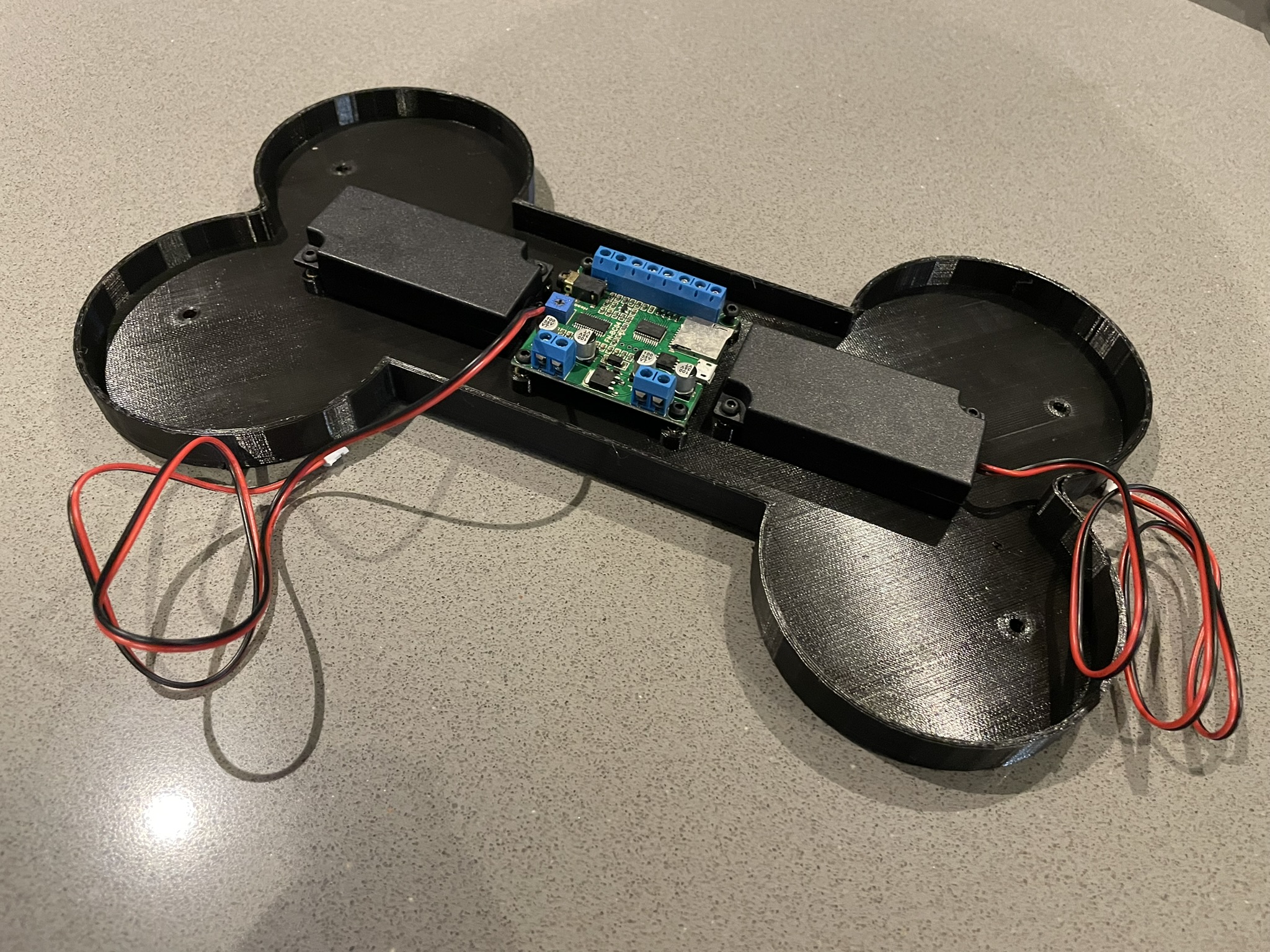
I first had to wire two small 6V battery packs together in series to create the required 12V voltage value needed for the soundboard PCB I was using. The circuit board calls for a voltage between 9 and 24V and as I already had a couple of 6V packs small enough to fit within the housing I elected to wire these to create 12 volts. Once this was done, I wired the speaker module into the output terminal on the control board, this is as simple as wiring the battery in, red wire to positive and black wire to negative. With the lower components now wired I used this stage of the build to add the selected sounds, the design on the circuit board uses a micro-SD card with up to 4 sound files preloaded onto it. It’s a very simple process, essentially drag, drop and rename your 4 chosen files to match the required format.

With the upper and lower sections now wired independently of one another it was time to connect these into one testable circuit. I firstly needed to connect all the push button negative wires together to make it easier to connect this back to the single negative return terminal on the PCB. I use a connector block to connect the 3 wires together and then used a short new piece of black wire to connect this block to the negative terminal on the board. This is a far better way of making these multi return connections to ground or neutral than shoving 3 or 4 wires into one small screw terminal on a PCB… I always find when people do this one wire isn’t secured properly and quickly falls out. From here I wired the brown positive wire from button 1 to the K1 terminal on the PCB, Button 2 to K2 and button 3 to K3, simple! With those connections made the system was functional!

I placed the upper housing on top of the lower taking care to ensure all wires were tucked inside. Holding securely, I flipped the unit over and began to secure using 4 screws aligning with the heat inserts we’d installed earlier. With the screws securely fitted and the unit now joined together I removed the backing from some small rubber feet and positioned these into the small counterbores I’d designed to accommodate these. These rubber feet would not only stop the unit sliding around on hard floors but would also stop any noise or movement when in use. With these in place the unit was complete!

Thank you for following along with this 2-part project, this method and electronic system can be used for a range of projects, I’d love to see some of the other applications our readers can apply this to!
Check out the making video below.
Author information
The post SOLIDWORKS for Makers: Soundboard to Communicate with Animals Part 2 appeared first on SOLIDWORKS Tech Blog.
]]>Author information
The post SOLIDWORKS® Support Monthly News – March 2025 appeared first on SOLIDWORKS Tech Blog.
]]>Welcome to the new edition of the SOLIDWORKS® Support Monthly News! This monthly news blog is co-authored by members of the SOLIDWORKS® Technical Support teams worldwide. Here is the list of topics covered in this month’s Blog:
-
Custom PDF template for SOLIDWORKS® Composer
-
How can I have a list of modified components (only) using ‘Reload from Server’ command when working on large assembly opened from 3DEXPERIENCE platform?
1. Custom PDF template for SOLIDWORKS® Composer
– Richie More
By Default, SOLIDWORKS Creates PDF files using Standard Template. Do note that the user may require the customized PDF output. While publishing the composer document as a PDF file, user can select custom template as mentioned below.

Prerequisites –
- PDF editor (Adobe Acrobat)
- You can use an application such as Microsoft Word or Microsoft PowerPoint to create the template theme and then open the document in Adobe Acrobat to convert to PDF.
Steps to create Custom Template for Composer –
- Launch Adobe Acrobat and open the existing Microsoft Word / PowerPoint document, or a new PDF document.
- Navigate to Tools > Rich Media > Add Button.
- Create the Button in viewport, which will act as the Composer document viewport.
- Rename the button name as ‘SeemageReplace’
- Save the PDF template.
The PDF template should appear as below.
Once a project is published with the template, the result would appear as below.
More information can be found here
2. How can I have a list of modified components (only) using ‘Reload from Server’ command when working on large assembly opened from 3DEXPERIENCE platform?
– Vinod KALE
Reload from Server command is used to fetch the most recent version of a file from the 3DEXPERIENCE platform.
Until 3DEXPERIENCE R2025 GA version, you had to use this command from 3DEXPERIENCE task pane only. Effective with the release of 3DEXPERIENCE R2025 FD01, you can use this command from SOLIDWORKS as well. For that, open any file from platform in SOLIDWORKS Connected, go to File and select Reload.
The below images shows the transformation of Reload dialog used in previous (R2025 GA) and current version (R2025 FD01) of 3DEXPERIENCE.

If you’re working on files that are saved to 3DEXPERIENCE, the Reload command will display a Reload from Server button as shown in new Reload dialog.
Benefits: The advantage of using the Reload from server command from SOLIDWORKS reload dialog is – Along with reload options, it provides you the list of modified components as well as all components available in the assembly. Refer the below image.
Author information
The post SOLIDWORKS® Support Monthly News – March 2025 appeared first on SOLIDWORKS Tech Blog.
]]>Author information
The post Cogs Toy Drawing Sheet Part 1: SOLIDWORKS Tutorial appeared first on SOLIDWORKS Tech Blog.
]]>I started with the assembly of my design open. Then selecting file, I could select ‘make drawing from assembly’. The first thing I had to select is the sheet format and size, for this I used my own custom saved drawing sheet, selecting browse I could open my A2 custom drawing sheet.

Before I inserted any assembly views, I wanted to demonstrate how to edit your sheet format and also show how my custom drawing sheet has pre-input custom properties. So, when I bring in drawing views the drawing sheet will update with the files name, creation date and view scale. These were all created using a note with a link to property feature, you are able to choose from a list of properties seen below. Once you have your drawing template you can use save as to save it as a sheet format to use for future drawing sheets.

Under the view palette, you can browse for the part or assembly you need, and you can then drag views onto the sheet. After dropping in the view, my drawing sheet will update with all the details. If you want the author’s name to be visible, the information needs to be added to the assembly’s file. Going back to the assembly of the toy, I selected file properties and the summary tab. Here you need to type in the name of the person who created the file and apply it.

Next, I added the all important bill of materials table, I decided to change the description column to materials. Double clicking onto the C title bar I could change the column type, I kept the drop-down as custom property and the property name is changed to material. You will see that all of the column updates with each parts material names. For this to work you need to have assigned materials to each of your part files. I demonstrate how to apply the material property to the part in the tutorial. Opening the 3D printed cog, you’ll see that I had a PLA material applied to the cog.
Under properties, there is a custom tab, here you can add new properties to parts which can then be added to your drawing sheet. Under property name I can select material, then in the value/expression column, under properties I needed to select the SW material option. This will then insert the applied material information to the part files properties.

Next, I used the auto balloon feature to my top drawing view. Under the balloon layout, you can choose the pattern type, for mine I chose the balloons on top. With the balloons all above my view labeling one of each assembly part for the cogs toy, I could drag individual balloons along or drag the arrow along which pulls all of the balloons to line up with the drawing view side. If I don’t like the location of the arrows, you can simply drag the arrows along the edge of a part but be careful not to snap the arrow onto a different part as the balloon number will change.
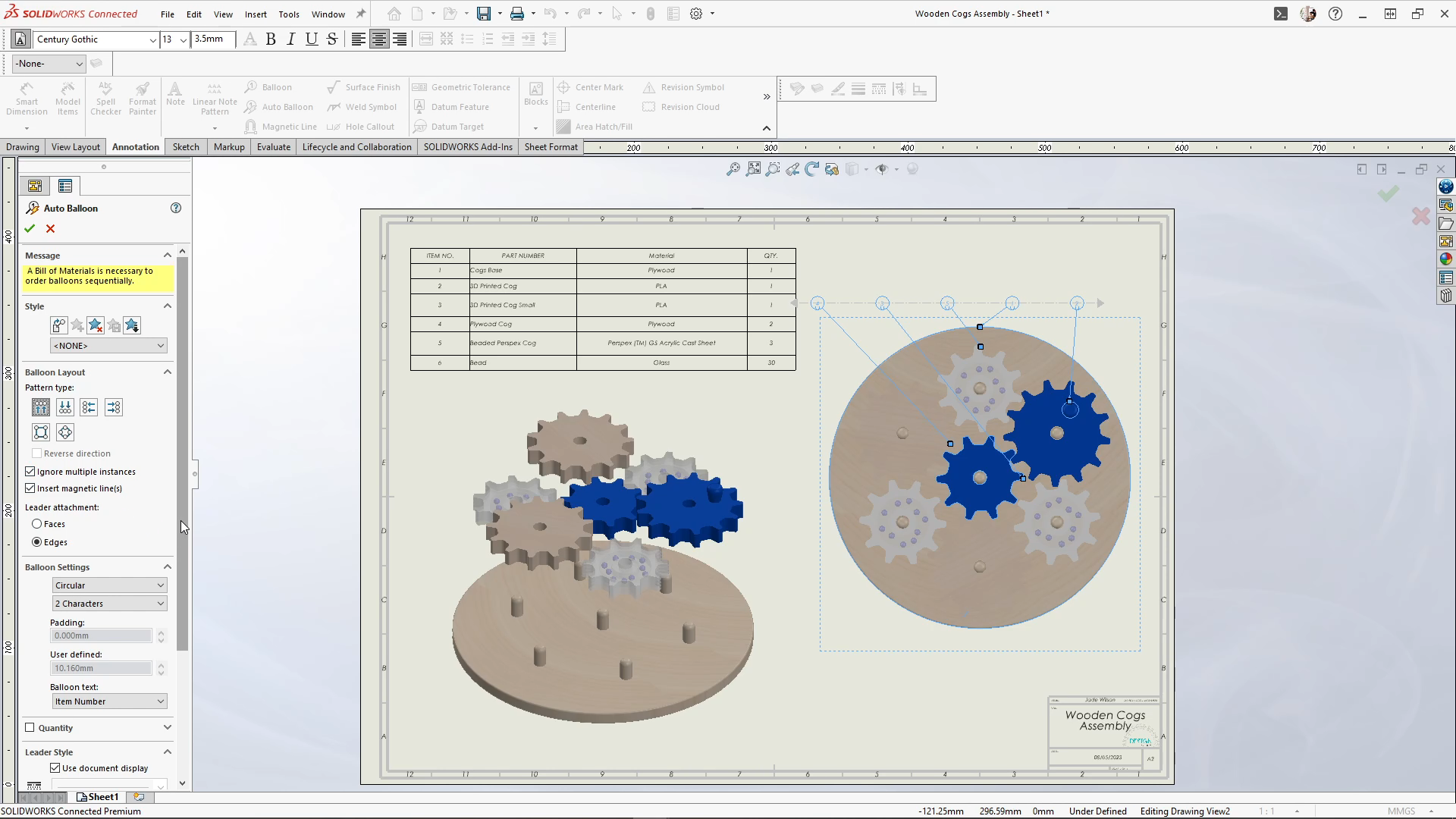
I created a second sheet for the cogs base part to add in dimensions. I sent Jonathan the DXF files for laser cutting the Plywood and Perspex cogs, and the STL files for the 3D printed cogs. So, this drawing sheet will act only as a reference file for overall sizing, materials, and quantities, it doesn’t have to be very in depth.
To add a title or heading to a part, you can select the part you want to label and use the note tool, selecting the link to property icon I needed to change the ‘use custom properties from’ option to model found here. For the property name, I selected ‘file name’ from the drop down and applied it. Here I’ll get a title note, before I dropped the note I removed the arrow. Dropping the title above my drawing view I could change the font options using the font toolbar.

Moving onto sheet 3, I began adding in the cogs. Starting with the Perspex one, I used the same drawing views as the base part, an isometric, top and front view. However, the Perspex cog needed an extra view, using the drawing tab, I used the section view feature and the vertical cutting line to create a section view of the cog from the center of it. This was needed to show Jonathan there needs to be a hollow void within the cog to drop in the beads. This was important as the beads need enough room to move around inside the cog.

I’m then adding a title and some overall simple dimensions to my views. Again, these don’t need to be in depth as the DXF outlines of the cogs have been sent to Jonathan using the platform. I also added a note for Jonathan to add 10 beads to each Perspex cog. I used edit sheet format to extend a sketch line and divide up the page horizontally in half. This helps me keep my drawing views from another part separate, it’s useful when you have multiple smaller parts that you want to add to a single sheet without confusing the person viewing your drawing sheet.

Skipping ahead, I added in the plywood cog, followed by the smaller 3D printed cog and the larger 3D printed cog that has a handle attached. Once I was happy with my sheet, I could save the drawing sheet and select ‘file’, and the ‘share’ option to share my file onto the 3D Drive on the 3D Experience platform as a Adobe 2d pdf. Then I could select upload and choose where I wanted my file to go. This would export my sheet to the platform. If I make any updates to my drawing sheet, I am able to update the shared file which is a very useful feature.

Moving onto the platform, I can open my drawing sheet from my 3D Drive. When I open the drawing, you’ll see that I had already shared my file with Jonathan, and he had made some comments. To share a file with someone on the platform, you can use the share icon. Under share with users, you can type in a name to share for people to view, or you can type into the ‘can edit’ box to allow people to edit your file. When I start typing, Jonathan’s name pops up and I could select it. I could also add a message. From here, I copied the link and selected ‘share’. I finished by sending Jonathan the file link via a message to help him find the file quickly.

I’m then able to reply to Jonathan’s notes and wait for him to update me on the progress of the project. Keep your eyes peeled for Part two of this tutorial where you will see Jonathan take on the challenge of producing a prototype of this cogs toy.
Author information
The post Cogs Toy Drawing Sheet Part 1: SOLIDWORKS Tutorial appeared first on SOLIDWORKS Tech Blog.
]]>Author information
The post Simplify SOLIDWORKS Models for Assemblies | Tech Tip Tuesday appeared first on SOLIDWORKS Tech Blog.
]]>Get more SOLIDWORKS tips and training at https://solidworks.com/tipwizard
We hope this tutorial helps you on your design journey! Check back every Tuesday for more SOLIDWORKS tips and tricks.
Author information
The post Simplify SOLIDWORKS Models for Assemblies | Tech Tip Tuesday appeared first on SOLIDWORKS Tech Blog.
]]>Author information
The post Two-Click Plane Creation | Tech Tip Tuesday appeared first on SOLIDWORKS Tech Blog.
]]>In this video, you will see how this technique can be applied not only to curves but also to edges for even more design flexibility. Watch now to elevate your SOLIDWORKS skills!
Explore additional methods for modifying the SOLIDWORKS user interface by visiting https://solidworks.com/learn/savingtime.
We hope this tutorial helps you on your design journey! Check back every Tuesday for more SOLIDWORKS tips and tricks.
Author information
The post Two-Click Plane Creation | Tech Tip Tuesday appeared first on SOLIDWORKS Tech Blog.
]]>Author information
The post SOLIDWORKS® Support Monthly News – February 2025 appeared first on SOLIDWORKS Tech Blog.
]]>Welcome to the new edition of the SOLIDWORKS® Support Monthly News! This monthly news blog is co-authored by members of the SOLIDWORKS® Technical Support teams worldwide. Here is the list of topics covered in this month’s Blog:
-
SOLIDWORKS® Visualize Boost 2025 – Redefined
-
How import of Motion Studies works in Visualize Connected?
1. SOLIDWORKS® Visualize Boost 2025 – Redefined
– Richie MORE
SOLIDWORKS Visualize Boost allows users to utilize a system resource in a network to render Visualize Projects. This add-in increases render speeds and productivity by allowing it to send jobs to other machine(s), freeing up your computing resources for Visualize, CAD, or other demanding applications.
SOLIDWORKS Visualize Boost 2024 had a lengthy and complex process of connecting a coordinator Render machine (server) to a non-coordinator machine (client). Visualize Boost 2024 would support NVIDIA IRay Render Engine.
The Status and Setup Page would look like the attached images.

SOLIDWORKS Visualize Boost 2025 is redesigned to simply the setup process and configure the coordinator non-coordinator across a network. Visualize Boost 2025 supports DS Stellar Render Engine since NVIDIA Render Engine is no longer available.
Setup –
- On Coordinator machine (Render server)
- Enable ‘Coordinator ‘
- Note down the ‘IP Address ‘and ‘Boost Port’

- On Non-Coordinator machine (Client)
- Enter the Coordinator ‘IP Address’ and ‘Boost Port’
- Boost Status needs to be in ‘Connected’ state.
To Render Visualize Project with Boost Configuration,
- Select the ‘Boost’ Renderer Selection.
- Make sure the Boost Status is ‘ Connected’

2. How import of Motion Studies works in Visualize Connected?
– Vinod KALE
SOLIDWORKS® Visualize add-in options (Export Advanced and Save Advanced) that are available in the Desktop version of SOLIDWORKS®, are not available in SOLIDWORKS Connected. Then how import of Motion Studies works in Visualize Connected?
Refer the below steps that demonstrate the behavior:
- To import motion studies into Visualize Connected, first you embed the motion study data in the SOLIDWORKS Connected part or assembly as shown in below image.

- Enable the option Access Motion Study in MotionManager toolbar.

- Save the model to 3DEXPERIENCE platform with option Save with marked Motion studies

- Import the model with marked motion studies from platform, into Visualize Connected
- When importing model, select Animations in Import Settings dialog box
- Under Cameras tab, select ‘Animated Viewport’
- Go to View menu and select Show Timeline to display the animation timeline

Note: To import existing models with Motion Studies (that are saved with desktop version of SOLIDWORKS®) into Visualize Connected, make sure the models are saved with Save Advanced option.
Author information
The post SOLIDWORKS® Support Monthly News – February 2025 appeared first on SOLIDWORKS Tech Blog.
]]>Author information
The post SOLIDWORKS for Makers: Soundboard to Communicate with Animals Part 1 appeared first on SOLIDWORKS Tech Blog.
]]>
I’d made a soundboard in the past for some costume projects I’ve been involved such as the magic wheel chair myself and Kirby Downey built as part of The CORE Podcast, if you’re interested in that build you can check it out [here]
The first part of this project was to model up purchased components such as the PCB, battery pack and speaker modules along with the push buttons I’d be using. From here, I’d be able to create the housing or casing which I would 3D print to contain all the electronic components. As these components aren’t crucial to my design and we’re not doing electronic component design here I used “bluff” bodies to mock up the components within the assembly. A bluff body is basically the same overall external dimensions with the same mounting points as the full detailed component but much simpler to allow for faster creation of models.
I started by modeling the PCB component, this was a simple rectangle 53mm by 51mm in size extruded 15mm in height. I then sketched the four mounting holes in the initial rectangle sketch meaning that when I extruded this body my holes were already present, no need to go back, resketch and then finally use the cut extrude commend. Two actions completed in one sketch and command!

The speaker unit I used had an external size of 70 by 35 by 15mm, I started by creating a rectangle in a new sketch to match this size and extruding by the required height. I used the extrude cut command to create holes through the solid body where these would be required to mount. As the speaker unit had a certain portion which produced sound, I needed to create an area in the housing to allow the sound to escape through, to make this easier I created a new sketch of a circle in the same potion as the functional part of the speaker. I used the cut extrude command to remove this portion of the body which would make aligning this with any open area in the housing, I find that this a great method for aligning critical areas such as this much easier.

I also had a battery pack which I needed to fit into the housing which I had to design. Again, to make this easier I created a bluff body of this component to allow me to more easily create the designed housing. As with the PCB and speaker modules I created this in the same simple manner.
The final component I made was the metal mushroom momentary push buttons I had purchased to activate the soundboard with. I sketched out the cross section of the button as best as possible from the measurements I had taken using a vernier caliper, once I had this sketch completed, I used the revolve tool to create a new body revolved around a centerline within the sketch.

Now that I had all the components created, I started a new assembly into which I inserted the speaker module, PCB and battery pack. I arranged these into something like the configuration I thought I needed and took some very rough measurements from the arrangement, I noted these down onto some scrap paper I had laying around on my desk.

With my rough measurements in front of me it was time to get started with the design of the housing. To get started I created a new sketch in the top plane and sketched out the rough dimensions I had noted down as a starting point. From here I could get to work with the outline of the shape I wanted to create. As this was to be a soundboard for a dog, I wanted the outline of the housing to be bone shaped, as this design incorporated some symmetry lines, I would only need to sketch out ¼ of the design before mirroring to create the rest. I had setup the sketch to be about the origin center point and I got to work by sketching a vertical and horizontal construction line from this point, these would act as my lines of reference for the mirror command later in the process. I sketched out the required portion of the bone shape as large as required to encapsulate the components needed. From this point I added some dimensions to lock these lines into place before offsetting the sketch 2mm to create a second line slightly further out than the original sketch.
With the sketch completed, I used the extrude command to create a flat baseplate 2mm in thickness, I then selected the same sketch in the feature tree before again using the extrude command to create a thin wall the 2mm in thickness set earlier, this wall was set to a height of 20mm.

The next challenge for the base of the housing was to add small upstands into which I could use heat set inserts to create a thread, to secure the components into position. I started by creating a new sketch on the upper base surface, before adding 6mm circles at the points where the securing screws would need to mount into, before sketching another 4.1mm in diameter within these. I then extruded these 5mm in distance to create small upstands into which I would insert heat set threaded inserts to provide a nice metal thread to secure against.

I needed to add small through holes in the base which I could use to secure the lid section using small screws. I started by creating a new sketch on the base surface, I then added 4x 10mm circles in suitable positions around the design. I extruded these 3mm upwards. My next move was to cut a hole in the center of each of these raise area through all with a diameter of 3mm. From here I added a blind cut on the underside 2mm in depth with a diameter of 6mm, this cutout would provide a recess for the screw heads to sit within. The final piece of this puzzle was to add 6x recesses on the base of the part to allow some small rubber feet to sit within, the feet I had were 10mm in diameter, so I made each cutout 10.5mm in diameter to allow for printing tolerances. These were cut 0.2mm in depth to allow them to securely fit into the newly created recess.

With the base piece done it was time to focus my energy on the upper lid section, I did a bit of a cheat code and copied the original sketch I had made for the base piece into a new part and pasted this onto the top plane. From here I extruded this 30mm before then using the inner line on this same sketch to cut a pocket upwards into this 27mm. To create more of a bone shape for the upper segment I added two 15mm radius fillets to the inner and outer edges which resulted in the below design!

Now I had the shape outlines, I needed to add four 20mm diameter cutouts to allow the push buttons to pass through and connect to the PCD. I started a new sketch on the created flat upper surface and drew a 20mm circle in the center. From here I used a linear pattern to create another one, equally spaced either side of the original. A simple cut extrude through all made quick work of creating the needed cutouts. With assembly in mind, I needed to add a step to aid alignment. To achieve this, I made a new sketch on the bottom surface of the lid, offset the inner edge by 2mm and extruded in both directions 5mm, by doing this in both directions I created a joined body which could sit inside of the edge of the base piece.

I now needed a way to hold both parts together… during my modeling of the base component I had created 6 small through holes with a counter bore to allow me to use M4 screws to pull the lid into the base which would hold it securely in place. All I needed to do was replicate the positions of these on the lid and create a connection stalk which could be screwed in. I added another sketch on the top plane and drew construction geometry to allow me to create the stalks in the same positions as the holes in the base. Again, I cheated with this sketch and copied it across from the base component using the move command to align it correctly. Once I had this aligned, I extruded up to surface, selecting the inner surface of the lid and down the 20mm required to meet the bases lower surface. With these 4 stalks in place, I added a 4.1mm cutout 6mm deep in each to allow me again to insert some M3 heat set inserts into these.

Now I had all the components created I quickly placed these into a new assembly to check all the fitments were correct, which made me think about my lid and base fitting together. I went back and made a change to the interface where they would align and added a 0.2mm gap in this area to allow these to fit correctly once printed. The rest of the model came together nicely, and it was soon time to get to work making my design come to life.

Check back soon for part two, where I show you how I made this design come to life, for now you can check out the designing.
Author information
The post SOLIDWORKS for Makers: Soundboard to Communicate with Animals Part 1 appeared first on SOLIDWORKS Tech Blog.
]]>Author information
The post How to Use Selection Sets | Tech Tip Tuesday appeared first on SOLIDWORKS Tech Blog.
]]>Selection Sets can save you hours of time, especially if you’re working with imported meshes, and help you create features and extract patterns.
Get more SOLIDWORKS tips and training at https://solidworks.com/tipwizard
We hope this tutorial helps you on your design journey! Check back every Tuesday for more SOLIDWORKS tips and tricks.
Author information
The post How to Use Selection Sets | Tech Tip Tuesday appeared first on SOLIDWORKS Tech Blog.
]]>Author information

The post 26 Years of Model Mania® appeared first on SOLIDWORKS Tech Blog.
]]>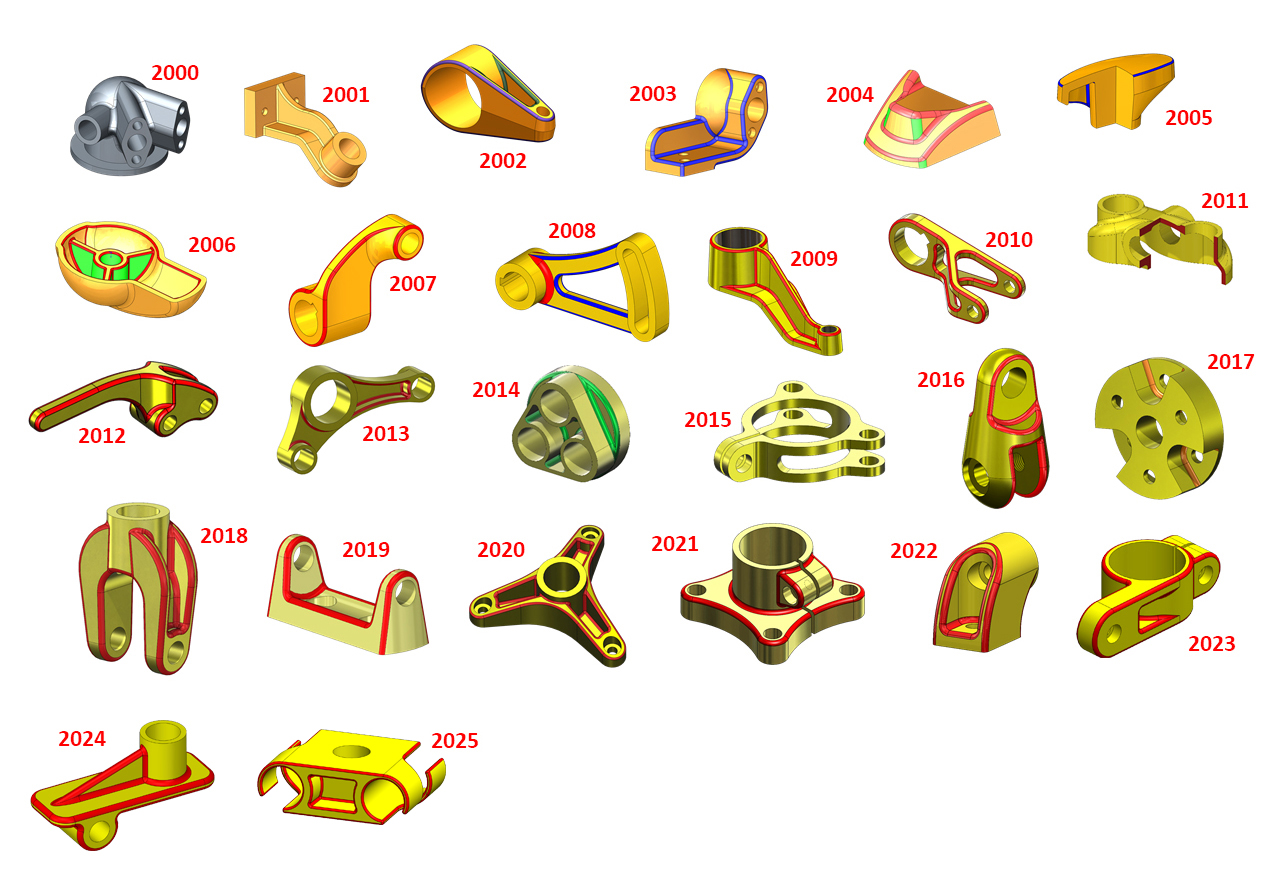
Every year, Dassault Systemes hosts one of the largest engineering conferences in the world. Since SOLIDWORKS World 2000, Model Mania® has been an attraction for many engineers and designers wanting to compete and show off their SOLIDWORKS skills. Model Mania, for those not familiar, is a design challenge where your modelling skills are measured on both accuracy and time. For more information about Model Mania, check out the past drawings and solution videos below, or go to my.solidworks.com and search for “Model Mania”.
Here’s how it works. First, you are first given a 2D drawing of a part. Your goal is to create that part in SOLIDWORKS as quickly and as accurately as possible. Seems simple, right? Well the second “Phase” is when things get really interesting. For Phase 2, you are given a modified version of that drawing; you can consider it an engineering change if you like. Your goal is to make the design change as quickly and as accurately as possible and run a simulation to determine the minimum factor of safety. At 3DEXPERIENCE World, all of the entries are judged on accuracy first, and time second, because in the real world, it doesn’t matter how fast you get something done if it’s not right.
Mark Schneider ran Model Mania for 20 years, from 2002-2021, and has passed the Model Mania ‘reigns’ on to Jenn Doerksen. Jenn has been involved with Model Mania for many years, you may have met her at the Model Mania booth at 3DEXPERIENCE World over the years. We thank Mark for his dedication to keeping the Model Mania challenge fun and exciting for so long, and wish him well on his new endeavors.
The models, drawings, and other materials created for the Model Mania® Challenge and distributed by Dassault Systemes SolidWorks Corporation (DS SolidWorks) are intended for the sole use of DS SolidWorks, its partners, and customers, and may not be used for commercial purposes except by DS SolidWorks partners without written consent from DS SolidWorks.


| Model Mania 2019 | |
 |
Phase 1 drawing |
| Phase 2 drawing | |
| Solution video | |
| Model Mania 2020 |
 |
Phase 1 drawing |
| Phase 2 drawing | |
| Solution Video |
Model Mania 2021
 |
Phase 1 drawing |
| Solution Video | |

Model Mania 2022
 |
Phase 1 drawing |
| Solution Video | |

Model Mania 2023
 |
Phase 1 & 2 Drawing |
| Solution Video | |
Model Mania 2024
 |
Phase 1 & 2 Drawing |
| Solution Video | |
Model Mania 2025
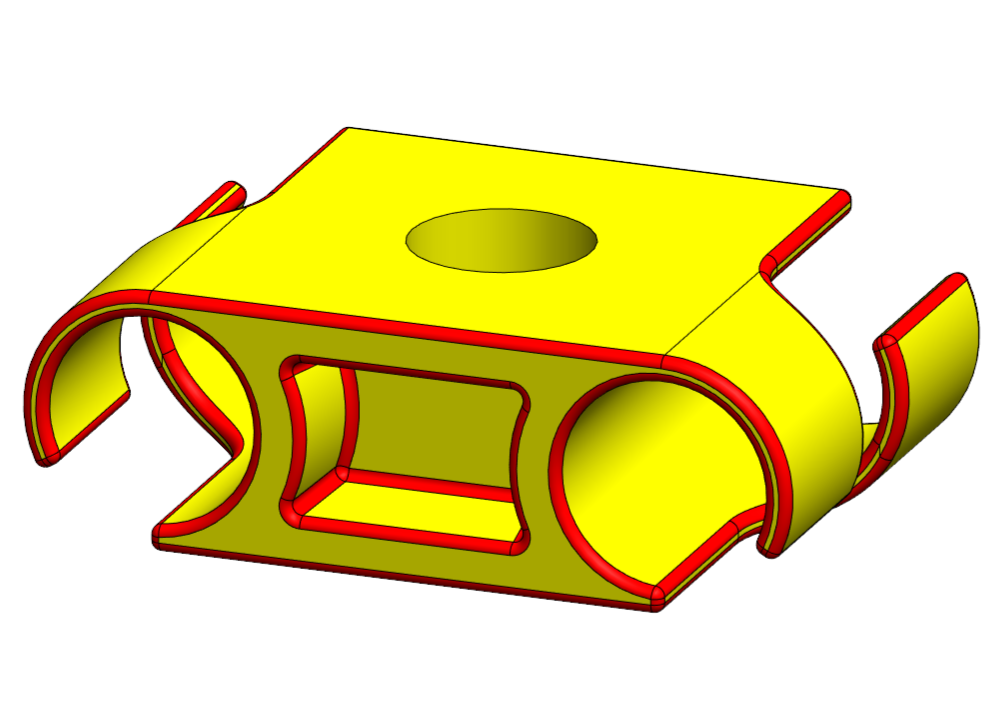 |
Phase 1 Drawing |
| Phase 2 Drawing | |
| Solution Video |
Author information
The post 26 Years of Model Mania® appeared first on SOLIDWORKS Tech Blog.
]]>Author information
The post Automatic Mate Creation in SOLIDWORKS | Tech Tip Tuesday appeared first on SOLIDWORKS Tech Blog.
]]>Discover how to create Mate References, and effortlessly snap components into place with automatic mate placement. Save time and optimize your workflow with this powerful feature!
Explore additional content by visiting solidworks.com/learn/assemblies.
We hope this tutorial helps you on your design journey! Check back every Tuesday for more SOLIDWORKS tips and tricks.
Author information
The post Automatic Mate Creation in SOLIDWORKS | Tech Tip Tuesday appeared first on SOLIDWORKS Tech Blog.
]]>Author information
The post Tips for SketchXpert, Isolate, and More | Tech Tip Tuesday appeared first on SOLIDWORKS Tech Blog.
]]>Learn how to use SketchXpert to diagnose errors and solve sketch issues, how special tools in the Selection menu can save time, and learn about the power behind the Isolate feature.
Connect with Adam on LinkedIn and learn about his exciting motorcycle project, Ironswug.
Get more SOLIDWORKS tips and training at https://solidworks.com/tipwizard
We hope this tutorial helps you on your design journey! Check back every Tuesday for more SOLIDWORKS tips and tricks.
Author information
The post Tips for SketchXpert, Isolate, and More | Tech Tip Tuesday appeared first on SOLIDWORKS Tech Blog.
]]>Author information
The post SOLIDWORKS® Support Monthly News – January 2025 appeared first on SOLIDWORKS Tech Blog.
]]>Welcome to the new edition of the SOLIDWORKS® Support Monthly News! This monthly news blog is co-authored by members of the SOLIDWORKS® Technical Support teams worldwide. Here is the list of topics covered in this month’s Blog:
-
Transferring Custom Tab UI Settings with Macros in SOLIDWORKS® Across Different Machines
-
Securing Your Emails: SSL/TLS Support for SMTP in SOLIDWORKS PDM 2025
-
SOLIDWORKS® Electrical – Circuit Information Transmission
1. Transferring Custom Tab UI Settings with Macros in SOLIDWORKS Across Different Machines
– Tanmay KULKARNI
One of the most useful ability of SOLIDWORKS is to customize the user interface to streamline workflows. The Custom Tab UI is a prime example, enabling users to add their own tools and macros for quick access across different environments like Part, Assembly, and Drawing.
However, once you’ve set up your custom tab with macros, you might want to transfer these settings to another machine. You also want to ensure that the custom tab remains intact, visible across all environments (Part, Assembly, Drawing), and correctly shows only relevant macros in each environment. Simply, importing User Defined Macros will not work. So how can you achieve this without disturbing existing settings on the target machine? You can follow the steps to ensure a smooth transfer.
Step 1: Creating a Custom Tab with Macros
- Open a New Part
- Customize the Tab: Right-click any of the existing tabs and select Customize. Then, right-click on any tab again and select Add Tab > Empty Tab. Name this new tab, for example, “Macros”. This will be the space where you’ll store your macros.

- Add Macro Buttons: Once your tab is created, go to Customize > Shortcut Bars, then drag and drop your macro buttons onto the new “Macros” tab.

- Configure Macro Path: In the macro button properties, fill in the details for the macro file you want to use. This will point to the location of your shared macros, which is essential for the macro to function properly.

- Repeat for Assembly and Drawing Environments: Repeat the process for both the Assembly and Drawing environments with macros respective to those environments, ensuring that the custom “Macros” tab is created in each of these environments.
Step 2: Exporting the Custom Tab Settings
Now that your custom tab with macros is set up, you need to transfer these settings to another machine. SOLIDWORKS stores user interface customizations, including the custom tabs, in the Windows registry. Follow these steps to export the necessary settings:
- Export Macros Registry Key: The first registry setting to export is related to the User Defined Macros. This setting ensures that any macros you created are properly referenced across machines. You will find this registry entry at:
- HKEY_CURRENT_USER\SOFTWARE\SolidWorks\SOLIDWORKS [Version]\User Defined Macros.
- Right-click on this folder and select Export to save the registry key.
- HKEY_CURRENT_USER\SOFTWARE\SolidWorks\SOLIDWORKS [Version]\User Defined Macros.
- Export Custom Tab UI Settings: SOLIDWORKS also stores custom tab settings for different environments (Part, Assembly, Drawing) in the registry. To transfer these settings, you need to search for the customized tab name and export the relevant keys. Use Ctrl + F to search for the name of the custom tab you created (e.g., “Macros”).The relevant registry paths will look like this:
- For the Part Context:
- HKEY_CURRENT_USER\SOFTWARE\SolidWorks\SOLIDWORKS[Version]\User Interface\CommandManager\PartContext\Tab[TabNumber]
- For the Assembly Context:
- HKEY_CURRENT_USER\SOFTWARE\SolidWorks\SOLIDWORKS[Version]\User Interface\CommandManager\AssyContext\Tab[TabNumber]
- For the Drawing Context:
- HKEY_CURRENT_USER\SOFTWARE\SolidWorks\SOLIDWORKS[Version]\User Interface\CommandManager\DrwContext\Tab[TabNumber]
- For the Part Context:
Once you find the appropriate folder (e.g., Tab17, Tab10, Tab23), right-click and Export each one.
Step 3: Importing the Custom Tab Settings to Another Machine
Now that you’ve exported the necessary registry settings, you can move and import them to the target machine where you want to transfer the custom tab setup.
Important Notes:
- Backup Before Editing the Registry: Incorrectly editing or deleting registry keys can severely damage your operating system. Always make a backup of the registry before proceeding with any edits.
- Ensure File Paths Are Accessible: The target machine must have access to the same macro files as the source machine. Ensure that file paths for macros are the same or accessible across both machines.
2. Securing Your Emails: SSL/TLS Support for SMTP in SOLIDWORKS PDM 2025
– Danish Ahmed SHAIKH
One of the most highly anticipated features of SOLIDWORKS PDM 2025 is the introduction of SSL/TLS authentication support, enabling secure authentication to external SMTP servers.
In terms of hosting, there are generally two types of SMTP Server:
- Internally Hosted SMTP Server (On-Premises)An internally hosted SMTP server is an email server that is hosted and maintained within an organization’s own infrastructure. It is physically located in the organization’s data center or on its premises. The organization is responsible for managing the server, ensuring its availability, maintaining its security, and handling any required updates or configurations.
- Externally Hosted SMTP Server (Cloud-based)An externally hosted SMTP server is a service provided by a third-party email hosting provider (such as Gmail, Microsoft 365, Outlook etc.) rather than being managed internally. The email service provider hosts the SMTP server, handles maintenance, security, and scalability, and offers access to email-sending services over the internet
Before SOLIDWORKS PDM 2025, connecting to internal SMTP servers was simple by specifying the SMTP server name/IP address and port number in the SOLIDWORKS PDM Administration > Message System > SMTP Settings. However, for external servers like Gmail or Office365, direct configuration through the Administration tool was not possible. Users had to rely on third-party applications to establish the connection and configure the systems.
Starting with SOLIDWORKS PDM 2025, there is no longer a need for third-party applications to connect to external SMTP servers. You can now directly enable SSL (Secure Socket Layer) or TLS (Transport Layer Security) authentication for email notifications in SOLIDWORKS PDM.
In the SOLIDWORKS PDM Administration Tool, you can select EnableSSL under Message System > SMPT > SMTP Settings to enable SSL or TLS authentication in the SMTP email notifications. It is a two-way authentication along with the login credentials.
The following SMTP server are supported,
Gmail/Office365/Outlook/Yahoo Criteria for SOLIDWORKS PDM Notifications:
To configure SMTP notifications for an externally hosted SMTP server, you first need to enable Two-step verification and generate an App Password in your hosted user account settings.
Let’s walk through an example of how to configure SMTP notifications using a Gmail account. In this case, we’ll enable Two-step Verification and generate an App Password, which will be used in the SOLIDWORKS PDM Administration tool.
- Sign in to your Google account. In the top right corner, Click on Google profile, and select Manage your Google Account

- The Google Account page will be opened. Click on Security Tab, and enable/enroll for Two Factor authentication.

- Once you enable Two-Step Verification, you should be able to see a new option App Password. If you are not able to see it, you can also search for App Password in the Search bar at top.
- Generate the App Password and copy it to your clipboard.

- Open SOLIDWORKS PDM Administration Tool > Message System > SMTP Settings. Enter the details as seen in the image below.

- Click on Test Settings and enter the receiver email address to test SMTP notifications successfully.

3. SOLIDWORKS® Electrical – Circuit Information Transmission
– Atul KORADE
When you place a symbol on top of a wire inside SOLIDWORKS Electrical, very commonly what will happen is when you go to number the wires, each individual wire that’s connected to that symbol will be given a different equipotential label. But when a user wants to pass that equipotential label through the circuit in order to transmit that particular signal to some further destination, The user will have to make changes to Information transmission of the symbol.
In SOLIDWORKS Electrical the place where you can control what the software does with equipotential mark is actually within the properties of circuit in the symbol itself. In the image shown below, when you open a symbol and click on the circuit, you can see on the right-side panel there is an option to control information transmission. 
This circuit in the attached image is set to Disconnectable but there are four different options available for what we can achieve with equipotential mark. The options are as follows:
- Disconnectable
- Passing
- Hyper Passing
- Hyper hyper passing
If the user selects the Disconnectable option. Upon placing the symbol on a wire, it will split the equipotential and there will be two different equipotential on either side of the symbol.
If the user selects the Passing option. Upon placing the symbol on a wire, the same equipotential will appear on both the sides of the symbol.
There are instances where the user will have to use connections on multiple drawing sheets. This is where Hyper passing comes into picture. Hyper passing requires two symbols that are associated to each other or to the same component. In the attached image 3 wires are connected to a connector having hyper passing terminals. Now, a similar connector with the Hyper passing terminal is connected to another set of wires but is associated with the same connector. Notice that the equipotential travels through the connectors even if they are separately placed.
Hyper hyper passing symbol is exclusively used as origin destination symbols. Most symbols in this schematic are multi-wire symbols but if you are going to use Hyper hyper passing transmission type you will have to set the symbol type as origin destination symbol. You can find symbol type when you edit the symbol under properties. Once you set the symbol for origin and destination you can use these symbols similar to origin-destination arrows. These symbols will also show cross references just like origin-destination arrows.
Author information
The post SOLIDWORKS® Support Monthly News – January 2025 appeared first on SOLIDWORKS Tech Blog.
]]>Author information
The post Intricate Vents From Simple Sketches in SOLIDWORKS | Tech Tip Tuesday appeared first on SOLIDWORKS Tech Blog.
]]>For more sheet metal video tutorials, visit https://www.solidworks.com/learn/sheetmetal
We hope this tutorial helps you on your design journey! Check back every Tuesday for more SOLIDWORKS tips and tricks.
Author information
The post Intricate Vents From Simple Sketches in SOLIDWORKS | Tech Tip Tuesday appeared first on SOLIDWORKS Tech Blog.
]]>Author information
The post Handling Multibody Design In xShape | Tech Tip Tuesday appeared first on SOLIDWORKS Tech Blog.
]]>Learn the essentials of using OGS to organize the Design Manager Tree efficiently see how OGS allows you to manage bodies independently and streamline your design workflow. Unlock the potential of Ordered Geometric Sets to enhance your xShape experience. Elevate your design skills and unleash your creativity with the features and functions xShape has to offer.
Explore additional methods working with xShape by visiting solidworks.com/learn/xShape.
We hope this tutorial helps you on your design journey! Check back every Tuesday for more SOLIDWORKS tips and tricks.
Author information
The post Handling Multibody Design In xShape | Tech Tip Tuesday appeared first on SOLIDWORKS Tech Blog.
]]>Author information
The post SOLIDWORKS® Support Monthly News – December 2024 appeared first on SOLIDWORKS Tech Blog.
]]>Welcome to the new edition of the SOLIDWORKS® Support Monthly News! This monthly news blog is co-authored by members of the SOLIDWORKS® Technical Support teams worldwide. Here is the list of topics covered in this month’s Blog:
-
Why does eDrawings® default to an older version and fail to recognize the latest installation while opening the file, even after specifying it as the default app?
-
Pipe Bending Animation in SOLIDWORKS® Using External References
-
SOLIDWORKS® Electrical: Excluding components from Bill of Material
-
Purge Unused Feature: Great feature but use it wisely
1. Why does eDrawings® default to an older version and fail to recognize the latest installation while opening the file, even after specifying it as the default app?
– Sohan DHAKE
You might have struggled with eDrawings® opening an older version instead of the latest one, despite setting the latest version as the default app. This issue arises due to installation conflicts when multiple versions of eDrawings co-exist on the same machine.
For instance, imagine you’ve installed eDrawings 2025, but an older version i.e., eDrawings 2024 is still present on your system. When you try to open a file, even one saved using the 2025 version, it defaults to eDrawings 2024. This results in a “Future version file” error because the older version can’t recognize files from the newer one. The following image shows that there is no instance of eDrawings 2024/SOLIDWORKS® 2024 installed on the system yet the eDrawings 2024 is present on the system.
The first step to resolve this would be uninstalling eDrawings 2024. However, it doesn’t appear in the Programs and Features list in the Control Panel. If you try to use the MsiExec.exe/x{…} uninstall command string, it will throw an error of “The Product does not exist on the system.” Generally, this happens when modifying the SOLIDWORKS installation with multiple versions where numerous folders are created.
Multiple versions of eDrawings installed on your system can lead to duplicate folders and conflicting file associations between the versions. Even if you specify eDrawings 2025 as the default app for opening files, the system may still revert to eDrawings 2024 due to these conflicts.
Here’s an example:
When browsing through the installation folders, you might notice that both eDrawings 2024 and 2025 folders are present. Unless you rename or remove conflicting folders during installation, Windows® may assign generic numbers to them, making it hard to distinguish between versions.
How to Fix This Issue:
- Delete Unnecessary Folders: Locate the older version’s installation folder and either delete it or rename it to prevent conflicts.

- Organize Installation Directories: While installing SOLIDWORKS, ensure the installation directory is properly renamed with their version numbers when dealing with multiple installations on the same system. This can help avoid duplicate folders.

How to Prevent This in the Future:
- Perform a Clean Installation: Always uninstall the previous version completely before installing a new one. Follow clean installation guidelines from QA00000124030 article for SOLIDWORKS and QA00000108170 article for eDrawings in the Knowledge base to remove all residual files.
- Rename Directories During Installation: If you’re maintaining multiple SOLIDWORKS versions, rename the installation directories appropriately during installation to avoid overlap.
By taking these steps, you can ensure a seamless experience with eDrawings and avoid the hassle of future version errors or file association issues.
2. Pipe Bending Animation in SOLIDWORKS® Using External References
– Kundlik GADADE
External references in SOLIDWORKS® link one document to another, ensuring that any changes in the referenced document are reflected in the dependent document. This feature is particularly useful when simulating complex processes, such as pipe bending, where the movement and shape changes of components must remain interconnected.
In this example, an assembly is created to represent a pipe bending machine. Pipe bending involves reshaping tubes or pipes into desired configurations. The animation showcases the bending process by simulating the interaction between the pipe and a rotating bending die.
To Create the Pipe Bending Animation:
- Model Preparation:
- Design the Fixtures and Die: Use part modeling to create the required fixtures and bending die.
- Assemble the Components: Build a new assembly with appropriate mates to replicate the desired motion.
- Create a New Part in Context of the Assembly:
- Insert Component: Use the ‘Insert Component’ feature and select ‘New Part’ to create a new part within the assembly context.
- Add Constraints: Constrain the new part so its motion depends on the rotating die. In this example, the pipe’s path angle is constrained to maintain a constant relationship with the die’s rotation, regardless of its position.

- Animate the Assembly:
- Set Up the Motion Study:
-
- Navigate to the ‘Motion Study’ tab.
- Drag the time bar to define the animation duration.

-
- Simulate the Motion:
-
- Drag the rotating die to its desired end position.
- Calculate and play the animation.
- Observe how the pipe bends around the pivot as the die moves, guided by the added mates and constraints.
-
- Set Up the Motion Study:
In this simulation, external references play a critical role by recalculating the motion frame by frame, ensuring realistic pipe bending behavior.
Final Result:
The animation provides a representation of the pipe bending process, simulating the interaction between the pipe and the bending die. While this is a simplified depiction, it effectively demonstrates the potential of SOLIDWORKS® for simulating such processes.
Note: This example is intended for demonstration purposes and may not precisely represent industrial pipe bending equipment.
3. SOLIDWORKS® Electrical: Excluding components from Bill of Material
– Atul KORADE
There are instances when a user wants to hide a certain manufacturer part number in the Bill of Material (BOM). Upon generating a BOM report, all the manufacturer parts are included and it will be an additional task for the user to remove a certain manufacturer information from the report.
To avoid this rework, the user can simply use a filter in the reports to remove a certain manufacturer part. However, for this filter to work, the user must activate the option ‘Exclude from bill of material’ in the Manufacturer part properties. 
While generating reports, select the filter ‘Do not show excluded manufacturer parts’ from the dropdown. 
If the user wishes to create a new filter other than the default filter, follow the steps given below:
- Select the report type and click on ‘Add filter’ from the ribbon menu.

- In the pop-up window, enter a name for the filter.

- In the conditions tab, add a field from the available fields as per the requirement and click OK.

This new filter will appear will appear in the reports filter description.
4. Purge Unused Feature: Great feature but use it wisely
– Akhil C
Purge Unused Features is a great tool which allows the SOLIDWORKS® users to eliminate unwanted/unused features/sketches or reference geometries. But using this option without a judgement might lead into some unwanted mate errors. In this article, I will discuss a simple case scenario, which many users have reported and are unaware what has caused the problem.
Problem Statement: When I open an Assembly everything looks fine and once I switch Assembly configuration, I see that some configurations has mate errors.
The image below shows an example of this error. The error message says “One of the entities or referenced features of this mate is suppressed, invalid, or no longer present“
We have seen few users reporting this issue, but are unaware of what workflow actually led to this behavior. In this article I have discussed a known workflow which could potentially lead to this behavior. The intent of sharing this information is to educate the users to use the option Purge Unused Feature wisely.
See the following videos to understand the example workflow in detail and the problem this workflow leads to.
Video: Part 1
Video: Part 2
Even though this is a great feature for SOLIDWORKS® users to eliminate unwanted/unused features/sketches or reference geometries, using this feature without analyzing the impact on other referenced features/models could lead into errors which might go unnoticed for the users. We recommend to take regular Backups of the Data.
Author information
The post SOLIDWORKS® Support Monthly News – December 2024 appeared first on SOLIDWORKS Tech Blog.
]]>Author information
The post Christmas Tree Bell Run: SOLIDWORKS Tutorial appeared first on SOLIDWORKS Tech Blog.
]]>
Skipping to the leaf sketch, I have my base part modeled in a SOLIDWOKRS Part file, selecting the top face of the tree post extrusion, I added a new plane 50mm below the face, flipping the offset. The shape of the leaf is very important and must be sketched correctly otherwise, when I start patterning the leaves they will overlap each other. The leaf sketch also needed to overlap the center post as the leaves will slot into the post. Ensure you fully define your sketch and add all of the tangent relations between the two arcs and the spline. The leaf was then extruded by 2mm, unmerged, keeping the bodies separate.

Using move/copy bodies, selecting the leaf body, I ensured that the copy box is unchecked as I only want to move the existing body. Then I rotated the body along the Z-axis by 18 degrees. Then again using move/copy bodies, I rotated the leaf, this time using the straight edge, inputting 35 degrees. It’s actually quite important to rotate the leaf in that order too, otherwise it will be in the wrong position. I softened the leaf appearance with a fillet on each of the sharp corners, I always add my fillets outside of the sketch as they are easier to edit.

Using the linear pattern feature, I used the tree’s center post for the pattern direction, and used bodies, to select the leaf body to pattern. I applied 6 instances, spaced apart by 62mm.

I attempted to use a variable pattern to enlarge the leaves as they go down, but it wouldn’t rotate the leaf, so I decided to try it a different way. So before I scaled up each leaf, I needed to add a coordinate system to each leaf. This will allow me to scale the leaf by a specific point of the leaf. Under reference geometry, I selected coordinate system, and starting with the 2nd leaf down as the first leaf will remain the same size. I could select the corner point of the leaf, and then select edges for the X and Y axis to attach to. Once applied you should see the visible coordinate system. If you can’t see it, you may need to toggle the view on under the view options. I repeated this process for each leaf.

Then using the scale feature, I’m selecting the second leaf down for the scale body, then under scale about I’m changing this drop down to coordinate system. For this, I can select the bodies coordinate system here. However, I’m not using uniform scaling as I want the thickness of the leaf to remain the same throughout. Unchecking uniform scaling, I can input the scale options across each axis. Ignoring the Y axis (thick would thicken the leaf) I input 1.1 in the X axis and Z axis and applied it. This scales the leaf up which is more visible from the top view. I then repeated this feature for each leaf, scaling the leaves up by increments of point 1. Ending the last leaf by 1.5.

Next, I used the circular pattern to pattern the 6 leaf bodies with 4 instances, with equal spacing at 360 degrees. For the tree run to work, I needed to stagger the leaf heights to allow the bell to roll down the leaves, almost like a spiral staircase. Using move/copy bodies and selecting a column of leaves, ensuring copy is unchecked I moved the column down by 15.5mm. Moving around to the next column of leaves, I’m using move again and selecting the next 6 leaves, I’m moved them down by 31mm, this is the lowest level for the leaves. Then for the last column, I moved the last column of leaves up by 15.5mm.

Moving onto the star, sketching onto the right plane, I used the polygon and changed the parameters to 5. I used the pentagon for construction, ensuring I’m center to the post. Then sketching a point on top of the shape, I made the two lines equal to each other and dimensioned the points height to 26mm. I then used circular sketch pattern to pattern the lines from the pentagons center point by 5 instances. This creates a star. I then extruded the star midplane, unmerging the result. I also softened the edges of the star by 5mm, the fillet selection toolbar is useful for making multiple edge selections at once.

When applied, I needed to add features to make the part look how it should if it was made out of wood. To do this, I used the move/copy body feature to make 1 copy, this time of the post and all of the leaves. Using the combine feature, with operation type on subtract, I selected the star part as the main body, and the post as the body to subtract. This cuts away the post’s body copy away from the star. Then for the second combine feature, I used subtract again, selecting the post part as the main body, and then one of each leaf copy for the bodies to subtract, and applied it. You’ll then be able to see the slots cut into the post like below.

With my model complete, I applied some appearances to make my tree more festive, and brought the tree into an assembly. Dropping in the bell part at the top leaf of the tree, I could create a motion study. In my motion study tab, I had motion analysis selected, and for my study I applied gravity to my study along the Y axis, and applied contacts across both the tree and the bell parts. Under the motion study properties options, I ensured to turn on use precise contacts before I ran the study.

You will see at the result of my motion study at end of the tutorial, it was exported and rendered into SOLIDWORKS Visualize. I did add some extra models including some festive baubles, and added the depth of field to get the focused camera shot of the tree.

Author information
The post Christmas Tree Bell Run: SOLIDWORKS Tutorial appeared first on SOLIDWORKS Tech Blog.
]]>Author information
The post SOLIDWORKS for Makers: Design and Create a Remote Control Car Part 2 appeared first on SOLIDWORKS Tech Blog.
]]>I set my created designs away to print overnight and came back the next morning to 4 motor mounts and 4 wheels. I elected not to print the larger wheels with the intention of going back to do so if the smaller versions did not work out.

For the chassis plate the making portion was again relatively simple, I own a cheap desktop laser cutter which allows me the ability to quickly make simple 2D profiles. I loaded the DXF I had saved out of SOLIDWORKS into the lasers control software and set the number of passes required. I’m still guessing my way through laser cutting but I’ve got a rough rule of thumb that one pass at 30% power roughly equates to 1mm cutting depth. As the material I was using was 3mm thick I proceeded with 3 passes. I loaded the material onto the bed, aligned the start position of the laser and clicked start. Within 5 minutes I had the chassis plate cut and peeled off the protective film to reveal a clean-cut look.

So, with my electronic components sourced, my 3D printed parts complete and supports removed and my laser cut chassis cut it was time to start putting it all together! The next major step to allow the design to come together was to use a soldering iron to insert a load of heat set thread inserts into the 3D printed motor mounts… 8 per mount 32 in total. If you’ve never used heat set inserts before I suggest you check them out, they’ve become an everyday tool I use in my projects due to the ease of use and ability to quickly add accurate machined metal threads into 3D printing. I used them a lot during one of my previous blog posts where I showed you how you can use SOLIDWORKS for Makers to make you own branded wall sign, check that blog out [here]
The process of inserting the heat set inserts is simple, design your model to have a hole equal to the small diameter of the insert, in my case 4mm. Insert the small diameter into the 3D printed hole, place the tip of a heated soldering iron onto this, let it heat up and push down till it sinks into place. Doing this 32 times begins to feel a tad repetitive however these inserts are by far the best way to achieve a decent thread in 3D printed components.

Once I had all the inserts set into position I bolted the 4 servo motors into position on the mounts. To do this I used some M3 cap head screws to secure these against the created frames before then securing these to the chassis plate.

Once the 4 motors were secure to the chassis, I needed to then install the hubs to the servo output shaft. I pushed the hubs over the cogs and secured using the provided screw, if you’re following along exercise caution when tightening these screws into position. It’s very easy to strip out the plastic center hole on the servo motor and if possible, I’d advise you to look for an all-metal geared servo to avoid this potential issue. To install the wheels was again a simple process, I used 4 screws to secure through the holes we created in the design and screwed these into the hub behind. Again, these are plastic hubs so there’s a possibility of stripping the hole out if you’re too enthusiastic when securing.

From this point it was a case of wiring the servos into pairs using the purchased Y cables, these are essentially like an old school headphone splitter which sends the signal from the controller to two servos rather than one. Both the servos on the left side connect to one output from the receiver and the same for the right pair. The battery pack also connects into the receiver unit, as the battery pack I had ordered had a different type of connection to that on the receiver I used some connector cables I had in my workshop with a male to female connector to make the connections. The male pins I pushed into the battery output connector and the female over the male pins on the receiver unit. That was it for the building portion really, I added the elastic bands between the pairs of wheels to create the tank track effect along with securing the battery to the base with some cable ties using the grid of holes I’d designed into the chassis plate earlier.

The final step of the build was top connect the receiver to the transmitter, I turned the transmitter on first before plugging in the receiver to the battery. From here there’s a procedure to follow to connect these together which involved holding the trigger pressed in whilst following some other commands. The light flashed to let me know connection was successful. To achieve the skid steer method of control I needed to ensure the remote was in “Mixed Mode” which essentially allows for control using 4-wheel steer rather than rack and pinion style. The remote automatically calculates how fast to turn each sides wheels to turn or drive based on your inputs.

I hope you enjoyed following along with this build, watch the video below to see how I put the contents of this blog into practice!
Author information
The post SOLIDWORKS for Makers: Design and Create a Remote Control Car Part 2 appeared first on SOLIDWORKS Tech Blog.
]]>Author information
The post Toy Birthday Cake: SOLIDWORKS Tutorial appeared first on SOLIDWORKS Tech Blog.
]]>
This tutorial involves creating five individual parts to be used to create a final assembly. The parts include a cake slice, candle, icing blob, balloon sign and a cake stand. The tutorial takes you through the process of importing a DXF to use as a sketch for revolving or extruding. All the DXF files used in the tutorial are available to download here

The circular pattern is used to create the icing blobs from a extruded DXF sketch which has been extruded and domed on each side, once the body is patterned by 3 instances, it could be combined into one body. The candle part was created through a simple flower shaped extruded sketch, the extrusion was then flexed by twisting it by the top and bottom faces of the extrusion.

The balloon and cake stand are created by importing DXF files and using 3D features to bring them to life. You can create your own DXF files in vector programs to be used with SOLIDWORKS, or you can export DXF files from SOLIDWORKS models, this can be useful for creating accurate decal artwork for complex shapes and you want to ensure it fits. All the decals used in the tutorial are also available to download from here Decals were applied to most parts using projection mapping, which is a very flexible way of applying decals to parts. Other parts had simple plastic appearances added to them, specific colors were applied using their RGB values which you can add within the appearance.

All the finished parts were brought into an assembly and mated into place using coincident and concentric mates. With the final assembly an exploded view was created and exported to SOLIDWORKS Visualize to create a rendered animation which can be seen within the tutorial.
Author information
The post Toy Birthday Cake: SOLIDWORKS Tutorial appeared first on SOLIDWORKS Tech Blog.
]]>Author information
The post Managing Content with Bookmarks | Tech Tip Tuesday appeared first on SOLIDWORKS Tech Blog.
]]>Bookmarks are an invaluable tool for organizing and managing your design content effortlessly on the cloud. Elevate your SOLIDWORKS experience with these great tips using Bookmarks and unlock a new level of efficiency in your design workflow.
Explore additional methods for designing with SOLIDWORKS on the Cloud by visiting https://solidworks.com/learn/xDesign.
We hope this tutorial helps you on your design journey! Check back every Tuesday for more SOLIDWORKS tips and tricks.
Author information
The post Managing Content with Bookmarks | Tech Tip Tuesday appeared first on SOLIDWORKS Tech Blog.
]]>Author information
The post SOLIDWORKS® Support Monthly News – November 2024 appeared first on SOLIDWORKS Tech Blog.
]]>Welcome to the new edition of the SOLIDWORKS® Support Monthly News! This monthly news blog is co-authored by members of the SOLIDWORKS® Technical Support teams worldwide. Here is the list of topics covered in this month’s Blog :
- CMM Template Import Adjustments in SOLIDWORKS® Inspection
- Mastering ‘Copy with Mates’: A Smarter Way to Duplicate Assemblies in SOLIDWORKS®
- Designing in Context of Environments in xApps
- New Feature: Checkout Process for GET Operations in PDM 2025
1. CMM Template Import Adjustments in SOLIDWORKS® Inspection
– Tanmay KULKARNI
Adjusting the CMM data import template in SOLIDWORKS® is crucial due to the variability in column names and axes across different CMM software. Here’s why customization is essential and some customization tips:
- Column Name Variability: In some CMM software, programmers have control over what the columns are called. The default settings for column names might differ significantly from what your SOLIDWORKS template expects. If the column names in the CMM data file do not match those in your import template, data may fail to import or import incorrectly. Example:
- Default column names in CMM software:

- Customer’s CMM data file with mismatched column names:

- Solution: Edit the import template to match the column names in the CMM data file:

- Solution: Edit the import template to match the column names in the CMM data file:
- Default column names in CMM software:
- Axis Name Variability: Similarly, For some CMM software, the programmer has control over what the axes are called, which can vary between different setups. If axis names are missing or mismatched in the data file compared to your template, it can lead to incomplete or inaccurate data imports. The template has to match the information in the CMM Data File. Example:
-
- Missing axis information in the feature details: You will see results and axis in the feature details.

- Solution:
- The axis needs to be added to the template to fix this. Identify which column the axis data is being read from.

- The axis needs to be added to the template to fix this. Identify which column the axis data is being read from.
- Solution:
- Missing axis information in the feature details: You will see results and axis in the feature details.
-
-
-
-
-
- Modify the template to include any missing axis names. You can combine multiple axis IDs into one field by separating them with commas if needed.

- Modify the template to include any missing axis names. You can combine multiple axis IDs into one field by separating them with commas if needed.
-
-
-
This approach ensures that your CMM dimensional inspection data integrates seamlessly into SOLIDWORKS® Inspection.
2. Mastering ‘Copy with Mates’: A Smarter Way to Duplicate Assemblies in SOLIDWORKS®
– Nikhil BHIRUD
When working with assemblies that involve multiple components, using SOLIDWORKS® Copy with Mates tool can be a huge time-saver. However, instead of using Copy with Mates the traditional way is – by copying each component individually. You can save even more time by grouping components around a single anchor part. This approach allows you to add mates for only one main component, automatically positioning the rest in place.
The Smart Copy with Mates Technique:
Normally, you’d copy each part separately and set up mate references for each component individually. This can quickly become tedious if you’re working with assemblies with lots of small parts. Instead, you can save time by mating all parts to a single “anchor” component and letting SOLIDWORKS handle the rest. This approach reduces the number of mate selections you need to make, allowing you to create grouped copies quickly.
Let’s use a Ductwork example to illustrate this process:
Imagine you have a section of duct with flanges and screws mated to it. Normally, you’d copy each component individually, setting up mates for each flange and each screw in the new position. Instead, follow these steps:
- Select an Anchor Component: Choose a main part in your assembly to act as an anchor for the other components. In our example, the main duct section acts as the anchor.
- Mate All Components to the Anchor Part: Mate every part you want to duplicate (like flanges, screws, and other fasteners) to the anchor component. This way, all the components follow the anchor part’s position and orientation in the assembly.

- Use Copy with Mates on All Components: With all parts mated to the anchor component, select the entire group and initiate Copy with Mates.

- Select Mates for the Anchor Only: Once you start the Copy with Mates tool, you’ll only need to select mate references for the anchor part. In the PropertyManager, you’ll only need to define mates for the duct. The other components will automatically follow along based on their mates to the anchor.

- By only needing to choose mates for the main duct, SOLIDWORKS will place all the connected part, flanges and screws exactly where they should be in the new location
Why This Technique Works: By mating each component to a single anchor part, you allow Copy with Mates to treat them as a unit. When you define mates for the anchor, all other components maintain their relative positions and orientations, drastically reducing the number of individual mates you need to create.
Conclusion: With this approach, you’re able to maximize the potential of Copy with Mates by reducing repetitive mate selections, positioning multiple components as a group, and working more efficiently in complex assemblies. Try this technique in your next project and experience a smoother, faster assembly process in SOLIDWORKS !
3. Designing in Context of Environments in xApps
– Bhavya JHAVERI
Designers and creators can enhance their workflow by inserting dynamic environments directly into their designs, providing a more realistic context for visualizing products in real-world settings. This feature allows for improved design insights and a more immersive creation process.
This new Insert Environment feature is accessible in xApps available within your 3DEXPERIENCE SOLIDWORKS packages.
There are two options to insert environments from:
- Insert HomeByMe project option:
HomeByMe is an online 3D home design application that enables users to create, furnish, and visualize interior layouts in realistic detail. It helps users plan spaces, try different styles, and see how their design ideas will look before implementing them. Using pre-made sample environments. More details can be found here: https://home.by.me/en/
Note: xFrame application does not provide this option.
Workflow to set up and use environments
- Create a New Physical Product: Start by creating your product file and click Save.
- Update Your Content Library: Go to Tools > Update Content Library > Update Environments. The time for this process will depend on your internet speed.
- Insert Environment: Once the update completes, you’re ready to click Insert Environment and begin.
Quick Tips:
- View Mode: After inserting an environment, the view will switch to perspective mode. You can adjust this by going to View > View Modes in the toolbar.

- Optimize Graphics: To enhance graphics performance, update the Graphics Preference under System Settings on Windows via Graphics settings. Detailed instructions can be found in the Changing the System GPU help.

- See It in Action: Check out a use-case video showcasing this feature in the 3D Creator post.
4. New Feature: Checkout Process for GET Operations in PDM 2025
– by Danish Ahmed SHAIKH
Beginning with SOLIDWORKS PDM 2025, you can now check out files while using the “Get Version” feature in the SOLIDWORKS PDM Explorer Vault View. For instance, when you select “Get Latest Version,” you’ll also have the option to check out the file simultaneously.

In the Get dialog box, if you select one or more files and then choose the Check Out option, the Get option will be automatically selected for you. You can also include a Check Out column in the Get dialog box of SOLIDWORKS PDM File Explorer in Administration tool.
In PDM 2024, selecting a part file and executing a Get operation would automatically retrieve the latest version. For assembly files, a dialog box would appear to obtain the version, but you had to complete the Check Out operation separately.
With PDM 2025, these processes have been integrated. Now, when you select either a part or assembly file, a dialog box enables you to check out and retrieve the version at the same time.
This functionality is integrated into both the Get Version operation (meaning that if you fetch an older version, you’ll still see a dialog box) and the Get Latest Version in Explorer Vault View.
The same feature has also been incorporated into the SOLIDWORKS PDM Add-in within SOLIDWORKS.
The following conditions apply to the combined Get and Check Out operation:
- If the Get operation fails, the Check Out will not proceed.
- If the Check Out fails, the Get operation will still continue.
- When retrieving an older version, selecting Check Out will allow you to obtain the specified version while also performing a Check Out.
Author information
The post SOLIDWORKS® Support Monthly News – November 2024 appeared first on SOLIDWORKS Tech Blog.
]]>Author information
The post SOLIDWORKS for Makers: Design and Create a Remote Control Car Part 1 appeared first on SOLIDWORKS Tech Blog.
]]>
The design we used for 3DEXPERIENCE World was simple and effective, it used 4 continuous rotation servo motors to propel itself along and for steering. Rather than using the traditional rack and pinion car steering method, the design used a gyroscopic mixed mode controller to enable the car to spin on the spot. This is known as skid steer and is commonly seen on bulldozers or tanks. These servos were powered by a small battery and controlled using a cheap RC Trigger controller with a gyroscopic type of receiver. Other than these main components I’d need some Y servo cables to allow me to power two servos in parallel and some other wiring accessories.
From here once I’d gathered the electronic components and tested that the setup was working as expected I needed to sit down at my desk and get into some design work. The first components I’d need to design was a mount for the servo’s to connect to the chassis I was yet to design. I chose to start with this as I’d need the designed hole centers on the motor mounts to match on the chassis.

The Servos had a width of 40.8mm and a height of 20mm, I’d start by creating a cutout in this size for the servo to sit within, I added 0.5mm to each dimension to allow for tolerancing. I offset this sketched rectangle by 10mm to create the frame in which the servo would bolt to. I started a new sketch and drew out a rectangle on the lower surface of the window frame I’d made previously. I extruded this 5mm before starting work on how the servo would be held in place. The servo’s have small tabs on both sides to allow these to be clamped against the mount, I added some thru holes to this into which I would use some heat set inserts to create a proper thread into which the fixing could be secured. I used the same process on the flat lower surface which would allow the created mount to be fixed to the chassis plate. I removed some excess material on the frames upper edge using the cut extrude feature and finished off by adding some fillets to round off the design. Once finalized it was easy to make these parts as I opted to use FDM 3D Printing to manufacture the design.

For the chassis plate I would be using laser cutting as my method of manufacture, since I bought my laser cutter 3D printing large flat shapes is a thing of the past. It’s so much easier to watch a laser quickly cutout a flat profile from a created DXF file than it was to wait 10 hours plus to print one!
The design for this was easy, I started by creating a new sketch before drawing two construction lines which would act as my mirror references. The baseplate would be rectangular in shape and would need to be wide enough to allow two servo motors to be mounted side by side. I sketched a rectangle from origin 200mm in length and 90mm in width. The hole centers for the motor mounts needed to be replicated in the same positions on the chassis. To do this I created a rectangle within one of the quadrants created earlier and used the smart dimension tool to set this at the correct hole centers. I then added some more smart dimensions to lock this into the correct position. The next piece of the chassis plate puzzle was to use the mirror command to create the remaining hole patterns for the rest of the mounts. Once the sketch was finalized, I used the extrude bodies command to create a 3mm thick plate. I then created a new sketch to create a grid of holes down the center portion which I could use to secure other components into place if required. I used the extrude cut command to turn this sketch into thru holes in the plate. I saved this as a DXF file to load into my laser cutter.

The servo motors which I had bought came with a selection of different hub designs for different applications, I’d be using one of the round variants with a number of mounting holes. To make my vehicle move I needed to design some wheels, I had a few options here… large or small diameter, wide or thin profile or did they even need to be round at all! The electronic system I had created would operate on skid steer, so I really wanted to build a track-based system rather than having 2 separate wheels. I’d use elastic bands to connect the front and rear wheels together to achieve the full tracked look.
As I was unsure what diameter would perform best, I decided I’d create two designs and see which worked best once I had made them. I started by creating a circle to match the diameter of the hub I’d be using, I then had to create an array of holes to match that of the fixing holes on the hub. I did so by measuring the provided hubs using a vernier caliper, I found that they we’re set on a 15mm square profile.
The first thing I would need to do was to mirror this on the wheel design to enable it to bolt into place. I created a square with Center at origin equal in both width and height at 15mm, on each corner I sketched a 2mm diameter circle to allow the bolts to pass through and connect to the hub behind. From here I sketched a 20mm diameter circle to match that of the outer diameter of the hub, once this was in place it was time to start the actual wheel design. I started by sketching an upright line before offsetting this in both directions by 1.5mm to create a singular wheel spoke. Power trim quickly removed all the crossing lines and parts which I didn’t need, I always find it best to tidy up extra lines before patterning as otherwise you just end up removing 10x as many… I again used a circular pattern to create the 10-wheel spokes. With the sketch completed I extruded this 25mm to create the body.
As I didn’t want to have a thick, dense looking wheel I use a quick sketch and extrude cut command to cut into the wheel face to reduce the weight and print time. I didn’t want the elastic bands which would connect the front and back wheels to be able to slip over the edge of the wheel, so I used a couple of new sketches to add a 0.5mm lip on the inner and outer edges. To create the larger wheel, I used the scale command to increase the model size in only the X and Y axis, the Z axis staying the same to retain the 25mm wheel width. As with the motor mount my method of choice to produce these would be 3D printing, I saved the two designs as STL files before preparing these to print in the slicing software.

With the designing complete it was time to get started with the making, check out part 2 to see how my created designs went from the screen to reality. Watch how I used 3DEXPERIENCE SOLIDWORKS for Makers to complete this design below:
Author information
The post SOLIDWORKS for Makers: Design and Create a Remote Control Car Part 1 appeared first on SOLIDWORKS Tech Blog.
]]>Author information
The post Increasing Productivity Using the SOLIDWORKS Search Menu | Tech Tip Tuesday appeared first on SOLIDWORKS Tech Blog.
]]>Search MySolidWorks, where you can explore a wealth of tutorials and community-uploaded models. Elevate your SOLIDWORKS experience with advanced search functionalities!
Explore additional methods for modifying the SOLIDWORKS user interface by visiting https://solidworks.com/learn/swsearch.
We hope this tutorial helps you on your design journey! Check back every Tuesday for more SOLIDWORKS tips and tricks.
Author information
The post Increasing Productivity Using the SOLIDWORKS Search Menu | Tech Tip Tuesday appeared first on SOLIDWORKS Tech Blog.
]]>Author information
The post Pumpkin Tealight Holder: SOLIDWORKS Tutorial Part 2 appeared first on SOLIDWORKS Tech Blog.
]]>
I utilized a cake tin which has a removeable base and filled the inner seam of the cake tin with modeling clay to avoid any plaster seeping out. Then I used a mixture of soft soap and water to grease the cake tin which will make it easier to remove the plaster once its dry. I mixed 1.5lbs of plaster to 1 pint of water, and continuously mixed until the plaster began to thicken. I poured the plaster into the tin, tapped the tin gently onto the table to level out the plaster to ensure the air bubbles rose to the surface. After the plaster had dried completely, I could flip the tin over and drop the plaster out. I did need to be very gentle at this stage not to damage the plaster, but it was also quite a tight fit. Plaster expands so be aware of this when molding with it. This creates my plaster bat. A plaster bat can be used for a range of things, but it is mainly used for drawing water out of the base of clay pieces to help dry more evenly, minimizing the risk of cracks. I’ll be using mine for a few things, including helping me to guide the pumpkin mold shape and size, and for rolling clay onto.

Choosing a pumpkin, I went with a slightly smaller pumpkin that I preferred the shape of, but I needed to prepare the pumpkin for molding into two parts. This included flattening the base of the pumpkin by trimming some of the pumpkin away like this, this will stop from it tipping over, I can flatten the base further within the molding process. I also needed to trim down the pumpkins stalk, this is to avoid undercuts in the mold, I need to keep it simple to stop the pumpkin getting stuck in the mold.

To start my mold, I used a ball of modeling clay in the center of the plaster bat, and sat my pumpkin, upright and level, ensuring it feels secure enough for me to begin sketching a mold split line. The mold line isn’t perfectly straight, because I need to ensure that I sketch over the widest area of the pumpkin to avoid undercuts. Unlike my SOLIDWORKS pumpkin model, a real pumpkin is more organic so the seam line will reflect that. Using the modeling clay, I needed to build around the pumpkin, ensuring that I don’t move the pumpkin out of place, or clay past the line. The clay will be used to create a barrier for the plaster. I used small clumps at a time and work up to the edge of the plaster bat.
Filling in all the sides, I use my metal kidney and scraper tools to scrape away the excess clay and smooth the clay out. I’m using the plaster bat as a guide ensuring the clay is flush to the plaster all the way around. This is important as any gaps, the plaster will make its way into the gaps and could pour out and ruin your mold. Then I can start smoothing the top of the clay and making it level with the mold split line. You want this to be as clean as possible as any flaws will be reflected within the mold. 
An important step when molding is the create a release barrier using soft soap to stop the plaster from sticking to the pumpkin or pouring down the clay and sticking to the plaster bat. I made sure to cover the model with the release barrier and wipe away the excess with a sponge to avoid any bubbles causing holes to form in my mold. Using the thick acetate, I wrapped it around my mold several times until it felt like a strong barrier for housing plaster. This needs to be nice and tight against the clay and the plaster bat. Then using a mold elastic band, I secured the acetate into place, wrapping it around the plaster bat like this. I needed a little help for this, so my husband kindly jumped in! I also used some tape to secure the top part, and some around the acetate. Once in place, I made sure there was no gaps in the clay barrier, filling any gaps. This is again to avoid the plaster seeping out anywhere.

Pictured below is a natch maker I created with the left over plaster in my bowl, using a coin while the plaster is drying but not fully hard, I twist the coin back and forth until a concave dome is created. It works by pressing clay into the recess, scraping away the excess, and using the kidney tool, removing a clay natch to attach onto the clay like the ones seen in my SOLIDWORKS model from Part 1 of this tutorial. I scraped the back of the natch and scraped the clay where it was attached to help join the clay, you don’t want natches floating off into the plaster so they need attaching well. I attached 3 natches before moving on to mixing my plaster, I needed 4lbs of plaster for the top part of the mold.

A tip when knowing that your plaster is ready to pour, is that there will be no more bubbles floating up, and your hand will coat in plaster, rather than looking milky, the consistency needs to be a little thicker like paint. Just don’t let it do too far, as it will pour lumpy, and you may lose detail. When pouring, I pour down the side of the pumpkin so that the plaster pours more evenly and catches all the details. Banging the table or tapping mold gentle will encourage bubbles to rise out of the plaster.

Leaving the mold to set for an hour or more, I can come back and un-mold, removing the elastic band and acetate, I can clean up the top of the mold. This includes removing clay and neatening up the plaster with mold tools to have a smooth finish. While it was drying, I scraped ‘top’ onto the mold part to remind me of what way the mold needs to be. I added a chamfer to the edge, similar to my SOLIDWORKS model, and began peeling away the clay from the pumpkin ensuring the pumpkin remained in the mold.

I scraped some clay over the base of the pumpkin to tray and flatten it further before molding it. Then its time to clean up the mold with a sponge and then soft soap the mold and pumpkin. I repeat this several times to ensure enough soft soap is on the plaster. Without this plaster will fuse together and you will have a solid block of plaster.

Ready to mold the base part, I boarded up top mold with acetate, this time using clay around the bottom of the mold to stop plaster seeking out or under the mold, I added the rubber band and some tape again. I also used some clay around the edges to stop any plaster escaping, it can escape through the smallest gap, and when it starts, it can flood out of your mold, so the prep is super important. I soft soaped a final time, and then mixed 4lbs of plaster.

Pouring in the other side, the mold is done, I left this to set for a few hours before returning to un-mold.

Un-molding I added the mold alignment mark seen in my SOLIDWORKS test model to help me line up my mold from the outside. I chamfered the edge of the base mold part too, this helps when lifting the mold from the table. When un-molding be gentle and patient. My mold was then left open for almost 2 weeks to dry out.


With my mold dry, I used some paper clay and rolled it out onto my plaster bat. Then before I pressed it in, I pressed some clay into the pumpkins stalk ensuring I fill the space. The I could press the rolled out clay inside the mold. This part does not have to be perfect, but you do need to know a few things if you’ve never worked in clay. You need to look out for air bubbles in the clay, so kneading the clay and popping any air bubbles is important, the air expands and causing explosions in the clay during firing. You have to ensure you push the clay into every nook of the mold, being careful not to thin the clay.

The excess is trimmed away gently leaving a little lip above the mold for joining. I also wet the top edge to keep it from drying too fast while I repeat the process for the other side. Extra clay can be added to thicken any areas that feel thin, but you want to try and keep it the same thickness as this can affect drying and firing of the clay, increasing the risk of cracking. Each mold side is hatched with a tool and sponged with some water to hep join the parts. The mold parts are then pressed tightly together and left to set for around 1 hour.

Returning, I un-mold the pumpkin cast carefully. The marks you see below aren’t cracks, It’s the type of clay I’m using is more rough and groggy, but I can smooth these areas out with some water or slip (which is the clay mixed with some water) this can be used like pottery glue. I used terracotta clay for the pumpkins, but you can use colored clays also. To stop them from staining your molds and subsequent castings. I used my tools to clean up the seam lines of the molded pumpkin, just scraping the clay back and buffing it out with a damp sponge.

Finally, time to use the stamps, so the clay would be too tough to cut the shapes straight through, so instead they can be used to press and print an outline onto the pumpkin.

Then I can take a scalpel and gently cut the shape out. I repeat this with the smaller star, and used a circle cutter to outline where I want to cut out a back of the pumpkin to allow for space to pop in a tealight. Removing this I can tidy up the pumpkin cuts and continue adding more star cut outs, see below.

Once all my casts were finished and dry, I start prepping them to be fired. You’ll see at the bottom of this blog my firing materials list. I used a range of things you can find at home to wrap around or onto the pumpkins to create unique colors or firing results. Firing ceramics in a ‘pit style’ firing can be very unpredictable, so its okay to just experiment. My pieces were wrapped in newspaper or foil and were placed into the furnace bin, and were surrounded by kindling, wooden logs, straw, sawdust and newspaper balls. It was then lit with matches from several different points around the bin, to try and encourage an even firing.

Don’t overload the firing, two to three pieces should be enough for a bin this size. You should also try to pad out the pieces well as they may fall onto each other and cause breakages. You want to keep the pieces quite low in the furnace too, to avoid them dropping and cracking. The fire should burn as evenly as possible and for as long as you can within the bin, so use plenty of logs where you can to keep the fire going. The lid of the furnace was put on as soon as the fire seemed consistent. Then it was left until it was fully cooled down before I could remove my final pieces. If you remove the ceramics while they are still hot, this again can cause breakages to happen as the clay would cool too quickly.

I did have some breakages myself, which is to be expected with ceramics, so don’t be disheartened. You should be able to tell if the pieces were fired hot enough as they will make a clinking sound when you tap them. Below are my final pieces.

Materials & Tools List for Mold
- 12cm in Diameter Pumpkin
- Black Flexible Plaster Mixing Bowl
- Modelling Clay 1150 3kg
- Soft Soap 500ml
- Metal Steel Kidney 13cm X 0.038cm
- Potters Plaster 10kg
- Roll of thick Acetate
- Mold Elastic Bands
- Scales
- Water Jug
- Round Baking Tin 18-20cm (with removable base)
Materials for Modelling
- 3D Printed Stamps
- Banding Wheel
- Scalpel
- Potters Tools
- Sponges
- Rolling Pin
- White Raku Clay 1kg
- Terracotta Body T.S Flax Paper Clay 5kg
Materials List for Firing
- 90 Litre Galvanized incinerator bin
- Kindling
- Straw
- Wire / Chicken Wire
- Newspaper
- Banana skins
- Foil
- Salt
Plaster Mix Ratios
| WATER IN PINTS | PLASTER IN LBS |
| 1 | 1.5 |
| 2 | 3 |
| 3 | 4.5 |
| 4 | 6 |
Author information
The post Pumpkin Tealight Holder: SOLIDWORKS Tutorial Part 2 appeared first on SOLIDWORKS Tech Blog.
]]>Author information
The post How to Use Magnetic Mates | Tech Tip Tuesday appeared first on SOLIDWORKS Tech Blog.
]]>Get more SOLIDWORKS tips and training at https://solidworks.com/tipwizard
Connect with Theodore on Instagram, Facebook, and Linkedin.
We hope this tutorial helps you on your design journey! Check back every Tuesday for more SOLIDWORKS tips and tricks.
Author information
The post How to Use Magnetic Mates | Tech Tip Tuesday appeared first on SOLIDWORKS Tech Blog.
]]>Author information
The post Pumpkin Tealight Holder: SOLIDWORKS Tutorial Part 1 appeared first on SOLIDWORKS Tech Blog.
]]>
Starting with the stamps, I designed 6 stamps, a bat, 2 different sized stars, a jack-o’-lantern mouth, and 2 different sized triangles to use as Jack-o’-lantern eyes and nose. Within a new part, I selected the top plane, the insert tab and DXF. Browsing and opening the stamps DXF file, within the import options I needed to uncheck the import as reference box and select next. Here, I double checked that the units were on mm and selected finish. The stamps were designed in mm, so they should import in the same units. The DXF will come in as a sketch, I could extrude the stamps using selected contours. I placed a smaller triangle and star inside the larger shapes to create two stamp sizes.

Selecting the top face of the extrusion and sketch, I added a lip to the stamps to give myself more surface area to hold the stamps, while strengthening them. I also kept them open at the top to allow my to remove any stuck clay easily. The stamps will be used as imprint stamps on the molded pumpkins, to help guide my cut holes, in ceramics this is known as piercing. For the inner stamps, I used the direct editing tab, and selecting the top faces of the smaller stamps, I’m offset their face by 4mm, then I could add a lip to these stamps too.

This leaves me with the 6 different clay stamps. I saved my file as an STL file ready for 3D printing, I also saved all of the stamps individually as STL files and ordered my stamps from 3DPRINTUK, in MJF Nylon PA12.

Moving onto the mold model, I opened my pumpkin model part. Selecting the top plane, I added a new plane off the top plane and a midpoint of the pumpkin model for the second reference. Sketching onto my new plane, I sketched a circle from the center of the axis and pumpkin, and extruded it to create the base of the mold, ensuring I unmerged the result. Sketching onto this top face of the mold base I created a sketch for extruding some mold natches. Natches, like interlocking pegs are used to line up mold parts, and stop the parts sliding off each other.

Sketching onto the top face of the mold, I converted the entities and extruded to top side of the mold, again unmerged. Its important to keep all the bodies separate from the pumpkin body. I used move/copy bodies to create a copy of the base mold solid body, I can change the copy number to one, but keep the mold part in place, you may get a warning because the part has not been moved, but this can be ignored. I can then use this copy for a combine feature. Selecting combine, I’m selecting the top part for the main body, and one of the base copies for the body to subtract. Ensuring operation type is on subtract, I can apply it. This cuts the natches out of the top mold part.

With the base mold hidden, I used move/copy bodies again, and created two copies of the pumpkin body. Using the combine feature again, I used subtract to remove a pumpkin copy from the top mold body and repeated the process for the base mold part. This leaves me with a mold cavity shaped like the pumpkin which you can see more clearly with the section view on.

For some finishing touches, I like to add some mold details, this includes adding a chamfer on the top edge of the top mold part, and the bottom of the base mold part. I do this to my own plaster molds to make it easier for me lift them of the worktop, it gives you the more leverage for getting your fingers under the mold, while also avoiding the mold chipping along the sharper edges. Finally, I added a filleted cut extrude on the outside of the mold, this is necessary for round molds as it helps you to line up the mold from the outside.

I renamed my parts, and used save bodies to create an assembly of the mold. Within the assembly I created an exploded view of my mold to create the animation you will see at the end of the tutorial which was rendered with SOLIDWORKS Visualize. Keep your eyes peeled for Part 2 to see how I put all of this to use.

Below is a list of materials I used for Part 2 of this tutorial.
Materials & Tools List for Mold
- 12cm in Diameter Pumpkin
- Black Flexible Plaster Mixing Bowl
- Modelling Clay 1150 3kg
- Soft Soap 500ml
- Metal Steel Kidney 13cm X 0.038cm
- Potters Plaster 10kg
- Roll of thick Acetate
- Mold Elastic Bands
- Scales
- Water Jug
- Round Baking Tin 18-20cm (with removable base)
Materials for Modelling
- 3D Printed Stamps
- Banding Wheel
- Scalpel
- Potters Tools
- Sponges
- Rolling Pin
- White Raku Clay 1kg
- Terracotta Body T.S Flax Paper Clay 5kg
Materials List for Firing
- 90 Litre Galvanized incinerator bin
- Kindling
- Straw
- Sawdust
- Wire
- Newspaper
- Banana skins
- Orange skins
- Foil
- Salt
Author information
The post Pumpkin Tealight Holder: SOLIDWORKS Tutorial Part 1 appeared first on SOLIDWORKS Tech Blog.
]]>