A local multiplayer handheld lets two or more people play together in the same room, with no internet needed. How well it works depends on the connection method, not just the hardware. Some handhelds share one screen. Some link two devices over a direct wireless connection. Some use emulator features that need a bit of setup. This guide explains each method, which retro systems suit it, where setups usually fail, and what to ask before you pay for a device.
TL;DR
- Local multiplayer means players in the same space, either sharing one device or linking separate devices directly. Online play goes over the internet.
- Real handheld link play (PSP ad-hoc, DS wireless, link cables) works as designed. Emulator Netplay works too, but you set it up yourself.
- Lighter 8-bit and 16-bit systems are the safest bet for two handhelds. Heavier systems like N64 and PS1 generally struggle with Netplay on standard retro handhelds.
- Most failed sessions come down to mismatched cores, game files, regions or Wi-Fi trouble, all fixable before you start.
- The Retro Pulse is built around solo, offline-first play. Check its product page for multiplayer details before you buy for that purpose.
Table of Contents
- What local multiplayer actually means
- The connection methods you will run into
- Which systems cope best
- Setting up two handhelds without internet
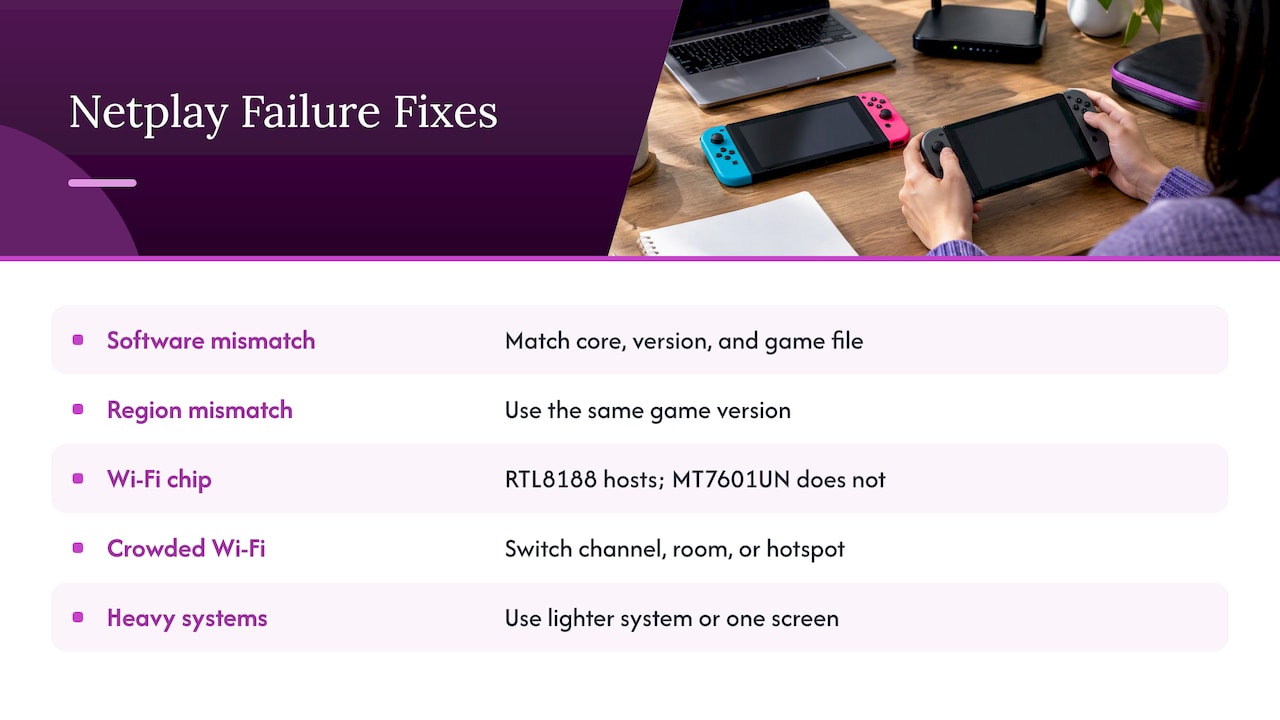
- Why it fails, and how to fix it
- Perspective: pick the play you will actually do
- Buying checklist for a multiplayer handheld
- Where the Retro Pulse fits
- FAQ
- Sources
What local multiplayer actually means
The term covers two different setups, and shoppers often mix them up.
Same-screen play. Everyone shares one device. This is the classic couch arrangement, often called split-screen or same-screen gaming, as one overview of multiplayer architecture describes it. On a handheld with a 3.5-inch screen, this is only comfortable for turn-based games, or for two players taking turns.
Linked devices. Each player has their own handheld, and the devices connect directly across a short distance. Local wireless play needs no internet connection or Wi-Fi router, because the consoles talk to each other. That is the opposite of online multiplayer, which goes through the internet whether your friend is in the next room or across the world.
Why bother with local at all? LAN-style play removes lag and anonymity, two of the most common complaints about online games. Game designers have also long argued that being in the same room allows interaction that online play can’t offer. You can see your friend’s face when you win. For parents, that is the whole point: a shared device and a shared sofa.
The connection methods you will run into
Retro handhelds reach local multiplayer in one of three ways.
Original link features
Many older systems had a built-in way to connect. The Emulation General Wiki lists PSP ad-hoc, DS local wireless, Xbox System Link, the GameCube Broadband Adapter and link cable support on many systems. If you own original hardware, this is the most dependable route, because the games were designed for it.
The PSP is a good example. It supports local wireless ad-hoc play between nearby devices, and that is why so many PSP titles still make good party games. If you own two PSPs and two copies of a game (or a game that supports one-disc sharing), you can still play today.
Emulator Netplay
Most modern retro handhelds run RetroArch or similar software. RetroArch’s Netplay emulates single-system local multiplayer over a network by synchronizing multiple instances of the same emulator core and game content. In plain terms: two handhelds run the same game in step with each other, and each player sees the same thing, like two controllers plugged into one console.
The network does not have to be the internet. Two devices on the same home Wi-Fi, or on a phone hotspot, can host and join sessions without any online service. That makes it a true local option, even though the word “Netplay” sounds online.
Single-device sharing
The simplest approach needs no network at all. Plug a second controller into a handheld with a TV output, or pass the device back and forth for turn-based games. It is less glamorous, but it never fails because of Wi-Fi.
Which systems cope best
Not every retro system is equal for linked play. Netplay has to keep two devices in sync frame by frame, and that is demanding on small processors. Hobbyist testing of handheld Netplay reports that resource-heavy systems like N64, Dreamcast and PS1 generally don’t support Netplay on standard retro handhelds, which leaves most multiplayer to 8-bit and 16-bit systems. Treat that as a practical rule of thumb rather than a guarantee, since results vary by device and emulator core.
That is less limiting than it sounds. The 8-bit and 16-bit eras are where much of the best couch play lives:
| Era | Typical systems | Good fit for |
|---|---|---|
| 8-bit | NES, Master System | Simple two-player brawlers, sports, racing |
| 16-bit | SNES, Genesis | Fighters, beat ’em ups, run-and-gun co-op, puzzle versus modes |
| Handheld classics | Game Boy, GBA | Link-style versus and trading, usually two players |
| Arcade | Arcade cabinets | Co-op brawlers and shooters designed for sharing a screen |
| 3D era | N64, PS1 | Same-screen play on one device, rather than linked Netplay |
Player counts depend on the game and the system, so check the specific title. Many 8-bit and 16-bit games top out at two players. A few allow four, and some arcade games go further. If you want four or more people playing together, look at the game’s own listing first, then at how the device handles controllers.
Game types that suit a small screen
On a 3.5-inch display, some genres hold up better than others:
- Versus fighters and sports. Two players, short rounds, easy to hand over the device or link two.
- Co-op brawlers. Side-scrolling fighters are fun with a friend and work on small screens because the action stays in a narrow band.
- Puzzle versus. Each player has their own board, so a shared screen is rarely a problem.
- Racing and split-screen shooters. These get cramped fast on a small display. They are better with each player on their own device.
For arcade-style picks, our guide to arcade emulation on handhelds covers what to expect.
Setting up two handhelds without internet
The exact menus vary by device, but the sequence is the same almost everywhere.
- Put both devices on the same network. This can be your home router, or a hotspot from a phone. If you are somewhere without Wi-Fi, check whether your handhelds can create their own access point.
- Match the software. Both devices need the same emulator core, and the core version should match too. Both need the same game file. A different dump of the same game can break the session.
- Start the host. One player enables a Netplay session. Hobbyist guides describe the usual routine: the host starts a session and the other device either scans the local network or enters an IP address manually.
- Join from the second device. Use the Netplay menu to find the host, or type the host’s IP address if scanning does not find it.
- Test with a short game first. Check that both controllers respond before you commit to a long session.
Some ports even support local co-op through direct IP entry. One community guide notes that Stardew Valley via PortMaster supports local LAN co-op on devices including the R36S, with players joining by entering the host’s IP address.
If your handheld arrives with games already loaded, you skip the part where you hunt for files. Our emulation handheld setup guide explains the basics in plain English, and how to add games to a handheld covers what to do when you want titles beyond the preloaded library.
Why it fails, and how to fix it
When a session will not start, one of a few things is usually responsible.
Mismatched software. This is the most common culprit. Netplay generally expects the same core, the same core version and the same game file on each device. Update both handhelds to the same state before you try again.
Region mismatches. One roundup of multiplayer troubles points to mismatched game regions (NTSC versus PAL), incompatible firmware and Wi-Fi interference where many networks are active. If one player has a Japanese version and the other a U.S. version, use the same version on both.
Wi-Fi hardware. Not all handheld Wi-Fi chips can host. One hobbyist write-up on the R36S notes that the Realtek RTL8188 chip supports AP mode while the MediaTek MT7601UN does not. If you are buying a budget handheld for two-device play, find out which chip it uses and whether it can host a connection. Many boxes do not say.
Crowded airwaves. Apartment buildings and conference halls have dozens of networks. If the connection keeps dropping, move to a different channel, a different room or a phone hotspot.
Too heavy a system. If N64 or PS1 games stutter in Netplay, switch to a lighter system or play on one screen.
If you want to know more about the PSP angle: modding tools like PPSSPP have also turned ad-hoc play into online play for some players, according to one 2026 roundup. That is useful when your friend lives elsewhere, but it needs the internet and takes you out of the local category.
Perspective: pick the play you will actually do
We sell the Retro Pulse, so here is where we stand. Most people who ask about local multiplayer picture a living room with a friend. The reality is that handheld multiplayer is the part of retro gaming with the most moving pieces: matching cores, matching files, Wi-Fi chips, regions. A lot of buyers want none of that. They want to press power and play.
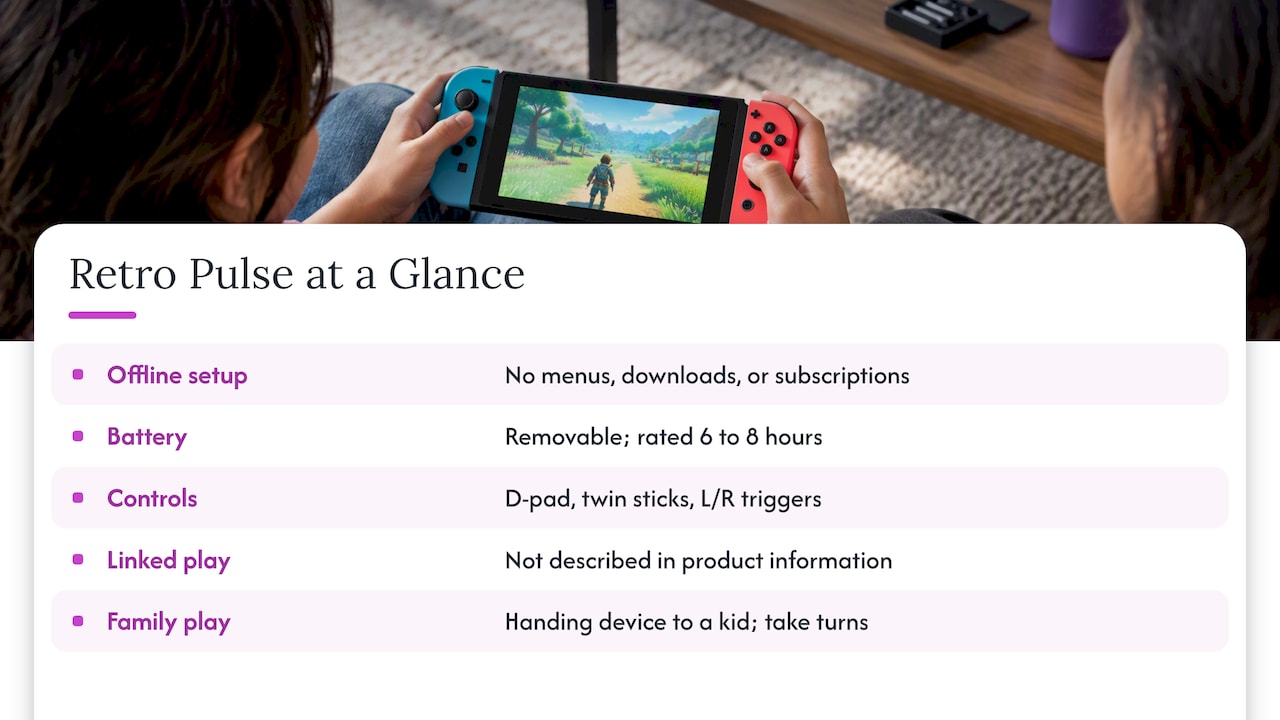
That is how we built our offering. The Retro Pulse is offline-first, curated, and ready to play without menu setup, downloads or subscriptions. It has a real D-pad, twin sticks and L/R triggers, a 3.5-inch IPS display, a removable battery rated at 6 to 8 hours, and dual microSD slots for adding games. It ships from a U.S. warehouse with a one-year warranty and 30-day returns.
We will be straight about what we are not claiming here. Our product information does not describe a linked two-device mode, so if linked play with a friend on a second handheld is your main goal, ask us or read the product page before you order. What the Retro Pulse is very good at is giving a parent, a commuter or a gift recipient a huge library with no setup. For many families, the best multiplayer is simply handing the device to a kid and taking turns, which is why we wrote about sharing retro games with kids.
— Sean
Buying checklist for a multiplayer handheld
Before you pay for anything marketed as a local multiplayer handheld, run through these questions.
- How does it connect? Ask whether it uses a link cable, direct wireless, Netplay over Wi-Fi or only a TV output with extra controllers.
- Can the Wi-Fi chip host? Without that, two devices may need a router or hotspot every time.
- Which systems are supported for linked play? Expect lighter systems to be better supported than N64 or PS1.
- Are the controls comfortable for long sessions? Real sticks and triggers matter more in versus games than a spec sheet suggests. Our look at dual analog handhelds for N64 and PSP goes into that.
- How long does the battery last? Two players burn through a charge at the same speed as one, so a swappable battery is a real advantage on trips.
- What is the return policy? Multiplayer compatibility is hard to judge from a product page. A return window gives you room to test.
If you are weighing a handheld against a plug-in mini console for family nights, our comparison of mini consoles and handhelds lays out when each makes sense. If a phone is already your main device, phone emulation versus a dedicated handheld covers the trade-offs.
Where the Retro Pulse fits
If your priority is a portable library for solo play, commutes, car rides and sharing with kids, the Retro Pulse handheld is what we make. It comes preloaded with 15,000 classic games from more than 20 systems, including NES, SNES, Genesis, PS1, N64, Game Boy, GBA and arcade. You can add your own through the dual microSD slots, and it charges over USB-C. Gift buyers can see more in our retro gaming gift ideas.
Curious whether your family is better off with a handheld or a console? Our Switch versus retro handheld comparison puts per-game costs next to a single library.
FAQ
Can two R36S handhelds play together?
Often yes, but the Wi-Fi chip is the deciding factor. Hobbyist testing shows that the Realtek RTL8188 chip can run in AP mode and the MediaTek MT7601UN cannot. If your units use the weaker chip, connect both to a router or a phone hotspot instead.
Can the PSP play local multiplayer?
Yes. The PSP supports local wireless ad-hoc play between nearby devices, with no internet required. Each player typically needs their own PSP, and some games let one copy serve both.
What is the difference between local and online multiplayer?
Local multiplayer happens in the same space, either on one device or through a direct connection between devices. Online multiplayer goes through the internet, even when players sit in the same room. Local is usually more reliable and avoids lag.
Does RetroArch Netplay need the internet?
No. Netplay synchronizes the same emulator core and game on each device, and it can run over a home network or hotspot. Both devices need matching cores and the same game file.
Which retro games work best for two players?
Versus fighters, sports, puzzle games and side-scrolling co-op brawlers from the NES, SNES, Genesis and arcade eras are the easiest fit for a small screen. Check each title’s player count before you plan a session.
Sources
- Multiplayer video game (Wikipedia)
- I Love The Switch’s Local Wireless Multiplayer (How-To Geek)
- The Evolution and Architecture of Multiplayer Gaming Systems
- Designing local multiplayer games for microconsoles (Game Developer)
- Netplay (Emulation General Wiki)
- The Most Impressive Multiplayer PSP Games Ever Made (Retro Dodo)
- FAQ (Libretro Docs)
- Guide: RetroArch NetPlay on Handheld Devices (Retro Game Corps)
- Stardew Valley v1.6 via PortMaster (Retro Handheld Guides)
- R36S NetPlay (AlfaExploit)
- 11 Best Multiplayer PSP Games To Play With Friends (Technical Ustad)
Recommended
]]>You can game without internet on almost any device, but only if the game was built to run offline and you prepare it while you still have a connection. Phones, PCs and consoles all play some games offline. A dedicated handheld with the games already stored on it is the option with the fewest surprises, because nothing has to log in, patch or verify before you press start.
This guide covers what offline really means, how to prepare each type of device, which limits catch people out on planes and road trips, and how to choose a handheld that works with no Wi-Fi at all.
TL;DR
- Offline play works when the game is installed, fully updated and launched once while you are still online.
- Anything that needs servers, logins or daily rewards will fail without a connection, so test in airplane mode before you leave.
- Single-player games and classic retro titles are the safest offline picks, since they never needed a network.
- A preloaded handheld skips downloads, accounts and updates, which is why it suits travel, kids and gifts.
- Our Retro Pulse ships with 15,000 games from over 20 systems and runs offline-first.
Table of Contents
- What “offline” actually means for a game
- Ways to play games without Wi-Fi
- How to prepare any device before you go offline
- What stops a game from working offline
- Why retro games are the natural offline library
- What to check when choosing an offline handheld
- Our perspective on offline gaming
- Retro Pulse: offline play with nothing to set up
- Using an offline handheld with kids and on the road
- A quick decision guide
- FAQ
- Sources
What “offline” actually means for a game
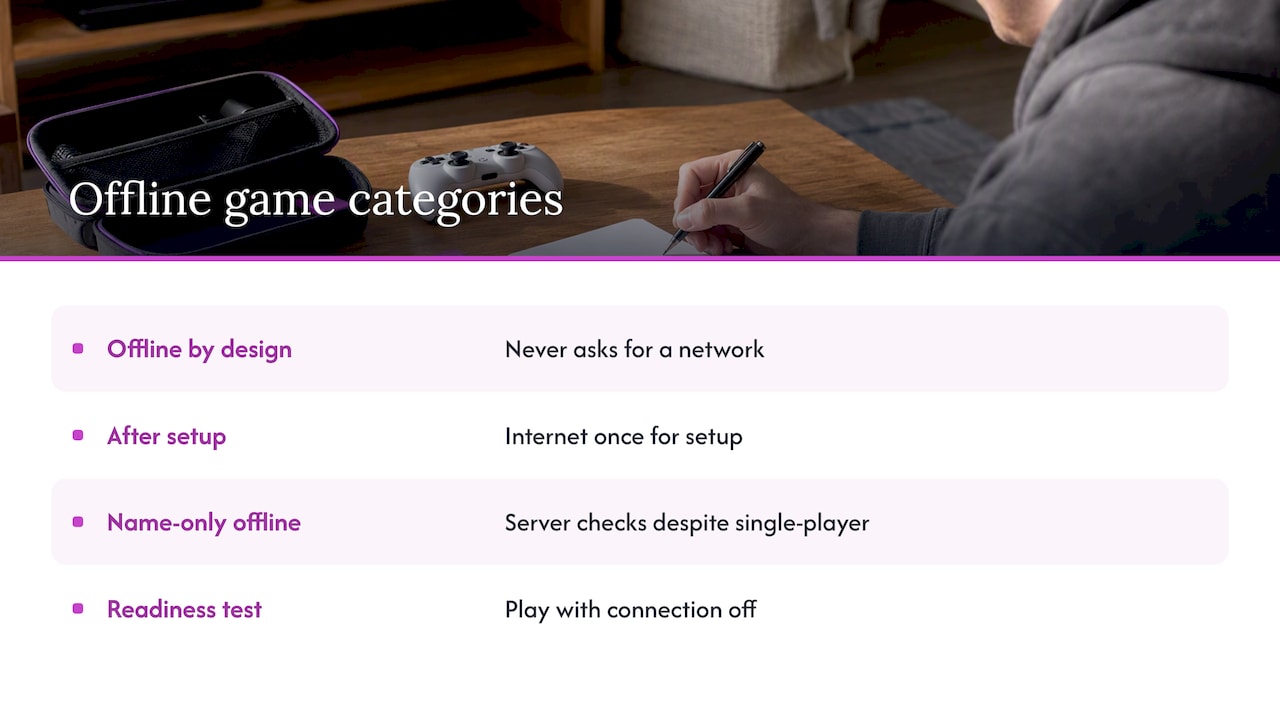
People use “no internet games” for three different things, and mixing them up causes most of the frustration.
Offline by design. The game never asks for a network. Classic cartridge-era titles, most puzzle games and many single-player adventures fall here. Nothing to configure.
Offline after setup. The game needs the internet once to download, activate a license or finish first-run setup, then plays without it. Most PC and console single-player games work this way.
Offline in name only. The game has a single-player mode but still checks servers for profile syncs, copy protection or daily rewards. These are the ones that die on a plane. The offline gaming guide at Nerd Burglars notes that single-player games can still need server-side syncs or verification, and that skipping a test before travel can leave them unplayable.
The practical rule: a game is only offline-ready when you have actually played it with the connection off.
Ways to play games without Wi-Fi
Phones and tablets
This is the option most people already own. Plenty of mobile games run fully offline, from puzzle and word games to endless runners and tactics games. The catch is that many free titles load ads or require a login at launch. If you see a login screen that blocks progress, the game is online-mandatory. A travel games guide from Two Average Gamers suggests exactly this check: switch on airplane mode and try the game before you head out.
Battery is the other limit. Your phone is also your boarding pass, map and camera, and a long gaming session drains it.
PC
PC gaming offline depends on the launcher. Steam’s offline mode needs your account credentials saved on the computer and an empty download queue before you disconnect, according to MakeUseOf’s walkthrough. The Epic Games Launcher switches to Offline Mode automatically when the connection drops, and lets you open eligible games that are already installed.
PC offline play is powerful, but it is the most setup-heavy route, and a gaming laptop is not something you pull out on a bus.
Home consoles
Consoles play single-player games offline, with caveats. Windows Central’s offline guide for Xbox explains that games relying on online services generally will not work offline, while solo games without online systems are the most likely to work. It also notes that some digital games must be launched once online to activate their license, and that subscription-library titles may need a connection to authenticate in some cases.
Dedicated handhelds
This is where “no Wi-Fi” is a feature, not a workaround. Handhelds come in a few types:
- Cartridge-based retro handhelds. You buy physical game cartridges. One reviewed in 2026 by Tom’s Guide costs $199 with more than 700 games across its cartridge library and nothing to download, though the reviewer measured battery life closer to 4 hours.
- Single-system nostalgia handhelds. One reviewed model plays Game Boy and Game Boy Color cartridges for $199.99 and runs up to 19 hours on three AA batteries, according to PCMag. You need to own the cartridges.
- Current-generation hybrid consoles. The newest mainstream hybrid costs $450, with $80 first-party games and pricier microSD Express storage, per Wirecutter. It is excellent hardware, and the cost adds up quickly.
- PC handhelds. A top-rated OLED model sits at roughly $549 and handles large offline PC libraries, but it brings launcher setup back into the picture.
- Preloaded multi-system handhelds. The games are already on the device. That is the category Retro Pulse belongs to.
How to prepare any device before you go offline
Whether you are flying, camping or heading to a grandparent’s house with spotty reception, run this routine at home on Wi-Fi.
- Download everything. Install the game, every update and any add-on content while connected. Check that the download queue is empty.
- Launch each game once. First-run setup, shader compilation and account linking often finish only on the first launch. Lootboxd’s offline roundup gives the same advice: open each game once while connected.
- Switch on the offline setting. On PC, that means Offline Mode in your launcher, with credentials saved. On consoles, set the console to offline or mark it as your home console if the system offers that.
- Turn on airplane mode and test. Open the game, load a save, play two minutes. If a login screen appears, that game is online-only.
- Restart the device while still disconnected. A cold start is the real test. A game that survives a reboot in airplane mode will survive the trip.
- Charge everything and pack a cable. Offline play does not help if the battery dies at hour two.
On a PC, reconnect every so often, because platforms ask you to refresh credentials periodically. SnapSong’s outage guide recommends this for extended outages.
What stops a game from working offline
The same few things break offline play again and again.
| Blocker | What happens | How to avoid it |
|---|---|---|
| License activation | A digital game won’t open until it has checked in once | Launch it online first |
| Pending updates | The game refuses to start until it patches | Update before leaving, clear the queue |
| Subscription authentication | Library titles ask to verify your membership | Test each title in airplane mode |
| Profile and cloud sync | Single-player game waits on a server | Pick games that save locally |
| Daily rewards and live events | Content locked behind a connection | Skip live-service games for travel |
The pattern is clear: the more a game depends on an account, the less reliable it is without a connection. The most dependable offline games are the ones that never had an online side, which is why retro libraries are so good for this.
Why retro games are the natural offline library
NES, SNES, Genesis, Game Boy and PlayStation 1 games were designed for a console, a controller and a TV, with no accounts, patches or servers. They load fast, save locally and are built around short sessions that suit a commute or a waiting room. They also reward kids and adults alike: simple controls, clear goals, and no purchases inside the game.
The weak point has always been access. Buying original cartridges across many systems is expensive, and setting up emulation yourself means hunting for files, configuring controls and fixing menus. If you want the backstory on that, our guide on adding games to a retro handheld without a blank game list shows how much work an empty device can be.
What to check when choosing an offline handheld
Looking at handhelds specifically, these are the questions worth asking.

Where do the games come from? Cartridges mean you buy each title. A preloaded library means they are on the device from day one. Neither is wrong, but know which one you are buying.
How long does the battery last, and can you swap it? Real-world battery life often falls short of the box claim, as the 4-hour result above shows. A removable battery lets you carry a spare for long trips. If you want to stretch any device further, our 12 handheld battery fixes apply to most models.
Is the screen good enough? Small screens live or die on sharpness and brightness. We break down the details in what actually matters in retro handheld screen quality.
Are the controls real? A true D-pad, proper sticks and shoulder triggers matter for platformers, fighters and racing games. Touch controls do not replace them.
Does it need an account? The best offline device asks for none. No login, no store, no subscription.
What does the total cost look like? Compare the price of the device plus every game you will want. We run the numbers in Switch or retro handheld: 15,000 games versus per-game costs.
Is it safe and backed up by a seller? With any preloaded device, check the warranty, return window and where it ships from. Our page on the three risks to check on preloaded consoles covers what to look for.
Our perspective on offline gaming
We built Retro Ports around one frustration: retro gaming should not need a weekend of setup. Most people who search for ways to play without internet are not looking for a project. They want to hand over a device on a long drive and have it work.
That is why Retro Pulse is offline-first. The library is stored on the device, so there is no download, no subscription and no sign-in between you and the game. It is curated, so you do not scroll through thousands of near-duplicate entries to find something good. We ship from a U.S. warehouse, which means shorter waits and fewer of the quality and delivery headaches that come with overseas suppliers, and we test devices before they go out.
We also think the honest comparison matters. A cartridge handheld is great if you already own cartridges. A current-generation console is great if you want new releases and do not mind the price. A phone is fine for ten minutes. But for parents who want to share the games they grew up with, commuters who need something that survives a tunnel, and students who want a lot of play for little money, a preloaded handheld is the simplest tool. The four things we would check on any device: battery you can swap, controls you can feel, a screen you can read, and a return policy if it is not right.
— Sean
Retro Pulse: offline play with nothing to set up
Retro Pulse is our handheld with 15,000 classic games from over 20 systems, including NES, SNES, Genesis, PS1, N64, Game Boy, GBA and arcade. It plays offline from the first power-on.
- 3.5" IPS display
- Real D-pad, twin sticks and L/R triggers
- Removable battery with 6 to 8 hours of play
- USB-C charging
- Dual microSD slots if you want to add your own games
- 1-year warranty and 30-day returns, shipped from a U.S. warehouse
See the full details and current price on the Retro Pulse product page.
Using an offline handheld with kids and on the road
For families, the best offline device is one a child can pick up without a parent managing accounts. No store means no accidental purchases, and no browser means no wandering off. Our offline travel games for kids checklist lays out a 30 to 60 second check you can run before leaving the driveway.
For commuters, think in short sessions. Retro games are built for this: you can play a level, save and pocket the device. A removable battery means a spare in your bag covers a long week of rides.
If you also own a mini console that plugs into the TV, it helps to know what each does best. We compare them in mini console versus handheld. And if arcade games are your favorite, see arcade emulation on handhelds.
One practical note: any handheld can warm up in long sessions. If yours does, our guide to retro handheld overheating and battery risks explains the safe fixes.
A quick decision guide
- You only need something for one flight, and you have a phone: download two or three games that pass the airplane mode test.
- You already own a PC library: set the launcher to offline mode, clear the queue and test.
- You want new releases and don’t mind spending: a current console is the best fit, with game costs in mind.
- You own old cartridges: a cartridge-compatible handheld keeps them playable.
- You want a huge classic library, no accounts and a gift-ready device: a preloaded retro handheld such as Retro Pulse is the direct route.
FAQ
What games can you play offline?
Single-player games with no server component. That includes classic console titles, many puzzle and strategy games, and installed PC or console games that have been launched once while online. Test each in airplane mode, because some single-player games still check a server.
How do you play any game without internet?
You can’t play every game. Online-only and live-service games need a connection. For the rest, download the full game and updates, launch it once online, switch on the offline mode where the platform has one, then restart with the connection off to confirm it works.
Is there a handheld that doesn’t need Wi-Fi at all?
Yes. Cartridge handhelds and preloaded retro handhelds both run without a network. Retro Pulse stores its 15,000 games on the device, so there are no downloads, accounts or subscriptions to manage.
Do offline games still need updates?
Often, yes, for digital PC and console games. A pending update can block launch until you are back online, so clear the download queue before you travel. Retro titles on a preloaded handheld do not rely on patches in the same way.
Sources
- Offline Gaming Guide: Play Without Internet on PC, Xbox and more (Nerd Burglars)
- 7 Offline Games for Flight, Hotel, Waiting Room (Two Average Gamers)
- How to Use Steam Offline Mode to Play Games Without Internet (MakeUseOf)
- How do I run games in Offline Mode using the Epic Games Launcher (Epic Games)
- How to use an Xbox Series X|S or Xbox One console offline (Windows Central)
- Evercade Nexus review (Tom’s Guide)
- ModRetro Chromatic Review (PCMag)
- Switch 2 vs. Switch 1: What to Consider Before You Upgrade (Wirecutter)
- The 4 Best Handheld Gaming Consoles (Wirecutter)
- Best Games You Can Play Offline (Lootboxd)
- Prepare a gaming device for an outage (SnapSong)
Recommended
]]>A save state is a snapshot of an emulator’s entire memory at one moment. It lets you freeze a retro game anywhere, mid-jump or right before a boss, and come back to that exact frame. On most handhelds you create one with a hotkey combo, usually a hold button plus a shoulder button. Treat it as a bookmark, not as your only save, because states can break when software changes.
This guide covers what a save state captures, the hotkeys you will see on common handheld setups, where the files live, and how to use states without losing progress.
TL;DR
- A save state captures the whole emulator memory. An in-game save is the file the game itself writes, like a memory card or cartridge battery save.
- Hotkeys vary by firmware. A common layout is Select + R1 to save and Select + L1 to load, but check your own device.
- States are tied to the emulator version that made them. A core or firmware update can make old ones unreadable.
- Use states for convenience, use in-game saves for long-term progress, and back up both folders.
- Keep your save and state folders separate from config files when you copy or sync anything.
Table of Contents
- What a save state actually is
- Why save states are useful
- Common hotkeys on retro handhelds
- Where save states are stored
- Why states can break
- A simple save routine
- Auto save and auto load
- Our view on save states
- Playing with kids and shared devices
- Legal note on game files
- Ready to play without the setup
- FAQ
- Sources
What a save state actually is
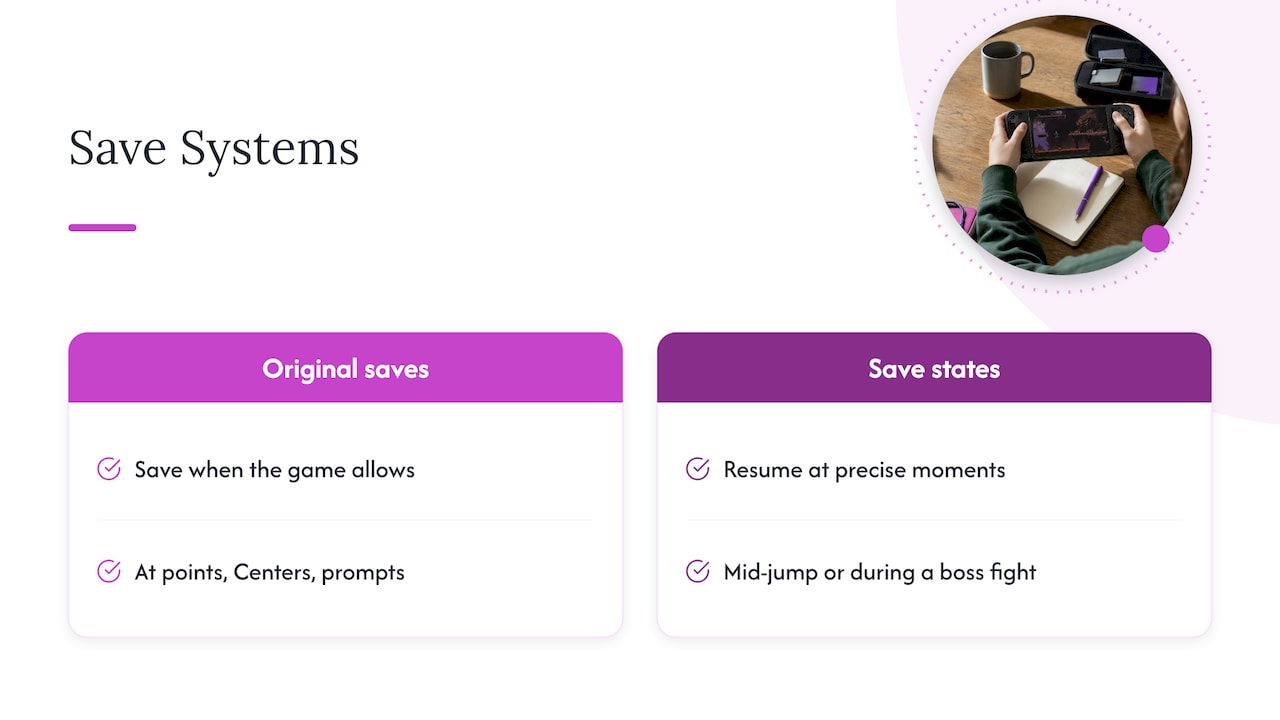
On an original console, you saved when the game let you: at a save point, a Pokémon Center, a memory card prompt. A save state ignores all that. The emulator copies a snapshot of the system’s memory, so you can pause and resume at any precise moment, including mid-jump or in the middle of a hard boss fight.
That is why people call it emulation’s best feature. It is also why it works differently from the save system the game was built with. Our checklist of what save states capture goes deeper on what is inside a state file and what is not.
Save states versus in-game saves
The two systems sit side by side on any handheld that runs emulators.
| In-game save | Save state | |
|---|---|---|
| Who creates it | The game, at its own save points | You, with a hotkey, at any moment |
| What it stores | Progress the way the original hardware stored it | A full snapshot of memory and CPU state |
| Stability | Small, stable, portable between most emulators for the same system | Tied to the emulator core version that made it |
| Best use | Long-term progress | Quick retries, bookmarks, interrupted play |
The UMA Technology RetroArch guide puts the rule plainly: states are not a replacement for in-game saves, which should be the primary, stable method.
Why save states are useful
Three situations make states worth the few seconds they take.
- Short sessions. On a commute you may have eleven minutes. A state lets you stop in the middle of a level without hunting for the next checkpoint.
- Hard moments. A state before a boss or a risky choice turns a punishing stretch into a quick retry. One retro setup guide describes it as a bookmark and retry loop that original hardware never offered.
- Games with no saving at all. Many arcade and early console titles never had a save feature. A state is the only way to pause them.
For the arcade side, see our note on arcade emulation on handhelds.
Common hotkeys on retro handhelds
There is no universal save state button. The combination depends on the firmware and emulator front end your device runs. A hold button, often Select or a function key, is pressed together with another button so the shortcut does not trigger during normal play.
One well-documented example is the ROCKNIX firmware used on some generic handhelds. Its RetroArch hotkey table lists:
| Action | Combo |
|---|---|
| Save state | Select + R1 |
| Load state | Select + L1 |
| Open the RetroArch menu | Select + Y |
| Quit game | Select + Start, pressed twice |
Other firmware uses different holding keys. Do not assume these combos match your device. Look in the manual or the hotkey settings of your own firmware.
Choose a hotkey you will not hit by accident
A common community tip is to make Select the hotkey enabler and put save state on a shoulder button. Select still works as a normal button when you tap it. Whatever you pick, practice it once in a game you do not mind losing progress in. Hitting Load when you meant Save overwrites nothing, but hitting Save when you meant Load can replace a state you wanted.
Use slots
Most setups offer numbered slots. A quick save usually goes to slot 0. If you are about to try something risky, switch to a new slot first, so your last safe state stays untouched. Slot selection is normally handled in the emulator menu or with a second hotkey pair.
Where save states are stored
In RetroArch-based setups, states go to the folder set under Settings > Directories > Savestate Directory, as described in the libretro documentation on changing directories. Some older versions and handheld firmware default to the same folder as the games, which means every ROM can end up with several extra files next to it.
The fix is to set dedicated folders early. One setup guide advises that you set your directories before anything else, because changing them later orphans what you have already built. A tidy layout looks like this:
saves/for in-game savesstates/for save statesconfig/for settings, kept apart from both
If you do not know where your device keeps them, look in the emulator’s directory settings first, then at the storage card’s top-level folders.
Why states can break
States are fragile. Because a state records the emulator’s memory and CPU condition, a core update or emulator version change can make existing state files unreadable. States also do not move cleanly between different emulators, even for the same console. In-game saves usually do.
In practice:
- Before a firmware or core update, finish the current section and make an in-game save.
- After an update, test a state before relying on it.
- Never keep a 40-hour game on states alone.
We wrote a separate piece on why to trust in-game saves, not states, for backups.
A simple save routine
- Save in the game first whenever the game offers it.
- Make a state only as a convenience layer, before a hard part or when you must stop.
- Rotate slots instead of overwriting the same one.
- Back up the saves folder regularly. Back up the states folder too if you care about them.
- Leave config alone. Configuration files hold video drivers, shader presets and controller mappings that are device-specific. Copying one from a PC to a handheld can cause crashes or black screens. Sync only the saves and states folders.
Auto save and auto load
Some front ends can create a state when you close a game and load it when you reopen it. That is handy for commuters. It is not always reliable, though: developers have logged cases where auto save on exit did not work on certain devices and settings, including custom save folders. If you use the feature, still make a normal in-game save at natural stopping points.
Our view on save states
We build the Retro Pulse for people who want to pick up a handheld and play, not tinker. That shapes how we think about saving.
Save states are the feature people notice, because they feel like magic. But the thing that protects a long RPG is the plain in-game save. We would rather you build the habit of using the game’s own save points and treat states as a quick bookmark. It costs you a few seconds and removes the risk of a software change wiping out weeks of play.
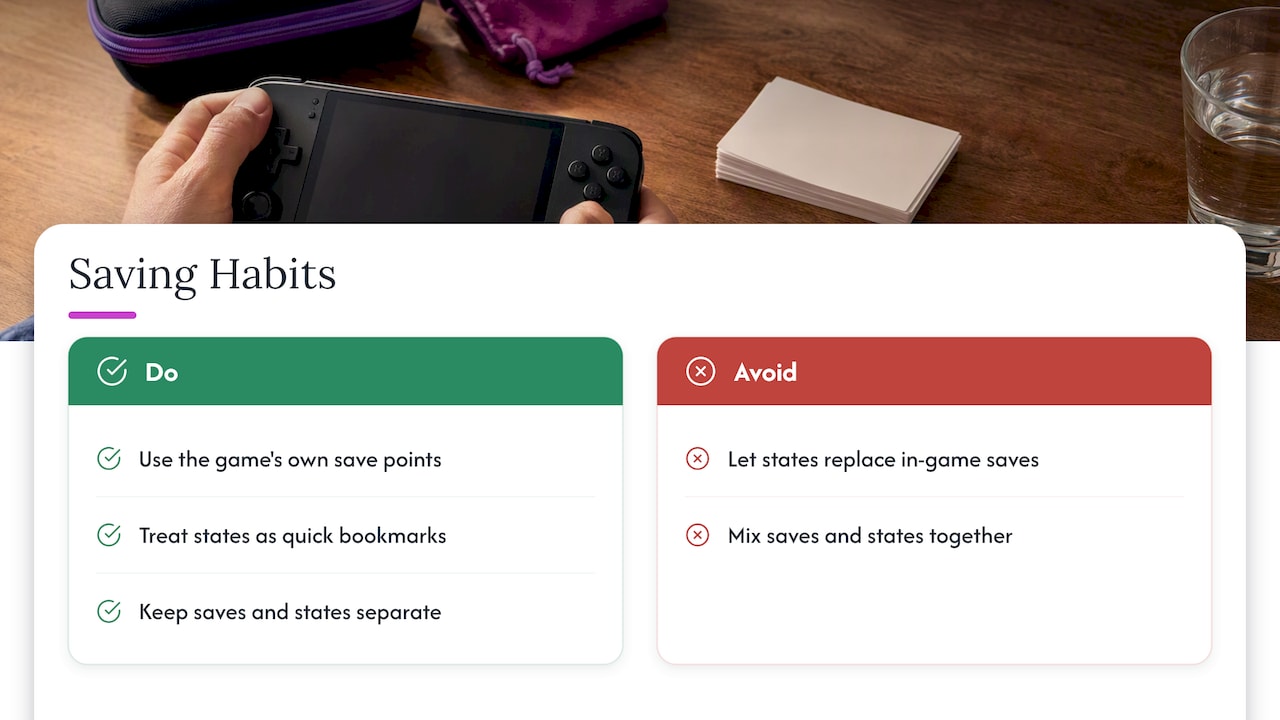
The second habit is keeping your files organized. The Retro Pulse has dual microSD slots, so you can add your own games, and we suggest keeping your saves and states in clear, separate places from the start. If you do add games, our guide to adding games without a blank game list shows the process.
Parents ask us about this most. A child who loses an hour of progress is rarely a fan of retro gaming afterward. Teach in-game saving first, and states second.
— Sean
Playing with kids and shared devices
If several people use one handheld, states get messy quickly. Everyone writes to slot 0, and the last person to save wins. Two simple rules help:
- Give each player a slot range, such as slots 1 to 3 for one and 4 to 6 for another.
- Let kids lean on the game’s own save system, which keeps progress per game file.
Legal note on game files
Emulator software itself is generally treated as legal, but game files are another matter. Community experts say ROMs should come from hardware you legally own, and that so-called abandonware or 24-hour trial rules are myths. If you have a legal question about your own library, talk to an attorney who handles intellectual property.
Ready to play without the setup
If you would rather skip configuring directories and hotkeys from scratch, the Retro Pulse handheld comes preloaded with 15,000 games from over 20 systems, including NES, SNES, Genesis, PS1, N64, Game Boy, GBA and Arcade. It has a 3.5" IPS display, real D-pad, twin sticks and L/R triggers, a removable battery rated at 6 to 8 hours, USB-C charging, a one-year warranty and 30-day returns. It ships from a U.S. warehouse.
FAQ
Do save states replace normal saves?
No. In-game saves are the stable method, written by the game itself in the form the original hardware used. States are snapshots tied to a specific emulator version. Use states as a convenience and keep in-game saves as your real progress.
Where does RetroArch put save states?
In the folder set under Settings > Directories > Savestate Directory. Some older versions and handheld firmware default to the game folder instead. Set a dedicated folder so each game’s state files do not clutter your library.
Why did my save state stop loading after an update?
States record the emulator’s memory and CPU state, so a core or firmware change can make them unreadable. That is the main reason experts advise against relying on them alone. Your in-game saves are usually unaffected.
What is the usual hotkey to save a state?
It depends on your firmware. On ROCKNIX, Select + R1 saves and Select + L1 loads. Other setups use different hold keys, so check your device’s manual or hotkey settings.
Sources
- How to Set Up RetroArch, The Ultimate All-In-One Retro Games Emulator (UMA Technology)
- RetroArch Setup Guide: Cores, Shaders and Controllers Explained (Gaming PC Guru)
- Game Console R35S/R36S, ROCKNIX Wiki
- Change directories, libretro docs
- RetroArch does not auto save on exit, GitHub issue 16080
- Super Nintendo Emulator: The Complete 2026 Guide (Jacobainley)
Recommended
]]>To file a warranty claim on a handheld in the US, find your proof of purchase, write down the defect, and contact the seller or manufacturer quickly, in writing, with photos or video. Then follow their return instructions and keep every tracking number. The details below cover the order to do things in, what federal law actually protects, and what to do if the answer is no.
This guide is for anyone holding a handheld that stopped working, whatever brand it is. We also explain how our own Retro Pulse coverage fits in, so you know what to expect if you own one.
TL;DR
- A store return window and a manufacturer’s warranty are two different protections. Check both before you decide who to contact first.
- Gather your receipt, order confirmation or card statement, plus the serial number, before you write to anyone.
- Contact the company as soon as you notice the defect. Consumer Action advises that prompt claims tend to be treated as more credible.
- Photograph the device, serial number and packaging before you ship it, and keep the tracking number.
- If you are denied, ask for the reason in writing, then escalate through your card issuer, your state consumer office or the FTC.
Table of Contents
- Return policy or warranty: which one do you need?
- What US law says about handheld warranties
- Before you contact anyone: build your file
- Step by step: filing the claim
- What a typical claim file looks like
- Common reasons claims get denied, and the answer
- If the company says no
- Perspective: what we have learned about handheld warranties
- Retro Pulse coverage at a glance
- Habits that make a future claim easier
- FAQ
- Sources
Return policy or warranty: which one do you need?
Most failed claims start with a mix-up between these two. They sound alike, but they work differently.
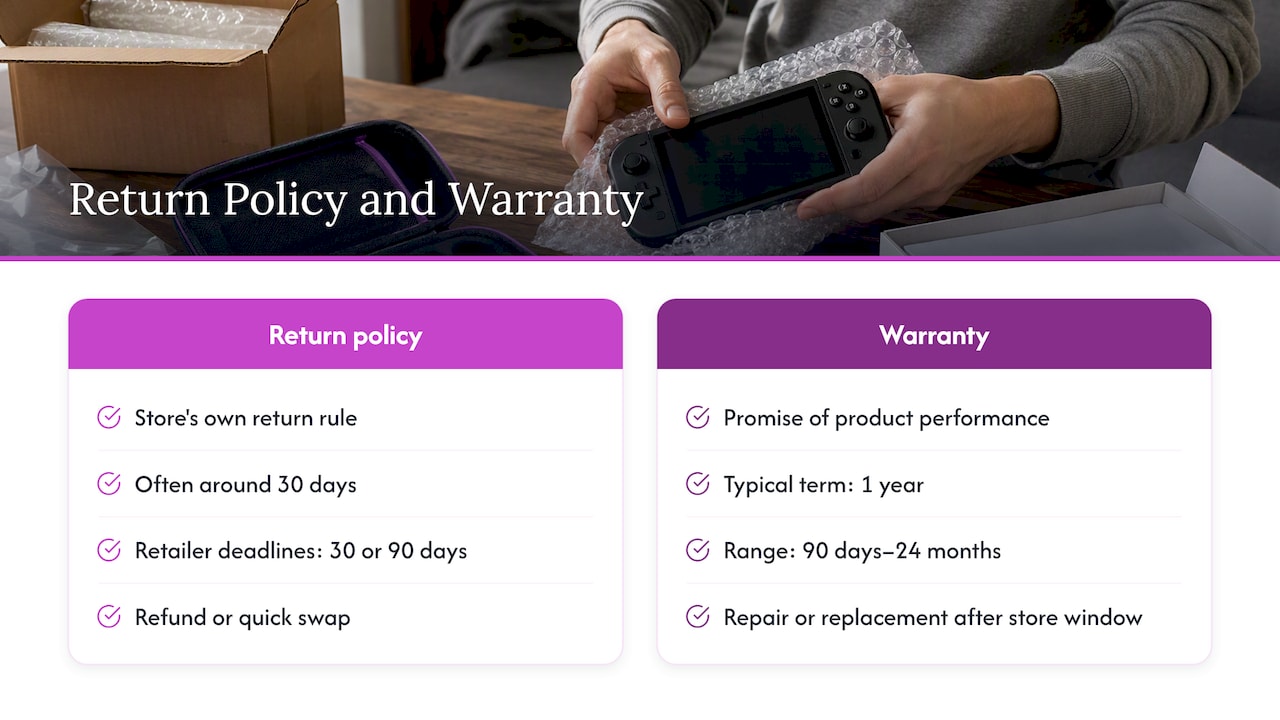
A return policy is the store’s own rule for taking a product back. It is usually short, often around 30 days, and mostly a courtesy. Consumer Action notes that many retailers set return or exchange deadlines at 30 or 90 days. Inside that window you can often get a refund or a quick swap with little paperwork.
A warranty is a promise about how the product will perform over a longer period. The same Consumer Action guide says a typical manufacturer’s warranty on devices lasts one year, though some run as short as 90 days or as long as 24 months. A warranty is where you go for a repair or replacement after the store window has closed.
A simple rule: if you are inside the return window and just want your money back, go to the seller. If the window has passed and the device has a defect, go to the warranty.
For our own customers, the two are laid out separately. Our console return policy guide explains the 30-day return window, and the refund policy page has the terms in full.
What US law says about handheld warranties
The rules are less strict than many people assume, and more protective than others fear.
Written warranties
Federal law does not force a company to offer a written warranty. If it does offer one, the Magnuson-Moss Warranty Act applies. The FTC’s consumer guidance explains that the act covers consumer products costing more than $15.00 and that the terms must be available for you to read before you buy.
The statute also sets a remedy. If a product still has a defect after a reasonable number of repair attempts, the consumer can choose a refund or replacement under the rules for full warranties. The text is in Title 15 of the US Code. Note that the remedy depends on the type of warranty the company gave, so read the written terms rather than assuming.
Implied warranties
Most states also recognize an unwritten implied warranty that a product will work as an ordinary product of its kind should. According to the FTC, implied warranties can last as long as four years in some states. That varies by state, and some sellers sell “as is” where state law allows it. If your written warranty has expired and the device failed early, a state consumer protection office or a lawyer can tell you whether an implied warranty applies where you live.
Opening the case or using third-party accessories
A common fear is that opening a device or using a non-brand part kills the warranty. The FTC says a company generally cannot void coverage just because you used third-party parts or services, unless it can show that the specific part caused the damage. Still, we would not take a handheld apart while it is covered. If you do, proving that the original defect, not your repair, caused the fault gets much harder. That is a practical point, not a legal one.
Before you contact anyone: build your file
A clean file turns a back-and-forth into a single email. Gather these first.
- Proof of purchase. An order confirmation email, receipt, invoice or credit card statement. The USAGov complaint guide lists sales receipts, warranties and emails with the company as the documents to collect.
- The serial number. Many companies will look up a claim by serial number or registration details if the receipt is gone, though that is at their discretion.
- The warranty terms. Read what is covered, the length, and how to submit a claim. Terms differ for each product.
- A short description of the fault. When it started, what you were doing, what you already tried.
- Photos or a short video. A video of the screen flickering, the buttons failing or the battery not charging is better than a paragraph describing it.
Can you claim without a receipt? Sometimes. Check your email for the order confirmation and your card or bank app for the charge. Those usually work as proof of purchase date.
Step by step: filing the claim
1. Troubleshoot first, and say what you tried
Support teams will ask. Charge the device with a different USB-C cable and wall adapter, try a different battery if yours is removable, and remove any added microSD card to see whether the fault follows the card. Mention each step in your message. It saves a round trip and shows the defect is real.
If your handheld runs hot, our guide to safe fixes for retro handheld overheating covers what to check before you blame the hardware.
2. Contact the right party quickly
Start with the seller if you are still in the return window. Go to the manufacturer if you are past it. In either case, write instead of calling only, so you have a record. Consumer Action’s advice is to report a defect as soon as you find it, because delay can invite suspicion of misuse or accidental damage.
3. State what you want
Name the remedy: repair, replacement or refund, whichever the terms allow. Include your order number, serial number, purchase date and your files. Keep the message short.
4. Follow the return instructions exactly
Companies often issue an authorization number or a prepaid label. Use what they give you. Sending a device without that step can leave you with no record that they received it.
5. Ship it with evidence
Before you send the device, photograph its condition, its serial number and the packaging. If the box arrives damaged or goes missing, those photos help you dispute shipping liability, as Consumer Action’s guidance points out. Keep the tracking number: it is your proof the company received the unit.
6. Follow up in writing
If you hear nothing in a week or so, reply on the same thread with the date you shipped and the tracking number. Keep a dated log of every contact.
What a typical claim file looks like
| Item | Why it matters | Where to find it |
|---|---|---|
| Order confirmation | Proves purchase date and buyer | Email inbox, order account |
| Card or bank statement | Backup proof of purchase | Card app, monthly statement |
| Serial number | Identifies the exact unit | Device label or settings screen |
| Fault video | Shows the defect without debate | Your phone |
| Troubleshooting notes | Shows normal use and attempted fixes | Your own log |
| Shipping photos and tracking | Protects you if the package is lost | Camera roll, carrier receipt |
Common reasons claims get denied, and the answer
“It was physical damage.” Warranties usually cover defects in materials and workmanship, not drops or liquid. Footage of the fault appearing with no impact helps. The burden often falls on you to show the defect was there from the start, so detail matters.
“The warranty has expired.” Check the exact purchase date and the stated term. Then consider whether an implied warranty applies in your state, and whether your credit card offers extended warranty or purchase protection, as Consumer Action suggests checking.
“You modified it.” Ask the company to state in writing which modification caused which damage. Under the FTC’s guidance, that connection is what a company must be able to show.
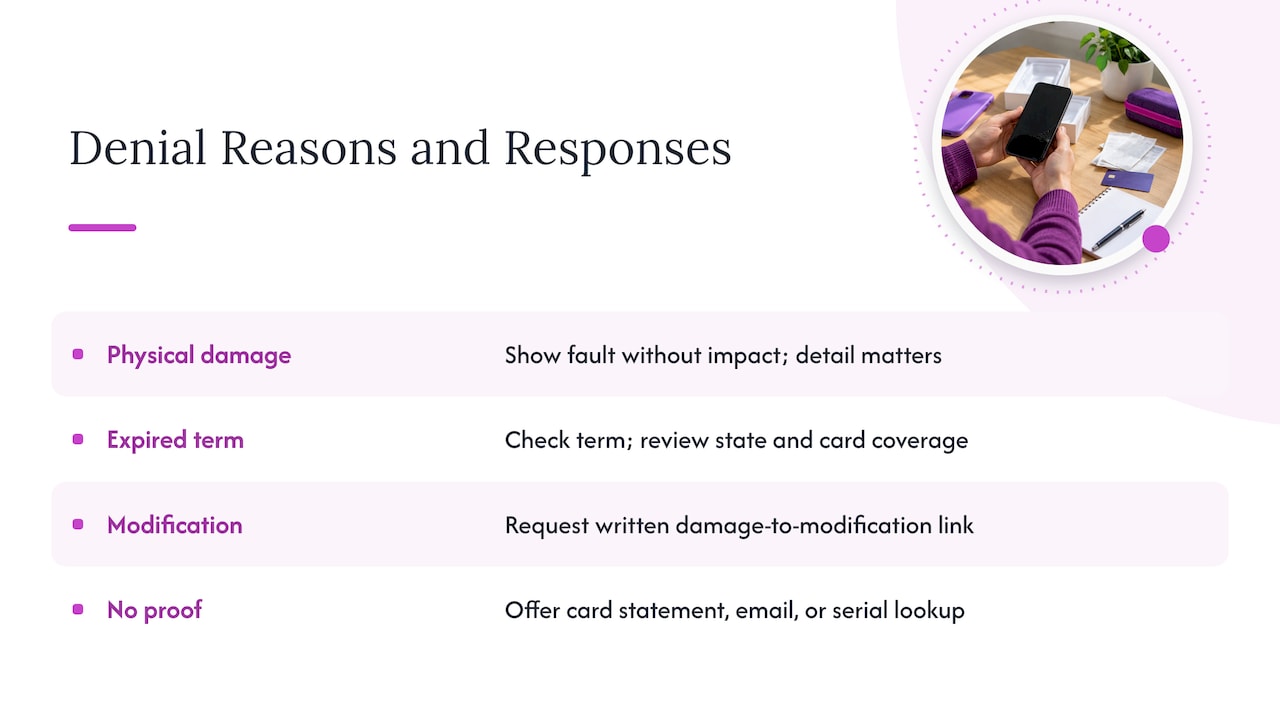
“No proof of purchase.” Offer card statements, an email confirmation or a serial number lookup. It is up to the company, but a polite, well-documented request often works.
If the company says no
- Ask for the denial and its reason in writing. A vague phone answer is hard to challenge.
- Contact your card issuer. A dispute or an extended warranty benefit can sometimes settle things faster than the manufacturer.
- Go back to the FTC’s guidance. Its page on solving problems with a business walks through contacting the company, then moving up.
- File a complaint. The USAGov complaint page points you to the right agency, and your state attorney general or consumer protection office handles disputes under state law.
- Talk to a lawyer if the amount is large or the claim involves an implied warranty in your state.
Perspective: what we have learned about handheld warranties
Most warranty trouble does not start with a broken device. It starts with a buyer who cannot tell what they were promised, or who waited three months to say something. When we built Retro Pulse around a U.S. warehouse, a one-year warranty and a 30-day return window, the aim was to make that conversation short: you know where the unit shipped from, you know the terms, and you know which clock is running.
Our view is that a warranty is only as good as how easy it is to use. That is why we push buyers to do three things on day one: save the order email, test every button, the screen, charging and the card slots in the first week, and speak up early if something is wrong. A fault found in week one is a return. A fault found in month nine is a warranty claim. Both are fine, but the first is faster.
We also think removable batteries matter here. Retro Pulse uses a removable battery with a 6 to 8 hour life, so a battery problem can often be isolated without sending the whole console away. It is not the answer to every fault, but it makes troubleshooting less of a guess.
If you are weighing a preloaded handheld, read our notes on the risks to check on preloaded consoles before you buy anything, from us or anyone else.
— Sean
Retro Pulse coverage at a glance
If you are shopping for a handheld and want coverage you can understand, here is what we publish for Retro Pulse:
- A one-year warranty.
- 30-day returns.
- Shipping from a U.S. warehouse.
- A removable battery and USB-C charging.
- Dual microSD slots for adding your own games.
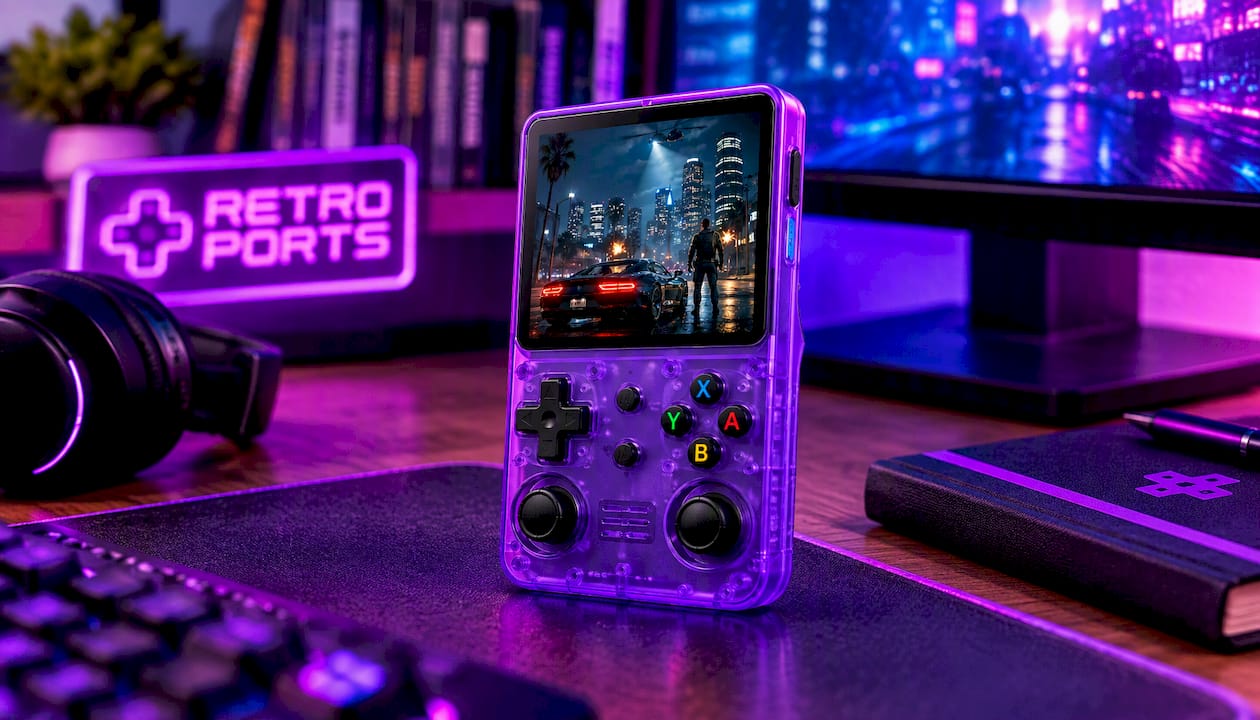
Retro Pulse comes preloaded with 15,000 classic games from over 20 systems, with a 3.5" IPS display and real D-pad, twin sticks and L/R triggers. You can see the console and current checkout details on the Retro Pulse product page. Read the warranty and refund terms on our site before you order, as you should with any device.
Habits that make a future claim easier
- Save the paperwork the day it arrives. Forward the order email to a folder, or take a photo of the receipt.
- Write down the serial number and keep it with the order number.
- Keep the box for the first few weeks. It makes a return simpler.
- Test everything early. Buttons, sticks, triggers, screen, speakers, charging, card slots.
- Use the right accessories. A quality USB-C charger and reputable microSD cards help avoid faults that are blamed on the device.
- Do not open the casing while the warranty runs, even if the law protects you from a blanket void.
If you are still comparing options, our guide to retro handheld comparison for parents covers what to look for beyond the spec sheet.
FAQ
What are the warranty laws in the USA?
Federal law does not require a written warranty, but when a company gives one on a consumer product costing over $15.00, the Magnuson-Moss Warranty Act sets disclosure rules. Most states also have implied warranties, which in some states last up to four years. The details depend on your state and on the exact terms the company wrote.
How do I claim a warranty on a handheld?
Gather your proof of purchase and serial number, then contact the seller or manufacturer in writing with a clear description and a photo or video of the fault. Follow their return instructions, photograph the device before shipping and keep the tracking number. Do this as soon as you find the problem.
Can I claim my warranty without a receipt?
Often you can, but it depends on the company. An order confirmation email, a card statement or a serial number lookup can stand in for a receipt. Offering more than one form of proof raises your chances.
Does opening my handheld void the warranty?
The FTC says a company generally cannot void a warranty only because you used third-party parts or services, unless it shows they caused the damage. In practice, a DIY repair makes it harder to prove the original fault was a defect. It is safer to leave the case closed while you are covered.
Sources
- Warranties, FTC Consumer Advice
- Device Warranties 2024, Consumer Action
- U.S. Code Title 15, Chapter 50, Consumer Product Warranties
- Solving Problems With a Business: Returns, Refunds, and Other Resolutions, FTC
- How to file a complaint about a company’s products or services, USAGov
Recommended
]]>A handheld console warranty is a written promise from the maker or seller to repair or replace the device if it fails because of a defect. In the U.S., one year is the usual length. What matters more than the length is what the paper excludes, who you have to call, and what proof you need. This guide walks through all three, then shows how the warranty on our Retro Pulse handheld works.
TL;DR
- A typical manufacturer warranty on consumer electronics lasts one year, though some run as short as 90 days or as long as 24 months.
- Federal law says a written warranty must be available to read before you buy. Read it, especially the exclusions and the claim process.
- Keep your receipt. Registration is often optional, but proof of purchase is what verifies your dates.
- A seller generally cannot void your warranty just because you used third-party parts or services, unless it provides them free or gets an FTC waiver.
- Retro Pulse comes with a 1-year warranty and 30-day returns, shipped from a U.S. warehouse.
Table of Contents
- What a handheld warranty actually is
- How long should a handheld console warranty be?
- What handheld warranties usually leave out
- Will using third-party parts void it?
- Why the seller matters as much as the maker
- The Retro Pulse warranty
- Ready to try a handheld with a U.S. warranty?
- Our view: warranty is the part of the spec sheet nobody reads
- How to file a handheld warranty claim
- Should you buy an extended warranty?
- Buying used or refurbished
- A pre-purchase checklist
- FAQ
- Sources
What a handheld warranty actually is
Under federal law, a “written warranty” is a written promise or affirmation made when a consumer product is sold, relating to the material or workmanship of the product. The definition sits in Title 15 of the U.S. Code. In plain terms: if the seller or maker puts a promise in writing, that promise is the warranty, and it has to say what it means.
For a handheld, that promise normally covers defects in materials and workmanship. A screen that develops dead pixels on its own, a charging port that stops working under normal use, or a button that fails without being abused are the kind of problems a warranty is built for. A dropped device, a cracked case or a cup of coffee in the shell are not.
Two other things are worth knowing:
- Warranties are not guarantees of lifespan. The FTC explains that implied warranties are promises about a product’s condition at the time of sale, not promises that it will last a set number of years.
- Warranty and return window are different things. A return window lets you send back a device you simply don’t like. A warranty covers a device that breaks. You want both, and you should know which one you are using.
How long should a handheld console warranty be?
Consumer Action’s guide to device warranties says a typical manufacturer warranty lasts one year, with some as short as 90 days and some as long as 24 months. That is a good yardstick for handhelds too. A one-year term is standard. Anything shorter than that deserves a question: why is the seller less confident than the norm?
Length alone is a weak signal, though. A two-year warranty that requires you to ship the device overseas at your own cost can be worth less than a one-year warranty handled by a U.S. team that answers email. Compare the terms on five points:
| What to check | Why it matters | A good answer looks like |
|---|---|---|
| Term | Sets the clock on your claim | 12 months or more, starting on a clear date |
| Start date | Some start at purchase, some at shipping | Stated in writing |
| Who you contact | Maker, store, or both | One named channel with a real email or form |
| Exclusions | Cosmetic damage and accidents are usually out | Short, specific list, not vague wording |
| Remedy | Repair, replace or refund | Stated, with who pays shipping |
What handheld warranties usually leave out
The FTC’s warranty guidance and Consumer Action both say to look for what is excluded, such as cosmetic issues or accidental damage. For a handheld console, these are the usual gray areas:
- Drops and liquid. Almost every warranty excludes physical impact and water damage. Cases and screen protectors cost far less than a repair.
- Cosmetic wear. Scuffs on the shell, worn rubber on the thumbsticks and faded button paint are normal use, not defects.
- Batteries. Batteries lose capacity with age. Many warranties cover a battery that fails early or swells, but not the slow loss of runtime you notice after a year or two. Check whether the battery is named in the document.
- Stick drift and button wear. These are the parts you use the most. Ask whether input components are covered, and for how long.
- Software you added. Games, firmware changes and settings you installed yourself are often outside the warranty. A seller may reasonably decline to troubleshoot a library you modified, even if the hardware stays covered.
- Storage cards. A microSD card is usually sold and covered separately from the handheld itself.
The battery point matters for heat too. If your device runs hot, see our guide to retro handheld overheating, safe fixes and battery risks before you assume it is a defect.
Will using third-party parts void it?
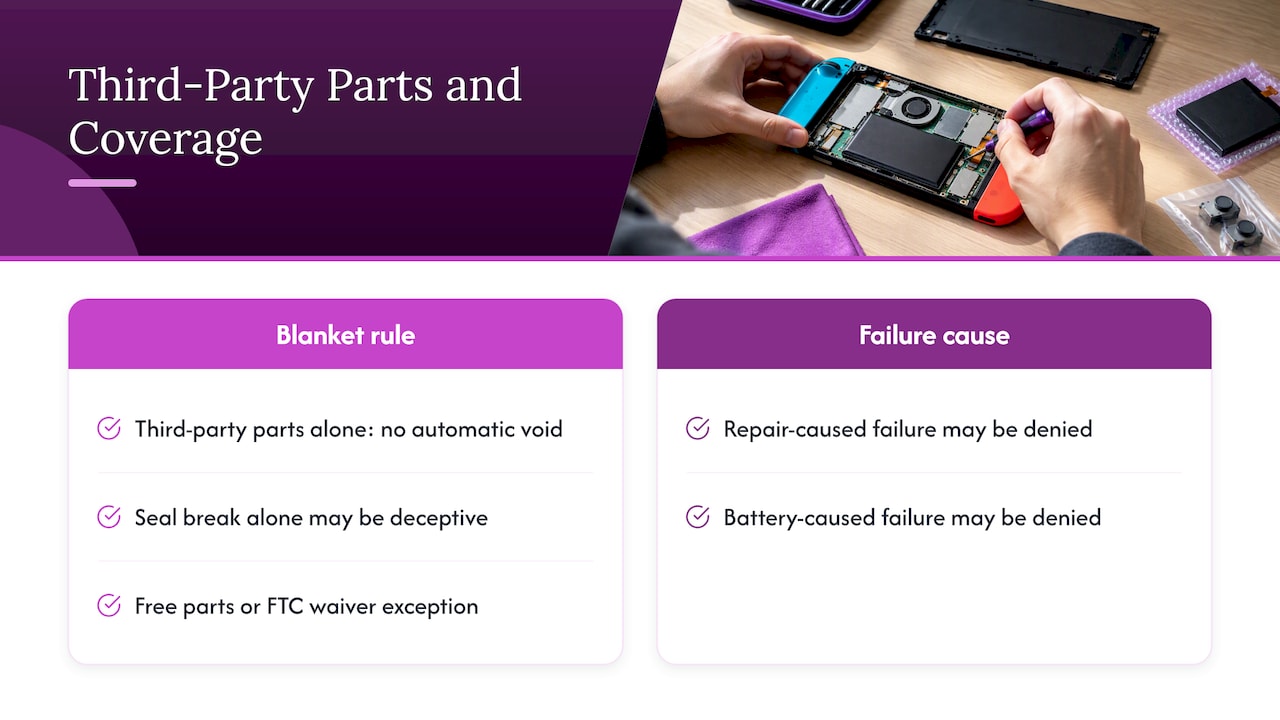
Not automatically, and a lot of sellers get this wrong. In 2018 the FTC sent warning letters to companies whose statements said consumers must use specified parts or service providers to keep a warranty intact. Under the Magnuson-Moss Warranty Act, a company cannot condition coverage on specific brand-name parts or services unless it provides them free of charge or receives a waiver from the FTC. The same FTC release says that claiming a warranty is voided simply by using third-party parts or breaking a warranty seal may be deceptive.
That does not mean anything goes. If a third-party battery or a bad repair causes the failure, the seller can reasonably deny that specific claim. The rule is about blanket threats, not about the cause of a particular failure.
This is relevant to retro handhelds because modding is part of the hobby. Adding games through a card slot, swapping a battery, or changing a shell are all common. A fair warranty separates “you did something that caused damage” from “you touched it, so nothing is covered.”
Why the seller matters as much as the maker
With a handheld from a large console brand, the warranty is backed by a corporation with U.S. service centers. With a small-brand handheld, the paper can look similar but the experience varies enormously. The questions to ask before you buy:
- Where is the stock? A device shipped from a domestic warehouse can be exchanged in days. One that has to go back overseas can take weeks.
- Who answers? Look for a named support channel and a policy page, not just a marketplace messaging box.
- What is the return window? A 30-day return period gives you time to test the device properly, including battery life and the controls.
- Is the library legit and safe? Our piece on preloaded consoles and the three risks to check covers what to look at before you trust any preloaded device.
This is the reasoning behind how we ship Retro Pulse from a U.S. warehouse. It avoids the long waits and quality gaps that often come with purchases from overseas suppliers.
The Retro Pulse warranty
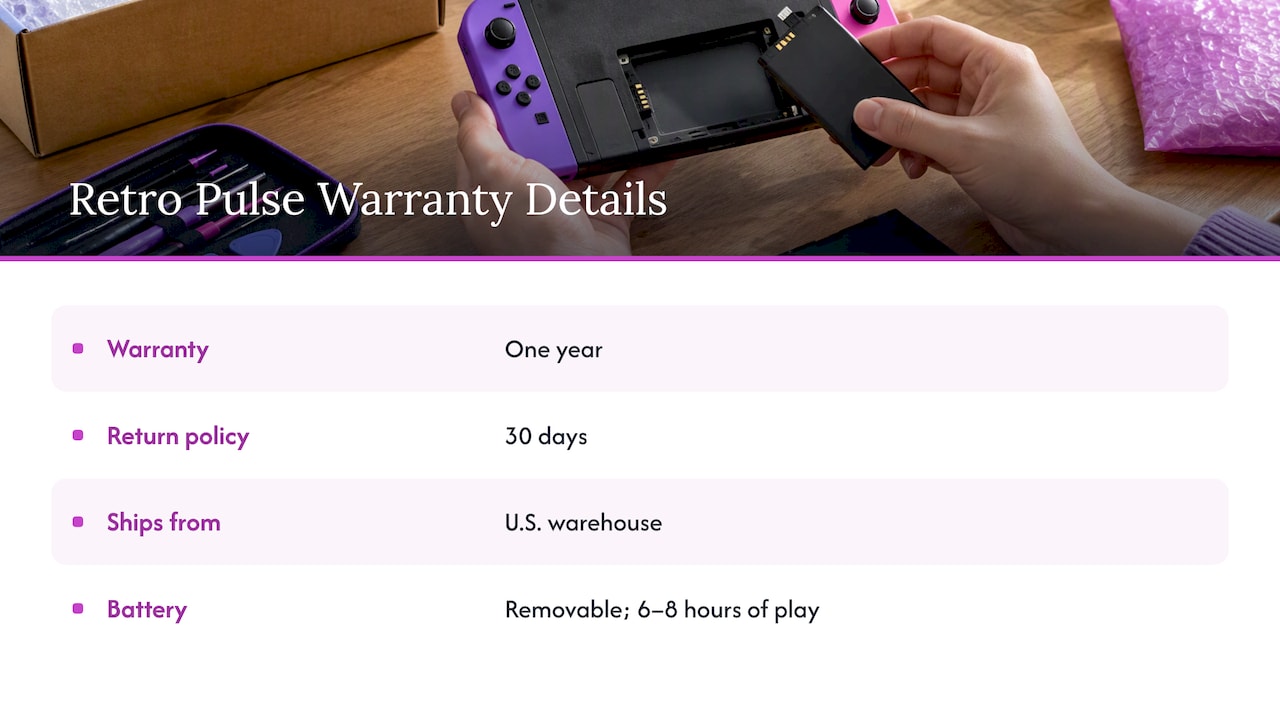
Here is what we can say, plainly. Retro Pulse is covered by a one-year warranty and a 30-day return policy. It ships from a U.S. warehouse. The handheld has a 3.5" IPS display, a real D-pad, twin sticks and L/R triggers, USB-C charging, and a removable battery rated at 6 to 8 hours of play. Two microSD slots let you add games of your own.
The removable battery is a practical warranty feature, even though it is not one on paper. A battery you can swap yourself is easier to replace than one soldered inside a sealed case, which means a worn battery does not have to end the life of the device.
For the exact return steps and conditions, read our refund policy before you order. That is the document that governs a return, and it is yours to read before you pay, as the FTC advises for any warranty or policy.
Ready to try a handheld with a U.S. warranty?
If you want a handheld that is ready to play out of the box, with 15,000 classic games from more than 20 systems, no downloads and no subscription, look at Retro Pulse. It comes with a one-year warranty, 30-day returns and shipping from our U.S. warehouse. You can also see the whole range on our handhelds page.
Our view: warranty is the part of the spec sheet nobody reads
We sell a handheld, so we see how people shop. They compare screen size, game counts and battery hours. Almost nobody compares warranties until something breaks, and by then it is the only thing that matters.
Here is what we think after watching this category. First, a warranty is a statement of how much a seller trusts its own product. If a company will not put a clear term in writing, treat that as information. Second, the support path counts more than the headline term. A one-year promise handled from a U.S. warehouse, with a 30-day return window to catch early problems, beats a longer promise nobody answers. Third, most defects show up early. That is why a return window and a warranty belong together: the first month tells you most of what you need to know.
We also think handheld buyers deserve plain language. Parents buying a gift, students on a budget and commuters who need a device that works on the train do not want to decode legal wording. So test the device right away, keep the receipt, and write to support the moment something seems off. We would rather hear about a problem in week two than month eleven.
— Sean
How to file a handheld warranty claim
When something goes wrong, the order of steps matters.
- Stop and document. Take a short video of the problem. Note the date, what you were doing and whether it happens every time.
- Find your proof of purchase. Consumer Action notes that many makers do not require registration, but you need a receipt or bill of sale to verify the date and your eligibility. Save the order email as a PDF now, before you need it.
- Read the claim process. The warranty states whether you contact the maker directly or go back to the seller. Follow that route exactly, as the FTC advises.
- Report it right away. Consumer Action advises reporting defects immediately. Companies may sometimes honor repairs for widespread issues even after a warranty expires, especially when you reported promptly.
- Put it in writing. Email gives you a timestamp. If a dispute grows, the FTC suggests sending a claim letter by certified mail with a return receipt, so you can prove the company received it.
- Keep records of the fix. Per Consumer Action, if you report a defect during the warranty period and the repair does not work, the company must still correct the problem even if the warranty expires before the final fix.
What to send with a claim: your order number, the date of purchase, a clear description, the video and photos, and what you have already tried. A short, factual message gets a faster answer than a long one.
Should you buy an extended warranty?
Search results for this topic are full of forum threads asking exactly this. There is no universal answer, but a few questions help you decide.
- What does it add? If the maker already gives a one-year warranty, an extended plan only matters in year two and later. Ask what it covers that the standard one does not, such as accidental damage, which standard terms usually exclude.
- What does it cost relative to the device? For a lower-priced handheld, a plan can approach the price of a replacement. Do the math before you pay.
- Who stands behind it? A third-party plan is only as good as the company that pays claims. Read the cancellation and claim terms the same way you would read a maker’s warranty.
- Do you really need it? For a handheld you can protect with a case and screen cover, with a removable battery you can replace yourself, many buyers decide the money is better spent on a spare battery and a good carrying case.
If you are choosing a first handheld for a family, our retro handheld comparison for parents lays out what to look for beyond the warranty.
Buying used or refurbished
Used and refurbished handhelds often come with shorter store warranties than new ones, and some come with none. Ask for the term in writing, ask what “defective component” means in that specific document, and confirm whether the warranty transfers or only applies to the person who bought it from the store. The battery on a used device has already had a life, so test runtime in the first days and report any shortfall at once.
A pre-purchase checklist
Before you pay for any handheld, run through this list:
- Is the warranty term written on the product page or a linked policy, in plain words?
- Is there a separate return window, and how many days is it?
- Does the warranty name the battery, the screen and the controls?
- Is there a real support email or form, and a U.S. shipping origin?
- Does the seller say anything that sounds like “modify it and we void everything”? That is a red flag under the FTC’s guidance.
- Do you have a way to save the receipt?
If you are weighing a handheld against a mainstream console, our Switch or retro handheld breakdown for U.S. buyers puts the per-game costs side by side. And if you are wondering whether a handheld or a TV-based unit suits you, see mini console vs handheld.
FAQ
How long is a typical handheld console warranty?
One year is the common term for consumer electronics. Consumer Action reports that manufacturer warranties on devices typically run 12 months, with a range of 90 days to 24 months. Always check the specific document, since the start date and exclusions differ.
Do I need to register my handheld to get warranty service?
Often not. Many makers honor warranties without registration, but you do need proof of purchase to verify the date. Keep your receipt or order confirmation, and check the warranty text in case the seller asks for registration.
Does modding or adding games void my warranty?
A company generally cannot void coverage only because you used third-party parts or services, under the Magnuson-Moss Warranty Act. A seller can still deny a claim if your change caused the damage. If you are unsure, ask support before you modify anything.
What if the warranty expires while my claim is still open?
If you reported the defect during the warranty period and the repair failed, Consumer Action says the company is still required to fix the problem. Keep dated records of every message and repair attempt. For a serious dispute, you can contact your state attorney general’s consumer protection office.
What warranty does Retro Pulse have?
Retro Pulse has a one-year warranty and a 30-day return policy, and it ships from a U.S. warehouse. For return conditions, see our refund policy.
Sources
- Device Warranties 2024, Consumer Action
- Warranties, FTC Consumer Advice
- FTC Staff Warns Companies That It Is Illegal to Condition Warranty Coverage on the Use of Specified Parts or Services
- Businessperson’s Guide to Federal Warranty Law, FTC
- U.S. Code Title 15, Commerce and Trade
Recommended
]]>Setting up an emulation handheld means choosing a frontend, installing the right emulators, placing BIOS files in exact folders, loading games you have the right to use, and mapping the controls. Done by hand, it takes an evening or more. Done on a pre-configured device, it takes the time to charge the battery. This guide walks through both so you can decide which one fits you.
TL;DR
- A manual setup has five parts: frontend, emulators (cores), BIOS files, game files, and controls. Each one has its own ways to go wrong.
- BIOS files are the usual stumbling block: they must have exact names and sit in exact folders.
- In the U.S., emulators are legal, but downloading ROMs from the internet is not authorized by the Copyright Act, even for games you own.
- If you want to play tonight rather than tinker, a pre-loaded handheld such as the Retro Pulse skips most of this work.
Table of Contents
- What “setup” really means on an emulation handheld
- Step 1: Pick the hardware and know its limits
- Step 2: Choose a frontend
- Step 3: Install the cores and emulators
- Step 4: Get the BIOS files right
- Step 5: Games, ROMs and the law
- Step 6: Organize folders and make the library browsable
- Step 7: Map the controls and protect your saves
- Where manual setups go wrong
- Our view: setup is the real barrier
- Manual setup or ready to play: which suits you
- What you get with the Retro Pulse
- If you still want to tinker
- FAQ
- Sources
What “setup” really means on an emulation handheld
An emulator is software that imitates a game console so its games can run on other hardware. A handheld only becomes a retro machine once four things are in place: the emulator, the console’s system files, the games, and a front end that lets you browse them without digging through folders.
Android Authority’s reviewer described the problem well in a piece on wanting a pre-configured handheld: every new device that arrives for review means hours of installing emulators and fixing folder structures before the fun starts. If a professional reviewer finds that tedious, a first-timer should plan for a slow first evening.
That is not a reason to avoid it. Manual setup gives you total control, and many enthusiasts enjoy it. It just helps to know what you are signing up for.
Step 1: Pick the hardware and know its limits
The machine decides what you can emulate. Four things matter most:
- Which systems you want. NES, SNES, Game Boy and Genesis are undemanding. PS1 and N64 ask more. Anything beyond that needs a much stronger chip and more tuning.
- Screen size and aspect ratio. Most 8-bit and 16-bit games were designed for a 4:3 picture, so a very wide screen leaves black bars or stretched pixels.
- Controls. A real D-pad matters for platformers and fighters. Analog sticks and shoulder triggers matter for N64 and PS1 titles. If you want to see how the two compare in practice, we tested it in D-pad vs analog stick on one handheld.
- Battery and storage. Check whether the battery can be swapped and how you add games, usually through a microSD card.
A phone with a clip-on controller is another route, and we compare it with a dedicated device in phone emulation vs handheld.
Step 2: Choose a frontend
A frontend is the menu you actually see. It lists your games, shows box art, and launches the right emulator for each file.
RetroArch is the best-known option. It acts as one app that bundles dozens of emulators, called cores, and covers systems from DOS to PS2, according to Android Central’s emulation coverage. It is also not a universal answer: the same source notes that some people end up adding standalone emulators, such as DuckStation for PS1 or Dolphin for GameCube, because those can offer better compatibility or performance on demanding systems.
A practical rule for beginners:
- Start with one frontend and its cores for your lighter systems.
- Add a standalone emulator only when a specific game runs badly or a feature is missing.
- Resist installing five frontends at once. Troubleshooting gets much harder.
For a detailed walkthrough of menus and options, Android Central’s guide to turning a phone into a gaming handheld covers choosing emulators on Android.
Step 3: Install the cores and emulators
In RetroArch, each console you care about needs a core. You download the core inside the app, then the app pairs it with game files by extension. Two habits save time:
- Read each core’s information page. It tells you which file types it accepts and which BIOS files it requires.
- Pick one core per system first. Different cores for the same console can behave differently with saves and settings. Switching later is fine, but do it deliberately.
Step 4: Get the BIOS files right
This is where most first attempts stall. Some systems, including PS1 and several others, need a BIOS file from the original console to run. Newcomers tend to underestimate how exact this is.
The libretro documentation on BIOS files says the file must be in the right location, which is usually the system folder, and that the core information page tells you exactly where. Names are often case-sensitive, and some systems want a specific subfolder inside the BIOS directory. Putting everything in one generic folder is a common mistake.
If you use EmuDeck instead, its cheat sheet takes the opposite approach: BIOS files go directly into the Emulation/bios folder, with no extra folders unless a chart says so. The lesson is that every tool has its own convention. Follow the one for the tool you chose, not a general rule from a forum post.
A checklist for BIOS trouble:
- Open the core’s information page and note the exact file names it lists.
- Compare your file names character by character, including capital letters.
- Confirm the folder path in the frontend’s settings, not from memory.
- Restart the app after moving files.
Step 5: Games, ROMs and the law
This part deserves care. Here is what the U.S. Copyright Office says, and how legal scholars read it.
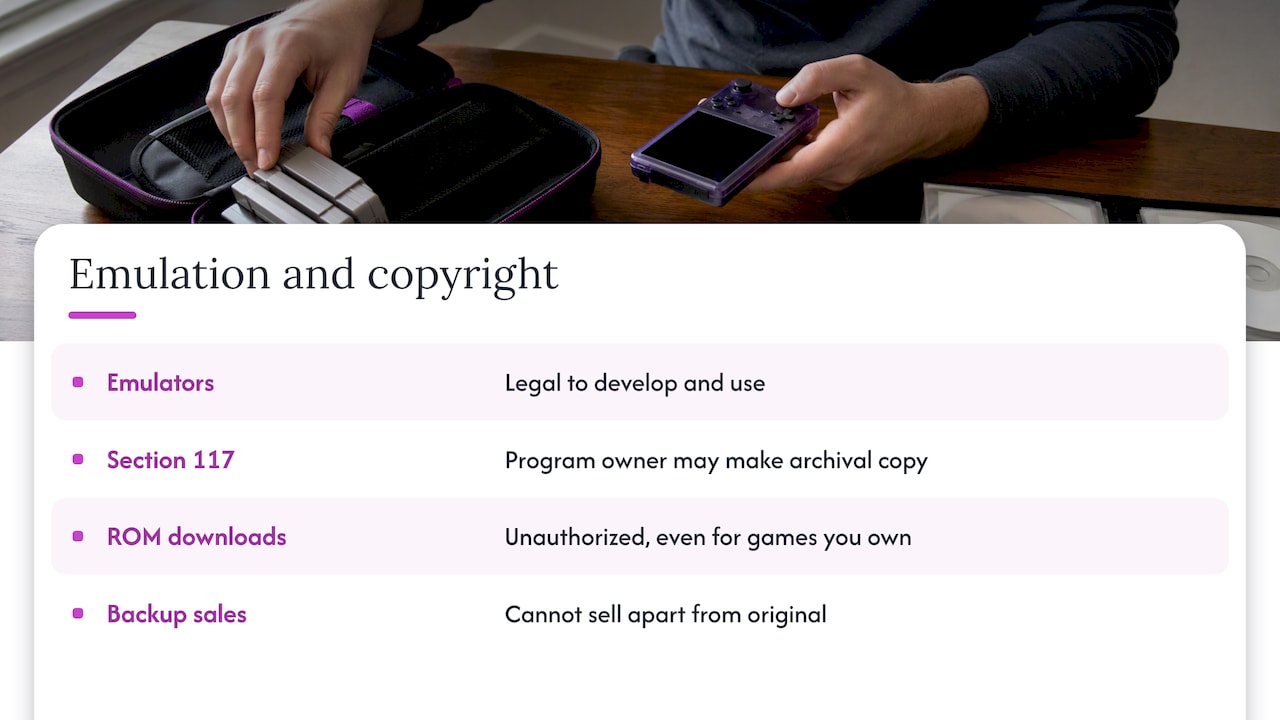
Emulators themselves are legal to develop and use, a position tied to court cases such as those involving Connectix and Bleem. Game files are different. The U.S. Copyright Office’s FAQ on digital files explains that Section 117 lets the owner of a computer program make an archival copy, but it does not authorize downloading copies from third parties, and backups cannot be sold separately from the original. Downloading ROMs from the internet, even for games you own, is not authorized by the Copyright Act. For a longer academic discussion, see the University of Cincinnati journal’s article on emulation and the law.
If you have a specific legal question, such as whether your own backups are covered, ask an intellectual property attorney. We are a retailer, not a law firm, and this is general information.
What this means in practice: a manual setup leaves you to source game files on your own and to take responsibility for that choice. It is one reason some buyers prefer a device that arrives with a curated library.
Step 6: Organize folders and make the library browsable
Once games are in place, organization decides whether the device feels good to use.
- One folder per system, named consistently.
- Clean file names, so artwork and descriptions can be matched automatically.
- Scraping: most frontends can pull in box art and descriptions, which turns a list of file names into something you want to browse.
- Favorites and collections, so a library of thousands doesn’t bury the five games you actually play.
A blank game list is a common first-run complaint, usually because the frontend is looking in a different folder from the one you filled. Our guide on adding games to a retro handheld without a blank list covers that problem directly.
Step 7: Map the controls and protect your saves
Default mappings are rarely perfect. Check these before you play seriously:
- Confirm face buttons match the original layout, since some systems swap A and B positions.
- Assign a hotkey for the menu, so you can leave a game without hunting for a button.
- Decide how you will save. Save states are convenient but tied to a specific core version, while in-game saves are the safer record of progress. We explain why in retro handheld save backups.
- Copy your save folder to a computer or card occasionally.
For analog-heavy systems, our look at dual analog handhelds shows what N64 and PSP-era titles need from the hardware.
Where manual setups go wrong
The same few problems show up again and again:
| Problem | Typical cause | Fix |
|---|---|---|
| Game won’t start | Missing or misnamed BIOS | Check the core info page for exact names |
| Blank game list | Wrong folder or unsupported extension | Point the frontend at the right directory |
| Stutter or slow sound | Core too demanding for the chip | Try a lighter core or lower the settings |
| Saves vanish after update | Save states tied to old core | Use in-game saves and back them up |
| Wrong colors or stretched picture | Aspect ratio or shader settings | Reset video options to defaults |
None of these is hard to solve once you know it exists. Finding it out at 11 p.m. with a controller in hand is what makes people give up.
Our view: setup is the real barrier
We sell handhelds, so we hear the same story from buyers. They want to play a childhood game, not learn directory permissions. A parent wants to hand a device to a kid on a road trip. A student wants something affordable that works. A gift buyer wants a box that works when it’s opened.
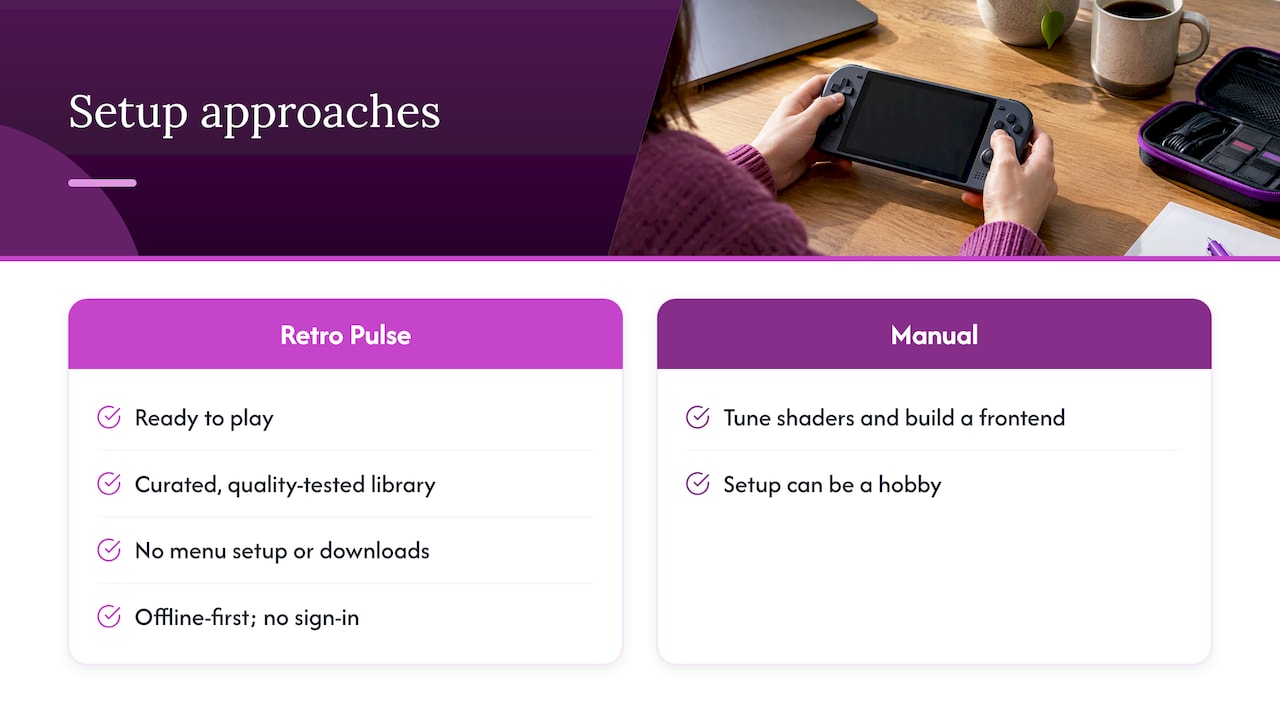
That is why we built the Retro Pulse around being ready to play. The library is curated, tested for quality, and there are no menu setup steps, downloads or subscriptions between you and the first game. It runs offline-first, so there is nothing to sign into. We ship from a U.S. warehouse, which means you avoid the long shipping waits and quality gambles that can come with overseas suppliers, and we back it with a one-year warranty and 30-day returns.
This is not a claim that manual setups are bad. If you love tuning shaders and building a custom frontend, a tinkerer’s device is a good hobby. But if the setup is the obstacle between you and the games, we think removing it is the better design. Android Authority’s reviewer reached a similar conclusion about wanting a pre-configured handheld, and the demand for that is real.
— Sean
Manual setup or ready to play: which suits you
| Manual setup | Pre-loaded handheld | |
|---|---|---|
| Time to first game | Hours, sometimes a weekend | Power on and pick a game |
| Skills needed | Folders, BIOS files, core settings | None |
| Customization | Nearly unlimited | Focused on a curated library |
| Games | You source and organize them | Included |
| Best for | Tinkerers and power users | Casual players, parents, gift buyers, commuters |
If you are still weighing options, our retro handheld comparison for parents lays out the trade-offs without the jargon, and emulation vs original hardware explains why many players skip hunting for old consoles.
What you get with the Retro Pulse
The Retro Pulse comes preloaded with 15,000 classic games from more than 20 systems, including NES, SNES, Genesis, PS1, N64, Game Boy, GBA and arcade. It has a 3.5" IPS display, a real D-pad, twin sticks and L/R triggers, USB-C charging, and a removable battery rated for 6 to 8 hours of play. Two microSD slots let you add more if you want to expand later. If arcade is your main interest, see our arcade handheld guide.
If you still want to tinker
A ready-to-play device doesn’t have to be the end of the hobby. The dual microSD slots mean you can add your own content later, and the knowledge in this guide still applies: folder names, file formats and saves work the way they do anywhere else. Start with the library as shipped, learn what you like, then customize.
If you are comparing against consoles on the TV, our guide to mini console vs handheld covers when each makes sense, and Switch vs a retro handheld looks at per-game costs against a big library.
FAQ
How long does an emulation handheld setup take?
It depends on the device and how many systems you want. Expect an hour or two for a few simple consoles, and longer once you add PS1 BIOS files, artwork and control mapping. A pre-loaded device can be played right out of the box.
Do I need BIOS files for every system?
No. Many early cartridge systems run without one, while others, PS1 among them, usually need one. Each core’s information page lists what it requires and where the file must go, so check it before you start.
Is it legal to use an emulator in the U.S.?
Emulators themselves are legal to develop and use. Downloading ROM files from the internet is a different matter: the Copyright Office says it isn’t authorized by the Copyright Act, even for games you own. For a specific situation, talk to an intellectual property attorney.
Is RetroArch enough, or do I need other emulators?
RetroArch covers a wide range of systems, from early consoles up to PS2. Some people add standalone emulators for demanding systems where they get better compatibility or performance. Begin with RetroArch and add others only when you hit a real limit.
Sources
- U.S. Copyright Office: Copyright and Digital Files FAQ
- Android Authority: I’d give everything for a pre-configured Android gaming handheld
- Android Central
- Android Central: Everything you need to turn your phone into the ultimate gaming handheld
- libretro docs: BIOS files
- EmuDeck cheat sheet
- University of Cincinnati IP and Computer Law Journal: Ready Player One, Video Game Emulation and the Law
Recommended
]]>There is no federal law that gives you the right to return a console just because you changed your mind. In the United States, the seller’s own policy decides: how many days you get, who pays shipping, whether opening the box costs you a fee. This guide explains how those policies work, which details trip people up, and how to protect yourself on any console purchase, including ours.
TL;DR
- No federal rule forces a retailer to accept a non-defective console back. The FTC says the seller must tell you its refund terms, and you are held to what was posted at purchase.
- Windows, restocking fees and packaging rules differ by seller, so read them before you pay, not after the box is open.
- A warranty and a return policy are different things. A warranty covers defects. A return policy lets you change your mind.
- Keep the receipt, the box and every email until the window closes.
- Retro Pulse ships from a U.S. warehouse with a 30-day return window and a one-year warranty.
Table of Contents
- What the law says (and doesn’t) about returning a console
- Return window vs. warranty: two different promises
- The fine print that decides whether you get your money back
- A short checklist before you buy any console
- Gifts and returns: the timing trap
- How to make a return go smoothly
- Why preloaded handhelds raise extra questions
- Our perspective: a return policy tells you how a seller thinks
- Retro Pulse: what you get and how returns work
- Common return-policy mistakes to avoid
- FAQ
- Sources
What the law says (and doesn’t) about returning a console
Many buyers assume the law protects them with a cooling-off period. For most store and online console purchases, it does not. The FTC’s online shopping guidance tells you to check the seller’s refund policy before buying: whether you can return the item for a full refund, who pays return shipping, and how many days you have.
That guidance points to the real rule: a company has to disclose its terms before the sale. If it says 30 days, you get 30 days. If it says store credit only, that is what you get, as long as it was clear up front.
A few things the law does cover:
- Shipping promises. Under the FTC’s Mail, Internet, or Telephone Order Merchandise Rule, sellers must ship within the time they advertise, and must have a reasonable basis for that promise. If the order is late, you generally have the right to cancel and get your money back.
- Refund timing. According to the FTC, when a seller accepts a return and you qualify for a refund, for most payment types it must refund you within 7 business days of accepting the item.
- Defective products. If a console arrives broken, you are in a different situation. That is a warranty and product-quality issue, not a change-of-mind return.
State laws and card-network rules can add protections in some cases, but they vary, so check your state attorney general’s consumer page or your card issuer if a seller refuses a refund you believe you are owed.
Return window vs. warranty: two different promises
This is the mix-up that costs people the most. The FTC’s warranty guidance describes a warranty as a promise about the product, and the usual remedy is repair or replacement, not a refund. A return policy is a commercial service: the seller agrees to take the item back for a set period.
| Return policy | Warranty | |
|---|---|---|
| What it covers | Any reason, including “I don’t like it” | Defects in materials or workmanship |
| Typical length | Days to a couple of months | Often a year or more |
| Usual remedy | Refund, exchange or store credit | Repair or replacement |
| Who sets it | The seller | The manufacturer or seller |
| Condition rules | Often original packaging, sometimes unopened | Proof of purchase, no misuse |
When the return window closes, the warranty is usually your fallback. The FTC advises you to start with the seller, then write to the manufacturer if the seller doesn’t resolve it.
The fine print that decides whether you get your money back
Policies for consoles tend to be stricter than policies for a shirt. The product is expensive, easy to resell only if it is complete, and costly to inspect. Look for these five details.
1. The clock start
Some sellers count from the day you order, some from the ship date, some from delivery. A few days of difference matters when a gift sits in a closet. Check which one applies, and write the date down.
2. Opened versus unopened
Some retailers accept only sealed consoles, some accept opened ones with a fee, and some accept them with no penalty if the item is complete. “Can I return it if I opened it?” is the most common console question, and the answer is always in that specific seller’s policy. It is not a universal rule.
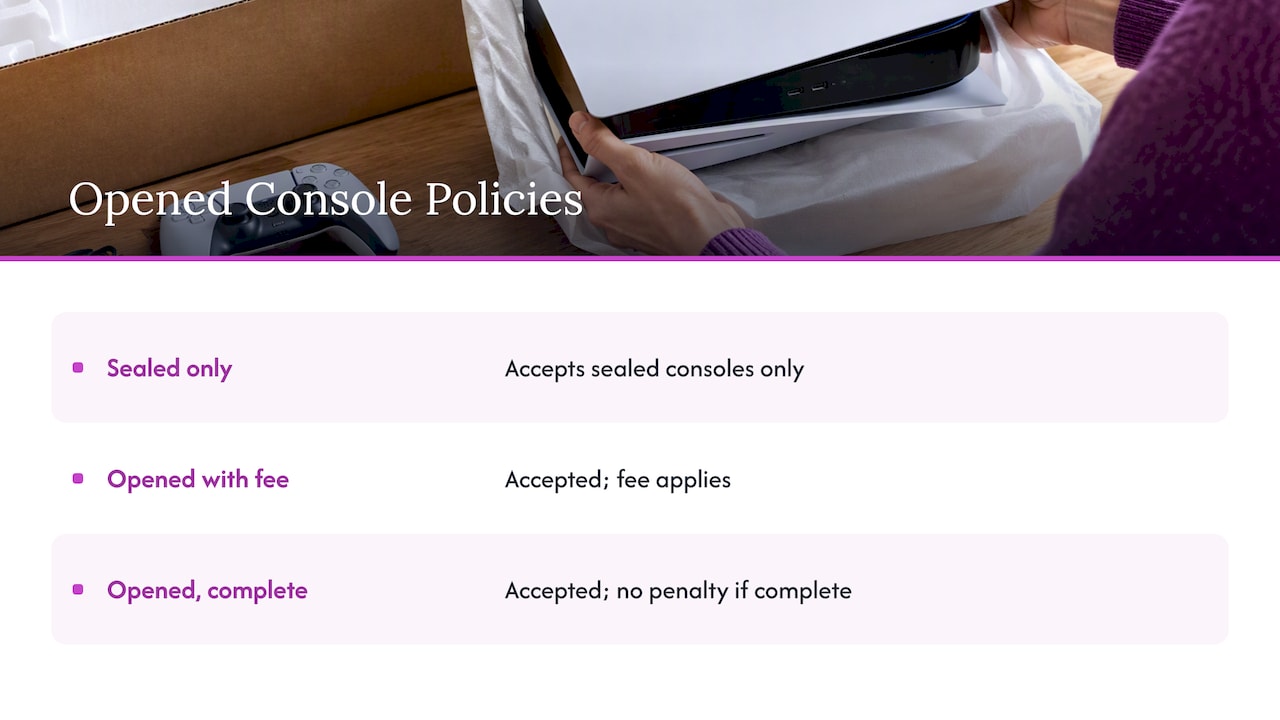
3. Restocking and shipping fees
Some big chains charge a percentage restocking fee on opened electronics, and some charge a flat fee for console returns. The amounts differ by seller and sometimes by state. Ask three questions before checkout: is there a fee, how much, and does it apply to online orders?
4. Refund method
The FTC notes that sellers often prefer store credit over refunds to the original payment. Confirm whether you get money back to your card or a credit you can only spend with that seller.
5. Packaging and completeness
Missing cables, a crushed box or absent paperwork can reduce a refund or void it. Keep everything. Retailers also track return history, and frequent returns or returns missing original packaging can trigger a block on future returns, even inside the stated window. Hold on to the box and inserts until the window closes for good.
A short checklist before you buy any console
- Find the return policy page and screenshot it. If the terms change later, you have proof of what applied when you paid.
- Note the window and when it starts.
- Check who pays return shipping. On a heavy box, this can be real money.
- Look for fees on opened items.
- Check the warranty length and how to claim. An email address is better than nothing; a clear process is better still.
- Check where it ships from. Long overseas transit eats into your return window, and sending a return back across an ocean is a headache. A U.S. warehouse makes returns simpler.
- Pay with a card, not a transfer. Cards give you a dispute option if a seller doesn’t honor its terms.
Gifts and returns: the timing trap
Consoles are a popular gift, and holiday gifts are where windows go wrong. You buy in early November, wrap it, and the recipient opens it in late December. By then, a 30-day window may have expired.
If you’re buying a gift:
- Count the days from delivery to the day it will be opened.
- Ask whether a gift receipt or order number is enough, or whether the original card is required.
- Tell the recipient to keep the box.
- Test the device yourself if the policy allows it, or confirm the warranty covers it from the purchase date.
Some sellers extend windows around the holidays. Many do not. Never assume.
How to make a return go smoothly
The FTC says to gather your documents and learn the company’s return policy before you go back to the store or website. In practice:
- Start inside the window. Don’t wait for the last day.
- Contact the seller in writing. Email or chat leaves a record. A phone call alone does not.
- Pack it as it came. Console, cables, inserts, original box.
- Use tracked shipping and keep the tracking number.
- Photograph the contents before sealing the box.
- Follow up. If you haven’t seen your refund after the seller received the box, write again and cite the date it was delivered.
- Escalate if needed. If you can’t get help from the seller, the FTC suggests contacting a consumer protection agency or your card issuer and reporting the problem.
Why preloaded handhelds raise extra questions
A branded console from a big manufacturer comes with a recognizable policy. A preloaded retro handheld often comes from a small seller, sometimes shipping from overseas, sometimes with no clear policy at all. Before buying one, ask:
- Is there a real U.S. address or warehouse for returns?
- Does the seller state both a return window and a warranty?
- Is there a contact that answers?
We wrote separately about what to check on preloaded consoles, including three risks worth knowing before you order anything in this category.
Our perspective: a return policy tells you how a seller thinks
We sell one product, the Retro Pulse, so we have thought a lot about what a buyer needs to feel safe ordering a handheld online from a brand they haven’t heard of. Here is our view.
A return policy is a promise about confidence. A seller that hides its terms, or buries them behind a long chain of conditions, is telling you something about the product. We would rather you read ours before you buy.
The second point is shipping. Many cheap handhelds come from suppliers overseas, and buyers wait weeks for them. When the unit then has a problem, the return window may already be half gone. That is why we ship from a U.S. warehouse, and why we tested and reviewed the device before listing it. A short trip to your door means your 30 days are spent playing, not waiting.
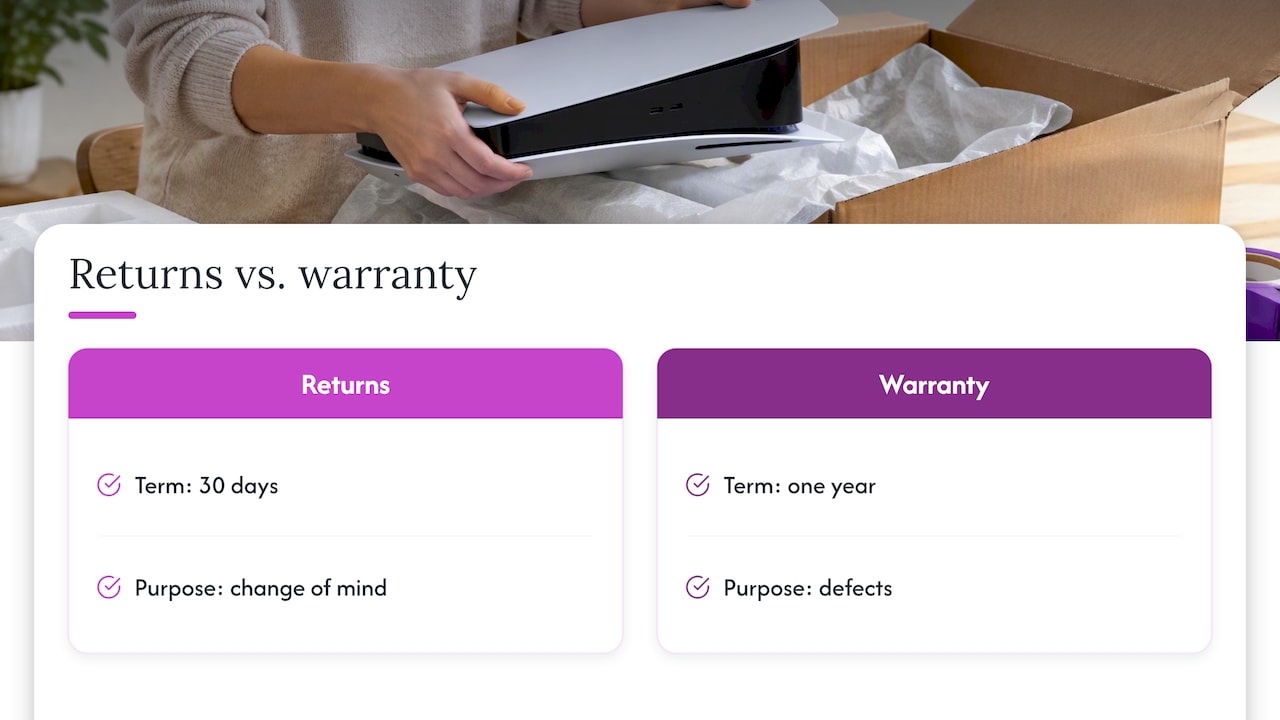
Third, we think warranty and returns should be kept separate and stated plainly. Ours are: 30-day returns if the device isn’t for you, and a one-year warranty if something goes wrong with it. One covers a change of mind, the other covers defects.
Finally, a console should be ready to play. Retro Pulse arrives with 15,000 classic games from more than 20 systems already loaded, with no downloads, subscriptions or menu setup. If you want to know whether a handheld like this fits you better than a mainstream console, we compared them in Switch or retro handheld.
— Sean
Retro Pulse: what you get and how returns work
If you are shopping for a retro handheld and want terms you can read before you pay, here is how the Retro Pulse stacks up.
- Library: 15,000 games across more than 20 systems, including NES, SNES, Genesis, PS1, N64, Game Boy, GBA and Arcade.
- Screen and controls: a 3.5" IPS display, a real D-pad, twin sticks and L/R triggers.
- Power: removable battery rated for 6 to 8 hours, USB-C charging.
- Storage: dual microSD slots if you want to add games.
- Shipping: from a U.S. warehouse.
- Protection: a one-year warranty and 30-day returns. The full wording is on our refund policy page.
You can see the console and its current details on the Retro Pulse product page.
Common return-policy mistakes to avoid
- Throwing away the box the day it arrives. It’s often the first thing a return department asks about.
- Assuming the warranty means a refund. It usually means repair or replacement.
- Missing the clock. The window may have begun at shipment, not when you opened the package.
- Relying on a verbal promise. If a support rep says an exception applies, get it in writing.
- Buying from a seller with no U.S. return address. Returning across borders can cost more than the item is worth.
- Deleting emails. The FTC says records of your communication with the seller are what you need if you have to prove your case.
FAQ
Can I return a console if I opened it?
It depends entirely on the seller. Some accept opened consoles within the window, some add a restocking fee, and some take back only sealed units. Read the policy for that retailer before you open the box, and keep every piece of packaging either way.
Is there a federal law that guarantees console returns in the US?
No. The FTC advises you to check a seller’s refund terms before buying because the seller must state them, but nothing requires a retailer to take back a working item. A defective console falls under warranty and product-quality rules instead.
How long does a refund take after I return a console?
The FTC says that for most payment types, a seller must refund you within 7 business days of accepting your return. Your card issuer may take additional days to post the credit.
What if my return window has closed and the console is faulty?
Use the warranty. Contact the seller first, then the manufacturer if needed, and have your proof of purchase ready. With Retro Pulse, our one-year warranty covers defects, and you can start a claim by reviewing our policy page.
What is the return window on the Retro Pulse?
Retro Pulse comes with 30-day returns and a one-year warranty, and it ships from a U.S. warehouse. The full terms are on our refund policy page, so read them before you order.
Sources
- FTC: Online Shopping
- FTC: Solving Problems With a Business: Returns, Refunds, and Other Resolutions
- FTC: Warranties
- FTC: What to do if your online order never arrives
- FTC: Have a problem with something you bought?
- eCFR: 16 CFR Part 435, Mail, Internet, or Telephone Order Merchandise
Recommended
]]>A good retro handheld screen is sharp at the size the games were designed for, shows correct colors, scales pixels cleanly and adds no visible lag. Resolution is only one of those four things. A panel that looks great on a spec sheet can still make NES sprites shimmer, stretch Game Boy Advance games or leave huge black borders around a Genesis title. This guide shows what to check, what to ignore and how to match a display to the games you actually play.
TL;DR
- Judge a screen on four things: panel type, aspect ratio, scaling and latency. Pixel count alone tells you little.
- Most retro handhelds use a 4:3 panel around 3.5 to 4 inches, which suits the majority of 8-bit, 16-bit and 32-bit era games.
- Clean (integer) scaling matters more than a bigger screen. Blurry or uneven pixels are the most common complaint.
- Square and widescreen panels each favor a different library. Pick based on what you play most.
- Our Retro Pulse uses a 3.5" IPS display, built for pick-up-and-play across 15,000 preloaded games from over 20 systems.
Table of Contents
- Resolution is the least interesting spec
- The four things that define a good retro screen
- Matching screen size to the games you play
- Filters, shaders and the CRT look
- Perspective: why we chose a 3.5" IPS panel
- How to test a retro handheld screen in ten minutes
- How phones, handhelds and the Switch compare on screen
- Ready to see it for yourself?
- A note on the games themselves
- FAQ
- Sources
Resolution is the least interesting spec
Shoppers compare numbers first, and that is understandable. But retro games were built for tiny frames. Many classic consoles output only a few hundred pixels across, so the screen’s job is to show those pixels faithfully, not to add more of them.
The most common setup on current handhelds is a 4:3 panel at 640×480, according to one widely read shader and screen guide. The same guide notes that PlayStation and Nintendo 64 output at 320×240 maps to that panel at an exact 2x scale. That is the real appeal of a 480p screen: many games divide into it evenly.
So when you read a spec sheet, ask what the resolution lets the games do, not how large the number is.
The four things that define a good retro screen
1. Panel type
IPS panels are the practical standard for handhelds in this category. They keep colors consistent from wide viewing angles, which matters when you are holding a device at an odd tilt on a train, a couch or the back seat of a car. They are also bright enough for most indoor use.
AMOLED panels are the premium option. Reporting on newer premium models says they deliver perfect blacks and vivid color, and that black bars blend into the bezel on non-widescreen games. That is a real advantage, though it comes with a higher price class of device. For a family, a commuter or a student, a good IPS panel gives you most of the visible benefit at a more sensible cost.
2. Aspect ratio
Aspect ratio decides how much of the screen your game uses. Classic consoles from the NES through the PlayStation and N64 were designed for 4:3 televisions, so a 4:3 handheld fills the panel with those games. Here is how the common shapes compare:
| Aspect ratio | Best for | Trade-off |
|---|---|---|
| 4:3 | NES, SNES, Genesis, PS1, N64, arcade | Black bars on widescreen content |
| 1:1 (square) | Vertical shooters, early handheld systems | Smaller image for 4:3 games |
| 3:2 | Game Boy Advance | Narrow fit for most other systems |
| 16:9 / 16:10 | Modern emulators, widescreen hacks, CRT-style filters | Wide borders on most retro games |
One device guide describes the logic: 1:1 or 4:3 suits older systems such as Game Boy, Game Boy Color and arcade, while 16:9 or 16:10 suits modern gaming and filters. Our own take on the diagonal-versus-shape question is in why 4:3 scaling beats diagonal size for retro screens.
On the common question of whether GBA games are 4:3: no. The Game Boy Advance screen is 3:2, so on a 4:3 handheld you will see small bars at the sides or a slight stretch, depending on settings.
3. Scaling
Scaling is where a good display and a mediocre one separate. Retro game pixels are blocky by design. When a handheld draws them at an exact whole-number multiple (2x, 3x, 4x), every pixel is the same size and edges stay crisp. When it stretches an image to fill the panel by a fractional amount, some pixels get wider than others and lines shimmer as characters scroll.
You may lose some screen area to black borders with exact scaling. Most enthusiasts accept that trade because the picture is clean. If you want the detail, we wrote a separate piece on when to use nearest or bilinear scaling for pixel art at 2x to 4x.
A quick test is simple. Load a game with a scrolling background and thin horizontal lines, such as a platformer with fences or a racing game with road stripes. If lines crawl or thicken as the screen moves, the scaling is uneven.
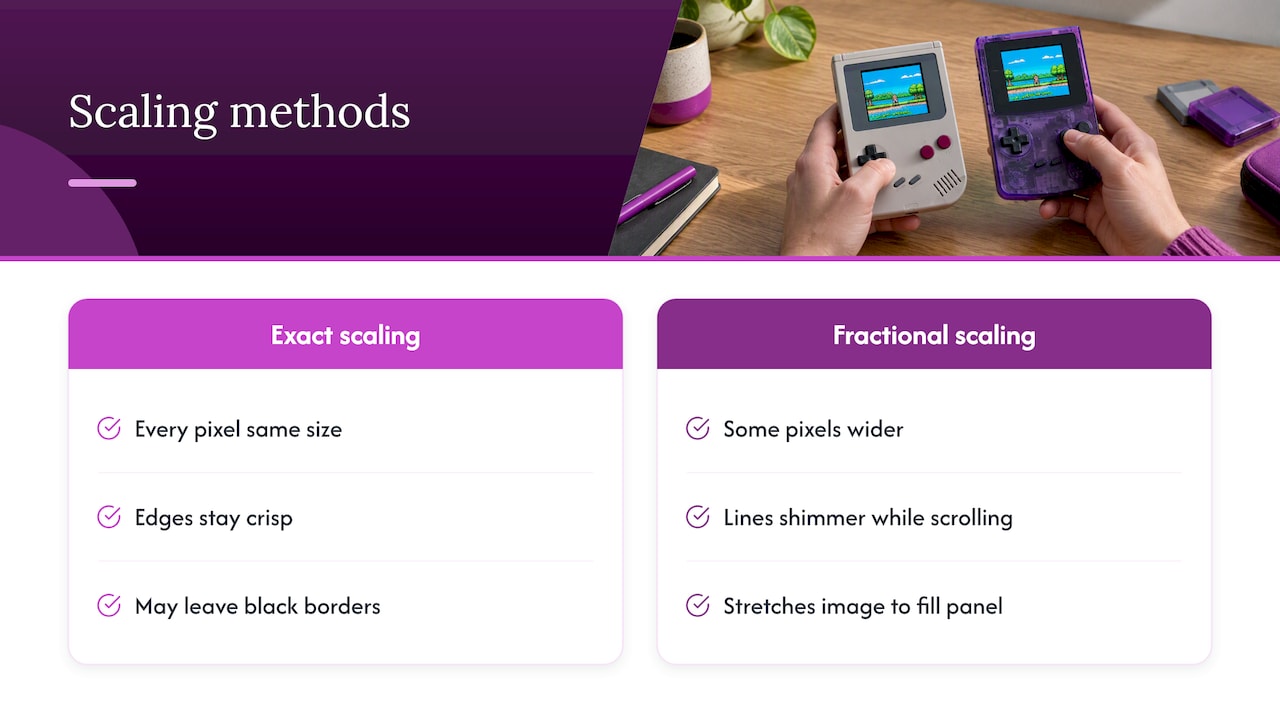
4. Latency and color accuracy
Expert reviewers point out that screen quality is not only resolution but color accuracy and latency. Latency is the gap between pressing a button and seeing the result. In fast games like Contra, Mega Man or F-Zero, a slow panel feels mushy even if the picture is perfect.
You cannot measure this from a spec sheet. Look for reviews that test it directly, and judge by feel in the first hour of play.
Matching screen size to the games you play
Bigger is not automatically better. Many retro handhelds have a usable 4:3 area of about 3.5 to 4 inches, and the largest widescreen models stretch to roughly 4.5 inches of diagonal. But a wide 4.5-inch panel does not give you a bigger 4:3 picture than a well-shaped 4-inch one.
Some premium devices now push the 4:3 shape further. One recent preview of a 4:3 handheld describes a 4.5-inch, 1280×960, 120Hz AMOLED panel. That is an enthusiast-level screen, and the extra pixels help with shaders and filters. For straightforward play of classic cartridges, you do not need it.
At the other end, the square 4-inch, 720×720 IPS panel on one popular device shows the idea behind 1:1: it removes uneven scaling for the systems it targets, but gives a smaller picture for 4:3 consoles.
Here is a simple way to decide.
- Mostly 8-bit and 16-bit (NES, SNES, Genesis): a 3.5 to 4 inch 4:3 IPS panel is plenty.
- Mostly PS1 and N64: you want 4:3 and clean 2x scaling, and comfortable controls such as real sticks and triggers.
- Mostly Game Boy, Color and Advance: a small display is fine, since the originals were tiny. A 3:2 or 1:1 panel gives the nicest fit.
- Mixed library or modern emulators: a widescreen panel gives you the most flexibility, with the cost of side borders on classics.
If you are still weighing which device type suits your household, our retro handheld comparison for parents lays out the choices without the tech jargon.
Filters, shaders and the CRT look
Many handhelds offer visual effects that imitate a tube television: scanlines, soft phosphor glow, slight curvature. They can look charming, but they have a cost. Scanlines darken the image, and they work best on higher-resolution panels where there is room to draw them without eating the game’s own pixels.
Our advice is to start with filters off. Play with clean scaling for a few sessions. If a game looks too sharp or harsh, such as a PS1 title with jagged 3D edges, try a gentle filter for that system only. You will quickly learn which games benefit.
Perspective: why we chose a 3.5" IPS panel
When we talk with people about handhelds, most start with specs and end with a question: “Will my games look right?” That is the right question. We built Retro Pulse around the answer being yes without homework.
The Retro Pulse has a vibrant 3.5" IPS display, real D-pad, twin sticks and L/R triggers, and a library of 15,000 games from over 20 systems, from NES and SNES to Genesis, PS1, N64, Game Boy, GBA and arcade. For that range of systems, a compact IPS panel is a sensible match. It keeps the device pocketable, the colors steady from any angle and the battery draw moderate. The removable battery gives 6 to 8 hours of play, so the screen is not the thing that ends your trip.
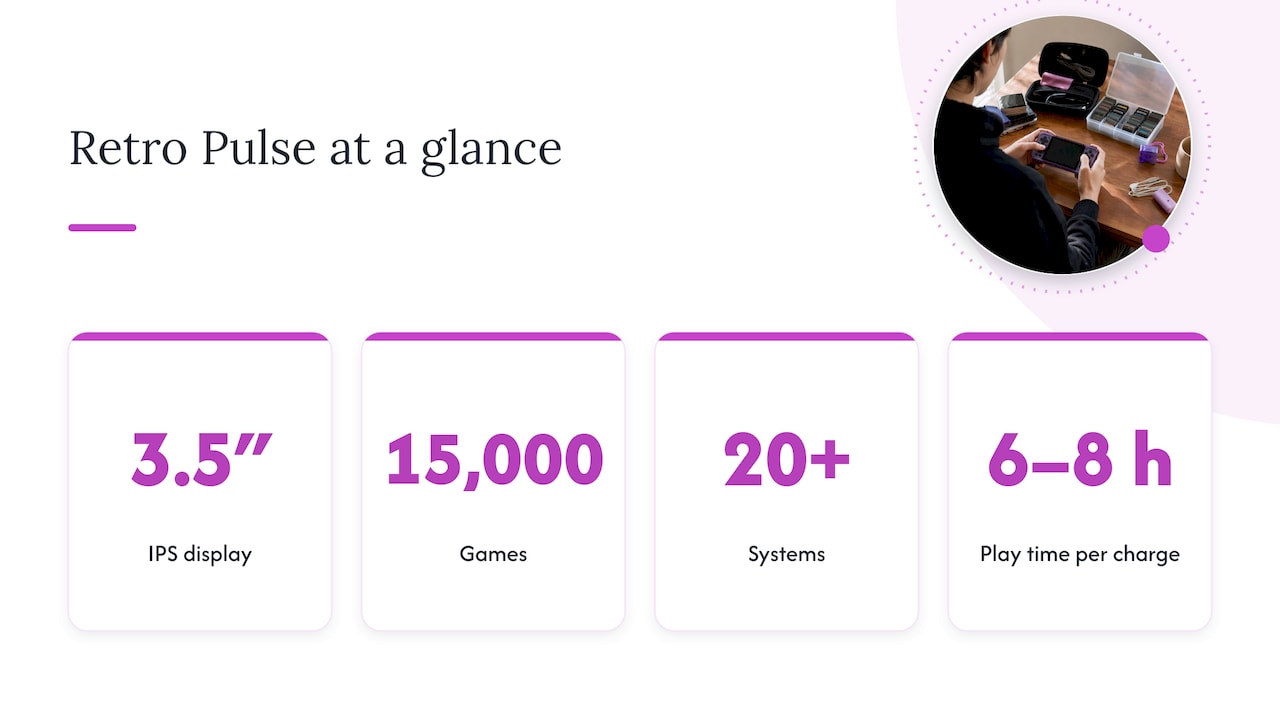
We also believe the best screen is the one you do not have to fiddle with. Many handhelds ship as a blank canvas that needs menu setup, shaders and downloads before the picture looks right. Ours is curated and ready to play instantly, offline, with no subscription. If you want to tweak, you can, and there are dual microSD slots for adding games. But you should not have to in order to enjoy Super Mario World or Final Fantasy VII on day one.
The honest limit: a 3.5-inch panel is not a TV. If you want to play on a big screen, a different product type is a better fit, and we compare the two in mini console versus handheld. What a small IPS screen does well is make classic games feel close, bright and personal.
— Sean
How to test a retro handheld screen in ten minutes
Whether you are looking at a device in a review or one on your doorstep, run through the same checks.
- Scrolling test. Play a side-scroller and watch the background. Shimmer or uneven pixel widths point to fractional scaling.
- Text test. Open an RPG menu. Small text should be readable without a halo or smear.
- Dark scene test. Play a night or cave level. Washed-out blacks and backlight bleed at the edges show up here.
- Angle test. Tilt the device the way you would hold it on a couch or bus. Colors should not invert or fade.
- Reaction test. Play a fast game you know well. If it feels laggy compared with your memory, the display or the software is adding delay.
- Brightness test. Check it near a window. Glossy panels reflect, and a screen that is fine indoors can disappear outside.
If a device passes all six, the spec sheet matters far less.
How phones, handhelds and the Switch compare on screen
People often ask whether a phone does the same job. Phone screens are excellent, but they are widescreen, so 4:3 classics sit in the middle with borders, and touch overlays cover part of the image. A dedicated handheld has the correct shape and physical buttons. We cover that trade-off in phone emulation versus a handheld.
A modern console’s handheld mode is a different category again. It is designed for current games, and retro titles cost extra one by one. If you are deciding between the two, see Switch or retro handheld for the per-game cost picture.
For N64 and PSP-style games that need two sticks, the shape of the screen and the controls work together. Our page on dual analog handhelds goes into it.
Ready to see it for yourself?
If a compact, bright IPS screen and a library that works out of the box sounds right, the Retro Pulse is our answer. It ships from a U.S. warehouse, comes with a one-year warranty and has a 30-day return window, so you can judge the screen with your own favorite games in your own hands.
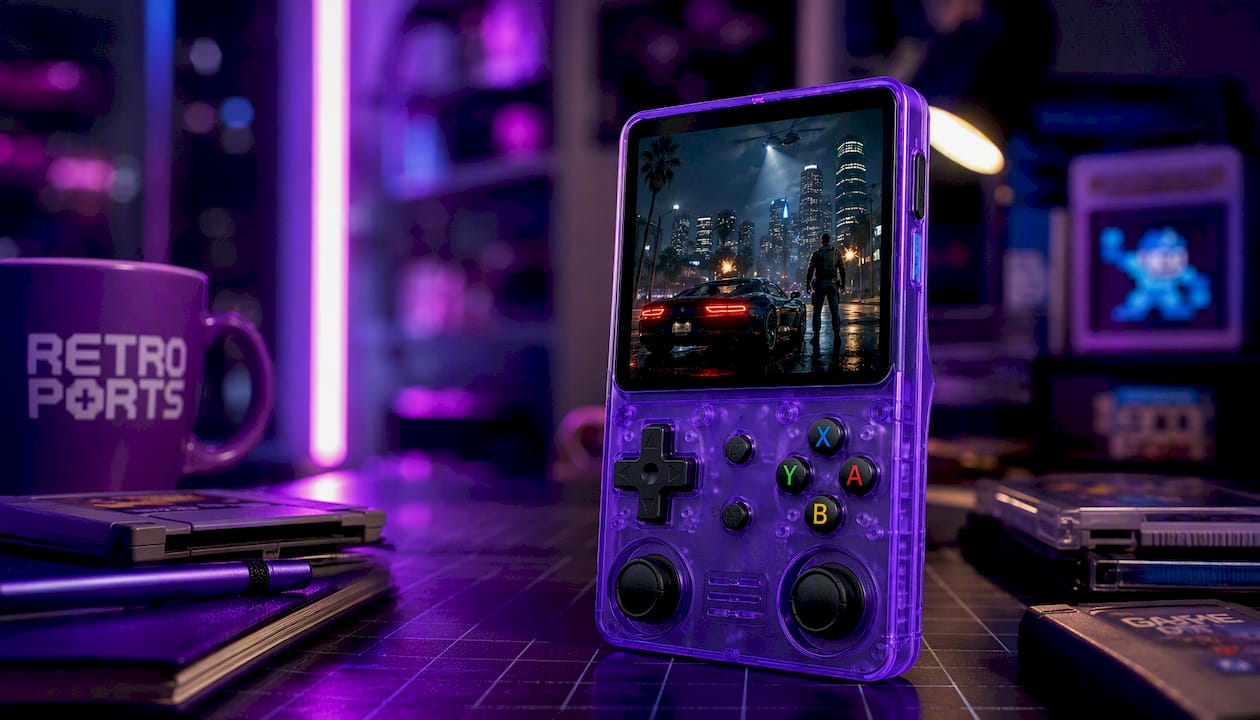
A note on the games themselves
Screen quality talks about how games look, but where they come from matters too. Emulation software is generally legal in the United States, but downloading commercial ROMs without authorization is copyright infringement, even if you own the original cartridge. The archival-copy provision in U.S. copyright law covers making your own backup, not fetching one from a third party. If you have questions about a specific situation, an attorney who handles copyright matters is the right person to ask. This is one reason we preload a curated library rather than sending you searching.
FAQ
Is a higher resolution always better on a retro handheld?
No. Retro games are drawn at low resolutions, so what matters is how cleanly the screen scales them. A 640×480 panel can look better than a larger one if it maps game pixels in whole-number steps. Higher resolution helps mostly when you use shaders or filters.
Are GBA games 4:3?
No, the Game Boy Advance uses a 3:2 screen. On a 4:3 handheld you will see small borders or a slight stretch. Most devices let you choose between exact scaling with bars and a fuller image with some distortion.
Is IPS or AMOLED better for retro games?
AMOLED gives deeper blacks and richer color, and it is common on premium models. IPS is more affordable, has strong viewing angles and looks great with classic games. For most families, commuters and students, a good IPS panel is the practical pick.
Are retro handheld consoles legal?
The devices and emulation software are legal in the U.S. What is not legal is downloading copyrighted ROMs without permission. Games that are freely licensed, such as homebrew released for free distribution, are fine to download and play.
Sources
- Guide: Shaders and Overlays on Retro Handhelds
- ModRetro Chromatic review, The Short Cut
- AMOLED handheld screen reporting, Sina
- Device overview, Pocketgaming
- 5 Games That Look Perfect on a 4:3 AMOLED handheld, Retro Handhelds
- When is it Legal to Download ROMs?, Retro Gaming Nerd
Recommended
]]>Input lag on a retro handheld is the time between pressing a button and seeing the screen react. It is not one setting. It is a chain of small delays: the controls, the emulator, the video pipeline and the panel. On a handheld with built-in controls, the biggest wins are usually a clean video setup, a good screen and, where the emulator supports it, run-ahead. A wireless pad is the usual culprit when you play docked.
Below, we break down each link in that chain with real numbers. We also show you how to measure your own device with nothing but a phone, and what to ignore.
TL;DR
- Input lag is cumulative: controller, emulator, video buffering and screen all add up, so fixing one link may not be enough.
- A 60Hz screen can wait up to 16.7ms for its next refresh. Higher refresh rates shrink that wait, but they do not remove lag from the emulator or the game itself.
- Built-in controls avoid the wireless link entirely. If you plug into a TV, switch on Game Mode first.
- You can measure total lag yourself by filming a button press with a phone camera at 240 FPS or higher and counting frames.
Table of Contents
- What input lag actually is
- The chain: where each millisecond comes from
- A quick reference table
- If you play on a TV, start there
- How to measure your own lag
- What counts as too much lag?
- Our perspective: why we built around the full chain
- Where the Retro Pulse fits
- Practical fixes, in order of effort
- FAQ
- Sources
What input lag actually is
Input lag is the total delay from your thumb moving to a pixel changing. At 60 frames per second, one frame lasts about 16.7ms, and that is the unit most retro discussions use. A game that reacts on the very next frame feels crisp. A game that takes three frames feels mushy, even when it runs at a perfect 60 FPS.
That last point trips people up. Smooth video and responsive controls are different things. As one guide on emulation latency puts it, a game can run flawlessly and still feel off, because the problem is delay, not performance.
There is also a surprise for anyone who blames emulation itself. Some original games had lag built in: some react on the next displayed frame, while others take two, three or more frames before a press reaches the screen, as the RetroArch run-ahead documentation explains. Your memory of how a game “should” feel may include that delay, or it may come from a CRT, which added almost none.
The chain: where each millisecond comes from
Think of lag as four links. You can improve each one, and the order below is roughly the order in which a press travels.
1. The controls
On a handheld, the buttons, D-pad and sticks are wired straight to the board. That is a real advantage over playing with a wireless pad, because wireless adds a link you cannot fully control.
The numbers back this up. Wired USB connections typically give the lowest and most consistent input, with polling intervals as short as 1ms, while Bluetooth often adds variable lag because of how packets are scheduled. Lab measurements from a university research group show the gap: a wired gamepad with 1ms polling averaged 0.87ms, while a wireless Xbox 360 pad and a DualShock 4 both landed near 10ms.
Ten milliseconds is less than a full frame at 60Hz, so it is not catastrophic. But it stacks on top of everything else, and it varies. If you dock your handheld and use a Bluetooth pad, this is the first link to suspect. Switching to a wired pad, or to the handheld’s own controls, is the easiest fix there is.
Control feel matters too, though it is a different thing from latency. If you are choosing between a D-pad and a stick for a given game, our D-pad versus analog stick test covers which suits which systems.
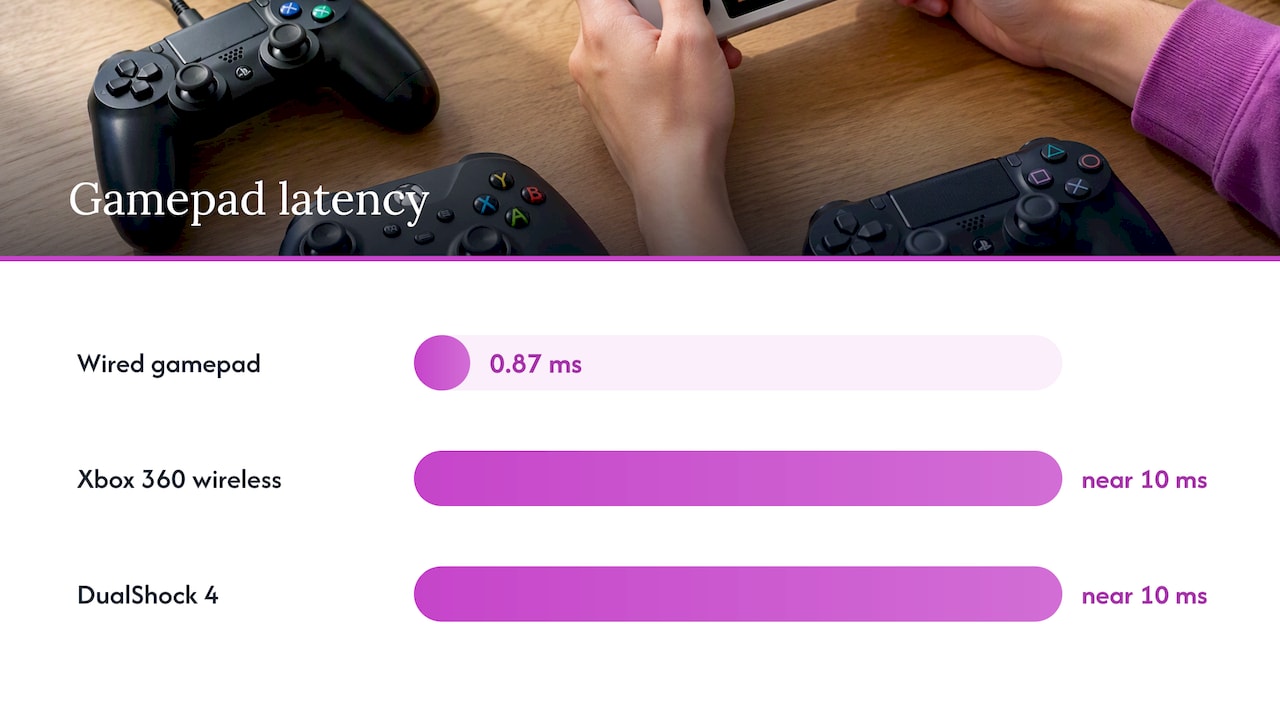
2. The emulator
Emulation has a reputation for lag that it does not entirely deserve. The Libretro team, who build RetroArch, say the software is capable of next-frame response, with almost no perceivable difference from real hardware, FPGA clones or originals. Treat that as an optimization problem, not a law of nature.
Three settings do most of the work:
- Run-ahead. The emulator calculates upcoming frames in the background so the delay a game had built in is cancelled out. According to the run-ahead guide, this can sometimes get you below the original system’s latency. It costs processing power, so it works best on lighter systems like NES, SNES, Genesis and Game Boy, and is harder to use on heavier ones.
- Frame delay. This holds back the emulator’s work until just before the screen refreshes, so your input is read as late as possible.
- Video sync and buffering. Turning off extra buffering shaves frames. Heavy sync options can add one or two.
Not every handheld exposes these options, and not every core supports run-ahead. Check what your device offers before you chase a setting that is not there.
3. The video pipeline
Between the emulator and the panel sits the video driver. If it buffers frames to keep the picture tear-free, each buffered frame adds roughly 16.7ms at 60Hz. Wireless controllers and video buffering are usually the two biggest contributors, and both can be fixed. Scaling matters here as well: a clean integer or 4:3 scale costs less than aggressive filtering, and it looks better on old games. See our piece on why 4:3 scaling beats diagonal size for the display side of that story.
4. The screen
The panel is the last link, and it is the one you cannot change with a menu. A 60Hz display waits up to 16.7ms for its next refresh. At 120Hz that window drops to 8.3ms, and at 240Hz to 4.2ms, as the Libretro latency guide lays out.
Two caveats keep this in perspective:
- Higher refresh does not fix lag that comes from the emulator, rendering or the game’s own logic. The same guide stresses that those must be optimized too.
- Retro games were designed for 60 frames per second. A 120Hz panel helps with the refresh wait, but you will not see 120 FPS from a 16-bit game. Research published by LG Display found that higher refresh rates improve performance and the feeling of control in modern gaming, which is a different situation from a 60 FPS retro library.
So a 60Hz IPS panel is a perfectly reasonable choice for retro play. What matters more is the rest of the chain.
A quick reference table
| Link in the chain | Typical contribution | Your best fix |
|---|---|---|
| Wireless pad (Bluetooth) | Variable, often several ms | Use built-in controls or a wired pad |
| Wired USB or built-in buttons | About 1ms polling | Nothing to fix |
| Emulator | 0 to 3+ frames, depending on the game | Run-ahead, frame delay where available |
| Video buffering | About 16.7ms per buffered frame at 60Hz | Turn off extra buffering and heavy sync |
| 60Hz panel | Up to 16.7ms wait | Accept it, or choose a higher-refresh screen |
| TV picture processing | 40 to 70ms in some cases | Turn on Game Mode |
The frame figures come from the 60Hz math in the sources above. The TV figure comes from the Libretro TV guide discussion. Your own numbers will differ by device and game.
If you play on a TV, start there
Docking a handheld to a television is where lag most often balloons. Most TVs ship in picture modes like “Standard” or “Eco” that are not intended for gaming and add screen latency. Those modes run heavy image processing and upscaling, and the delay can be far larger than anything in the emulator’s own settings.
The fix takes two minutes:
- Open your TV’s picture settings.
- Select Game Mode, or the game-specific picture preset your TV offers.
- Turn off extra features such as motion smoothing and noise reduction if they are still enabled.
- Use a wired pad, or the handheld’s own controls if it is in reach.
If a game feels fine on the handheld screen and sluggish on the TV, the TV is almost certainly the cause.
How to measure your own lag
Guessing is how people end up chasing the wrong setting. A smartphone with slow-motion video gives you a real number.
- Set your phone to film at 240 FPS or higher.
- Frame the shot so you can see both your thumb on the button and the screen.
- Press a button that triggers an obvious on-screen change, like a jump.
- Step through the video frame by frame. Count the frames from the first sign of the button press to the first sign of the reaction.
- Divide by the filming rate. As an example from TestMyGamePad, 12 frames at 240 FPS equals 50ms of total system latency.
That figure includes the controller, emulator and display together, which is exactly what you feel. Repeat it five or six times and average the results, because single presses vary. Then change one setting at a time and film again. The slow-motion phone method is popular precisely because it measures from outside the system.
One warning: a browser-based gamepad tester can only measure the controller’s share, not the physical press or the display, as this controller latency guide points out. It is useful for polling rate, not for the full picture.
What counts as too much lag?
There is no universal cutoff. Perception is subjective, and it depends on the game. A turn-based RPG forgives 100ms. A tight platformer or a run-and-gun arcade game does not. A useful rule: the faster the game demands reactions, the more each frame matters. Aim to remove frames you can remove for free, such as buffering and TV processing, before you worry about the last few milliseconds.
Our perspective: why we built around the full chain
We see input lag the way a repair tech sees a noisy engine: you have to find which part is the problem, not replace everything. When we put the Retro Pulse together, we looked at the pieces a player actually touches. It has a real D-pad, twin sticks and L/R triggers wired to the device, so there is no wireless link between your thumb and the game. It has a 3.5" IPS display, and it plays offline, so nothing is streaming or buffering over a connection while you play.
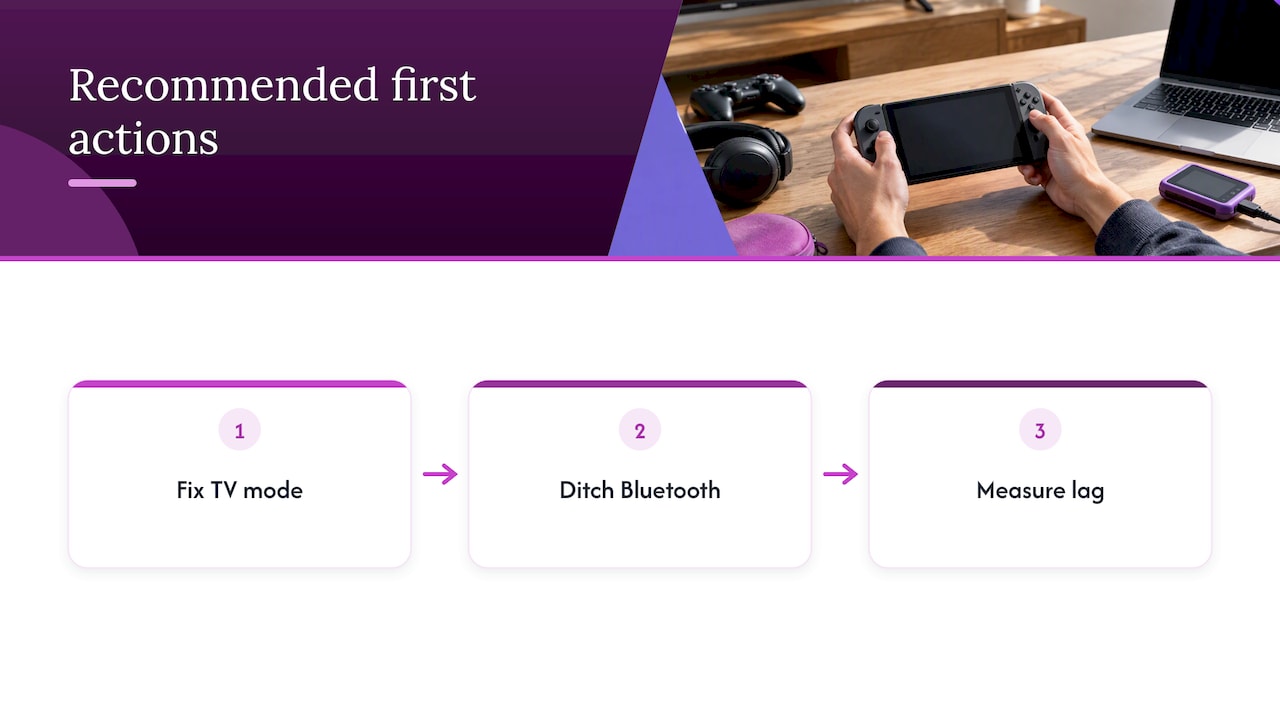
We also think the honest answer is that no handheld is lag-free, and we will not tell you otherwise. What we can say is that you should not have to spend an evening in menus to get a game that feels right. The library is curated and ready to play, and with 15,000 games across more than 20 systems, you can spend your time playing, not tuning. If you want to check lag yourself, the phone test above works on any device, ours included. We would rather you measure than take our word for it.
The single biggest piece of advice we give friends: before you buy a faster screen or a new pad, fix the TV mode, ditch the Bluetooth link, and then measure.
— Sean
Where the Retro Pulse fits
If you want a retro handheld that is ready out of the box, the Retro Pulse comes preloaded with 15,000 games from over 20 systems, including NES, SNES, Genesis, PS1, N64, Game Boy, GBA and Arcade. It has a removable battery rated for 6 to 8 hours, USB-C charging and dual microSD slots for adding games. It ships from a U.S. warehouse, with a one-year warranty and 30-day returns.
If you are weighing it against playing on a phone, our comparison of phone emulation versus a dedicated handheld goes into touch controls and the lag they bring. Screen too dim in daylight? The brightness fix guide walks through it.
Practical fixes, in order of effort
Start at the top. Each step costs less than the one below it and usually pays back more.
- Drop the wireless link. Use the handheld’s own controls or a wired pad.
- Set the TV to Game Mode if you play docked.
- Turn off video buffering and heavy sync in the emulator settings, if your device exposes them.
- Try run-ahead on lighter systems, one frame at a time. Raise it only until the game’s built-in lag is gone. Too many frames can cause visual glitches.
- Match the game to the system. Heavier systems may not have the headroom for run-ahead. Accept a frame or two there.
- Measure again with your phone and keep what actually helped.
For arcade games, where timing is everything, see our note on arcade emulation on handhelds. If you are choosing between emulation and the original hardware, our comparison of the two is a good place to continue.
FAQ
Do emulators have input delay?
Any emulator adds some processing time, but it is not necessarily more than the original console. The Libretro team says RetroArch can respond on the next frame, close to real hardware. Many original games also had built-in lag that run-ahead can remove.
Does a higher refresh rate reduce input lag?
It reduces the display’s wait: up to 16.7ms at 60Hz, 8.3ms at 120Hz and 4.2ms at 240Hz, according to the Libretro latency guide. It does not remove lag from the emulator or the game’s own logic. Retro games also run at 60 FPS, so the gain is smaller than in modern titles.
Is 100ms input delay bad?
For fast games, yes, you will likely feel it. Perception is subjective, but 100ms is roughly six frames at 60 FPS, far more than a well-tuned setup should need. Slower games like turn-based RPGs tolerate it far better.
How can I reduce input lag in RetroArch?
Turn on run-ahead, use frame delay, and disable unnecessary video buffering and VSync, which the Libretro run-ahead guide lists among the most effective tools. Then switch to a wired controller or built-in controls. Measure with a 240 FPS phone video before and after, so you know what helped.
Sources
- Latency, Libretro Docs
- Run Ahead, Libretro Docs
- TV, Libretro Docs
- How to Fix Input Lag in Emulation on Retro Handhelds, Held Games
- Controller Input Lag: How to Test It and Cut the Latency, JoyCheck
- Latency Measurements, Physical-Digital Affordances Group, University of Regensburg
- TestMyGamePad
- Quick hack for measuring latency, Philip Rosedale
- LG Display on refresh rate and real gaming performance
Recommended
]]>To improve handheld battery life, work on two separate things: how long a single charge lasts today, and how many years the battery keeps its capacity. Lower screen brightness, cut wireless radios you don’t need and pick lighter games to stretch one session. Avoid heat, deep discharges and sitting at 100% to protect the cell for the long run. Both are covered below, with the safety limits that matter if you ever open a device.
TL;DR
- Screen brightness and wireless connections are the fastest wins for a single session. Apple’s battery guidance names both.
- For long-term health, keep the charge roughly between 20% and 80% when you can, and avoid draining to 0%.
- Heat is the main enemy. Don’t charge or leave a handheld in a hot car, on a sunny dashboard or under a pillow.
- Storing a handheld for months? Leave it at about 50% and top it up every six months.
- A swollen, hissing or crackling battery means stop using the device now. Don’t try to reuse a removed cell.
Table of Contents
- Two goals that get mixed up: runtime and lifespan
- Fixes that extend a single charge
- Fixes that protect the battery for years
- Safety: when the battery is the problem
- Common questions about draining and “restoring” a battery
- A quick routine you can follow
- Perspective: what we see at Retro Ports
- How the Retro Pulse handles battery life
- When another type of device makes sense
- FAQ
- Sources
Two goals that get mixed up: runtime and lifespan
Most advice online blends two different problems. Runtime is how many hours you get from a full charge. Lifespan is how many months or years before that full charge turns into noticeably less.
Runtime depends on what the device is doing: how bright the screen is, how hard the processor works, whether Wi-Fi or Bluetooth are active. Lifespan depends on how the battery is treated: temperature, depth of discharge, charging speed and storage.
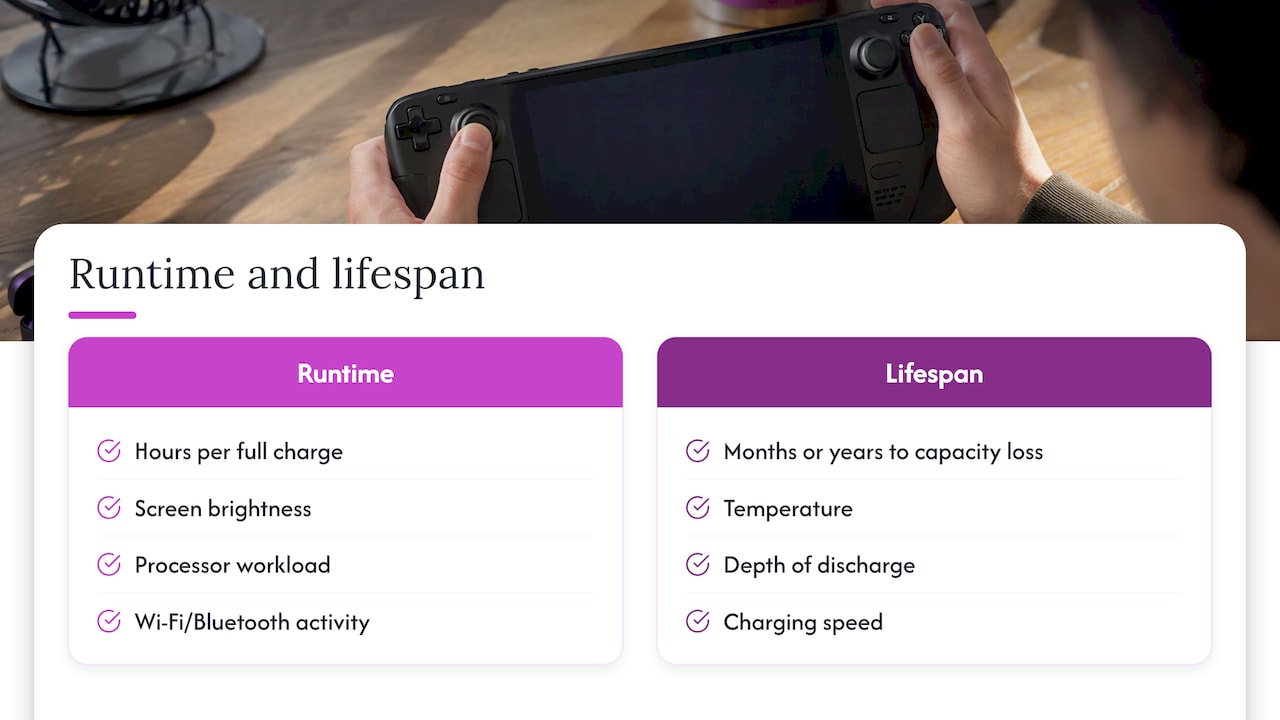
You can win on one and lose on the other. Running at maximum brightness with a power-hungry game drains you fast, but it doesn’t damage the battery by itself. Parking a fully charged handheld in a hot car does nothing to your session today, yet it can quietly cost you capacity for good. The fixes below are sorted accordingly.
Fixes that extend a single charge
1. Turn the screen down first
The display is usually the largest single drain on a handheld. Apple’s battery guidance lists dimming the screen or turning on auto-brightness as one of two simple ways to preserve battery life, no matter how you use a device.
You don’t need to play in the dark. Try dropping brightness one notch below where you normally leave it, play for a few minutes, and only go back up if you actually strain to see. On a small 3.5-inch IPS screen, indoor brightness at a middle setting is usually plenty, because the pixels are packed tightly and the image stays crisp. If your screen looks dim even at high settings, that is a different problem, and our six-step brightness fix for retro handhelds walks through menus and hardware causes.
2. Cut radios you aren’t using
The second tip in Apple’s guidance is Wi-Fi: a device that keeps searching for or maintaining a connection spends power doing it. If you’re playing a game stored on the device, there is nothing to download and nothing to sync. Switch Wi-Fi and Bluetooth off, or use airplane mode where the device offers it.
This is one reason an offline-first design pays off. A handheld whose games live on a memory card never needs a connection to run them. Cloud-streamed or online-dependent games keep the radio busy the entire session.
3. Mute or lower the volume, or use wired headphones
Speakers draw power, and louder means more. For long trips, headphones at moderate volume use less than pushing the built-in speaker to its limit. The saving is smaller than brightness, but over a four-hour train ride it adds up. Wired headphones also remove the extra drain of a Bluetooth link.
4. Pick games that match the hardware’s effort
Handheld PCs and modern consoles drain fast because they push demanding graphics. The manufacturer guidance for PC handhelds, for instance AYANEO’s, points to lower graphics presets and lighter titles as a way to stretch runtime. Retro systems sit at the opposite end: an 8-bit or 16-bit game asks very little of the processor, so the screen and speaker dominate the power budget rather than the chip.
If you’re deciding between devices for travel, this is worth weighing. A handheld running NES, SNES, Genesis or Game Boy titles will last far longer per charge than one running a recent 3D game. Heavier systems such as N64 and PS1 titles sit in between. For a comparison with a mainstream console on cost and play style, see our Switch versus retro handheld breakdown.
5. Skip features you don’t need
Rumble, always-on lighting, high-refresh or boost modes and background apps all take a share. Reports from Switch 2 owner tests covered by Wccftech put the cost of one performance boost mode at roughly 25% of battery life when it was turned on. The exact figure will vary by game and device, but the pattern is consistent: any mode that raises performance raises drain. If a setting says boost, turbo or max performance, treat it as a trade you make deliberately.
6. Carry a spare, if your device allows it
The most direct way to double a day’s play is to swap in a second battery. Most handhelds sealed with adhesive can’t do this at all. A removable battery turns a dead device into a ten-second fix. It also means the cell can be replaced when it ages, instead of the whole console. More on that in the Retro Pulse section below.
Fixes that protect the battery for years
7. Keep the charge between 20% and 80% when practical
Consumer Reports reports that lithium-ion batteries last longer when the charge level stays between roughly 20% and 80%, and that repeatedly charging to 100% or running to 0% adds stress to the chemistry. That is the answer to the common question about the “20/80 rule” for batteries.
You don’t need to follow it religiously. Charge to 100% before a long flight, and don’t fret about a single full cycle. The idea is to make shallow top-ups your default and treat 0% as an emergency, not a routine.
8. Avoid deep discharges
Apple explains that battery health is counted in charge cycles, where one cycle equals using 100% of capacity, not necessarily in one sitting. Capacity falls slowly as cycles accumulate. The same guidance notes that draining to very low levels does more harm than the plain cycle count. Apple’s explanation of lithium-ion batteries is the clearest short read on this.
Practical version: plug in at 20% to 30%, not at 2%. If you play in short bursts, that is easy. Two 30-minute sessions with a top-up between them are gentler than one marathon that ends in a shutdown.
9. Keep it cool, and never charge it hot or frozen
Heat does more lasting damage than any other everyday factor. Apple says to avoid exposing devices to temperatures above 95°F (35°C), and its guidance puts the ideal comfort zone at 62° to 72°F (16° to 22°C). Nintendo’s charging guidance tells owners to charge in an environment between 5 and 35°C, which is 41 to 95°F.
In practice:
- Don’t leave a handheld in a parked car in summer, or on a dashboard.
- Take it out of a thick case or off a blanket while charging.
- If it is warm to the touch after a long session, let it cool before plugging in.
- In winter, let a device that spent time in a cold bag come up to room temperature before charging. Cold causes temporary power drops, and charging a cold cell can cause lasting damage.
If your handheld runs hot during play itself, read our guide to retro handheld overheating and battery risks for six safe fixes.
10. Use a good charger, and be careful with fast charging
Fast charging is convenient, but Consumer Reports notes it can produce more heat, and heat is what wears out lithium-ion cells. The same source advises against cheap, non-certified aftermarket chargers, which may not work properly with the device’s battery management system and can cause overheating or other safety problems.
A sensible habit: use the cable and adapter that came with the device or a reputable, certified charger of the right rating. Save the fastest charging for when you really need it. An overnight slow charge is gentler than a rapid one, though you still shouldn’t leave the device buried under bedding.
11. Store it properly
If a handheld is going in a drawer for months, don’t leave it full or empty. Nintendo’s guidance says to charge at least once every six months, because a console left uncharged for a long period can reach a state of over-discharge and may no longer charge properly. A stored battery at about 50% and checked twice a year is the safe routine. Consumer Reports-cited manufacturer advice similarly favors storing batteries at partial charge instead of full.
This matters for gift buyers too. A console bought in October and tucked away until December should be taken out and checked, not left at zero in its box.
12. Replace the battery when it’s actually worn
If a device that used to last hours now dies quickly even after cool, careful use, the cell has probably aged. Replacing it is often cheaper than a new console, but the procedure has real hazards, covered next.
Safety: when the battery is the problem
Most battery advice is about convenience. This part is about safety.
Warning signs. UL’s guidance on lithium-ion safety treats swelling, hissing or crackling sounds as critical warnings. A swollen battery indicates internal gas buildup and a risk of fire. If you see a bulging back cover, a screen lifting from the case or a gap that wasn’t there before, stop using and charging the device. Take it to a retailer, manufacturer support or a local battery recycling drop-off. Don’t puncture, press on or squeeze it.
Replacing a sealed battery. iFixit’s Steam Deck battery replacement guide tells you to let the device discharge fully before starting, because a charged lithium-ion polymer cell is dangerous if punctured while you pry it from its adhesive. The same guide’s advice is to treat a removed battery as damaged and fit a new one rather than reuse it. If you aren’t comfortable with that, use a professional repair service.
Calibrating after a swap. iFixit’s PSP battery page describes a calibration routine for a new cell: charge to 100% and keep charging for at least two more hours, run the device until it shuts off on its own, then charge uninterrupted back to 100%. Do this once, so the battery meter reflects the real capacity. It isn’t something to repeat monthly, since it includes a full discharge.
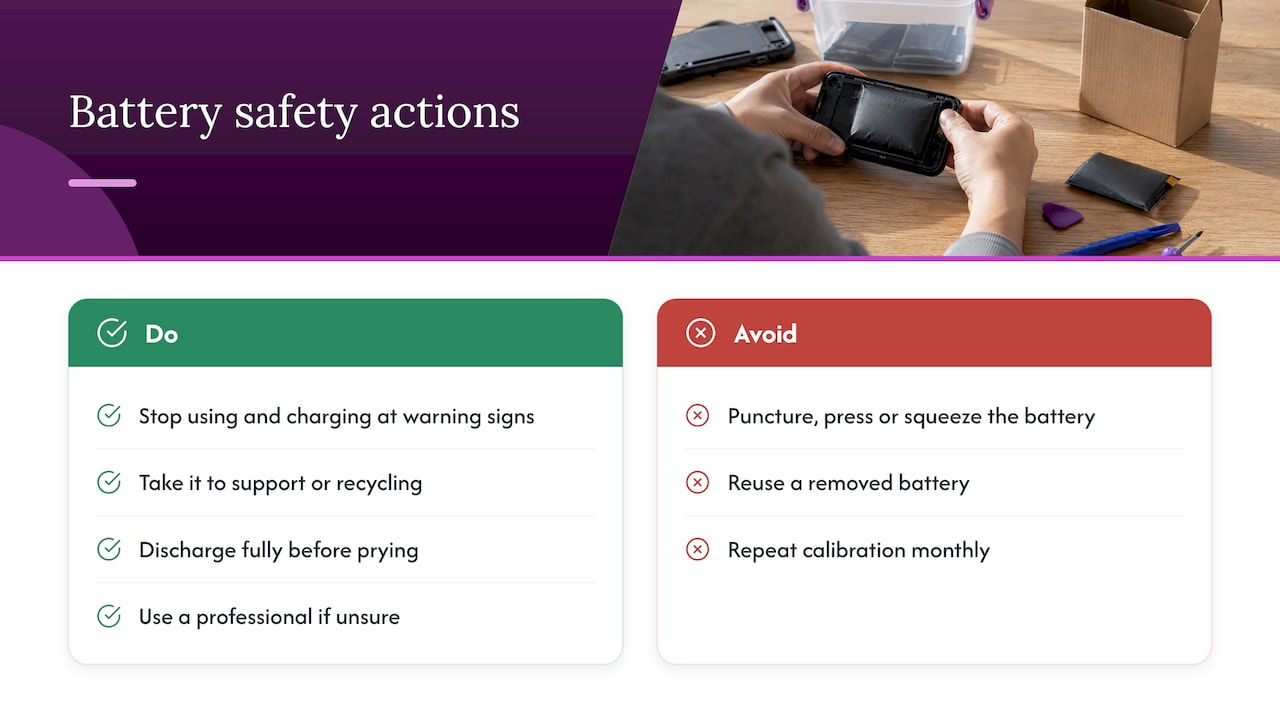
Common questions about draining and “restoring” a battery
Two of the questions people type most are how to make 20% or 30% last all day and how to get a battery “back to 100%.” The honest answers:
- Making a low charge last: use the runtime fixes above. Brightness down, radios off, volume low and a lighter game will do more than any hidden trick.
- Restoring lost capacity: you can’t. Capacity loss from age is chemical. Recalibration can fix an inaccurate percentage readout, but it can’t add capacity back. If the runtime is truly gone, the cell needs replacing.
A quick routine you can follow
- Before you play: set brightness to the lowest comfortable level and switch off Wi-Fi and Bluetooth.
- Choose games to match the trip. Save the demanding ones for when you’re near an outlet.
- During play: stay out of direct sun and heat. Don’t cover the vents or grip area with a thick case.
- After play: plug in around 20% to 30% if you can, and unplug when you reach a healthy level rather than leaving it for hours at full.
- Monthly: glance at the case for swelling or gaps.
- Before storage: aim for about 50% and set a six-month reminder.
Perspective: what we see at Retro Ports
We build our advice from how people actually use a retro handheld: on a commute, on the couch, in the back seat on a road trip. Most of them don’t want a lecture on chemistry. They want to know how long it lasts and what not to do.
Here is where we land. First, game choice matters more than people expect. Classic 8-bit and 16-bit games ask little of a processor, so a handheld built for retro play can run far longer per charge than hardware built for modern 3D titles. Second, a removable battery changes the whole equation. When a cell ages, you replace the cell instead of the device, and on a long trip you can carry a spare. That is why the Retro Pulse uses one. Third, offline-first design helps with both runtime and focus: no downloads, no subscriptions, no background syncing, and no reason to leave a radio running.
And a plain caution: no setting makes a worn battery new again. Care for it and swap it when it’s done, with the safety steps above.
— Sean
How the Retro Pulse handles battery life
The Retro Pulse is our handheld, preloaded with 15,000 classic games from over 20 systems, including NES, SNES, Genesis, PS1, N64, Game Boy, GBA and arcade. For battery life, the points that matter are these:
- A removable battery, rated at 6 to 8 hours of play.
- USB-C charging, so a common cable and a certified charger do the job.
- A 3.5-inch IPS display, where a moderate brightness setting is usually enough.
- Offline-first operation, so there is no need for Wi-Fi during play.
- Dual microSD slots for adding games, which means you can keep everything on the device without streaming.
- A one-year warranty and 30-day returns, shipped from a U.S. warehouse.
The 6 to 8 hour figure is a range, and your result will depend on brightness, volume and the system you’re emulating. Following the routine above keeps you toward the top of it.
If you want to see the console for yourself, the Retro Pulse product page has the current details. If you’re buying for someone else, our retro gaming gift ideas guide covers how to match a gift to the person, and our guide on sharing retro games with kids is useful for parents who want less setup and more play.
When another type of device makes sense
Be realistic about what you need. A phone running an emulator is free to try, but it spends your phone’s battery, and a long gaming session can leave you short of power for calls and maps. We compare that trade in phone emulation versus a dedicated handheld. A full-power handheld PC gives you modern games, with the shorter battery life that comes with them. A dedicated retro handheld is the long-lasting, low-fuss choice for classic libraries.
FAQ
What is the 20/80 rule for batteries?
It means keeping a lithium-ion battery between about 20% and 80% charge when you can. Consumer Reports notes that repeated charges to 100% or drains to 0% stress the battery chemistry. It’s a habit, not a hard rule, so charge fully when you need a long session.
How do I make a low battery last longer on a handheld?
Lower the brightness, turn off Wi-Fi and Bluetooth, drop the volume and pick a less demanding game. Avoid any boost or performance mode. These changes help far more than closing menus or other small tweaks.
Can I get my battery back to 100% health?
No. Aging reduces capacity permanently. Calibration only corrects a wrong percentage reading on a new or replaced battery. If runtime has dropped sharply, the fix is a new battery, fitted with the safety steps in the iFixit guides.
Is it bad to leave my handheld plugged in overnight?
Occasionally it’s fine, since devices manage charging, but long periods at 100% and warm conditions both wear a battery faster. Use a certified charger, keep the device uncovered and cool, and unplug when you can. If the case feels hot or looks swollen, unplug it and stop using it.
How should I store a handheld I won’t use for months?
Charge it to about 50%, keep it somewhere cool and dry, and top it up every six months. Nintendo’s support page warns that a console left uncharged for a long time may enter over-discharge and stop charging properly.
Sources
- How to Keep Your Phone and Other Tech Gear Charged, Consumer Reports
- Maximizing Battery Life and Lifespan, Apple
- Lithium-ion batteries, Apple
- Charging the Console, Nintendo Switch 2 Support
- Safety guidelines for large lithium-ion battery systems, UL
- Steam Deck Battery Replacement, iFixit
- Sony PSP 1000 Battery, iFixit
- Switch 2 Handheld Mode Boost and battery life, Wccftech