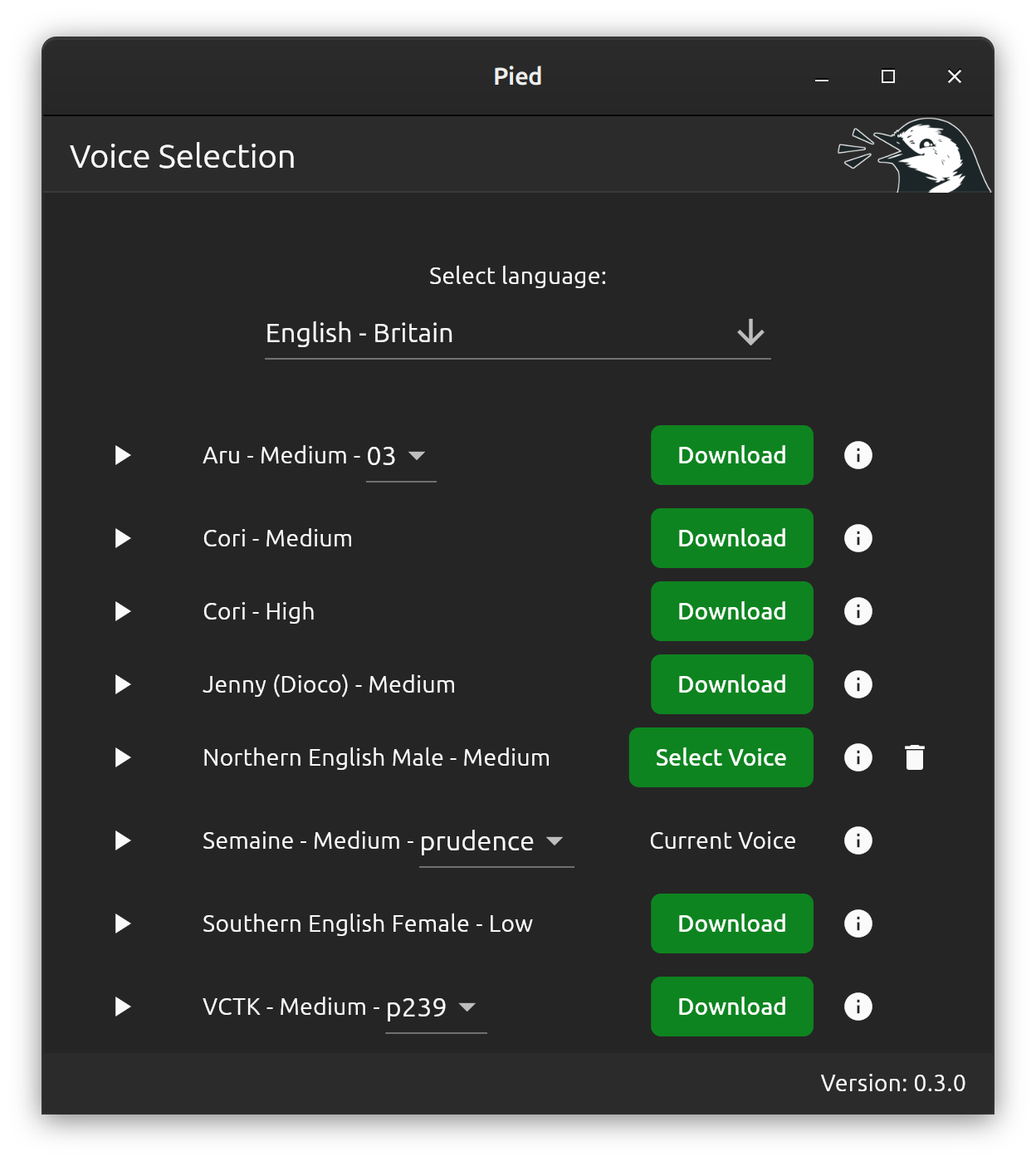
This release adds support for models with multiple sub-voices, providing access to hundreds of new voices. It also adds different qualities of model, fixes previews whilst downloading and fixes audio output detection when using sox.
It’s available in the Snap Store or as a FlatPak
]]>The first beta version is now available in the snap store:

(Other package formats will follow)
I’d appreciate any feedback if you’re able to test it, thanks!
]]>Example
The following video demonstrates a typical Flutter AlertDialog with the Orca screen reader enabled. When the ‘Launch inaccessible alert’ button is pressed an alert dialog appears, but the screen reader is unable to read its contents. The ‘Launch accessible alert’ button is then pressed and an accessible alert dialog is demonstrated, with the screen reader successfully reading the contents of the dialog.
The example application used in the video can be found in the accessible_alert_example GitHub repository.
Creating a standard alert dialog
The following code will create a normal Flutter AlertDialog as recommended in the official Flutter documentation. Unfortunately this doesn’t work correctly for screen reader users:
showDialog(
  context: context,
  builder: (context) => AlertDialog(
    actions: [
      TextButton(
        onPressed: () {
          Navigator.pop(context);
        },
      child: const Text('Close Alert'),
      )
    ],
    content: Text(
      'This text is invisible to screen readers. There is no indication that this dialog has even appeared.'
    ),
  )
);
Creating an accessible alert dialog
By making a few small changes to the above code we can make it work correctly with screen readers. First we wrap the AlertDialog in a Semantics widget. This allows us to attach a screen reader friendly label to the AlertDialog. The Semantics label text should be the same as the text displayed in the AlertDialog. Finally, to have this text read as soon as the alert is triggered, we enable autofocus on the TextButton:
showDialog(
  context: context,
  builder: (context) => Semantics(
    label: 'This text will be read by a screen reader. It is clear to the user that something has happened.',
    enabled: true,
    container: true,
    child: AlertDialog(
      actions: [
        TextButton(
          autofocus: true,
          onPressed: () {
            Navigator.pop(context);
          },
          child: const Text('Close Alert'),
        )
      ],
      content: Text(
        'This text will be read by a screen reader. It is clear to the user that something has happened.'
      ),
    )
  )
);
]]>First we’ll create a simple application that attempts to display a few emoji:
import 'package:flutter/material.dart';
void main() {
runApp(EmojiApp());
}
class EmojiApp extends StatelessWidget {
@override
Widget build(BuildContext context) {
return MaterialApp(
title: 'Emoji Demo',
theme: ThemeData(
primarySwatch: Colors.blue,
visualDensity: VisualDensity.adaptivePlatformDensity,
),
home: EmojiHomePage(title: '🹠Emoji Demo ðŸ¹'),
);
}
}
class EmojiHomePage extends StatefulWidget {
EmojiHomePage({Key key, this.title}) : super(key: key);
final String title;
@override
_EmojiHomePageState createState() => _EmojiHomePageState();
}
class _EmojiHomePageState extends State {
@override
Widget build(BuildContext context) {
return Scaffold(
appBar: AppBar(
title: Text(
widget.title,
),
),
body: Center(
child: Text(
'🶠🈠ðŸ‡',
),
),
);
}
}
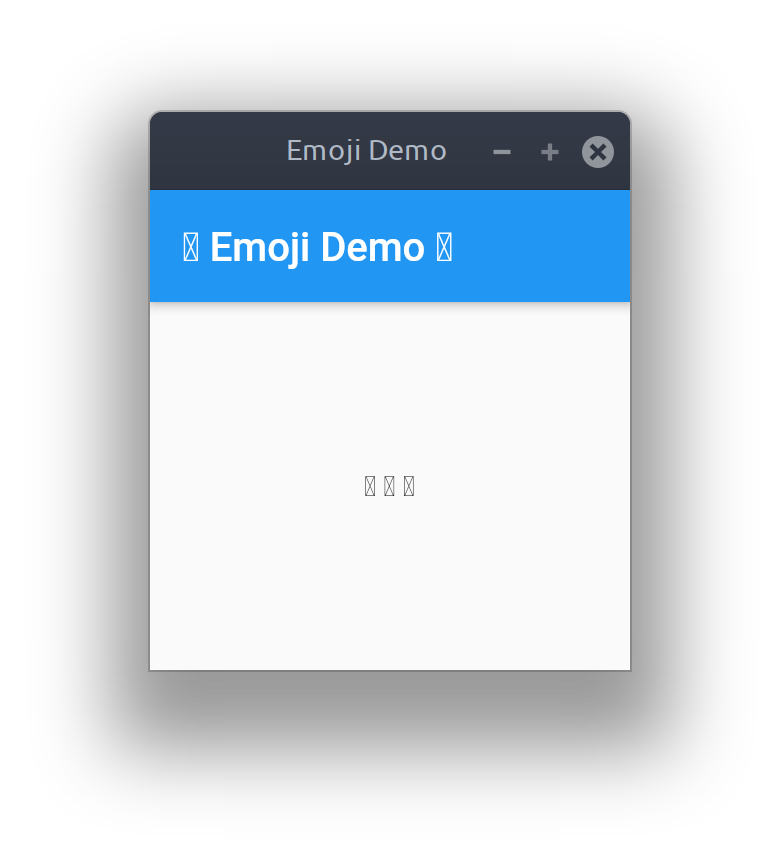
However, when we run it we find that our emoji characters aren’t rendering correctly:
For Flutter to be able to display colour fonts we need to explicitly bundle them with our application. We can do this by saving the emoji font we wish to use to our project directory, to keep things organised I’ve created a sub-directory called ‘fonts’ for this. Then we need to edit our ‘pubspec.yaml’ to include information about this font file:
name: emojiexample
description: An example of displaying emoji in Flutter apps
publish_to: 'none'
version: 1.0.0+1
environment:
  sdk: ">=2.7.0 <3.0.0"

dependencies:
  flutter:
    sdk: flutter

dev_dependencies:
  flutter_test:
    sdk: flutter

flutter:
  uses-material-design: true
  fonts:
     - family: EmojiOne
       fonts:
         - asset: fonts/emojione-android.ttf
I’m using the original EmojiOne font, which was released by Ranks.com under the Creative Commons Attribution 4.0 License.
Finally, we need to update our application code to specify the font family to use when rendering text:
class _EmojiHomePageState extends State{ @override Widget build(BuildContext context) { return Scaffold( appBar: AppBar( title: Text( widget.title, style: TextStyle(fontFamily: 'EmojiOne'), ), ), body: Center( child: Text( '🶠🈠ðŸ‡', style: TextStyle(fontFamily: 'EmojiOne', fontSize: 32), ), ), ); } }
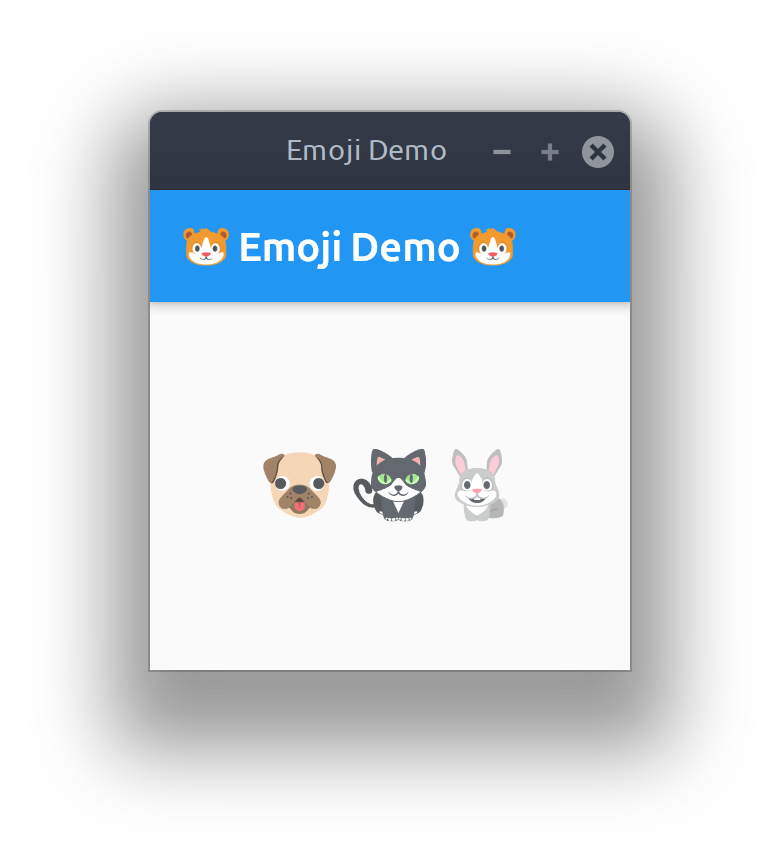
Now when we run our app our emoji are all rendered as expected:
The full source code for this example can be found here: https://github.com/Elleo/flutter-emojiexample
]]>When the OSM plugin is initialised it communicates with the Qt providers repository which tells it what URLs to use for each map type. The location of the providers repository can be customised through the osm.mapping.providersrepository.address OSM plugin property, so all we need to do to use our API key is to set up our own providers repository with URLs that include our API key as a parameter. The repository itself is just a collection of JSON files, with specific names (cycle, cycle-hires, hiking, hiking-hires, night-transit, night-transit-hires, satellite, street, street-hires, terrain, terrain-hires, transit, transit-hires) each corresponding to a map type. The *-hires files provide URLs for tiles at twice the normal resolution, for high DPI displays.
For example, this is the cycle file served by the default Qt providers repository:
{
    "UrlTemplate" : "http://a.tile.thunderforest.com/cycle/%z/%x/%y.png",
    "ImageFormat" : "png",
    "QImageFormat" : "Indexed8",
    "ID" : "thf-cycle",
    "MaximumZoomLevel" : 20,
    "MapCopyRight" : "<a href='http://www.thunderforest.com/'>Thunderforest</a>",
    "DataCopyRight" : "<a href='http://www.openstreetmap.org/copyright'>OpenStreetMap</a> contributors"
}
To provide an API key with our tile requests we can simply modify the UrlTemplate:
"UrlTemplate" : "http://a.tile.thunderforest.com/cycle/%z/%x/%y.png?apikey=YOUR_API_KEY",
Automatic repository setup
I’ve created a simple tool for setting up a complete repository using a custom API key here: https://github.com/Elleo/qt-osm-map-providers
- First obtain an API key from https://www.thunderforest.com/docs/apikeys/
- Next clone my repository:
git clone https://github.com/Elleo/qt-osm-map-providers.git - Run:
./set_api_keys.sh your_api_key(replacing your_api_key with the key you obtained in step 1) - Copy the files from this repository to your webserver (e.g. http://www.mywebsite.com/osm_repository)
- Set the osm.mapping.providersrepository.address property to point to the location setup in step 4 (see the QML example below)
QML Example
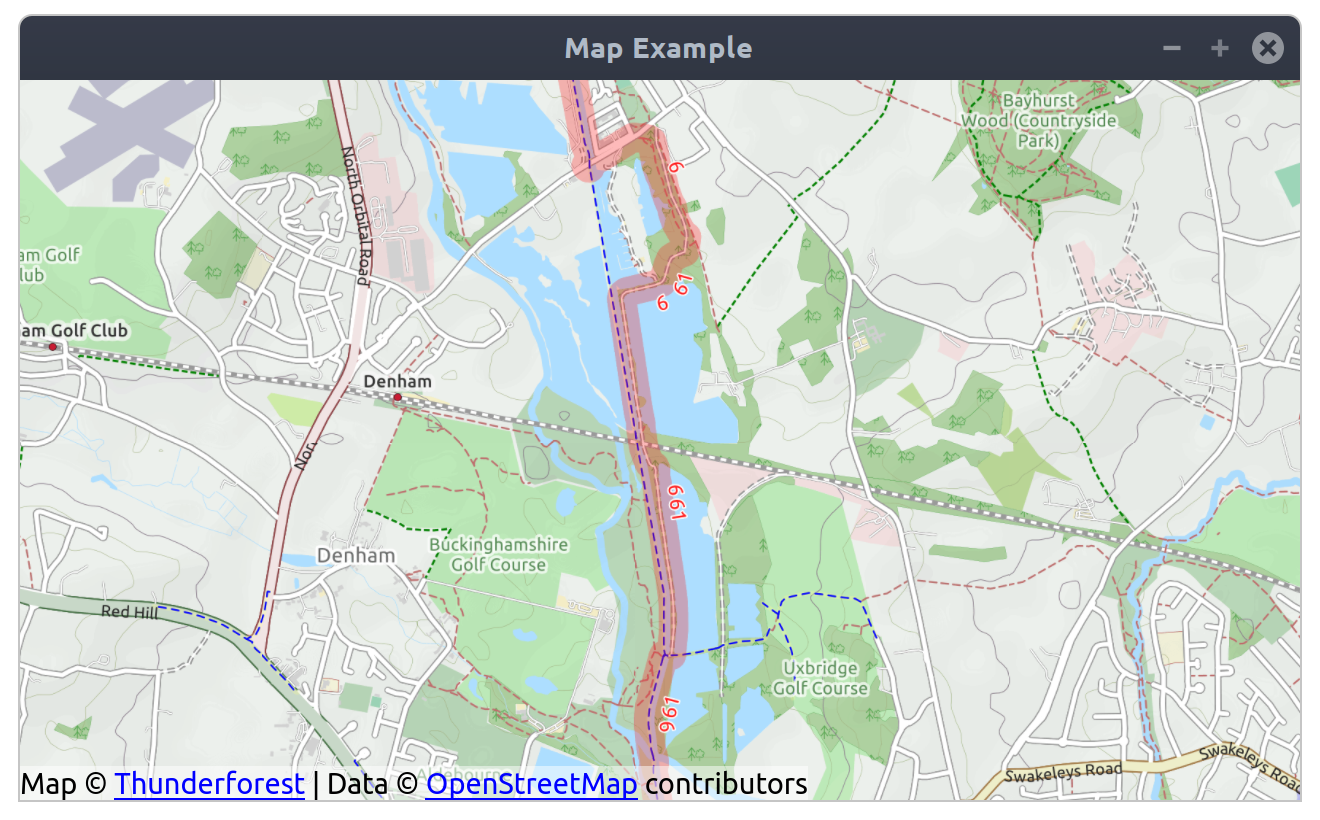
Here’s a quick example QML app that will make use of the custom repository we’ve set up:
import QtQuick 2.7
import QtQuick.Controls 2.5
import QtLocation 5.10

ApplicationWindow {

    title: qsTr("Map Example")
    width: 1280
    height: 720

    Map {
        anchors.fill: parent
        zoomLevel: 14
        plugin: Plugin {
            name: "osm"
            PluginParameter { name: "osm.mapping.providersrepository.address"; value: "http://www.mywebsite.com/osm_repository" }
            PluginParameter { name: "osm.mapping.highdpi_tiles"; value: true }
        }
        activeMapType: supportedMapTypes[1] // Cycle map provided by Thunderforest
    }

}
In an attempt to make it easier for application developers to start working with the DeepSpeech model I’ve developed a GStreamer plugin, an IBus plugin and created some PPAs. To demonstrate what’s possible here’s a video of the IBus plugin providing speech recognition to any application under Linux:
Video of DeepSpeech IBus Plugin
GStreamer DeepSpeech Plugin
I’ve created a GStreamer element which can be placed into an audio pipeline, it will then report any recognised speech via bus messages. It automatically segments audio based on configurable silence thresholds making it suitable for continuous dictation.
Here’s a couple of example pipelines using gst-launch.
To perform speech recognition on a file, printing all bus messages to the terminal:
gst-launch-1.0 -m filesrc location=/path/to/file.ogg ! decodebin ! audioconvert ! audiorate ! audioresample ! deepspeech ! fakesink
To perform speech recognition on audio recorded from the default system microphone, with changes to the silence thresholds:
gst-launch-1.0 -m pulsesrc ! audioconvert ! audiorate ! audioresample ! deepspeech silence-threshold=0.3 silence-length=20 ! fakesink
The source code is available here: https://github.com/Elleo/gst-deepspeech.
IBus Plugin
I’ve also created a proof of concept IBus plugin which allows speech recognition to be used as an input method for virtually any application. It uses the above GStreamer plugin to perform speech recognition and then commits the text to the currently focused input field whenever a bus message is received from the deepspeech element.
It’ll need a lot more work before it’s really useful, especially in terms of adding in various voice editing commands, but hopefully it’ll provide a useful starting point for something more complete.
The source code is available here: https://github.com/Elleo/ibus-deepspeech
PPAs
To make it extra easy to get started playing around with these projects I’ve also created a couple of PPAs for Ubuntu 17.10:
DeepSpeech PPA – This contains packages for libdeepspeech, libdeepspeech-dev, libtensorflow-cc and deepspeech-model (be warned, the model is around 1.3GB).
gst-deepspeech PPA – This contains packages for my GStreamer and IBus plugins (gstreamer1.0-deepspeech and ibus-deepspeech). Please note that you’ll also need the DeepSpeech PPA enabled to fulfil the dependencies of these packages.
I’d love to hear about any projects that find these plugins useful 
Deep Vision uses the implementation of convolutional neural networks provided by libccv to classify images. So it’ll try to figure out whatever is the principal object in an image your provide it with.
At the moment it just has a sample classification database from the ImageNet project, containing 1000 assorted items, however in the future I’d like to see specific classifiers for different tasks (e.g. a classifier trained purely on different plants, so when you’re out for a hike and you want to know what something is you can just point your phone at it and find out.)
Unlike something like Google Goggles it’s doing all the classification on the phone itself without needing to upload the image to any external services.
The video below provides a quick demo of it in action and you can also grab a click package here to play with it yourself: http://mikeasoft.com/~mike/com.mikeasoft.deepvision_0.1.3_armhf.click
Source code can be found at: https://launchpad.net/deepvision
It was just hacked together over the weekend, so it’s still a little rough in places but all the core functionality should work reasonably well :).
In preparation for this I’ve put together a simple template for getting started with QML and Box2D development for both desktop Ubuntu and Ubuntu Touch. It’s available in two flavours:
- Precompiled version – Includes QML Box2D already compiled for amd64 and armhf (when I have more time I’ll add i386 to this as well).
- Source version – Makes it easy to compile everything yourself on whatever architecture you’re interested in.
This means that if your game is going to be purely QML based you can just grab the precompiled version, and run “make click-packages” and have packages built for both desktop and mobile use at the same time.
The template comes populated with an example application (one of the standard QML Box2D demos), which is found in the “src/” directory; so you’ll be able to see something running straight out of the box, then when you’re ready you can just replace this with your own game.
In the future I also plan to extend these templates to provide example packaging for multiple different QML + Box2D compatible mobile platforms (Sailfish, MeeGo, Blackberry, Android, etc.)
If you’re interested in seeing an example of the sort of thing you can achieve fairly easily with QML and Box2D I’ve also uploaded a video of one of my current work in progress projects:
Splort! A QML and Box2D based mobile game
Overview
Rockwatch allows your N9 to communicate with a Pebble smart watch. It makes it possible to install and manage Pebble apps, upgrade your Pebble’s firmware, receive notifications of e-mails and SMS messages and control your music from your Pebble.
New features in version 1.3
- Support for incoming calls and caller ID.
- Fixes incorrect time offsets when setting the watch’s time from the phone.
Download
]]>Overview
CuteSpotify makes it possible to listen to your Spotify songs on Ubuntu Touch. It’s based on MeeSpot (a MeeGo Spotify client), which I’ve updated to make use of Qt5 and Ubuntu’s QML components. It’s still a little rough around the edges but most of the core functionality is in place now.
One particular problem to look out for is that because of the way Ubuntu Touch currently handles applications CuteSpotify has to be kept in the foreground and the phone has to be kept switched on for music to play (otherwise the application gets suspended). Approaches for handling applications that need to keep running are currently being debated, so hopefully that won’t be the case in future version of Ubuntu Touch.
As a temporary workaround, if your phone is in developer mode (achieved by connecting it up to the Ubuntu SDK) you can run “sudo service powerd stop” (default password is phablet) to stop the phone from going to sleep while you’re listening to music, then “sudo service powerd start” to resume normal power management when you’re done. (See popey’s comment for an alternative method).
Video
Installation
To install CuteSpotify on Ubuntu Touch simply search for “CuteSpotify” on your phone and it should appear.
Source
The source code for CuteSpotify can be found here: https://github.com/Elleo/cutespotify
]]>