It’s called “GO” and it’s basically just a Windows BAT file to simplify creating convenient bookmark LNK files for use on the command line (and from other places).
There are probably hundreds of different ways to “bookmark” folders and files from the command line so that you can quickly navigate back to or open them. This is just my take on the idea.
The TLDR;
Find the bat file in my github repo.
Be sure to grab SHORTCUT.EXE and put it on your path.
Then GO!
Getting this setup
First, you’ll need SHORTCUT.EXE on your path somewhere. The GO.BAT file uses it to read and write Windows LNK files, which is what it uses to store the bookmarks.
Get shortcut.exe here
GO uses the idea of a “repository” or Repo folder to store bookmarks. You can put that folder anywhere or use the default %USERPROFILE%\.go
If you want use a different folder, set the GO_REPO environment variable to the full path name you’d like to use. GO.BAT will automatically create the folder if it doesn’t exist.
Usage examples
GO -C bookmark {path|file}
create a bookmark using the given bookmark name. If you don’t provide a path or filename, GO simply bookmarks the current folder. If you provide a path, GO creates a bookmark for that path. If you provide a filename, GO creates a bookmark for that file.
GO -R bookmark
remove a previously defined bookmark
GO -L
list all defined bookmarks
GO bookmark
If the bookmark is a folder, change directory to that folder. If the bookmark is a file, GO will open the file using whatever is configured as the default application for that filetype.
GO -I bookmark
displays some information about the bookmark
GO -h
get a help screen for GO
Useful Side Notes
GO’s bookmarks are just standard Windows LNK shortcut files. As such, you can edit, create or delete them using Windows Explorer.
The GO repo should normally NOT be a part of your PATH. However, if you use an Application Launcher like PowerToys RUN or FlowLauncher, you can configure your launcher to include the GO repo folder in the list of folders to scan for executables. Doing that allows you to easily launch any of your GO bookmarks directly from your launcher of choice.
Note that in the case of using a launcher, GO.BAT itself doesn’t actually get used. The launcher would directly open the shortcut LNK file for the bookmark itself. This works really nicely because, for folders, the launcher will simply open Explorer with the bookmarked folder highlighted. For file bookmarks, the launcher will open the file in its associated editor.
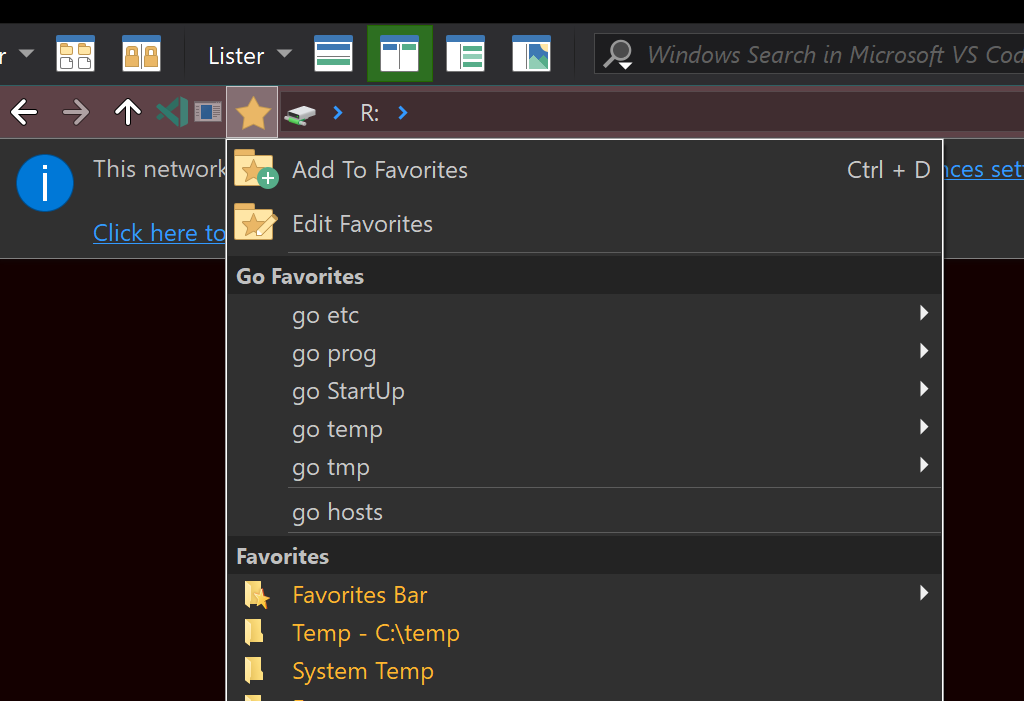
Also, since bookmarks are just LNK files, if you use a customizable file manager (I prefer the excellent Directory Opus), you can create a toolbar menu consisting of all the bookmarks in the GO REPO folder right within your file manager, making it equally convenient to use your bookmarks there as well.
Here’s an example in DirOpus:
Changing what to do with FILES
Line 124 is where GO uses the START command to open the selected bookmarked file in its associated application. Change that line so that instead of using START, you just call whatever editor you’d like.
Wrap Up
It’s nothing new, nothing earth shattering, but I’ve found it quite useful, esp when using the command line a lot.
Plus, the side effect of making those bookmarks immediately accessible from an App Launcher (FlowLauncher in my case), AND from my file manager (DirOpus is my poison), makes it that much more useful.
]]>However, coding on a laptop…sucks.
Tiny keyboard, tiny screen, trackpad, etc, etc.
So I could use a docking station, plug the laptop in there and then have a real keyboard, mouse, and multiple monitors. But then, if I want to check personal emails, or do a little side project for home automation, I’d have to unplug everything and plug it back into my desktop.
Instead, I just stick my laptop on a shelf, powered on, and Remote Desktop into it from my personal desktop. That way, I have my monitors, keyboard, mouse, etc. exactly the way I want, and they can all be used seamlessly when connected to my laptop.
When the office standardized on Zoom, this worked perfectly.
But then they decided to switch to Teams.
Trouble in Paradise
Most of the time, Teams works fine. It’s definitely not my favorite app, but it does the job.
Except when sharing my screen.
Every time I do that, my screen will share, but then suddenly, my mouse starts resetting to a 0,0 position about every second. With the mouse jumping all over the place, it becomes literally impossible to control, and inevitably, I end up having to request someone else on the call to share their screen momentarily to break my share and restore mouse control.
A colleague recommended a little app called RegionToShare. That kind of worked, but not consistently, and it was a pain to always have to load that before sharing anyway.
The Solution
I’d done a little research months ago but hadn’t turned up anything. On a lark, I tried again last night and turned up a post on a Microsoft Support forum.
Turns out, this is a known issue in one of the Updates that happens for Windows 10. I’m not sure if it affects Win11 or not.
Press Win+R and type gpedit.msc to open the local policy editor
Drill down through these nodes:
- Local Computer Policy
- Computer Configuration
- Administrative templates
- Windows Components
- Remote Desktop Services
- Remote Desktop Session Host
- Remote Session Environment
Find the entry called:
Use WDDM Graphics display driver for Remote Desktop Connections
and set its value to DISABLED.
That’s it.
]]>Over the years, it’s been extended, upgraded, and enhanced in a lot of different ways for a lot of different games.
Some time ago, I picked up a couple of these soft foam Psyclone Essentials Dance Pad controllers:
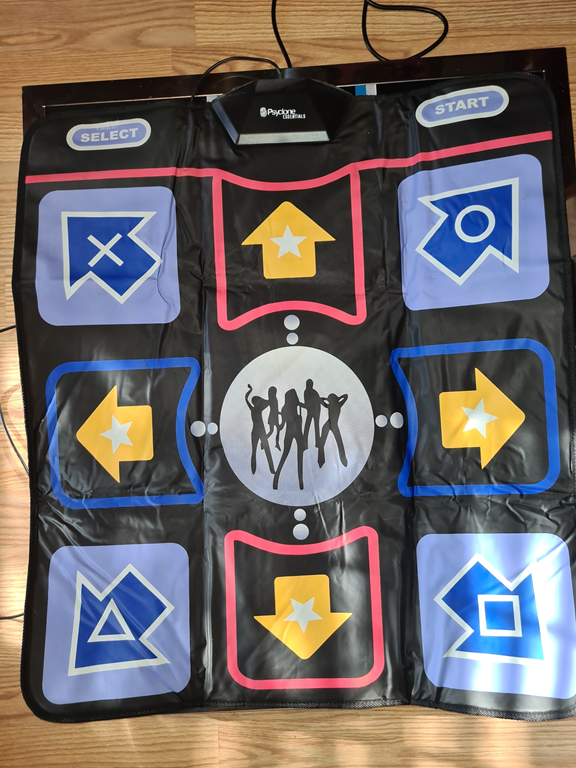
I couldn’t find the company anymore, so I doubt they’re still in business, but I did find a number of single and dual mat offering on on http://ebay.com so if you’re inclined, I’d head that way.
In my case, my intent was always to build my own actual pads and just use the controller boards from the Psyclone mats for the electrical bits.
Years go by
Well, one thing led to another, and we played the soft mats quite a bit but I never got the time to build up the hardcore Dance Dance Revolution arcade-style pads I’d intended on.
And then the dance game craze kind of faded, and my daughter moved off to college, etc, etc.
CraigsList strikes
And then one day recently, I stumbled upon a great deal on a Cobalt Flux dance pad on my local CraigsList.
It included a controller, and… drumroll… it worked flawlessly when I connected it up to the Arqadium!
Upgraded the copy of StepMania I had installed and pullled some newer tracks from the interwebs, and we were hooked again on DDR style gaming!
No Competition
But after all that, I was still missing the DDR style-competition side-by-side danceoffs on dual dance mats.
So I hit CraigsList again and within a few weeks turned up a DDRGame pad complete with a handlebar and PS2/USB controller hardware. Perfect!
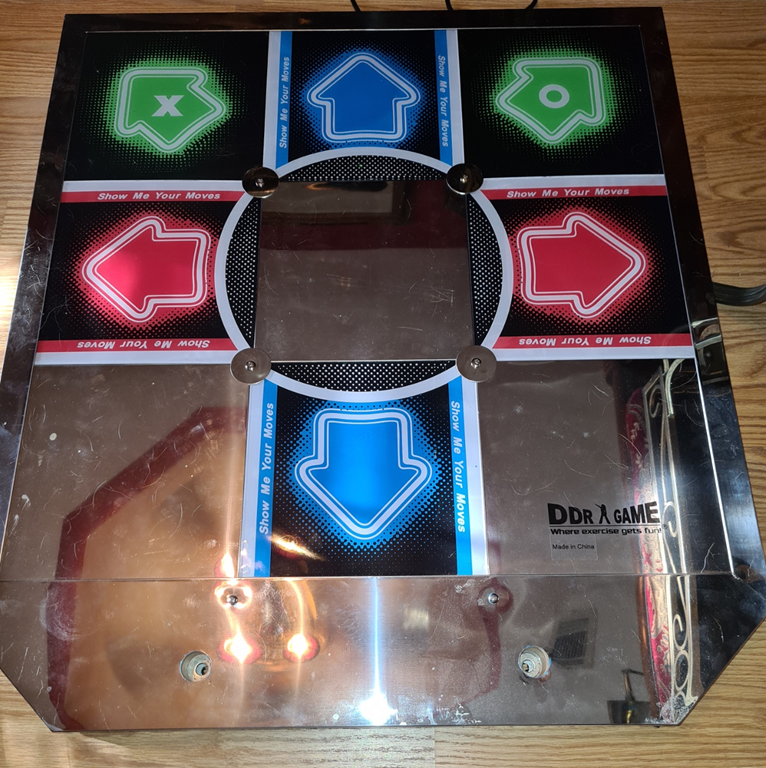
No so fast
Got it home, hooked it up and… Nothing. The Select and Start buttons on the actual controller box worked, but nothing on the pad. However, the LEDs did light up when I stepped on an arrow, so I knew it was at least connected and getting power.
I played with it off and on for a few weeks. Connected to other computers, Tried other PS2 to USB adapters plus the one that came with the DDRGame unit but I couldn’t get anything to properly send the mat presses.
Deep Dive
At this point, I wasn’t sure whether the mat itself or the controller board was the issue.
The mat itself connects to the controller using a standard high density 15 pin DSUB connector (the old style VGA connector).
So, a couple safety pins and a Digital multimeter later, and I’d verified that all the buttons on the mat did, in fact, work. At least, when pressed, they completed a circuit from ground (the outer shell of the DSUB connector) to a pin.
Perfect. Standard basic buttons. Nothing fancy in the pad itself.
At this point, it’s time to start cracking heads.
First up, the DDRGame controller board
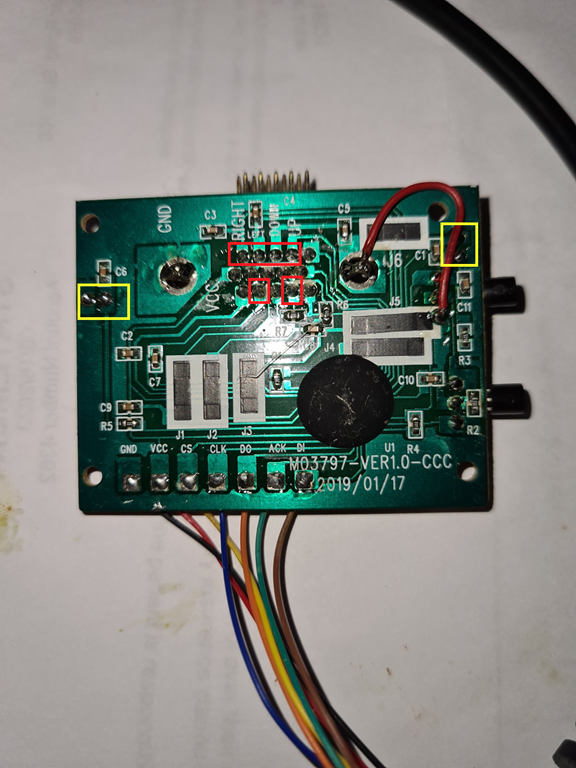
The RED pins are the arrows and X and O buttons on the mat itself. These markings on the controller board lined up with what I’d determined experimentally using the multimeter, so I knew I was on the right track.
The YELLOW squares highlight the SELECT and START buttons, which are actually on the controller box itself.
This lead to a pinout of the 15 pin DSUB as follows.
| Pin 1 | |
| Pin 2 | X or Up Left |
| Pin 3 | |
| Pin 4 | O or Up Right |
| Pin 5 | Ground |
| Pin 6 | |
| Pin 7 | |
| Pin 8 | |
| Pin 9 | |
| Pin 10 | |
| Pin 11 | Right |
| Pin 12 | Left |
| Pin 13 | Down |
| Pin 14 | Up |
| Pin 15 | Ground |
Keep in mind that 15 pin High density DSUBs are numbered in 3 rows starting with one, as shown here:
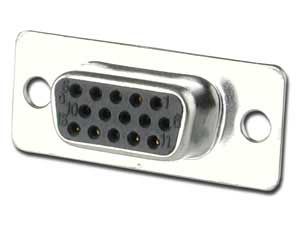
Notice that Pin 1 is at Top Right. Pin 6 is right below it and Pin 11 is Bottom Right.
Next up, opening the Psyclone controller.
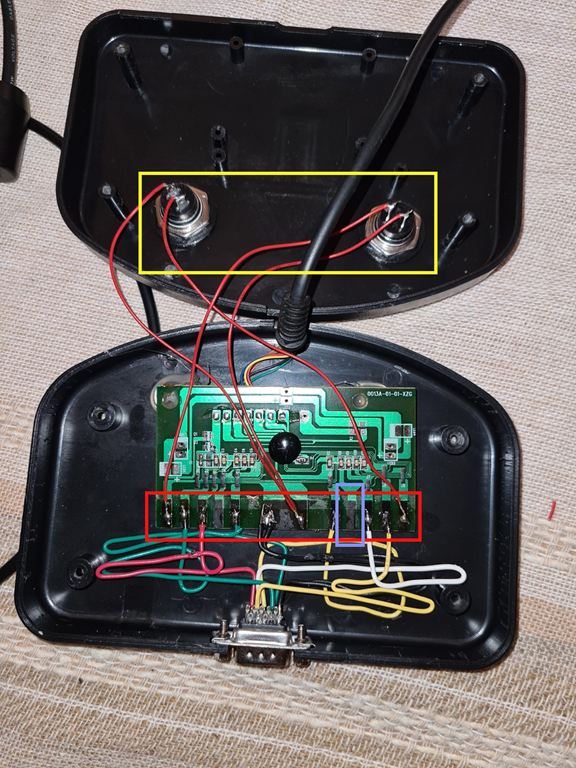
I didn’t grab a photo of this board within it’s own housing. Here. it’s pictured already installed in the DDRGame controller housing.
Note the START and SELECT buttons (YELLOW), and the contact pads for the various buttons (labeled J1-J9 in RED) plus a large center pad (GROUND) and one peculiar pad, 4th from the right (LIGHT BLUE) that should be J7, but instead isn’t numbered at all.
After some experimenting, I was able to get the pin out here as:
| J1 | J2 | J3 | J4 | J5 | J6 | unlabeled | J7 | J8 | J9 |
| START button 10 | UpRight button 2 | Right | DownRight button 4 | Up | Down | DownLeft button B1 | Left | UpLeft button B3 | SELECT button B9 |
At this point, it was just a matter a digging up a 16pin male DSUB connector, and soldering wires from the DSUB to the contact pads on the controller.
Snags
So two minor things came up in the process.
First, I discovered that whatever the contact pads were coated with, solder did not stick to it. No amount of flux, resin etc worked, so I ended up gently scraping the pads down to the bare copper foil and then soldering.
Second, after I’d gotten it all soldered and together I plugged it in to try and nothing worked, at least the arrows didn’t.
Turns out, the mat itself uses the DSUB shell as a ground. I suspected as much and using a quick alligator jumper wire between the shell and a ground pin confirmed it.
So, another quick solder of a jumper wire between the shell and one of the ground pins, and presto! We were in business!
Now we have side by side metal dance pads and lots of DDR competition!
]]>That’s easy enough to do, but I always have to click through the UAC prompts, which is tiresome.
Turns out there’s a (relatively) easy way around this.
I stumbled across this article by Lowell Heddings on how to “Create Administrator Mode Shortcuts without UAC prompts” accidentally which clued me in that this was even possible. I highly recommend checking it out.
I’ve embellished the technique slightly because I found that VS would end up coming up behind all the other open windows, which is even worse than the UAC prompts.
I’ll summarize the process below:
- Use Task Scheduler to create a new task
- Give the task a short name (I called mine “Visual Studio 2022”, set it to Run only when user is logged in
- Use YOUR user
- Check Run With Highest Privileges
- Configure for Win 10/11 whatever works for you
- On the Actions tab
- Create new Start a program action
- Specify full path name to devenv (Visual Studio), no args; “C:\Program Files\Microsoft Visual Studio\2022\Enterprise\Common7\IDE\devenv.exe”
- Get nircmd from here http://nircmd.nirsoft.net/win.html (put it on your PATH)
- Add another Start a program action
- Set this action to “nircmd win focus process devenv.exe”
- On the Settings tab, make sure that the combobox near the bottom says “Run a new Instance in parallel” and not “Do not start a new instance”. That way, you can still launch multiple instances of Visual Studio if you need to.
- Save the Scheduled Task
- Create a new shortcut on the desktop
- For the shortcut path use “C:\Windows\System32\schtasks.exe /run /tn “{your task name from step 2 above}”
And that’s it.
If everything’s kosher, dblclicking on that shortcut will launch VS in Admin mode, in the foreground, with no UAC prompting.
]]> I was contemplating having to pave a machine recently, and it occurred to me that it might be a good time to take stock of the “asphalt”, so to speak.
In other words, what are those apps and configurations that get laid down first? Those that I use everyday. That it’d be seriously difficult to do without, even from day one?
I’ve followed Scott Hanselman’s List of Tools for years. It’s a great list, and a fantastic place to get ideas for things that might dovetail into your personal workflow, so if you haven’t already checked it out, I heartily recommend it.
But it’s huge! I mean, really big. It’s a great reference, but I can’t imagine anyone using near that much on a daily basis.
So, what’s my asphalt then? Lets get right to it!
-
File manager – DirOpus. If you deal with files all day long, DirOpus is the first thing you should consider laying down. Fast and infinitely customizable, but it still feels like a Windows File Explorer.
-
Font – Hackd. My own version of LigaHack, which is itself a ligaturized version of Hack.
-
Editor – Visual Studio Code. I’ve used tons of different editors over the years, so VSCode is just the latest. It’s fast, flexible, extensible and customizable.
-
Password – Keepass. Hands down. After seeing news stories of all the commercial “credential managers” out there, I’m convinced high value targets like that are the last place you want to put your keys. Just make sure you back up.
-
Launcher – Flowlauncher. PowerToys Run is right up there, but FlowLauncher is xcopy installable, and super easy to write extensions for, as well as having just about any extension you’d ever want already available.
-
Backup – SyncBackPro + BackBlaze. Both are very reasonably priced. BackBlaze for offsite backup. SyncBack for synchronizing laptops, desktops, phones, etc.
-
Compare – Araxis Merge. I’m doing file or folder compares virtually every hour. I’ve tried others, both free and commercial but Araxis just feels the smoothest, and most polished. It’s not cheap, but I think it’s worth it.
-
Clipboard –ClipCache. Ok. There’s loads of free clipboard managers out there, and not just a few paid ones. But ClipCache does it all, it’s not very $$, and it just works.
-
Terminal – Windows Terminal + Cmder. I’ve never been able to get on the Powershell wagon, so there’s that. But Cmdr in Windows Terminal, with PowerLine glyphs and quake mode is awesome.
-
Macros – AutoHotKey. I’ve got my own set of favorite hotkeys that I’ll be writing about soon.
-
Processes – Process Hacker 2. Way, way better that TaskMan
-
Search – FileLocator Pro. Absolutely worth the (small amount of) money, esp with the new Index functions.
-
Screenshots – ShareX. Free and fantastic for screenshots, recordings and annotating.
And just to be straight. All of the links above are direct links to the apps I mention. I’m not an “affiliate”. I don’t get any money for “clicks” to these links. I have no relationship to any of these companies except as a customer.
So that’s it. These apps (and font  ) are running virtually 24/7 on my machines.
I’d love to hear you consider your “asphalt”!
]]>Download my custom Hackd font here. Unzip, and install the two TTF files. That’s it.
On Programming Fonts
I’ve long been a fan of dedicated, monospaced programming fonts. I’ve even got a page here dedicated to a breakdown of most of the fonts I’ve had the opportunity to work with and review over the years.
I’ve used a number of these for a good period of time, including Consolas, Cascadia Code, and FiraCode among others.
But, for some time now, Hack has been my goto choice. It’s clear, simple, with good spacing, and excellent readability.
Alas…
As usual, though, there’s a few things that have always not sat well with me.
First, Hack has a peculiar dotted zero.

That’s just always seemed off to me.
Plus, it’s percent sign just didn’t jive with the rest of the font.
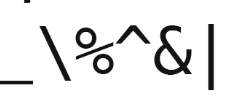
And then there’s ligatures.
The Ligatures
If you aren’t familiar with ligatures, they’re basically substitutions of a single, conhesive glyph for 2 or more glyphs places next to each other.
For instance, a ligature for “greater or equal”, “>=” might look like this: 
It’s important to note however, that ligatures are just a rendering nicety. They don’t actually change the characters you type at all. So, although it might look like one character on screen, your file’s content will still be “>=” just like it always has been.
I realize that there’s a lot of gnashing of teeth online about whether ligatures are worth it or not. In the end, I think it’s completely a matter of preference, and I happen to find them quite nice to look at and helpful during my day to day coding.
And Hack doesn’t have ligatures
When Monospaced isn’t Monospaced
Virtually all dedicated programming fonts are monospaced; every glyph has the same width. But, while a font might say that it’s monospaced, and might have all the right metadata to indicate that it’s monospaced, it turns out that all that doesn’t necessarily mean that it is monospaced.
In fact, there are some apps out there that detect a monospaced font not via metadata, but rather via a Windows call that actually tests if all the glyphs are the same width.
I happen to use a couple of those apps and, as it happens, Hack doesn’t pass that test, so it’s not listed as a choice for font in those apps. And that has been a (rather admittedly trivial) thorn in my side for some time now.
Introducing Hackd
So without further ado, I’d like to present my own take on a programming font; Hackd!
Hackd is based on Hack v3.003, used for most base symbols and upper/lowercase latin glyphs.
I then merged in glyphs from FiraCode v6.002 for all ligatures and pretty much all other characters.
Further, I pulled the % glyph from Firacode and tweaked it slightly to look more “Hack”ish.
And finally, I merged in the Powerline glyphs from “Hack Regular Nerd Font Complete Windows Compatible” from the NerdFonts collection.
NOTE: I left out virtually all of the excess glyphs from NerdFonts, including company logos, weather symbols, etc. I just don’t see much utility in having them in the font, unless, maybe, there might be some use for them in some kind of command line terminal customization? I did include the PowerLine symbols for that reason.
Would love to hear any comments on that…
How I Did It
I used FontForge for all manipulations.
I started with FiraCode-Regular and FiraCode-Bold.
Replaced all the glyphs from ! through ascii 255 with the Hack glyphs.
Then pulled all the powerline glyphs from the Hack NerdFont ttf file.
Replaced the % sign using the FiraCode version, then tweaked it by scaling it and repositioning it slightly to look better.
Tweaked all glyph widths to be the same. This automatically causes FontForge to generate a proper “monospaced” font that truly is considered monospaced. Originally, Hack had several glyphs that had a 0 advance, which caused the font to not be considered monospace, even though it really should be.
Updated various metadata in fonts to reflect the history, source, new name and version number.
Repeated all this for both the Regular and Bold versions of the font.
What About Italics?
Once that was done and the new fonts installed, the regular, italics, bold and bold italics alternatives were all available, so I did not create the BoldItalic, Italic, BoldOblique or RegularOblique alternatives as they didn’t seem necessary.
Disclaimer
I’m no fontographer, and I definitely couldn’t have done this without the fantastic work done by the Hack and FiraCode authors, much less the author of FontForge, so my hat’s off to all of them!
Font choice is a highly personal thing, and this work reflects my own personal preferences and taste. My main reason for documenting this is to show that there are tools available that make this kind of customization completely possible, if not easy.
]]>
Until, of course, it didn’t.
I used to use Microsoft’s LiveWriter way back when, but then, they quit updating it and it quit connecting to my blog so… I just used the WordPress editor and continued on.
I finally had minute to take a look and realized that I hadn’t updated WordPress is quite some time.
So, back up the site, then update… oops, no, I’m using an ancient version of PHP.
So, update PHP to 8.1
Update WP to 6.1
Bam!
Critical error loading WordPress
Oh Joy
So I start all the typical stuff. I’m no WordPress expert, by any stretch.
Update all the plugins.
Nope
Disable all the plugins.
Nope
Clear caches. Reset Themes.
Nope, and Nope.
This might turn into a long night.
So I punt.
The guys (and gals) in NameCheap support have pulled me out of a wringer before, so I figured I might give em a shout. The worst they could do is tell me “that’s your programming problem”. 
Joy
So I search the Knowledge Base right quick, come up empty, and finally decide to file a support ticket.
Within an hour, I get a message back that they’d had a look at my WordPress log and the issue appeared to be with my theme at line x.
No freakin’ way!
Open the theme INDEX.PHP up and, sure enough, turns out the old WordPress was more forgiving with PHP files that used <? … ?> instead of the newer style <?PHP … ?>
Literally 2 lines of code changed and presto. Entire site back and running!
And not only that, the latest OpenLiveWriter (the open sourced version of my old friend), recognized it and loaded up perfectly. I’m even writing up this entry using it!
]]>VSCode isn’t automatically added to the path, so it won’t normally be available. Besides, if you’re using the Insiders build, the exe name will be Code – Insiders.exe, which is, um, unwieldy, to the say the least.
I know there are other solutions out that that might make more sense depending on your situation, for me, setting up a simple BAT file to start the editor made the most sense.
I already have a folder full of utilities and BAT files that I always add to my path anyway. Plus, I like having a bit of flexibility that wrapping VSCode in a BAT file gives me.
Anyway, here’s what I’ve ended up with.
ECHO off

REM Starts VSCODE and returns immediately to the console where it was started from
REM Running it a second time just opens the new file in a new tab in the existing VSCode window
start /MIN /B "" "C:\Users\darin\AppData\Local\Programs\Microsoft VS Code Insiders\Code - Insiders.exe" %1 %2 %3 %4 %5 %6 %7 %8 %9 >nul
Using this, I don’t get “leftover” phantom command line windows, I don’t get random debug logging in the terminal window I started it from, and it all “just works”.
Of course, you’ll have to adjust the path if your name’s not “darin”  , if you’ve installed VSCode in a non-standard place or if you’re using the normal, not Insiders, version.
For the most parts, apps “just work” at that scalemode. But every once in a while, I’ll run into one that doesn’t.
Take for example, ClipCache:
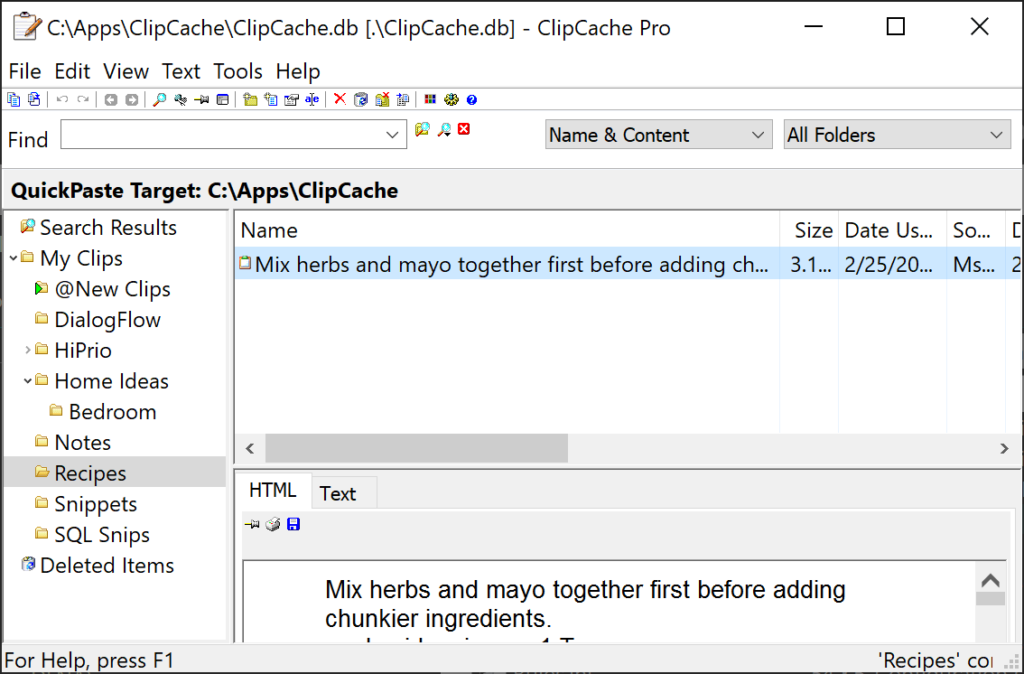
Notice how the toolbar icons are tiny! The app’s excellent and I use it all the time, but the developer, while still supporting it, isn’t all that responsive towards updates, unfortunately.
But, it turns out there are things to try that might just resolve these sorts of issues without resorting to code updates by the developers.
Find the EXE file for the app in question. In this case, it’s Clipc.exe.
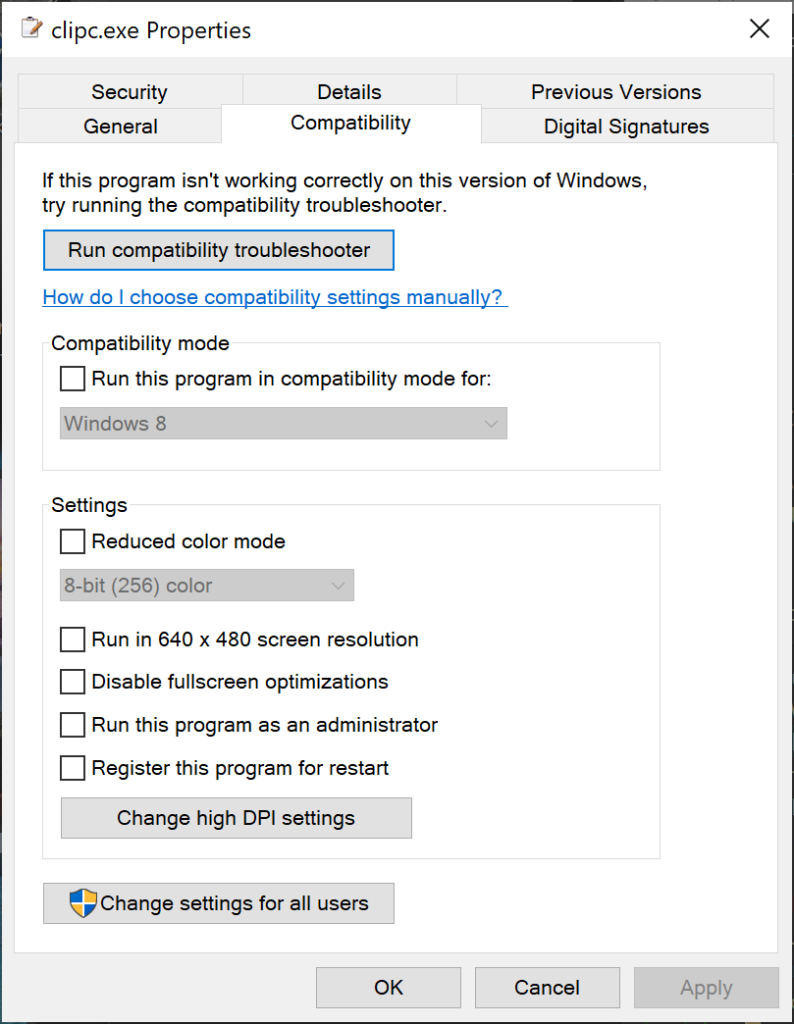
Right click and choose Properties, then Compatibility:
Now click Change high DPI settings.
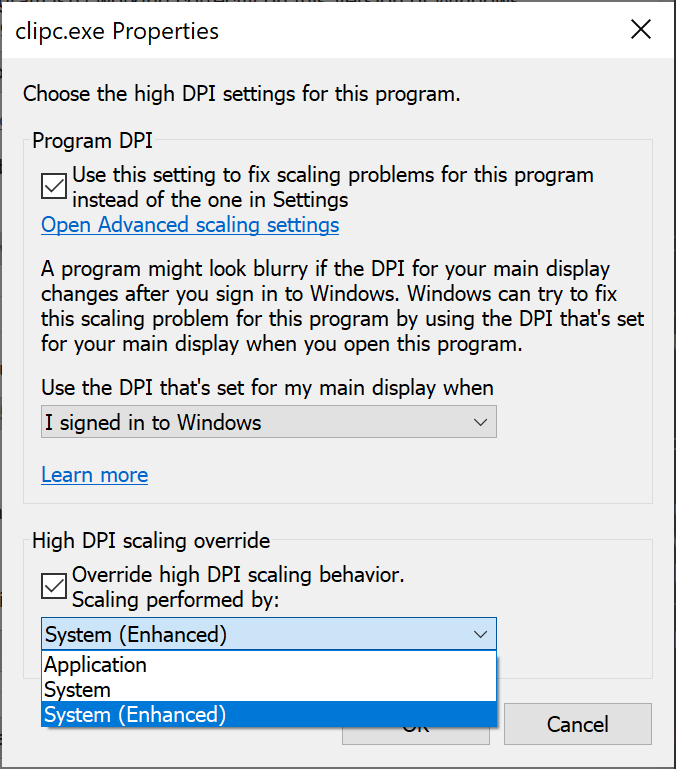
You may have to experiment with the settings here. In the case of ClipCache, I set the Program DPI to checked.
Then checked Override high DPI scaling behavior.
And finally, selected System (Enhanced).
I suspect other apps may require slightly different options.
In any case, restart ClipC and presto!
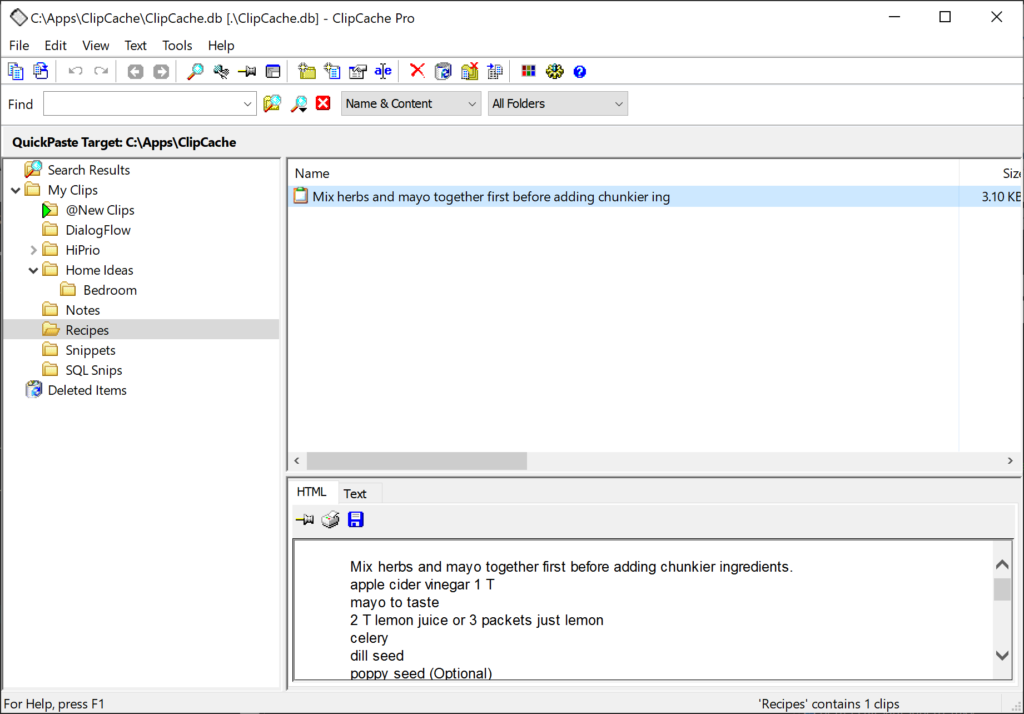
No more tiny toolbar!
]]>
I’ve been doing a lot of reflecting lately on how my typical workday progresses and one of my primary realizations is that I spend a lot of time switching between applications.
There’s all the typical development applications, Visual Studio, VSCode, Command line, GIT, Insomnia, Web browsers, file search, clipboard stuff, etc. There’s usually an instance or two of these running, and I often find myself ALT-TABing between them.
Then there’s various utilities that I use regularly but not necessarily constantly: putty, SSH, Fusion, Dbgview, etc. Find it, Open it, Use it, Close it, repeat.
And finally there’s all the other apps that hang out in the periphery: Word, Excel, Outlook, Zoom, Remote Desktop, VMs and so on.
Now, I’ve pinned a few of those to the taskbar, so they’re just a mouse click away. However, there’s only so much space down there. Sure, I could stack some in a folder, which would present as a menu, but then often used items would inevitably end up hidden behind one or more layers of menus.
Of course, there’s the Start menu. But after awhile, that becomes large enough to prevent any kind of speedy access. And then there’s the Start Panel, but again, it can begin to get unwieldy fairly quickly for me.
Plus, when customizing the Start menu, etc, there’s the issue of synchronizing changes between machines. Google Drive helps, but not really for the Start Menu or TaskBar.
As I hinted at above, part of my realization was that there’s three levels of application usage for me.
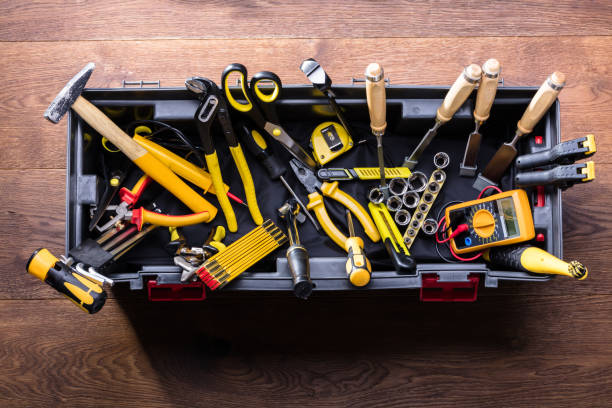
Utility Belt Apps
These are apps that I almost always have running. I need to switch between them quickly and seamlessly. Adam Savage, of Mythbusters and Tested fame, even has a term for it, which I completely forget and can’t seem to locate right now. Irony?
In any case, the idea is that you shouldn’t have to move any tool to get to any other tool. And I can’t think of a better way to describe Toolbelt level applications.
And for that kind of accessibility, you’re really talking about one thing; hotkeys.
Windows does have the ability to assign hotkeys to shortcuts, icons, etc. but the selection is pretty limited, and when you regularly work with applications like VSCode or Visual Studio, most of the typical hotkeys are already in use by those apps.
Further, if I have two or more instances of any particular Toolbelt app open, I need to quickly switch between those instances, not go Alt-Tabbing through every opened desktop window.
Toolbox Apps
These are those apps I use often but that don’t really deserve being added to my Path. For these, finding them is usually the most time-consuming part. They aren’t constantly in use, but none-the-less, I’d like them to be ready at hand. For instance, when you need to hunt down a library binding issue with a .Net application, I’m gonna reach for FusLogVw, but that app isn’t normally on the path, or easily locatable.
Junk Drawer Apps
Everything else, which I’m perfectly comfortable leaving in the Start Menu where they’re installed and digging them on when I need them. They’re not used enough to justify going on the Toolbelt or in the ToolBox.
How you break things down? Have I missed anything?
I’ll be posting more as I start to solve this problem.
]]>