The post How to Connect a Soundbar to a Computer or Monitor: HDMI, Bluetooth, USB, and More appeared first on All About Home Electronics.
]]>Quick answer: Choose a compatible audio path: Bluetooth, a 3.5 mm audio cable, USB audio, optical audio or HDMI through a compatible soundbar and display. Check the input and output labels on each device, then select the corresponding audio output on your computer.
This guide explains how to connect a soundbar to a computer or monitor, what each option requires, and the important difference between an ordinary HDMI port and HDMI ARC.
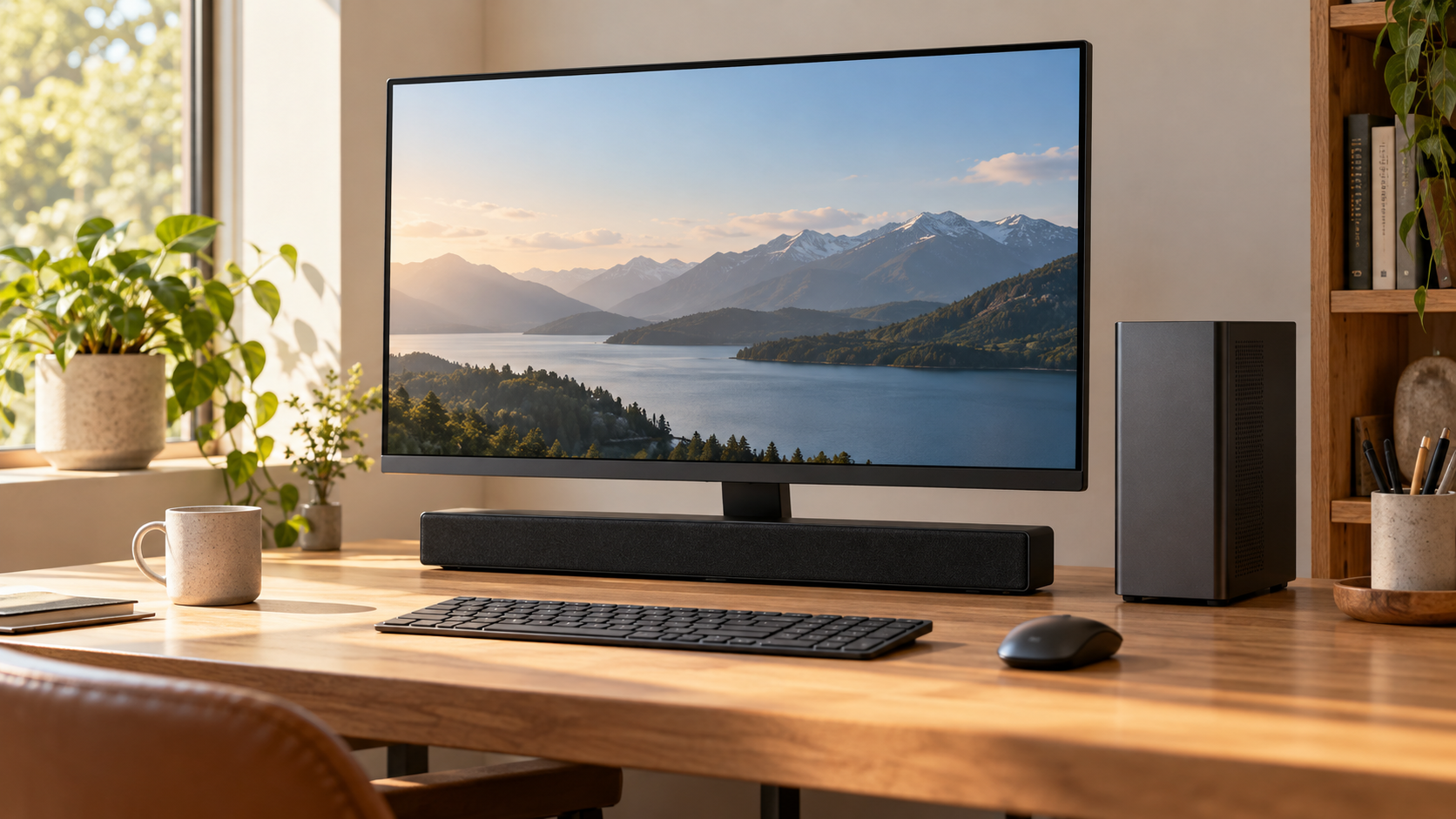
Start by checking the available connections
Look for an audio output on the computer or monitor and a matching audio input on the soundbar. Common options include a 3.5 mm headphone or line-out jack, Bluetooth, a USB port that supports audio, optical digital output, and HDMI. Not every soundbar or monitor supports every method. Check the model’s manual when a label is unclear.
A monitor may accept a video signal from a computer without having any audio output. Likewise, a USB port on a soundbar may be for service, updates, playback from a flash drive or power only. Its shape alone does not establish that it accepts USB audio from a PC.
Option 1: Connect using Bluetooth
If both the computer and soundbar support Bluetooth audio, turn on the soundbar’s Bluetooth pairing mode. On a Windows PC, open Settings > Bluetooth & devices, add the soundbar, and follow the pairing prompts. Then go to Settings > System > Sound and choose the soundbar under Output. Menu names and steps can vary by Windows version and soundbar model.
Bluetooth avoids an audio cable, though it can introduce noticeable delay in games or when watching people speak. Some soundbars reconnect to another paired device automatically; disconnect that device if it prevents the computer from connecting. Microsoft provides more help with pairing Bluetooth devices.
Option 2: Use a 3.5 mm audio cable
If the computer has a headphone or line-out jack and the soundbar has a compatible AUX or analog audio input, connect them with the appropriate cable. For two standard 3.5 mm stereo sockets, use a stereo 3.5 mm male-to-male cable. If the soundbar uses red and white RCA inputs instead, a 3.5 mm stereo-to-RCA cable may be appropriate. Select AUX or the corresponding input on the soundbar.
Start with low volume, then adjust the computer and soundbar to a comfortable level. A headphone output is not the same as a microphone input, and the soundbar’s own power supply may still be needed. If you need a cable, compare 3.5 mm stereo audio cables, checking the connector type and length first.
Option 3: Connect a USB audio soundbar
Some desktop soundbars are designed to receive audio and power over USB. Plug the soundbar into a compatible computer USB port, or follow the manufacturer’s instructions for a compatible monitor’s USB hub. Windows should list it as an audio output when properly recognized; choose it in Sound settings.
When a USB soundbar connects to a monitor’s hub, the monitor may also require its USB upstream connection to the computer. An HDMI or DisplayPort video cable alone does not necessarily carry that USB data. Dell’s setup guide gives examples of USB soundbars and monitor connections. Other models may work differently.
Option 4: Use optical digital audio
If the computer or monitor has an optical digital output and the soundbar has an optical input, connect them with a TOSLINK optical cable and select Optical or Digital In on the soundbar. Check the monitor’s specifications: many monitors do not have optical output, and not every model passes incoming audio through its output.
For an initial test, choose the relevant digital output on the computer and, if available, set its format to stereo PCM. Optical carries audio, not video, and its format capabilities depend on the devices. Compare TOSLINK optical cables if your equipment has the matching ports.
Option 5: Connect through HDMI
One possible arrangement is computer HDMI output → soundbar HDMI input → soundbar HDMI output → monitor HDMI input. This requires a soundbar with a separate HDMI input and video pass-through, and a display and cables compatible with the desired video resolution and refresh rate. Select the soundbar’s HDMI input and the appropriate HDMI audio output on the computer. Consult both manuals for supported video formats.
Important: A soundbar socket labeled HDMI OUT (TV ARC/eARC) is not the same as a separate HDMI input. A standard computer HDMI output cannot be assumed to function as a TV’s ARC/eARC port. Similarly, an ordinary HDMI input on a monitor does not automatically send ARC audio back to the soundbar. A monitor that specifically supports ARC or eARC may provide another route; confirm its manual and compatible soundbar features first.
Some soundbars have only an ARC/eARC HDMI connection and no separate HDMI input. If your monitor lacks ARC/eARC, look for another supported connection such as Bluetooth, optical or AUX. An adapter or audio extractor can sometimes help, but it must support the exact devices, audio format and video requirements; it is not a universal fix.
How to choose the audio output in Windows
Open Settings > System > Sound and select the device under Output. Depending on the route, Windows may show the soundbar’s name, a USB audio device, the computer’s speakers or headphone output, or the HDMI display/audio device—not necessarily the word “soundbar.” Play a test sound, check the soundbar’s input selection, and turn up both volume controls gradually. See Microsoft’s audio guidance for additional checks.
What if the soundbar has no sound?
- Confirm the soundbar is powered on, not muted, and set to the input you connected.
- Check the computer’s selected audio output and volume. Some apps have separate output or volume settings.
- Check cable direction and fit; try a known-good compatible cable or port.
- For Bluetooth, confirm it is connected for audio, not merely paired. For a USB monitor hub, check the upstream data connection.
- For HDMI or optical, check the supported audio formats and try stereo PCM where available.
Frequently asked questions
Can I connect a soundbar directly to a PC?
Yes, if both support a compatible connection, such as Bluetooth, analog audio, USB audio or optical. A soundbar with a separate HDMI input may also accept HDMI audio from the computer while passing video to a display.
Can I connect a soundbar to my monitor?
Sometimes. Check whether the monitor has a usable audio output, a compatible USB hub, or specifically supports ARC/eARC. An HDMI input alone does not prove it can send audio to a soundbar.
Is a USB port on a soundbar always an audio input?
No. The port may serve a different purpose, such as firmware updates or playing files from a USB drive. Check the manufacturer’s specifications.
The bottom line
To connect a soundbar to a computer or monitor, identify a supported audio output and matching input first. Bluetooth, AUX, USB audio, optical and compatible HDMI setups can all work, but their availability varies. Select the correct output on your computer and the matching input on the soundbar.
As an Amazon Associate we earn from qualifying purchases.
The post How to Connect a Soundbar to a Computer or Monitor: HDMI, Bluetooth, USB, and More appeared first on All About Home Electronics.
]]>The post TV Antenna Signal Strength vs. Signal Quality: Why a Strong Signal Can Still Break Up appeared first on All About Home Electronics.
]]>This guide explains TV antenna signal strength vs. signal quality, how to use a TV’s signal meter when one is available, and what to try when the reading looks good but reception does not.
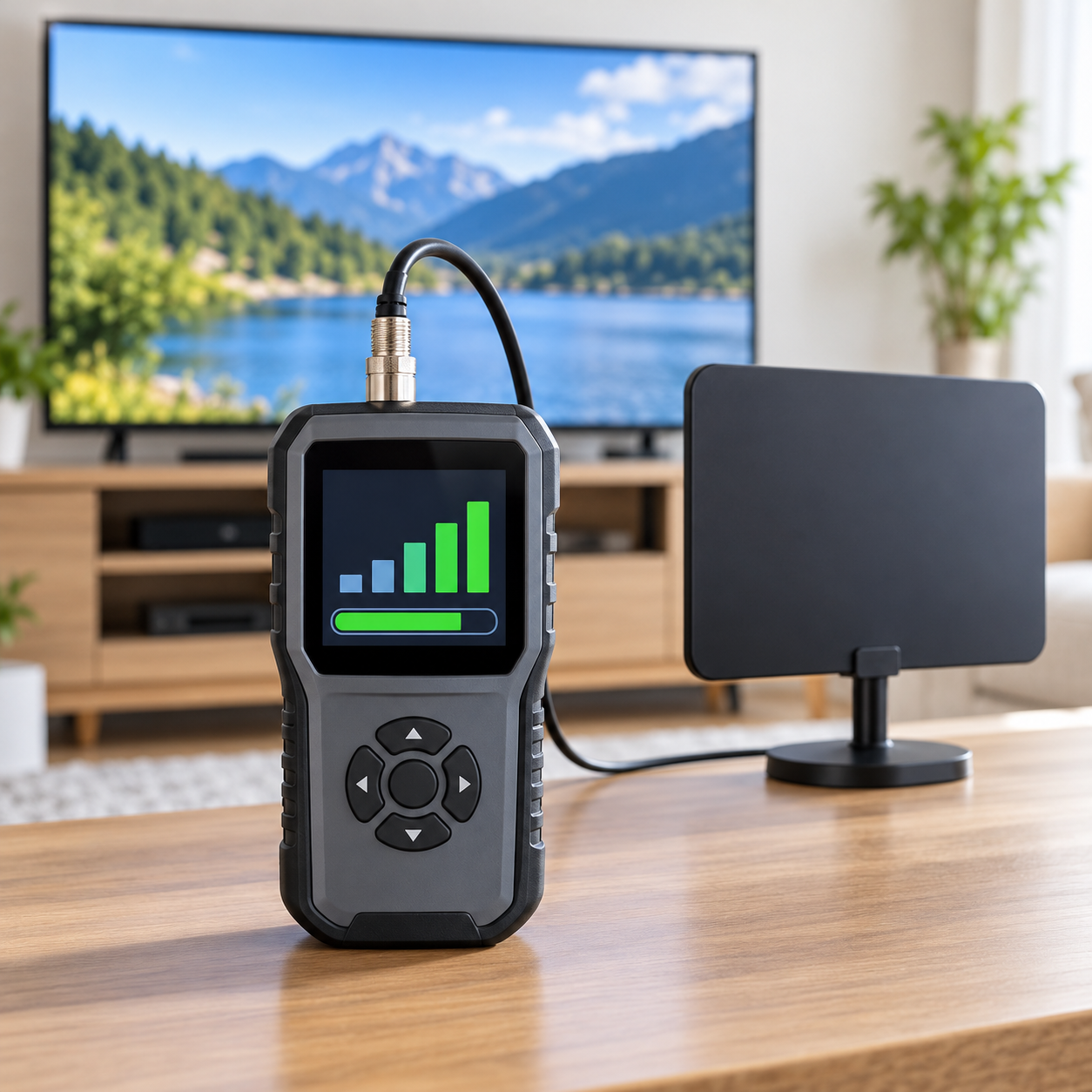
Quick answer: Signal strength generally describes the level of signal reaching the receiver. Signal quality indicates how usable that signal is for decoding, although the exact measurement and display vary by device. You need enough of both, with a margin for normal fluctuations—not simply the highest strength reading.
What is TV antenna signal strength?
Signal strength is generally an indication of how much signal reaches the TV’s tuner. Distance from the transmitter, obstructions, antenna placement, cable length and splitters can all affect the level. A weak reading may mean the tuner does not have enough signal for consistent reception.
A TV’s percentage or bar is usually a relative, manufacturer-specific indicator—not a universal measurement you can compare directly with another TV. A displayed 80% does not promise reliable reception, and there is no single percentage that works for every set or channel.
What is signal quality?
Signal quality describes how well the receiver can recover useful information from the signal. Depending on the equipment, a quality display may reflect a measure such as signal-to-noise ratio or errors; consult its manual for what it actually reports. Some TVs show only a single bar and may not identify whether it represents level, quality or a combination.
Digital TV tends to produce a clear picture while reception is adequate, then freeze, pixelate or disappear when the tuner cannot reliably decode the signal. This threshold effect means a picture that works now may still have too little margin for changes later.
Why can a strong signal still have poor quality?
One possible cause is multipath: the broadcast reaches your antenna by more than one route after reflecting off buildings, terrain or other objects. Those copies arrive at different times and can make decoding harder. Other signals, electrical interference, damaged connections or excessive amplification can also cause problems.
The Channel Master signal-quality guide explains why signal level alone does not ensure dependable reception. The FCC also notes that repositioning or reorienting an antenna can sometimes reduce the effects of interference or multipath.
How to check your TV’s antenna signal meter
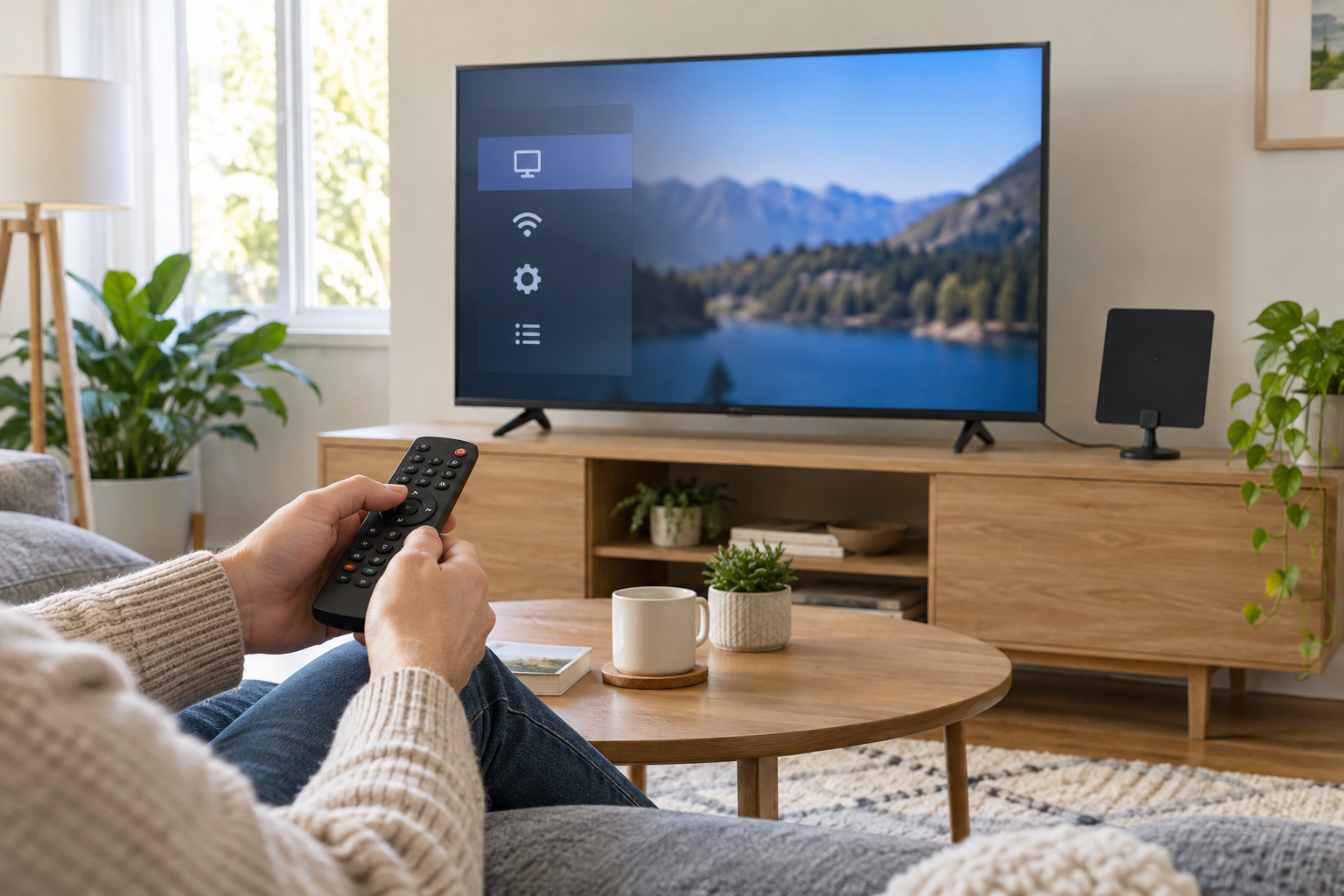
First tune to a channel that is already in your TV’s antenna channel list. Look in Settings, Support, Channel, Broadcast or Signal Information for a signal meter. Menu names and features vary: consult your television’s manual, and remember that some TVs do not offer a useful meter. An external tuner or suitable signal meter may provide additional readings.
- Write down the channel, current antenna position and meter reading. Note whether the picture is stable.
- Move or rotate an indoor antenna a small amount. Allow the display to settle, then record the result.
- Repeat from a few positions and compare quality, stability and strength—not just the largest bar.
- Check several important channels. Different transmitters may respond differently, so the best position may be a compromise.
- Observe reception at different times if the issue is intermittent. A brief good reading does not prove a position is reliable.
If a station is missing from the list, the meter may not let you select it. A manual RF-channel search or add-channel feature may help on some sets. A full scan can replace the stored channel list on some TVs, so note your working channels and original antenna position before rescanning.
What to try when strength is high but the picture breaks up
Move the antenna, not just the dial
Try a different window, height or location. Even a small move can change the balance of direct and reflected signals. For a directional antenna, make small adjustments and compare your important channels. Nearby electronics and power supplies may also introduce interference; move the antenna away from them when practical.
Inspect the cable path
Check for loose connectors, corrosion and damaged or sharply bent coaxial cable. If you use a splitter, temporarily connect the antenna directly to one TV when practical and compare. For outdoor equipment, avoid power lines and unsafe ladders; use a qualified installer when needed.
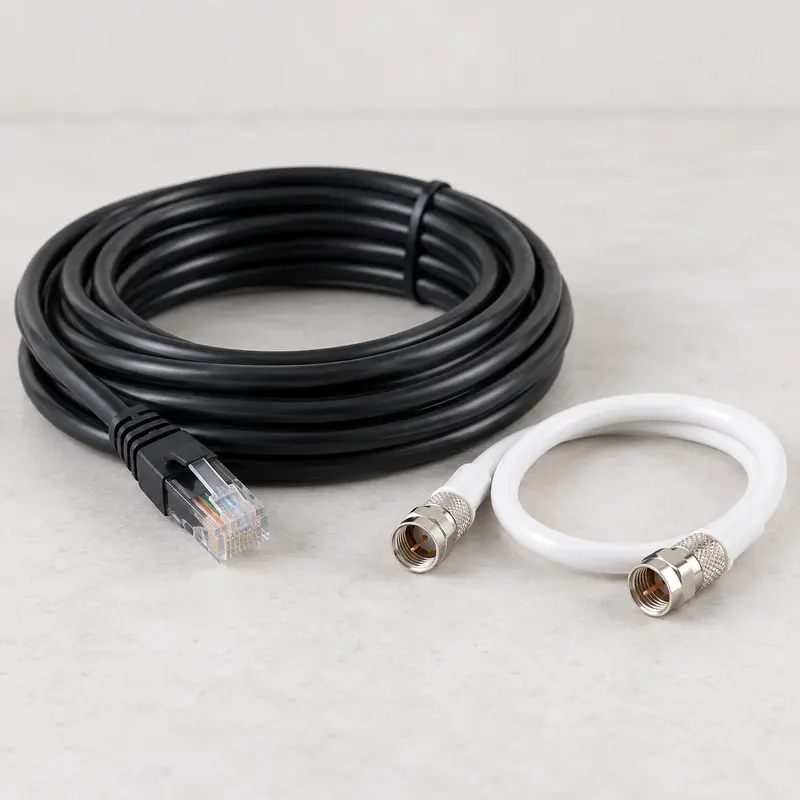
If a cable is damaged, a suitable replacement may help. Shop RG6 coaxial cables. Check the connectors and length required for your setup before ordering.
Be cautious with amplifiers
An amplifier can help overcome some cable or splitter loss, but it does not remove multipath or create a clean signal when the antenna receives a poor one. Too much amplification can overload equipment and make reception worse. Some amplified antennas need power to pass a signal properly, so follow the manufacturer’s testing instructions. Read our guide to when an antenna amplifier helps or hurts.
Compare the affected station
If only one station is unreliable, compare its real RF channel, band and transmitter direction with the channels that work. Check whether your antenna supports that band and ask the broadcaster about outages or reduced power. The FCC reception map provides estimates, not a guarantee: its model assumes an outdoor antenna 30 feet above ground, and indoor results can differ considerably.
Frequently asked questions
Is a higher signal-strength percentage always better?
No. Your tuner needs adequate signal, but an apparently high reading does not guarantee quality, and an excessively strong signal can overload some equipment. Choose the position that provides stable reception across your important channels.
Can a splitter affect signal quality?
A splitter reduces signal level, which can leave a previously usable signal too weak at the TV. Its condition, connections and the length of each cable run also matter. Compare a direct connection before replacing parts.
Do I need a separate signal meter?
Not always. Your TV’s built-in indicator can be useful for comparing positions, but it may not provide separate or calibrated measurements. A suitable meter or professional installer can help with difficult systems; check what a meter actually measures before buying.
The bottom line
Signal strength is only part of the reception story. Use your TV’s available readings and picture stability to compare antenna positions, inspect the cable path, and check several channels. The goal is dependable reception with enough margin—not the biggest strength number.
As an Amazon Associate we earn from qualifying purchases.
The post TV Antenna Signal Strength vs. Signal Quality: Why a Strong Signal Can Still Break Up appeared first on All About Home Electronics.
]]>The post Why Do My TV Antenna Channels Keep Cutting Out? How to Fix Pixelation and Signal Drops appeared first on All About Home Electronics.
]]>These problems often mean your television is having difficulty receiving or decoding a reliable broadcast signal. The cause could be a loose coaxial connection, antenna placement, interference, signal loss through a splitter, or an issue affecting a particular station.
The good news is that you can check many of these possibilities without replacing your antenna. Start with the simplest checks and make one change at a time so you can tell what helps.
Quick answer: Check whether the problem affects one channel or several, inspect the antenna cable connections, and try a different antenna position. If you use a splitter or amplifier, test those components before buying a replacement.
First, check whether one channel or several are cutting out
Before moving your antenna or changing settings, spend a few minutes comparing channels.
- One channel cuts out, but others look fine: The affected station may be weaker, broadcast from a different direction, use a frequency your antenna receives less effectively, or have a temporary transmission issue.
- Several channels cut out: Antenna placement, cable connections, interference, or signal loss may be affecting more than one station.
- All channels are unstable: Check the components shared by the whole system, including the antenna cable, splitter, and amplifier power supply if you have one.
- Only one TV has the problem: The cable, wall connection, splitter output, or TV tuner serving that room may be involved.
Also note when the picture breaks up. Does it happen all day, only when someone walks near the antenna, or when an appliance turns on? Those details can help identify the cause.
1. Check the antenna cable connections
A loose or damaged coaxial cable can cause an otherwise good antenna signal to become unreliable.
Check the cable where it connects to the TV’s Antenna In, ANT IN, or RF IN port. If your setup has a wall plate, splitter, or accessible indoor antenna connection, check those connections too.
Make sure each connector is straight and snug. Threaded coaxial connectors should generally be finger-tight; do not force them or overtighten them with a tool.
Look for:
- A connector that is loose or crooked.
- A cable that is sharply bent, crushed, or visibly damaged.
- A center wire that is bent or damaged.
- Corrosion or signs of moisture.
If you have a known-working coaxial cable, try it in place of the suspect cable. If the picture becomes reliable, the original cable or one of its connectors may be the problem.
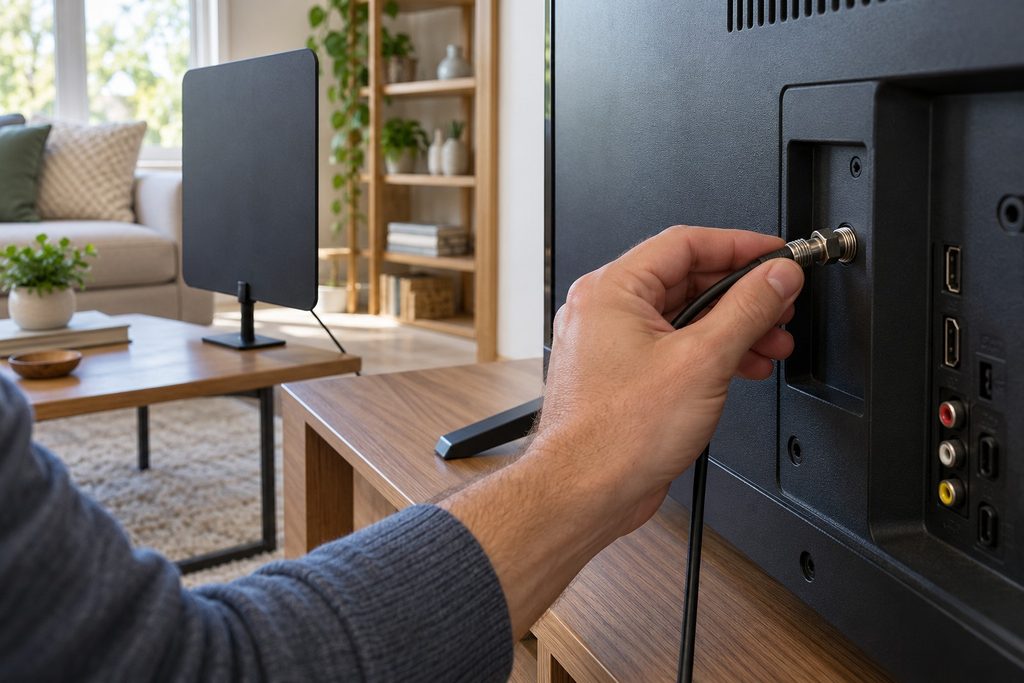
If testing points to a damaged cable, you can compare RG-6 coaxial TV antenna cables.
Safety note: Do not climb onto a roof or work near overhead power lines to inspect an outdoor antenna. Contact a qualified installer if an outdoor cable, mast, or connection needs attention.
2. Try a different antenna position
An indoor antenna that receives a channel in one location may struggle when it is moved only a few feet. Walls, metal objects, electronics, and reflected signals can all affect reception.
Try placing the antenna:
- Near a window or exterior wall.
- Higher in the room, where practical.
- Away from the back of the television and other electronics.
- Away from large metal objects, metal blinds, and appliances.
Watch a channel that was cutting out while you test. Move the antenna in small steps and allow the picture or signal meter time to respond. Keep track of the position that gives you the most reliable reception—not just the most channels during a brief test.
An antenna may receive some stations better in one position and others better in another. If the stations you want come from different directions, you may need to find a compromise.
For more on direction and antenna placement, see How to Aim an Over-the-Air TV Antenna for the Most Channels.
3. Look for a pattern of interference
If a channel cuts out at a particular time or when something nearby turns on, interference or a change in the signal path may be involved.
For example, notice whether the picture breaks up when:
- Someone walks between the antenna and a window.
- A nearby appliance or electronic device operates.
- A light or power supply is switched on.
- Traffic or movement occurs outside near the antenna’s signal path.
For a safe indoor test, temporarily move the antenna away from nearby electronics or switch off one suspected device at a time. Watch the same channel after each change.
Do not disconnect equipment that someone relies on for medical care, safety, or another essential purpose. If reception improves when an antenna is moved away from a device, you may have found a useful clue.
4. Check the splitter if you use more than one TV
A splitter allows one antenna to feed multiple televisions, but splitting the signal also reduces the signal available at each output. Long cable runs and extra connections can add further loss.
If one TV works well and another does not, compare their cable paths. The affected TV may have a longer cable, an extra splitter, or a poor connection.
For a simple test, if the components are safely accessible:
- Note how the cables are connected.
- Temporarily connect one TV to the antenna through a shorter, known-working cable, bypassing the splitter where practical.
- Watch a channel that normally cuts out.
- Reconnect the original setup and compare the result.
If reception improves when the splitter is bypassed, investigate the splitter, its connections, and the cable runs. A splitter may be introducing too much loss, but the test alone does not prove the splitter is defective.
If you need to replace a damaged cable or an unsuitable splitter, compare RG-6 coaxial cables or Shop TV antenna splitters (paid links).
5. Check the amplifier—but do not assume more power is better
Some antenna systems use an amplifier, sometimes called a booster or preamplifier. It may help compensate for signal loss from a long cable or splitter, but it cannot fix every reception problem.
If your system has an amplifier, check that its correct power supply is connected and working. A powered antenna system may receive poorly if its amplifier or power inserter has lost power.
An amplifier can also make reception worse in some situations, including when strong signals overload it. If your equipment supports a safe bypass, compare reception with and without the amplifier according to the manufacturer’s instructions.
Important: Some amplified antennas and outdoor preamplifiers require their amplifier or power inserter to remain in the signal path. Do not assume that simply unplugging the power supply is the same as bypassing the amplifier. Follow the instructions for your specific model.
Don’t buy an amplifier until you have checked placement, cable connections, and the rest of the signal path. An amplifier cannot create a usable signal that the antenna is not receiving.
6. Check the stations and broadcast towers in your area
A station that cuts out may be farther away, broadcast from a different direction, or use a frequency your antenna does not receive well.
The FCC DTV Reception Map can help you explore stations predicted to be available in your area. Treat the results as a starting point, not a guarantee: the FCC notes that its predictions assume an outdoor antenna 30 feet above ground, and indoor reception can differ substantially.
Pay attention to:
- The direction of the stations you want.
- Whether those stations broadcast on VHF or UHF frequencies.
- Whether your antenna is designed to receive the relevant bands.
The familiar channel number displayed on your TV is not always the same as the station’s actual broadcast frequency. If one station remains unreliable while others work well, its frequency or direction may help explain why.
If testing shows that your current antenna is unsuitable for the stations you want, compare indoor VHF/UHF TV antennas. Check the antenna’s specifications and your local reception needs before purchasing.
7. Rescan when channels are missing—not as the first fix for every dropout
A channel scan helps the TV find and store available stations. It can be useful if a channel has disappeared, if you have made a meaningful antenna change, or if a broadcaster has changed its signal.
However, if a channel is already stored and merely cuts in and out, start by checking the signal path and antenna position. A rescan will not repair a loose cable or poor placement.
To scan, look in your TV’s settings for Channels, Broadcast, Antenna, or a similar menu. Choose Antenna or Air, rather than Cable, and follow the TV’s instructions for an automatic scan.
Before scanning: On some TVs, a scan performed while reception is poor or the antenna is disconnected can remove previously stored channels. Make sure the antenna is connected and in a reasonable position first.
8. Know when to ask for help
If you have checked accessible connections, tested antenna positions, and isolated the splitter or amplifier where practical, the remaining problem may involve an outdoor connection, a difficult signal environment, the antenna itself, or the television’s tuner.
Consider contacting a qualified antenna installer if the system requires roof work, has visible outdoor damage, or is close to power lines. Do not climb onto a roof or attempt to move an antenna near electrical lines.
Before asking for help, note:
- Which channels cut out.
- Whether the problem affects one TV or several.
- Whether the antenna is indoors, in an attic, or outdoors.
- Whether the system uses a splitter or amplifier.
- Which tests improved or worsened reception.
Frequently asked questions
Why does my TV antenna picture keep pixelating?
Pixelation can occur when the TV cannot reliably decode the broadcast signal. Possible causes include weak reception, interference, reflections, a loose cable, or signal loss in the antenna system. Start by checking whether the issue affects one channel or several.
Why do antenna channels cut out when someone walks by?
A person moving near an indoor antenna can change how the signal reaches it. Try moving the antenna higher, closer to a window, or away from the area where people regularly walk. Test several positions before settling on one.
Why does only one antenna channel keep cutting out?
That station may broadcast from a different direction or use a frequency your antenna receives less effectively. It may also be experiencing a temporary issue. Compare other channels and check the station’s broadcast information before replacing equipment.
Will an antenna amplifier stop the picture from breaking up?
Sometimes, but not always. An amplifier may help overcome certain cable or splitter losses. It will not correct every interference or antenna-placement problem, and too much amplification can make reception worse. Check the rest of the system first.
Should I rescan my TV when channels keep cutting out?
A rescan can help find missing channels after an antenna or broadcast change, but it will not fix the underlying cause of an unstable signal. Check connections and placement first, and make sure the antenna is connected before scanning.
Can bad weather affect antenna reception?
Weather and changes in the signal path can affect reception, although the impact varies by location and station. If a channel fails only occasionally during certain conditions, record the pattern and check whether your antenna setup has enough reception margin.
The bottom line
When TV antenna channels keep cutting out, begin by identifying which channels and televisions are affected. Then check accessible coaxial connections, try small antenna-position changes, and investigate the splitter or amplifier if your setup uses one.
Make one change at a time and test the same channel after each step. You may find the cause without buying a new antenna.
For a broader look at choosing, connecting, and troubleshooting an antenna, read our Over-the-Air TV Antenna Guide.
As an Amazon Associate we earn from qualifying purchases.
The post Why Do My TV Antenna Channels Keep Cutting Out? How to Fix Pixelation and Signal Drops appeared first on All About Home Electronics.
]]>The post Why Is My External Monitor Blurry? How to Fix Resolution, Scaling, and Text Clarity appeared first on All About Home Electronics.
]]>These steps focus on Windows 11 and many Windows 10 computers. Menu names and available options may vary. If the entire screen is black or says “no signal,” see our monitor no-signal guide instead.
First, identify what looks blurry
If everything on the external monitor looks soft, check its resolution and connection. If the desktop looks clear but one application looks blurry, the app may not handle the display’s scaling correctly. If only a video looks fuzzy, its source quality or streaming connection may be the issue. These distinctions can save you from replacing hardware unnecessarily.
1. Select the monitor and set its recommended resolution
- Right-click an empty area of the desktop and select Display settings, or open Settings > System > Display.
- Select the external monitor in the diagram. Choose Identify if you are not sure which display is which.
- Under Scale & layout, find Display resolution and choose the option marked Recommended when available. This is generally the monitor’s native resolution.
- Confirm that the image looks right and select Keep changes. If the screen becomes unreadable, wait for Windows to revert.
For example, a 4K monitor commonly has a native resolution of 3840 × 2160. A lower resolution can look softer because the screen stretches the image. The correct value depends on your monitor, so check its specifications. See Microsoft’s display resolution and scaling instructions.
2. Adjust scaling instead of lowering resolution
If text is sharp but too small, keep the recommended resolution and adjust Scale in the same display settings page. Select a comfortable percentage for the external monitor. Scaling changes the size of text and interface elements; resolution changes the number of pixels used to draw the display. Start with the recommended scale and try another if needed.
If an app becomes blurry after you change scaling or move it between monitors, close and reopen it. If the issue remains, save your work and sign out of Windows and back in. Some older apps handle different monitor scaling less reliably. See Microsoft’s guidance for blurry apps on external monitors.
3. Try Extend or Second screen only
When a laptop and external monitor use different resolutions, duplicating the same image can limit the choices available. Press Windows key + P and try Extend or Second screen only. Then return to Display settings, select the external screen and check its resolution again. Extend gives each display its own desktop space; Second screen only uses the external display.
4. Check the cable, adapter and dock
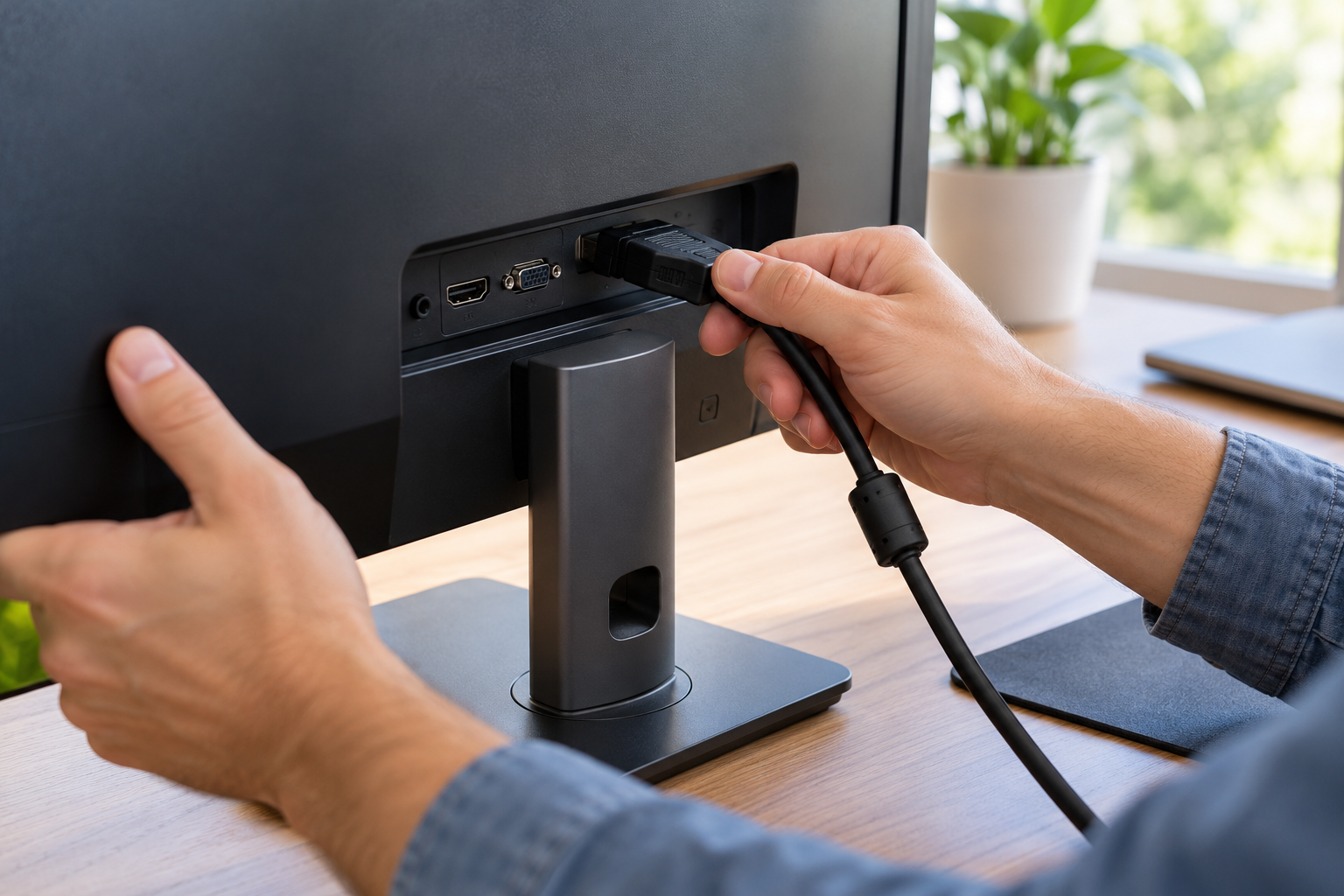
Reseat the cable at both ends and confirm that it is undamaged. If possible, connect the monitor directly to the computer, bypassing the dock or adapter, and try a known-compatible cable or another supported port. A dock, adapter, computer port, cable or monitor input can limit the resolution and refresh rate the setup can use. A cable alone cannot add a capability missing from the computer or monitor.
Before buying, check the specifications of every part of the connection for the desired resolution and refresh rate. USB-C connectors look alike, but not every USB-C port or cable supports video. Compare USB-C video cables only after checking compatibility. You can compare DisplayPort monitor cables if both devices have compatible DisplayPort connections.
5. Check refresh rate and monitor settings
In Settings > System > Display > Advanced display, select the external monitor and check the available refresh rate. Choose a rate supported by the monitor and connection. Refresh rate mainly affects motion smoothness, not static text sharpness, but a bandwidth-limited connection may restrict the combinations of resolution and refresh rate available.
Use the monitor’s built-in menu to check its picture mode and sharpness. Excessive sharpening can create halos around letters. If the monitor offers a reset for picture settings, consult its manual before using it. For a TV used as a monitor, check its manual for an appropriate PC mode. With an older VGA connection, the monitor’s auto-adjust feature can sometimes improve the picture.
6. Troubleshoot blurry text or one application
If text alone is hard to read, search Windows for Adjust ClearType text and follow the on-screen tuner for the display. ClearType helps tune text rendering; it cannot compensate for a resolution or connection problem. Update or restart an affected application and compare it with another app. If only one video is blurry, check the video’s playback quality and source before changing your monitor settings.
What if the recommended resolution is missing?
Check that the correct monitor is selected and try Extend or Second screen only. Test a direct connection and a compatible cable, and check the PC, dock, adapter and monitor input specifications. Install available display-driver updates through Windows Update or the computer or graphics manufacturer’s official support site. If the problem began after a driver update, Microsoft also describes a driver rollback when that option is available. Avoid downloading drivers from unfamiliar sites. Microsoft’s external monitor troubleshooting guide covers further checks.
Frequently asked questions
Will a new HDMI cable always fix a blurry monitor?
No. A compatible cable can help if the existing cable or connection limits the signal, but resolution, scaling, software, the monitor input and the computer’s capabilities matter too. Test before buying.
Why is my monitor blurry only when mirroring my laptop?
The two displays may have different native resolutions. Try Extend or Second screen only and select the recommended resolution for the external monitor.
Does a higher refresh rate make text sharper?
Not usually. Refresh rate affects how often the image updates; native resolution, scaling and rendering are generally more relevant to static text clarity.
The bottom line
Select the correct external monitor, use its recommended resolution, and adjust scale for comfortable text size. If the picture remains blurry, test the display mode, connection and application before purchasing replacement equipment.
As an Amazon Associate we earn from qualifying purchases.
The post Why Is My External Monitor Blurry? How to Fix Resolution, Scaling, and Text Clarity appeared first on All About Home Electronics.
]]>The post Why Is My TV Antenna Missing One Channel? How to Find and Restore a Missing Station appeared first on All About Home Electronics.
]]>This guide focuses on a TV antenna missing one channel: how to check the station, compare its signal with the channels you receive, and test practical solutions without unnecessarily replacing equipment.
Quick answer: Confirm the station broadcasts over the air in your area, check its real RF channel and tower direction, and compare them with your antenna’s capabilities and placement. Check your connections and try a targeted or full channel scan if appropriate. Reception maps are estimates, not guarantees.
Why can one antenna channel be missing?
A missing station might transmit from a different direction, use a VHF frequency your antenna handles poorly, or reach your home with a weaker signal than other stations. Terrain, buildings, reflections and electrical interference can affect one frequency more than another. A station may also be temporarily off the air, operating at reduced power, or have changed its broadcast frequency.
The first step is to identify which of those possibilities fits your situation. Avoid assuming that an amplifier or an antenna with a larger advertised range is the answer.
1. Make sure the missing channel is an over-the-air station
Check the station’s website or contact the broadcaster to confirm it transmits over the air in your area. Some cable networks and streaming-only channels are not available through an antenna. If you previously received the station, ask whether it has a temporary outage, reduced power or a recent frequency change.
If a specific subchannel is missing but the main channel still works, check the broadcaster’s current subchannel lineup too. Programming and distribution arrangements can change; a rescan cannot recover a service that is no longer broadcast on that signal.
2. Compare its tower direction and real RF channel
Enter your location into the FCC DTV Reception Maps or AntennaWeb. Find the missing station and note its predicted reception, transmitter direction and real RF channel. Compare those details with a station that works.
The channel number displayed on your TV is often a virtual channel; it may be different from the RF channel used for the broadcast. For example, a station displayed as 7.1 could transmit on RF 24. Use the real RF channel when checking the antenna’s band coverage or trying a manual scan.
Maps do not guarantee reception. The FCC map explains that its calculations assume an outdoor antenna 30 feet above ground; indoor reception may be substantially different. Your building, terrain and antenna location can change the result.
3. Check whether your antenna covers the station’s band
In the United States, real RF channels 2–6 are low VHF, 7–13 are high VHF, and 14–36 are UHF. Check the antenna manufacturer’s specifications against the missing station’s actual RF channel. Some compact antennas perform well on UHF but less well on VHF; an antenna labeled “VHF/UHF” may not clearly specify low-VHF support.
If the antenna does not support the needed band, a compatible model may be worth considering—but the correct band alone does not guarantee reception. Direction, signal strength and placement still matter. Compare VHF/UHF antennas, and check the exact band coverage and return policy before buying.
4. Test the antenna’s position and connections
Note your current position and the stations that work before making changes. If the missing station comes from another direction, adjust a directional antenna in small increments toward its transmitter. For an indoor antenna, try a different window, wall or height. A small move can help one signal while weakening another, so check your other preferred stations too.
Inspect the coaxial cable and connectors for loose or damaged connections. If you use a splitter, test the antenna directly on one TV when practical. This helps identify whether distribution equipment or cable loss is contributing. If an antenna has a powered amplifier, follow the manufacturer’s instructions when testing it; some amplified antennas will not pass a signal correctly when unpowered.
Move an indoor antenna away from nearby electronics and power supplies if you suspect interference. For an outdoor antenna, stay away from overhead power lines; do not climb or adjust equipment in unsafe conditions. Hire a qualified installer if needed.
5. Scan for the station—without losing track of your existing channels
Make sure the TV’s tuner is set to Antenna, Air, Broadcast or Over the Air, rather than Cable. If your TV offers a manual RF-channel search or an add-channel feature, consult its manual and try that option first. Some sets can add a station without replacing the existing list; others cannot.
Otherwise, run a full antenna channel scan after a meaningful position change or when a station changes frequency. Some TVs replace the stored list during a full scan, so write down your working stations and original antenna position first. If a different position recovers the missing station but loses others, compare the tradeoff before settling on a location. Menu names and available features vary by TV.
The Channel Master scanning guide explains why a tuner may miss a station during a scan and why a real RF number can differ from its on-screen number.
Will a signal booster bring back one missing channel?
Sometimes an amplifier helps compensate for cable or splitter loss, but it cannot fix an unsupported band, remove all interference or create a usable signal that the antenna does not receive. Excessive gain can overload a tuner and worsen reception. Start by checking the station, antenna and wiring. Our guide explains when an antenna amplifier helps or hurts.
Frequently asked questions
Why do I get every channel except one?
That station may use a different frequency, tower direction or power level, or face different obstacles. It may also be experiencing a temporary broadcast issue. Check its RF channel and reception estimate before changing equipment.
Can a missing channel come back without a new antenna?
Yes. A corrected connection, different antenna position, rescan or restoration of the broadcaster’s signal may help. Results depend on the cause and your location.
Why does one TV receive the station but another does not?
Different cable runs, splitter connections, tuner sensitivity and saved channel lists can matter. Compare the TVs’ antenna settings and test a direct connection when practical.
Should I rescan every time a channel disappears?
Not necessarily. First check whether the broadcaster has an outage and whether the antenna and cable have moved or changed. A full rescan can replace your existing list on some TVs. A rescan is useful when a station changes frequency or after relevant antenna changes.
The bottom line
When your TV antenna is missing one channel, identify the station’s real RF channel and tower direction, confirm that your antenna supports its band, and test placement and connections. Rescan thoughtfully, keeping in mind that a predicted station may not be reliably receivable at every home. For more general help, visit our over-the-air TV antenna guide.
As an Amazon Associate we earn from qualifying purchases.
The post Why Is My TV Antenna Missing One Channel? How to Find and Restore a Missing Station appeared first on All About Home Electronics.
]]>The post What Coaxial Cable Do You Need for a TV Antenna? RG6 vs. RG59 Explained appeared first on All About Home Electronics.
]]>Quick answer: For most new TV antenna runs, choose a good-quality, 75-ohm RG6 coaxial cable with suitable F-type connectors. RG6 generally has less signal loss than comparable RG59 over the same distance, especially at higher frequencies. A short, undamaged RG59 cable that already provides reliable reception does not automatically need replacement.
This guide explains how to identify and choose coaxial cable for a TV antenna, what to look for before buying, and when the cable may not be the cause of a reception problem.
RG6 vs. RG59: Which is better for a TV antenna?
Both are families of coaxial cable commonly made for 75-ohm video and television applications. RG6 is usually thicker and, in comparable TV installations, tends to lose less signal over distance than RG59. That makes it a practical default for a new antenna cable, particularly for a longer run.
RG59 can still carry over-the-air television signals. If an existing short run is in good condition and your channels are dependable, replacing it solely because it says RG59 may offer little benefit. Conversely, a damaged RG6 cable can perform poorly. Compare actual manufacturer specifications when evaluating specific products: construction, shielding and loss vary even among cables with the same designation.
You do not need a cable marketed as “digital,” “HD,” “4K” or “8K” just to receive a digital broadcast. Choose suitable 75-ohm coax for the frequencies and environment involved; those labels alone do not establish cable quality.
Channel Master’s coaxial cable guide explains how cable construction, frequency and length affect signal loss.
How to identify the cable you already have
Look along the outer jacket for printed markings such as “RG6,” “RG-6,” “RG59” or “75 ohm.” The printing may repeat only every few feet. Color and thickness alone are not reliable identification. If the writing is missing or unclear, check its original packaging or manufacturer’s specifications.
Inspect accessible cable for cuts, crushed sections, severe bends, corrosion and loose connectors. Outdoor water intrusion can damage a cable even when the outside appears acceptable. Do not disconnect or modify cable that may belong to an active internet, cable or satellite service until you know what it serves.
What to look for when buying antenna coax
1. A 75-ohm RG6 cable intended for TV use
For a typical new run, look for a reputable, well-specified 75-ohm RG6 coaxial cable. Check the manufacturer’s attenuation and shielding information when available. Quad-shield is not automatically required for every home; effective construction and properly installed connectors matter more than a shielding label alone.
Compare options and choose a suitable length: shop RG6 TV antenna cables.
2. The right connectors for your devices
Many U.S. TVs and antenna systems use threaded F-type connections; check both ends before buying. A ready-made cable typically has male F-type connectors on each end. Some indoor antennas have a permanently attached lead or a different connection, so confirm the equipment rather than assuming. For outdoor use, choose connectors rated for the installation and follow the manufacturer’s weather-sealing instructions.
3. The right length and jacket
Measure the actual route, including turns and a little slack, rather than the straight-line distance. Buy the length needed without unnecessary excess. Every coaxial cable loses some signal; longer runs generally lose more, and loss usually rises with frequency. There is no universal maximum length: the available signal, cable specifications, splitters and tuner all affect the result.
Use cable rated for its environment. For outdoor exposure, select an outdoor/UV-rated jacket and compatible weather-resistant connections. Burial requires cable specifically rated for direct burial or an appropriate installation method; outdoor-rated does not automatically mean burial-rated. In-wall routes must use cable with the applicable fire rating and follow local requirements. A qualified installer can advise on grounding, weatherproofing and safe routing.
Can a longer or damaged cable cause missing channels?
It can contribute. A long cable, poor connection or splitter may weaken an already marginal signal enough that a tuner can no longer decode a station reliably. Different stations arrive at different levels and frequencies, so one may disappear while others remain.
However, an unsuitable antenna band, poor placement, interference or a broadcaster’s outage can also be responsible. If practical, compare reception using a known-good, suitably short cable connected directly from the antenna to one TV. Keep the original arrangement in mind, and make one change at a time. This test helps identify a cable or distribution problem; it does not prove that cable is the only factor.
Can you reuse old cable TV wiring?
Sometimes, but first identify where each cable goes and whether it is still used by an internet, cable or satellite provider. Do not combine an antenna with an active provider line or disconnect provider equipment without proper guidance. Old splitters, unused branches, damaged cable or incompatible equipment can affect reception. For outdoor antennas, grounding and electrical safety require appropriate professional attention.
Does an amplifier make up for any cable length?
No. An appropriately chosen amplifier can help overcome some downstream cable and splitter loss, but it cannot repair a damaged cable or reliably clean up interference, and too much gain can overload equipment. Diagnose the antenna and wiring before buying one. Our guide explains when an antenna amplifier helps or hurts.
Frequently asked questions
Will RG59 work with a digital TV antenna?
Yes, a suitable 75-ohm RG59 cable can carry digital TV signals. Its condition, length and signal loss determine whether it works reliably in your installation.
Does a TV antenna need special coax for HD?
No special “HD” cable is inherently required. A suitable, properly connected 75-ohm TV coaxial cable can carry over-the-air digital broadcasts.
Should I replace a working RG59 cable?
Not necessarily. If the cable and connectors are sound and reception is reliable, replacement may not be needed. For a new or problematic long run, suitable RG6 is generally the better starting choice.
The bottom line
For most new TV antenna connections, choose good-quality 75-ohm RG6 with the correct connectors, appropriate environmental rating and a sensible length. Check the whole system before replacing a working cable: the antenna, placement, splitter and connections all play a part.
As an Amazon Associate we earn from qualifying purchases.
The post What Coaxial Cable Do You Need for a TV Antenna? RG6 vs. RG59 Explained appeared first on All About Home Electronics.
]]>The post Ethernet Connected but No Internet? How to Troubleshoot a Wired Connection appeared first on All About Home Electronics.
]]>These steps can help you find the cause before replacing equipment or resetting your network. Menu names vary by device and software version.
1. Check whether the problem affects other devices
Try several websites and another browser. Then use a phone on the same home Wi-Fi network. If Wi-Fi devices also cannot reach the internet, the issue may involve your router, modem, or internet provider. Check your provider’s outage page using mobile data. For a broader walkthrough, see Wi-Fi connected but no internet.
If Wi-Fi works but the wired computer does not, focus first on the Ethernet cable, the router’s LAN port, an adapter or dock, and the computer. Turn off Wi-Fi temporarily during wired tests so it does not hide the result. Re-enable it afterward.
2. Check the cable and use a LAN port
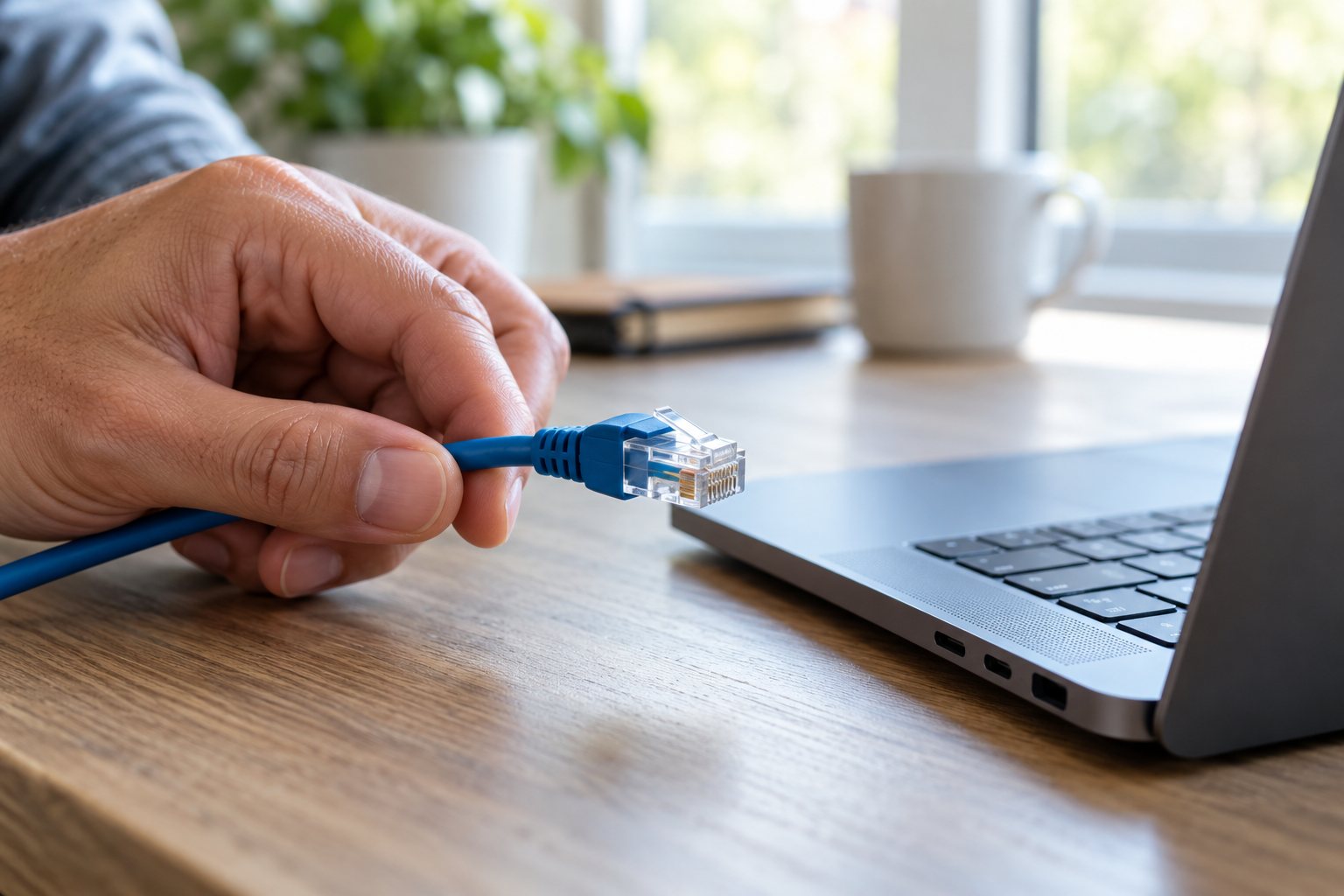
Gently reseat both ends of the Ethernet cable: one in the computer or Ethernet adapter and one in a numbered LAN port on the router or gateway. Do not move the cable that connects a separate modem to the router’s WAN or Internet port. If the cable passes through a wall jack, switch, or powerline adapter, include those connections in your checks.
Look for damaged insulation or a broken plug. Try a known-good cable, and then another available LAN port. Change one thing at a time and retest. A link light can indicate a physical connection, but it does not prove the internet works; some equipment has no visible light.
Need a replacement? Shop Cat 6 Ethernet cables. Choose a suitable length and avoid running an indoor cable outdoors unless it is rated for that use.
3. Bypass a dock or adapter if possible
If you use a USB Ethernet adapter or docking station, unplug and reconnect it. Try another compatible USB port and, if practical, a direct Ethernet port or another known-good adapter. A dock may need power, a compatible driver, or a firmware update from its manufacturer. On a work-managed computer, consult your IT team before changing drivers or network settings. If you need an adapter, shop USB Ethernet adapters and check compatibility with your computer.
4. Restart the computer and check network status
Restart the affected computer. On Windows, open Settings → Network & internet → Ethernet and review its status. On a Mac, open System Settings → Network and select the Ethernet service. Exact menus vary. If the adapter is disabled, enable it only if this is your personal computer and doing so is appropriate for your network.
Windows users can run the Network and Internet troubleshooter in Get Help. If the connection stopped after an update, consult the computer or adapter maker for the correct driver. Avoid uninstalling a driver until you have a suitable backup and a way to reinstall it.
5. Check IP and DNS settings carefully
Most home networks automatically assign an IP address and DNS servers. If your computer is set to manual values you did not intend, record the existing settings and consult your provider or device instructions before changing them. A self-assigned address beginning with 169.254 can suggest the computer did not receive an address from the network, but it does not identify the cause by itself.
Temporarily disconnect a personal VPN and check for an unintended proxy, then test again. Reconnect your VPN afterward if needed. Do not change settings on a managed computer without permission or permanently disable security software.
6. Restart network equipment if multiple devices are affected
A restart temporarily interrupts everyone using the connection. If you have a separate modem and router, unplug both power supplies, wait about 30 seconds, reconnect the modem first, and allow it to come online. Then reconnect the router and wait several minutes before testing. If you have one combined gateway, restart that one device. Follow your provider’s instructions for battery-backed or special equipment.
A restart is not a factory reset. Avoid the reset button as an early troubleshooting step; a factory reset can erase Wi-Fi credentials and other settings.
7. What your test results suggest
Another cable fixes it: the original cable or connector may be faulty. Another LAN port works: the original port may be faulty or configured differently. Another computer works with the same cable and port: investigate the first computer or its adapter. Neither wired nor Wi-Fi devices work: investigate the router, gateway, or provider. These are clues, not guarantees.
When should you contact support?
Contact your internet provider if multiple devices cannot get online after an outage check, cable inspection, and restart. For a single affected computer, contact the computer or adapter manufacturer. Note which cables, ports, and devices you tested and any exact error message. Follow Microsoft’s Ethernet troubleshooting guide or Apple’s internet connection guidance for model-specific steps.
Need help with a wired connection?
Work through your computer and network questions with Gadget Wiz.
Ask Gadget WizFrequently asked questions
Why does Ethernet say connected but websites do not load?
The physical connection can be active while the router, internet service, IP configuration, DNS, VPN, or another component prevents access. Test another device and follow the checks above.
Can a bad Ethernet cable cause this?
Yes. A damaged or unreliable cable can prevent or interrupt a connection. A known-good replacement is a useful test, but a cable is not the only possible cause.
Should I reset my router?
Try a normal restart only when appropriate. Reserve a factory reset for later, after understanding what settings it will erase or when your provider directs you.
Shop Ethernet cablesIllustrative image; check length and specifications before buying.
As an Amazon Associate we earn from qualifying purchases.
The post Ethernet Connected but No Internet? How to Troubleshoot a Wired Connection appeared first on All About Home Electronics.
]]>The post How to Find TV Broadcast Towers Near You: A Guide to Antenna Maps and Local Channels appeared first on All About Home Electronics.
]]>This guide explains how to find TV broadcast towers near you and interpret a reception report. The results are estimates—not a promise that every listed channel will work inside your home.
Quick answer: Enter your location into the FCC DTV Reception Maps or AntennaWeb. Note the stations you want, their directions, predicted reception and actual broadcast channels. Then use that information to choose and test an antenna.
Why find TV broadcast towers near you?
Local stations may transmit from one tower cluster or from several locations in different directions. Knowing where those signals originate can help you decide where to start positioning an antenna and whether the stations you want use VHF, UHF, or both.
A map cannot see every obstacle around your home or predict exactly how your antenna will perform. Trees, nearby buildings, walls, roof materials, terrain and cable loss can all affect reception. Treat the report as a planning tool and verify its suggestions by testing.
How to use the FCC DTV Reception Maps
The FCC provides a free map for estimating available digital television signals in the United States. Here is a practical way to use it:
- Open the FCC DTV Reception Maps page.
- Enter an address, ZIP code, or city and state. An address can better represent your individual location than a ZIP code; use the level of detail you are comfortable sharing with the site.
- Review the station list and find the call signs or channels you want to watch.
- Select a station’s call sign for additional details and its transmitter direction on the map. Note its predicted signal and real RF channel where shown.
- Repeat for each important station. Look for groups of transmitters in similar directions and note any that lie elsewhere.
Map features and labels can change. If the page is unavailable or the results are unclear, try another reputable tool and compare the assumptions behind each report.
Try AntennaWeb for another reception estimate
AntennaWeb provides another address- or ZIP-based way to explore local stations. Its information page explains that reports can help you identify station distance and direction and select an outdoor antenna category.
Read each tool’s assumptions before comparing results. AntennaWeb says its predictions assume an outdoor antenna about 20 feet above ground. The FCC map says its calculations assume an outdoor antenna about 30 feet above ground. These are assumptions used for prediction—not instructions that every home must install an antenna at those heights.
How to read a TV antenna reception report
Station and call sign
A call sign identifies a broadcast station. Start by finding the stations that carry the local programming you care about. A single station may also carry multiple digital subchannels, although the number actually received depends on the broadcast and your tuner.
Direction and distance
The direction tells you where the transmitter is relative to your location. Depending on the tool, you may see a map line, a compass bearing, or both. Check whether a bearing is stated relative to true north or magnetic north before comparing it with a compass, and follow the tool’s instructions.
Distance is useful context, but the nearest tower is not necessarily the easiest to receive. Transmitter power, terrain, antenna height, obstructions and frequency also matter. Avoid buying an antenna solely because a package advertises a particular mileage range.
Predicted signal strength
Reports may group predicted signals by strength or estimated reception. Stronger predictions can be a useful starting point, but actual results vary. An indoor antenna, for example, may perform differently from a report based on an elevated outdoor antenna.
Virtual channel versus real RF channel
The number displayed on your TV is often the station’s virtual channel. Its real RF channel identifies the broadcast frequency used over the air. For example, a station displayed as 7.1 could transmit on a UHF RF channel rather than RF channel 7. Check the actual report instead of assuming the two numbers match.
In the United States, RF channels 2–6 are low VHF, 7–13 are high VHF, and 14–36 are UHF. Antenna coverage varies, so check that the antenna supports the bands used by the stations on your list. A compact UHF-focused antenna may not receive a needed VHF station reliably.
What if stations are in different directions?
First identify your must-have stations and see whether their transmitters form a main cluster. Start with an antenna position and orientation suited to that group. If another station is in a different direction, test small changes before deciding whether a different antenna is needed.
A directional antenna favors a direction; a broader-pattern antenna may be useful when stations are spread out, although results depend on the antenna and signal conditions. Combining antennas or installing a rotator can add complexity and may not be necessary. See our guide to aiming an over-the-air TV antenna for the next steps.
If you are shopping, you can compare VHF/UHF TV antennas. Match the supported bands and installation type to your report, and check the return policy because actual reception can differ from the prediction.
Turn the report into a practical test
- Write down the call signs, directions, predicted strengths and real RF channels for your preferred stations.
- Check whether your antenna supports the necessary VHF and UHF bands.
- Choose a safe starting position and orient the antenna according to its instructions and the main tower group.
- Connect the antenna and run a channel scan with Antenna or Air selected in the TV’s settings.
- Check your important stations for stable reception, move or reorient the antenna if needed, and compare results.
To discover newly available stations after repositioning, you may need to rescan. Some televisions replace their existing channel list during a scan, so note any weak station that works before making changes.
For an indoor antenna, a window or exterior wall may be a useful starting point, but experiment: even nearby locations can produce different results. For outdoor installation, stay well away from power lines and follow applicable grounding and safety requirements. Hire a qualified installer when needed.
Frequently asked questions
Can I find TV antenna towers using only my ZIP code?
Yes, some tools accept a ZIP code as a starting point. An address or precise map position can provide a more location-specific estimate, but share only the location information you are comfortable entering.
Does a reception map guarantee that I can watch a station?
No. It predicts reception under stated assumptions. Your antenna, mounting position, building, terrain and local interference can change the result.
Should I always point toward the closest tower?
Not necessarily. The stations you want may use other towers, and distance is only one factor. Use the map as a starting point, then test reception.
Do I need internet to watch antenna TV?
No internet connection is needed to receive conventional over-the-air TV broadcasts with a compatible antenna and tuner. Internet is needed to use an online reception map and may be required for separate streaming features.
The bottom line
To find TV broadcast towers near you, enter your location into an FCC or AntennaWeb reception tool and note your preferred stations’ directions, predicted strengths and real RF channels. Use the results to choose an appropriate antenna and starting position, then verify reception at home. For broader help, see our Over-the-Air TV Antenna Guide.
As an Amazon Associate we earn from qualifying purchases.
The post How to Find TV Broadcast Towers Near You: A Guide to Antenna Maps and Local Channels appeared first on All About Home Electronics.
]]>The post 5 GHz Wi-Fi Not Showing Up? How to Find and Restore Your Network appeared first on All About Home Electronics.
]]>This guide is for a home Wi-Fi network you manage. Menus vary by router and device. If the network is visible but says “no internet,” use our Wi-Fi connected but no internet guide instead.
1. Check whether both bands share one network name
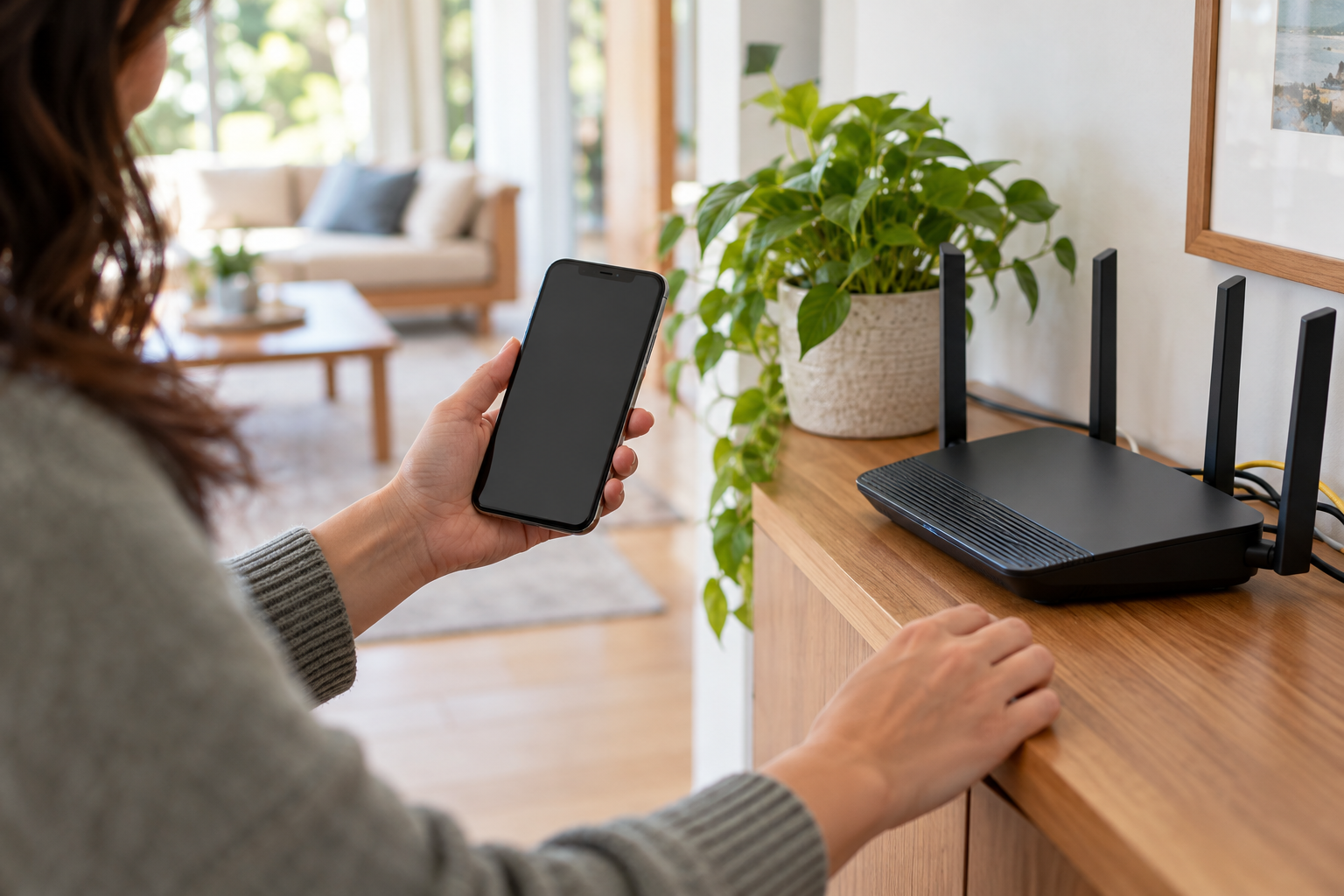
Many routers and mesh systems use one Wi-Fi name for 2.4 GHz and 5 GHz. A compatible device can connect to either band without displaying a separate “5G” network. Check the router’s app or connected-device details to see which band your device is using, if your equipment shows it.
Other routers allow separate names, such as Home-2.4 and Home-5. If a separate name has disappeared, continue with the checks below. Do not rename or split your network just to prove that 5 GHz exists: not every system supports separate names, and changing names may require reconnecting devices. Google explains how shared names and band steering work on its Wi-Fi systems.
2. Move close to the router and refresh the list
Move the affected device into the same room as the main router, keeping it a few feet away. Open the Wi-Fi list again, or briefly turn Wi-Fi off and back on. Walls and distance can make a 5 GHz signal harder to receive. If the network appears nearby but disappears farther away, coverage is a likely factor, not proof of a broken router.
If possible, test near both the main router and a mesh point. See our weak Wi-Fi signal guide for placement and coverage ideas. A mesh system or router upgrade may help some homes, but first verify your equipment and coverage needs.
3. Compare another device
Try a second device that you know supports 5 GHz, close to the same router. If it can see a separately named 5 GHz network but the first cannot, investigate the first device’s capabilities, settings, or software. If neither can see it, check whether the router uses a shared name, whether its 5 GHz band is enabled, or whether the signal is being broadcast.
4. Verify 5 GHz support on the device and router
Look up the exact model in its manufacturer’s specifications. A 2.4 GHz-only device cannot discover a separate 5 GHz network. Do not assume a device supports 5 GHz just because it has Wi-Fi. Likewise, an older or single-band router may not offer 5 GHz at all. For the differences between bands, read our 2.4 GHz vs. 5 GHz guide.
If an older computer cannot use 5 GHz, a compatible dual-band USB Wi-Fi adapter may be an option. Check its operating-system support and driver requirements first. Shop dual-band USB Wi-Fi adapters.
5. Restart the device and router
Restart the affected phone or computer. If multiple devices have the same problem, consider restarting the router or combined gateway once using its manufacturer’s instructions. A restart briefly disconnects everyone, so warn other household members first. Give the equipment several minutes to start and test again.
Do not press the factory-reset button as an early step. A factory reset can erase your network name, password, mesh configuration, and other settings. Some routers take time to make certain 5 GHz channels available after a restart; consult the model’s guidance before assuming the radio has failed.
6. Check the router’s 5 GHz settings
Using the router’s official app or management page, check whether its 5 GHz radio is enabled and whether the network name is being broadcast. If the router has one shared name, it may not offer a separate 5 GHz name at all. Write down current settings before changing them. If you do not manage the network or your provider controls the settings, contact the owner or provider.
Some devices cannot use every 5 GHz channel supported by a router. If one compatible device still cannot see the network, consult both manufacturers about channel compatibility and local rules. Automatic channel selection is a sensible starting point; do not randomly change channels or security settings. Changing a channel can briefly disconnect devices and may not be available on every system. See Apple’s recommended router settings.
7. Check updates and security compatibility
Install available updates from the device or router manufacturer when practical, using another connection if needed. On a computer, use the manufacturer’s guidance for the correct wireless adapter driver. A work-managed device may have restrictions; contact its IT team before changing drivers or settings.
A device may also be incompatible with the router’s security or wireless mode. Consult both manufacturers for a supported secure configuration. Do not disable encryption or switch to an open network just to make a device connect.
When should you replace equipment or call for help?
If several known-compatible devices cannot find the band near the router after these checks, contact your internet provider or router manufacturer. Provide the model, whether the router uses a shared name, which devices were tested, and what changed. If only one device is affected, contact its manufacturer. A new router is worth considering only after compatibility, configuration, and coverage have been checked.
If a replacement is appropriate, compare dual-band Wi-Fi routers. Check compatibility with your internet service, coverage needs, updates, and security before purchasing.
Still can’t find your Wi-Fi?
Get help working through your home network questions.
Ask Gadget WizFrequently asked questions
Does one Wi-Fi name mean 5 GHz is turned off?
No. Many routers use a single name across multiple bands. Check the router app or device connection details if available.
Why can my phone see 5 GHz but my older device cannot?
The older device may not support the band, a specific channel, or the network’s security mode. Check the exact model’s specifications and manufacturer guidance.
Is 5 GHz Wi-Fi the same as 5G cellular?
No. 5 GHz is a Wi-Fi radio band. 5G cellular is a mobile network technology.
As an Amazon Associate we earn from qualifying purchases.
The post 5 GHz Wi-Fi Not Showing Up? How to Find and Restore Your Network appeared first on All About Home Electronics.
]]>The post Why Is My Laptop Docking Station Not Working? How to Fix Monitor, USB, and Charging Problems appeared first on All About Home Electronics.
]]>First, notice what is affected. If the monitor, keyboard, and other devices all stop working at once, check the dock’s power and laptop connection. If only one device fails, test that device and its cable separately.
1. Check the docking station’s power
If your dock uses an external power adapter, make sure it is connected to both the dock and a working outlet. Check the dock’s power light if it has one. Use the adapter supplied with the dock or one the manufacturer specifically approves for that model. A dock may power accessories without providing enough power to charge the laptop.
Safety first: Unplug damaged, unusually hot, swollen, smoking, or sparking equipment and stop using it. Do not open a power adapter or force a connector. If the laptop battery is swollen, shut down the device and contact a qualified repair provider.
2. Reseat the laptop connection and restart
Save your work and safely eject any external drives attached to the dock. Disconnect the dock from the laptop, check the cable and ports for damage or debris without inserting metal tools, then reconnect firmly. If the problem remains, restart the laptop. Follow the dock maker’s power-reset instructions; some models specify disconnecting the dock’s power and peripherals before reconnecting them in a particular order.
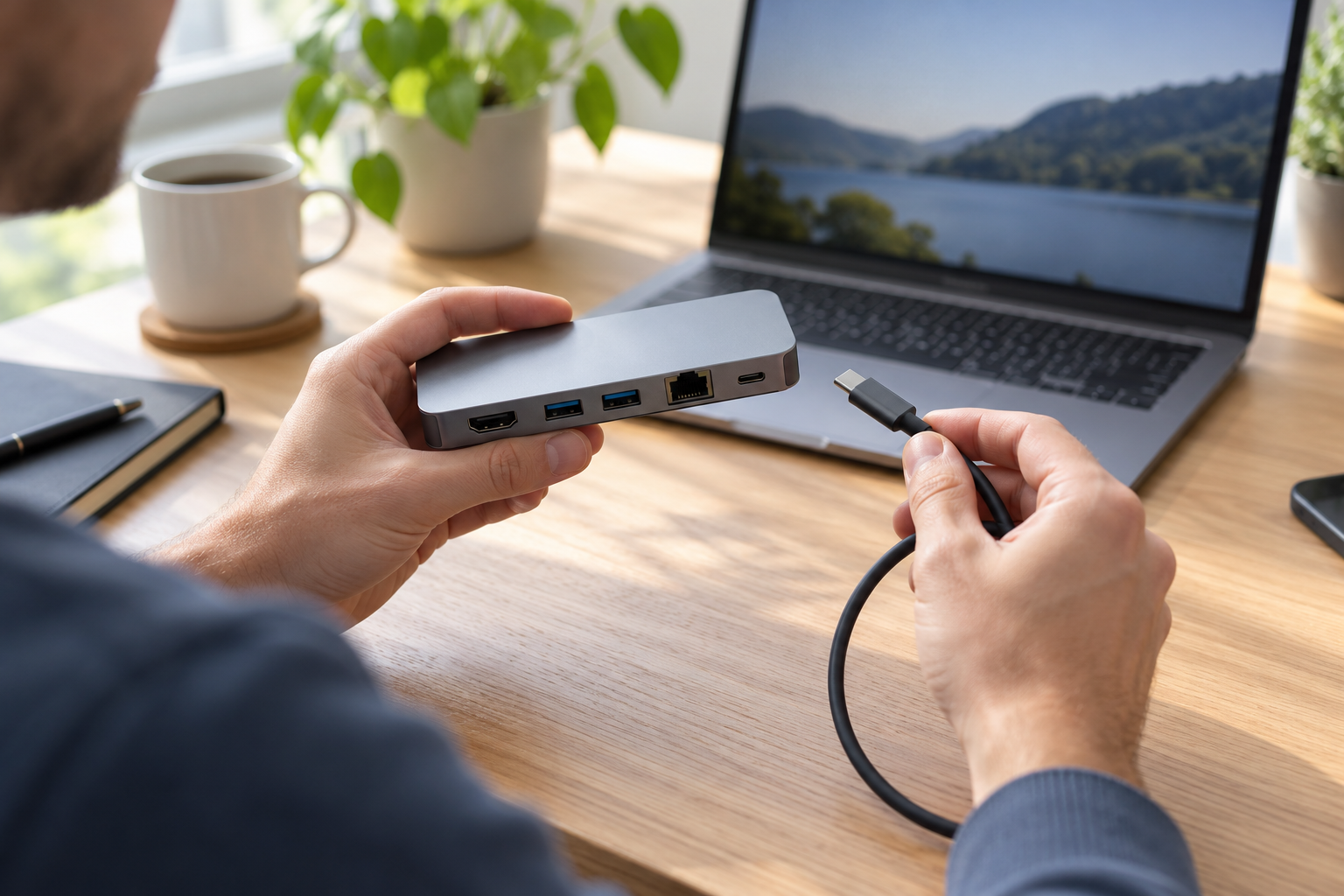
3. Confirm the USB-C port and cable support your needs
A USB-C connector’s shape alone does not guarantee that it supports video, laptop charging, or Thunderbolt. Check the specifications for the exact laptop port and dock. For a display using DisplayPort Alt Mode, the laptop port and the connection must support the required video mode. Some DisplayLink docks use a different method and need compatible software. Thunderbolt docks may have additional compatibility requirements.
If the dock has a detachable host cable, use the supplied cable or a manufacturer-approved replacement rated for the dock’s required data, video, and power features. A charge-only USB-C cable is not a suitable substitute. Read our guide to USB-C cables for monitors. You can also shop USB-C cables; check the ratings against your equipment before ordering.
4. Fix an external monitor that shows no signal
Make sure the monitor is powered on and set to the input connected to the dock, such as HDMI or DisplayPort. Reseat the display cable at both ends. In Windows, open Settings > System > Display, then use Detect under Multiple displays if it is available. Press Windows + P and choose Extend or Duplicate.
Try one monitor at a time, and connect the monitor directly to a compatible laptop video output if possible. If it works directly but not through the dock, the dock, its host connection, compatibility, or display configuration may be involved. Check the dock and laptop specifications for supported monitor count, resolution, refresh rate, and combinations of outputs. See our two-monitor laptop guide and monitor flickering guide for related tests.
5. Test USB accessories one at a time
Disconnect the accessories and try a simple device, such as a wired mouse, in a different dock port. Then test it directly on the laptop if possible. For external drives, make sure they receive the power they require; safely eject a drive before unplugging it. If only one accessory fails, its cable, power, or driver may be the issue rather than the dock.
6. Check why the laptop is not charging
Not every dock charges every laptop. Confirm that the laptop port accepts charging, that the dock supports charging that model, and that the dock’s power adapter and cable supply enough power for the laptop. Some high-power laptops need their own charger even when connected to a dock. A low battery may charge slowly, and battery-care settings may intentionally limit charging.
Compare the laptop and dock manuals before buying a charger. Microsoft’s USB-C troubleshooting guide explains that compatible charging ports, cables, and power levels matter.
7. Update software and test the connection again
Check Windows Update and the support pages for your exact laptop and dock models. Install recommended drivers, dock firmware, and, if your model requires it, DisplayLink software from the manufacturer’s official source. Follow the update instructions carefully and do not disconnect power during a firmware update.
If the issue started immediately after an update, check the manufacturer’s guidance before changing drivers. You can also test a compatible laptop with the dock, or the original laptop with a known-working compatible dock, to help isolate the cause.
Dock still not working?
Get help working through your laptop and connection questions.
Ask Gadget WizShould you replace your docking station?
Consider replacing the dock only after checking power, compatible ports, cables, software, and individual devices. A dock may simply lack the features your laptop or monitors need. Before shopping, compare the required host connection, operating-system support, monitor limits, USB ports, and charging wattage. Shop laptop docking stations.
Explore laptop docking stations on Amazon (affiliate link)Illustrative image; check product compatibility.
Frequently asked questions
Why does my dock work for USB but not my monitor?
The laptop’s USB-C port or cable may support data without supporting the video method your dock uses. Display input, monitor settings, available bandwidth, and model-specific drivers can also matter.
Why does my dock work but not charge my laptop?
The dock may not support charging that laptop, its power output may be insufficient, or the laptop may need a separate charger. Check the specifications of both devices.
Can a dock damage my laptop?
Compatible, undamaged equipment used according to manufacturer instructions is the safest choice. Stop using a dock or adapter that is damaged, excessively hot, or behaving unusually.
As an Amazon Associate we earn from qualifying purchases.
The post Why Is My Laptop Docking Station Not Working? How to Fix Monitor, USB, and Charging Problems appeared first on All About Home Electronics.
]]>