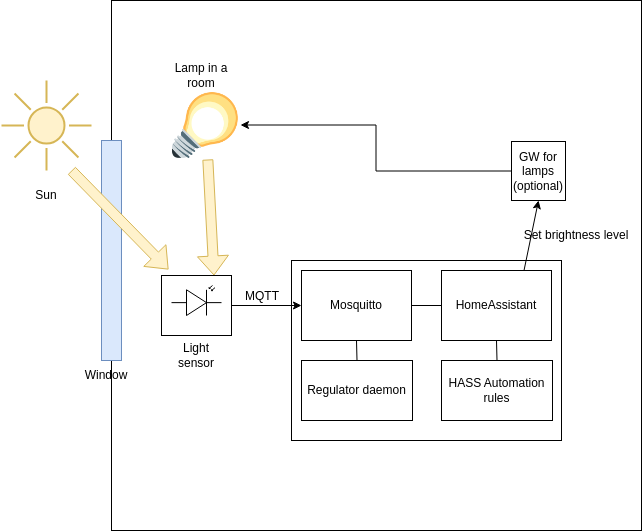
The autobright software will control the lamp(s) brightness in order to keep the light level on the sensor equal to the setpoint. That light level is affected by external lighting, it is affected by the time of the dat, clouts, solar eclipses, etc. In case of increasing external light, this software will automatically decrease brightness of the lamps, and vice versa.
Prerequisites.
To make such system, you’ll need:
– an existing Homeassistant installation on a systemd-based Linux distro (Ubuntu, Debian, and many other distros will fit).
– lamps that can be controlled from your Homeasstant.
– Light sensor. Here I’ll use a Lenovo Thinkpad 2 tablet as a light sensor, but you can make your own one with ESP32 and photoresistor/photodiode.
Installation.
First, prepare the light sensor. I’ll use a Lenovo tablet for that, here is the software for forwarding data from Lenovo tablet’s light sensor to the MQTT, please follow the installation instructions: https://codeberg.org/DSysoletin/lightmeter/src/branch/main/README.md
Now, let’s create a HomeAsisstant automation rules and control elements.
– Add to the confiruration.yaml of HomeAssistant the following section:
#-----------------------------------------------------
#External dynamic lighting stuff
input_number:
  slider1:
    name: DynLight_Setpoint
    initial: 1
    min: 0
    max: 1024
    step: 1
  slider2:
    name: DynLight_Output
    initial: 1
    min: 0
    max: 255
    step: 1

input_boolean:
  reg01_enable:
    name: Enable or disable auto light regulator (reg01)
Here we created two sliders and one boolean switch.
The boolean switch is used to turn automatic regulation on or off.
First slider is used to control the setpoint, you can set desired brightness of the lighting by moving that slider, and the second one is technical, it is needed to connect MQTT output of the regulator with the physical lamps.
Now, we need to create 3 automation rules:
First rule will forward the setpoint to lamps. Create a rule with trigger “state”, two conditions “state” and action “call service”. After creation, switch to text editor and enter the following text to automation:
Here is the automation text for first rule (forward brightness to the lamp):
Trigger:
platform: state
entity_id:
  - input_number.slider2
Conditions:
condition: state
entity_id: light.tradfri_bulb
state: "on"
condition: state
entity_id: input_boolean.reg01_enable
state: "on"Action:
service: light.turn_on
target:
  entity_id: light.tradfri_bulb
data:
  brightness: "{{ trigger.to_state.state | int }}"
Make sure that you have the correct lamp name in the “conditions” and “action” sections. The idea is – to set brightness only on the lamp that is turned on now – to avoid unwanted turning on of the lamps, so we need to check the status of the lamp in the conditions. And in the “action” section we need to specify, to which lamp(s) we need to forward the brightness value.
Now, let’s set a rule that will connect a regulator output (we will install the regulator software a bit later) to the slider in HomeAssistant control panel.
Here is the automation rule text:
Conditions – when MQTT message received:
platform: mqtt
topic: autobright/reg01_out
Action: call service
service: input_number.set_value
target:
  entity_id: input_number.slider2
data:
  value: "{{ trigger.payload }}"
Mare sure to remember topic we used here (autobright/reg01_out) – we will need to set it in the regulator’s config later.
Now, let’s create the latest automation rule to forward the setpoint to the regulator:
Condition (state changes):
platform: state
entity_id: input_number.slider1
Action (MQTT publish):
service: mqtt.publish
data:
  topic: autobright/reg01_sp
  retain: true
  payload: "{{ states('input_number.slider1') | int }}"
That’s it with the automation rules. Please restart your HomeAssistant to apply the changes.
Now, we need to install the regulator software itself.
Please download and install the regulator from here: https://codeberg.org/DSysoletin/autobright
Make sure to enter the correct topic names (ones that you entered in automation rules and ones that you have in your light sensor settings) into the autobright daemon config file. After starting Autobright service, the selected lamp(s) brightness will be controlled automatically.
]]>On this page, I’ll keep a summary table about capacities of different batteries on different currents, and also here you can download raw .csv voltage-time data, if you’re interested.
In table you can find battery name, capacity that it gave at specified current, capacity that it gave after about 12h rest (second discharge is performed at 0.1A in all cases) to estimate how much capacity remains after first discharge, and efficiency, which I calculated as (capacity at first discharge)/(capacity at first discharge + capacity at second 0.1A discharge).
CSV files with raw voltage-current graphs can be found below the table.
| Name | Current | Capacity | Capacity after 12h | Efficency |
| Auchan white | 0.1A | 2001 | n/a | 1 |
| Auchan white | 0.2A | 1576 | 440 | 0,781 |
| Auchan white | 0.5A | 432 | 1434 | 0,231 |
| Auchan alkaline | 0.1A | 2237 | n/a | 1 |
| Auchan alkaline | 0.2A | 1792 | 463 | 0,794 |
| Auchan alkaline | 0.5A | 509 | ||
| Auchan Hi-perf | 0.1A | 2225 | n/a | 1 |
| Auchan Hi-perf | 0.2A | 1788 | 442 | 0,801 |
| Auchan Hi-perf | 0.5A | 446 | ||
| Carrefour i-Tech | 0.1A | 2414 | n/a | 1 |
| Carrefour i-Tech | 0.2A | 2045 | 382 | 0,843 |
| Carrefour i-Tech | 0.5A | 1120 | 1235 | 0,476 |
| Carrefour alkaline | 0.1A | 2280 | n/a | 1 |
| Carrefour alkaline | 0.2A | 1888 | 411 | 0,821 |
| Carrefour alkaline | 0.5A | 977 | 1200 | 0,449 |
| Lexman standard | 0.1A | 2199 | n/a | 1 |
| Lexman standard | 0.2A | 1822 | 112 | 0,942 |
| Lexman standard | 0.5A | 1045 | 865 | 0,547 |
| Lexman Intensive | 0.1A | 2167 | n/a | |
| Lexman Intensive | 0.2A | 1814 | 213 | 0,895 |
| Lexman Intensive | 0.5A | 742 | 1164 | 0,39 |
In this article, I’ll share my first expirience of getting started with Thread protocol running on cheap module with Nordic nRF52840 chip inside.
It is pretty easy to start experimenting with Thread on Nordic devboard, but using cheap module from China can be a little tricky…
What is a Thread?
First question that you may have already – what is this all for? There is ESP8266/ESP32 modules that are cheap, easy start programming, and they offer Internet WiFi connectivity just out-of-the box, so why we need other chips with other protocols?
Well, simplified answer is – Thread mutch more match requirements of small connected devices than WiFi. Nordic nRF52 needs significally less power than ESP32 (about 10-12 mA vs about 80 mA), and Thread is a mesh network – it means that you don’t need to have direct connection from every device to central router – distant devices can reach router through several “hops” on other devices located close to the router.
You can read more about Thread on Openthread site.
Used hardware
For this project, I’ve used Skylab SKB-501 module. This module is declared as Bluetooth module, but it is ok because it have nRF52840 chip inside, so we can just erase chip and load our own (Thread) firmware.
Here is links and description of things, that you’ll need:
- SKB-501 module itself. On moment of writing this article, it was probably cheepest way to get nRF52840(except buying chips and soldering them on your board).
- USB-UART converter to link your device to PC.
- ST-Link adapter. You can probably use anoter SWD/JTAG adapter, I’ve used ST-Link(v2) just because I had one on my STM32F4 Discovery board.
- Nordic PCA10056 devboard. You’ll need it only once, for resetting nRF52 chip on SKB-501 module. Maybe you’ll able to do this without expensive Nordic devboard, but I don’t tried to do reset via ST-Link just because I had only one SKB-501 and I’ve resetted it with Devboard already. Maybe I’ll order some more SKB-501’s in future and update this article…
- Small protoryping board.
Hardware assembling
Assembling here is very simple: you just need to connect power, UART lanes (for communication with PC) and SWD lanes (for programming module itself) to SKB-501 module.
UART and power lanes should be connected to USB-UART converter. Please make sure to connect power to 3.3V of converter, not ot 5V!
Connection of SKB-501 to USB-UART is very simple:
(USB-UART) – (SKB-501)
RX (input) – P0.06
TX (output) – P0.08
GND – GND
3.3V – VCC (through diode, to not power up USB-UART from batteries, if you’ll use them)
For SWD, I’ve used two 2-pin headers, but you can use 4-pin. Pins is – SWCLK, SWDIO, reset and GND. Actually, I’ve never used reset pin, so you can omit it.
Also, I’ve soldered 6,3V, 680 uF electrolytic capacitor between GND and VCC of Nordic chip, and connected 2 pin header to that capacitor for connecting batteries.
After soldering, connect USB-UART converter to USB port of PC. If all soldered correctly, you’ll see Bluetooth device with name nRF52 appear. You can use “nRF connect” Android software for scanning Bluetooth devices.
Preparing required software
To compile firmware and work with nRF52 chip, we will need a set of software. Let’s install/prepare it:
OpenOCD
OpenOCD – is free software that will allow us to “talk” with nRF52840’s SWD interface via STLink adapter.
While writing this article, I’ve tried several versions of OpenOCD, and here is one that works with Nordic chips and STLink:#git clone https://github.com/ntfreak/openocd.git
#cd ./openocd
#./bootstrap
#./configure
#make
nrfjprog and Jtag libs
To unlock chip with Nordic’s devboard, we will need nrfjprog software. Please download it from Nordic site, and then unpack archives.
Resetting nRF52 chip
Method 1 – using Nordic 10056 board.
First, connect your board to Nordic’s devboard P20 connector.
Connections should be:
(your board) – (Nordic board)
SWDIO – SWDIO (4)
SWCLK – SWDCLK(5)
GND – GND_DETECT (8)
+3.3V – VTG (3)
RESET – RESET (7)
Please note, that connecting +3.3V to Nordic’s devboard is essential for Nordic’s internal debugger – with this connection, it recognizes that some external thing is connected, and it switches from on-board nRF52840 to external one.
When you’re done with connections, run:#cd <JLinkArmDir>
#export LD_LIBRARY_PATH=$PWD
#cd <nrfjprogDir>
#./nrfjprog --recover
Thing is – “–recover” command erasing all non-volatile memory and removes readback protection bit. After this procedure, our chip can be programmed/debugged with OpenOCD.
Method 2 – using OpenOCD (Without Nordic devboard).
While method 1 is reliable and easy, it is have drawback – you’ll need expencive Nordic’s devboard to use nrfjprog. Theoretically, same thing can be done with OpenOCD. But, when I’ve tried it, it dosn’t work for me, so I’am putting it here more like placeholder to update it later, when I’ll finally able to do this.
So, theoretically, you just need to erase all chip:
#../src/openocd -d2 -f interface/stlink-v2.cfg -f target/nrf52.cfg -c init -c 'reset init' -c halt -c 'nrf5 mass_erase'
When chip is resetted, we can compile our Thread example, and upload firmware to board.
Compiling Openthread firmware for nRF52840
There is a really good manual at Openthread’s site, and here I’ll be compile firmware according to that manual.
So, firstly, let’s clone code:#git clone https://github.com/openthread/openthread
Now, edit the configuration file:nano ./openthread/examples/platforms/nrf528xx/nrf52840/platform-config.h
In that file, you’ll need to completely remove this string:#define UART_HWFC_ENABLED 1
After ediding config, you can build firmware:#docker pull openthread/environment:latest#cd ./openthread/
#docker run -it --rm -v $PWD:/openthread-fw-new/ openthread/environment bash#cd ./openthread-fw-new/
#./script/bootstrap
#./bootstrap
#make -f examples/Makefile-nrf52840
After build, prepare .hex file for loading:#arm-none-eabi-objcopy -O ihex ./output/nrf52840/bin/ot-cli-ftd ./ot-cli.ftd.hex
Now, we can exit Docker, connect and flash our board.#exit
Copy hex file to some place with short path:cp ./ot-cli.ftd.hex /tmp
Flashing board
Ok, now we have unlocked Nordic board and firmware – it is time to flash it!
First, connect your board to STLink. I’ve using STLink from STM32F4 discovery board, but any STLink should be good here.
Connections is very simple:
(Your board) – (STLink)
SWDCLK – SWCLK
SWDIO – SWDIO
GND – GND
Please note, we don’t connect reset pin here.
Also, your nRF52840 should be powered, obviously, you can connect USB-UART converter on your board to USB port to get 3.3V from it, or connect batteries to your board.
Now, let’s flash it:#cd <OpenOCD_Dir>/tcl/
<OpenOCD_Dir> – is a directory where you’re compiled OpenOCD for Nordic in previous steps.#../src/openocd -d2 -f interface/stlink-v2.cfg -f target/nrf52.cfg -c init -c 'reset init' -c halt -c 'nrf5 mass_erase' -c 'program /tmp/ot-cli.ftd.hex verify exit'
If all will be good, you’ll see lots of debug messages, and something like this at end of the output:** Programming Finished **
** Verify Started **
** Verified OK **
If openocd fails with errors like “open failed”, try to run it under root user.
Now, you can connect to your board with picocom. First, disconnect your board from USB, STLink and batteries, and wait for couple seconds. Then, connect USB-UART converter to your PC, and run:#picocom -b 115200 /dev/ttyUSB0
Press enter several times. If you’ll see “>” at begining of new string – this is it! You’re succesfully flashed Thread CLI to your board!
You can type “scan” for list of networks in visible range (most likely for today, it will be empty), or type “help” to see what comands are available.
So, this is it for now.
In future, I’ve planning to make some sensors and light devices for my smart home on this Nordic’s nRF52840’s.
I hope, you’re endjoyed this article and you’re have some curiosity in Thread and other wireless protocols after reading this post.
Thank you!
In this article I’ll show how to install Amazon Alexa on Gentoo system. You can use your laptop for example, it already has built-in microphone and speakers.
This howto is based on these references from Amazon and KITT.ai:
https://github.com/alexa/avs-device-sdk/wiki/Linux-Reference-Guide
https://github.com/Kitt-AI/snowboy/
Let’s go!
Preparations
What we will need:
– Linux-based laptop or desktop with microphone/speakers. I’ve using Gentoo-based amd64 machine, but, I guess, with other Linux distros you’ll be ok also.
– Some time and patience.
First, let’s install dependencies:
Add this to your /etc/portage/package.use/01_local file:
=net-misc/curl-7.65.0 http2
=sci-libs/atlas-3.10.2 static-libs  generic
=sci-libs/clblas-2.10 performance
=sci-libs/hdf5-1.10.5 -threads
#emerge -av curl gst-plugins-base gst-plugins-good gst-plugins-ugly gst-plugins-mpg123 sci-libs/atlas sci-libs/cblas-reference virtual/blas virtual/cblas
Next, let’s clone AVS(amazon voice services) SDK :
#mkdir ~/alexa-test
#cd ~/alexa-test
#mkdir build source third-party application-necessities
#cd ./source
#git clone https://github.com/alexa/avs-device-sdk.git
Then, we need to install third-party dependencies:
#cd ./third-party/
#wget -c http://www.portaudio.com/archives/pa_stable_v190600_20161030.tgz
#tar zxf ./pa_stable_v190600_20161030.tgz
#cd ./portaudio/
Here I’am using default configuration options. If you’ll have some problems with running Alexa, you can try to enable debug flags in portaudio (check configure –help output).
#./configure --without-jack
#make
#cd ../
Next, clone Snowboy – it is a keyword detector engine, a thing that will wake Alexa when you’ll say “Alexa”:
#git clone https://github.com/Kitt-AI/snowboy.git
#cd ..
Configure and build SDK
Now, we can start configuration of SDK (please double-check all paths!):
#export RELPATH=~/alexa-test
#cmake $RELPATH/source/avs-device-sdk \
 -DGSTREAMER_MEDIA_PLAYER=ON \
 -DPORTAUDIO=ON \
 -DPORTAUDIO_LIB_PATH=$RELPATH/third-party/portaudio/lib/.libs/libportaudio.a \
 -DPORTAUDIO_INCLUDE_DIR=$RELPATH/third-party/portaudio/include \
 -DKITTAI_KEY_WORD_DETECTOR=ON \
 -DKITTAI_KEY_WORD_DETECTOR_LIB_PATH=$RELPATH/third-party/snowboy/lib/ubuntu64/libsnowboy-detect.a \
 -DKITTAI_KEY_WORD_DETECTOR_INCLUDE_DIR=$RELPATH/third-party/snowboy/include \
 -DCMAKE_BUILD_TYPE=DEBUG
At this point, SDK is configured and almost ready to build. But, unfortunately, at Gentoo linux you’ll get linking errors like “undefined reference … ” even with required libraries installed in system. To fix this, run:
#find -name link.txt | xargs sed -i 's/-lblas/-lblas -lcblas/'
And now, you can start build:
#make -j2
Configure your Alexa
If build is finished without errors – you’re almost there! Now we need to make configuration file for our Alexa app, and connect it to Amazon cloud.
Please follow this instruction and download config.json file: https://github.com/alexa/avs-device-sdk/wiki/Create-Security-Profile
When you have config.json, do next steps:
#mkdir ~/alexa-test/build/Integration/database
#cd ~/alexa-test/source/avs-device-sdk/tools/Install
#export RELPATH=~/alexa-test
#cp ~/Downloads/config.json ./
#bash genConfig.sh config.json device_serial_number \
 $RELPATH/build/Integration/database \
 $RELPATH/source/avs-device-sdk \
 $RELPATH/build/Integration/AlexaClientSDKConfig.json
Now, let’s prepare our keyword detector:
#cp ../third-party/snowboy/resources/alexa/alexa-avs-sample-app/alexa.umdl ../third-party/snowboy/resources/
Start your Alexa!
And try to run our app:
#./SampleApp/src/SampleApp ./Integration/AlexaClientSDKConfig.json ../third-party/snowboy/resources/
If all goes good, you’ll see message “NOT YET AUTHORIZED”, and authorization code. Go to https://amazon.com/us/code, enter that code, and now you should have fully working Alexa on your PC!
If SampleApp will throw some errors at initialization, you can append “DEBUG9” to starting command line – in this case, there will be lots of debug input. And, if you’re having errors with sound devices – try to start application under root.
I’d like to say thanks to Nikolay Merinov for helping me with some aspects of this howto.
– You need Raspberry Pi, or other linux – based machine to control it;
– Raspberry Pi, if it have non-squashfs based OS, can not survive a number of suddendly power losses;
– If you have several devices, controlling then from phone with HTTP-way can be complicated;
– It is non-trivial to make some centralized remote control for lots if devices like this.
Let’s try to make another device, that will be free of that flaws!

First – why ESP32?
This board is pretty small, cheap, and requires (relative) low amounts of power, and no external radio components required – just apply power, and it will work with your WiFi network!
I’ve using WeMOS ESP32 board – you can easilly find one on Aliexpress.
ESP32 does have hardware PWM, so you will need only MOSFET’s for control LED strips. This is big advantage of ESP32 vs ESP8266 – on last one, there is no hardware PWM module, and if you will try to use ESP8266 – you’ll have brightness fluctuations, especially when ESP8266 performs WiFi operations.
In this project, we will use RGBW LED strip – it have traditional RGB crystals, plus white (warm white) one. So we will use 4 PMW channels, and we will need 4 FETs.
Schematics of PWM driver channel in this project will be really simple:

Resistor R2 used to protect FET from staying in half-opened state in case of some problems with ESP32, or accidental disconnect FET from ESP. Resistor R1 used to protect ESP’s pin from accidental shorting to ground.
Since ESP32 have 3.3 volt on pins, you’ll need to use logic-level FET’s with that will have full-open gate voltage about 3V, or less. Something like IRLR8726PBF will fit.
You’ll need 4 channels for RGBW strip, or 3 for RGB. Schematics of channels is 100% equal. In my case, RGBW driver board looks like this:

Firmware for ESP32 is available on my GitHub (press here for download) . Please note – it is under development, and may be a little raw. Use Arduino + ESP32 to compile and flash this.
You’ll need some enclosure to this device. I’am recommend to look at IKEA’s lamps – you’ll find there lots of cheap enclosures, which will make your device looks better. As for me, I’ve used glass lamp, and device looks like this:
For power supply of your ESP32, you can use USB from your PC, if this lamp will stays on your desktop – in this case, you can take +12V from your PC also (I stays on this variant for now – I can reflash ESP’s firmware without any cable reconnections). In another case, take a look to 12V to USB converters for car’s lighter socket. They’re cheap, widely avaiable, and will fit our needs.
Now about control.
This device is controlled through MQTT – so you’ll be need some MQTT client. For testing, I’ve used this android client. For now, we have 4(5) mqtt tags, one for each channel, in format 0x00 – 0xFF, (and I plan to add additionally one tag for writing all channels brightness in one time, in format WWRRGGBB, where WW – white channel, from 0x00 to 0xFF, RR – red channel, and so on).
For now, my control panel for this device looks like this:

Use android mqtt client is obviously not very usable – so I plan in next articles show integration of this device with open-source smart-home software, probably OpenHAB.
]]>
Hello!
Recently I’ve got an Asus Tinkerboard single-board computer. This SBC is very interesting – it has pin compatibility with Raspberry Pi, but it is much faster than Pi. BTW, I’ve using it in my Pi-top, and it fits in place of Raspberry, and works well!
But, Tinkerboard don’t have community that Raspberry has, and it don’t have such selection of OS images out of the box. Well, let’s fix it and install Gentoo!
First of all, let’s take a look on similarities and differences.
– Tinkerboard and Raspberry Pi 3 both compatible with ARMv7 instruction set. So theoretically what works on Raspberry – should at least try to work on Tinkerboard;
– Different peripheral controllers. Yes, it is pin-out compatible with Raspberry, but have anoter SOC, so code that works, for example, with I2C, will not work without modifications;
– Most interesting – different booting process. While Raspberry uses proprietary bootloader, which reads first VFAT partition of SD card and executes kernel (so you just need two partitions on card – boot with kernel and other boot stuff, and rootfs – and nothing more), Tinkerboard uses u-boot process – you still need two partitions, like on Raspberry, but you also will need to have U-boot binary to be at special offset of SD card (usually 0x40). So we can’t just use SD card from Raspberry – it will not work.
Step 1. Preparing SD card.
To make Tinerboard up and running, we will need SD card with two partitions (boot, root) and special bootloader in place (it is not in /boot partition, and it is can’t be seen with fdisk -p). Easiest way to do this – is write Debian image for Tinkerboard, and then change root partition contents to Gentoo.
Please download Debian for Tinkerboard image here , and Etcher image writer here – and write image to your MicroSD card. When write will be complete, insert card to Tinkerboard and power it up – this will make root partition expand to full card size (or you can just remove second partition with fdisc and create new one with correct size).
Step 2. Writting Gentoo stage tarball on SD card.
After step 1, we have bootable microSD for Tinkerboard. Now we just need to change rootfs contents to Gentoo.
Create new filesystem:
mkfs.ext4 /dev/sdb2 (here sdb2 – is second partition of microSD card. Be careful, double-check if you supplied correct parition parameter!)
Download Gentoo stage3 tarball for Armv7 here (we need stage3 for Armv7-hardfp), copy it to your new root partiton, and extract. Commands should be like this:
(if new partition isn’t mounted) mount /dev/sdb2 /mnt/gentoo
cd /mnt/gentoo
cp ~/Downloads/stage3-armv7a_hardfp-20161129.tar.bz2 ./
tar xpjf stage3-armv7a_hardfp-20161129.tar.bz2 -C ./
When it will finish, please alter /etc/shadow file – or you will unable to login when system will be booted. You need to remove “*” symbol from password for root user. String for root user should looks like:
root::15723:0::::
After this, umount your new rootfs, insert card to Tinerboard, and boot! Log in with “root” user with empty password.
Step 3. Kernel compiling.
Your board now should be more alive than dead, but there is no WiFi. To bring it up, we need to recompile kernel and modules.
Kernel compiling manual mostly taken from here.
First, install bc application:
emerge bc
Clone kernel:
git clone https://github.com/TinkerBoard/debian_kernel.git
 cd ./debian_kernel/
 git checkout linux4.4-rk3288
Create kernel config from current kernel:
 make ARCH=arm miniarm-rk3288_defconfig
It seems like not all good with kconfig files in this branch – if you run “make menuconfig”, your .config file will be broken.
I’ve maded this changes with .config file to make system little cooler:
@@ -565,8 +565,8 @@
 # CONFIG_CPU_FREQ_DEFAULT_GOV_PERFORMANCE is not set
 # CONFIG_CPU_FREQ_DEFAULT_GOV_POWERSAVE is not set
 # CONFIG_CPU_FREQ_DEFAULT_GOV_USERSPACE is not set
 -CONFIG_CPU_FREQ_DEFAULT_GOV_ONDEMAND=y
 -# CONFIG_CPU_FREQ_DEFAULT_GOV_CONSERVATIVE is not set
 +# CONFIG_CPU_FREQ_DEFAULT_GOV_ONDEMAND is not set
 +CONFIG_CPU_FREQ_DEFAULT_GOV_CONSERVATIVE=y
 # CONFIG_CPU_FREQ_DEFAULT_GOV_INTERACTIVE is not set
 # CONFIG_CPU_FREQ_DEFAULT_GOV_SCHED is not set
 # CONFIG_CPU_FREQ_DEFAULT_GOV_SCHEDUTIL is not set
 @@ -576,8 +576,8 @@
 CONFIG_CPU_FREQ_GOV_ONDEMAND=y
 CONFIG_CPU_FREQ_GOV_INTERACTIVE=y
 CONFIG_CPU_FREQ_GOV_CONSERVATIVE=y
 -# CONFIG_CPU_FREQ_GOV_SCHED is not set
 -# CONFIG_CPU_FREQ_GOV_SCHEDUTIL is not set
 +CONFIG_CPU_FREQ_GOV_SCHED=y
 +CONFIG_CPU_FREQ_GOV_SCHEDUTIL=y

#
 # CPU frequency scaling drivers
 @@ -598,7 +598,7 @@
 #
 # ARM CPU Idle Drivers
 #
 -# CONFIG_ARM_CPUIDLE is not set
 +CONFIG_ARM_CPUIDLE=y
 # CONFIG_ARCH_NEEDS_CPU_IDLE_COUPLED is not set
For GCC6 – you probably will need to apply this changes :
diff --git a/drivers/media/i2c/soc_camera/rockchip/Makefile b/drivers/media/i2c/soc_camera/rockchip/Makefile
index 7933bcd1..2486999a 100755
--- a/drivers/media/i2c/soc_camera/rockchip/Makefile
+++ b/drivers/media/i2c/soc_camera/rockchip/Makefile
@@ -1,2 +1,3 @@
 obj-\$(CONFIG_VIDEO_OV8858) += ov_camera_module.o rk_camera_module.o ov8858_v4l2-i2c-subdev.o
 obj-\$(CONFIG_VIDEO_IMX219) += imx_camera_module.o rk_camera_module.o imx219_v4l2-i2c-subdev.o
+ccflags-y += -Wno-misleading-indentation # GCC6
diff --git a/drivers/net/wireless/rockchip_wlan/rtl8723bs/Makefile b/drivers/net/wireless/rockchip_wlan/rtl8723bs/Makefile
index 40715655..bd33c700 100644
--- a/drivers/net/wireless/rockchip_wlan/rtl8723bs/Makefile
+++ b/drivers/net/wireless/rockchip_wlan/rtl8723bs/Makefile
@@ -16,6 +16,7 @@ EXTRA_CFLAGS += -Wno-unused
 #EXTRA_CFLAGS += -Wno-uninitialized
 #EXTRA_CFLAGS += -Wno-error=date-time  # Fix compile error on gcc 4.9 and later

+EXTRA_CFLAGS += -Wno-misleading-indentation # GCC6
 EXTRA_CFLAGS += -I\$(src)/include
 EXTRA_CFLAGS += -I\$(src)/hal/phydm
And, after all, run build for kernel and modules:
make ARCH=arm -j5 zImage
make ARCH=arm -j5 modules
make ARCH=arm dtbs
And last step - install your new kernel and modules:
 mount /dev/mmcblk0p1 /boot/
 mv /boot/zImage /boot/zImage.bak
 mv /boot/rk3288-miniarm.dtb /boot/rk3288-miniarm.dtb.bak
 cp ./arch/arm/boot/zImage /boot/
 cp ./arch/arm/boot/dts/rk3288-miniarm.dtb /boot/
 umount /boot/
Reboot, and enjoy working WiFi 

In this article I’ll show how to make RGB controller for conventional 12V LED strips (and single powerful RGB leds too). When I say “conventional LED strip” – I mean LED strip where we have common positive lane, and separate R,G,B negative lanes. There is “smart” LED strips also, and, probably, I’ll write another article about them sometime
This device make on STM32F372 microcontroller, and I use FTDI chip as USB-uart converter. Yes, there is possible to make virtual COM-port on STM32 itself, using its USB interface, but I don’t did it yet. As switching devices I use MOSFETs with “logic” control (it means they have low gate voltage threshold).
Brightness can be controlled from web-page, and from Android-application, and also you can add “time-color” schedule. Last feature is very useful to make your device work as alarm-clock that wakes you up not by sound, but by light. And even if it will be not enough for you to wakeup – it will make wakeup much easier.
Schematics:
Overal schematics is very simple – just connect STM32F372 to FTDI usb-uart chip and add 3 FET’s. LED stripe uses 12V as power source, and board with microcontroller powered with USB (5V).
You can download schematics and board layout in Eagle format here:
https://drive.google.com/open?id=0B1blPsoKK5tad1dDTGNtd3l2OHM
Please note – it is very raw at this moment. You probably will want to add sone enhancements in board layout – for example, LED to indicate FTDI RX/TX activity, or SWD programming pins for STM32 (or you car solder wires directly to STM outs – they will needed only one time, for programming). Or, if you don’t want to solder a much – you can use one of these discovery kits.
After soldering, connect common GND (-) of 12V power supply to TP4, and connect LED stripe R,G,B channels to TP1-3, then connect common “+” output of LED stripe to “+” of 12V power supply. AT/ATX supply can be used for this purpose.
Firmware:
You can download project for STM32Cubes here:
https://drive.google.com/open?id=0B1blPsoKK5taWmNoeloyOWEtUDQ
You’ll need Keil v5 to edit/compile code.
After you’ll load firmware to STM, connect LED stripe and power STM and LED stripe up, you’ll see that initlally brightness of all channels set to 50%, and it slowly faded to 0%. This will means that microcontroller is functional, and all connections is good. Now you can move to setting up controlling PC.
Software for controlling PC:
Now we have working PWM controller board, but it still needs commands source to change brightness. In this project, I’ve used Raspberry Pi 1 model A + USB WiFi adapter to do this, but there is no special magic in Raspberry Pi 1 – you can use any other computer running Linux to do this.
Our PWM controller board wants to have string with lenght of 9 symbols at input. These symbols are three groups of digits, from 000 to 999 each, representing targed brightness of each channel. But you don’t need to enter this manually, of course – there is software for linux-machine that allows controlling device using web-interface, or cron.
At this moment, controlling software is actually set of php files. You will need working HTTP server + PHP + MySQL on your controlling machine. You can easy find manuals how to set-up it. Here is one example: http://www.penguintutor.com/linux/light-webserver
BTW, don’t forget to set-up static IP address of you controlling PC!
You can download software for PC here: https://drive.google.com/open?id=0B1blPsoKK5taRHh5TS1mRTFjS00
Installation is very simple – copy contents of archive to you www server document root, create MySQL database (you can check/change database name in file settings.php), and source base.sql file in you new database.
After you do this, you’ll need to grant httpd user rights to access to tty ports. On raspbian (running lighttpd) you can do this with next command:
#sudo usermod -a -G dialout www-data
And don’t forget to add these two lines in /etc/crontab:
* * * * * root php /var/www/html/cron.php
* * * * * root stty -F /dev/ttyUSB0 115200
At this point, it should work! Check it by trying to set some color from web-interface. Non-clean color (i.e. non only red, green, or blue) can look different on your screen and on your LED lamp – this because they color profiles are very different, this is not solved in current version of device. You can try to set vary color from your laptop/tablet, and set favor ones in schedule.
Controlling software for this device, and schematics is a little raw for now, yes. For now you need to have one PC per one lamp, this is probably ok, if you have only one lamp, but if you want several of it – this is not very useful. So there is a lots of things to improve, yes. It is far from ideal now, and I’ll try to make more useful versions.
Software for Android device
I’ve wrote simple application for Android, that will allow you to set current color for device manually. It just turns you phone/tablet to remote control.
You can download project for Android Studio here: https://drive.google.com/open?id=0B1blPsoKK5tabUpoM2E0WDdBTlE
Few words about usage:
-Screen of mobile device virtually divided to three vertical rows. Just put finger somewhere near to left-down corner of screen, swipe up, and release finger. Color of screen should change from initial white to more-or-less intensive red. More pixels scrolled up – more intensive color. To decrease color intensivity, just swipe down. Similar for green and blue, they controlled by center and right rows of screen.
At this version, android software tries to send command to IP 192.168.0.98. You should change it in sources, if you have different IP of your controlling PC, or set this IP as static IP for your controlling PC.
But, mostly avaliable solar powerbanks is just waste of money. Let’s make own solar powerbank, which will really work!
At first – you may ask – what’s wrong with that compact powerbanks with integrated solar panel? There is two problems: first – very limited power of solar panel inside them. It may take weeks to fully charge integraged lithium battery. And second – it is heat: solar panels usually black or deep blue, and they will get hot when placed under direct intense sunlight – and they will warm-up internals of powerbank, including battery. Intense heat is not too good for all electronics, and for lithium batteries too. They can rapidly loose capacity, bloat, became unstable, and even explode when overheated.

Bloated li-ion cell from Samsung tablet.
So, in good system we will need to have separated solar panels and battery block to solve these two problems.
To make our powerbank, we will need, as minimum, these things:
– Solar cells. Better to use ones with open loop voltage at 5-6 Volts. About number of cells – more is better, we need at least 500 mA of current.
– Li-ion charger board. Important to have very simple charger board, but with protection for lithium cells. Complicated charging circuits, like ones in powerbanks with LCD displays, designed to work with virtually-unlimited power source – and they have relatively high current consumption. We have limited power source, so we want something with minimal features (protection + status indication (charging in progress/charging complete)) to have much as possible energy comes to battery instead of wasting it in charger board.
– DC-DC boost converter (li-ion discharged board) – to convert 3.7V from our battery pack to 5V for USB devices. Again, we need something simple and energy-efficient, something with low current consumption when idle and good efficiency.

Charging board (at right) and step-up to 5V converter (at left).
– Battery itself. Hard to overestimate importance of this component. You can buy cells from Ebay/Aliexpress, or use cells from old tablets, cellphones, laptops, etc. Old batteries, that will not run you laptop even for couple of seconds, actually can work here. When battery aging, internal resistance of it becomes higher – this means, battery can’t power same load as when it was new: there will be too big looses on internal resistance and voltage will quickly drop. But if you will discharge it with small current – you probably will find that actual capacity is about 60% from new. And if you have lots of batteries from old electronics – you can connect it all in parallel – and will have relatively low current on each cell when you charging you device from this array.
– Optional – some charge indicator – to estimate how much energy we have in battery now.

Testing assembly of one cell, charginb board, step-up converter and chage gauge board.
Let’s make it!
First – we will need solar panels itself.
You can buy cells at Aliexpress/Ebay. We will need cells with open loop voltage about 6 Volts. As usually, one cell have very limited power (and current) – and to make battery charging in reasonable time – we will need several cells.
If you use cells with 5-6 Volts open voltage, just connect them in parallel.


Solar cell from Aliexpress.
If this array will stand inside you house, just make some mechanical support at back side of cells. If you’ll use some glue tape – only place it at back side of cells, do not place anything at front side – this will decrease power output.
If you plan to place solar cells outside, you must to carefully cover all electrical connections with epoxy glue or silicon sealant – otherwise any contact with water (such as rains, dew) will cause fast corrosion.
To make it easy to use – connect out of your solar panels array to USB socket. Since we will not connect li-ion cells directly, you can not use blocking diode on solar panels.
Next, assemble your battery pack. Depending of what cells are available to you, it can vary. If you do have some used cells, firstly do this:
– Fully charge all your cells. Better to use specified chargers like imax to see, what capacity batteries will take from charger – to estimate how much capacity remains in cells,
– Leave cells at least for one weer each, don’t connect something to them, just leave them charged,
– After at least one weer for each cell, check voltage on cells – if there is 4.10V or more – use this cell as part of you battery, if less – it have too much self-discharge, don’t use it.
Here is reference circuit diagram of all parts connected together:

Just connect all suitable cells in parallel (observe polarity!). Connect charger and step-up converter to battery, and connect your solar cells array to charger board with USB cable. If you have some board with charge indication – connect it too, and it will be good to have some enclosure for this all. So, there is it, power bank ready!
A few common moments:
– I’am recommend to use only protected cells. Yes, we have charging and discharging boards that have protection features – but if there will be short-circuit inside lithium cells connections – it will not help, we need to have some protection against it. Lithium cells are potentially dangerous, so generally it is a good idea to have protection board close as possible to cell itself.
– When you charge tablet – turn it off. Mobile devices “thinking” that they connected to infinite power supply when charging – so they often turn off power-save features when plugged in. In our case source is limited, so it will be good idea to turn devices off.
]]>Thematics? Varying – gadgets, DIY elecronic things, *nix, programming, etc…
Hope it will be useful for you, dear visitor
]]>