The post Windows 10 gains in Steam hardware survey September appeared first on Andrew.Technology.
]]>
Steam Hardware & Software Survey: September 2015 DX10/11/12 Systems graph
Steam’s monthly Hardware & Software Survey shows Windows 10 is gaining big amongst gamers. The new operating system features the latest DirectX 12 graphics API so most of these gains also reflect in DirectX 12 adoption. From August to September Windows 10 64-bit gained 7.95% bringing it to 25.06% of the Windows install base on Steam. Windows 10 32-bit is just shy of 1% so all together Windows 10 accounts for 26% of Steam users reporting in the September hardware survey.
Windows 7 64-bit is still holding strong at 39.16% only loosing a few percentage points between August and September. Windows 8.1 64-bit lost the most month-to-month at -4.93% finishing at 19.46% and third overall following Windows 10 64-bit. No doubt users are upgrading from Windows 8/8.1 to 10 at the faster rate among Windows versions.
Valve provides a graph for DirectX 10/11/12 Versions but they don’t group that data the same in the tabular breakdown. Complicating the numbers is the fact you not only need Windows 10 but a compatible video card to utilize DirectX 12. According to their graph DirectX 12 GPU & Windows 10 accounts for 22.6% of users effectively the true indicator DirectX 12 among Steam hardware survey participants. DirectX 12 GPU & Pre-Windows 10 accounts for 42.38% so there is still quite a bit of room to grow.
I compiled the Windows Version data into a graph to illustrate Windows 10 gains. Windows XP is black, Windows 7 (32 & 64-bit) are in red, Windows 8/8.1 (64-bit only) are green, and Windows 10 in blue (64-bit only). I only used versions that had over 1% market share for September so this excluded: Windows 10 32-bit (0.92%), Windows 8.1 32-bit (0.48%), Windows Vista 32 bit (0.37%), Windows 8 32 bit (0.22%), and Windows Vista 64 bit (0.19%).
The post Windows 10 gains in Steam hardware survey September appeared first on Andrew.Technology.
]]>The post Block Spotify Free Ads in Windows with EZBlocker appeared first on Andrew.Technology.
]]>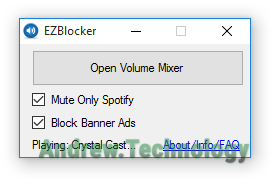
EZBlocker options: Mute Only Spotify, Block Banner Ads
If you’re using Windows and listening to music through Spotify Free then you might be interested in EZBlocker, a small piece of software that auto mutes ads and blocks banner ads. EZBlocker stays open the entire time Spotify is open constantly reading its state to see if you are listening to songs or if it’s serving you ads and proceeding accordingly. It can mute audio ads using Windows’ Volume Mixer, block banner ads from showing up in the user interface and sometimes block all audio ads all together.
EZBlocker functions similar to how Chrome or Firefox extensions can block ads in your web browser so in a way you could think of it as a 3rd party extension for Spotify. For the more technical EZBlocker analyzes the Spotify API being sent to your computer and “uses non-intrusive methods to read the Spotify client to extract song information” and block or mute ads using that information. The official documentation goes on to say: “Because EZBlocker does not modify the Spotify client in any way, it is less buggy compared to other ad blockers.”
It was developed by a university student using .NET and the language C Sharp (C#) which is all created by Microsoft so naturally it works with Windows using .NET Framework 3.5 which comes standard with Windows 10. I tested using Windows 10 but in the comment section of the project page users have reported it works on Windows 7 so I’d guess it works fine with Windows 8/8.1 as well.
Download and run EZBlocker
You’re going to want to download the latest version 1.5.1.4 (March 14, 2015) at the time of writing this from the project page: https://www.ericzhang.me/projects/spotify-ad-blocker-ezblocker/. No install is required you just simply run EZBlocker.exe and it will launch EZBlocker and Spotify automatically. Check to activate options: “Mute Only Spotify” and “Block Banner Ads” and you might need to restart for it all to take effect.
EZBlocker needs to always be open for it to work so I recommend adding having it start when Windows first boots up. Then can be done very simply by copying EZBlocker.exe to the Startup folder located at C:\Users\(User-Name)\AppData\Roaming\Microsoft\Windows\Start Menu\Programs\Startup where (User-Name) is your own Windows user name. Now when you restart Windows EZBlocker should launch automatically along with Spotify!
If you want know exactly what EZBlocker is up to you can even review the source doe because this is an open-source project hosted on GitHub. Allowing others to review code your is always a good sign the creator is being up front and legitimate about their intentions. I tested using an older version of Spotify: 1.0.12.161.g64b0797c and updated to the latest Windows 64-bit version: 1.0.14.214.g4dfabc51 but the developer says EZBlocker should work with with any 1.0.X version of Spotify.
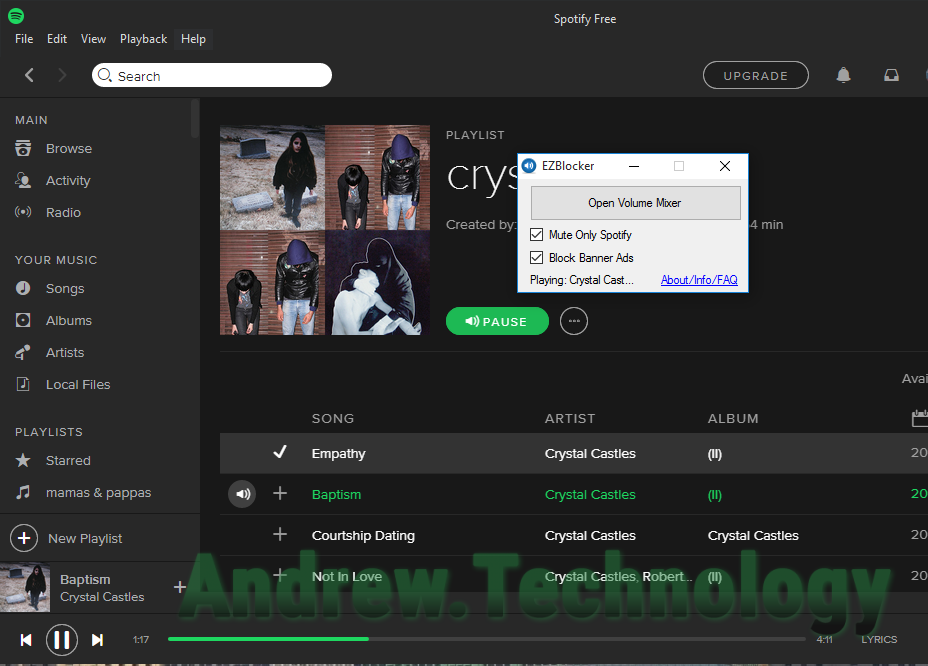
Spotify with EZBlocker running on Windows 10
The post Block Spotify Free Ads in Windows with EZBlocker appeared first on Andrew.Technology.
]]>The post GeForce Windows 10 Driver update for The Phantom Pain appeared first on Andrew.Technology.
]]>Opening NVIDIA GeForce Experience shows you that a new driver is available and by clicking Download driver it will update directly from here or you can find version 355.82 on NVIDIA’s website which says:
The latest GeForce Game Ready driver, release 355.82 WHQL, ensures you’ll have the best possible gaming experience for Metal Gear Solid V: The Phantom Pain and Mad Max.
It adds game improvements like SLI profiles and Application Profiles to tweak for better game play in The Phantom Pain. On my GTX 970 I did notice an increase in FPS overall, of course the game is locked to 60 frames per second (FPS) so there is already a limit to performance in that way.
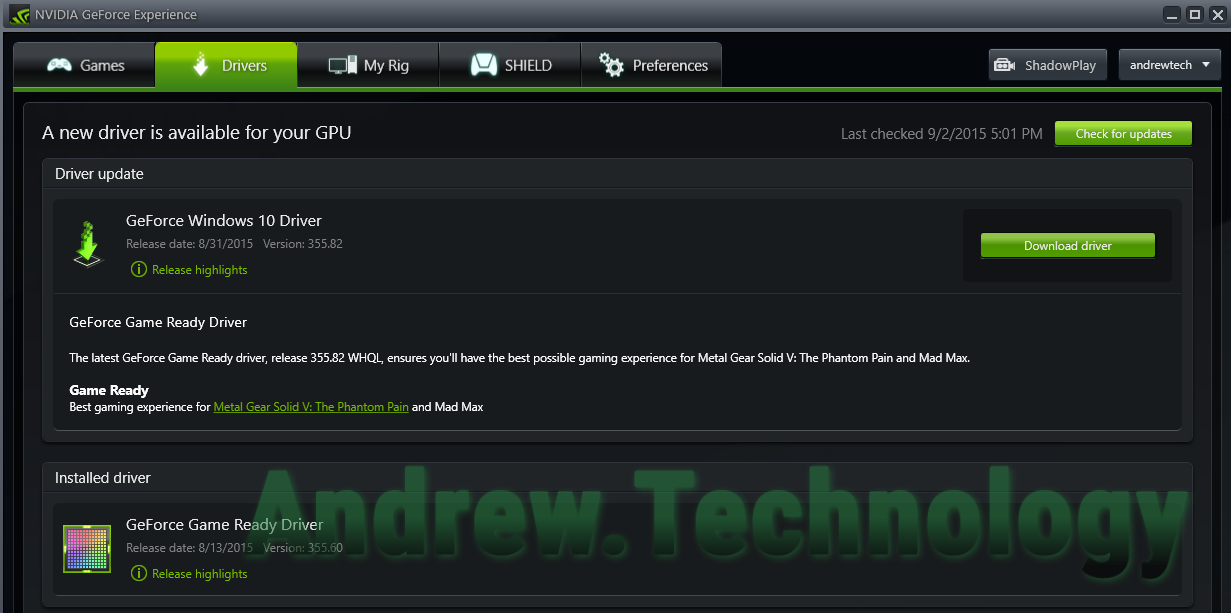
NVIDIA GeForce Experience Game Ready WHQL driver version 355.82
The driver will download and then a new screen opens to install the driver. While mine was installing I actually saw a banner ad for Metal Gear Solid V: The Phantom Pain, which I guess is no surprise considering the NVIDIA logo shows up in game every time you load for the first time.
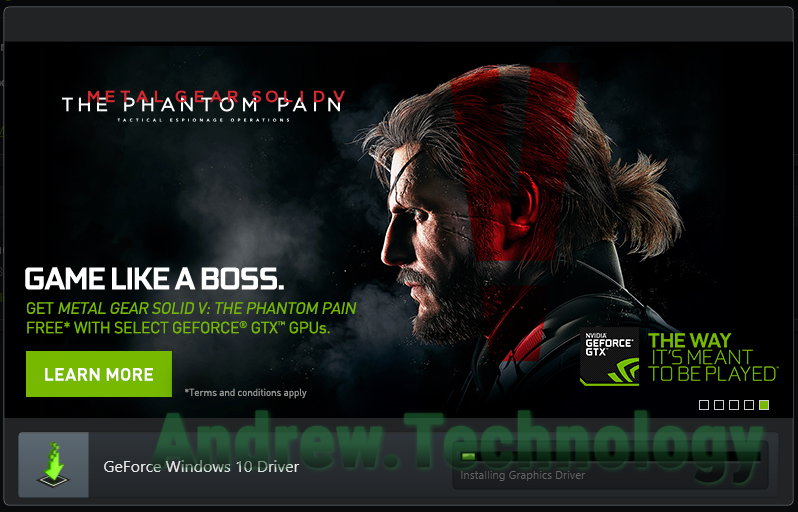
NVIDIA GeForce Experience install driver 355.82 Metal Gear Solid V The Phantom Pain
Once your done it will show Installation Complete.
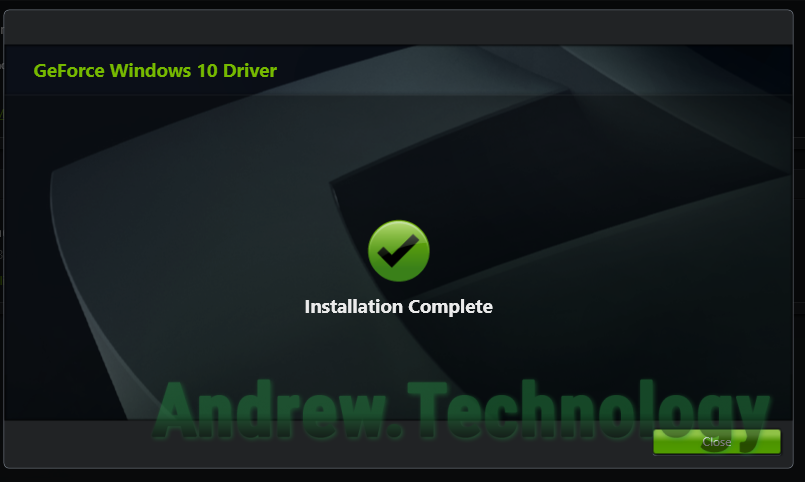
NVIDIA GeForce Experience – Installation Complete
AMD also updated their driver to Catalyst 15.8 Beta drivers and you find more info here. Time to play some MGS V: The Phantom Pain!
The post GeForce Windows 10 Driver update for The Phantom Pain appeared first on Andrew.Technology.
]]>The post Install 64-bit Java in Windows 10 x64 appeared first on Andrew.Technology.
]]>Whether you are playing Minecraft, developing Android apps or using browser plugins you need Java installed. If you’ve running Windows 10 x64 then not only do you need Java but 64-bit Java. By default the owners of Java Oracle install 32-bit Java if you use the generic web installer page (https://java.com/en/download/win10.jsp) which is a real bummer if you’ve got 16 GB of RAM/memory like I do. This quick guide covers how to download and install Java 64-bit to take advantage of all the hardware in your computer.
Download Java SE Runtime Environment 8 x64
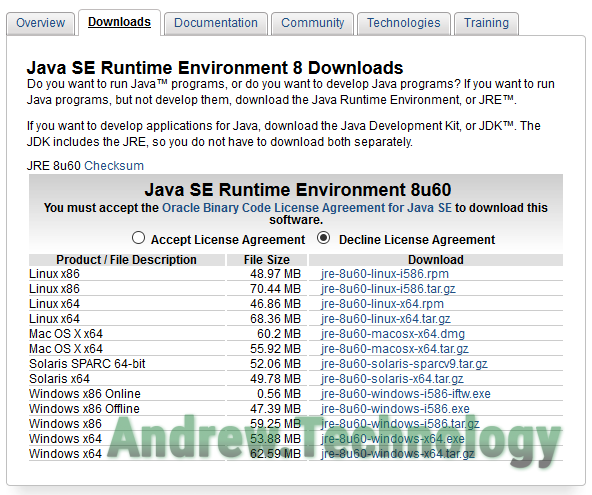
Java SE Runtime Environment 8 Downloads x64
First, navigate to the Java SE Runtime Environment 8 Downloads page (http://www.oracle.com/technetwork/java/javase/downloads/jre8-downloads-2133155.html) or just Google “JRE 8” and use the first result from Oracle.com. At the time of writing this I saw version: Java SE Runtime Environment 8u60 (8u73 & 8u74 for March 7th update) and under that: “You must accept the Oracle Binary Code License Agreement for Java SE to download this software.” so click Accept License Agreement.
Now you see will see many different operating systems to choose from listed under Product / File Description. Second from the last, Windows x64 – jre-8u##-windows-x64.exe (Where the ## is the version number 60, 73, 74, etc..) is what you want to click just make sure you pick the version ending in windows-x64.exe.
Your browser will download jre-8u##-windows-x64.exe and you can run and install like normal. After the install is complete you’ll be able to go to the Start menu and type Java and you will see Java Configure & About Java as Desktop Apps, just to confirm it’s installed.
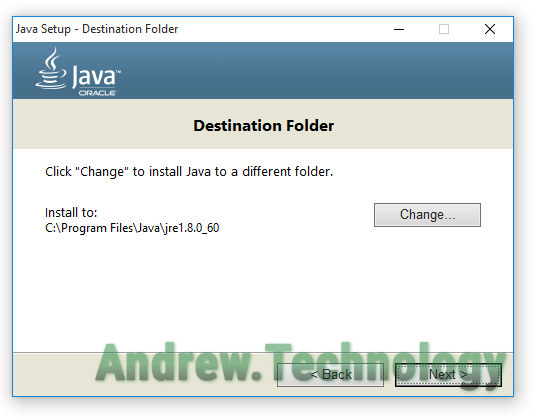
Java installer Windows 10 64-bit
Now that you’ve got 64-bit Java installed it’s time to play some Minecraft with as many mods as you want. Seriously, I’ve been able to run over 200 mods in Minecraft using x64 Java!
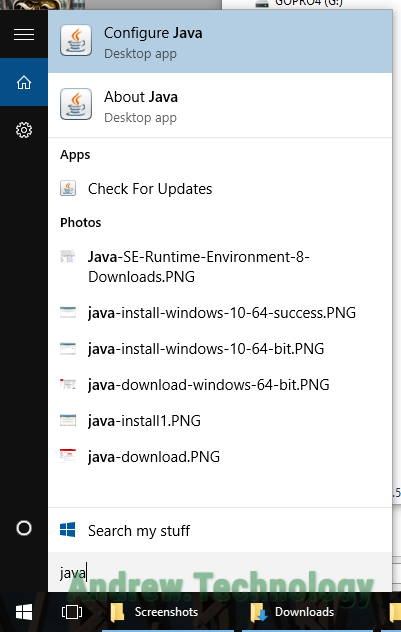
Windows 10 Start menu Java seach
Why not 32-bit?
The short answers is that if you have more than 4 GB of Memory (RAM) you need to be using 64-bit binaries/software to take advantage of it. There are other things to take into consideration and if you really want to dig into this subject more I suggest this post from HowToDoInJava titled Difference between 32-bit java vs. 64-bit java here is a quick bit from there:
Strictly speaking, on a 32-bit CPU architecture machine, you should install 32-bit java/JRE. On the other hand, on a 64-bit CPU architecture machine, you are free to choose between 32-bit java/JRE and 64-bit java/JRE.
While 32 bits of information can only access 4 GB of RAM, a 64-bit machine can access 17.2 BILLION GB of system memory
Update March 7th 2016 – It appears the direct link has not changed over time so I’m going to prominently display it now instead of advising of searching Google. The version was updated to 8u73 & 8u74 at the time of this update. Also updated the Java version numbers and replaced the file name with generic ## signs.
The post Install 64-bit Java in Windows 10 x64 appeared first on Andrew.Technology.
]]>The post Chrome does not work well with Windows 10 appeared first on Andrew.Technology.
]]>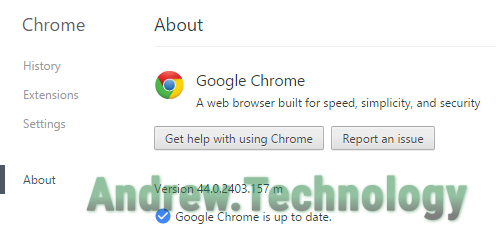
Chrome up to date in Windows 10
I’ve been using Windows 10 for over a week now and for the most part it works great along with all the software I use. Enter Google Chrome, which besides an issue here and there worked fine on Windows 8/8.1 and Mac OSX. Chrome under Windows 10 is utterly unreliable and unbearable for even the simplest of tasks.
First, the initial load took forever. After the install I opened Chrome and it took 3-5 minutes just for any sign of Chrome to show up. Task Manager showed Chrome was running and consuming resources but no GUI for awhile. I chalked that up to being the first launch and maybe it had some initial setup that takes longer on Windows 10. Now I know that’s not the case because I had it happen to me again. Chrome does start fine now after a week of running it but it’s still a bad sign.
Second, it’s constantly freezing and locking up for no apparent reason. This is using Google’s own services like Gmail, Calendar, Search will freeze going between them. Even just using the settings trying to click: History, Extensions, About to navigate options it freezes up! I’m not trying to run intensive WebGL or anything just simple JavaScript and HTML.
Lastly, interacting with HTML forms like search boxes, selects, textareas also cause a lock up. I use WordPress daily and the admin section has tons of form elements for posts and pages. Chrome under Windows 10 makes WordPress unusable and I say that without hyperbole because I’m actually typing this post in Firefox after getting fed up with Chrome’s lockups.
At this point I should note Firefox works great, hell even Internet Explorer and Edge work well enough compared to the multitude of Chrome issues. Being a developer I’ve always had many browsers installed and open at once to check websites. It’s not an issue for myself to exclusively use Firefox at this point but average consumers who have always used Chrome might feel a bit uncomfortable switching all the sudden due to bugs.
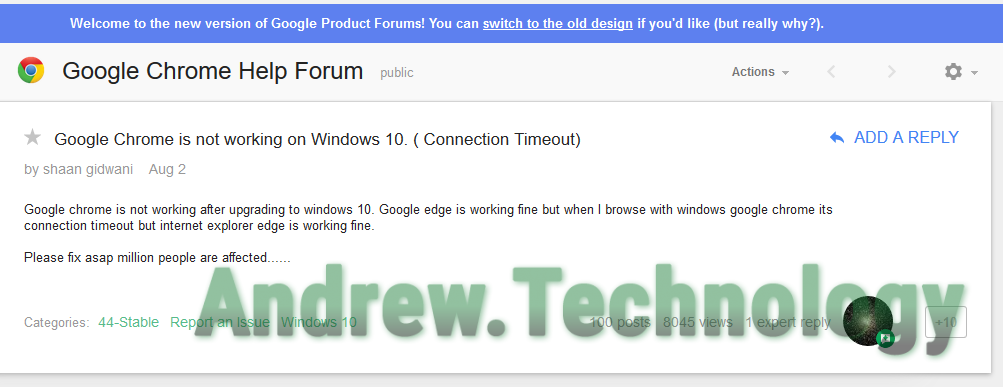
Google Produt Forum Chrome Issue
On Google Product Forums I found a post with similar issues: Google Chrome is not working on Windows 10. ( Connection Timeout). Many users recommend uninstalling Chrome and switching to Chrome Canary, Google’s Chrome but with new developer features. While I have not tried Canary, users do report it working better than normal Chrome. Of course Google says Canary is not stable and is designed for developers who want to test new features that have not made it to Chrome yet so approach with caution!
At the time of writing this my Chrome was up to date at: Version 44.0.2403.157 m
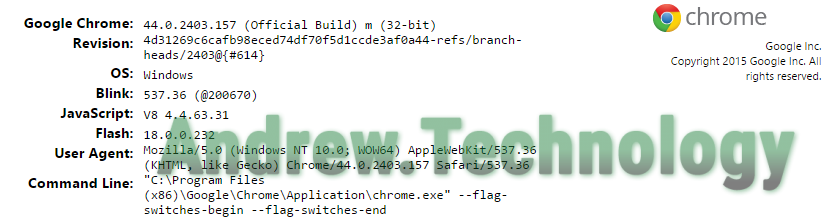
Chrome Version Info in Windows 10
The post Chrome does not work well with Windows 10 appeared first on Andrew.Technology.
]]>The post Troubleshooting and fixing Battle.net issues with Windows 10 appeared first on Andrew.Technology.
]]>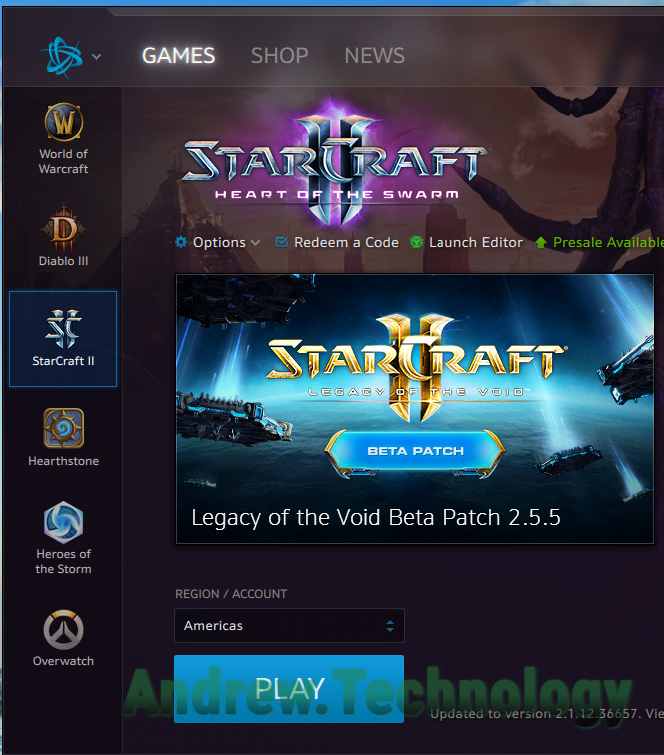
Battle.net Launcher with StarCraft II ready to launch
If you’re having trouble installing the Battle.net App and Blizzard games then this guide will help you fix them! I kept running into “BLZBNTBTS0000005D” errors when setting up my new Windows 10 computer. I briefly talk about this issue in my last post. Luckily, I was able to get the Battle.net App & StarCraft II installed after a bit of searching and troubleshooting and this guide will detail those steps.
First, even though the Battle.net App or Blizzard game gave you an error about not being able to connect, it may have actually worked. For me at least, it actually did install the correct files to launch the Battle.net App. Navigate to the directory you picked to install the Battle.net App. The default is C:\Program Files (x86)\Battle.net. You should find some executables (EXE) and folders.
Files of importance are “Battle.net Launcher.exe” & “Battle.net.exe” executables . Hopefully you see these files because this guide is dependent on having them. If you do not, then keep trying to install Battle.net the regular way. Also, you may not have file extensions visible. So you may just see “Battle.net Launcher” & “Battle.net” without the .exe at the ends.
Try to run the “Battle.net Launcher.exe” file. but I kept getting the same error. The program was not able to connect (“updating Battle.net” , then “starting Battle.net” for a second, then error). Luckily, many experienced this same issue with Windows 8/8.1 64-bit and so I found a forum post on Blizzard’s website. The post title Cannot install Battle.net app properly. Error: BLZBNTBTS0000005D that was the most helpful. Sadly, Blizzard has change their forums so the direct link does not work anymore.
Fixing Battle.net Issues BLZBNTBTS0000005D
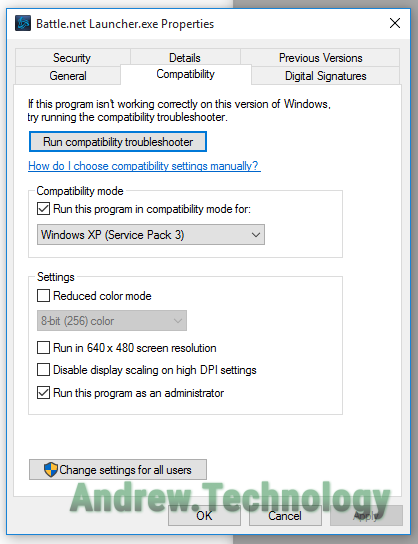
Battle.net Launcher Compatibility mode
The fix that worked for me was right clicking Battle.net Launcher.exe then click Properties > Compatibility tab > check the box “Run this program in compatibility mode” > from the drop down select Windows XP (Service Pack 3) > also check “Run this program as an administrator” > click Apply > OK. Apply the same settings for Battle.net.exe and you should be good to go! Running Battle.net Launcher.exe should allow you to download any Blizzard game like StarCraft, Diablo, or World of Warcraft like normal.
Officially, Blizzard recommends running Windows in Selective Startup and disabling virus scanning software. Support Forum Agent Glaxigrav states this in a Blizzard forum post:
Can you please try running a Selective Startup first, and then install the Battle.net App? If you have any security software installed, you’ll want to be sure to temporarily disable that as well.
Once you’ve done that, you can grab the most recent version of the Battle.net App here. Let me know if that gets the installer going!
But that solution did not work for many nor myself, as pointed at by the forum post. Once StarCraft II finished downloading and installing I did run into more problems. Actually launching the game where the launcher said it was located did nothing. That was fixed just by restarting my computer. Now my Battle.net App and StarCraft II run without issues and I hopefully yours do as well!
When I first wrote this article back in 2015 I had linked to the Blizzard forum post. Sadly, Blizzard has changed it’s forum so the link no longer works and I removed it. But I did find a new official support article.
The post Troubleshooting and fixing Battle.net issues with Windows 10 appeared first on Andrew.Technology.
]]>The post Battle.net App issues with Windows 10: BLZBNTBTS0000005D appeared first on Andrew.Technology.
]]>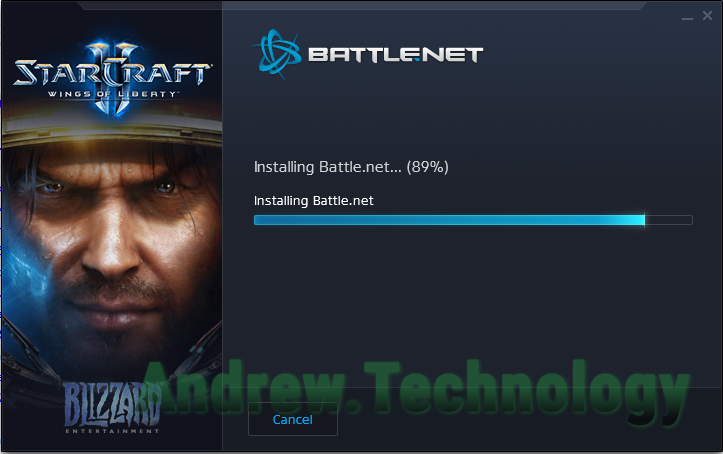
Battle.net App Install stuck at 89%
Installing the Battle.net App can have it’s issues. The launcher for Blizzard games gave me trouble on Windows 10. These bugs seem to involve the new operating system and Windows 8/8.1 64-bit users. I wrote these guides to help troubleshoot and hopefully fix the issues.
The installation started normally for me. It opens and asks you to select a folder for the files. Then my progress bar did not want to budge. “Installing Battle.net…” was the only message along with the percentage complete. Finally, when it did move it became stuck at 88% or 89%.
Waiting for 10+ minutes and it had not moved from 89% so I tried canceling and running as administrator. Eventually, I did get an error message: “We’re having trouble starting Battle.net. Please try again. If the problem persists, try restarting your computer.” along with “More help: BLZBNTBTS0000005D”.
Troubleshooting and fixing Battle.net in Windows 10
If you’re looking for the fix to this issue please check out my post: Troubleshooting and fixing Battle.net issues with Windows 10 where I get Battle.net App and StarCraft II installed after a bit of troubleshooting.
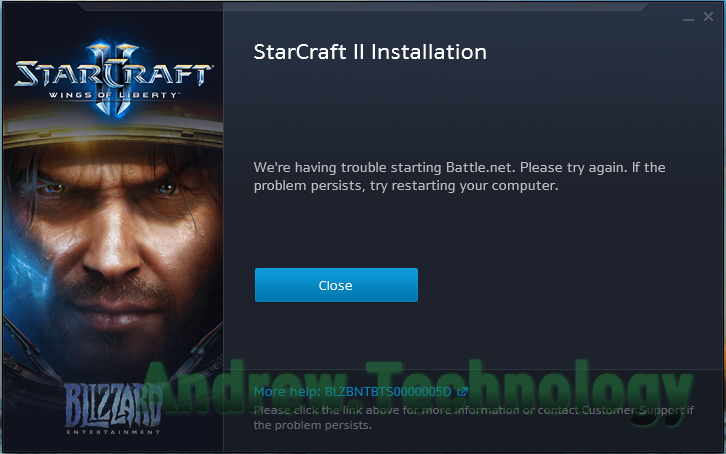
Battle.net App error BLZBNTBTS0000005D
My screenshots show StarCraft II Wings of Liberty images. I was attempting to install StarCraft II through the website using StarCraft-II-Setup-enUS.exe. But, all that really does it download the Battle.net App with StarCraft images. Trying the official Battle.net App client (Battle.net-Setup-enUS.exe) had the same issues.
In the past you would download each game separately but Blizzard created the Battle.net App to handle this process. It’s disheartening Blizzard did not optimize for Windows 10 and from my research it sounds like Windows 8/8.1 also had issues with Battle.net App so Windows 10 Battle.net issues we’re to be expected I suppose.
The good news is that I was able to get the Battle.net App & StarCraft installed after a bit of troubleshooting. I’ll detail exactly how I did that in my next post!
The post Battle.net App issues with Windows 10: BLZBNTBTS0000005D appeared first on Andrew.Technology.
]]>The post Chrome issue downloading Windows 10 ISO from Microsoft appeared first on Andrew.Technology.
]]>
This download was taking too long and was stopped by the network.
While trying to download the disk image (ISO) for Windows 10 from the official Microsoft servers (http://software-download.microsoft.com/) I kept getting an error in Chrome: “This download was taking too long and was stopped by the network.” The image should be around 4 gigabytes but Chrome would only download around 2.15 GB before erroring out and resuming was not an option!
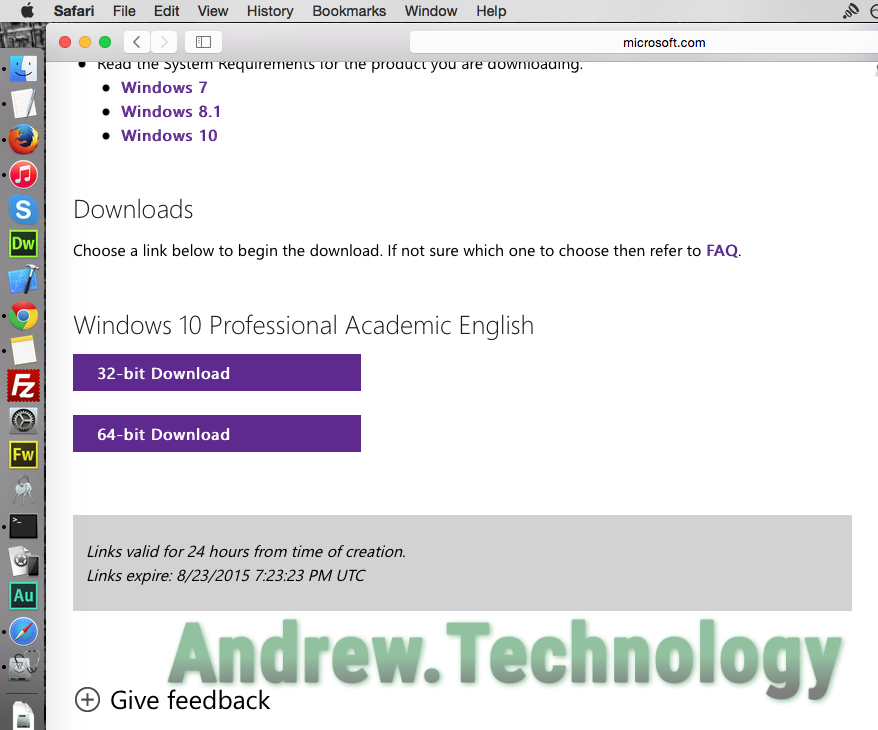
Windows 10 download page from Microsoft
Honestly, I assumed Microsoft’s servers might be on the fritz because I had not been experiencing any issues with my internet or Chrome and I had never seen that particular error message before. I tried to download it again but with the same results. Time to try another browser and I happen to have Safari open because I was on my MacBook Pro. It downloaded without issue in Safari and I resumed my Windows installing adventure onto my computer.
It turns out this was not just a Microsoft thing but Chrome has issues downloading files larger than 2 GB apparently! The most active issue concerning the topic hosted on Chromium’s code.google.com page I found was: “Issue 89567: HTTP Download stops at 2GB when saving the file on another NTFS drive.” This thread was started in 2011 and had a comment as recent as Aug 11, 2015 from the time I wrote this.
Interesting bits in the thread included:
I’m on Ubuntu 11.04. It goes to 2GB and stops with the Windows 8 CP ISO. I’ve tried it at least 10 times, and if it starts at all, it will only go to 2Gb and claim to be done. The file is 2.52GB. It wont download on my Vista machine at all using IE9. I’m using Chrome on Ubuntu, and have tried Firefox and Chromium, which don’t work at all.
#7 desighne…@gmail.comI also encountered this problem while trying to download a file > 2GB from Amazon cloudfront servers. I open a new tab, paste the link in the address bar, and hit Enter.
Twice the download has been incomplete, different sizes each time. One time was 1916208128 bytes (already deleted the other file). Full file is 2123802785 bytes. One time Chrome did get the whole file — strange to be so inconsistent.
#57 percy.bl…@gmail.com
Even though I was on OS X and not using NTFS as the format of my storage it sounds like others have been having the issue. Throughout the issue thread various Chromium.org members chime in asking for logs and links to files that have this download issue to test but there is also a strange impression this issue will not be fixed. The thread was almost shut down being marked “Closing old bug as obsolete” without providing a fix. Ending sentiments from the thread:
Well, given how long the problem has been outstanding, and given that the precise limit of truncation shows that this can’t be dismissed as a rare or random glitch, it is perfectly clear that they neither care nor can be bothered to do anything about it.
#99 T.A.H…@gmail.com
I should also point out that Google Code is being shut down as noted by the red letters atop the screen: “Google Code will be turning read-only on August 25th. See this post for more information.” Eventually, everything will be taken down on Google Code, so who knows if this bug will ever get fixed.
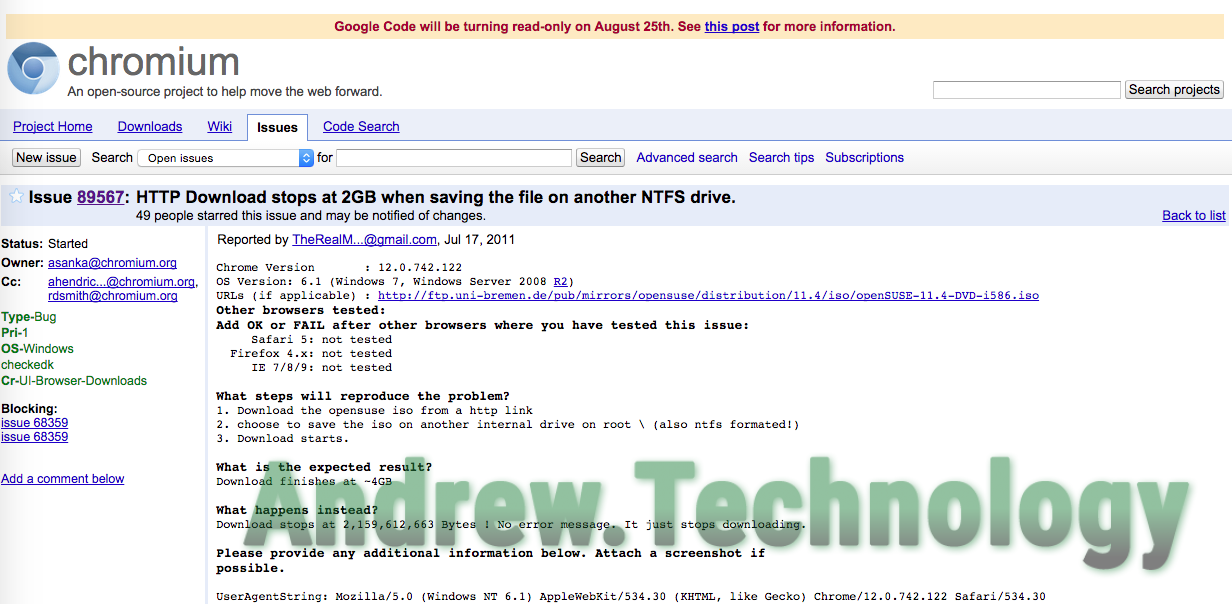
Chromium’s issue thread on Google Code
The post Chrome issue downloading Windows 10 ISO from Microsoft appeared first on Andrew.Technology.
]]>