The connectivity_ring_buffer_recorded extended event is part of the system_health session and it records login information before it gets to the errorlog so it might be a good idea to filter for these events:
DBCC TRACEON (2592, 3656, -1);
 select object_name
      , CONVERT(XML, event_data) as event_data
      , CONVERT(XML, event_data).query('event/data[@name="os_error"]').value(N'(/data/value)[1]',N'nvarchar(max)') as OS_error
      , CONVERT(datetime, timestamp_utc) timestamp_utc
     FROM sys.fn_xe_file_target_read_file(N'System_health*.xel', NULL, NULL, NULL)
     where object_name = 'connectivity_ring_buffer_recorded'
     and convert(datetime, timestamp_utc) > GETDATE()-1
 DBCC TRACEOFF (2592, 3656, -1);
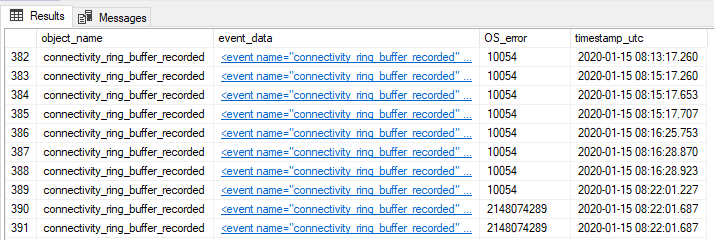
As I was particularly interested in the OS Error part of the event, I extracted the information from the event_data field of the extended event. The os_error field contains the errorcode from Windows. I got the list of OS Errors from here
Most of the OS error codes are 10054 which means: “An existing connection was forcibly closed by the remote host.\r\n”
So this is pretty normal, we can safely ignore these error codes.
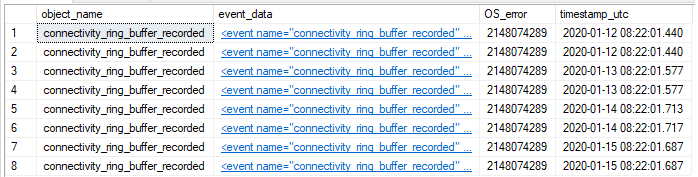
Another error code I saw was 2148074289. This one translates to:
“The client and server cannot communicate, because they do not possess a common algorithm.\r\n”
Now this is something serious. This means that a connection was not successful as the client and server could not agree on a common cipher.
DBCC TRACEON (2592, 3656, -1);
 select object_name
      , CONVERT(XML, event_data) as event_data
      , CONVERT(XML,
event_data).query('event/data[@name="os_error"]').value(N'(/data/value)[1]',N'nvarchar(max)') as OS_error
      , CONVERT(datetime, timestamp_utc) timestamp_utc
     FROM sys.fn_xe_file_target_read_file(N'System_health*.xel', NULL, NULL, NULL)
     where object_name = 'connectivity_ring_buffer_recorded'
     and CONVERT(XML,
event_data).query('event/data[@name="os_error"]').value(N'(/data/value)[1]',N'nvarchar(max)') = '2148074289'
 DBCC TRACEOFF (2592, 3656, -1);
When opening the xml event_data in SQL Server Management Studio we can see the following information from the connection:
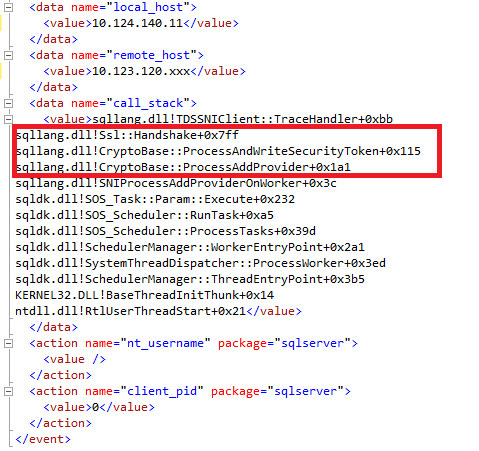
Because I used the Trace Flags 2592 and 3656 (for SQL Server 2019) in my query, the callstacks were translated to the names of the functions used for the login process. Now we can see that the issue really happened at the TLS handshake.
Unfortunately we do not get much information out of this extended event. The remote_host field contains the IP address of the client but as you can see the last part of the IP address is missing. The PID of the client process and the username is also missing.
The above SQLs can be used to look for login errors in SQL Servers which do not appear in the error logs.
]]>The first thing we need to consider is setting our filter in procmon. As I am looking for file system activity in my C:\TestFolder directory, I have set up the following filter:
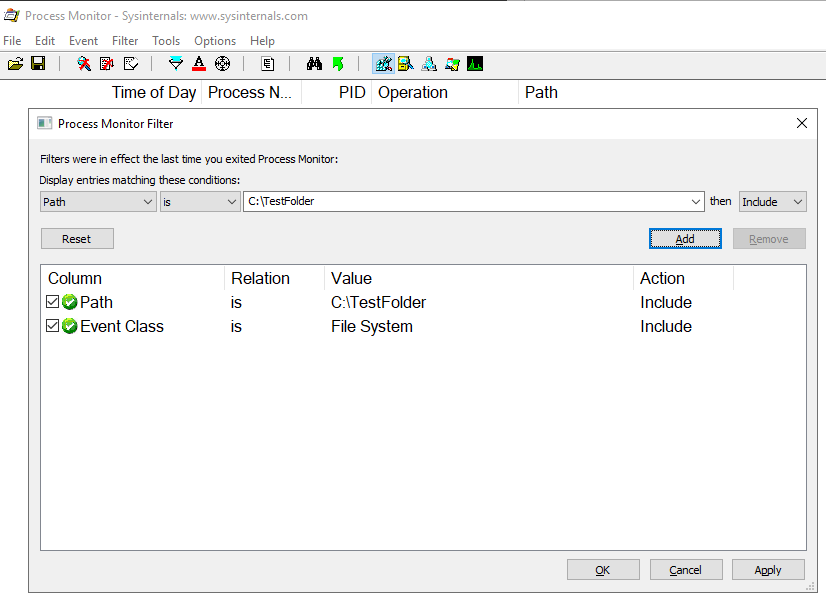
Furthermore, we will need to enable “Drop Filtered Events” in the filter menu to cause less load on our system:
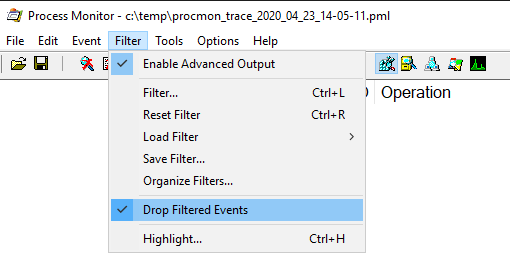
When we are done with the filter settings we can save the configuration to a .pmc file by using the File menu and clicking the Export Configuration menu item.
We can create a small PowerShell script that will manage the start and stop of procmon with some parameters. The PowerShell script below defines the duration of the trace, where to find the procmon executable, the config file for the procmon filter settings which we saved earlier and the location where the trace file should be created.
The PowerShell script
### Define variables ###
$traceDurationMin = 120
$procmonExec = "C:\SysinternalsSuite\procmon.exe"
$porcmonConfigFile = "c:\temp\MyProcmonConfiguration2.pmc"
$traceDir = "c:\temp"

#start procmon with params
$tsStart = Get-Date -UFormat "%Y_%m_%d_%H-%M-%S"
$traceFile = "$traceDir\procmon_trace_$($tsStart).pml"
& $procMonExec /Backingfile $traceFile /LoadConfig $porcmonConfigFile /Quiet /accepteula

#wait
[int]$dly = $traceDurationMin*60
Start-Sleep $dly

#stop procmon
$tsEnd = Get-Date -UFormat "%Y_%m_%d_%H-%M-%S"
Start-Process $procMonExec -ArgumentList " /terminate /accepteula" -Wait

#rename logfile
$traceFileArchive = $traceFile -replace $tsStart, "$tsStart-$tsEnd"
Move-Item $traceFile $traceFileArchive
I used the /terminate switch of procmon to gracefully stop the trace. Before I rename the file I wait for procmon to stop, so I used the Start-Process PowerShell command with the -Wait switch. When the trace is finished I am renaming the file to include the starting and ending timestamp in the filename.
Scheduling and executing the script
The script can be scheduled with the Windows Task Scheduler. We need to make sure to use a User that has Admin privileges on the server. In case you need to set up the scheduling on more servers you can also create the Scheduled Task by using PowerShell as described in my post PowerShell and Scheduling.
After executing the task you will find a .pml trace file in the trace directory specified in the PowerShell script. The trace file can be opened with procmon.
Issues with the trace
When opening the trace file with procmon you might see the following error message:
The file C:\temp\tracefilename.pml is corrupt and cannot be opened.
This does not always mean that your trace file is corrupt. It can also mean that your trace file does not contain any trace events. You can verify this by checking the size of your trace file. Usually when the size of the trace file is below 2 MB it means that there were no events captured.
]]>For some applications it is crucial to have a login timeout of less than 5 seconds. Now if an active directory user cannot be validated within this time frame, then the login will fail and the application gets an error message like this one for example:
The security database on the server does not have a computer account for this workstation trust relationship.
When searching in the system_health extended event session we can see that there were wait_info_external events which lasted more than 5 seconds. For this wait event the callstacks are collected, so when the symbol files are installed for SQL Server then we can have a clue about where that wait time was spent. Here is a nice overview on how to download the symbol files for different SQL Server versions: https://github.com/arvindshmicrosoft/SQLCallStackResolver/wiki/Obtaining-symbol-files-(.PDB)-for-SQL-Server-Releases
To use the symbol files and look for the wait_info_external events the following query can be used:
DBCC TRACEON (3656, -1);
SELECT CONVERT(datetime2, SWITCHOFFSET(CONVERT(datetimeoffset, CONVERT(XML, event_data).value(N'(event/@timestamp)[1]',N'nvarchar(max)')), DATENAME(TzOffset, SYSDATETIMEOFFSET()))) as ts
 , CONVERT(XML, event_data) as event_data_xml
 , object_name
 , file_name
 , file_offset
 FROM sys.fn_xe_file_target_read_file(N'System_health*.xel', NULL, NULL, NULL)
 where object_name = 'wait_info_external'
 order by ts desc
 DBCC TRACEOFF (3656, -1);
Now we can see the following stack trace in the event_data column of the extended event:
 sqldk.dll!XeSosPkg::wait_info_external::Publish+0x1a9
 sqldk.dll!SOS_Scheduler::UpdateWaitTimeStats+0x596
 sqldk.dll!SOS_Task::PopWait+0xba
 sqllang.dll!SOS_Task::AutoSwitchPreemptive::~AutoSwitchPreemptive+0x5d
 sqllang.dll!Sspi::Handshake+0x12bd
 sqllang.dll!CryptoBase::ProcessAndWriteSecurityToken+0x118
 sqllang.dll!CryptoBase::ProcessAddProvider+0x19f
 sqllang.dll!SNIProcessAddProviderOnWorker+0x39
 sqldk.dll!SOS_Task::Param::Execute+0x231
 sqldk.dll!SOS_Scheduler::RunTask+0xaa
 sqldk.dll!SOS_Scheduler::ProcessTasks+0x3cd
 sqldk.dll!SchedulerManager::WorkerEntryPoint+0x2a1
 sqldk.dll!SystemThread::RunWorker+0x8f
 sqldk.dll!SystemThreadDispatcher::ProcessWorker+0x2de
 sqldk.dll!SchedulerManager::ThreadEntryPoint+0x1d8
 KERNEL32.DLL!BaseThreadInitThunk+0x22
 ntdll.dll!RtlUserThreadStart+0x34
Here is what we were looking for: sqllang.dll!Sspi::Handshake
This proves that it is actually an SSPI handshake the SQL Server is waiting for.
We can get more information on this handshake when we trace the lsass.exe process on the host of the SQL Server instance with procmon. We can see that the SQL Server is requesting data from the Domain Controller to validate the kerberos credentials. In most cases the domain controller gives an answer within some milliseconds so the Active Directory account connecting to the SQL server can be validated quickly and the connection can be established.

In the picture above we can see that the domain controller dc1 responded in less than a millisecond to the request of the SQL Server instance.
As I wanted to test if the answer from the dc1 domain controller is always so quick I created the following python script to establish a kerberos connection to the SQL Server isntance every second:
import win32com.client
import time
import datetime
import os
import sys
from datetime import datetime

server = 'sqlvm1\SQLInstance1'
database = 'master'
port = 1433
driver= '{ODBC Driver 11 for SQL Server}'

now = datetime.now()
file_ts = now.strftime("%d%m%Y_%H%M%S")

orig_stdout = sys.stdout
f = open('c:/temp/sql_conn_py_test_' + file_ts + '.txt', 'w')
sys.stdout = f
connStr = 'provider=MSDASQL;DRIVER='+driver+';SERVER='+server+';PORT=' + str(port) + ';DATABASE='+database+';trusted_connection=yes;'

while True:
	os.system("klist purge >nul")
	cnxn = win32com.client.Dispatch('ADODB.Connection')
	start_time = time.time()
	conn_open = 0
	e=''
	try:
		cnxn.Open(connStr)
		conn_open = 1
	except:
		e = sys.exc_info()[0]

	elapsed_time = round(time.time() - start_time, 1)
	now = datetime.now()

	if conn_open == 1:
		cnxn.Close()

	if elapsed_time > 0.1:
		print now.strftime("%d%m%Y_%H%M%S;")+str(elapsed_time) + ' ' + str(e)
		sys.stdout.flush()
	time.sleep(1)
When running the script from a host different from the SQL Server instance host it will log the length of each connection which took longer than 0.1 Second in a logfile in the c:\temp directory. Please note that while running the script I was also tracing the activity of lsass.exe on the sqlvm1 host.
After some time, establishing the connection to the SQL Server instance took more than 9 seconds, so I checked procmon trace for the timestamp written in the logfile of my script and I could clearly see that it was the domain controller dc1 which needed more than 9 seconds to send an answer to my SQL Server instance for validating my Active Directory account:

This proves that it was not the SQL Server or the host which was taking a long time with validation. So the root cause of the problem must be in active directory.
]]>https://github.com/bbalazs83/SQL-Server-Query-Statistics
With a heavy adhoc workload and a lot of parsing, query store can cause major memory bottlenecks by consuming a lot of MEMORYCLERK_QUERYDISKSTORE_HASHMAP memory. Although there are settings that can be used to mitigate this memory usage (limiting stale_query_threshold_days or setting query_capture_mode to auto) but sometimes these settings will not help at all.
If you still would like to collect statistics for the queries running in your SQL Server Instance you can use the following 3 views to gather statistics on a regular basis:
– dm_exec_query_stats
– dm_exec_procedure_stats
– dm_exec_function_stats
To get the SQL Texts we will use the table-valued function dm_exec_sql_text.
Collecting data about query statistics
First we will need to create our tables corresponding to the views mentioned above. To keep it short I decided I do not want to collect the data from the dm_exec_function_stats view.
After creating the objects as in the installer.sql file we can set up an SQL Server Agent Job that is executed periodically (for example once an hour) to dump the data from the views into the tables. The procedure collect_execution_statistics will be used for this purpose.
Querying the collected data
Querying can be done by using the table valued functions get_query_statistics and get_procedure_statistics. The functions will calculate the deltas from the snapshots taken during data collection.
Using the above mentioned views and functions we are able to quickly get an overview of the historical load and find out which queries are consuming resources without using Query Store or a third party tool.
First lets create a row lock on a table:
CREATE TABLE [dbo].[testtable11]([col1] [int] NULL)

BEGIN TRAN
insert into TestDB1.dbo.testtable1 values (2)
In another session we can then execute the below SQL to look for open transactions:
DECLARE @thresholdMin INT = 1 --the transaction needs to be open since @thresholdMin minutes

 SELECT @@SERVERNAME as inst_fullname
  , DB_NAME(dt.database_id) AS db_name
  , de.login_name
  , de.host_name
  , de.program_name
  , de.client_interface_name
  , ds.session_id
  , de.last_request_start_time
  , de.last_request_end_time
  , dt.database_transaction_state
  , dt.database_transaction_begin_time
  , da.transaction_begin_time
  , OBJECT_SCHEMA_NAME(resource_associated_entity_id, resource_database_id) + '.' + Object_Name(resource_associated_entity_id, resource_database_id) as locked_object
 FROM sys.dm_tran_database_transactions (nolock) dt
 LEFT JOIN sys.dm_tran_active_transactions (nolock) da ON da.transaction_id = dt.transaction_id
 LEFT JOIN sys.dm_tran_session_transactions (nolock) ds ON ds.transaction_id = dt.transaction_id
 LEFT JOIN sys.dm_exec_sessions (nolock) de ON de.session_id = ds.session_id
 left join sys.dm_tran_locks (nolock) li on  li.request_session_id = ds.session_id
 WHERE ds.is_user_transaction = 1
 AND ISNULL(dt.database_transaction_begin_time, da.transaction_begin_time)  < DATEADD(MINUTE, -@thresholdMin, GETDATE()) AND dt.database_id <> 32767
 AND database_transaction_state <> 3
 AND li.resource_type = 'OBJECT'
Our open transaction check works perfectly, we can see in the locked_object column which object is locked. Until this point we only have a row or a table lock.
Now we create a schema lock by creating a table in our session with the uncommitted transaction:
create table #testtemp1 (val1 int)
Now when we execute our check query again it will not finish. Lets see what is happening in the instance:
--Current db activity
 select  db_name(database_id) as dbname,command, substring(text, statement_start_offset / 2,
     (case when statement_end_offset = -1 then datalength(text)
  else statement_end_offset end - statement_start_offset) / 2) as query_text, percent_complete, start_time,
     dateadd(second,estimated_completion_time/1000, getdate()) as est_completion_time ,
  user_name(user_id) as userid,session_id,
 status, blocking_session_id, wait_type,cpu_time, reads, writes,  open_transaction_count, text,*
  from sys.dm_exec_requests
 cross apply sys.dm_exec_sql_text(sql_handle)
userid session_id status     blocking_session_id wait_type    wait_resource
------ ---------- ---------- ------------------- ----------- --------------------
dbo    54         suspended   0                   WAITFOR
dbo    57         suspended   52                  LCK_M_SCH_S  OBJECT: 2:-1152441745:0
dbo    58         running     0                   NULL
Our monitoring SQL is running in the session with ID 57 and is blocked by the session of the open transaction (Session 52). This wait type LCK_M_SCH_S suggests that this is a schema lock. So lets find out more about the following Object: 2:-1152441745:0
The first number wil be a database ID:
select DB_NAME(2)
-----------------
tempdb
In our session with the open transaction, we can see that -1152441745 is an object ID for a temporary object:
use tempdb
go
select object_name(-1152441745)
------------------------------
testtemp1______________________________________________________________________________________00000000EE4A
So now we can see that the open transaction with a schema lock is blocking our monitoring SQL. If we execute the above query in any other session then it gets blocked as well. A schema lock will always block these type of queries, it does not depend on READ_COMMITTED_SNAPSHOT or SET ALLOW_SNAPSHOT_ISOLATION being enabled or disabled.
In order to monitor open transactions and avoid running into a schema lock, our monitoring SQL needs to be able to identify a schema lock first. We can use the request_mode column of the sys.dm_tran_locks view for this. While our transaction is still active, we can check the contents of this view in another session:
select distinct(request_mode) from sys.dm_tran_locks
request_mode
-----------
 IX
 S
 Sch-M
 Sch-S
 X
Currently we are interested in schema locks which are the ones beginning with “sch-“. Now we can distinguish between schema locks and object locks in our new query by using the CASE clause as follows:
DECLARE @thresholdMin INT = 1
 SELECT @@SERVERNAME as inst_fullname
  , DB_NAME(dt.database_id) AS db_name
  , de.login_name
  , de.host_name
  , de.program_name
  , de.client_interface_name
  , ds.session_id
  , de.last_request_start_time
  , de.last_request_end_time
  , dt.database_transaction_state
  , dt.database_transaction_begin_time
  , da.transaction_begin_time
  , CASE WHEN request_mode like 'Sch%'
     THEN 'Schema lock due to entity_id: ' + CONVERT(NVARCHAR(MAX), resource_associated_entity_id) + 'resource_database_id: ' + CONVERT(NVARCHAR(MAX),resource_database_id)
     ELSE OBJECT_SCHEMA_NAME(resource_associated_entity_id, resource_database_id) + '.' + Object_Name(resource_associated_entity_id, resource_database_id)
    END as locked_object
 FROM sys.dm_tran_database_transactions (nolock) dt
 LEFT JOIN sys.dm_tran_active_transactions (nolock) da ON da.transaction_id = dt.transaction_id
 LEFT JOIN sys.dm_tran_session_transactions (nolock) ds ON ds.transaction_id = dt.transaction_id
 LEFT JOIN sys.dm_exec_sessions (nolock) de ON de.session_id = ds.session_id
 left join sys.dm_tran_locks (nolock) li on  li.request_session_id = ds.session_id
 WHERE ds.is_user_transaction = 1
 AND ISNULL(dt.database_transaction_begin_time, da.transaction_begin_time)  < DATEADD(MINUTE, -@thresholdMin, GETDATE()) AND dt.database_id <> 32767
 AND database_transaction_state <> 3
 AND li.resource_type = 'OBJECT'
Now we can execute the above monitoring SQL. This query can identify schema locks and instead of looking for an object name it will display information about the schema lock itself.
]]>Using NO_WAIT
When using the NO_WAIT clause the command will probably (but not always) fail immediately if the change cannot be done immediately.
ALTER DATABASE TestDB1 SET READ_COMMITTED_SNAPSHOT ON WITH NO_WAIT
GO
Avoiding deadlocks
Yes deadlocks may appear while enabling READ_COMMITTED_SNAPSHOT. To avoid this you may set a higher deadlock priority for your session before executing the command:
SET deadlock_priority high
GO
ALTER DATABASE TestDB1 SET READ_COMMITTED_SNAPSHOT ON WITH NO_WAIT
GO
By enabling a higher priority when it comes to a deadlock, your session will survive and the other session will be terminated unless it has also deadlock_priority set to high.
Setting the database to SINGLE_USER mode
Before enabling SINGLE_USER mode make sure that you are the one using the database otherwise an application which is trying to connect every second to the database might lock you out.
USE TestDB1
GO
ALTER DATABASE TestDB1 SET SINGLE_USER WITH ROLLBACK IMMEDIATE
GO
ALTER DATABASE TestDB1 SET READ_COMMITTED_SNAPSHOT ON WITH NO_WAIT
GO
ALTER DATABASE TestDB1 SET MULTI_USER
GO
Taking the database offline
If nothing else works you will need to take the database offline before doing the change.
USE master
GO
ALTER DATABASE TestDB1 SET OFFLINE WITH ROLLBACK IMMEDIATE
GO
ALTER DATABASE TestDB1 SET READ_COMMITTED_SNAPSHOT ON WITH NO_WAIT
GO
ALTER DATABASE TestDB1 SET ONLINE
GO
By using the suggestions above you can make sure that the SET
READ_COMMITTED_SNAPSHOT will complete faster.
To build my simple “Event Log Scanner” I used the following information about the EventLogEntry Class: https://msdn.microsoft.com/en-us/library/system.diagnostics.eventlogentry(v=vs.110).aspx
So first here is my simplified c# code which iterates through all entries in the “Application” part of the Windows Event Log and displays the InstanceID and EventID properties:
class GetEventlogs{
  public static void Main(){
    EventLog myLog = new EventLog();
    myLog.Log = "Application";

    foreach(EventLogEntry entry in myLog.Entries){
     if (entry.Source == "MSSQLSERVER") {
       Console.WriteLine("InstanceID: " + entry.InstanceId + " EventID: " + entry.EventID);
     }
    }

  }
}
Here you can see the results of the above code:
InstanceID: 1073758893 EventID: 17069
InstanceID: 1073791740 EventID: 49916
InstanceID: 1073758925 EventID: 17101
InstanceID: 1073758927 EventID: 17103
InstanceID: 1073758928 EventID: 17104
InstanceID: 1073760320 EventID: 18496
InstanceID: 1073757092 EventID: 15268
InstanceID: 1073758935 EventID: 17111
As you can see the InstanceID is completely different from the EventID. So even if the documentation of Microsoft says that EventID is obsolete and InstanceID should be used you will not be able to find your EventID when you are scanning for InstanceID. But let’s see why does InstanceID show a different result from EventID.
EventID is declared as an Int32 and InstanceID is declared as Int64 but actually both refer to 32bits of data. Windows stores the so called “Qualifiers” part of the EventID at the first 16 bits and the last 16 bits represent the actual EventID. To prove this here is the first Event in XML format:
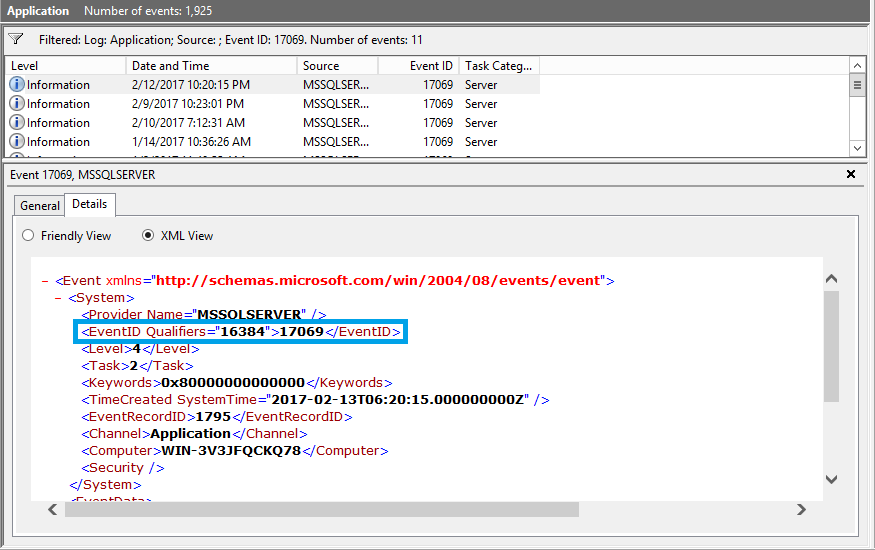
As you can see the EventID has the “Qualifiers” Property which is 16384. So let’s think a bit in binary. We can store 16384 on 16 bits as follows: 0100000000000000 and 17069 can be stored as 0100001010101101
Now when we combine these two numbers we get: 01000000000000000100001010101101 which is 1073758893. And this is the number which is displayed when we read InstanceID.
EventID 49916 does also have the following “Qualifiers” property: 16384
Qualifiers: 16384 = 0100000000000000
EventID: 49916 = 1100001011111100
InstanceID: 1073791740 = 01000000000000001100001011111100
The above examples showed the difference between EventID and InstanceID, namely that EventID reads only the last 16 bits (or 2 bytes) of the Windows Event Log Event ID but InstanceID contains the whole 32 bits (4 bytes) of data.
]]>Creating a Windows Scheduled Task with Powershell
By using $env:COMPUTERNAME the Scheduled Task gets created on the host where the script was executed. We can also specify a hostname here like $Hostname = “Host1”. In this case the Scheduled Task is created on the host specified by $Hostname.
$Hostname = $env:COMPUTERNAME
We are using the built in System user so the task gets executed with LocalAdmin rights
$taskRunAsuser = "SYSTEM"
The Microsoft Com object Schedule.Service is used to create Scheduled Task object
$service = new-object -com("Schedule.Service")
$service.Connect($Hostname)
$rootFolder = $service.GetFolder("\")

$taskDefinition = $service.NewTask(0)
$regInfo = $taskDefinition.RegistrationInfo
$regInfo.Description = 'Description of Scheduled Task'
We are adding 2 types of triggers : Start every day (type 2) at 10:00 and On Startup (type 8) with a delay of 15 min. Available trigger types can be found here:
https://msdn.microsoft.com/en-us/library/windows/desktop/aa383978(v=vs.85).aspx
$triggers = $taskDefinition.Triggers
$trigger = $triggers.Create(2)
$trigger.StartBoundary = "2010-06-10T10:00:00"
$trigger.DaysInterval = 1
$trigger.Id = "DailyTriggerId"
$trigger.Enabled = $True

$trigger2 = $triggers.Create(8)
$trigger2.Id = "StartUpTriggerId"
$trigger2.Delay = "PT15M"
$trigger2.Enabled = $True
Adding an Action Item
$command = "c:\windows\system32\WindowsPowerShell\v1.0\powershell.exe"
$CommandArguments = "-file c:\temp\get_process.ps1"
$Action = $taskDefinition.Actions.Create(0)
$Action.Path = $command
$Action.Arguments = $CommandArguments
Creating the Scheduled Task
try {
  $res = $rootFolder.RegisterTaskDefinition( "Name of Scheduled Task", $taskDefinition, 2, $taskRunAsuser , $null, 2) | Out-String
} catch {
  Write-Output "Error while creating Windows Scheduled Task: "
  Write-Output $_
}

if ($res -like "*<RegistrationInfo>*") {
  $res
  Write-Output "Windows Scheduled Task created successfully!"
}
When executing the code successfully the contents of the $res variable will be an XML object describing the newly created Scheduled Task.
Creating an SQL Agent Job with Powershell and SMO
First we need to load the required assemblies
[System.Reflection.Assembly]::LoadWithPartialName( 'Microsoft.SqlServer.ConnectionInfo' ) | Out-Null
[System.Reflection.Assembly]::LoadWithPartialName( 'Microsoft.SqlServer.SMO' ) | Out-Null
Then we can establish the connection to the SQL Server by creating the $SMOServer object
$instFullName = "Host\TestInstanceName"
$Connection = New-Object Microsoft.SqlServer.Management.Common.ServerConnection ( $instFullName )
$Connection.ConnectTimeout = 5
$SMOServer = New-Object Microsoft.SqlServer.Management.Smo.Server( $Connection )
The Job is created by creating a Job object on the local JobServer. A JobServer is a class which refers to the SQL Server Agent and the msdb database. You can find more detailed information on the JobServer Class here: https://msdn.microsoft.com/en-us/library/microsoft.sqlserver.management.smo.agent.jobserver.aspx
$jobname = "TestJob"
$jobdesc = "This is a test Job"
$jserver = $SMOServer.JobServer
$j = new-object ('Microsoft.SqlServer.Management.Smo.Agent.Job') ($jserver, $jobname)
$j.OwnerLoginName = 'sa'
$j.Description = $jobdesc
$j.Create()
$j.ApplyToTargetServer("(local)")
$j refers to the Job which we have created by the $j.Create() Statement above. Now we will use this Job Object to create a schedule for the Job. After creating the Schedule with the Agent.JobSchedule Object Type of SMO we are setting the start time of the job with the TimeSpan constructor. Based on the below code the Job Schedule will trigger the Job to be started every day at 18:20:00
$SQLJobSchedule = New-Object -TypeName Microsoft.SqlServer.Management.SMO.Agent.JobSchedule -argumentlist $j, "Schedule1"
$SQLJobSchedule.FrequencyTypes = "Daily"
$SQLJobSchedule.FrequencyInterval = 1
$SQLJobSchedule.ActiveStartTimeOfDay = New-Object TimeSpan(18, 20, 00);
$SQLJobSchedule.Create()
When creating the steps for the job the job object is used again. For the commands of the tasks I am loading SQL files.
$SchemaUpgrade_sql = Get-Content "F:\upgradescripts\upgrade_123.sql"
$js = new-object ('Microsoft.SqlServer.Management.Smo.Agent.JobStep') ($j, 'Step1')
$js.SubSystem = 'TransactSql'
$js.Command = $SchemaUpgrade_sql
$js.OnFailAction = 'QuitWithFailure'
$js.OnSuccessAction = "GoToNextStep"
$js.Create()
$SchemaCheck_sql = Get-Content "F:\scripts\Check_Schema.sql"
$js = new-object ('Microsoft.SqlServer.Management.Smo.Agent.JobStep') ($j, 'Step2')
$js.SubSystem = 'TransactSql'
$js.Command = "$SchemaCheck_sql"
$js.OnFailAction = 'QuitWithFailure'
$js.Create()
After creating the Job, the Schedule and the Steps we can close the connection to the SQL Server.
$SMOServer.ConnectionContext.Disconnect() $Connection.Disconnect()]]>
First I create a table and an index with PAGE compression:
use TESTDB
GO

CREATE TABLE People
 (
 PersonID int,
 LastName varchar(200),
 FirstName varchar(200),
 Address varchar(200),
 Phone varchar(20)
 );

CREATE NONCLUSTERED INDEX [comp_index_LastName] ON [dbo].[People]
 (
 [LastName] ASC
 ) WITH (DATA_COMPRESSION = PAGE)
To make sure that the index was created with PAGE compression I am using the following query:
select i.object_id, i.name, i.index_id, i.type_desc,
 p.data_compression_desc
 from sys.indexes i, sys.partitions p
 where i.object_id = p.object_id
 and i.index_id = p.index_id
 and i.name = 'comp_index_LastName'

Now I am using the Script Index as CREATE To command from the Object Explorer of SSMS to generate the create script of the index:
USE [TESTDB]
GO

/****** Object: Index [comp_index_LastName] Script Date: 02.11.2016 19:14:34 ******/
CREATE NONCLUSTERED INDEX [comp_index_LastName] ON [dbo].[People]
(
 [LastName] ASC
)WITH (PAD_INDEX = OFF, STATISTICS_NORECOMPUTE = OFF, SORT_IN_TEMPDB
= OFF, DROP_EXISTING = OFF, ONLINE = OFF, ALLOW_ROW_LOCKS = ON,
ALLOW_PAGE_LOCKS = ON) ON [PRIMARY]
GO
As you can see the DATA_COMPRESSION = PAGE is missing from the above definition. In case you are using the scripting feature of SSMS to recreate an Index it is important to know that DATA_COMPRESSION by default is not shown. To enable DATA_COMPRESSION to appear when scripting any object you need to open the Options Tab from the Tools menu of SSMS and und SQL Server Object Explorer you need to select Scripting. Here you can set “Script Data Compression Options” to True:
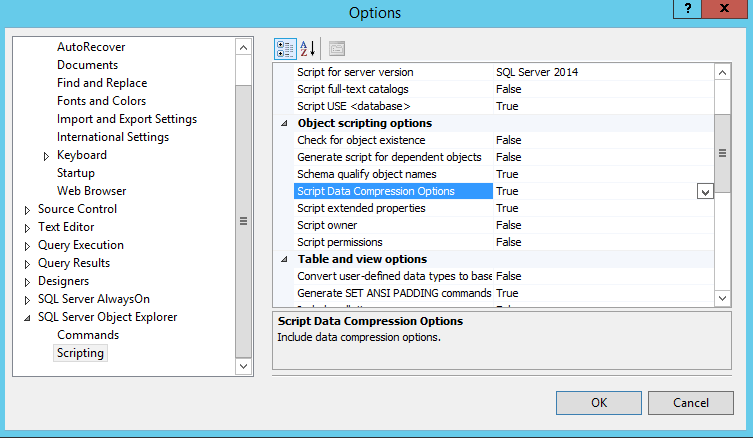
As you can see there are many other parameters you can enable or disable here that influence the output of the scripting.
Now that “Script Data Compression Options” has been set to True we can generate the Index definition again to see whether DATA_COMPRESSION is included now:
USE [TESTDB]
GO

/****** Object: Index [comp_index_LastName] Script Date: 02.11.2016 19:24:34 ******/
 CREATE NONCLUSTERED INDEX [comp_index_LastName] ON [dbo].[People]
 (
 [LastName] ASC
 )WITH (PAD_INDEX = OFF, STATISTICS_NORECOMPUTE = OFF, SORT_IN_TEMPDB
 = OFF, DROP_EXISTING = OFF, ONLINE = OFF, ALLOW_ROW_LOCKS = ON,
 ALLOW_PAGE_LOCKS = ON, DATA_COMPRESSION = PAGE) ON [PRIMARY]
 GO
As you can see from now on DATA_COMPRESSION will be included in the object definitions when using the scripting feature of SSMS.
]]>
The following two historical views are used to search for the wait event: DBA_HIST_SYSTEM_EVENT and DBA_HIST_SYS_TIME_MODEL. As these views belong to AWR you will need the Diagnostic pack license to use the script.
Running the check
$ ./WaitCheck.py -e "cursor: pin S wait on X"
Connected to Instance orcl Version: 12.1.0.2.0
Wait time for cursor: pin S wait on X: 0.0 sec
Elapsed Time between the last 2 snapshots: 3373.0 sec
DB Time between the last 2 snapshots: 35.856 sec
WaitCheck - OK! cursor: pin S wait on X wait percentage: 0.0
Specifying the threshold levels manually:
$ ./WaitCheck.py -e "hard parse elapsed time" -w 10 -c 20
Connected to Instance orcl Version: 12.1.0.2.0
Wait time for hard parse elapsed time: 2.13 sec
Elapsed Time between the last 2 snapshots: 3373.0 sec
DB Time between the last 2 snapshots: 49.812 sec
WaitCheck - OK! hard parse elapsed time wait percentage: 4.27
Return codes
$ ./WaitCheck.py -e "hard parse elapsed time" -w 20 -c 40
Connected to Instance orcl Version: 12.1.0.2.0
Wait time for hard parse elapsed time: 2102.13 sec
Elapsed Time between the last 2 snapshots: 3373.0 sec
DB Time between the last 2 snapshots: 2850.58 sec
WaitCheck - CRITICAL! hard parse elapsed time wait percentage: 73.74
$ echo $?
2
| Status | Return Code |
|---|---|
| OK | 0 |
| WARNING | 1 |
| CRITICAL | 2 |
| UNKNOWN | 3 |
Why monitor Oracle wait events
Monitoring wait events is a proactive way of finding performance bottlenecks in an Oracle instance. Basically you are able to spot a performance issue before it turns into a troublemaker for the whole instance. It is also a great way to be alerted if there is any unexpected change in the load of the instance which might be caused by an application bug.
Which wait events are worth monitoring
It depends on the performance issue and the instance load profile but you can use the following queries to get a list of wait events you can monitor with WaitCheck:
select distinct EVENT_NAME from DBA_HIST_SYSTEM_EVENT;
select distinct STAT_NAME from DBA_HIST_SYS_TIME_MODEL;
Some of the well known wait events are explained here:
cursor: pin S wait on X
This wait event is related to mutex contention (mostly in the library cache) and generally it should not be higher than 2-5% (of course there are exceptions). In case you notice this wait event to be too high it might be related to a high number of hard parses or to an Oracle bug affecting the library cache.
enq: TM – contention
Table lock problems during DML which might be related to unindexed foreign key constraints.
buffer busy waits
This wait event might become a problem in IO-bound instances when there are blocks which are being read into the buffer cache by one session and at the same time another session is waiting for that block to be able to read it.
library cache: mutex X
This wait event can refer to library cache lock (mutex) contention. If the value is constantly high it might relate to an undersized shared pool. In case the application accessing the instance is mainly using PL/SQL you might consider pinning some of the code to reduce contention problems.
hard parse elapsed time
When an SQL statement is hard parsed it means that Oracle has to load (or reload) it into the shared pool. As this operation might need significant time it is something that should be avoided in general. One of the most common causes of hard parsing is using literals instead of bind variables.