以上の説明やアットマークITのような経営者向けサイトを見ると、SELinuxは、いかにもコンサルタント様が導入を検討しそうな素晴らしい機能ですが、運用を行うのは至難の業です。
以下、私がSELinuxハンズオン – hbstudy #28に参加した時のメモを記します。何となく読んで頂きSELinuxの運用が如何に難しいかを悟って頂けると幸いです。なお、実務でのお役立ち度は期待しないでください。私がSELinuxを勉強して役にたったのはLIPC 303を受験した時くらいです。
当時勉強会で使用されたスライドは、以下を参照ください。
また、SELinuxハンズオン – hbstudy #28を開催頂いた、ishikawa84gさんのサイトは以下を参照ください。
SELinuxの無効化
多くの人は、SELinuxの無効化方法と設定確認ができれば充分かと思います。まずは、実務で必要になるレベルのお話をします。
SELinuxの無効化 – OS再起動ができる場合
SELinuxを無効にするには、/etc/sysconfig/selinux(実態は/etc/selinux/configへのシンボリックリンク)をエディタで開き、SELINUX=の部分を”enforcing”から”disabled”に変更します。
diff --git a/selinux/config b/selinux/config
index 29808ee..8237483 100644
--- a/selinux/config
+++ b/selinux/config
@@ -3,7 +3,7 @@
 #      enforcing - SELinux security policy is enforced.
 #      permissive - SELinux prints warnings instead of enforcing.
 #      disabled - SELinux is fully disabled.
-SELINUX=enforcing
+SELINUX=disabled
 # SELINUXTYPE= type of policy in use. Possible values are:
 #      targeted - Only targeted network daemons are protected.
 #      strict - Full SELinux protection.
設定を反映させるために、OSを再起動します。以上でSELinuxの無効化が完了しました。
# reboot
SELinuxの無効化 – OS再起動ができない場合
OS再起動はできないけど、SELinuxが有効になっていて困っている。そんな要望もあるかと思います。
結論から言えば「OS再起動なしにSELinuxを無効化する事はできない」ですが、SELinuxをpermissiveモードにする事で問題を回避できると思います。permissiveモードは、権限違反時に拒否を行わずログ出力のみを行うモードです。permissiveモードにしておけば、「権限不足であれが動かない」と言った悩みを解決できるはずです。
SELinuxの状態確認
想定する動作をしない場合、SELinuxが有効化どうかを確認します。注意して頂きたいのは、/etc/sysconfig/selinuxを見ても確認にはならない事です。SELinuxは設定反映には再起動が必要なので、設定ファイルを見ても確認作業, トラブルの切り分けにはなっていない事に注意して下さい。
今、SELinuxが有効であるかどうはgetenforceというコマンドを使用します。もし、Enforcingと表示されれば有効である事を意味し、”Disabled”と表示されれば無効である事を意味します。
[root@localhost ~]# getenforce
Enforcing
[root@localhost ~]#
SELinuxの設定
これ以降がSELinuxハンズオン – hbstudy#28参加時のメモです。勉強会当時はFedora16によるハンズオンでしたが、2014年10月にCentSO 6.5仕様になるよう一部加筆変更しております。
SELinux 設定ファイル
OSは起動時に”/etc/selinux/config”というファイルを読み込み、SELinuxのstate, typeを決定します。初期設定は以下の通りです。(初期設定はOSバージョンやディストリビューションによって異なります。また一部クラウド事業者はユーザビリティに配慮して、自動的にSELinuxを無効化してくれる事業者もあります。)
# This file controls the state of SELinux on the system.
# SELINUX= can take one of these three values:
#     enforcing - SELinux security policy is enforced.
#     permissive - SELinux prints warnings instead of enforcing.
#     disabled - No SELinux policy is loaded.
SELINUX=enforcing
# SELINUXTYPE= can take one of these two values:
#     targeted - Targeted processes are protected,
#     mls - Multi Level Security protection.
SELINUXTYPE=targeted
SELINUXはSELinux stateを決定するパラメータで、SELINUXTYPEはSELinux typeを決定するパラメータです。各パラメータに設定できる値は以下の通りです。
| SELINUX指定可能パラメタ | 意味 |
|---|---|
| enforcing | selinuxのポリシーに反する動作を全て拒否します |
| permissive | selinuxのポリシーに反する動作に対し警告のログを出力します |
| disabled | selinuxを無効化します |
| SELINUXTYPE指定可能パラメタ | 意味 |
|---|---|
| targeted | dhcpd, httpdなどの代表的なデーモンのみが制御対象となります |
| strict | 全てのデーモンが制御対象となります |
| MLS | 上記にRBAC(ロールベースアクセス制御)を追加し、strictよりも厳格な動作をします |
“/etc/selinux/config”を書き換える事でSELinux stateを変更できますが、setenforceコマンドを使用する事でも、OS再起動なしにSELinux stateを変更できます。引数にpermissive (または0), enforce (または1)を与える事でstateを指定する事ができます。
但し、setenforceコマンドでSELinux stateをdisableにする事はできません。disableに変更するためには”/etc/selinux/config”を書き換えた後に、OS再起動が必要になります。
実行例は以下の通りです。
[root@localhost ~]# setenforce 1
設定確認を行うにはgetenforce, sestatusなどのコマンドを使用します。
[root@localhost ~]# getenforce
Enforcing
[root@localhost ~]#
[root@localhost ~]#
[root@localhost ~]# sestatus
selinux status:                 enabled
SELinuxfs mount:                /sys/fs/selinux
Current mode:                   enforcing
Mode from config file:          enforcing
Policy version:                 26
Policy from config file:        targeted
[root@localhost ~]#
SELinuxの無効化
そもそも、SELinuxは政府機関や金融機関からの厳格なセキュリティ要求を満たすために開発された機能です。政府機関や金融機関からのよっぽどの強い要望がない限りは無効化をお勧めします殆どの場合は、守るべき情報資産の価値よりもメンテナンスコストの方が大きくなってしまいます。
SELinuxを無効にするためには、”/etc/selinux/config”のSELINUXパラメータをdisableに変更する事で対応できます。
# This file controls the state of SELinux on the system.
# SELINUX= can take one of these three values:
#     enforcing - SELinux security policy is enforced.
#     permissive - SELinux prints warnings instead of enforcing.
#     disabled - No SELinux policy is loaded.
SELINUX=disabled
# SELINUXTYPE= can take one of these two values:
#     targeted - Targeted processes are protected,
#     mls - Multi Level Security protection.
SELINUXTYPE=targeted
SELinuxの有効化
SELinuxを無効の状態から有効の状態に変更するには、注意が必要です。必ずpermissive modeにしてからOSを一度再起動する事をお勧めします。OS起動に必要な権限が与えられておらず、OS起動ができなくなってしまう恐れがあるからです。
permissive modeでOS再起動を行ったら、SELinuxのポリシー違反がない事を確認後にenforce modeに変更します。ポリシー違反は”/var/log/audit/audit.log”または”/var/log/messages”にdeniedと記載されます。ログファイルをdeniedでgrepする事で、ポリシー違反がない事を確認できます。
[root@localhost ~]# grep denied /var/log/audit/audit.log /var/log/messages
[root@localhost ~]#
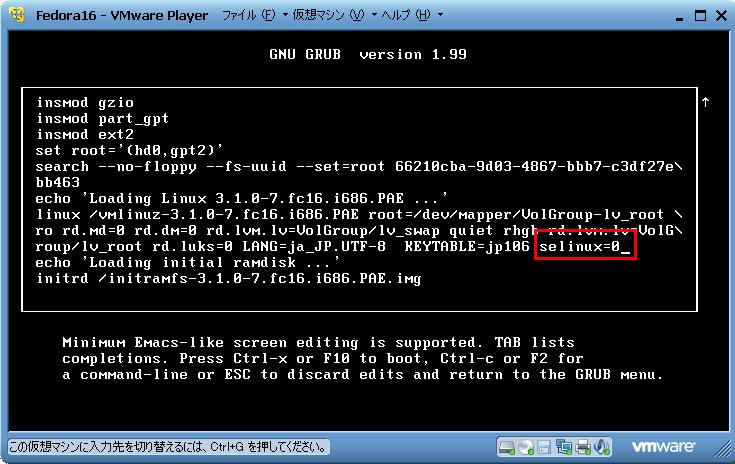
万が一、SELinuxによってOSが起動できなくなった場合は、以下のようにGRUBの画面で起動パラメータに”selinux=0″を与える事で、SELinuxが無効の状態で起動させる事ができます。
先ほど「必ずpermissiveモードにしてからOSを一度再起動する」事をお勧めしましたが、OSバージョンやディストリビューションによっては、permissiveモードのログ出力が機能しない事もあります。少なくとも、私が動作確認したCentOS 6.5 64bitのpermissiveモードでは、/var/log/messagesにも/var/log/audit/audit.logにもポリシー違反のログ出力は見当たりませんでした。
SELinux 動作概要
セキュリティポリシー
SELinuxはセキュリティポリシーで定義された動作のみを許可します。明示的に許可されていない動作は全て禁止されます (“ホワイトリスト指定”, “暗黙のdeny all”と同じ考え方です)。
セキュリティポリシーは、“誰が(Subject)” “何に(Object)” “何をできるか(Action)”の集合です。例えば、以下は”Webサーバが、HTML文書を、読み込める”というポリシーになります。
allow httpd_t http_sys_content_t : file { read } ;
実際のセキュリティーポリシーは、sesearchというコマンドで調べる事ができます。seseachはsetools-consoleというパッケージ内に含まれていますでの、yumなどでインストールして下さい。
# yum install setools-console
seseachの使用例は以下の通りです。なお、大かっこ ( “[“, “]” )で囲まれた部分はBooleanと呼ばれる値で、この値が真か偽かによってアクセス権を制御する変数です。
[root@localhost ~]# sesearch -A -C -s httpd_t -t httpd_sys_content_t -c file
Found 3 semantic av rules:
   allow httpd_t httpd_sys_content_t : file { ioctl read getattr lock open } ;
ET allow httpd_t httpd_sys_content_t : file { ioctl read getattr lock open } ; [ httpd_builtin_scripting ]
ET allow httpd_t httpdcontent : file { ioctl read write create getattr setattr lock append unlink link rename execute open } ; [ httpd_enable_cgi httpd_unified && httpd_builtin_scripting && ]

[root@localhost ~]#
セキュリティコンテキスト
SELinuxでは、ファイル・プロセス・ソケットなどあらゆるリソースに対してセキュリティコンテキストと呼ばれるアクセス可否を判断する属性が付与されています。このセキュリティコンテキストを確認するためには、ls, ps, idなどの一般的なコマンドに-Zオプションを付ける事で確認できます。
[root@localhost ~]# ps -Z
LABEL                             PID TTY          TIME CMD
unconfined_u:unconfined_r:unconfined_t:s0-s0:c0.c1023 1332 pts/1 00:00:00 bash
unconfined_u:unconfined_r:unconfined_t:s0-s0:c0.c1023 1346 pts/1 00:00:00 ps
[root@localhost ~]#
[root@localhost ~]#
[root@localhost ~]# ls -aZ
dr-xr-x---. root root system_u:object_r:admin_home_t:s0 .
dr-xr-xr-x. root root system_u:object_r:root_t:s0      ..
-rw-------. root root system_u:object_r:admin_home_t:s0 .bash_history
-rw-r--r--. root root system_u:object_r:admin_home_t:s0 .bash_logout
-rw-r--r--. root root system_u:object_r:admin_home_t:s0 .bash_profile
-rw-r--r--. root root system_u:object_r:admin_home_t:s0 .bashrc
-rw-r--r--. root root system_u:object_r:admin_home_t:s0 .cshrc
drwxr-----. root root system_u:object_r:admin_home_t:s0 .pki
drwx------. root root system_u:object_r:ssh_home_t:s0  .ssh
-rw-r--r--. root root system_u:object_r:admin_home_t:s0 .tcshrc
-rw-------. root root system_u:object_r:admin_home_t:s0 .viminfo
[root@localhost ~]#
[root@localhost ~]#
[root@localhost ~]# id -Z
unconfined_u:unconfined_r:unconfined_t:s0-s0:c0.c1023
[root@localhost ~]#
セキュリティコンテキストはセミコロン区切りで4つのフィールドに分かれます。各フィールドの意味は、右から順に以下の通りです。なお、この中で最もトラブル対応で役立つのは、”タイプ属性”です。初学者は、最低限”タイプ属性”だけは覚えておくようにすると良いと思います。
| 属性 | 例 | 意味 |
|---|---|---|
| ユーザ属性 | system_u | サブジェクトやオブジェクトに割り当てるSELinuxのユーザID |
| ロール属性 | object_r | ユーザに割り当てる権限の範囲を定義したもの。ロールが不要なオブジェクトにはダミーロール(object_r)が付与されます。 |
| タイプ属性 | admin_home_t | SELinuxがアクセス可否を判定する時に使用するセキュリティ属性 |
| 機密ラベル | s0 | 組織・役職などで分ける識別子 |
trouble shoot セキュリティコンテキストの再割当
以下、apacheがインストールされている前提で話を進めます。apache, iptablesなどの設定については、説明を省略します。
トラブル概要
以下の手順でindex1.htmlとindex2.htmlを公開します。
# echo 'It Works!' > /var/www/html/index1.html
# echo 'It Works!' > ~/index2.html
# mv ~/index2.html /var/www/html/index2.html
curl, wgetなどで動作確認を行うと、index1.htmlは正常に応答しますがindex2.htmlは403エラーを返します。この403エラーの原因についてトラブルシュートを行います。
[root@localhost ~]# curl -I http://localhost/index1.html
HTTP/1.1 200 OK
Date: Sun, 19 Oct 2014 06:28:50 GMT
Server: Apache/2.2.15 (CentOS)
Last-Modified: Sun, 19 Oct 2014 06:28:04 GMT
ETag: "e01d6-a-505c0b362053c"
Accept-Ranges: bytes
Content-Length: 10
Connection: close
Content-Type: text/html; charset=UTF-8

[root@localhost ~]#
[root@localhost ~]#
[root@localhost ~]# curl -I http://localhost/index2.html
HTTP/1.1 403 Forbidden
Date: Sun, 19 Oct 2014 06:28:57 GMT
Server: Apache/2.2.15 (CentOS)
Connection: close
Content-Type: text/html; charset=iso-8859-1

[root@localhost ~]#
切り分け
一番最初にやるべき切り分けは、SELinuxによる権限不足なのか、それ以外の問題なのかの切り分けです。permissiveモードに変更して想定通りの動作をするか否かで、SELinuxなのかそれ以外なのかを判別します。
[root@localhost ~]# setenforce permissive
[root@localhost ~]# getenforce
Permissive
[root@localhost ~]#
[root@localhost ~]#
[root@localhost ~]# curl -I http://localhost/index2.html
HTTP/1.1 200 OK
Date: Sun, 19 Oct 2014 06:38:04 GMT
Server: Apache/2.2.15 (CentOS)
Last-Modified: Sun, 19 Oct 2014 06:28:10 GMT
ETag: "180f37-a-505c0b3bd8704"
Accept-Ranges: bytes
Content-Length: 10
Connection: close
Content-Type: text/html; charset=UTF-8

[root@localhost ~]#
permissive modeにすると正常応答するので、SELinuxによってアクセスが拒否されている事が推測できます。
セキュリティコンテキスト 再割当
SELinuxのログを確認します。/var/www/html/index2.htmlに対して、getattr, readなどのシステムコールが許可されていない事が読み取れます。
さらに詳しくログを読み解きます。scontext, tcontextは、それぞれソース・ターゲットのセキュリティコンテキストを表します。つまり、”root:system_r:httpd_t:s0″が”root:object_r:user_home_t:s0″に対して、getattr, readできない旨を表しています。
[root@localhost ~]# grep denied /var/log/messages
Oct 19 15:46:46 skr145 kernel: type=1400 audit(1413701206.718:3): avc:  denied  { getattr } for  pid=1204 comm="httpd" path="/var/www/html/index2.html" dev=vda3 ino=1576759 scontext=unconfined_u:system_r:httpd_t:s0 tcontext=unconfined_u:object_r:admin_home_t:s0 tclass=file
Oct 19 15:46:46 skr145 kernel: type=1400 audit(1413701206.718:4): avc:  denied  { read } for  pid=1204 comm="httpd" name="index2.html" dev=vda3 ino=1576759 scontext=unconfined_u:system_r:httpd_t:s0 tcontext=unconfined_u:object_r:admin_home_t:s0 tclass=file
Oct 19 15:46:46 skr145 kernel: type=1400 audit(1413701206.718:5): avc:  denied  { open } for  pid=1204 comm="httpd" name="index2.html" dev=vda3 ino=1576759 scontext=unconfined_u:system_r:httpd_t:s0 tcontext=unconfined_u:object_r:admin_home_t:s0 tclass=file
[root@localhost ~]#
/var/www/html配下のファイルのセキュリティコンテキストを確認します。index1.htmlのユーザ属性はhttpd_sys_content_tなのでhttpdから読取可能ですが、index2.htmlのユーザ属性はuser_home_tなのでhttpdから読取不可である事が分かりました。
[root@localhost ~]# ls -lZ /var/www/html/
-rw-r--r--. root root unconfined_u:object_r:httpd_sys_content_t:s0 index1.html
-rw-r--r--. root root unconfined_u:object_r:admin_home_t:s0 index2.html
[root@localhost ~]#
セキュリティコンテキストは、どのディレクトリにファイルが作成されたかによって自動的に作成されます。ファイルを移動した場合は、セキュリティコンテキストの再割当をする事によって対応が可能です。restorecon コマンドを使用する事でセキュリティコンテキストの再割当ができます。
[root@localhost ~]# restorecon -RF /var/www/html
[root@localhost ~]# ls -lZ /var/www/html/
-rw-r--r--. root root system_u:object_r:httpd_sys_content_t:s0 index1.html
-rw-r--r--. root root system_u:object_r:httpd_sys_content_t:s0 index2.html
[root@localhost ~]#
SELinux有効後に、index2.htmlにアクセス可能になった事を確認します。
[root@localhost ~]# setenforce enforcing
[root@localhost ~]# curl -I http://localhost/index2.html
HTTP/1.1 200 OK
Date: Sun, 19 Oct 2014 07:01:43 GMT
Server: Apache/2.2.15 (CentOS)
Last-Modified: Sun, 19 Oct 2014 06:28:10 GMT
ETag: "180f37-a-505c0b3bd8704"
Accept-Ranges: bytes
Content-Length: 10
Connection: close
Content-Type: text/html; charset=UTF-8

[root@localhost ~]#
trouble shoot booleanの編集
トラブル概要
httpdにおいて、ユーザディレクトリを許可します。/etc/httpd/conf/httpd.confをエディタで開き、”UserDir disabled”をコメントアウトし、さらに”UserDir public_html”のコメントアウトを外します。
diff --git a/httpd/conf/httpd.conf b/httpd/conf/httpd.conf
index d87a326..6f9e052 100644
--- a/httpd/conf/httpd.conf
+++ b/httpd/conf/httpd.conf
@@ -363,14 +363,14 @@ DocumentRoot "/var/www/html"
     # of a username on the system (depending on home directory
     # permissions).
     #
-    UserDir disabled
+    #UserDir disabled

     #
     # To enable requests to /~user/ to serve the user's public_html
     # directory, remove the "UserDir disabled" line above, and uncomment
     # the following line instead:
     #
-    #UserDir public_html
+    UserDir public_html

 </IfModule>
設定反映のために、httpdの再起動を行います。
# /etc/init.d/httpd restart
sampleユーザを作成し、公開ディレクトリにindex.htmlを配布します。
[root@localhost ~]# useradd sample
[root@localhost ~]# su - sample
[sample@localhost ~]$ mkdir ~/public_html
[sample@localhost ~]$ echo 'It works!' > ~/public_html/index.html
[sample@localhost ~]$ chmod -R a+x /home/sample
しかし、index.htmlの取得を試みると、403エラーを返されます。このエラーの原因について考察します。
[sample@localhost ~]$ curl -I http://localhost/~sample/index.html
HTTP/1.1 403 Forbidden
Date: Sun, 19 Oct 2014 07:07:18 GMT
Server: Apache/2.2.15 (CentOS)
Connection: close
Content-Type: text/html; charset=iso-8859-1

[sample@localhost ~]$
切り分け
切り分けを行うために、一時的にpermissive modeに変更します。permissive modeでは正常応答を返す事から、SELinuxによってアクセスが拒否されている事が推測できます。
[root@localhost ~]# setenforce permissive
[root@localhost ~]# curl -I http://localhost/~sample/index.html
HTTP/1.1 200 OK
Date: Sun, 19 Oct 2014 07:08:58 GMT
Server: Apache/2.2.15 (CentOS)
Last-Modified: Sun, 19 Oct 2014 07:06:27 GMT
ETag: "2c000e-a-505c13ca04610"
Accept-Ranges: bytes
Content-Length: 10
Connection: close
Content-Type: text/html; charset=UTF-8

[root@localhost ~]#
エラー原因の確認
エラーの原因を確認するためenforcing modeに戻します。余計なログを排除するために一度”/var/log/messages”を消します。その後、curlコマンドを実行し、エラーログを出力させます。
[root@localhost ~]# setenforce enforcing
[root@localhost ~]# echo "" > /var/log/messages
[root@localhost ~]# curl -I http://localhost/~sample/index.html
HTTP/1.1 403 Forbidden
Date: Sun, 19 Oct 2014 07:33:44 GMT
Server: Apache/2.2.15 (CentOS)
Connection: close
Content-Type: text/html; charset=iso-8859-1

[root@localhost ~]#
ログを確認します。”system_r:httpd_t”が”user_home_dir_t”に対して、seach, getattrする権利がない事が分かりました。
[root@localhost ~]# grep denied /var/log/messages
Oct 19 16:33:44 localhost kernel: type=1400 audit(1413704024.639:25): avc:  denied  { search } for  pid=1354 comm="httpd" name="sample" dev=vda3 ino=2883593 scontext=unconfined_u:system_r:httpd_t:s0 tcontext=unconfined_u:object_r:user_home_dir_t:s0 tclass=dir
Oct 19 16:33:44 localhost kernel: type=1400 audit(1413704024.639:26): avc:  denied  { getattr } for  pid=1354 comm="httpd" path="/home/sample" dev=vda3 ino=2883593 scontext=unconfined_u:system_r:httpd_t:s0 tcontext=unconfined_u:object_r:user_home_dir_t:s0 tclass=dir
[root@localhost ~]#
“system_r:httpd_t”が”user_home_dir_t”に対して”何ができるか”を確認します。ポリシーを表示されるには、以下のようにsesearchコマンドを実行して下さい。実行結果から、search, getattrが認められるかどうかは、”httpd_enable_homedirs”, “httpd_read_user_content”のboolean次第である事が分かります。
[root@localhost ~]# sesearch -A -C -s httpd_t -t user_home_dir_t -c dir
Found 2 semantic av rules:
DT allow httpd_t user_home_dir_t : dir { ioctl read getattr lock search open } ; [ httpd_enable_homedirs ]
DT allow httpd_t user_home_dir_t : dir { ioctl read getattr lock search open } ; [ httpd_read_user_content httpd_builtin_scripting && ]

[root@localhost ~]#
boolean の変更
booleanの値を書きかえるには、setseboolというコマンドを使用します。boolean書き換え後、curlで200番応答が返る事を確認します。
なお、以下の設定はOS再起動時に消えてしまいます。OS再起動後も設定を反映させたい場合は、setseboolオプションに-Pオプションを付けて下さい。
[root@localhost ~]# setsebool httpd_enable_homedirs 1
[root@localhost ~]# setsebool httpd_read_user_content 1
[root@localhost ~]#
[root@localhost ~]#
[root@localhost ~]# curl -I http://localhost/~sample/index.html
HTTP/1.1 200 OK
Date: Sun, 19 Oct 2014 07:38:25 GMT
Server: Apache/2.2.15 (CentOS)
Last-Modified: Sun, 19 Oct 2014 07:06:27 GMT
ETag: "2c000e-a-505c13ca04610"
Accept-Ranges: bytes
Content-Length: 10
Connection: close
Content-Type: text/html; charset=UTF-8

[root@localhost ~]#
trouble shoot セキュリティポリシーの作成
トラブル概要
/wwwをDocumentRootとして公開し、index.htmlを作成します。まず、/etc/httpd/conf/httpd.confの設定を以下のように書き換えDocumentRootを変更します。
diff --git a/httpd/conf/httpd.conf b/httpd/conf/httpd.conf
index 6f9e052..510b2ec 100644
--- a/httpd/conf/httpd.conf
+++ b/httpd/conf/httpd.conf
@@ -289,7 +289,7 @@ UseCanonicalName Off
 # documents. By default, all requests are taken from this directory, but
 # symbolic links and aliases may be used to point to other locations.
 #
-DocumentRoot "/var/www/html"
+DocumentRoot "/www"

 #
 # Each directory to which Apache has access can be configured with respect
httpd再起動により設定を反映させます。
# /etc/init.d/httpd restart
DocumentRootである/wwwに、index.htmlを作成します。
[root@localhost ~]# mkdir /www
[root@localhost ~]# echo 'It works!' > /www/index.html
[root@localhost ~]# chmod -R 777 /www
この状態で、index.htmlの取得を試みると403エラーが返されます。この原因について考察します。
[root@localhost ~]# curl -I http://localhost/index.html
HTTP/1.1 403 Forbidden
Date: Sun, 19 Oct 2014 07:46:23 GMT
Server: Apache/2.2.15 (CentOS)
Connection: close
Content-Type: text/html; charset=iso-8859-1

[root@localhost ~]#
切り分け
切り分けを行うために、一時的にpermissive modeに変更します。permissive modeでは正常応答を返す事から、SELinuxによってアクセスが拒否されている事が推測できます。
[root@localhost ~]# setenforce permissive
[root@localhost ~]# curl -I http://localhost/index.html
HTTP/1.1 200 OK
Date: Sun, 19 Oct 2014 07:47:45 GMT
Server: Apache/2.2.15 (CentOS)
Last-Modified: Sun, 19 Oct 2014 07:46:01 GMT
ETag: "320002-a-505c1ca260a2e"
Accept-Ranges: bytes
Content-Length: 10
Connection: close
Content-Type: text/html; charset=UTF-8

[root@localhost ~]#
エラー原因の確認
エラーの原因を確認するためenforcing modeに戻します。その後、curlコマンドを実行し、エラーログを出力させます。
[root@localhost ~]# setenforce enforcing
[root@localhost ~]# echo "" > /var/log/messages
[root@localhost ~]# curl -I http://localhost/index.html
HTTP/1.1 403 Forbidden
Date: Sun, 19 Oct 2014 07:50:14 GMT
Server: Apache/2.2.15 (CentOS)
Connection: close
Content-Type: text/html; charset=iso-8859-1

[root@localhost ~]#
ログを確認します。”system_r:httpd_t”が”default_t”に対して、getattrする権利がない事が分かりました。ここで登場するタイプ”default_t”とは、特殊なタイプでマッチするポリシーが存在しない事を意味します。
[root@localhost ~]# grep denied /var/log/audit/audit.log
Oct 19 16:50:14 localhost kernel: type=1400 audit(1413705014.676:40): avc:  denied  { getattr } for  pid=1535 comm="httpd" path="/www/index.html" dev=vda3 ino=3276802 scontext=unconfined_u:system_r:httpd_t:s0 tcontext=unconfined_u:object_r:default_t:s0 tclass=file
Oct 19 16:50:14 localhost kernel: type=1400 audit(1413705014.676:41): avc:  denied  { getattr } for  pid=1535 comm="httpd" path="/www/index.html" dev=vda3 ino=3276802 scontext=unconfined_u:system_r:httpd_t:s0 tcontext=unconfined_u:object_r:default_t:s0 tclass=file
[root@localhost ~]#
ダメ押しの意味も込めて、sesearchコマンドでも該当するポリシーが存在しない事を確認します。
[root@localhost ~]# sesearch -A -C -s httpd_t -t default_t -c file

[root@localhost ~]#
セキュリティポリシーの作成
“http_d”は”httpd_sys_content_t”に対して、read, getattrする事ができます。従って、/www配下に作成されたファイルに対してユーザ属性”httpd_sys_content_t”を付与するようセキュリティポリシーを編集します。
セキュリティポリシーはsemanageコマンドを使用して編集します。semanageはpolicycoreutils-pythonパッケージに含まれていますので、以下の要領でpolicycoreutils-pythonをインストールして下さい。
# yum install policycoreutils-python
semanageコマンドを用いてセキュリティポリシーを作成します。その後、セキュリティコンテキストを再割当するためにrestoreconコマンドを実行します。curlで200番応答が返ってくる事を確認して下さい。
[root@localhost ~]# semanage fcontext -a -t httpd_sys_content_t "/www/.*"
[root@localhost ~]# restorecon -RF /www
[root@localhost ~]# curl -I http://localhost/index.html
HTTP/1.1 200 OK
Date: Sun, 19 Oct 2014 08:09:29 GMT
Server: Apache/2.2.15 (CentOS)
Last-Modified: Sun, 19 Oct 2014 07:46:01 GMT
ETag: "320002-a-505c1ca260a2e"
Accept-Ranges: bytes
Content-Length: 10
Connection: close
Content-Type: text/html; charset=UTF-8

[root@localhost ~]#
セキュリティポリシーの自動生成
設定削除
/var/log/audit/audit.logからセキュリティポリシーを作成するのが、非常に困難な場合もあります。そのような場合、最終手段として、audit.logからセキュリティポリシーを自動生成する手法もあります。(但し、許可してはいけないポリシーを許可してしまうリスクは非常に高い事を留意ください)
以前の手順で作成したセキュリティポリシーを自動生成する手法を紹介します。まず、以前の手順で投入したセキュリティポリシーを削除します。
[root@localhost ~]# semanage fcontext -d -t httpd_sys_content_t "/www/.*"
[root@localhost ~]# restorecon -RF v /www
ログの生成
不要なログを削除した後に、audit.logにエラーログを記録させます。
[root@localhost ~]# echo "" > /var/log/messages
[root@localhost ~]# curl -I http://localhost/index.html
HTTP/1.1 403 Forbidden
Date: Sun, 19 Oct 2014 08:14:07 GMT
Server: Apache/2.2.15 (CentOS)
Connection: close
Content-Type: text/html; charset=iso-8859-1

[root@localhost ~]#
[root@localhost ~]#
[root@localhost ~]# cat /var/log/messages

Oct 19 17:14:07 localhost kernel: type=1400 audit(1413706447.388:44): avc:  denied  { getattr } for  pid=1537 comm="httpd" path="/www/index.html" dev=vda3 ino=3276802 scontext=unconfined_u:system_r:httpd_t:s0 tcontext=system_u:object_r:default_t:s0 tclass=file
Oct 19 17:14:07 localhost kernel: type=1400 audit(1413706447.388:45): avc:  denied  { getattr } for  pid=1537 comm="httpd" path="/www/index.html" dev=vda3 ino=3276802 scontext=unconfined_u:system_r:httpd_t:s0 tcontext=system_u:object_r:default_t:s0 tclass=file
[root@localhost ~]#
セキュリティポリシーの生成
audit.logからセキュリティポリシーを生成するには、audit2allowコマンドを使用します。-mでポリシー名を指定しますが、ポリシー名は重複しない名前ならば特に指定はありません。生成されたポリシーは語尾が.teで終わるファイルに出力して下さい。その後、以下の要領でコンパイルし、local.ppというファイルが作成された事を確認します。
[root@localhost ~]# audit2allow -R -i /var/log/messages -m local > local.te
[root@localhost ~]# make -f /usr/share/selinux/devel/Makefile
Compiling targeted local module
/usr/bin/checkmodule:  loading policy configuration from tmp/local.tmp
/usr/bin/checkmodule:  policy configuration loaded
/usr/bin/checkmodule:  writing binary representation (version 10) to tmp/local.mod
Creating targeted local.pp policy package
rm tmp/local.mod.fc tmp/local.mod
[root@localhost ~]#
[root@localhost ~]#
[root@localhost ~]#
[root@localhost ~]# ls -l
total 72
-rw-r--r--. 1 root root     0 Oct 19 17:15 local.fc
-rw-r--r--. 1 root root    23 Oct 19 17:15 local.if
-rw-r--r--. 1 root root 60928 Oct 19 17:15 local.pp
-rw-r--r--. 1 root root   128 Oct 19 17:15 local.te
drwxr-xr-x. 2 root root  4096 Oct 19 17:15 tmp
[root@localhost ~]#
セキュリティポリシーの読込
セキュリティポリシーを読み込むにはsemoduleコマンドを用います。-iオプションがインストール、-lオプションが一覧表示、-Rオプションがリストアです。。
以下のようにコマンドを実行し、local.ppというファイルを元にセキュリティポリシーをインストールします。その後、”semodule -l”でインストールが完了している事を確認します。
[root@localhost ~]# semodule -i local.pp
[root@localhost ~]# semodule -l | grep local
local   1.0
[root@localhost ~]#
“semodule -R”でインストールしたセキュリティポリシーをリストアします。
[root@localhost ~]# semodule -R
最後に、curlコマンドを用いて200番応答が返る事を確認します。
[root@localhost ~]# curl -I http://localhost/index.html
HTTP/1.1 200 OK
Date: Sun, 19 Oct 2014 08:22:39 GMT
Server: Apache/2.2.15 (CentOS)
Last-Modified: Sun, 19 Oct 2014 07:46:01 GMT
ETag: "320002-a-505c1ca260a2e"
Accept-Ranges: bytes
Content-Length: 10
Connection: close
Content-Type: text/html; charset=UTF-8

[root@localhost ~]#
Tips
SELinuxのログ出力先
SELinuxのログ出力先は、OSバージョンやディストリビューションによって異なります。多くの場合は、/var/log/audit/audit.logか/var/log/messagesかのどちらかでしょう。
検証用途で扱いやすいCentOSですが、これは/var/log/messagesにログ出力されるため、SELinuxの勉強には向いていません。
/var/log/audit/audit.logにポリシー違反を出力してもらった方が、何かと読みやすいと思います。ですので、SELinuxの勉強をするならば/var/log/audit/audit.logにログ出力するFedoraをお勧めします。
動作確認環境
勉強会当時の動作確認環境は以下の通りです。勉強会で使用するSELinuxの機能が安定して動作するという事で、fedora16によるハンズオンを開催しております。
- 動作確認日 2011/12/09
- fedora 16
後日、CentOS 6.5による動作確認を行いましたが、ログ出力の挙動がFedora 16と異なる事が確認できました。CentOSのログ出力は扱いづらかったので、学習用途ならばCentOSよりもFedoraをお勧めします。
- 動作確認日 : 2014/10/19
- CentOS 6.5
余談ですが、suはsuper userの略でもswitch userの略でもありません。suはsubstitute userの略だそうです。
$ man su

SU(1)                            User Commands                           SU(1)

NAME
       su - run a shell with substitute user and group IDs

SYNOPSIS
       su [OPTION]... [-] [USER [ARG]...]

DESCRIPTION
       Change the effective user id and group id to that of USER.
sudoers
sudoers 基本設定
sudoに関する設定は/etc/sudoersに記録されます。この設定ファイルは直接編集する事は非推奨とされており、設定ファイルを編集する時はvisudoというコマンドを使用する事が推奨されています。
# visudo
sudoersは<User>, <Host>, <Runas>, <Cmnd>を以下の書式を用いて指定します。
<User> <Host> = (<Runas>) <Cmnd>
/etc/sudoersの設定例を紹介します。以下の設定は、rootユーザはsudoで全てのコマンドが実行できるようになり、sysadmグループはreboot以外のコマンドがsudoで実行できるようになります。(“%”をつけるとグループを指定する意味になります。また、!は否定を意味しコマンドを実行を禁止する意味になります。)
root          ALL=(ALL)       ALL
%sysadm       ALL=(ALL)       ALL, !/sbin/reboot
動作確認を行ないます。sysadmグループにユーザに切り替え、tailなどの一般的なコマンドは使用できるものの/sbin/rebootは実行できない事を確認します。 (なお、実はこの設定ではrebootコマンドは実行できてしまいます。/sbin/rebootのようなフルパス指定は拒否していますが、rebootのような短縮指定は拒否されていない事に注意して下さい。)
[root@localhost ~]# su - sysadm
[sysadm@localhost ~]$ sudo tail -f /var/log/secure

We trust you have received the usual lecture from the local System
Administrator. It usually boils down to these three things:

    #1) Respect the privacy of others.
    #2) Think before you type.
    #3) With great power comes great responsibility.

[sudo] password for sysadm:
May 27 15:40:26 localhost sshd[8764]: Accepted password for root from 192.168.48.1 port 52899 ssh2
May 27 15:40:26 localhost sshd[8764]: pam_unix(sshd:session): session opened for user root by (uid=0)

 <omitted>

[sysadm@localhost ~]$
[sysadm@localhost ~]$
[sysadm@localhost ~]$ sudo /sbin/reboot
Sorry, user sysadm is not allowed to execute '/sbin/reboot' as root on localhost.localdomain.
[sysadm@localhost ~]$
sudoers Aliasの定義
<User> <Cmnd>に対してAliasを定義する事もできます。設定例は以下の通りです。
[root@localhost ~]# visudo

User_Alias  SYSADM = %sysadm, millert, mikef, dowdy
User_Alias  DBA = %mysql, bostley, jwfox, crawl

Runas_Alias DB = root, mysql

Host_Alias  TRUST = 192.168.48.0/24

Cmnd_Alias  SHUTDOWN = *halt, *shutdown, *poweroff, \
            *reboot, /sbin/fastboot, /sbin/init

root          ALL=(ALL)       ALL
SYSADM        ALL=(ALL)       ALL, !SHUTDOWN
DBA           TRUST=(DB)      /usr/bin/mysql, /etc/init.d/mysqld
sudoers ログ設定
sudoによって操作されたコマンドをログ出力する事もできます。ログ出力をする事によって、誰がいつどんな操作をしたかを記録に残す事ができ、トラブル時の状況把握が容易になります。
デフォルトでは、authprivのfacilityに出力されます。CentOS 6では/var/log/secureに出力されるようです。もし、/etc/sudores, /etc/rsyslog.confを以下のように編集します。
[root@localhost ~]# visudo

Defaults syslog=local3


[root@localhost ~]# vi /etc/rsyslog.conf

# sudo log
local3.*                                                /var/log/sudo.log


[root@localhost ~]# /etc/init.d/syslog restart
Shutting down system logger:                               [  OK  ]
Starting system logger:                                    [  OK  ]
[root@localhost ~]#
sudoの実行結果がログ出力されている事を確認します。
[root@localhost ~]# tail -f /var/log/sudo.log
May 27 21:12:44 localhost sudo:   sysadm : command not allowed ; TTY=pts/2 ; PWD=/home/sysadm ; USER=root ; COMMAND=/etc/init.d/httpd restart
May 27 21:13:52 localhost sudo:   sysadm : command not allowed ; TTY=pts/2 ; PWD=/home/sysadm ; USER=root ; COMMAND=/sbin/reboot
sudoers パスワードキャッシュ
sudoコマンド時のパスワードは、毎回聞かれえるわけではありません。デフォルトでパスワードは5分間キャッシュされます。もし、毎回パスワードを聞くようにして、より慎重な作業を行いたい場合はキャッシュ時間を短くする事をお勧めします。
設定例は以下の通りです。timestamp_timeoutにキャッシュ時間を分単位で定義します。なお、0を指定した場合はキャッシュしない事を意味します。
[root@localhost ~]# visudo

Defaults timestamp_timeout = 0
sudoers パスワードなし
以下のようにNOPASSWDと指定すると、sudo実行時にパスワードが聞かれなくなります。sudoを含むスクリプトを定期実行したい場合などにお勧めの手法です。また、nagios, muninなどの監視ツールはパスワードなしを前提としているソフトウェアになっております。
[root@localhost ~]# visudo

root          ALL=(ALL)       ALL
SYSADM        ALL=(ALL)       NOPASSWD: ALL, !SHUTDOWN
DBA           TRUST=(DB)      /usr/bin/mysql, /etc/init.d/mysqld
/etc/sudoers.d/
/etc/sudoers.dに個別設定を記載する事もできます。例えば、/etc/sudoers.d/fooを以下のように編集すると、ユーザfooは全てのコマンドをパスワードなしでsudo実行できるようになります。
# User rules for foo
foo ALL = NOPASSWD: ALL
若干紛らわしい仕様なので、補足説明を行ないます。/etc/sudoersの”#includedir /etc/sudoers.d”はコメントではなく設定です。”#includedir /etc/sudoers.d”をうっかり削除してしまうと、/etc/sudoers.d/以下の設定が効かなくなってしまうので注意が必要です。
## Allows members of the users group to shutdown this system
# %users  localhost=/sbin/shutdown -h now

## Read drop-in files from /etc/sudoers.d (the # here does not mean a comment)
#includedir /etc/sudoers.d
cloud-user      ALL=(ALL)       NOPASSWD: ALL
ec2-user        ALL=(ALL)       NOPASSWD: ALL
設定例
特定の処理のみパスワードなしにする
危険のない定型業務やバッチ処理は、パスワードなしでsudo実行したいと思う事はよくあります。以下の設定例は、特定のコマンドのみをパスワードなしでsudo実行できるようにし、それ以外はパスワードを求めるようにしております。
特定のコマンドとは、ビルドインのコマンドでも、自作スクリプトでもどちらでも差し支えございません。以下の設定例は、yumコマンドと自作スクリプト/tmp/test.shのみパスワードなしにしております。
なお、PASSWD, NOPASSWDの順で記述してください。7, 8行目の順番を入れ替えると想定通りの動作をしてくれません。
[root@localhost ~]# visudo

Cmnd_Alias      NOPASS_CMD = /usr/bin/yum, \
                        /usr/local/scripts/test.sh

root            ALL=(ALL)       ALL
junior_admin    ALL=(ALL)       PASSWD: ALL
junior_admin    ALL=(ALL)       NOPASSWD: NOPASS_CMD
自作スクリプトがパスワードなしで実行できる事を確認するため、適当なスクリプト/tmp/test.shを作成します。
[semi_admin@localhost ~]$ cat << EOF > /tmp/test.sh
#!/bin/sh
echo "ktkr"
EOF
[semi_admin@localhost ~]$ chmod 755 /tmp/test.sh
動作確認は以下の通りです。yum, /tmp/test.shはパスワードなしで実行できますが、”/etc/init.d/httpd restart”はパスワードの入力を求められている事が分かります。
[semi_admin@localhost ~]$ sudo yum search zsh
Loaded plugins: etckeeper, fastestmirror, refresh-packagekit, security
Loading mirror speeds from cached hostfile
 * base: ftp.tsukuba.wide.ad.jp
 * epel: ftp.riken.jp
 * extras: ftp.tsukuba.wide.ad.jp
 * rpmforge: ftp.riken.jp
 * updates: ftp.tsukuba.wide.ad.jp
=========================================================================== N/S Matched: zsh ===========================================================================
autojump-zsh.noarch : Autojump for zsh
gromacs-zsh.noarch : GROMACS zsh support
python-twisted-core-zsh.x86_64 : Tab completion for Zsh and Twisted Core
zsh-html.x86_64 : Zsh shell manual in html format
zsh-lovers.noarch : A collection of tips, tricks and examples for the Z shell
zsh.x86_64 : A powerful interactive shell

  Name and summary matches only, use "search all" for everything.

[semi_admin@localhost ~]$
[semi_admin@localhost ~]$
[semi_admin@localhost ~]$ sudo /tmp/test.sh
ktkr
[semi_admin@localhost ~]$
[semi_admin@localhost ~]$
[semi_admin@localhost ~]$ sudo /etc/init.d/httpd restart
[sudo] password for semi_admin:
Stopping httpd:                                            [  OK  ]
Starting httpd:                                            [  OK  ]
[semi_admin@localhost ~]$
sudoers 抜け道
sudoには抜け道が多くセキュリティ対策として過信するのは禁物であると思います。どちらかと言うと、sudoはオペミス防止の観点での設定するようにしましょう。
以下、sudoの抜け道の例をあげます。
フルパスではない指定
短縮コマンド(フルパスではない指定)を禁止する事は非常に難しいです。例えば、以下のような/etc/sudoersの設定例について考えます。
root          ALL=(ALL)       ALL
%sysadm       ALL=(ALL)       ALL, !/sbin/reboot
この設定は、/sbin/rebootは禁止していますが、rebootは禁止されていません。もしもrebootを完全に禁止したいならば、上記のようなブラックリスト形式ではなく、許可するコマンドをホワイトリスト形式で指定しなければなりません。
[sysadm@localhost ~]$ sudo /sbin/reboot
Sorry, user sysadm is not allowed to execute '/sbin/reboot' as root on localhost.localdomain.
[sysadm@localhost ~]$
[sysadm@localhost ~]$
[sysadm@localhost ~]$ sudo reboot

Broadcast message from root (pts/0) (Sun May 27 21:20:26 2012):

The system is going down for reboot NOW!
[sysadm@localhost ~]$
なお、ホワイトリスト形式の指定は運用負担が大きいので、お勧めはできません。もし、一般ユーザからのセキュリティ対策を行ないたいならば、別のソリューションを検討すべきかと思います。sudoersには、オペミス防止以上の役割を期待してはいけない気がします。
bash 実行
bashの実行権限をsudoで許可してしまうと、実はどんな操作でもできてしまいます。例えば以下のようなスクリプトを定義してsudoで実行すると簡単にrebootできてしまいます。(-sオプションはシェルを実行するの意味です)
[sysadm@localhost ~]$ echo "/sbin/reboot" > ~/test.sh
[sysadm@localhost ~]$ sudo -s ~/test.sh

Broadcast message from root (pts/0) (Sun May 27 22:49:33 2012):

The system is going down for reboot NOW!
[sysadm@localhost ~]$
Tips
sudo: sorry, you must have a tty to run sudo
ssh越しでsudoを実行すると、”sudo: sorry, you must have a tty to run sudo”とのエラーメッセージが出力される事があります。
[foo@localhost ~]$ ssh 192.168.0.1 "sudo su - /etc/init.d/httpd restart"
sudo: sorry, you must have a tty to run sudo
[foo@localhost ~]$
これはsudoersのデフォルト設定が、ターミナルモニタ(例 teraterm, putty)での接続を必要としているためです。sudoersは事故防止の観点で、ターミナルなしのような自動実行のsudoは許可しておりません。
この現象を回避するには、ssh接続する際に-tオプションを付与します。-tは、ターミナルモニタをエミュレートする事を意味します。動作確認例は以下の通りです。
[foo@localhost ~]$ ssh -t 192.168.0.1 "sudo su - root /etc/init.d/rsyslog restart"
Shutting down system logger:                               [  OK  ]
Starting system logger:                                    [  OK  ]
Connection to 192.168.0.1 closed.
[foo@localhost ~]$
/etc/sudoersのrequirettyを変更する事でも対応可能です。requirettyの前に打ち消しを意味する”!”を追加する事によって、ターミナルモニタ接続を要求しないようになります。
diff --git a/sudoers b/sudoers
index 414fc5f..c9f9ccc 100644
--- a/sudoers
+++ b/sudoers
@@ -53,7 +53,7 @@
 # Disable "ssh hostname sudo <cmd>", because it will show the password in clear.
 #         You have to run "ssh -t hostname sudo <cmd>".
 #
-Defaults    requiretty
+Defaults    !requiretty

 #
 # Refuse to run if unable to disable echo on the tty. This setting should also be
/etc/sudoersのパーミッション 440 vs 600 vs 775
この記事を始めて書いたのは2012年01月の事です。そして、今日(2012年10月)、2年ぶり更新をかけるのですが、CentOS 6.X系では/etc/sudoersのパーミッションは440でなくても動作します。最も緩い設定は775です。
OSディストリビューション次第ですが、CentOS 6.X系で/etc/sudoersのパーミッションが緩すぎる場合は、以下のようなエラーメッセージが出力されます。
[foo@localhost ~]$ sudo su -
sudo: /etc/sudoers is world writable
world writableが許容されないので、最も緩い設定は775になります。
/etc/sudoers 設定自動化
sudoersの設定自動化について考察します。chefを用いた場合の最小限のレシピは以下の通りです。
template "/etc/sudoers" do
  source 'sudoers.erb'
  mode   '0440'
  owner  'root'
end
恐らく初見の方は、「こんなレシピで動くの?」 「パーミッション足りないのでは?」と感じると思います。でも、実際に実行して見ると動きます。
オーケストレーションツール登場以前は、以下のようなスクリプトを組んでいた方も多いと思いますが、
#!/bin/sh

chmod 600 /etc/sudoers
cat << EOF > /etc/sudoers
## Sudoers allows particular users to run various commands as
## the root user, without needing the root password.

 <omitted>

EOF
chmod 440 /etc/sudoers
chefを使う場合は「chmodでパーミッションを緩めてまたパーミッションを厳しくして」の操作を省略する事ができます。
]]>
概要
VLANの設定方法についてまとめます。
コマンド一覧
このシナリオで重要なコマンド一覧は以下の通りです。
Switch(config)# vtp mode transparent

Switch(config)# vlan <id>
Switch(config-vlan)# name <name>
Switch(config-vlan)# mtu <size>
構成図
デフォルト設定のCatalyst 3560を使用します。
 +--------+
 |  SW1   |
 +--------+
初期設定全文は以下を参照ください。
仕様説明
基本設定
以下コマンドでvlanを定義する事ができます。また、nameコマンドでvlanに名前をつけて管理しやすくする事ができます。
Switch(config)# vlan <id>
Switch(config-vlan)# name <name>
extended vlan
vlanは1から4094まで定義可能で、1002から1005まではToken Ring and FDDI VLANs用途に予約されております。vtp version 1, 2の場合は、vtp server mode, vtp client modeでnormal range vlan (1-1001)がサポートされます。vtp server modeで1002以上のvlanを作成しようとすると、以下のようなエラーメッセージが表示されます。
SW1(config)#vlan 1100
SW1(config-vlan)#exit
% Failed to create VLANs 1100
Extended VLAN(s) not allowed in current VTP mode.
%Failed to commit extended VLAN(s) changes.

SW1(config)#
もし、extended range vlan (1006-4094)を使用したい場合はvtp transparent modeに変更する必要があります。なお、vtp version 3がサポートされる Cisco IOS Release 12.2(52)SE以降の場合は、vtp server mode, vtp client modeでもextended range vlanが使用可能です。
Switch(config)# vtp mode transparent
Switch(config)# vlan <extended vlan>
MTU
以下のコマンドでvlan毎にMTU sizeを定義する事ができます。
Switch(config)# vlan <id>
Switch(config-vlan)# mtu <size>
基本設定
設定投入
以下のVLANを作成します。
 [SW1]
vlan 100
 name LAN_A
vlan 110
 name LAN_B
vlan 120
 name LAN_C
vlan 130
 name LAN_D
vlan 140
 name LAN_E
動作確認
想定通りのVLANが作成された事を確認します。
 [SW1]
SW1#show vlan

VLAN Name                             Status    Ports
---- -------------------------------- --------- -------------------------------
1    default                          active    Fa0/2, Fa0/3, Fa0/4, Fa0/5
                                                Fa0/6, Fa0/7, Fa0/8, Fa0/9
                                                Fa0/10, Fa0/11, Fa0/12, Fa0/13
                                                Fa0/14, Fa0/15, Fa0/22, Fa0/23
                                                Fa0/24, Gi0/1, Gi0/2
100  LAN_A                            active
110  LAN_B                            active
120  LAN_C                            active
130  LAN_D                            active
140  LAN_E                            active
extended vlan
設定投入
extended range vlanであるVLAN1100, 1200を作成します。
 [SW1]
vtp mode transparent
!
vlan 1100
 name LAN_AA
vlan 1200
 name LAN_BB
動作確認
extended range vlanが作成された事を確認します。
 [SW1]
SW1#show vlan

VLAN Name                             Status    Ports
---- -------------------------------- --------- -------------------------------
1    default                          active    Fa0/2, Fa0/3, Fa0/4, Fa0/5
                                                Fa0/6, Fa0/7, Fa0/8, Fa0/9
                                                Fa0/10, Fa0/11, Fa0/12, Fa0/13
                                                Fa0/14, Fa0/15, Fa0/22, Fa0/23
                                                Fa0/24, Gi0/1, Gi0/2
100  LAN_A                            active
110  LAN_B                            active
120  LAN_C                            active
130  LAN_D                            active
140  LAN_E                            active
1002 fddi-default                     act/unsup
1003 token-ring-default               act/unsup
1004 fddinet-default                  act/unsup
1005 trnet-default                    act/unsup
1100 LAN_AA                           active
1200 LAN_BB                           active
MTU
設定投入
MTU sizeが異なるVLANを作成します。
 [SW1]
vlan 1500
 name LAN_TRANSFER
 mtu 9000
動作確認
MTU sizeが異なるVLANが作成された事を確認します。
 [SW1]
SW1#show vlan

 <omitted>

VLAN Type  SAID       MTU   Parent RingNo BridgeNo Stp  BrdgMode Trans1 Trans2
---- ----- ---------- ----- ------ ------ -------- ---- -------- ------ ------
1    enet  100001     1500  -      -      -        -    -        0      0
100  enet  100100     1500  -      -      -        -    -        0      0
110  enet  100110     1500  -      -      -        -    -        0      0
120  enet  100120     1500  -      -      -        -    -        0      0
130  enet  100130     1500  -      -      -        -    -        0      0
140  enet  100140     1500  -      -      -        -    -        0      0
1002 fddi  101002     1500  -      -      -        -    -        0      0
1003 tr    101003     1500  -      -      -        -    -        0      0
1004 fdnet 101004     1500  -      -      -        ieee -        0      0
1005 trnet 101005     1500  -      -      -        ibm  -        0      0
1100 enet  101100     1500  -      -      -        -    -        0      0
1200 enet  101200     1500  -      -      -        -    -        0      0
1500 enet  101500     9000  -      -      -        -    -        0      0

Remote SPAN VLANs
------------------------------------------------------------------------------


Primary Secondary Type              Ports
------- --------- ----------------- ------------------------------------------

SW1#
]]>
概要
VMPS (VLAN membership Policy Server) Clientの設定方法についてまとめます。Serverに定義されたpolicy fileを元に、どのMACアドレスのホストがどのVLANに紐づくかを動的に定義する方法です。VMPS Clientが設定されたスイッチは、クライアント毎に応じて各portが所属するVLANを動的に変化させる事ができます。
コマンド一覧
このシナリオで重要なコマンド一覧は以下の通りです。
Switch(config)# vmps server <server_addr> [ primary ]
Switch(config)# vmps retry <num>
Switch(config)# vmps reconfirm <min>

Switch(config)# interface <interface>
Switch(config-if)# switchport mode access
Switch(config-if)# switchport access vlan dynamic
構成図
デフォルト設定のCatalyst 3560を使用します。
 +--------+
 |  SW1   |
 +--------+
初期設定全文は以下を参照ください。
仕様説明
VMPS Client 設定
以下コマンドによりVMPS serverのIPアドレスを指定する事ができます。VMPS serverを複数台設定する場合は、どちらのserverを優先するかをprimaryキーワードにより指定する事ができます。
Switch(config)# vmps server <server_addr> [ primary ]
VMPS serverへの問い合わせのリトライ回数の設定はvmps retryコマンドを使用します。また、問い合わせ結果をキャッシュされますが、キャッシュ切れによる再問い合わせを行う頻度は、vmps reconfirmコマンドで指定する事ができます。
Switch(config)# vmps retry <num>
Switch(config)# vmps reconfirm <min>
Dynamic port 設定
以下のコマンドでVMPS serverに基づいたvlan割り当てができます。
Switch(config)# interface <interface>
Switch(config-if)# switchport mode access
Switch(config-if)# switchport access vlan dynamic
基本設定
設定投入
以下のコマンドを投入し、VMPS clientとして設定します。
 [SW1]
vmps reconfirm 120
vmps retry 2
vmps server 192.168.1.1 primary
vmps server 192.168.1.2
!
interface FastEthernet0/1
 switchport access vlan dynamic
 switchport mode access
動作確認
showコマンドにより設定を確認します。
 [SW1]
SW1#show vmps
VQP Client Status:
--------------------
VMPS VQP Version:   1
Reconfirm Interval: 120 min
Server Retry Count: 2
VMPS domain server: 192.168.1.2
                    192.168.1.1 (primary, current)

Reconfirmation status
---------------------
VMPS Action:         No Dynamic Port
SW1#
]]>
コマンド一覧
このシナリオで重要なコマンド一覧は以下の通りです。
Switch(config)# port-channel load-balance [< dst-ip | dst-mac | src-dst-ip | src-dst-mac | src-ip | src-mac >]
Switch(config)# lacp system-priority priority <priority>

Switch(config-if)# channel-group <num> mode [< active | auto | desirable | on | passive >]
Switch(config-if)# pagp learn-method [< aggregation-port | physical-port >]
Switch(config-if)# pagp port-priority <priority>
Switch(config-if)# lacp port-priority <priority>
構成図
下記構成で動作確認を行います。
                       f0/13-15
     +------------+          +------------+
     |            +----------+           |
     |    SW 1    +----------+    SW 2   |
     |            +----------+           |
     +------------+          +------------+
                 f0/13-15
 [SW1]
vlan 10,20
!
interface Vlan10
 ip address 192.168.10.1 255.255.255.0
!
interface Vlan20
 ip address 192.168.20.1 255.255.255.0

 [SW2]
vlan 10,20
!
interface Vlan10
 ip address 192.168.10.2 255.255.255.0
!
interface Vlan20
 ip address 192.168.20.2 255.255.255.0
設定全文は下記ファイルです。詳細設定は下記を参照ください。
仕様説明
基本設定
以下のコマンドでether channelを定義する事ができます。なお、non-silentは対抗機がPAgP対応している場合に使用可能なオプションです。対抗機からのPAgPフレームがない場合はdown状態にする事で片方向リンク障害を検知する事ができます。
Switch(config-if)# channel-group <num> mode [< active | auto [non-silent] | desirable [non-silent] | on | passive >]
なお、物理interfaceとport channel interfaceの設定は必ず一致させるように注意して下さい。例えば、物理interfaceがrouted port(no switchport)ならば、port channel interfaceもrouted portになるように設定する必要があります。設定例は以下の通りです。
interface range FastEthernet 0/13 - 15
 switchport trunk encapsulation dot1q
 switchport mode trunk
 channel-group 12 mode on
!
interface Port-channel12
 switchport trunk encapsulation dot1q
 switchport mode trunk
ロードバランスアルゴリズム
以下のコマンドで、channelをロードバランスするアルゴリズムを決定する事ができます。
Switch(config)# port-channel load-balance [< dst-ip | dst-mac | src-dst-ip | src-dst-mac | src-ip | src-mac >]
PAgP legacy 対応
catalyst switchには、”pagp learn-method”, “port-priority”という下位互換のためのコマンドが存在します。これらコマンドは基本的に投入する必要はありませんが、cat 1900 seriesのようなlegacy機器と接続する場合はこれらコマンドが必要です。
switchのMAC addressを学習する方式として、以下2方式が存在します。legacy機器と接続する場合は、physical leanerを設定する必要があります。設定コマンドは以下の通りです。
| learning method | 説明 |
|---|---|
| aggregation-port learner | 論理port(channel)に基づくMAC addressの学習を行います。 殆どの機器のデフォルト設定は、aggregation-port learnerです。 |
| physical-port learner | 物理portに基づくMAC addressの学習を行います。 cat 1900のようなlegacy機器はaggregation-port learnerのみ対応しております。 |
Switch(config-if)# pagp learn-method [< aggregation-port | physical-port >]
physical-port learnerを使用する場合は、”channelになりやすさ”の優先度を定義する事ができます。以下のコマンドでpriorityを定義する事ができ、値が大きいほどchannelになりやすくなります。
Switch(config-if)# pagp port-priority <priority>
physical-port learnerを使用する場合は、MAC address tableがフラッピングしないようロードバランシングアルゴリズムをsrc-macとして下さい。
Switch(config)# port-channel load-balance src-mac
LACP decision maker
LACPは最大16個まで設定可能で、そのうち最大8個までがActiveになる事ができます。どのinterfaceがActiveになるかはpriorityに基づいて決定します。
LACPはLACP sys-idが小さいスイッチがどのinterfaceがActiveになるかの決定権を持ちます。LACP sys-idは16bitのLACP system priorityと32bitのMAC addressによって構成されます。LADP system priorityの設定コマンドは以下の通りです。
Switch(config)# lacp system-priority priority <priority>
LACPの決定権を取得したスイッチは、LACP port idが小さいportをLACPのメンバーとします。LACP port idは16bitのLACP port priorityとport番号によって構成されます。LACP port priorityの設定コマンドは以下の通りです。
Switch(config-if)# lacp port-priority <priority>
基本設定
設定投入
SW1, SW2間でchannelを構成します。
 [SW1, SW2]
interface range FastEthernet 0/13 - 15
 switchport trunk encapsulation dot1q
 switchport mode trunk
 channel-group 12 mode on
!
interface Port-channel12
 switchport trunk encapsulation dot1q
 switchport mode trunk
動作確認
channelが形成された事を確認します。以下showコマンドで”P”と出力される事を確認します。
 [SW1]
SW1#show etherchannel summary
Flags:  D - down        P - bundled in port-channel
        I - stand-alone s - suspended
        H - Hot-standby (LACP only)
        R - Layer3      S - Layer2
        U - in use      f - failed to allocate aggregator

        M - not in use, minimum links not met
        u - unsuitable for bundling
        w - waiting to be aggregated
        d - default port


Number of channel-groups in use: 1
Number of aggregators:           1

Group  Port-channel  Protocol    Ports
------+-------------+-----------+-----------------------------------------------
12     Po12(SU)         -        Fa0/13(P)   Fa0/14(P)   Fa0/15(P)

SW1#
SW1, SW2間の疎通も確認しておきましょう。
 [SW1]
SW1#ping 192.168.10.2

Type escape sequence to abort.
Sending 5, 100-byte ICMP Echos to 192.168.10.2, timeout is 2 seconds:
!!!!!
Success rate is 100 percent (5/5), round-trip min/avg/max = 1/5/9 ms
SW1#ping 192.168.20.2

Type escape sequence to abort.
Sending 5, 100-byte ICMP Echos to 192.168.20.2, timeout is 2 seconds:
!!!!!
Success rate is 100 percent (5/5), round-trip min/avg/max = 1/5/9 ms
SW1#
ロードバランスアルゴリズム
設定投入
以下コマンドでロードバランシングアルゴリズムを変更します。
 [SW1, SW2]
port-channel load-balance src-dst-ip
動作確認
以下showコマンドにより、ロードバランシングアルゴリズムが変わった事を確認します。
 [SW1]
SW1#show etherchannel load-balance
EtherChannel Load-Balancing Configuration:
        src-dst-ip

EtherChannel Load-Balancing Addresses Used Per-Protocol:
Non-IP: Source XOR Destination MAC address
  IPv4: Source XOR Destination IP address
  IPv6: Source XOR Destination IP address

SW1#
PAgP legacy 対応
設定投入
Legacy機器とのPAgP接続を担保する設定例は以下の通りです。
 [SW1, SW2]
port-channel load-balance src-mac
!
interface range FastEthernet 0/13 - 15
 channel-group 12 mode desirable
 pagp learn-method physical-port
!
interface FastEthernet0/13
 pagp port-priority 255
動作確認
showコマンドにより設定を確認します。Learning MethodやPAgP Priorityが変化している事が読み取れます。
 [SW1]
SW1#show pagp internal
Flags:  S - Device is sending Slow hello.  C - Device is in Consistent state.
        A - Device is in Auto mode.        d - PAgP is down
Timers: H - Hello timer is running.        Q - Quit timer is running.
        S - Switching timer is running.    I - Interface timer is running.

Channel group 12
                                Hello    Partner  PAgP     Learning  Group
Port      Flags State   Timers  Interval Count   Priority   Method  Ifindex
Fa0/13    SC    U6/S7   H       30s      1        255        Phy      5012
Fa0/14    SC    U6/S7   H       30s      1        128        Phy      5012
Fa0/15    SC    U6/S7   H       30s      1        128        Phy      5012
SW1#
LACP decision maker
設定投入
Legacy機器とのPAgP接続を担保する設定例は以下の通りです。
 [SW1]
lacp system-priority 1
!
interface range FastEthernet 0/13 - 15
 no channel-group 12
 channel-group 12 mode active
!
interface FastEthernet0/14
 lacp port-priority 0

 [SW2]
interface range FastEthernet 0/13 - 15
 no channel-group 12
 channel-group 12 mode active
動作確認
以下のdebugを有効にし、po12をshut/no shutします。f0/14, f0/13, f0/15と、LACP port priorityが小さい順にchannelに加わっている様子が読み取れます。
 [SW1]
SW1#debug etherchannel event
PAgP/LACP Shim Events debugging is on
SW1#
SW1#conf t
Enter configuration commands, one per line.  End with CNTL/Z.
SW1(config)#inter
SW1(config)#interface Port-channel 12
SW1(config-if)#shutdown
SW1(config-if)#

 <omitted>

SW1(config-if)#no shutdown

 <omitted>

SW1(config-if)#
*Mar  1 00:54:29.929: FEC: pagp_switch_add_port_to_agport_list: afb->nports++ = 1 [Fa0/14]
*Mar  1 00:54:29.929: FEC: lacp_switch_add_port_to_agport_internal: Fa0/14 added to aggregator Po12 list
SW1(config-if)#
*Mar  1 00:54:31.708: FEC: pagp_switch_add_port_to_agport_list: afb->nports++ = 2 [Fa0/13]
*Mar  1 00:54:31.708: FEC: lacp_switch_add_port_to_agport_internal: Fa0/13 added to aggregator Po12 list
*Mar  1 00:54:31.884: FEC: pagp_switch_add_port_to_agport_list: afb->nports++ = 3 [Fa0/15]
*Mar  1 00:54:31.884: FEC: lacp_switch_add_port_to_agport_internal: Fa0/15 added to aggregator Po12 list
SW1(config-if)#
*Mar  1 00:54:32.613: %LINEPROTO-5-UPDOWN: Line protocol on Interface FastEthernet0/14, changed state to up
*Mar  1 00:54:32.714: %LINEPROTO-5-UPDOWN: Line protocol on Interface FastEthernet0/13, changed state to up
*Mar  1 00:54:33.008: %LINEPROTO-5-UPDOWN: Line protocol on Interface FastEthernet0/15, changed state to up
SW1(config-if)#
*Mar  1 00:54:33.595: %LINK-3-UPDOWN: Interface Port-channel12, changed state to up
*Mar  1 00:54:34.602: %LINEPROTO-5-UPDOWN: Line protocol on Interface Port-channel12, changed state to up
SW1(config-if)#
]]>
概要
cisco機器がサポートするSTPには、PVST+, rapid-PVST, MSTが存在します。このページではPVST+についてまとめます。
| mode | standard | uplink fast backbone fast |
describe |
|---|---|---|---|
| PVST+ | IEEE802.1d | 実装あり デフォルト無効 |
純粋なSTP(IEEE802.1d)ではなくPVST(vlan毎のSTP)です。PVSTに加え、uplink fast, backbone fastなどCisco独自の拡張機能も実装されています。 |
| rapid PVST+ | IEEE802.1w | 実装あり デフォルト有効 |
vlan毎のRSTP(IEE802.1w)が実装されています。vlan毎にSTPインスタンスが存在するため、vlan数が増大するとSTP計算が追いつかなくなるデメリットがあります。 |
| MST | IEEE802.1s | 実装あり デフォルト有効 |
複数vlanを1つのSTPインスタンスとして処理します。機能に関しては、rapid PVST+と同じです。 |
コマンド一覧
このシナリオで重要なコマンド一覧は以下の通りです。
Switch(config)# spanning-tree vlan <vlan> priorty <priority>
Switch(config)# spanning-tree vlan <vlan> root primary
Switch(config)# spanning-tree vlan <vlan> root secondary
Switch(config-if)# spanning-tree [ vlan <vlan> ] cost <cost>
Switch(config-if)# spanning-tree [ vlan <vlan>cost ] <cost>
Switch(config-if)# spanning-tree [ vlan <vlan> ] port-priority <priority>
構成図
以下の物理構成で動作確認を行います。
[物理構成]
                 f0/13-15+------------+f0/16-18
         ┌--------------+            +--------------┐
         │┌------------+    SW 2    +------------┐│
         ││┌----------+            +----------┐││
         │││          +---+-+-+----+          │││
 f0/13-15│││              │││f0/19-21      │││f0/16-18
     +---+-+-+----+f0/16-18  │││          +---+-+-+----+
     |            +--------------------------+            |
     |    SW 1    +--------------------------+    SW 3    |
     |            +--------------------------+            |
     +---+-+-+----+          │││  f0/13-15+---+-+-+----+
 f0/19-21│││      f0/16-18│││              │││f0/19-21
         │││          +---+-+-+----+          │││
         ││└----------+            +----------┘││
         │└------------+    SW 4    +------------┘│
         └--------------+            +--------------┘
                 f0/13-15+------------+f0/19-21
shutdownコマンドおよびswitchport trunk allowed vlanコマンドを用いて、以下のような論理構成を再現します。
 [vlan 30]
                 f0/13-15+------------+f0/16-18
         ┌--------------+            +--------------┐
         │┌------------+    SW 2    +------------┐│
         ││┌----------+            +----------┐││
         │││          +---+-+-+----+          │││
 f0/13-15│││              │││f0/19-21      │││f0/16-18
     +---+-+-+----+          │││          +---+-+-+----+
     |           |           │││          |           |
     |    SW 1   |           │││          |    SW 3   |
     |           |           │││          |           |
     +---+-+-+----+          │││          +---+-+-+----+
 f0/19-21│││      f0/16-18│││              │││f0/19-21
         │││          +---+-+-+----+          │││
         ││└----------+            +----------┘││
         │└------------+    SW 4    +------------┘│
         └--------------+            +--------------┘
                 f0/13-15+------------+f0/19-21


 [vlan 60,90]
                 f0/13-15+------------+f0/16-18
         ┌--------------+            +--------------┐
         │┌------------+    SW 2    +------------┐│
         ││┌----------+            +----------┐││
         │││          +------------+          │││
 f0/13-15│││                                  │││f0/16-18
     +---+-+-+----+                          +---+-+-+----+
     |            |                          |            |
     |    SW 1    |                          |    SW 3    |
     |            |                          |            |
     +---+-+-+----+                          +---+-+-+----+
 f0/19-21│││                                  │││f0/19-21
         │││          +------------+          │││
         ││└----------+            +----------┘││
         │└------------+    SW 4    +------------┘│
         └--------------+            +--------------┘
                 f0/13-15+------------+f0/19-21
 [SW1]
vlan 30,60,90
!
interface range FastEthernet 0/13-21
 switchport mode dynamic desirable
interface range FastEthernet 0/16-18
 shutdown

 [SW2]
vlan 30,60,90
!
interface range FastEthernet 0/13-21
 switchport mode dynamic desirable
interface range FastEthernet 0/19-21
 switchport trunk allowed vlan 30

 [SW3]
vlan 30,60,90
!
interface range FastEthernet 0/13-15
 shutdown

 [SW4]
vlan 30,60,90
!
interface range FastEthernet 0/16-18
 switchport trunk allowed vlan 30
設定全文は下記ファイルです。詳細設定は下記を参照ください。
Root Bridge Election
仕様説明
以下のコマンドで、Root Bridgeとしてのbrige priorityを定義する事ができます。priorityはvlan毎の定義が可能で、bridge priorityが小さいswitchが優先されます。
Switch(config)# spanning-tree vlan <vlan> priorty <priority>
より正確な言い方をすれば、bridge IDが最も小さいスイッチがRoot Bridgeとして選出されます。Bridge IDは以下のようなフォーマットで定義されていますので、bridge priorityが未定義の状態ではMACアドレスが最も小さいbridgeがRoot Bridgeとして選出されます。
   |  4 |     12     |                  48 bits                   |
   +----+------------+--------------------------------------------+
   |    |   vlan id  |                  mac address               |
   +----+------------+--------------------------------------------+
   <----------------->
    bridge priority
   <-------------------------------------------------------------->
                          bridge id
また、PVSTはvlan毎にtreeを作成しなければならない都合上、全てのvlanに対して一意のbridge IDを付与しなければなりません。そこで、bridge priorityの下位12bitはvlan idを使用する事でbridge IDの重複を避けています。そのため、bridge IDとして操作できるのは実質上位4bitとなるので、bridge priorityは4096の倍数で指定しなければなりません。
以下のコマンドを使用するとRoot Bridge, Backup Root Bridgeとなるbridge priorityを自動的に設定してくれます。
Switch(config)# spanning-tree vlan <vlan> root primary
Switch(config)# spanning-tree vlan <vlan> root secondary
Root Bridge Election
以下のようにroot bridgeを定義します。
| vlan | role | host |
|---|---|---|
| 30,60 | Root Bridge | SW1 |
| 30,60 | Backup Root Bridge | SW2 |
| 90 | Root Bridge | SW1 |
| 90 | Backup Root Bridge | SW3 |
 [SW1]
spanning-tree vlan 30,60,90 priority 0

 [SW2]
spanning-tree vlan 30,60 priority 4096

 [SW3]
spanning-tree vlan 90 priority 4096
Root brigeはshow spanning treeコマンドにより確認する事ができます。このコマンドを実行すると、自身のbridge IDとRoot Bridgeの bridge IDが表示されます。もし、自身のIDとRoot BridgeのIDが一致していれば、そのスイッチはRoot Bridgeであると判断できます。
vlan 30の設定を確認するため、vlan 30についてのBridge IDを表示させます。SW1がRoot Bridge、SW2がBackup Root Bridgeである事が読み取れます。(vlan 60,90についての出力は省略します。)
SW1#show spanning-tree vlan 30

VLAN0030
  Spanning tree enabled protocol ieee
  Root ID    Priority    30
             Address     001e.bee7.0880
             This bridge is the root
             Hello Time   2 sec  Max Age 20 sec  Forward Delay 15 sec

  Bridge ID  Priority    30     (priority 0 sys-id-ext 30)
             Address     001e.bee7.0880
             Hello Time   2 sec  Max Age 20 sec  Forward Delay 15 sec
             Aging Time 15

Interface           Role Sts Cost      Prio.Nbr Type
------------------- ---- --- --------- -------- --------------------------------
Fa0/13              Desg FWD 19        128.15   P2p
Fa0/14              Desg FWD 19        128.16   P2p
Fa0/15              Desg FWD 19        128.17   P2p
Fa0/19              Desg FWD 19        128.21   P2p
Fa0/20              Desg FWD 19        128.22   P2p
Fa0/21              Desg FWD 19        128.23   P2p

SW1#
Port Election
仕様説明 Root Port Election
STPは、以下の手順で各ポートの役割を決定し、Blocking portからのフレームを転送を止めることでLayer 2のループを防止します。
- Root Bridgeを除く各スイッチについてRoot Brigeに最も近いポートをRoot Portとして選出します。
- 各リンクについてRoot Bridgeに近いポートをDesignated Portとして選出します。
- 上記で選ばれなかったポートをBlocking portとしてます
Root Portの選出について、もう少し詳しく考察しましょう。Root Brigeに近いかどうかの判断基準は以下の通りです。
- Root Bridgeへのcostが最も小さいポートを選出します。
- 上記が等しい場合は、対向機器のbridge idが最も小さいポートを選出します。
- 上記が等しい場合は、対向機器のport priorityが最も小さいポートを選出します。
vlan 30の構成を例にとり、Root Portの選出について考察しましょう。Root BridgeではないSW2, SW3, SW4はRoot Portを選出しなければなりません。SW3のRoot Bridge選定について詳しく説明すると以下の通りです。
- 全てのポートについてRoot Bridgeへのコストが等しいので、Root Portを選出できません。
- SW2とSW4のbridge idを比較するとSW2の方が小さいので、f0/16-18をRoot Portの候補とします。
- f0/16-18について対向のport priorityを比較するとf0/16が最も小さいので、f0/16をRoot Portとします。
Root Portとなるポートを図示すると以下の通りです。Root Portには”R”の記号を付与します。
 [vlan 30]
                 f0/13-15+------------+f0/16-18
         ┌------------R+            +--------------┐
         │┌------------+    SW 2    +------------┐│
         ││┌----------+  (Backup)  +----------┐││
         │││          +---+-+-+----+          │││
 f0/13-15│││              │││f0/19-21      ││Rf0/16-18
     +---+-+-+----+          │││          +---+-+-+----+
     |           |           │││          |           |
     |    SW 1   |           │││          |    SW 3   |
     |   (Root)  |           │││          |           |
     +---+-+-+----+          │││          +---+-+-+----+
 f0/19-21│││      f0/16-18│││              │││f0/19-21
         │││          +---+-+-+----+          │││
         ││└----------+            +----------┘││
         │└------------+    SW 4    +------------┘│
         └------------R+            +--------------┘
                 f0/13-15+------------+f0/19-21
仕様説明 Designated Port Election
Designated Brigeに近いかどうかの判断基準もRoot Portと同じです。Cost, Bridge Priority, port priorityで判断します。
Designated Portとなるポートを図示すると以下の通りです。Designated Portには”D”の記号を付与します。SW2, SW4間リンクの判断がやや難しいですが、SW2とSW4を比較するとSW2の方がbridge idが小さいので、SW2に隣接したポートがDesignated Portになります。
 [vlan 30]
                 f0/13-15+------------+f0/16-18
         ┌------------R+            +D------------┐
         │┌------------+    SW 2    +D----------┐│
         ││┌----------+  (Backup)  +D--------┐││
         │││          +---+-+-+----+          │││
 f0/13-15DDD              DDDf0/19-21      ││Rf0/16-18
     +---+-+-+----+          │││          +---+-+-+----+
     |           |           │││          |           |
     |    SW 1   |           │││          |    SW 3   |
     |   (Root)  |           │││          |           |
     +---+-+-+----+          │││          +---+-+-+----+
 f0/19-21DDD      f0/16-18│││              │││f0/19-21
         │││          +---+-+-+----+          │││
         ││└----------+            +D--------┘││
         │└------------+    SW 4    +D----------┘│
         └------------ R+            +D------------┘
                 f0/13-15+------------+f0/19-21
仕様説明 Blocking Port Election
Root PortにもDesignated Portにも選ばれなかったポートがBlocking Portとなります。vlan 30についてBlocking Portを図示すると以下の通りです。Designated Portには”×”の記号を付与します。
 [vlan 30]
                 f0/13-15+------------+f0/16-18
         ┌--------------+            +--------------┐
         │┌----------×+    SW 2    +------------┐│
         ││┌--------×+  (Backup)  +----------┐││
         │││          +---+-+-+----+          │││
 f0/13-15│││              │││f0/19-21      ××│f0/16-18
     +---+-+-+----+          │││          +---+-+-+----+
     |           |           │││          |           |
     |    SW 1   |           │││          |    SW 3   |
     |   (Root)  |           │││          |           |
     +---+-+-+----+          │││          +---+-+-+----+
 f0/19-21│││      f0/16-18×××              ×××f0/19-21
         │││          +---+-+-+----+          │││
         ││└--------×+            +----------┘││
         │└----------×+    SW 4    +------------┘│
         └--------------+            +--------------┘
                 f0/13-15+------------+f0/19-21
動作確認
各ポートの役割を確認するには、show spanning-treeコマンドを使用します。Role欄がRoot, Desg, Altnとなっているのが、それぞれRoot Port, Designated Port, Blocking Portです。(なお、RSTPではBlocking Portは、役割に応じてAlternative PortとBackup Portに分かれます。紛らわしい表記なのですが、STPにおけるBlocking PortはAltnと表示させてしまうようです。)
| role欄表記 | 説明 |
|---|---|
| Root | Root Port |
| Desg | Designated Port |
| Altn | Blocking Port |
SW2#show spanning-tree vlan 30

 <omitted>

Interface           Role Sts Cost      Prio.Nbr Type
------------------- ---- --- --------- -------- --------------------------------
Fa0/13              Root FWD 19        128.15   P2p
Fa0/14              Altn BLK 19        128.16   P2p
Fa0/15              Altn BLK 19        128.17   P2p
Fa0/16              Desg FWD 19        128.18   P2p
Fa0/17              Desg FWD 19        128.19   P2p
Fa0/18              Desg FWD 19        128.20   P2p
Fa0/19              Desg FWD 19        128.21   P2p
Fa0/20              Desg FWD 19        128.22   P2p
Fa0/21              Desg FWD 19        128.23   P2p
Manipulate Port Election
仕様説明
STPは、costやport priorityを操作する事によってRoot portやDesignated portの位置を変更する事ができます。トラフィックがvlan毎に異なる経路を通るようにすれば負荷分散を実装する事ができます。(ただし、メンテナンス性が著しく低下するので、実践ではあまりお勧めはしません。)
以下のコマンドでSTPにおけるコストを定義すると、BPDUを受信する際に下記コマンドで定義されたコストを加算します。(BPDUを送信するタイミングではなくBPDUを受信するタイミングでコストを加算している事に注意して下さい。)
Switch(config-if)# spanning-tree [ vlan <vlan> ] cost <cost>
以下のコマンドでSTPにおけるport briorityを定義する事ができます。
Switch(config-if)# spanning-tree [ vlan <vlan> ] port-priority <priority>
cost manipulation
vlan 60について考えます。costやport priorityの特別な設定がなされていない場合、SW4のトラフィックはSW1へ直接転送されます。
 [SW4]
SW4#show spanning-tree vlan 60

 <omitted>

Interface           Role Sts Cost      Prio.Nbr Type
------------------- ---- --- --------- -------- --------------------------------
Fa0/13              Root FWD 19        128.13   P2p
Fa0/14              Altn BLK 19        128.14   P2p
Fa0/15              Altn BLK 19        128.15   P2p
Fa0/19              Desg FWD 19        128.19   P2p
Fa0/20              Desg FWD 19        128.20   P2p
Fa0/21              Desg FWD 19        128.21   P2p
 [vlan 60]
                 f0/13-15+------------+f0/16-18
         ┌------------R+            +D------------┐
         │┌----------×+    SW 2    +D----------┐│
         ││┌--------×+  (Backup)  +D--------┐││
         │││          +------------+          │││
 f0/13-15DDD                                  ××Rf0/16-18
     +---+-+-+----+                          +---+-+-+----+
     |           |                           |           |
     |    SW 1   |                           |    SW 3   |
     |   (Root)  |                           |           |
     +---+-+-+----+                          +---+-+-+----+
 f0/19-21DDD                                  ×××f0/19-21
         │││          +------------+          │││
         ││└--------×+            +D--------┘││
         │└----------×+    SW 4    +D----------┘│
         └------------R+            +D------------┘
                 f0/13-15+------------+f0/19-21
このSW4からSW1へのトラフィックを、敢えてSW3, SW2経由にする方法について考えて見ます。SW4に以下のようなcost設定を投入します。
 [SW4]
interface range FastEthernet 0/13-15
 spanning-tree vlan 60 cost 100
Root Portの位置が変わり、SW3, SW2経由になった事が読み取れます。また、この状態を図示すると以下のようになります。
 [SW4]
SW4#show spanning-tree vlan 60

 <omitted>

Interface           Role Sts Cost      Prio.Nbr Type
------------------- ---- --- --------- -------- --------------------------------
Fa0/13              Altn BLK 100       128.13   P2p
Fa0/14              Altn BLK 100       128.14   P2p
Fa0/15              Altn BLK 100       128.15   P2p
Fa0/19              Root FWD 19        128.19   P2p
Fa0/20              Altn BLK 19        128.20   P2p
Fa0/21              Altn BLK 19        128.21   P2p

SW4#
 [vlan 60]
                 f0/13-15+------------+f0/16-18
         ┌------------R+            +D------------┐
         │┌----------×+    SW 2    +D----------┐│
         ││┌--------×+  (Backup)  +D--------┐││
         │││          +------------+          │││
 f0/13-15DDD                                  ××Rf0/16-18
     +---+-+-+----+                          +---+-+-+----+
     |           |                           |           |
     |    SW 1   |                           |    SW 3   |
     |   (Root)  |                           |           |
     +---+-+-+----+                          +---+-+-+----+
 f0/19-21DDD                                  DDDf0/19-21
         │││          +------------+          │││
         ││└--------×+            +×--------┘││
         │└----------×+    SW 4    +×----------┘│
         └------------×+            +R------------┘
                 f0/13-15+------------+f0/19-21
port priority manipulation
vlan 60について考えます。SW2のRoot portは、現在f0/13になっています。このRoot portをf0/15に変更する方法について考えます。
 [SW2]
SW2#show spanning-tree vlan 60

 <omitted>

Interface           Role Sts Cost      Prio.Nbr Type
------------------- ---- --- --------- -------- --------------------------------
Fa0/13              Root FWD 19        128.15   P2p
Fa0/14              Altn BLK 19        128.16   P2p
Fa0/15              Altn BLK 19        128.17   P2p
Fa0/16              Desg FWD 19        128.18   P2p
Fa0/17              Desg FWD 19        128.19   P2p
Fa0/18              Desg FWD 19        128.20   P2p


SW2#
このような経路変更の方法は、cost調節とport priority調節の2通りの方法が可能です。もし、トポロジに大きな影響を与えたくないならば、port priorityを操作します。Root Bridgeは対向機器のport priorityを元に選出されますので、SW2のRoot Portを操作したいならば対向のSW1のport priorityを操作します。
 [SW1]
interface FastEthernet 0/14
 spanning-tree vlan 60 port-priority 16
interface FastEthernet 0/15
 spanning-tree vlan 60 port-priority 0
Root Portがf0/13からf0/15に変わった事を確認します。
 [SW2]
SW2#show spanning-tree vlan 60

 <omitted>

Interface           Role Sts Cost      Prio.Nbr Type
------------------- ---- --- --------- -------- --------------------------------
Fa0/13              Altn BLK 19        128.15   P2p
Fa0/14              Altn BLK 19        128.16   P2p
Fa0/15              Root FWD 19        128.17   P2p
Fa0/16              Desg FWD 19        128.18   P2p
Fa0/17              Desg FWD 19        128.19   P2p
Fa0/18              Desg FWD 19        128.20   P2p


SW2#
対向機器のbridge priorityやport priorityを確認したい場合はshow spanning-treeコマンドにdetailを付与する事で確認する事ができます。RootBridgeがどのように選ばれたかを分析したい場合はお勧めのコマンドです。
 [SW2]
SW2#show spanning-tree vlan 60 detail

 VLAN0060 is executing the ieee compatible Spanning Tree protocol
  Bridge Identifier has priority 4096, sysid 60, address 0017.0e3f.3380
  Configured hello time 2, max age 20, forward delay 15
  Current root has priority 60, address 001e.bee7.0880
  Root port is 17 (FastEthernet0/15), cost of root path is 19
  Topology change flag not set, detected flag not set
  Number of topology changes 12 last change occurred 00:02:00 ago
          from FastEthernet0/15
  Times:  hold 1, topology change 35, notification 2
          hello 2, max age 20, forward delay 15
  Timers: hello 0, topology change 0, notification 0, aging 300

 Port 15 (FastEthernet0/13) of VLAN0060 is alternate blocking
   Port path cost 19, Port priority 128, Port Identifier 128.15.
   Designated root has priority 60, address 001e.bee7.0880
   Designated bridge has priority 60, address 001e.bee7.0880
   Designated port id is 128.15, designated path cost 0
   Timers: message age 2, forward delay 0, hold 0
   Number of transitions to forwarding state: 1
   Link type is point-to-point by default
   BPDU: sent 11, received 796

 Port 16 (FastEthernet0/14) of VLAN0060 is alternate blocking
   Port path cost 19, Port priority 128, Port Identifier 128.16.
   Designated root has priority 60, address 001e.bee7.0880
   Designated bridge has priority 60, address 001e.bee7.0880
   Designated port id is 16.16, designated path cost 0
   Timers: message age 1, forward delay 0, hold 0
   Number of transitions to forwarding state: 0
   Link type is point-to-point by default
   BPDU: sent 2, received 789

 Port 17 (FastEthernet0/15) of VLAN0060 is root forwarding
   Port path cost 19, Port priority 128, Port Identifier 128.17.
   Designated root has priority 60, address 001e.bee7.0880
   Designated bridge has priority 60, address 001e.bee7.0880
   Designated port id is 0.17, designated path cost 0
   Timers: message age 1, forward delay 0, hold 0
   Number of transitions to forwarding state: 1
   Link type is point-to-point by default
   BPDU: sent 2, received 789
]]>
コマンド一覧
このシナリオで重要なコマンド一覧は以下の通りです。
Switch(config)# spanning-tree vlan <vlan> hello-time <sec>
Switch(config)# spanning-tree vlan <vlan> max-age <sec>
Switch(config)# spanning-tree vlan <vlan> forward-time <sec>
構成図
以下の構成でSTPの動作確認を行います。SW1をRoot Bridgeとし、SW1, SW4間はcostが設定されています。なお、図中のR, D, BはそれぞれRoot, Designated, Blockingを表します。
NM-16ESWモジュールを使用したエミュレータで動作確認を行ったため、catalyst switchとはコマンドライン体系が異なる事に注意して下さい。また、ログを把握しやすくするためにntpの設定も投入しています。
 +------------+              +------------+
 |           |               |           |
 |    SW 2    +D----------R+    SW 3   |
 |           | f0/1      f0/1|           |
 +-----+------+              +-----+------+
       Rf0/0                  f0/0D
       │                          │
       │                          │
       │                          │
       Df0/0                  f0/0R
 +-----+------+              +-----+------+
 |           |    cost 1000  |           |
 |    SW 1    +D----------B+    SW 4   |
 |   (Root)  | f0/1      f0/1|           |
 +------------+              +------------+
 [SW1]
vlan 2
!
spanning-tree vlan 1 priority 0
spanning-tree vlan 2 priority 0
!
interface FastEthernet0/0
 switchport mode trunk
!
interface FastEthernet0/1
 switchport mode trunk
 spanning-tree cost 1000
!
interface Vlan1
 ip address 192.168.0.1 255.255.255.0
!
ntp master

 [SW2]
vlan 2
!
interface FastEthernet0/0
 switchport mode trunk
!
interface FastEthernet0/1
 switchport mode trunk
!
interface Vlan1
 ip address 192.168.0.2 255.255.255.0
!
ntp server 192.168.0.1

 [SW3]
vlan 2
!
interface FastEthernet0/0
 switchport mode trunk
!
interface FastEthernet0/1
 switchport mode trunk
!
interface Vlan1
 ip address 192.168.0.2 255.255.255.0
!
ntp server 192.168.0.1

 [SW4]
vlan 2
!
interface FastEthernet0/0
 switchport mode trunk
!
interface FastEthernet0/1
 switchport mode trunk
 spanning-tree cost 1000
!
interface Vlan1
 ip address 192.168.0.2 255.255.255.0
!
ntp server 192.168.0.1
設定全文は下記ファイルです。詳細設定は下記を参照ください。
Spannning-Tree Role
仕様説明
Spanning Treeには以下の5つの状態が存在します。まずはBPDUのみを取り扱い、次にMACアドレスを学習し、最後にフレームを転送するようになります。このように段階を経る事によって、STP計算が収束する前のデータ転送を防ぐにようになっています。
| 状態 | BPDU | MACアドレスの学習 | フレームの転送 |
|---|---|---|---|
| disable | 破棄 | × | × |
| blocking | 受信のみ | × | × |
| listening | 送受信 | × | × |
| learning | 送受信 | ○ | × |
| forwarding | 送受信 | ○ | ○ |
| 状態 | 説明 |
|---|---|
| disable | 管理者が意図的に無効にしている状態です。 |
| blocking |
スイッチ起動直後の状態でBPDUの受信のみを行う状態です。
また、STP計算を行った結果、ループしないよう意図的にブロックしているポートもblockingの状態になります。max age(20秒)経過するかTopology Change BPDUを受信するとlisteningに遷移します。 |
| listening | BPDUを送受信し、どのスイッチがRoot Bridgeになるか探している状態です。この時点では、MACアドレスの学習は行いません。forwarding delay(15秒)経過するとlearningに遷移します。 |
| listening | MACアドレスを学習している状態です。forwarding delay(15秒)経過するとforwardingに遷移します。 |
| forwarding | フレームの転送を行う状態です。 |
Spannning-Tree 切り替わり
仕様説明
Spanning-Treeはトポロジを把握したり障害を検知したりするのにBPDU(Bridge Protocol Data Unit)と呼ばれるフレームを使用します。BPDUのフォーマットは以下の通りです。なお、Flag以降のフィールドはTCN BPDUでは存在しません。
| byte | field | description |
|---|---|---|
| 2 | Protocol ID | 今のところ常に0が使用されます。 |
| 1 | version | STPのバージョンを表します。802.1dならば0になります。 |
| 1 | Type | configuration BPDUならば0x00、TCN BPDUならば0x80です。 |
| 1 | Flags | MSB(左端)がTCA flag、LSB(右端)がTC flagです。 |
| 省略 | 以降、Root ID, Bridge ID, Max Ageなどが含まれます。 |
configuration BPDUと、TCN(Topology Change Notification) BPDUの2種類が存在します。さらにconfiguration BPDUは3つに分類されます。表にまとめると以下の通りです。
| 種類 | 説明 |
|---|---|
| BPDU |
TCA flag = 0, TC flag = 0であるconfiguration BPDUです。
各スイッチは起動直後はこのBPDUを転送します。このフレームを各スイッチでやりとりした結果、自分のBridge IDが最も小さい(優先される)と判断した場合はこのBPDUを転送し続けます。 このBPDUは死活監視の意味も込められており、もしRoot Bridgeではないスイッチがmax age(20秒)間BPDUを受信できないとTopology Change Notification BPDUを送信します。 |
| Topology Change Notification BPDU |
Message Typeが0x80であるBPDUです。
Root Bridgeではないスイッチにおいて、リンクダウンが発生するかmax age(20秒)間BPDUを受信できないと、Topology Change Notification BPDUを送信し、Root Bridgeに障害を通知します。 |
| Topology Change Ack BPDU |
TCA flag = 1, TC flag = 1であるconfiguration BPDUです。
Topology Change Notification BPDUに対する確認応答です。 |
| Topology Change BPDU |
TCA flag = 0, TC flag = 1であるconfiguration BPDUです。
Topologyが変わった旨を全体に伝えるためのBPDUです。Root BridgeはTCN BPDUを受信すると、max age + forwarding delay(20秒 + 15秒)間 TC BPDUを送信し続けます。TC BPDUを受信したスイッチは、mac address tableのaging timerを通常の300秒から15秒に変更し、mac address tableの更新を試みます。 |
フレームの観察
トポロジを把握したり障害を検知したりする最も基本的なBPDUは以下の通りです。Typeが0x00で、TCA flag, TC flagが0である事が読み取れます。また、Root Brigdge IDなど経路計算に必要な情報もBPDU内に含まれている事も把握して下さい。
Frame 65: 60 bytes on wire (480 bits), 60 bytes captured (480 bits)
IEEE 802.3 Ethernet
Logical-Link Control
Spanning Tree Protocol
    Protocol Identifier: Spanning Tree Protocol (0x0000)
    Protocol Version Identifier: Spanning Tree (0)
    BPDU Type: Configuration (0x00)
    BPDU flags: 0x00
        0... .... = Topology Change Acknowledgment: No
        .... ...0 = Topology Change: No
    Root Identifier: 0 / 0 / cc:00:13:18:00:00
        Root Bridge Priority: 0
        Root Bridge System ID Extension: 0
        Root Bridge System ID: cc:00:13:18:00:00
    Root Path Cost: 0
    Bridge Identifier: 0 / 0 / cc:00:13:18:00:00
        Bridge Priority: 0
        Bridge System ID Extension: 0
        Bridge System ID: cc:00:13:18:00:00
    Port identifier: 0x8001
    Message Age: 0
    Max Age: 20
    Hello Time: 2
    Forward Delay: 15
Topology Chage Notification BPDUは以下の通りです。Typeが0x80である事が読み取れます。
Frame 16: 60 bytes on wire (480 bits), 60 bytes captured (480 bits)
IEEE 802.3 Ethernet
Logical-Link Control
Spanning Tree Protocol
    Protocol Identifier: Spanning Tree Protocol (0x0000)
    Protocol Version Identifier: Spanning Tree (0)
    BPDU Type: Topology Change Notification (0x80)
Topology Chage Ack BPDUは以下の通りです。Typeが0x00で、TCA flag, TC flagが1である事が読み取れます。
Frame 17: 60 bytes on wire (480 bits), 60 bytes captured (480 bits)
IEEE 802.3 Ethernet
Logical-Link Control
Spanning Tree Protocol
    Protocol Identifier: Spanning Tree Protocol (0x0000)
    Protocol Version Identifier: Spanning Tree (0)
    BPDU Type: Configuration (0x00)
    BPDU flags: 0x81 (Topology Change Acknowledgment, Topology Change)
        1... .... = Topology Change Acknowledgment: Yes
        .... ...1 = Topology Change: Yes
    Root Identifier: 0 / 0 / cc:00:05:d0:00:00
    Root Path Cost: 0
    Bridge Identifier: 0 / 0 / cc:00:05:d0:00:00
    Port identifier: 0x8001
    Message Age: 0
    Max Age: 20
    Hello Time: 2
    Forward Delay: 15
Topology Chage Ack BPDUは以下の通りです。Typeが0x00で、TCA flagが0で、TC flagが1である事が読み取れます。
Frame 19: 60 bytes on wire (480 bits), 60 bytes captured (480 bits)
IEEE 802.3 Ethernet
Logical-Link Control
Spanning Tree Protocol
    Protocol Identifier: Spanning Tree Protocol (0x0000)
    Protocol Version Identifier: Spanning Tree (0)
    BPDU Type: Configuration (0x00)
    BPDU flags: 0x01 (Topology Change)
        0... .... = Topology Change Acknowledgment: No
        .... ...1 = Topology Change: Yes
    Root Identifier: 0 / 0 / cc:00:05:d0:00:00
    Root Path Cost: 0
    Bridge Identifier: 0 / 0 / cc:00:05:d0:00:00
    Port identifier: 0x8001
    Message Age: 0
    Max Age: 20
    Hello Time: 2
    Forward Delay: 15
トポロジ変化の観察
SW2, SW3間の障害をエミュレートします。SW2に以下のコマンドを投入します。
 +------------+              +------------+
 |           |               |           |
 |    SW 2    +D----×----R+    SW 3   |
 |           | f0/1      f0/1|           |
 +-----+------+              +-----+------+
       Rf0/0                  f0/0D
       │                          │
       │                          │
       │                          │
       Df0/0                  f0/0R
 +-----+------+              +-----+------+
 |           |    cost 1000  |           |
 |    SW 1    +D----------B+    SW 4   |
 |   (Root)  | f0/1      f0/1|           |
 +------------+              +------------+
 [SW2]
SW2(config)#interface FastEthernet 0/1
SW2(config-if)#switchport trunk allowed vlan except 2
SW2(config-if)#^Z
SW2#
Jan  2 21:42:59.865: %SYS-5-CONFIG_I: Configured from console by console
SW2#
SW3に予めデバッグを有効にしておき、この障害時のデバッグログを観察します。
リンクダウンした場合はすぐに障害を検知する事ができますが、今回のリンクダウンしていないものの通信断は発生している状態(実践ではメディアコンバーター越しの障害がよくあるパターンです)では、BPDUが受信できなくなったmax age(約20秒)後に障害を検知している事が読み取れます。
CCNA試験対策本などの入門者向きの参考書を見ると、「障害を検知したスイッチは自身がRoot Bridgeかのように振舞う」と書かれています。より正確な言い方をすれば、障害を検知したスイッチは、TCN BPDUを送信すると同時に、TC BPDUを送信し続けます。
 [SW3]
SW3#debug spanning-tree events
Spanning Tree event debugging is on
SW3#
SW3#
Jan  2 21:43:17.950: STP: VLAN2 we are the spanning tree root
Jan  2 21:43:17.978: STP: VLAN2 heard root     0-cc00.04d0.0001 on Fa0/0
Jan  2 21:43:17.978: current Root has 32768-cc02.163c.0001
Jan  2 21:43:17.982:     supersedes 32768-cc02.163c.0001
Jan  2 21:43:17.982: STP: VLAN2 new root is 0, cc00.04d0.0001 on port Fa0/0, cost 1019
Jan  2 21:43:17.986: STP: VLAN2 sent Topology Change Notice on Fa0/0
SW3#
SW4に予めデバッグを有効にしておき、この障害時のデバッグログを観察します。
SW4はBPDUが受信できなくなったmax age(約20秒)後にSW3からのTC BPDUを受信します。TC BPDUを受信した直後にlisteningに遷移している事が読み取れます。また、そのforwarding delay(15秒)後にlearningに遷移し、さらにforwarding delay(15秒)後にforwardingに遷移している様子が読み取れます。
 [SW4]
SW4#
Jan  2 21:43:16.971: STP: VLAN2 new root port Fa0/1, cost 1000
Jan  2 21:43:17.027: STP: VLAN2 Fa0/1 -> listening
Jan  2 21:43:17.959: STP: VLAN2 heard root 32768-cc02.163c.0001 on Fa0/0
Jan  2 21:43:17.959: current Root has     0-cc00.04d0.0001
Jan  2 21:43:18.003: STP: VLAN2 Topology Change rcvd on Fa0/0
Jan  2 21:43:18.003: STP: VLAN2 sent Topology Change Notice on Fa0/1
Jan  2 21:43:32.046: STP: VLAN2 Fa0/1 -> learning
Jan  2 21:43:47.048: STP: VLAN2 sent Topology Change Notice on Fa0/1
Jan  2 21:43:47.048: STP: VLAN2 Fa0/1 -> forwarding
SW4#
timer tuning
仕様説明
Cisco機器では、STPに関するタイマーをチューニングする事ができます。
Switch(config)# spanning-tree vlan <vlan> hello-time <sec>
Switch(config)# spanning-tree vlan <vlan> max-age <sec>
Switch(config)# spanning-tree vlan <vlan> forward-time <sec>
動作確認
下記の設定をSW1に投入し、STPの収束が早くなるようにします。
 [SW1]
spanning-tree vlan 2 hello-time 1
spanning-tree vlan 2 max-age 10
spanning-tree vlan 2 forward-time 7
先程と同様のSW2, SW3間の障害をエミュレートします。デフォルトの状態では障害復旧に50秒かかりますが、STPチューニング後は24( = 10 + 7 * 2)秒で障害復旧している事が読み取れます。
 [SW2]
SW2(config)#interface FastEthernet 0/1
SW2(config-if)#switchport trunk allowed vlan except 2
SW2(config-if)#^Z
SW2#
Jan  2 21:48:28.063: %SYS-5-CONFIG_I: Configured from console by console
SW2#

 [SW4]
SW4#
Jan  2 21:48:35.135: STP: VLAN2 new root port Fa0/1, cost 1000
Jan  2 21:48:35.167: STP: VLAN2 Fa0/1 -> listening
Jan  2 21:48:36.103: STP: VLAN2 heard root 32768-cc02.163c.0001 on Fa0/0
Jan  2 21:48:36.103: current Root has     0-cc00.04d0.0001
Jan  2 21:48:36.119: STP: VLAN2 Topology Change rcvd on Fa0/0
Jan  2 21:48:36.123: STP: VLAN2 sent Topology Change Notice on Fa0/1
Jan  2 21:48:38.103: STP: VLAN2 Topology Change rcvd on Fa0/0
Jan  2 21:48:38.107: STP: VLAN2 sent Topology Change Notice on Fa0/1
Jan  2 21:48:42.183: STP: VLAN2 Fa0/1 -> learning
Jan  2 21:48:49.202: STP: VLAN2 sent Topology Change Notice on Fa0/1
Jan  2 21:48:49.206: STP: VLAN2 Fa0/1 -> forwarding
SW4#
]]>
概要
MST(Multiple Spanning Tree Protocol : 802.1s)は、複数のVLANをひとつのインスタンスにまとめる機能です。raipd-PVST+ (802.1w)の後続規格で、RSTP, backbone fastなどの機能はデフォルトで有効になっています。
複数のVLANをひとつにまとめる事によって、STP計算の負荷を抑える事ができます。raipd-PVST+による負荷に耐えられない場合はraipd-PVST+からMSTへの移行を図る事もあります。
コマンド一覧
このシナリオで重要なコマンド一覧は以下の通りです。
Switch(config)# spanning-tree mode mst
Switch(config)# spanning-tree mst hello-time <sec>
Switch(config)# spanning-tree mst forward-time <sec>
Switch(config)# spanning-tree mst max-age <sec>
Switch(config)# spanning-tree mst instance-id priority <priority>

Switch(config)# spanning-tree mst configuration
Switch(config-mst)# instance <instance-id> vlan <vlan-range>
Switch(config-mst)# name <name>
Switch(config-mst)# revision <number>

Switch(config)# interface <interface>
Switch(config-if)# spanning-tree mst instance-id cost <cost>
Switch(config-if)# spanning-tree mst instance-id port-priority <priority>
構成図
以下の物理構成で動作確認を行います。
[物理構成]
                 f0/13-15+------------+f0/16-18
         ┌--------------+            +--------------┐
         │┌------------+    SW 2    +------------┐│
         ││┌----------+            +----------┐││
         │││          +---+-+-+----+          │││
 f0/13-15│││              │││f0/19-21      │││f0/16-18
     +---+-+-+----+f0/16-18  │││          +---+-+-+----+
     |            +--------------------------+            |
     |    SW 1    +--------------------------+    SW 3    |
     |            +--------------------------+            |
     +---+-+-+----+          │││  f0/13-15+---+-+-+----+
 f0/19-21│││      f0/16-18│││              │││f0/19-21
         │││          +---+-+-+----+          │││
         ││└----------+            +----------┘││
         │└------------+    SW 4    +------------┘│
         └--------------+            +--------------┘
                 f0/13-15+------------+f0/19-21
shutdownコマンドコマンドを用いて、以下のような論理構成を再現します。
[論理構成]
f0/13-15+------------+f0/16-18
┌--------------+ +--------------┐
│┌------------+ SW 2 +------------┐│
││┌----------+ +----------┐││
│││ +------------+ │││
f0/13-15│││ │││f0/16-18
+---+-+-+----+ +---+-+-+----+
| | | |
| SW 1 | | SW 3 |
| | | |
+---+-+-+----+ +---+-+-+----+
f0/19-21│││ │││f0/19-21
│││ +------------+ │││
││└----------+ +----------┘││
│└------------+ SW 4 +------------┘│
└--------------+ +--------------┘
f0/13-15+------------+f0/19-21
[/code]
[SW1]
interface range FastEthernet 0/16-18
shutdown
[SW2]
interface range FastEthernet 0/19-21
shutdown
[SW3]
interface range FastEthernet 0/13-15
shutdown
[SW4]
interface range FastEthernet 0/16-18
shutdown
設定全文は下記ファイルです。詳細設定は下記を参照ください。
仕様説明
基本設定
以下のコマンドで、spanning-treeのmodeをpvstからmstに変更します。
Switch(config)# spanning-tree mode mst
以下のコマンドで、MSTの設定を行う事ができます。なお、mstの設定はVTP等で伝播させる事ができません。mstは全台に同じ設定を反映される必要があります。configuratoin name, revision number, instance-idとVLNAのマッピングは全スイッチで一致させる必要があります。
Switch(config)# spanning-tree mst configuration
Switch(config-mst)# instance <instance-id> vlan <vlan-range>
Switch(config-mst)# name <name>
Switch(config-mst)# revision <number>
root portの制御
以下のコマンドで、bridge priority, cost, port-priorityを設定する事ができます。
Switch(config)# spanning-tree mst instance-id priority <priority>
Switch(config-if)# spanning-tree mst instance-id cost <cost>
Switch(config-if)# spanning-tree mst instance-id port-priority <priority>
timerの制御
以下のコマンドで、hello-time, forward-time, max-ageを変更する事ができます。
Switch(config)# spanning-tree mst hello-time <sec>
Switch(config)# spanning-tree mst forward-time <sec>
Switch(config)# spanning-tree mst max-age <sec>
基本設定
設定投入
全スイッチに対してMSTを設定します。configuration nameは"CCIE"、revision numberは20とします。instanceとVLANのマッピングは以下の表の通りとします。
| instance | vlan |
|---|---|
| 0 | instance 0には未定義のVLANが格納されます |
| 1 | 5,7,8,9,10 |
| 2 | 22,43,58,67,79 |
| 3 | 146 |
 [SW1, SW2, SW3, SW4]
spanning-tree mode mst
!
spanning-tree mst configuration
 name CCIE
 revision 20
 instance 1 vlan 5,7,8,9,10
 instance 2 vlan 22,43,58,67,79
 instance 3 vlan 146
動作確認
show spanning-tree mst configurationコマンドにより設定を確認します。
 [SW1]
Rack15SW1#show spanning-tree mst configuration
Name      [CCIE]
Revision  20    Instances configured 4

Instance  Vlans mapped
--------  ---------------------------------------------------------------------
0         1-4,6,11-21,23-42,44-57,59-66,68-78,80-145,147-4094
1         5,7-10
2         22,43,58,67,79
3         146
-------------------------------------------------------------------------------
Rack15SW1#
root bridgeの制御
設定投入
SW1をinstance0, 2のroot bridgeとし、SW3をinstance1,3のroot bridgeとします。
 [SW1]
spanning-tree mst 0,2 priority 0

 [SW3]
spanning-tree mst 1,3 priority 0
動作確認
SW1, SW3がそれぞれroot bridgeになっている事を確認します。
 [SW1]
Rack15SW1#show spanning-tree

MST0
  Spanning tree enabled protocol mstp
  Root ID    Priority    0
             Address     001e.bee7.0880
             This bridge is the root
             Hello Time   2 sec  Max Age 20 sec  Forward Delay 15 sec

  Bridge ID  Priority    0      (priority 0 sys-id-ext 0)
             Address     001e.bee7.0880
             Hello Time   2 sec  Max Age 20 sec  Forward Delay 15 sec

Interface           Role Sts Cost      Prio.Nbr Type
------------------- ---- --- --------- -------- --------------------------------
Fa0/1               Desg FWD 200000    128.3    P2p
Fa0/5               Desg FWD 200000    128.7    P2p
Fa0/13              Desg FWD 200000    128.15   P2p
Fa0/14              Desg FWD 200000    128.16   P2p
Fa0/15              Desg FWD 200000    128.17   P2p
Fa0/19              Desg FWD 200000    128.21   P2p
Fa0/20              Desg LRN 200000    128.22   P2p Dispute
Fa0/21              Desg LRN 200000    128.23   P2p Dispute


MST1
  Spanning tree enabled protocol mstp
  Root ID    Priority    1
             Address     000f.9084.e580
             Cost        400000
             Port        21 (FastEthernet0/19)
             Hello Time   2 sec  Max Age 20 sec  Forward Delay 15 sec

  Bridge ID  Priority    32769  (priority 32768 sys-id-ext 1)
             Address     001e.bee7.0880
             Hello Time   2 sec  Max Age 20 sec  Forward Delay 15 sec

Interface           Role Sts Cost      Prio.Nbr Type
------------------- ---- --- --------- -------- --------------------------------
Fa0/13              Altn BLK 200000    128.15   P2p
Fa0/14              Altn BLK 200000    128.16   P2p
Fa0/15              Altn BLK 200000    128.17   P2p
Fa0/19              Root FWD 200000    128.21   P2p
Fa0/20              Altn BLK 200000    128.22   P2p
Fa0/21              Altn BLK 200000    128.23   P2p


MST2
  Spanning tree enabled protocol mstp
  Root ID    Priority    2
             Address     001e.bee7.0880
             This bridge is the root
             Hello Time   2 sec  Max Age 20 sec  Forward Delay 15 sec

  Bridge ID  Priority    2      (priority 0 sys-id-ext 2)
             Address     001e.bee7.0880
             Hello Time   2 sec  Max Age 20 sec  Forward Delay 15 sec

 <omitted>

 [SW3]
Rack15SW3#show spanning-tree

MST0
  Spanning tree enabled protocol mstp
  Root ID    Priority    0
             Address     001e.bee7.0880
             Cost        0
             Port        19 (FastEthernet0/19)
             Hello Time   2 sec  Max Age 20 sec  Forward Delay 15 sec

  Bridge ID  Priority    32768  (priority 32768 sys-id-ext 0)
             Address     000f.9084.e580
             Hello Time   2 sec  Max Age 20 sec  Forward Delay 15 sec

Interface           Role Sts Cost      Prio.Nbr Type
------------------- ---- --- --------- -------- --------------------------------
Fa0/5               Desg FWD 200000    128.5    P2p Edge
Fa0/16              Altn BLK 200000    128.16   P2p
Fa0/17              Altn BLK 200000    128.17   P2p
Fa0/18              Altn BLK 200000    128.18   P2p
Fa0/19              Root FWD 200000    128.19   P2p
Fa0/20              Altn BLK 200000    128.20   P2p
Fa0/21              Altn BLK 200000    128.21   P2p
Fa0/24              Desg FWD 2000000   128.24   Shr Edge


MST1
  Spanning tree enabled protocol mstp
  Root ID    Priority    1
             Address     000f.9084.e580
             This bridge is the root
             Hello Time   2 sec  Max Age 20 sec  Forward Delay 15 sec

  Bridge ID  Priority    1      (priority 0 sys-id-ext 1)
             Address     000f.9084.e580
             Hello Time   2 sec  Max Age 20 sec  Forward Delay 15 sec

 <omitted>
root portの制御
設定投入 cost
MST instance 2について、SW4からSW1へのトラフィックがSW4, SW3, SW2, SW1と遠回りするようにcostを設定します。
 [SW4]
interface range FastEthernet 0/13-15
 spanning-tree mst 2 cost 700000
動作確認 cost
MST instance 2について、SW4からSW1へのトラフィックが遠回りするようになっている事を確認します。
 [SW4]
Rack15SW4#show spanning-tree mst 2

##### MST2    vlans mapped:   22,43,58,67,79
Bridge        address 000f.9095.6600  priority      32770 (32768 sysid 2)
Root          address 001e.bee7.0880  priority      2     (0 sysid 2)
              port    Fa0/19          cost          600000    rem hops 17

Interface        Role Sts Cost      Prio.Nbr Type
---------------- ---- --- --------- -------- --------------------------------
Fa0/13           Altn BLK 700000    128.13   P2p
Fa0/14           Altn BLK 700000    128.14   P2p
Fa0/15           Altn BLK 700000    128.15   P2p
Fa0/19           Root FWD 200000    128.19   P2p
Fa0/20           Altn BLK 200000    128.20   P2p
Fa0/21           Altn BLK 200000    128.21   P2p

Rack15SW4#
設定投入 port priority
MST instance 2について、SW4からSW1のトラフィックがSW4 Fa0/21を使用するように設定します。SW4 Fa0/21がlink downした時は、SW4 Fa0/20を使用するように設定します。
 [SW3]
interface FastEthernet 0/21
 spanning-tree mst 2 port-priority 16
interface FastEthernet 0/20
 spanning-tree mst 2 port-priority 32
動作確認 port priority
SW3のport priorityが変わった事と、SW4のRoot Portが変わった事を確認します。
 [SW3]
Rack15SW3#show spanning-tree mst 2

##### MST2    vlans mapped:   22,43,58,67,79
Bridge        address 000f.9084.e580  priority      32770 (32768 sysid 2)
Root          address 001e.bee7.0880  priority      2     (0 sysid 2)
              port    Fa0/16          cost          400000    rem hops 18

Interface        Role Sts Cost      Prio.Nbr Type
---------------- ---- --- --------- -------- --------------------------------
Fa0/16           Root FWD 200000    128.16   P2p
Fa0/17           Altn BLK 200000    128.17   P2p
Fa0/18           Altn BLK 200000    128.18   P2p
Fa0/19           Desg FWD 200000    128.19   P2p
Fa0/20           Desg FWD 200000     32.20   P2p
Fa0/21           Desg FWD 200000     16.21   P2p
Fa0/24           Desg FWD 2000000   128.24   Shr Edge

Rack15SW3#

 [SW4]
Rack15SW4#show spanning-tree mst 2

##### MST2    vlans mapped:   22,43,58,67,79
Bridge        address 000f.9095.6600  priority      32770 (32768 sysid 2)
Root          address 001e.bee7.0880  priority      2     (0 sysid 2)
              port    Fa0/21          cost          600000    rem hops 17

Interface        Role Sts Cost      Prio.Nbr Type
---------------- ---- --- --------- -------- --------------------------------
Fa0/13           Altn BLK 700000    128.13   P2p
Fa0/14           Altn BLK 700000    128.14   P2p
Fa0/15           Altn BLK 700000    128.15   P2p
Fa0/19           Altn BLK 200000    128.19   P2p
Fa0/20           Altn BLK 200000    128.20   P2p
Fa0/21           Root FWD 200000    128.21   P2p

Rack15SW4#
timer
設定投入
以下のコマンドを投入し、spanning-treeに関するtimerを変更します。
 [SW1, SW2, SW3, SW4]
spanning-tree mst hello-time 1
spanning-tree mst max-age 10
spanning-tree mst forward-time 7
動作確認
showコマンドよりtimerが変わった事を確認します。
 [SW1]
Rack15SW1#show spanning-tree

MST0
  Spanning tree enabled protocol mstp
  Root ID    Priority    0
             Address     001e.bee7.0880
             This bridge is the root
             Hello Time   1 sec  Max Age 10 sec  Forward Delay  7 sec

  Bridge ID  Priority    0      (priority 0 sys-id-ext 0)
             Address     001e.bee7.0880
             Hello Time   1 sec  Max Age 10 sec  Forward Delay  7 sec

Interface           Role Sts Cost      Prio.Nbr Type
------------------- ---- --- --------- -------- --------------------------------
Fa0/1               Desg FWD 200000    128.3    P2p
Fa0/5               Desg FWD 200000    128.7    P2p
Fa0/13              Desg FWD 200000    128.15   P2p
Fa0/14              Desg FWD 200000    128.16   P2p
Fa0/15              Desg FWD 200000    128.17   P2p

 <omitted>
Tips
rapid PVSTからMSTへの移行
rapid PVSTとMSTが混在している環境では、一部のポートがPVST互換モードで動作します。但し、PVST互換モードが正常に機能するのは、Root BridgeがMST domainに存在する場合のみです。MSTに移行するにあたり、rapid PVSTからMSTへの一括移行が難しい場合は、MST domainにRoot Bridgeが配置されるように計画して下さい。
それでは、rapid PVSTとMSTの混在環境について動作確認を行います。SW1をrapid PVSTに変更し、SW1がRoot Bridgeになるようにします。また、検証の都合上、range f0/20-21をshutdownさせます。
 [SW1]
spanning-tree mode rapid-pvst
spanning-tree vlan 1-4094 priority 0
!
interface range FastEthernet 0/20-21
 shutdown
SW4を確認すると、f0/13がPVST_Incという状態になり疎通不能になっている事が読み取れます。
 [SW4]
Rack5SW4#show spanning-tree mst 2

##### MST2    vlans mapped:   22,43,58,67,79
Bridge        address 000f.f759.b000  priority      32770 (32768 sysid 2)
Root          address 000d.6520.8580  priority      32770 (32768 sysid 2)
              port    Fa0/21          cost          200000    rem hops 19

Interface        Role Sts Cost      Prio.Nbr Type
---------------- ---- --- --------- -------- --------------------------------
Fa0/13           Mstr BKN*700000    128.13   P2p Bound(PVST) *PVST_Inc
Fa0/19           Altn BLK 200000    128.19   P2p
Fa0/20           Altn BLK 200000    128.20   P2p
Fa0/21           Root FWD 200000    128.21   P2p

Rack5SW4#
Root BridgeがMST domainに配置されるよう、SW1のpriorityを大きくします。
 [SW1]
spanning-tree vlan 1-4094 priority 61440
しばらくすると、PVST_Incが解消された事が読み取れます。
 [SW4]
Rack5SW4#
*Mar  1 00:07:57.255: %SPANTREE-2-PVSTSIM_OK: PVST Simulation i
Rack5SW4#
Rack5SW4#
Rack5SW4#show spanning-tree mst 2

##### MST2    vlans mapped:   22,43,58,67,79
Bridge        address 000f.f759.b000  priority      32770 (32768 sysid 2)
Root          address 000d.6520.8580  priority      32770 (32768 sysid 2)
              port    Fa0/21          cost          200000    rem hops 19

Interface        Role Sts Cost      Prio.Nbr Type
---------------- ---- --- --------- -------- --------------------------------
Fa0/13           Desg FWD 700000    128.13   P2p Bound(PVST)
Fa0/19           Altn BLK 200000    128.19   P2p
Fa0/20           Altn BLK 200000    128.20   P2p
Fa0/21           Root FWD 200000    128.21   P2p

Rack5SW4#
]]>
コマンド一覧
このシナリオで重要なコマンド一覧は以下の通りです。
Switch(config)#vtp mode transparent

Switch(config)# vlan <vlan_id>
Switch(config-vlan)# private-vlan { primary | community | isolated }

Switch(config)# vlan <primary_vlan_id>
Switch(config-vlan)# private-vlan association <secondary_vlan_list>

Switch(config)# interface <interface>
Switch(config-if)# switchport mode private-vlan {[ host | promiscuous ]}
Switch(config-if)# switchport private-vlan mapping <primary_vlan_id> <secondary_vlan_list>
Switch(config-if)# switchport private-vlan host-association <primary_vlan_id> <secondary_vlan_id>
構成図
以下の構成で動作確認を行います。
         f0/0                                        f0/0
 +--------+.1                                        .2+--------+
 |   R1   +----┐                                ┌----+   R2  |
 +--------+    │                                │    +--------+
         f0/0  │                                │  f0/0
 +--------+.3  │    +--------+    +--------+    │  .4+--------+
 |   R3   +----┼----+  SW 1  +----+  SW 2  +----┼----+   R4  |
 +--------+    │    +--------+    +--------+    │    +--------+
         f0/0  │      Vlan10        Vlan10      │  f0/0
 +--------+.5  │192.168.10.7/24  192.168.10.8/24│  .6+--------+
 |   R5   +----┘                                └----+   R6  |
 +--------+                                            +--------+

                           192.168.10.0/24
 [R1]
interface FastEthernet0/0
 ip address 192.168.10.1 255.255.255.0

 [R2]
interface FastEthernet0/0
 ip address 192.168.10.2 255.255.255.0

 [R3]
interface FastEthernet0/0
 ip address 192.168.10.3 255.255.255.0

 [R4]
interface FastEthernet0/0
 ip address 192.168.10.4 255.255.255.0

 [R5]
interface FastEthernet0/0
 ip address 192.168.10.5 255.255.255.0

 [R6]
interface FastEthernet0/0
 ip address 192.168.10.6 255.255.255.0

 [SW1]
interface range FastEthernet0/1 - 6
 switchport access vlan 10
 switchport mode access
!
interface range FastEthernet0/13 - 21
 switchport trunk encapsulation dot1q
 switchport mode trunk
!
interface Vlan10
 ip address 192.168.10.7 255.255.255.0

 [SW2]
interface range FastEthernet0/1 - 6
 switchport access vlan 10
 switchport mode access
!
interface range FastEthernet0/13 - 21
 switchport trunk encapsulation dot1q
 switchport mode trunk
!
interface Vlan10
 ip address 192.168.10.8 255.255.255.0
設定全文は下記ファイルです。
仕様説明
Private Vlan
Private VlanはVlanをさらに分割する技術です。Private Vlanには、どのVlanとも疎通可能なPrivate Vlanと特定のVlanのみ疎通可能なSecondary Vlanがあります。Secondary Vlanは、さらにCommunity VlanとIsolated Vlanに分割されます。
Primary Vlan, Community Vlan, Isolated Vlanに属すポートは、それぞれpromiscous port, community port, isolated portと呼ばれます。
| vlan | port | 説明 |
|---|---|---|
| Primary Vlan | promiscous port | どのVlanとも疎通可能なVlanです。ひとつのPrivate Vlanに対してPrimary Vlanは1つまで設定できます。 |
| Community Vlan | community port | 同一のCommunity VlanとPrimary Vlanに対して疎通可能なVlanです。 |
| Isolated Vlan | isolated port | Primary Vlanに対してのみ疎通可能なVlanです。Isolated Vlanに属すホスト同士は疎通できません。 |
Private Vlanを使用するには、VTPを無効にする必要があります。まず vtp modeをtransparentにして下さい。
Switch(config)#vtp mode transparent
以下のコマンドで、Private Vlanの種類を定義します。
Switch(config)# vlan <vlan_id>
Switch(config-vlan)# private-vlan { primary | community | isolated }
以下のコマンドで、Primary Vlanと疎通可能なSecondary Vlanを定義します。
Switch(config)# vlan <primary_vlan_id>
Switch(config-vlan)# private-vlan association <secondary_vlan_list>
Private Vlan Port
Primary Vlanに属すpromiscous portは以下のようなコマンドで、Primary VlanとSecondary Vlanの紐付けを行います。
Switch(config)# interface <interface>
Switch(config-if)# switchport mode private-vlan promiscuous
Switch(config-if)# switchport private-vlan mapping <primary_vlan_id> <secondary_vlan_list>
Secondary Vlanに属すhost port(community portとisolated port)は、以下のように設定します。
Switch(config)# interface <interface>
Switch(config-if)# switchport mode private-vlan host
Switch(config-if)# switchport private-vlan host-association <primary_vlan_id> <secondary_vlan_id>
SVI
SVIはprimary vlanに対してのみ作成する事ができます。もし、secondary vlanに対してSVIを作成しようとすると以下のようなエラーメッセージが表示されます。
Switch(config)#int vlan 1006
Switch(config-if)#
*Mar  1 00:20:16.314: %PV-6-PV_SVI_DOWN: Vlan 1006's interface remains down because this vlan is a secondary vlan.
*Mar  1 00:20:17.321: %LINEPROTO-5-UPDOWN: Line protocol on Interface Vlan1006, changed state to down
Switch(config-if)#
初期設定の状態では、SVIはprimary vlanとしか疎通する事ができません。もしSVIとsecondary vlan間の通信を実現したいならば、以下のようなコマンドで通信したいsecondary vlanを指定して下さい。
Switch(config)# interface Vlan <num>
Switch(config-if)# private-vlan mapping  <secondary_vlan_list>
Private Vlanの作成
設定投入
SW1, SW2に以下のようなPrivate Vlanを作成します。なお、Private Vlanを作成してから、Primary VlanとSecondary Vlanの紐付け設定を投入して下さい。コマンドの投入順によっては設定が反映されない事もあります。
 [SW1, SW2]
vtp mode transparent
!
vlan 1023
 private-vlan community
vlan 1045
 private-vlan community
vlan 1006
 private-vlan isolated
vlan 10
 private-vlan primary
 private-vlan association 1006,1023,1045
動作確認
以下のようなshowコマンドで想定通りのPrivate Vlanが作成された事を確認します。
SW2#show vlan private-vlan

Primary Secondary Type              Ports
------- --------- ----------------- ------------------------------------------
10      1006      isolated
10      1023      community
10      1045      community

SW2#
Private Vlan Portの割り当て
設定投入
以下の表のようにPrivate Vlanとportの紐付けを行います。
| Host | Vlan Id | Private Vlan |
|---|---|---|
| R1 | 100 | primary vlan |
| R2 | 1023 | community vlan |
| R3 | 1023 | community vlan |
| R4 | 1045 | community vlan |
| R5 | 1045 | community vlan |
| R6 | 1006 | isolated vlan |
 [SW1]
interface FastEthernet0/1
 no switchport access vlan 10
 switchport private-vlan mapping 10 1023,1045,1006
 switchport mode private-vlan promiscuous
!
interface FastEthernet0/3
 no switchport access vlan 10
 switchport private-vlan host-association 10 1023
 switchport mode private-vlan host
!
interface FastEthernet0/5
 no switchport access vlan 10
 switchport private-vlan host-association 10 1045
 switchport mode private-vlan host

 [SW2]
interface FastEthernet0/2
 no switchport access vlan 10
 switchport private-vlan host-association 10 1023
 switchport mode private-vlan host
!
interface FastEthernet0/4
 no switchport access vlan 10
 switchport private-vlan host-association 10 1045
 switchport mode private-vlan host
!
interface FastEthernet0/6
 no switchport access vlan 10
 switchport private-vlan host-association 10 1006
 switchport mode private-vlan host
動作確認
以下のようなshowコマンドで、Private Vlanとportの紐付けを確認する事ができます。
 [SW1]
SW1#show vlan private-vlan

Primary Secondary Type              Ports
------- --------- ----------------- ------------------------------------------
10      1006      isolated          Fa0/1
10      1023      community         Fa0/1, Fa0/3
10      1045      community         Fa0/1, Fa0/5

SW1#
Primary Vlanに属すR1はSVIを含む全ポートと疎通可能である事を確認します。
 [R1]
R1#ping 192.168.10.255 repeat 1

Type escape sequence to abort.
Sending 1, 100-byte ICMP Echos to 192.168.10.255, timeout is 2 seconds:

Reply to request 0 from 192.168.10.5, 4 ms
Reply to request 0 from 192.168.10.8, 4 ms
Reply to request 0 from 192.168.10.2, 4 ms
Reply to request 0 from 192.168.10.3, 4 ms
Reply to request 0 from 192.168.10.7, 4 ms
Reply to request 0 from 192.168.10.6, 4 ms
Reply to request 0 from 192.168.10.4, 4 ms
R1#
Community Vlanに属すR2は、同一CommunityであるR3とPrimary VlanであるR1と疎通可能である事を確認します。
 [R2]
R2#ping 192.168.10.255 repeat 1

Type escape sequence to abort.
Sending 1, 100-byte ICMP Echos to 192.168.10.255, timeout is 2 seconds:

Reply to request 0 from 192.168.10.3, 4 ms
Reply to request 0 from 192.168.10.1, 4 ms
R2#
Isolated Vlanに属すR6は、Primary VlanであるR1と疎通可能である事を確認します。
 [R6]
R6#ping 192.168.10.255 repeat 1

Type escape sequence to abort.
Sending 1, 100-byte ICMP Echos to 192.168.10.255, timeout is 2 seconds:

Reply to request 0 from 192.168.10.1, 1 ms
R6#
SVIの取り扱い
設定投入
SW1 SVI10はvlan 1023と疎通可能なように設定し、SW2 SVI10はvlan 1045と疎通可能なように設定します。
 [SW1]
ip routing
!
interface Vlan10
 private-vlan mapping 1023

 [SW2]
ip routing
!
interface Vlan10
 private-vlan mapping 1045
動作確認
SW1から、primary vlanだけでなく、secondary vlan 1023へ疎通可能になった事を確認します。
 [SW1]
SW1#ping 192.168.10.255 repeat 1

Type escape sequence to abort.
Sending 1, 100-byte ICMP Echos to 192.168.10.255, timeout is 2 seconds:

Reply to request 0 from 192.168.10.8, 1 ms
Reply to request 0 from 192.168.10.1, 9 ms
Reply to request 0 from 192.168.10.2, 9 ms
Reply to request 0 from 192.168.10.3, 1 ms
SW1#
SW2から、primary vlanだけでなく、secondary vlan 1045へ疎通可能になった事を確認します。
 [SW2]
SW2#ping 192.168.10.255 repeat 1

Type escape sequence to abort.
Sending 1, 100-byte ICMP Echos to 192.168.10.255, timeout is 2 seconds:

Reply to request 0 from 192.168.10.4, 8 ms
Reply to request 0 from 192.168.10.7, 8 ms
Reply to request 0 from 192.168.10.1, 8 ms
Reply to request 0 from 192.168.10.5, 8 ms
SW2#
Tips
設定が反映されない場合
コマンドの投入順によっては設定が反映されない事もあります。以下はIsolated Vlan 1006がPrimary Vlan 10に紐づいていない例です。
SW1(config-vlan)#do sho vlan private

Primary Secondary Type              Ports
------- --------- ----------------- ------------------------------------------
10      1023      community         Fa0/1, Fa0/3
10      1045      community         Fa0/1, Fa0/5
        1006      isolated

SW1(config-vlan)#exit
このような現象に遭遇した場合は、落ち着いてremove/addしてあげれば設定は反映されます。
SW1(config)#vlan 10
SW1(config-vlan)#private-vlan association remove 1006
SW1(config-vlan)#private-vlan association add 1006
SW1(config-vlan)#do show vlan private

Primary Secondary Type              Ports
------- --------- ----------------- ------------------------------------------
10      1006      isolated
10      1023      community         Fa0/1, Fa0/3
10      1045      community         Fa0/1, Fa0/5

SW1(config-vlan)#
]]>
PPP over Serial
必須設定
Serial link上でPPP接続するのは非常に簡単です。以下のように”encapsulation”のみを設定すれば事足ります。
        s0/0      s0/0
  +------+.1      .2+------+
  |  R1  +----------+  R2  |
  +------+          +------+
       192.168.12.0/24
 [R1]
interface Serial0/0
 ip address 192.168.12.1 255.255.255.0
 encapsulation ppp

 [R2]
interface Serial0/0
 ip address 192.168.12.2 255.255.255.0
 encapsulation ppp
PAP
以下のコマンドでclientに対してPAP認証を求める事ができます。
Router(config-if)# ppp authentication pap
認証を求められたclientは、以下のコマンドでserverに伝えるユーザ名とパスワードを定義する事ができます。
Router(config-if)# ppp pap sent-username <username> password <password>
serverは、以下のように定義されたlocal databaseに存在するユーザならばPPP接続を許可します。
Router(config)# username <username> password <password>
PAPの設定例は以下の通りです。
        s0/0      s0/0
  +------+.1      .2+------+
  |  R1  +----------+  R2  |
  +------+          +------+
       192.168.12.0/24
 [R1]
interface Serial0/0
 ip address 192.168.12.1 255.255.255.0
 encapsulation ppp
 ppp authentication pap
!
username R2PPP password CISCO

 [R2]
interface Serial0/0
 ip address 192.168.12.2 255.255.255.0
 encapsulation ppp
 ppp pap sent-username R2PPP password CISCO
CHAP
PAPと同様に以下のコマンドでclientに対して認証を求める事ができます。なお、以下のように”pap chap”と指定した場合は、clientがPAPによる認証に応じた場合はPAPで認証し、clientがPAPを拒否した場合はCHAPによる認証を試みます。
Router(config-if)# ppp authentication pap chap
client側は以下のコマンドでPAPによる認証を拒否する事ができます。PAPは平文でユーザ名とパスワードを送信する仕様であるため、PAPは嫌われる傾向があります。
Router(config-if)# ppp pap refuse
認証を求められたclientは、以下のコマンドでserverに伝えるパスワードとホスト名を定義する事ができます。なお、ホスト名はalter hostnameと呼ばれる設定で必須設定ではありません。デフォルトでは”hostname”コマンドで設定されたホスト名がserverに伝えられますが、serverに伝えたいホスト名を変更したい場合は以下のコマンドを使用して下さい。
Router(config-if)# ppp chap <password>
Router(config-if)# ppp chap hostname <password>
serverは、以下のように定義されたlocal databaseにホスト名とパスワードが存在するならば、PPP接続を許可します。なお、“username
Router(config)# username <hostname> password <password>
CHAPの設定例は以下の通りです。
        s0/0      s0/0
  +------+.1      .2+------+
  |  R1  +----------+  R2  |
  +------+          +------+
       192.168.12.0/24
 [R1]
interface Serial0/0
 ip address 192.168.12.1 255.255.255.0
 encapsulation ppp
 ppp authentication pap chap
!
username R2CHAP password CISCO

 [R2]
interface Serial0/0
 ip address 192.168.12.2 255.255.255.0
 encapsulation ppp
 ppp chap hostname R2CHAP
 ppp chap password CISCO
 ppp pap refuse
CHAP 処理順序
CHAPはパスワードを平文で伝えません。CHAPの処理順序および認証過程のパケットキャプチャは以下の通りです。
- serverはclientに対して、ホスト名とchallengeと呼ばれる乱数を送信します。
- client側は受信したホスト名を元にlocal databaseからパスワードを探します。もしlocal databseからパスワードがみつからなかった場合は、”ppp chap password”コマンドで設定されたパスワードを使用します。clientはserverに、ホスト名とresponse(challengeとパスワードのハッシュ値)を返信します。
- server側は受信したホスト名を元にlocal databaseからパスワードを探します。challengeとパスワードのハッシュ値を計算し、その値がresponseと一致していれば接続を認めます。
Frame 9 (27 bytes on wire, 27 bytes captured)
Point-to-Point Protocol
PPP Challenge Handshake Authentication Protocol
    Code: Challenge (1)
    Identifier: 2
    Length: 23
    Data (19 bytes)
        Value Size: 16
        Value: CC61D0BAB0436ABECDA522D4FEE8E8A3
        Name: R1

Frame 10 (31 bytes on wire, 31 bytes captured)
Point-to-Point Protocol
PPP Challenge Handshake Authentication Protocol
    Code: Response (2)
    Identifier: 2
    Length: 27
    Data (23 bytes)
        Value Size: 16
        Value: C50EC6624FA20B885DDF04FEC7B0F2D0
        Name: R2CHAP

Frame 11 (8 bytes on wire, 8 bytes captured)
Point-to-Point Protocol
PPP Challenge Handshake Authentication Protocol
    Code: Success (3)
    Identifier: 2
    Length: 4
繰り返しになりますが、clientはserverから受信したホスト名を元にlocal databseからパスワードを探します。つまり”ppp chap password”コマンドは使用しなくても接続を確立する事ができます。Cisco公式ドキュメントを見ると、”ppp chap password”コマンドを使用する例は少ないようです。以下のように”username”コマンドのみを使用する方法が多数派のようです。
        s0/0      s0/0
  +------+.1      .2+------+
  |  R1  +----------+  R2  |
  +------+          +------+
       192.168.12.0/24
 [R1]
interface Serial0/0
 ip address 192.168.12.1 255.255.255.0
 encapsulation ppp
 ppp authentication chap
!
username R2 password CISCO

 [R2]
interface Serial0/0
 ip address 192.168.12.2 255.255.255.0
 encapsulation ppp
!
username R1 password CISCO
PPP over Frame Relay
必須設定
PPP over Frame Relayを定義するには、以下のようにDLCIとVirtual-Templateに対する紐づけを定義します。
Router(config-if)# frame-relay interface-dlci <dlci> ppp Virtual-Template <num>
DLCIとVirtual-Templateの紐づけが完了したら、以下のようにVirtual-Templateに対してIPアドレスを付与します。
Router(config)# Virtual-Template <num>
Router(config-if)# ip address <addr> <mask>
              192.168.12.0/24

+------+.1      +--------+      .2+------+
|  R1  +--------+  FRSW  +--------+  R2  |
+------+s0/0   1+--------+2   s0/0+------+
               1:102 = 2:201
PPP over Frame Relayの設定例は以下の通りです。
 [R1]
interface Serial0/0
 encapsulation frame-relay
 frame-relay interface-dlci 102 ppp Virtual-Template1
!
interface Virtual-Template1
 ip address 192.168.12.1 255.255.255.0

 [R2]
interface Serial0/0
 encapsulation frame-relay
 frame-relay interface-dlci 201 ppp Virtual-Template1
!
interface Virtual-Template1
 ip address 192.168.12.2 255.255.255.0
Virtual-Accessがup状態になっている事を確認し、R1, R2が互いに疎通可能である事を確認します。
R1#show ip interface brief
Interface                  IP-Address      OK? Method Status                Protocol
Serial0/0                  unassigned      YES unset  up                    up
Serial0/1                  unassigned      YES unset  administratively down down
Serial0/2                  unassigned      YES unset  administratively down down
Serial0/3                  unassigned      YES unset  administratively down down
Virtual-Access1            192.168.12.1    YES TFTP   up                    up
Virtual-Template1          192.168.12.1    YES manual down                  down
Virtual-Access2            unassigned      YES unset  down                  down
R1#
R1#
R1#ping 192.168.12.2

Type escape sequence to abort.
Sending 5, 100-byte ICMP Echos to 192.168.12.2, timeout is 2 seconds:
!!!!!
Success rate is 100 percent (5/5), round-trip min/avg/max = 4/43/96 ms
R1#
IPCP
基本設定
PPPには、IPCP (Internet Protocol Control Protocol) というIPアドレス等を対向に割り当てる機能が備わっています。
対向に割り当てるアドレスを定義するには以下のコマンドを使用します。
Router(config-if)# peer default ip address <addr>
IPCPによって割り当てられたIPアドレスを使用するには、以下のコマンドを使用します。
Router(config-if)# ip address negotiated
設定例は以下の通りです。
        s0/0      s0/0
  +------+.1      .2+------+
  |  R1  +----------+  R2  |
  +------+          +------+
       192.168.12.0/24
 [R1]
interface Serial0/0
 ip address 192.168.12.1 255.255.255.0
 encapsulation ppp
 peer default ip address 192.168.12.2

 [R2]
interface Serial0/0
 ip address negotiated
 encapsulation ppp
R2, R1間で疎通可能である事を確認します。また、R2のルーティングテーブルを見ると、R1 s0/0があたかも接続されているかのように見えます。なお、IPCPによって割り当てられたアドレスはsubnet maskが32bitになっている事に注意して下さい。
R2#ping 192.168.12.1

Type escape sequence to abort.
Sending 5, 100-byte ICMP Echos to 192.168.12.1, timeout is 2 seconds:
!!!!!
Success rate is 100 percent (5/5), round-trip min/avg/max = 24/50/108 ms
R2#

R2#show ip route
Codes: C - connected, S - static, R - RIP, M - mobile, B - BGP
       D - EIGRP, EX - EIGRP external, O - OSPF, IA - OSPF inter area
       N1 - OSPF NSSA external type 1, N2 - OSPF NSSA external type 2
       E1 - OSPF external type 1, E2 - OSPF external type 2
       i - IS-IS, su - IS-IS summary, L1 - IS-IS level-1, L2 - IS-IS level-2
       ia - IS-IS inter area, * - candidate default, U - per-user static route
       o - ODR, P - periodic downloaded static route

Gateway of last resort is not set

     192.168.12.0/32 is subnetted, 2 subnets
C       192.168.12.1 is directly connected, Serial0/0
C       192.168.12.2 is directly connected, Serial0/0
R2#
あたかも対向が接続されているかのように扱われる挙動を打ち消すには、以下のコマンドを入力します。
Router(config-if)# no peer neighbor-route
設定例および動作確認は以下の通りです。
 [R2]
interface Serial0/0
 ip address negotiated
 encapsulation ppp
 no peer neighbor-route

R2#show ip route

 <omitted>

Gateway of last resort is not set

     192.168.12.0/32 is subnetted, 1 subnets
C       192.168.12.2 is directly connected, Serial0/0
R2#
IPCP RIP併用環境
IPCP RIP併用環境はやや工夫が必要です。簡単な設定例を以下に示します。
s0/0 s0/0
+------+.1 .2+------+
| R1 +----------+ R2 |
+------+ +------+
192.168.12.0/24
[R1] interface Loopback0 ip address 10.1.1.1 255.255.255.0 ! interface Serial0/0 ip address 192.168.12.1 255.255.255.0 encapsulation ppp peer default ip address 192.168.12.2 ! router rip version 2 network 10.0.0.0 network 192.168.12.0 no auto-summary [R2] interface Loopback0 ip address 10.2.2.2 255.255.255.0 ! interface Serial0/0 ip address negotiated encapsulation ppp no peer neighbor-route ! router rip version 2 network 10.0.0.0 network 192.168.12.0 no auto-summary
R2のルーティングテーブルを見ると、RIPが正常に機能していないように見えます。
R2#show ip route
<omitted>
Gateway of last resort is not set
192.168.12.0/32 is subnetted, 1 subnets
C 192.168.12.2 is directly connected, Serial0/0
10.0.0.0/24 is subnetted, 1 subnets
C 10.2.2.0 is directly connected, Loopback0
R2#
原因を究明するためにdebug messageを表示させます。”bad source”と記載されている事から、validate-update-sourceという機能に起因する事が分かります。
validate-update-sourceは、RIP updateの送信元を検証する機能です。この場合では、R2 s0/0 (192.168.12.2/32 )でrip packetを受信します。rip packetの送信元は192.168.12.1ですので、R2は送信元が偽装されているのではないかと判断してしまいます。
R2#debug ip rip events RIP event debugging is on R2# *Mar 1 00:06:14.455: RIP: sending v2 update to 224.0.0.9 via Serial0/0 (192.168.12.2) *Mar 1 00:06:14.459: RIP: Update contains 1 routes *Mar 1 00:06:14.459: RIP: Update queued *Mar 1 00:06:14.463: RIP: Update sent via Serial0/0 *Mar 1 00:06:18.399: RIP: sending v2 update to 224.0.0.9 via Loopback0 (10.2.2.2) *Mar 1 00:06:18.403: RIP: Update contains 2 routes *Mar 1 00:06:18.403: RIP: Update queued *Mar 1 00:06:18.407: RIP: Update sent via Loopback0 *Mar 1 00:06:18.415: RIP: ignored v2 packet from 10.2.2.2 (sourced from one of our addresses) *Mar 1 00:06:20.399: RIP: ignored v2 update from bad source 192.168.12.1 on Serial0/0 R2#
この送信元検証機能validate-update-sourceを無効化するには、以下のコマンドを入力します。
Router(config-router)# no validate-update-source
R2でvalidate-update-sourceを無効化します。その後、RIPによる経路交換が正常に行われている事が確認できます。
R2(config)# router rip
R2(config-router)# no validate-update-source
R2#show ip route
<omitted>
Gateway of last resort is not set
192.168.12.0/32 is subnetted, 1 subnets
C 192.168.12.2 is directly connected, Serial0/0
10.0.0.0/24 is subnetted, 2 subnets
C 10.2.2.0 is directly connected, Loopback0
R 10.1.1.0 [120/1] via 192.168.12.1, 00:00:01
R2#
subnet maskの伝搬
基本的な設定ではIPCPでIPアドレスのみを伝えます。この場合は、subnet maskは32bitとして扱われます。しかし、設定によってはsubnetmaskやDNS serverをIPCPによって伝える事ができます。
以下のコマンドで、PPP ServerにsubnetmaskやDNS server等の情報を要求する事ができます。
Router(config-if)# ppp ipcp [ dns | mask | route | username | wins ] request
以下のコマンドで、PPP Clientに割り当てるDNS server, subnetmaskを定義する事ができます。
Router(config-if)# ppp ipcp dns <address> Router(config-if)# ppp ipcp mask <mask> Router(config-if)# ppp ipcp route <address>
以下はあやふやな情報なので、誤りがございましたらご指摘下さい。
IPCPでsubnet maskを取得するには”ip address negotiated”では不十分です。デフォルトの挙動ではDHCPでsubnetmaskを取得しようと試みるため、IPCPでsunbet mask等を取得するには、以下のようなDHCP poolを使用します。
Router(config)# ip dhcp pool <pool> Router(dhcp-config)# origin ipcp Router(dhcp-config)# import all Router(config)# interface <interface> Router(config-if)# ip address pool <pool>
設定例は以下の通りです。
s0/0 s0/0
+------+.1 .2+------+
| R1 +----------+ R2 |
+------+ +------+
192.168.12.0/24
[R1] interface Serial0/0 ip address 192.168.12.1 255.255.255.0 encapsulation ppp peer default ip address 192.168.12.2 ppp ipcp dns 192.168.12.1 ppp ipcp mask 255.255.255.0 [R2] ip dhcp pool IPCP import all origin ipcp ! interface Serial0/0 ip address pool IPCP encapsulation ppp ppp ipcp dns request ppp ipcp mask request
subnetmaskおよびDNS Serverが割り当てられている事を確認します。DNS Serverは適当な文字列を入力した時に名前解決をどのサーバに要求するかによって確認する事ができます。
R2#show ip interface Serial 0/0 Serial0/0 is up, line protocol is up Internet address is 192.168.12.2/24 Broadcast address is 255.255.255.255 <omitted> R2# R2# R2#tmp Translating "tmp"...domain server (192.168.12.1) (192.168.12.1) Translating "tmp"...domain server (192.168.12.1) % Unknown command or computer name, or unable to find computer address R2#]]>