Relative Strength (RS) compares a stock’s price performance with a benchmark index (such as the NIFTY 50) to determine whether the stock is out-performing or under-performing the broader market.
What Relative Strength Actually Measures
Relative Strength compares:
- A stock’s price performance
- Against the market index (like NIFTY 50)
How to use Relative Strength in Chartink
For example RSI indicator:
- A stock may show weakness on its own(RSI below 20)
- While the market remains relatively strong(RSI above 20)
Example scan: Stocks under-performing NIFTY
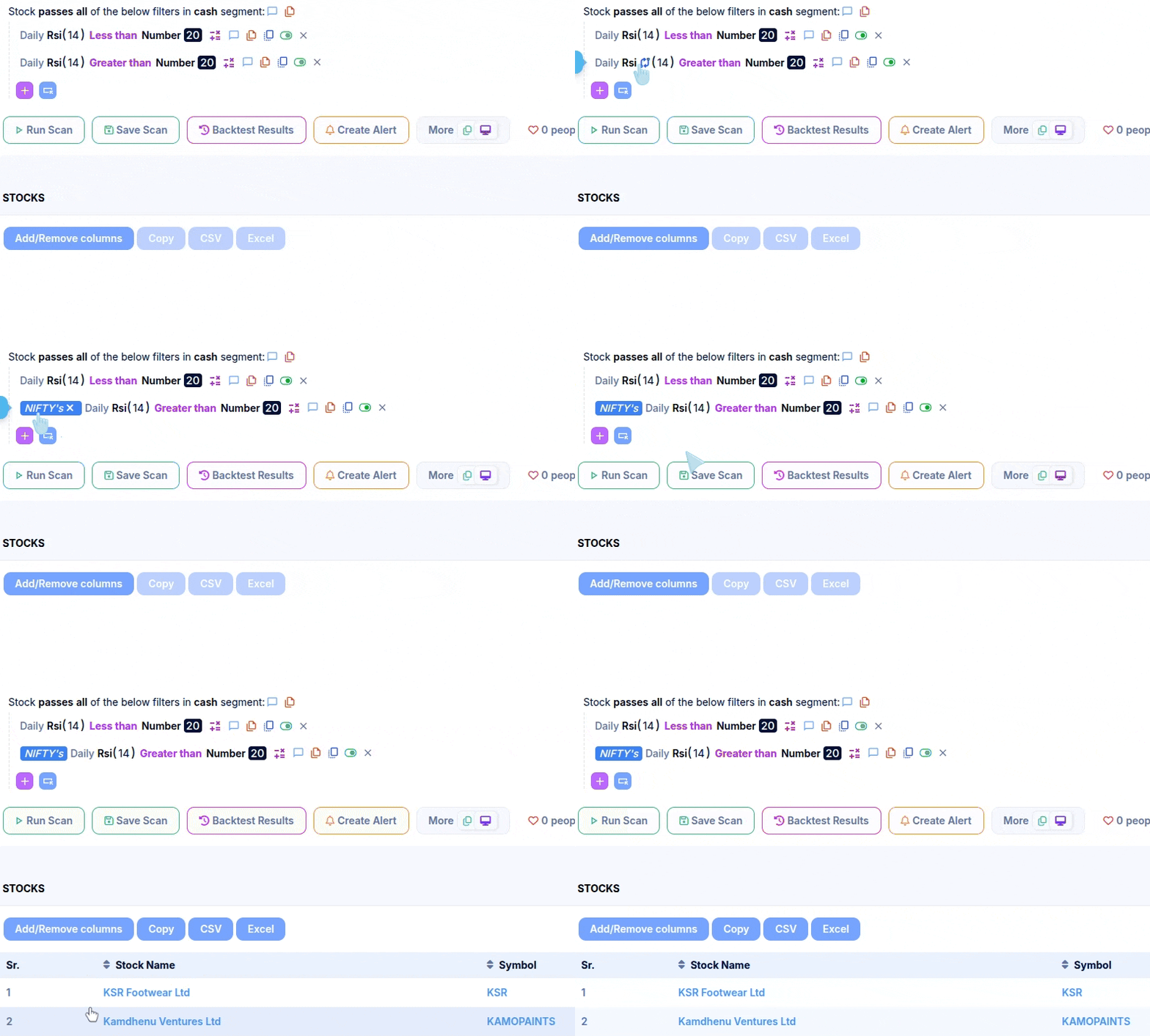
Relative Strength Formula with Example
One practical way to measure Relative Strength is by comparing the RSI (Relative Strength Index) of a stock with the RSI of the benchmark index.
Formula: Relative Strength (RS) = Stock RSI − Index RSI
Example Dashboard: TCS x NIFTY

Using the example data:
- Stock (TCS) RSI: 55.30
- Index (NIFTY) RSI: 48.93
- RS(TCS x NIFTY): +6.37 (The benchmark RSI, not a derived value.)
Since the Relative Strength value is positive, it indicates that TCS is performing better than the NIFTY index at that time.
If Stock RSI > Index RSI → Relative Strength
If Stock RSI < Index RSI → Relative Weakness
Relative Strength Using 52-Week Price Performance
Relative Strength can also be calculated using 52-week price performance, which is commonly used for medium- to long-term stock selection.
This approach normalises a stock’s price performance against the index over the same period.
Formula (52-Week Performance-Based RS)
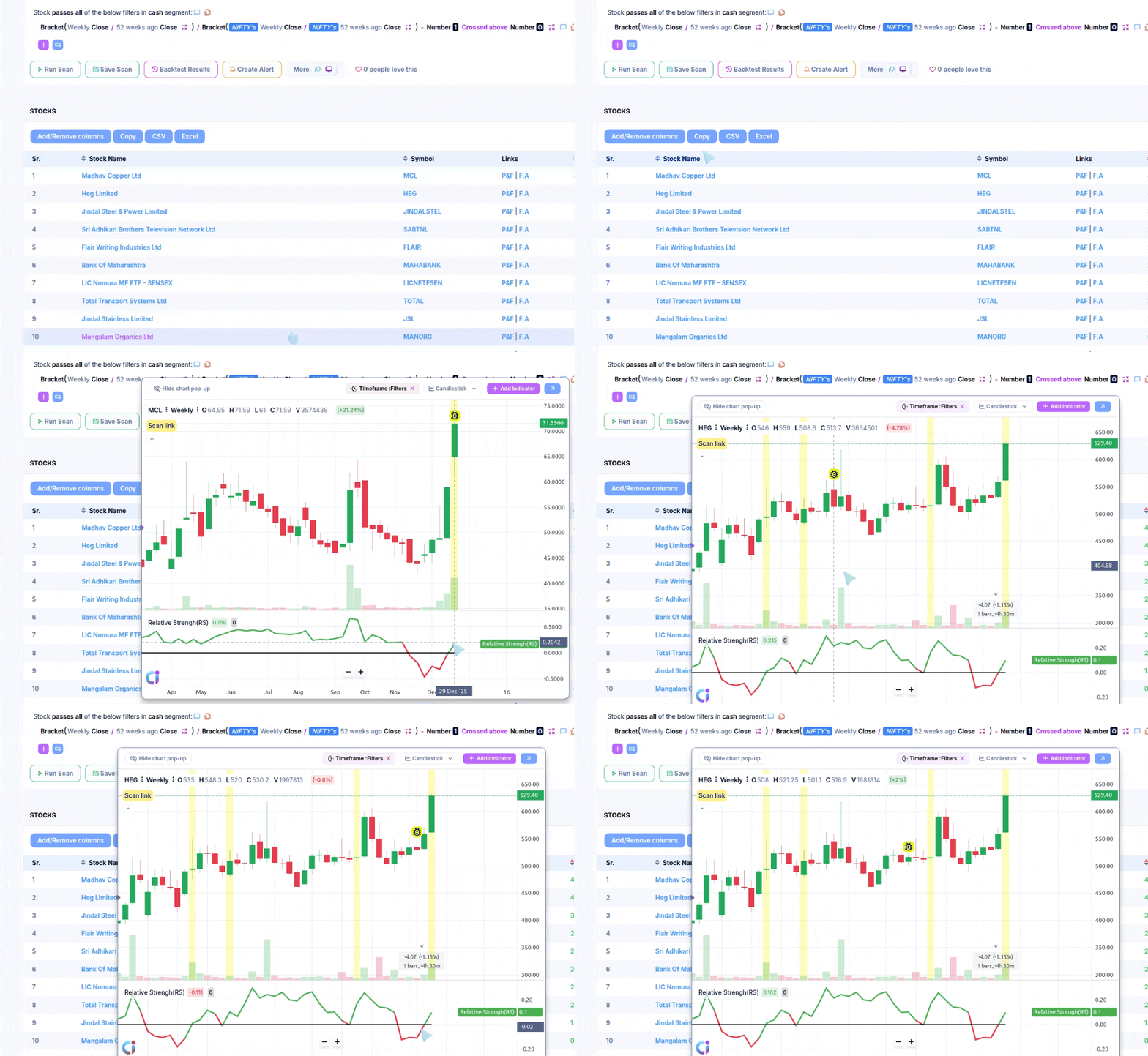
Relative Strength (RS) = (Stock Close ÷ Stock Close 52 Weeks Ago) ÷ (Index Close ÷ Index Close 52 Weeks Ago) − 1
Example scan: Stock with RS positive w.r.t NIFTY 50
Chart Snapshot: Relative strength on Chart
How to Interpret 52-Week RS
- RS above 0 → Stock has outperformed the index
- RS below 0 → Stock has underperformed the index
Relative Strength Using 5-Day Performance Ranking vs NIFTY
This is another method of applying Relative Strength (RS), where stocks are ranked based on their price out-performance versus NIFTY over the last 5 trading days.
Example Dashboard: Top-10 stock Outperform stocks
Relative Strength comparisons must use the same indicator and timeframe for both the stock and the index.
- Stock RSI vs Index RSI →

- Stock 15 minute MACD vs 15 minute Index MACD →
- Stock Close vs Index Close →
- Stock RSI vs Index MACD →
 not logically correct
 - Stock RSI (Daily) vs Index RSI (15-min) → not logically correct
Only the instrument should differ (stock vs index); the measurement method must remain identical.
]]>
Quick Video on Youtube
Why Xpress Indicator Was Needed
Many real-world trading indicators rely on logic that goes beyond standard indicators like SMA/EMA or simple counting conditions. They often involve multi-step calculations, custom rules, and conditional flows.
Earlier, converting such logic into a usable Chartink indicator typically required manual rework or approximation—which could unintentionally change the original strategy’s intent.
Xpress Indicator is built to close this gap.
What You Can Submit
The generator accepts indicator logic in multiple formats as mentioned below:
- Source code –
Example: Logic / Script of the indicator. - Formula-based logic –
Example: Excel-style formulas, Pseudo-code and Mathematical descriptions. - Articles describing the logic –
Example: A blog or note explaining how the indicator identifies trends or reversals. - Plain English description –
Example: Step-by-step explanation of the logic or Rules describing how values are calculated.
The system reads the logic and converts it into a usable indicator.
Where It Can Be Used
Once created, Xpress Indicators can be used across:
- Scans
- Widgets
- Charts
Ways to Create an Indicator
There are three supported input methods. Each method follows the same workflow and produces the same output.
- Copy and paste code or formulas
Example: Pasting an existing indicator script or mathematical formula - Upload a pre-written script file
Example: Uploading a saved indicator file - Paste an article or website link
Example: Providing a link that explains the indicator logic in detail
Getting Started with Xpress Indicator Creation
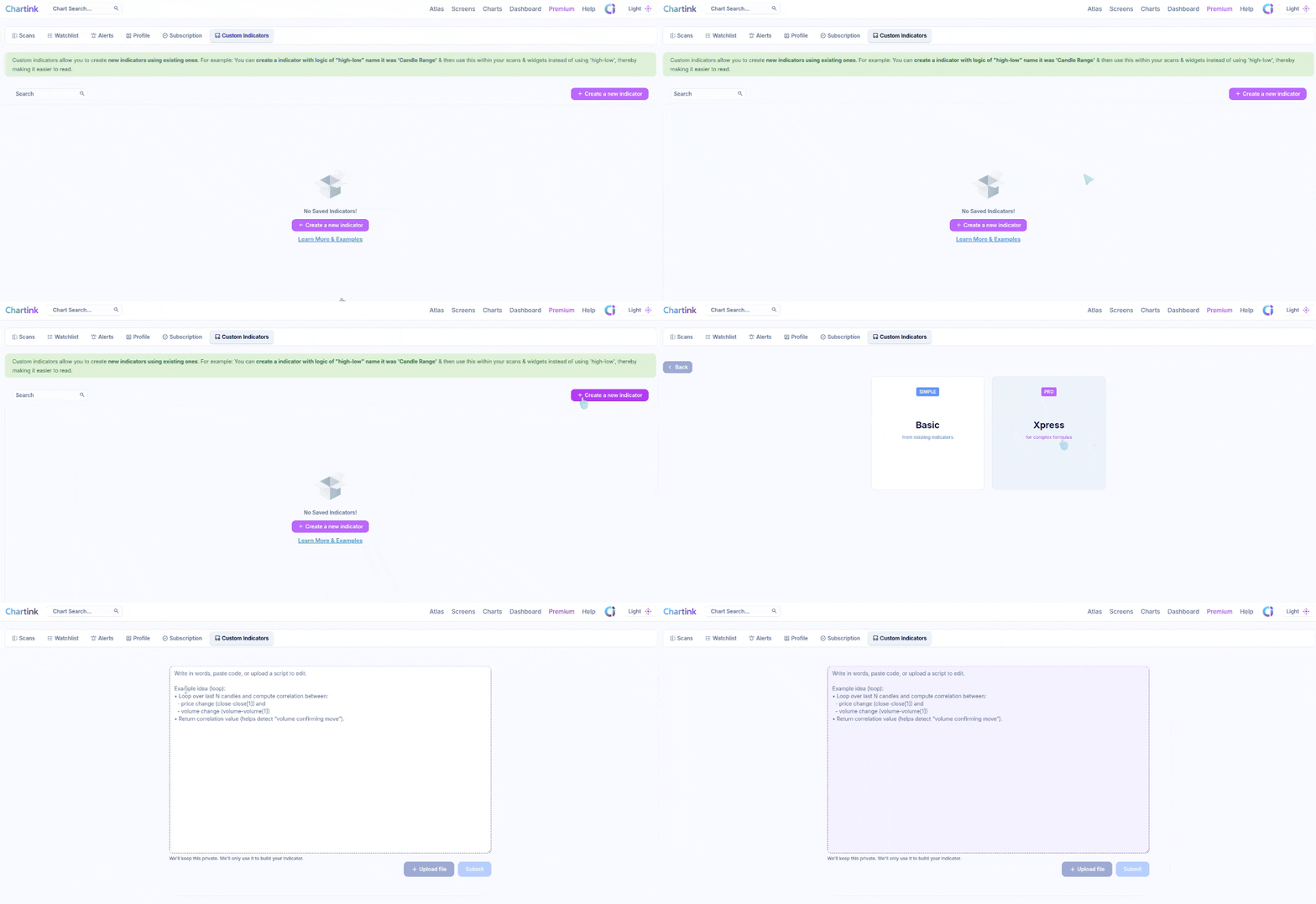
Step 1: Open the Indicator Dashboard
- Visit: https://chartink.com/indicator_dashboard
- Click Create a New Indicator
Step 2: Select Indicator Type
After clicking Create a New Indicator, you will see two options:
- Base Indicators
- Xpress Indicators
Select Xpress to continue, as this option supports complex formulas.
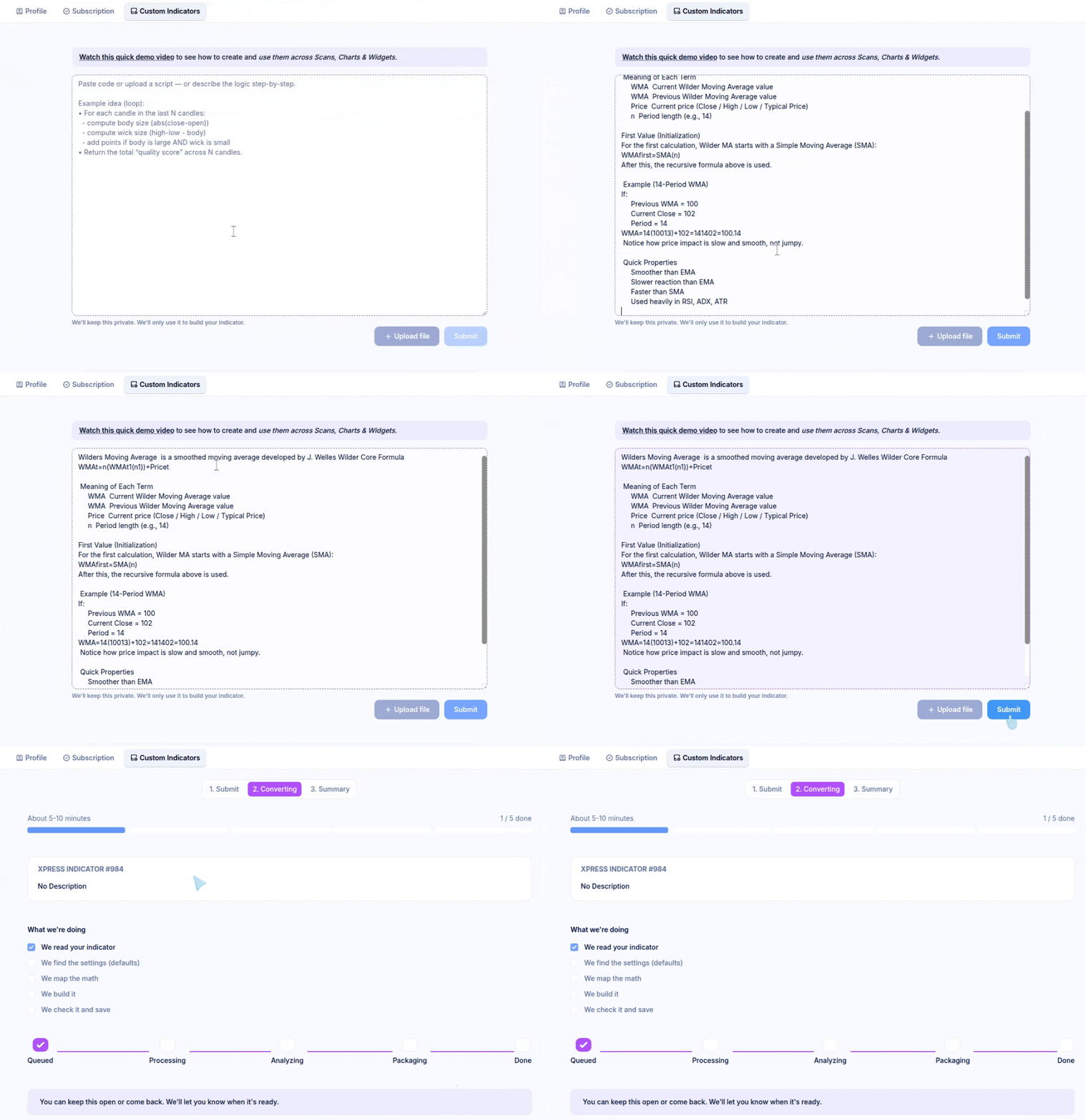
Method 1: Copy and Paste Indicator Logic
Find the formula for the indicator you want to create.
Example: Search online for the formula of Wilder’s Moving Average and copy the formula.
Make sure the logic clearly represents how the indicator is calculated.
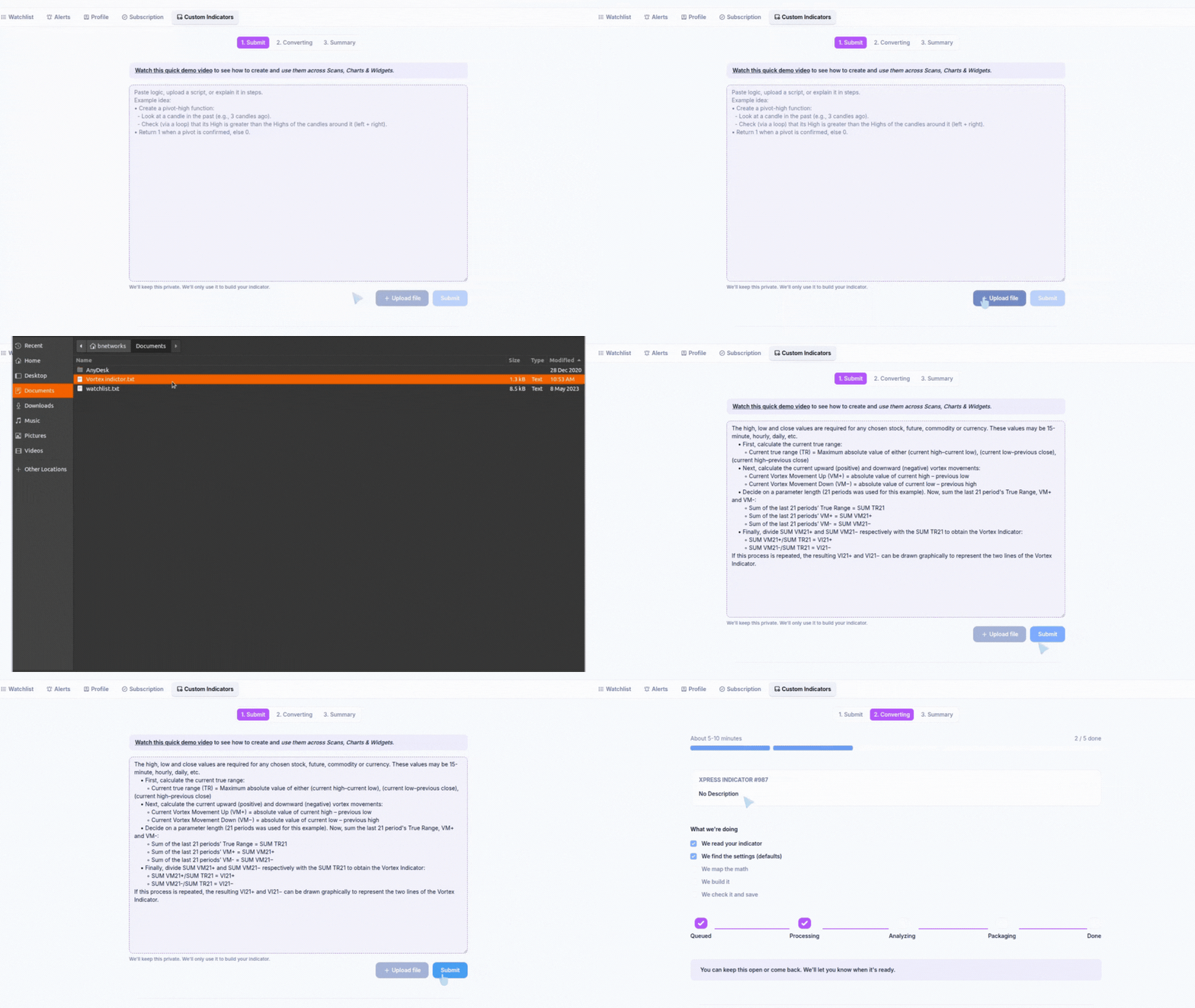
Method 2: Upload a Pre-Written Script File
This method is useful when the indicator logic is already saved as a script file.
Example: A saved indicator script file exported from another platform or editor.
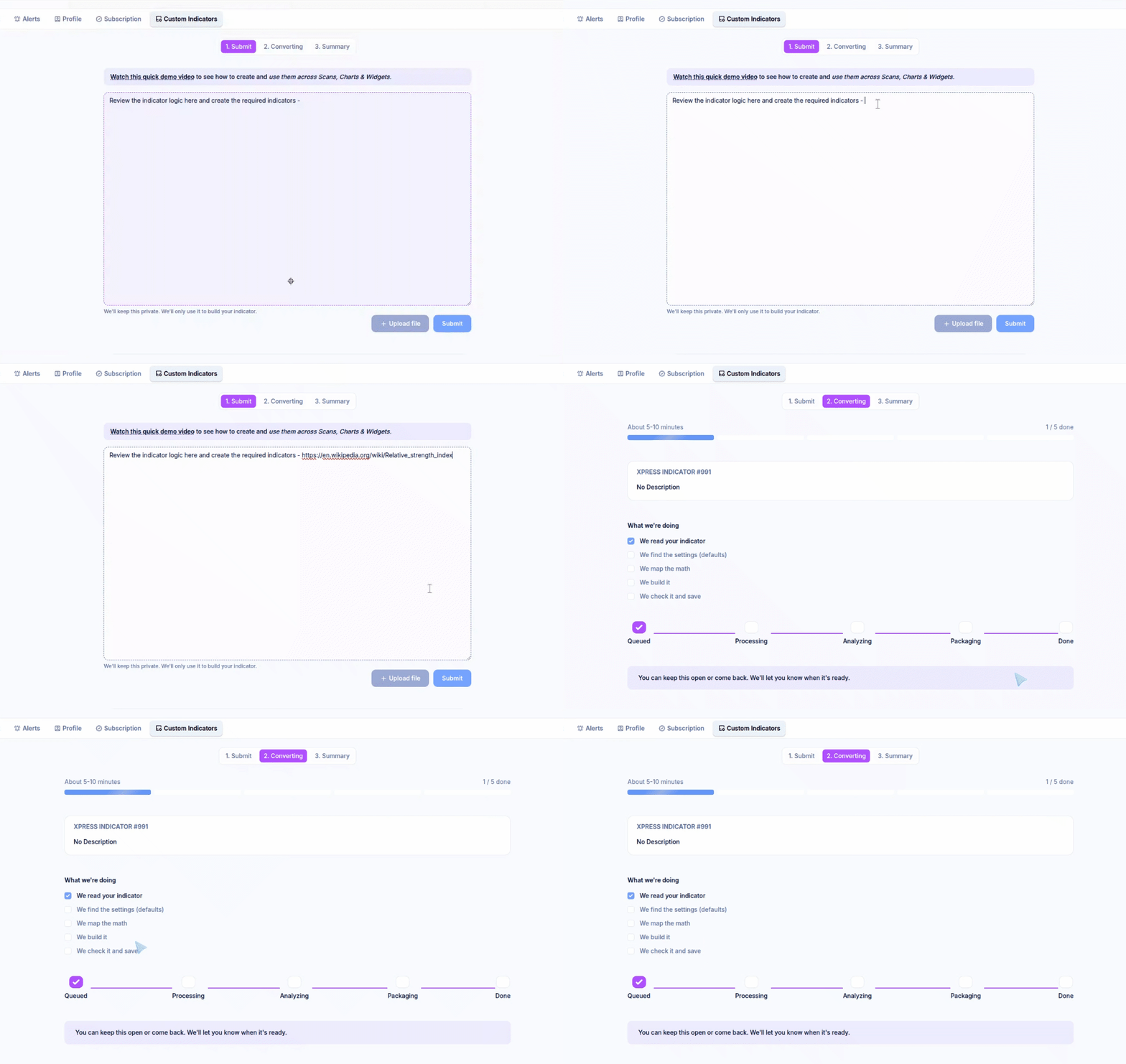
Method 3: Paste an Article or Website Link
This method is useful when the indicator logic is explained in an article or on a website rather than as code or formulas.
Example format:Review the indicator logic here and create the required indicator:<article or website link>
Processing and Validation
After submission, Xpress processes the indicator. This usually takes 5–10 minutes, depending on the logic complexity. During this time, the indicator appears under Converting.
Once completed:
- The status changes to Completed
- The indicator becomes available for use
Before using it, validate the output:
- Check recent candle values(Based on Daily timeframe values only)
- Compare results with the original reference chart or script
Using Xpress Indicator Correctly (Important Guidelines)
While Xpress makes it easier to convert complex logic into indicators, it is important to use it for the right purpose. Incorrect usage can lead to confusing results, unnecessary computation, or indicators that do not behave as intended.
What Not to Use Xpress For(Not a Scan Rule Builder)
Avoid using Xpress to define logic such as:
- Close above or below a moving average
- RSI, volume, or price crossing a level
- Fixed threshold checks (price, volume, market cap, etc.)
- Simple yes/no scan conditions
These conditions are already supported efficiently inside Scans and should be added there directly.
What Xpress Indicator Is Meant For
Xpress should be used when your idea requires calculation that cannot be expressed as a simple scan filter.
Typical use cases include:
- Loop-based logic
- Counting consecutive candles
- “N out of M” conditions
- Rolling window calculations
- Custom indicator construction
- Indicators built from raw price data
- Scoring or ranking systems
- Custom smoothing or aggregation logic
- State-based logic
- Trailing stop calculations
- Trend or regime identification
- Conditions that depend on previous states
- Math-heavy transformations
- Z-scores
- Correlation or regression
- Composite or normalized indicators
In short, if your logic needs memory, iteration, or math, Xpress is the right tool.
Good vs Not ideal examples
- Not ideal: Close > EMA(20) and RSI > 60

- Good: Create an RSI function from scratch by looping gains/losses; output RSI + ‘RSI rising’ flag

- Good: Loop over last 20 candles to compute a momentum score; return score
The Group functions enable traders to analyze stock movements by organizing data based on specific conditions for a group like Nifty 50 or Nifty 500 stocks. This makes it easy to quickly extract valuable insights, such as counts, highs, lows, averages, and totals.
- GroupCount: Counts the number of entries from a group that fulfill a given condition.
Tutorial – Video GroupCount
Dashboard – Dashboard for GroupCount
- GroupHigh: Finds the highest value of an attribute or indicator from a group for a given condition.
Tutorial – Video GroupHigh
Dashboard – Highest high in NIFTY50 segment. - GroupLow: Finds the lowest value of an attribute or indicator from a group for a given condition.
Tutorial – Video GroupLow
Dashboard – Lowest %Change in NIFTY50 segment - GroupAvg: Calculates the average of a given attribute or indicator from a group for a specific condition.
Tutorial – Video GroupAvg
Dashboard – Average of %Change in NIFTY50 segment - GroupSum: Calculates the sum of a given attribute or indicator from a group for a specified condition.
Tutorial – Video GroupSum
Dashboard – Sum of all Close price of Green candles in NIFTY50 segment
For the above explanation, we have created an example dashboard showcasing the ‘Group Function‘.
Please note, it is necessary to remove the “Grouping” from Group/Sort menu for using the grouping conditions mentioned above.
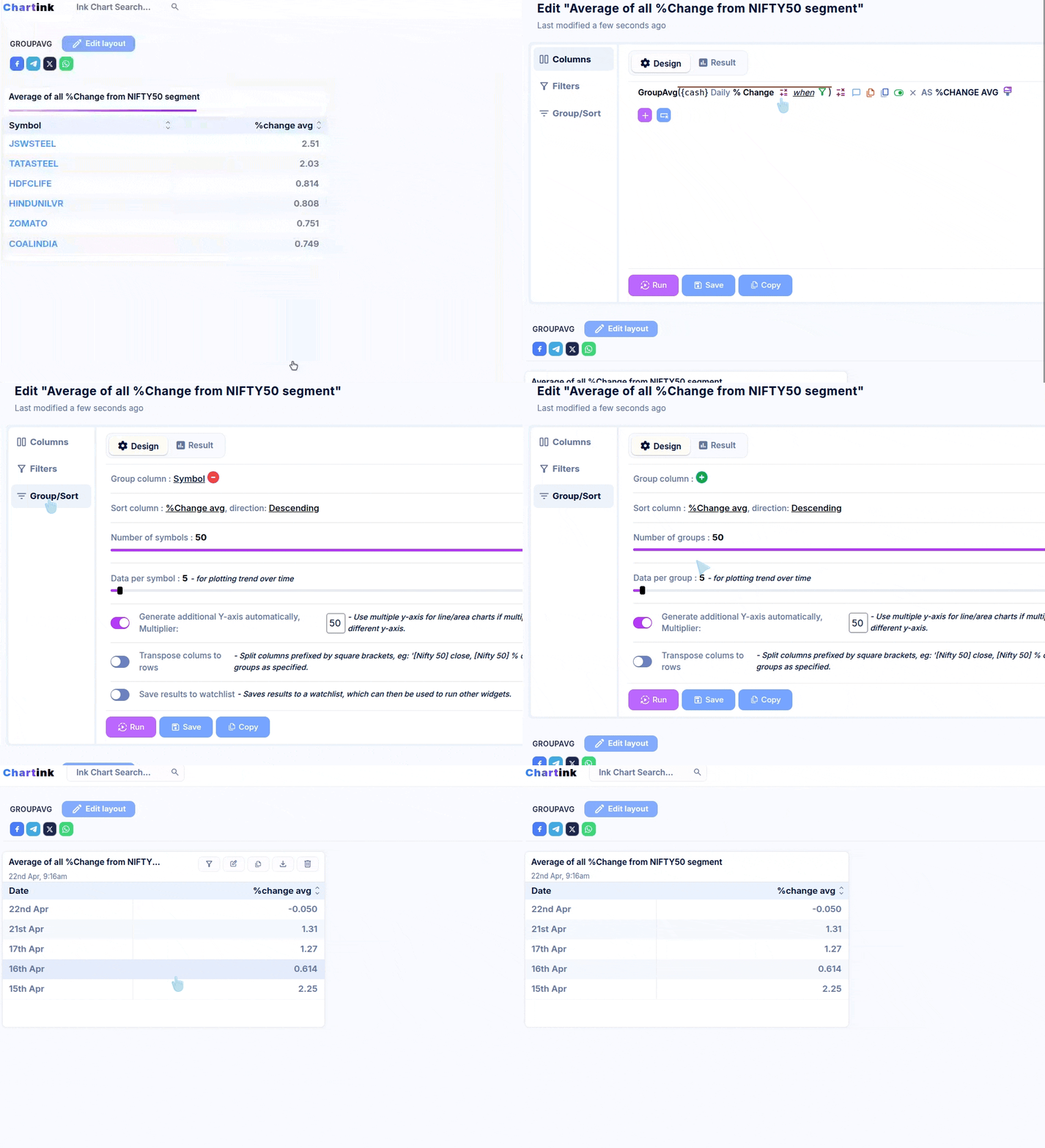
Dashboard: https://chartink.com/dashboard/243806
Video: https://www.awesomescreenshot.com/video/27977166?key=1a4c74e5e00acf5fc0b70162841f05b8 ]]>
Dashboard: https://chartink.com/dashboard/231204
Notice, how clicking on the “filter” icon on the stock list on the left, show’s the fianncail trend(net profit values over the last few quarters and year)
FOR DESKTOP NOTIFICATIONS
If you are unable to see the demo notification pop-up after visiting the demo-notification link, follow the below steps for troubleshooting the same:
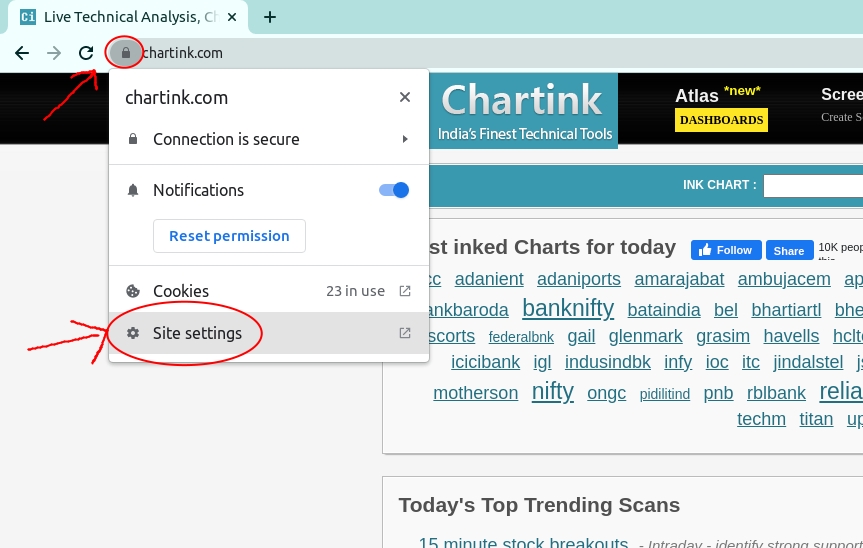
STEP 1: Ensure Notifications are allowed on the Chrome browser:
Ensure notifications are allowed in the settings for your browser by clicking on the “lock” sign next to the URL as shown below and going to “site settings” and ensuring “notifications” and “pop-ups and redirects” are set to “Allow”.
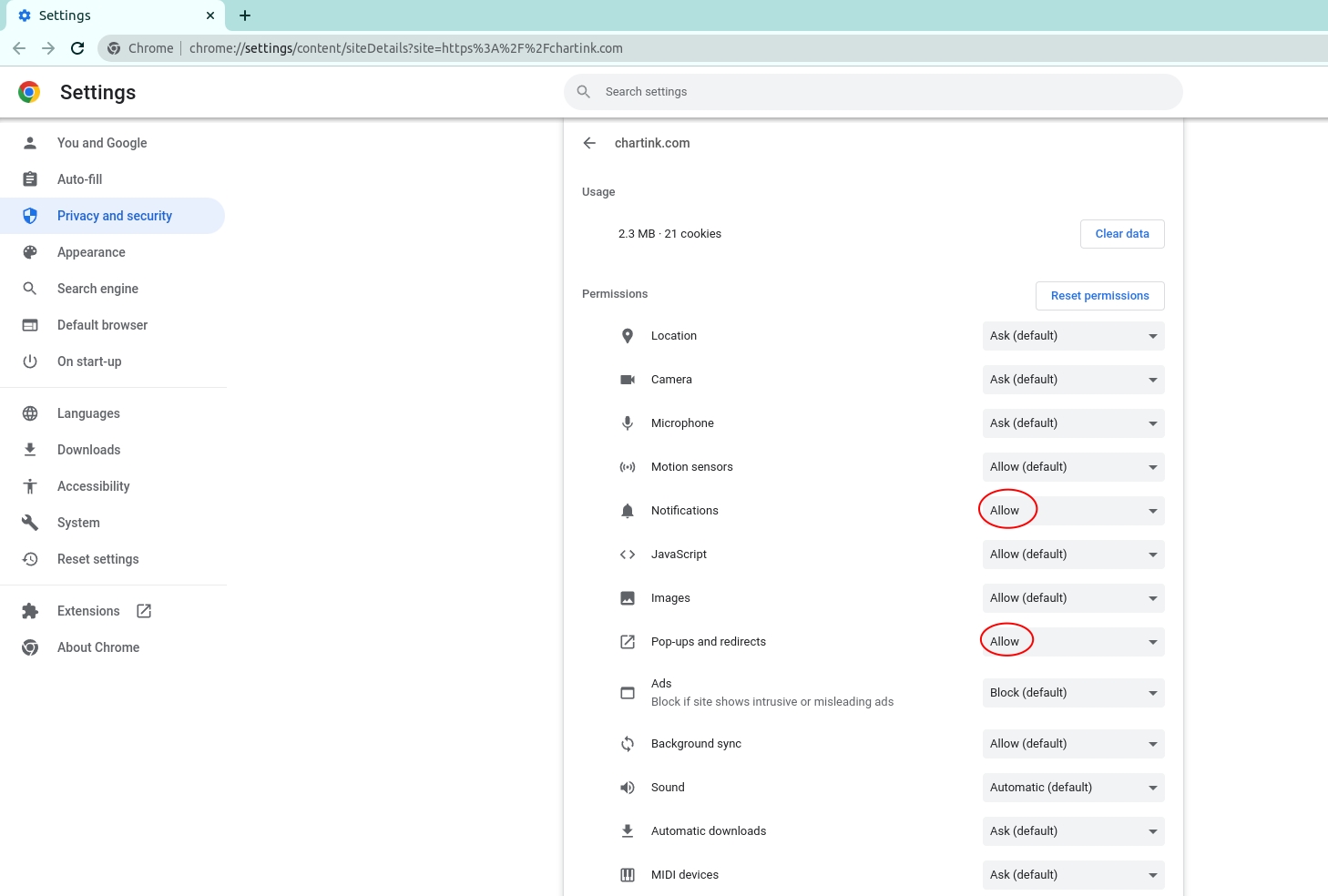
Once this is done, try running the demo notification link again. If you now get a pop-up, you’ve successfully enabled web notifications on your desktop.
Step 2: Ensure Notifications for Chrome are enabled on Windows:
- Open the system settings
- Click on Notifications & actions
- Under “Get notifications from these senders,” select Google Chrome and ensure notifications are enabled.
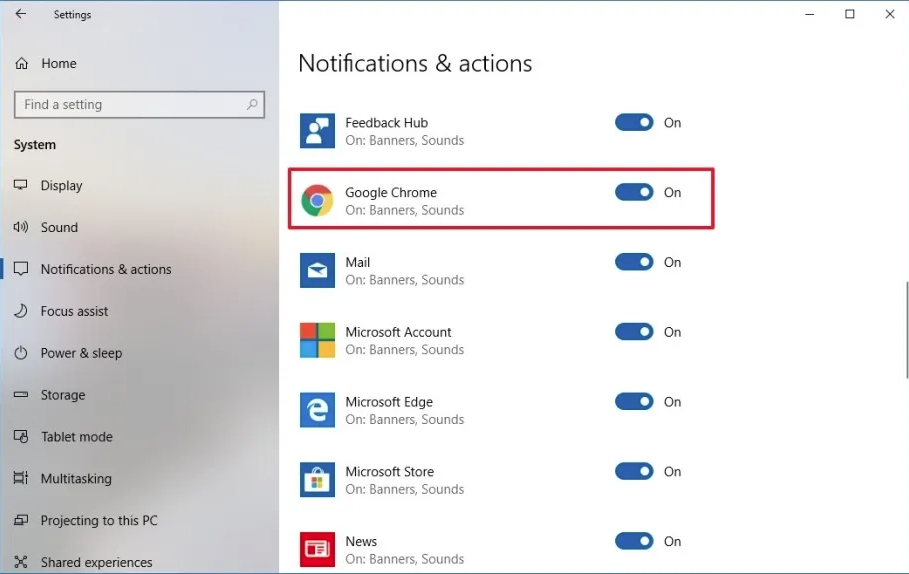
Once enabled, you can run the demo notification again; you should now get a pop-up on your desktop. If you still do not receive a pop-up, kindly contact our support team here for further support – support@chartink.com.
FOR MOBILE (Android) NOTIFICATIONS:
If you are unable to see the demo notification pop-up after visiting the demo-notification link, follow the below steps for troubleshooting the same:
Step 1: Ensure Notifications are allowed on the Chrome browser:
Follow the below video tutorial to enable web push notifications on mobile. Please note web push notifications on mobile are supported only by Andriod devices.
Once this is done, try running the demo notification link again. If you now get a pop-up, you’ve successfully enabled web notifications on your android device.
Step 2: Ensure Notifications for Chrome are allowed via the phone’s app settings:
- Open your phone’s Settings app
- Tap Notifications
- Go to App settings/App management
- Locate the app “Google Chrome.”
- Tap the app
- Ensure notifications for this app are “Allowed.”
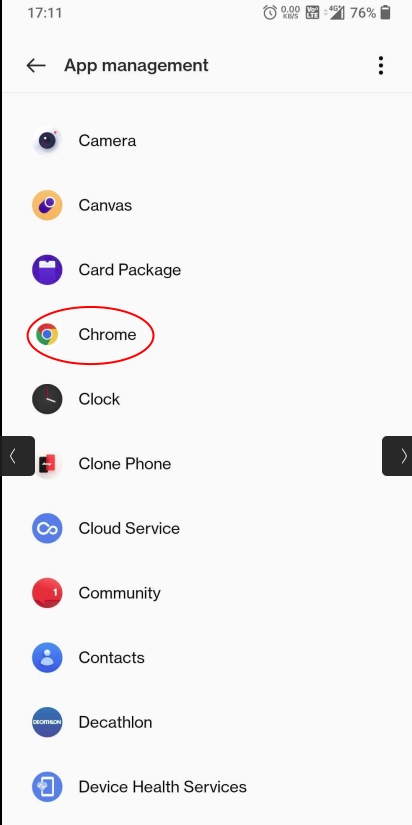
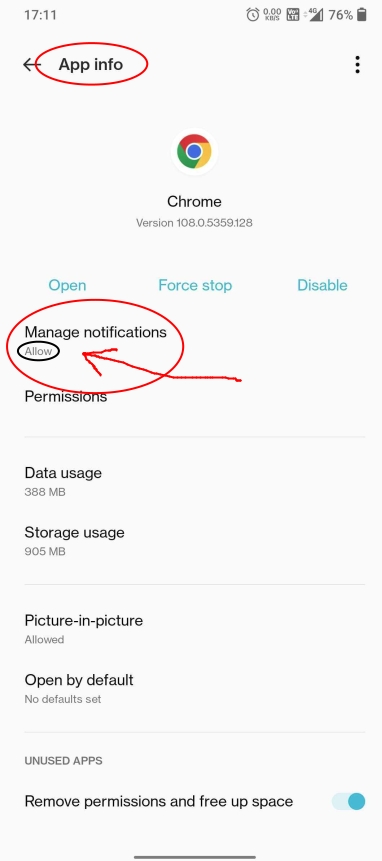
Once this is done, try running the demo notification link again. You should now get a pop-up on your mobile device.
If you still need any help, kindly contact us at support@chartink.com
]]>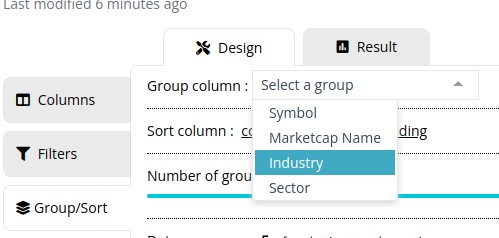
Selecting no group from the above-listed groups would run the widget scan assuming a single group for all the *group* functions.
Examples
- Get the count(after an optional filter) of items grouped by a given sector or industry; the below dashboard lists the total number of stocks, number of positive stocks & number of negative stocks, https://chartink.com/dashboard/122841.
- Using the count to calculate the % of stocks that have closed positive vs. negative. https://chartink.com/dashboard/122841
In the meantime, please disable the filters of “Trade & Order book” fields in your scans and widgets, to ensure that this doesn’t impact your scans & alerts due to non avaliablity for these 2 days, below is the list of fields impacted by this activity:
 Buyer initiated trades
 Buyer initiated trades quantity
 Buyer initiated trades average quantity
 Seller initiated trades
 Seller initiated trades quantity
 Seller initiated trades average quantit
 Buyer vs Seller initiated trades ratio
 Buyer vs Seller initiated trades quantity ratio
 Buyer initiated trades VWAP
 Seller initiated trades VWAP
 Total Orders
 Orders Quantity
 Buy Orders
 Buy Orders Quantity
 Sell Orders
 Sell Orders Quantity
 Buy vs Sell orders ratio
 Buy vs Sell orders quantity ratio
 Cancelled Buy Orders
 Cancelled Buy Orders Quantity
 Cancelled Sell Orders
 Cancelled Sell Orders Quantity
 Total Cancelled orders
 Total Cancelled orders quantity
 Cancelled orders ratio
 Cancelled orders quantity ratio
 Buy Orders Vwap
 Sell Orders Vwap
 Orders Vwap
Note: Candlestick data(open,high,low,close..) & other technical indicators(RSI, MACD.. etc) would NOT be impacted by this.
Updates
29th Sep’21 9:20am: The issue is still not resolved, we have notified the exchange regarding the same
29th Sep’21 10:20am: The issue now resolved & these fields are now avaliable, the exhange is working on providing us with the missing data
]]>
9:35am – NSE has acknolwdged the issue impacting other clients as well
9:38am – NSE has notified a issue with the AWS feed connecting the exchange
11:37am – NSE has resolved the issue, we’ll be working with shortly to get the missing data
We’ll post further updates on this page
]]>Example 1 (Single timeframe – Daily candles)
A scan running on a daily candle, shown at 10 am, will differ from the results displayed at 12 pm. This is similar to how the indicators/candle would look for the current day on a candlestick chart, i.e., it will continue to change for the day until the market is closed.
Example 2 (Multiple timeframes – 5 minute and Daily candle)
For a scan using 2 different timeframes, i.e 5 minutes and daily candle, the backtest history would show a bar for every 5 minutes(lowest timeframe in the scan), the backtest history would spread the daily candle for every 5 minutes, i.e., the values current spanshot of the daily candles is spread across all 5-minute bars in a day causing the results to change as the current version/snapshot of the daily candle updates.
Unlike Alerts, Backtest is generated on the fly(i.e., the time you view the scan). E.g., If you view the backtested history on such a scan at 12 pm and then re-check it at 3 pm, the backtest bars since market opening, i.e., 9:15 am, 9:20 am, and so on.. may show changed/updated results as the run on 3 pm saw a newer version of the daily candle, as of 3 pm. In such a case, to validate the actual stocks present in a scan at 9:30 am, would be to create an alert and validate the results of the alert’s history instead. As alerts run on the trading time (9:20 am, 9:25 am, 9:30 am), unlike backtest, generated on the fly, i.e., when you view/open the scan page.
Note: This behavior is NOT a bug, but rather how candlestick charts are shown/displayed, the candlestick chart show’s only the current version of the candle and not how it looked every second/minute in a day, which would mean the current candle on a candlestick chart would continue to change/update thru the day while the candle is incomplete
For Fundamental & Technical data, please note, backtest results are not based on historical values (Example: The value of Nifty’s Close was around 20,500 in 2023 vs Nifty’s Close as of today), but based on the current values as of today.
]]>