
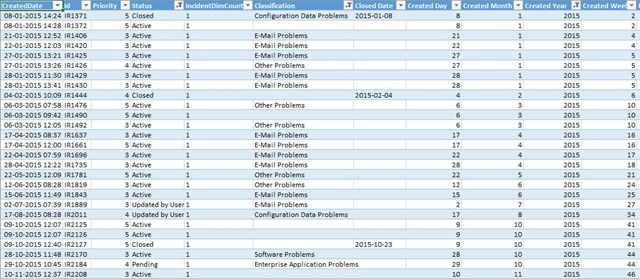
This query gives you a dataset in list form to work with in Excel or PowerBI, containing the following informations related to Incident Requests.
ID
Classification
Closed Date
Created Date
Created Day
Created Month
Created Year
Created Week
First Response Date
Priority
Resolution Category
Resolved Date
Resolved Day
Resolved Month
Resolved Year
Resolved Week
Source
Status
TargetResolutionTime
TierQueue
You will need to run the SQL query against the Service Manager Data Warehouse database DWDataMart.
/****** Developed by Brian Fahrenholtz (Coretech A/S)  ******/
SELECT
'1' AS IncidentDimCount,
I.Id,
Classification = ISNULL(ClassificationEnumDS.DisplayName, ClassificationEnum.IncidentClassificationValue),
Convert(Date,I.ClosedDate) As 'Closed Date',
I.CreatedDate,
DATEPART(DAY,I.CreatedDate) AS 'Created Day',
DATEPART(MONTH,I.CreatedDate) AS 'Created Month',
DATEPART(YEAR,I.CreatedDate) AS 'Created Year',
DATEPART(WEEK,I.CreatedDate) AS 'Created Week',
I.FirstResponseDate AS 'First Response Date',
I.Priority,
ResolutionCategory = ISNULL(ResolutionCategoryDS.DisplayName, ResolutionCategoryEnum.IncidentResolutionCategoryValue),
I.ResolvedDate AS 'Resolved Date',
DATEPART(DAY,I.ResolvedDate) AS 'Resolved Day',
DATEPART(MONTH,I.ResolvedDate) AS 'Resolved Month',
DATEPART(YEAR,I.ResolvedDate) AS 'Resolved Year',
DATEPART(WEEK,I.ResolvedDate) AS 'Resolved Week',
Source = ISNULL(SourceDS.DisplayName, SourceEnum.IncidentSourceValue),
Status = ISNULL(StatusDS.DisplayName, StatusEnum.IncidentStatusValue),
I.TargetResolutionTime,
TierQueue = ISNULL(TierQueueEnumDS.DisplayName, TierQueueEnum.IncidentTierQueuesValue)

FROM
DWDataMart.dbo.IncidentDimvw I

	INNER JOIN DWDAtaMart.dbo.EntityDimvw Entity
	ON I.EntityDimKey = Entity.EntityDimKey

	INNER JOIN DWDAtaMart.dbo.WorkItemDimvw WI
	ON I.EntityDimKey = WI.EntityDimKey

	/****** Tier Queue ******/
	Left Outer Join DWDataMart.dbo.IncidentTierQueuesvw TierQueueEnum
	ON  I.TierQueue_IncidentTierQueuesId = TierQueueEnum.IncidentTierQueuesId

	Left Outer Join DWDataMart.dbo.DisplayStringDimvw TierQueueEnumDS
	ON TierQueueEnum.EnumTypeId = TierQueueEnumDS.BaseManagedEntityId
	AND TierQueueEnumDS.LanguageCode = 'ENU'

	/****** Source ******/
	LEFT OUTER JOIN
	DWDataMart.dbo.IncidentSourcevw AS SourceEnum
	ON SourceEnum.IncidentSourceId = I.Source_IncidentSourceId

	LEFT OUTER JOIN
	DWDataMart.dbo.DisplayStringDimvw SourceDS
	ON SourceEnum.EnumTypeId=SourceDS.BaseManagedEntityId
	AND SourceDS.LanguageCode = 'ENU'

	/****** Resolution Category ******/
	LEFT OUTER JOIN
	DWDataMart.dbo.IncidentResolutionCategoryvw AS ResolutionCategoryEnum
	ON ResolutionCategoryEnum.IncidentResolutionCategoryId = I.ResolutionCategory_IncidentResolutionCategoryId

	LEFT OUTER JOIN
	DWDataMart.dbo.DisplayStringDimvw AS ResolutionCategoryDS
	ON ResolutionCategoryEnum.EnumTypeId=ResolutionCategoryDS.BaseManagedEntityId
	AND ResolutionCategoryDS.LanguageCode = 'ENU'

	/****** Classification ******/
	Left Outer Join DWDataMart.dbo.IncidentClassificationvw ClassificationEnum
	ON I.Classification_IncidentClassificationId = ClassificationEnum.IncidentClassificationId

	Left Outer Join DWDataMart.dbo.DisplayStringDimvw ClassificationEnumDS
	ON ClassificationEnum.EnumTypeId = ClassificationEnumDS.BaseManagedEntityId
	AND ClassificationEnumDS.LanguageCode = 'ENU'

	/****** Status ******/
	LEFT OUTER JOIN
	DWDataMart.dbo.IncidentStatusvw AS StatusEnum
	ON StatusEnum.IncidentStatusId = I.Status_IncidentStatusId

	LEFT OUTER JOIN
	DWDataMart.dbo.DisplayStringDimvw StatusDS
	ON StatusEnum.EnumTypeId=StatusDS.BaseManagedEntityId
	AND StatusDS.LanguageCode = 'ENU'


Order by I.CreatedDate
The output will be like below, when you using it in Excel.
Mary Christmas
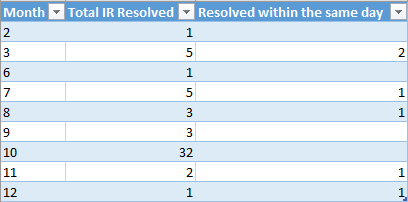
]]>Run the query below against the Data Warehouse database DWDataMart, and you will get a monthly trend report on resolved Incident Requests.
Configure variables in the Query
There are two variable in the Query you need to configure before you run it.
SET @Year = 2014; define the year the request was resolved
SET @Supportgroup = ‘1. Level Support’; define the support group you want analyze
/*
*******************************************************************************

	Author:			Brian Fahrenholtz, Coretech A/S. https://blog.ctglobalservices.com
	Purpose:		This SQL Query return the numbers of Incidents that was
					resolved within the same day as it was created.

	Usage:			Run the query on the DWDataMart database.


	History:
	1.0.0	BFA	12/04/2014	Created initial version.


*******************************************************************************
*/

-- Variable declarations
DECLARE @Year VARCHAR(50);
DECLARE @Supportgroup VARCHAR(50);

-- Initialize the variable.
SET @Year = 2014;
SET @Supportgroup = '1. Level Support';

-- Main routines
SELECT a.ResolvedMonth AS 'Month', a.IncidentResolved AS 'Total IR Resolved', b.IncidentResolved AS 'Resolved within the same day' FROM

(SELECT IncidentResolved.ranges AS 'ResolvedMonth', count(*) AS 'IncidentResolved' FROM
(
SELECT CASE
	WHEN DATEPART(month,I.ResolvedDate) = '1' then '1'
	WHEN DATEPART(month,I.ResolvedDate) = '2' then '2'
	WHEN DATEPART(month,I.ResolvedDate) = '3' then '3'
	WHEN DATEPART(month,I.ResolvedDate) = '4' then '4'
	WHEN DATEPART(month,I.ResolvedDate) = '5' then '5'
	WHEN DATEPART(month,I.ResolvedDate) = '6' then '6'
	WHEN DATEPART(month,I.ResolvedDate) = '7' then '7'
	WHEN DATEPART(month,I.ResolvedDate) = '8' then '8'
	WHEN DATEPART(month,I.ResolvedDate) = '9' then '9'
	WHEN DATEPART(month,I.ResolvedDate) = '10' then '10'
	WHEN DATEPART(month,I.ResolvedDate) = '11' then '11'
	WHEN DATEPART(month,I.ResolvedDate) = '12' then '12'
	ELSE 'x'
	END AS Ranges
FROM
DWDataMart.dbo.IncidentDimvw I

	INNER JOIN DWDAtaMart.dbo.EntityDimvw Entity
	ON I.EntityDimKey = Entity.EntityDimKey

	INNER JOIN DWDAtaMart.dbo.WorkItemDimvw WI
	ON I.EntityDimKey = WI.EntityDimKey

	LEFT OUTER JOIN
	DWDataMart.dbo.IncidentStatusvw AS StatusEnum
	ON StatusEnum.IncidentStatusId = I.Status_IncidentStatusId

	LEFT OUTER JOIN
	DWDataMart.dbo.DisplayStringDimvw StatusDS
	ON StatusEnum.EnumTypeId=StatusDS.BaseManagedEntityId
	AND StatusDS.LanguageCode = 'ENU'

	Left Outer Join DWDataMart.dbo.IncidentTierQueuesvw TierQueueEnum
		ON  I.TierQueue_IncidentTierQueuesId = TierQueueEnum.IncidentTierQueuesId

	Left Outer Join DWDataMart.dbo.DisplayStringDimvw TierQueueEnumDS
		ON TierQueueEnum.EnumTypeId = TierQueueEnumDS.BaseManagedEntityId
		AND TierQueueEnumDS.LanguageCode = 'ENU'

WHERE StatusDS.DisplayName IN ('Closed' , 'Resolved') and (TierQueueEnumDS.DisplayName IN (@Supportgroup)) and (DATEPART(year,I.ResolvedDate) = @Year)

) IncidentResolved
group by IncidentResolved.ranges) a

FULL JOIN
(SELECT IncidentResolved.ranges AS 'ResolvedMonth', count(*) AS 'IncidentResolved' FROM
(
SELECT CASE
	WHEN DATEPART(month,I.ResolvedDate) = '1' then '1'
	WHEN DATEPART(month,I.ResolvedDate) = '2' then '2'
	WHEN DATEPART(month,I.ResolvedDate) = '3' then '3'
	WHEN DATEPART(month,I.ResolvedDate) = '4' then '4'
	WHEN DATEPART(month,I.ResolvedDate) = '5' then '5'
	WHEN DATEPART(month,I.ResolvedDate) = '6' then '6'
	WHEN DATEPART(month,I.ResolvedDate) = '7' then '7'
	WHEN DATEPART(month,I.ResolvedDate) = '8' then '8'
	WHEN DATEPART(month,I.ResolvedDate) = '9' then '9'
	WHEN DATEPART(month,I.ResolvedDate) = '10' then '10'
	WHEN DATEPART(month,I.ResolvedDate) = '11' then '11'
	WHEN DATEPART(month,I.ResolvedDate) = '12' then '12'
	ELSE 'x'
	END AS Ranges
FROM
DWDataMart.dbo.IncidentDimvw I

	INNER JOIN DWDAtaMart.dbo.EntityDimvw Entity
	ON I.EntityDimKey = Entity.EntityDimKey

	INNER JOIN DWDAtaMart.dbo.WorkItemDimvw WI
	ON I.EntityDimKey = WI.EntityDimKey

	LEFT OUTER JOIN
	DWDataMart.dbo.IncidentStatusvw AS StatusEnum
	ON StatusEnum.IncidentStatusId = I.Status_IncidentStatusId

	LEFT OUTER JOIN
	DWDataMart.dbo.DisplayStringDimvw StatusDS
	ON StatusEnum.EnumTypeId=StatusDS.BaseManagedEntityId
	AND StatusDS.LanguageCode = 'ENU'

	Left Outer Join DWDataMart.dbo.IncidentTierQueuesvw TierQueueEnum
		ON  I.TierQueue_IncidentTierQueuesId = TierQueueEnum.IncidentTierQueuesId

	Left Outer Join DWDataMart.dbo.DisplayStringDimvw TierQueueEnumDS
		ON TierQueueEnum.EnumTypeId = TierQueueEnumDS.BaseManagedEntityId
		AND TierQueueEnumDS.LanguageCode = 'ENU'

WHERE StatusDS.DisplayName IN ('Closed' , 'Resolved') and (TierQueueEnumDS.DisplayName IN (@Supportgroup)) and (DATEPART(year,I.ResolvedDate) = @Year) and ((DATEPART(day,I.CreatedDate)) = (DATEPART(day,I.ResolvedDate)))

) IncidentResolved
group by IncidentResolved.ranges) b
on a.ResolvedMonth = b.ResolvedMonth

Order by ABS(a.ResolvedMonth)
The output will be like below, when you using it in Excel.

Mary Christmas
]]>Views
Active Directory Groups
Active Directory Users
External Users
Service Manager Internal Users
Users with Active Incidents
Users with Active Service Requests
The solution consist of two management packs, Coretech.ConfigurationItems.Users.TypeProjections.mp and Coretech.ConfigurationItems.Users.Views.xml.
Install steps
- Import the management pack Coretech.ConfigurationItems.Users.TypeProjections.mp into Service Manager
- Edit the management pack Coretech.ConfigurationItems.Users.Views and replace <Value>Domain</Value> on line 347 with your internal domain name.

- Save and import the management pack Coretech.ConfigurationItems.Users.Views.xml into Service Manager.
- Restart the Service Manager Console

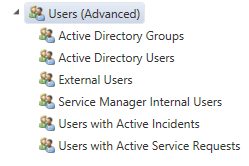
You should now have a folder in the Configuration Items area called Users (Advanced) with the six new views.
Download:
http://gallery.technet.microsoft.com/Additional-views-for-User-5de1d014
Enjoy
]]>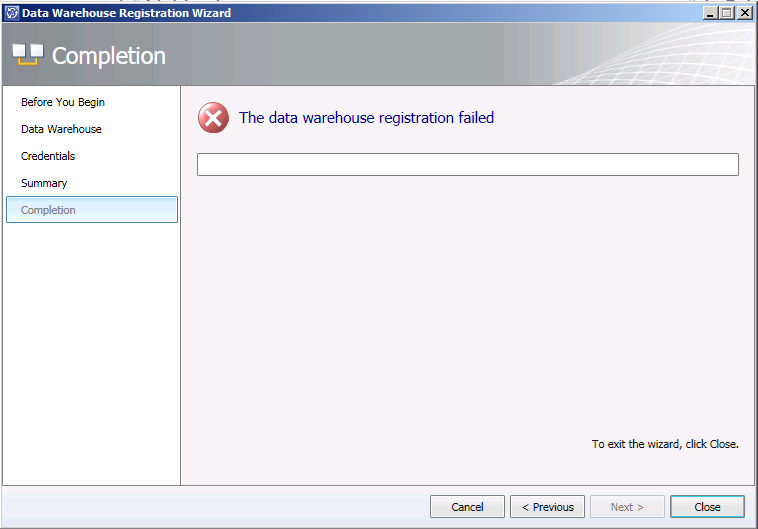
Go to the Data Warehouse Management Server and log on with the service account, then set the data and time formats to English (United States) and log off.
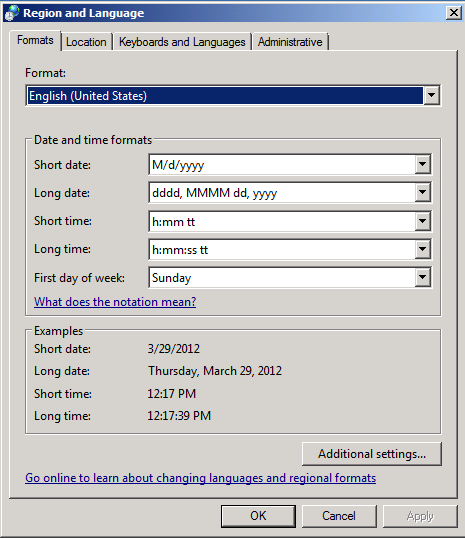
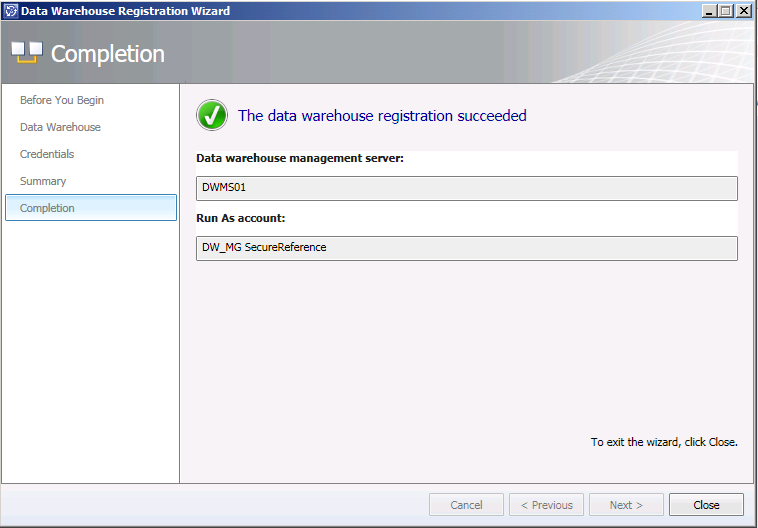
On the Service Manager Management Server, try to register with Service Manager Data Warehouse again. Hopefully this modification has solved the problem.
See current TimeZone on a mailbox
To see current TimeZone on a mailbox, simply use this command.
Get-MailboxRegionalConfiguration -Identity user@domain.com
Change TimeZone on one mailbox
To change the TimeZone on a mailbox we need to use Set-MailboxRegionalConfiguration like below.
Set-MailboxRegionalConfiguration -Identity user@domain.com -TimeZone "Romance Standard Time"
Change TimeZone on all mailboxes
You can use following PowerShell command to change the TimeZone on all mailboxes.
Get-Mailbox -ResultSize unlimited -Filter {RecipientTypeDetails -eq 'UserMailbox'} | Set-MailboxRegionalConfiguration -TimeZone "Romance Standard Time"
TimeZones
Not sure which TimeZone to use? Please see the TimeZone tabel on Microsoft’s website (http://technet.microsoft.com/en-us/library/cc749073(WS.10).aspx).
]]>Add access permissions to a mailbox
Add-MailboxPermission -Identity user@company.com -User admin@company.com -AccessRights FullAccess -InheritanceType All
When you want to remove the permissions again, just replace Add-MailboxPermission with Remove-MailboxPermission.
Remove-MailboxPermission -Identity user@company.com -User admin@company.com -AccessRights FullAccess -InheritanceType All
If you want to give access permissions to all mailboxes on Office 365, use the PowerShell cmdlet below.
Get-Mailbox -ResultSize unlimited -Filter {RecipientTypeDetails -eq 'UserMailbox'} | Add-Mailboxpermission -User admin@company.com -AccessRights fullaccess -InheritanceType all
If you want to see permissions of a mailbox, use this cmdlet.
Get-MailboxPermission -Identity user@company.com | Select User, AccessRights, Deny
Software Distribution
Deploy Microsoft and third-party application or updates to PCs located anywhere. The software distribution can use .EXE, .MSI or .MSP files.
Remote Tasks
With Remote Tasks you get the opportunity to easily and remotely perform a number of tasks. The tasks includes following: Malware scan, update malware definitions, or force managed computer to restart.
License Management for Other Licenses
Microsoft extended the license management, so it will now include Microsoft Retail Licenses, OEM licenses, and third-party software licenses.
Enhanced Reporting
New hardware filters as been added, so now it’s possibly to create detailed reports on your hardware inventory. The filters include: Manufacturer, Chassis type, Available disk space, Memory installed, and CPU speed.
Customizing Alerts
You can now configure alerts to be reported according to a specified threshold based on frequency, number or percent of computers.
Read-Only Access Administrators
This function gives you the opportunity to add administrators to the Windows Intune administration console with read-only access. They will be able to view PC information, but not to perform any configuration tasks.
Offline Installation
It is now possibly to pre-install Windows Intune on computers or images.
Additional Languages
The Windows Intune Administration Console is now available in following languages: Arabic, Czech, Danish, Dutch, English, Finnish, French, German, Greek, Hungarian, Italian, Japanese, Korean, Norwegian, Polish, Portuguese (Brazilian), Romanian, Russian, Simplified Chinese, Spanish, Swedish, Traditional Chinese, and Turkish.
Office 365 General
Directory synchronization and single sign-on (http://onlinehelp.microsoft.com/en-us/office365-enterprises/ff637606.aspx)
Manually install Office 365 desktop updates (http://community.office365.com/en-us/w/administration/manually-install-office-365-desktop-updates.aspx)
Microsoft Office 365 Blog (http://community.office365.com/en-us/b/default.aspx)
Office 365 Plans (http://www.microsoft.com/en-us/office365/plans.aspx#fbid=n8deiESkcSN)
Office 365 Community (http://community.office365.com/en-us/default.aspx)
Office 365 for Enterprise Service Descriptions (http://www.microsoft.com/download/en/details.aspx?id=13602)
Plan for and deploy Active Directory Federation Services 2.0 for use with single sign-on (http://onlinehelp.microsoft.com/en-us/office365-enterprises/ff652539.aspx)
User Windows PowerShell to manage Office 365 (http://onlinehelp.microsoft.com/en-us/office365-enterprises/hh124998.aspx)
Windows PowerShell cmdlets for Office 365 (http://onlinehelp.microsoft.com/en-us/office365-enterprises/hh125002.aspx)
Exchange Online
Create a New Room Mailbox (http://help.outlook.com/en-us/beta/ms.exch.ecp.newroommailbox.aspx)
Create Equipment Mailboxes (http://help.outlook.com/en-us/beta/dd569933.aspx)
E-Mail Migration Overview (http://help.outlook.com/en-US/140/ms.exch.ecp.EmailMigrationStatusLearnMore.aspx)
Licensing FAQ (http://www.microsoft.com/exchange/en-us/licensing-faq.aspx)
Microsoft Remote Connectivity Analyzer (https://www.testexchangeconnectivity.com/)
Reference to Available PowerShell Cmdlets in Exchange Online (http://help.outlook.com/en-us/140/dd575549.aspx)
Set Up a Shared Mailbox (http://207.46.16.237/en-us/140/ee441202.aspx)
Set Up and Manage Retention Policies in Exchange Online (http://help.outlook.com/en-us/140/gg271153.aspx)
Office Professional Plus 2010
Deploy Office Professional Plus for Office 365 (http://technet.microsoft.com/en-us/library/gg998766.aspx)
Do you use some good Office 365 links or tools? Please share them with us

First we need to connect to Exchange Online with PowerShell. If you don’t know how to connect, please read this blog post (https://blog.ctglobalservices.com/bfa/managing-office-365-with-powershell/).
Start setting the Room calendar to show more details by default, to do so type in this PowerShell command.
Set-MailboxFolderPermission -Identity Meetingroom:\calendar -User default -AccessRights LimitedDetails
Now we are able to see more information.

To enable Room calendar to show subject of the meetings, please use this PowerShell command.
Set-CalendarProcessing -Identity Meetingroom -AddOrganizerToSubject $true -DeleteComments $false -DeleteSubject $false
Now we are able to see subjects, however this will only works on new meetings or if you update an existing meeting in the calendar.

Enjoy.
]]>This blog describe how to add Exchange attributes to your Active Directory schema.
Step 1
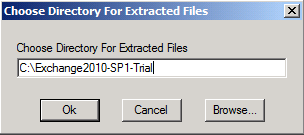
First you need do get the Microsoft Exchange Server 2010 installation files. If you already have it, go to step 2. Otherwise you have to download the trial version here. Extract the installations files by running the downloaded Exchange2010-SP1-x64.exe file, choose directory for extracted files (ex. C:\Exchange2010-SP1-Trial).
Step 2
Now you ready to extending your Active Directory schema with Exchange attributes. Run Setup /PrepareSchema from the Exchange Server 2010 installation source (ex. C:\Exchange2010-SP1-Trial\setup /PrepareSchema).
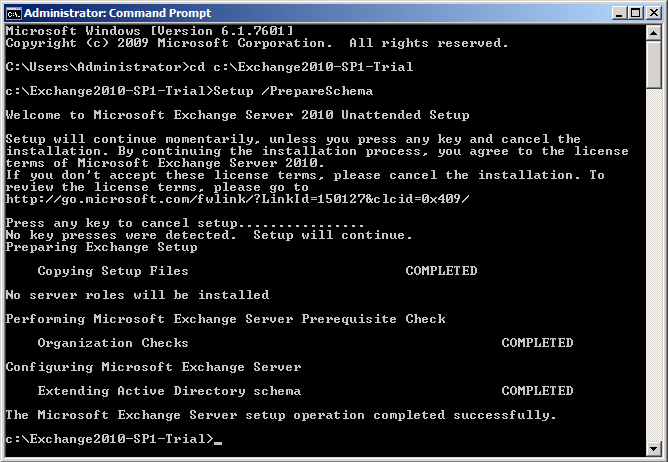
Wait until the Microsoft Exchange Server setup operation is completed successfully.
Step 3
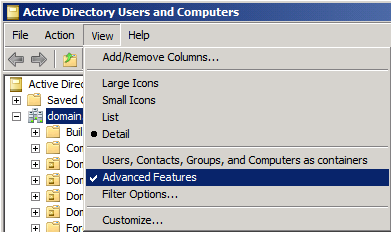
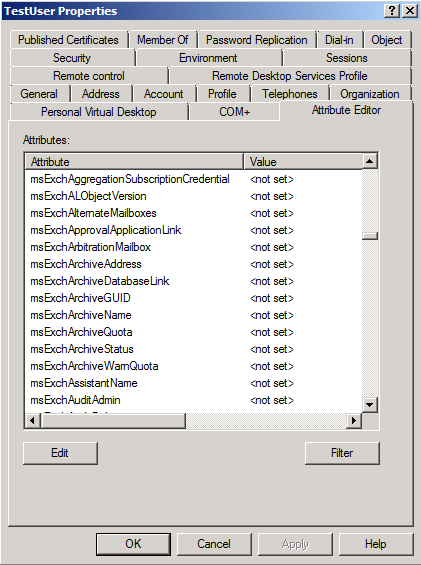
Now you ready to use Exchange attributes in Active Directory Users and Computers. Remember to enable the View option Advanced Features.
Enjoy.
]]>