问题:如果只在LeaderAP主AC(面板AP)上对有线口配置VLAN,只对这个面板AP有效,并不能扩展到其他AP的网口上。
telnet/ssh登陆leaderap主AC,创建需要的vlan,如已创建就跳过
[c45e-5c3c-aaaa]wlan   #进入WLAN视图
[c45e-5c3c-aaaa-wlan-view]wired-port-profile name ap-vlan   #创建一个名为ap-vlan的端口配置模板
[c45e-5c3c-aaaa-wlan-wired-port-ap-vlan]vlan tagged 10 20   #添加要打vlan tag标签的vlan
Info: This operation may take a few seconds. Please wait for a moment.done.
[c45e-5c3c-aaaa-wlan-wired-port-ap-vlan]mode root   #配置AP有线口模式,这里设置模式为root模式,透传vlan,后边设备需要打对应的vlan标签才可用,如果要直接作为pvid使用,配置模式为endpoint(直接用来接客户端设备,但勿将这个应用在gigabitethernet 0接口上)
Warning: If the AP goes online through a wired port, the incorrect port mode configuration will cause the AP to go out of management. This fault can be recovered only by modifying the configuration on the AP. Continue? [Y/N]:y
Warning: This action will take effect after resetting fit AP.
[c45e-5c3c-aaaa-wlan-wired-port-ap-vlan]quit   #退出端口模板配置
[c45e-5c3c-aaaa-wlan-view]ap-group name default   #进入默认的ap组配置
[c45e-5c3c-aaaa-wlan-ap-group-default]wired-port-profile ap-vlan gigabitethernet 1   #将名为ap-vlan的端口配置模板应用于gigabitethernet 1接口上(即面板AP的接客户端设备的网口)
[c45e-5c3c-aaaa-wlan-ap-group-default]dis th   #查看配置
#
  wired-port-profile ap-vlan gigabitethernet 1
  radio 0
   calibrate auto-txpower-select disable
  radio 1
   channel 160mhz 36
   calibrate auto-channel-select disable
   calibrate auto-txpower-select disable
  radio 2
   calibrate auto-txpower-select disable
#
return
[c45e-5c3c-aaaa-wlan-ap-group-default]quit

查看接口配置状态
vlan batch 10 20 100
#
interface Vlanif1
#
interface Ethernet0/0/47
 ip address 169.254.3.1 255.255.255.0
#
interface GigabitEthernet0/0/0
 port hybrid tagged vlan 2 to 4094
#
interface GigabitEthernet0/0/1
 port hybrid tagged vlan 10 20
 stp enable
 stp edged-port enable
#
需有公网IPV4地址
配置TCP报文的外部地址和端口无关的映射功能
<Huawei> system-view
[Huawei] nat mapping-mode endpoint-independent tcp
[Huawei] nat mapping-mode endpoint-independent udp
查看NAT映射信息
<Huawei> display nat mapping-mode
  NAT Mapping Mode Information:
-----------------------------------------------------------
nat mapping-mode endpoint-independent tcp
nat mapping-mode endpoint-independent udp
-----------------------------------------------------------
  Total : 2
nat filter-mode命令用来配置NAT过滤方式。
缺省情况下,NAT过滤方式为endpoint-and-port-dependent。
[Huawei] nat filter-mode endpoint-independent软件测试:

这个远程图片本地化插件适合于PW8.X版本,地址:https://blog.ich8.com/post/1398,看了下发布时间,也已经是12年前的,现在ssl协议成为主流,带有https协议前缀的图片已经无法自动下载。
原理 基本上能https访问的链接 使用http访问也会自动重定向到https,这里要做的就是替换下载过程的url链接网址协议前缀。
缺点:纯https网站会无法下载。
修改remoteimg.class.php文件
修改位置1:找到函数function checkImg
	function checkImg($imgurl) {
		$ext = trim(strtolower(substr(strrchr($imgurl,'.'),1)));
插入$imgurl=str_replace(“https”,”http”,$imgurl);,将https替换成http
	function checkImg($imgurl) {
		$imgurl=str_replace("https","http",$imgurl);
		$ext = trim(strtolower(substr(strrchr($imgurl,'.'),1)));
修改位置2:找到函数function downFile
	function downFile($imgurl, $saveto, $ext) {
		// 依次调用各种下载方法确保顺利下载到图片文件
		if(@copy($imgurl, $saveto) || @file_put_contents($saveto, @file_get_contents($imgurl) || @$this->dfopen($imgurl))
插入$imgurl=str_replace(“https”,”http”,$imgurl);,将https替换成http
	function downFile($imgurl, $saveto, $ext) {
		$imgurl=str_replace("https","http",$imgurl);
		// 依次调用各种下载方法确保顺利下载到图片文件
		if(@copy($imgurl, $saveto) || @file_put_contents($saveto, @file_get_contents($imgurl) || @$this->dfopen($imgurl))
保存文件即可。
]]>以下几乎都相同,只做个记录,方便使用(复制粘贴)
鹅厂的轻量云本身是开启DHCP功能的,所以直接快进
下载Netboot镜像
mkdir /boot/ubuntu-focal && cd /boot/ubuntu-focal
wget https://mirrors.tuna.tsinghua.edu.cn/ubuntu/dists/focal/main/installer-amd64/current/legacy-images/netboot/ubuntu-installer/amd64/linux
wget https://mirrors.tuna.tsinghua.edu.cn/ubuntu/dists/focal/main/installer-amd64/current/legacy-images/netboot/ubuntu-installer/amd64/initrd.gz
Netboot 文件加入 GRUB 引导,编辑 /etc/grub.d/40_custom ,企鹅的轻量云是GPT分区
menuentry "Ubuntu 20.04 LTS Server Netboot Installer" {
    set root="(hd0,gpt2)"
    linux /boot/ubuntu-focal/linux
    initrd /boot/ubuntu-focal/initrd.gz
}
修改GRUB启动等待时间,禁用图形化界面(鹅厂没有启动时候加载图片,只修改时间也可以),修改/etc/default/grub
GRUB_TIMEOUT_STYLE=menu
GRUB_TIMEOUT=30
GRUB_TERMINAL=console
update-grub && reboot 重启系统
update-grub && reboot如果非VNC登陆的此时换成后台的VNC登陆,就可以进行安装系统了。其他和Ubuntu的安装步骤一样。
]]>interface Dialer1
//进入PPPoE接口配置
ipv6 enable
//使能IPv6功能
ipv6 address auto link-local
//自动生成链路本地地址
ipv6 address auto global default
//使能无状态自动生成IPv6全局地址,学习RA报文中的源地址并将其作为IPv6缺省路由
dhcpv6 client pd v666
//使能DHCPv6 PD客户端功能,dhcpv6-prefixname自定义
ipv6 mtu 1420
//配置接口MTU
#
interface Vlanif1
//进入VLAN接口配置
ipv6 enable //使能IPv6功能
ipv6 address v666 ::1/64
//绑定获取的地址前缀并分配接口地址和指定前缀长度
ipv6 address auto link-local
//自动生成链路本地地址
undo ipv6 nd ra halt
//使能系统发布RA报文
ipv6 mtu 1420
//配置接口MTU
#Debian / Ubuntu 编译安装 Nginx + PHP + MySQL
Nginx版本:1.17.3
PHP版本:7.2.21 + OPCache
MySQL版本:5.6.45
CentOS更新系统软件包到最新
yum updateDebian/Ubuntu更新系统软件包到最新
apt-get update
apt-get -y upgrade
下载软件包到/tmp/lnmp目录
mkdir -p /tmp/lnmp
cd /tmp/lnmp
wget http://mirrors.sohu.com/nginx/nginx-1.17.3.tar.gz
wget http://mirrors.sohu.com/php/php-7.2.21.tar.gz
wget http://mirrors.163.com/mysql/Downloads/MySQL-5.6/mysql-5.6.45.tar.gz
wget https://files1.ich8.com/upfiles/2019/openssl-1.1.1c.tar.gz
wget https://ftp.pcre.org/pub/pcre/pcre-8.43.tar.gz
wget https://www.zlib.net/zlib-1.2.11.tar.gz
#PHP探针
wget https://files1.ich8.com/upfiles/2019/tz.zip
CentOS 安装必要的软件包
yum -y install libxml2 libxml2-devel openssl openssl-devel curl-devel libjpeg-devel libpng-devel freetype-devel libmcrypt-devel mhash gd gd-devel autoconf cmake bison lrzsz gcc-c++ ncurses-devel automake libevent libevent-devel gd gd-devel libtool* libmcrypt libmcrypt-devel mcrypt mhash libxslt libxslt-devel readline readline-devel gmp gmp-devel libcurl libcurl-devel openjpeg-devel automake boost-devel glib2-devel gmp-devel jemalloc-devel libevent libevent-devel libicu-devel libidn-devel libtool libtool-ltdl libtool-ltdl-devel libxslt libxslt-devel mcrypt nss-pam-ldapd openjpeg-devel openldap-devel readline-devel
Debian/Ubuntu 安装必要的软件包
apt-get install -y autoconf cmake openssl libwrap0-dev libncurses5-dev libssl-dev libxml2-dev libcurl4-openssl-dev pkg-config libbz2-dev libjpeg-dev libxpm-dev libfreetype6-dev libmcrypt-dev libxslt1-dev libiconv-hook-dev libpcre3 libpcre3-dev gcc bison g++ lrzsz libperl-dev
apt-get install -y sysv-rc-conf  # 启动项管理
编译MySQL
# 进入lnmp目录
cd /tmp/lnmp

# 创建MySQL用户组和用户,不创建用户家目录,允许bash登陆
groupadd mysql
useradd -s /sbin/nologin -M -g mysql mysql

# 创建MySQL目录和数据库目录
mkdir -p /usr/local/mysql
mkdir -p /usr/local/mysql/data

# 赋予所有文件和子目录对应MySQL用户和组权限
chown -R mysql:mysql /usr/local/mysql
解压MySQL压缩包文件并编译安装
tar zxvf mysql-5.6.45.tar.gz
cd mysql-5.6.45
cmake . -DCMAKE_INSTALL_PREFIX=/usr/local/mysql \
-DSYSCONFDIR=/etc \
-DWITH_MYISAM_STORAGE_ENGINE=1 \
-DWITH_INNOBASE_STORAGE_ENGINE=1 \
-DWITH_PARTITION_STORAGE_ENGINE=1 \
-DWITH_FEDERATED_STORAGE_ENGINE=1 \
-DEXTRA_CHARSETS=all \
-DDEFAULT_CHARSET=utf8mb4 \
-DDEFAULT_COLLATION=utf8mb4_general_ci \
-DWITH_EMBEDDED_SERVER=1 \
-DENABLED_LOCAL_INFILE=1
make
make install
创建MySQL配置文件,位于etc目录下
cat > /etc/my.cnf<<EOF
[client]
#password	= your_password
port		= 3306
socket		= /tmp/mysql.sock

[mysqld]
port		= 3306
socket		= /tmp/mysql.sock
datadir = /usr/local/mysql/data
skip-external-locking
key_buffer_size = 16M
max_allowed_packet = 1M
table_open_cache = 64
sort_buffer_size = 512K
net_buffer_length = 8K
read_buffer_size = 256K
read_rnd_buffer_size = 512K
myisam_sort_buffer_size = 8M
thread_cache_size = 8
query_cache_size = 8M
tmp_table_size = 16M

#skip-networking
max_connections = 500
max_connect_errors = 100
open_files_limit = 65535

log-bin=mysql-bin
binlog_format=mixed
server-id	= 1
expire_logs_days = 10

default_storage_engine = InnoDB
innodb_data_home_dir = /usr/local/mysql/data
innodb_data_file_path = ibdata1:10M:autoextend
innodb_log_group_home_dir = /usr/local/mysql/data
innodb_buffer_pool_size = 16M
innodb_additional_mem_pool_size = 2M
innodb_log_file_size = 5M
innodb_log_buffer_size = 8M
innodb_flush_log_at_trx_commit = 1
innodb_lock_wait_timeout = 50

[mysqldump]
quick
max_allowed_packet = 16M

[mysql]
no-auto-rehash

[myisamchk]
key_buffer_size = 20M
sort_buffer_size = 20M
read_buffer = 2M
write_buffer = 2M

[mysqlhotcopy]
interactive-timeout


EOF
初始化MySQL数据库
cd /usr/local/mysql/
./scripts/mysql_install_db --defaults-file=/etc/my.cnf --basedir=/usr/local/mysql --datadir=/usr/local/mysql/data --user=mysql
CentOS 创建启动脚本并设置开机自动启动
cp ./support-files/mysql.server /etc/init.d/mysql
chmod 755 /etc/init.d/mysql
chkconfig --add mysql
Debian/Ubuntu创建启动脚本并设置开机自动启动
cp ./support-files/mysql.server /etc/init.d/mysql
chmod 755 /etc/init.d/mysql
sysv-rc-conf mysql on
systemctl enable mysql.service
启动MySQL
service mysql start修改默认root密码(默认为空)为123456
/usr/local/mysql/bin/mysqladmin -u root password '123456'
创建动态链接库文件
cat > /etc/ld.so.conf.d/mysql.conf<<EOF
    /usr/local/mysql/lib
    /usr/local/lib
EOF

ldconfig
ln -sf /usr/local/mysql/lib/mysql /usr/lib/mysql
ln -sf /usr/local/mysql/include/mysql /usr/include/mysql
编译PHP,创建www用户组和用户
groupadd www
useradd -s /sbin/nologin -g www www
解压php安装包并编译安装,需要搭配安装或开启的组件自行增删
cd /tmp/lnmp
tar zxvf php-7.2.21.tar.gz
cd php-7.2.21
./configure \
--prefix=/usr/local/php \
--with-config-file-path=/usr/local/php/etc \
--with-config-file-scan-dir=/usr/local/php/conf.d \
--enable-fpm \
--with-fpm-user=www \
--with-fpm-group=www \
--enable-mysqlnd \
--with-mysqli=mysqlnd \
--with-pdo-mysql=mysqlnd \
--enable-mysqlnd-compression-support \
--with-iconv-dir \
--with-freetype-dir=/usr/local/freetype \
--with-jpeg-dir \
--with-png-dir \
--with-zlib \
--with-libxml-dir=/usr \
--with-curl \
--with-libmbfl \
--with-openssl \
--enable-xml \
--disable-rpath \
--enable-bcmath \
--enable-shmop \
--enable-sysvsem \
--enable-inline-optimization \
--enable-mbregex \
--enable-mbstring \
--enable-intl \
--enable-pcntl \
--enable-ftp \
--with-gd \
--with-mhash \
--enable-pcntl \
--enable-sockets \
--with-xmlrpc \
--enable-zip \
--enable-soap \
--with-gettext \
--enable-opcache \
--with-xsl
make
make install
创建php/etc和php/conf.d目录
mkdir -p /usr/local/php/etc
mkdir -p /usr/local/php/conf.d
复制php生产环境配置文件到php/etc目录并重命名为php.ini
cp php.ini-production /usr/local/php/etc/php.ini
修改php.ini配置文件,可自行vi手动修改
post_max_size POST最大大小
upload_max_filesize 上传文件最大大小
date.timezone 时区
short_open_tag 是否允许代码标志的缩写标志
cgi.fix_pathinfo CGI完整路径
max_execution_time PHP超时设置
disable_functions 禁用函数
expose_php 不显示php版本信息
memory_limit 运行内存大小设置
sed -i 's/post_max_size =.*/post_max_size = 64M/g' /usr/local/php/etc/php.ini
sed -i 's/upload_max_filesize =.*/upload_max_filesize = 64M/g' /usr/local/php/etc/php.ini
sed -i 's/;date.timezone =.*/date.timezone = PRC/g' /usr/local/php/etc/php.ini
sed -i 's/short_open_tag =.*/short_open_tag = On/g' /usr/local/php/etc/php.ini
sed -i 's/;cgi.fix_pathinfo=.*/cgi.fix_pathinfo=1/g' /usr/local/php/etc/php.ini
sed -i 's/max_execution_time =.*/max_execution_time = 60/g' /usr/local/php/etc/php.ini
sed -i 's/disable_functions =.*/disable_functions = passthru,exec,system,chroot,chgrp,chown,shell_exec,proc_open,proc_get_status,popen,ini_alter,ini_restore,dl,openlog,syslog,readlink,symlink,popepassthru,stream_socket_server/g' /usr/local/php/etc/php.ini
sed -i 's/expose_php =.*/expose_php = Off/g' /usr/local/php/etc/php.ini
sed -i 's/memory_limit =.*/memory_limit = 256M/g' /usr/local/php/etc/php.ini
开启OPCache支持,提高php运行效率,在php.ini文件末尾
参数详解:https://www.php.net/manual/zh/opcache.configuration.php
cat >> /usr/local/php/etc/php.ini<<EOF

[opcache]
zend_extension=/usr/local/php/lib/php/extensions/no-debug-non-zts-20170718/opcache.so
opcache.enable=1
opcache.enable_cli=1
opcache.memory_consumption=192
opcache.interned_strings_buffer=8
opcache.max_accelerated_files=5000
opcache.revalidate_freq=60
opcache.fast_shutdown=1

EOF
创建php-fpm.conf文件
vi /usr/local/php/etc/php-fpm.conf参数详解:https://www.php.net/manual/zh/install.fpm.configuration.php
[global]
pid = /usr/local/php/var/run/php-fpm.pid
error_log = /usr/local/php/var/log/php-fpm.log
log_level = notice

[www]
listen = /tmp/php-cgi.sock
listen.backlog = -1
listen.allowed_clients = 127.0.0.1
listen.owner = www
listen.group = www
listen.mode = 0666
user = www
group = www
pm = dynamic
pm.max_children = 10
pm.start_servers = 2
pm.min_spare_servers = 1
pm.max_spare_servers = 6
pm.max_requests = 1024
pm.process_idle_timeout = 10s
request_terminate_timeout = 100
request_slowlog_timeout = 0
slowlog = var/log/slow.log
CentOS 创建php-fpm.service文件
vi /usr/lib/systemd/system/php-fpm.serviceUbuntu 创建php-fpm.service文件
mkdir -p /usr/lib/systemd/system
vi /usr/lib/systemd/system/php-fpm.service
php-fpm.service文件内容
[Unit]
Description=The PHP FastCGI Process Manager
After=syslog.target network.target

[Service]
Type=simple
PIDFile=/usr/local/php/var/run/php-fpm.pid
ExecStart=/usr/local/php/sbin/php-fpm --nodaemonize --fpm-config /usr/local/php/etc/php-fpm.conf
ExecReload=/bin/kill -USR2 $MAINPID

[Install]
WantedBy=multi-user.target
创建软链接
ln -sf /usr/local/php/bin/php /usr/bin/php
ln -sf /usr/local/php/bin/phpize /usr/bin/phpize
ln -sf /usr/local/php/bin/pear /usr/bin/pear
ln -sf /usr/local/php/bin/pecl /usr/bin/pecl
ln -sf /usr/local/php/sbin/php-fpm /usr/bin/php-fpm
使能并自动启动php-fpm服务
systemctl enable php-fpm.service重启php-fpm服务
systemctl restart php-fpm.service
解压Nginx安装文件以及自定义OpenSSL、PCRE、Zlib库源码包
cd /tmp/lnmp
tar zxvf  nginx-1.17.3.tar.gz
tar zxvf  openssl-1.1.1c.tar.gz
tar zxvf  pcre-8.43.tar.gz
tar zxvf  zlib-1.2.11.tar.gz
CentOS 安装perl模块,这里启用了Nginx的http_perl_module支持
yum -y install perl-devel perl-ExtUtils-Embed编译并安装Nginx
cd nginx-1.17.3
./configure \
--user=www \
--group=www \
--prefix=/usr/local/nginx \
--with-openssl=../openssl-1.1.1c \
--with-pcre=../pcre-8.43 \
--with-pcre-jit \
--with-zlib=../zlib-1.2.11 \
--with-compat \
--with-file-aio \
--with-threads \
--with-http_stub_status_module \
--with-http_ssl_module \
--with-http_gzip_static_module \
--with-ipv6 \
--with-http_sub_module \
--with-http_v2_module \
--with-http_perl_module \
--with-stream \
--with-stream_ssl_module \
--with-stream_realip_module
make
make install
建立软链接
ln -sf /usr/local/nginx/sbin/nginx /usr/bin/nginx添加Nginx为系统服务,建立/etc/init.d/nginx文件
vi /etc/init.d/nginxCentOS 适用的 /etc/init.d/nginx 文件内容
#!/bin/sh
#
# nginx - this script starts and stops the nginx daemon
#
# chkconfig:   - 85 15
# description:  NGINX is an HTTP(S) server, HTTP(S) reverse \
#               proxy and IMAP/POP3 proxy server
# processname: nginx
# config:      /usr/local/nginx/conf/nginx.conf
# config:      /etc/sysconfig/nginx
# pidfile:     /usr/local/nginx/logs/nginx.pid
# Source function library.
. /etc/rc.d/init.d/functions
# Source networking configuration.
. /etc/sysconfig/network
# Check that networking is up.
[ "$NETWORKING" = "no" ] && exit 0
nginx="/usr/local/nginx/sbin/nginx"
prog=$(basename $nginx)
NGINX_CONF_FILE="/usr/local/nginx/conf/nginx.conf"
[ -f /etc/sysconfig/nginx ] && . /etc/sysconfig/nginx
lockfile=/var/lock/subsys/nginx
make_dirs() {
   # make required directories
   user=`$nginx -V 2>&1 | grep "configure arguments:" | sed 's/[^*]*--user=\([^ ]*\).*/\1/g' -`
   if [ -z "`grep $user /etc/passwd`" ]; then
       useradd -M -s /bin/nologin $user
   fi
   options=`$nginx -V 2>&1 | grep 'configure arguments:'`
   for opt in $options; do
       if [ `echo $opt | grep '.*-temp-path'` ]; then
           value=`echo $opt | cut -d "=" -f 2`
           if [ ! -d "$value" ]; then
               # echo "creating" $value
               mkdir -p $value && chown -R $user $value
           fi
       fi
   done
}
start() {
    [ -x $nginx ] || exit 5
    [ -f $NGINX_CONF_FILE ] || exit 6
    make_dirs
    echo -n $"Starting $prog: "
    daemon $nginx -c $NGINX_CONF_FILE
    retval=$?
    echo
    [ $retval -eq 0 ] && touch $lockfile
    return $retval
}
stop() {
    echo -n $"Stopping $prog: "
    killproc $prog -QUIT
    retval=$?
    echo
    [ $retval -eq 0 ] && rm -f $lockfile
    return $retval
}
restart() {
    configtest || return $?
    stop
    sleep 1
    start
}
reload() {
    configtest || return $?
    echo -n $"Reloading $prog: "
    killproc $nginx -HUP
    RETVAL=$?
    echo
}
force_reload() {
    restart
}
configtest() {
  $nginx -t -c $NGINX_CONF_FILE
}
rh_status() {
    status $prog
}
rh_status_q() {
    rh_status >/dev/null 2>&1
}
case "$1" in
    start)
        rh_status_q && exit 0
        $1
        ;;
    stop)
        rh_status_q || exit 0
        $1
        ;;
    restart|configtest)
        $1
        ;;
    reload)
        rh_status_q || exit 7
        $1
        ;;
    force-reload)
        force_reload
        ;;
    status)
        rh_status
        ;;
    condrestart|try-restart)
        rh_status_q || exit 0
            ;;
    *)
        echo $"Usage: $0 {start|stop|status|restart|condrestart|try-restart|reload|force-reload|configtest}"
        exit 2
esac
Debian/Ubuntu 适用的 /etc/init.d/nginx 文件内容
#! /bin/sh
# chkconfig: 2345 55 25
# Description: Startup script for nginx webserver on Debian. Place in /etc/init.d and
# run 'update-rc.d -f nginx defaults', or use the appropriate command on your
# distro. For CentOS/Redhat run: 'chkconfig --add nginx'

### BEGIN INIT INFO
# Provides:          nginx
# Required-Start:    $all
# Required-Stop:     $all
# Default-Start:     2 3 4 5
# Default-Stop:      0 1 6
# Short-Description: starts the nginx web server
# Description:       starts nginx using start-stop-daemon
### END INIT INFO

# Author:   licess
# website:  http://lnmp.org

PATH=/usr/local/sbin:/usr/local/bin:/sbin:/bin:/usr/sbin:/usr/bin
NAME=nginx
NGINX_BIN=/usr/local/nginx/sbin/nginx
CONFIGFILE=/usr/local/nginx/conf/nginx.conf
PIDFILE=/usr/local/nginx/logs/nginx.pid

case "$1" in

start)
    echo -n "Starting $NAME... "

    if netstat -tnpl | grep -q nginx;then
        echo "$NAME (pid `pidof $NAME`) already running."
        exit 1
    fi

    $NGINX_BIN -c $CONFIGFILE

    if [ "$?" != 0 ] ; then
        echo " failed"
        exit 1
    else
        echo " done"
    fi
    ;;

stop)
    echo -n "Stoping $NAME... "

    if ! netstat -tnpl | grep -q nginx; then
        echo "$NAME is not running."
        exit 1
    fi

    $NGINX_BIN -s stop

    if [ "$?" != 0 ] ; then
        echo " failed. Use force-quit"
        exit 1
    else
        echo " done"
    fi
    ;;

status)
    if netstat -tnpl | grep -q nginx; then
        PID=`pidof nginx`
        echo "$NAME (pid $PID) is running..."
    else
        echo "$NAME is stopped"
        exit 0
    fi
    ;;

force-quit)
    echo -n "Terminating $NAME... "

    if ! netstat -tnpl | grep -q nginx; then
        echo "$NAME is not running."
        exit 1
    fi

    kill `pidof $NAME`

    if [ "$?" != 0 ] ; then
        echo " failed"
        exit 1
    else
        echo " done"
    fi
    ;;

restart)
    $0 stop
    sleep 1
    $0 start
    ;;

reload)
    echo -n "Reload service $NAME... "

    if netstat -tnpl | grep -q nginx; then
        $NGINX_BIN -s reload
        echo " done"
    else
        echo "$NAME is not running, can't reload."
        exit 1
    fi
    ;;

configtest)
    echo -n "Test $NAME configure files... "

    $NGINX_BIN -t
    ;;

*)
    echo "Usage: $0 {start|stop|force-quit|restart|reload|status|configtest}"
    exit 1
    ;;

esac
赋予所有用户组执行Nginx权限
chmod a+x /etc/init.d/nginxCentOS 添加到开机启动并设置为开机自动启动
chkconfig --add /etc/init.d/nginx
chkconfig nginx on
Debian/Ubuntu 添加到开机启动并设置为开机自动启动
sysv-rc-conf nginx onCentOS 启动Nginx服务
systemctl start nginxDebian/Ubuntu 启动Nginx服务
systemctl enable nginx.service
systemctl start nginx
创建网站目录,添加网站以及日志目录并赋予对应的权限,网站目录赋予www用户组权限
这里添加2个网站 一个默认localhost或者IP地址打开,另外一个则要用域名才能打开
mkdir -p /data/web/wwwroot
mkdir -p /data/web/default
chmod 777 /data/web/wwwroot
chmod 777 /data/web/default
chown -R www:www /data/web/wwwroot
chown -R www:www /data/web/default

mkdir -p /data/web/wwwlogs
chmod 777 /data/web/wwwlogs
删除默认的Nginx配置文件,并在conf目录下创建vhost目录,用于存放网站的配置文件
rm -f /usr/local/nginx/conf/nginx.conf
mkdir -p /usr/local/nginx/conf/vhost
创建FastCGI PHP的加载文件(把配置文件分割成不同小份,方便维护)
vi /usr/local/nginx/conf/enable_php.conf location ~ [^/]\.php(/|$)
{
try_files $uri =404;
fastcgi_pass unix:/tmp/php-cgi.sock;
fastcgi_index index.php;
include fastcgi.conf;
}创建nginx.conf主配置文件
vi /usr/local/nginx/conf/nginx.confuser www www;
worker_processes auto;
error_log /data/web/wwwlogs/nginx_error.log crit;
pid /usr/local/nginx/logs/nginx.pid;
#Specifies the value for maximum file descriptors that can be opened by this process.
worker_rlimit_nofile 51200;
events
{
use epoll;
worker_connections 51200;
multi_accept on;
}
http
{
include mime.types;
default_type application/octet-stream;
server_names_hash_bucket_size 128;
client_header_buffer_size 32k;
large_client_header_buffers 4 32k;
client_max_body_size 50m;
sendfile on;
tcp_nopush on;
keepalive_timeout 60;
tcp_nodelay on;
fastcgi_connect_timeout 300;
fastcgi_send_timeout 300;
fastcgi_read_timeout 300;
fastcgi_buffer_size 64k;
fastcgi_buffers 4 64k;
fastcgi_busy_buffers_size 128k;
fastcgi_temp_file_write_size 256k;
gzip on;
gzip_min_length 1k;
gzip_buffers 4 16k;
gzip_http_version 1.1;
gzip_comp_level 2;
gzip_types text/plain application/javascript application/x-javascript text/javascript text/css application/xml application/xml+rss;
gzip_vary on;
gzip_proxied expired no-cache no-store private auth;
gzip_disable "MSIE [1-6]\.";
#limit_conn_zone $binary_remote_addr zone=perip:10m;
##If enable limit_conn_zone,add "limit_conn perip 10;" to server section.
server_tokens off;
access_log off;
server
{
listen 80 default_server;
listen [::]:80 default_server ipv6only=on;
server_name localhost;
index index.html index.htm index.php;
root /data/web/default;
#error_page 404 /404.html;
include enable_php.conf;
location /nginx_status
{
stub_status on;
access_log off;
}
location ~ .*\.(gif|jpg|jpeg|png|bmp|js|css)$
{
expires 7d;
}
location ~ /\.
{
deny all;
}
access_log off;
}
include vhost/*.conf;
}创建网站的配置文件,网站存放目录为/data/web/wwwroot
vi /usr/local/nginx/conf/vhost/www.abc.com.conflisten使用80端口,server_name 绑定的域名 root 网站目录。其他参数可参考官方wiki
server
    {
        listen 80;
        #listen [::]:80;
        server_name www.abc.com;
        index index.html index.htm index.php;
        root  /data/web/wwwroot;

        #include none.conf;
        #error_page   404   /404.html;
        location ~ [^/]\.php(/|$)
        {
            # comment try_files $uri =404; to enable pathinfo
            try_files $uri =404;
            fastcgi_pass  unix:/tmp/php-cgi.sock;
            fastcgi_index index.php;
            include fastcgi.conf;
        }

        location ~ .*\.(gif|jpg|jpeg|png|bmp|js|css)$
        {
            expires      7d;
        }

        access_log off;
    }
解压PHP探针到新建网站的目录
unzip /tmp/lnmp/tz.zip -d /data/web/wwwroot检查Nginx配置是否有出错,提示测试successful即可。
nginx -t
nginx: the configuration file /usr/local/nginx/conf/nginx.conf syntax is ok
nginx: configuration file /usr/local/nginx/conf/nginx.conf test is successful
重启php-fpm服务
systemctl restart php-fpm.service平滑变更Nginx设置
nginx -s reload其他
]]>以前博客里有一篇禁止端口扫描的博文:https://blog.ich8.com/post/6557
现在将这个规则进行完善,根据一些特征并自动拉黑符合该特征的IP一段时间。下列的规则必须搭配上述博文链接(禁止端口扫描)进行。
首先需要对开放的端口(比如ROS配置的端口转发规则)进行一些修改。
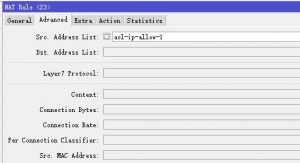
这里以转发telnet 23端口为例(将23端口进行映射),展开在Firewall-NAT已添加的端口转发规则里边,点击Advanced选项卡,Src.Address List里添加白名单名称。比如acl-ip-allow-1。
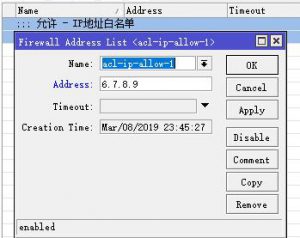
点击Frewall-Address List,填写我们要建立的IP列表名称(这里称白名单列表)。在白名单列表里添加允许进行telnet登陆的IP地址。除了白名单以外的IP地址都无法登陆telnet。
点击Frewall-Filter Rules,添加新的规则。
General选项卡
Chain:Input
Protocol:TCP 如是UDP或者其他类型的协议,则添加正确的协议。
Dst.Port:填写要比配的端口,我这里填写端口23(telnet tcp 23)。
In.Interface List:选择端口组。如果你是单拨 或者只需选择一个接口 则在In.Interface:进行选择外网接口

Advcanced选项卡
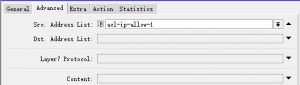
Src.Address List:选择刚添加的名为acl-ip-allow-1的IP地址列表,并且点击□,会自动打上感叹号,意思是除了指定的IP地址外都匹配这条规则。
Action选项卡
Action:add src to address list 行为选择将不符合规则的IP添加到IP地址列表
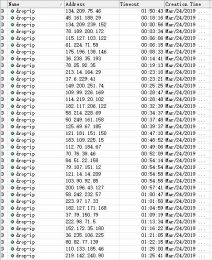
Address List:drop-ip 这里填写一个IP列表名称,列表里的IP地址将被阻断连接
Timeout:02:00:00 加入被阻断列表后2小时自动将该IP移除列表

建立上述规则之后,若不符合上述的规则,IP会自动加入阻断列表并且禁止从WAN侧对路由的一切行为。
Query Error: SELECT t.* ,tm.* FROM pw_threads t LEFT JOIN `pw_tmsgs4` tm ON t.tid=tm.tid WHERE t.tid= '732772'

The URL Is:
?tid-732772-page-e.html

MySQL Server Error:
File '.\db\pw_tmsgs4.MYD' not found (Errcode: 13 - Permission denied) ( 29 ) 查看错误相关信息

You Can Get Help In:
最近遇到如上问题,网站提示出错,错误信息为访问数据表没权限。搜索了一下,网上大多的是说用户权限问题,没给MYSQL或者MYSQL进程,目录等赋予足够的运行权限。之前数据库一直正常,并未出现问题,我也重复检查了MYSQL和数据库目录权限,并没有发现问题。读取了MySQL日志,也没有提示权限出错或者其他问题。
基本的检查都没发现问题,那么将问题检查方向转向磁盘,是否是因为磁盘出错导致的。检查过程发现备份盘,缓存盘空间只剩下几百KB,遂清空缓存盘和备份盘,并重启MYSQL,发现依然不能正常读写数据表。因为是空间写满,则可能是程序在备份过程出错,联系到备份数据库的工具。排查进程,发现备份数据库的工具假死状态,结束该程序进程,重启MySQL,问题解决。
因备份过程会将数据库锁定为只读状态,故出此问题。
]]>这次花了些时间,全站切换到SSL。
之前考虑使用插件全站http替换成https输出,但是感觉速度上不是很快,且比较消耗资源,故直接通过全站链接都替换成https。且对站内二级域名处理的似乎有些问题。
由于需要对数据库做改动,请注意备份好数据库。如果使用缓存插件,需重新生成缓存。
1.准备证书。
这个就不用说了,不管是付费,还是免费的SSL证书,各大云平台几乎都能申请。
2.导入证书,不同系统/web服务器设置方法大同小异,可以搜索下。
3.站点更改成https。
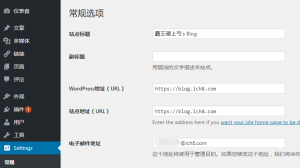
4.全站替换链接,http替换成https。
我使用phpmyadmin,也可以其他MySQL管理软件。主要替换如下字段
update wp_posts set post_content = replace(post_content,'http://blog.ich8.com/','https://blog.ich8.com/');
update wp_posts set guid = replace(guid,'http://blog.ich8.com/','https://blog.ich8.com/');
update wp_options set option_value = replace(option_value,'http://blog.ich8.com/','https://blog.ich8.com/');
update wp_comments set comment_author_url = replace(comment_author_url,'http://blog.ich8.com','https://blog.ich8.com');
update wp_comments set comment_content = replace(comment_content,'http://blog.ich8.com','https://blog.ich8.com');
另其他表也建议搜索下,有http字段的全替换成https。
5.全站URL重定向。
①全站HTTP协议301重定向到HTTPS
RewriteEngine On
RewriteCond %{SERVER_PORT} 80
RewriteRule ^(.*)$ https://%{SERVER_NAME}/$1 [R=301,L]
②发现wp-content文件夹无法http替换成https。使用如下URL重写规则
RewriteEngine On
RewriteCond %{SERVER_PORT} 80
RewriteRule .* https://%{SERVER_NAME}%{REQUEST_URI} [R=301,L]
RewriteCond %{SERVER_PORT} !^443$ ##如果使用其他端口,也可以使用这个规则,除了443以外的端口全部重定向。
高级用法 (可选)

RewriteEngine on
# 强制HTTPS
RewriteCond %{HTTPS} !=on [OR]
RewriteCond %{SERVER_PORT} 80
# 某些页面强制
RewriteCond %{REQUEST_URI} ^something_secure [OR]
RewriteCond %{REQUEST_URI} ^something_else_secure
RewriteRule .* https://%{SERVER_NAME}%{REQUEST_URI} [R=301,L]
# 强制HTTP
RewriteCond %{HTTPS} =on [OR]
RewriteCond %{SERVER_PORT} 443
# 某些页面强制
RewriteCond %{REQUEST_URI} ^something_public [OR]
RewriteCond %{REQUEST_URI} ^something_else_public
RewriteRule .* http://%{SERVER_NAME}%{REQUEST_URI} [R=301,L]
参考资料:https://blog.csdn.net/ithomer/article/details/78986266
6.一些插件类更改,比如WP Super Cache重新生成缓存。
需注意 WP Super Cache 的 预缓存 ,php的执行时间需改长。如果出现超时,则会一直卡在生成状态。这个问题处理了好久。无论是否重装插件。后来发现把WPSC删除,插件里边php文件彻底删除,过1小时重装,就会重新有个生成的时间,点击 取消 预缓存,然后修改好php活动时间(起码半小时以上,700+文章),就可以了。
傲游十几年老用户了,从myie2开始,奈何傲游近年来不给力,新版傲游5难用不说,内核换成chromium,也变成了壳牌浏览器,但不支持chrome插件。傲游4据说内核是基于webkit开发的,傲游5就直接变套皮肤了,问题多不说,官方也不大想接受用户的意见。毕竟傲游5也在用,但是实在不想吐槽,而主力傲游4.4.8.2000版本的已经用了2年了,现在各种毛病。
思来想去,决心把大奶浏览器换成chrome。但问题来了,有许多习惯需要改变,另外许多UI上的适应也得改变。
以下一些设置,使行为更接近于傲游浏览器。
目前我一共装了以下几个插件:
1.Adblock Plus (原来傲游上也有ABP)
2.Bookmarks Menu (收藏夹按钮,但是谷歌限制,这类按钮位置只能在右侧了……不习惯)
3.Chrono下载管理器 (替代chrome和IE一样傻乎乎的下载工具)
4.Google Chrome的超级拖曳 (拖拽文字在新标签搜索 或者拖动链接在新标签页打开)
5.IE Tab (直接在chrome浏览器中使用IE兼容模式)
6.Infinity新标签页(Pro) (可以自由设置N宫格,功能比傲游4强大,秒傲游渣渣5 N条街)
7.SimpleUndoClose (误关页面重新打开,或者恢复最近关闭的页面)
8.MyChrome (对我而言最大的功能就是支持双击关闭标签)
还缺少:
地址栏输入新地址在新标签页打开
更加智能的恢复最近关闭页面功能
状态栏或者查看实时网速插件
其他……
首先用你的谷歌ID登陆chrome。
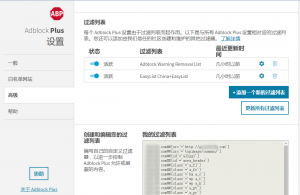
插件1:Adblock Plus
应用商店安装好ABP,记得更新过滤列表。
如果你在傲游上有创建自己的过滤列表,位置在C:\Users\Administrator\AppData\Roaming\Maxthon3\Users\傲游ID账户\AdBlock\customrules.dat,用UE编辑器打开,选择自己添加的部分,复制到Chrome插件ABP设置中 我的过滤列表。
插件2:Bookmarks Menu
导入傲游收藏夹的方法:
收藏夹-管理收藏夹-导出收藏夹-导出成Html文件,之后在Chrome浏览器中导入书签(Html文件)

插件3:Chrono下载管理器
安装后按自己的需求修改,这个就没啥可说的,一个功能比Aria2稍弱一些的下载工具。
插件4:Google Chrome的超级拖曳
直接安装启用就行
插件5:IE Tab
直接安装就行
插件6:Infinity新标签页(Pro)
功能超好用。首先也是需要登陆Google ID,之后可以同步自己添加的网站。可以选择壁纸的渠道也是很多样化,我设置了随BING搜索的壁纸,每日更新,BING一直被我设置为IE主页就是因为漂亮的壁纸。
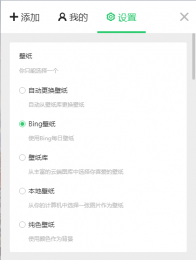
首页我设置了2*6宫格

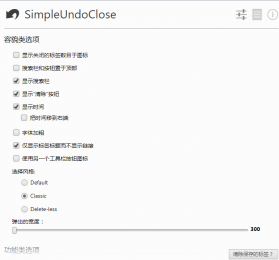
插件7:SimpleUndoClose
恢复最近关闭的页面,非常好用。
插件8:MyChrome
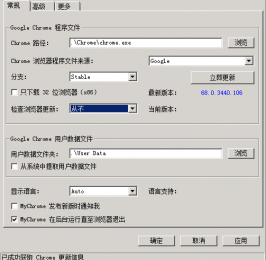
下载插件后我放在Chrome目录,这插件我如下设置
Chrome路径:选择chrome.exe文件
检查浏览器更新:从不 自己可以从Chrome的设置里边去检查更新
MyChrome发布新版时通知我:否
用户数据文件夹:默认位于C:\Users\Administrator\AppData\Roaming\Google\Chrome\User Data
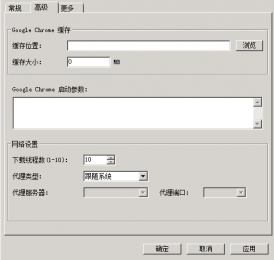
缓存位置我选定在了RAM虚拟磁盘上。限制256MB
下载线程数:10 (已经用了第三方下载插件,所以这个设置其实也无效)
保留最后一个标签页:勾选 (要不最后一个双击下就退出浏览器了,不符合我的使用习惯,这样最后一个标签页双击后可以回到主页)
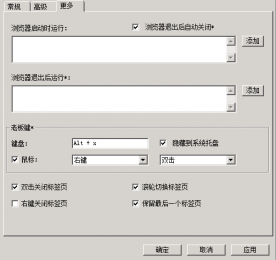
之后把桌面/开始菜单的图标改成运行该插件即可。
]]>