TradingView is where many traders build and test their ideas. Its charts are excellent, Pine Script is easy to learn, and its alerts can fire the moment your conditions are met. MetaTrader 4 is where many of those same traders actually execute, because that is what their broker or prop firm supports. The problem is that the two do not talk to each other out of the box.
The solution is a simple chain: TradingView sends an alert as a webhook, a bridge receives it, and an Expert Advisor running in MT4 on a VPS turns it into a trade. Set up properly, your Pine Script strategy can trade your MT4 account around the clock, without you watching either platform.
This guide explains how that chain works, what you need, how to set it up step by step, and the mistakes that most often cause missed or duplicate trades. The same approach works for MetaTrader 5.
How TradingView-to-MT4 Automation Works
There are four links in the chain, and each one must be running for a trade to happen.
- TradingView alert. Your indicator or strategy meets its condition, and TradingView creates an alert.
- Webhook. TradingView sends the alert message to a web address (a URL) you provide, as an HTTP POST request.
- Bridge. A service receives the webhook and translates the message into an instruction MT4 understands.
- MT4 Expert Advisor. An EA running in your MT4 terminal picks up the instruction and sends the order to your broker.
Links 1 to 3 run in the cloud. Link 4 runs wherever MT4 runs. If MT4 is on your home PC, every alert that fires while your PC is off, asleep or updating is lost. That is why the final link belongs on a VPS: it keeps MT4 and the EA online 24 hours a day, five days a week, close to your broker’s server.
What You Need Before You Start
A paid TradingView plan with two-factor authentication
Webhook notifications are a paid feature. All paid plans (Essential, Plus, Premium and Ultimate) include webhooks; the free Basic plan does not. The plans differ in how many alerts you can run and how long they last. According to third-party plan comparisons, alerts on the Essential and Plus plans expire two months after creation, while Premium and Ultimate alerts have no fixed expiry. If you trade a strategy for months, put a reminder in your calendar to recreate alerts, or choose a higher plan.
TradingView also only allows webhook alerts when two-factor authentication is turned on for your account. Turn it on in your TradingView profile settings before you start.
A bridge
The bridge is the piece that connects the webhook to MT4. You have two options, covered in detail below: a hosted bridge service, or a webhook receiver you run yourself.
MT4 on a Windows VPS
You need a VPS running Windows with MT4 installed and logged in to your account. If you are new to this, follow how to install MT4 on a VPS step by step. One terminal uses roughly 1 GB of RAM, so the Lite plan is enough for a single account.
Choosing a Bridge: Hosted Service vs Self-Hosted
Option A: A hosted bridge service (recommended for most traders)
Several commercial services specialise in connecting TradingView to MT4 and MT5. You get a webhook URL from the service, and you install the service’s EA in MT4. When an alert fires, TradingView sends it to the service, and the EA on your VPS collects it and places the trade.
The big advantage is that the EA makes an outgoing connection from your VPS to the service. You do not need to open any ports, run a web server or manage security certificates on your VPS. Setup takes minutes.
When comparing services, look at:
- Speed. How long between the alert firing and the order reaching MT4.
- Supported commands. Market and pending orders, stop loss and take profit, partial closes, risk-based lot sizing.
- Symbol mapping. Whether you can match TradingView symbols to your broker’s names, such as EURUSD to EURUSD.m.
- Price and account limits. Most charge a monthly subscription, often per MT4 account.
- Logs. Clear records of every alert received and every action taken, so you can troubleshoot.
Option B: Your own webhook receiver
Developers sometimes write their own receiver: a small program that listens for TradingView’s webhook and passes the instruction to MT4, usually through a file or a local connection that an EA reads.
This removes the subscription fee, but it adds responsibility. TradingView only sends webhooks to port 80 or 443, so your receiver must be reachable from the internet on one of those ports. In practice that means opening the port in the Windows firewall, ideally securing it with HTTPS, and only accepting requests from TradingView’s published IP addresses. TradingView also cancels a webhook if the receiving server takes longer than three seconds to respond.
Before running any public-facing service on a VPS, check your provider’s acceptable use policy. Cheap Forex VPS servers are optimised for trading platforms and are not intended for hosting websites, so please contact our support team before setting up a self-hosted receiver. For most traders, a hosted bridge is simpler and safer.
Step-by-Step Setup with a Hosted Bridge
The exact screens vary by provider, but the steps are almost always the same.
Step 1: Prepare your TradingView account
- Upgrade to a paid plan if you have not already.
- Turn on two-factor authentication in your account settings.
- Open the chart and indicator or strategy you want to automate.
Step 2: Set up the bridge account
- Create an account with your chosen bridge.
- Copy your webhook URL and any license or account ID the service gives you.
- Download the service’s MT4 EA (an .ex4 file).
Step 3: Install the EA on your VPS
- Connect to your VPS with remote desktop. Mac users can follow how to connect to a forex VPS from a Mac.
- Copy the .ex4 file to the VPS. Our guide on transferring files to a forex VPS with RDP covers the easiest methods.
- In MT4, click File > Open Data Folder, open MQL4 > Experts, and paste the file there. Restart MT4 or right-click Expert Advisors in the Navigator and choose Refresh.
- Click Tools > Options > Expert Advisors and tick Allow automated trading.
- If the provider tells you to, tick Allow WebRequest for listed URL and add the address they give you. MT4 blocks all web connections from EAs unless the address is on this list.
- Drag the EA onto one chart, enter your license or account ID in the inputs, and make sure the AutoTrading button is green.
Usually you attach the bridge EA to only one chart. It places trades on any symbol your alerts specify.
Step 4: Create the TradingView alert
- In TradingView, click the Alert button (the clock icon) or press Alt+A.
- Set the Condition to your indicator or strategy.
- Choose the trigger frequency. For most strategies, Once per bar close prevents trades on signals that disappear before the candle closes.
- In the Message box, enter the command in the exact format your bridge requires (see below).
- Under Notifications, tick Webhook URL and paste the URL from your bridge.
- Give the alert a clear name and click Create.
Step 5: Test on a demo account first
Always run the full chain on a demo account for at least a few days. Check that every alert produces exactly one trade, with the right size, stop loss and take profit. Only then switch the EA to your live account.
Writing the Alert Message
The alert message is the instruction. Every bridge has its own format, so copy it exactly from their documentation. Most messages contain the same information:
- Action: buy, sell, close or cancel.
- Symbol: the instrument, matched to your broker’s naming.
- Size or risk: fixed lots, or a percentage of balance.
- Stop loss and take profit: in pips or as prices.
- Identifier: a code that separates this strategy’s trades from others.
TradingView fills in dynamic values for you using placeholders in double curly brackets. For example, {{ticker}} inserts the symbol and {{close}} inserts the closing price. For strategies, {{strategy.order.action}} inserts buy or sell and {{strategy.order.contracts}} inserts the order size. Using placeholders lets one alert handle both buy and sell signals.
If your message is valid JSON, TradingView sends it with a JSON content type; otherwise it sends plain text. Use whichever your bridge expects.
Never put passwords or account logins in an alert message. TradingView advises against sending credentials in webhooks, and a good bridge never needs them.
Common Problems and How to Fix Them
Alerts fire but no trade appears in MT4
Work through the chain in order. In TradingView, open the alert log and check the webhook status column; a failure there means the bridge never received the alert. In the bridge dashboard, check whether the alert arrived. In MT4, open the Experts tab for error messages, and check that AutoTrading is green and the WebRequest address is allowed.
The wrong symbol, or “unknown symbol” errors
Your broker probably adds a suffix or prefix, such as EURUSD.raw or XAUUSDm. Set up symbol mapping in your bridge, or write the broker’s exact symbol name into the alert.
Duplicate trades
Usually caused by two alerts on the same condition, or a trigger set to “Once per bar” so it fires several times while a candle is open. Use “Once per bar close” and delete old alerts when you edit a strategy.
Alerts stopped working after a few weeks
Check whether your alerts expired. On some plans they switch off after two months and must be recreated.
Trades are late
Most delay comes from the bridge and from how often the EA checks for new instructions. Hosting MT4 on a VPS close to your broker removes the final leg of delay. Check your terminal-to-broker ping using our guide on how to check your broker ping in MT4 and MT5.
Using TradingView Alerts with a Prop Firm
Many prop firms accept automated trading, but their rules on EAs, copy trading and VPS use vary. FTMO, for example, asks traders not to set their location to the United States when using MetaTrader, cTrader or TradingView through a VPN or VPS. FundedNext only allows a VPS on smaller accounts and only for trade-taking EAs. Read do prop firms allow a VPS? before you connect a funded account.
Keep the Chain Running 24/5
Once trades are flowing, the weakest link is usually the MT4 terminal itself. These three habits keep it online:
- Disconnect from the VPS, never sign out. Signing out closes MT4 and the bridge EA.
- Make MT4 start automatically after a restart. Follow how to auto-start MT4 after a VPS reboot.
- Control Windows updates. Move restarts to the weekend with how to stop Windows updates restarting your forex VPS.
For a wider look at running automated systems, see what forex VPS hosting is best for trading bots and algorithms. When you are ready, choose a VPS plan in London or New York, whichever is closer to your broker.
Frequently Asked Questions
Can TradingView place trades in MT4 directly?
Not by itself. TradingView sends alerts; it needs a bridge and an EA running in MT4 to turn those alerts into trades.
Do I need a paid TradingView plan?
Yes. Webhook notifications are only available on paid plans, and TradingView also requires two-factor authentication to be enabled.
Why do I need a VPS if the bridge runs in the cloud?
The bridge only delivers the instruction. MT4 and the EA that places the trade still need to be running. A VPS keeps them online 24/5, even when your own computer is off.
Does this work with MT5?
Yes. Most bridge services offer an MT5 version of their EA. Install the .ex5 file in the MQL5 > Experts folder and follow the same steps.
Which TradingView alert frequency should I use?
For most strategies, “Once per bar close”. It prevents trades on signals that appear mid-candle and then disappear before the candle closes.
Can I run my own webhook receiver on the VPS?
Technically yes, but it must be reachable on port 80 or 443 and properly secured. Check your VPS provider’s policy first; at Cheap Forex VPS, please contact support before running any public-facing service.
How many alerts can I run?
It depends on your TradingView plan. Higher plans allow more active alerts and remove the fixed expiry that applies to lower plans.
]]>The good news is that “No connection” almost always has a simple cause, and most fixes take less than five minutes. The hard part is working out which cause applies to you, because MT4 shows the same message for very different problems: a wrong server name, an expired account, a blocked port or a broker that has moved its servers.
This guide gives you a step-by-step way to find the cause and fix it, starting with the quickest checks. It also covers the related messages you might see, such as “Invalid account”, “Old version” and “Waiting for update”, and finishes with habits that stop the problem coming back.
First: Read What MT4 Is Telling You
The bottom-right corner of MT4 is your diagnostic panel. Before you change anything, note exactly what it says.
Next, open the Journal. Click View > Terminal (or press Ctrl+T) and select the Journal tab. Look at the most recent lines. They record every connection attempt, the server it tried, and why it failed. Write down the time the problems started; it often points to the cause, such as a Windows restart or a password change.
Step 1: Check That It Is Not Just Your Broker

Before fixing your own setup, rule out a problem on the broker’s side.
- Is the market open? Over the weekend, many brokers take servers down for maintenance, and MT4 may show No connection for a while. This is normal.
- Do other terminals connect? If you run several MT4 terminals for different brokers on the same VPS and only one shows No connection, the VPS’s internet connection is fine and the problem is with that broker or account.
- Check the broker’s announcements. Brokers post server maintenance and migrations by email, on their website or in their client area. A planned migration is one of the most common reasons a working terminal suddenly stops connecting.
If every terminal on the VPS shows No connection at once, skip to Step 5, because the problem is likely the VPS’s network or firewall.
Step 2: Rescan the Servers
Many brokers run several servers or access points. If the one MT4 was using goes down, MT4 does not always switch by itself.
- Left-click the connection status in the bottom-right corner.
- Click Rescan servers.
- Wait up to a minute. MT4 tests each server and connects to the best one.
If a list of servers appears with ping times, you can also click a server directly to connect to it. Our guide on how to check your broker ping in MT4 and MT5 explains what those numbers mean.
Step 3: Log In Again with the Correct Details
Most “Invalid account” errors and many “No connection” errors come down to login details.
- Click File > Login to Trade Account.
- Check the account number. Demo and live accounts have different numbers.
- Type the password by hand rather than pasting it. Hidden spaces are a common problem. Make sure you use the trading (master) password, not the read-only investor password and not your broker website password.
- Check the server exactly. Live and demo accounts sit on different servers, and many brokers have several live servers, such as Broker-Live01 and Broker-Live05. Your welcome email states which one is yours.
- Tick Save password and click Login.
When the details are correct but the account is still invalid
- Demo accounts expire. Many brokers delete demo accounts after a period of inactivity. Open a new one.
- Prop firm accounts are disabled after a breach or a pass. If you failed or passed a challenge phase, the old account is closed and you receive new login details.
- Your broker reset your password, for example after a security check. Look for an email.
Step 4: Add Your Broker’s Server Manually
If your broker’s server is not in the list at all, or your terminal came from another broker, MT4 does not know where to connect. You can add the server yourself.
- Click File > Open an Account.
- In the window that opens, look for your broker’s company name. If it is not listed, click the + (add new broker) field or the area at the bottom of the list.
- Type your broker’s server address, exactly as your broker provides it. This is often a hostname with a port, such as mt4.yourbroker.com:443.
- Press Enter or click Scan. MT4 finds the server and adds it to the list.
- Choose the server, click Next, select Existing trade account, and enter your login and password.
If your broker cannot give you a server address, download MT4 directly from their website instead. Their own installer always includes the correct servers.
Step 5: Check the VPS Network and Windows Firewall
If every terminal on the VPS shows No connection, check the VPS itself.
Is the VPS online?
Open a web browser inside the VPS and load any website. If nothing loads, the VPS has lost its internet connection. Restart the VPS from your client area. If that does not help, contact your provider’s support team with the time the problem started.
Is Windows Firewall or antivirus blocking MT4?
Windows Firewall sometimes blocks a newly installed terminal, especially if you dismissed the “Allow access” prompt when MT4 first started.
- Open the Start menu and type Allow an app through Windows Firewall.
- Click Change settings.
- Find terminal.exe for each MT4 installation and make sure it is ticked. If it is missing, click Allow another app and browse to the terminal.exe file in the MT4 installation folder.
If you installed any third-party antivirus or security software on the VPS, check whether it is blocking MetaTrader, and add an exception if it is.
Is a proxy turned on by mistake?
In MT4, click Tools > Options > Server. Unless your provider told you to use one, Enable proxy server should be unticked. A leftover proxy setting copied from another computer will stop MT4 connecting.
Step 6: Update or Reinstall MT4
The “Old version” message
MetaQuotes stops supporting older MT4 builds over time, and brokers’ servers then refuse to connect to them. MT4 normally updates itself in the background. If it shows Old version, it has not been able to update.
The quickest fix is to download the latest MT4 installer from your broker’s website and install it into the same folder. This keeps your charts, EAs and settings while replacing the program files. Before you do, back up your data folder (File > Open Data Folder). Our guide on how to back up your forex VPS and trading data explains what to copy.
A damaged installation
If MT4 still refuses to connect after all the steps above while a fresh installation connects normally, the original installation’s configuration may be damaged. Install a fresh copy from your broker’s website into a new folder, log in, and move your EAs, indicators and templates across. See how to install MT4 on a VPS step by step.
Step 7: Check the VPS Date, Time and Resources
- Date and time. Secure connections depend on the computer’s clock. If the VPS clock is far out, connections can fail. Right-click the clock in the Windows taskbar, choose Adjust date/time, and make sure Set time automatically is on.
- Memory. A VPS that has run out of RAM can make terminals freeze, which looks like a connection problem. Open Task Manager and check memory use. Each MT4 terminal typically uses around 1 GB. If you are close to the limit, close unused programs or upgrade your plan. See how much RAM MT4 needs on a VPS.
- CPU. If one EA or indicator is using all the CPU, the terminal may stop processing incoming data. Our guide on why your forex VPS may be running slow shows how to find the culprit.
Frequent Disconnections: When MT4 Keeps Dropping
Sometimes MT4 is not offline, but drops and reconnects many times a day. In the Journal you will see repeated “connection lost” and “connected” messages.
- Wrong location. A VPS far from your broker has a longer, less stable route. Choose the data centre closest to your broker’s server. Our broker latency table shows which of our locations, London or New York, is closer to more than 150 brokers.
- A slow or overloaded access point. Rescan servers when your EAs are flat.
- Too many terminals for the plan. Every terminal needs memory and CPU. Spread them across a larger plan if needed.
What to Do with Open Trades During an Outage
If MT4 is disconnected while you have open positions, those trades are still live at your broker. Stop losses and take profits placed as normal orders are held on the broker’s server and still work. Hidden or virtual stops managed by your EA do not work while MT4 is offline.
If you need to act urgently, use your broker’s mobile app or web platform. They connect separately from your VPS and let you close or adjust positions immediately while you fix the terminal.
Habits That Prevent “No Connection” Problems
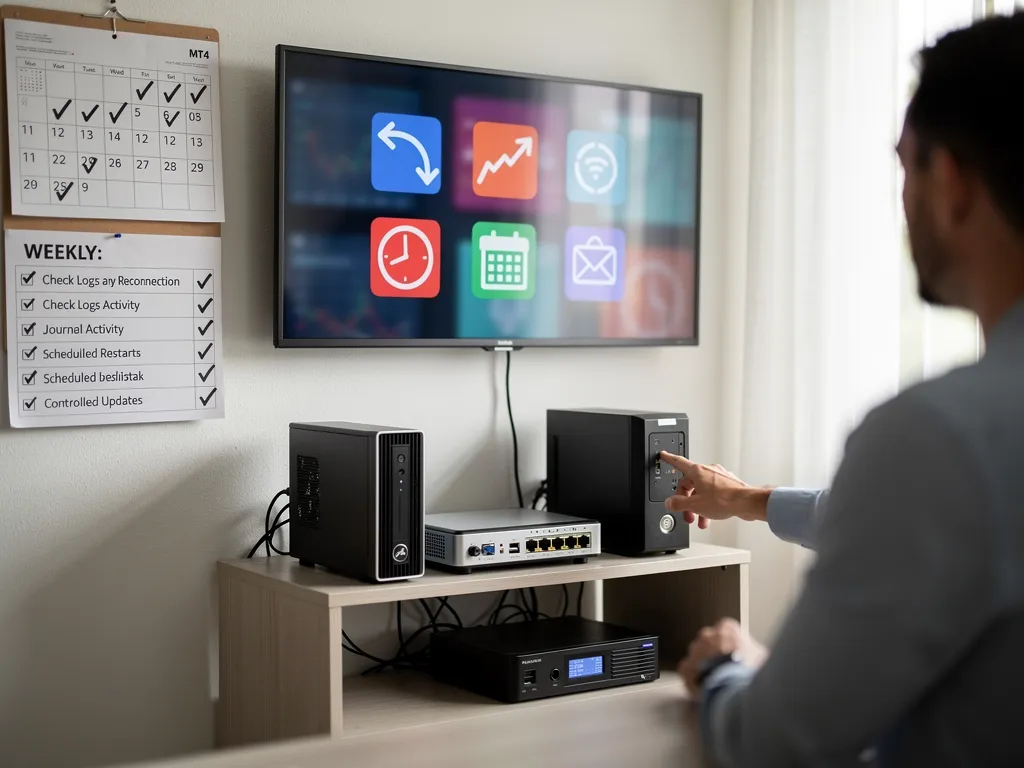
- Save your login in every terminal so it reconnects automatically after a restart.
- Make MT4 start automatically when the VPS restarts. Follow how to auto-start MT4 after a VPS reboot.
- Control Windows updates so the VPS does not restart in the middle of a session. See how to stop Windows updates restarting your forex VPS.
- Read broker emails about server migrations and update your server name before the change date.
- Check the Journal once a week for repeated disconnections.
- Use broker-side stop losses so an outage never leaves a trade unprotected.
Still stuck? Our 24/7 support team can check your VPS network and help you get MT4 connected. Contact us by live chat or ticket, or explore our forex VPS plans if you are setting up a new server.
Frequently Asked Questions
What does “No connection” mean in MT4?
It means MT4 cannot reach your broker’s trading server. Common causes are a wrong or outdated server name, a broker server problem, a firewall block or a network issue on the computer running MT4.
What is the difference between “No connection” and “Invalid account”?
“No connection” means MT4 could not reach the server. “Invalid account” means it reached the server but the server rejected your login, usually because of a wrong password, wrong server or a disabled account.
Why does MT4 work on my PC but not on my VPS?
The VPS may have a different MT4 installation without your broker’s server list, a Windows Firewall rule blocking terminal.exe, or a proxy setting. Install MT4 from your broker’s website on the VPS and log in again.
Does “No connection” close my open trades?
No. Your trades stay open at your broker. Stop losses placed at the broker still work, but your EA cannot manage trades until MT4 reconnects.
How do I add a missing server in MT4?
Use File > Open an Account, type your broker’s server address into the search field, and scan. MT4 adds the server to your list.
MT4 says “Old version”. What should I do?
Download the latest MT4 installer from your broker and install it into the same folder. Back up your data folder first.
Why does MT4 keep disconnecting every few hours?
Usually because of distance to the broker’s server, an overloaded access point, or a VPS short of memory. Check the Journal, rescan servers and make sure your VPS is close to your broker.
]]>A useful cheap Forex VPS review must test the server under a realistic trading workload rather than judging it from price and specifications alone. A virtual private server, or VPS, is a virtualized server with allocated CPU, RAM, storage, networking, and an operating system.
Forex traders typically use one to keep MT4, MT5, Expert Advisors, trade copiers, and other trading software available independently of a home computer.
This guide explains how a reliable review should measure latency, uptime, CPU, RAM, disk response, RDP stability, MT4 performance, EA recovery, and server location before rating a budget Forex VPS.
What Should a Reliable Cheap Forex VPS Review Test Besides Price?
A reliable cheap Forex VPS review should test broker latency, uptime, sustained CPU performance, available RAM, disk responsiveness, RDP stability, and real MT4 performance with representative Expert Advisors running. Price and advertised specifications describe what the provider sells, while measured performance shows how the server behaves under a trading workload.
Microsoft recommends evaluating Windows Server performance through CPU, memory, storage, network, and process-level counters rather than relying on specifications alone. Its current troubleshooting guidance treats sustained bottlenecks differently from short temporary spikes. (Source: Microsoft Learn, 2026)
| Test area | What a review should measure | Why it matters |
| Broker latency | Average and peak ping | Shows network delay to the broker |
| Uptime | Continuous availability | Reveals outages and restarts |
| CPU | Short and sustained load | Exposes throttling or contention |
| RAM | Available memory under MT4 load | Shows whether the plan has headroom |
| Disk | Read and write response time | Affects logs, Windows, and platform files |
| RDP | Responsiveness and reconnect behavior | Measures remote-management quality |
| MT4 | Real platform workload | Tests actual trading use |
| EA recovery | Behavior after interruption | Shows whether automation resumes correctly |
A practical review should also compare the results with a documented workload. Without a repeatable test, two VPS reviews cannot be compared fairly.
How Should a Forex VPS Review Test Latency to a Broker?
A Forex VPS review should test latency from the VPS itself to the exact broker trading server used by the account. It should record repeated results during different market periods instead of publishing one unusually low ping.
MetaTrader’s virtual-hosting system compares servers by broker ping because shorter network delay improves the conditions for transmitting trade requests. MetaQuotes specifically connects lower latency with a reduced probability of slippage and requotes. (Source: MetaTrader 4 Virtual Hosting, 2026)
| Latency measurement | What to record |
| Minimum ping | Best observed result |
| Average ping | Typical network delay |
| Maximum ping | Worst short-term result |
| Variation | Consistency between tests |
| Packet loss | Missing network responses |
| Trading-hour result | Performance when markets are active |
Average Broker Latency
Average broker latency shows the typical round-trip network delay between the VPS and the broker server over several measurements.
A review should measure the same broker endpoint repeatedly rather than comparing one VPS against different account servers.
An average of 3 ms that remains stable is more informative than one 1 ms result surrounded by much slower responses.
Latency Spikes During Trading Hours
Latency spikes show whether the network path becomes less consistent when trading activity or network demand increases.
Measure during periods when the strategy is normally active. London and New York session overlaps are more useful for a live Forex workload than a quiet weekend test.
A review should report average, maximum, and unusual spikes separately so readers can distinguish consistently low latency from occasional best-case performance.
Why Should Forex VPS Latency Be Tested With More Than One Broker?
Forex VPS latency should be tested with more than one broker because each broker can use different data centers, network carriers, server groups, and regional access points. A VPS that produces excellent latency to one broker can produce a much longer route to another.
One server location should never be labeled universally low latency.
| Test result | What it proves |
| Low ping to Broker A | Strong route to Broker A |
| Higher ping to Broker B | Different broker infrastructure |
| Same city, different results | Routing and access points differ |
| Different live and demo ping | Broker may separate environments |
A trader choosing the right VPS location for a broker should test the exact live account server rather than relying on the broker’s headquarters or marketing location.
A fair review should name the tested broker endpoint or explain that the latency result applies only to the server used during testing.
How Should a Review Measure VPS Uptime?
A review should measure VPS uptime continuously over the test period and record every unreachable period, unexpected reboot, and server-side interruption. The provider’s advertised uptime guarantee should be reported separately from the uptime actually observed during testing.
Uptime is the percentage of time the VPS remains available during a defined period.
| Uptime result | Approximate downtime over 30 days |
| 99.9% | 43 minutes 12 seconds |
| 99.95% | 21 minutes 36 seconds |
| 99.99% | 4 minutes 19 seconds |
| 100% | 0 minutes |
A review should distinguish server downtime from broker outages, RDP problems, and the reviewer’s own internet connection. Those failures occur at different layers.
Testing can include an external uptime monitor that checks the server from outside the VPS. Windows Event Viewer can then help confirm whether an apparent outage involved a reboot or operating-system event.
How Long Should a Cheap Forex VPS Be Tested Before Rating Reliability?
A cheap Forex VPS should be tested across multiple trading days because a few hours cannot reveal recurring maintenance, CPU contention, network variation, or memory buildup. A longer test gives the server enough time to experience different market sessions and normal Windows background activity.
A useful review period should include several workload conditions.
- London trading hours
- New York trading hours
- London and New York overlap
- At least one server restart test
- Several continuous overnight periods
- Normal Windows maintenance activity
A one-hour benchmark can measure short-term performance. It cannot establish whether the same VPS remains stable after several days of MT4, EA, and RDP use.
For reliability claims, publish the exact test duration. “Seven days of continuous monitoring” is more useful than “we tested the server extensively.”
How Should CPU Performance Be Tested on a Cheap Forex VPS?
CPU performance should be tested with both brief processing bursts and sustained workloads because a VPS can perform well for seconds while slowing during longer periods of demand. The review should monitor CPU utilization while the same MT4 and EA workload remains active.
Microsoft classifies processor user time above 80% as critical in its current Windows performance guidance and recommends investigating sustained high utilization rather than short spikes. (Source: Microsoft Windows Server CPU Guidance, 2026)
| CPU test | Purpose |
| Short burst | Measures immediate responsiveness |
| Five-minute sustained load | Shows continuing capacity |
| EA workload | Tests real trading calculations |
| Multi-terminal load | Tests concurrency |
| Post-load recovery | Confirms server responsiveness returns |
Short CPU Bursts
Short CPU bursts show how quickly the VPS handles temporary increases in calculations.
These bursts can happen when several EAs process new market events at the same time or when Windows performs a short background task.
A fast burst result is useful, but it should never be the only CPU test.
Sustained CPU Load
Sustained CPU testing reveals whether the server can maintain processing capacity after temporary boost mechanisms or shared-resource advantages disappear.
AWS documents that burstable instances operate around a CPU baseline and spend CPU credits to run above that baseline. In Standard mode, an instance without remaining credits gradually returns to its baseline utilization. (Source: Amazon EC2 Documentation, 2026)
A Forex VPS review should therefore avoid rating CPU quality from a 30-second benchmark alone.
How Much Free RAM Should Remain During MT4 Trading?
A review should confirm that enough RAM remains available after Windows, MT4, charts, indicators, and EAs are all running normally. Persistent low available memory is more important than the advertised RAM number because Windows can become dependent on slower virtual memory when physical RAM is constrained.
Microsoft currently classifies more than 10% available memory or at least 4 GB free as healthy in its general Windows Server guidance, while less than 10% is a warning condition. That 4 GB reference is designed for broader Windows Server environments, so small Forex VPS plans should use the percentage and workload trend rather than applying the absolute number mechanically. (Source: Microsoft Windows Memory Counters, 2026)
| Memory condition | Review interpretation |
| Stable free RAM | Healthy headroom |
| Memory steadily declines | Investigate workload or leak |
| Less than 10% available | Warning condition |
| Heavy paging | Physical RAM may be insufficient |
| RDP and MT4 slow together | Server-wide pressure is possible |
A good review records available RAM after the workload has been running for several hours, not immediately after Windows boots.
How Should a Review Test Real MT4 Performance?
A review should test MT4 with active charts, market data, indicators, and Expert Advisors instead of measuring an empty Windows desktop. MetaTrader’s resource requirements depend on the number of active instruments, charts, and MQL4 applications, so an idle VPS does not represent actual trading use.
MetaQuotes explicitly states that MT4 hardware requirements change with the load generated by MQL4 applications, instruments, and charts. (Source: MetaTrader 4 Help, 2026)
| MT4 review metric | What to observe |
| Platform startup | Time until terminal is responsive |
| Chart switching | Interface responsiveness |
| Quote updates | Broker connection stability |
| EA activity | Timely processing |
| CPU use | Sustained processor demand |
| Memory use | Available RAM |
| Logs | Errors or interruptions |
| RDP responsiveness | Remote usability |
A realistic workload should remain identical across every VPS being compared.
What MT4 Workload Should Be Used for a Repeatable VPS Test?
A repeatable MT4 test should use the same terminal build, broker, charts, symbols, indicators, and EAs on every VPS. Changing the trading workload between servers makes CPU, RAM, and latency comparisons unreliable.
Document the workload so another reviewer can reproduce it.
| Test component | Example standardized setting |
| MT4 terminals | 1 or 2 |
| Active charts | 5 |
| Symbols | Same broker symbols |
| Indicators | Same indicator set |
| EAs | Same versions and settings |
| Test duration | Same number of hours |
| Broker server | Same account endpoint |
Charts and Market Data
Charts and market data create processing and memory demand even when no order is being placed.
Every active chart maintains data and can host indicators or EAs. A repeatable benchmark should therefore specify the number of charts and symbols.
Do not compare a VPS with one empty chart against another running ten active charts.
Expert Advisors Running at the Same Time
Concurrent Expert Advisors test how the VPS behaves when several strategies process market events together.
A useful test should include simultaneous activity rather than launching each EA individually.
The combined workload matters because CPU and RAM peaks can overlap.
How Should a Cheap Forex VPS Review Test Multiple EAs?
A cheap Forex VPS review should run several EAs simultaneously and monitor the combined CPU, RAM, platform responsiveness, and log activity. EA count alone is not a meaningful performance metric because strategy complexity varies substantially.
A lightweight EA checking one symbol once per bar creates less load than a multi-symbol system processing every tick.
| EA test | What it reveals |
| One lightweight EA | Baseline automated workload |
| Several light EAs | Normal concurrency |
| One heavier EA | Strategy-specific CPU demand |
| Several active terminals | Combined platform overhead |
| Peak market period | Maximum practical load |
The current guide on how many EAs a cheap VPS can run explains why practical capacity depends on combined resource demand rather than a fixed robot limit.
A review should publish the EAs’ workload characteristics instead of simply stating that “five EAs worked.”
What Should the Experts and Journal Logs Show During Testing?
The Experts and Journal logs should show uninterrupted platform operation, expected EA activity, and no unexplained initialization, connection, or trade errors during the review period. Logs can reveal failures that a CPU benchmark or visual platform check misses.
MetaTrader’s Experts tab records EA operations, including opening and closing positions, modifying orders, and program messages. Historical EA operation logs are stored under MQL4\Logs. (Source: MetaTrader 4 Experts Log, 2026)
| Log event | Review meaning |
| Clean EA initialization | Strategy loaded normally |
| Connection errors | Network or broker issue |
| Trade errors | Needs broker or EA investigation |
| Long timestamp gaps | Possible interruption |
| Platform restart message | Server or terminal restarted |
| Repeated EA errors | Workload may not be operating correctly |
A review should inspect logs before rebooting or reinstalling anything. Restarting first can hide evidence needed to identify the original failure.
How Should Disk Performance Be Tested on a Trading VPS?
Disk performance should be tested by measuring read and write latency while Windows, MT4, logging, and normal server activity are occurring. Slow storage can affect platform startup, history loading, Windows paging, updates, and log operations even when CPU utilization appears normal.
Microsoft’s current Performance Monitor guidance lists average disk read and write latency below 15 ms as healthy, above 25 ms as a warning, and above 50 ms as critical when the condition persists. Short spikes can be tolerated, but Microsoft recommends investigating longer periods of elevated latency. (Source: Microsoft Windows Disk Performance, 2026)
| Disk metric | Healthy reference |
| Avg. Disk sec/Read | Under 15 ms |
| Avg. Disk sec/Write | Under 15 ms |
| Warning level | Above 25 ms |
| Critical level | Above 50 ms |
A review should also note whether the provider uses SSD or NVMe storage and how much free disk space remains after Windows and the trading software are installed.
How Should RDP Responsiveness Be Included in a Forex VPS Review?
RDP responsiveness should be tested separately from broker latency because Remote Desktop measures the user-to-VPS experience, while broker ping measures the VPS-to-broker path. A sluggish RDP session can make a healthy trading server feel slow even when MT4 and the broker connection remain stable.
Microsoft recommends different bandwidth levels according to Remote Desktop workload and display resolution. Its guidance lists approximately 1.5 Mbps for light workloads, 3 Mbps for medium workloads, and 5 Mbps for heavy workloads. (Source: Microsoft Remote Desktop Network Guidance, 2024)
| RDP test | What to observe |
| Login time | How quickly session opens |
| Mouse response | Input delay |
| Window movement | Desktop responsiveness |
| MT4 chart switching | Practical administration |
| Disconnect and reconnect | Session stability |
| High-resolution test | Bandwidth sensitivity |
A review should not lower a Forex VPS performance rating solely because the reviewer’s home internet connection has poor RDP latency.
Should a Review Test VPS Performance After a Server Reboot?
Yes, a review should test the VPS after a controlled reboot because automated trading reliability includes recovery, not only steady-state performance. The server should return to Windows cleanly and allow the required trading applications to be restored without unexpected configuration loss.
A reboot test should verify:
- Windows starts normally.
- RDP becomes reachable.
- Network connectivity returns.
- MT4 or MT5 opens correctly.
- Broker accounts reconnect.
- EA settings remain available.
- CPU and RAM return to normal ranges.
| Recovery stage | Review check |
| Server boot | VPS becomes reachable |
| Windows login | No startup errors |
| Platform start | MT4 loads normally |
| Broker connection | Quotes resume |
| EA initialization | Strategy loads correctly |
| Resource stabilization | CPU and RAM settle |
The time required for full trading recovery is more useful than reporting only the operating-system boot time.
How Should a Review Check EA Recovery After Unexpected Downtime?
A review should simulate a controlled interruption and verify whether the EA, platform, broker connection, and required permissions return to the expected state. Recovery testing matters because a VPS can have strong benchmark results but still require manual intervention after an outage.
Do not create an uncontrolled outage on a live account. Use a demo environment.
| Recovery check | Required result |
| MT4 starts | Platform available |
| Broker reconnects | Live prices return |
| EA loads | Correct strategy active |
| Auto Trading | Correct permission state |
| Open demo trades | State reconciled |
| Logs | No recurring startup errors |
The exact recovery method depends on how the trader configured Windows and MT4. A review should state whether recovery was automatic or required manual login.
What Should a Review Test About the VPS Provider’s Server Location?
A review should confirm the actual server region and test that location against the broker used for the benchmark. A New York or London label is useful only when the VPS-to-broker connection proves that the location creates a short and stable route.
Data center proximity and physical server specifications solve different problems.
| Server-location check | Why it matters |
| Actual city or facility | Confirms advertised location |
| Broker server region | Establishes likely proximity |
| Measured broker ping | Tests the real route |
| Traceroute | Shows visible network path |
| Multiple-session tests | Reveals route changes |
| Alternate VPS location | Provides comparison |
The review should not assume that a server in NY4 is automatically superior to LD4. The broker endpoint determines which location is appropriate.
How Can a Review Compare Different VPS Plans Fairly?
Different VPS plans should be compared with the same operating system, broker, MetaTrader workload, test period, and measurement method. Changing several variables at once prevents the review from showing whether a performance difference came from RAM, CPU, server location, or another factor.
Normalize the test environment before comparing price.
| Variable | Keep consistent |
| Windows version | Same |
| MT4 build | Same |
| Broker | Same |
| Broker account server | Same |
| EAs | Same |
| Charts | Same |
| Test duration | Same |
| Monitoring tools | Same |
When comparing available Forex VPS hosting plans, the review should relate additional CPU and RAM to measured workload improvements rather than assuming that a more expensive tier is automatically better.
The best value plan is the lowest-cost tier that still retains enough performance headroom for the intended trading workload.
Which Cheap Forex VPS Claims Should Not Be Accepted Without Testing?
Claims about ultra-low latency, guaranteed uptime, powerful vCPUs, and high-performance trading should be verified with measurements rather than repeated from marketing copy. A review should distinguish provider specifications from results observed during its own test.
The most important claims require different evidence.
| Claim | Evidence needed |
| Low latency | Broker ping measurements |
| 99.99% uptime | Long-term external monitoring |
| Powerful CPU | Sustained workload |
| Fast storage | Disk-latency measurements |
| EA-ready | Real EA testing |
| Smooth RDP | Remote-session testing |
Low-Latency Claims
Low-latency claims should be validated against named broker servers because latency has no useful meaning without two defined network endpoints.
“1 ms latency” is incomplete unless the provider identifies where the measurement starts and ends.
Reviews should report the tested broker, account server, VPS region, average ping, and peak result.
Uptime and Performance Claims
Uptime and performance claims should be separated because a server can remain online while delivering poor CPU, storage, or network performance.
A 99.99% uptime guarantee describes availability under the provider’s terms. It does not prove that MT4 remained responsive at peak load.
A review should measure availability and application performance independently.
Does the Cheapest Forex VPS Offer Good Value for Live Trading?
The cheapest Forex VPS offers good value only when it can run the required trading workload with stable latency, adequate resources, and enough reliability for the trader’s risk tolerance. A lower monthly fee stops being economical when frequent slowdowns, resource limits, or unsuitable server locations interfere with the platform.
Price should be evaluated against usable capacity.
| Budget VPS result | Value assessment |
| Stable MT4 and EA workload | Good value |
| Low stable broker latency | Good value for that broker |
| Enough RAM headroom | Appropriate plan |
| Sustained CPU throttling | Poor fit for heavy automation |
| Repeated downtime | Poor live-trading fit |
| Wrong server region | Low price does not fix latency |
A recent slow Forex VPS troubleshooting guide shows why CPU, RAM, disk, network, RDP, and host contention should be diagnosed separately before deciding that a low-cost plan is inadequate.
The cheapest VPS and the best-value VPS are not always the same server.
Cheap Forex VPS Reviews: Benchmark Trading Performance, Not Marketing Claims
A cheap Forex VPS review should benchmark the server as a trading environment rather than rating it from advertised specifications, promotional pricing, or one speed test. The most useful review measures broker latency, uptime, sustained CPU, RAM headroom, disk responsiveness, RDP stability, MT4 workload performance, and recovery behavior.
A repeatable review framework makes different providers easier to compare.
| Review category | Required evidence |
| Latency | Repeated broker ping |
| Reliability | Multi-day uptime monitoring |
| CPU | Burst and sustained testing |
| Memory | Available RAM under full load |
| Disk | Read and write latency |
| RDP | Practical remote-use test |
| MT4 | Standardized charts and EAs |
| Logs | No unexplained errors |
| Recovery | Reboot and EA restoration |
| Location | Confirmed region and broker proximity |
A cheap Forex VPS earns its value through measured trading performance, not through the largest specification printed beside the lowest monthly price.
A useful review should publish enough detail for another trader to reproduce the test instead of relying on subjective labels such as “fast” or “smooth.”
Choose a Forex VPS Provider Based on Measured Trading Performance
Choose a Forex VPS provider after testing the server against the broker, MT4 workload, EAs, and remote-access conditions you actually plan to use. Price becomes meaningful only after the server demonstrates enough latency, CPU, RAM, storage, and uptime headroom for that setup.
For traders comparing affordable hosting, CheapForexVPS offers plans from $5 per month with a 99.95% uptime guarantee and a 5-day money-back guarantee. Available locations include Equinix NY4, LD4, TY3, and Singapore, which lets the server region be matched to the broker before the plan is evaluated under load.
For help choosing a plan and testing the server location against your trading setup, contact our team.
Frequently Asked Questions About Cheap Forex VPS Reviews
What latency should a cheap Forex VPS review measure?
A review should measure average, minimum, and maximum latency to the exact broker server used during the test. A single lowest-ping result does not show normal connection quality.
Tests should also be repeated during active trading hours. That shows whether latency remains stable when the connection matters most.
How long should a Forex VPS be tested for uptime?
A Forex VPS should be monitored for several trading days at minimum when the goal is to comment on reliability. A longer test provides stronger evidence because more maintenance, overnight, and peak-session conditions occur.
The review should state the exact monitoring period. Readers can then judge how much evidence supports the uptime result.
How can you test whether a VPS has enough CPU for Expert Advisors?
Run the intended EAs together and monitor processor use during their busiest trading periods. Short CPU spikes are normal, while sustained saturation indicates limited processing headroom.
A useful review also compares brief and sustained workloads. This can expose CPU behavior that a short benchmark misses.
How much RAM should remain free while MT4 is running?
Enough RAM should remain free to prevent persistent paging and memory pressure while the complete trading workload is active. The exact amount depends on the VPS size and number of platforms.
Watch the trend over several hours instead of checking RAM once after startup. Falling available memory under a fixed workload deserves investigation.
Can a cheap Forex VPS perform well with several EAs running?
Yes, a cheap Forex VPS can perform well with several EAs when their combined CPU and RAM requirements fit within the plan. EA complexity matters more than the raw number of robots.
Test the strategies simultaneously. A VPS that handles each EA separately can still become constrained when several become active together.
Why should Forex VPS reviews test real MT4 performance instead of specifications alone?
Real MT4 testing shows how CPU, RAM, storage, broker connectivity, charts, and EAs behave together. A specification sheet cannot show resource contention, application errors, or performance under live market data.
Use a standardized MT4 workload for comparisons. That makes the review relevant to actual Forex trading rather than generic server benchmarking.
]]>A promotion can apply only to the first payment, continue for several billing periods, or remain attached to a subscription. Product eligibility, billing cycle, upgrades, and refund rules can also change the real value of the discount.
This guide explains how coupon codes work, how to identify one-time and recurring discounts, how to check September 2026 offers, and how to compare deals using total cost instead of the headline percentage.
How Do Forex VPS Coupon Codes Work?
Forex VPS coupon codes reduce the price of an eligible VPS order according to the discount type, billing cycle, product, customer, and duration configured for the promotion. A code can apply once, recur for a limited number of invoices, or continue across qualifying renewal payments.
WHMCS, a billing platform commonly used by hosting services, supports percentage discounts, fixed discounts, price overrides, free setup promotions, one-time offers, recurring discounts, expiration dates, usage limits, and new-customer restrictions. Its recurring option can also be configured to end after a specified number of invoice cycles. (Source: WHMCS Promotions, 2026)
| Promotion setting | What it means for the customer |
| Percentage discount | Removes a percentage of the eligible charge |
| Fixed discount | Removes a specified amount |
| One-time coupon | Reduces the initial qualifying invoice |
| Recurring coupon | Reduces qualifying renewal invoices |
| Limited recurring coupon | Ends after a defined number of cycles |
| Product restriction | Works only with selected VPS plans |
| Customer restriction | Can apply only to new or existing users |
| Expiration date | Prevents new use after the promotion ends |
The percentage alone does not establish the value of the offer. A 50% discount on one payment can save less over a year than a 15% recurring discount.
Does a Discount Code Apply Only to the First Month?
A discount code applies only to the first month when the promotion is configured as a one-time discount on a monthly billing cycle. A provider can instead make the code recurring or let it apply for a fixed number of billing periods.
The phrase “first month” should not be confused with “first payment.” A one-time promotional code used on an annual VPS plan can reduce the first annual invoice rather than one calendar month.
| Discount structure | Initial invoice | Later invoices |
| 50% off first monthly payment | Discounted | Standard price |
| 50% off first annual payment | Discounted annual invoice | Standard annual renewal |
| 20% recurring | Discounted | Discounted while eligible |
| 30% off first 3 cycles | Discounted | Standard after cycle 3 |
For example, a $20 monthly VPS with 50% off the first month costs $10 initially and $20 per month afterward. The customer saves $10 over the first year, not 50% of the annual hosting cost.
How Can You Tell Whether the Renewal Price Changes After a Coupon?
Check the recurring amount, billing cycle, and next due date after the coupon is applied because the renewal price can differ from the amount charged today. The recurring amount is the most important figure when you plan to keep the VPS beyond the promotional period.
ForexVPS.net defines Recurring Amount in its client area as the VPS renewal price. The same billing screen also shows the billing cycle and next due date. (Source: ForexVPS.net Billing Cycle Guide, 2026)
| Billing field | What to check |
| Registration Date | When the VPS was ordered |
| Initial payment | Amount charged for the first invoice |
| Recurring Amount | Expected renewal price |
| Billing Cycle | How often the service renews |
| Next Due Date | When the next payment is expected |
| Payment Method | How the renewal will be collected |
Save the first invoice or order confirmation after using a coupon code. It gives you a record of the promotional amount if the account dashboard later shows the standard renewal price.
What Is the Difference Between a One-Time and Recurring Discount?
A one-time discount reduces one qualifying invoice, while a recurring discount continues reducing later invoices for as long as the promotion rules allow. The long-term cost can therefore differ substantially even when two coupon codes advertise the same percentage.
The difference becomes clear when the same VPS price is calculated across several billing periods.
First-Month Discount
A first-month discount reduces only the initial monthly VPS charge when the promotion is configured for one use.
A $20 monthly plan with a 50% first-month discount costs $10 initially and returns to $20 afterward.
| Cost period | Amount |
| Month 1 | $10 |
| Months 2 to 12 | $220 |
| First-year total | $230 |
| First-year saving | $10 |
The advertised percentage is 50%, but the saving across 12 months is about 4.2% compared with the normal $240 annual cost.
Recurring Subscription Discount
A recurring subscription discount applies to more than one invoice and can produce larger long-term savings even when the percentage is lower.
A $20 monthly plan with a 15% recurring discount costs $17 per qualifying month.
| Cost period | Amount |
| Monthly discounted charge | $17 |
| 12-month total | $204 |
| Normal 12-month cost | $240 |
| Total saving | $36 |
Always confirm whether recurring means unlimited renewals or a fixed number of billing cycles. A provider can end a recurring promotion after a defined count.
Does the Billing Cycle Change How Much a Forex VPS Discount Saves?
Yes, the billing cycle changes both the amount charged per invoice and the monetary value produced by a percentage discount. A 20% coupon applied to an annual invoice removes more money immediately than the same percentage applied to one monthly invoice.
The billing commitment changes at the same time. A larger discount on an annual VPS plan still requires a larger upfront payment.
| Normal invoice | 20% discount | Discounted invoice |
| $20 monthly | $4 | $16 |
| $60 quarterly | $12 | $48 |
| $120 semiannual | $24 | $96 |
| $200 annual | $40 | $160 |
A detailed Forex VPS cost breakdown is useful when comparing promotion savings with the CPU, RAM, storage, and server location included in each plan.
The best value is not automatically the billing cycle with the biggest dollar discount. Choose the term that matches how long you expect to keep the VPS.
How Do Monthly and Annual Discounts Differ From Coupon Codes?
Monthly and annual plan pricing is built into the provider’s billing structure, while a coupon code applies a separate promotional rule to an eligible order. An annual VPS can therefore already carry a lower effective monthly rate before any promotional code is considered.
ForexVPS.net currently publishes different monthly and yearly rates. Its Core plan page shows a yearly effective rate of $25.60 per month with $307.20 billed yearly, while the site displays separate monthly pricing and advertised savings for the longer billing term. (Source: ForexVPS.net Trading Platform Plans, 2026)
| Price reduction | Where it comes from |
| Monthly promotional price | Provider’s current plan pricing |
| Annual plan saving | Longer billing commitment |
| Coupon code | Separate promotion |
| Account credit | Existing customer balance |
| Free trial | Temporary access under trial rules |
Do not add an annual-plan percentage and a coupon percentage together unless the checkout actually allows both reductions. The second discount can be calculated differently or rejected entirely.
Can a Promo Code Be Limited to New Customers?
Yes, a promo code can be restricted to new customers, specific VPS products, selected billing cycles, or a defined number of uses. Eligibility should be checked before choosing a hosting plan solely because a promotion appears attractive.
ForexVPS.net’s current seasonal promotion terms state that the offer is for new customers and applies to VPS products rather than dedicated servers. The terms also state that the offer can be amended or revoked. (Source: ForexVPS.net About and Promotion Terms, 2026)
| Eligibility restriction | Possible effect |
| New customers only | Existing users cannot redeem |
| VPS products only | Dedicated servers excluded |
| One code per customer | Repeated use blocked |
| Selected billing cycle | Monthly or annual order required |
| Selected plan | Other tiers excluded |
| Maximum uses | Promotion can end before the date shown |
Creating another account to bypass a new-customer rule can violate promotional terms. Use the eligibility rules attached to your actual customer account.
How Can You Verify a Forex VPS Coupon Code Before Paying?
Verify a Forex VPS coupon code by applying it to the exact plan you intend to buy and confirming that the checkout total changes before payment. Then verify the future billing amount separately because code acceptance does not prove that the same discount applies to renewals.
The provider’s own checkout is the final verification point. A coupon directory or affiliate page cannot confirm how the billing system will price your specific VPS order.
Confirm the Discount at Checkout
The checkout page should show that the promotional code was accepted and display the reduced charge before you submit payment.
Confirm these items before paying:
- Original VPS price
- Discount amount
- Discounted subtotal
- Billing cycle
- Add-ons
- Taxes where applicable
- Amount due today
If the code field accepts text but the total does not change, treat the coupon as unsuccessful until the provider confirms otherwise.
Check the Billing Terms and Renewal Amount
The billing summary should make the renewal schedule clear before you rely on the discounted first payment.
A normal Forex VPS signup process includes choosing the plan, server location, billing term, and payment before accessing the Windows Server environment.
Record the amount due today and the next expected recurring charge. Those two numbers answer different questions.
What Should a Verified Forex VPS Deal Clearly Show?
A verified Forex VPS deal should clearly show the discounted price, renewal amount, billing interval, promotion duration, eligibility, and expiration conditions. The customer should be able to calculate the real subscription cost without assuming what happens after the first invoice.
A useful promotion also separates the VPS specifications from the price reduction.
| Deal information | What it should answer |
| Discount percentage or amount | How much is being removed? |
| Initial charge | What is due today? |
| Renewal price | What will future invoices cost? |
| Billing cycle | How often will billing occur? |
| Promotion duration | How long does the discount last? |
| Eligible plan | Which VPS products qualify? |
| Customer requirement | New or existing customers? |
| Expiration | When does redemption end? |
| Refund terms | Does promotional pricing change eligibility? |
Terms such as “today’s top offer,” “exclusive code,” or “verified deals” do not replace these details. Verification comes from the provider’s own checkout and billing terms.
Can an Expired Promo Code Still Appear on Coupon Websites?
Yes, an expired promo code can remain visible on third-party coupon websites after the VPS provider has stopped accepting it. Coupon directories, search indexes, old blog posts, and affiliate pages can remain online long after the original promotion ends.
The date displayed on a coupon website should not be treated as proof that the offer was manually verified that day.
| Coupon source | What it proves |
| Provider checkout | Whether your order accepts the code |
| Official promotion terms | Current eligibility rules |
| Provider email | Offer sent to that audience |
| Coupon directory | A code has been listed |
| Old article | A code existed at some point |
| Forum post | Another user reported it |
This is especially important for Black Friday and other short promotional periods. An old sale page can rank in search results months after the code expires.
Why Should You Check the Promotion Expiration Date?
You should check the expiration date because a promotional code can stop accepting new orders even when its landing page or third-party listing remains accessible. Some offers can also end early because of maximum-use limits or provider withdrawal terms.
Check the timing immediately before checkout rather than when you first discover the offer.
| Timing rule | Why it matters |
| Start date | Code may not work early |
| End date | Code stops accepting new orders |
| Time zone | Promotion can end earlier than expected locally |
| Maximum uses | Offer can exhaust before expiration |
| Withdrawal clause | Provider can end the promotion under its terms |
A promotion that was valid yesterday is not automatically valid today. The final checkout price should always be confirmed again before payment.
Can Forex VPS Coupon Codes Be Combined With Other Discounts?
Forex VPS coupon codes can be combined with other discounts only when the provider’s promotion rules and checkout system allow stacking. An annual plan discount, account credit, seasonal sale, and coupon code should therefore be treated as separate price adjustments until the final order confirms otherwise.
Stacking rules can vary by product and billing cycle.
| Combination | What to verify |
| Coupon + annual discount | Final annual total |
| Coupon + seasonal sale | Whether both remain active |
| Two coupon codes | Whether multiple codes are accepted |
| Coupon + account credit | Payment treatment |
| Coupon + first-time discount | Customer eligibility |
Do not calculate “35% annual saving + 20% coupon = 55% off” yourself. The provider’s system can reject one promotion or apply the second reduction to an already-discounted amount.
Does a Coupon Code Change the VPS Plan or Service Features?
A coupon code normally changes the price rather than the CPU, RAM, SSD storage, Windows Server environment, latency, or other features of the selected VPS plan. Service specifications change only when the promotion explicitly requires a different product or configuration.
Compare the hosting resources separately from the promotional price.
| VPS feature | Normally changed by coupon? |
| CPU | No |
| RAM | No |
| SSD or NVMe storage | No |
| Windows Server | No |
| Data center location | No |
| Uptime terms | No |
| Checkout price | Yes |
| Promotion duration | Yes |
The available Forex VPS hosting plans should still be matched to MT4, MT5, Expert Advisors, and the number of trading platforms you intend to run.
A discount on an undersized VPS is not better value if the server cannot support your trading needs.
What Happens to the Discount If You Upgrade Your VPS Plan?
A VPS upgrade can preserve, recalculate, or remove a coupon depending on how the promotion was configured. Check both the upgrade charge and the new recurring amount before moving to a larger plan.
WHMCS supports promotions specifically for upgrades and downgrades. It can also configure a lifetime promotion that survives an upgrade, with the recurring discount recalculated using the new product price. (Source: WHMCS Upgrades and Downgrades, 2026)
| Upgrade rule | Possible billing result |
| Coupon excludes upgrades | Discount ends |
| Upgrade promotion enabled | Upgrade receives discount |
| Lifetime promotion | Discount can continue |
| New tier is ineligible | Standard new-plan price applies |
| Billing cycle changes | Promotion can be recalculated |
Do not assume that moving from a Solo VPS plan to a Pro VPS plan, Silver VPS, or high RAM VPS solution keeps the same promotional price. The upgrade rules control that result.
Can a Discount Affect Refund or Cancellation Terms?
Yes, promotional pricing can affect refund eligibility when a provider excludes discounted products from its normal money-back guarantee. Check the cancellation and refund policy before deciding that the coupon produces a lower-risk purchase.
ForexVPS.net currently offers a 14-day money-back guarantee on eligible initial VPS purchases, but its terms state that discounted products and dedicated servers are nonrefundable. The same terms state that subscriptions automatically renew unless canceled and that prorated refunds are not offered. (Source: ForexVPS.net Terms and Conditions, 2026)
| Policy item | What to check |
| Money-back period | Number of eligible days |
| Discount exclusion | Whether promo orders qualify |
| Cancellation timing | Immediate or end of billing period |
| Prorated refund | Whether unused time is returned |
| Transaction fees | Whether processing charges are excluded |
| Upgrade charges | Whether they have separate rules |
The Forex VPS refund policy guide explains why cancellation, refund eligibility, discounted plans, and excluded charges should be reviewed separately.
A smaller discount can provide better practical value when it preserves a refund right that matters to you.
How Should You Compare Two Forex VPS Coupon Deals?
Compare two Forex VPS coupon deals by calculating the initial payment, renewal price, billing interval, promotion duration, and total cost over the same period. The largest headline percentage does not automatically produce the lowest annual cost.
Use the same VPS requirements when comparing deals. A cheaper plan with less RAM or a distant server location is not an equivalent offer.
| Example | Deal A | Deal B |
| Normal monthly price | $20 | $20 |
| Promotion | 50% first month | 15% recurring |
| First payment | $10 | $17 |
| Monthly renewal | $20 | $17 |
| 12-month total | $230 | $204 |
| 12-month saving | $10 | $36 |
First Payment and Renewal Price
The first payment controls the immediate cost, while the renewal price determines most of the expense for a VPS kept long term.
A 50% initial discount can look stronger than a 15% recurring discount while saving less over 12 months.
Record both figures before comparing providers. Do not compare one provider’s promotional payment with another provider’s regular renewal price.
Billing Cycle and Total Cost
The billing cycle determines how often you pay and how much money must be committed upfront.
Calculate total cost over the same period:
Total cost = initial discounted invoice + expected renewals + required add-ons
Include only services you actually need. Extra CPU, storage, IP addresses, or premium hosting solutions can make a coupon appear less valuable once the complete VPS order is priced.
How Can You Check Whether a September 2026 Promo Code Is Still Active?
A September 2026 promo code is active for your order only when the provider’s current checkout accepts it and displays the discount before you pay. Verify the provider’s official terms on the same day because seasonal promotions can be amended or withdrawn.
As of September 12, 2026, ForexVPS.net’s VPS hosting page continues to display seasonal promotion terms stating that the offer applies to new customers and VPS products rather than dedicated servers. It also says the promotion can be amended or revoked. (Source: ForexVPS.net Forex VPS Hosting, 2026)
| September 2026 verification | What to do |
| Confirm official offer | Check current provider page |
| Test the code | Enter it in the code field |
| Confirm discount | Verify the checkout total |
| Check eligibility | Confirm customer and plan requirements |
| Check renewal | Review recurring amount |
| Check refund | Read current terms and conditions |
A page claiming “deals as of September 2026” or “manually verified offers” is still secondary evidence. The provider’s own billing system determines whether you can redeem your savings.
Should You Trust a Forex VPS Coupon Code From a Third-Party Website?
You should treat a third-party Forex VPS coupon code as unverified until the VPS provider’s own checkout accepts it and confirms the discount. Third-party sites can contain expired promos, affiliate-specific offers, regional codes, or descriptions that no longer match current billing terms.
Customer reviews can help evaluate a hosting service, but they do not verify a coupon’s current renewal rules.
| Third-party claim | What to verify directly |
| “30% off” | Checkout reduction |
| “Recurring forever” | Billing terms |
| “New customers only” | Eligibility |
| “Today’s top offer” | Current provider acceptance |
| “Works with annual plans” | Billing-cycle eligibility |
| “Refund included” | Current refund policy |
Never enter your VPS account password, broker password, or payment details into a coupon directory. Take the code to the official provider checkout and verify it there.
Forex VPS Coupon Codes: Check the Renewal Price Before You Pay
Forex VPS coupon codes should be judged by total subscription cost, not by the discounted first invoice. Renewal price, billing cycle, duration, upgrade rules, and refund eligibility determine whether the promotion remains valuable after checkout.
Use one checklist for every deal:
| Check | Question |
| Code acceptance | Did checkout actually apply it? |
| Initial payment | What is charged today? |
| Renewal price | What is charged next time? |
| Billing cycle | Monthly, quarterly, or annual? |
| Duration | One invoice or recurring? |
| Eligibility | Which customers and plans qualify? |
| Expiration | When does the offer end? |
| Upgrades | Does the discount survive? |
| Refund | Does promotional pricing change eligibility? |
| Total cost | What will the VPS cost over your intended period? |
A useful VPS discount makes the long-term billing as clear as the first checkout price.
The goal is not to find the largest promo code. The goal is to pay a sustainable price for a VPS configuration that matches your trading workload.
Verify the Discount and Billing Terms Before Checkout
Confirm the plan, promotional price, renewal amount, and billing cycle before completing the VPS order. A discount is useful only when you understand what the service will cost after the promotion and the selected plan still fits your trading setup.
CheapForexVPS provides Forex-focused hosting from $5 per month with a 99.95% uptime guarantee, a 5-day money-back guarantee, and locations including Equinix NY4, LD4, TY3, and Singapore. These details let you evaluate the underlying VPS service separately from any temporary discount.
For questions about pricing, billing, or selecting the right VPS configuration, contact our team.
Frequently Asked Questions About Forex VPS Coupon Codes
Do Forex VPS coupon codes usually apply to renewals?
No, Forex VPS coupon codes do not automatically apply to renewals. A provider can configure a coupon for the initial invoice, several billing cycles, or continuing renewal payments.
Check the recurring amount separately from the checkout total. That figure shows what you should expect after the promotional payment.
How can you tell if a discount is only for the first month?
The promotion should state that it applies only to the first payment or initial monthly billing cycle. The account or checkout should then show the regular renewal amount that follows.
Do not assume that “50% off” means 50% off every month. Confirm how many invoices receive the reduction.
Can new customers get different Forex VPS promo codes?
Yes, VPS providers can reserve specific promo codes for new customers or first-time orders. Existing customers can be excluded even when they select the same hosting plan.
Check the eligibility rules before paying. A rejected new-customer code can change the total VPS cost substantially.
Can you combine a coupon code with an annual VPS discount?
Yes, but only when the provider allows the coupon to apply to the annual pricing already selected. Some billing systems restrict codes to specific billing cycles or prevent discounts from stacking.
Use the final checkout total as the deciding number. Do not add two advertised percentages together manually.
What happens to a coupon discount when you upgrade your VPS?
The discount can continue, change, or end when you upgrade. The result depends on whether the promotion supports upgrades and whether the new VPS plan remains eligible.
Check the new recurring amount before approving the upgrade. The old discounted subscription price does not guarantee the same discount on the new configuration.
How can you verify that a Forex VPS coupon code is still valid?
Enter the coupon code at the provider’s official checkout and confirm that it changes the order total. Then check the current promotion terms for expiration, eligibility, and renewal restrictions.
A third-party coupon page is not final verification. The provider’s billing system is the authoritative test for your order.
]]>Remote Desktop Protocol, or RDP, can expose selected local drives to the remote Windows server. You can then copy files through File Explorer without uploading them to a public file-sharing service.
This guide explains how to prepare the transfer, enable RDP drive redirection, place each MT4 file correctly, verify EAs after migration, avoid trading downtime, and secure the file-transfer process.
How Can You Safely Transfer EAs, Indicators, and MT4 Files to a Forex VPS Through Remote Desktop?
You can safely transfer EAs, indicators, and MT4 files to a Forex VPS by redirecting a local drive through RDP and copying each file into its matching MetaTrader data folder. Use MetaTrader’s File > Open Data Folder command instead of guessing the destination path.
Microsoft supports copying files between local and remote Windows sessions through clipboard and drive redirection. Microsoft also recommends drive redirection for files larger than 2 GB because clipboard file transfers have a 2 GB limit. (Source: Microsoft Learn, 2026)
| Transfer method | Best use | Limitation |
| Redirected drive | EA folders, backups, large files | Exposes selected local storage to VPS |
| Clipboard copy and paste | Small files | File transfers below 2 GB |
| Cloud storage | Off-server backup or migration | Requires separate account and download |
| Direct download on VPS | Broker installers | Not suitable for local custom files |
If you need help establishing the remote session first, the Windows VPS connection process explains the RDP login and local-resource setup.
What Should You Prepare Before Starting the File Transfer?
Prepare a complete backup, confirm the correct MetaTrader installation, and identify every file that the EA or indicator needs before copying anything. This prevents a migration from leaving behind presets, DLLs, libraries, or license files that were stored outside the Experts folder.
Create a migration inventory before changing the live server:
- Expert Advisors
- Custom indicators
- Scripts
- Libraries and DLLs
- .set preset files
- Templates and profiles
- EA data files
- Broker server details
- License information
- Trade copier configuration
| Preparation check | Why it matters |
| Backup current setup | Gives you a rollback copy |
| Record MT4 version | Helps reproduce the environment |
| Note broker server | Prevents login to the wrong endpoint |
| Save EA inputs | Preserves strategy configuration |
| Check licenses | Some software limits machine activations |
| Review open positions | Avoids interrupting active EA management |
A new VPS should also have the correct Windows environment and MetaTrader installation before migration. The beginner VPS setup guide covers the server, RDP, platform, and broker setup sequence.
How Do You Make Your Local Computer Files Available Through RDP?
Make local files available by enabling drive, storage, or clipboard redirection before opening the Remote Desktop session. The redirected resource then appears inside the remote Windows environment without moving the original files first.
In classic Remote Desktop Connection, open Show Options > Local Resources > More, then select the drive that contains the trading files. Microsoft documents the same drive-redirection workflow for remote Windows sessions. (Source: Microsoft Learn, 2026)
| Resource | Use during migration |
| Local C: drive | Access trading folders on your PC |
| USB drive | Move an offline backup |
| Network drive | Access an existing shared archive |
| Clipboard | Copy small files quickly |
| Redirected storage | Move larger folder structures |
Local Drive Redirection
Local drive redirection makes a selected disk on your computer accessible inside the remote Windows session.
Enable only the drive that contains the migration files. This reduces the amount of local storage exposed to the VPS.
Clipboard and Folder Redirection
Clipboard and folder redirection provide alternative ways to move smaller files or selected storage into the remote session.
Windows App can redirect storage and clipboard resources, but the remote server or administrator can restrict those features. (Source: Microsoft Windows App, 2026)
Where Do Redirected Files Appear on the Forex VPS?
Redirected local drives normally appear in File Explorer under This PC, labeled with the drive and source computer name. You can open the redirected drive from the VPS and copy files into the local server folders.
Do not run MetaTrader directly from the redirected drive. Copy the required files to the VPS first so the trading platform is not dependent on your home computer remaining connected.
| File Explorer location | What you may see |
| This PC | Redirected local drives |
| C on DESKTOP-NAME | Local C: drive exposed through RDP |
| \\tsclient\C | RDP path to redirected C: drive |
| VPS Desktop | Temporary staging location |
| MetaTrader data folder | Final destination |
Microsoft confirms that redirected drives appear in File Explorer inside the remote session. Large folder enumeration can take longer when round-trip latency between the local computer and remote server is high. (Source: Microsoft Learn, 2025)
Where Should You Put EA Files in MT4?
Put MT4 Expert Advisor files inside the active terminal’s MQL4\Experts directory. Open the exact folder through File > Open Data Folder because separate MT4 installations can use different data directories.
MetaQuotes documents MQL4\Experts as the directory for Expert Advisors in the MetaTrader 4 data structure. It also separates indicators, scripts, libraries, files, logs, and presets into their own MQL4 subdirectories. (Source: MetaTrader 4 Help, 2026)
| EA file | Destination |
| .ex4 compiled EA | MQL4\Experts |
| .mq4 EA source code | MQL4\Experts |
| Supporting library | MQL4\Libraries |
| Runtime data file | MQL4\Files |
| EA preset | MQL4\Presets |
If you copy .mq4 source code without a compiled .ex4 file, MetaEditor may need to compile the source before MT4 can execute it.
Where Should You Put Custom Indicators and Other MT4 Files?
Place every custom MT4 file in the directory assigned to its function instead of putting the complete migration into MQL4\Experts. Preserving that structure lets EAs find the libraries, files, indicators, and presets they expect.
The safest approach is to recreate the same directory relationships used by the working installation.
| File type | MT4 directory |
| Expert Advisors | MQL4\Experts |
| Custom indicators | MQL4\Indicators |
| Scripts | MQL4\Scripts |
| Libraries | MQL4\Libraries |
| Runtime files | MQL4\Files |
| Presets | MQL4\Presets |
| EA logs | MQL4\Logs |
Indicators and Scripts
Custom indicators belong in MQL4\Indicators, while one-time MQL4 scripts belong in MQL4\Scripts.
Placing an indicator in the Experts directory does not convert it into an EA. MetaTrader separates program types so the Navigator and platform know how each program should be used.
Libraries, Presets, and EA Files
Libraries belong in MQL4\Libraries, runtime files belong in MQL4\Files, and EA preset files belong in MQL4\Presets.
Copy the supporting files together with the EA when the strategy relies on them. Missing dependencies are a common reason an EA loads on the chart but fails during operation.
How Do You Transfer an Entire MT4 Trading Setup to a New Server?
Transfer an entire MT4 setup by installing a clean copy of the platform on the new server and then restoring the required data folders, templates, profiles, and configuration files. Keep the original server available until the replacement has been tested with the broker and strategy.
A staged migration is safer than deleting or canceling the old VPS first.
| Migration stage | Action |
| 1 | Back up the original MetaTrader data |
| 2 | Install MT4 on the new VPS |
| 3 | Launch it once to create its data structure |
| 4 | Open the new data folder |
| 5 | Close MT4 |
| 6 | Copy the required folders |
| 7 | Restart MT4 |
| 8 | Confirm broker login and EA configuration |
| 9 | Test on demo |
| 10 | Retire the old environment only after verification |
A detailed Forex VPS backup routine explains why EAs, indicators, presets, templates, profiles, and license files should be stored outside the VPS before migration.
Should You Copy the MT4 Installation Folder or the Data Folder?
Copy the MetaTrader data folder for custom trading content and use a fresh MT4 installation on the new Windows server instead of relying only on the old installation directory. The installation folder contains program files, while the data folder contains the account-specific MQL4 programs, profiles, templates, logs, and other user data.
Copying only Program Files can miss the real working data directory used by the terminal.
| Location | Typical contents | Migration priority |
| MT4 installation directory | Platform executables | Reinstall cleanly |
| MetaTrader data folder | EAs, indicators, scripts, settings | Back up and restore |
| Templates folder | Chart templates | Restore if used |
| Profiles folder | Chart workspaces | Restore if needed |
| MQL4 folder | Trading programs and support files | High |
A clean installation also avoids carrying old platform binaries or broken files from the original server.
How Do You Move EA Settings and Presets to the Trading VPS?
Move saved EA input files with the rest of the strategy configuration so the new VPS uses the same parameters as the original platform. Preset files reduce the risk of manually re-entering lot sizes, filters, trading hours, or other strategy settings incorrectly.
Use descriptive filenames when several strategies use different settings.
| Configuration | Migration method |
| .set files | Copy into the appropriate preset directory |
| EA input values | Save and reload preset |
| Templates | Copy template files |
| Profiles | Restore profile folders |
| Strategy notes | Store with backup documentation |
| License keys | Follow vendor activation rules |
Check every input after loading the preset. A file transfer can preserve the values, but it cannot verify that they are appropriate for the new broker account or symbol configuration.
How Do You Install Transferred EA Files Without Interrupting Live Trading?
Stage and verify the new EA installation before removing the old environment so an avoidable migration gap does not interrupt active strategy management. Do not run duplicate copies of the same EA against the same live account unless the strategy is specifically designed for that arrangement.
A controlled cutover separates file migration from live activation.
| Phase | Safe action |
| Copy | Transfer files to the new VPS |
| Configure | Load settings with trading disabled |
| Verify | Check libraries, logs, and broker connection |
| Test | Use a demo account where possible |
| Cut over | Stop old EA before enabling new instance |
| Monitor | Watch logs after activation |
If the EA manages exits or stops locally, coordinate the migration around open positions. Broker-side protective orders should be confirmed before stopping the old terminal.
Do You Need to Restart MT4 After a File Transfer?
A full restart is not always required, but restarting MT4 is the cleanest way to ensure newly copied or replaced EAs, indicators, libraries, and settings are reloaded. At minimum, refresh the Navigator when adding new files and restart when replacing components used by an active strategy.
A running EA instance can continue using the version already loaded into memory.
| Transfer change | Recommended action |
| New EA | Refresh Navigator or restart |
| Replaced EA binary | Restart before production use |
| New indicator | Refresh or restart |
| Replaced DLL | Restart MT4 |
| New preset | No restart normally required |
| Profile restore | Reload profile and verify charts |
Do not restart during an unmanaged live position if the EA controls trade management locally.
How Can You Confirm That the EA or Indicator Loaded Correctly?
Confirm the transferred program in Navigator, attach it to the intended chart, and review the platform logs for initialization errors. A file appearing in the correct folder does not prove that every dependency loaded successfully.
MetaTrader’s Experts tab records EA operations, messages, position activity, and errors, while historical EA logs are stored in MQL4\Logs. (Source: MetaTrader 4 Help, 2026)
| Verification | What it confirms |
| Navigator entry | MetaTrader detects the program |
| EA attaches to chart | Program can initialize |
| Correct symbol/timeframe | Strategy environment matches |
| Experts tab | EA-specific messages |
| Journal | Platform-level events |
| Live quotes | Broker connection is active |
Navigator and Chart Check
The Navigator check confirms that MetaTrader sees the EA or indicator in the expected program category.
Attach the program only after verifying the correct chart, symbol, timeframe, and inputs.
Experts and Journal Logs
The Experts and Journal logs reveal initialization failures, permission problems, broker errors, and missing dependencies.
Review the latest timestamps after loading the migrated strategy. A clean chart with an error in the log is not a successful migration.
What Should You Check Before Enabling an EA on the VPS?
Check the broker account, symbol, timeframe, input settings, Auto Trading permission, DLL access, and WebRequest configuration before allowing the migrated EA to trade. A correctly copied EA can still fail when the new terminal has different security or permission settings.
MetaTrader disables external DLL access and WebRequest behavior according to terminal settings, while Allow Auto Trading controls whether Expert Advisors can perform trade operations. (Source: MetaTrader 4 Help, 2026)
Use this pre-live checklist:
- Correct broker account
- Correct live or demo server
- Correct symbol and timeframe
- Correct EA inputs
- Auto Trading enabled
- Required DLL permission enabled only for trusted files
- Required WebRequest URLs added
- Supporting indicators loaded
- Broker prices updating
Do not enable an EA immediately after copying the files. Verify the environment first.
How Can You Transfer Files Without Causing Trading Downtime?
Avoid unnecessary downtime by preparing the replacement VPS while the existing trading environment remains active, then switching only after the new installation passes its checks. The file transfer itself can occur before the old server is stopped because configuration and live activation are separate steps.
A staged process reduces the time when no trading platform is managing the account.
| Stage | Old VPS | New VPS |
| File copy | Running | Receiving files |
| Configuration | Running | Trading disabled |
| Demo test | Running | Testing |
| Final validation | Running | Ready |
| Cutover | EA stopped | EA enabled |
| Post-cutover | Kept for rollback | Live |
Keep the old server available for a short rollback window when practical. Do not leave duplicate automated strategies active on the same account unless that behavior has been explicitly tested.
What Can Go Wrong When Moving EA Files to a New Server?
The most common migration failures are wrong folder placement, missing dependencies, lost settings, incompatible licenses, and accidental duplicate EA instances. Most of these problems come from moving only the .ex4 file instead of reproducing the complete working environment.
Use the symptoms to isolate the missing component.
| Symptom | Likely cause |
| EA not in Navigator | Wrong directory or refresh required |
| EA loads but does nothing | Trading permission or strategy condition |
| DLL error | Missing library or permission |
| License error | Machine-specific activation |
| Settings reset | Missing preset |
| Indicator missing | Supporting indicator not transferred |
| Duplicate trades | Old and new EA both active |
| File-access error | Required MQL4\Files content missing |
A correctly sized Forex VPS hosting plan should also provide enough CPU, RAM, and storage for the full trading stack after it has been transferred.
Why Might an EA Work on Your Local Computer but Not on the VPS?
An EA can work locally but fail on the VPS when the new Windows environment is missing a dependency, permission, license, URL allowlist, file path, or broker configuration used by the original installation. The trading logic may be unchanged while the surrounding environment differs.
Compare the two systems instead of assuming the EA file itself is damaged.
| Environment difference | Possible effect |
| Missing DLL | EA function fails |
| Different Windows architecture | External component may fail |
| New machine ID | License may require reactivation |
| Missing WebRequest URL | API call fails |
| Different broker symbol | Strategy cannot find instrument |
| Missing data file | EA initialization fails |
| Different terminal build | Vendor compatibility issue |
| Wrong account server | Broker connection fails |
Vendor documentation should be checked for machine-binding and activation limits before migration.
Is RDP Drive Redirection Safe for Trading Files?
RDP drive redirection is useful for controlled file transfers, but it exposes selected local storage to the remote Windows session and should be enabled only when needed. A compromised remote server could potentially read or write files on a redirected local drive.
Microsoft classifies drive redirection as a security-sensitive RDP capability because it makes local hard drives, USB drives, and mapped drives accessible from the remote computer. (Source: Microsoft Learn, 2026)
Use these controls:
- Redirect only the required drive.
- Connect only to a trusted VPS.
- Avoid exposing folders containing personal documents.
- Scan transferred installers and DLLs.
- Disable drive redirection after migration.
- Keep the local computer and VPS patched.
For highly sensitive archives, copy from a dedicated migration folder instead of exposing an entire personal drive.
How Should You Back Up Your Trading Setup Before a VPS Migration?
Create an off-server backup of every file needed to rebuild the trading setup before moving or replacing the VPS. A backup stored only on the original server does not protect you if that server is deleted, corrupted, or inaccessible.
Use at least two independent copies when the strategy contains difficult-to-recreate configuration.
| Backup item | Why save it |
| MQL4 folder | EAs, indicators, scripts, libraries |
| Templates | Restores chart layouts |
| Profiles | Restores grouped charts |
| Presets | Restores EA inputs |
| License files | Supports vendor reactivation |
| Broker details | Speeds account setup |
| Screenshots | Records working configuration |
| Logs | Helps diagnose migration differences |
Store one copy on your local computer or secure cloud storage. Verify that the archive opens before decommissioning the old VPS.
Transferring Files to a Forex VPS: Keep the MT4 Data Structure Intact
Transferring files to a Forex VPS is reliable when every EA, indicator, library, preset, and supporting file stays in the MetaTrader directory designed for that file type. A successful migration preserves both the files and the environment required to run them.
The safest migration order is:
- Back up the working setup.
- Prepare the new Windows server.
- Install a clean MetaTrader copy.
- Open its data folder.
- Restore each file to the correct directory.
- Confirm dependencies and permissions.
- Test on demo.
- Cut over live automation only after verification.
| Migration priority | Rule |
| File integrity | Back up first |
| Folder structure | Preserve MetaTrader paths |
| EA safety | Do not duplicate live instances |
| Permissions | Recheck Auto Trading, DLLs, and WebRequest |
| Verification | Use Navigator and logs |
| Rollback | Keep old setup until new one is stable |
A safe VPS migration preserves the trading environment first and changes the server second.
Move Your Trading Setup Without Unnecessary Downtime
Move the files before you move the live workload so the replacement VPS can be configured and tested without leaving the trading account unmanaged. Keep the original environment available until the new server has passed file, permission, broker, and EA checks.
CheapForexVPS can provide the Windows server side of that migration with plans from $5 per month, a 99.95% uptime guarantee, a 5-day money-back guarantee, and locations including Equinix NY4, LD4, TY3, and Singapore.
For help choosing or preparing the replacement server, contact our team.
Frequently Asked Questions About Transferring Files to a Forex VPS
Can you copy EA files to a VPS through Remote Desktop?
Yes, you can copy EA files through Remote Desktop by using a redirected local drive or supported clipboard file transfer. Copy the files into the correct MetaTrader data folder on the VPS.
Drive redirection is better for larger folders and complete backups. Disable access to the local drive when the migration is finished.
Where do EA files go in MT4 on a VPS?
EA files go in the active MT4 terminal’s MQL4\Experts folder. Use File > Open Data Folder from the exact MT4 installation you want to configure.
Do not assume every MT4 installation shares one data folder. Separate terminals can use different directories.
Can you drag and drop files through an RDP connection?
Direct drag-and-drop behavior depends on the RDP client and redirection method, so redirected drives are the more reliable approach. Open the local redirected drive inside the remote File Explorer and copy the files to the VPS.
Some Windows App environments also support file-transfer or drag-and-drop features. Use the method supported by your client and server policy.
Should MT4 be closed before replacing EA files?
Yes, closing MT4 is the safest approach when replacing files used by an active EA, DLL, or indicator. This ensures the platform reloads the new component cleanly.
For live trading, coordinate the shutdown around open positions. Do not create an unmanaged gap if the EA controls trade exits locally.
Why does an EA not appear after copying it to the VPS?
The EA usually does not appear because it was copied to the wrong data folder, MT4 has not refreshed Navigator, or the source file still needs compilation. Confirm that it is inside MQL4\Experts.
Refresh Navigator or restart MT4 after checking the path. Review the platform logs if the program still fails to load.
Can you transfer an entire MT4 setup to a new server?
Yes, you can transfer an entire MT4 setup by installing MT4 on the new server and restoring the required data folders, presets, templates, profiles, and supporting files. A clean platform installation plus restored trading data is safer than copying only the old program directory.
Test the new environment before retiring the original server. Confirm the broker login, EA settings, permissions, and logs before going live.
]]>The VPS remains the trading computer. Your Android phone displays and controls that remote Windows desktop through Remote Desktop Protocol, or RDP.
This guide explains how to connect from Android, manage MetaTrader safely, disconnect without stopping EAs, recover from mobile connection drops, secure the remote session, and decide when to use the VPS instead of the broker’s mobile app.
How Do You Connect to and Manage a Forex VPS From an Android Phone?
You can connect to and manage a Forex VPS from an Android phone by adding the remote Windows server to Microsoft Windows App and signing in with the VPS credentials supplied by your provider. Your Android device controls the remote desktop while the trading platform itself continues running on the VPS.
Microsoft currently supports Remote PC connections through Windows App on Android and Chrome OS. Android users can add a PC connection with a hostname or IP address and then authenticate with a permitted Windows account. (Source: Microsoft Learn, 2026)
| Step | Action | Result |
| 1 | Install Windows App on Android | Adds the Microsoft remote-access client |
| 2 | Add a PC connection | Creates the VPS connection profile |
| 3 | Enter the VPS IP or hostname | Identifies the remote server |
| 4 | Enter Windows credentials | Authenticates the remote account |
| 5 | Connect | Opens the Windows VPS desktop |
| 6 | Open MT4 or MT5 | Lets you manage the trading environment |
| 7 | Disconnect when finished | Leaves the remote server running |
Remote access does not transfer MetaTrader execution to the phone. The software keeps using the CPU, RAM, storage, and internet connection of the VPS.
What Do You Need Before Connecting to Your VPS From Android?
You need the VPS IP address or hostname, a valid Windows username and password, an Android device with internet access, and a compatible remote desktop client. You should also confirm that Remote Desktop is enabled on the Windows VPS before attempting the first connection.
Microsoft currently lists Android 10 or later, internet access, network connectivity to the remote PC, and a user account with access to that PC as prerequisites for Windows App remote connections.
| Requirement | Why you need it |
| VPS IP address or hostname | Identifies the remote Windows server |
| Windows username | Selects the account on the VPS |
| Password | Authenticates remote access |
| Android internet connection | Carries the RDP session |
| Remote desktop app | Displays and controls Windows remotely |
| Running VPS | Provides the remote trading environment |
If the VPS is new, a Forex VPS setup guide can help you confirm the server, platform, broker, and EA configuration before relying on Android access.
VPS IP Address and Login Credentials
The VPS IP address identifies the remote Windows machine, while the username and password authenticate your Windows session.
Use the credentials supplied by the VPS provider rather than your broker account login. Broker credentials belong inside MT4 or MT5 after the Windows session opens.
Keep these details available:
- VPS IP address or hostname
- Windows username
- Windows password
- Custom RDP port, if your provider uses one
- VPS control panel access for server recovery
Do not store the password in an unsecured note on the phone.
Windows App or Remote Desktop Client
Windows App is Microsoft’s current client for connecting from supported Android devices to remote Windows PCs.
The client only carries the remote interface. MT4, MT5, cTrader, EAs, and other Windows trading software remain installed and executed on the VPS.
How Do You Add a Forex VPS to the Windows App on Android?
Add the Forex VPS by opening Windows App, selecting the option to create a PC connection, and entering the server hostname or IP address. You can then save the Windows account or choose to enter the credentials whenever you connect.
Microsoft’s current connection settings allow the PC name to be a Windows computer name, domain name, or IP address. A custom port can also be appended when required. (Source: Microsoft Learn, 2026)
| Windows App field | What to enter |
| PC Name | VPS hostname or IP address |
| User Account | VPS Windows account |
| Friendly Name | Optional recognizable VPS name |
| Gateway | Only when your provider requires one |
| Display settings | Adjust for the Android screen |
| Device redirection | Enable only the resources you need |
The connection process is:
- Open Windows App.
- Tap the + icon.
- Select PC connection.
- Enter the VPS IP address or hostname.
- Add or select the Windows user account.
- Save the connection.
- Tap the server from the Devices tab.
- Enter the password if prompted.
Verify that the IP address matches the server information supplied by your VPS provider before accepting an unexpected certificate warning.
How Do You Control MT4 From an Android Device Through RDP?
RDP lets your Android device send input to the remote Windows desktop while MT4 continues processing on the VPS itself. Touch gestures replace the normal mouse and keyboard controls, so you can inspect charts, open platform windows, check EAs, and manage account activity remotely.
Microsoft describes Remote Desktop Services as centralized processing where applications run on the host while the endpoint presents the remote user interface. (Source: Microsoft Learn, 2026)
| Android action | Remote Windows result |
| Tap | Mouse click |
| Tap and hold | Context-menu action |
| Drag | Move or scroll inside Windows |
| On-screen keyboard | Types into MT4 or Windows |
| Zoom or display scaling | Makes desktop controls easier to see |
| Disconnect | Ends remote viewing without necessarily stopping applications |
Mobile control is useful for checking a VPS, but a small screen makes complex chart layouts harder to manage than on a PC.
For tasks such as installing several EAs, arranging many charts, or editing Windows settings, desktop access is usually more practical.
What Is the Difference Between MT4 for Android and MT4 Running on a VPS?
MT4 for Android is a mobile trading application for account monitoring, chart analysis, and manual order management, while MT4 on a Windows VPS provides the full desktop environment used for Expert Advisors and other Windows trading tools. Using RDP from Android gives you remote access to that desktop environment instead of replacing it with the mobile app.
MetaQuotes lists account control, orders, trade history, interactive charts, nine timeframes, and technical-analysis tools among the features of MT4 for Android. (Source: MetaTrader 4, 2026)
| Feature | MT4 Android app | MT4 on Windows VPS |
| Manual trading | Yes | Yes |
| Account monitoring | Yes | Yes |
| Mobile charts | Yes | Full desktop charts |
| Built-in indicators | Yes | Yes |
| Desktop Expert Advisors | No desktop EA runtime | Yes |
| Windows DLL tools | No | Supported by Windows environment |
| Full remote Windows desktop | No | Yes through RDP |
| Runs independently of phone | Mobile app depends on phone use | VPS remains online remotely |
MetaTrader’s mobile and desktop environments serve different purposes. The Android app is useful for direct mobile account access, while the VPS is more suitable when desktop software needs to remain active continuously.
Does Closing the Remote Desktop Connection Stop MT4 or Your EAs?
No, disconnecting the RDP session normally leaves MT4, EAs, and other applications running on the Windows VPS. The remote server continues processing even though your Android phone is no longer displaying its desktop.
Microsoft states that applications running in a disconnected Remote Desktop session remain active and are available again when the user reconnects. (Source: Microsoft Learn, 2024)
| Action | MT4 and EA result |
| Close the remote desktop window | Normally continue |
| Disconnect from RDP | Normally continue |
| Turn off Android screen | VPS continues independently |
| Close Windows App | VPS applications normally continue |
| Sign out of Windows | Applications in that session close |
| Shut down the VPS | Applications stop |
This separation is the main reason an Android phone can be used only when supervision is required. The VPS keeps running between mobile sessions.
Why Should You Disconnect Instead of Signing Out of the VPS?
You should disconnect because disconnection keeps the Windows session available, while signing out ends the user session and closes applications running inside it. For a trader leaving MT4 or EAs active, those two actions have very different consequences.
Microsoft defines a disconnected RDS session as one where the connection is severed while the session continues running on the server. (Source: Microsoft Learn, 2026)
| Windows action | Session state | Trading impact |
| Disconnect | Session remains | MT4 can keep running |
| Close Android client | Connection ends | Remote session can remain |
| Lock | Session stays active | Applications remain |
| Sign out | Session ends | MT4 closes |
| Restart server | Windows restarts | Trading software stops temporarily |
| Shut down | Server stops | Trading software stops |
Use Disconnect, close the RDP window, or simply leave the remote session without selecting Windows Sign out.
Can Your Android Phone Lose Internet Without Stopping Your Trading Platform?
Yes, your Android phone can lose mobile data or Wi-Fi without automatically stopping MT4 or an EA that is already running on the VPS. The phone-to-VPS connection and the VPS-to-broker connection are separate network paths.
The trading platform continues using the VPS data center’s internet connection after the Android RDP session disappears.
| Network event | Effect on VPS trading platform |
| Android switches from Wi-Fi to mobile data | RDP may reconnect |
| Phone temporarily loses internet | RDP disconnects |
| Phone enters airplane mode | RDP stops |
| Home internet fails | VPS can remain online |
| VPS network fails | Trading platform loses connectivity |
| Broker server fails | Platform cannot complete broker communication |
You cannot manually control the VPS while the phone has no internet. Existing software on the remote server can continue operating independently.
What Happens If the Android RDP App Is Closed?
Closing the Android RDP app normally ends only your remote viewing session and does not shut down the Windows VPS. MT4 or other programs continue running if the Windows session remains disconnected rather than logged off.
The server is independent of the Android application.
- Windows remains powered on.
- MetaTrader remains open.
- EAs can continue processing.
- Broker connectivity remains server-side.
- The Android device can reconnect later.
Do not use Windows Shut down, Restart, or Sign out when your goal is merely to stop viewing the remote desktop.
Can a Disconnected RDP Session Ever Be Logged Off Automatically?
Yes, Windows can be configured with a disconnected-session time limit that eventually ends the session and closes its applications. Traders should verify the VPS policy because the default behavior can be changed by Windows configuration or hosting-provider settings.
Microsoft documents a policy called Set time limit for disconnected sessions. When enabled, the server can end a disconnected session after a specified period instead of maintaining it indefinitely. (Source: Microsoft Learn, 2025)
| Session setting | Result |
| No forced disconnected-session timeout | Session can remain available |
| Timeout enabled | Session can be ended after the set period |
| Session logged off | User applications close |
| VPS restarts | All active sessions are interrupted |
| New login reconnects existing session | Applications remain available |
Ask your VPS provider whether it applies custom RDP session limits if you rely on applications running inside a disconnected session.
How Do You Check That an EA Is Still Running After Reconnecting?
Check AutoTrading or Algo Trading status, the EA’s chart state, broker connectivity, and recent Experts and Journal entries after reconnecting. A visible MT4 or MT5 window does not by itself prove that the automated strategy remained active.
MetaTrader records Expert Advisor activity, platform events, trade operations, warnings, and errors in its logs. (Source: MetaTrader 5 Help, 2026)
| Check | What it confirms |
| Broker prices updating | Terminal is connected |
| AutoTrading status | Automated trading permission |
| EA attached to chart | Strategy is still loaded |
| Experts log | EA-specific activity and errors |
| Journal | Platform, network, and trade events |
| Recent timestamps | Activity continued while disconnected |
Check AutoTrading and the EA Status
AutoTrading or Algo Trading must remain enabled when the EA needs permission to submit trades.
Check the relevant chart after reconnecting. Confirm the correct EA, symbol, timeframe, input settings, and automated-trading state before assuming the strategy is ready.
Review the Experts and Journal Logs
The Experts and Journal logs provide timestamped evidence of what happened while you were disconnected.
Look for:
- EA initialization messages
- Trade requests
- Broker errors
- Connection interruptions
- Platform restarts
- Permission errors
- Unexpected EA removal
A log gap can help identify whether the platform stopped, lost connectivity, or simply had no strategy activity.
How Can You Avoid Accidentally Stopping MT4 From Your Android Phone?
Avoid accidentally stopping MT4 by treating the RDP session as a live Windows computer and using disconnect instead of shutdown, restart, or sign-out controls. Small-screen taps increase the risk of selecting the wrong Windows command, so important system actions should be deliberate.
A simple mobile checklist reduces mistakes:
- Confirm which VPS you opened.
- Avoid closing MT4 unless maintenance requires it.
- Do not sign out of Windows after checking the platform.
- Do not restart the server during active trading without a recovery plan.
- Confirm AutoTrading after planned changes.
- Disconnect from RDP when finished.
If you also administer the server from a computer, the same credentials can be used with the standard Windows VPS connection process.
How Do You Reconnect to a Forex VPS After a Mobile Connection Drops?
Reconnect by restoring Android internet access, reopening Windows App, and selecting the saved VPS connection. When the original Windows session is still active, RDP can reconnect you to the same remote desktop and running applications.
A mobile connection drop should be treated differently from a VPS outage.
| Symptom | First check |
| Windows App lost connection | Android Wi-Fi or mobile data |
| VPS entry still available | Tap it and reconnect |
| Credentials requested again | Enter the VPS Windows account |
| Server will not connect from any device | Check VPS status |
| MT4 opens after reconnect | Confirm broker and EA state |
| New empty session appears | Verify Windows session configuration |
Do not reboot the VPS simply because the phone lost its RDP connection. First determine whether the remote Windows server is actually unavailable.
Can You Place Manual Trades Through the VPS From an Android Device?
Yes, you can place manual trades by remotely controlling MT4 or MT5 on the VPS from your Android device. The tap travels through the RDP session to the remote Windows platform, which then sends the trading request to the broker.
MetaTrader defines an order as an instruction sent from the trading platform to the broker, where it is checked and processed by the trade server. (Source: MetaTrader 5 Android Help, 2026)
| Manual trading option | Where the trade interface runs |
| MT4 through RDP | Windows VPS |
| MT5 through RDP | Windows VPS |
| MetaTrader Android app | Android device |
| Broker mobile app | Android device |
| cTrader mobile app | Android device |
A phone screen is less precise than a desktop interface. Double-check order size, symbol, Stop Loss, Take Profit, and direction before sending a manual order through RDP.
Does Android-to-VPS Latency Affect Trade Execution?
Android-to-VPS latency affects how quickly your taps and screen updates reach the remote desktop, while VPS-to-broker latency affects how quickly the trading platform communicates with the broker after the action reaches the server. For EAs already running on the VPS, phone-to-VPS latency does not sit inside each automated trade’s normal execution path.
The distinction matters because a slow RDP session can feel like a slow trading server even when the broker connection remains fast.
| Network path | What it affects |
| Android to VPS | Remote-control responsiveness |
| VPS to broker | Trading-platform network delay |
| Broker processing | Order validation and execution |
| Android internet loss | Your ability to control the VPS |
| VPS internet loss | Platform connectivity |
A detailed explanation of Forex VPS latency shows why broker proximity should be evaluated separately from the connection used to access the remote desktop.
For manual trades placed through RDP, Android-to-VPS delay still affects how quickly your tap reaches MT4. For automated EAs, the strategy is already executing inside the VPS.
Should You Use the Trading Platform on the VPS or the Broker’s Android App?
Use the VPS when you need the desktop platform, Expert Advisors, Windows tools, or one persistent trading environment, and use the broker or MetaTrader Android app for simpler mobile monitoring and manual trading. Many traders use both because the two methods solve different problems.
MetaTrader 5 for Android supports broker connections, charts, manual order management, account history, technical analysis, alerts, and other mobile features. (Source: MetaTrader 5, 2026)
| Need | Better fit |
| Check account quickly | Android trading app |
| Place a simple manual order | Android trading app |
| Run desktop EA | VPS |
| Use Windows DLL software | VPS |
| Manage several desktop terminals | VPS |
| Review a persistent Windows workspace | VPS |
| Emergency account monitoring | Mobile app can be useful |
If your setup depends on persistent Windows software, compare Forex VPS hosting plans by CPU, RAM, and server location rather than trying to reproduce the desktop environment inside a mobile trading app.
How Can You Secure a Forex VPS Connection From a Mobile Device?
Secure Android VPS access with a unique Windows password, Network Level Authentication, a protected phone, and careful handling of saved credentials. Remote Desktop gives the connected account access to the remote Windows environment, so compromised credentials can expose trading software and local VPS files.
Microsoft recommends Network Level Authentication, or NLA, because it requires the user to authenticate before the full remote session is established. (Source: Microsoft Learn, 2025)
| Security measure | Purpose |
| Unique VPS password | Limits credential reuse risk |
| NLA enabled | Authenticates before full RDP session |
| Android screen lock | Protects access to saved connections |
| Current Android updates | Applies device security fixes |
| Trusted networks | Reduces exposure on unsafe connections |
| Provider-account MFA | Protects VPS control-panel access |
| No credential sharing | Limits unauthorized server access |
Protect Your VPS Credentials
Use a strong password that is different from your broker password, email password, and Android device PIN.
Do not send VPS login credentials to EA sellers, signal providers, or other traders unless they require authorized administrative access and you understand the risk.
Secure the Android Device and Remote Connection
Protect the phone with a strong screen lock and current security updates.
Avoid saving VPS credentials on shared Android devices. Verify unexpected certificate warnings and server-address changes before continuing the connection.
Can You Manage the Same Forex VPS From Android, iOS, and a PC?
Yes, the same Windows VPS can be managed from Android, iOS, macOS, and supported desktop clients when each device has the correct remote-access software and credentials. The VPS remains one persistent server even though the device used to control it changes.
This makes the remote Windows environment useful for traders who move between different devices.
| Access device | Role |
| Android phone | Mobile monitoring and emergency control |
| iPhone or iPad | Mobile remote access |
| Windows PC | Full desktop administration |
| Mac | Full remote Windows management |
| VPS | Persistent trading computer |
The trading software remains on the remote server. Switching devices does not require moving MT4, EAs, charts, or settings between those devices.
Forex VPS on Android: Keep the Server Running While Your Phone Stays Mobile
A Forex VPS on Android works because the server remains the trading computer while the phone provides temporary remote access to its Windows desktop. Reliable use depends on separating the Android-to-VPS control connection from the VPS-to-broker trading connection.
The practical rules are straightforward:
| Rule | Why it matters |
| Install trading software on the VPS | Keeps execution server-side |
| Use Android for remote control | Phone does not need to host desktop MT4 |
| Disconnect instead of signing out | Keeps the Windows session running |
| Check RDP timeout policies | Prevents unexpected session logoff |
| Verify EAs after reconnecting | Confirms automation stayed active |
| Protect credentials | Secures remote server access |
| Test broker latency separately | RDP responsiveness is not broker ping |
A mobile device should control the trading server without becoming the trading server.
CheapForexVPS brand specifications include entry pricing from $5 per month, a 99.95% uptime guarantee, a 5-day money-back guarantee, and key locations including Equinix NY4, LD4, TY3, and Singapore.
Manage Your Trading VPS Remotely Without Interrupting MT4 or Your EAs
Set up Android access only after MT4, MT5, your broker connection, and any EAs are working correctly on the Windows VPS. Once the server is stable, the phone becomes a convenient way to check the trading environment without moving the platform away from the VPS.
For traders who need an always-available Windows environment, CheapForexVPS can provide a Forex-focused VPS sized for the number of terminals and EAs in the setup, with server locations selected around major trading infrastructure.
For help selecting or configuring the remote server, contact our team.
Frequently Asked Questions About Using a Forex VPS on Android
Can you connect to a Windows VPS from an Android phone?
Yes, an Android phone can connect to a Windows VPS through a compatible remote desktop client such as Windows App. You need the VPS address, Windows account, password, and network connectivity.
Once connected, the phone displays the remote Windows desktop. The server applications still run on the VPS.
Will MT4 keep running if you close Remote Desktop on Android?
Yes, MT4 normally keeps running when you disconnect the RDP session or close the Android remote-access app. The Windows session and its applications remain on the VPS.
Do not sign out of Windows or shut down the VPS when you want MT4 to remain active. Those actions can close the trading platform.
Is signing out of a VPS the same as disconnecting RDP?
No, signing out ends the Windows user session, while disconnecting normally leaves that session running. The difference matters when MT4 or an EA is active inside the session.
Use disconnect for routine mobile access. Reserve sign-out for maintenance when closing the applications is intentional.
Can you run an Expert Advisor directly in the MT4 Android app?
No, the MT4 Android app does not provide the same desktop Expert Advisor runtime used by MT4 on Windows. Use the desktop platform on the VPS when an EA must remain active.
The Android app is still useful for account monitoring, chart analysis, and manual trading. It can complement the VPS rather than replace it.
What happens if your Android phone loses internet while connected to the VPS?
The RDP connection drops, but the VPS can remain online and continue running MT4 or EAs through its own data center network. Your phone simply loses temporary control of the remote desktop.
Restore Wi-Fi or mobile data and reconnect to the saved VPS connection. Then verify the trading platform and broker connection.
Can you access the same Forex VPS from both a phone and a PC?
Yes, you can access the same Forex VPS from a phone and a PC when both devices have suitable remote-access clients and valid credentials. The trading applications remain installed on one remote Windows server.
Avoid creating unnecessary simultaneous sessions if the server is configured for one trading desktop. Reconnect to the existing session whenever possible.
]]>The VPS does not make the EA profitable or guarantee uninterrupted broker execution. It provides the computing environment, network connection, and platform runtime that the EA needs to operate.
This guide explains what must stay running for an EA, which MetaTrader settings can silently stop trading, how DLLs and WebRequest permissions affect reliability, how CPU and RAM influence multiple EAs, and what to test before moving automated trading live.
What Does a Forex VPS Do for EA Trading?
A Forex VPS keeps MT4 or MT5 and its Expert Advisors running on a remote server so automated trading can continue without your home computer remaining online. It also gives the trading platform a persistent network connection that can be located close to the broker server.
MetaQuotes describes virtual hosting as a way to keep trading robots and signals operating around the clock while maintaining a connection to the broker’s trade server. The same operating principle applies to a conventional Forex VPS running a Windows trading platform. (Source: MetaTrader 5 Help, 2026)
| Forex VPS function | What it provides for an EA |
| Remote Windows server | Keeps MT4 or MT5 away from the home PC |
| Continuous platform runtime | Allows the EA to keep processing market events |
| Data center internet | Removes dependence on the home router |
| CPU and RAM | Process EA logic, indicators, and platform activity |
| Broker connectivity | Carries trading requests to the broker server |
| Remote Desktop | Lets the trader monitor and manage the environment |
The VPS provides infrastructure rather than trading logic. The Expert Advisor still follows its programmed rules, broker permissions, and platform settings.
What Actually Needs to Stay Running for an Expert Advisor to Trade?
The trading platform, the correct trading account connection, and the EA attached to its required chart must all remain active for normal EA trading. Losing any one of those components can leave the server online while the strategy itself stops operating correctly.
An EA does not run independently from MetaTrader. It receives events, prices, account information, and trading permissions through the platform instance where it is loaded.
| Required component | What happens if it fails |
| VPS server | Entire remote environment becomes unavailable |
| Windows session | Applications can stop if the session is logged off |
| MT4 or MT5 | EA stops with the platform |
| Broker connection | Trade requests cannot reach the broker |
| Correct account | EA can operate on the wrong environment or lose permission |
| Required chart | Attached EA can be removed or unavailable |
| Auto Trading permission | EA can run analytically without placing trades |
These dependencies should be checked after installation, account changes, chart changes, and every server restart.
The MT4 or MT5 Trading Platform
MT4 or MT5 is the application that hosts the EA, receives broker data, and submits the EA’s trading requests.
The platform must remain open and connected. A powered-on VPS with MetaTrader closed does not provide EA execution.
Keep the required terminal visible in your startup and recovery checklist. This becomes especially important when several MT4 or MT5 installations run on one Windows server.
The EA Attached to the Correct Chart
An Expert Advisor must remain attached to the chart and configuration expected by its strategy.
The chart symbol, timeframe, EA inputs, and supporting indicators can all affect how the strategy behaves. Changing the chart or loading another profile can alter the EA environment even when the VPS itself remains healthy.
Check the EA status after:
- Loading another chart profile
- Changing the symbol
- Changing the timeframe
- Switching trading accounts
- Applying another template
- Restarting MetaTrader
What Can Stop an Expert Advisor From Running Reliably 24/7?
An EA can stop trading even when the Forex VPS remains online because platform shutdowns, permission changes, broker disconnections, dependency failures, or exhausted server resources can interrupt the strategy. Reliable EA trading therefore depends on more than the VPS provider’s uptime percentage.
The main failure points exist at several layers.
| Failure point | Effect on EA trading |
| VPS outage | Platform and EA stop |
| Windows restart | EA stops until the environment recovers |
| MetaTrader closes | Attached EAs stop |
| Auto Trading disabled | EA cannot place trades |
| Broker disconnects | Orders cannot reach the trade server |
| Missing DLL permission | Dependent EA function can fail |
| Blocked WebRequest | External API-dependent logic can fail |
| CPU saturation | EA processing can become delayed |
| Low RAM | Platform can become slow or unstable |
A 24/7 trading VPS therefore needs a recovery process as well as continuous server availability.
How Can Auto Trading Settings Prevent an EA From Placing Trades?
Disabling Auto Trading can leave an Expert Advisor running while preventing it from performing trade operations. This can make an EA appear active on the chart even though it cannot submit orders.
MetaTrader 4 states that disabling Allow automated trading prevents Expert Advisors and scripts from performing trade operations while allowing them to continue operating analytically. (Source: MetaTrader 4 Expert Advisor Setup, 2026)
| Setting state | EA behavior |
| Global Auto Trading enabled | EA can trade if its own permission is enabled |
| Global Auto Trading disabled | EA can run but cannot trade |
| EA-specific trading disabled | That EA cannot submit trades |
| Analysis continues | Signals or calculations can still occur |
| Trade permission restored | EA can resume according to its logic |
This distinction matters when diagnosing an EA that logs signals but never opens a position. Check permissions before assuming that the strategy logic has failed.
Why Can an EA Stop After a Chart or Trading Account Change?
MetaTrader can disable automated trading after account, profile, symbol, or timeframe changes when the corresponding protective settings are enabled. These safeguards exist to prevent an EA from immediately trading in a changed environment without the trader noticing.
MetaTrader 4 includes options to disable Auto Trading after changing the trading account, profile, chart symbol, or chart period. (Source: MetaTrader 4 Expert Advisor Settings, 2026)
| Change | Possible result |
| Demo account to live account | Auto Trading can be disabled |
| One broker account to another | EA trading permission can stop |
| Profile change | EAs in the new profile may be prevented from trading |
| Chart symbol change | Attached EA can lose trading permission |
| Timeframe change | Attached EA can lose trading permission |
Check the toolbar and EA permissions immediately after making these changes. A VPS cannot override MetaTrader’s own protection settings.
How Do DLL and WebRequest Dependencies Affect EA Reliability?
DLL and WebRequest dependencies add external requirements that must remain permitted and reachable for the EA to function as designed. A Forex VPS can support these dependencies, but permission settings and hosting restrictions still determine whether the calls succeed.
Some EAs use external libraries for licensing, calculations, data access, or connections to third-party services.
| Dependency | Reliability requirement |
| DLL library | Correct file, architecture, and import permission |
| WebRequest | Approved URL and reachable external service |
| Licensing server | Valid credentials and network access |
| External API | Correct endpoint and response |
| Local companion software | Application must also remain running |
DLL-Dependent Expert Advisors
A DLL-dependent EA needs permission to load its external Windows library and access to the correct library files.
This distinction also matters when comparing conventional Forex VPS hosting with MetaTrader’s integrated virtual hosting. MetaQuotes states that DLL calls are completely forbidden on its integrated virtual platform. (Source: MetaTrader 5 Virtual Hosting Migration, 2026)
A normal Windows VPS gives the trader more control over installed files and supported external applications. Only enable DLL imports for software you trust.
WebRequest Permissions
An EA that uses WebRequest needs every required external server added to MetaTrader’s allowed URL list.
MQL5 documentation states that WebRequest can send HTTP requests to external services but requires the destination address to be added to the approved URL list in the Expert Advisors settings. (Source: MQL5 WebRequest Reference, 2026)
Check WebRequest-dependent EAs after migrating to a new VPS. The platform configuration on the old server does not automatically prove that the new environment has the same trusted URL settings.
What Happens to an EA When MT4 or MT5 Shuts Down?
An EA stops operating when the MetaTrader terminal hosting it shuts down because the strategy no longer receives events or executes its program logic. Keeping the VPS powered on does not help if MT4 or MT5 itself has closed.
MetaTrader 4 explicitly states that all attached Expert Advisors are shut down when the client terminal closes. (Source: MetaTrader 4 Expert Advisor Shutdown, 2026)
| Event | EA result |
| MetaTrader minimized | EA continues |
| RDP disconnected | EA can continue |
| MetaTrader closed | EA stops |
| Windows restarts | EA stops until platform restarts |
| Chart containing EA closes | Attached EA stops |
| Another EA replaces it on the chart | Previous EA is removed |
Automatic platform startup is therefore part of a reliable VPS recovery plan.
Does Disconnecting RDP Stop EAs Running on a Forex VPS?
No, disconnecting Remote Desktop does not normally stop EAs because the remote Windows session remains active and its applications continue running. Logging off the Windows session is different because that action closes applications associated with the session.
Microsoft states that disconnecting a Remote Desktop user leaves applications running, while logging the user off ends the session and closes them. (Source: Microsoft Learn, 2026)
| Remote action | MT4 and EA behavior |
| Close RDP window | Continues running |
| Select Disconnect | Continues running |
| Shut down local PC | Remote VPS continues |
| Sign out of Windows VPS | Applications close |
| Restart VPS | Applications stop until restored |
| Shut down VPS | Applications stop |
Test this behavior on demo before live deployment. Disconnect, wait for several market updates, reconnect, and confirm that the EA continued logging activity.
How Can a Broker Connection Failure Affect Automated Trading?
A broker connection failure prevents the trading platform from communicating normally with the trade server, so the EA cannot rely on current broker data or submit new trading requests through that disconnected session. The EA program can remain loaded locally while its external trading connection is unavailable.
MQL5 exposes TERMINAL_CONNECTED as a terminal property indicating whether the client terminal is connected to a trade server. It also exposes the last known broker ping and local memory information. (Source: MQL5 Client Terminal Properties, 2026)
| Connection state | EA implication |
| VPS online, broker connected | Normal automated trading possible |
| VPS online, broker disconnected | EA cannot complete broker-side actions |
| Quotes stop updating | Strategy can lose fresh market input |
| Connection returns | EA behavior depends on its reconnect logic |
| VPS offline | Platform and EA both stop |
A reliable Forex VPS cannot guarantee broker uptime. The hosting server and broker trading infrastructure are separate systems.
Why Does Latency Matter for EA Trading?
Latency is the network delay between the Forex VPS and broker server, and lower latency reduces the transmission time for EA-generated trading requests. It does not control broker processing or market liquidity, but it removes one avoidable delay from the automated trading path.
A low-latency server is most useful for EAs that send frequent entries, exits, and order modifications. Longer-hold automated strategies are less sensitive to small differences in milliseconds.
| EA type | Sensitivity to broker latency |
| Scalping EA | Very high |
| News EA | High |
| Fast intraday EA | High |
| Trade-copying EA | Moderate to high |
| Swing EA | Lower |
| Position-trading EA | Lower |
The effect of distance, routing, and broker location is covered in more detail in this guide to Forex VPS latency.
Low latency should not be presented as a guarantee of better fills. The EA still trades into changing prices and broker execution conditions.
How Can You Check Whether an EA Is Still Running Correctly?
Check the EA’s Expert log, the platform Journal, broker connection, trade permissions, and recent strategy activity instead of relying only on the EA icon or chart appearance. MetaTrader logs provide timestamped evidence of trade operations, warnings, connection events, and EA messages.
MetaTrader 5 maintains separate Expert and platform logs. The Expert log records EA and indicator activity, while the Journal records platform startup, trade operations, and other platform events. (Source: MetaTrader 5 Platform Logs, 2026)
| Check | What it can reveal |
| Experts log | EA actions, alerts, errors, order activity |
| Journal | Platform and connection events |
| Broker prices | Whether quotes are updating |
| Auto Trading status | Whether trade operations are permitted |
| Open positions | Whether strategy actions reached the broker |
| Last log timestamp | Whether the EA is still processing activity |
Expert Advisor Logs
Expert Advisor logs show messages generated by the EA and records connected to its trading activity.
Review errors around the time a missed trade or unexpected behavior occurred. A timestamped failure is more useful than restarting the terminal before investigating it.
Check for:
- Permission errors
- DLL errors
- WebRequest errors
- Invalid trade parameters
- Broker rejection codes
- Strategy-generated warnings
Trading Platform Journal
The platform Journal shows broader terminal events such as startup, connection changes, and trade operations.
Use it to determine whether the problem affected one EA or the entire terminal. Repeated connection errors point to a different failure layer from an EA-specific calculation error.
How Can VPS CPU and RAM Affect Running Multiple EAs?
CPU processes EA logic while RAM holds active platform, chart, indicator, and application data, so insufficient resources can make several EAs compete for the same server capacity. The safe EA count depends on complexity rather than a fixed number of robots.
MetaTrader 5 includes a Task Manager that shows memory consumed by charts and CPU resources used by individual Expert Advisors. It can also reveal heavy thread activity and third-party DLL resource use. (Source: MetaTrader 5 Task Manager, 2026)
| Resource problem | Possible effect |
| Low RAM | Paging and slower application response |
| High CPU | EA calculations wait for processor time |
| Many terminals | Cumulative RAM and CPU use |
| Heavy indicators | Additional calculations |
| Several DLL applications | More system workload |
| Remote administration | Adds temporary resource demand |
A detailed guide to EA capacity on a Forex VPS explains why a few lightweight EAs can fit comfortably while one complex multi-symbol strategy can require substantially more capacity.
Leave CPU and memory headroom for periods when several strategies become active at the same time.
When Can Too Many Charts or Symbols Overload a Forex VPS?
Too many charts and symbols can increase tick traffic, indicator calculations, memory use, and platform processing even when only a few EAs actually trade. Keep the VPS environment limited to the charts and symbols required by the strategies running on it.
A symbol receiving ticks can trigger local data handling, while charts can host indicators and graphical calculations.
| Unnecessary item | Resource effect |
| Extra Market Watch symbols | More tick data |
| Unused charts | Additional chart state |
| Heavy indicators | More CPU use |
| Large chart histories | More data processing |
| Duplicate dashboards | Additional rendering and calculations |
This is why the number of EAs alone is not a complete VPS sizing metric. The full MetaTrader workspace determines the workload.
How Should You Set Up Multiple EAs on One VPS Server?
Set up multiple EAs by separating strategies clearly, giving each EA the chart and account environment it requires, and leaving enough CPU and RAM for simultaneous activity. Document the configuration so a restart or migration does not turn a working multi-EA setup into an uncertain one.
A clean deployment reduces accidental interaction between strategies.
| Configuration item | Recommended practice |
| EA | Attach only where required |
| Chart | Confirm correct symbol and timeframe |
| Inputs | Save strategy-specific preset files |
| Magic number | Use distinct identifiers when the EA design requires them |
| Logs | Review each strategy separately |
| Resources | Monitor combined CPU and RAM |
| Accounts | Separate platform instances when required |
Available Forex VPS hosting plans can be matched to the number of platforms and EAs rather than choosing server size from account balance alone.
Keep production trading separate from unnecessary backtesting or general desktop workloads when the server is resource constrained.
Should Each Trading Account Use a Separate MT4 Installation?
Separate MT4 installations are useful when multiple trading accounts must remain logged in and active at the same time because each terminal instance maintains its own session and configuration. MetaTrader 4 requires separate installation directories when several copies of the client terminal run simultaneously.
MetaQuotes states that two client-terminal copies cannot run simultaneously from the same directory and that multiple terminals require corresponding installations in different directories. (Source: MetaTrader 4 Terminal Structure, 2026)
| Account setup | Practical approach |
| One account, several EAs | One terminal can be sufficient |
| Two accounts simultaneously | Separate terminal instances |
| Several brokers | Separate broker terminals |
| Different platform settings | Separate installations simplify control |
| Trade copier network | Multiple provider/follower terminals may be required |
Separate installations add RAM and CPU demand. Scale VPS resources as the number of active terminals grows.
What Should You Check After a VPS Server Restart?
After a VPS restart, confirm that Windows recovered, every required trading platform reopened, the correct accounts reconnected, and every EA regained its expected permissions. A server that successfully boots is not fully recovered until the automated trading stack is operating again.
Use the same checklist after scheduled maintenance and unexpected outages.
| Restart check | Required state |
| Windows | Fully available |
| MT4 or MT5 | Open |
| Broker account | Connected |
| Correct charts | Loaded |
| EAs | Attached and active |
| Auto Trading | Enabled as intended |
| DLLs and WebRequest | Permissions intact |
| Logs | No recurring startup errors |
Also verify that prices are updating and that the platform clock and broker session look normal. A visually open terminal can still be disconnected.
How Should You Test a Forex VPS Before Moving an EA to Live Trading?
Test the Forex VPS with a demo account using the same EA, broker, platform, charts, dependencies, and server location you intend to use live. The goal is to test the complete operating environment rather than prove only that the VPS can launch MetaTrader.
A multi-day forward test exposes the EA to restarts, session changes, connection behavior, and different market conditions.
| Test | What to verify |
| Continuous runtime | Platform stays available |
| Broker connection | No recurring disconnections |
| EA permissions | Trading remains enabled |
| DLL/WebRequest | External dependencies work |
| CPU and RAM | Adequate headroom |
| RDP disconnect | EA keeps running |
| Restart recovery | Platform returns correctly |
| Logs | No repeated warnings or errors |
This guide to EA demo testing explains why forward testing is more useful when the demo environment matches the infrastructure planned for live deployment.
Do not use a profitable demo result as proof of future live performance. The VPS test confirms infrastructure and strategy operation, not future market outcomes.
Forex VPS for EA Trading: Continuous Operation Depends on More Than Uptime
A Forex VPS for EA trading works reliably only when the server, Windows environment, MetaTrader platform, broker connection, EA settings, dependencies, and resources remain functional together. Provider uptime is one part of the system rather than a guarantee that every Expert Advisor will trade continuously.
The full reliability chain is:
| Layer | Reliability requirement |
| VPS infrastructure | Server stays available |
| Windows | Operating system remains stable |
| Trading platform | MT4 or MT5 stays open |
| Broker connection | Terminal remains connected |
| EA | Strategy remains attached and active |
| Permissions | Auto Trading remains enabled |
| Dependencies | DLL and WebRequest functions remain available |
| Resources | CPU and RAM retain headroom |
| Recovery | Restart process restores the environment |
A reliable trading VPS does not merely stay powered on. It keeps the complete EA environment available, connected, correctly configured, and recoverable.
CheapForexVPS brand specifications include a 99.95% uptime guarantee, entry plans from $5 per month, a 5-day money-back guarantee, and locations at Equinix NY4, LD4, TY3, and Singapore.
The correct VPS is therefore the one that supports the complete EA workload without unnecessary complexity or resource pressure.
Build a Reliable Trading VPS Setup for Your Expert Advisors
Start with the EA configuration you actually intend to run, then match the VPS location, CPU, RAM, platform setup, and recovery process to that workload. Test the full environment on demo before relying on it for unattended live trading.
For traders running MT4 and Expert Advisors, CheapForexVPS provides Windows-based Forex VPS hosting with scalable resources and data center options near major broker infrastructure. The useful plan is the one that gives the required strategies enough headroom without paying for capacity they do not use.
For help matching a VPS plan and server location to your Expert Advisors, contact our team.
Frequently Asked Questions About Forex VPS for EA Trading
Does an Expert Advisor keep trading when your computer is off?
Yes, an Expert Advisor can keep trading when your home computer is off if MT4 or MT5 and the EA are running on an active Forex VPS. The VPS has its own Windows environment and internet connection.
The broker connection and trading permissions must still remain available. A VPS does not help if MetaTrader has closed or the EA has lost permission to trade.
Does closing an RDP window stop an EA on a VPS?
No, closing or disconnecting the Remote Desktop session normally leaves MetaTrader and the EA running on the VPS. The applications remain active in the remote Windows session.
Signing out or shutting down the VPS is different. Those actions can close MetaTrader and stop the EA.
Can multiple EAs run on the same Forex VPS?
Yes, multiple EAs can run on the same Forex VPS when the server has enough CPU and RAM for their combined workload. The safe number depends on what each strategy calculates and how many terminals and charts are active.
Monitor resource use during busy market periods. Several lightweight EAs can use fewer resources than one complex multi-symbol strategy.
Why is my EA running but not placing trades?
An EA can appear to be running while Auto Trading or the EA’s own trading permission is disabled. Broker disconnections, invalid trade conditions, DLL failures, and strategy rules can also prevent orders.
Check the Experts log and platform Journal first. They provide a better diagnosis than restarting the VPS before reviewing the error.
Can an EA that uses DLL files run on every Forex VPS?
No, a DLL-dependent EA cannot be assumed to work in every hosted MetaTrader environment. The server must support the required files, architecture, permissions, and companion software.
A conventional Windows Forex VPS provides more control over DLL installation than MetaTrader’s integrated virtual platform, where DLL calls are prohibited. Test the complete dependency stack before live deployment.
How can you tell if an EA stopped running overnight?
Check the Expert log, platform Journal, broker connection history, and last recorded EA activity. Timestamp gaps or errors can reveal when the strategy stopped processing normally.
Compare the failure time with VPS restarts, broker disconnections, and permission changes. That sequence helps identify whether the problem came from hosting, MetaTrader, or the EA itself.
]]>A Forex VPS is a virtual private server that runs your trading platform inside a remote data center. Your local computer becomes an access device rather than the machine responsible for keeping MT4 or MT5 available.
This guide explains when a manual trader benefits from a VPS, which trade functions continue without it, how latency and local outages change the decision, and when a basic local-computer setup remains simpler.
Does a Manual Forex Trader Need a VPS?
A manual Forex trader does not need a VPS simply to open and close trades, because broker-side orders and positions do not depend on keeping the desktop platform continuously open. A VPS becomes useful when your workflow depends on an always-running platform, remote access, local platform features, or a shorter connection to the broker.
MetaTrader’s own virtual hosting is primarily designed for trading robots and signals that require continuous connectivity, which shows why a purely manual trader has a different hosting requirement from an EA trader. (Source: MetaTrader 5 Help, 2026)
| Manual trading setup | VPS value |
| Occasional entries from one PC | Low |
| Swing trades with broker-side stops | Low |
| Trailing stops that must keep updating | High |
| Frequent travel between devices | Moderate to high |
| Unreliable home power or internet | High |
| Broker server far from home connection | Potentially high |
| Custom platform tools must stay active | High |
The correct decision therefore comes from the trading workflow rather than from whether trades are entered manually.
When Does a VPS Help With Manual Forex Trading?
A VPS helps manual Forex trading when the trading platform must remain available even while your home computer is off, disconnected, or somewhere you cannot access it. It is most useful for continuity, remote management, and platform-dependent trading functions rather than for basic Buy and Sell orders alone.
A manual trader gains the most from hosting when several infrastructure problems occur at once.
- Home internet disconnects regularly.
- The local PC cannot stay on throughout the trading session.
- Trading takes place from several devices or locations.
- Trailing stops or platform tools need MT4 or MT5 to remain active.
- Broker latency from the home connection is unnecessarily high.
- Charts and indicators must remain in one persistent environment.
The benefit is operational rather than strategic. A VPS keeps the trading environment available, but it does not improve the quality of the manual trade decision itself.
What Keeps Working If Your Trading Platform Is Offline?
Broker-side Stop Loss and Take Profit instructions can remain active after MT4 or MT5 is closed, while platform-side functions such as the standard MetaTrader Trailing Stop stop updating when the platform is offline. The key distinction is whether the function is stored on the broker’s server or calculated locally by the trading platform.
MetaQuotes states that Stop Loss and Take Profit instructions are stored and executed on the broker’s server, so they do not depend on the trading platform continuing to run. (Source: MetaTrader 5 Help, 2026)
| Trading function | Platform offline | Why |
| Open broker-side position | Remains open | Position exists at broker |
| Stop Loss | Remains active | Stored server-side |
| Take Profit | Remains active | Stored server-side |
| Pending broker order | Remains subject to broker rules | Stored with broker |
| Standard Trailing Stop | Stops updating | Runs in trading platform |
| Custom indicator | Stops updating locally | Requires active platform |
| Local alert or script | Stops | Requires active terminal |
This distinction is especially important for manual traders who rely on platform tools after entering a position.
Stop Loss and Take Profit
Stop Loss and Take Profit are broker-side instructions that can remain active when the trading platform is closed.
Once accepted by the broker, these levels do not require your computer or VPS to calculate each new price movement.
A manual trader who enters a position and immediately places fixed protective levels therefore has less need for an always-on VPS than a trader who depends on local trade-management logic.
Trailing Stop
MetaTrader’s standard Trailing Stop runs inside the trading platform rather than on the broker’s server.
The platform must receive new quotes and calculate whether the Stop Loss should move. If MT4 or MT5 goes offline, that calculation stops.
The most recently submitted Stop Loss level remains at the broker, but it no longer trails the market until the platform reconnects.
Can a VPS Keep Trailing Stops Running When Your Computer Is Off?
Yes, a VPS can keep MetaTrader’s standard Trailing Stop running while your home computer is off because MT4 or MT5 remains active on the remote server. The VPS must stay online and connected to the broker for the trailing logic to continue receiving prices and modifying the Stop Loss.
MetaQuotes states that the MT4 Trailing Stop operates in the client terminal rather than on the broker server, so it stops updating when the terminal is closed. (Source: MetaTrader 4 Help, 2026)
| Situation | Trailing Stop behavior |
| MT4 open on local PC | Updates normally |
| Local PC shut down | Stops if MT4 was local |
| MT4 open on VPS | Continues while VPS stays connected |
| RDP disconnected | Continues if MT4 remains open |
| VPS shuts down | Stops updating |
| Broker connection fails | Cannot submit new stop modifications |
This is one of the clearest reasons a purely manual trader can still benefit from a VPS.
Can a Forex VPS Help If Your Home Internet Is Unreliable?
Yes, a Forex VPS separates the trading platform’s broker connection from your home internet connection, so MT4 or MT5 can remain online inside the data center when your local connection fails. Your home internet is still needed when you want to log into the VPS and make a new manual decision.
The server continues operating independently after you disconnect from it. A local outage therefore affects your ability to control the platform temporarily, not necessarily the platform’s existing connection to the broker.
| Event | Local PC setup | VPS setup |
| Home internet fails | Platform loses connection | VPS can remain connected |
| Router restarts | MT4 or MT5 disconnects | Remote platform can remain online |
| Laptop sleeps | Platform stops active processing | VPS remains running |
| Local Windows restarts | Platform temporarily unavailable | VPS unaffected |
| Data center outage | Not applicable | VPS can become unavailable |
A VPS does not provide a backup path for you to enter new trades during a total local connectivity outage. Mobile data or another internet connection is still required to access the remote server.
Does a Manual Trader Benefit From Lower Latency to the Broker?
Yes, a manual trader can benefit from lower latency because every market order, modification, and close request still travels from the trading platform to the broker server. The benefit is greatest when the trader makes fast decisions or sends repeated order changes during active markets.
MetaTrader’s hosting system compares the network delay between a hosted platform and the broker with the delay from the trader’s local terminal, then identifies the closest hosting option. (Source: MetaTrader 5 Help, 2026)
| Manual trading action | Can latency matter? |
| Market entry | Yes |
| Market close | Yes |
| Stop modification | Yes |
| Pending-order change | Yes |
| Multi-day position with fixed stops | Less |
| Chart analysis without an order | No direct execution effect |
The most practical way to reduce this delay is to choose a server close to the broker. Matching the VPS location to the broker is more useful than choosing a data center near your own home.
Does Low Latency Matter for Every Manual Trading Style?
No, low latency matters more to fast manual trading than to strategies that hold positions for hours or days. The shorter the decision and execution window, the larger the relative value of reducing network delay.
A scalper reacting to a short-lived price move has a different infrastructure requirement from a trader entering a position intended to remain open for several days.
| Trading style | Sensitivity to latency |
| Manual scalping | High |
| News trading | High |
| Fast intraday trading | Moderate to high |
| Ordinary day trading | Moderate |
| Swing trading | Low |
| Position trading | Low |
Latency optimization should therefore match the trading style rather than become a universal requirement.
Fast Intraday Trading
Fast intraday trading benefits more from low latency because entries, exits, and modifications occur within shorter market windows.
A delay of several dozen milliseconds represents a larger part of a one-second opportunity than of a multi-hour trade.
A VPS can also provide a more consistent network route than a distant home connection, but broker processing and liquidity still affect the eventual fill.
Longer-Term Forex Trading
Longer-term Forex trading gains less from extremely low latency because positions are based on larger price moves and longer holding periods.
A swing trader using fixed server-side Stop Loss and Take Profit levels can often trade effectively from a normal local computer.
For this trader, uptime and remote accessibility can be more valuable than reducing ping by a few milliseconds.
Can You Access a Trading VPS From Different Devices?
Yes, a trading VPS can be accessed from different supported devices as long as you have the correct remote-access credentials and an internet connection. This allows one persistent trading environment to be managed from a desktop, laptop, tablet, or phone instead of recreating charts and settings on every device.
Microsoft supports remote Windows access from Windows, macOS, iOS, and Android devices. (Source: Microsoft Support, 2026)
| Device | Typical use |
| Windows desktop | Full trading administration |
| Windows laptop | Travel access |
| Mac | Remote Windows session |
| iPhone or iPad | Quick monitoring and control |
| Android device | Remote monitoring and adjustments |
Use strong credentials and avoid saving the VPS password on public or shared devices.
When Is Trading From a Local Computer Simpler Than Using a VPS?
Trading from a local computer is simpler when you trade only while sitting at that computer and do not need platform features to continue after you finish the session. A VPS adds another login, server environment, and monthly hosting cost that is unnecessary for a simple supervised workflow.
A local computer is usually sufficient when all of these conditions apply:
- You trade manually during fixed hours.
- Your home internet is stable.
- Local power is reliable.
- You use broker-side Stop Loss and Take Profit levels.
- You do not rely on continuous trailing stops.
- You do not need to access the same desktop from several devices.
- Your broker latency is already acceptable.
A VPS should solve a real infrastructure problem. It should not be added solely because Forex traders commonly use one.
Does a VPS Protect an Open Trade During a Local Power Outage?
A VPS keeps the remote trading platform available during a local power outage, but the open broker-side position itself does not need the VPS to continue existing. The main benefit is preserving platform-side monitoring, trailing stops, indicators, and other active trade-management tools.
The difference depends on how the trade is managed.
| Trade component | Local power fails without VPS | Local power fails with VPS |
| Open broker position | Remains open | Remains open |
| Broker-side Stop Loss | Remains active | Remains active |
| Broker-side Take Profit | Remains active | Remains active |
| Standard Trailing Stop | Stops updating | Can continue |
| Custom indicator | Stops | Can continue |
| Local alerts | Stop | Can continue |
| Remote chart environment | Unavailable | Remains available |
A VPS therefore protects continuity rather than the existence of the broker-side position.
Should Manual Traders Run MT4 or MT5 on a VPS Continuously?
Manual traders should run MT4 or MT5 continuously on a VPS when platform availability itself forms part of their trade-management process. Continuous hosting is unnecessary when the trader closes the platform after placing fixed broker-side orders and does not use client-side tools.
Disconnecting from a Remote Desktop session is different from logging out. Microsoft states that applications continue running after a user is disconnected from a Remote Desktop session. (Source: Microsoft Learn, 2026)
| Need | Continuous VPS value |
| Platform-side trailing stop | High |
| Custom indicators updating | High |
| Persistent alerts | High |
| Manual chart analysis only while logged in | Low |
| Fixed Stop Loss and Take Profit | Low |
| Occasional swing trades | Low |
Manual traders can therefore disconnect after configuring the platform and leave MT4 or MT5 running remotely.
Can a VPS Keep Custom Indicators and Trading Tools Available?
Yes, a VPS can keep custom indicators, chart tools, alerts, and other platform-dependent software active because the trading terminal continues running on the remote server. Tools that depend on incoming quotes or local calculations stop when the terminal that hosts them stops.
MetaTrader custom indicators operate inside the client terminal and can also use DLL imports or WebRequest access when those permissions are enabled. (Source: MetaTrader 4 Help, 2026)
| Tool | Benefit from always-on VPS |
| Custom indicator | Continues calculating |
| Chart template | Remains loaded |
| Price alert | Platform can remain available |
| DLL-based tool | Can remain active if properly configured |
| Web-connected script | Can continue if permitted |
| Manual drawing tool | Remains stored in persistent workspace |
A VPS is therefore useful even without EAs when your manual workflow depends on software that needs the desktop platform to stay alive.
How Does a VPS Change a Manual Trader’s Daily Trading Setup?
A VPS changes manual trading by turning the trading platform into a persistent remote workspace instead of an application tied to one physical computer. You connect when you need to analyze or place a trade, then disconnect while the remote Windows environment continues running.
The daily workflow becomes:
| Step | Manual VPS workflow |
| 1 | Connect to remote Windows server |
| 2 | Open or check MT4 or MT5 |
| 3 | Analyze charts and place manual trades |
| 4 | Confirm stops, tools, and connection |
| 5 | Disconnect from Remote Desktop |
| 6 | Reconnect later from another device if needed |
A first-time user can follow a standard Forex VPS setup process to install the platform, connect the broker account, and leave the server running after the remote session closes.
This arrangement is useful for traders who move between home, work, and travel locations while wanting one consistent trading environment.
When Does a Manual Forex Trader Need More Than a Basic VPS Plan?
A manual Forex trader needs more than a basic VPS when several terminals, resource-heavy indicators, multiple accounts, or other trading applications begin consuming significant CPU or RAM. One ordinary MT4 or MT5 terminal used for manual trading usually requires much less capacity than a multi-platform automated environment.
The trading workload should determine the upgrade.
| Setup | Practical resource direction |
| One light MT4 terminal | Basic VPS |
| One MT5 terminal with several charts | Basic to standard plan |
| Multiple terminals | More RAM and CPU |
| Heavy custom indicators | More CPU |
| Several broker accounts | More RAM |
| Manual trading plus EAs | Larger plan as workload grows |
| Backtesting on same server | More CPU or separate machine |
Current guidance on MT4 VPS memory uses about 2GB RAM as a practical starting point for one normal MT4 setup, with larger allocations as the number of terminals increases.
Do not upgrade only because the account balance grows. Server resources should follow software demand.
What Should You Check Before Moving Manual Trading to a Forex VPS?
Check broker latency, server uptime, platform compatibility, CPU, RAM, remote access, and restart behavior before making the VPS your primary manual trading environment. A good setup should remain easy to access while keeping enough resource headroom for the charts and tools you actually use.
The test should reproduce your normal workflow.
| Check | What to verify |
| Broker latency | Stable connection to exact account server |
| Uptime | Clear provider commitment |
| MT4 or MT5 | Platform runs normally |
| RAM | Enough free memory |
| CPU | No sustained saturation |
| RDP | Reliable remote login |
| Reboot | Platform can be restored cleanly |
| Trading tools | Indicators and alerts behave correctly |
Two technical areas deserve separate checks because network quality and server capacity solve different problems.
Broker Latency and Uptime
Broker latency is the network delay between the VPS and broker, while uptime is the percentage of time the hosting infrastructure remains available.
A manually entered order still has to travel from the trading platform to the broker, so latency remains relevant even when no automated strategy is running.
Test the same broker account from the candidate server during normal trading hours. Record stable average latency rather than one unusually low ping.
Trading Platform and VPS Resources
Trading-platform resources determine whether MT4, MT5, charts, indicators, and other tools remain responsive while the server is online.
Manual trading usually creates a lighter workload than an environment running many EAs.
Check:
- CPU use
- Available RAM
- Free disk space
- Number of active charts
- Indicator load
- Number of terminals
- Other Windows applications
Leave spare capacity for temporary market-data and Windows activity.
Is a Forex VPS Worth Paying for Without Expert Advisors?
A Forex VPS is worth paying for without Expert Advisors when continuous platform availability, remote access, trailing-stop operation, or lower broker latency solves a real problem in your manual workflow. It is poor value when your local computer already provides reliable access and you use only broker-side trade protection.
The cost should be compared with the infrastructure benefit you actually receive.
| Manual trader | VPS value |
| Stable home PC, swing trading | Low |
| Frequent travel | High |
| Unreliable home internet | High |
| Uses trailing stops | High |
| Trades fast intraday moves | Moderate to high |
| Needs persistent custom tools | High |
| Places occasional fixed-stop trades | Low |
For traders who do need remote hosting, current Forex VPS hosting plans start from $5 per month and scale by CPU, RAM, and storage.
The cheapest useful VPS is the one that solves the actual continuity or latency problem without adding unnecessary resources.
A Forex VPS should remove infrastructure limits from the trading routine, not create a reason to change the trading strategy.
VPS for Manual Forex Trading: Useful for Continuity, Not Required for Every Trader
A VPS for manual Forex trading is most useful when the platform itself needs to stay online, accessible, and close to the broker after the trader leaves the local computer. It is not a requirement for ordinary manual entries protected by broker-side Stop Loss and Take Profit orders.
The decision can be reduced to the functions that must remain available.
| Requirement | Need for VPS |
| Place occasional manual trades | Low |
| Keep fixed broker-side stops active | None for that function |
| Keep trailing stop updating | High |
| Keep indicators running | High |
| Maintain one remote trading desktop | High |
| Reduce long broker network path | Potentially high |
| Protect against home PC shutdown | High |
| Run multiple heavy platforms | VPS plus larger resources |
A manual trader should use a VPS when continuity changes the reliability of the trading setup. The trader should stay local when the platform only needs to be open during supervised trading sessions.
CheapForexVPS brand guidance specifies a 99.95% uptime guarantee, entry pricing from $5 per month, a 5-day money-back guarantee, and data center options including Equinix NY4, LD4, TY3, and Singapore.
Use a Forex VPS When Your Manual Trading Setup Needs Always-On Access
Set up a VPS when your manual trading depends on an always-running platform, remote access, trailing stops, persistent indicators, or a more direct network path to the broker. Keep the setup simple when fixed broker-side orders and a reliable local computer already cover your trading needs.
For traders who need that continuity, CheapForexVPS can provide a remote Windows environment sized for MT4 or MT5 and located near major broker infrastructure. The appropriate plan should match the number of platforms and tools you actually run rather than the size of the trading account.
For help matching the server location and resources to your manual trading setup, contact our team.
Frequently Asked Questions About VPS for Manual Forex Trading
Can you trade Forex manually without a VPS?
Yes, you can trade Forex manually without a VPS. A normal computer or mobile trading platform is enough when you are online whenever you need to manage the account.
A VPS becomes useful when the desktop platform needs to remain active after you leave. It is not a basic requirement for manual Forex trading.
Will Stop Loss and Take Profit work when MT4 is closed?
Yes, accepted Stop Loss and Take Profit instructions can remain active when MT4 is closed because they are stored and executed by the broker. Your local platform does not need to remain open for those fixed levels.
Broker rules still determine whether an order is accepted and how it executes. Check the position before closing the platform to confirm the protection is in place.
Will a trailing stop work if your trading platform is offline?
No, MetaTrader’s standard trailing stop does not continue updating when the trading platform is offline. The trailing calculation runs inside MT4 or MT5 rather than on the broker server.
The last Stop Loss level already sent to the broker can remain active. It simply stops moving until the platform is running and connected again.
Can a VPS help a manual trader with slow or unstable internet?
Yes, a VPS can keep the trading platform connected to the broker when the trader’s home internet goes down. The remote server has its own data center connection.
You still need some form of internet access to log into the VPS and make new manual decisions. The benefit is that the platform does not disappear just because the home router fails.
Does a VPS reduce latency for manual Forex trading?
Yes, a VPS can reduce latency when it is located closer to the broker server or uses a better network route than the trader’s local connection. Manual orders still travel through the same platform-to-broker path as automated orders.
The improvement matters most for fast intraday trading and repeated order modifications. Longer-term trading usually gains less from very small latency reductions.
Is a Forex VPS worth it if you do not use Expert Advisors?
Yes, a Forex VPS can still be worth it without Expert Advisors when you rely on trailing stops, persistent indicators, remote access, or a more stable trading environment. Those benefits do not require automated entries.
It is unnecessary when you trade occasionally from a reliable computer and use only broker-side protection. In that setup, the monthly hosting cost adds little practical value.
]]>Linux can also support MetaTrader, but MetaQuotes runs the desktop platforms through Wine rather than through a native Linux version. That extra compatibility layer adds software dependencies and another component to maintain.
This guide compares Windows Forex VPS vs Linux VPS compatibility, EA support, server resources, remote access, latency, maintenance, and cost so you can choose the operating system that fits your trading setup.
Is a Windows Forex VPS Better Than a Linux VPS for MT4, MT5, and Expert Advisors?
A Windows Forex VPS is generally better for MT4, MT5, Expert Advisors, and remote trading when you want the most direct platform environment. Linux can run MetaTrader through Wine, but that adds another compatibility and administration layer.
MetaTrader 4 runs directly on supported Windows systems, and MetaQuotes states that hardware requirements depend on the MQL4 applications, active instruments, and charts being used. (Source: MetaTrader 4 Help, 2026)
| Requirement | Windows Forex VPS | Linux VPS |
| MT4 desktop | Direct Windows environment | Runs through Wine |
| MT5 desktop | Direct Windows environment | Runs through Wine |
| Expert Advisors | Standard MetaTrader workflow | Must be tested under Wine |
| Windows DLLs | Native support environment | Compatibility testing required |
| Remote management | Standard Windows RDP workflow | Linux remote-access setup required |
| Maintenance | Windows + MetaTrader | Linux + Wine + MetaTrader |
| Best fit | Most retail and algo traders | Linux users with tested configurations |
Windows does not guarantee better trading results. Its advantage is software compatibility and a simpler support path for trading software designed around Windows.
How Does MT4 and MT5 Compatibility Differ Between Windows and Linux?
MT4 and MT5 run directly in the Windows environment, while Linux uses Wine to provide the Windows-compatible layer required by the desktop platforms. Both configurations can work, but Linux adds dependencies that must remain compatible with MetaTrader and the EAs running inside it.
MetaQuotes provides Linux installation scripts for MetaTrader 4 that install the appropriate Wine package before launching the normal platform installer. (Source: MetaTrader 4 Linux Installation, 2026)
| Compatibility area | Windows | Linux |
| MetaTrader application | Runs directly | Runs through Wine |
| Installation | Standard installer | Linux script plus Wine |
| Windows-specific components | Native environment | Wine compatibility required |
| File structure | Standard Windows paths | Wine virtual-drive paths |
| Updates | Windows and MetaTrader | Linux, Wine, and MetaTrader |
| Troubleshooting | Fewer software layers | More components to isolate |
The practical difference becomes larger when the trading setup includes proprietary EAs, DLLs, licensing tools, or external Windows applications.
Native Windows Installation
Native Windows installation means MetaTrader runs directly inside the Windows environment it was designed to use.
This setup keeps the software stack simple. MT4, MT5, custom indicators, EAs, and supported Windows libraries operate without an additional compatibility layer.
A typical Windows trading environment contains:
- Windows Server
- MT4 or MT5
- Expert Advisors
- Custom indicators
- Required DLLs
- Broker-specific terminals
- Remote Desktop access
A direct environment also simplifies troubleshooting. The VPS provider, broker, and EA developer are more likely to recognize the same standard Windows setup.
MetaTrader on Linux With Wine
Wine is a compatibility layer that allows applications developed for Microsoft Windows to run on Unix-like operating systems such as Linux.
A Linux MetaTrader environment therefore includes more components than the equivalent Windows setup. Wine must translate the Windows application behavior MetaTrader expects into services Linux can provide.
The stack can include:
- Linux distribution
- Wine
- Wine Mono and Gecko packages when required
- MetaTrader
- Linux desktop environment
- Remote-access software
- EA-specific dependencies
Linux is practical when you already understand those components. It creates unnecessary administration when the VPS exists only to run Windows trading applications.
Which VPS Is Easier for Running Expert Advisors?
A Windows VPS is easier for running most Expert Advisors because the EA operates inside MetaTrader’s normal Windows environment without Wine between the platform and operating system. Linux can still run compatible EAs, but every dependency should be validated before the setup is used for automated trading.
An Expert Advisor is an automated program that runs inside MetaTrader and executes programmed trading logic. The resource and compatibility requirements vary according to what the EA does.
| EA configuration | Windows | Linux with Wine |
| Pure MQL strategy | Direct | Usually straightforward after testing |
| Standard indicators | Direct | Test indicator behavior |
| DLL imports | Native Windows environment | Higher compatibility risk |
| Licensing software | Usually expected by vendor | Must be tested |
| External Windows application | Direct integration | Additional compatibility layer |
| Proprietary commercial EA | Vendor support usually clearer | Confirm vendor support |
Server capacity matters regardless of the operating system. Matching RAM and CPU to your EA workload is easier when you first count every terminal, chart, indicator, and automated strategy, which is why a detailed Forex VPS specification checklist is useful before choosing a plan.
A simple EA that checks one signal per bar can be lightweight. A multi-symbol strategy processing every tick can require substantially more CPU.
Can Every MT4 or MT5 EA Run Reliably on a Linux VPS?
No, every MT4 or MT5 EA should not be assumed to run reliably on a Linux VPS because some trading tools depend on Windows-specific components outside standard MQL code. The complete strategy stack must be tested under Wine before live funds rely on it.
Launching MetaTrader successfully proves only that the platform opens. It does not prove that every feature used by a commercial or custom EA operates correctly.
| EA dependency | Linux testing priority |
| Pure MQL logic | Standard |
| Custom indicator | Moderate |
| DLL import | High |
| License manager | High |
| Windows Registry access | High |
| External desktop application | High |
| File integration | Moderate |
| Web API access | Moderate |
Test the actual functions the EA uses:
- Entries and exits
- Stop Loss and Take Profit changes
- Pending-order management
- Trailing logic
- File access
- External API calls
- License activation
Vendor support should also influence the decision. If an EA developer officially supports Windows only, using Linux can leave Wine-related troubleshooting entirely with the trader.
How Can DLL Dependencies Affect Linux VPS Compatibility?
DLL dependencies can complicate Linux VPS compatibility because Dynamic Link Libraries are Windows components that EAs can use for functions outside normal MQL code. Wine can provide compatibility for many Windows libraries, but a proprietary DLL should be tested with the exact EA and Wine environment.
DLLs can handle licensing, mathematical calculations, databases, network functions, and integrations with other software.
| DLL situation | Windows VPS | Linux VPS |
| Standard Windows library | Direct | Wine handles compatibility |
| Vendor DLL | Expected vendor environment | Test under Wine |
| Licensing DLL | Standard Windows behavior | Activation can require testing |
| External-program integration | Direct Windows interaction | Additional compatibility risk |
| Architecture-specific library | Match application architecture | Match application and Wine |
Do not enable DLL imports for unknown software solely to make an EA run. DLL code can perform operations outside normal MetaTrader restrictions.
For critical automated strategies, use the operating system that the software vendor supports unless the Linux configuration has already passed complete testing.
Which VPS Is Easier to Manage for Remote Forex Trading?
A Windows VPS is easier for most traders to manage remotely because Windows provides a familiar graphical environment and standard Remote Desktop access. Linux can provide graphical remote sessions too, but the desktop environment and remote-access service generally require additional setup.
Microsoft’s mstsc client creates Remote Desktop connections to remote computers and supports server addresses, custom ports, full-screen operation, and saved RDP configuration files. (Source: Microsoft Learn, 2024)
| Management task | Windows VPS | Linux VPS |
| Graphical remote login | Standard RDP workflow | Additional GUI setup |
| Install MetaTrader | Direct Windows installer | Wine required |
| Copy EA files | Normal Windows folders | Wine paths must be managed |
| Monitor processes | Task Manager | Linux monitoring tools |
| Manage DLLs | Native Windows workflow | Wine-specific troubleshooting |
| Vendor assistance | Common support environment | Depends on vendor |
If you have not managed a remote trading server before, the normal Windows VPS connection process lets you use the VPS much like another Windows PC: log in, install MetaTrader, transfer EAs, and disconnect while the trading applications continue running.
Linux remote administration can be efficient for technical users who already work with SSH and Linux servers. It offers little advantage when the goal is simply to operate Windows-based trading software.
Does a Linux VPS Use Fewer Server Resources Than a Windows VPS?
A lightweight Linux VPS can consume fewer operating-system resources at idle, but that does not guarantee lower total resource use after MetaTrader, Wine, and a graphical environment are added. Compare the complete trading workload rather than comparing two empty operating systems.
MetaTrader resource demand comes mainly from active platforms, EAs, charts, indicators, histories, and related applications.
| Resource layer | Windows VPS | Linux VPS |
| Base operating system | Windows services | Linux services |
| MetaTrader | Direct | Through Wine |
| Desktop | Built into Windows | Added if graphical access is required |
| Compatibility layer | None | Wine |
| Remote GUI | RDP | Chosen Linux remote service |
| EA workload | Strategy dependent | Strategy dependent |
A Linux server running only native command-line services can be very lightweight. A Linux VPS configured as a graphical host for several Windows trading platforms is a different workload.
Measure CPU and RAM after the real broker terminals and EAs are running. Idle memory use does not show whether a VPS will remain responsive when the Forex market becomes active.
Does Windows or Linux Provide Lower Forex Trading Latency?
Neither Windows nor Linux automatically provides lower Forex trading latency because network distance and routing to the broker have a much larger effect on ping. Operating-system efficiency can affect local processing, but it does not shorten the physical network route.
Latency is the delay required for data to travel between the VPS and broker. That path exists regardless of whether MetaTrader is running in Windows or through Wine.
| Latency factor | Controlled by OS choice? |
| Distance to broker server | No |
| Data center location | No |
| Carrier routing | No |
| Network congestion | No |
| Local EA calculation | Partly |
| Operating-system processing | Partly |
| Broker processing time | No |
A low-latency trading setup therefore starts with server location. The operating system should then be selected for software compatibility and local stability.
Why Does Broker Location Matter More Than the VPS Operating System?
Broker location matters more because trading requests must travel from the VPS to the broker’s trading server regardless of which operating system hosts MetaTrader. Choosing a data center near the broker can remove network distance that switching between Windows and Linux cannot eliminate.
A broker can operate several servers for different platforms, account types, or geographic regions.
| Broker infrastructure | VPS location to test first |
| New York or New Jersey | New York |
| London or Slough | London |
| Tokyo | Tokyo |
| Singapore | Singapore |
| Unknown | Identify the exact account server first |
Your physical location becomes secondary once the trading platform runs remotely. Remote Desktop traffic travels between you and the VPS, while trade requests travel from the VPS to the broker.
That is why choosing the right VPS location for your broker should start with the exact live account endpoint and measured ping, not the trader’s home country.
How Does Running Multiple MT4 or MT5 Terminals Change the Choice?
Running multiple MT4 or MT5 terminals makes resource capacity and operating-system simplicity more important because every terminal adds another process, broker connection, chart set, and EA workload. Windows generally remains easier to scale because each platform operates in its expected environment rather than inside an additional Wine layer.
MetaQuotes states that multiple MT5 copies cannot run from the same directory and that separate installations are required when several platform instances must run simultaneously. (Source: MetaTrader 5 Platform Installation, 2026)
| Multi-terminal factor | Windows VPS | Linux VPS |
| Separate installations | Separate directories | Separate Wine/MetaTrader paths |
| Memory demand | Rises with each terminal | Rises with each terminal and environment |
| CPU demand | Depends on EAs | EA workload plus compatibility overhead |
| Troubleshooting | Standard Windows processes | Additional Wine processes |
| Account scaling | Straightforward | Requires more Linux administration |
Terminal count is only one factor. Four lightweight terminals can use less CPU than one platform running an intensive multi-symbol algorithm.
Monitor the full setup during peak trading hours before deciding whether the operating system or VPS size needs to change.
Which VPS Is Easier to Maintain During MetaTrader Updates?
Windows is generally easier to maintain because MetaTrader updates inside its native environment, while a Linux configuration must also keep Wine compatible and current. MetaQuotes recommends timely Linux and Wine updates because newer versions can improve platform stability and performance.
The official MT5 Linux script supports Ubuntu, Debian, Linux Mint, and Fedora and installs the appropriate Wine package before launching MetaTrader. MetaQuotes also states that Wine Mono and Gecko packages can be required for platform operation. (Source: MetaTrader 5 Linux Installation, 2026)
| Maintenance layer | Windows VPS | Linux VPS |
| Operating-system updates | Windows | Linux distribution |
| MetaTrader updates | Yes | Yes |
| Wine updates | No | Yes |
| Wine dependencies | No | Can require Mono and Gecko |
| Desktop environment | Native | Separate component when used |
| Remote GUI | Built in | Additional software |
More components do not automatically mean an unreliable server. They do mean more variables must be checked when something stops working after an update.
Use a demo account after meaningful Linux, Wine, or MetaTrader updates. Confirm that EAs and external dependencies still function before resuming unattended live trading.
When Does a Linux VPS Make Sense for Forex Trading?
A Linux VPS makes sense when you already administer Linux confidently and have confirmed that MetaTrader, EAs, libraries, and remote-access tools work correctly through Wine. It can also be practical when Linux-native applications are an important part of the same server workload.
Linux is strongest when it solves a specific infrastructure need rather than when it is chosen only because its base operating-system footprint is smaller.
Choose Linux when:
- You already manage Linux servers.
- MT4 or MT5 has been tested successfully under Wine.
- Required EAs have no unsupported Windows dependencies.
- Linux-native analytics or automation share the server.
- You are comfortable maintaining Wine and its packages.
- The hosting cost difference is meaningful.
A technical Forex trader can build a reliable Linux configuration. The additional administration should provide a clear benefit before it replaces a simpler Windows environment.
When Should You Choose a Windows Forex VPS?
Choose a Windows Forex VPS when MT4, MT5, Expert Advisors, DLLs, broker terminals, and graphical remote access make up the main trading environment. Windows minimizes compatibility work and follows the software environment most MetaTrader traders and third-party vendors expect.
Windows is particularly useful for traders who want to focus on managing their strategies instead of maintaining an operating-system compatibility layer.
Choose Windows for:
- Direct MT4 and MT5 installation
- Commercial EAs with Windows dependencies
- DLL-based automation
- Broker-specific desktop terminals
- Standard Remote Desktop management
- Multiple MetaTrader installations
- Familiar Windows troubleshooting
A Windows-focused Forex VPS hosting plan can then be selected according to the number of platforms, EAs, and accounts rather than according to operating-system workarounds.
Windows is not automatically faster than Linux for every server workload. It is the more direct environment when the software being hosted was designed for Windows.
How Do Windows and Linux VPS Hosting Costs Compare?
Linux VPS hosting can cost less when a provider charges for Windows Server licensing as part of its Windows plans. The real cost difference should also include compatibility work, administration time, support, and the resources required by the full trading setup.
Microsoft licenses Windows Server Standard and Datacenter using core-based licensing, with separate rules for physical-core and virtual-machine licensing. That licensing structure creates a commercial software cost that Linux hosting does not carry in the same way. (Source: Microsoft Windows Server 2025 Licensing Guidance, 2026)
| Cost factor | Windows VPS | Linux VPS |
| Windows Server licensing | Included in provider economics | Not required |
| Wine maintenance | None | Required for MetaTrader |
| Platform setup | Direct | Additional setup |
| Third-party EA support | Common environment | Vendor dependent |
| Hardware resources | Plan dependent | Plan dependent |
| Administration time | Lower for Windows users | Higher without Linux experience |
The lowest monthly VPS cost is not automatically the lowest total operating cost. Time spent diagnosing Wine, DLL, or licensing problems also has value.
Compare equal CPU, RAM, storage, data center location, and support when assessing Windows VPS costs against Linux plans.
What Should You Test Before Moving Live Trading to a Linux VPS?
Test the entire production environment on Linux before moving live funds because a successful MetaTrader installation does not confirm full EA, DLL, licensing, broker, and restart compatibility. Use the same platform configuration and automated trading strategies you intend to operate in production.
A Linux VPS should complete normal trading functions and recover from a controlled restart before it is trusted with unattended automation.
| Test | Required result |
| Platform startup | MT4 or MT5 opens normally |
| Broker connection | Quotes update without repeated disconnections |
| EA loading | No compatibility errors |
| Demo order | Opens and closes correctly |
| DLL function | Required library loads |
| License system | Activation remains valid |
| Restart | Trading environment recovers |
| Resource test | CPU and RAM retain headroom |
Expert Advisor Compatibility
Expert Advisor compatibility testing confirms that every strategy function works through Wine rather than merely proving that the EA loads.
Trigger the same actions used during live trading.
Check:
- Entry orders
- Position closures
- Stop modifications
- Pending orders
- Custom indicators
- DLL calls
- License activation
- File operations
- External connections
Review the Experts and Journal logs after several normal trading sessions. Errors can appear only when a specific EA function is triggered.
Platform Stability and Restart Testing
Platform stability testing confirms that Linux, Wine, MetaTrader, the broker connection, and the automated strategy recover correctly after a restart.
Rebooting is a useful controlled test because server maintenance eventually makes restart behavior relevant.
Verify:
- Linux boot
- Wine startup
- MT4 or MT5 launch
- Broker reconnection
- EA reload
- Trading permissions
- Remote-access recovery
Document any manual steps required after reboot. A setup that needs repeated intervention is less suitable for unattended Forex trading.
How Should You Compare Cost and Performance Between Windows and Linux VPS Hosting?
Compare Windows and Linux VPS hosting using the same CPU, RAM, storage, broker location, trading software, and testing period so the results are meaningful. Measure administrative effort alongside technical performance because reliability includes how easily the environment can be maintained.
A fair comparison uses the exact same broker and strategy configuration.
| Comparison metric | What to measure |
| Monthly price | Total recurring server cost |
| Broker latency | Average and peak ping |
| CPU | Peak active-session load |
| RAM | Lowest free memory |
| Stability | Crashes, freezes, and disconnects |
| EA compatibility | Runtime or dependency errors |
| Remote management | Setup and administration time |
| Maintenance | Number of components requiring updates |
| Vendor support | Supported operating system |
The best VPS for trading is the one that keeps the complete workload reliable without adding unnecessary cost or technical complexity.
For most MetaTrader users, Windows has the stronger compatibility advantage. Linux becomes competitive when the trader already has the expertise and a fully tested software stack.
Windows Forex VPS vs Linux VPS: Compatibility Usually Decides the Better Setup
Windows Forex VPS vs Linux VPS hosting is primarily a compatibility decision because both can provide remote server resources, but MetaTrader runs directly on Windows and through Wine on Linux. Windows is the practical default for most MT4, MT5, and EA setups, while Linux works best when the trader has a specific technical reason to use it.
The decision becomes clearer when every part of the trading environment is considered together.
| Requirement | Better default |
| Standard MT4 or MT5 | Windows |
| Windows DLL-based EA | Windows |
| Commercial EA licensing | Windows |
| Simple remote desktop management | Windows |
| Existing Linux administration stack | Linux can fit |
| Linux-native supporting software | Linux can fit |
| Lowest compatibility complexity | Windows |
| Lowest broker latency | Whichever server location tests best |
CheapForexVPS treats operating-system choice as a software-compatibility decision first: the server should support the trading setup without adding technical layers that the strategy does not need.
Neither Windows nor Linux guarantees profitable trading, zero slippage, or better broker execution. The right VPS removes infrastructure problems without changing the underlying trading strategy.
Choose the VPS Operating System That Fits Your Trading Environment
Choose the VPS operating system that supports your MT4, MT5, EAs, DLLs, and remote-management workflow with the least unnecessary complexity. Test the full setup under real market conditions before depending on it for unattended live trading.
For Windows-oriented MetaTrader setups, CheapForexVPS provides plans from $5 per month with a 99.95% uptime guarantee, a 5-day money-back guarantee, and server locations including Equinix NY4, LD4, TY3, and Singapore. The service is designed around Forex trading workloads where MT4, EAs, stable Windows hosting, and broker proximity are the main requirements.
For help matching the operating system, server location, and resources to your setup, contact our team.
Frequently Asked Questions About Windows Forex VPS vs Linux VPS Hosting
Can MT4 run on a Linux VPS?
Yes, MT4 can run on a Linux VPS through Wine. MetaQuotes provides a Linux installation process that installs Wine before setting up the platform.
The complete EA environment still needs testing. DLLs, license tools, and external Windows software can introduce additional compatibility requirements.
Can MT5 run on Linux without Wine?
No, the MetaQuotes-documented Linux desktop setup uses Wine. Its Linux installation script installs the compatibility environment before launching MetaTrader 5.
That means Wine becomes part of the production stack. Keep it updated and test important changes before live trading.
Is Windows better for running Expert Advisors?
Yes, Windows is generally easier for Expert Advisors built for standard MT4 or MT5 installations. It gives the EA the Windows environment expected by most MetaTrader software vendors.
Linux can still run compatible EAs successfully. Test every external dependency before using the strategy with real funds.
Does a Linux VPS have lower latency than a Windows VPS?
No, Linux does not automatically provide lower broker latency than Windows. Data center location and network routing have a much larger effect on the connection.
Test both servers against the exact same broker endpoint. Choose the VPS with the lowest stable latency and enough resources for the strategy.
Can you run multiple MetaTrader terminals on a Linux VPS?
Yes, multiple MetaTrader terminals can run on a Linux VPS when Wine and the server have enough CPU and RAM. Separate platform instances still need their own installation paths.
Monitor the complete workload during active market hours. Multiple terminals can overload a small Linux or Windows VPS for the same resource reasons.
Is a Linux VPS cheaper than a Windows Forex VPS?
Yes, Linux VPS hosting can cost less because it does not require Windows Server licensing. The size of the saving depends on the hosting provider and server resources.
Include administration and compatibility in the comparison. A lower monthly bill provides little value if the trading software requires substantially more troubleshooting.
]]>A Forex VPS is the better fit for most traders, while a dedicated server becomes relevant when a large workload consistently exceeds what a scalable VPS can provide.
A virtual private server shares physical hosting infrastructure while receiving an allocated Windows environment, CPU, RAM, storage, and network access. A dedicated server assigns an entire physical machine to one customer, giving that customer access to the server’s full hardware capacity.
This guide explains when to scale a Forex VPS, when dedicated hardware becomes justified, how CPU contention and RAM pressure affect automated trading, and why broker latency should remain a separate part of the decision.
When Should a Forex Trader Upgrade From a VPS to a Dedicated Server?
A Forex trader should upgrade from a VPS to a dedicated server when a large trading workload consistently needs more CPU, RAM, or hardware isolation than a larger VPS can provide predictably. If the current VPS can still be upgraded while retaining comfortable resource headroom, scaling the VPS plan is normally the simpler step.
The key threshold is workload, not trading capital. A trader with a large account but one lightweight MT4 terminal can need fewer resources than a smaller trader operating dozens of terminals and automated strategies.
| Situation | Larger Forex VPS | Dedicated server |
| One to several light terminals | Better fit | Usually excessive |
| More RAM is needed | Upgrade plan | Usually unnecessary |
| More vCPUs are needed | Upgrade plan | Consider only at large scale |
| Shared CPU becomes inconsistent | Move to dedicated vCPU | Consider after VPS options are exhausted |
| Large multi-terminal environment | Possible | Stronger case |
| Full physical isolation required | No | Yes |
| Workload needs whole-machine capacity | Limited by VPS tiers | Strong fit |
DigitalOcean explains that shared vCPUs can share underlying processor threads with other virtual machines, while dedicated-vCPU plans guarantee access to the allocated processing thread. This means a trader can often solve CPU variability without moving immediately to a full physical server. (Source: DigitalOcean Documentation, 2026)
What Is the Main Difference Between a Forex VPS and a Dedicated Server?
The main difference is that a Forex VPS is a virtual server allocated from a physical host, while a dedicated server gives one customer an entire physical machine. Both can run Windows, MT4, MT5, Expert Advisors, trade copiers, and other trading software, but they provide different levels of hardware isolation.
A dedicated server does not automatically make MetaTrader faster. Its advantage appears when the trading workload can actually use the additional physical CPU, memory, and storage capacity.
| Feature | Forex VPS | Dedicated server |
| Infrastructure | Virtualized environment | Entire physical server |
| CPU | Shared or dedicated vCPU | Physical CPU resources |
| RAM | Allocated amount | Physical server memory |
| Hardware isolation | Virtual-machine level | Full physical machine |
| Scalability | Usually simple plan upgrade | Hardware-dependent |
| Entry cost | Lower | Higher |
| Setup complexity | Lower | Higher |
| Best use | Most retail and algo trading | Large or specialized workloads |
A Forex VPS therefore sits between shared web hosting and a physical dedicated machine. It gives the trader an independent Windows server environment without requiring the cost or administration of an entire physical host.
When Is a Larger Forex VPS Still the Better Upgrade?
A larger Forex VPS remains the better upgrade when the current problem can be solved by adding RAM, vCPUs, storage, or dedicated virtual CPU resources. Moving to a dedicated server before those options are exhausted can add cost and management without improving the actual bottleneck.
Most trading setups grow gradually. The efficient approach is to scale one resource layer at a time while measuring performance after each change.
| Current bottleneck | First upgrade to consider |
| Low available memory | More RAM |
| Sustained processor pressure | More vCPUs |
| Variable shared CPU performance | Dedicated vCPU |
| Low disk capacity | Larger storage allocation |
| Too many terminals for current plan | Larger VPS tier |
| Broker latency | Different server location |
| Full VPS tiers still inadequate | Dedicated server |
The shared vCPU and dedicated CPU comparison explains why reserved virtual CPU capacity can be a useful intermediate step before buying an entire physical server.
Adding More CPU and RAM
Adding CPU and RAM is the most direct upgrade when the VPS is limited by local processing or memory capacity.
RAM determines how much active application data Windows can hold comfortably, while CPU capacity determines how quickly trading software can process calculations and events.
Upgrade RAM when:
- Available memory remains consistently low.
- Windows begins paging heavily.
- Adding another terminal creates memory pressure.
- Several platforms must stay open together.
Add CPU when:
- EA calculations create sustained processor use.
- Several terminals become active simultaneously.
- Heavy indicators or scanners consume processing time.
- Trade copier activity adds concurrent work.
Moving From Shared to Dedicated CPU
Moving from shared to dedicated vCPU gives the virtual server more predictable access to processing capacity without requiring a full dedicated machine.
This option is useful when RAM remains sufficient but platform responsiveness varies during periods of high CPU demand.
A dedicated vCPU should not be confused with a dedicated physical server. The VPS remains virtualized, but its allocated CPU thread is reserved rather than shared with unrelated customer workloads.
What Trading Setup Can Outgrow a Forex VPS?
A Forex VPS can be outgrown when many terminals, EAs, accounts, indicators, and supporting applications create a workload that no practical VPS tier can handle comfortably. The limit depends on what each application does, so terminal count alone cannot define the upgrade point.
A lightweight terminal that waits for occasional signals uses far fewer resources than one running tick-intensive calculations across several symbols.
| Trading workload | Resource impact |
| One MT4 terminal | Low |
| Several light MT4 or MT5 terminals | Moderate |
| Several EAs on many symbols | Moderate to high |
| Multiple brokers and trade copiers | High |
| Heavy indicators and dashboards | High |
| Dozens of automated terminals | Very high |
| Live trading plus local optimization | Very high |
A trader should therefore monitor the complete server rather than assume that a specific number of accounts requires dedicated hardware.
Multiple MT4 and MT5 Terminals
Multiple MT4 and MT5 terminals increase resource use because every installation maintains separate processes, broker connections, charts, histories, logs, and automation.
Running several light terminals can remain practical on a larger VPS. The problem appears when their peak workloads overlap and the server loses comfortable CPU or memory headroom.
Separate terminals are commonly required when traders use different:
- Broker accounts
- Broker companies
- Platform versions
- EA configurations
- Trading strategies
- Copy-trading roles
Large Numbers of EAs and Trading Accounts
Large numbers of EAs increase server demand according to their calculation frequency and complexity rather than simply their count.
The EA capacity guide notes that even a small VPS can run several lightweight EAs, while heavy multi-symbol or tick-intensive strategies can exhaust resources much sooner.
Measure EA capacity while all intended trading accounts are active. A server that appears comfortable with idle charts can behave differently when several strategies begin processing market events simultaneously.
How Can CPU Contention Affect Automated Forex Trading?
CPU contention occurs when virtual machines compete for limited underlying processor time, which can make local application performance less predictable. For automated trading, that can delay EA calculations or platform processing before a trade request even reaches the network.
CPU contention is separate from broker latency. A trader can have a 2 ms broker connection while an overloaded or contended CPU causes the EA itself to take longer to complete its logic.
| Condition | Possible effect |
| Neighboring VMs are idle | Shared CPU can perform normally |
| Neighboring workloads increase | Available CPU cycles can vary |
| Several EAs calculate together | Local processing queue grows |
| Windows tasks become active | More competition inside the VPS |
| Dedicated CPU is allocated | Processing becomes more predictable |
This is why consistent processing matters most for fast automated trading. The objective is not maximum benchmark speed but enough processor capacity whenever the strategy becomes active.
How Can You Tell Whether RAM or CPU Is the Real Bottleneck?
Check CPU, available memory, paging, and individual process usage while the full trading workload is active to identify the real bottleneck. Adding RAM will not fix sustained CPU saturation, and adding CPU will not solve a server that is constantly paging because physical memory is exhausted.
Microsoft recommends reviewing process working sets, available memory, committed memory, and CPU behavior when diagnosing Windows performance problems. These measurements help separate memory pressure from processor pressure. (Source: Microsoft Learn, 2026)
| Observation | Likely bottleneck |
| RAM almost full, CPU moderate | Memory |
| Heavy paging to disk | Memory |
| CPU remains near saturation | CPU |
| One EA process dominates CPU | Strategy calculation |
| Several terminals consume RAM | Memory capacity |
| CPU and RAM both remain high | Both resources |
| Resources look healthy but broker ping is high | Network location |
Check performance during the actual problem period. Measurements taken immediately after a restart can hide a bottleneck that returns only when all trading platforms become active.
Should Live Trading and Heavy Backtesting Run on the Same Server?
Live trading and heavy backtesting should normally be separated when testing consumes enough CPU or memory to compete with production trading applications. A dedicated server can handle both only when it has enough isolated capacity to keep live platforms unaffected.
MetaTrader 5’s Strategy Tester is multithreaded and can use all available computer resources through local testing agents. The number of local agents corresponds to the number of logical processor cores, so optimization can intentionally consume substantial CPU capacity. (Source: MetaTrader 5 Strategy Optimization, 2026)
| Workload arrangement | Practical result |
| Live trading only | Predictable production workload |
| Occasional light test | Can be acceptable with headroom |
| Heavy optimization beside live MT5 | Increased CPU competition |
| Separate testing VPS | Better workload isolation |
| Dedicated testing machine | Strong fit for sustained optimization |
Backtesting does not need the same low-latency broker location as live trading because historical testing processes stored or downloaded market data locally. Separating the workloads can therefore let each server be optimized for its actual role.
Does a Dedicated Server Provide Lower Latency Than a Forex VPS?
No, a dedicated server does not automatically provide lower broker latency than a Forex VPS because network distance and routing determine the communication delay. A well-located VPS can produce lower latency than a dedicated server hosted farther from the broker.
MetaTrader 4’s hosting wizard specifically selects a server close to the broker and compares ping with the trader’s existing connection. MetaQuotes states that lower network latency creates better conditions for trading operations. (Source: MetaTrader 4 Virtual Hosting, 2026)
| Server setup | Broker location | Likely network result |
| New York VPS | New York broker | Low regional latency |
| London dedicated server | New York broker | Transatlantic latency |
| London VPS | London broker | Low regional latency |
| New York dedicated server | London broker | Transatlantic latency |
Dedicated hardware improves resource isolation. It cannot remove the physical distance between the data center and the broker’s server.
Why Do Server Locations Matter More Than Server Type for Latency?
Server location matters more than VPS versus dedicated hardware for network latency because every trade request must travel between the trading platform and the broker’s network endpoint. Moving the server closer to the broker can shorten that route even when the underlying machine has less computing power.
A server in the wrong region cannot compensate for long-distance network travel by adding CPU or RAM.
| Broker region | Location to test first |
| New York or New Jersey | New York |
| London or Slough | London |
| Tokyo | Tokyo |
| Singapore | Singapore |
| Unknown | Identify the exact broker endpoint |
The VPS location guide explains why traders should identify the exact live broker server and compare measured ping before selecting a data center.
A trader’s home location mainly affects Remote Desktop responsiveness. Once MT4 or MT5 runs remotely, the VPS-to-broker path is the network route that matters most for automated trade transmission.
When Does Workload Isolation Matter for Forex Trading?
Workload isolation matters when unrelated customers or applications must not compete with the processing capacity required by a large trading environment. A dedicated server provides the strongest hardware isolation because the physical host belongs to one customer rather than supporting unrelated customer workloads.
AWS defines an EC2 Dedicated Host as a physical server whose instance capacity is fully dedicated to the customer’s use. It also provides visibility into sockets, physical cores, host identity, and placement that is not available with ordinary shared instance capacity. (Source: Amazon EC2 Dedicated Hosts, 2026)
| Isolation level | Infrastructure |
| Shared vCPU VPS | CPU time can be shared |
| Dedicated vCPU VPS | Virtual CPU access is reserved |
| Dedicated server | Entire physical machine is assigned |
| Separate dedicated servers | Physical workloads are isolated from each other |
Physical isolation becomes more relevant when performance variability has a measurable operational cost. It is less useful when most CPU and RAM on the dedicated machine would remain idle.
How Many Trading Platforms Can You Run Before a VPS Becomes Impractical?
There is no universal terminal count where a VPS becomes impractical because each MT4, MT5, cTrader, or copier workload consumes different resources. A VPS becomes impractical when the required production workload repeatedly approaches its CPU, RAM, storage, or operating limits even after moving to an appropriate larger plan.
Capacity should be judged from measured utilization.
| Setup | Likely hosting direction |
| 1 to 2 light terminals | Small Forex VPS |
| Several ordinary terminals | Medium VPS |
| Several automated terminals | Larger VPS |
| Many accounts plus copiers | Large VPS or dedicated CPU |
| Very large terminal farm | Dedicated server becomes relevant |
| Large production and testing stack | Separate servers or dedicated hardware |
The number of platforms is also less important than concurrency. Twenty mostly idle terminals can consume less CPU than several fast EAs processing multiple symbols continuously.
Leave enough headroom for peak trading sessions instead of filling the server until every available resource is committed.
Should You Use Separate Servers for Different Trading Activities?
Separate servers are useful when trading activities have different performance requirements or when one workload can interfere with another. Splitting live execution, backtesting, copy trading, and monitoring also reduces the impact of one server failure on every activity.
Workload separation can be functional or geographic.
| Activity | Suitable server approach |
| Live MT4 and MT5 trading | Server close to broker |
| Heavy backtesting | CPU-focused server |
| Trade-copying hub | Server sized for connected terminals |
| Monitoring and analytics | Separate if resource intensive |
| Brokers on different continents | Regional VPS servers |
| Large institutional-style stack | Multiple isolated systems |
Separating servers increases cost and administration. It becomes worthwhile when the isolation solves a real performance, location, or operational-risk problem.
What Happens to Your Trading Setup During a VPS or Dedicated Server Failure?
A failure stops locally running trading software until the affected environment is restored or moved to another machine. Dedicated hardware provides isolation from neighboring customers, but it does not eliminate physical hardware, power, storage, or network failures.
AWS Dedicated Host recovery illustrates this distinction. When supported host-level power or network failures occur, AWS can allocate a replacement Dedicated Host and recover supported instances to it, which shows that even physically dedicated infrastructure still needs a recovery plan. (Source: Amazon EC2 Dedicated Host Recovery, 2026)
| Failure | VPS | Dedicated server |
| Trading application crash | Application recovery required | Application recovery required |
| Windows failure | OS recovery required | OS recovery required |
| Physical host fault | Provider handles virtualization recovery | Dedicated host recovery required |
| Network outage | Trading connection affected | Trading connection affected |
| Broker outage | VPS can remain online | Dedicated server can remain online |
Use backups, restart procedures, and monitoring regardless of server type. Dedicated hardware changes isolation, not the need for operational recovery.
How Much Server Management Does a Dedicated Forex Server Require?
A dedicated Forex server generally requires more infrastructure management because the entire physical machine, operating system, resource allocation, and recovery process belong to one customer environment. Managed dedicated hosting can reduce that burden, while unmanaged hardware requires more technical administration.
AWS provides separate Dedicated Host controls for maintenance and recovery because physical-host events require host-level management decisions. Its host-maintenance feature can automatically recover instances to another dedicated host during scheduled maintenance when enabled. (Source: Amazon EC2 Dedicated Host Maintenance, 2026)
A dedicated server may require attention to:
- Windows Server installation and patching
- Firewall configuration
- Remote access security
- Storage health
- Backups
- Hardware monitoring
- Recovery procedures
- Trading-platform startup automation
A managed Forex VPS usually hides more of the physical infrastructure from the trader. That simplicity is valuable when the objective is running trading software rather than managing servers.
Is a Dedicated Server Worth the Extra Cost for Forex Trading?
A dedicated server is worth the extra cost when its additional hardware capacity or isolation solves a measured limitation that a larger Forex VPS cannot address. It is usually poor value when most of the physical CPU and RAM remain unused.
Dedicated hosting makes more sense for large infrastructure than for one or two trading terminals.
| Situation | Dedicated server value |
| One MT4 terminal | Low |
| Several light EAs | Low |
| Large number of terminals | Increasing |
| Dedicated hardware required | High |
| Heavy production workload | High |
| Shared-host variability is unacceptable | High |
| Most physical resources would remain idle | Low |
The decision should compare the cost of the next suitable VPS tier against the cost and management of the dedicated machine. Do not buy a dedicated server solely because the trading account is large.
How Should You Test a Larger VPS Before Moving to a Dedicated Server?
Test the largest practical VPS configuration with the complete production workload before concluding that dedicated hardware is necessary. Record CPU, RAM, paging, storage, and application responsiveness during peak trading periods so the upgrade decision is based on evidence.
The slow Forex VPS troubleshooting guide recommends identifying the constrained resource before upgrading because CPU, RAM, disk, RDP, and network problems require different fixes.
| Test | What to record |
| CPU | Peak and sustained usage |
| Available RAM | Lowest normal available memory |
| Paging | Frequency of disk-backed memory use |
| Storage | Capacity and sustained activity |
| MT4 and MT5 | Freezes or delayed response |
| EA behavior | Calculation or runtime delays |
| Broker ping | Separate network performance |
| RDP | Administration responsiveness |
Test after moving from shared CPU to dedicated vCPU if that option exists. A dedicated physical machine is easier to justify when a high-spec dedicated-vCPU VPS still cannot provide the required performance.
What Should You Compare Between Forex VPS and Dedicated Server Providers?
Compare CPU allocation, RAM, hardware isolation, data center location, broker latency, recovery options, Windows support, and scalability before selecting either hosting model. The best provider is the one that matches the trading workload and broker route rather than the one advertising the largest server.
The service should also allow a clear path from smaller infrastructure to larger plans.
| Provider factor | Forex VPS | Dedicated server |
| CPU model | Shared or dedicated vCPU | Physical processors |
| RAM | Allocated | Physical machine capacity |
| Hardware isolation | Virtual | Physical |
| Broker locations | Must be checked | Must be checked |
| Windows support | Required for many platforms | Required for many platforms |
| Upgrade process | Usually simpler | Hardware-specific |
| Recovery | Virtualization-level options | Physical-host recovery |
| Cost | Lower entry point | Higher |
Current Forex VPS hosting plans provide resource tiers from smaller MT4 environments to larger multi-terminal configurations, making a VPS upgrade the logical comparison before moving to dedicated hardware.
CPU, RAM, and Resource Isolation
CPU, RAM, and isolation determine how much trading software the server can run and how predictable that local performance remains.
Compare the actual allocation rather than only the advertised core count.
Check:
- Shared versus dedicated vCPU
- Number of vCPUs or physical cores
- RAM allocation
- Storage type and capacity
- Hardware isolation
- Upgrade ceiling
A dedicated machine is strongest when the workload can use a substantial part of the hardware. A dedicated-vCPU VPS is often enough when the main problem is CPU consistency.
Broker Latency and Server Locations
Broker latency should be tested independently from server power because a large dedicated server can still sit too far from the broker.
Confirm whether the provider operates in the financial region used by your trading account.
Useful locations can include:
- New York for New York or New Jersey broker infrastructure
- London for UK and nearby European servers
- Tokyo for Japanese and regional Asia-Pacific endpoints
- Singapore for Southeast Asian broker infrastructure
Select the location with the lowest stable measured broker connection. Hardware type should be decided after the network route is suitable.
Forex VPS vs Dedicated Server: Upgrade for Workload, Not Just Server Size
The Forex VPS vs dedicated server decision should be based on measured workload, resource isolation, and scalability rather than the assumption that physical hardware is automatically faster. A larger or dedicated-CPU VPS remains the efficient choice until CPU, RAM, or workload isolation requirements genuinely exceed what virtual hosting can provide.
The progression should normally move through several stages:
| Growth stage | Hosting choice |
| Small MT4 setup | Entry Forex VPS |
| Several EAs or terminals | Larger VPS |
| Sustained CPU workload | Dedicated-vCPU VPS |
| Large multi-account environment | High-resource VPS |
| VPS ceiling reached | Dedicated server |
| Multiple distinct workloads | Separate or dedicated servers |
CheapForexVPS positions server size as a workload decision: scale virtual resources first, then move to dedicated hardware only when the trading infrastructure can use it.
A dedicated server for Forex trading is therefore an infrastructure upgrade rather than a trading-performance shortcut. Broker location, EA quality, account execution, and trading strategy remain separate factors.
Scale Your Forex Hosting as Your Trading Infrastructure Grows
Scale the server in stages as MT4, MT5, EAs, trading accounts, and supporting applications add measurable CPU and RAM demand. Move to dedicated hardware only after a larger or dedicated-CPU VPS no longer provides enough predictable headroom for the production workload.
CheapForexVPS supports that staged approach with scalable Forex VPS options from $5 per month, a 99.95% uptime guarantee, a 5-day money-back guarantee, and key locations including Equinix NY4, LD4, TY3, and Singapore.
For help matching the next hosting tier to your current trading infrastructure, contact our team.
Frequently Asked Questions About Forex VPS vs Dedicated Server Hosting
Is a dedicated server faster than a Forex VPS?
No, a dedicated server is not automatically faster for every Forex workload. It provides greater hardware capacity and physical isolation, but a correctly sized VPS can run light and moderate MT4 or MT5 workloads without needing an entire machine.
A dedicated server becomes faster in practice when the trading software can use resources that the VPS cannot provide consistently. Broker latency still depends mainly on network location and routing.
How many MT4 or MT5 terminals can one Forex VPS run?
One Forex VPS can run multiple MT4 or MT5 terminals as long as CPU, RAM, and storage remain sufficient. There is no universal terminal limit because EAs, charts, symbols, and indicators create different workloads.
Monitor the server during active trading periods. Upgrade when the required terminals cause persistent memory pressure or sustained CPU load.
Should you buy a larger VPS before moving to a dedicated server?
Yes, you should normally test a larger VPS before moving to a dedicated server. Adding RAM, vCPUs, or dedicated virtual CPU resources is usually simpler and less expensive than replacing the environment with physical hardware.
Measure the upgraded VPS under the full trading workload. Move to dedicated hardware when the larger virtual server still cannot provide the required capacity or isolation.
Does a dedicated server reduce latency to a Forex broker?
No, a dedicated server does not automatically reduce latency to a Forex broker. The network distance and route between the server and broker determine that part of trading performance.
A New York VPS can outperform a London dedicated server for a broker hosted in New York. Choose location first, then compare hardware.
Can you run multiple trading accounts on one dedicated Forex server?
Yes, one dedicated Forex server can run many trading accounts through separate MT4, MT5, or other trading-platform instances. The practical limit depends on the server’s CPU, RAM, storage, and the complexity of the automation.
Keep enough spare capacity for periods when several accounts become active simultaneously. Physical hardware does not remove the need for resource monitoring.
When is dedicated CPU enough instead of a full dedicated server?
Dedicated vCPU is often enough when the main problem is inconsistent CPU availability on a shared VPS. It provides more predictable processing without requiring an entire physical machine.
A full dedicated server becomes more relevant when CPU consistency is only one part of a much larger resource requirement. Large memory demand, many terminals, heavy automation, and a need for physical isolation strengthen that case.
]]>